Design a Calligraphic Peacock Ink Billboard in Lopsy
Letter a copperplate billboard for an iridescent fountain-pen ink with a real peacock feather, a broad-edge swash, ruled guidelines and an inkwell, in Lopsy.
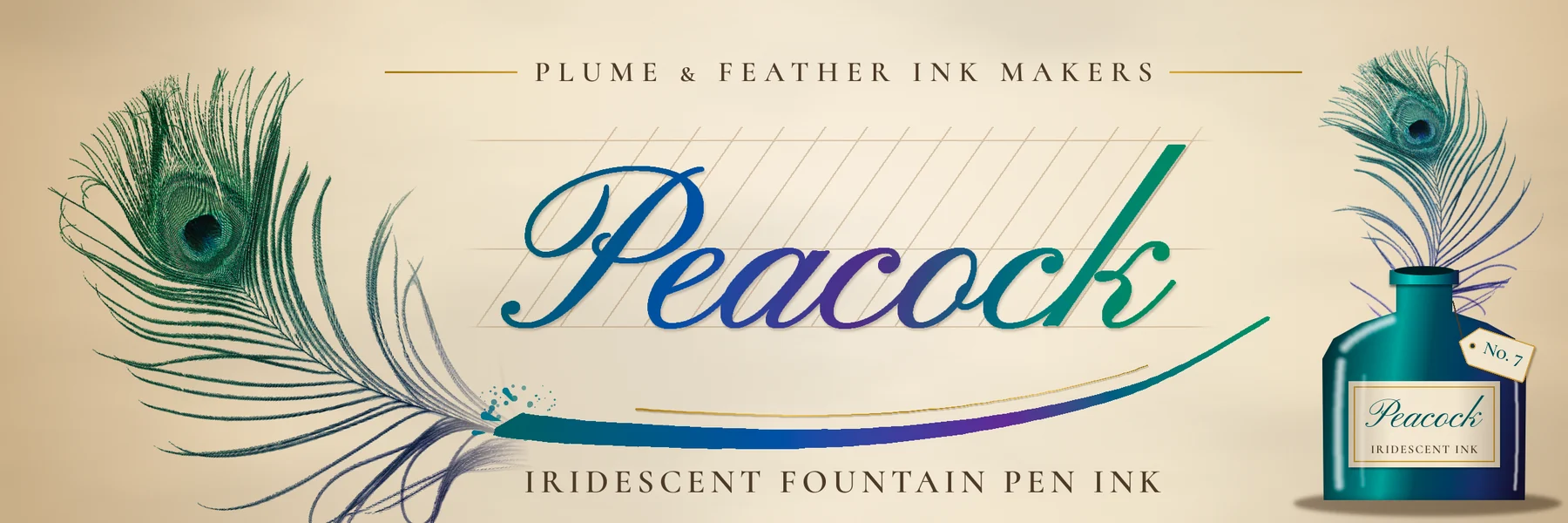
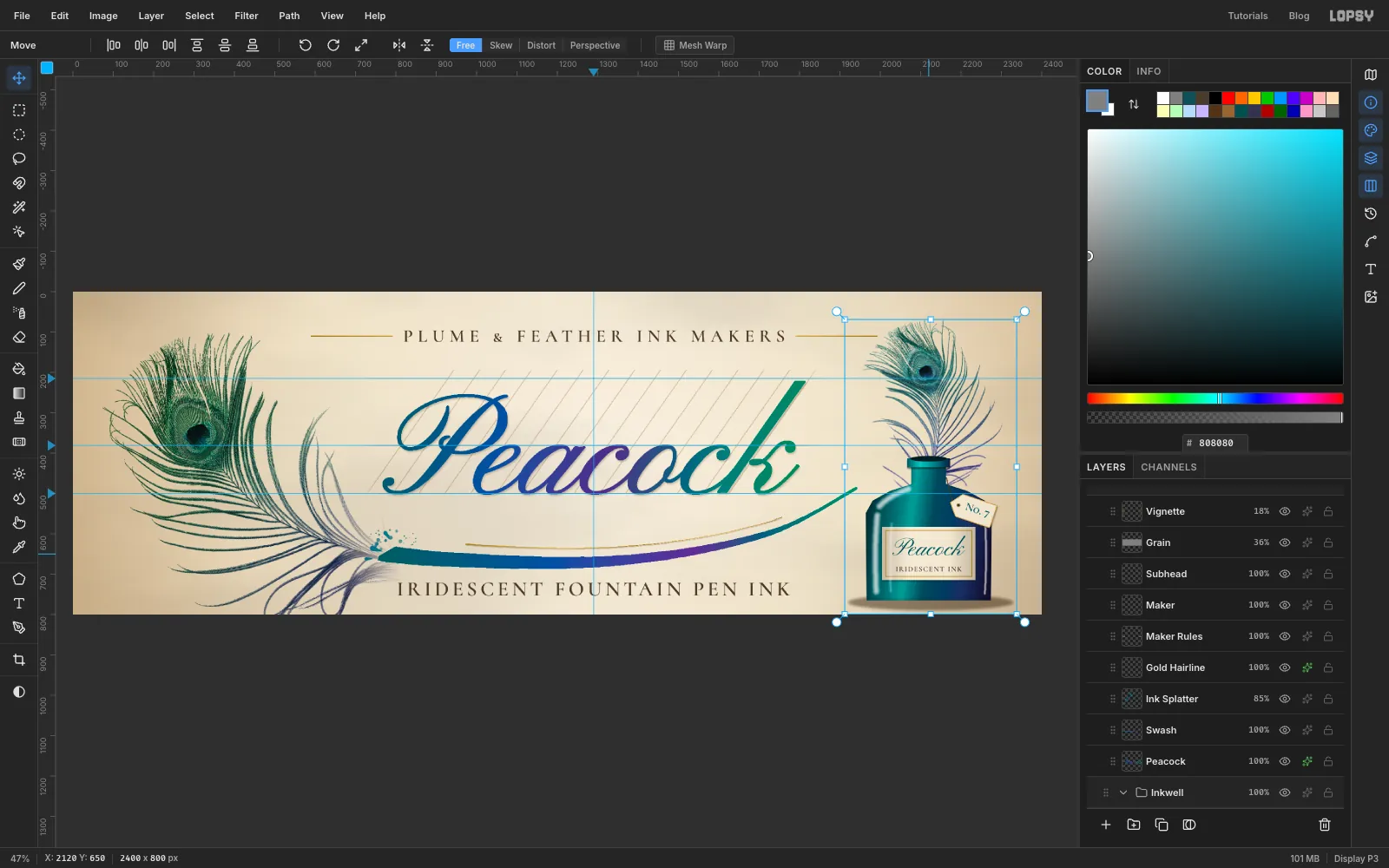
Copperplate is the pointed-pen script of 18th- and 19th-century engravers. It slants at about 55 degrees, swells on the downstrokes and thins to a hair on the upstrokes. Calligraphers still practise it on paper ruled with a cap line, a waistline, a baseline and rows of slant lines. In this tutorial you'll use all of that for an imaginary ink company. The result is a 3:1 billboard for Peacock, an iridescent fountain-pen ink.
The idea fits in one sentence: the feather is the pen. A real peacock feather lies on ivory paper, and its quill flows straight into a broad ink swash under the word. The ink colour shifts from teal to blue to violet to emerald, the way a peacock's feathers do. An inkwell on the right, with a second feather standing in it, says what's being sold.
The feather is a public-domain scan from Wikimedia Commons, Pavo cristatus feather-scan.jpg. Download it before you start (the 1280 px-wide preview is plenty).
Along the way you'll use:
- the Gradient tool with typed hex stops, Clouds and Add Noise for the paper
- ruler guides, Show Grid and the Pencil with Shift-click straight lines for the ruled sheet
- a layer mask filled through a feathered selection, and a second mask painted with a gradient
- a dropped photo cleaned up with Brightness/Contrast, the Magic Wand and the Multiply blend mode
- Move tool scaling and rotation, then undo and redo to check them
- Text in Pinyon Script and Cormorant SC, Rasterize Layer, Select → Grow and gradient-filled lettering
- the Brush with the Caligraphic Angle tip, a set angle and Taper
- copy and paste, Flip Horizontal, Hue/Saturation, the Lasso with Alt to subtract
- New Group, the Color, Screen, Overlay and Multiply blend modes, the Spray tool and layer effects
The palette:
-
Paper
-
ruling
-
Peacock ink
-
Feather sheen
-
Gold
-
gold line
-
Swash ink
-
Ink teal
-
sepia type
-
label cream
-
Glass
-
Shadow brown
-
vignette
-
grain grey
Positions are given in document pixels where things have to line up. Watch X and Y in the status bar as you move the pointer. Freehand strokes only need to be close.
Lopsy names each text layer after its text. I renamed my layers as I went (double-click a name), so the screenshots show names like Peacock, Subhead and Tag Text.
-
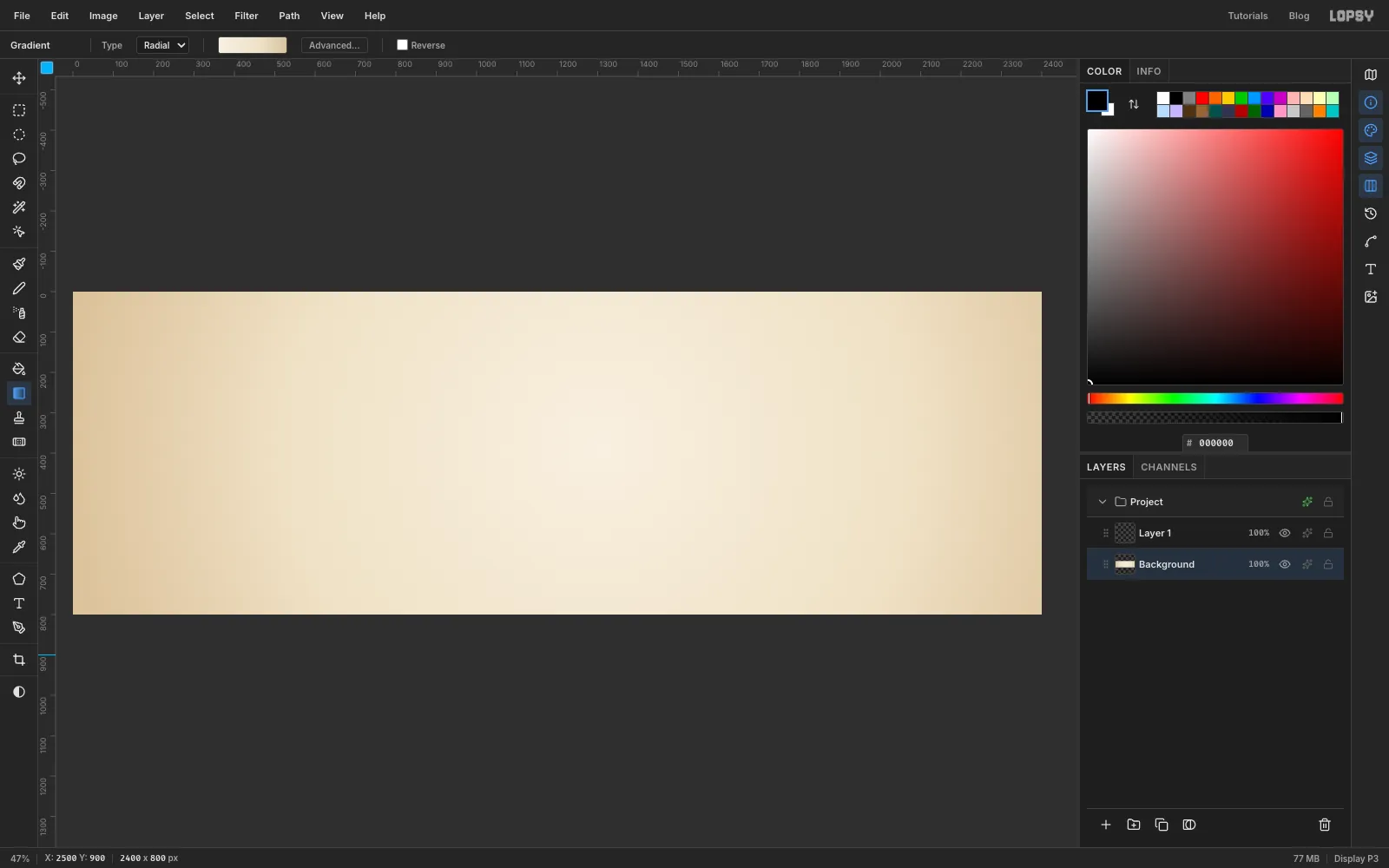
Start the billboard and lay the paper
- Choose File → New, set Width
2400and Height800, keep the White background and click Create. - Click Background in the Layers panel and pick the Gradient tool. Set Type to Radial.
- Click Advanced…. Set the left stop to and the right stop to in the Hex color field. Click the bar about 60% of the way along to add a stop and make it . Click Done.
- Drag from a little left of centre (about
x 1300, y 380) out past the bottom-right corner of the canvas.
- Choose File → New, set Width
-
Add a paper fibre
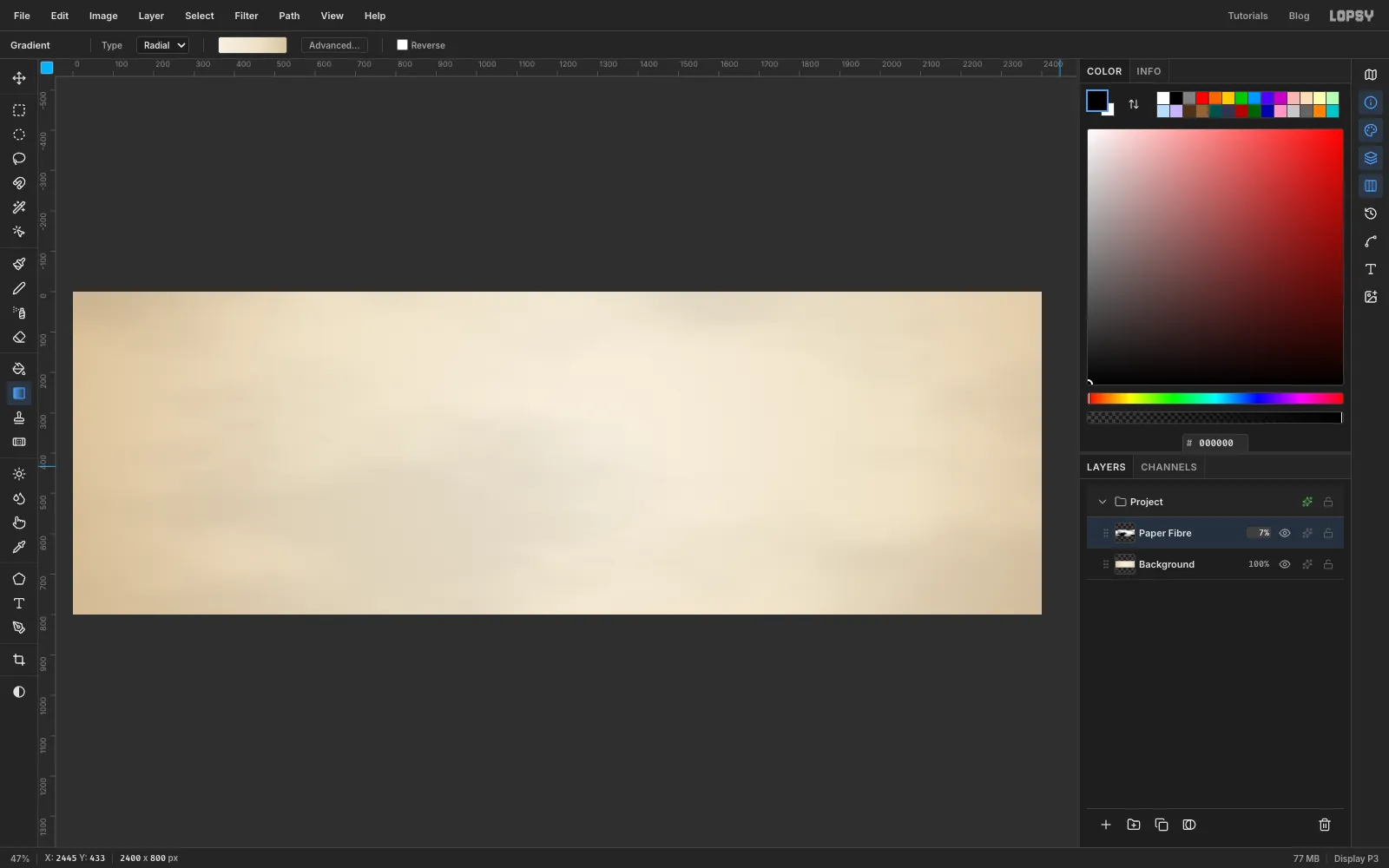
Real paper is never one flat colour. A faint, fine cloud pattern multiplied over the gradient gives it some body.
- Click Layer 1, the empty layer Lopsy adds above Background, and double-click its name to rename it
Paper Fibre. - Choose Filter → Clouds…, set Scale to
3and click Apply. - Open the layer's effects (the ✦ button on its row) and set the blend mode to Multiply. Close the drawer.
- Click the layer's opacity and drag it down to
7%.
- Click Layer 1, the empty layer Lopsy adds above Background, and double-click its name to rename it
-
Place the guides
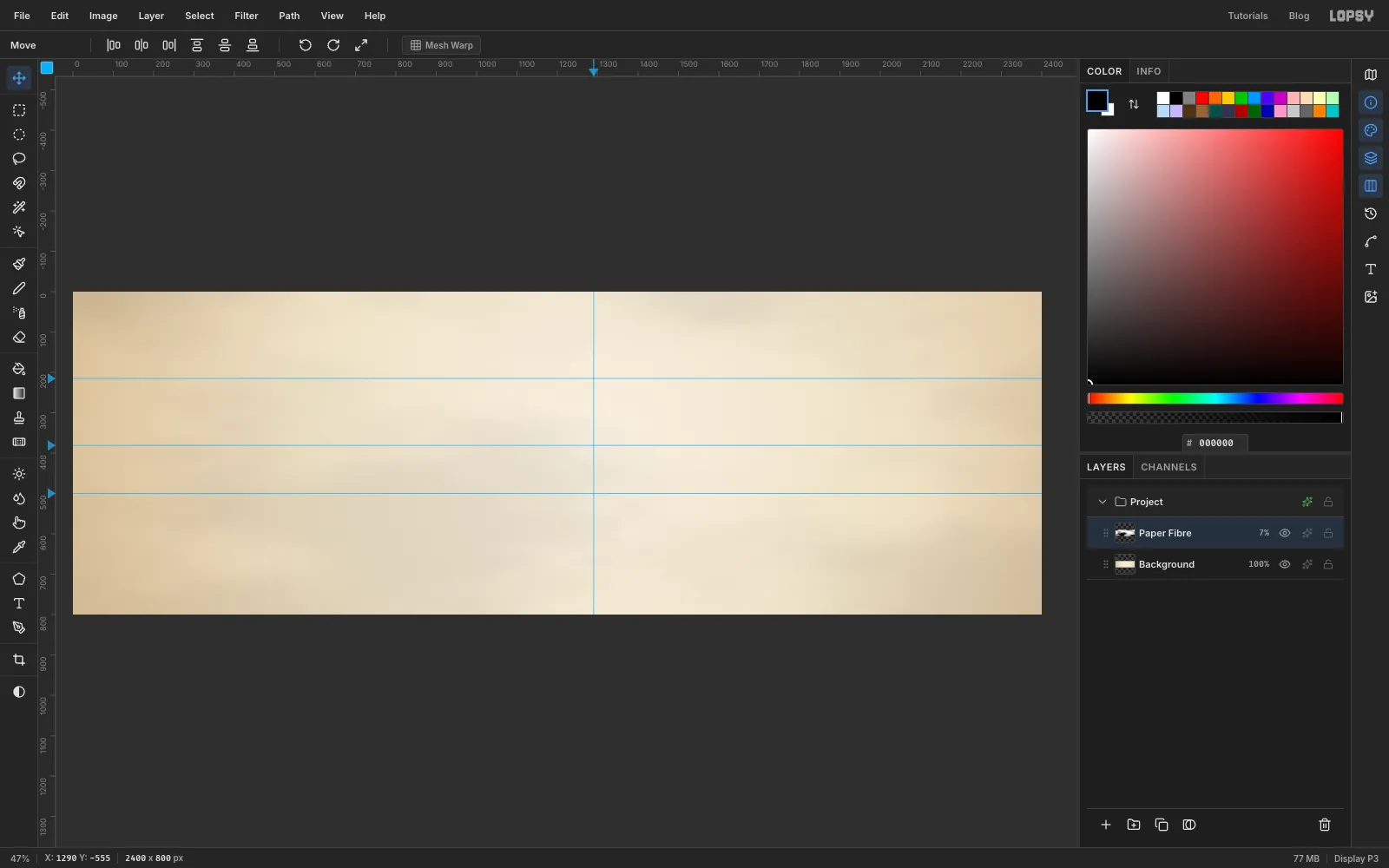
Copperplate is written between ruled lines. These guides mark where the headline will sit.
- Click the left ruler at
y 215(the cap line),y 381(the waistline, where lowercase letters stop) andy 500(the baseline). - Click the top ruler at
x 1290. That's the centre of the lettering block, a little left of the canvas centre to leave room for the inkwell.
Zoom in if a click doesn't land exactly where you want. Clicking a guide on the ruler again removes it.
- Click the left ruler at
-
Rule the lines with the Pencil
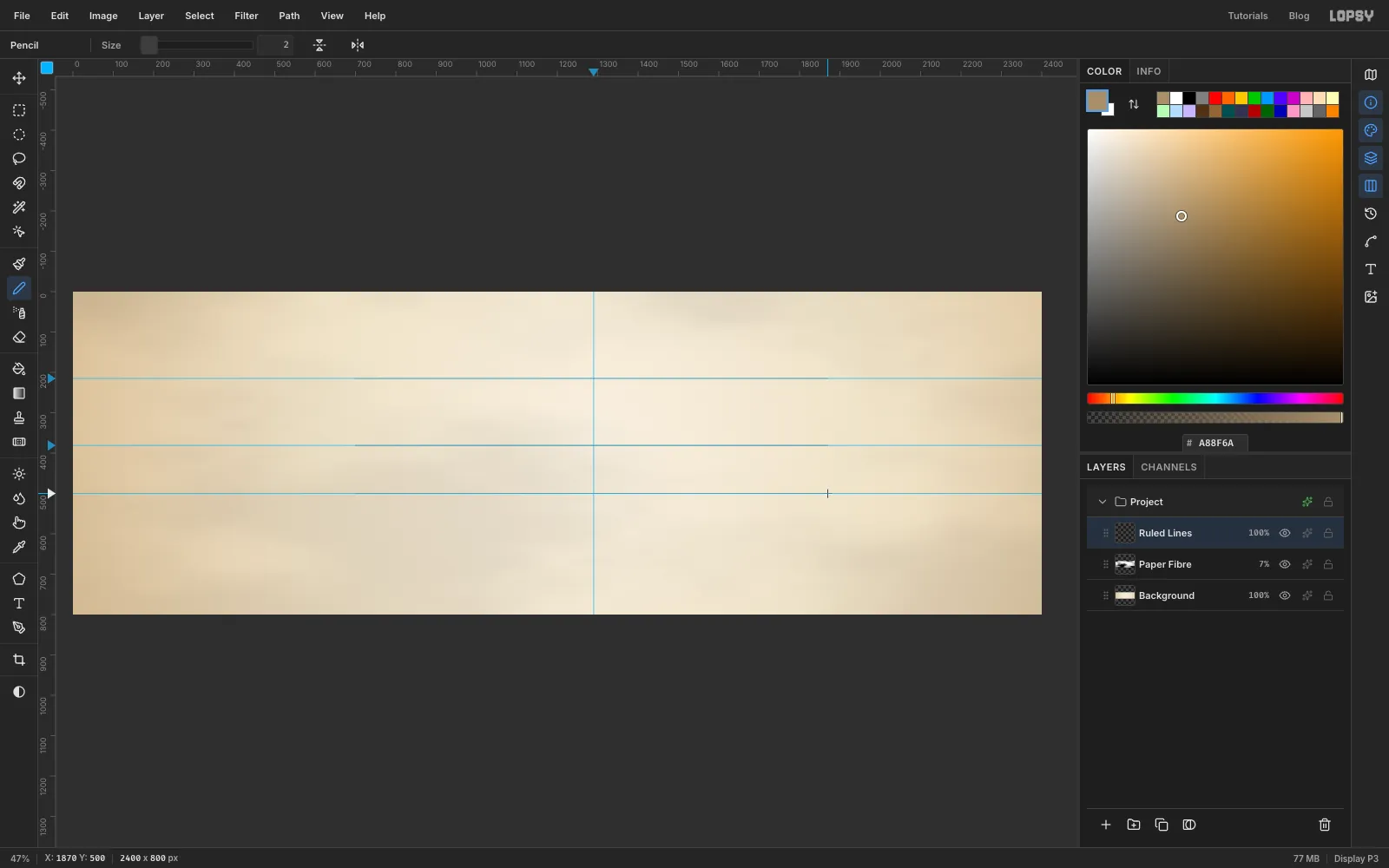
- Click Add Layer and name the new layer
Ruled Lines. - Pick the Pencil, set Size to
2and set the foreground colour to . - For each guide, click at
x 700on it, then hold Shift and click atx 1870. Shift-click draws a straight line from the last point.
The lines sit right on top of the guides, so they're hard to see until you hide the guides at the end.
- Click Add Layer and name the new layer
-
Add the 55° slant lines
Copperplate leans at about 55 degrees, so practice sheets carry rows of slant lines at that angle.
- Choose View → Show Grid. It's only there to help your eye keep the lines evenly spaced.
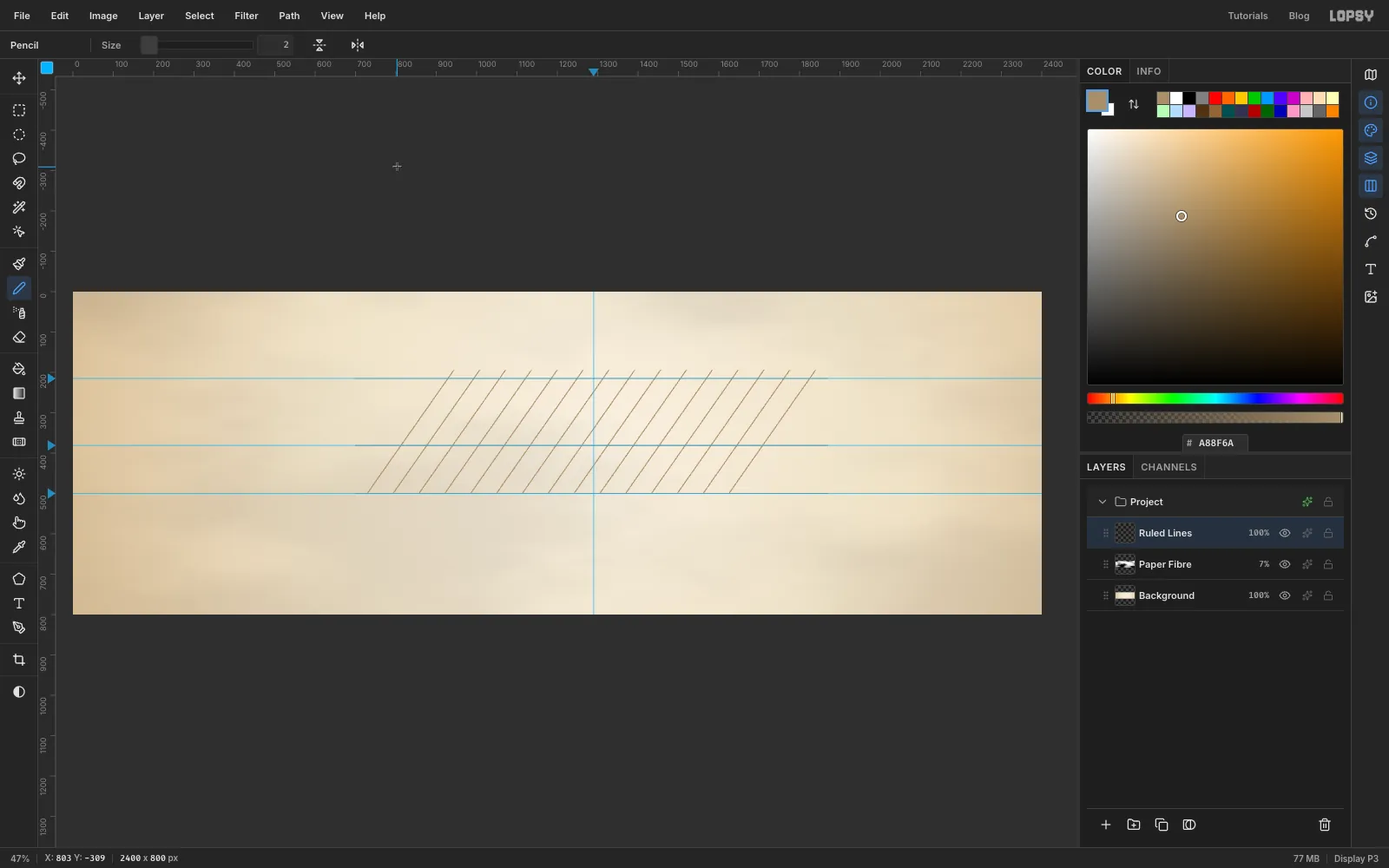
- Still with the Pencil, click on the baseline at
x 730, then Shift-click atx 944, y 195. That point is 305 px up and about 214 px across, which is 55°. - Repeat every 64 px along the baseline (
x 794,858,922and so on), ending each line 214 px to the right and 20 px above the cap line. That's 15 lines in all; the last one starts atx 1626. - Choose View → Show Grid again to hide it.
The slant lines stop at the baseline. Below it, the swash will need clear space.
-
Fade the ends of the ruling
Hard-ended rules look like a box pasted behind the word. A layer mask lets them fade out at each end.
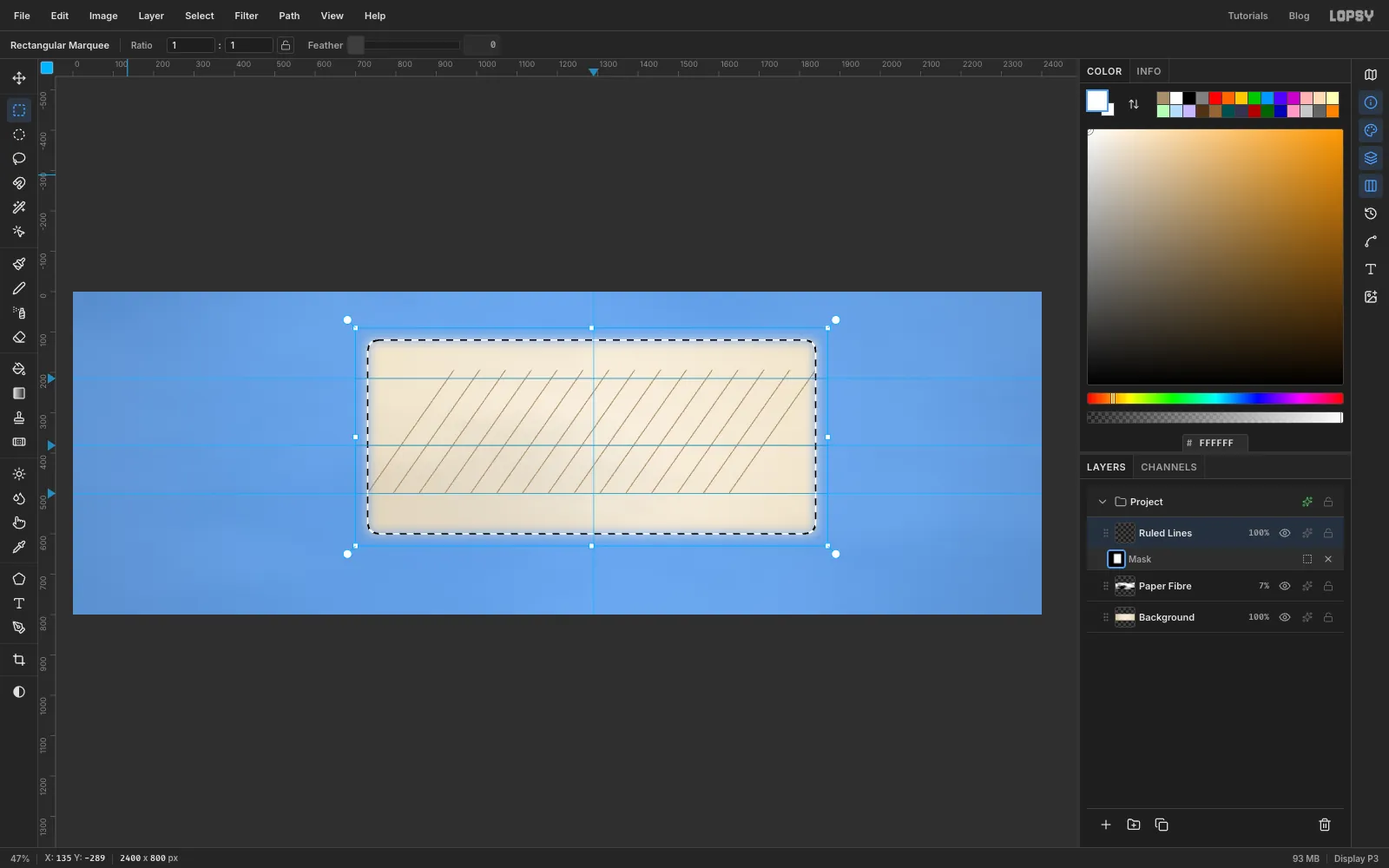
- With Ruled Lines selected, click Add Mask at the bottom of the Layers panel. A Mask row appears under the layer; click its thumbnail to edit the mask.
- Press Cmd+A, set the foreground to and choose Edit → Fill. The whole mask is black, so the lines disappear and the canvas turns blue.
- With the Rectangular Marquee, drag from
x 730, y 120tox 1840, y 600. - Choose Select → Feather…, enter
30and click Apply. - Set the foreground to and choose Edit → Fill. Press Cmd+D.
- Click the Ruled Lines layer's name to stop editing the mask.
-
Soften the ruling
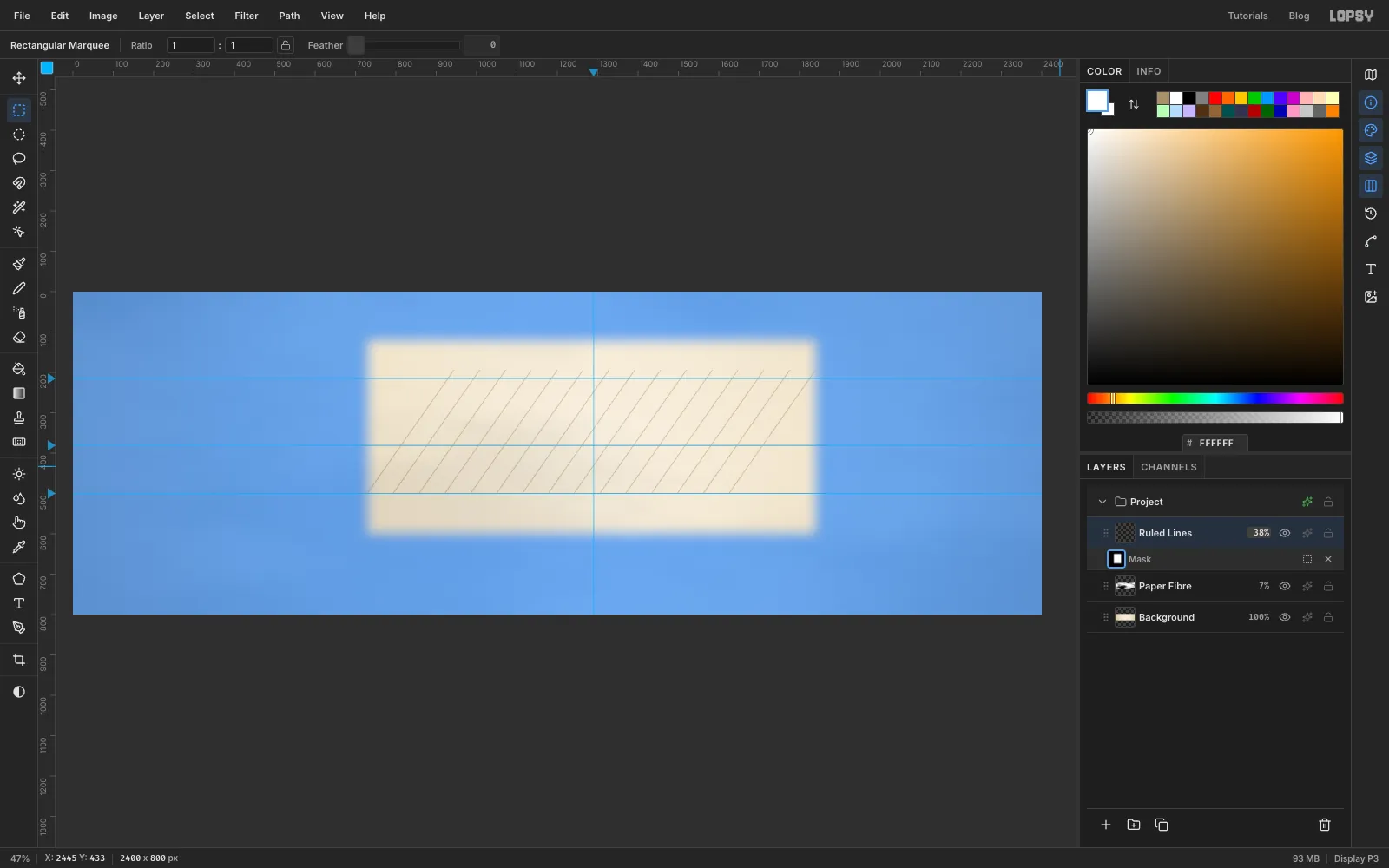
- Open the effects for Ruled Lines and set the blend mode to Multiply.
- Drag the layer's opacity down to
38%.
The ruling should be just visible: enough to say "calligrapher's sheet" without competing with the lettering.
-
Drop in the feather scan
- Make sure Ruled Lines is selected, so the photo lands above it.
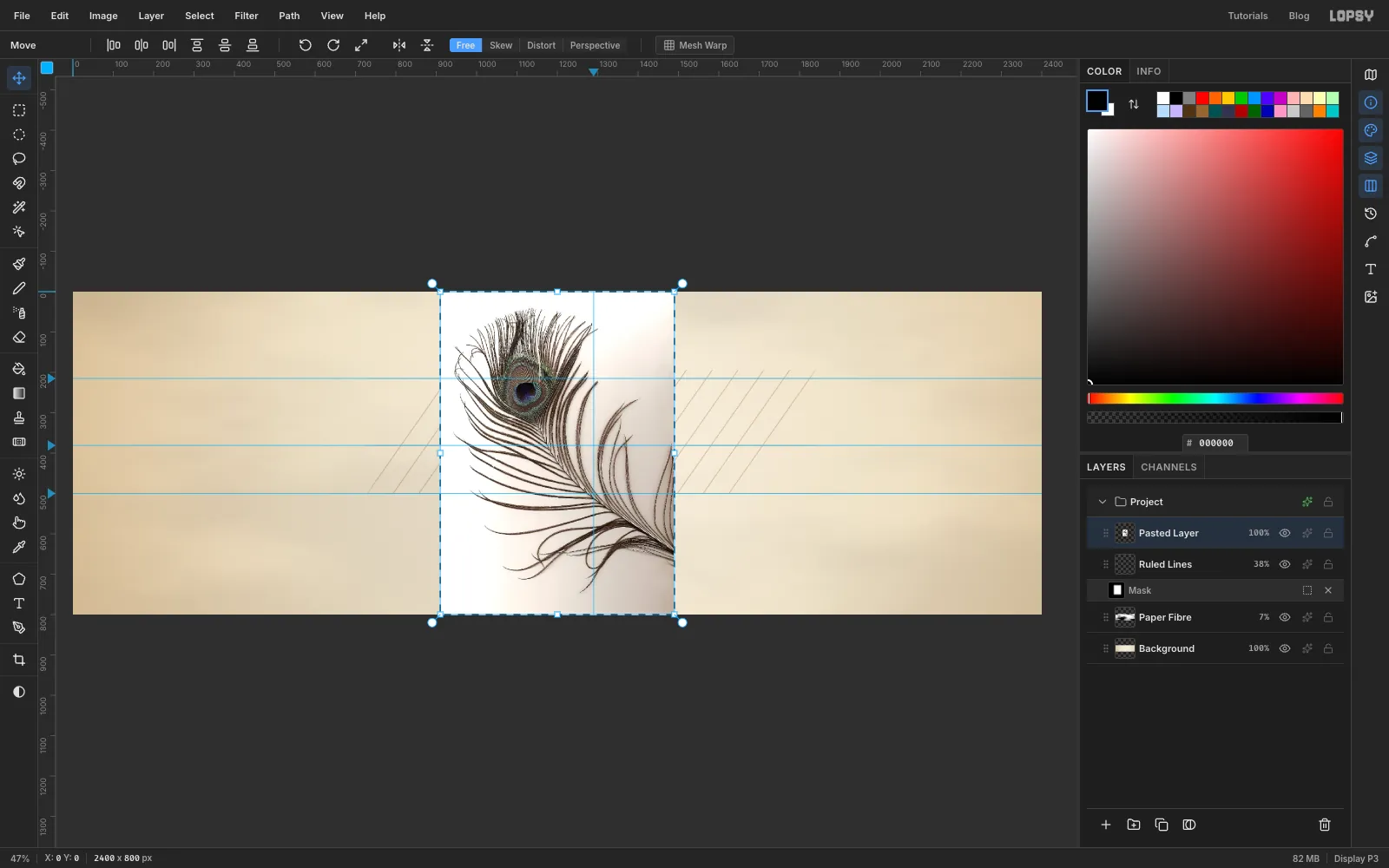
- Drag the feather image from your desktop or Finder onto the canvas. Lopsy adds it as a new layer, shrinks it to fit the height and selects it.
- Press Cmd+D and rename the layer (Lopsy calls it Pasted Layer) to
Feather.
-
Whiten the scanner bed
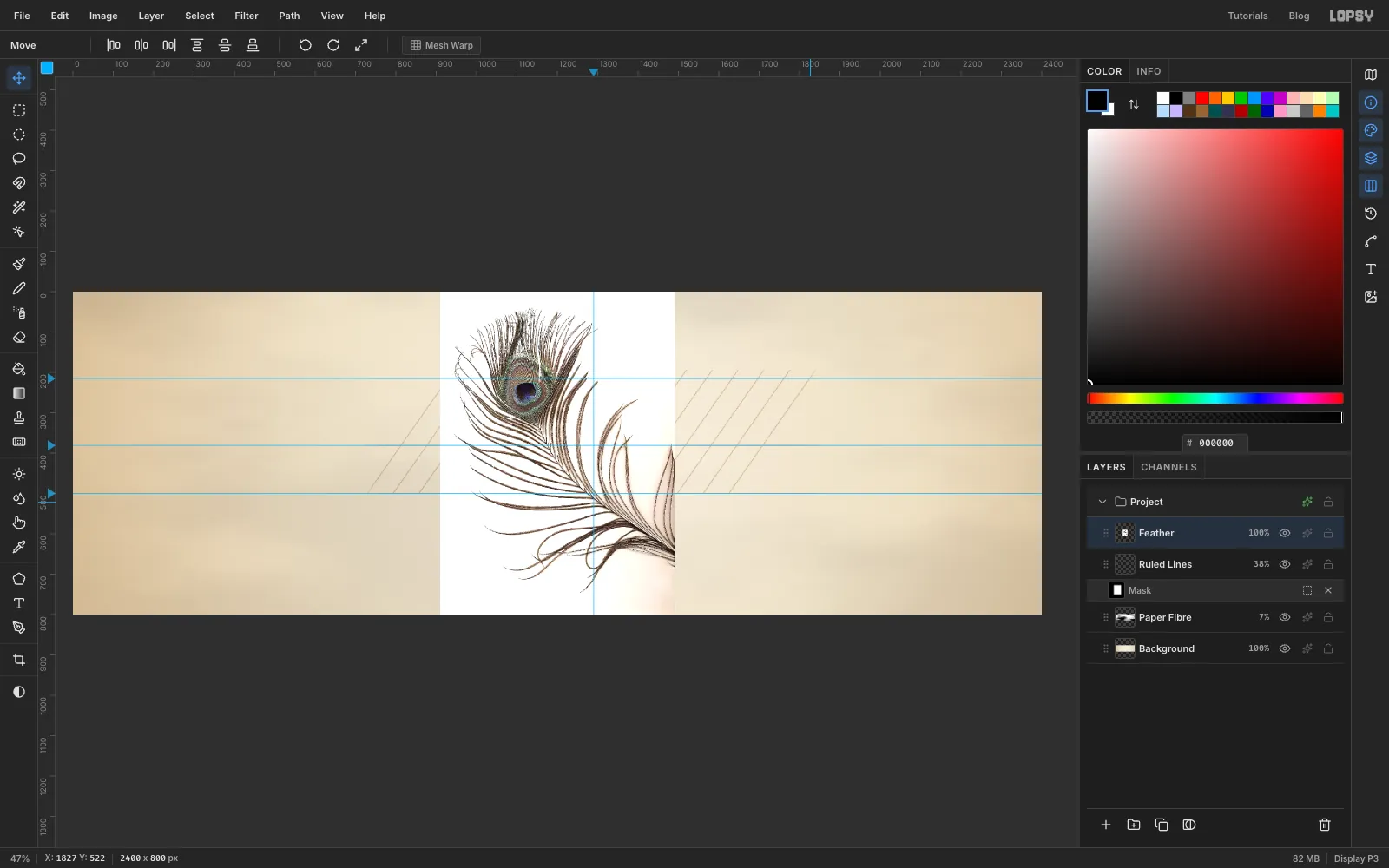
The scan's background isn't pure white: it drifts to pinkish grey in the bottom-right corner. Brightening it first lets one Magic Wand click catch all of it.
- Choose Filter → Brightness/Contrast….
- Set Brightness to
15and Contrast to25, then click Apply.
-
Select the background with the Magic Wand
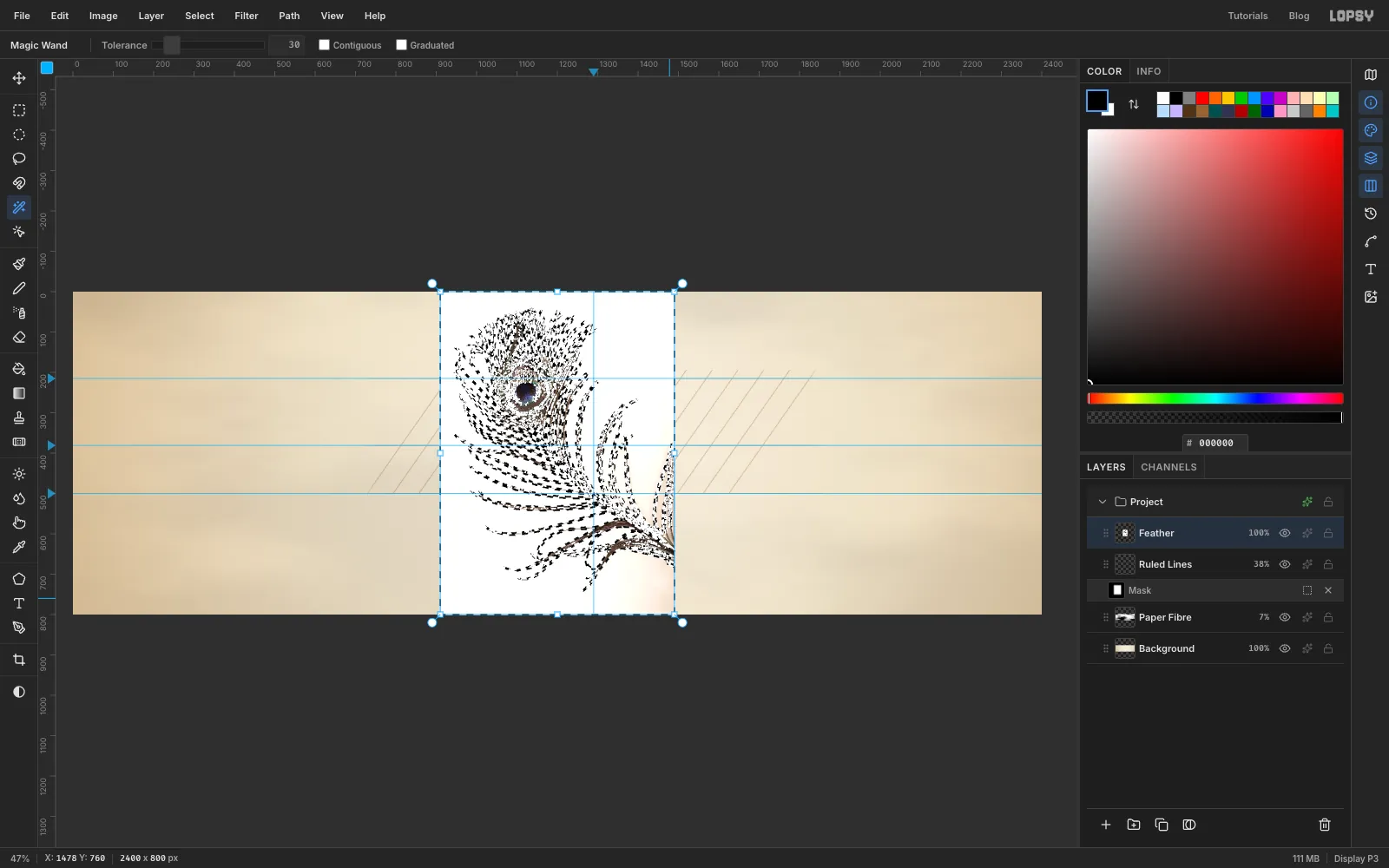
- Pick the Magic Wand. Set Tolerance to
30and untick Contiguous, so it also catches the pockets of background between the barbs. - Click the white background near the top-right corner of the photo.
- Hold Shift and click the greyer background in the bottom-right corner to add it to the selection.
- Pick the Magic Wand. Set Tolerance to
-
Cut out and colour the feather
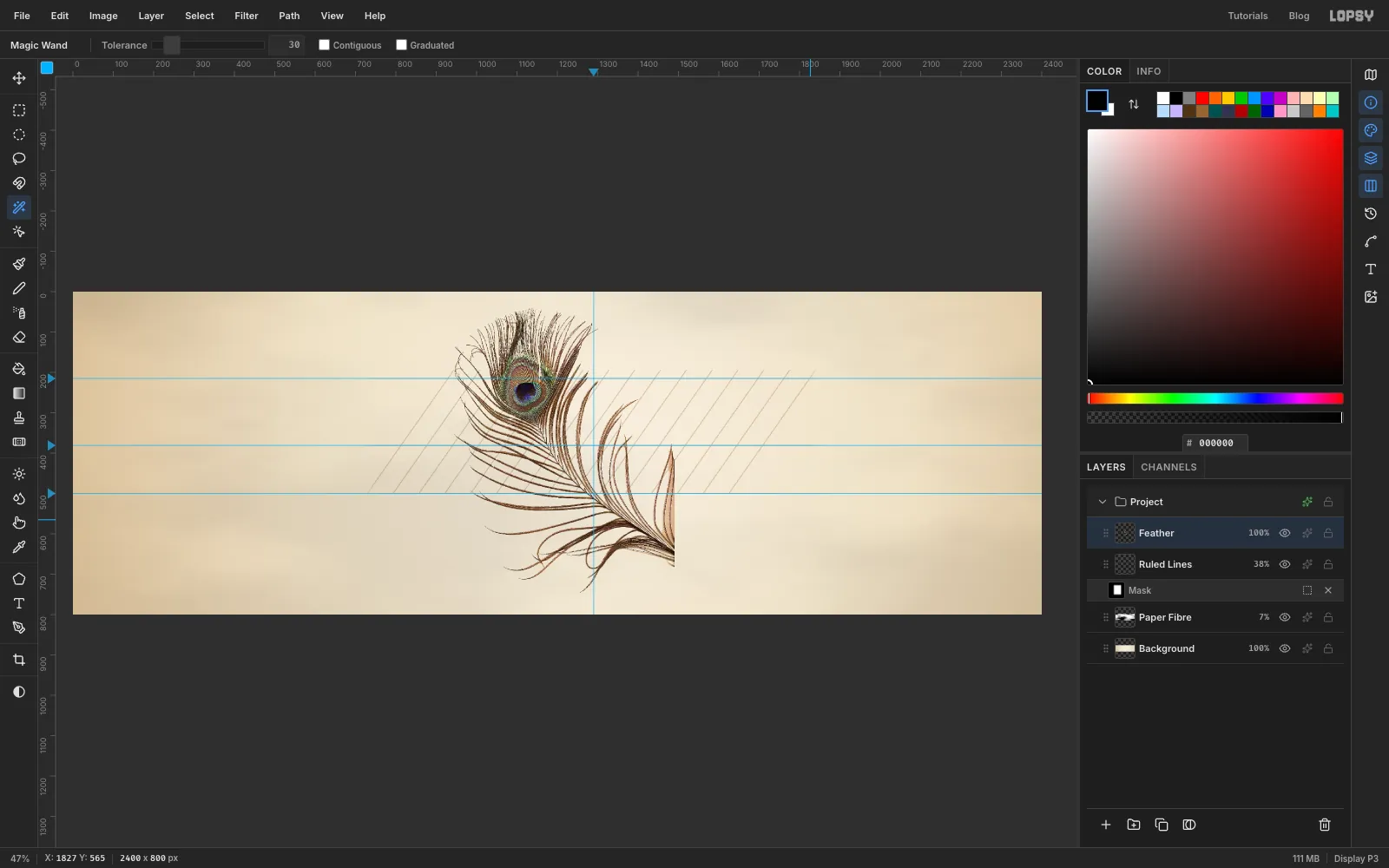
- Press Delete to clear the background, then Cmd+D.
- Set the Feather layer's blend mode to Multiply. Any pale fringe left around the barbs now disappears into the paper instead of showing as a light halo.
- Choose Filter → Hue/Saturation…, set Saturation to
45and click Apply.
-
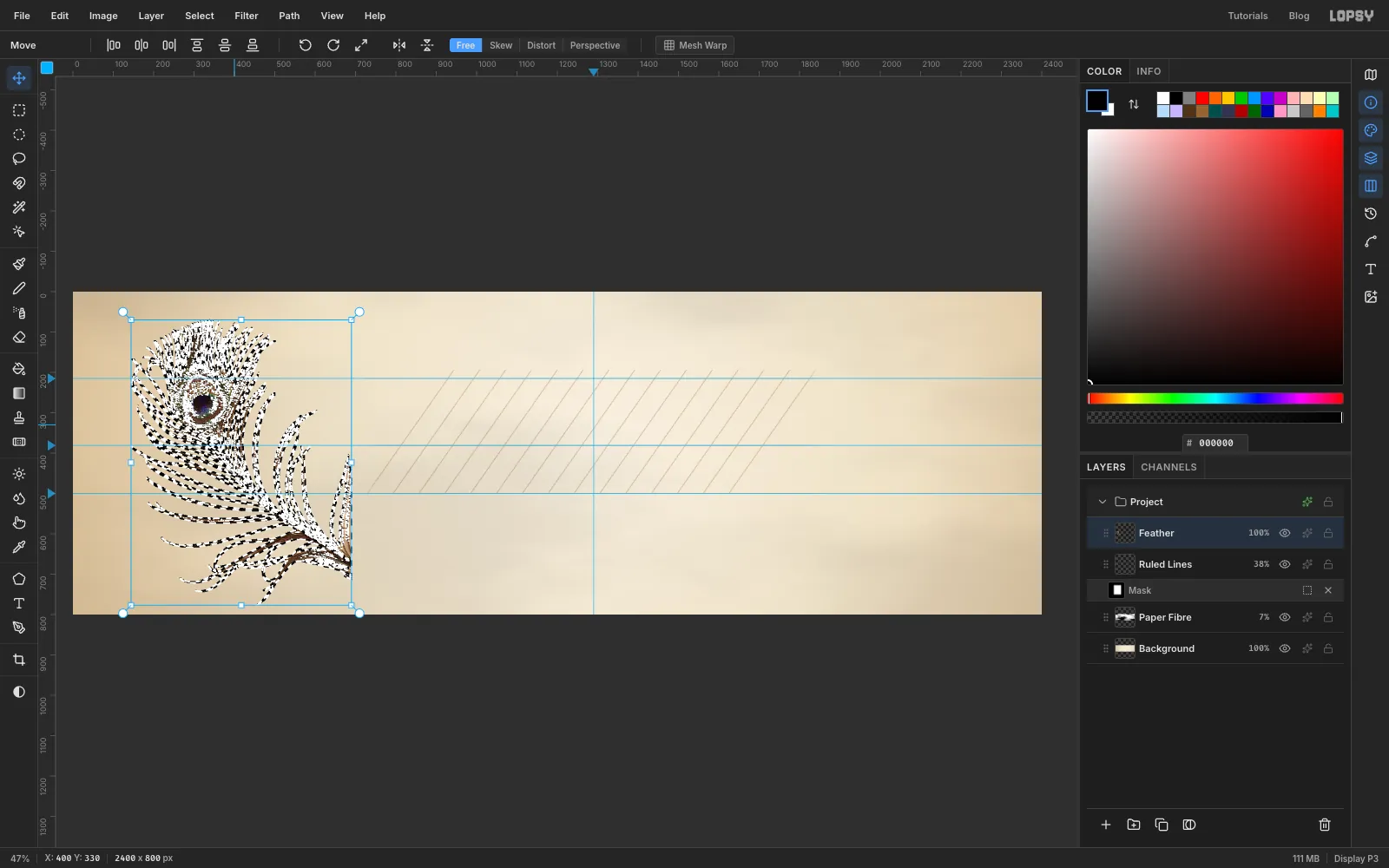
Move the feather to the left
- Hold Cmd and click the Feather thumbnail to select the feather's pixels.
- With the Move tool, drag the feather about 800 px to the left and 30 px down, so its left edge sits near
x 145.
-
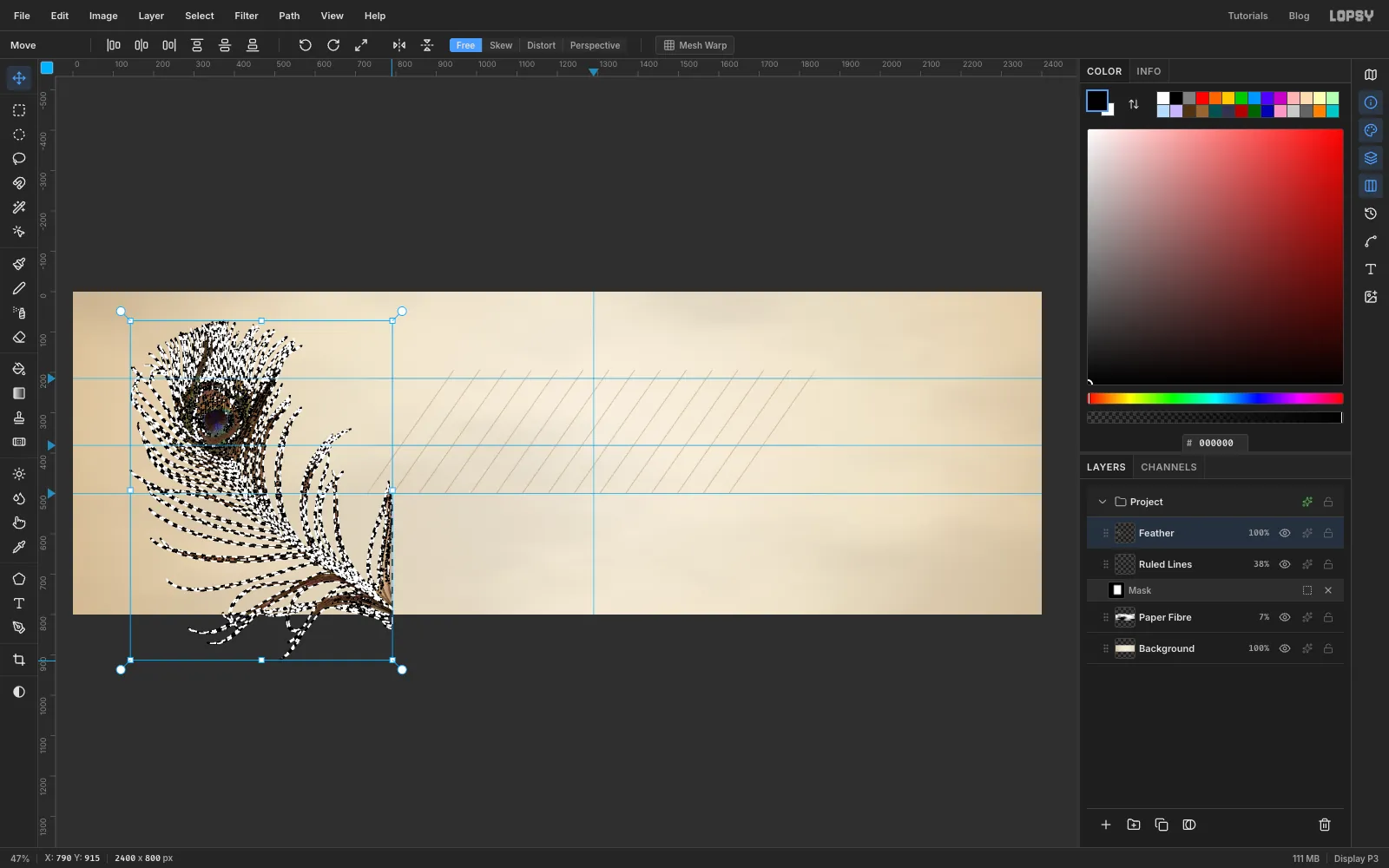
Scale it up
Hold Cmd and drag the bottom-right corner handle out, about 100 px right and 138 px down. Cmd keeps the proportions. The feather grows by about a fifth, and its lower barbs now run off the bottom of the canvas.
-
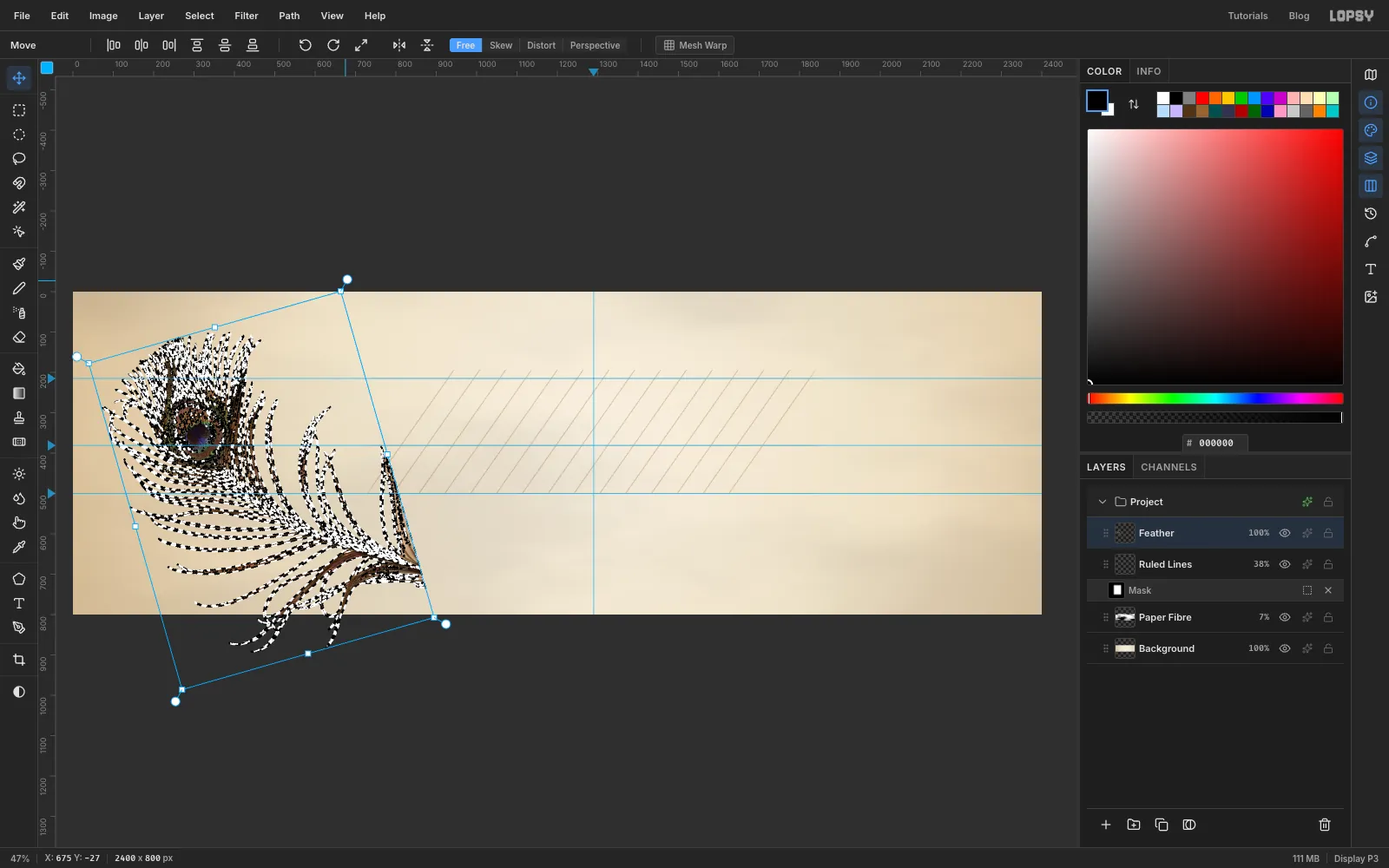
Tilt the feather
The quill should run toward the lettering, so tip the feather back.
- Find the small round rotate handle tethered just outside the top-right corner. The pointer becomes a crosshair over it.
- Drag it counter-clockwise by eye, about 15°. The eye of the feather drops a little and the quill points toward the right.
- Press Cmd+D to apply the rotation and drop the selection.
-
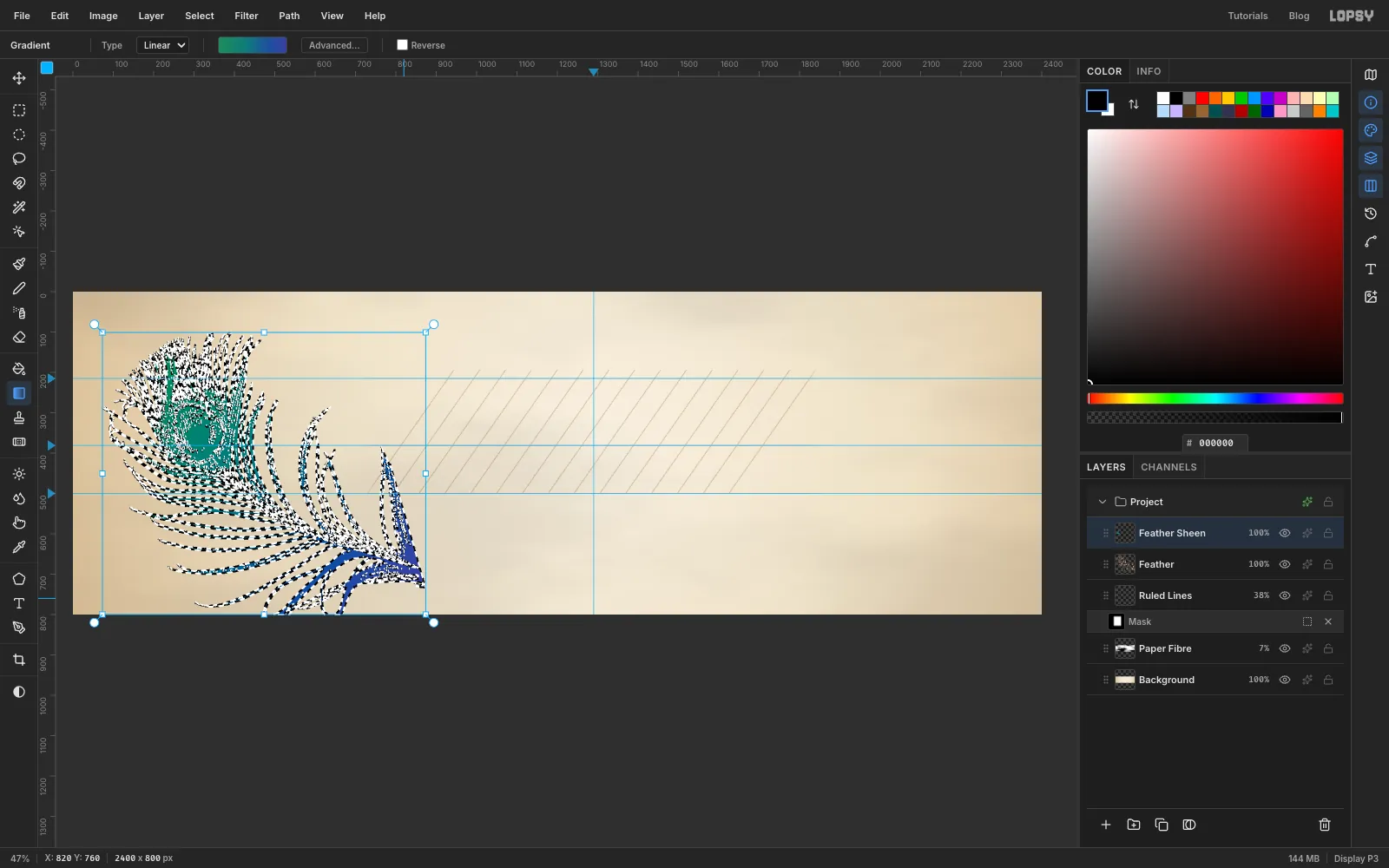
Paint an iridescent sheen
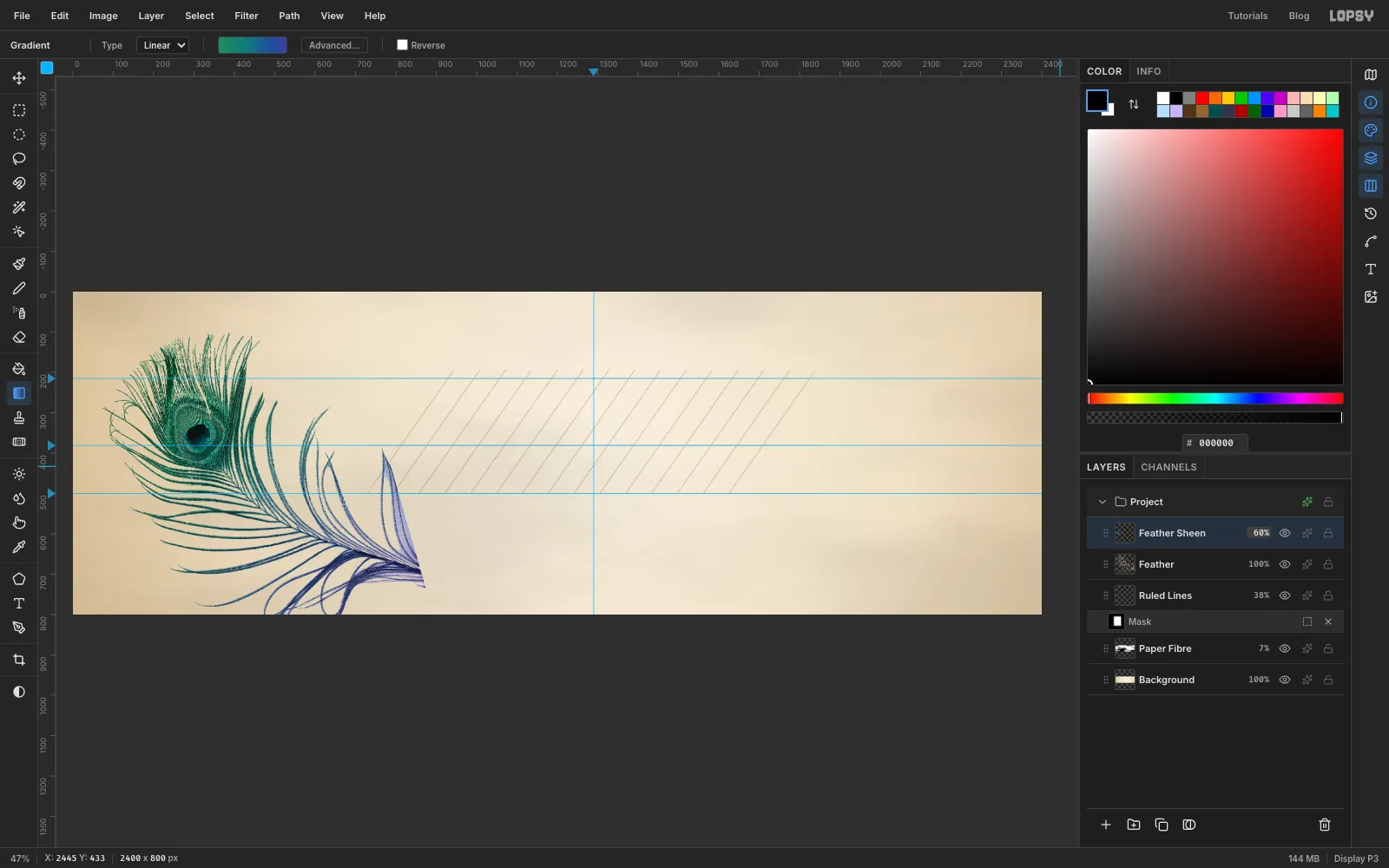
The scan is bronze and brown. A gradient in the feather's shape, set to Color mode, turns it into peacock blues and greens.
- Cmd-click the Feather thumbnail to select its pixels.
- Click Add Layer and name it
Feather Sheen. - Pick the Gradient tool and set Type to Linear. In Advanced… set the end stops to (left) and (right). Click the bar to add a stop and drag it until Position reads 40%, and make it ; add another at 75% in . Every gradient in this tutorial is set up the same way.
- Drag from the top-left of the feather (
x 150, y 150) to its lower-right end (x 820, y 760). Press Cmd+D.
-
Set the sheen to Color mode
- Set the Feather Sheen blend mode to Color and its opacity to
60%. The barbs keep their light and shade but take the gradient's hues. - Choose Layer → Merge Down to bake the sheen into the feather.
- Set the Feather Sheen blend mode to Color and its opacity to
-
Fade the scan's cut edge
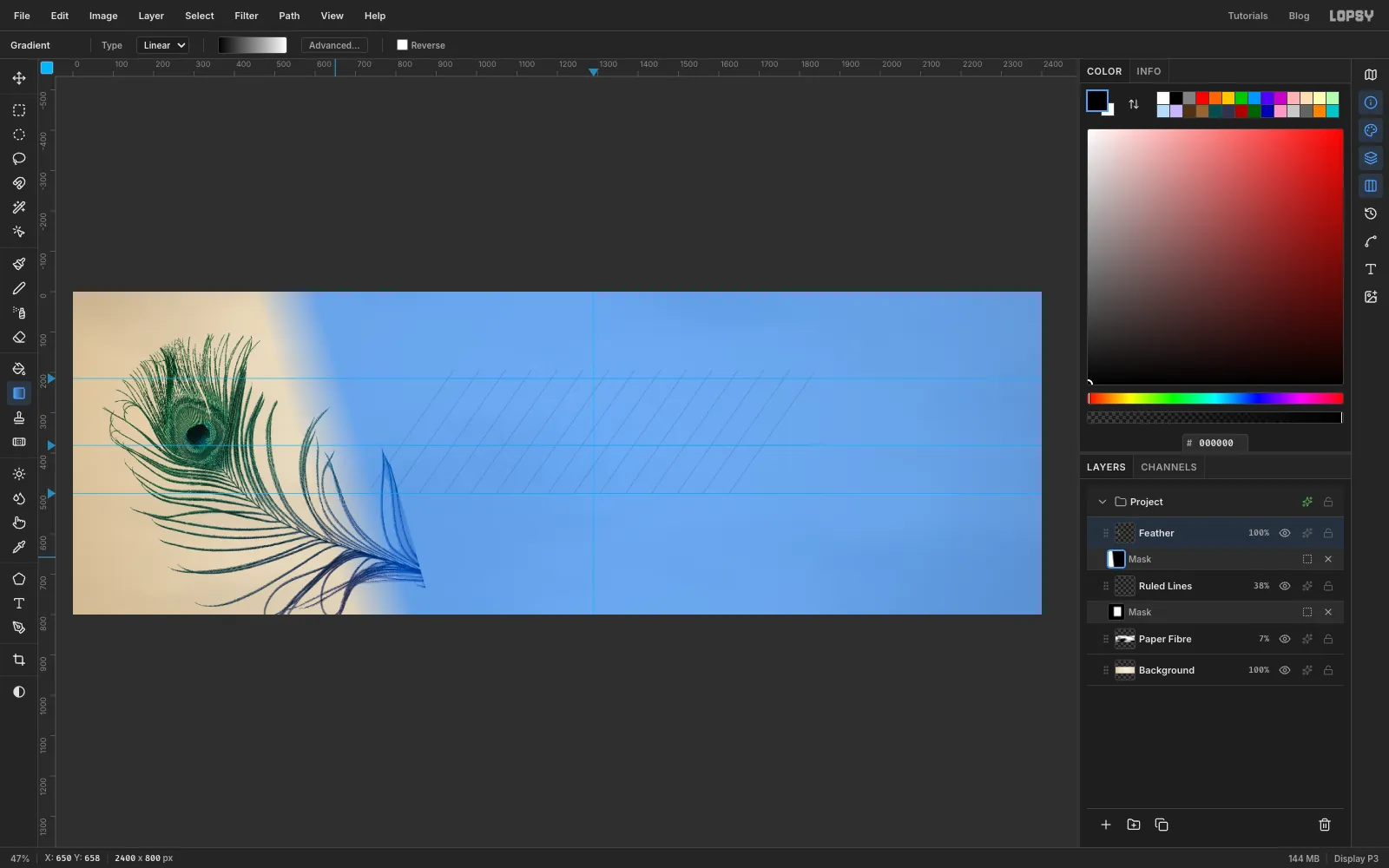
The scan cuts off some barbs in a straight line along its right edge. A gradient on a layer mask fades them out.
- With Feather selected, click Add Mask, then click the thumbnail in its Mask row to edit the mask.
- In the Gradient tool's Advanced… editor, set the left stop to and the right stop to , and remove any middle stops (select one and click Delete).
- Drag from the cut edge (about
x 790, y 615) inward tox 650, y 658, at right angles to the edge. Everything beyond the start of the drag is hidden, and the barbs fade in over about 145 px. - Click the Feather layer's name to stop editing the mask.
-
Type the headline
- With Feather selected, click New Group in the Layers panel and name the group
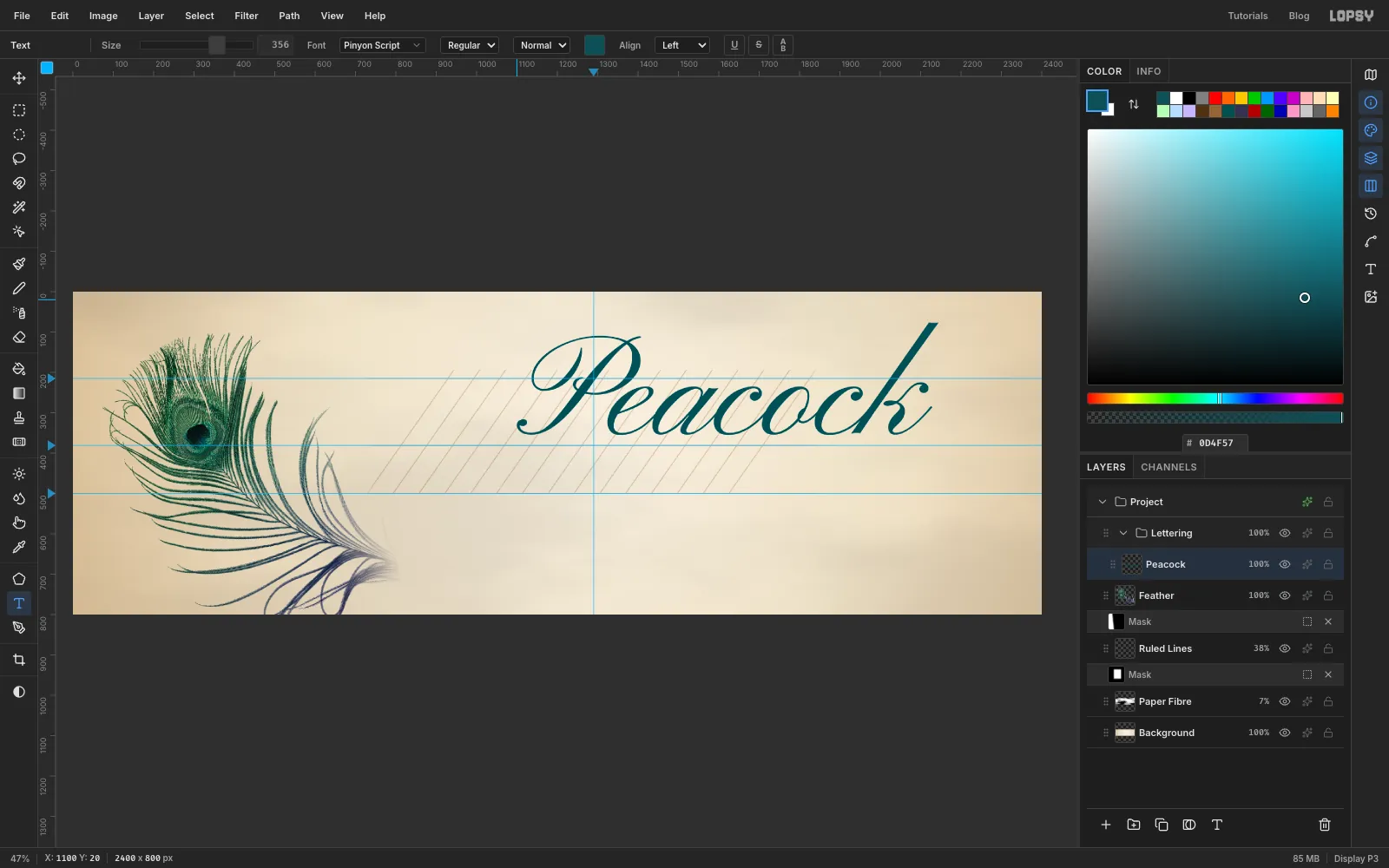
Lettering. Layers you add while it's selected go inside it. - Pick the Text tool. Set Size to
356, choose Pinyon Script in the font menu, and set the colour to . - Click an empty area near the top of the canvas, type
Peacockand press Tab to commit.
- With Feather selected, click New Group in the Layers panel and name the group
-
Seat it on the baseline
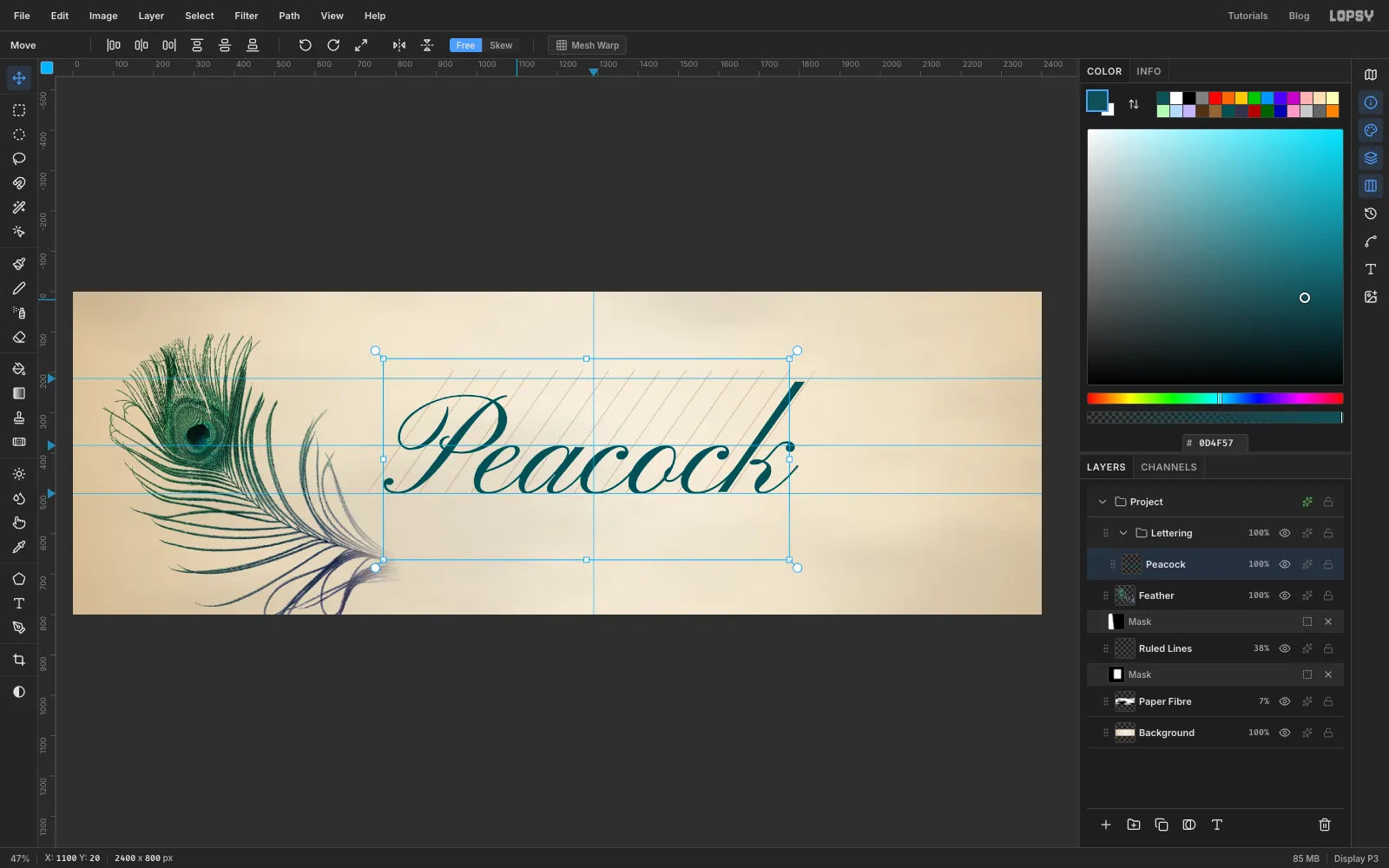
With the Move tool, nudge the word with the arrow keys (Shift+arrow moves 10 px) until:
- the bottoms of the lowercase letters sit exactly on the baseline guide at
y 500; - the word is centred on the vertical guide at
x 1290(it spans aboutx 769tox 1812).
At Size 356 the tops of the a, c and o then land on the waistline, and the P and k come up just short of the cap line.
Pinyon Script has no descenders in this word, so the baseline is the bottom of the ink.
- the bottoms of the lowercase letters sit exactly on the baseline guide at
-
Ink the headline
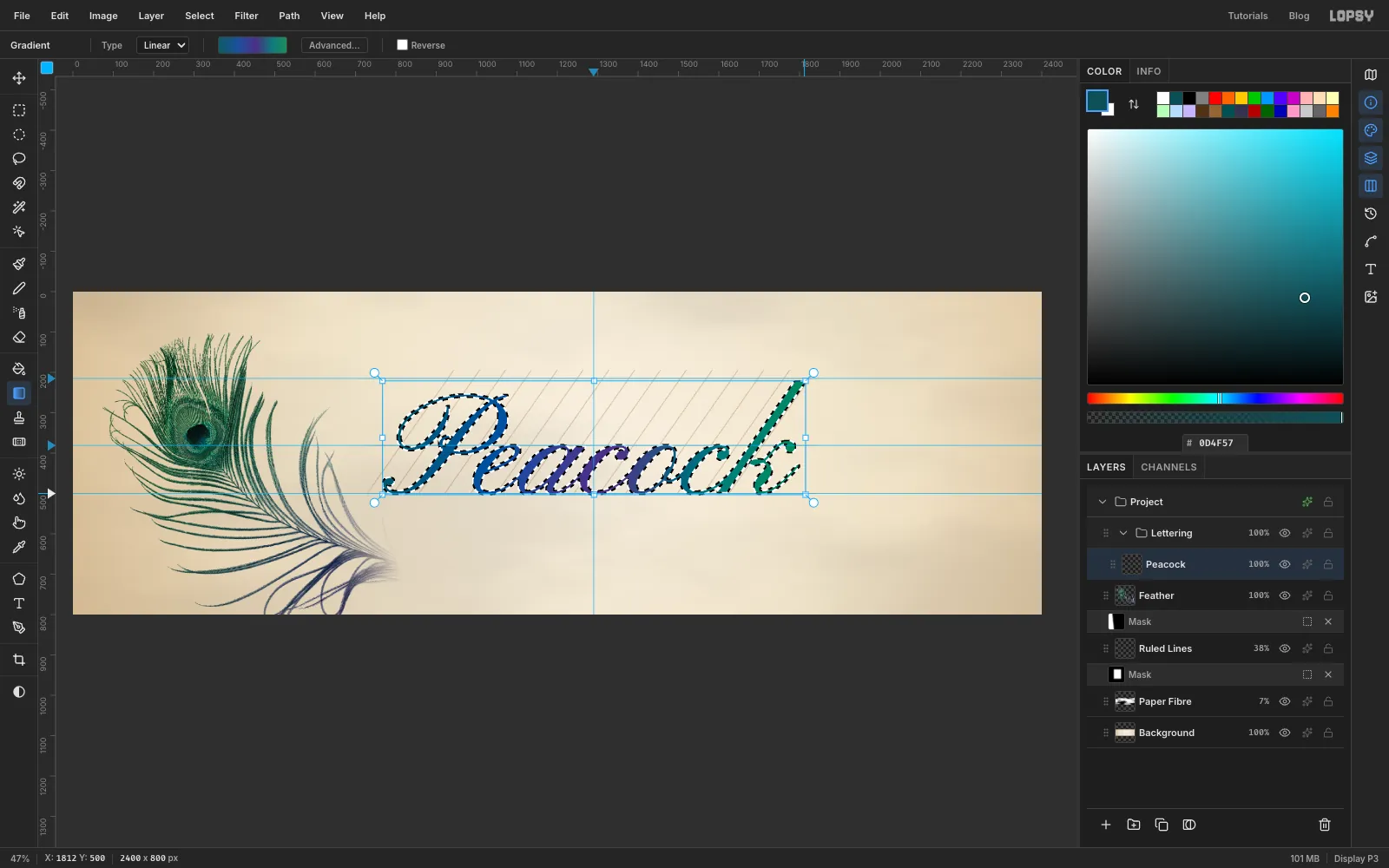
Copperplate hairlines are lovely up close but vanish at billboard distance, so thicken them slightly before filling the word with the ink colours.
- Click Rasterize Layer (the T button in the Layers panel footer) to turn the text into pixels.
- Cmd-click the Peacock thumbnail, then choose Select → Grow…, enter
2and click Apply. - With the Gradient tool (Linear), set five stops: , at 30%, at 55%, at 80% and .
- Drag from the top-left of the word (
x 769, y 223) to its bottom-right (x 1812, y 500). The grown selection fills too, so each stroke gains 2 px all round. Press Cmd+D. - Add a Drop Shadow: Offset X
2, Offset Y4, Blur5, Opacity22, colour .
-
Load the calligraphic brush
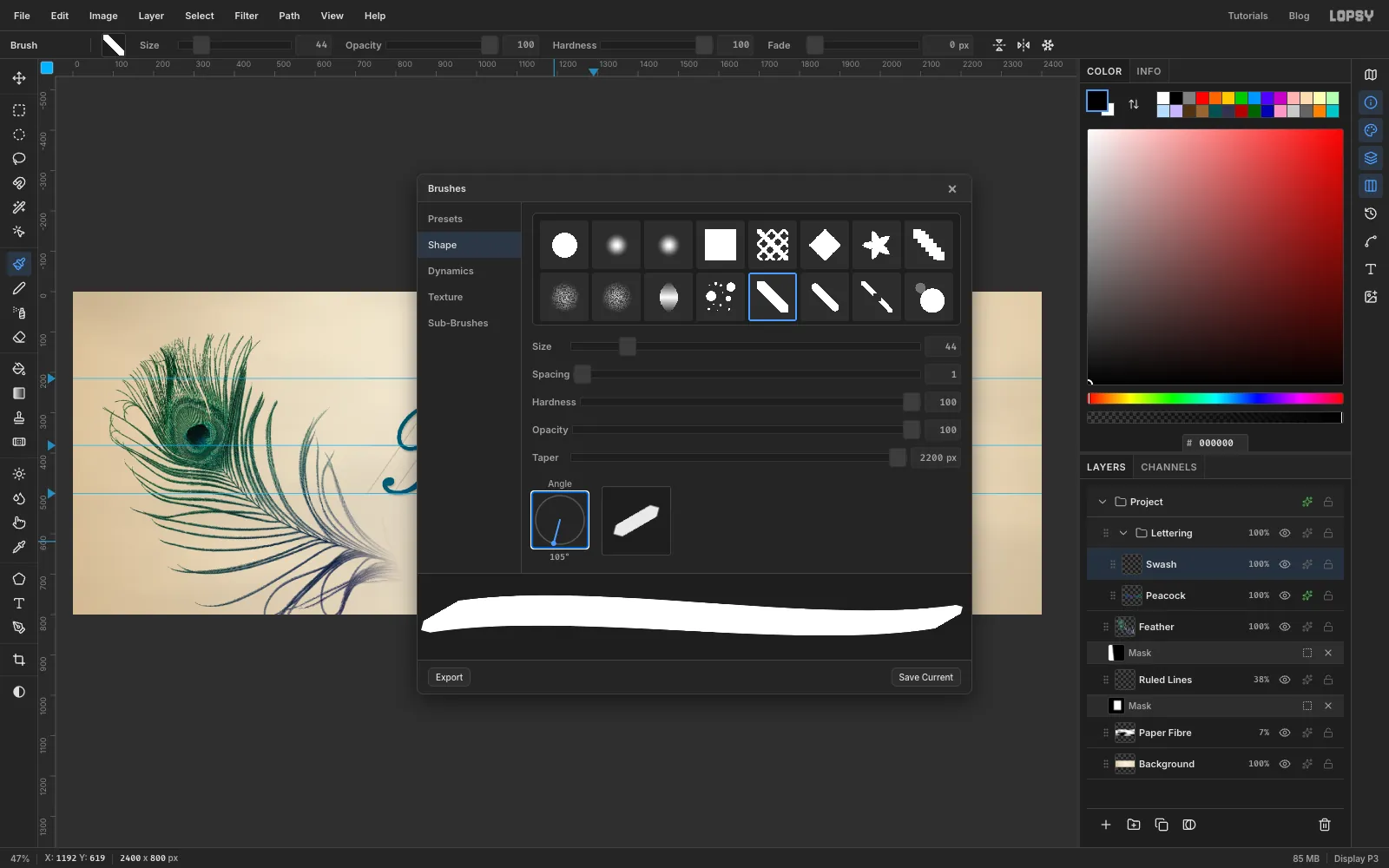
A broad-edged pen makes thick strokes when it moves across its edge and hairlines when it moves along it. The Caligraphic Angle tip behaves the same way.
- Click Add Layer (with Peacock selected) and name it
Swash. - Pick the Brush and click the brush-tip thumbnail at the left of the options bar to open Brushes.
- On the Presets tab, click Caligraphic Angle.
- On the Shape tab, set Size to
44, and type2200in the Taper box (the slider only drags to 1000). Click the Angle dial down and slightly left of its centre so it reads105°. The preview shows the nib as a short line rising to the right at about 30°. - Close the window and set the foreground to .
Taper shrinks the brush over the first 2200 px of a stroke, so a stroke starts at full width and gets steadily thinner. Strictly, copperplate is written with a pointed pen; a broad-edged swash is a deliberate choice here, because it reads from much further away.
- Click Add Layer (with Peacock selected) and name it
-
Pull the swash out of the quill
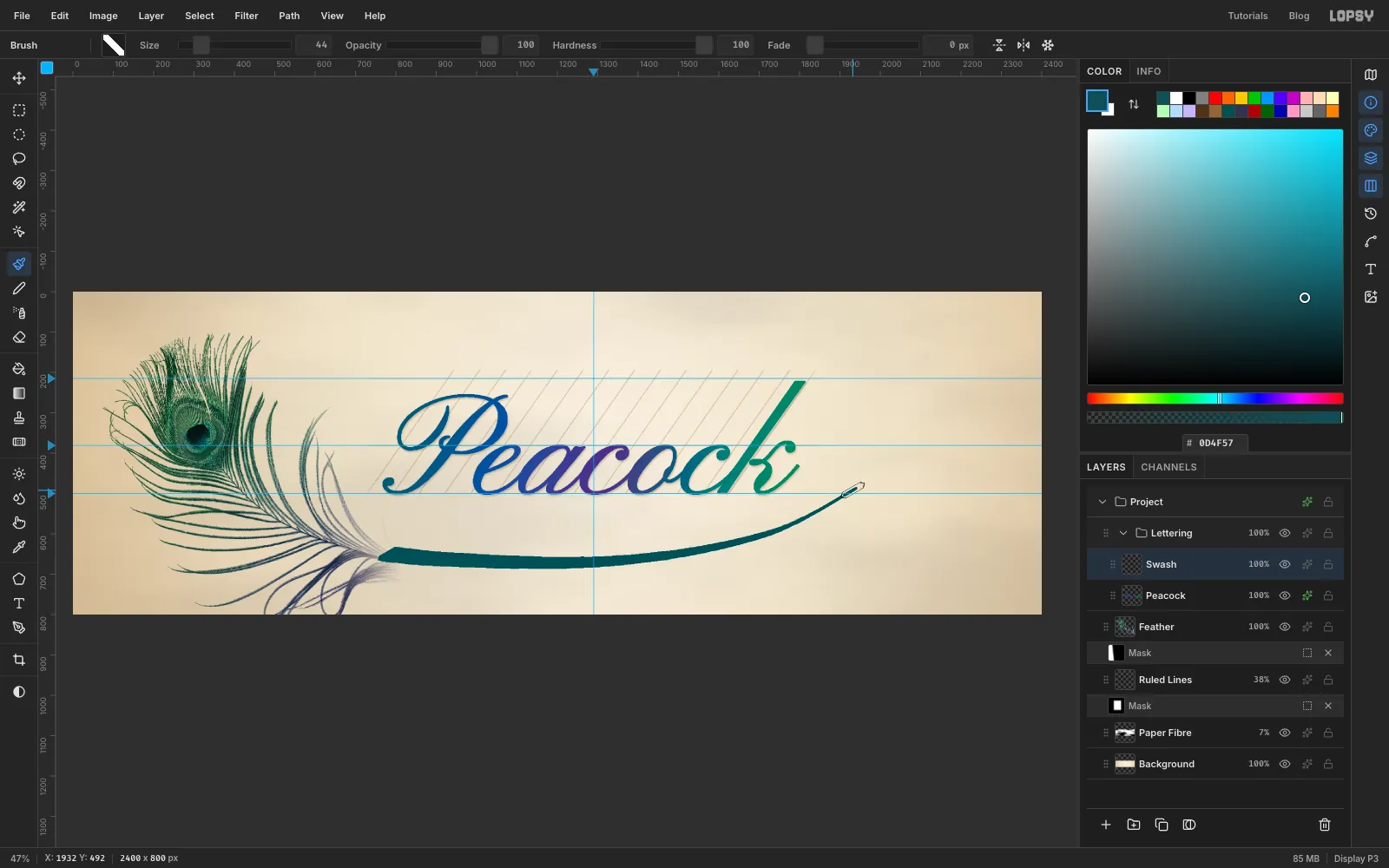
Draw one smooth, continuous stroke:
- Start right at the end of the feather's shaft, around
x 782, y 650. - Sweep right under the headline. Let it sag gently to about
y 672betweenx 1100andx 1300, staying well clear of where the small type will go aty 720. - Rise through
x 1720, y 600, and finish with a flick up and to the right that ends atx 1932, y 492, past the end of the k.
Where the stroke runs nearly level it's broad, because it crosses the nib. On the final rise it runs along the nib and the taper has done its work, so it ends in a hairline. Undo and try again until the curve feels like one confident movement.
- Start right at the end of the feather's shaft, around
-
Ink the swash
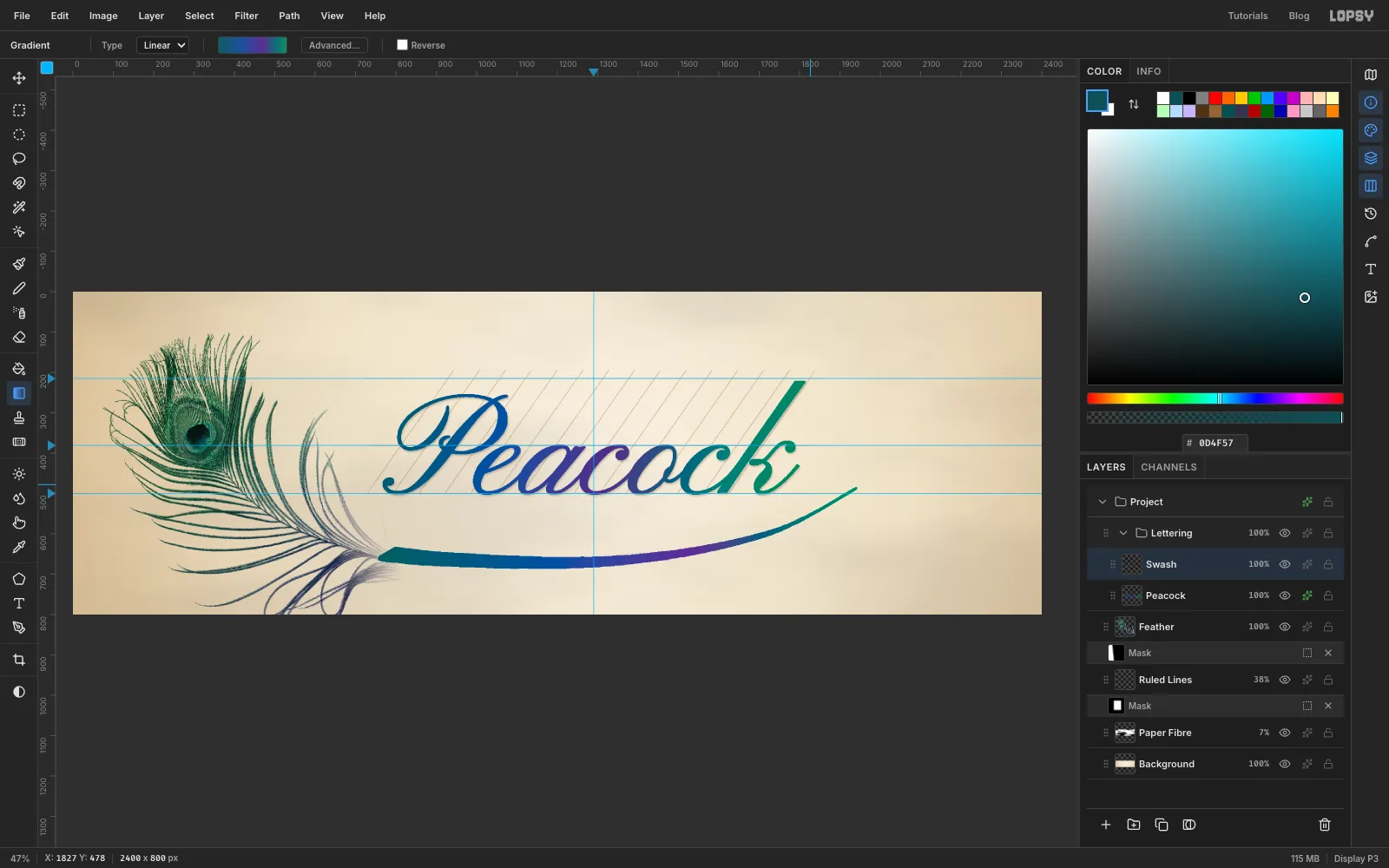
- Cmd-click the Swash thumbnail.
- In the Gradient editor, set , at 35%, at 65%, at 85% and . It's the headline's ink with a deeper violet and a greener tail, so the long stroke doesn't look like a stretched copy of the word.
- Drag from the start of the swash (
x 782, y 650) to its tail (x 1932, y 492). Press Cmd+D. - Choose Filter → Gaussian Blur…, set Radius to
1and click Apply. A single pixel of blur takes the stamped edge off the stroke.
-
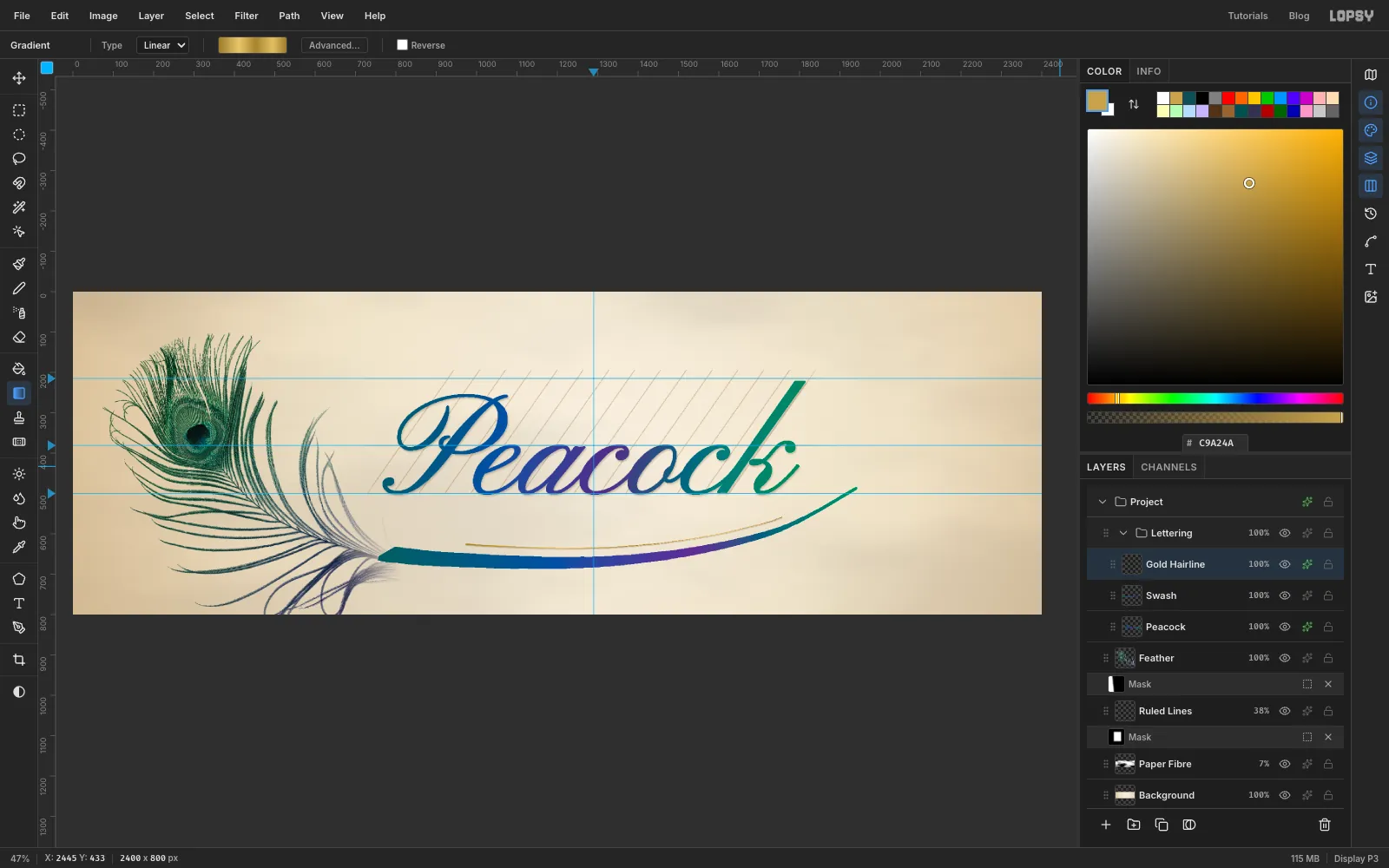
Echo it with a gold hairline
- Click Add Layer and name it
Gold Hairline. - With the Brush, open Brushes and click Hard Round on the Presets tab. On the Shape tab set Size to
4and Taper to900. Close it and set the foreground to . - Draw a line that follows the swash about 40 px above its centre, from
x 960, y 624tox 1760, y 560. Keep the gap even all the way along, so it reads as a deliberate second stroke. - Cmd-click the Gold Hairline thumbnail. In the Gradient editor set the gold stops , at 30%, at 55%, at 80% and , and drag along the line from end to end. Press Cmd+D.
- Add a Drop Shadow: Offset X
1, Offset Y2, Blur2, Opacity30, colour .
The alternating light and dark stops are what make flat yellow read as metal.
- Click Add Layer and name it
-
Set the subhead
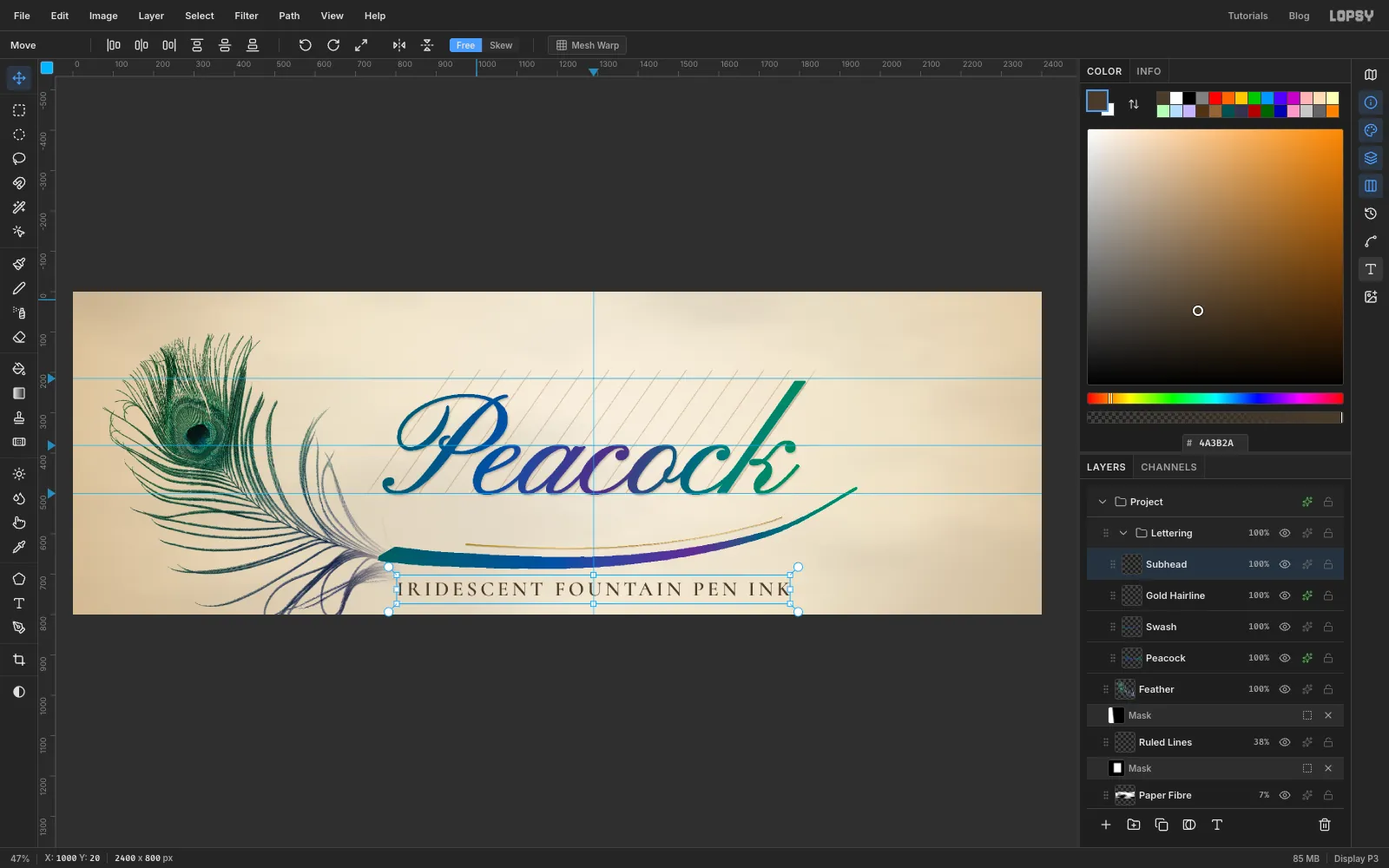
- Keep Gold Hairline selected. (If a text layer is selected, changing the font restyles that layer instead.)
- Pick the Text tool. Set Size to
51, font Cormorant SC, weight SemiBold, colour . - Click an empty spot near the top, type
IRIDESCENT FOUNTAIN PEN INK, press Tab and rename the layerSubhead. - Open the Text panel from the panel toolbar on the right and set Letter spacing to
8. - With the Move tool and the arrow keys, centre it on
x 1290with the tops of the capitals aty 720. That leaves about 28 px of air under the swash and 47 px above the bottom edge.
-
Add the maker's line
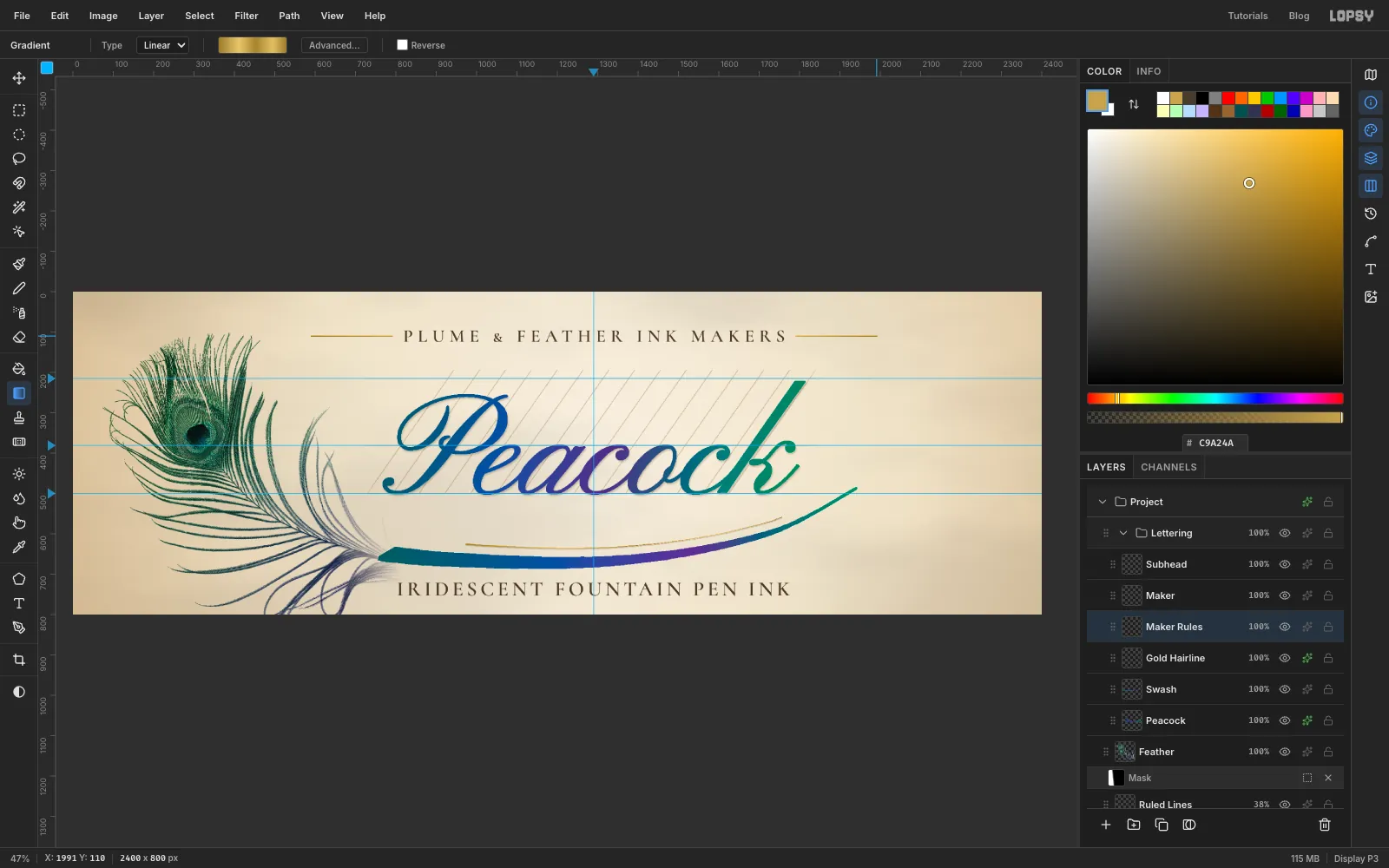
- Click Gold Hairline again, then make a new text layer: Size
44, Cormorant SC, SemiBold, . TypePLUME & FEATHER INK MAKERS, press Tab and rename the layerMaker. - Set Letter spacing to
12and centre the line onx 1290with its capitals starting aty 96. - Select Gold Hairline, click Add Layer and name it
Maker Rules. - With the Pencil at Size
3and colour , click atx 590, y 110and Shift-click atx 790, y 110. Do the same fromx 1791tox 1991. Both rules are 200 px long and stop 30 px from the text. - Cmd-click the Maker Rules thumbnail. The Gradient tool still holds the gold stops from the hairline, so drag it across both rules from the left end to the right. Press Cmd+D.
- Click Gold Hairline again, then make a new text layer: Size
-
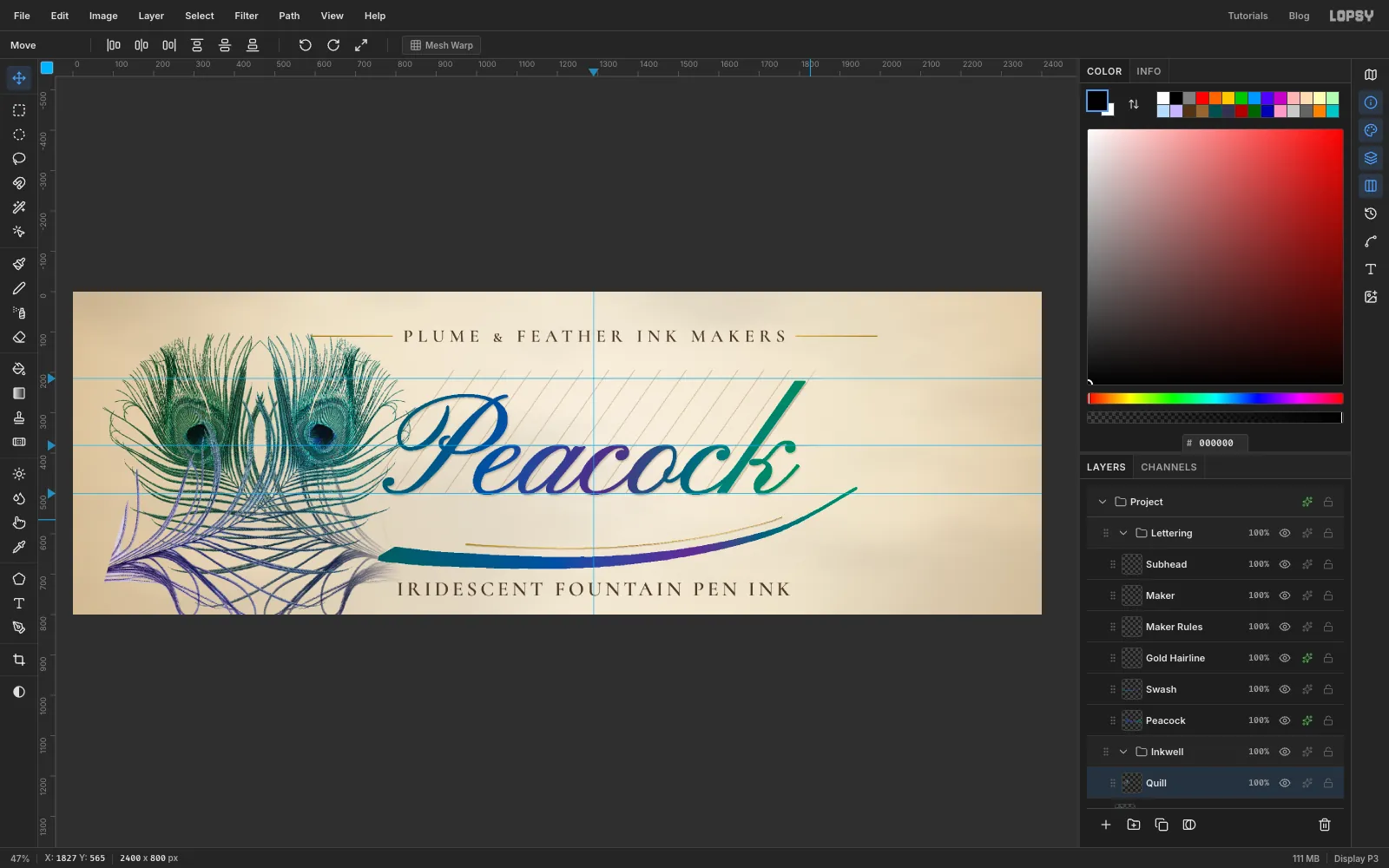
Copy the feather for a quill
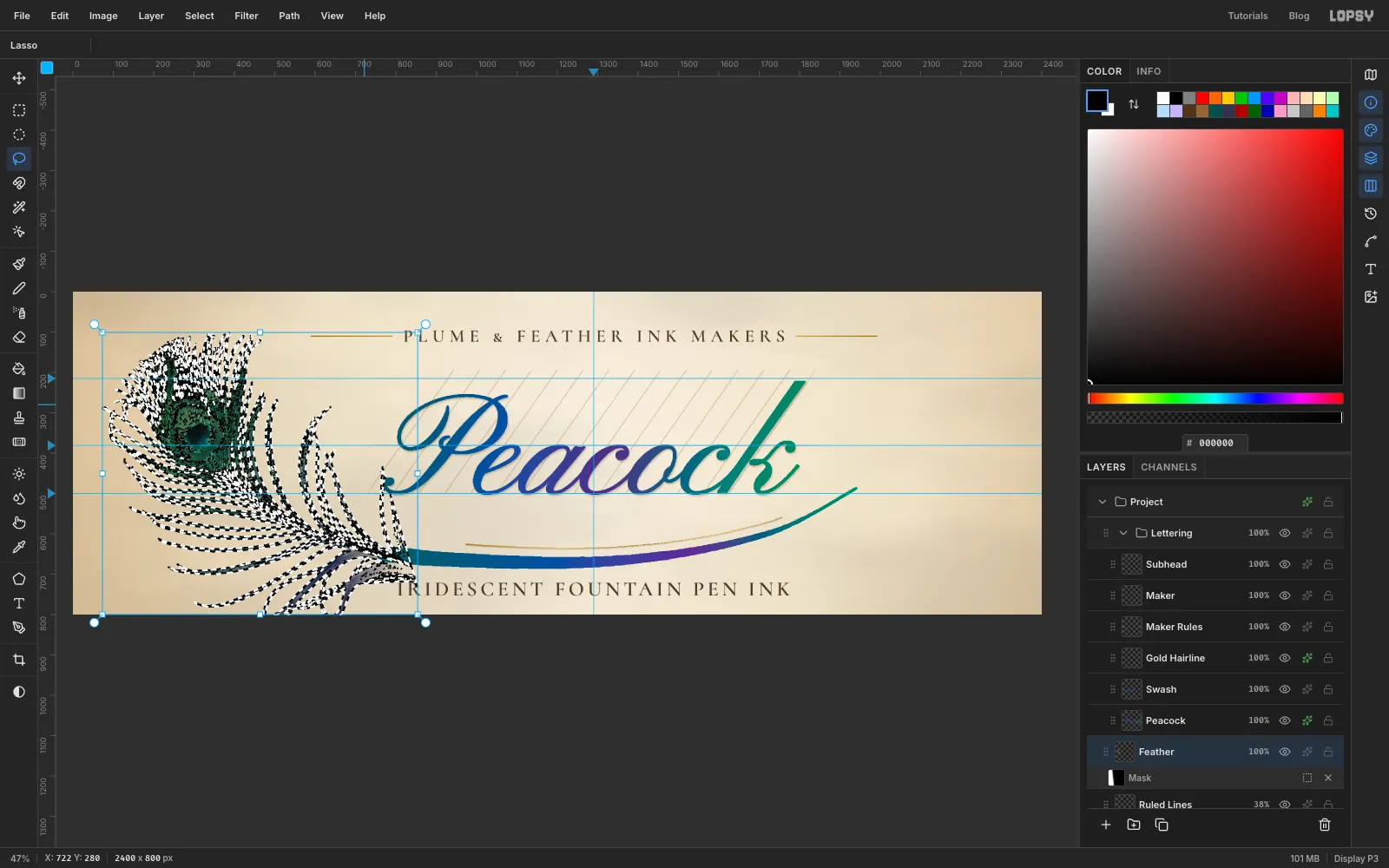
The inkwell gets its own feather. Copy the big one, but leave out the barbs along its cut edge: Copy takes the layer's own pixels, not what its mask shows, so the cut edge would come back.
- Select the Feather layer and Cmd-click its thumbnail.
- Pick the Lasso, hold Alt and draw around the strip to the right of the scan's cut edge: from about
x 722, y 280across tox 1010, down past the bottom of the canvas, and back tox 878. Alt subtracts it from the selection. - Press Cmd+C, then Cmd+D.
-
Paste, mirror and recolour it
- With Feather still selected, click New Group and name it
Inkwell. - Press Cmd+V. The copy pastes in place inside the group. Rename it
Quill. - Click Flip Horizontal in the Move tool's options bar, then press Cmd+D.
- Choose Filter → Hue/Saturation…, set Hue to
18and click Apply.
Mirrored and pushed toward blue, it no longer reads as a clone of the big feather.
- With Feather still selected, click New Group and name it
-
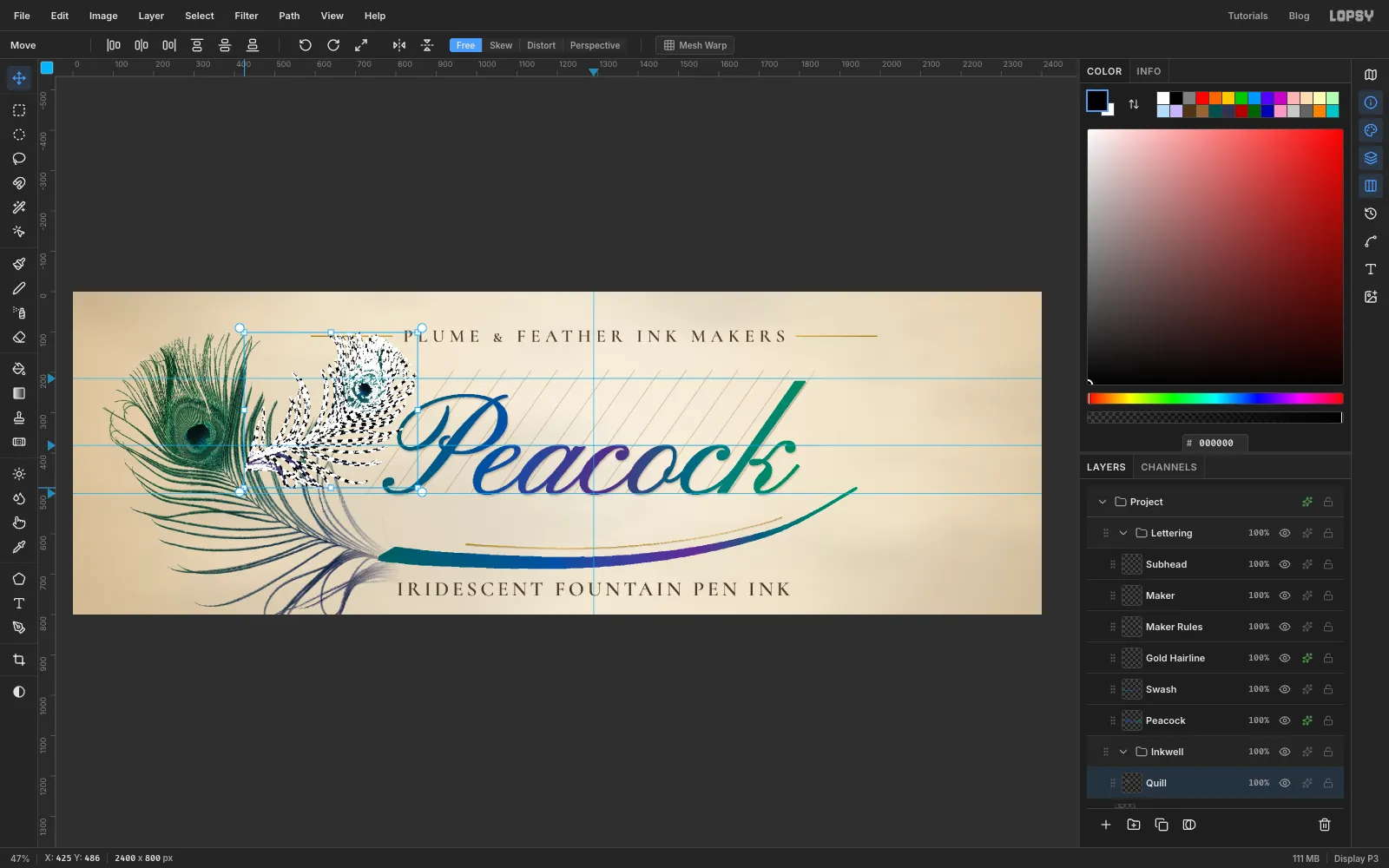
Shrink the quill
- Cmd-click the Quill thumbnail.
- With the Move tool, hold Cmd and drag the bottom-left corner handle up and to the right until the quill is a little over half its size.
- Press Cmd+D to apply.
-
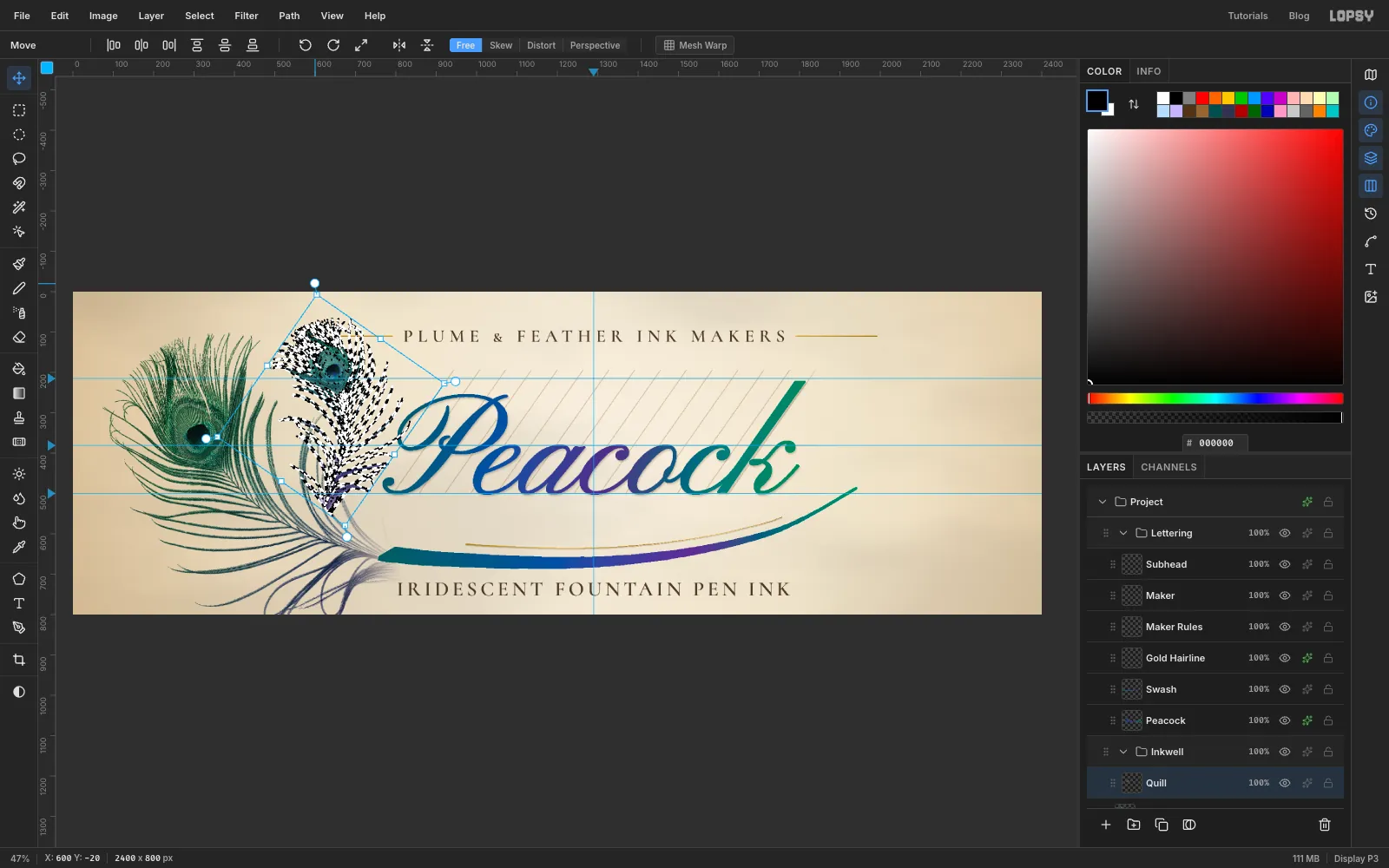
Stand it upright
- Cmd-click the Quill thumbnail again.
- Drag the round rotate handle outside the top-right corner counter-clockwise by eye, about 55°, until the eye is at the top and the shaft points almost straight down.
- Press Cmd+D to apply.
-
Move it over to the right
Drag the quill with the Move tool so the bottom of its shaft is around
x 2190, y 561. The bottle you're about to draw will cover the lower part, so it looks as if it's standing in the ink.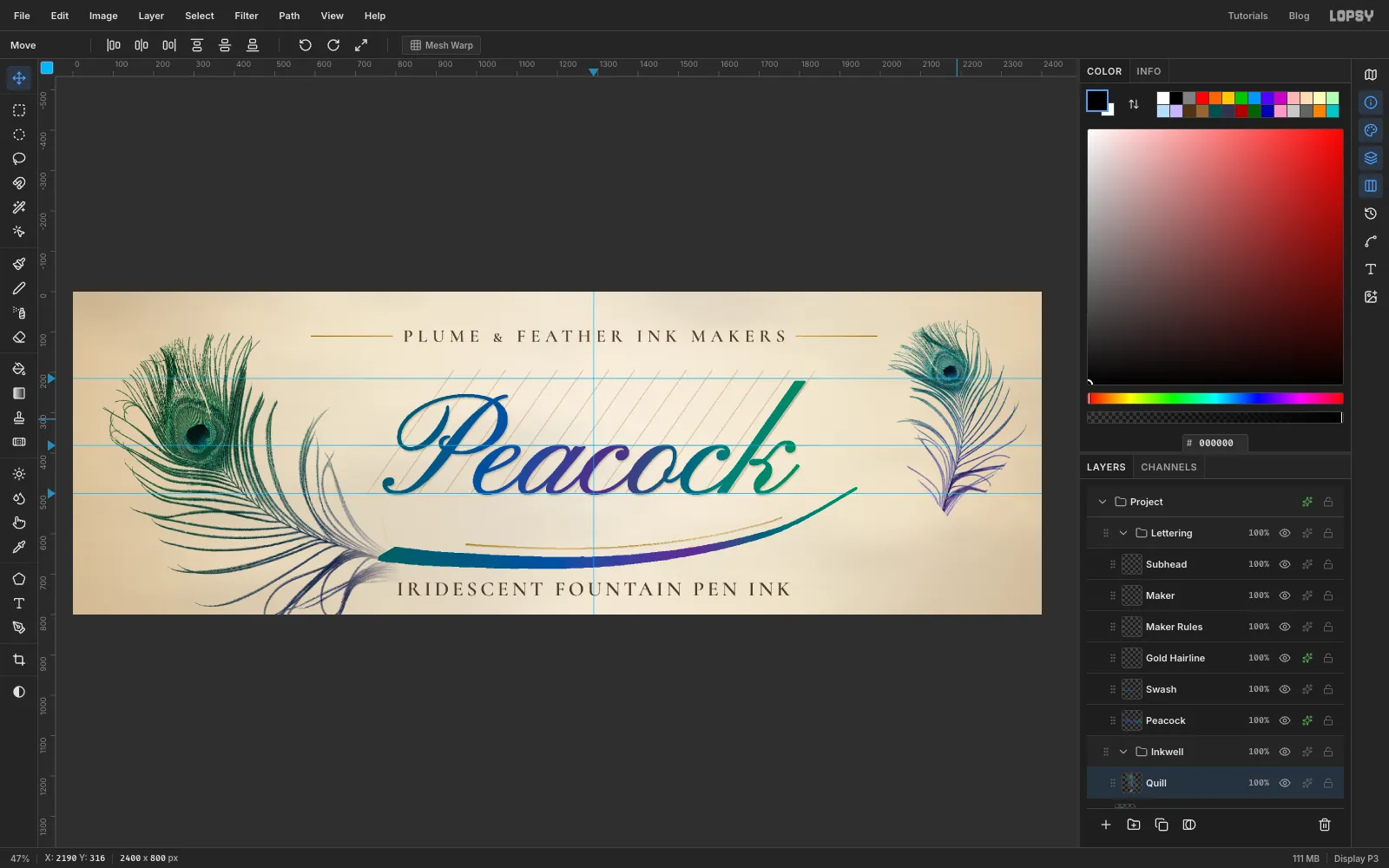
-
Draw the bottle
- Click Add Layer and name it
Bottle Shadow. With the Elliptical Marquee, drag a flat ellipse centred onx 2185, y 770, about 410 px wide and 40 px tall. Fill it with , press Cmd+D, run Filter → Gaussian Blur… at10, and set the layer to Multiply at50%. - Click Add Layer and name it
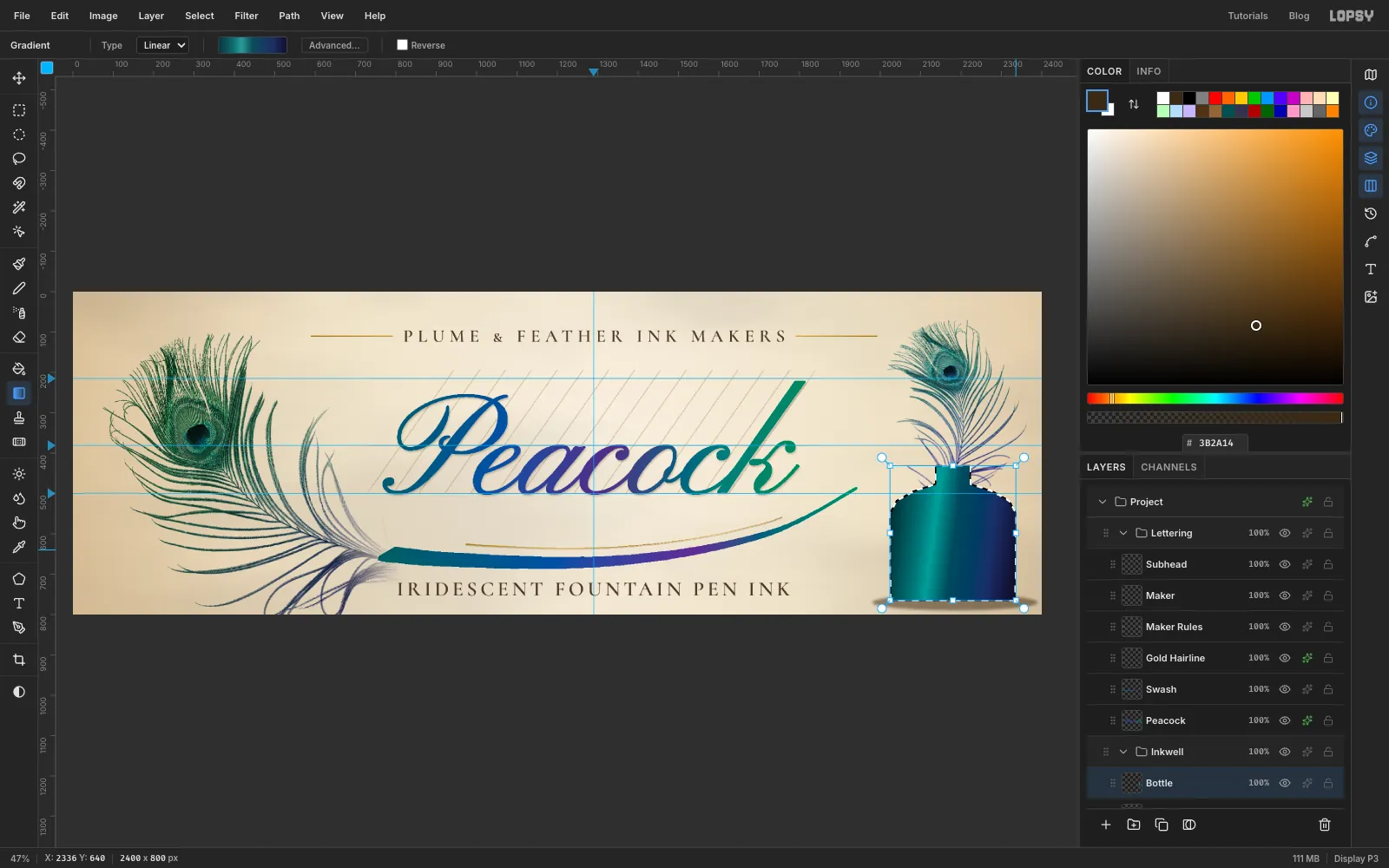
Bottle. With the Lasso, drag round a straight-sided bottle, moving in straight lines from corner to corner: the foot runs fromx 2026tox 2334aty 765, the sides go straight up toy 549, the shoulders slope in toy 477, and the neck runs fromx 2137tox 2223up toy 431. - Set a Linear gradient of , at 22%, at 34%, at 50%, at 80% and , and drag from the left side of the bottle to the right. The light band left of centre is the glass catching the light.
- Press Cmd+D and add an Inner Glow: Size
16, Opacity45, colour .
- Click Add Layer and name it
-
Add the lip and the glass highlights
- Click Add Layer and name it
Bottle Lip. Drag a Rectangular Marquee fromx 2127, y 413tox 2233, y 435, and fill it with a left-to-right gradient of , at 30%, at 70% and . Press Cmd+D. - Drag an elliptical marquee for the mouth, centred on
x 2180, y 414, about 92 × 14 px, and fill it with . Press Cmd+D and give the layer a Drop Shadow with Offset X0, Offset Y4, Blur5, Opacity55, colour . - Click Add Layer and name it
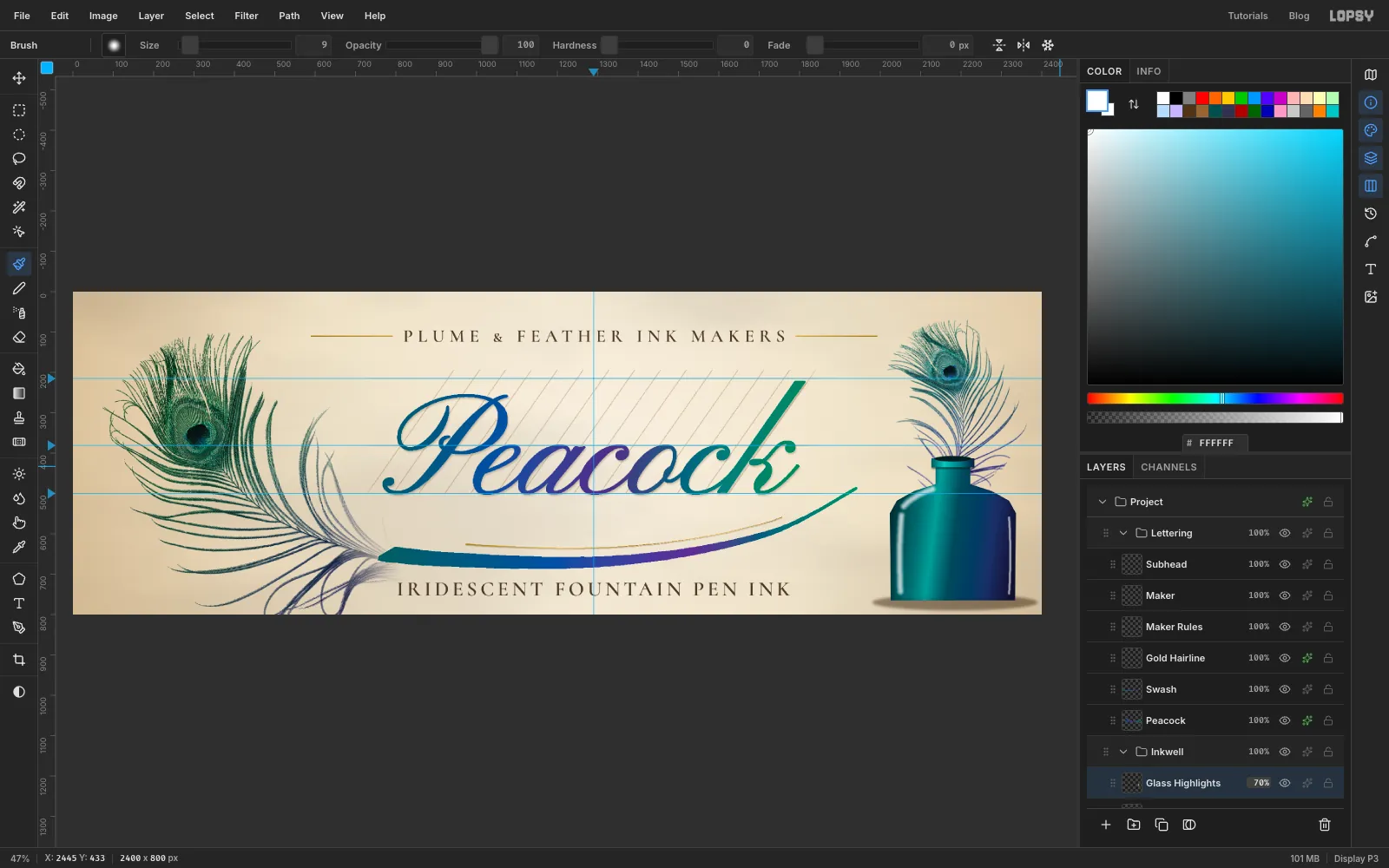
Glass Highlights. Pick the Brush, choose Soft Round in Brushes, set Size to26and Taper to0, and use white. - Paint a stroke down the left side of the bottle from
y 743up toy 554at aboutx 2050, and a short curve along the left shoulder toward the neck. At Size9, add a thin stroke down the right edge atx 2319. - Set the layer to Screen at
70%.
- Click Add Layer and name it
-
Make the label
- Click Add Layer and name it
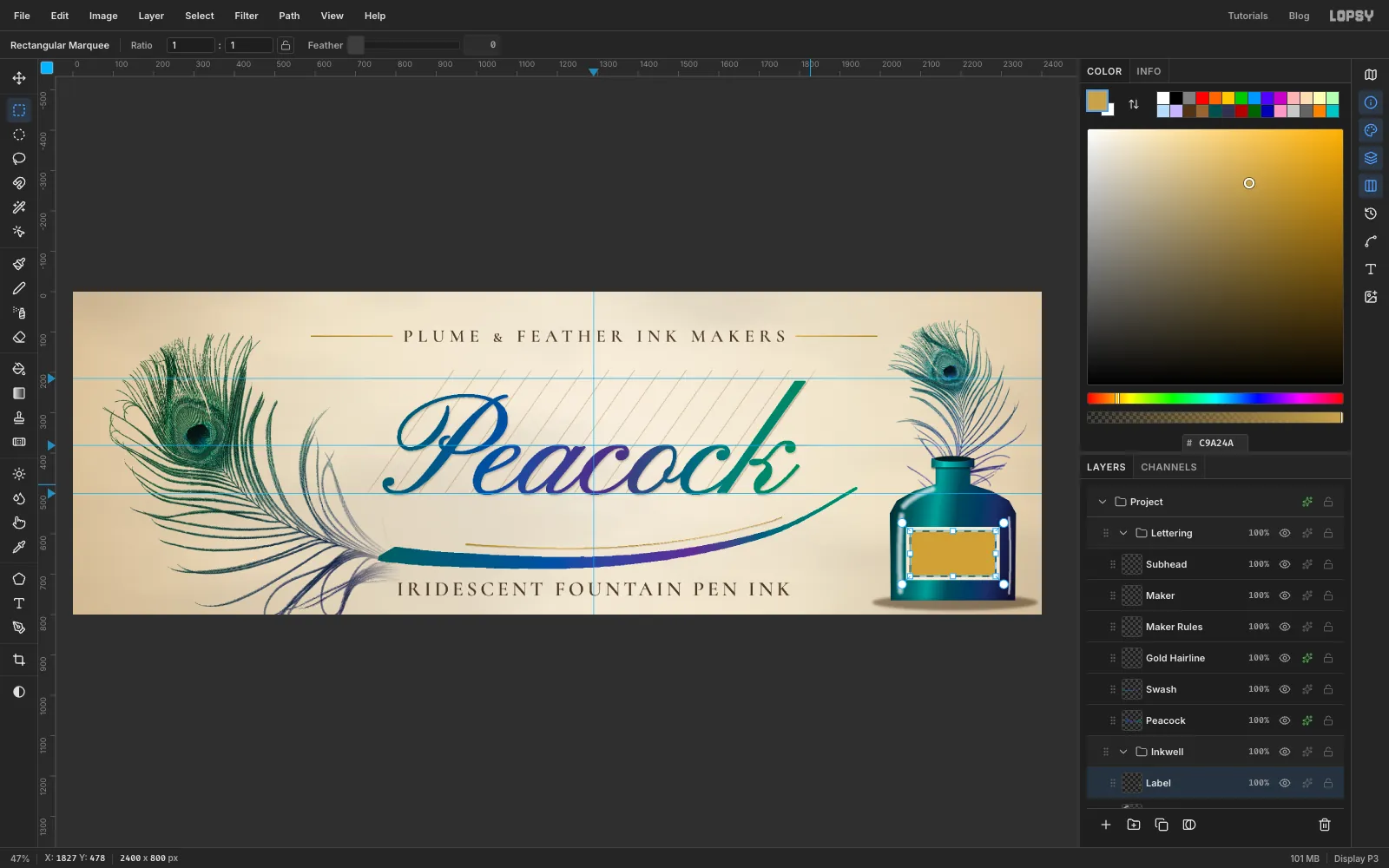
Label. Drag a Rectangular Marquee fromx 2064, y 583tox 2296, y 715and fill it with . - With the marquee still active, choose Select → Shrink…
8and fill with . - Choose Select → Shrink…
2and fill with again. That leaves a thin 2 px gold rule 8 px inside the edge. - Press Cmd+D and add a Drop Shadow: Offset X
2, Offset Y3, Blur4, Opacity45, colour .
- Click Add Layer and name it
-
Letter the label and wrap it round the glass
- Cmd-click the Label thumbnail, click Add Layer and name it
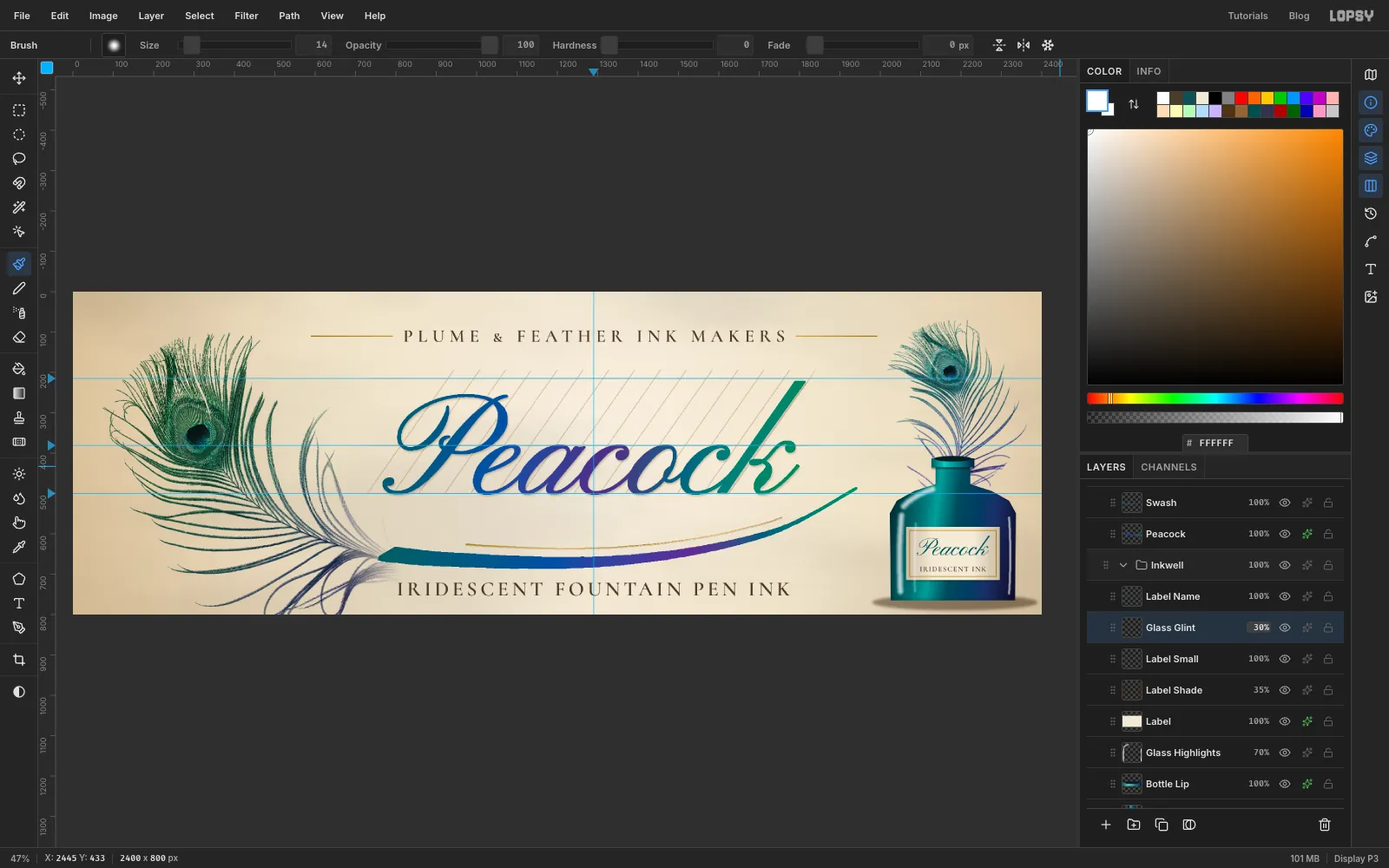
Label Shade. Make a gradient of at 70% opacity at both ends and 0% at 28% and 72% (use the Opacity strip under the colour picker for each stop). Drag it across the label from left to right, press Cmd+D, and set the layer to Multiply at35%. The label now looks wrapped round a curve. - Make a text layer: Pinyon Script, Size
62, ,Peacock. Rename itLabel Nameand centre it onx 2180with its top aty 605. - Click Label Shade first, then make
IRIDESCENT INKin Cormorant SC SemiBold, Size18, , Letter spacing2. Rename itLabel Smalland centre it onx 2180with its top aty 681. - Click Add Layer and name it
Glass Glint. With the Soft Round brush at Size14in white, paint one stroke fromx 2086, y 742up tox 2088, y 575, across the label's left side. Set it to Screen at30%.
- Cmd-click the Label thumbnail, click Add Layer and name it
-
Hang a tag on the neck
- Click Add Layer and name it
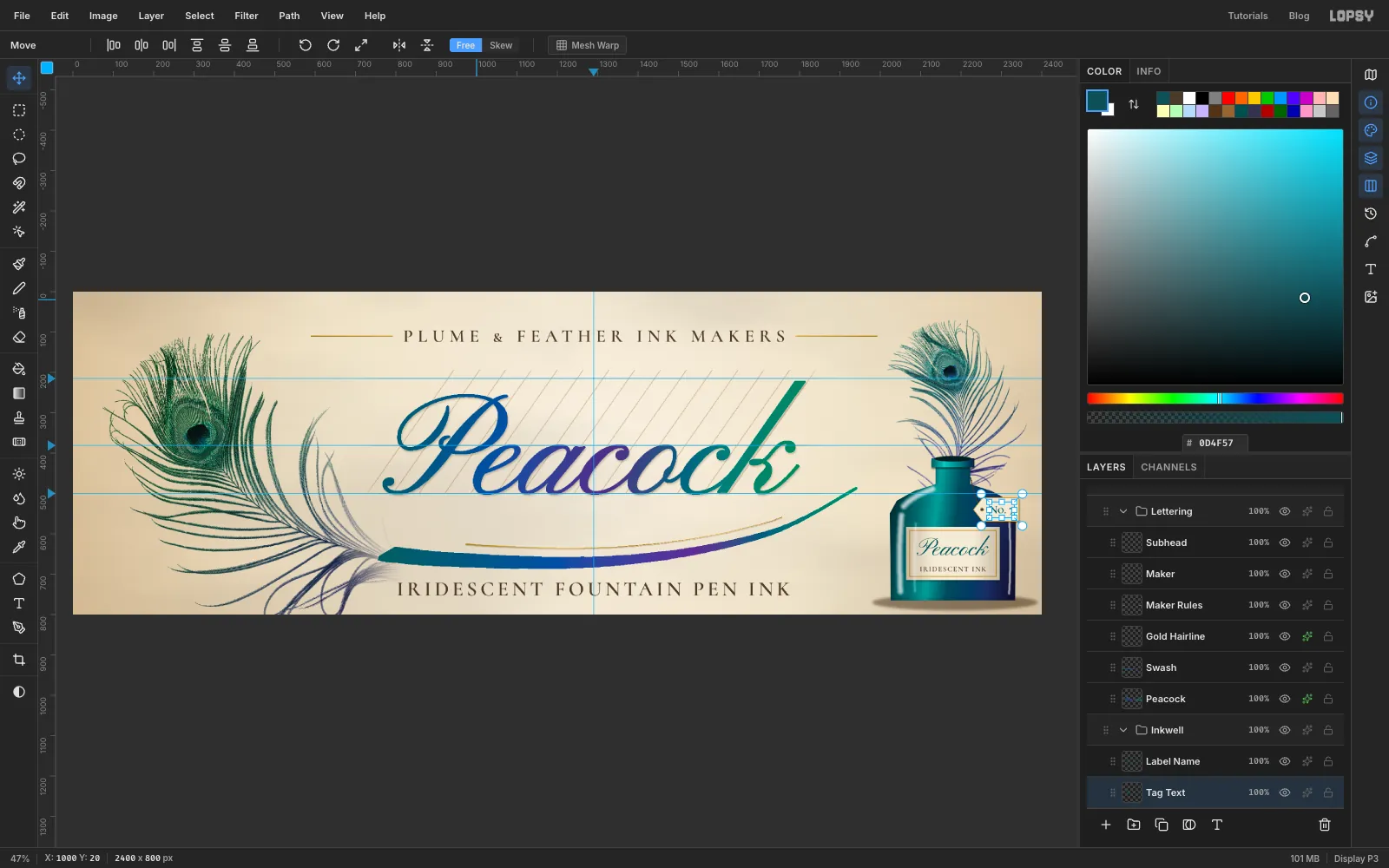
Tag String. With the Pencil at Size2in , click atx 2224, y 461, then Shift-click atx 2238, y 515and atx 2252, y 540. - Click Add Layer and name it
Tag. With the Lasso, drag a luggage-tag shape in straight lines: a point atx 2232, y 540, thenx 2254, y 512,x 2342, y 512,x 2342, y 568,x 2254, y 568and back to the point. That's a tag about 110 × 56 px with a pointed left end. Fill it with and press Cmd+D. - Drag a 10 px circle with the Elliptical Marquee at
x 2252, y 540and press Delete to punch the hole. Press Cmd+D. - Give the tag a Stroke with Width
2in and a Drop Shadow: Offset X2, Offset Y3, Blur4, Opacity40, colour . - Type
No. 7in Cormorant SC SemiBold, Size28, , rename the layerTag Text, and centre it on the tag atx 2300, topy 531.
- Click Add Layer and name it
-
Tilt the tag
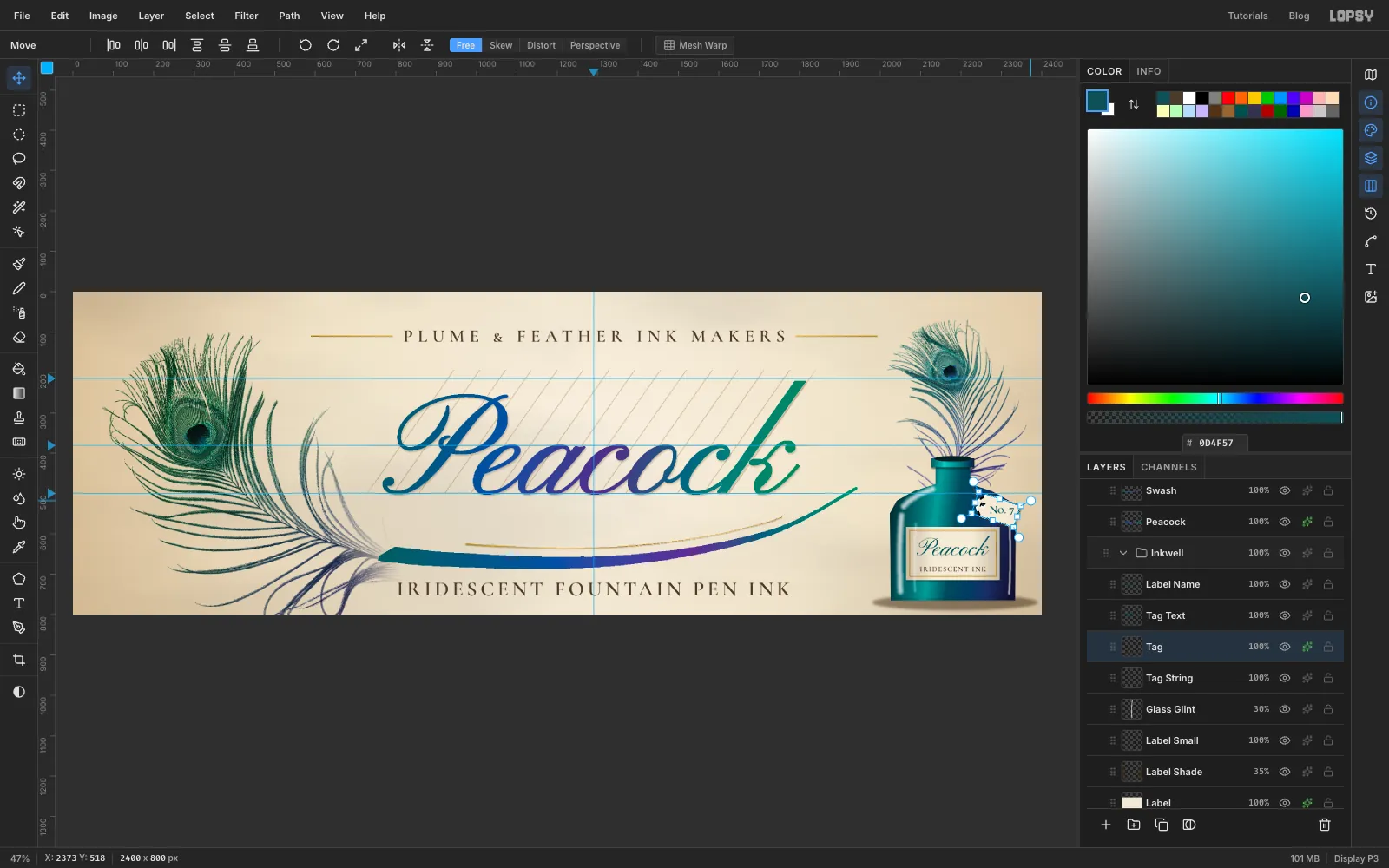
- Select the Tag layer and Cmd-click its thumbnail.
- With the Move tool, hold Cmd and drag the round rotate handle outside the top-right corner clockwise by one snap. Cmd snaps the angle to steps of 15°. Press Cmd+D to apply.
-
Tilt the lettering to match
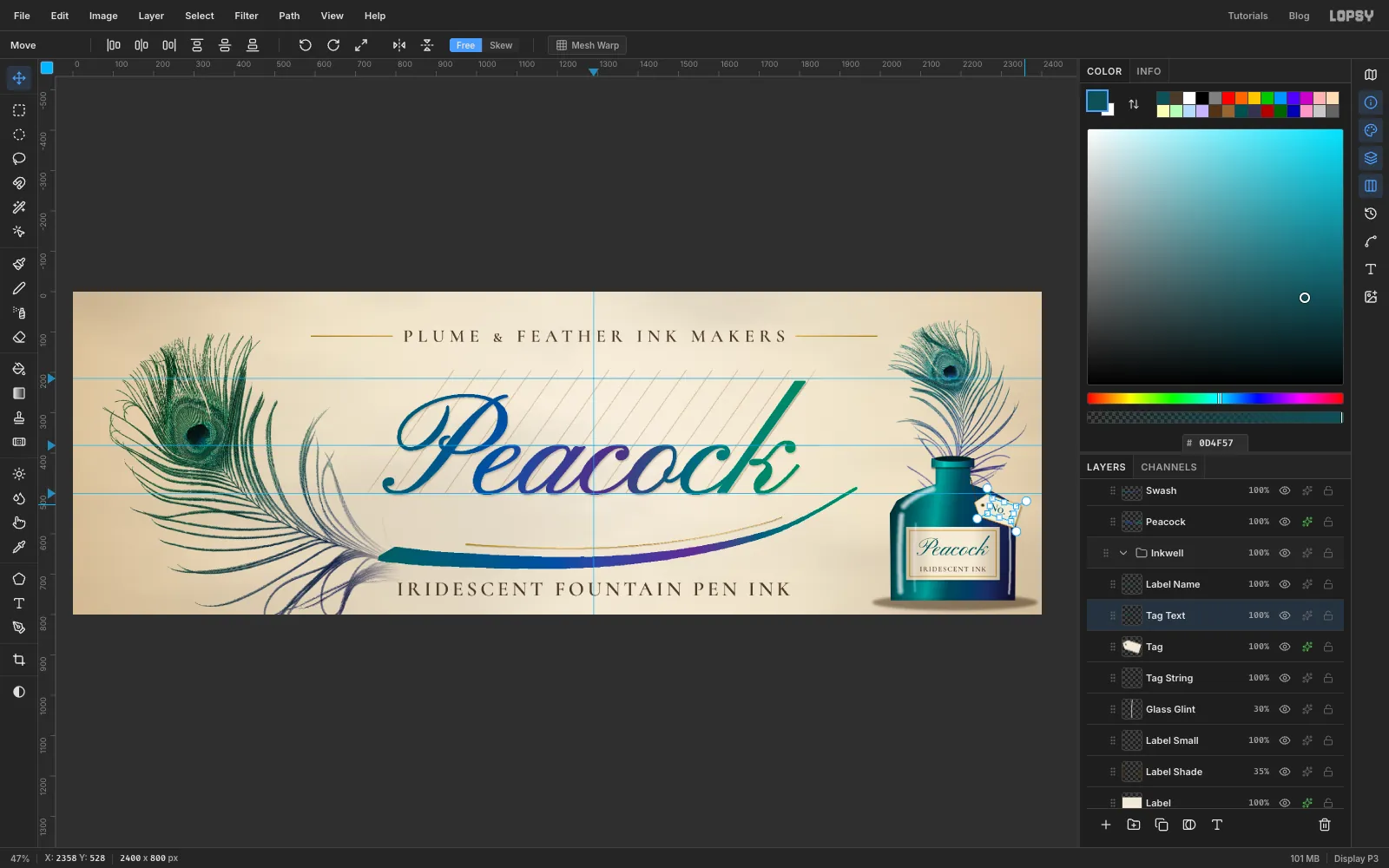
- Click the Tag Text layer. With the Move tool, a text layer shows its own transform handles, so you don't need a selection.
- Hold Cmd and drag its rotate handle clockwise by one snap, the same 15° as the tag. The rotation applies when you release.
The tag is so small that turning both about their own centres leaves the lettering where it should be.
-
Spatter ink off the quill
- Select Swash, click Add Layer and name it
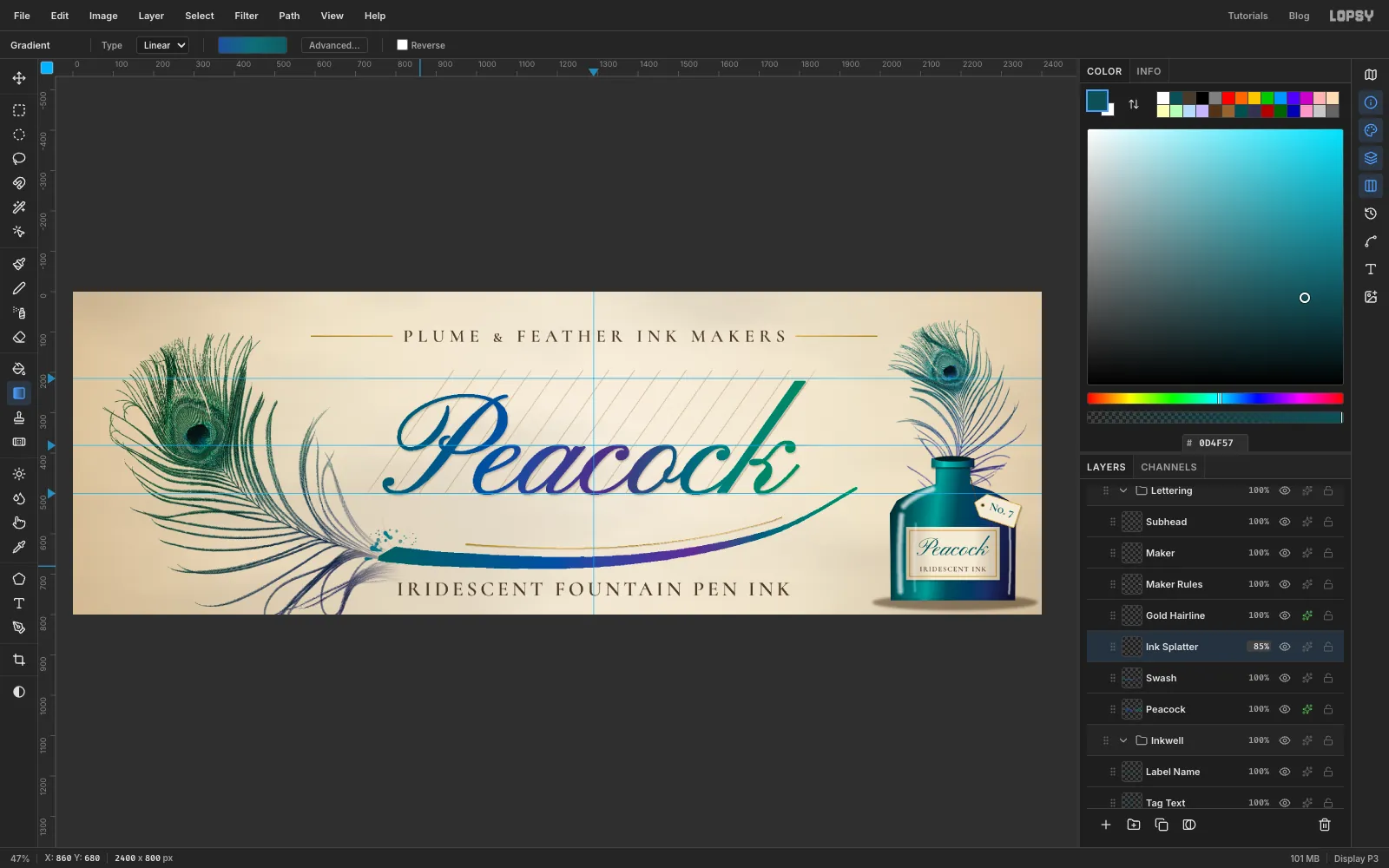
Ink Splatter. - Pick the Spray tool. It paints with the Brush's current tip, which is still Soft Round from the highlights, so the dots come out round. Set Size
90, Density22, Opacity95, Softness5, colour . Click once atx 790, y 632. - Set Size to
46and Density to12, and click atx 752, y 612andx 836, y 612. - With the Lasso, draw three small teardrops, 20–30 px long, pointing up and to the left away from the stroke, around
x 742, y 636,x 774, y 598andx 726, y 662. Hold Shift for the second and third. Choose Edit → Fill. - Cmd-click the layer's thumbnail and fill it with a gradient of , at 50% and , dragged from the upper left of the spatter to the lower right. Press Cmd+D and set the layer opacity to
85%.
- Select Swash, click Add Layer and name it
-
Add grain and a vignette
- Click the Lettering group row and click Add Layer, which puts the new layer at the top of the group. Name it
Grain. - Press Cmd+A, fill with , and press Cmd+D.
- Choose Filter → Add Noise…, set Amount to
22, pick Mono and Gaussian, and click Apply. Set the layer to Overlay at36%. - Click Add Layer and name it
Vignette. Make a Radial gradient of at 0% opacity at the left stop and at 55%, and at full opacity on the right stop. - Drag from
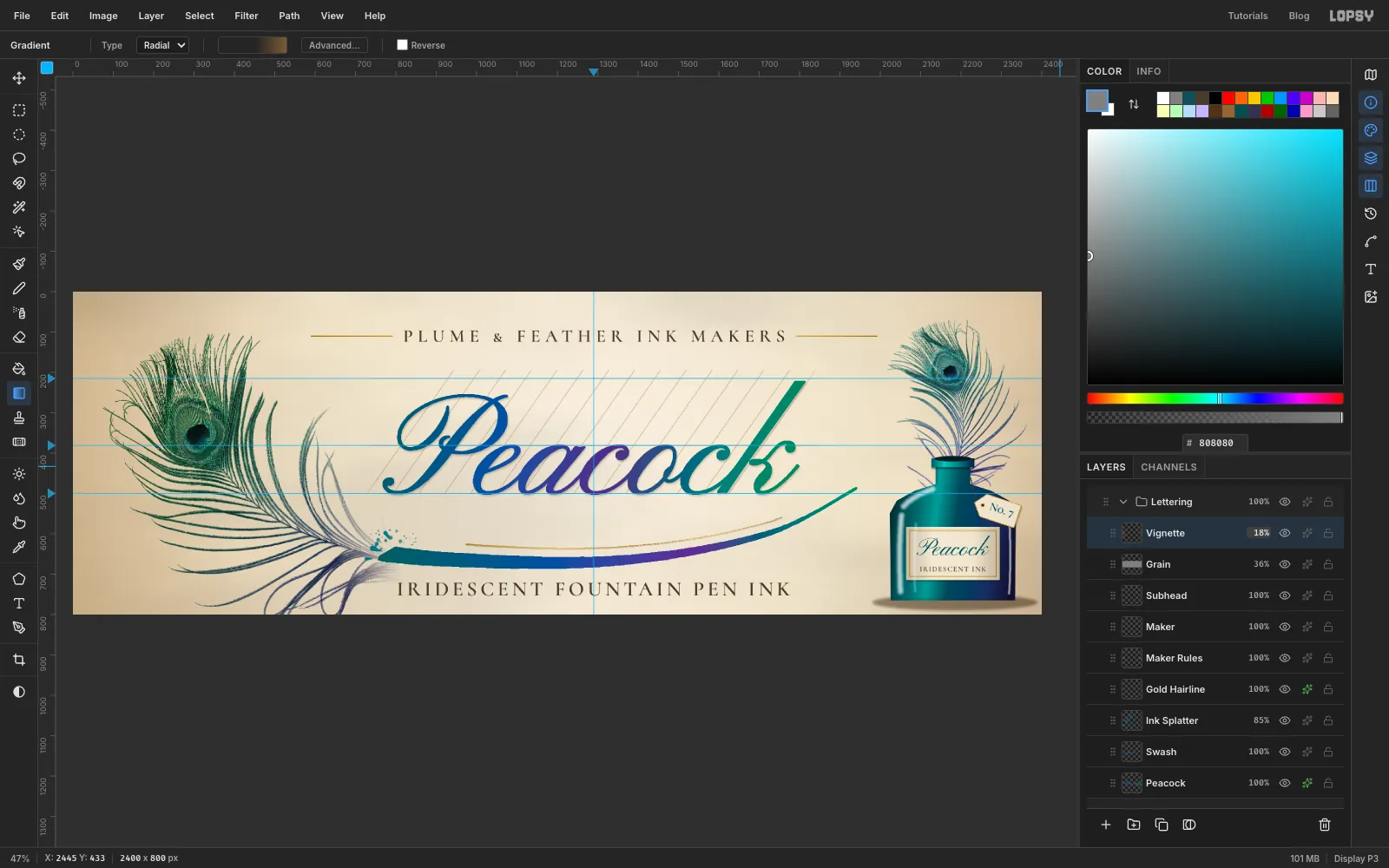
x 1250, y 400to well past the bottom-right corner, aroundx 2760, y 900. Set the layer to Multiply at18%. The edges should warm slightly, not turn brown.
- Click the Lettering group row and click Add Layer, which puts the new layer at the top of the group. Name it
-
Check the balance, then export
Groups move as one, so it's easy to try a layout change and take it back.
- Click the Inkwell group row in the Layers panel.
- With the Move tool, drag the bottle 60 px to the left. Everything in the group moves together: the quill, bottle, label and tag.
- It crowds the swash's tail, so press Cmd+Z. Cmd+Shift+Z and Cmd+Z flip between the two positions if you want to compare them.
To finish, choose View → Show Guides to hide the guides. Choose File → Quick Export PNG to save the billboard, and File → Save Project to keep the layers.