Cut an Americana Crate Stencil Set in Lopsy
Cut five colour-separated stencil plates for a vintage farm crate label, spray a proof on pine boards and pin it all up as a contact sheet in Lopsy.
Before printed labels, orchards marked their apple crates with stencils. Each colour had its own cut sheet of oiled manila, called a plate. You laid the plates on the crate end one after another and sprayed through them. Small punched holes in the same place on every plate, the registration holes, kept the colours lined up.
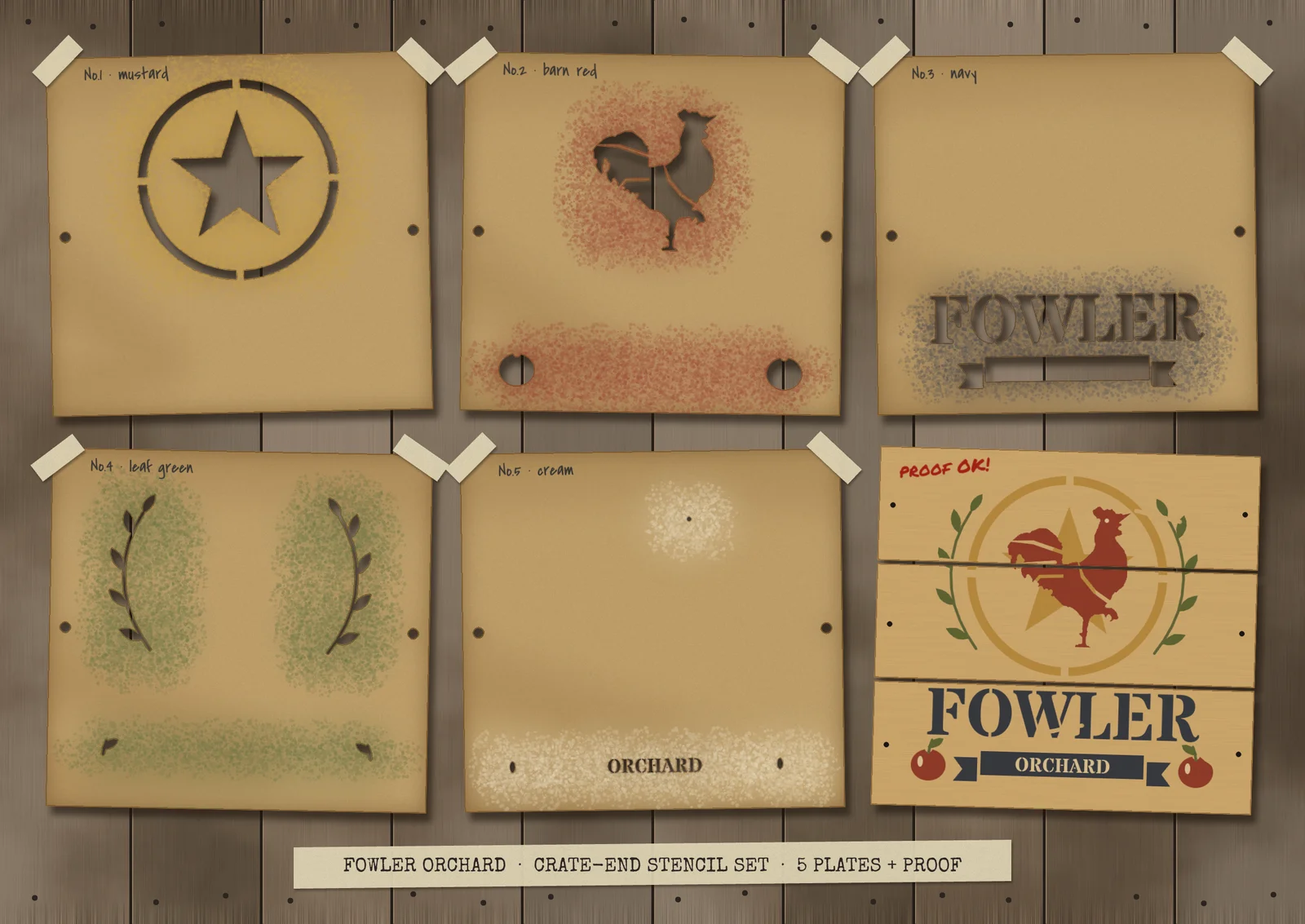
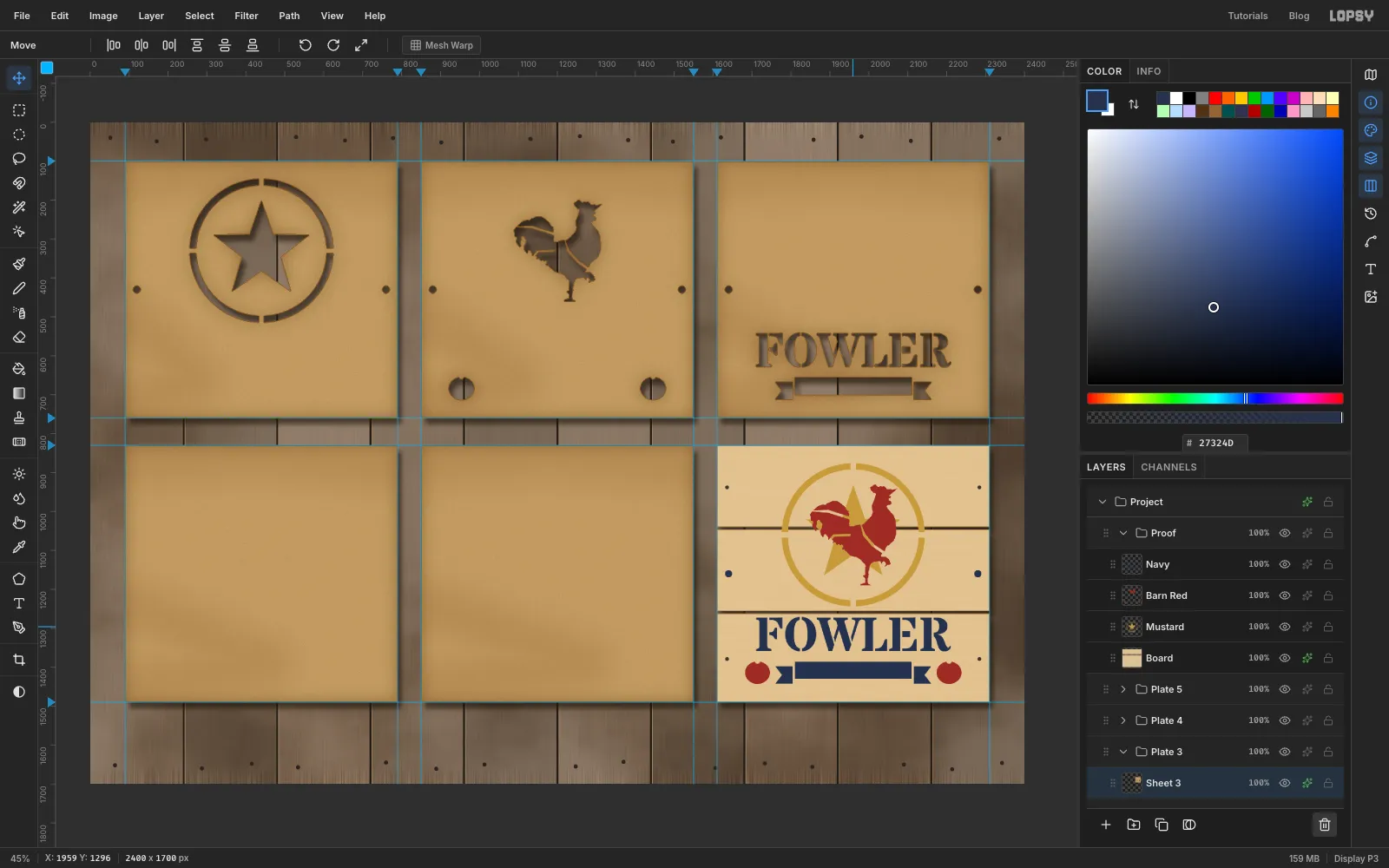
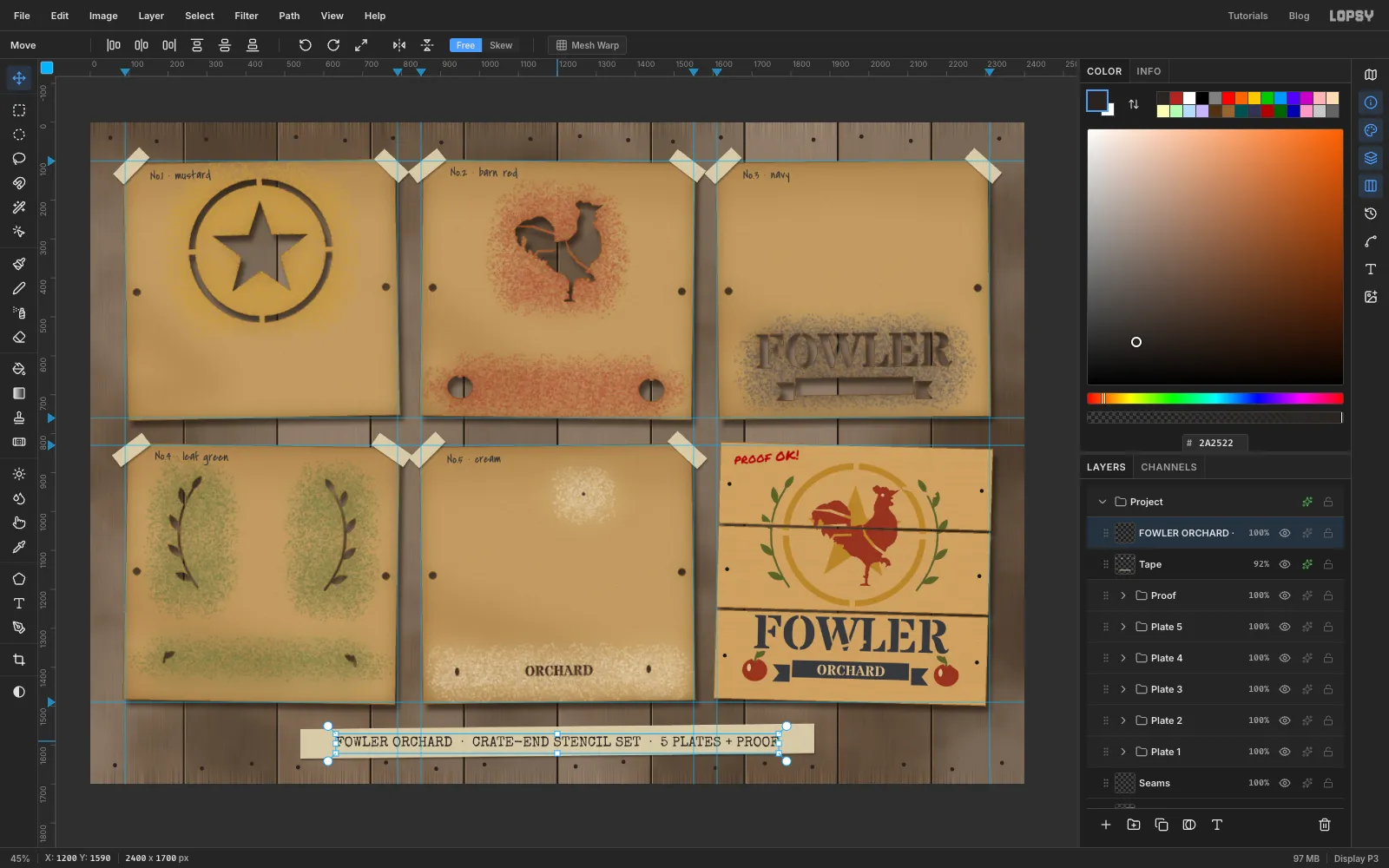
In this tutorial you'll make Fowler Orchard, a 2400 × 1700 px contact sheet for an invented farm. Five manila plates are taped to a weathered barn wall: a mustard barn star, a barn-red rooster with two apples, the navy FOWLER lettering with a ribbon, green laurels and leaves, and a cream plate for the lettering on the ribbon and the highlights. The sixth cell is the proof, a pine crate end sprayed with all five plates.
The rooster comes from an old woodcut: Rooster Crowing on Wikimedia Commons, released as CC0 (no rights reserved). Download the 480 × 640 px original. Any bold rooster or weathervane silhouette works the same way.
The trick that makes the whole set easy: every plate is designed in the same spot inside its own cell. That way a single drag moves any plate's artwork onto the proof in register.
Along the way you'll use:
- Add Noise, Motion Blur and Clouds for barn boards and pine, plus the Pencil with Shift-click straight lines
- ruler guides with Snap to Guides, and the exact-corners marquee dialog
- New Group, Add Layer, layer effects (Drop Shadow, Stroke, Inner Glow) and the Multiply, Overlay and Soft Light blend modes
- the Pen tool, with Path to Selection for closed shapes and Enter to stroke open paths
- dropping in a photo, Desaturate, Threshold, the Magic Wand, Grow, Shrink and Select → Inverse
- Cmd-clicking layer thumbnails to cut one layer with another, copy and paste, and Merge Down
- scaling and rotating with the Move tool, including rotating whole groups
- Text in Stardos Stencil, Covered By Your Grace, Permanent Marker and Special Elite, and Rasterize Layer
- the Spray tool and a soft Brush for overspray, and a layer mask with brush jitter for worn paint
- undo and redo
The palette:
-
Barn boards
-
seams
-
seam light
-
Manila
-
oil
-
cut edge
-
Pine
-
Mustard
-
barn red
-
navy
-
leaf green
-
cream
-
Pencil
-
marker
-
tape
-
typewriter ink
-
Paint the barn wall
- Choose File → New, set Width
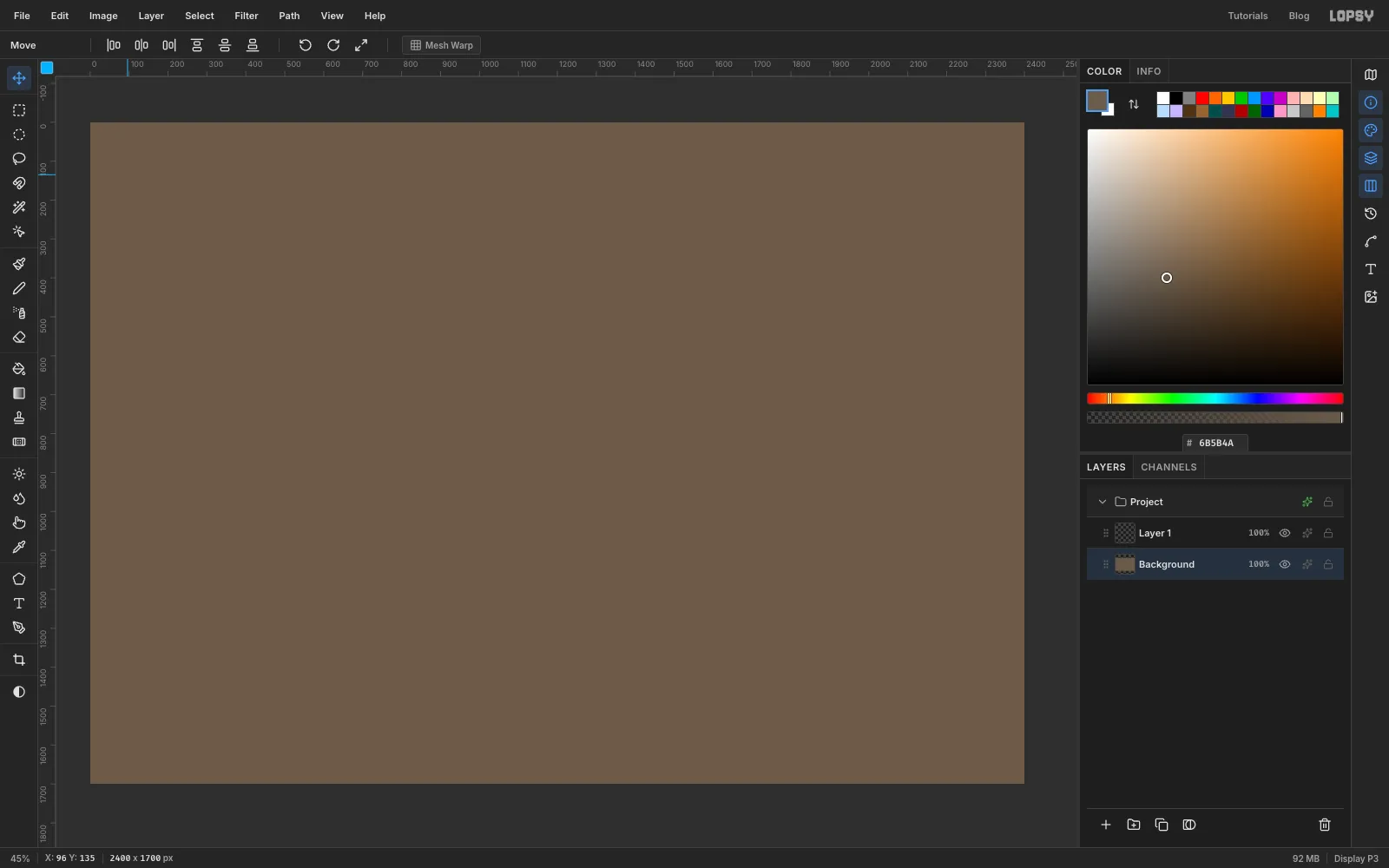
2400, Height1700, Pixels, White background, and click Create. - Click Background in the Layers panel, set the foreground colour to and choose Edit → Fill.
- Choose File → New, set Width
-
Tone the planks
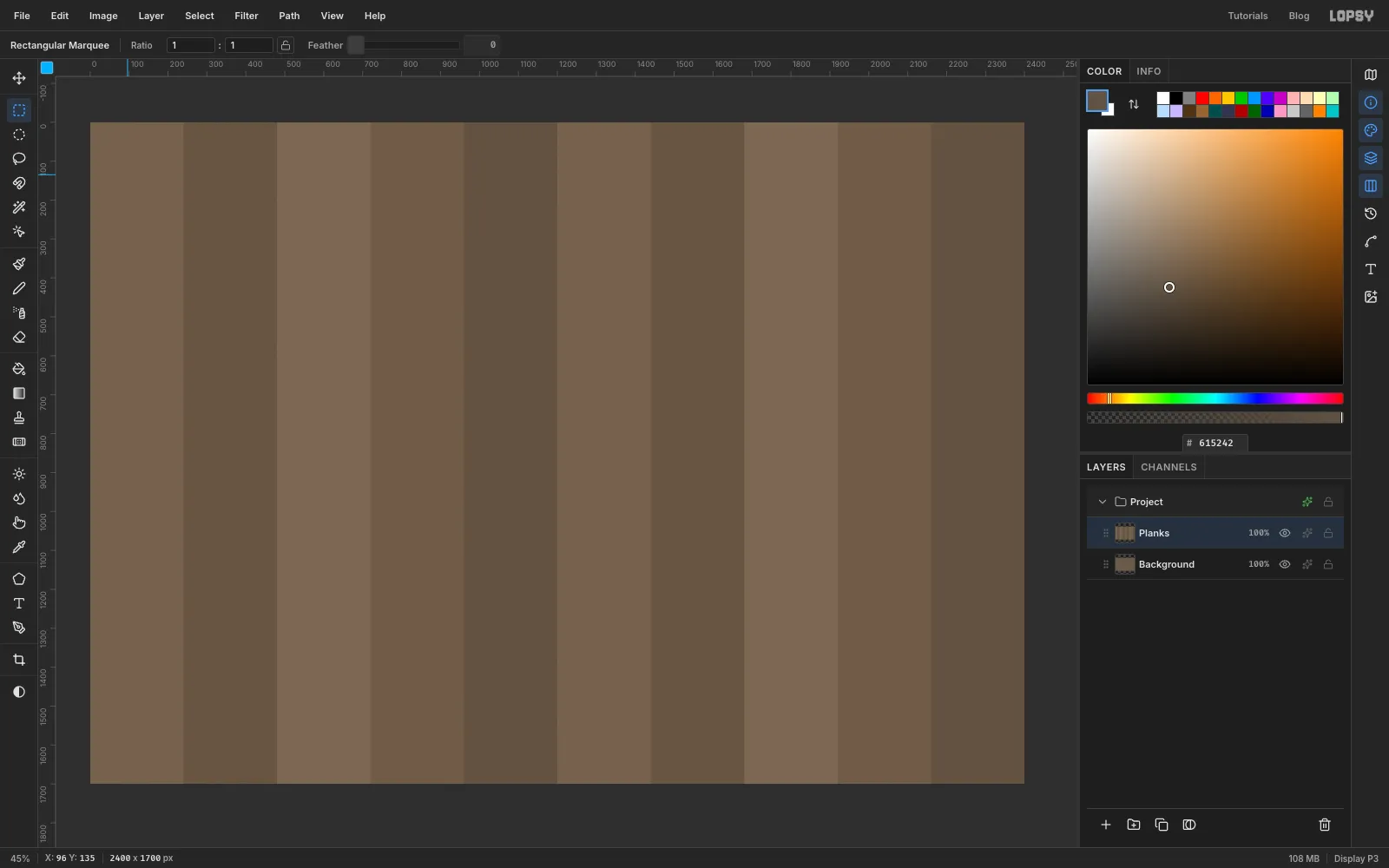
A barn wall is ten boards, each 240 px wide, and no two weathered the same.
- Double-click Layer 1 and rename it
Planks. - Pick the Rectangular Marquee and, with nothing selected, click once on the canvas without dragging. The Rectangular Selection dialog opens. (If a selection is active, that click only deselects it, so press Cmd+D first. The same goes for every exact-corners dialog in this tutorial.) Enter From X
0, From Y0, To X240, To Y1700and click Select. - Fill it with Edit → Fill in .
- Press Cmd+D, then repeat for each board, moving 240 px right each time (
240–480,480–720and so on). Cycle through , , , and back to . - Deselect with Cmd+D.
- Double-click Layer 1 and rename it
-
Streak in the wood grain
- Click Add Layer, name it
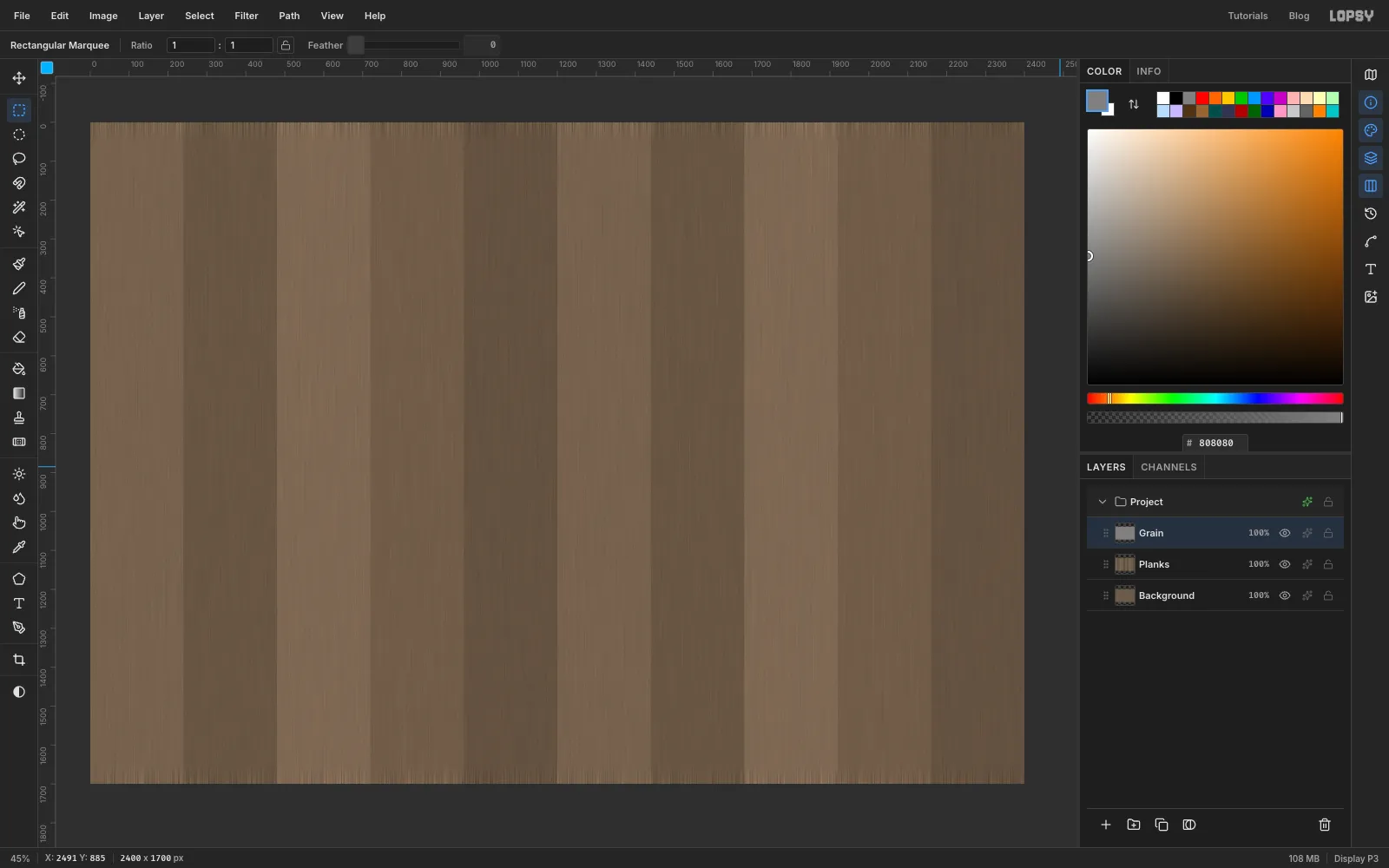
Grainand fill it with mid grey . - Run Filter → Add Noise… with Amount
100and Mono. - Run Filter → Motion Blur… with Angle
90and Distance100. The speckles stretch into vertical streaks. - Open the layer's effects drawer (the ✦ button on its row) and set the blend mode to Overlay. Grey disappears in Overlay, so only the light and dark streaks show.
- Click Add Layer, name it
-
Weather the boards
- Add a layer called
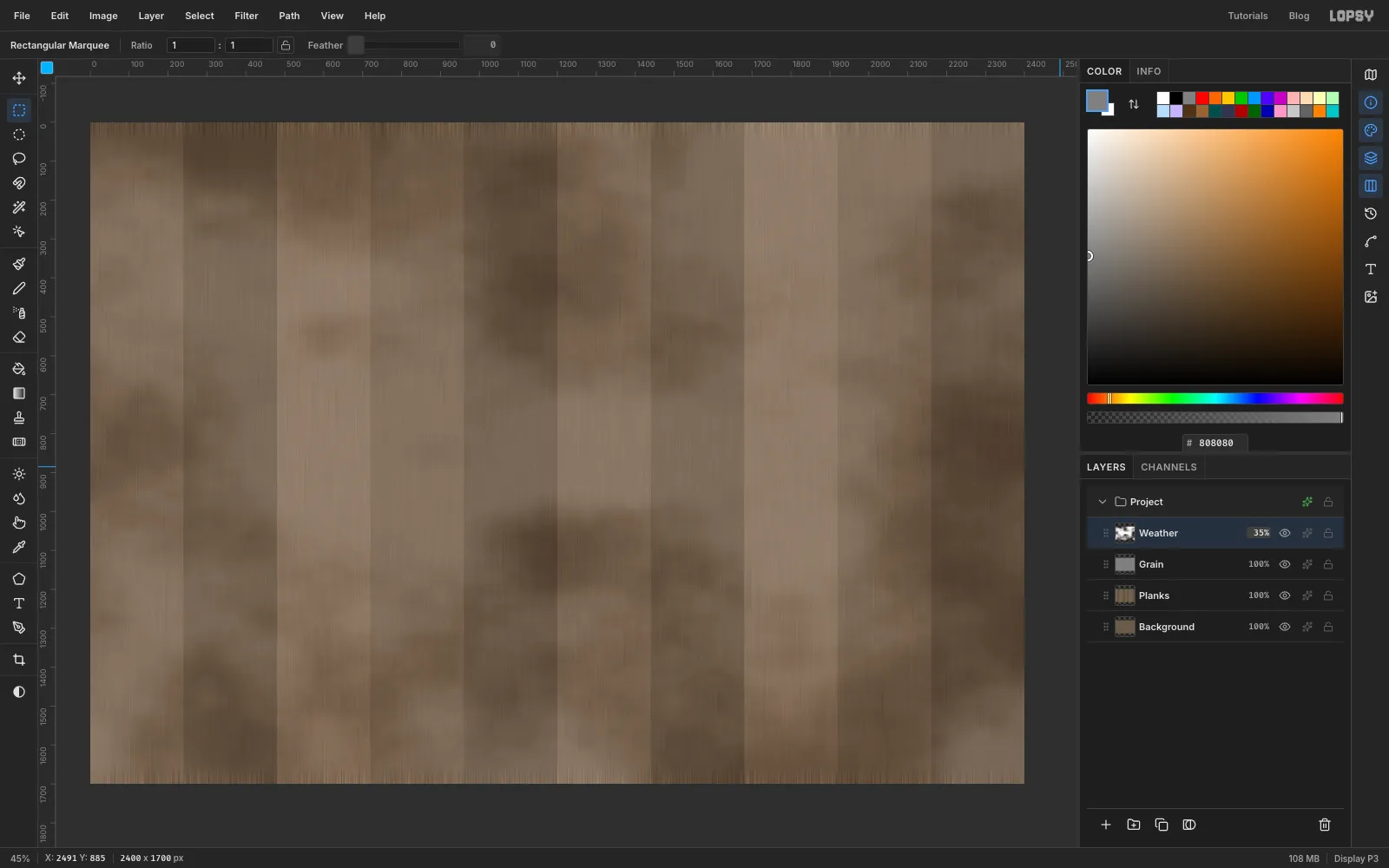
Weatherand run Filter → Clouds… with Scale4. - Set its blend mode to Soft Light and its opacity to
35%. Any stronger and the wall turns blotchy and fights with the plates.
- Add a layer called
-
Draw the seams and nails
- Add a layer called
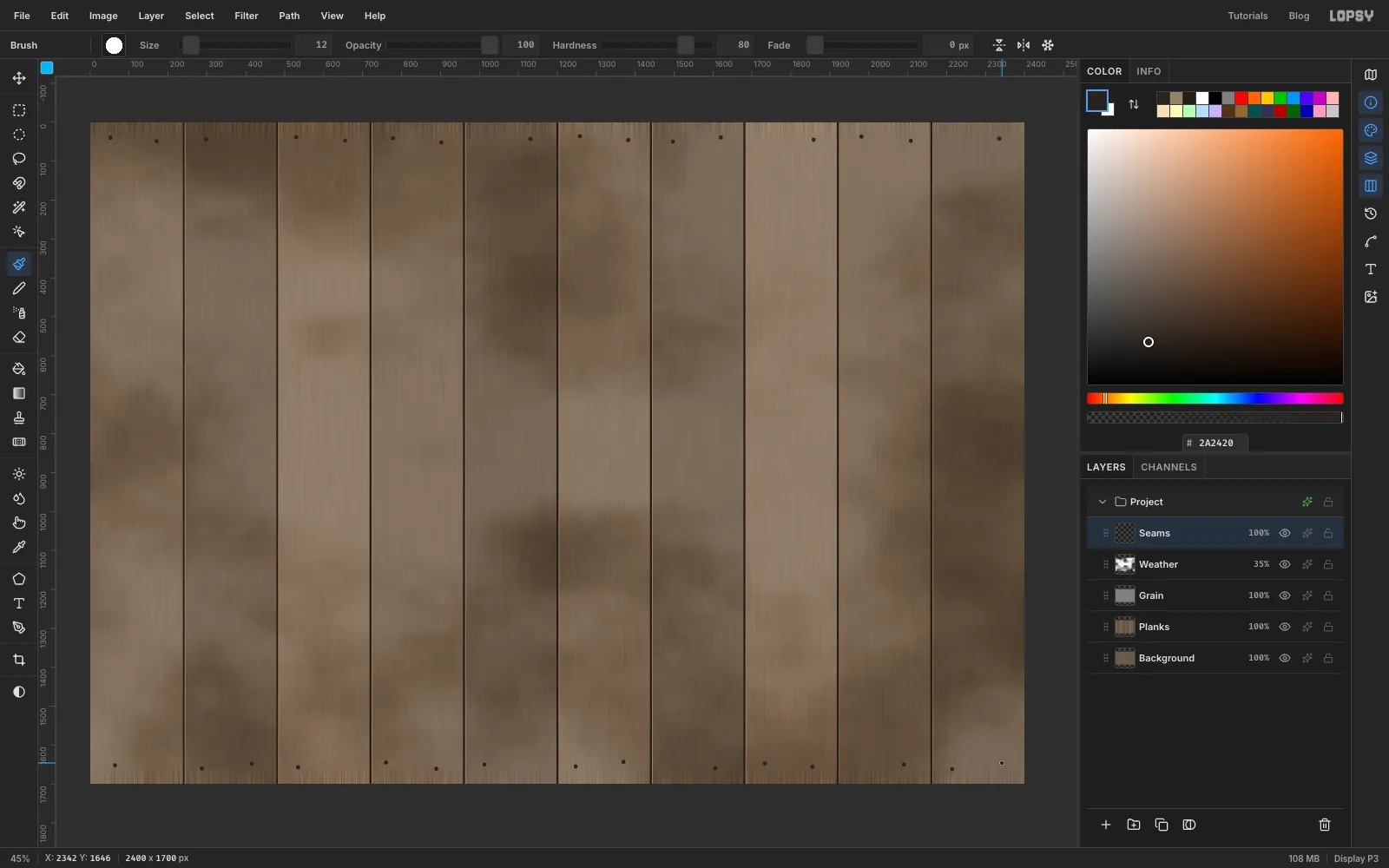
Seams. Pick the Pencil, set Size5and colour . - At each board edge (
x 240,480,720…) click at the top of the canvas, hold Shift and click at the bottom. Shift-click draws a straight line from the last point. - Set Size
2and colour and draw a second line 4 px to the right of each seam. That's the lit edge of the next board. - Pick the Brush at Size
12in and click a few nail heads along the top and bottom of the wall. Leave some boards with one nail, some with two, and keep them slightly uneven.
- Add a layer called
-
Lay out the grid with guides
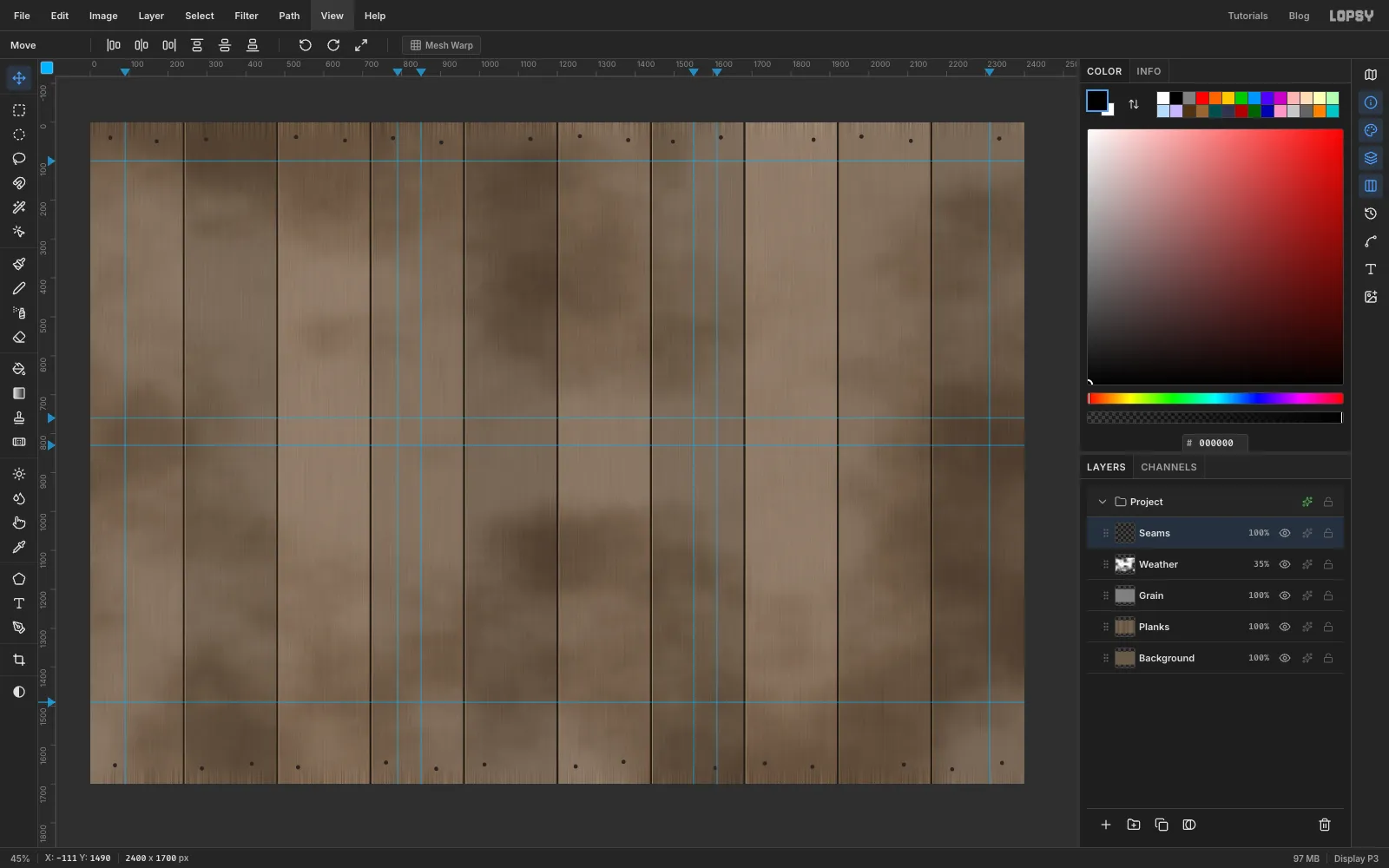
The sheet is a 3 × 2 grid of 700 × 660 px cells, with 60 px between the columns and 70 px between the rows.
- Zoom in on each spot so a ruler click lands on the exact pixel. Click the top ruler at
x 90,790,850,1550,1610and2310. Each click drops a vertical guide (watch X in the status bar). - Click the left ruler at
y 100,760,830and1490. - Make sure View → Snap to Guides is ticked.
- Zoom in on each spot so a ruler click lands on the exact pixel. Click the top ruler at
-
Start the first plate
Each plate gets its own group, so it can be tilted as one piece later.
- Click
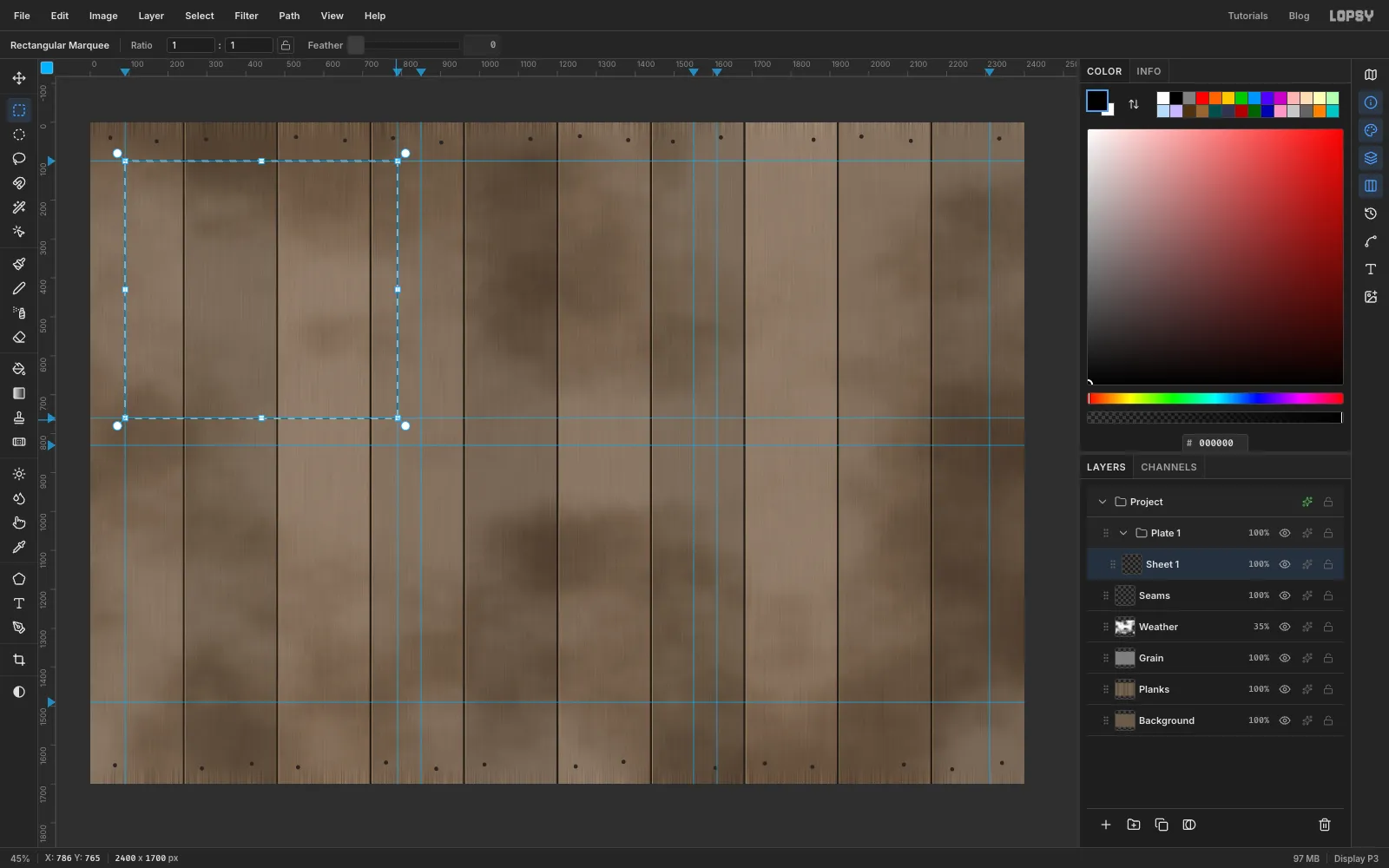
Seams, click New Group and rename the groupPlate 1. - With the group selected, click Add Layer. The layer goes inside the group. Rename it
Sheet 1. - With the Rectangular Marquee, drag from the top-left of the first cell to its bottom-right. The marquee snaps onto the guides, so you don't have to be exact.
- Click
-
Make the oiled manila sheet
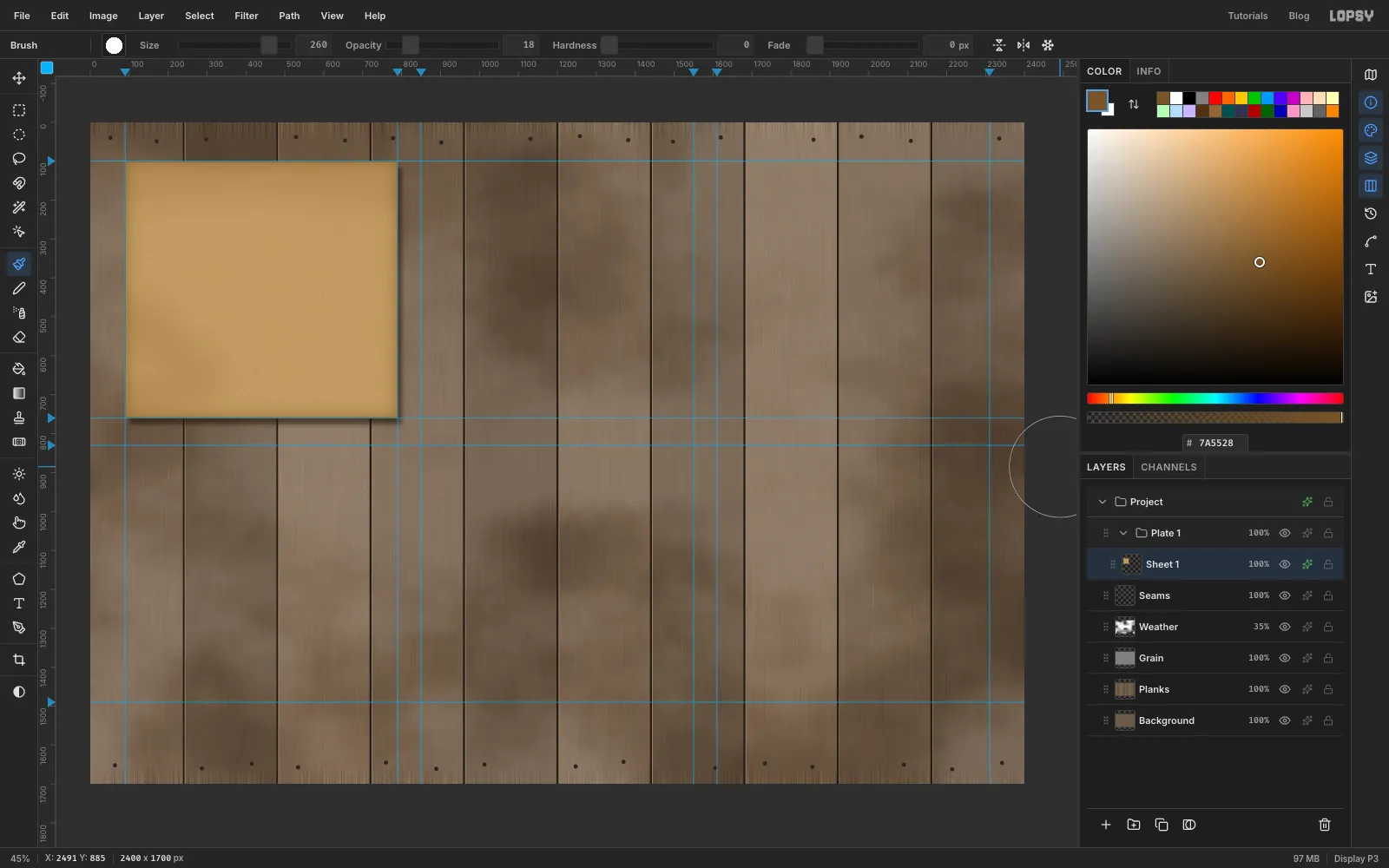
- Fill the selection with manila and run Filter → Add Noise… with Amount
12and Mono, for a paper tooth. - Pick the Brush with Size
260, Hardness0and Opacity18%, in . While the marquee is still active, paint a stroke along the top edge and a curling one in the bottom-left corner. The selection keeps the oil stains on the sheet. Deselect. - In the effects drawer, turn on:
- Drop Shadow: colour , Offset X
10, Offset Y16, Blur18, Opacity60 - Stroke: colour , Width
2, position inside, for the cut edge - Inner Glow: colour , Size
60, Opacity55. Oil soaks in darker along every edge, and later along every cut too.
- Fill the selection with manila and run Filter → Add Noise… with Amount
-
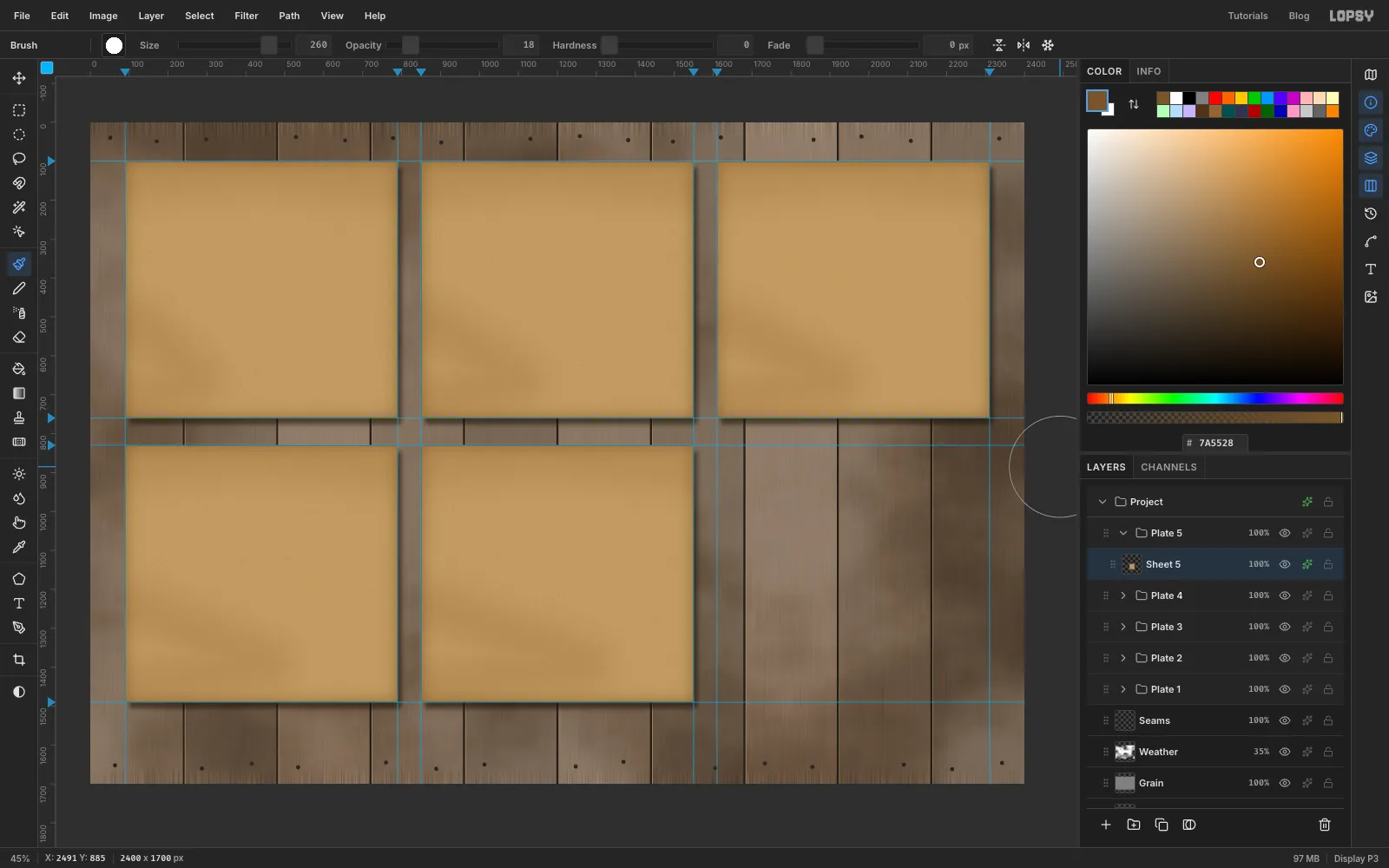
Add the other four sheets
- Collapse
Plate 1with its arrow and keep it selected, then click New Group. With a collapsed group selected, the new group lands beside it instead of inside. Name itPlate 2. - Inside it, repeat steps 2 and 3 of Start the first plate and all of Make the oiled manila sheet, effects included, for
Sheet 2in the second cell. Move the oil strokes about a little so the sheets don't match. - Do the same for
Plate 3,Plate 4andPlate 5in the next three cells.
- Collapse
-
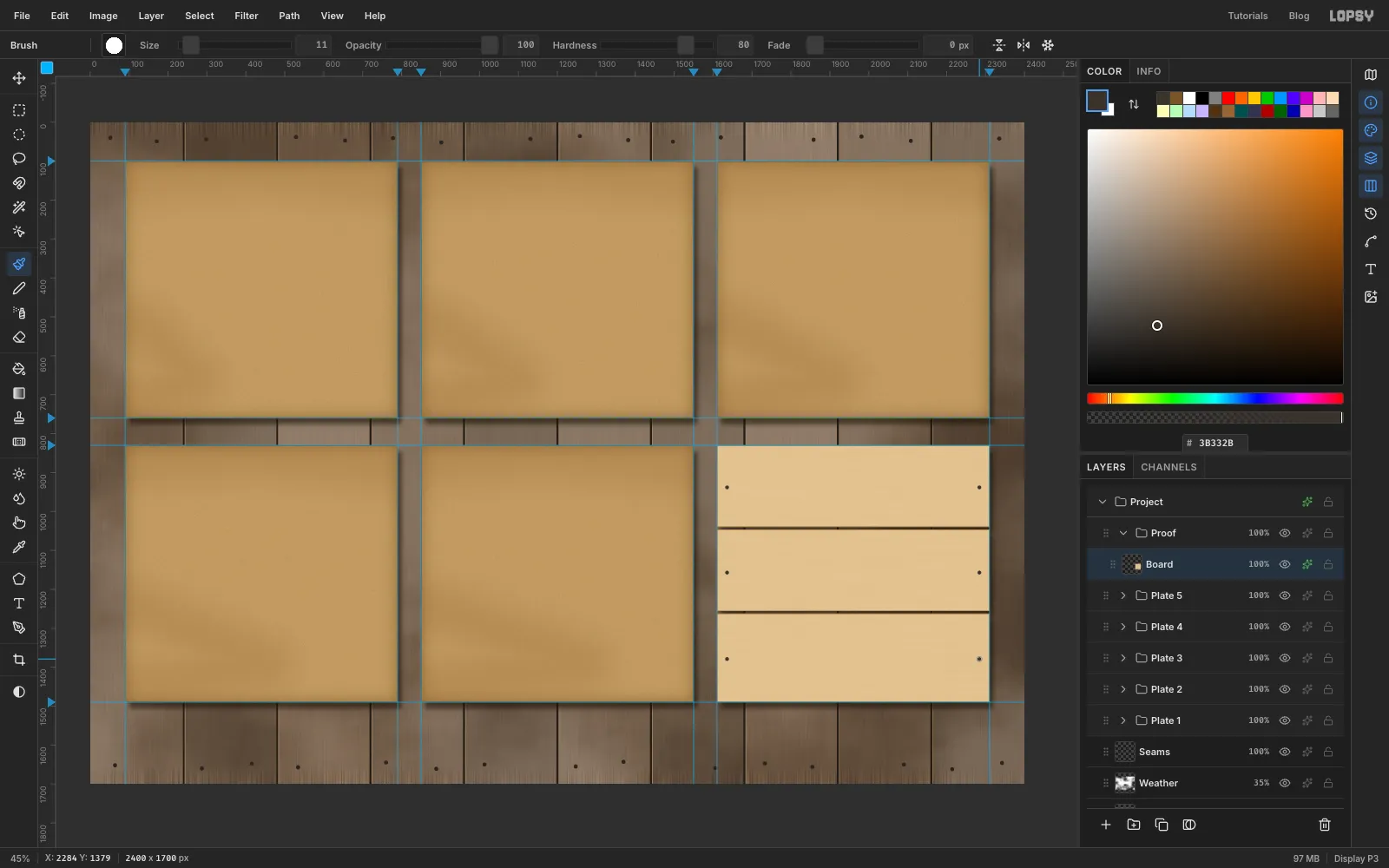
Build the pine crate end
- Collapse
Plate 5, select it, and add a group calledProofwith a layerBoardinside. - Open the marquee dialog and select a rectangle 60 px wider than the last cell on both sides: From
1550,830, To2370,1490. Fill it with pine . - Run Add Noise… at
40, Mono, then Motion Blur… at Angle0, Distance90for horizontal grain. The extra width keeps the blur from fading at the ends. - Press Cmd+D, open the dialog again and select the cell exactly (
1610,830to2310,1490), choose Select → Inverse and press Delete to trim the extra. - Cut two 6 px gaps between the boards (deselect before each dialog): select
1610,1040to2310,1046and press Delete, then the same aty 1256–1262. - Give
Boardthe same Drop Shadow as the sheets and a 2 px inside Stroke in . With the Brush at Size11in , click one nail near each end of every board.
- Collapse
-
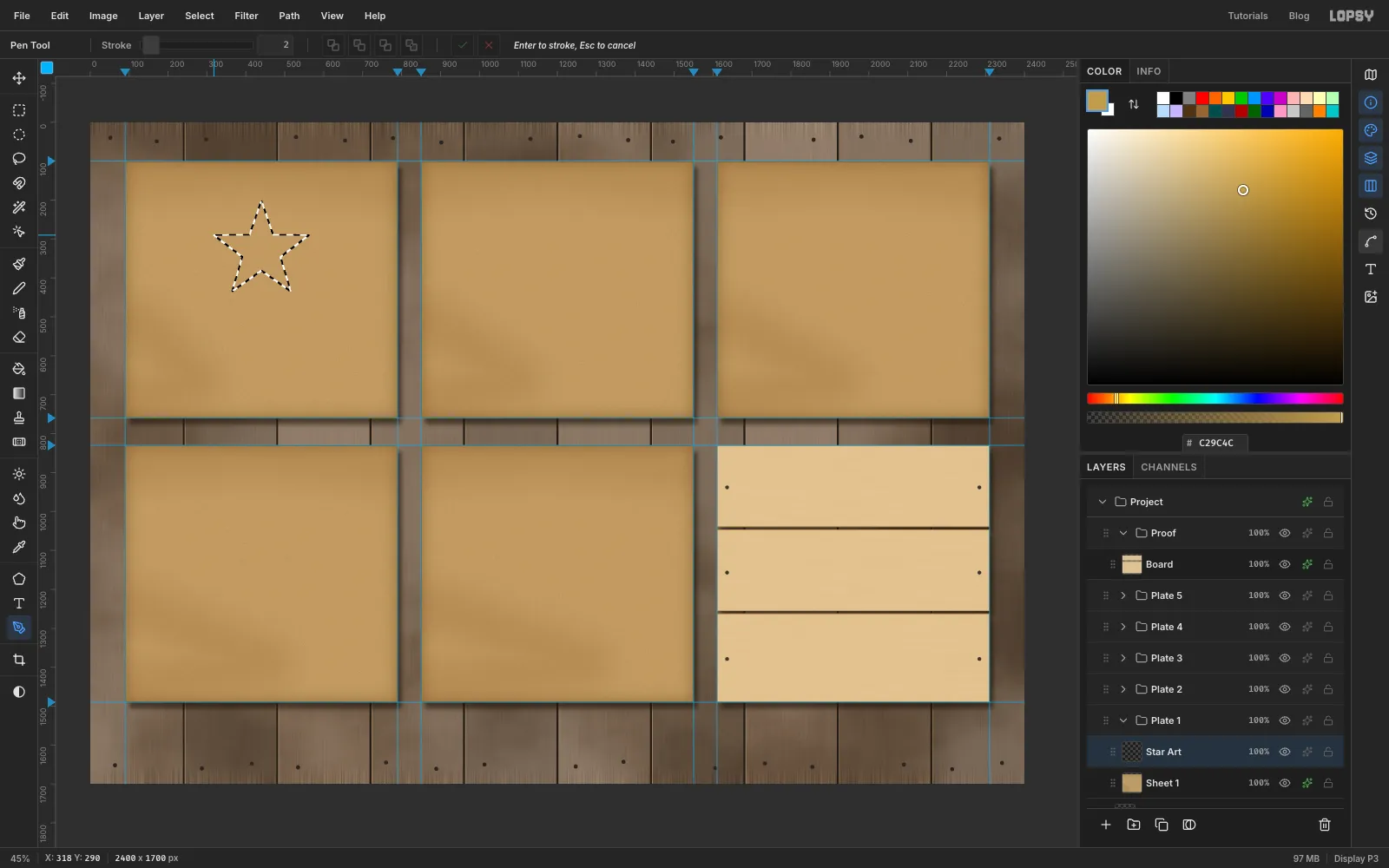
Draw the barn star with the Pen
Plate 1 is the mustard plate: a five-point barn star in a ring.
- Expand
Plate 1, clickSheet 1and add a layer calledStar Artabove it. - Pick the Pen tool. The star is centred at
x 440,y 330, with its outer points 128 px from the centre and its inner points 51 px. Watching X and Y in the status bar, click these ten points in order, starting at the left-most one: 318, 290 · 410, 289 · 440, 202 · 470, 289 · 562, 290 · 489, 346 · 515, 434 · 440, 381 · 365, 434 · 391, 346. Click the first point again to close the path. - Open the Paths panel and click Path to Selection. Keep the path for now.
- Fill the selection with mustard .
- Expand
-
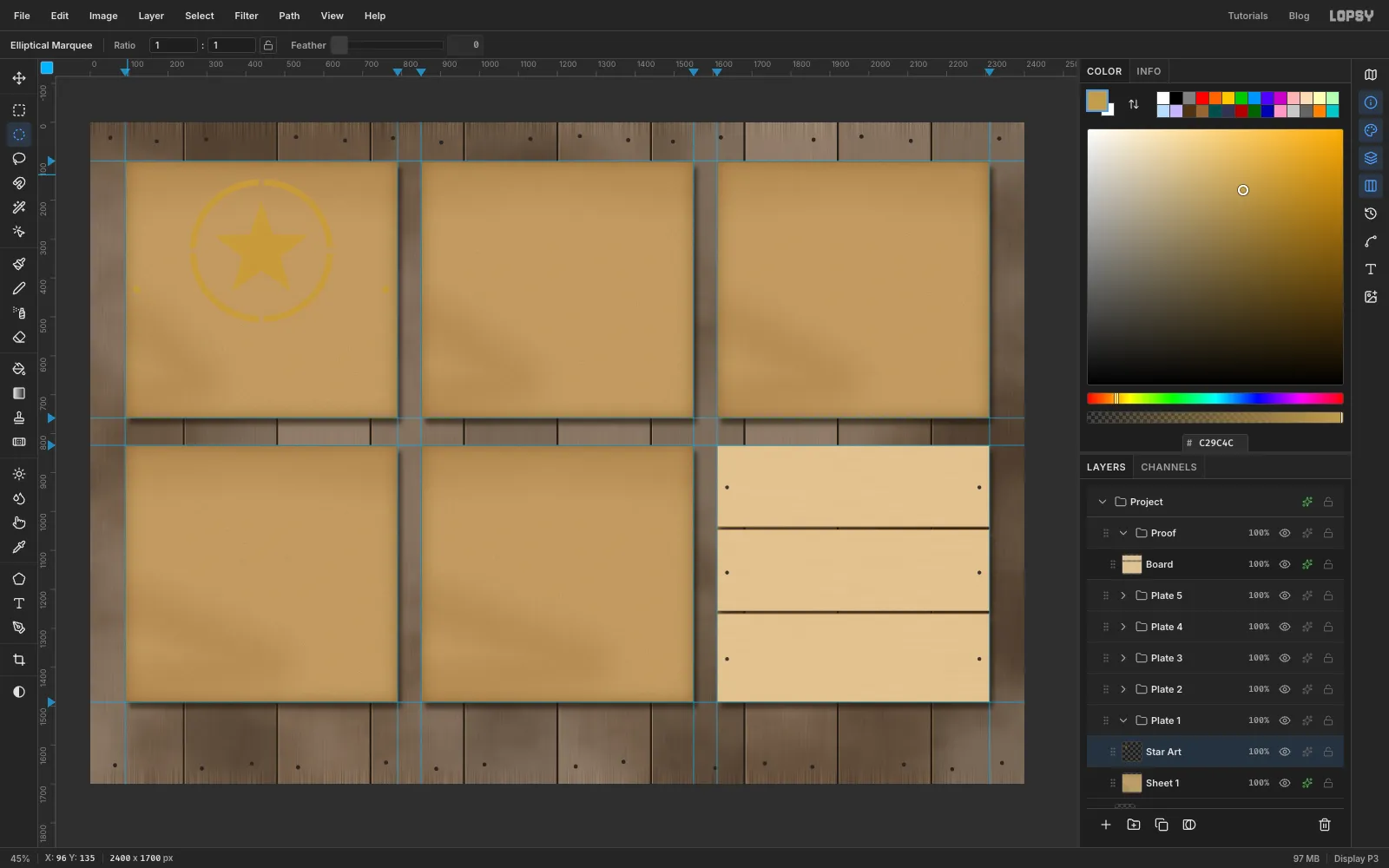
Add the ring, bridges and registration holes
- Deselect, then with the Elliptical Marquee click once to open its dialog and select From
256,146To624,514(a 184 px radius around the star centre). Fill it. - Deselect and select From
272,162To608,498(radius 168) and press Delete. That leaves a 16 px ring. The delete also clears the star, so click Path to Selection again, fill it again, and then click Delete Path. - A ring cut all the way round would let the centre of the stencil fall out. Leave four bridges: select a rectangle across the ring at the top and bottom (14 wide × 24 tall) and at the left and right (24 wide × 14 tall), and press Delete each time.
- Add the registration holes: two 18 px circles, centred 30 px in from the left and right edges of the cell at half its height (
x 120andx 760,y 430). Fill them.
Every plate gets these two holes in exactly the same place.
- Deselect, then with the Elliptical Marquee click once to open its dialog and select From
-
Cut the plate
- Cmd-click the
Star Artthumbnail. Its shape loads as a selection. - Click
Sheet 1and press Delete.
Hide
Star Artfor a moment to check. The wall shows through the cut, the drop shadow falls into it, and the Inner Glow darkens the cut edges like oil-soaked card.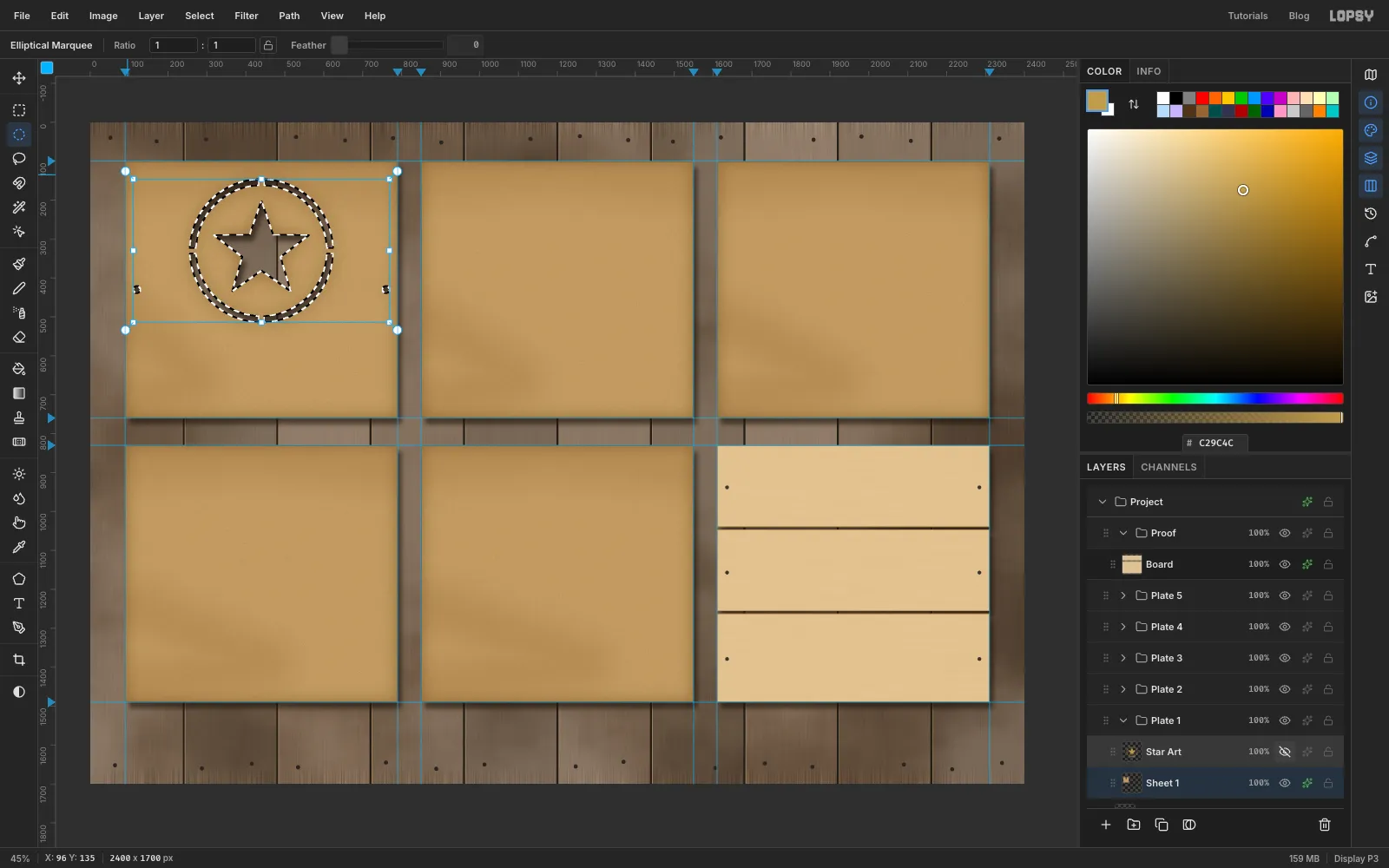
- Cmd-click the
-
Spray the star onto the proof
- Show
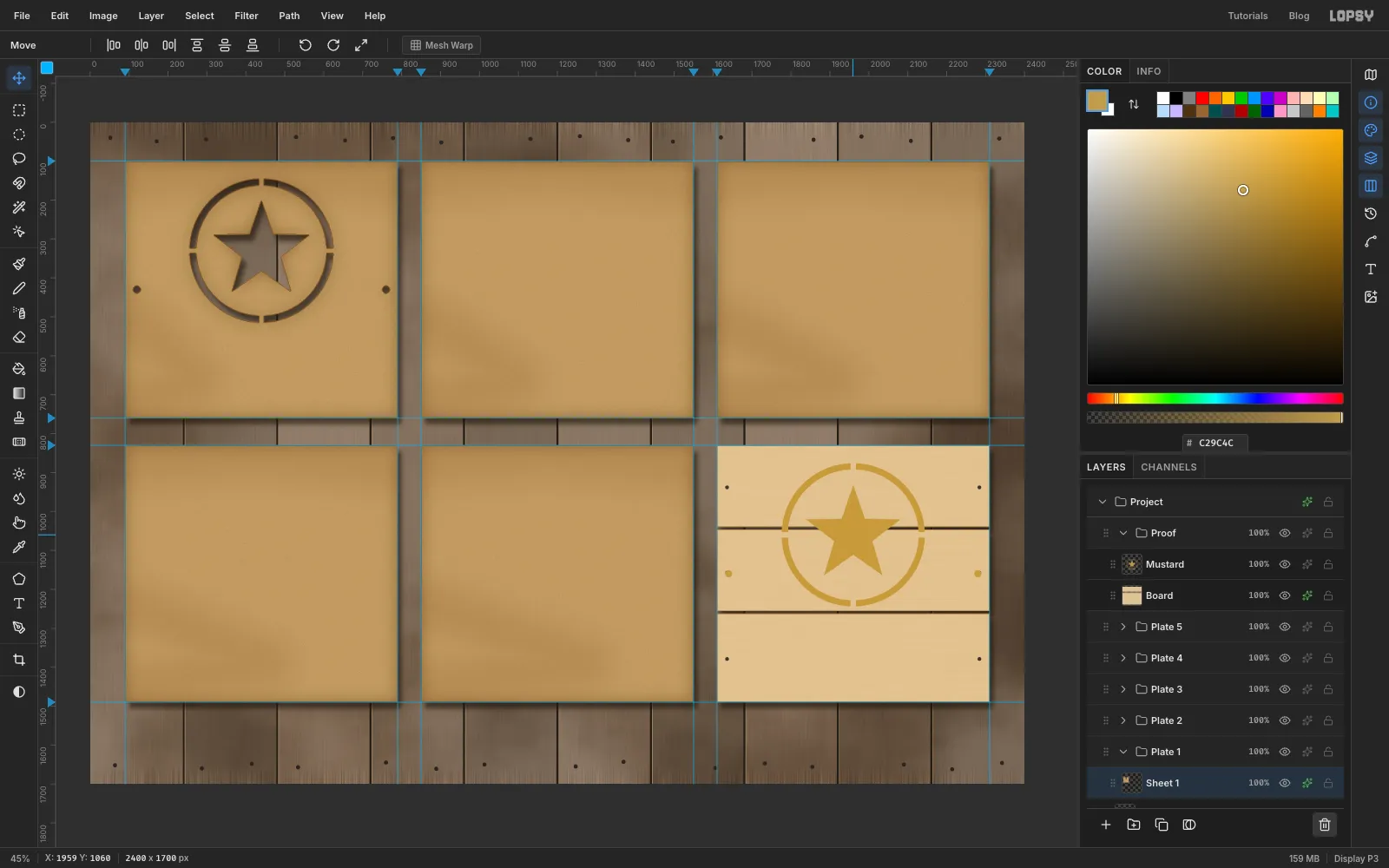
Star Art, click its row, Cmd-click its thumbnail and press Cmd+C. - Expand
Proof, clickBoardand press Cmd+V. The copy lands in place, right aboveBoard. Rename itMustardand deselect. - With the Move tool, drag it 1520 px right and 730 px down, into the same spot in the sixth cell. Finish with the arrow keys until its registration dots sit exactly the same distance from the board's edges as the holes on the plate.
- Delete the
Star Artlayer. The plate is cut and the colour is on the proof.
- Show
-
Drop in the rooster woodcut
Plate 2 is barn red: the rooster and two apples.
- Collapse
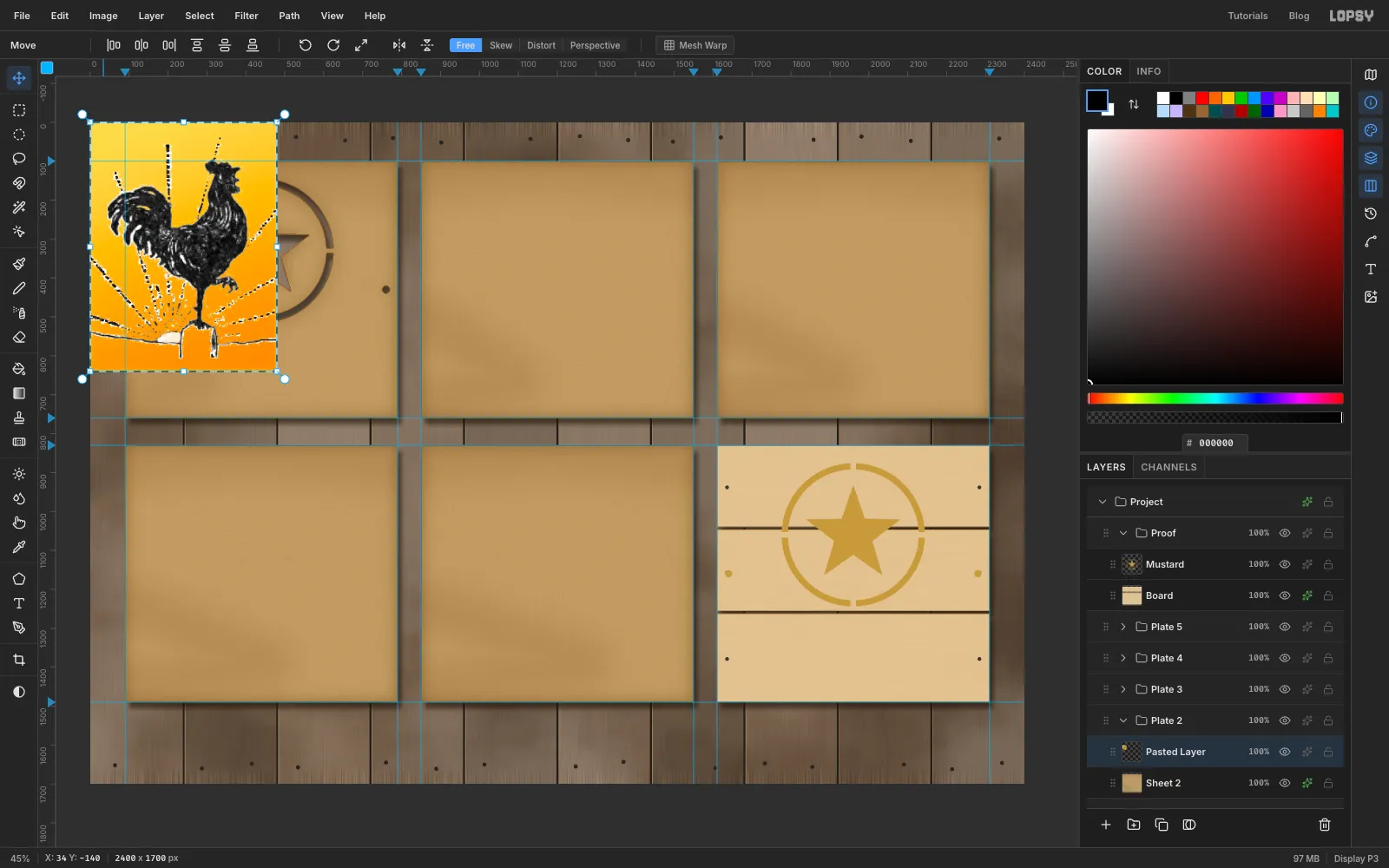
Plate 1, expandPlate 2and clickSheet 2. - Drag the downloaded rooster file onto the canvas. It arrives at full size in the top-left corner as a new layer above
Sheet 2. Deselect with Cmd+D and rename the layerRed Art.
- Collapse
-
Turn the woodcut into black and white
- Run Filter → Desaturate.
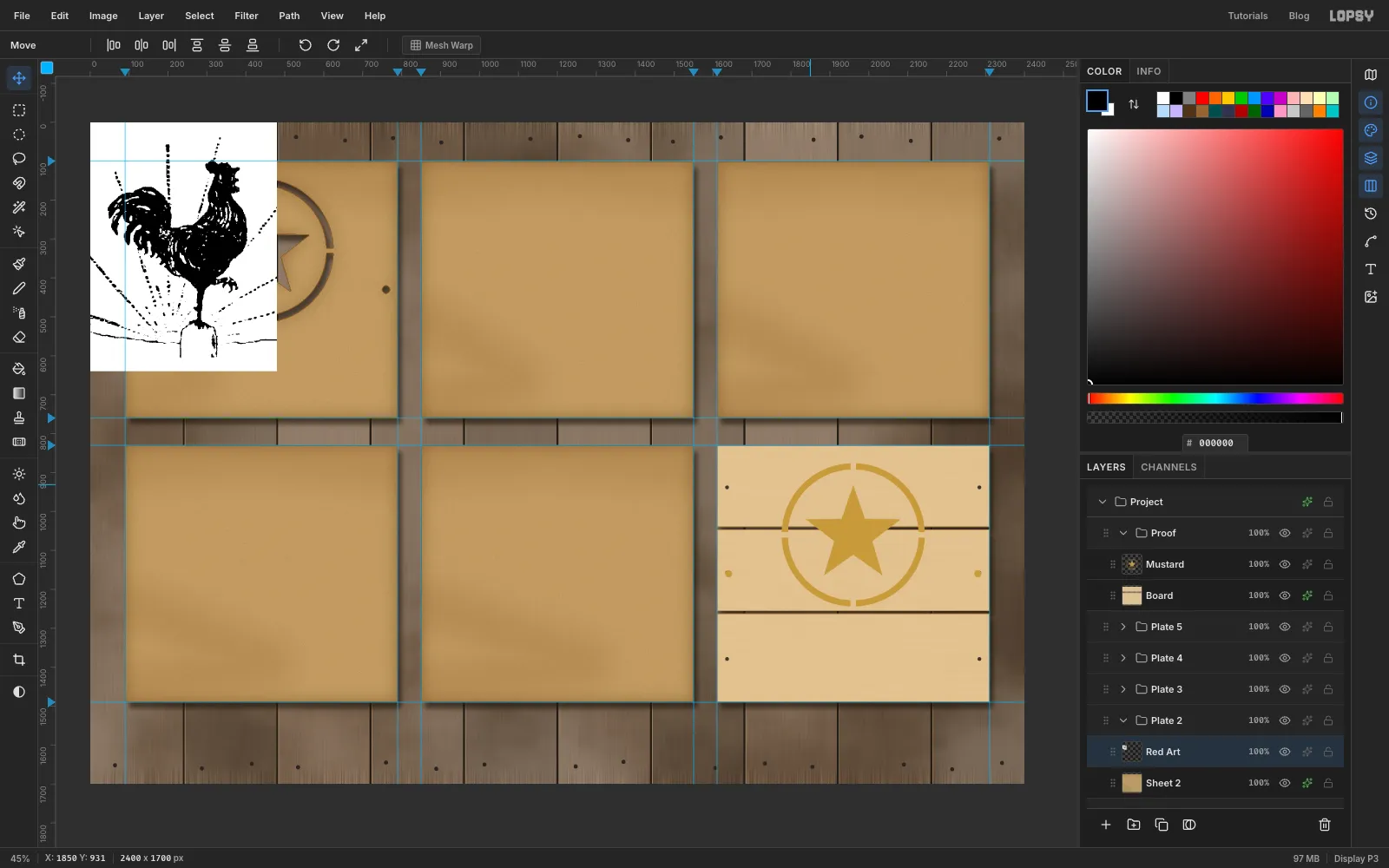
- Run Filter → Threshold… with Level
110. The orange background turns white and the ink turns solid black.
-
Select the bird with the Magic Wand
- Pick the Magic Wand, set Tolerance
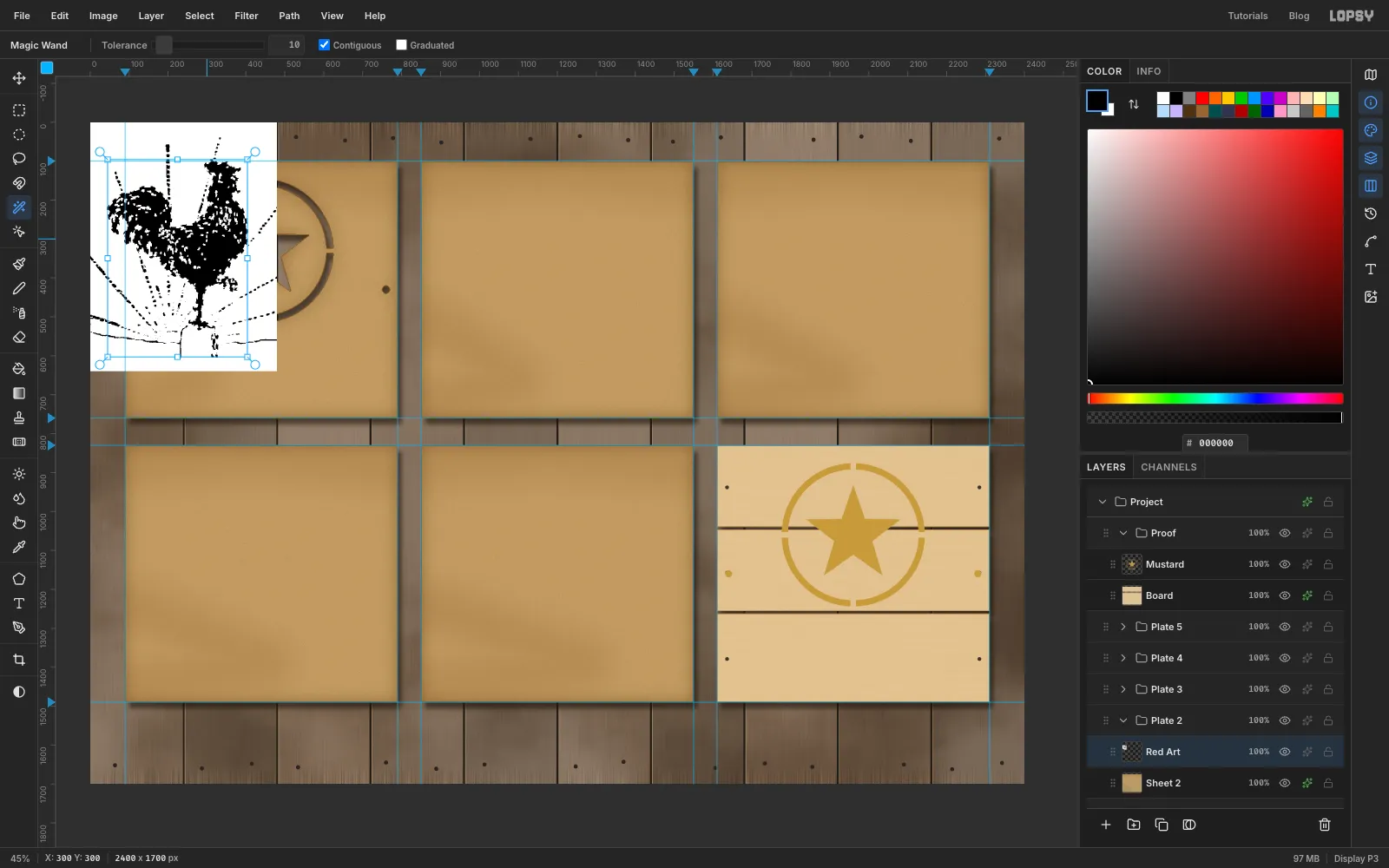
10and tick Contiguous. - Click the middle of the rooster's black body. The wand takes everything joined to it, including the post, but not the loose rays.
- Woodcut hatching leaves small white flecks inside the selection. Run Select → Grow…
5and then Select → Shrink…5. Growing closes the small holes and shrinking brings the outline back, so you get one clean shape.
- Pick the Magic Wand, set Tolerance
-
Clear everything but the rooster
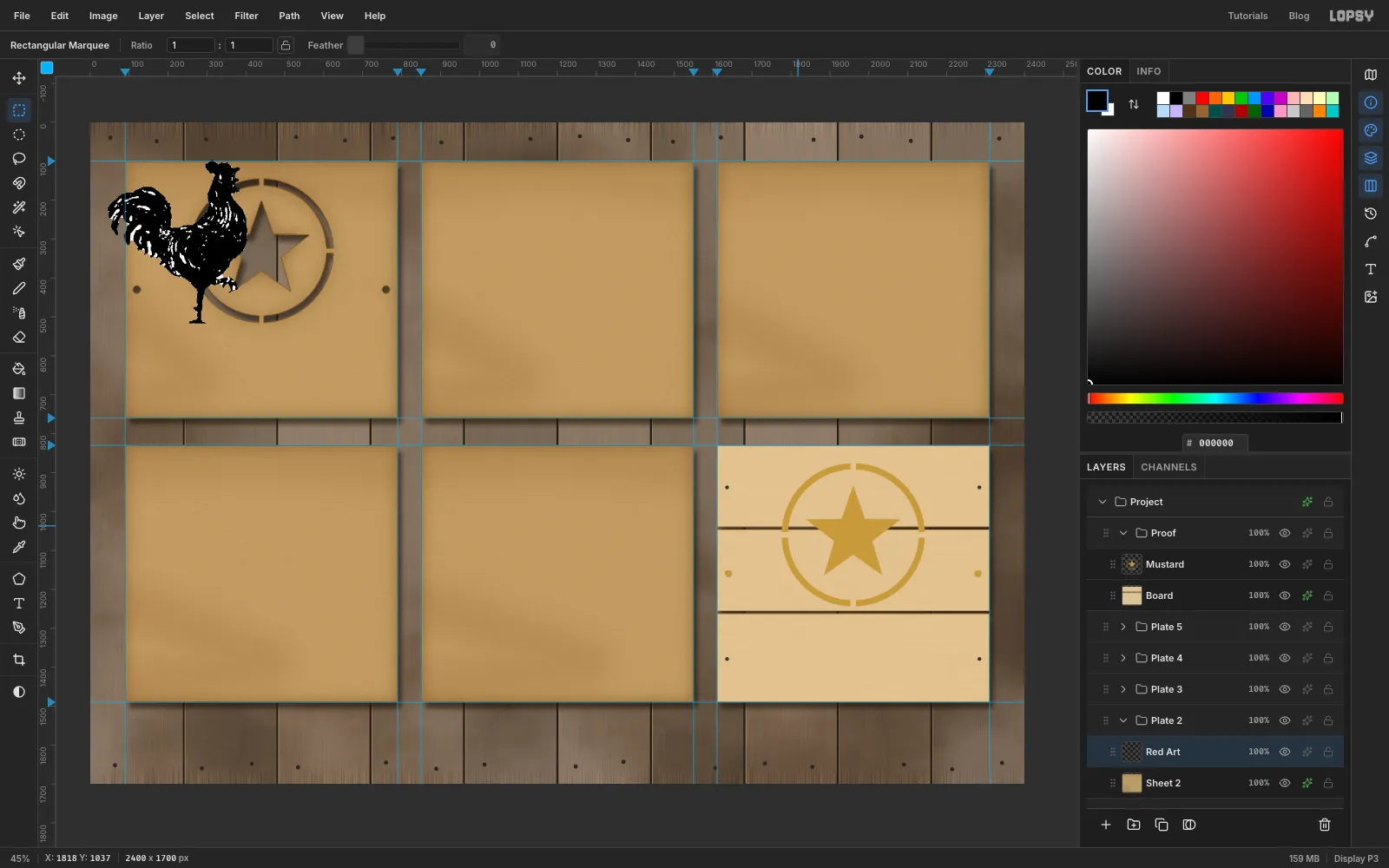
- Choose Select → Inverse and press Delete. The background and the rays disappear.
- Marquee the post below the feet (from the bottom of the feet to the bottom of the layer, across the full width) and press Delete.
- Cmd-click the
Red Artthumbnail, fill the selection with barn red and deselect.
-
Scale the rooster down
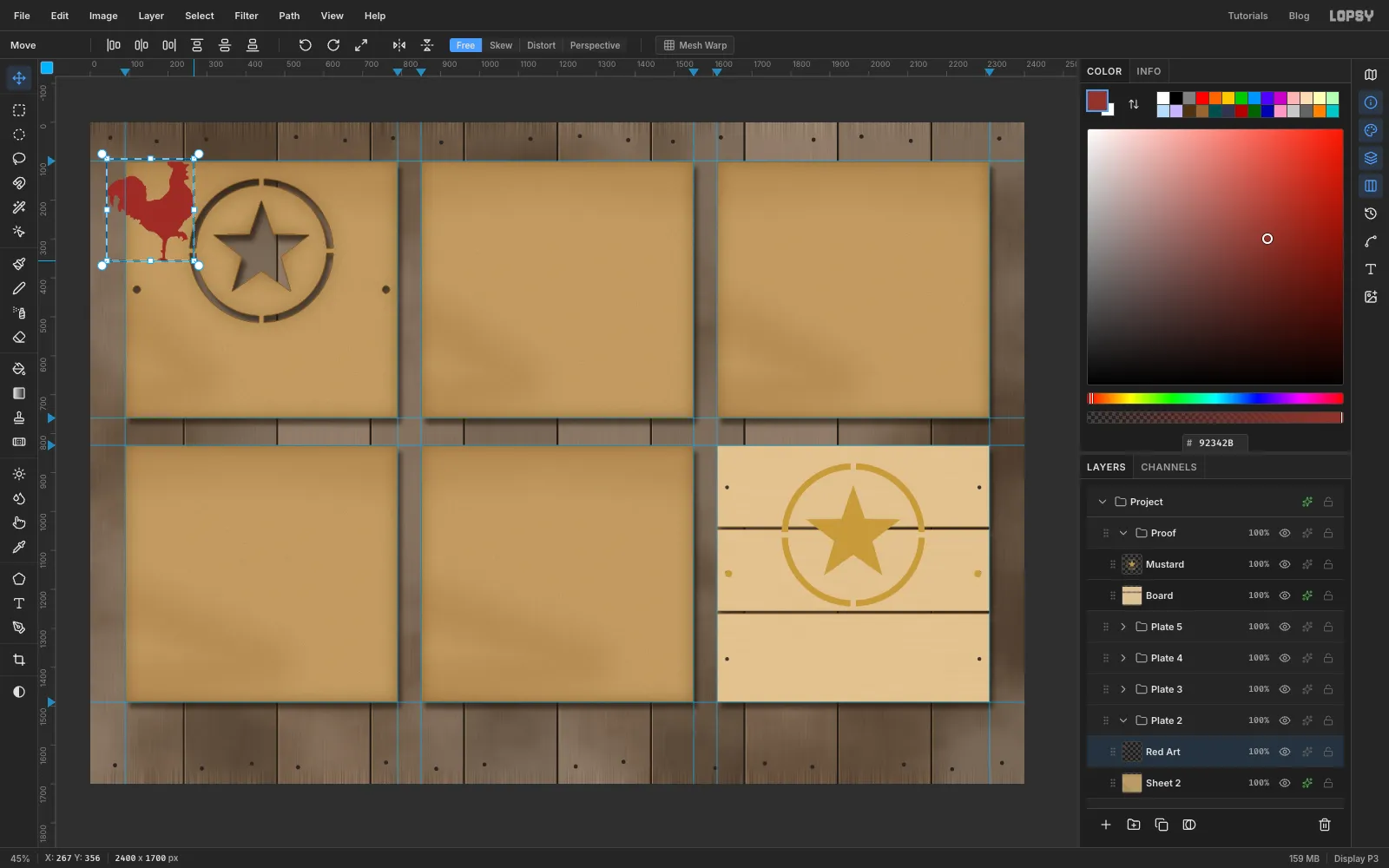
- Draw a rectangular marquee a couple of pixels larger than the rooster.
- Pick the Move tool, hold Cmd and drag the bottom-right corner handle up and left until the rooster is about 260 px tall. Holding Cmd keeps the proportions.
- Press Cmd+D to commit the scale.
Press Cmd+Z and Cmd+Shift+Z once each to compare. The scale undoes and redoes cleanly.
-
Place the rooster on the plate
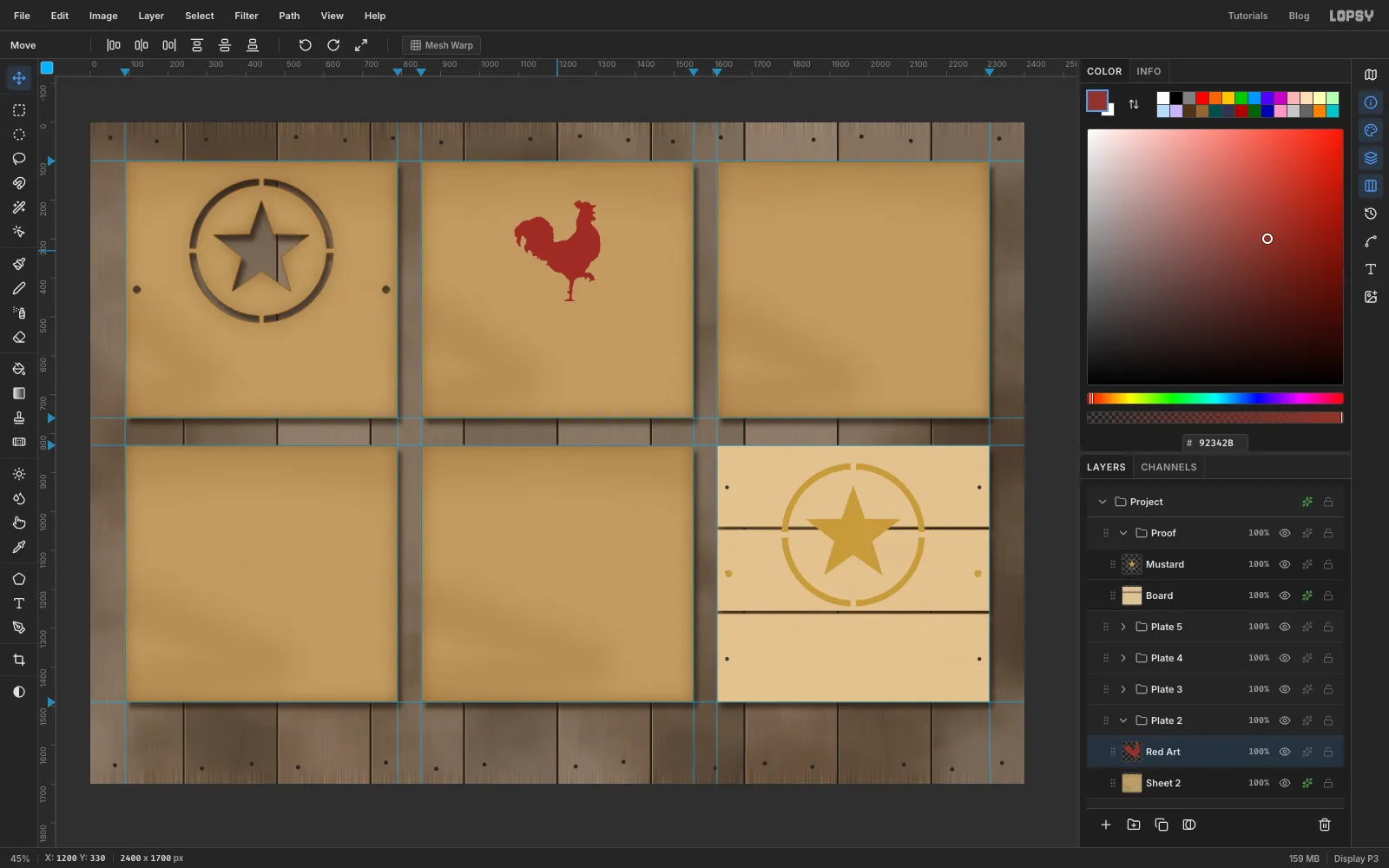
With the Move tool, drag the rooster onto the second plate. Centre it horizontally, with the top of its comb 100 px below the top of the sheet. The rooster then is centred where plate 1's ring centre sits, a little above the middle of the cell. Use the arrow keys for the last few pixels.
-
Cut stencil bridges into the rooster
A solid rooster would cut out as one big hole and the plate would flop. Real stencils break shapes with thin bridges that double as drawing.
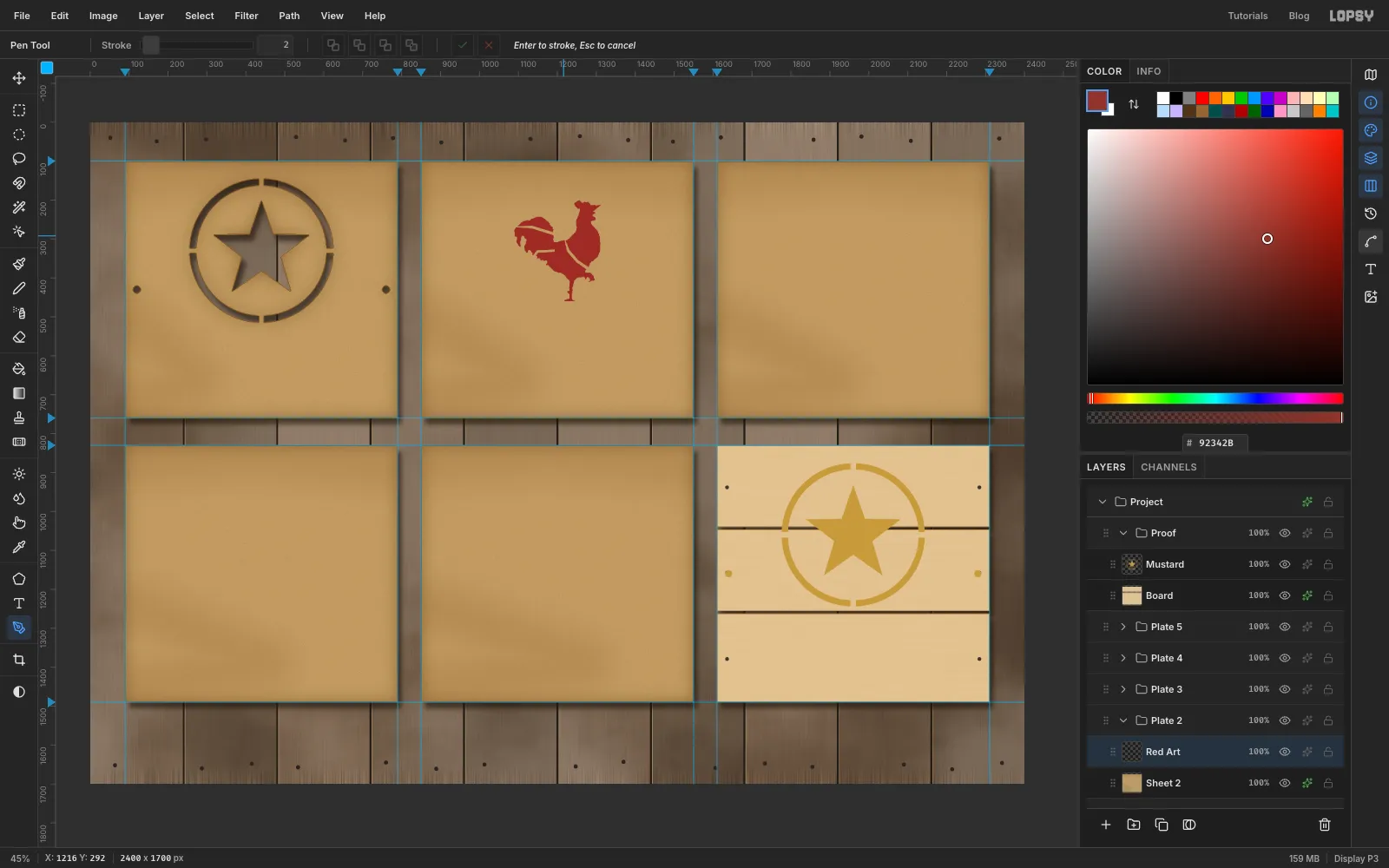
- With the Pen, draw a thin closed sliver, about 7 px wide, across the tail from the back to the outside edge. Click down one side and back up the other. Path to Selection, press Delete, and Delete Path.
- Do the same lower down the tail, and once more for a wing line that starts in the dip of the back and curves down through the breast and out the front.
- The threshold lost the open beak. Pen a small triangle pointing up and right from the face, turn it into a selection and fill it red.
-
Add the apples and holes
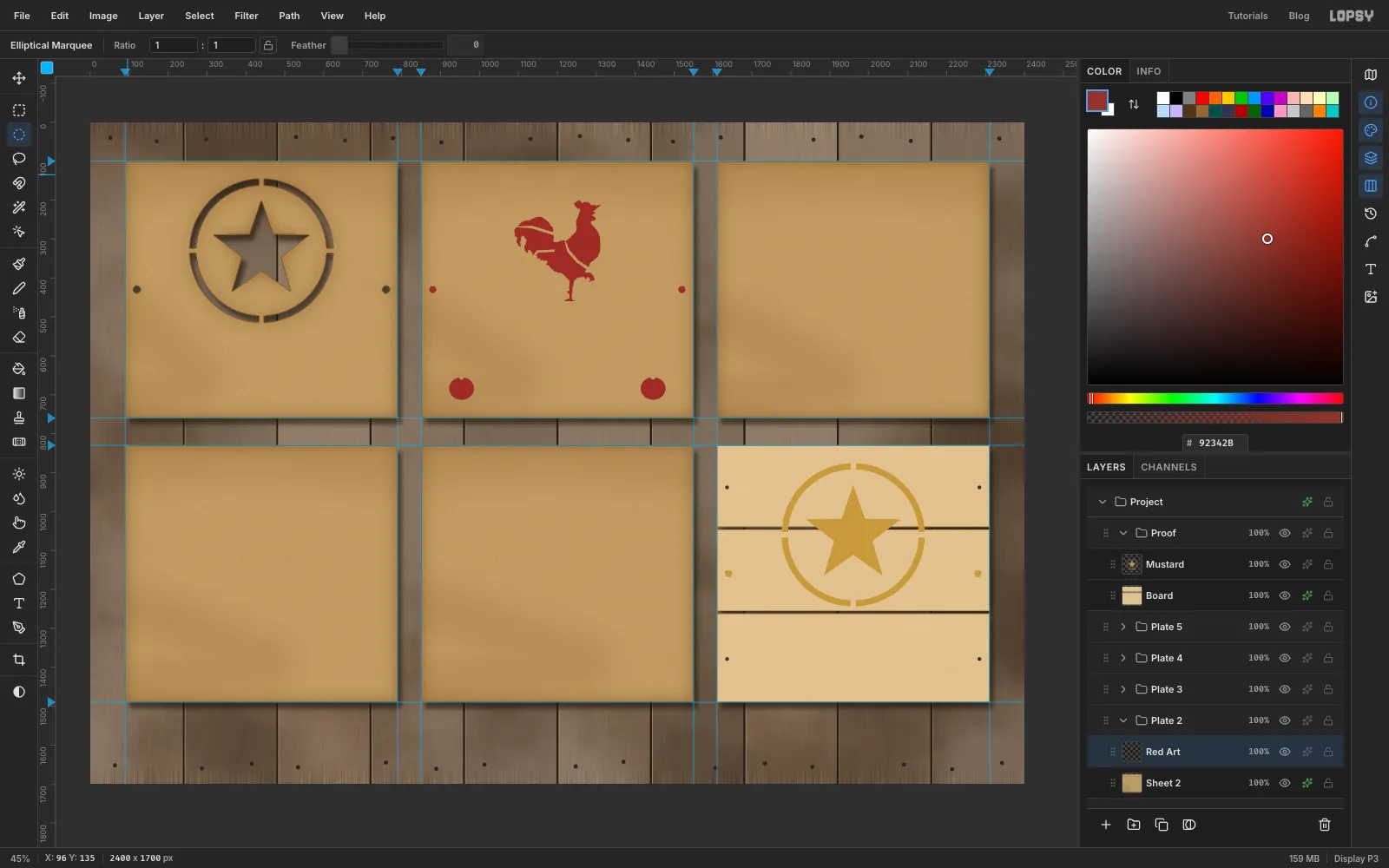
- With the elliptical marquee dialog, select a 64 × 58 px ellipse centred 104 px in from the left of the cell and 584 px down. Fill it red.
- Delete a 14 × 13 px ellipse at the top of the apple for the stem notch.
- Repeat for a second apple centred 104 px in from the right.
- Add the two registration holes in the same place as on plate 1, and fill them red.
-
Cut plate 2
Cmd-click the
Red Artthumbnail, clickSheet 2and press Delete. The bridges stay as thin strips of manila across the cut.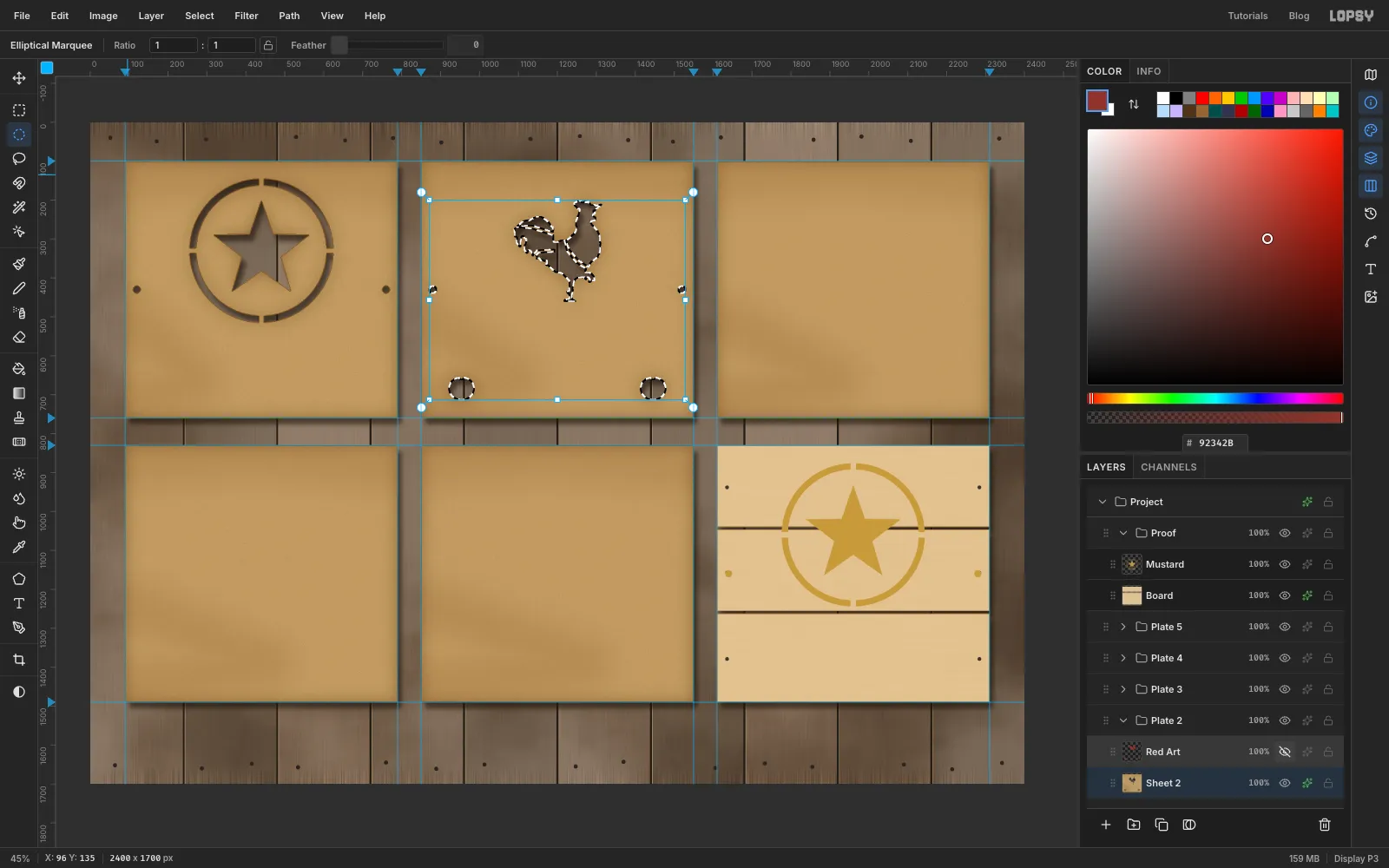
-
Spray the red onto the proof
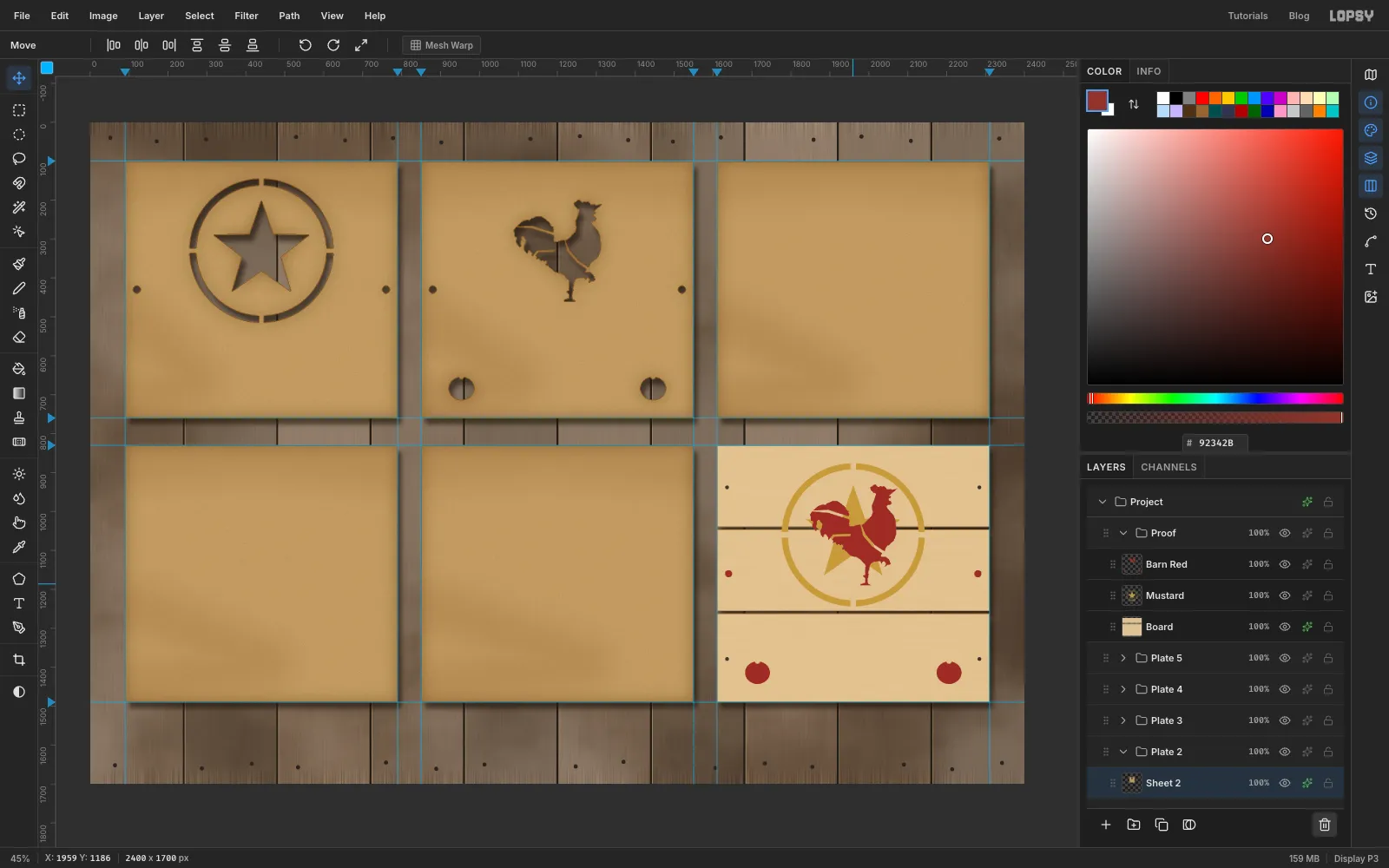
Copy the art onto the proof the same way as before:
- Click
Red Art, Cmd-click its thumbnail, press Cmd+C. - Click
Mustardin theProofgroup and press Cmd+V, so the paste lands above the mustard. Rename itBarn Redand deselect. - Move it 760 px right and 730 px down, and nudge until the red registration dots sit right on top of the mustard ones.
- Delete
Red Art.
- Click
-
Cut the ribbon for plate 3
Plate 3 is navy: the name and a ribbon under it.
- Collapse
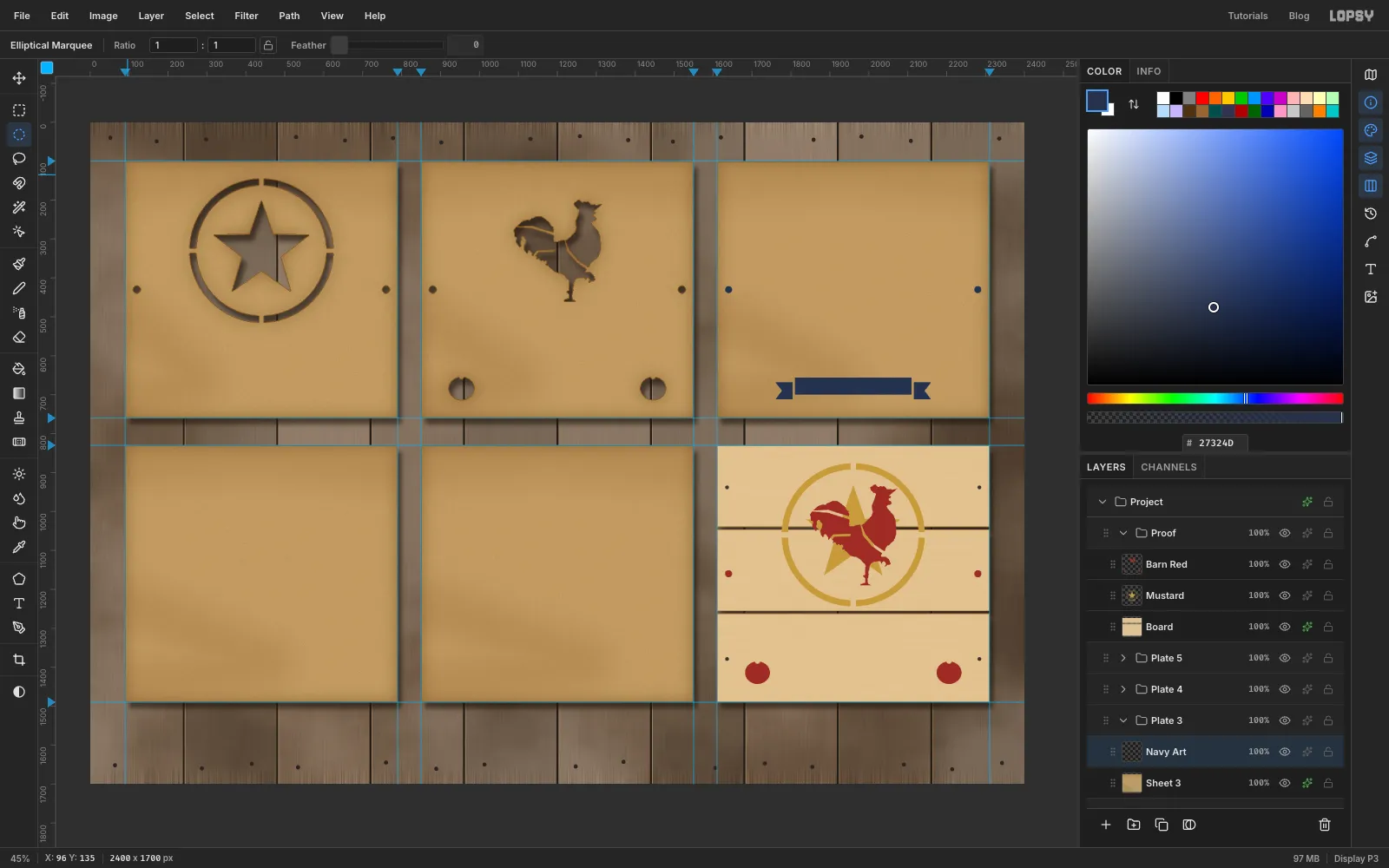
Plate 2, expandPlate 3, clickSheet 3and add a layerNavy Art. - Select a 300 × 44 px rectangle from 200 px to 500 px across the cell, 556 px to 600 px down, and fill it with navy .
- With the Pen, draw each tail as a five-point shape, a little lower than the band and pointing outward with a V notch cut into its end. Leave a 6 px gap between each tail and the band. That gap is the fold of the ribbon and a bridge at the same time. Path to Selection, fill, Delete Path.
- Add the registration holes in navy.
- Collapse
-
Set FOWLER in a stencil face
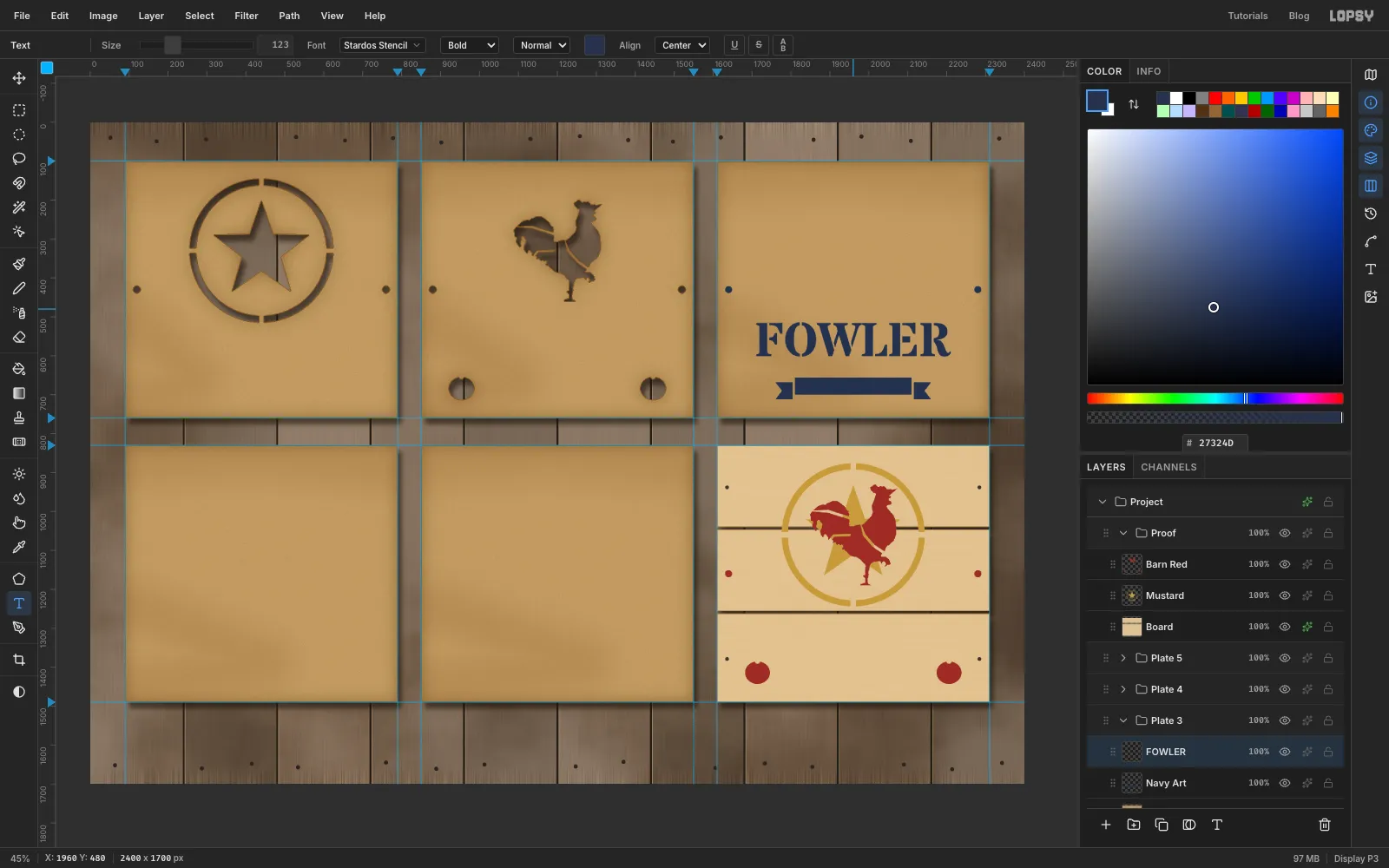
- Pick the Text tool. Choose Stardos Stencil, weight Bold, Align Center, size
123, colour navy. - Click in the empty middle of the plate, type
FOWLERand press Tab to commit. - Stardos Stencil already has stencil breaks in every letter, so the counters of the O and R won't fall out.
- Pick the Text tool. Choose Stardos Stencil, weight Bold, Align Center, size
-
Fit the name over the ribbon
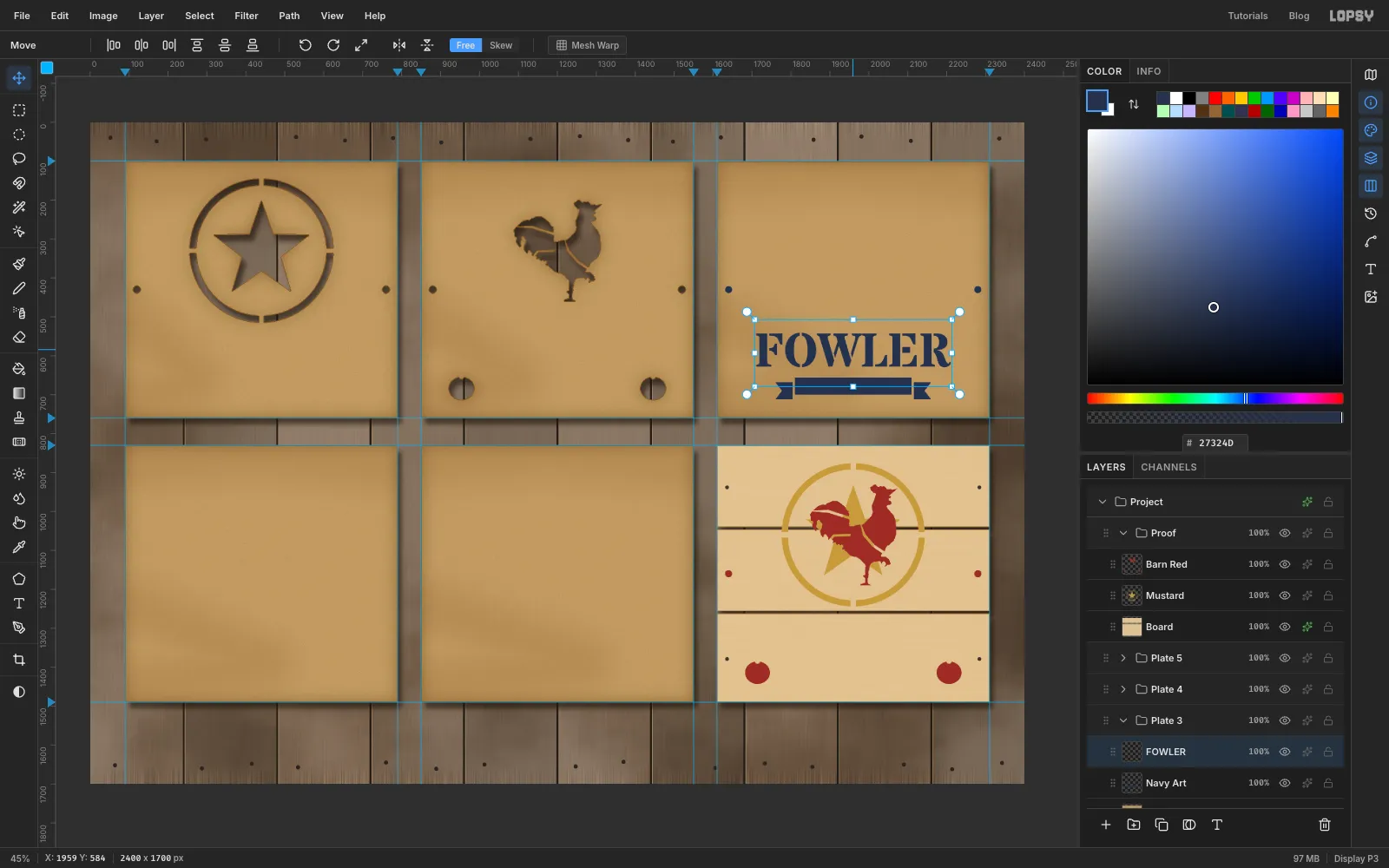
At size 123 the word is 500 px wide, the same as the space between the apples.
- With the Move tool, centre it over the ribbon with its baseline about 27 px above the band. Arrow keys move it 1 px, Shift + arrows 10 px.
-
Merge the lettering into the art
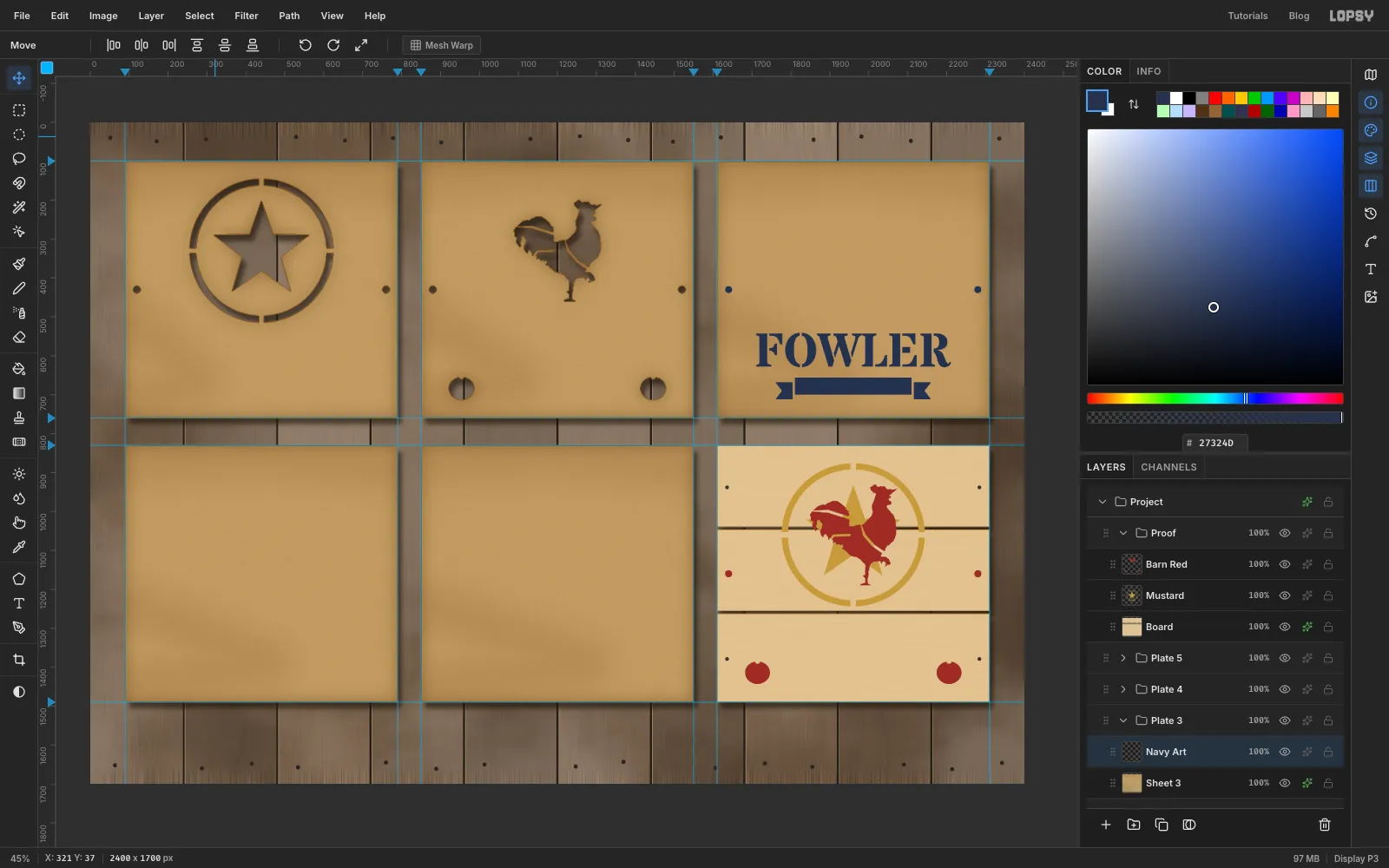
- Click Rasterize Layer at the bottom of the Layers panel.
- Choose Layer → Merge Down to merge the lettering into
Navy Art.
-
Cut plate 3 and spray the navy
- Cmd-click the
Navy Artthumbnail, clickSheet 3and press Delete. - Click
Navy Art, Cmd-click its thumbnail and press Cmd+C. ClickBarn Redin the proof and press Cmd+V. Rename itNavy, move it 0 px across and 730 px down (plate 3 sits directly above the proof), and line up the dots. - Delete
Navy Art.
- Cmd-click the
-
Draw the laurel sprigs
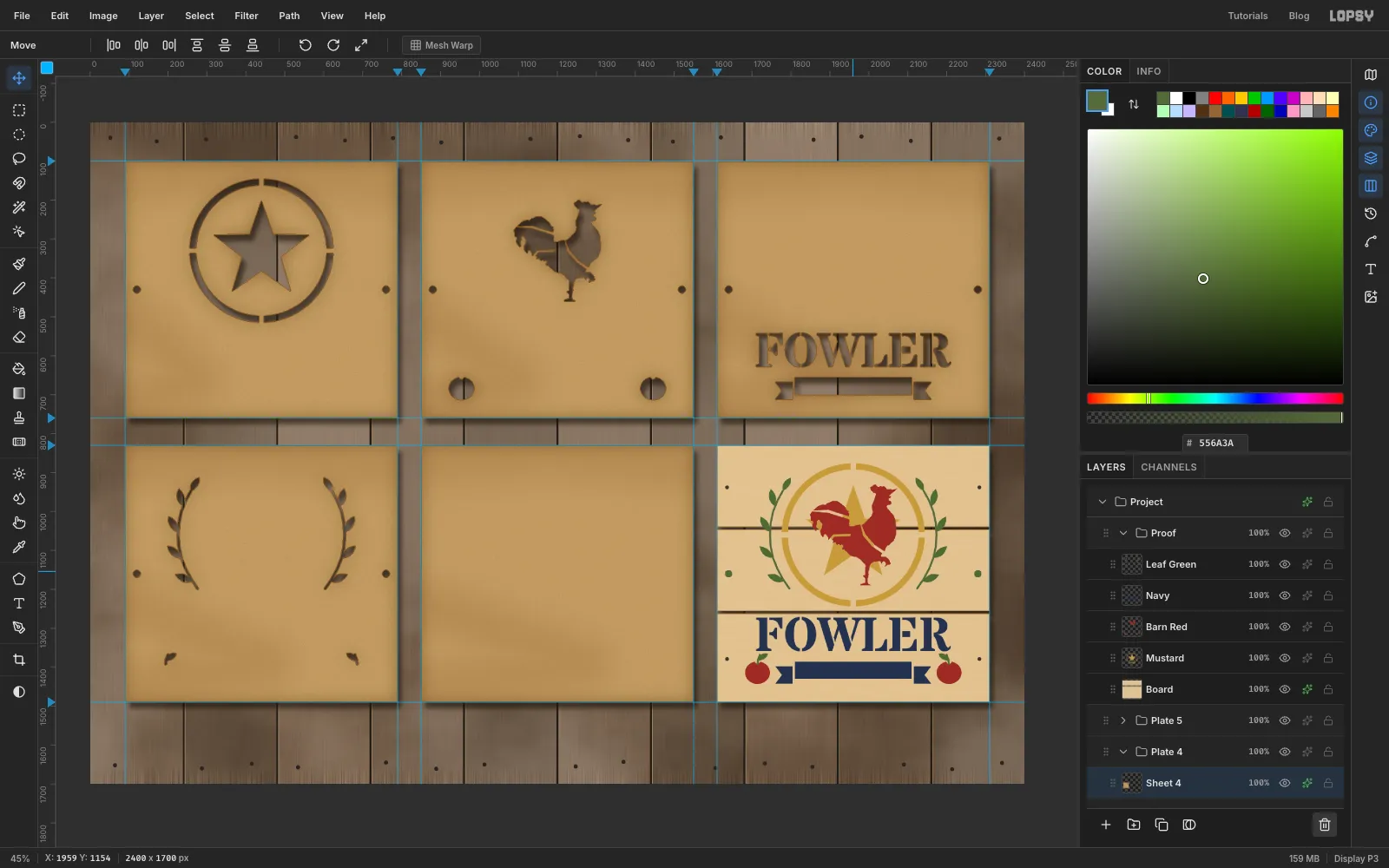
Plate 4 is leaf green: a laurel sprig either side of the ring, and a leaf on each apple.
- Collapse
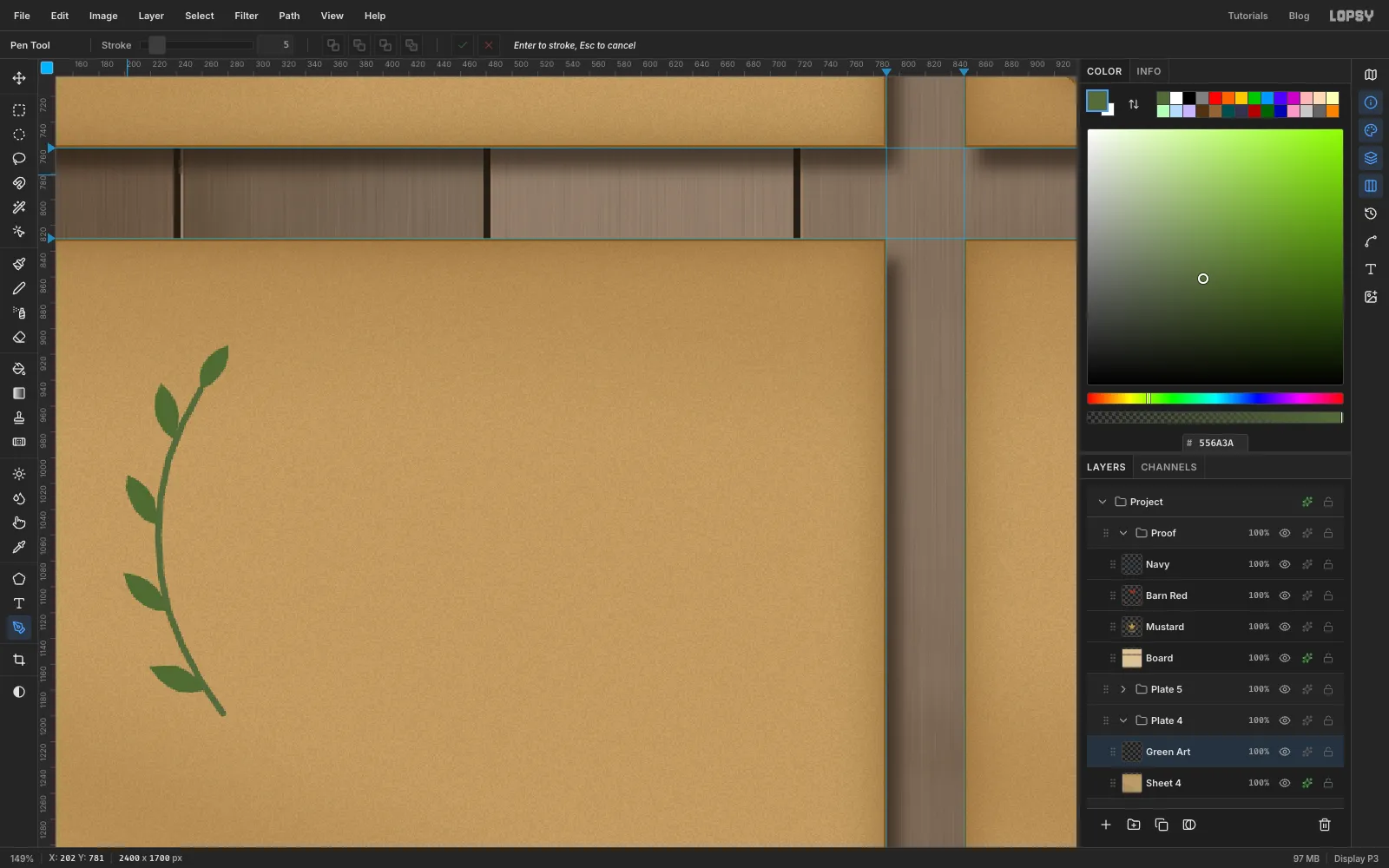
Plate 3, expandPlate 4, clickSheet 4, add a layerGreen Art, and set the colour to . - Zoom in on the left side of the plate. Pick the Pen, set its Stroke to
5, and click a gentle arc about 30 px outside where the ring sits, from the lower left up to the upper left. It follows the ring from plate 1, which in this cell would be centred atx 440,y 1060with a radius of 184. Press Enter. On an open path, Enter strokes it onto the layer as the stem. Delete the path in the Paths panel. - Pen four pointed leaves along the outside of the stem, each about 46 × 18 px and angled up towards the tip, plus a smaller leaf at the tip. Close each one, Path to Selection, fill, Delete Path.
- Do the mirror image on the right.
- Collapse
-
Add the apple leaves and cut plate 4
- Above each apple, stroke a short stem with the Pen and Enter, then pen a small leaf leaning outward.
- Add the registration holes in green.
- Cut
Sheet 4with the art, paste the art aboveNavyon the proof asLeaf Green, move it 1520 px right and line it up. Then deleteGreen Art.
-
Cut the cream highlight plate
Plate 5 puts cream on top of the other colours.
- Collapse
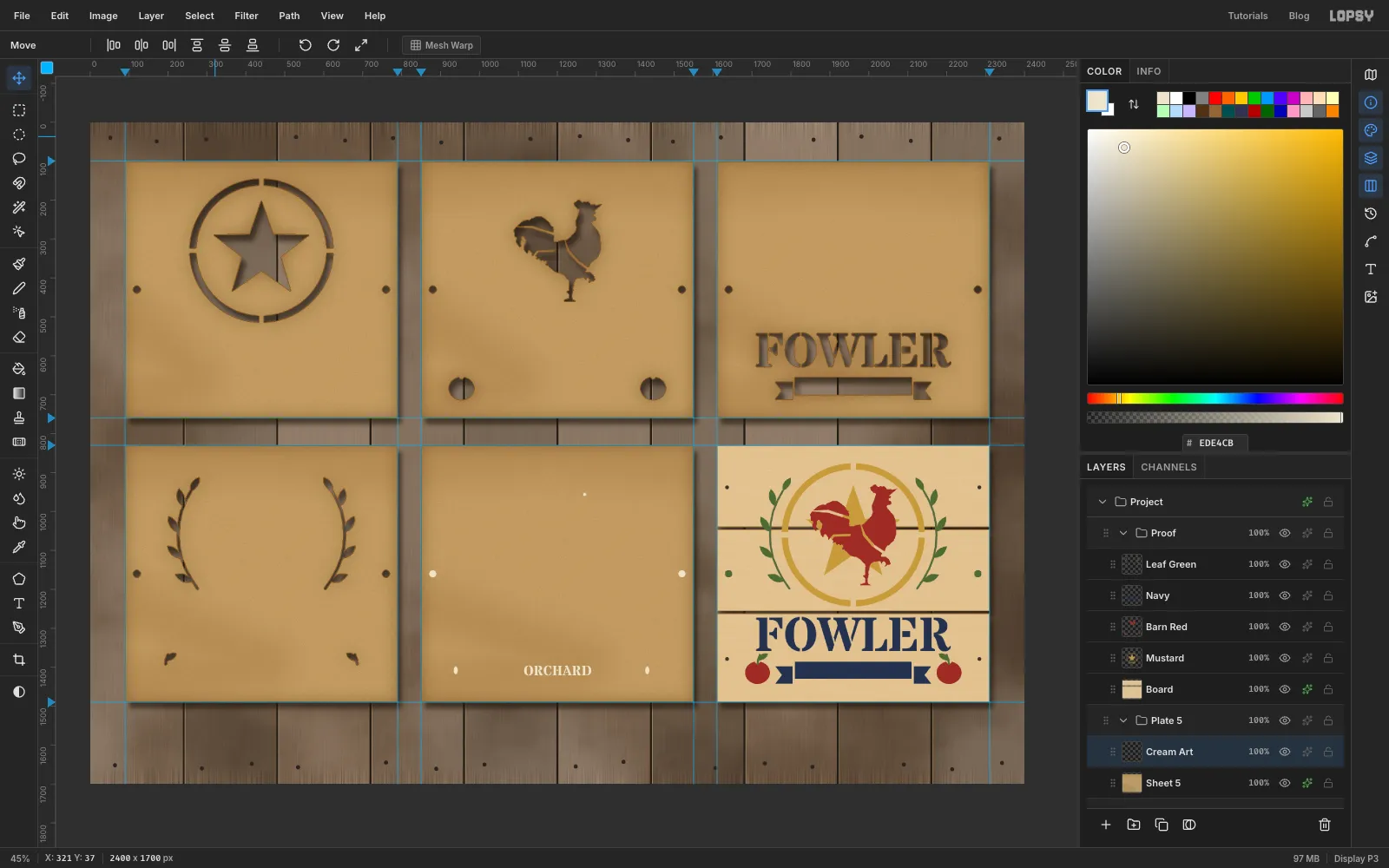
Plate 4, expandPlate 5, clickSheet 5, add a layerCream Art. - Plate 5 sits directly below plate 2, so everything is 730 px straight down from where it is on plate 2. Fill these in cream with the elliptical dialog:
- a 10 × 20 px glint at the upper left of each apple:
934,1398to944,1418and1426,1398to1436,1418 - an 8 px dot for the eye:
1266,952to1274,960 - the two registration holes, as before.
- Type
ORCHARDin Stardos Stencil Bold at size36, colour cream. Centre it on where the ribbon band sits: 200–500 px across the cell and 556–600 px down, sox 1050–1350,y 1386–1430. Rasterize it and Merge Down.
- Collapse
-
Spray the cream and finish the proof colours
Cut
Sheet 5, paste the art aboveLeaf Greenon the proof asCream, move it 760 px right and line it up. Then deleteCream Art. The proof now shows all five plates in register.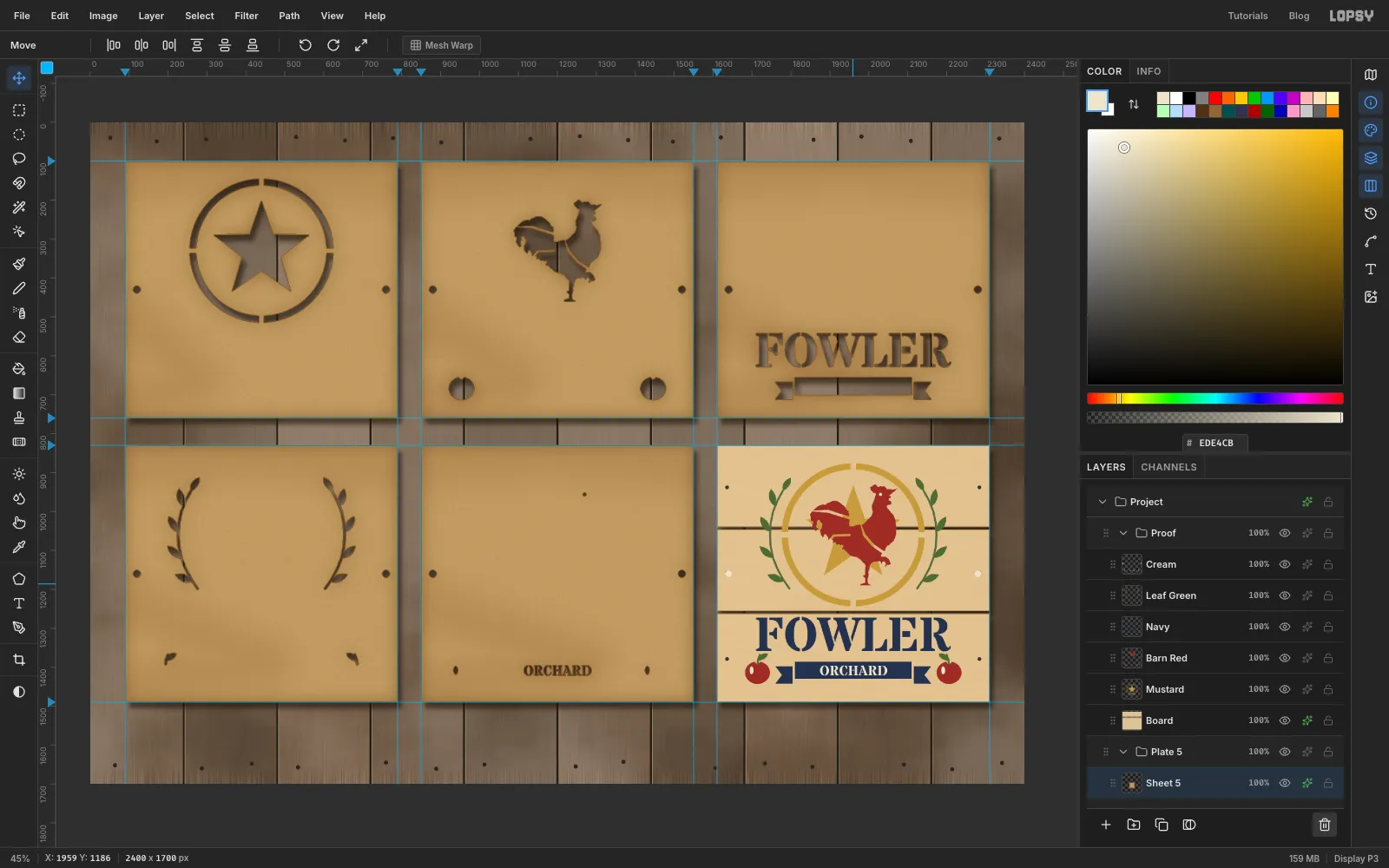
-
Mist overspray onto plate 1
A used stencil is coated in its own colour around the cuts. Paint stops dead at the cut edges, because whatever went through the hole landed on the crate.
- Expand
Plate 1, clickSheet 1and add a layerOverspray 1above it. - Cmd-click the
Sheet 1thumbnail. The selection is the manila without the holes. - Set the foreground to mustard. Pick the Brush with Size
240, Hardness0and Opacity40%, and drag two soft strokes across the design for a tint. - Pick the Spray tool with Size
70, Density100, Opacity70%and Softness30, and zig-zag over the design in rows about 35 px apart. Make the cloud rounder than the design and keep its edges ragged. A small Size gives fine droplets. At big sizes the dots grow up to a quarter of the Size and look like measles.
Mustard is close to the manila, so plate 1 needs these strong settings. The other plates use about
22%for the brush and40%for the spray. Go a little lighter on navy, the darkest colour, but not so light that it turns grey.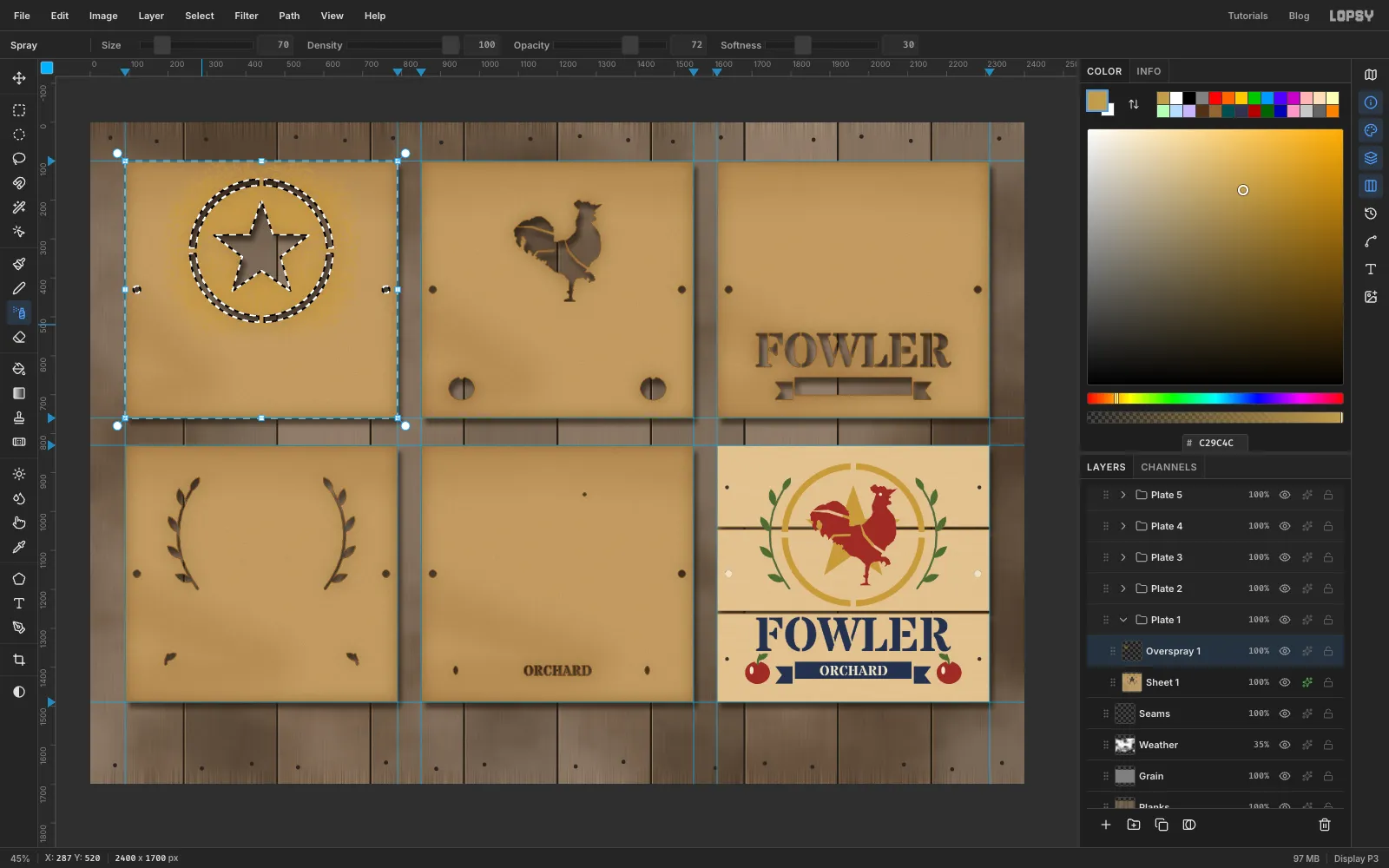
- Expand
-
Overspray the other plates and label them in pencil
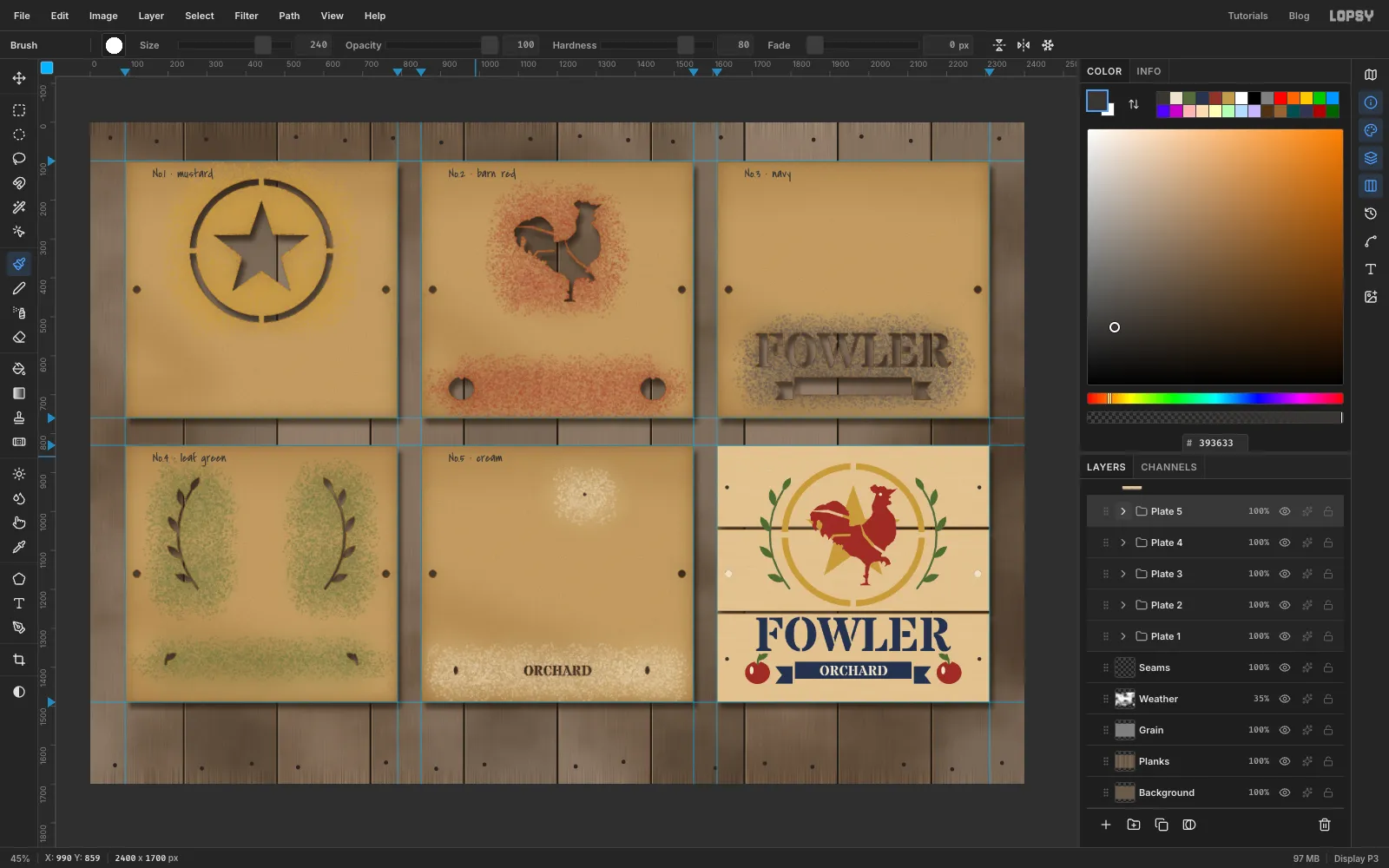
Repeat the overspray for plates 2 to 5, each on its own
Overspraylayer above its sheet:- Plate 2: one cloud around the rooster and one along the apples.
- Plate 4: two separate clouds over the laurels, not one blob across the empty middle, and a third along the apple leaves.
- Plate 5: keep it small: the ribbon lettering, the glints and the eye.
Then label each plate:
- With the plate's overspray layer selected, pick the Text tool with Covered By Your Grace, size
32, colour , Align Left. - Click about 70 px in from the left edge, near the top of the plate, and type the label (on a Mac, Option+Shift+9 types the
·):No.1 · mustard,No.2 · barn red,No.3 · navy,No.4 · leaf greenorNo.5 · cream. Press Tab. - Click Rasterize Layer.
Keep at least 15 px between a label and any cut. The corner tape goes on later, so leave the first 60 px at the corners clear.
-
Merge the proof colours and sand off the dots
- Expand
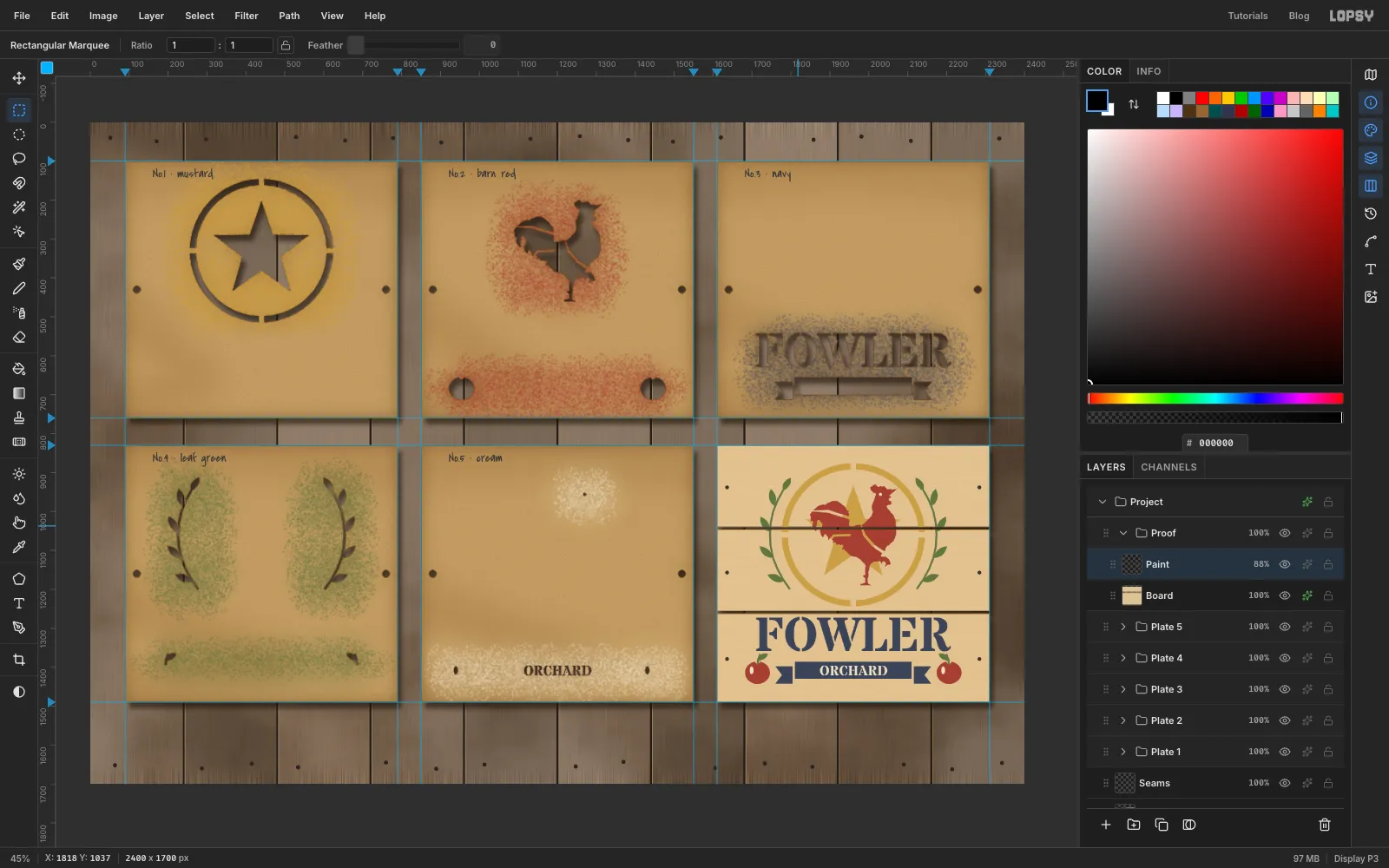
Proof, clickCreamand choose Layer → Merge Down four times. Rename the resultPaintand set its opacity to88%, so a little of the wood shows through every colour. - The registration dots did their job, but a buyer wouldn't see them. Select a 26 px circle over each one and press Delete.
- Spray passes straight through the gaps between the boards. Select each 6 px gap again and press Delete on
Painttoo.
- Expand
-
Let the wood grain through the paint
- Click
Board, Cmd-click its thumbnail, press Cmd+C. - Click
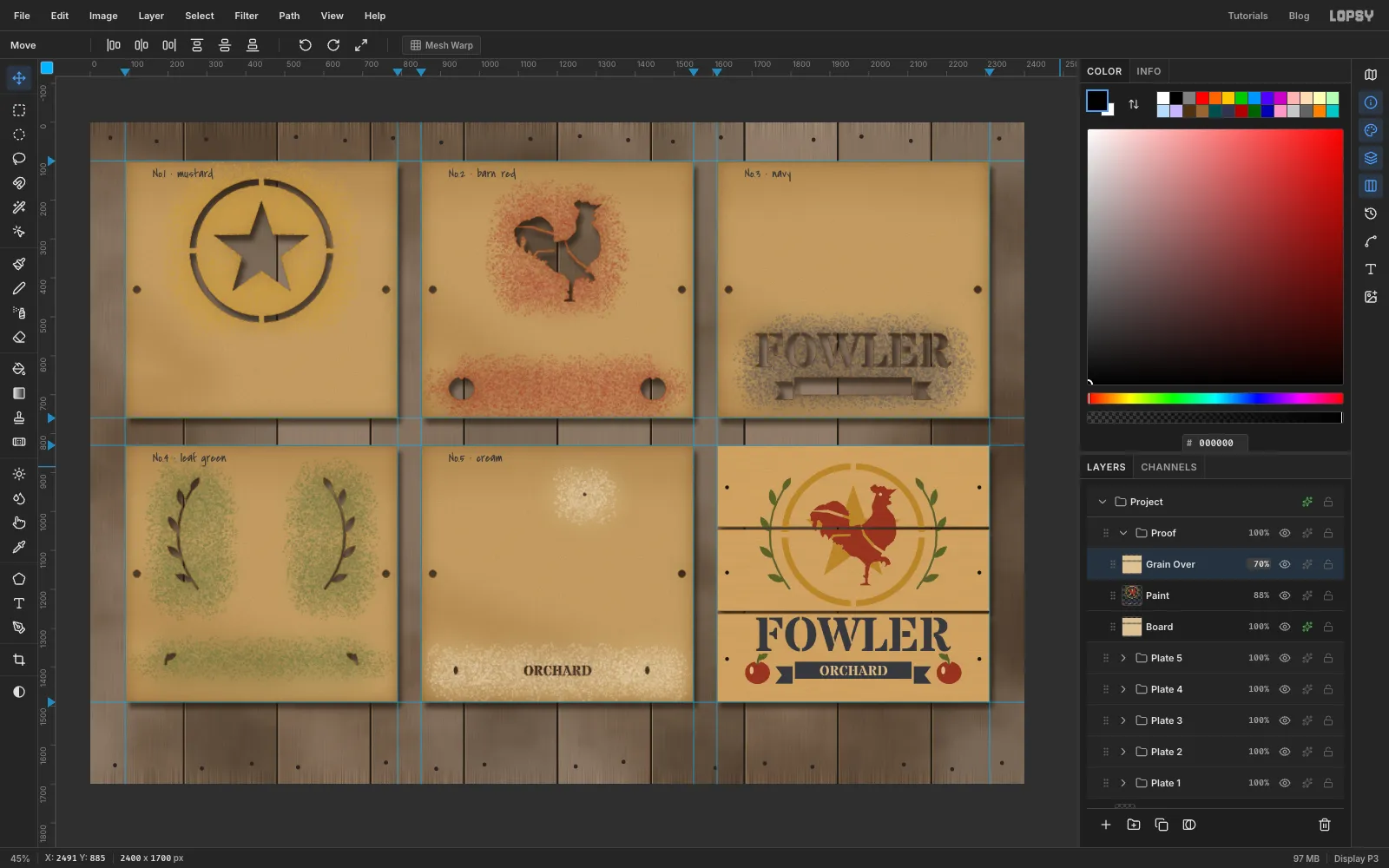
Paintand press Cmd+V. A copy of the board lands above the paint. Name itGrain Over. - Set it to Multiply at
70%. The grain now runs through every colour, as if the paint soaked into the wood.
- Click
-
Wear the paint with a layer mask
A crate gets knocked about, so the paint should chip a little.
- Click
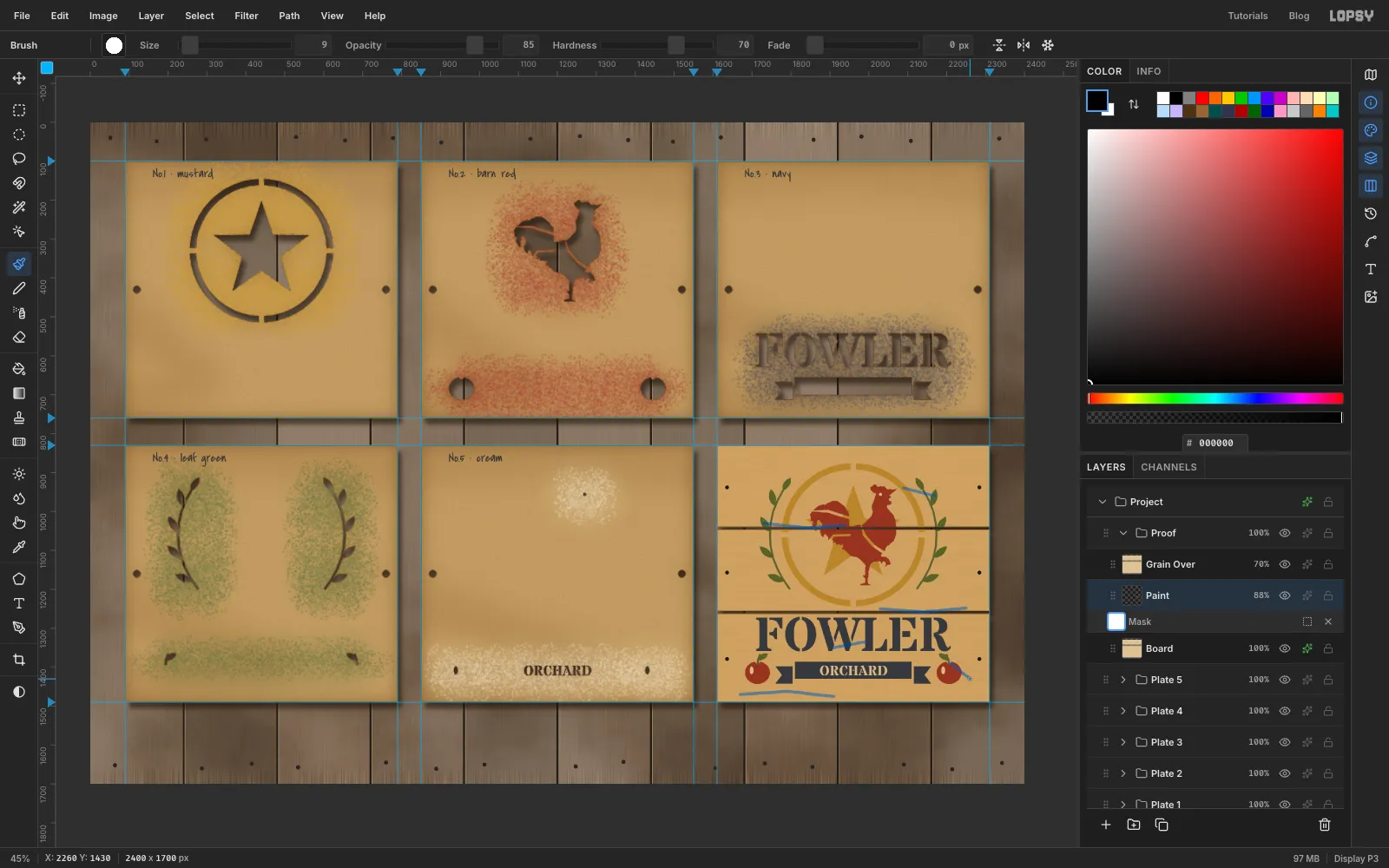
Paint, click Add Mask, then click the mask thumbnail to edit the mask. - Pick the Brush at Size
9, Hardness70, Opacity85%. Click the brush preview at the left of the options bar to open the Brushes panel, and set Spacing140, Size Jitter80and Opacity Jitter50. The stroke breaks into separate nicks of different sizes. - Drag short strokes along the plank edges, across a corner of the ring and through the bottom of the lettering. On a mask the Brush always hides, whatever the colour.
- Click the mask thumbnail again to stop editing, and set the brush Spacing and jitters back to what they were (
25and0here).
- Click
-
Write the marker note
- With
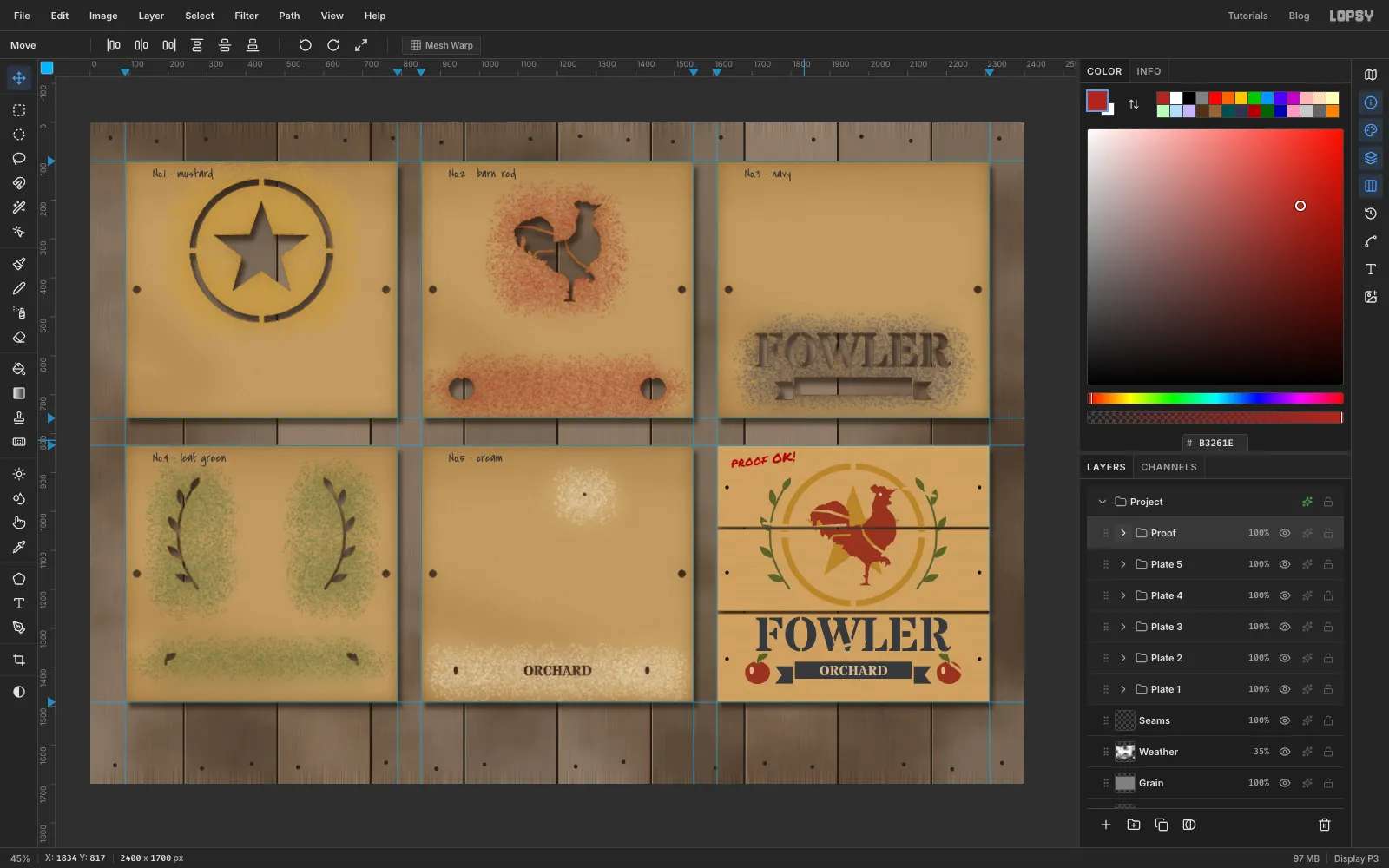
Paintselected, pick the Text tool with Permanent Marker, size34, colour . Click in the top-left corner of the pine and typeproof OK!. Press Tab and rasterize it. - Marquee around the note, pick the Move tool and drag the round rotation handle just outside a corner about 6° anticlockwise. Press Cmd+D to commit. Hand-written notes are never level.
- Collapse
Proof.
- With
-
Tilt each plate a little
Pinned-up sheets never hang square.
- Click the
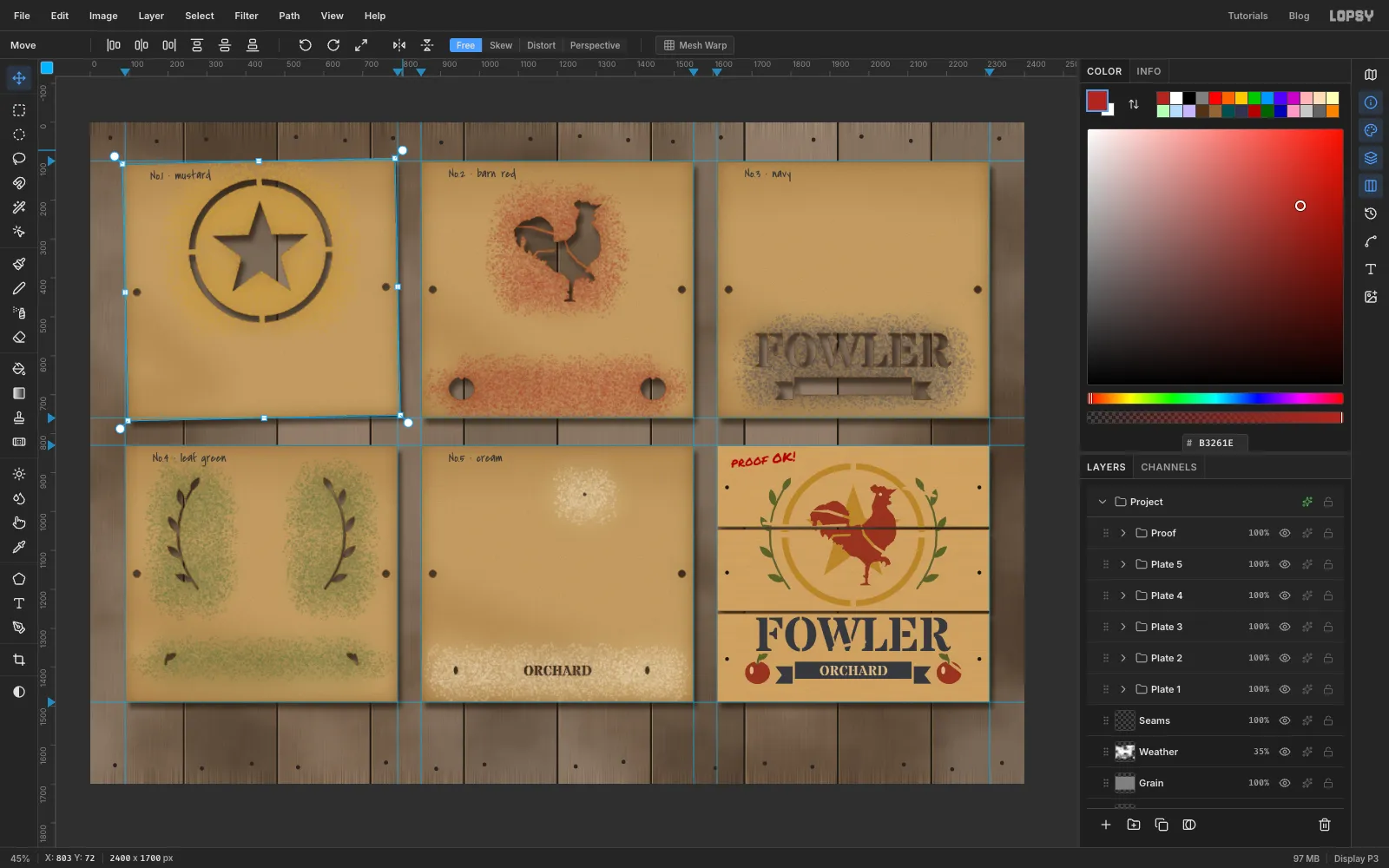
Plate 1group row and press Cmd+D so nothing is selected. With the Move tool, handles appear round the whole group. - Drag the rotation handle just outside the top-right corner a little upward, about a degree anticlockwise, so the top-right corner rises 10 to 15 px. Press Cmd+D.
- Tilt the others by a degree or so too, alternating direction, so neighbours lean different ways. Give the proof a little more (about a degree and a half clockwise), because it's a nailed board, not a sheet.
If a group has a marquee drawn on it, Lopsy asks you to deselect first. A selection would transform only part of the group.
- Click the
-
Tape the plates to the wall
- Click the
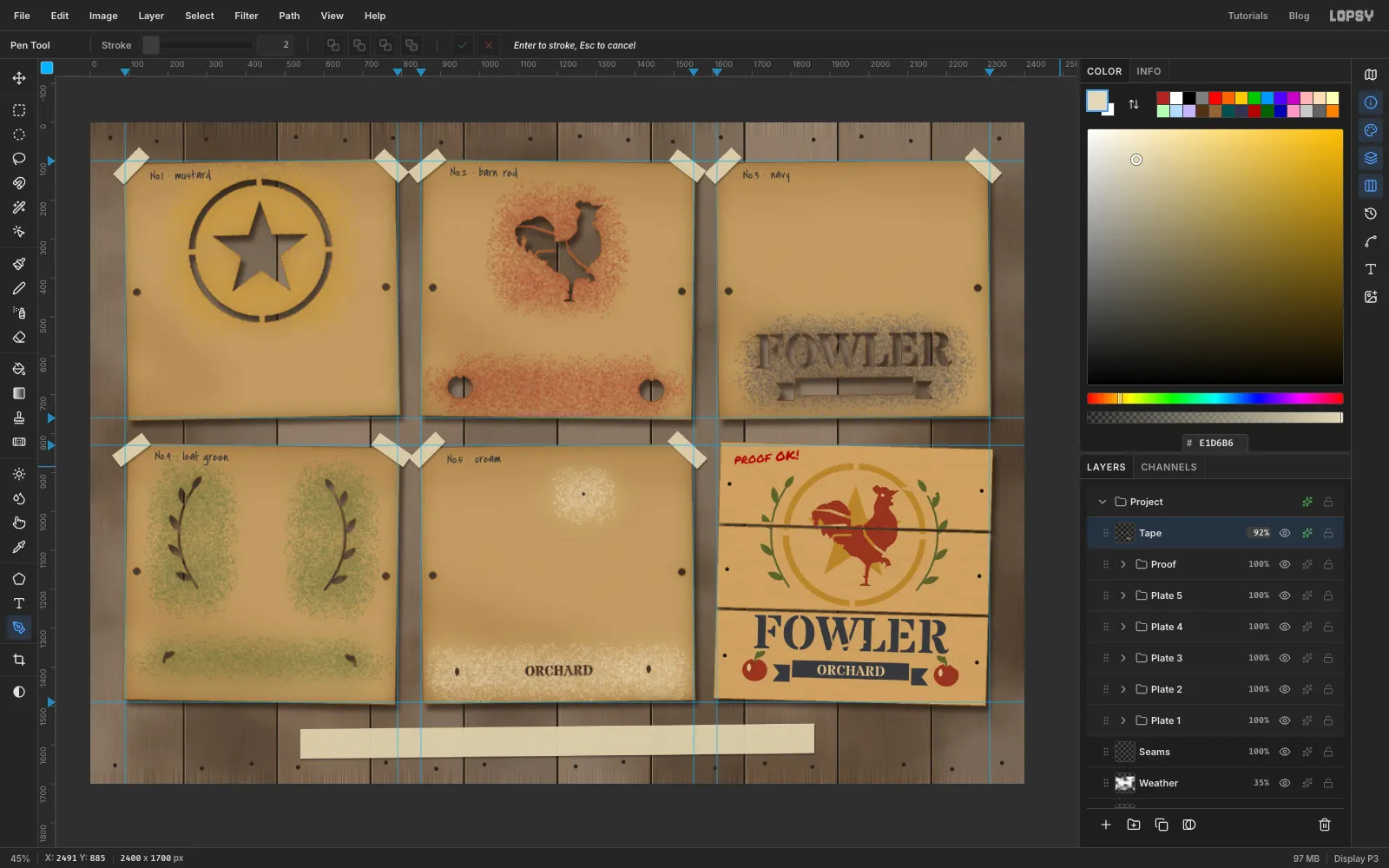
Proofgroup and add a layerTape. It goes at the top of the stack, above every group. - With the Pen, draw a rectangle about 95 × 38 px over each top corner of each plate, tilted about 40° so it crosses the corner. Path to Selection, fill with , Delete Path. Vary the angles a few degrees. The proof is nailed, so it gets no tape.
- Draw one long strip, about 1320 × 76 px and a hair off level, centred in the bottom margin for the title.
- Run Add Noise… at
14, Mono, give the layer a Drop Shadow (Offset2,4, Blur6, Opacity40) and set its opacity to92%.
- Click the
-
Type the title on the tape
- Pick the Text tool with Special Elite, size
36, colour . Click above the strip and typeFOWLER ORCHARD · CRATE-END STENCIL SET · 5 PLATES + PROOF. Press Tab. - With the Move tool, centre it on the strip, with even space above and below and at least 50 px of tape at each end.
- Choose File → Save Project, then File → Export… for the PNG.
- Pick the Text tool with Special Elite, size