Design a Blueprint Website Landing Page in Lopsy
Mock up a gliding school's landing page as a blueprint, with a Pen-drawn sailplane plan view, a lift diagram, course cards and a retouched cyanotype photo.
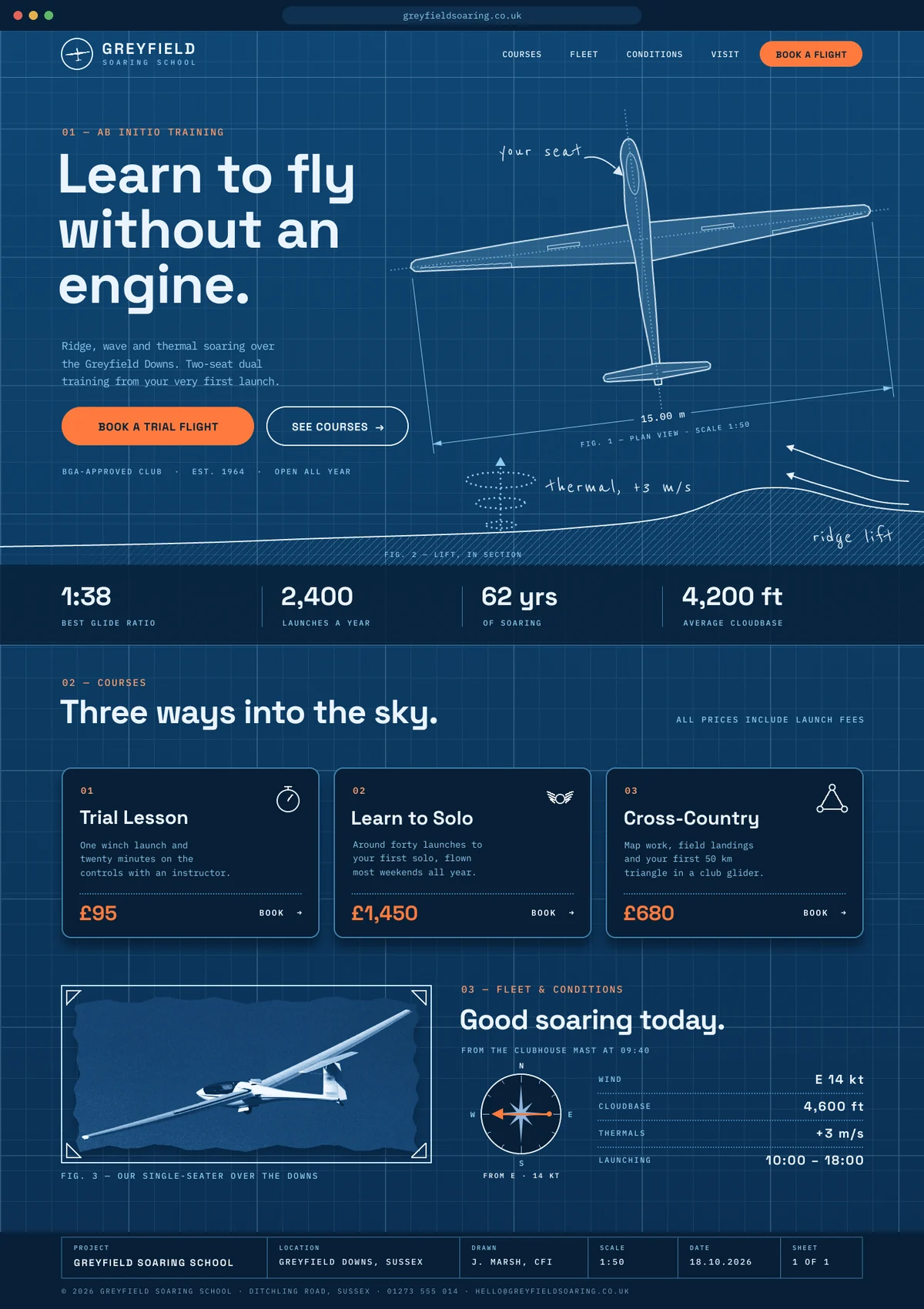
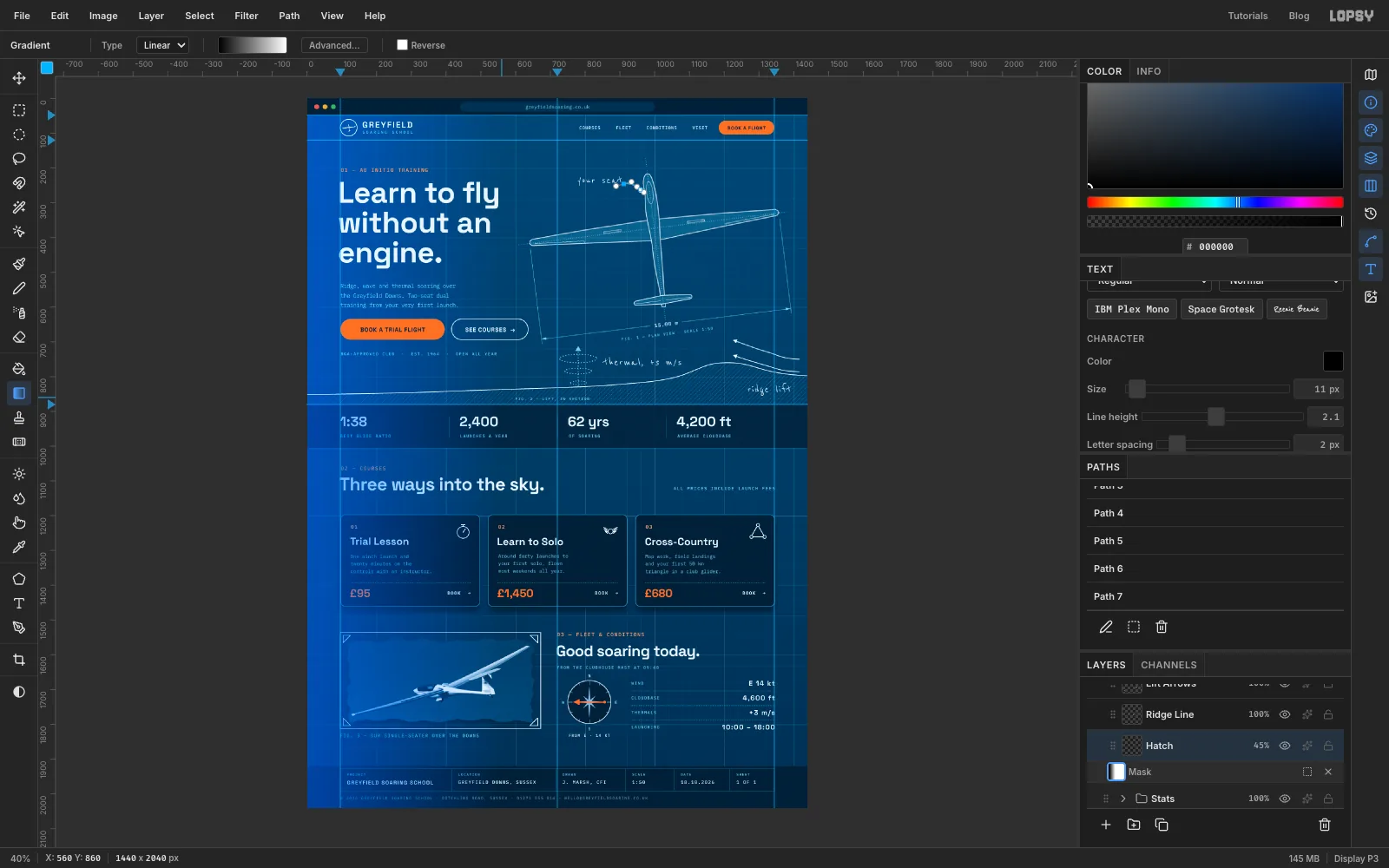
Blueprints suit anything that flies. A gliding club's whole pitch is "this is safe, and it's beautifully engineered", and a drafting sheet says both at once. In this tutorial you'll mock up a desktop landing page for Greyfield Soaring School, an invented gliding club on the English downs. It's set out like a blueprint: a Prussian-blue ground with a fine grid, white technical linework, pencil notes, and one safety orange kept for the things people should click.
The hero is a plan view of a sailplane (looking straight down on it), drawn with the Pen tool and tipped a few degrees as if it's turning in a thermal. Under it, a small cross-section shows the two ways a glider stays up: air pushed up a hillside (ridge lift) and rising bubbles of warm air (thermals). Further down, there are course cards and a stats band. A real photograph of a glider is retouched and turned into a cyanotype print, next to a wind rose and today's flying conditions. A drafting title block closes the page.
The page is 1440 px wide, the usual desktop design width, and 2040 px tall.
Along the way you'll use:
- the Gradient tool, Add Noise, ruler guides, Define Pattern and Fill with Pattern
- the Shape tool's click-to-size dialog for buttons, cards and rings
- the Pen tool: closed and open paths, Enter to stroke, and the Paths panel's Path to Selection
- the Magic Wand with Shift to add, Grow, and the Pencil and Brush with Shift-click lines
- New Group, rotating a whole group with the Move tool, arrow-key nudges, and Undo/Redo
- Show Grid with snapping, Copy, Paste, Move drags and Merge Down
- dropping in a photo, scaling it with Cmd held, the Clone Stamp and Healing Brush
- Desaturate and a Gradient Map adjustment on a group, Select → Inverse
- layer masks painted with the Chalk brush and filled with a gradient
- the Drop Shadow effect
- text in Space Grotesk, IBM Plex Mono and Reenie Beanie, including right-aligned multi-line text
The palette:
-
Blueprint ground
-
panels
-
Line white
-
cyan
-
grid
-
rules
-
Safety orange
buttons and prices
-
label orange
-
Pencil notes
-
wind-rose star
-
footer grey
-
Cyanotype
-
Shadow
-
grain grey
Positions are given in document pixels, written as x, y, wherever things need to line up. Watch X and Y in the status bar as you move the pointer. To land on an exact spot, zoom in with Cmd+=, or click with the Shape tool and type the size. Freehand parts only need to be close.
One habit saves a lot of grief with text: before you start a new piece of text, click a non-text layer in the group you're working in (the steps say which). If the last text layer is still active, changing the font, size or colour restyles that layer instead of setting up the new one.
Lopsy names each text layer after its text. I renamed layers as I went (double-click a name), so the screenshots show names like Headline and Card 01 Title. Yours can keep the default names.
-
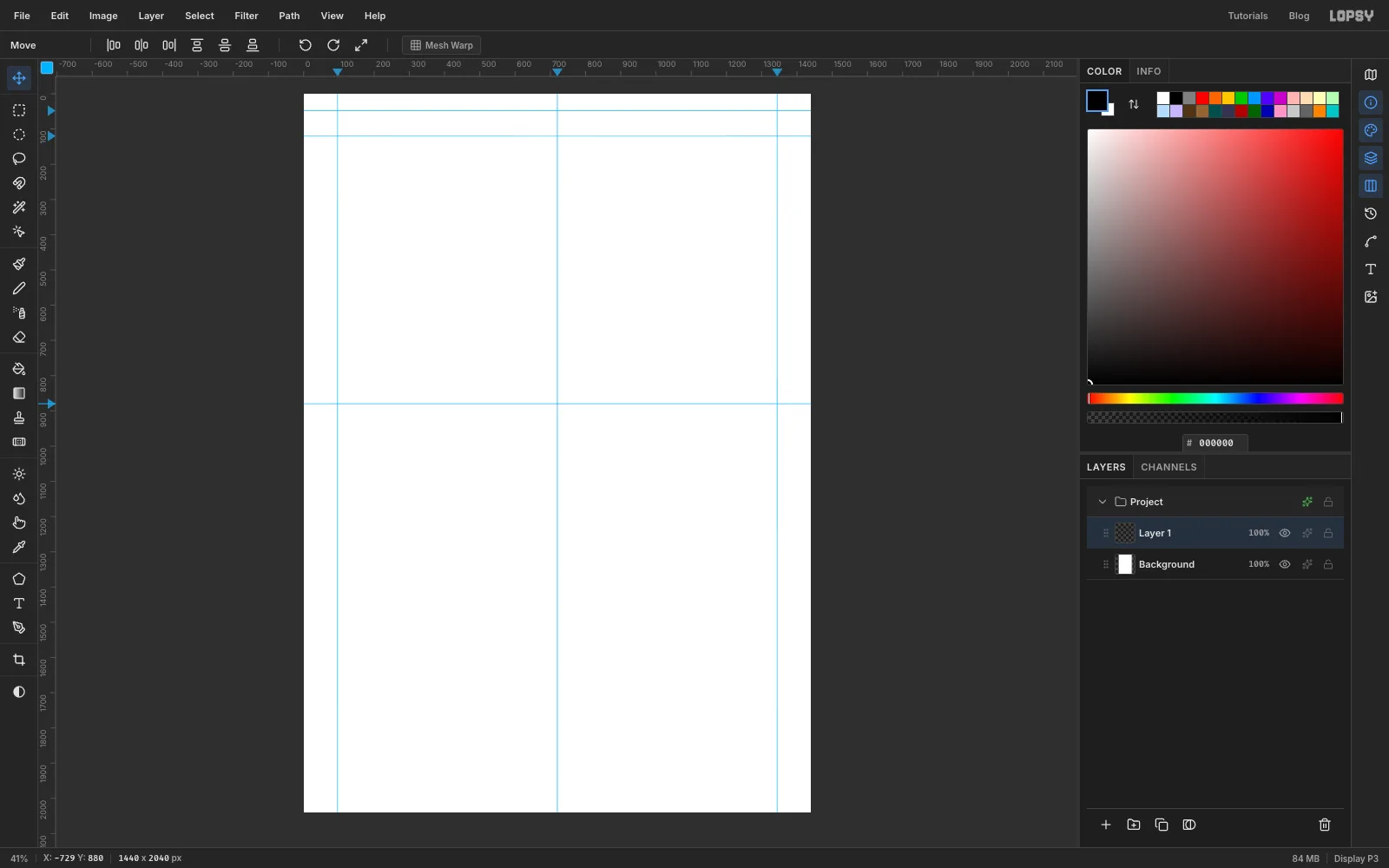
Set up the page and guides
- Choose File → New, set Width
1440, Height2040, Pixels, and click Create. - Click the top ruler at
x 96,720and1344to drop three vertical guides. The outer two are the page margins and the middle one is the centre. - Click the left ruler at
y 48(the bottom of the browser bar),y 120(the bottom of the nav) andy 880(the bottom of the hero).
- Choose File → New, set Width
-
Fill the blueprint ground
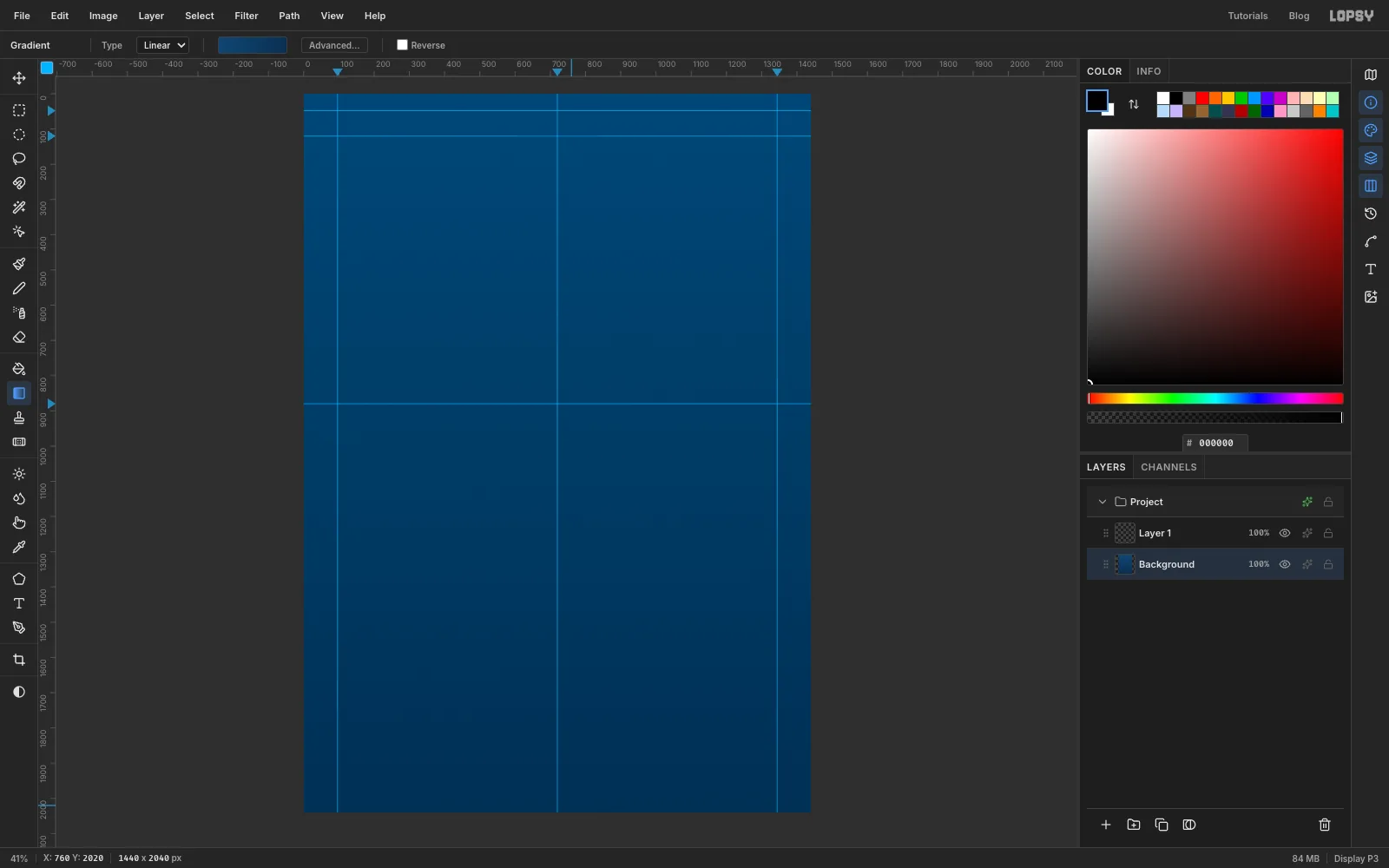
- Click Background in the Layers panel and pick the Gradient tool. Leave Type on Linear.
- Click Advanced… to open the Gradient Editor. Click the left stop and type into the Hex color field. Click the right stop and make it . Click Done.
- Drag from the top of the page straight down to the bottom. The page darkens slightly as you scroll, which makes the top feel lit.
-
Add paper grain
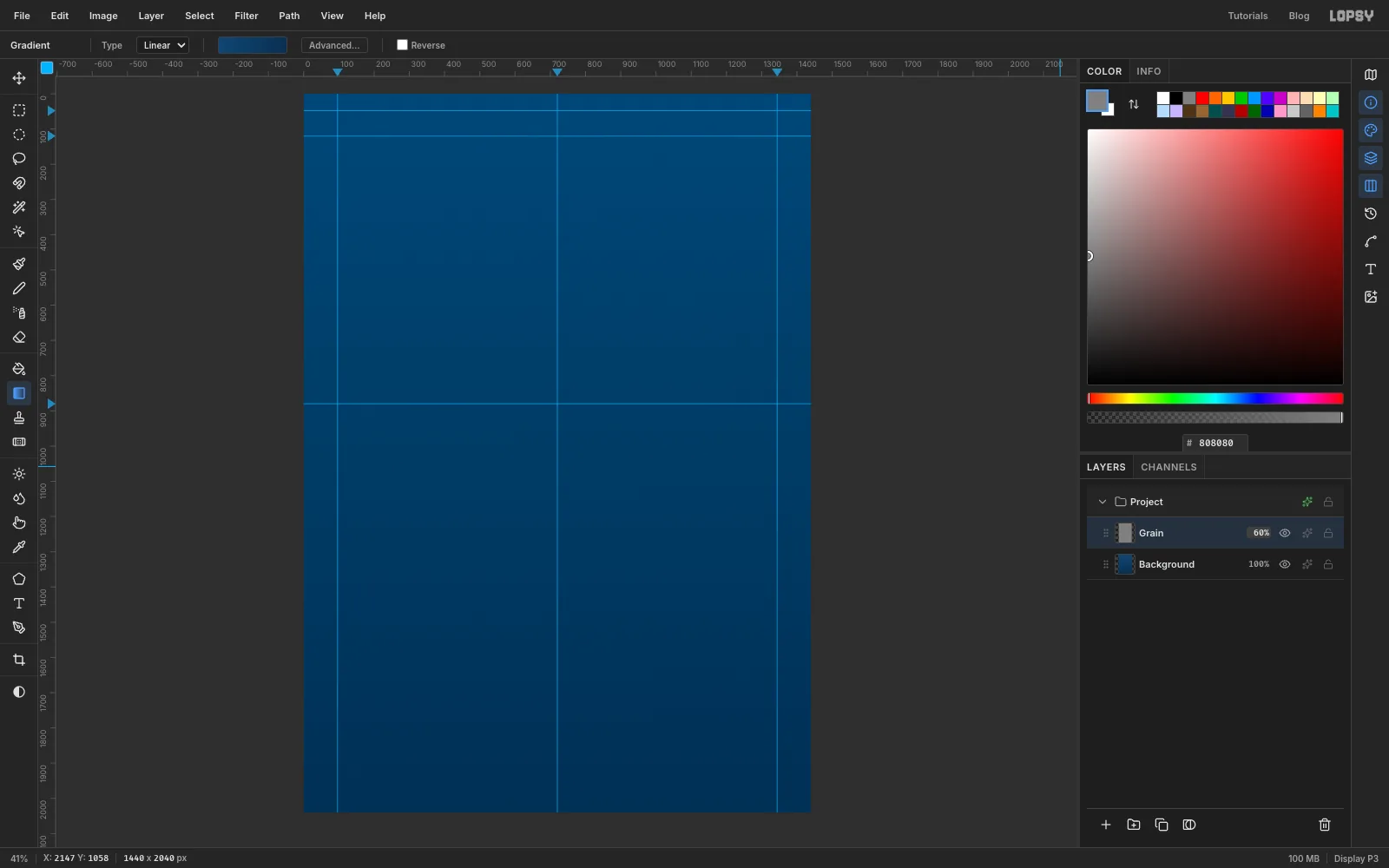
- Double-click Layer 1 and rename it
Grain. Choose Select → All, set the foreground to and choose Edit → Fill. Press Cmd+D. - Choose Filter → Add Noise… with Amount
22and click Mono and Gaussian. Click Apply. - Click the ✦ button on the layer's row to open the effects drawer and set the blend mode to Overlay. Close the drawer, click the opacity on the row and set it to
60%. Grey vanishes in Overlay, so only the speckle shows.
- Double-click Layer 1 and rename it
-
Make the drafting grid
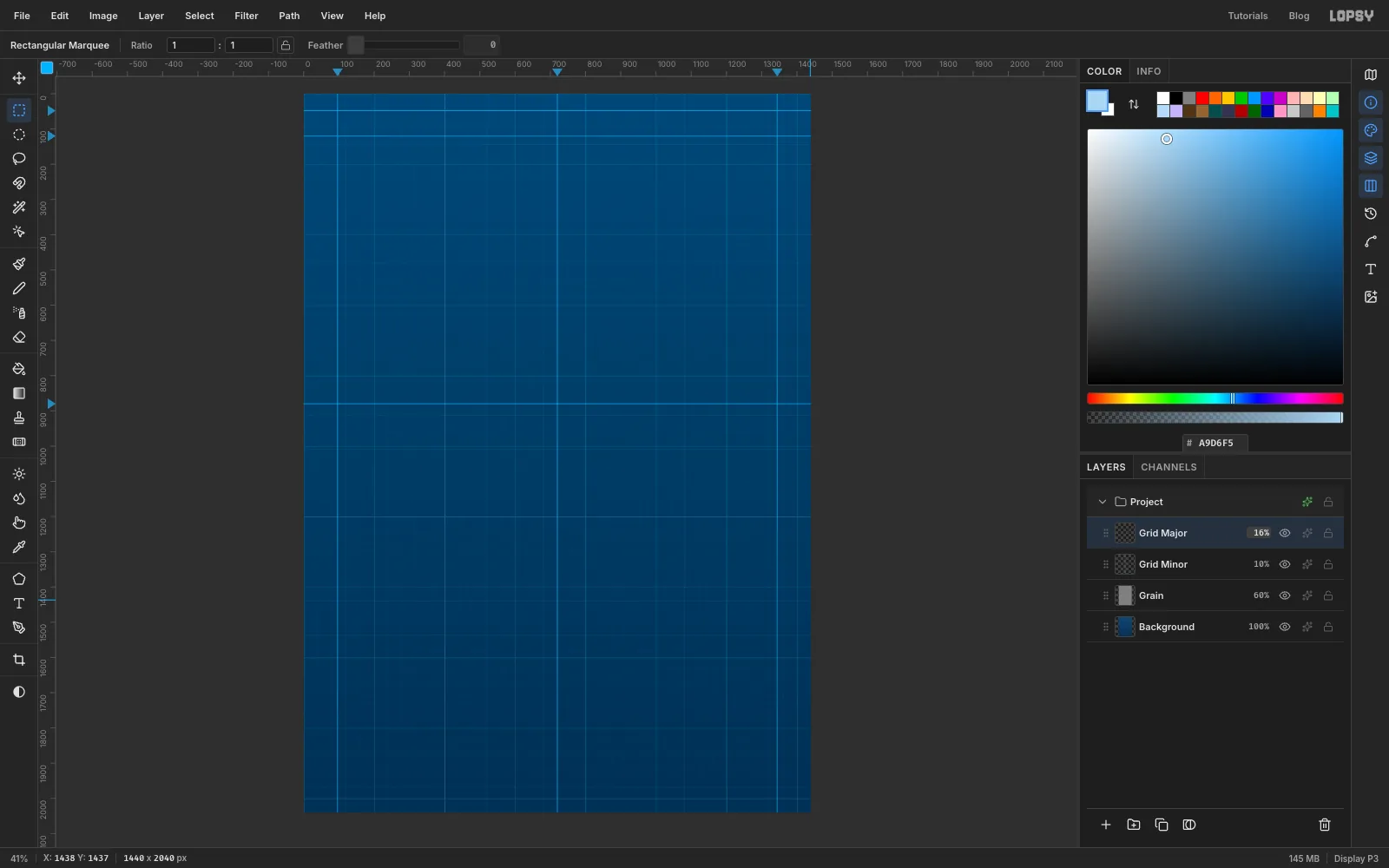
The grid comes from two pattern tiles drawn in the top-left corner, because pattern fills start from the document's top-left corner.
- Click Add Layer and name it
Tile. Set the foreground to . - With the Rectangular Marquee, select a 40 × 40 square in the very top-left corner. Zoom in so the corner fills the window first.
- Pick the Pencil at Size
1. Click just left of the canvas on the top edge and Shift-click past the square on the same edge, then do the same down the left edge. The selection keeps both lines inside the tile. - Choose Edit → Define Pattern. Press Cmd+A, then Delete.
- Repeat with a 200 × 200 square and the Pencil at Size
2, and choose Define Pattern again. Then delete theTilelayer with the trash button. - Add a layer called
Grid Minor. Choose Edit → Fill with Pattern…, pick the 40 px pattern and click Apply. Set the layer to10%. - Add a layer called
Grid Major, fill it with the 200 px pattern the same way, and set it to16%.
- Click Add Layer and name it
-
Draw the browser bar
Framing the page in a browser bar makes it read as a website straight away.
- With
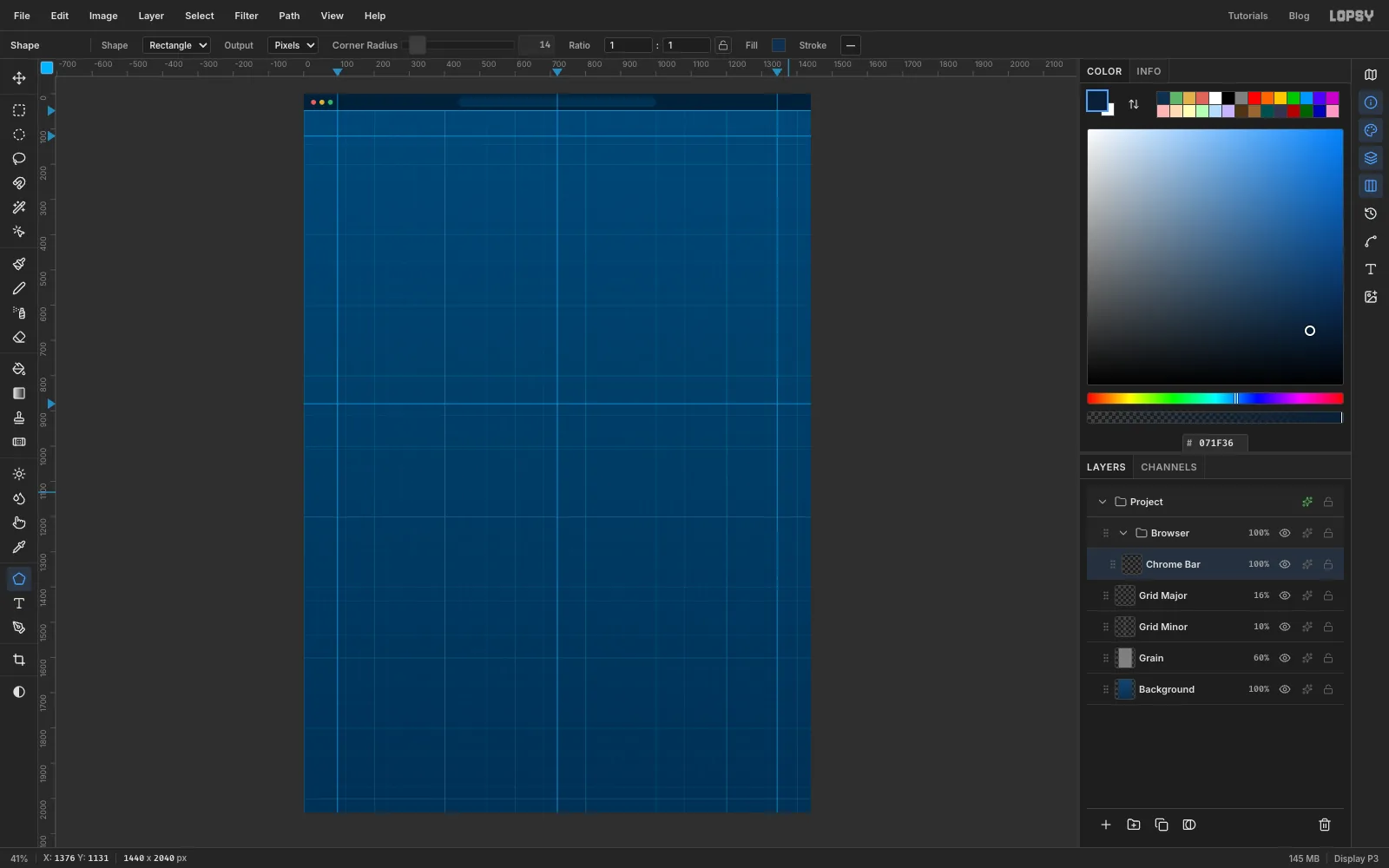
Grid Majorselected, click New Group at the bottom of the Layers panel and rename itBrowser. Click Add Layer (the layer goes inside the group) and name itChrome Bar. - Marquee from the top-left corner across to the right edge, down to the
y 48guide. Fill it with and deselect. - Pick the Shape tool and set Shape to Ellipse. Click the Fill swatch and type in its Hex field. If there's a stroke swatch, open it and click Remove stroke.
- Click once at
x 28,y 24without dragging. The Shape Size dialog opens. Enter14×14and click Create. The shape is centred on the point you clicked, so every Shape position in this tutorial is a centre. Make two more dots atx 52in and atx 76in . - Switch Shape to Rectangle, set Corner Radius to
14and the fill to . Click atx 720,y 24and create a560×28rectangle. That's the address field. - Pick the Text tool. Set IBM Plex Mono, Regular, size
14, colour , click in an empty spot and typegreyfieldsoaring.co.uk. Press Tab to finish. With the Move tool, drag it into the middle of the address field. - Click the arrow on the
Browsergroup's row to collapse it.
- With
-
Build the navigation bar
- Click
Grid Majorand add a group calledNav. Inside it, add a layer calledNav Rule. - Set the colour to and pick the Pencil at Size
1. Click at the left edge on they 120guide and Shift-click at the right edge. That's the hairline under the nav. - Add a layer called
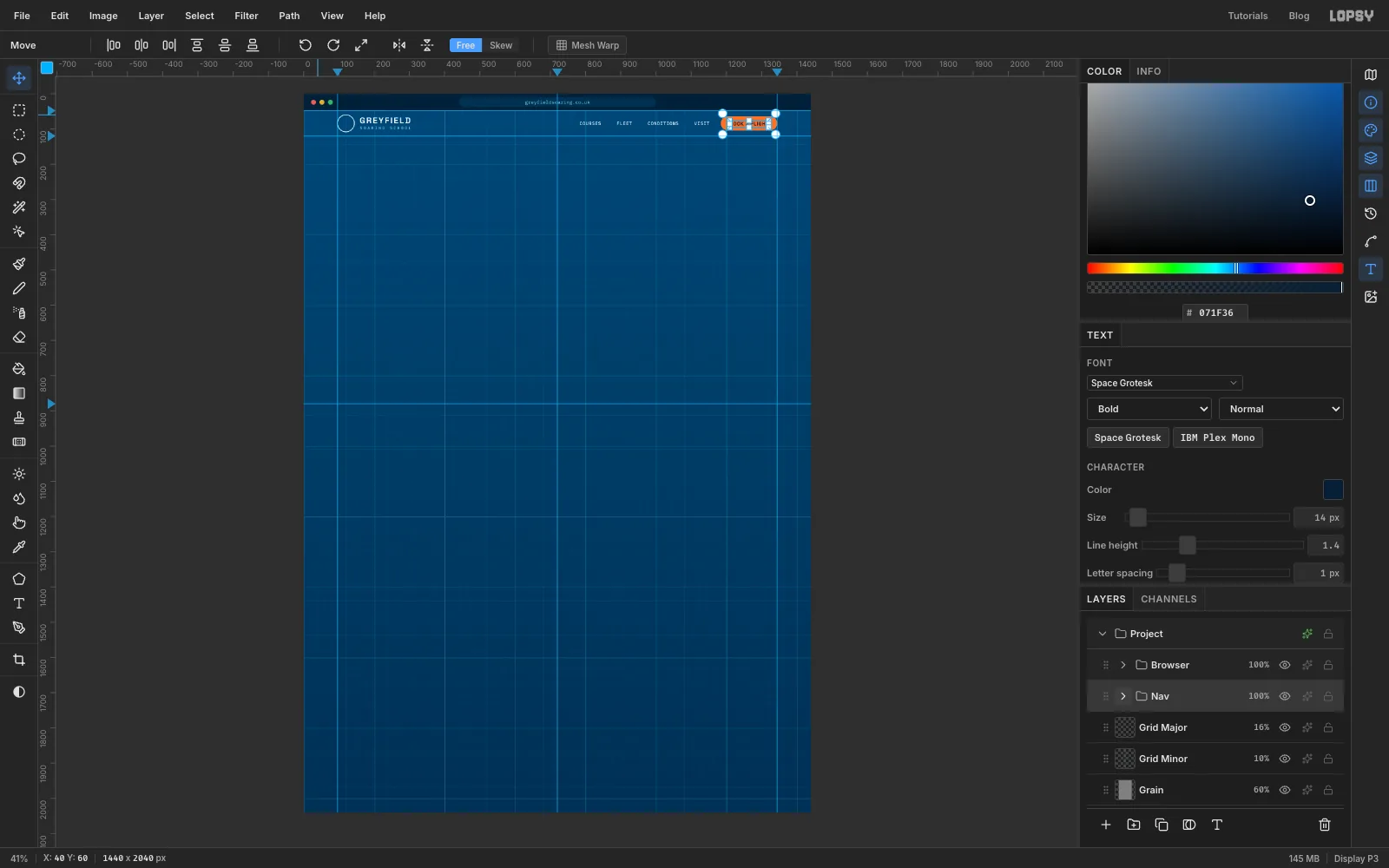
Nav Button. With the Shape tool on Rectangle, Corner Radius20and fill , click atx 1264,y 84and make it160×40. - Add a layer called
Logo Ring. Switch to Ellipse, click Remove fill in the fill popover, and give it a stroke with Width2. Click atx 120,y 84and make it48×48. The logo goes inside later. - Click
Logo Ringso new text lands in this group without restyling anything. With the Text tool, set Space Grotesk, Bold, size24, colour , and typeGREYFIELD. In the Text panel set Letter spacing to3. Move it so it starts atx 160with its top aty 67. - Click
Logo Ringagain. TypeSOARING SCHOOLin IBM Plex Mono, Medium, size11, colour , letter spacing4, and put it under the wordmark atx 161,y 93. - Click
Logo Ring. TypeCOURSES FLEET CONDITIONS VISIT(five spaces between the words) in IBM Plex Mono Medium13, , letter spacing1. Move it so it ends atx 1150and is centred ony 84. - Click
Nav Button. TypeBOOK A FLIGHTin Space Grotesk Bold14, , letter spacing1, and centre it on the orange pill. Collapse theNavgroup.
- Click
-
Draw the hero buttons
- Click
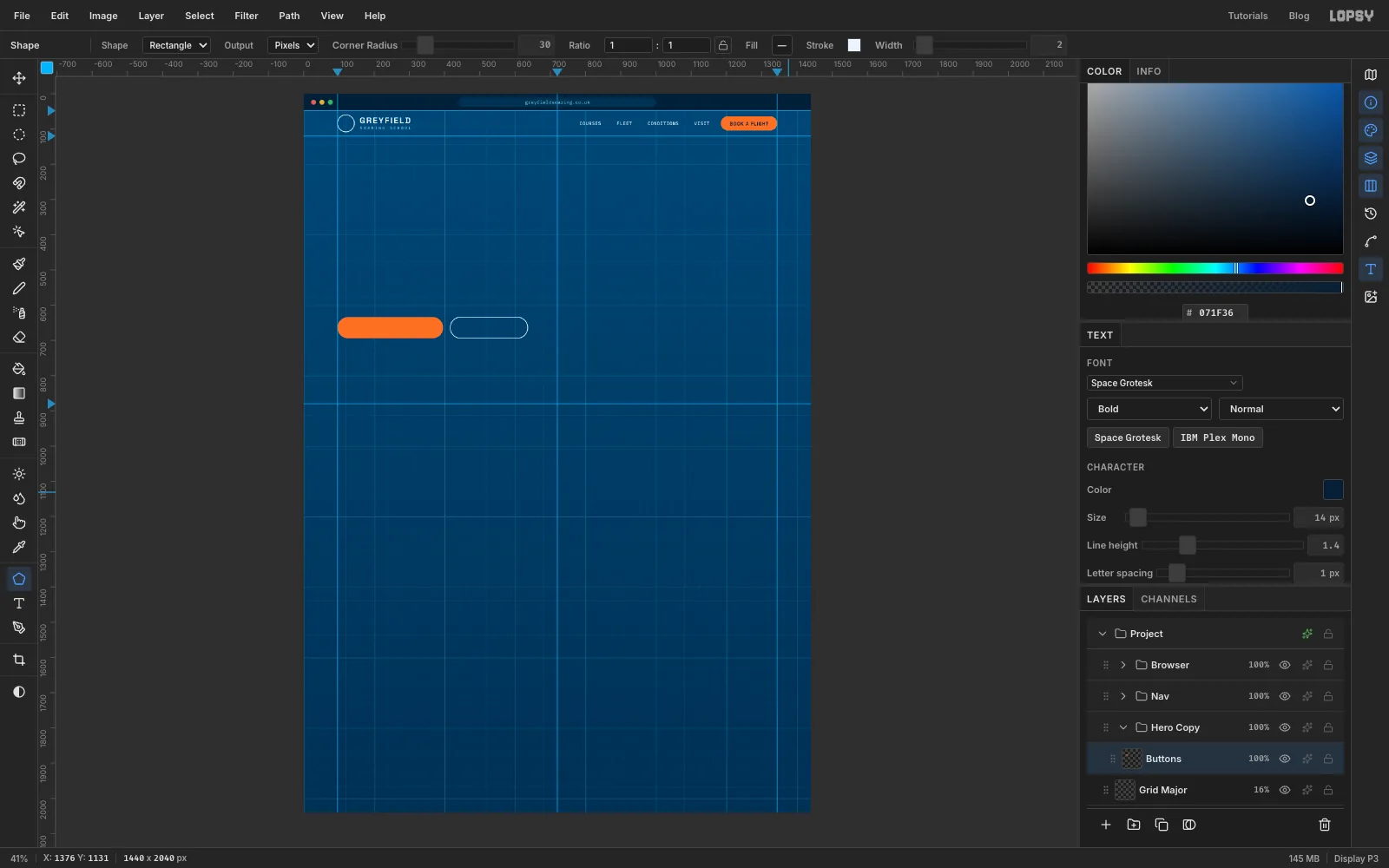
Grid Major, add a group calledHero Copy, and inside it a layer calledButtons. - With the Shape tool on Rectangle, Corner Radius
30, fill and no stroke, click atx 246,y 664and make it300×60. - Remove the fill, add a stroke at Width
2, and click atx 526,y 664for a220×60outlined button.
- Click
-
Set the hero type
Click
Buttonsbefore each new piece of text, so the new layer lands in the group and nothing gets restyled.- Eyebrow:
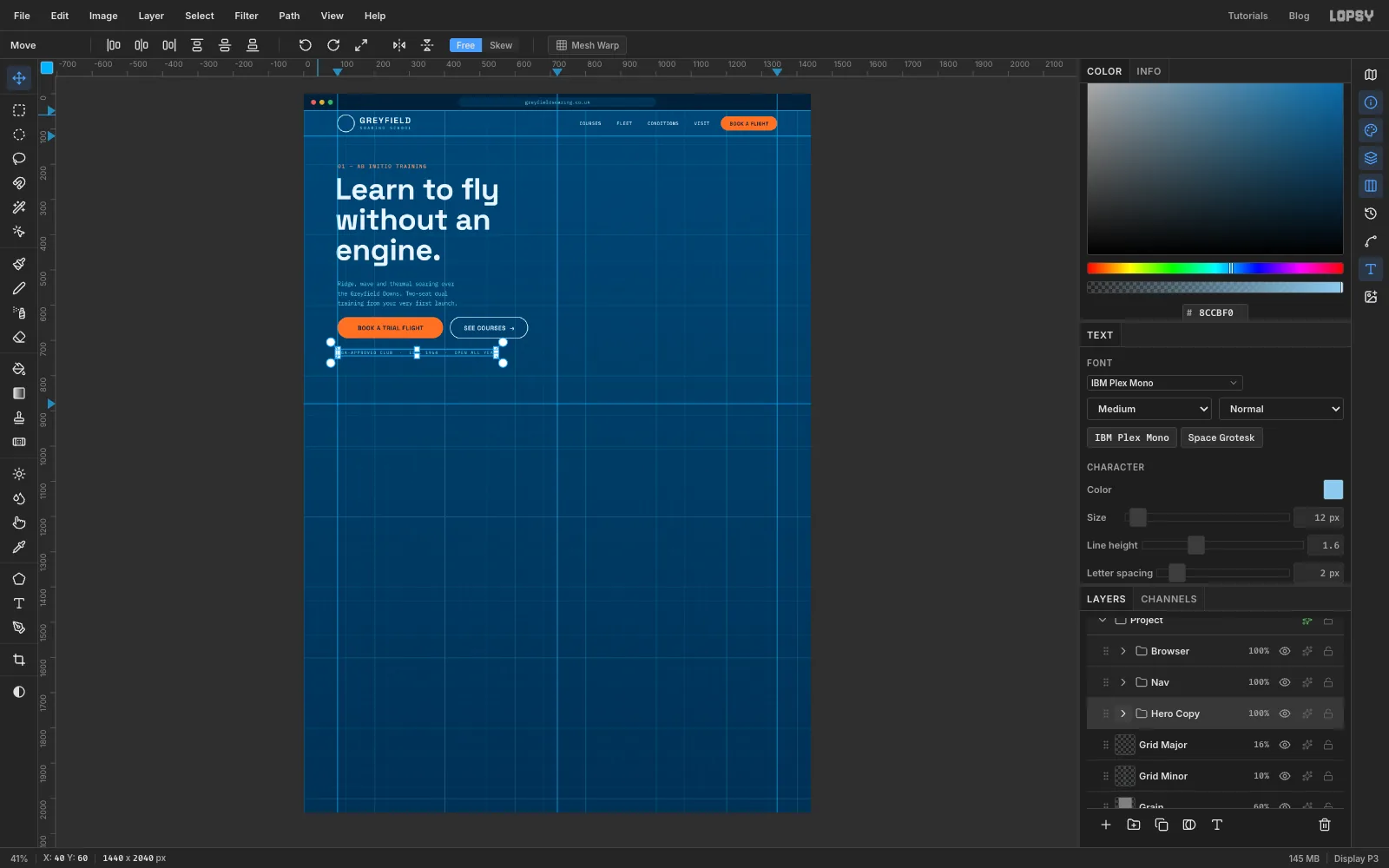
01 — AB INITIO TRAININGin IBM Plex Mono Medium15, , letter spacing2. Its top-left goes atx 98,y 200. Ab initio is what gliding clubs call training from scratch. - Headline: type
Learn to fly, press Enter,without an, Enter,engine.in Space Grotesk Bold86, . Set Letter spacing to-1and Line height to1.0, so the three lines stack tightly. Line its left edge up with the eyebrow, top aty 240. - Intro: at
x 98, three lines,Ridge, wave and thermal soaring over/the Greyfield Downs. Two-seat dual/training from your very first launch., in IBM Plex Mono Regular17, , Line height1.6, starting aty 532. - Button labels:
BOOK A TRIAL FLIGHTin Space Grotesk Bold17, , letter spacing1, centred on the orange button. ThenSEE COURSES →in the same style in , centred on the outlined one. - Trust line:
BGA-APPROVED CLUB · EST. 1964 · OPEN ALL YEARin IBM Plex Mono Medium12, , letter spacing2, atx 98,y 730. Collapse the group.
- Eyebrow:
-
Pen the wings
The sailplane is drawn nose-up, centred on
x 1005,y 450, then rotated later. Zoom to 100% (View → Actual Size, Cmd+1) and scroll so that area fills the window.- Click
Grid Majorand add a group calledSailplane, with a layer calledOutlineinside it. Set the colour to . - Pick the Pen tool and set Stroke to
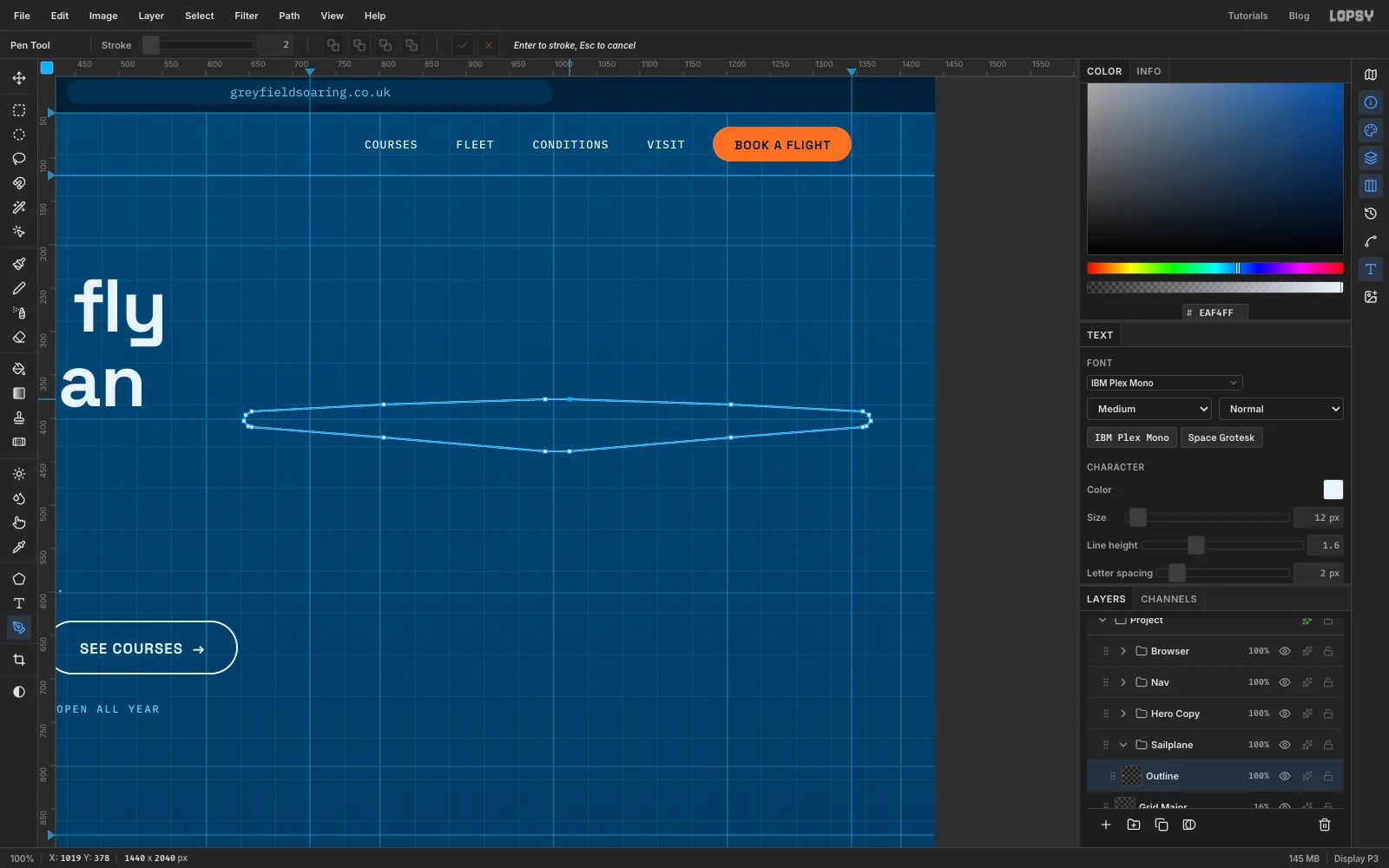
2in the options bar. - Click these points in order to draw both wings as one shape running straight through where the fuselage will be. Start at the right wing root:
- Leading edge:
1019, 378→1205, 384→1357, 392 - Rounded tip:
1364, 396→1366, 403→1361, 409→1357, 410 - Trailing edge back in:
1205, 422→1019, 438 - Then the same points mirrored around
x 1005for the left wing:991, 438→805, 422→653, 410→ round the tip →653, 392→805, 384→991, 378
- Click the first point again to close the shape, then press Enter to stroke it. Glider wings taper gently and stay straight. Long and thin is what makes them glide so well.
- Click
-
Clear a space for the fuselage
The fuselage sits on top of the wings, so the wing lines inside it have to go.
- In the Paths panel, click the wing path so it's no longer highlighted. If a path stays selected, the next Pen click edits it instead of starting a new one.
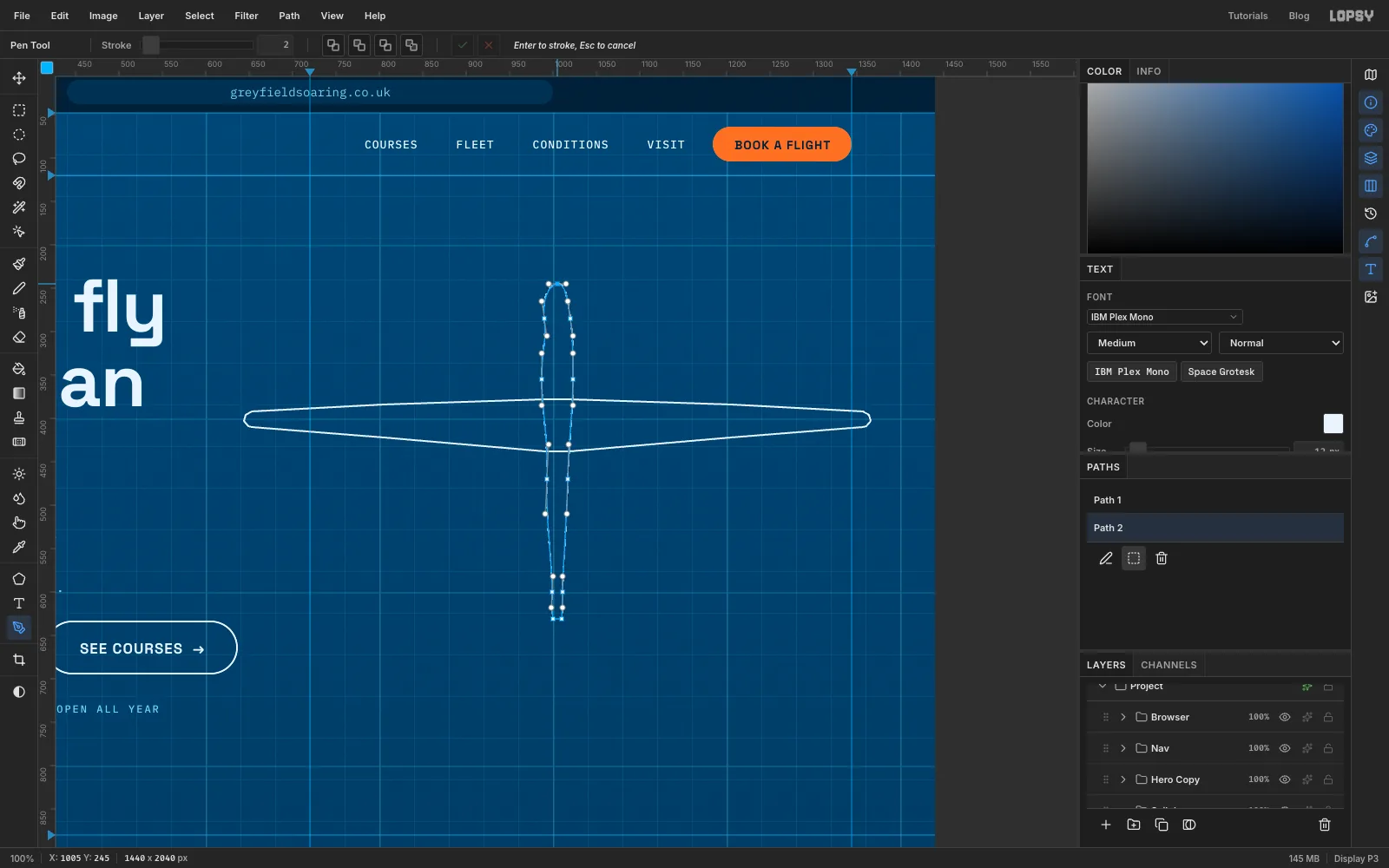
- Draw the fuselage as a smooth closed path. Drag at each point (instead of clicking) to pull out curve handles, always dragging in the direction the outline is heading:
- The nose at
1005, 245, dragging a little to the right. - Down the right side:
1020, 285dragging down,1023, 355dragging down,1017, 470dragging down,1011, 600dragging down. - Click (don't drag)
1010, 631and1000, 631for the square tail end. - Back up the left side through
999, 600,993, 470,987, 355and990, 285, dragging upward each time. - Click the nose point to close the path.
- In the Paths panel, click Path to Selection. Press Delete to clear the wing lines inside the fuselage and press Cmd+D.
- With the Pen still active and the fuselage path still selected, press Enter to stroke it.
-
Add the T-tail
The tailplane sits on top of the fin, so it gets the same treatment.
- Deselect the fuselage path in the Paths panel.
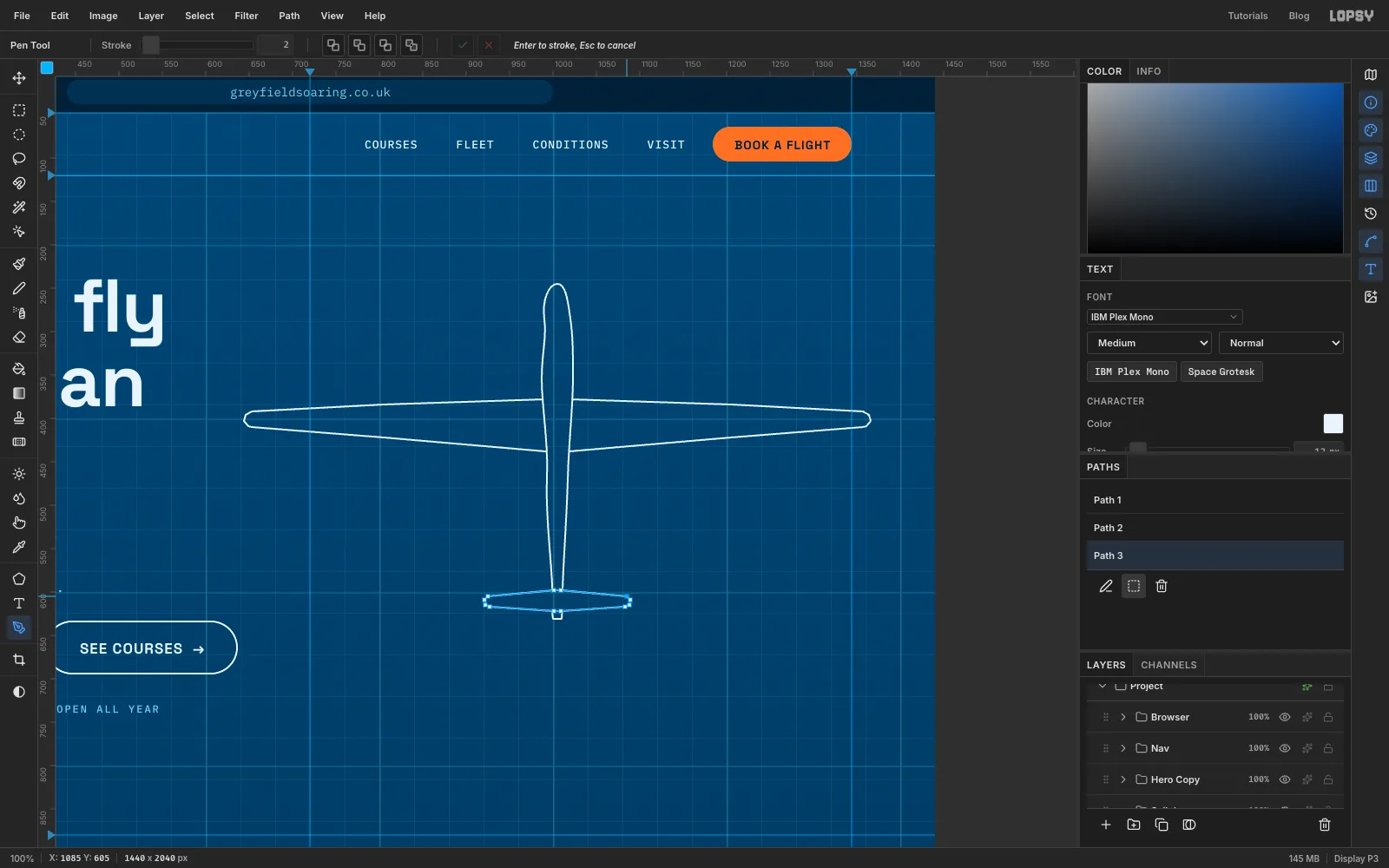
- The tailplane is a slim bar about 160 px across with rounded tips, sitting across the end of the fuselage. Starting at the right tip, click
1085, 605,1089, 609,1088, 615and1083, 617, then go along the trailing edge to1009, 622. Mirror the same points aroundx 1005for the left half (1001, 622,927, 617,922, 615,921, 609,925, 605), then finish along the leading edge with1001, 598and1009, 598. Close the path on the first point. - Click Path to Selection, press Delete and Cmd+D, then press Enter to stroke the tail.
-
Tint the airframe
- In the Paths panel, deselect the tail path. Pick the Magic Wand.
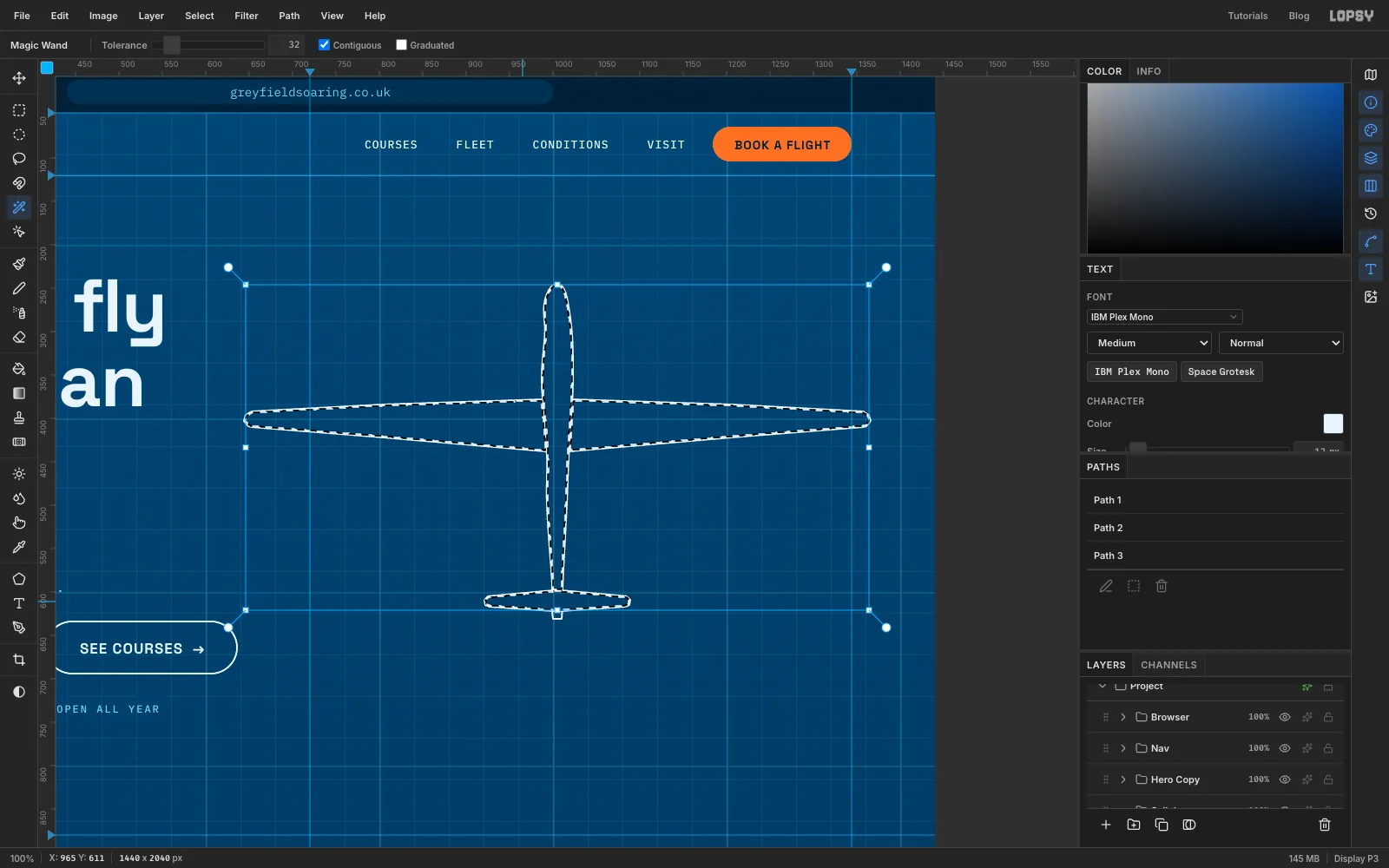
- Click inside the right wing. Then Shift-click inside the left wing, the fuselage and the tailplane, adding each area to the selection.
- Choose Select → Grow… with
1, so the tint tucks under the outline. - Add a layer called
Tint, set the colour to and fill. Press Cmd+D. - Set
Tintto22%. At that strength it can sit aboveOutlinewithout dulling the white lines.
-
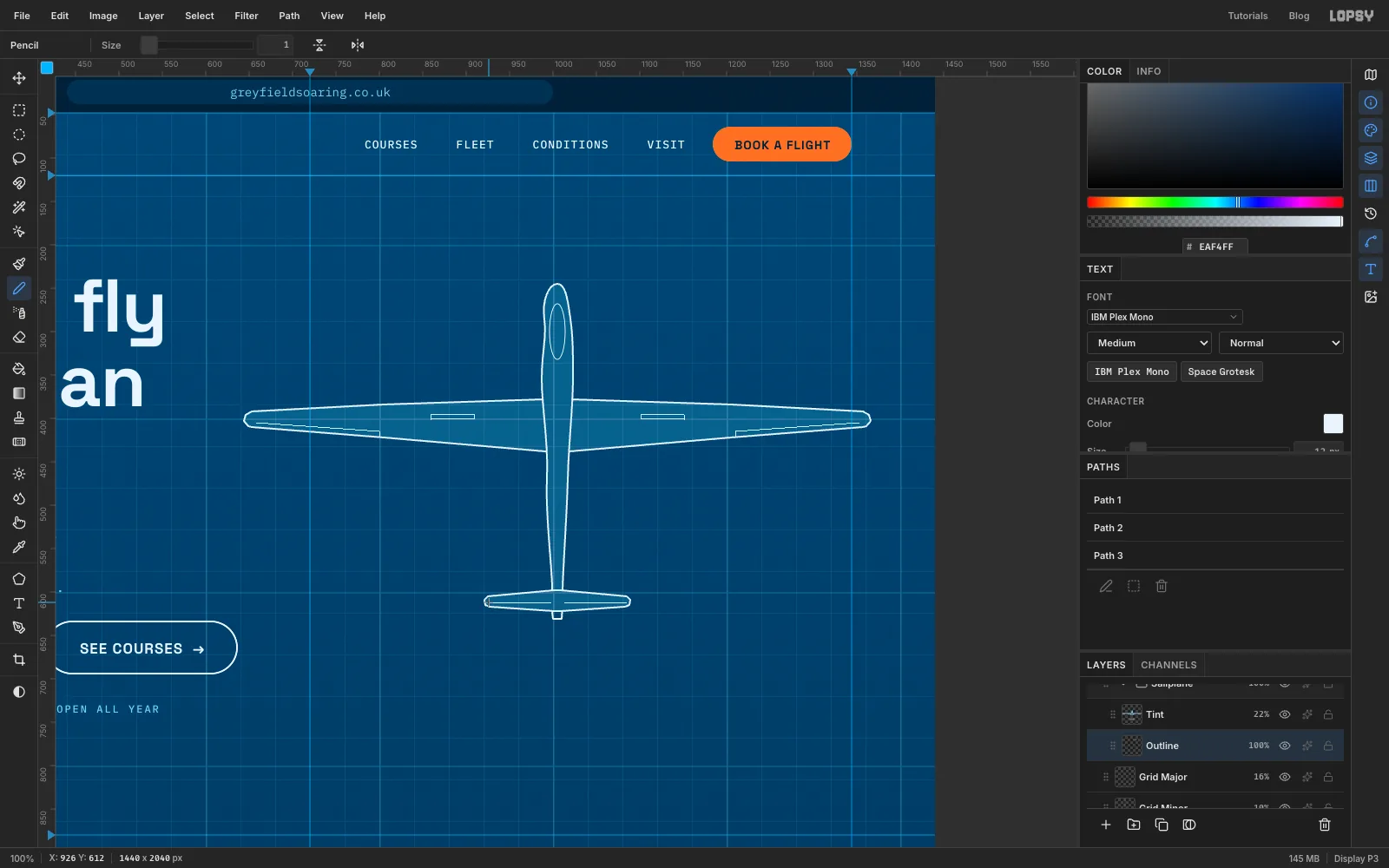
Draw the canopy and control surfaces
- Click
Outline. With the Shape tool on Ellipse, no fill and a stroke at Width1, click at1005, 300and make it18×64. That's the canopy. - Pick the Pencil at Size
1, colour . Draw each line with a click and a Shift-click:
- Ailerons (the hinged flaps near each tip):
1210, 415to1352, 405, plus a short end line from1210, 415to1210, 421. - Airbrake slot on top of the wing: four Shift-click lines boxing
1101, 395to1151, 401. - Elevator hinge across the tailplane:
1013, 612to1084, 612.
- Repeat each one mirrored on the left side.
- Click
-
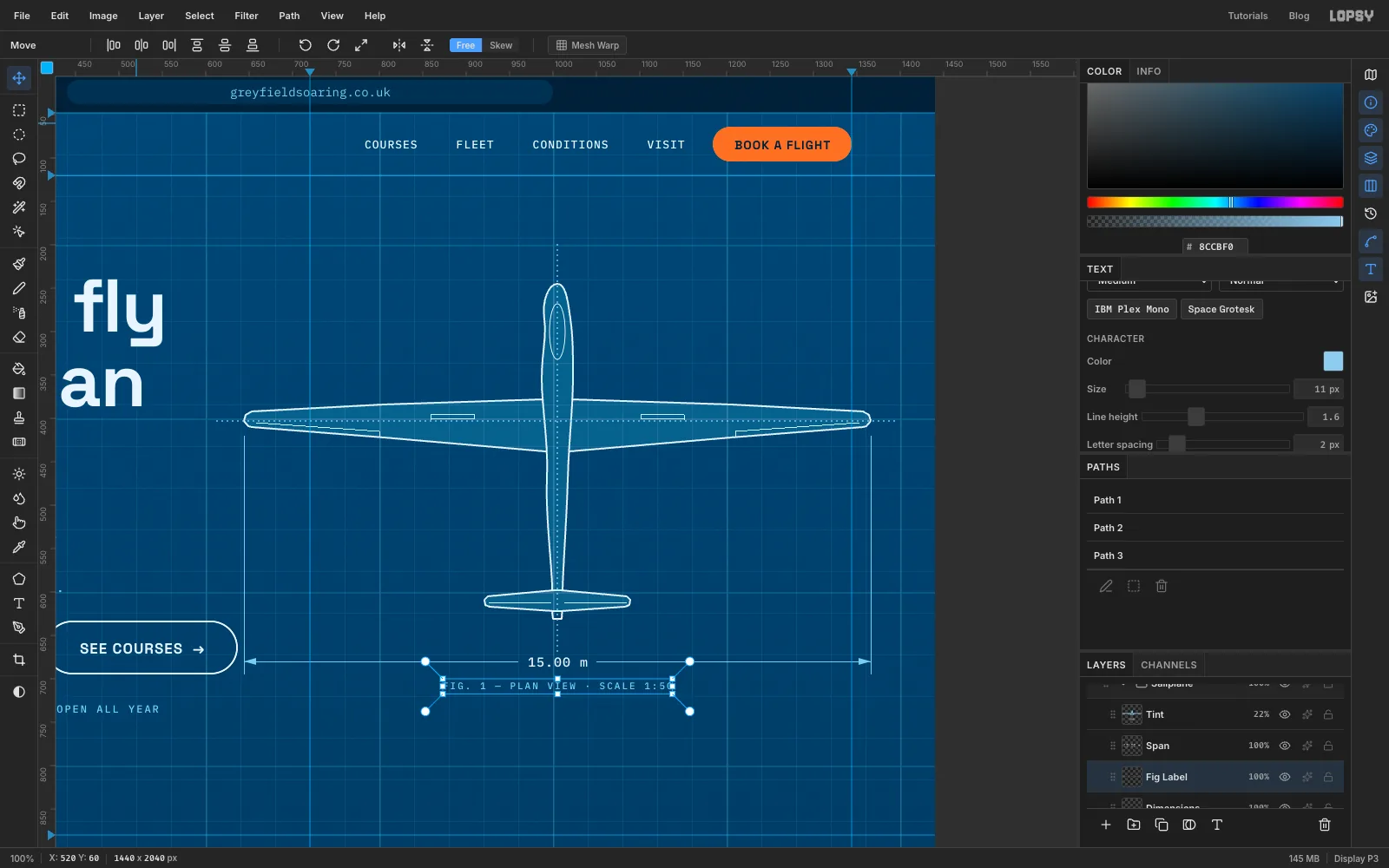
Add centrelines and the span dimension
- Add a layer called
Centrelinesand set the colour to . Pick the Brush, open the Brushes panel from the brush tip in the options bar, pick Hard Round and set Size3, Spacing300, Hardness100. At 300% spacing the dabs separate into dots. Close the panel. - Click at
1005, 200and Shift-click at1005, 672for the fuselage centreline. Then click at613, 403and Shift-click at1397, 403across the wings. Set the layer to70%. - Add a layer called
Dimensions. With a Size1Pencil in , draw extension lines straight down from each wingtip, atx 644andx 1366, fromy 420toy 694. Then draw the dimension line across aty 680between them. - Make each arrowhead with the Lasso: drag a small sliver of a triangle pointing at the extension line, fill it with and deselect.
- Type
15.00 min IBM Plex Mono Medium15, , and centre it on the dimension line. ClickDimensions, marquee a box slightly bigger than the text and press Delete to break the line around it. Press Cmd+D. - Type
FIG. 1 — PLAN VIEW · SCALE 1:50in IBM Plex Mono Medium11, , letter spacing2, centred under the line.
- Add a layer called
-
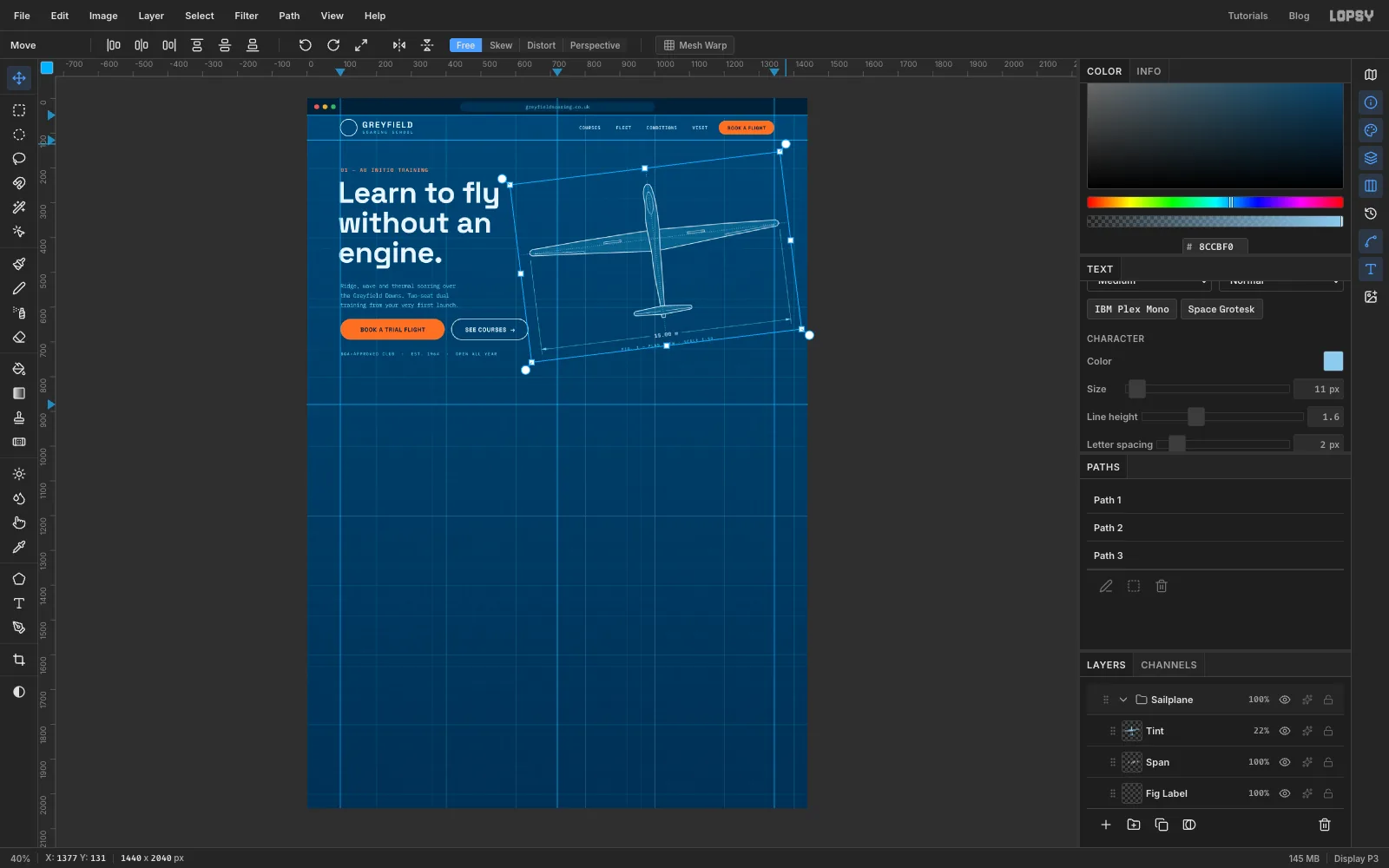
Tip the drawing into a turn
- Press Cmd+D to make sure nothing is selected, and click the
Sailplanegroup's row. - Pick the Move tool. Its handles frame everything in the group. Drag the round rotation handle off the top-right corner about 7° anticlockwise, so the right wingtip ends up roughly 90 px higher than the left.
- Press Cmd+D to apply it. Try Cmd+Z: the drawing snaps back upright. Cmd+Shift+Z puts the turn back.
- With the group still selected, press Shift+↑ three times to lift the whole drawing 30 px. Collapse the group.
- Press Cmd+D to make sure nothing is selected, and click the
-
Draw the ridge
- Click
Grid Majorand add a group calledGround. Inside it, add a layer calledHatch Tile. - Zoom into the top-left corner. With a Size
1Pencil in , click at0, 11and Shift-click at11, 0. With the Rectangular Marquee, select0, 0to12, 12, choose Define Pattern and deselect. Delete theHatch Tilelayer. - Add a layer called
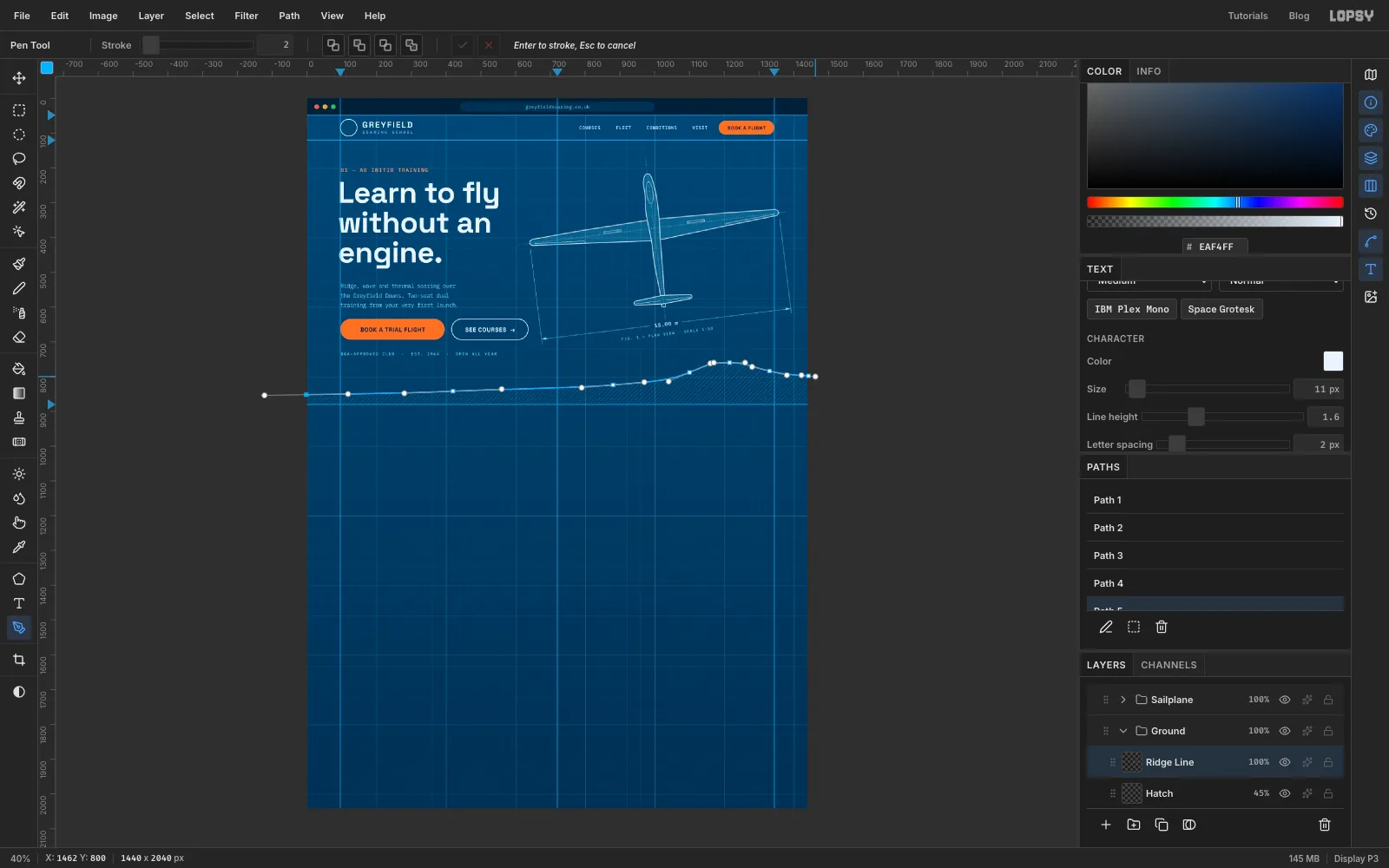
Hatchand fit the page to the window (Cmd+0). With the Pen, drag smooth points along a long, low ridge:
- Just off the left edge at
-2, 852, then420, 842, dragging right each time. 880, 824, dragging right and slightly up.1100, 788, dragging up and right.- The crest at
1215, 760, dragging flat. 1330, 784down the far side, then1442, 798past the edge.- Click
1442, 882and-2, 882to close it along the bottom, then click the first point.
- Click Path to Selection, choose Edit → Fill with Pattern… with the diagonal tile, and deselect. Set the layer to
45%. - Add a layer called
Ridge Line. Deselect the path in the Paths panel and draw the same ridge again with the Pen, but this time stop at the right edge without closing it. Set Stroke to2, colour , and press Enter.
- Click
-
Show the lift
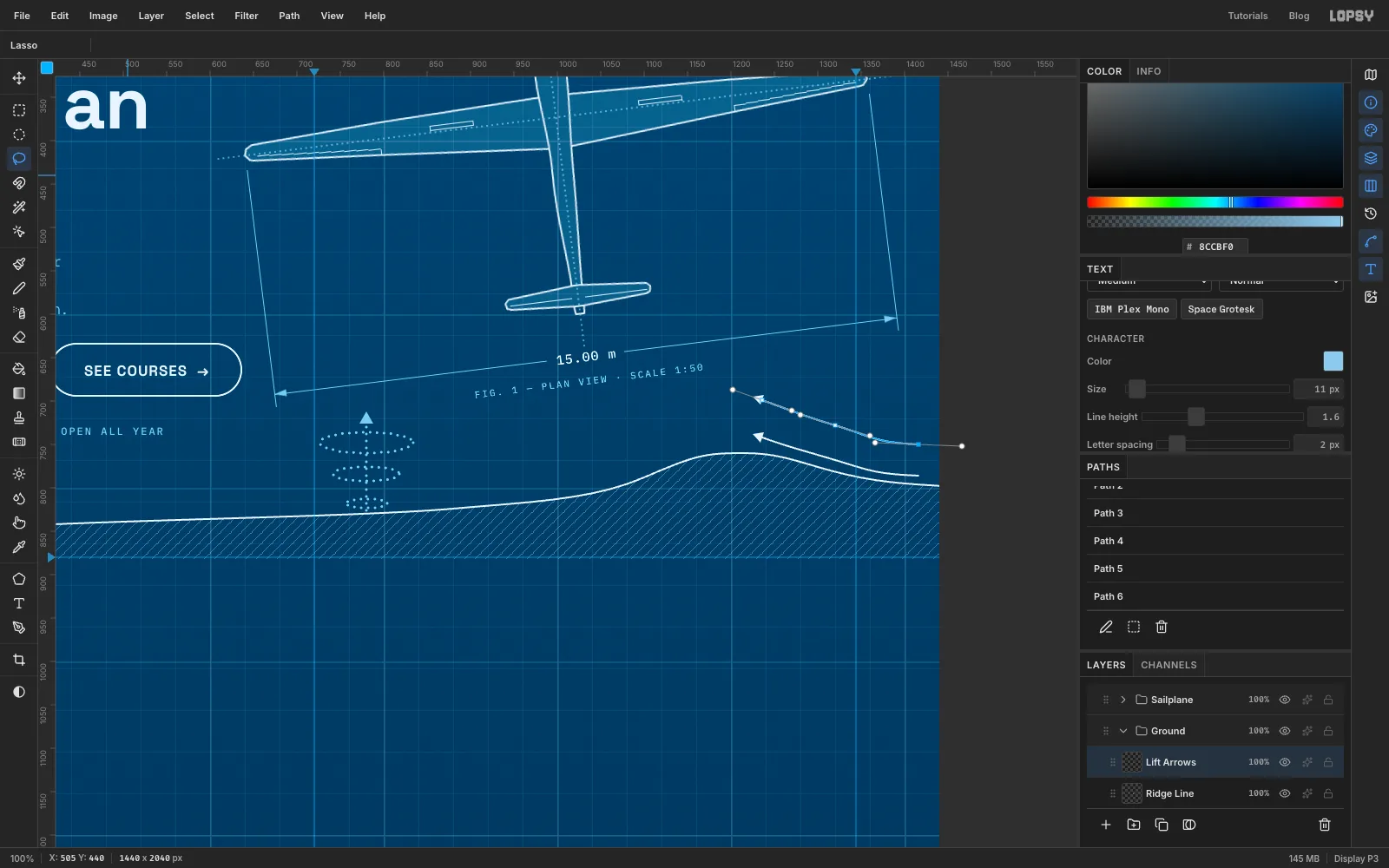
The wind blows from the east today, so it hits the right-hand slope and is forced upward. That's ridge lift.
- Add a layer called
Lift Arrows, colour . In the Paths panel, click the ridge path to deselect it. With the Pen at Stroke2, drag three smooth points: from1416, 786, through1320, 768, to1236, 742, curving up the slope. Press Enter. Deselect that path in the Paths panel too, then draw a second arrow about 36 px higher. - Fill a small Lasso triangle at the top-left end of each line for the arrowheads.
- For the thermal, set the colour to and pick the Brush with Hard Round at Size
4, Spacing260. Over the field atx 780, drag three flat rings, wider as they rise: about 48 px wide aty 818, 76 px aty 784and 108 px aty 748. - Draw a dotted line straight up the middle from
y 826toy 728with a click and a Shift-click. Finish it with a small filled triangle.
- Add a layer called
-
Write the pencil notes
Handwritten notes make the drawing feel like a working sheet rather than clip art.
- Click
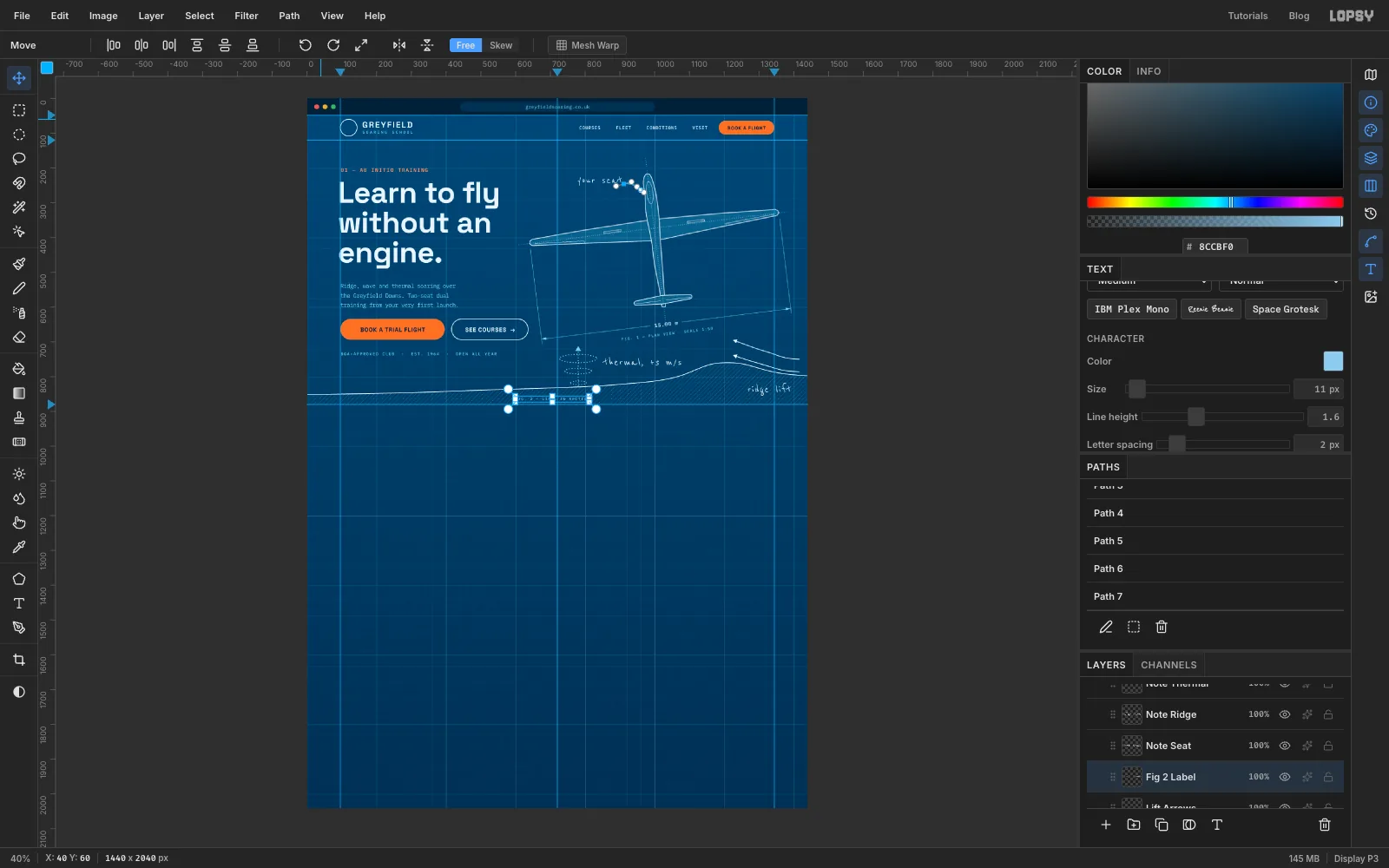
Lift Arrows. With the Text tool, set Reenie Beanie, size36, colour , and typethermal, +3 m/s. Put it to the right of the rings at aboutx 850,y 744. - Type
ridge liftand tuck it under the ridge, near the right edge atx 1268,y 818. - Type
your seatand place it to the left of the nose, ending aroundx 905,y 224. - Click
Lift Arrowsand deselect the last arrow path in the Paths panel. With the Pen at Stroke2in , drag two points from the end of the note curving down to the canopy, and press Enter. Add a tiny triangle at the tip. - Add
FIG. 2 — LIFT, IN SECTIONin IBM Plex Mono Medium11, , letter spacing2, atx 600,y 860. CollapseGround.
- Click
-
Add the stats band
- Click
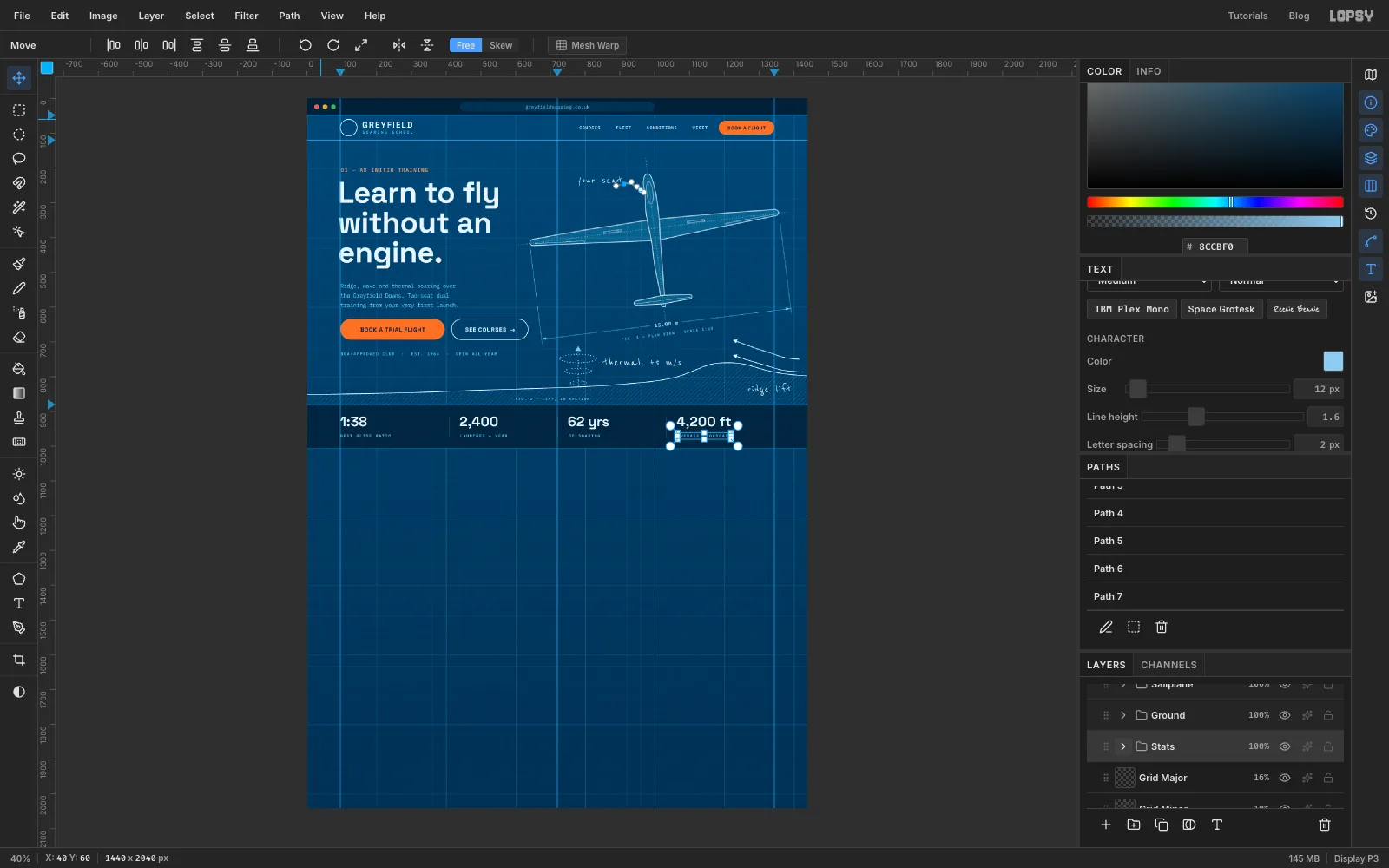
Grid Majorand add a group calledStats, with a layer calledStats Band. - Marquee from the left edge at
y 882to the right edge aty 1006, fill it with and deselect. Set the layer to80%, so the grid shows through faintly. - Add a layer called
Stats Rules. With a Size1Pencil in , draw a hairline across aty 1005, plus short dividers atx 408,720and1032fromy 914toy 976. That gives four equal 312 px columns. - Click
Stats Rulesbefore each piece of text in this section. Type the four values in Space Grotesk Bold40, , tops aty 914:1:38atx 96,2,400atx 440,62 yrsatx 752and4,200 ftatx 1064. Each starts 32 px after its divider. - Under each value, at
y 966, type its label in IBM Plex Mono Medium12, , letter spacing2:BEST GLIDE RATIO,LAUNCHES A YEAR,OF SOARINGandAVERAGE CLOUDBASE. Collapse the group.
- Click
-
Draw the first course card
- Click
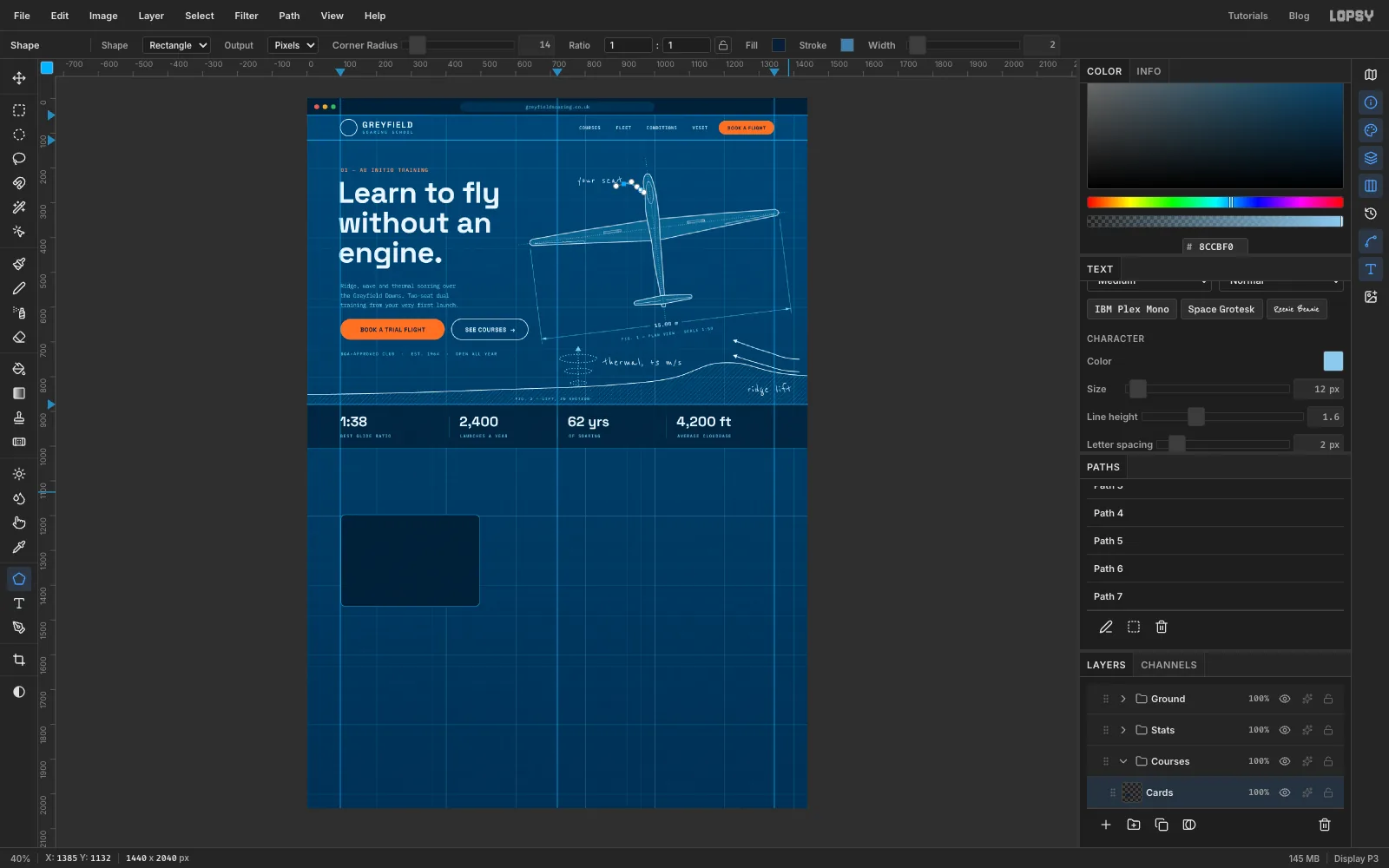
Grid Majorand add a group calledCourses, with a layer calledCards. - With the Shape tool on Rectangle, Corner Radius
14, fill , and a stroke at Width2, click at297, 1329and make it400×264.
- Click
-
Copy the card with grid snapping
Snapping guarantees the copies land exactly in line with the first card.
- Choose View → Show Grid. In the options bar, set the grid slider to 8px and leave Snap ticked. The card's edges already sit on grid lines.
- Cmd-click the
Cardsthumbnail to select the card, then press Cmd+C and Cmd+V. The copy pastes in place on a new layer. Press Cmd+D. - With the Move tool, drag the copy to the right until its left edge snaps to
x 520. Keep the drag level; the snap holds it on the same row. - Click
Cardsagain and repeat, dragging the second copy tox 944. - Turn Show Grid off. Click the top copy and choose Layer → Merge Down twice, so all three cards are back on
Cards.
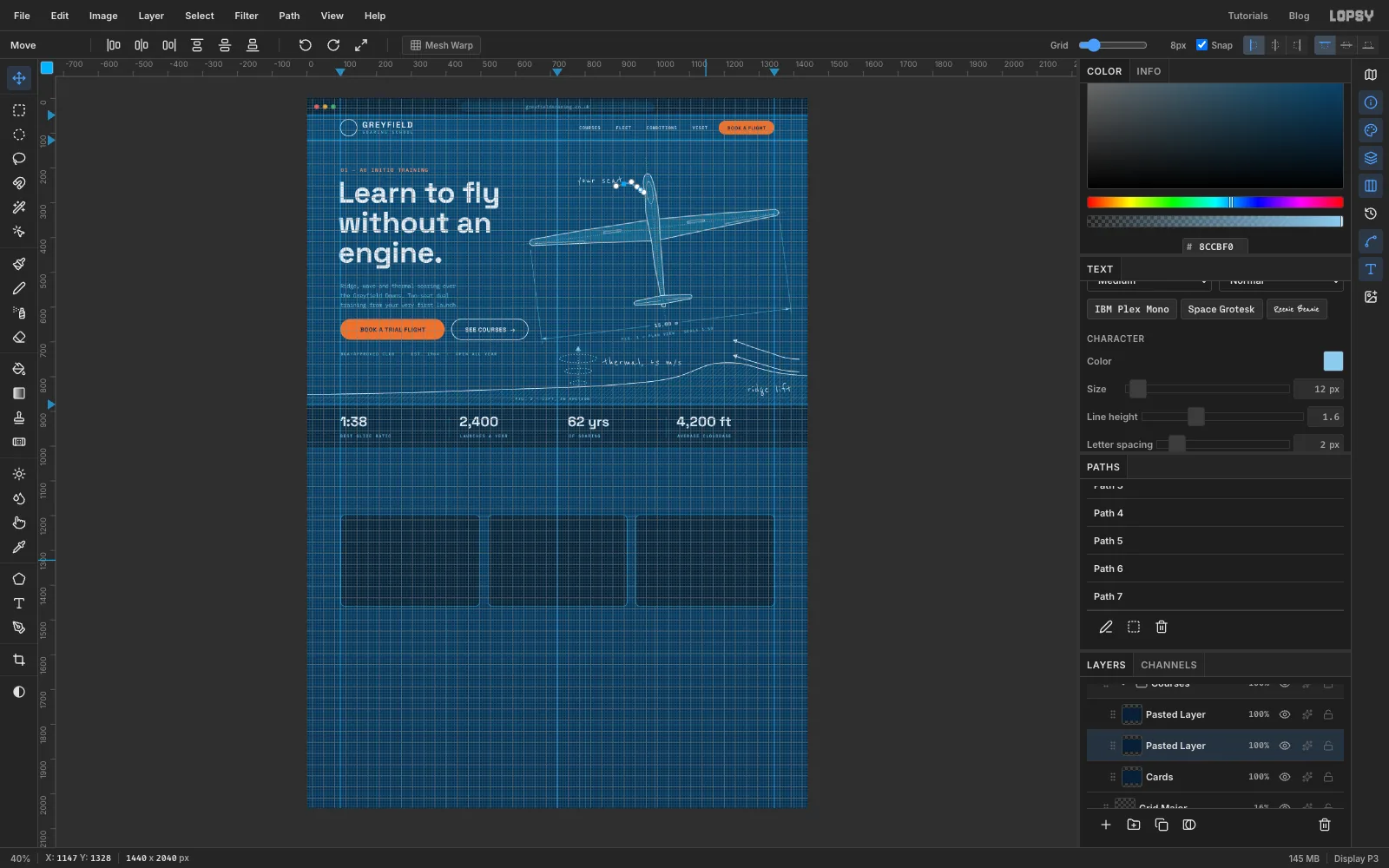
-
Draw the card icons
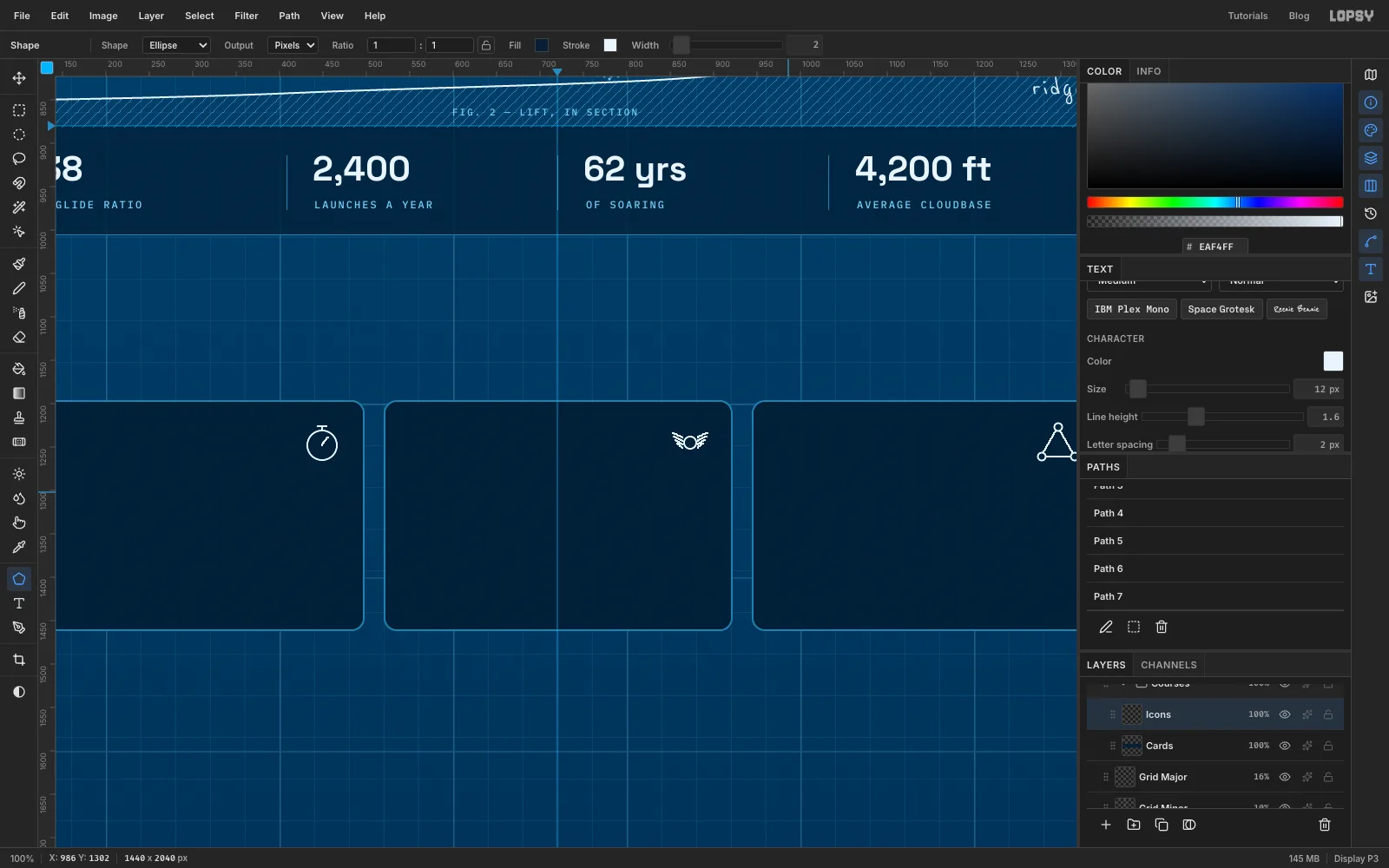
Keep all three icons inside the same 40 px box, in the same 2 px white line, and they'll read as a set.
- Add a layer called
Iconsand zoom to 100% over the cards. - Stopwatch (Trial Lesson): an unfilled Ellipse with stroke Width
2,34×34, at449, 1248. With a Size2Pencil, add a hand from the centre up and to the right, and a short crown on top. - Pilot's wings (Learn to Solo): a
14×14ring at873, 1245. On each side, draw four short feather strokes angled slightly upward and getting shorter towards the bottom. - Triangle task (Cross-Country): with the same Size
2Pencil, click and Shift-click a triangle about 38 px wide around1297, 1245. Then put a small9×9ring with a dark fill and white Width2stroke on each corner. Cross-country pilots fly triangles between turnpoints.
- Add a layer called
-
Write the card copy
- Add a layer called
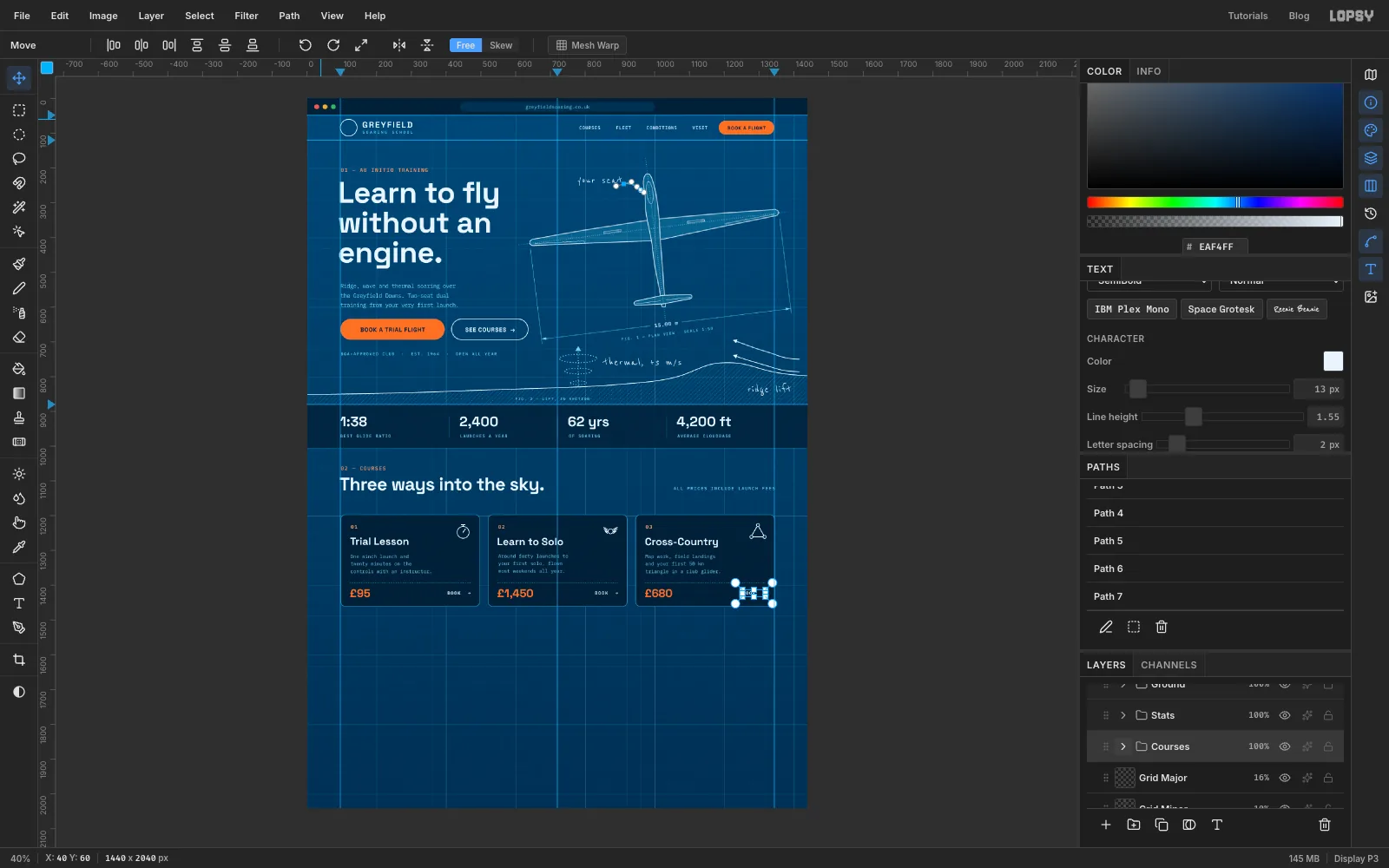
Card Rules. Pick the Brush with Hard Round, Size2, Spacing300in , draw a line across each card 196 px below its top, 28 px in from each side. - Type the section label
02 — COURSESin IBM Plex Mono Medium15, , atx 98,y 1058. ClickCard Rulesagain and, under the label, typeThree ways into the sky.in Space Grotesk Bold52, , letter spacing-1. - Type
ALL PRICES INCLUDE LAUNCH FEESin IBM Plex Mono Medium13, , and line its right edge up with thex 1344guide, sitting on the heading's baseline. - In each card, 28 px in from the left (click
Card Rulesbefore each one):
- The number (
01,02,03) in IBM Plex Mono SemiBold14, , near the top. - The title in Space Grotesk Bold
30, :Trial Lesson,Learn to Solo,Cross-Country. - Three lines of description in IBM Plex Mono Regular
14, , Line height1.55: One winch launch and/twenty minutes on the/controls with an instructor.Around forty launches to/your first solo, flown/most weekends all year.Map work, field landings/and your first 50 km/triangle in a club glider.- The price below the dotted rule in Space Grotesk Bold
32, :£95,£1,450,£680. BOOK →in IBM Plex Mono SemiBold13, , letter spacing2, right-aligned to the card's inner edge and centred on the price's capitals.
- Collapse the group.
- Add a layer called
-
Bring in the photo
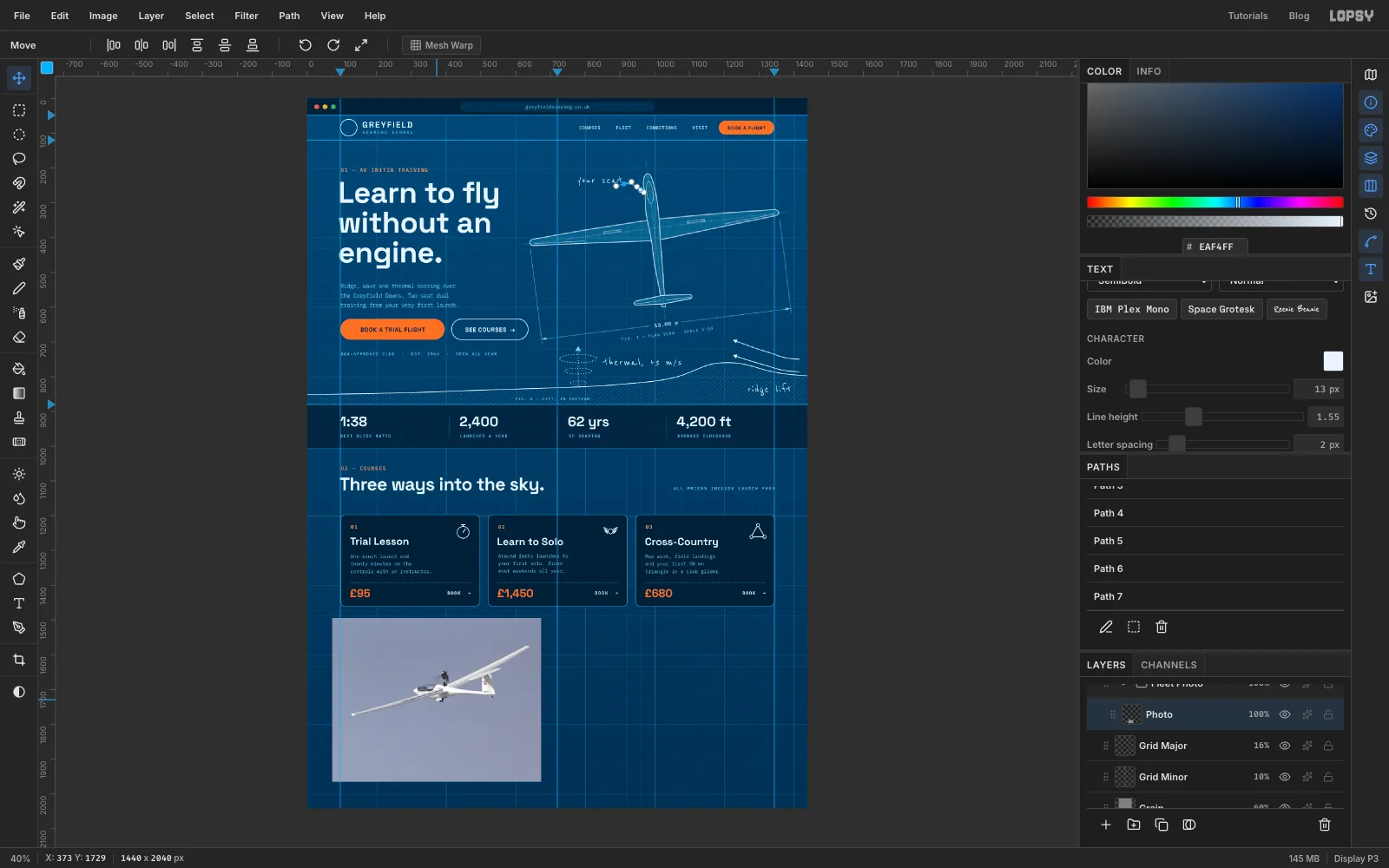
The photo is NASA's public-domain shot of a PIK-20E sailplane over Edwards, California, Pik20E NASA.jpg on Wikimedia Commons. I used a 1200 px wide copy.
- Click
Grid Majorand add a group calledFleet Photo. - Drag the photo file onto the canvas. It lands as a new layer in the top-left corner, already selected, with the Move tool active. Rename it
Photo. - Hold Cmd and drag the bottom-right handle up and left until the photo is half its size, 600 px wide.
- Drag the photo down into the empty area at the bottom left, so its top-left corner is at about
73, 1494. Press Cmd+D.
- Click
-
Retouch the motor-glider into a glider
This particular glider has a small engine on a mast behind the cockpit, and NASA lettering on the tail. A gliding school's own glider would have neither.
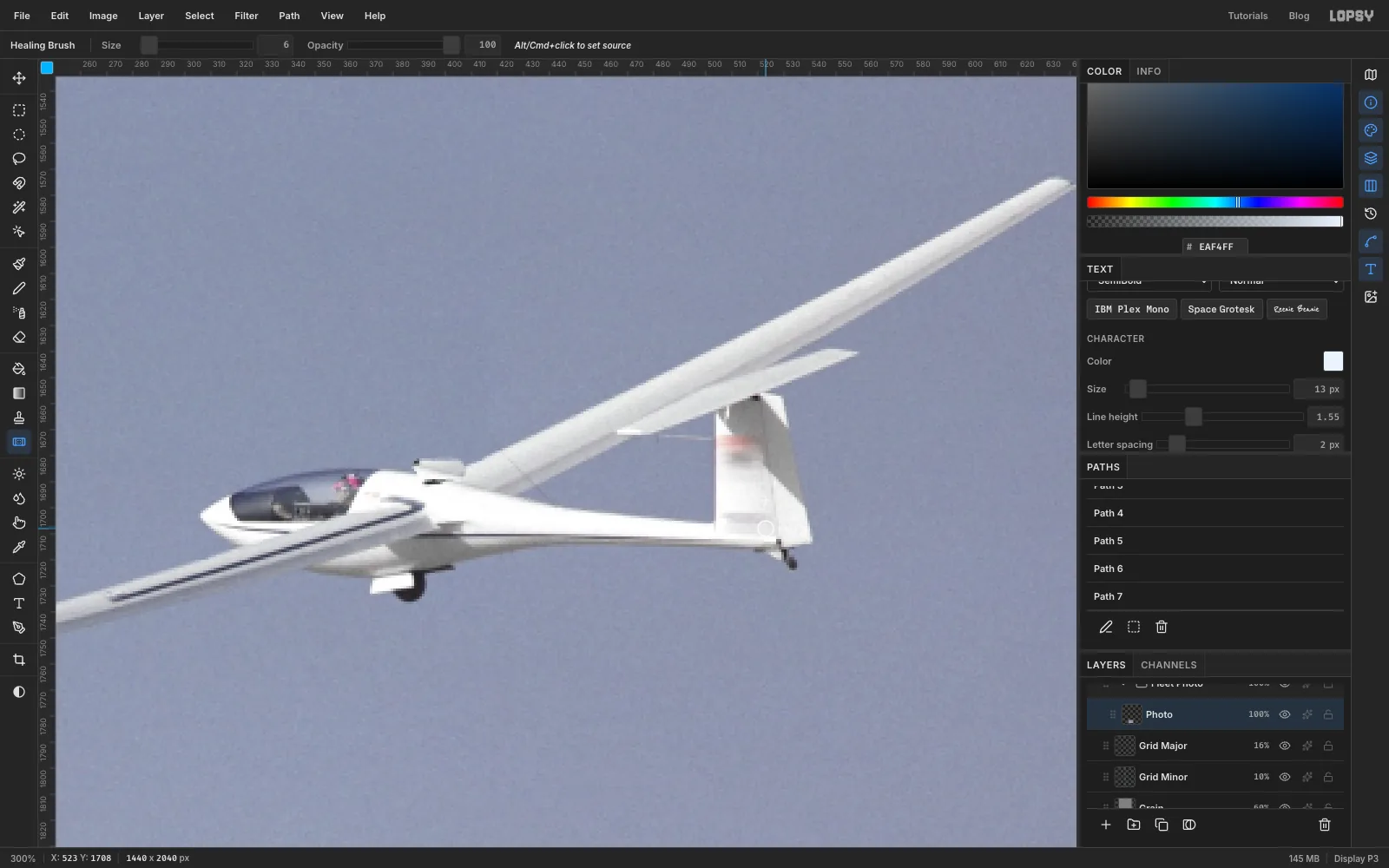
- Zoom to 300% over the cockpit and tail.
- Pick the Clone Stamp at Size
12. Alt-click in clear sky up and to the left of the engine to set the source. Then paint over the propeller and mast. The source follows your brush at a fixed offset, so start on the mast and keep the source in clear sky. The sky is even, so it blends straight in. - Drop to Size
6. Alt-click on the fuselage just behind the mast, and paint over the dark stub where the mast meets the fuselage. - Pick the Healing Brush at Size
6. Alt-click on clean white fin just below the lettering, then paint across the NASA logo. Do two passes, top half then bottom half, re-sampling just below each time. Heal the small registration number further down the same way. The Healing Brush matches the fin's tone, so you don't get a flat patch.
-
Crop the photo to its frame
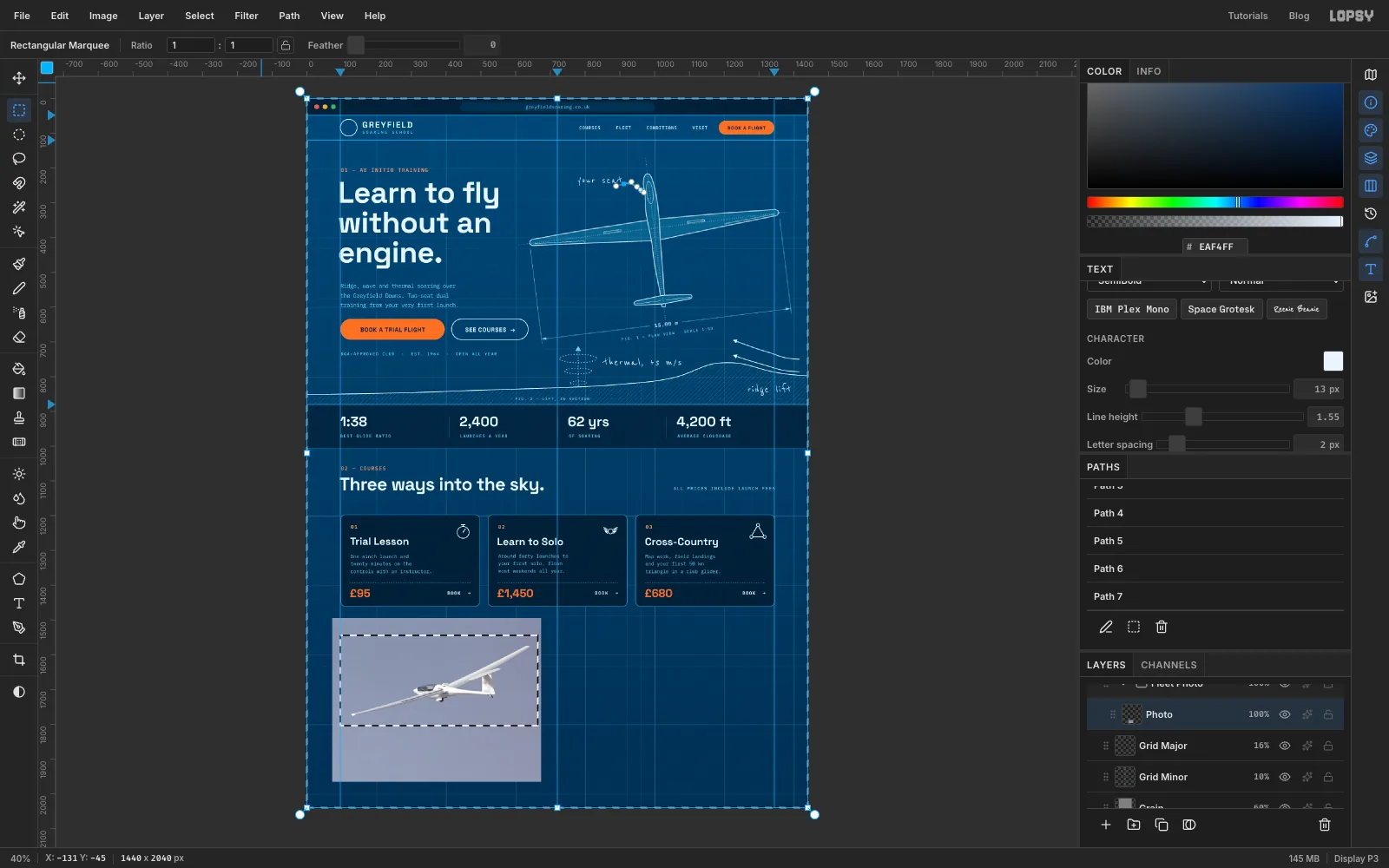
- With the Rectangular Marquee, select from
104, 1544to664, 1804, a 560 × 260 window. - Choose Select → Inverse and press Delete. Press Cmd+D.
- With the Rectangular Marquee, select from
-
Turn it into a cyanotype
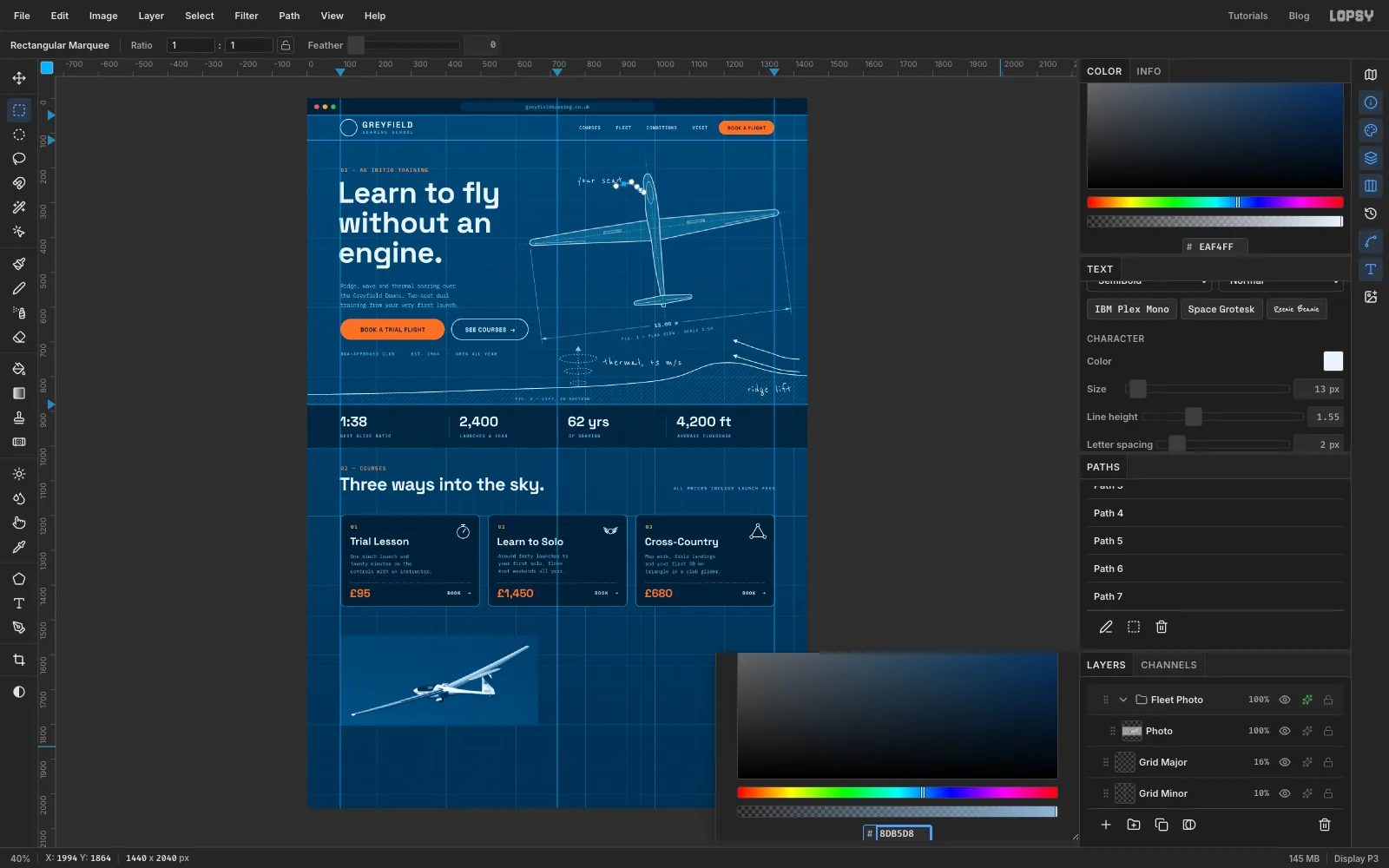
Real cyanotype prints are deep Prussian blue where light hit the paper, and paper white where it didn't. A Gradient Map on the group recreates that.
- With
Photoselected, choose Filter → Desaturate. - Click the
Fleet Photogroup's row and open its drawer with the ✦ button. Click Add Adjustment and choose Gradient Map. - Click the left stop and set it to , and the right stop to .
- Click the bar to add three more stops, and set each one's colour: at about 55%, at about 64%, and at about 82%. The drawer is short, so scroll it up to see the bar after you pick a colour. The sky falls in the 55–64% band, so it goes deep blue, while the glider stays near white.
- Close the drawer.
- With
-
Frame the print
- Add a layer called
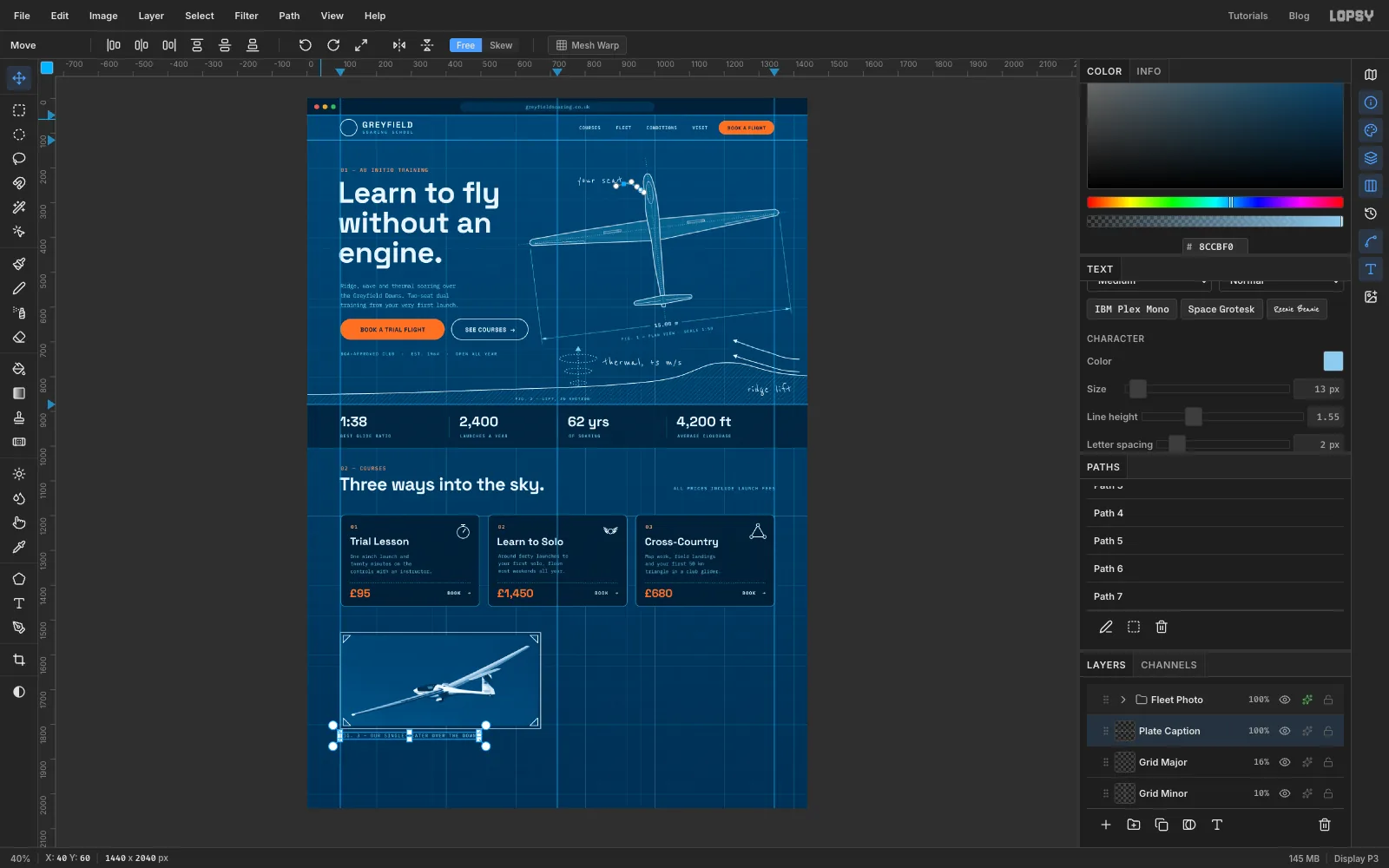
Photo Frameinside the group. With the Shape tool on Rectangle, no fill, a stroke at Width2and Corner Radius0, click at384, 1674and make it576×276. That leaves 8 px of air around the print. - With a Size
2Pencil, draw a small triangle in each corner of the photo, 22 px along each edge, like album photo corners. - Collapse the group and click
Grid Major, so the caption sits outside the group and the Gradient Map doesn't dim it. TypeFIG. 3 — OUR SINGLE-SEATER OVER THE DOWNSin IBM Plex Mono Medium13, , letter spacing2, atx 96,y 1828.
- Add a layer called
-
Draw the wind rose
- Click
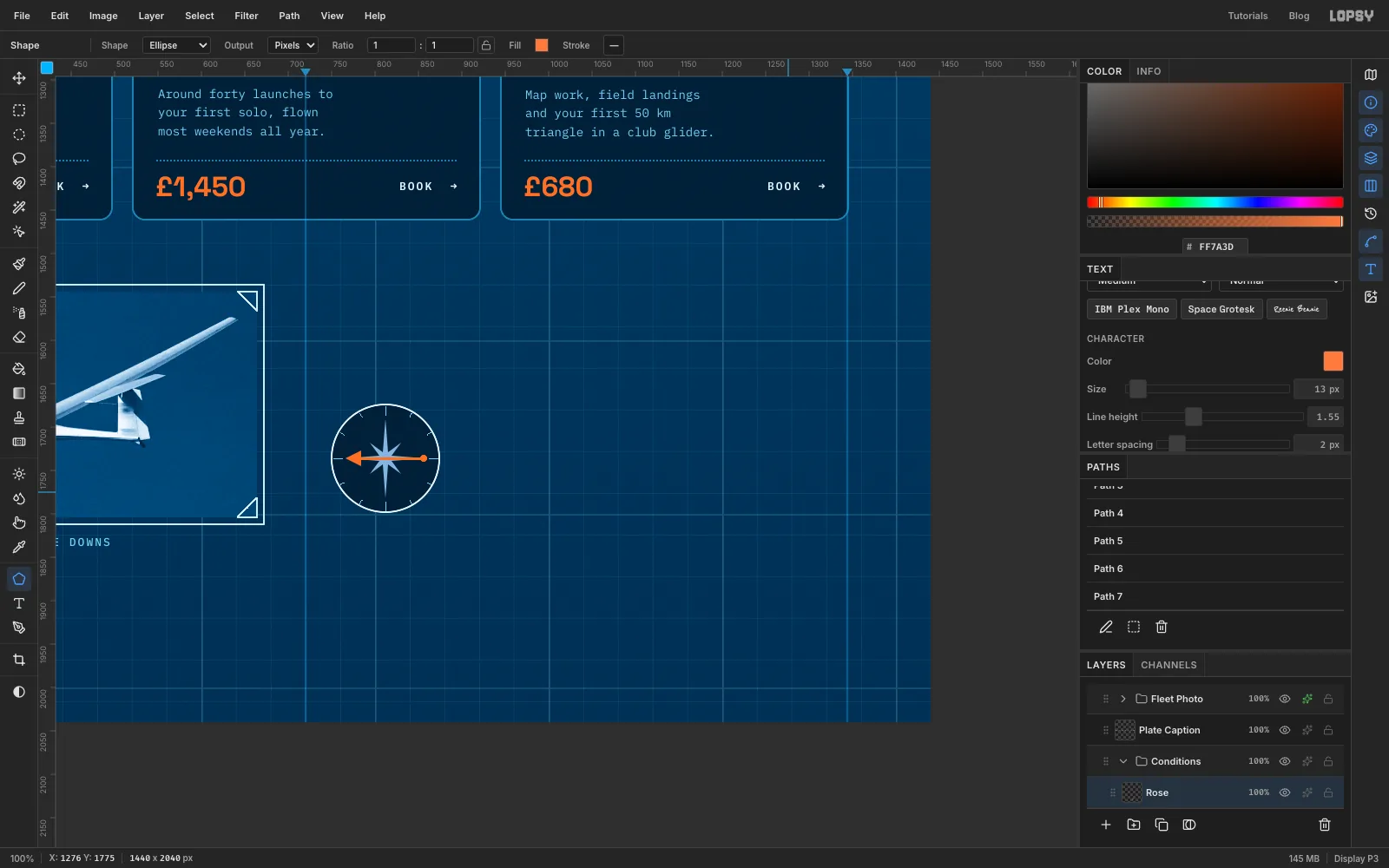
Grid Majorand add a group calledConditionswith a layer calledRose, and zoom to 100% over the space right of the photo. - With the Shape tool on Ellipse, fill and a stroke at Width
2, click at812, 1736and make it124×124. - With the Lasso, click out an eight-point star centred on the circle and fill it with . Make the four main points about 46 px long and the four diagonal ones about 26 px. If your lasso drags freehand, drag from point to point in straight lines.
- With a Size
1Pencil in , draw a short tick on the rim every 30°, longer at north, east, south and west. - Set the colour to and the Pencil to Size
3. Draw the wind arrow from the east side of the circle straight across towards the west. Lasso-fill an arrowhead on the west end. Then switch to the Shape tool (Ellipse, fill , no stroke) and click an8×8dot on the east end. Wind is named for where it comes from, so this arrow reads "from the east".
- Click
-
Fill in today's conditions
- Click
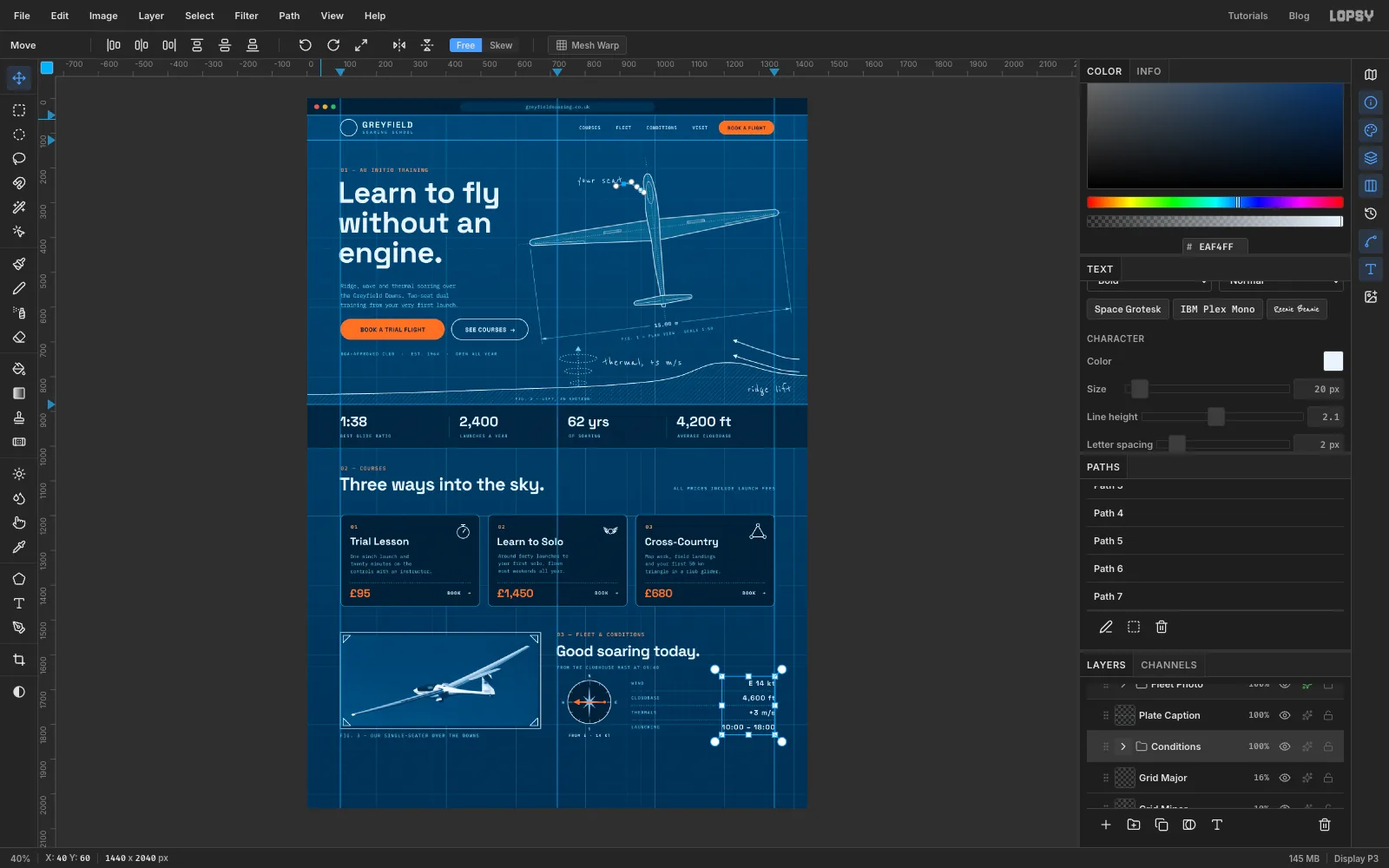
Rosebefore each piece of text in this section. TypeN,E,SandWin IBM Plex Mono SemiBold12just outside the rose:Nin white and the rest in . Under the rose, aty 1828, typeFROM E · 14 KTin IBM Plex Mono SemiBold11, , letter spacing2. It lines up with the photo caption. - Add a layer called
Readout Rules. Pick the Brush with Hard Round, Size2, Spacing300in , draw three lines fromx 932tox 1344aty 1704,1746and1788. - Type
03 — FLEET & CONDITIONSin IBM Plex Mono Medium15, , atx 720,y 1536. Its top lines up with the top of the photo frame. From here on, clickReadout Rulesbefore each new text. Below the label, typeGood soaring today.in Space Grotesk Bold44, , letter spacing-1, aty 1572, andFROM THE CLUBHOUSE MAST AT 09:40in IBM Plex Mono Medium12, , aty 1632. - For the labels, type
WIND,CLOUDBASE,THERMALS,LAUNCHINGon four lines, pressing Enter between them. Use IBM Plex Mono Medium12, , letter spacing2, with Line height3.5. Place it atx 933,y 1678. - For the values, set Align to Right in the Text options before you click, then type
E 14 kt,4,600 ft,+3 m/s,10:00 – 18:00on four lines. Use Space Grotesk Bold20, , with Line height2.1. Both line heights work out to 42 px, so labels and values share baselines. Move it so its right edge sits on thex 1344guide and the last line lines up withLAUNCHING. Set Align back to Left, then collapse the group.
- Click
-
Build the title-block footer
Every engineering drawing ends with a title block, so this page does too.
- Click
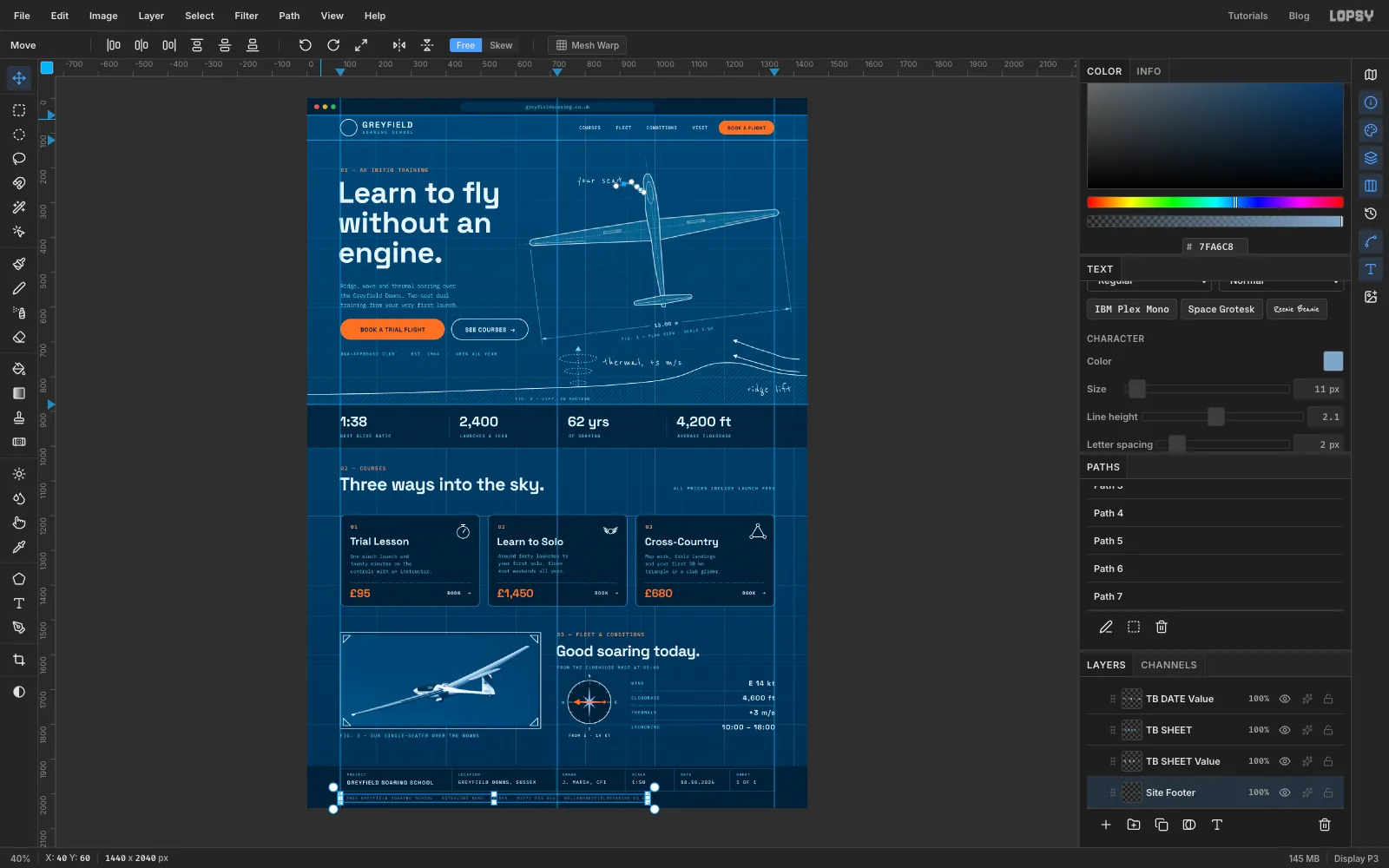
Grid Majorand add a group calledFooter, with a layer calledFooter Band. Marquee fromy 1920to the bottom of the page across its full width, fill it with , and deselect. - Add a layer called
Title Block. With the Shape tool on Rectangle, no fill, a stroke at Width1and no corner radius, click at720, 1960and make it1248×64. - With a Size
1Pencil in the same colour, draw cell dividers fromy 1929toy 1991atx 416,716,916,1056and1216. - Click
Title Blockbefore each piece of text. In each cell, 20 px in from its left line, type a label aty 1941in IBM Plex Mono Medium10, , letter spacing2. Then type the value under it aty 1962in IBM Plex Mono Medium13, . The project name is in Space Grotesk Bold15.
PROJECT:GREYFIELD SOARING SCHOOLLOCATION:GREYFIELD DOWNS, SUSSEXDRAWN:J. MARSH, CFISCALE:1:50DATE:18.10.2026SHEET:1 OF 1
- Under the block, at
x 96,y 2008, add a small site footer in IBM Plex Mono11, :© 2026 GREYFIELD SOARING SCHOOL · DITCHLING ROAD, SUSSEX · 01273 555 014 · [email protected]. - Collapse the group.
- Click
-
Shrink the drawing into a logo
The logo is the hero drawing's own silhouette, so the brand and the page match.
- Expand the
NavandSailplanegroups. ClickLogo Ringand add a layer calledLogo Glider. - Cmd-click the
Tintthumbnail to select the airframe. Then Cmd+Shift-click theOutlinethumbnail to add the outline to the selection. Choose Select → Grow… with2and fill with . Press Cmd+D. - Cmd-click the
Logo Gliderthumbnail. With the Move tool, hold Cmd and drag the bottom-right handle up and left until the silhouette is about 38 px wide. - Press Cmd+D. With the Move tool, drag the silhouette up into the ring, then nudge it with the arrow keys until it's centred. Collapse the groups.
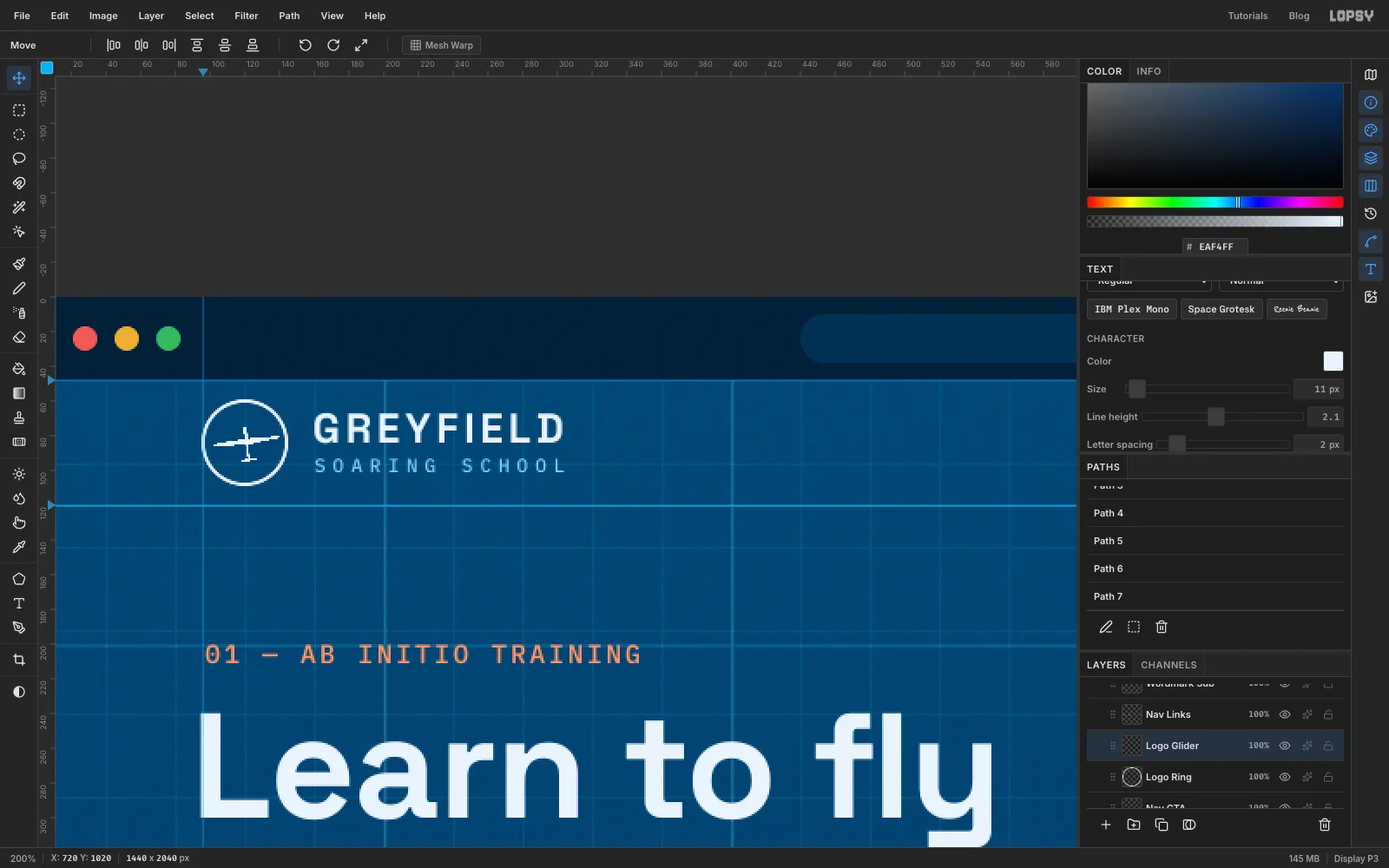
- Expand the
-
Add shadows and brushed print edges
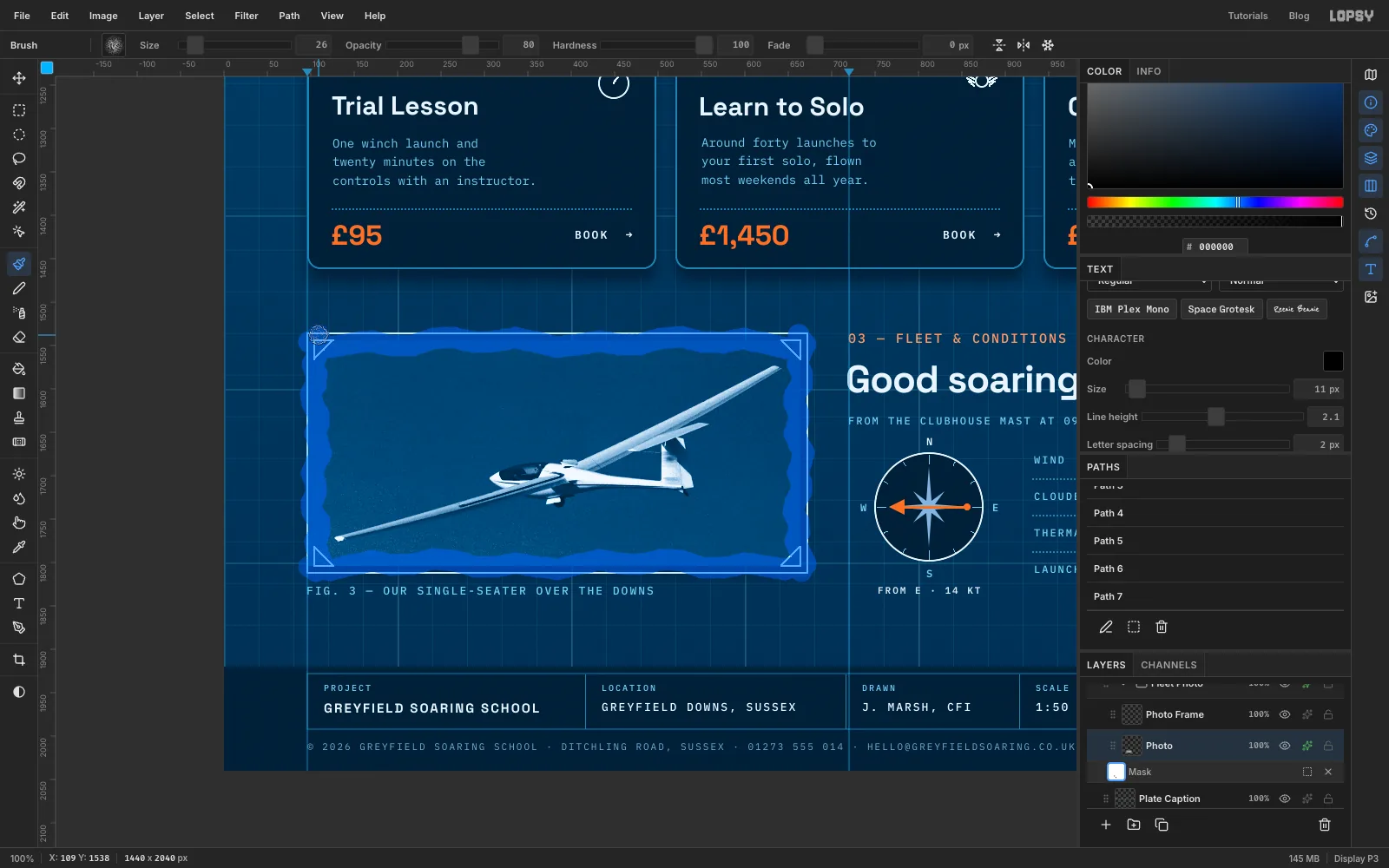
Cyanotypes are hand-coated, so their edges are ragged brush marks, not clean cuts. A layer mask does that without touching the photo.
- Click
Cardsand open its drawer. Tick Drop Shadow and set Offset X0, Offset Y14, Blur26, Opacity55and colour . Close the drawer. - Click
Photoand give it a Drop Shadow of0,12, blur22,50%in the same colour. Run Filter → Add Noise… at10, Mono, Gaussian for a little print grain. - Click Add Mask, then click the mask thumbnail (Edit mask for Photo) so you paint on the mask.
- Set the colour to black. Pick the Brush, open the Brushes panel from the brush tip and pick Chalk on its Presets tab. Set Size to
26and keep its other settings. Drag along each edge of the photo with a slightly wobbly hand, half on and half off the print. - Click the mask thumbnail again to go back to the photo.
- Click
-
Fade the hatching in
- Expand
Groundand clickHatch. Click Add Mask, then click the mask thumbnail to edit it. - Pick the Gradient tool and set it to black → white in the Gradient Editor. Drag from
x 40tox 560along the hatching. The hatch now fades in from the left, so it doesn't fight the hero copy. - Click the mask thumbnail to leave mask editing.
- Choose File → Save Project to keep the layered file, and File → Quick Export PNG for the finished mockup.
- Expand