Draw a Blueprint Ship Birthday Card in Lopsy
Draft a cyanotype blueprint of a three-masted xebec for a sea captain's 70th birthday, with deck plan, dimensions, a cake detail and a title block, in Lopsy.
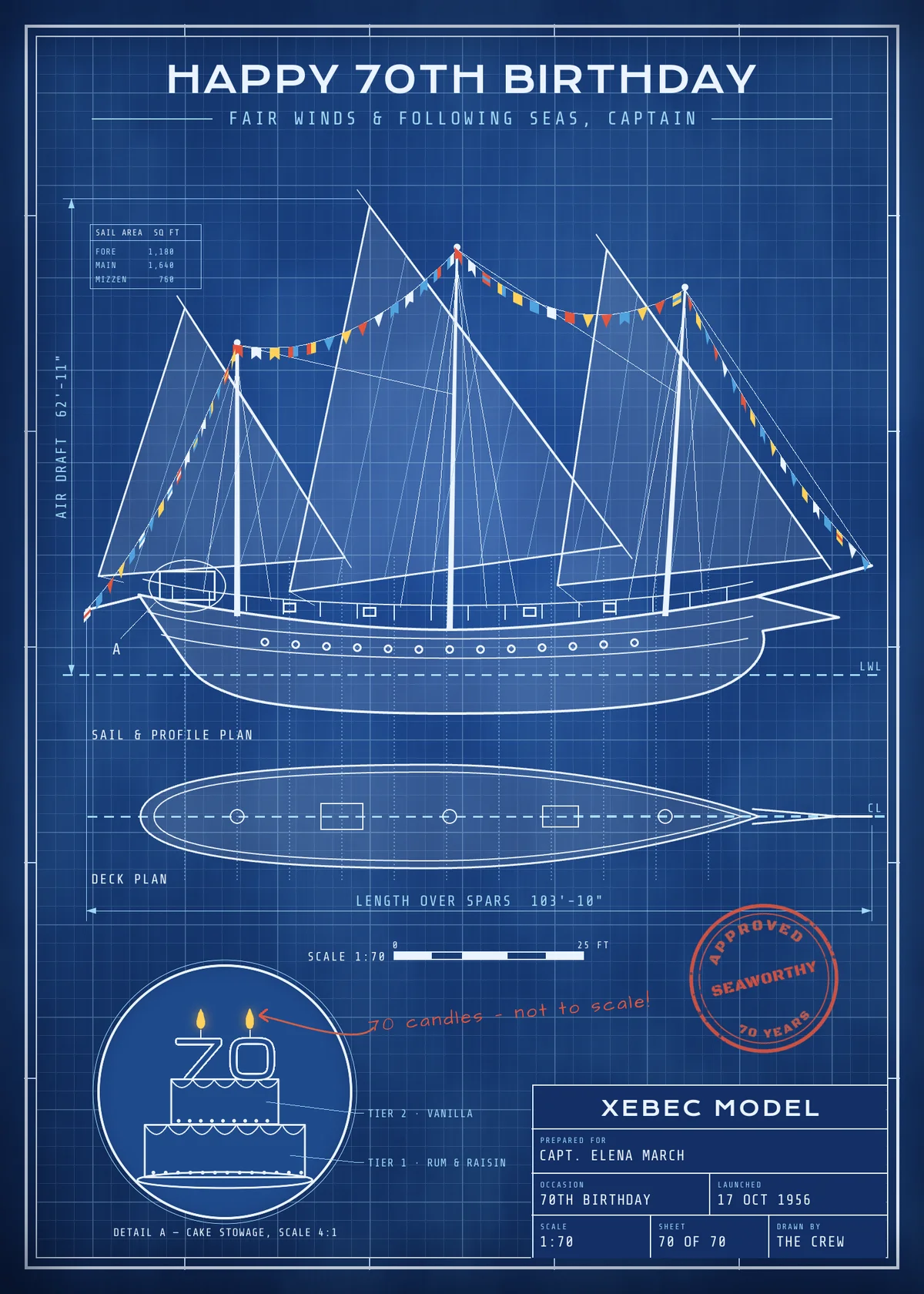
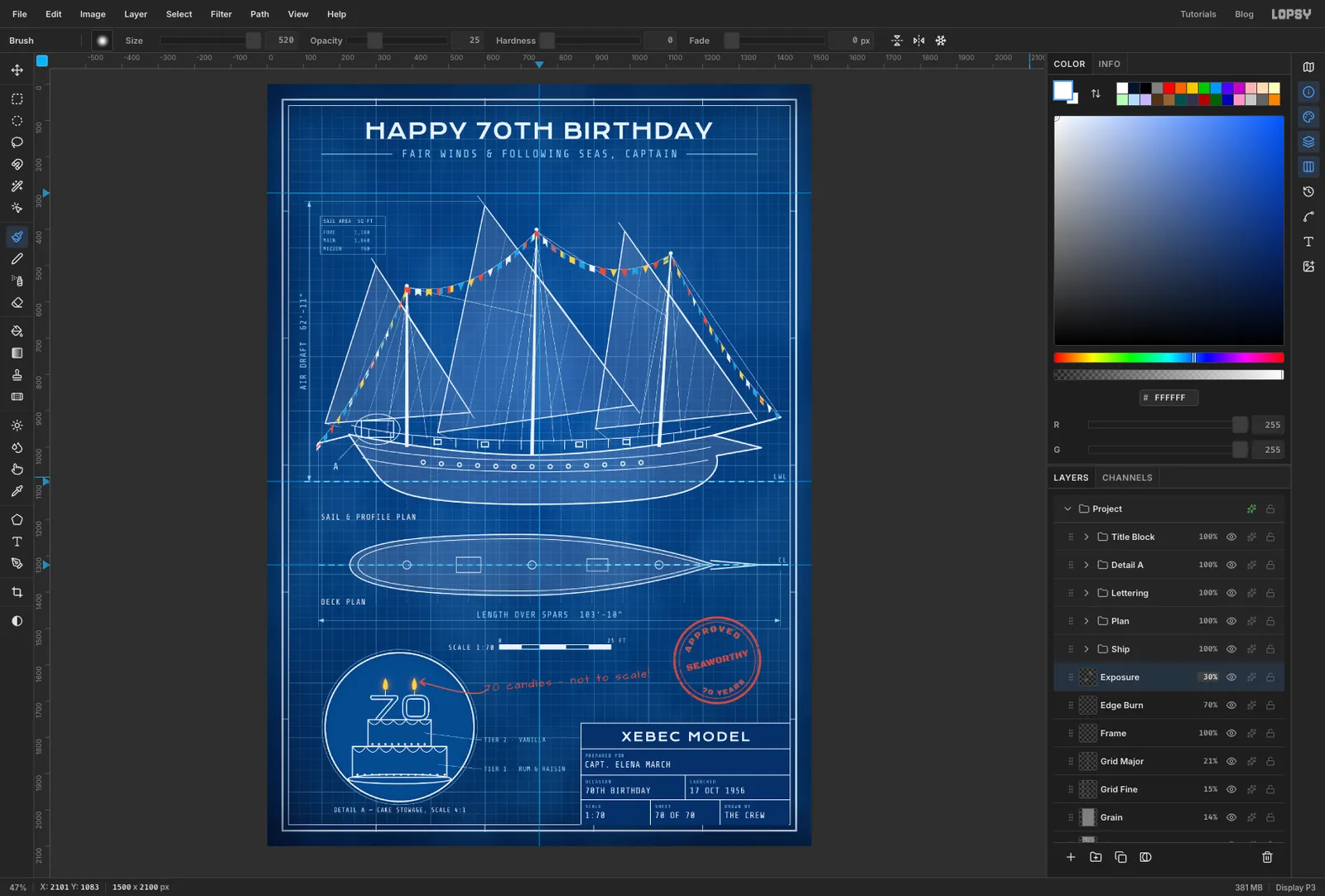
A xebec (say "zee-beck") is a fast Mediterranean sailing ship with three raked masts, long triangular lateen sails and a pointed beak at the bow. In this tutorial you'll draw one as a naval architect's blueprint and turn it into a 70th-birthday card for a sea captain.
The card is a 1500 × 2100 px sheet, 5 × 7 inches at 300 dpi. It has a ship dressed overall with signal flags, which is what ships do for celebrations. Under the ship there's a deck plan, then dimension lines and a scale bar. A magnified Detail A shows the birthday cake "stowed" in the stern cabin. A title block and a red rubber stamp finish the sheet.
Real blueprints are cyanotypes. The paper turns blue where light hits it and stays white under the inked lines. So everything here is light lines on a blue ground, with only a few spots of warm colour: the flags, the candle flames and the red pencil.
Along the way you'll use:
- the Gradient tool, Clouds, Fibers and Add Noise for the paper, and ruler guides
- Define Pattern and Fill with Pattern for the grid, and Define Brush for a dashed-line brush
- the Pen tool, pressing Enter to stroke a path or clicking ✓ to keep it as a path
- the Pencil with Shift-click straight lines, the Brush, and the Spray tool on a layer mask
- the Lasso, Magic Wand, Grow, Shrink and Select → Inverse, plus the exact-corners marquee dialog
- the Shape tool's click-to-size dialog for exact circles and rectangles
- Show Grid with snapping, New Group, the Screen, Multiply, Soft Light and Overlay blend modes, and layer effects
- Text in Krona One, Share Tech Mono, Michroma, Black Ops One and Architects Daughter, including text on a path and rotated text
- Merge Down, rotating with the Move tool, and undo and redo
The palette:
-
Cyanotype ground
-
Line white
-
construction cyan
-
Lens blue
-
title block
-
edge burn
-
Red pencil
-
candle flame
-
flame glow
-
flag blue
-
Lens shadow
-
grain grey
Key positions are given as document coordinates, mostly where two views have to line up. Watch X and Y in the status bar at the bottom of the window as you move the pointer. Freehand shapes only need to be close.
Lopsy names each text layer after its text. I renamed mine as I went (double-click a name), so the screenshots show names like Headline, Scale 0 and Stamp B. Yours can keep the default names.
-
Set up the sheet and guides
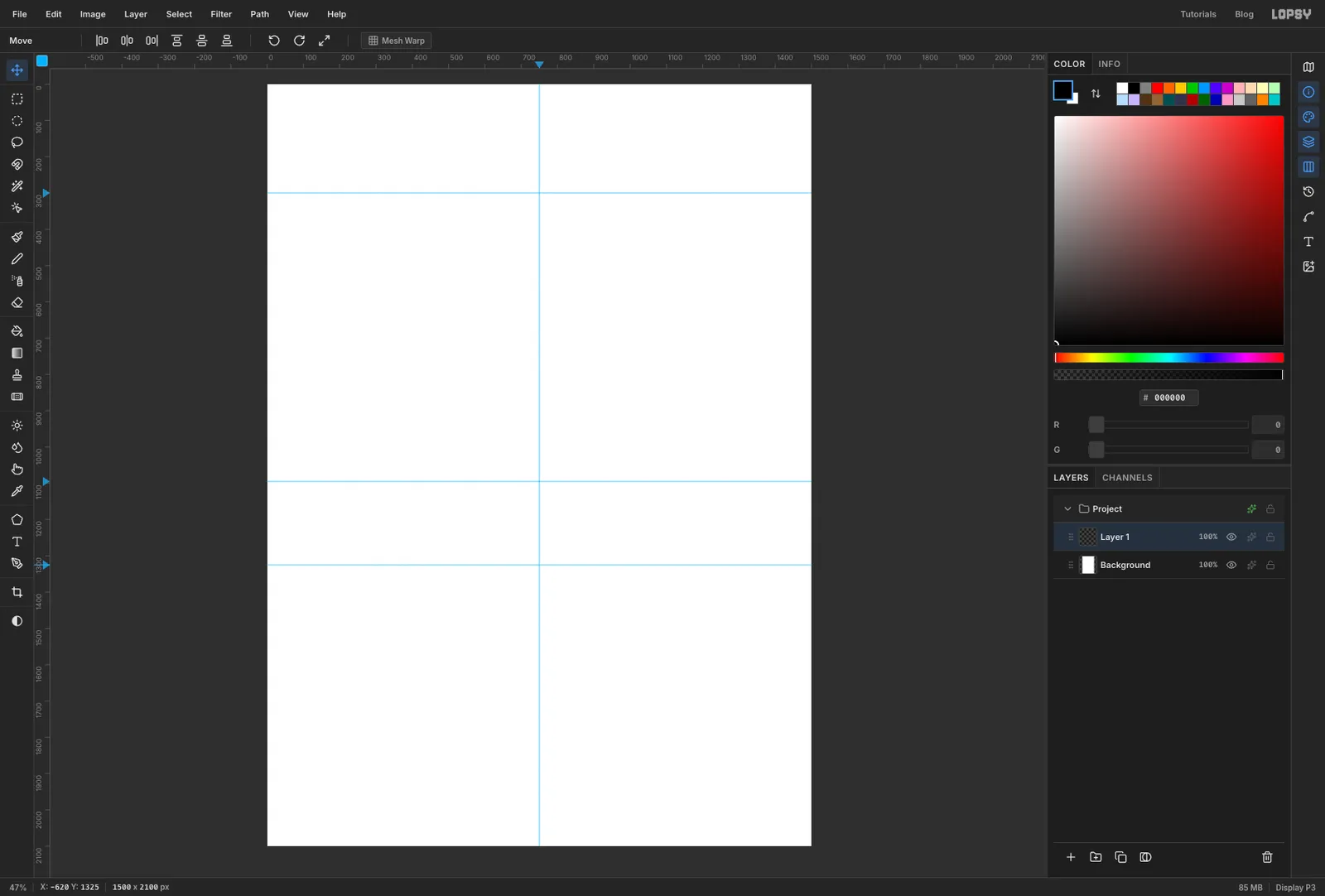
- Choose File → New, set Width
1500, Height2100, Pixels, and click Create. - Click the top ruler at
x 750to drop a vertical centre guide. - Click the left ruler at
y 300(the line the ship's sails stay below),y 1095(the ship's waterline) andy 1325(the deck plan's centreline). Zoom in if you need a click to land exactly.
- Choose File → New, set Width
-
Fill the cyanotype ground
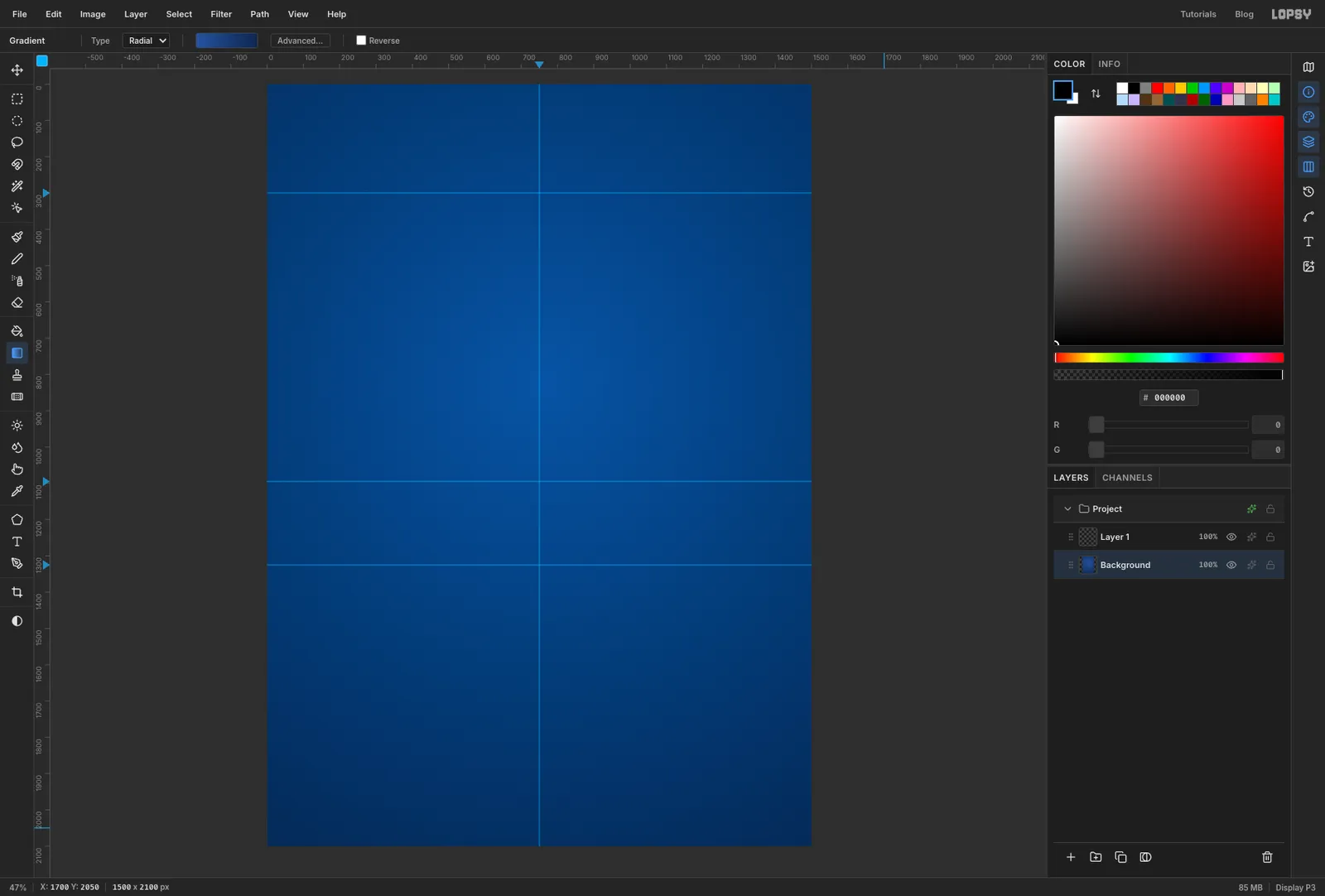
Cyanotypes are never evenly exposed. A radial gradient gives the sheet a lighter middle and darker edges.
- Click Background in the Layers panel and pick the Gradient tool. Set Type to Radial.
- Click Advanced… to open the Gradient Editor. Set the left stop to and the right stop to in the Hex color field. Click the bar halfway along to add a middle stop and make it . Click Done.
- Drag from just above the centre of the sheet out past the bottom-right corner.
-
Add paper texture
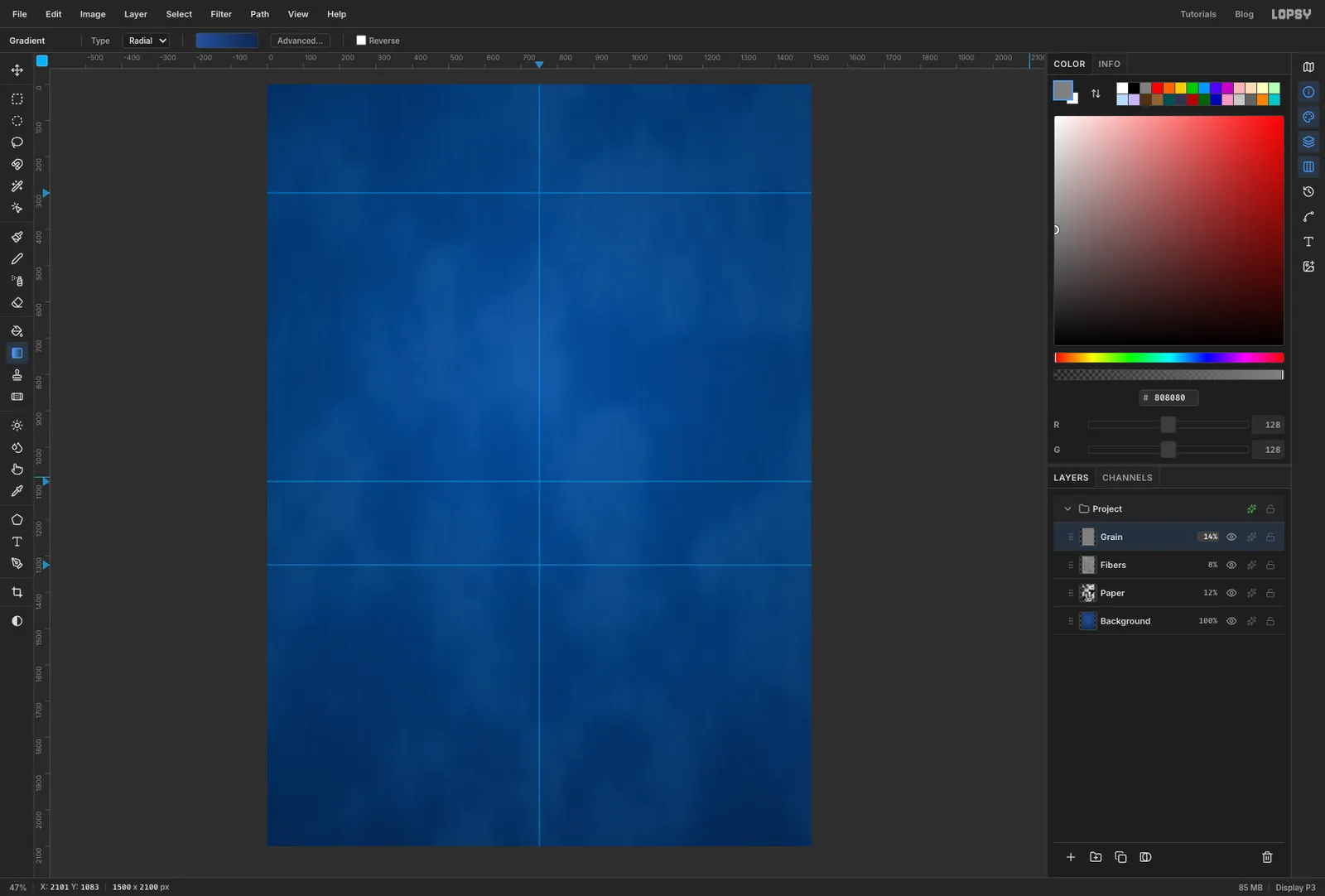
Three thin layers of texture make it read as paper rather than a flat fill.
- Double-click Layer 1 and rename it
Paper. Run Filter → Clouds… with Scale8, then Filter → Add Noise… with Amount18and Mono. - Open the layer's effects drawer (the ✦ button on its row), set the blend mode to Soft Light and close the drawer. Click the opacity on the row and set it to
12%. - Click Add Layer, name it
Fibersand run Filter → Fibers… with the default settings. Set it to Soft Light at8%. Any stronger and the fibres show as streaks. - Add a layer called
Grain. Fill it with mid grey (Edit → Fill) and run Add Noise… at40, Mono. Set it to Overlay at14%. Grey disappears in Overlay, so only the speckle shows.
- Double-click Layer 1 and rename it
-
Make the drafting grid
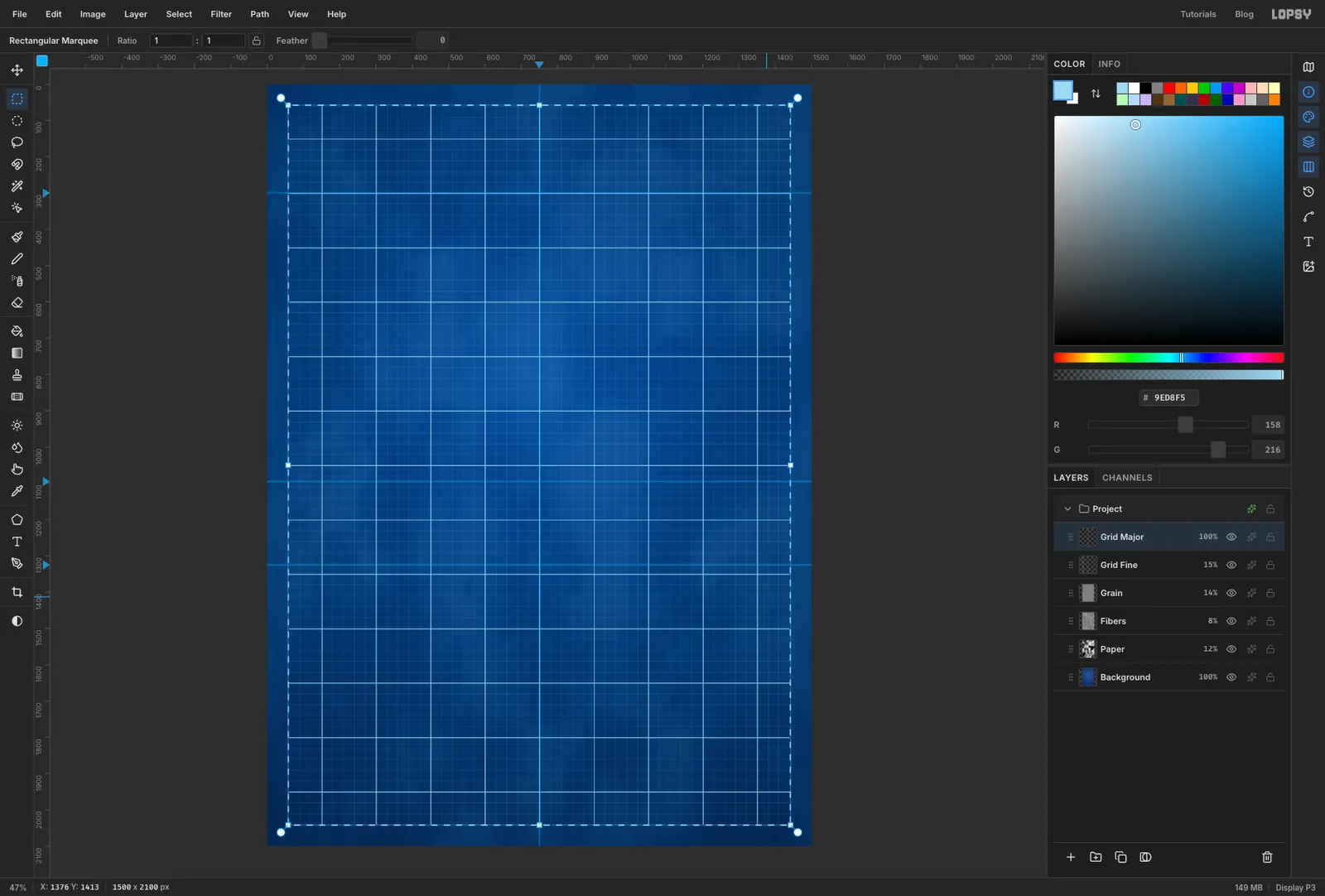
The grid comes from two pattern tiles. Pattern fills start at the top-left corner of the document, so you draw the tiles right there.
- Add a layer called
Grid Tileand set the foreground colour to . - Pick the Rectangular Marquee and, with nothing selected, click once on the canvas without dragging. The Rectangular Selection dialog opens. Enter From
0,0and To30,30and click Select. If a selection is already active, that click only deselects it, so press Cmd+D first. The same goes for every exact-corners dialog in this tutorial. - Pick the Pencil at Size
2. Click just left of the canvas on the top edge, then Shift-click just past the tile on the same edge. Do the same down the left edge. The selection keeps the lines inside the tile, so you get one line along the top and one down the side. - Choose Edit → Define Pattern. That's the 30 px fine grid.
- Press Cmd+D, select
0,0to150,150the same way and press Delete. Draw the top and left edges again with a Size3Pencil and choose Define Pattern again. Press Delete and Cmd+D. - Rename the layer
Grid Fine. Select58,58to1442,2042(the inside of the border you'll draw next), choose Edit → Fill with Pattern…, pick the first (30 px) pattern and click Apply. Set it to Screen at15%. - Add a layer called
Grid Major, make the same selection, fill it with the second (150 px) pattern, deselect, and set it to Screen at21%.
- Add a layer called
-
Cut the border
- Add a layer called
Frameand set the colour to . - Select
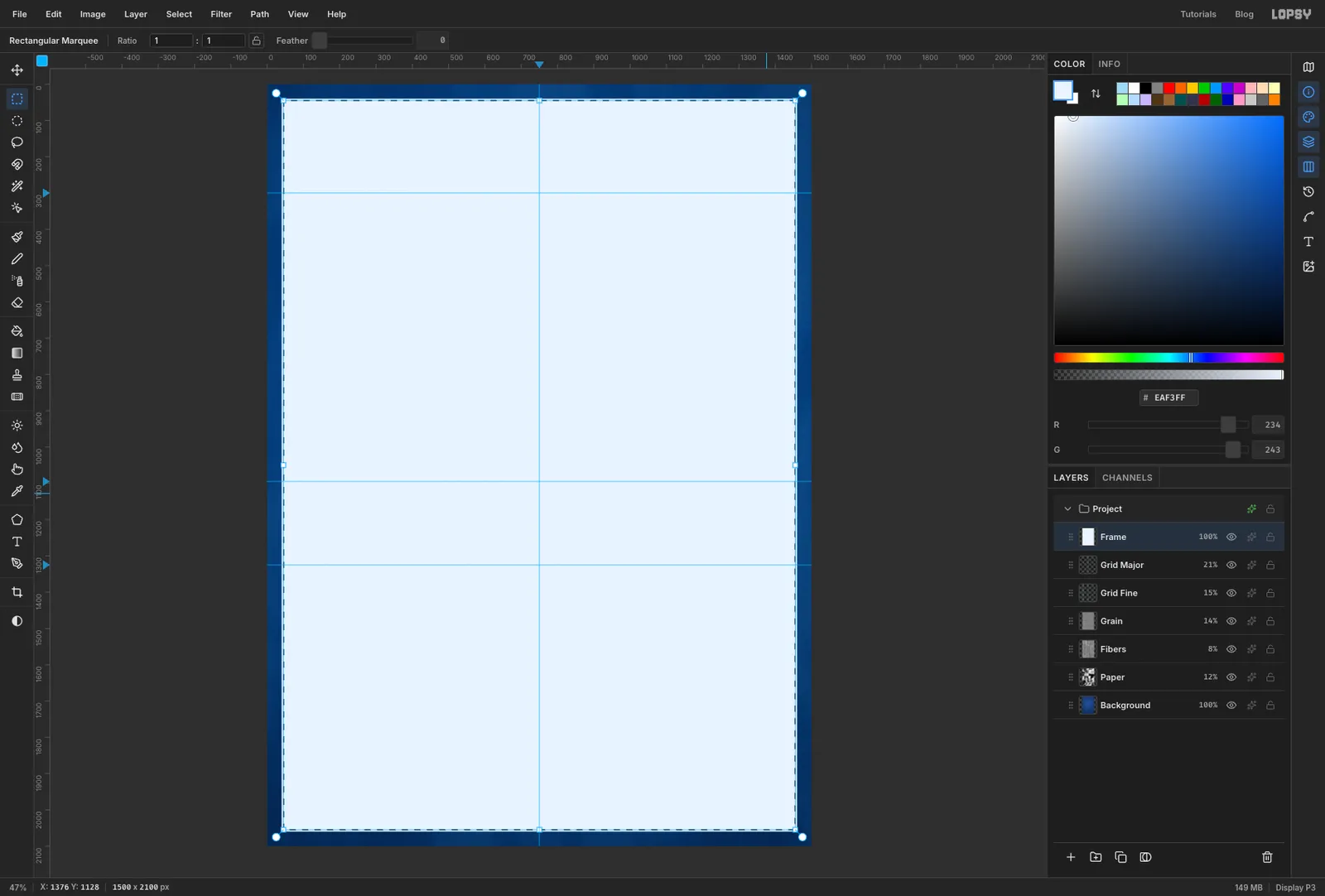
40,40to1460,2060and fill it. - Choose Select → Shrink… with
5and press Delete. That leaves a 5 px outer border. - Press Cmd+D, select
58,58to1442,2042, fill it, Shrink by2and press Delete. That's the thin inner border. Deselect.
- Add a layer called
-
Tick the border zones
Drawing sheets mark zones along the border so people can say "the stamp in zone D4".
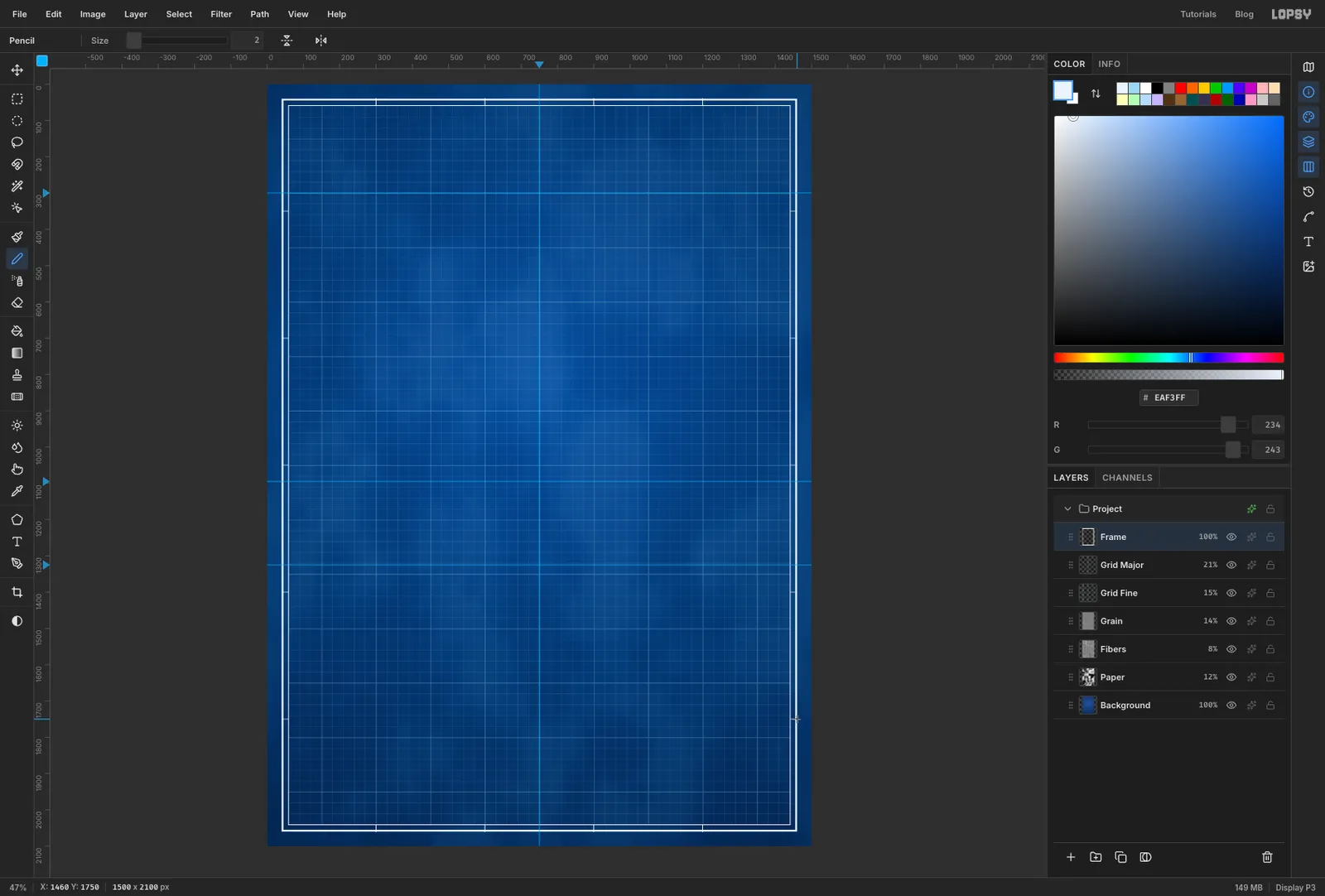
- With the Pencil at Size
2, click on the outer border and Shift-click straight across to the inner one. Do this atx 300,600,900and1200along the top and bottom. - Do the same at
y 350,700,1050,1400and1750on the left and right. - If a tick lands crooked, Cmd+Z it and try again.
- With the Pencil at Size
-
Dot in the station lines
Naval architects slice a hull at evenly spaced stations. Those slices show up as light construction lines through every view.
- With
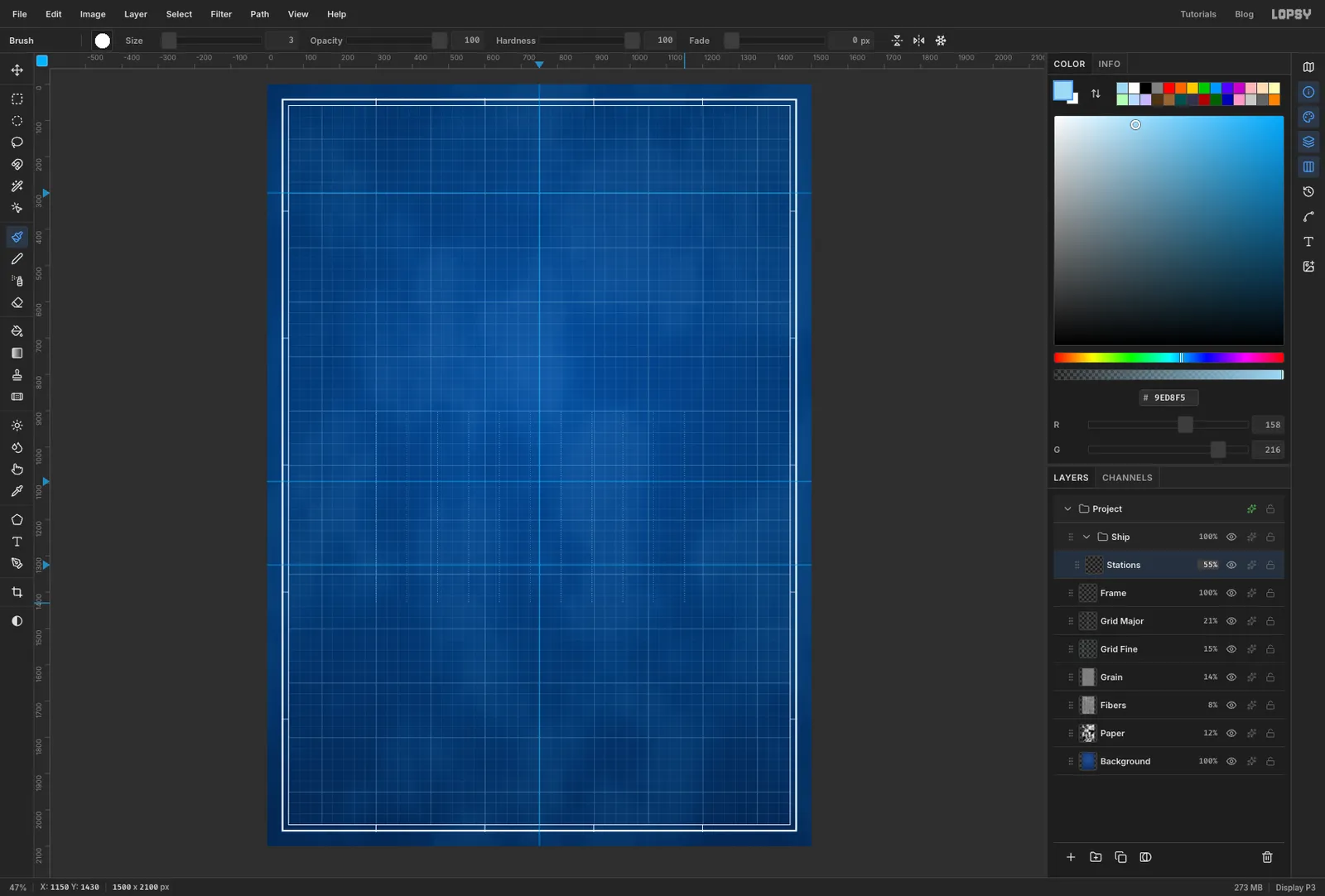
Frameselected, click New Group and rename itShip. With the group selected, click Add Layer. The layer goes inside the group. Name itStations. - Set the colour to and pick the Brush. Click the brush tip in the options bar to open the Brushes panel. On the Shape tab set Size
3, Hardness100and Spacing200. At 200 % spacing the dabs separate into dots. Close the panel. - Click at
x 300,y 905and Shift-click straight down aty 1430. Repeat every 85 px across tox 1150, for eleven dotted lines. - Set the layer's opacity to
55%.
- With
-
Make a dash brush for the datum lines
Lopsy has no dashed stroke, but a custom brush tip spaced apart draws one.
- Add a layer called
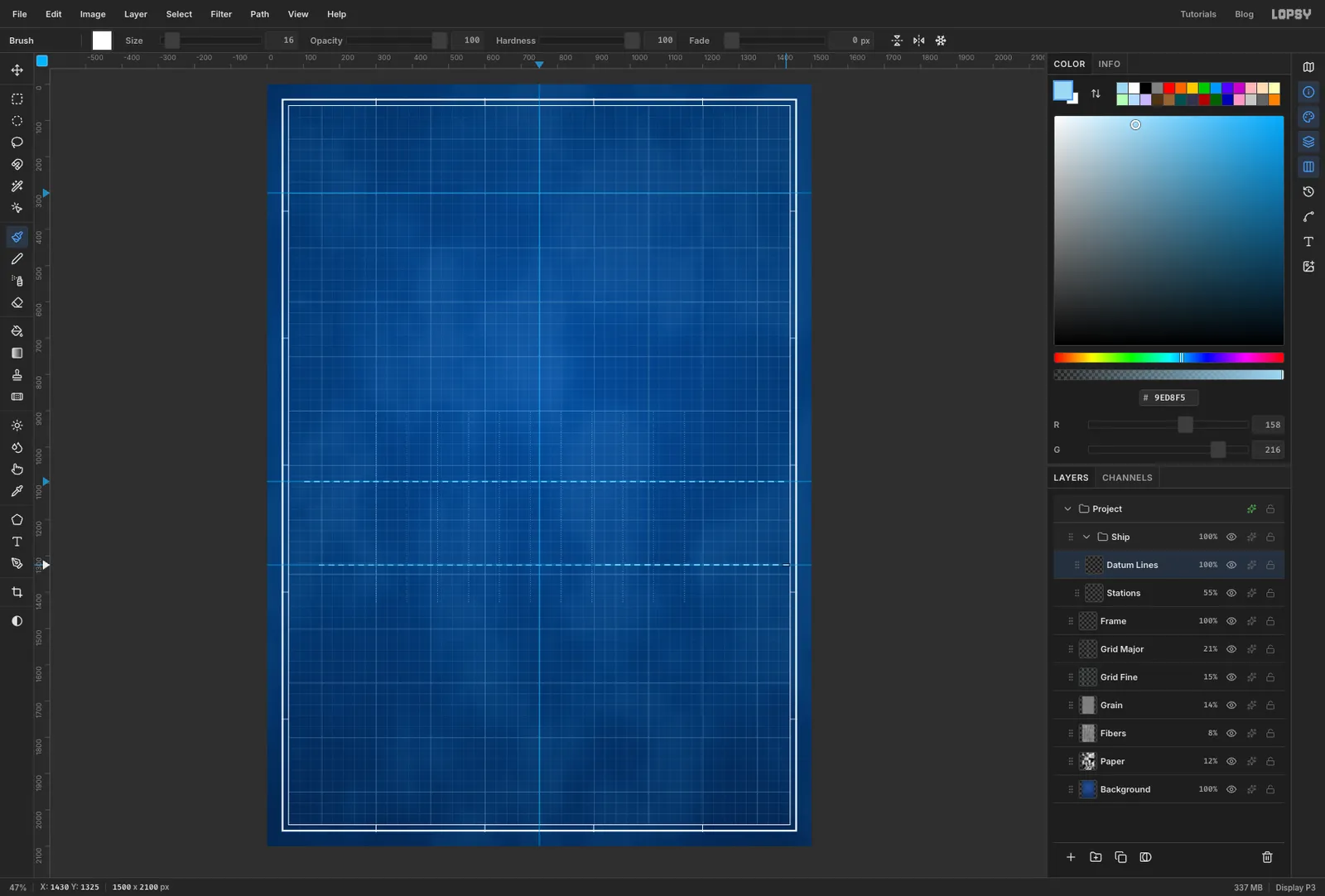
Datum Lines. Set the colour to black and select0,0to16,3. Fill it. - Choose Edit → Define Brush… and name it
Dash. Dark pixels become the painting part of the tip, so this is a 16 × 3 bar. It becomes the active brush. Press Delete and Cmd+D. - In the Brushes panel set Spacing
170. The bars now land with a gap between them. - Set the colour back to . Click on the waterline guide near the left border and Shift-click near the right border. Draw a second dashed line along the plan centreline guide.
- Add a layer called
-
Draw the hull with the Pen
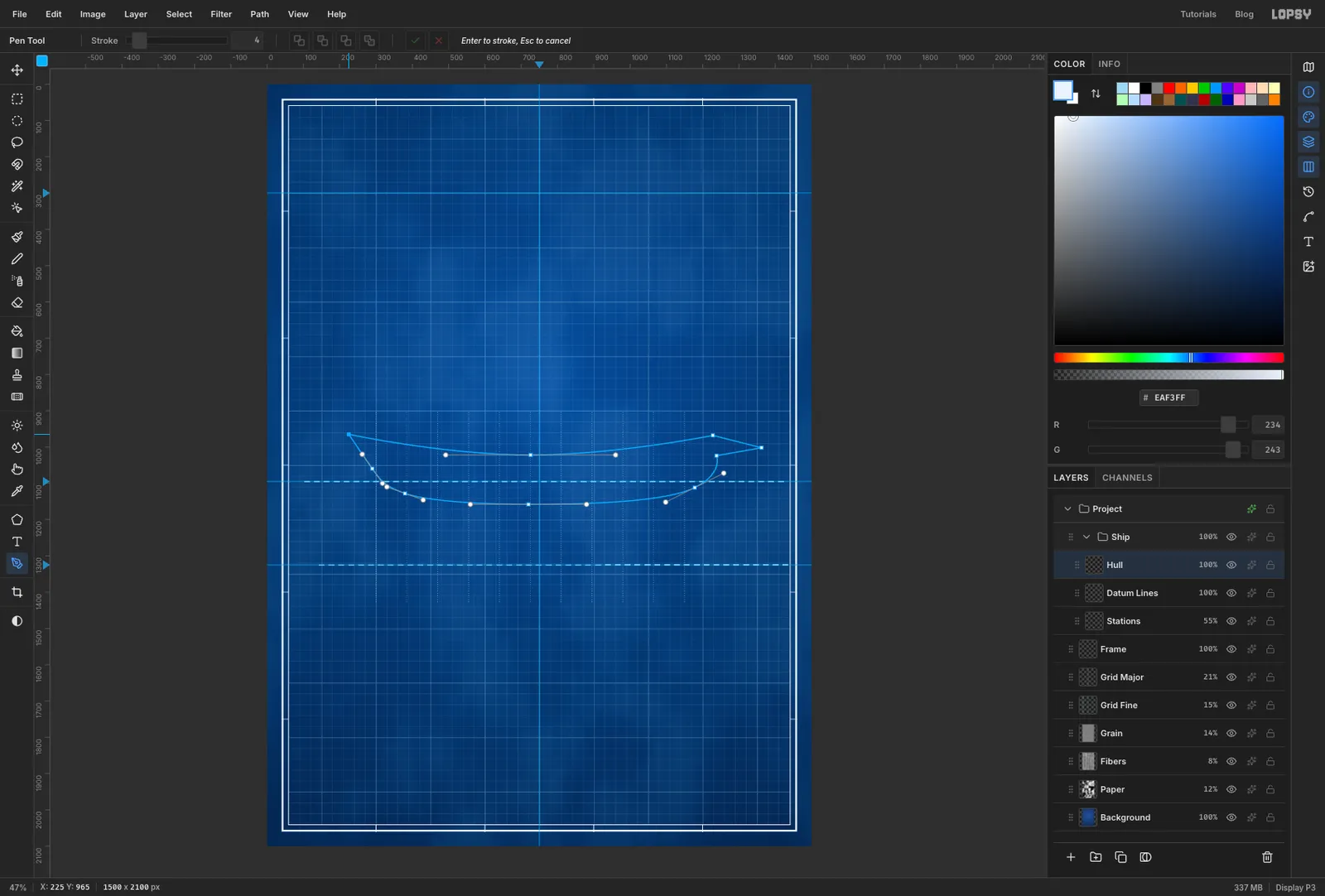
The hull is one closed Pen path: around the deck edge from the stern to the bow, out along the beak, then back along the keel. To make a smooth anchor, drag in the direction you're travelling. To make a sharp corner, just click.
- Add a layer called
Hulland set the colour to . Pick the Pen and set Stroke to4in the options bar. - Click the top of the stern, about
225, 965, a little below the left end of the deck line you're about to draw. - Halfway along, just above the waterline guide (about
730, 1020), drag to the right about 230 px. The deck line sags gently between stern and bow. - Click the stem head, about
1230, 970, level with the stern. Click the tip of the beak about 130 px further forward and 30 px lower, then click back on the stem about 20 px below the stem head. That gives a straight, low spur pointing forward. - Drag at the forefoot, about 60 px forward of the stem's foot and halfway down to the keel line, down and back. Then, at the bottom of the keel under the main mast (about
720, 1160), drag to the left about 160 px. - Drag about 340 px further aft, roughly 30 px higher, so the keel rises towards the stern. Then drag at the stern post, just above the waterline, up towards the transom.
- Click the first anchor to close the path, then press Enter. Enter strokes the path in the foreground colour at the options-bar width.
- Add a layer called
-
Add the rail, wales and stanchions
- Add a layer called
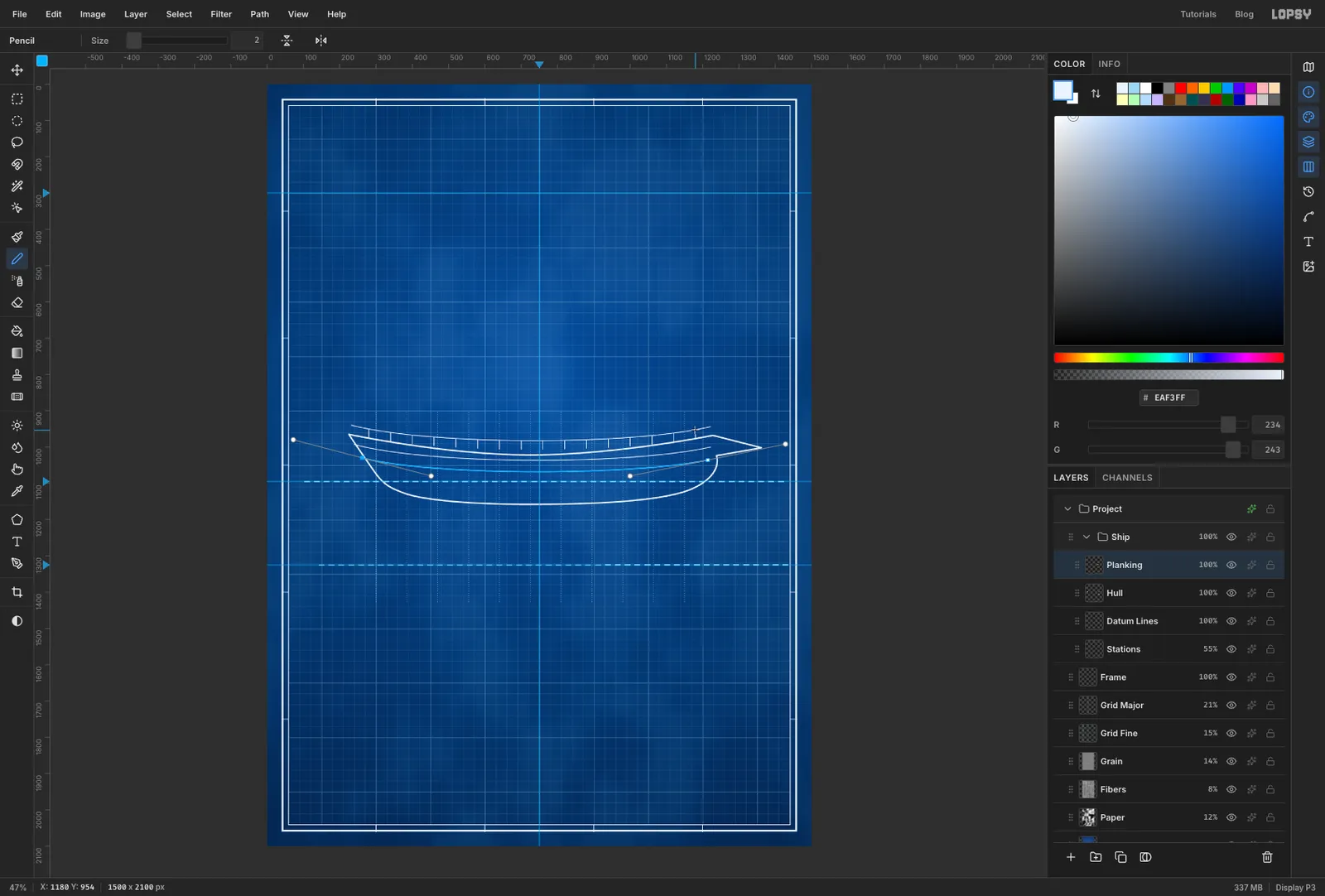
Planking. Set the Pen's Stroke to2. - Draw the rail as a two-anchor curve about 25 px above the deck line. Drag from the stern end down and to the right, about a quarter of the way along. Then drag at the bow end up and to the right, away from the hull, so the curve sags like the deck. Press Enter.
- Draw two wales below the deck the same way, one about 30 px and one about 60 px under the deck line. Each new path starts well away from the last one's anchors. If you start right on top of an anchor, the Pen edits that path instead. In that case, click the path in the Paths panel to deselect it first.
- Pick the Pencil at Size
2. Every 60 px fromx 280tox 1180, click just above the deck line and Shift-click about 22 px higher. Those are the rail stanchions.
- Add a layer called
-
Wash the hull
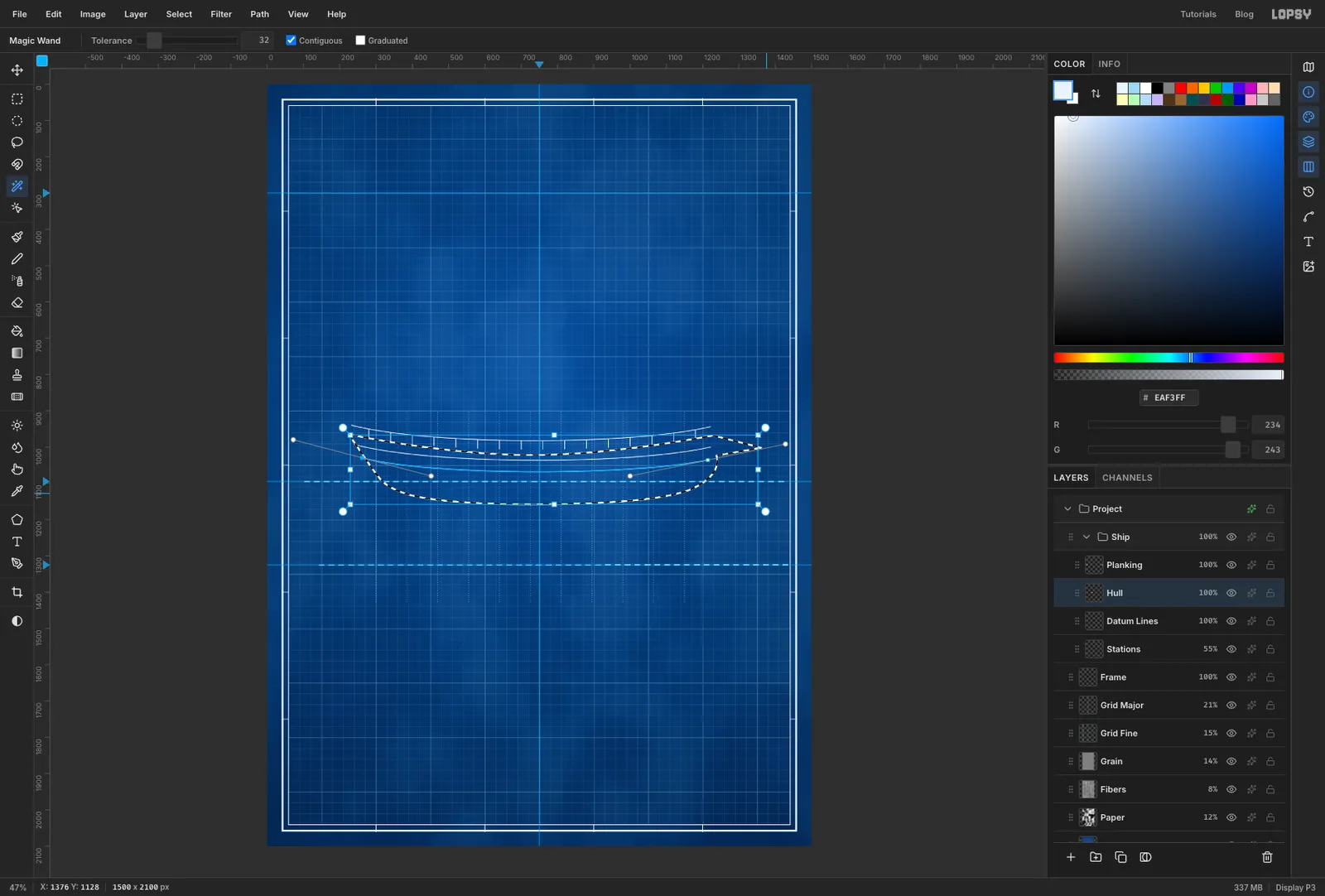
A faint white wash makes the hull read as solid, the way pencil shading does on a real plan.
- Click the
Hulllayer and pick the Magic Wand. Click in the empty middle of the hull. Choose Select → Grow… with2so the wash tucks under the outline. - Click
Datum Linesand click Add Layer. The new layer sits under the hull. Name itHull Wash. - Fill with , deselect, and set the opacity to
13%.
- Click the
-
Punch the oar and gun ports
- Click
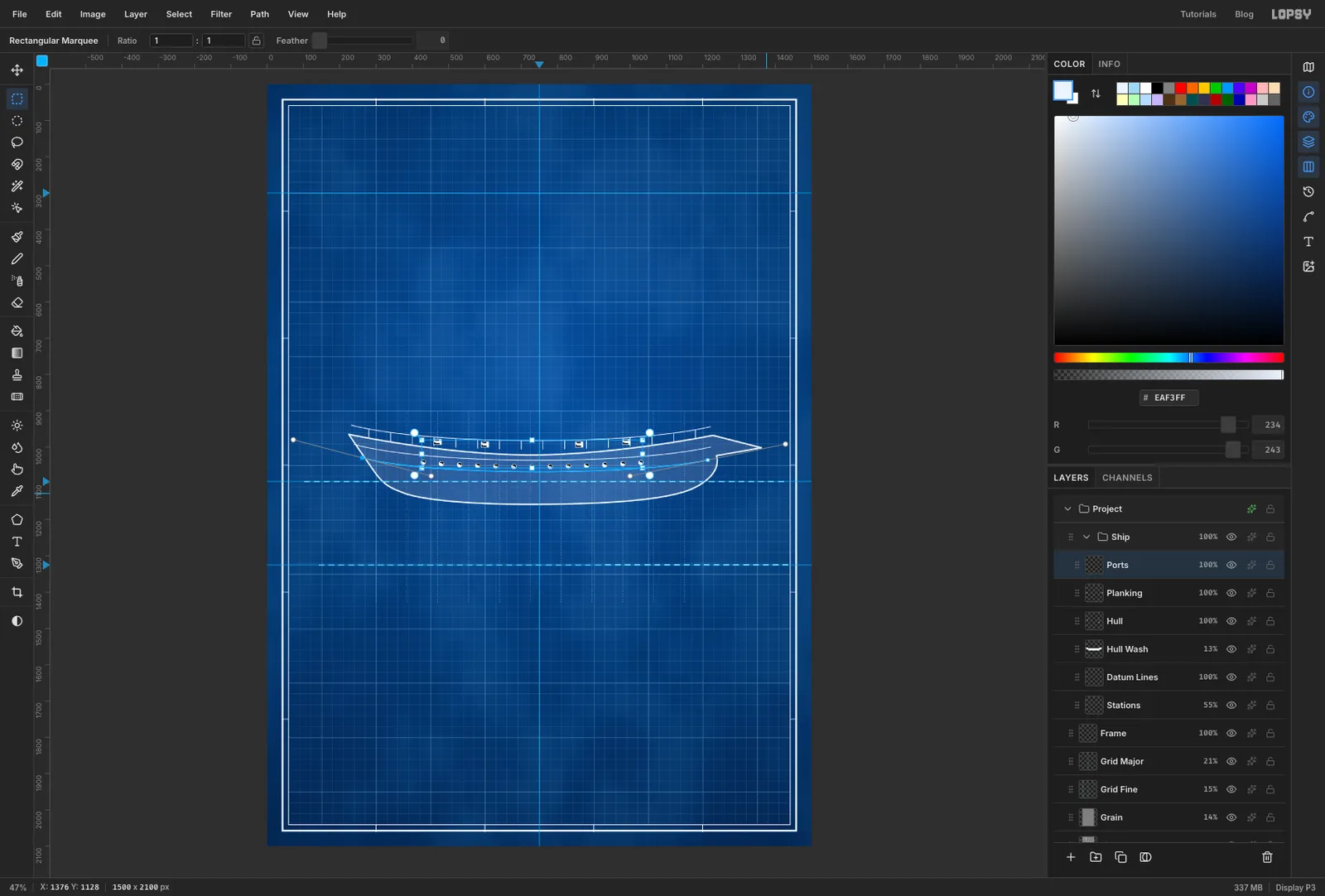
Plankingand add a layer calledPorts. - Pick the Brush and, in the Brushes panel, click Hard Round on the Presets tab to replace the dash tip. Set Size
15. - Click a dot every 50 px from
x 430tox 1030, midway between the two wales. Those are the oar ports. - With the Rectangular Marquee, drag a small 22 × 16 px box just under the rail at
x 470. Hold Shift and drag three more atx 600,860and990. Fill them. Those are the gun ports. - Cmd-click the
Portsthumbnail to select everything on the layer. Choose Shrink… with3and press Delete. Every dot and square becomes an outline. Deselect.
- Click
-
Raise the masts and yards
- Add a layer called
Cabin. Select258,926to350,975(a deckhouse on the stern), fill it, Shrink by3and press Delete. - Add a layer called
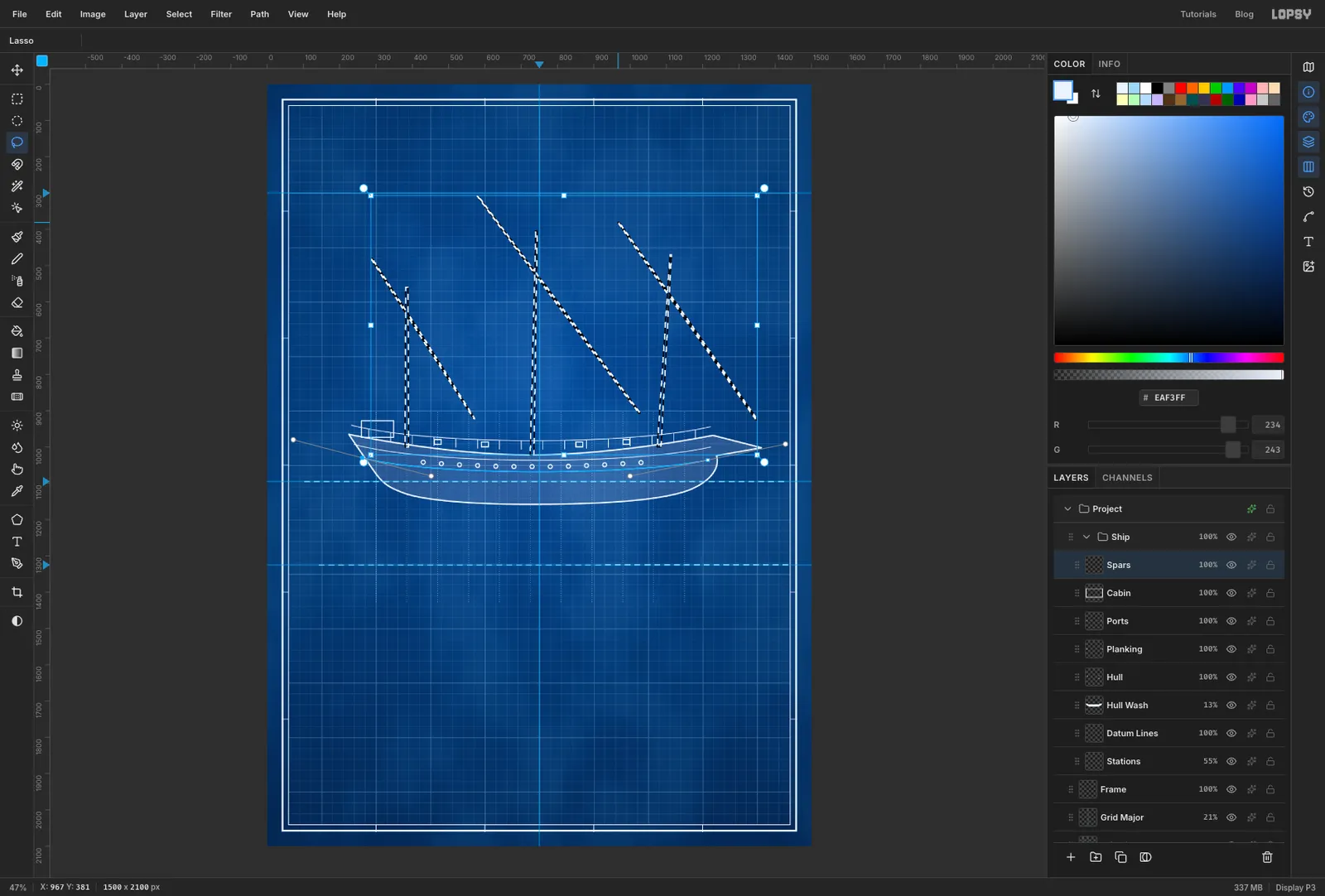
Spars. Zoom in, pick the Lasso and draw a long thin wedge for each mast, about 10 px wide at the deck and 5 px at the top. Press at one corner and move in quick, straight strokes to each of the other corners before you let go, so the sides stay straight. A little wobble is fine at this size. Hold Shift as you start each one to add it to the selection.
- The fore mast runs from
1080, 1000to1112, 470, raked forward. - The main mast runs from
730, 1022to742, 405. - The mizzen mast runs from
385, 1000to385, 560.
- Still holding Shift, add a long spindle for each yard, the spar the sail hangs from. Make each about 5 px thick in the middle and 2 px at the ends. The yards cross the masts on a steep diagonal, high at the back and low at the front. The mizzen yard runs from about
285, 480to570, 920, the main from580, 310to1025, 905, and the fore from965, 380to1350, 925. Fill. - With the Pen at Stroke
5, click the stem head and then1415, 918, and press Enter for the bowsprit. At Stroke4, draw the short boomkin from140, 990to the top of the stern. - With a Size
12Brush, click a round cap (a truck) on top of each mast.
- Add a layer called
-
Hang the lateen sails
- Add a layer called
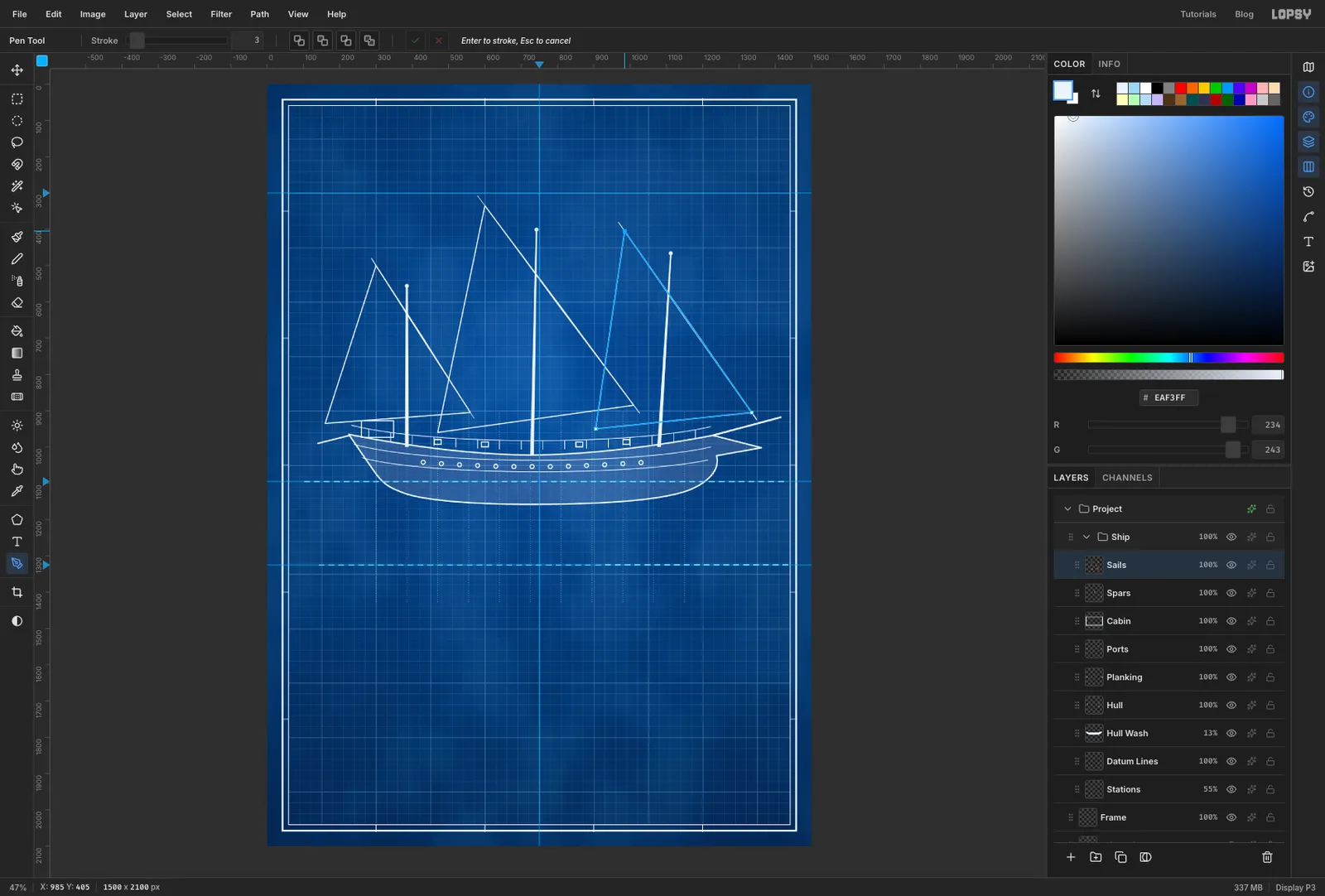
Sails. Set the Pen's Stroke to3. - For each sail, click its three corners: the head at the top of the yard, the tack at its low front end, and the clew at the back near the deck. Then click the first corner again and press Enter.
- Mizzen:
300, 500,560, 905,160, 935 - Main:
600, 335,1010, 885,470, 960 - Fore:
985, 405,1335, 905,905, 950
The sails overlap. That's correct for a profile drawing, where every sail is drawn as if you could see through it.
- Add a layer called
-
Wash and seam the sails
- Click
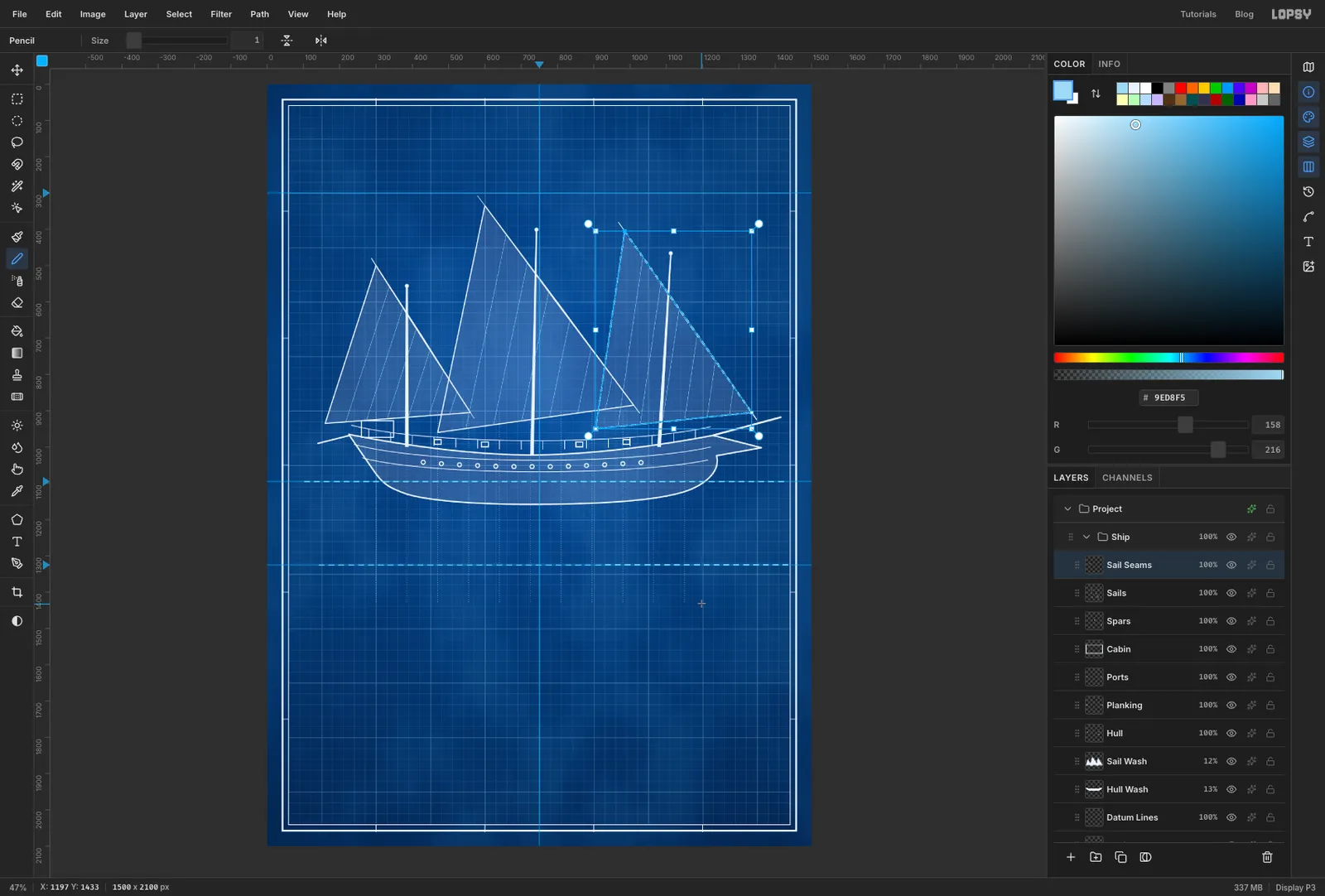
Hull Washand add a layer calledSail Wash. Lasso all three triangles, holding Shift for the second and third. Fill with , deselect, and set the opacity to12%. - Click
Sailsand add a layer calledSail Seams. Set the colour to . - Lasso one sail. With a Size
1Pencil, draw six lines parallel to the sail's back edge (the leech), evenly spaced from front to back. Start and end each line outside the sail. The selection trims them to the cloth. - Repeat for the other two sails, deselect, and set the layer to
75%.
- Click
-
Rig the shrouds and stays
- Add a layer called
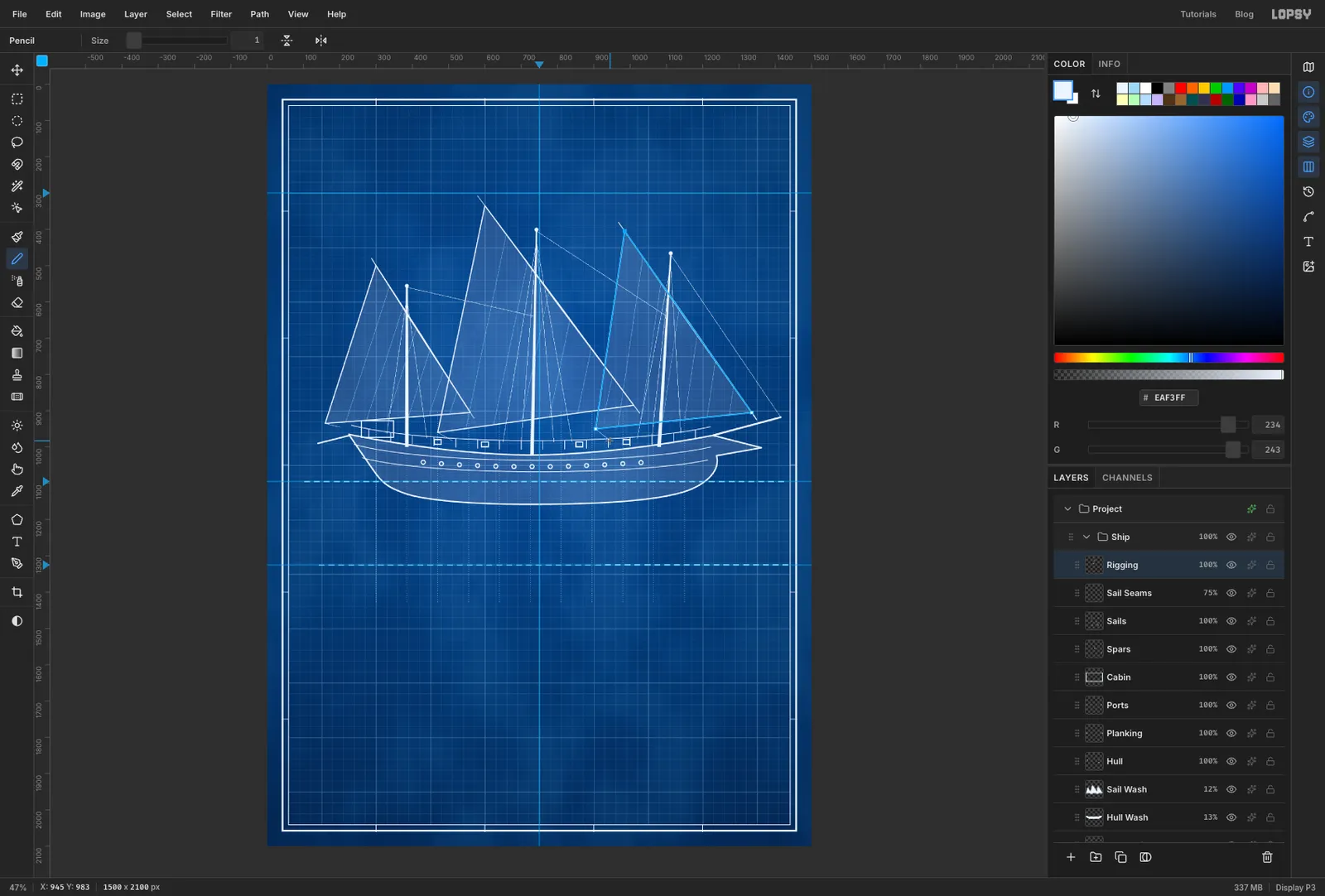
Rigging, set the colour to and keep the Pencil at Size1. - Draw the shrouds. From about 30 px below each masthead, click and Shift-click down to the rail. Use three on the fore mast, four on the main and two on the mizzen, fanned out either side of the mast.
- Draw the stays. One runs from the fore masthead to the tip of the bowsprit. One runs from the main masthead down to the fore mast at
y 640, and one from the mizzen masthead to the main mast at the same height. End each stay right on the mast, not in mid-air. - Draw a short sheet line from each clew down to the rail a little forward of it.
- Add a layer called
-
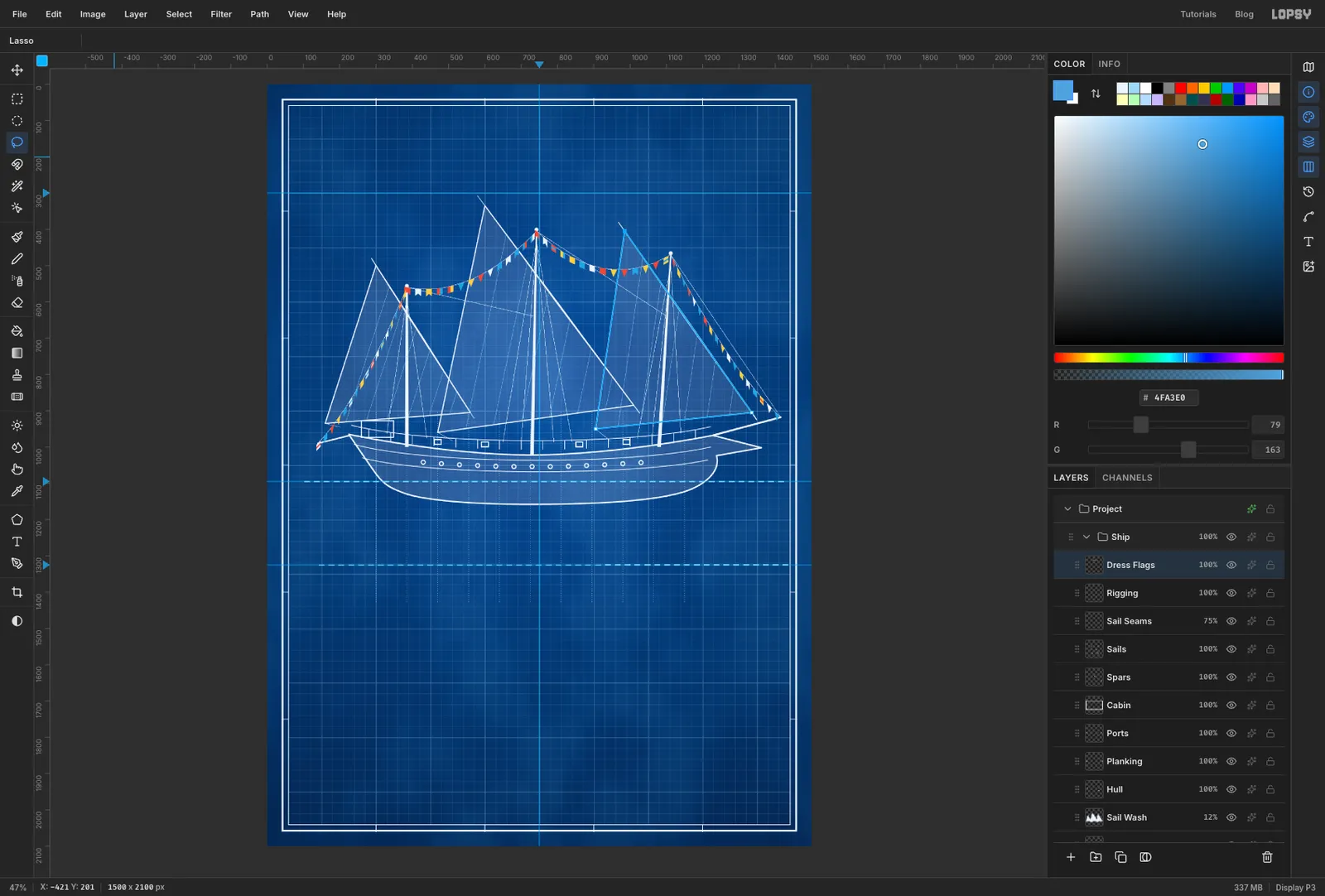
Dress the ship with signal flags
- Add a layer called
Dress Flags. With the Pencil at Size1, draw four sagging lines of short Shift-click segments:
- from the bowsprit tip to the fore masthead
- from the fore masthead to the main masthead, dipping about 70 px in the middle
- from the main masthead to the mizzen masthead
- from the mizzen masthead to the end of the boomkin
- Pick the Lasso. About every 30 px along the lines, draw a flag hanging from the line. Mix the shapes: narrow pennants about 18 px wide and 20 px long, square flags about 16 px, and swallowtails with a notch cut in the bottom. Do one colour at a time. Draw every flag of that colour with Shift held and fill them together: white , red , yellow , then blue . Avoid putting two flags of the same colour side by side.
- Give about half the square flags a second colour. Lasso their right half or a band across the middle and fill it in a different flag colour. Real code flags are split, banded and crossed, not plain.
- Add a layer called
-
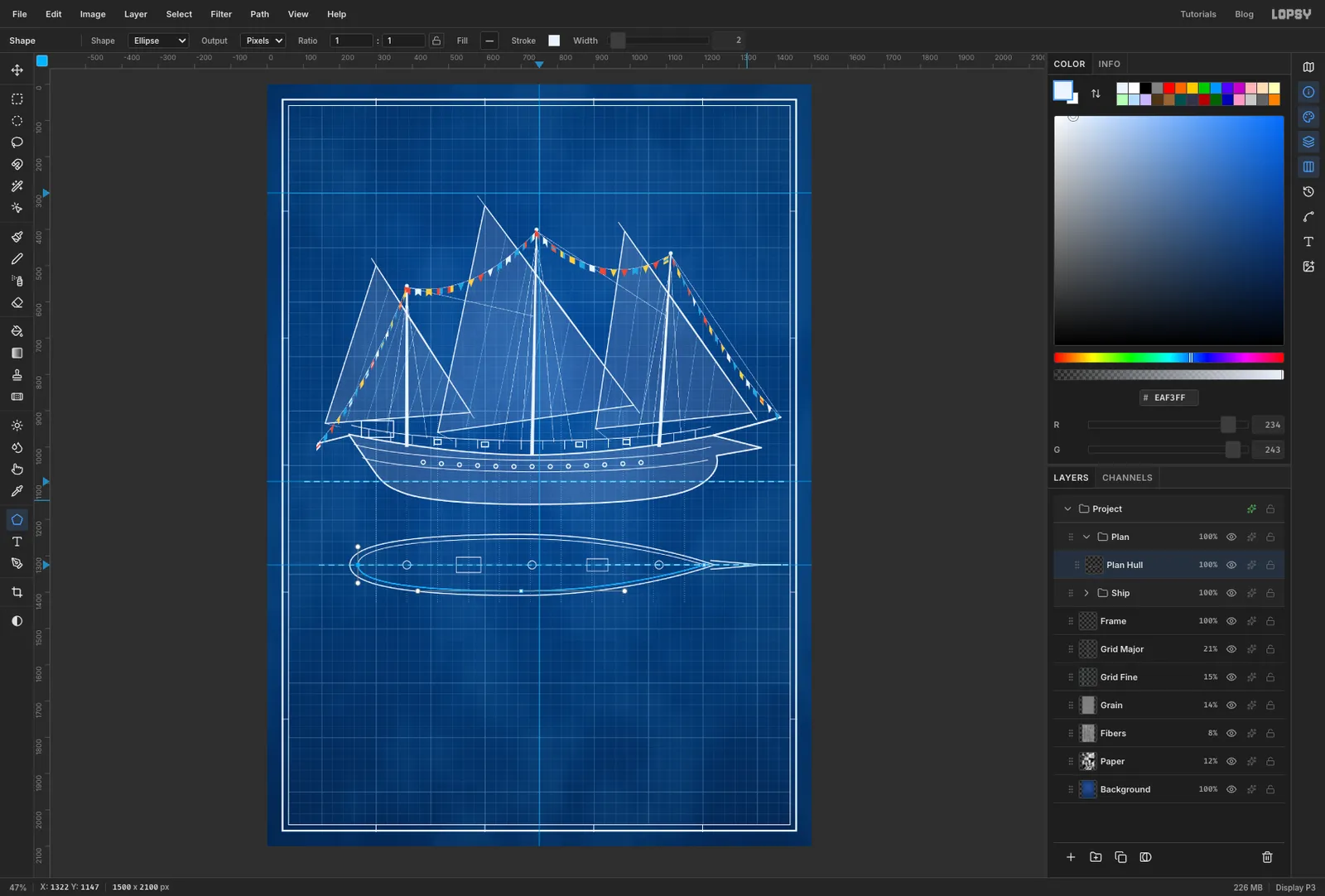
Draw the deck plan
The deck plan is the hull seen from above, lined up with the profile so every mast and station matches.
- Collapse
Shipwith its arrow and keep it selected, then click New Group. A new group made with a collapsed group selected lands beside it, not inside it. Name itPlanand add a layer calledPlan Hull. Set the colour back to . - With the Pen at Stroke
3, draw the top half. Drag at the stern end of the centreline (aboutx 230) straight up about 60 px. At the widest point, about 85 px above the centreline under the main mast, drag to the right about 300 px. Click the bow on the centreline atx 1230and press Enter. Click the path in the Paths panel to deselect it, then draw the bottom half as a mirror image. - Draw the beak as a thin wedge: click 12 px above the centreline just behind the bow, click the point on the centreline level with the beak tip in the profile, and click 12 px below. Press Enter. Draw the bowsprit beyond it to the same length as in the profile at Stroke
4. - At Stroke
2, draw the bulwark (the inside of the rail) as two more curves about 12 px inside the hull edge. - Marquee two hatches on the centreline, about 70 × 44 px starting at
x 520and 60 × 36 px starting atx 880, holding Shift for the second. Fill, Shrink by2and press Delete. - Pick the Shape tool, choose Ellipse and Pixels, and click the Fill swatch and Remove fill. Click Stroke, type
EAF3FFin its hex field and set Width to2. Click on the centreline under each mast without dragging. The Shape Size dialog opens. Enter22×22and click Create. The shape is centred on the point you clicked. Those are the mast steps.
- Collapse
-
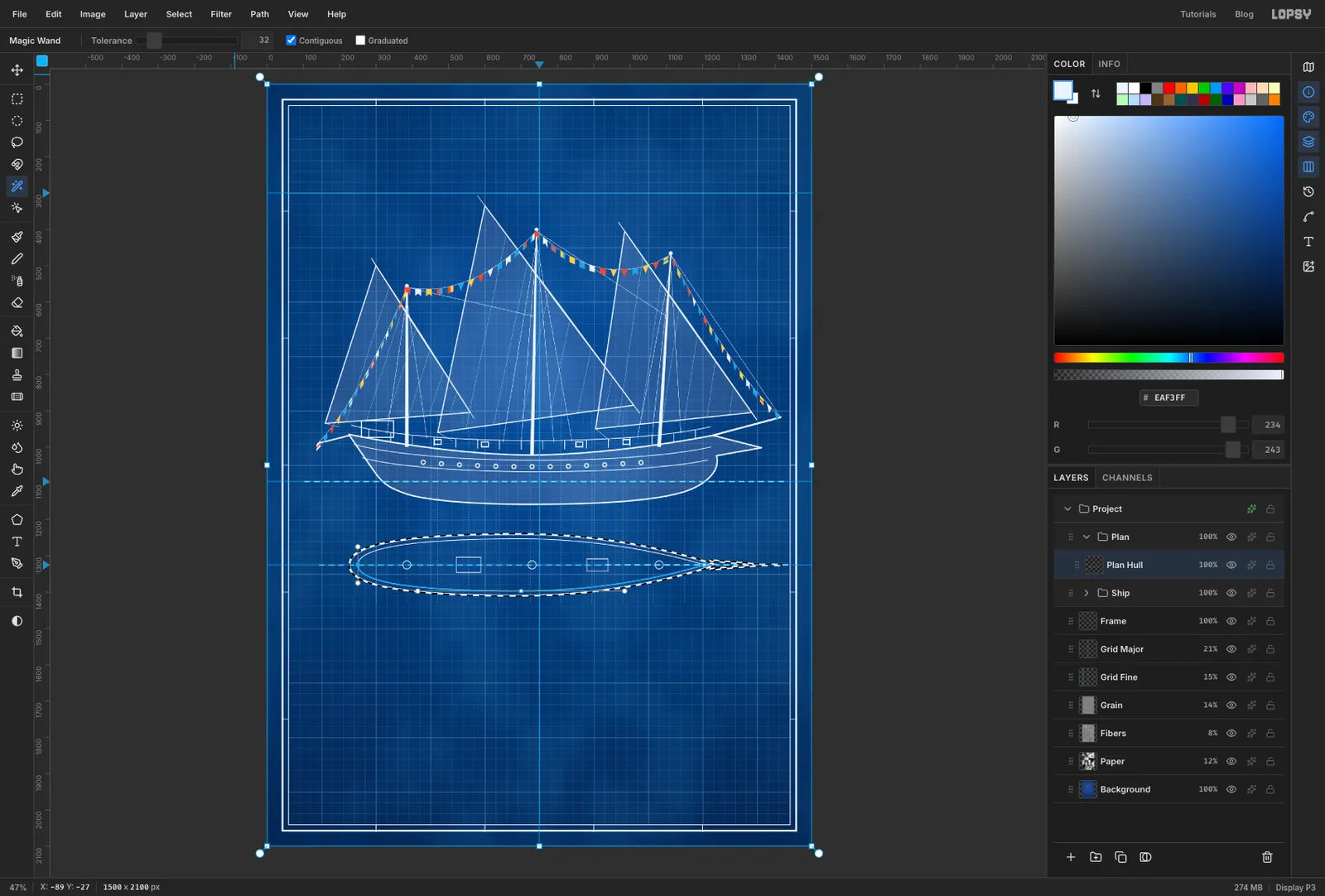
Wash the deck plan
The plan has lines inside it, so the wand can't select the deck in one click. Select the outside instead.
- On
Plan Hull, click the empty sheet outside the hull with the Magic Wand. Choose Select → Inverse, which selects the whole deck. - Add a layer called
Plan Wash, fill with , deselect, and set it to12%.
- On
-
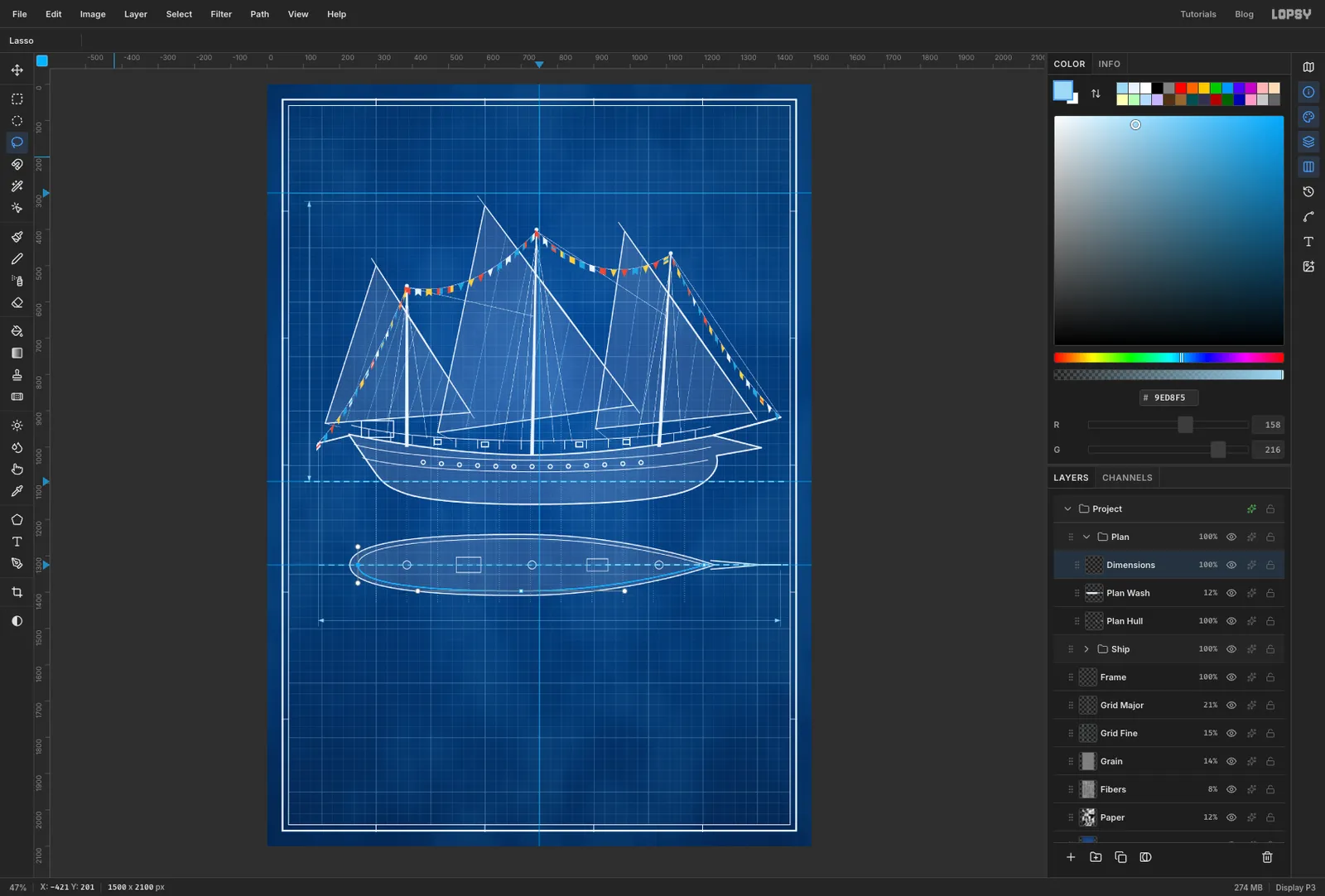
Add the dimension lines
- Add a layer called
Dimensions, colour , Pencil Size1. - Drop extension lines straight down from the end of the boomkin (
x 140) and the tip of the bowsprit (x 1415) to abouty 1494. Draw the dimension line between them aty 1478. - For the height, draw an extension line left from the top of the main yard (
y 322) to near the border. Extend the waterline to the same spot. Join them with a vertical line atx 116. - Lasso a small arrowhead, about 16 px long and 10 px wide, at each end of both dimension lines, holding Shift after the first. Fill.
- Add a layer called
-
Add the scale bar
- Add a layer called
Scale Barand set the colour to . - With the Rectangular Marquee, drag a block about 61 px wide and 12 px tall, starting at
640, 1545. Hold Shift to add the third and fifth blocks along the same row. Fill. - With the Pencil at Size
2, outline the whole 307 px bar. Click one corner and Shift-click the other three, then back to the first.
The numbers should agree with the bar. If 25 ft is 307 px, the 1275 px between the extension lines is about 103′ 10″ and the 773 px air draft is about 62′ 11″. You'll write these numbers in the labels. (The
1:70printed next to the bar is part of the birthday joke, not the real ratio.)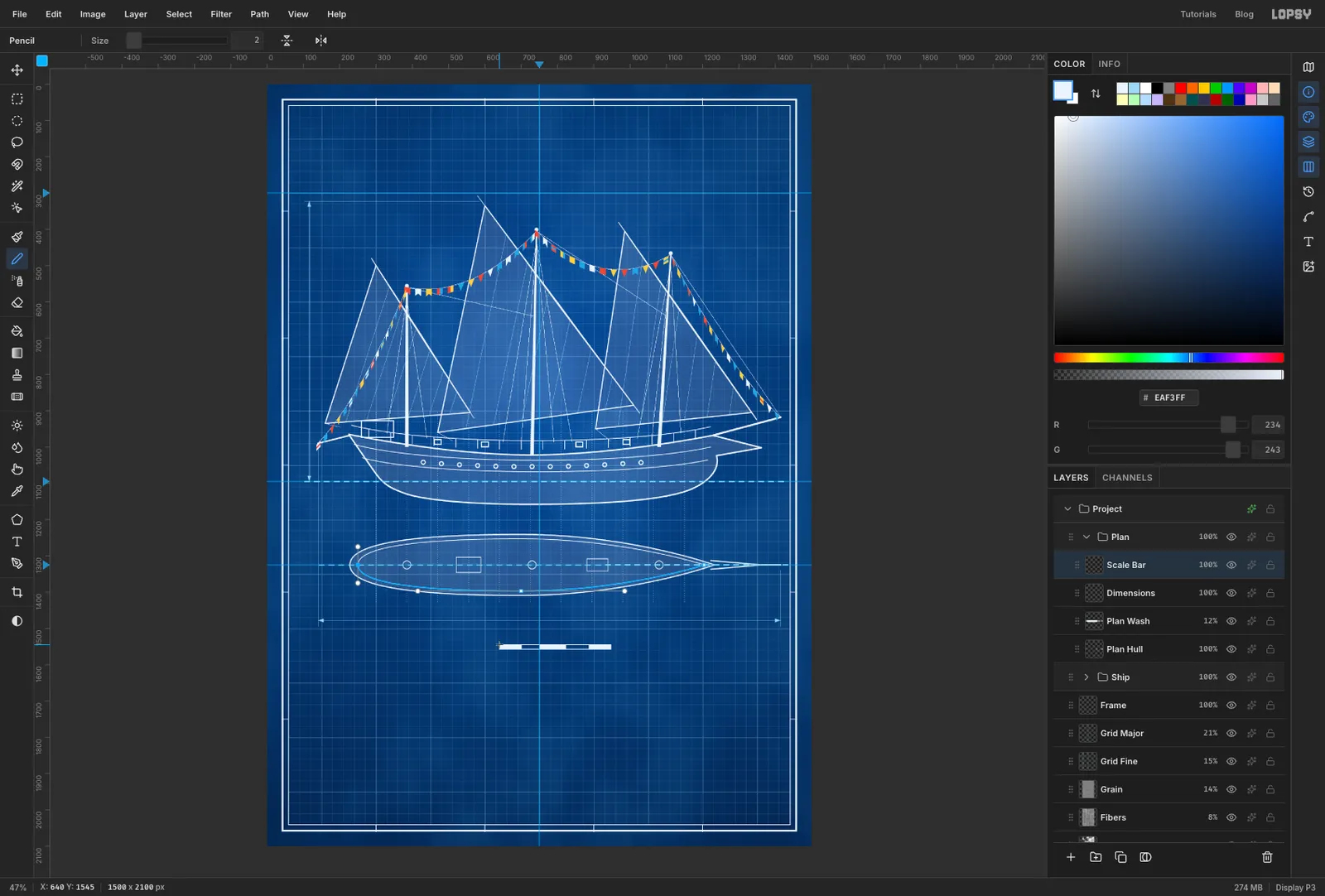
- Add a layer called
-
Set the headline
- Collapse
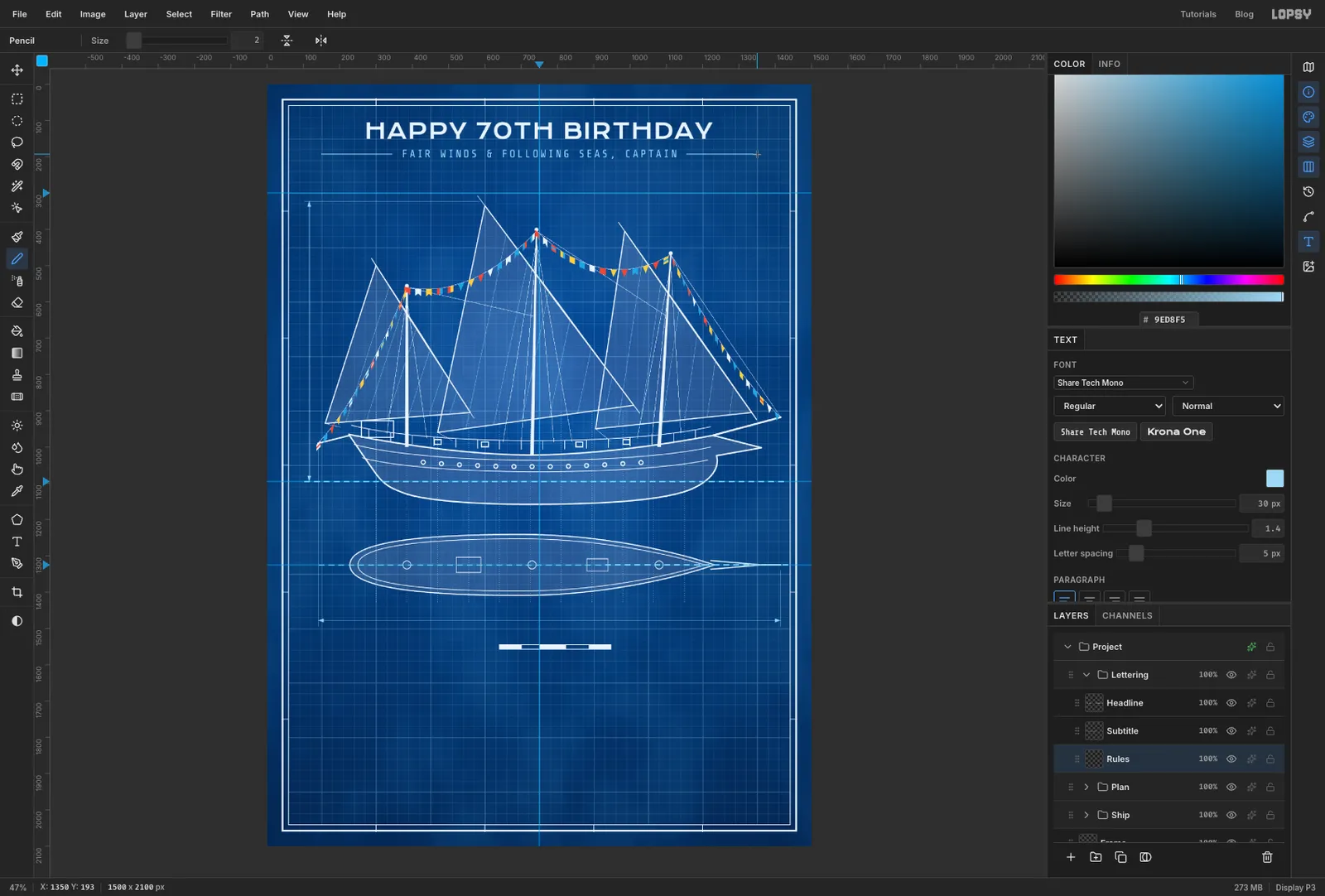
Plan, click New Group and name itLettering. Add a layer calledRules. - Pick the Text tool. Set the font to Krona One, size
60, colour . Click near the top of the sheet and typeHAPPY 70TH BIRTHDAY. Click the ✓ button to commit. In the Text panel set Letter spacing to2. - With the Move tool, centre it on the vertical guide, about 45 px below the inner border.
- From here on, click a non-text layer (here
Rules) before every new piece of text. Text options change the active text layer, so if a text layer is still active, the next font or size you pick restyles it. - Set Share Tech Mono, size
30, colour , and typeFAIR WINDS & FOLLOWING SEAS, CAPTAIN. Set its letter spacing to5and centre it about 30 px under the headline. - On
Rules, with a Size2Pencil, draw a line level with the middle of the subtitle. Run it from near the left border to 30 px short of the text, and do the same on the right.
- Collapse
-
Label the views
Use Share Tech Mono for all the drawing labels, with letter spacing
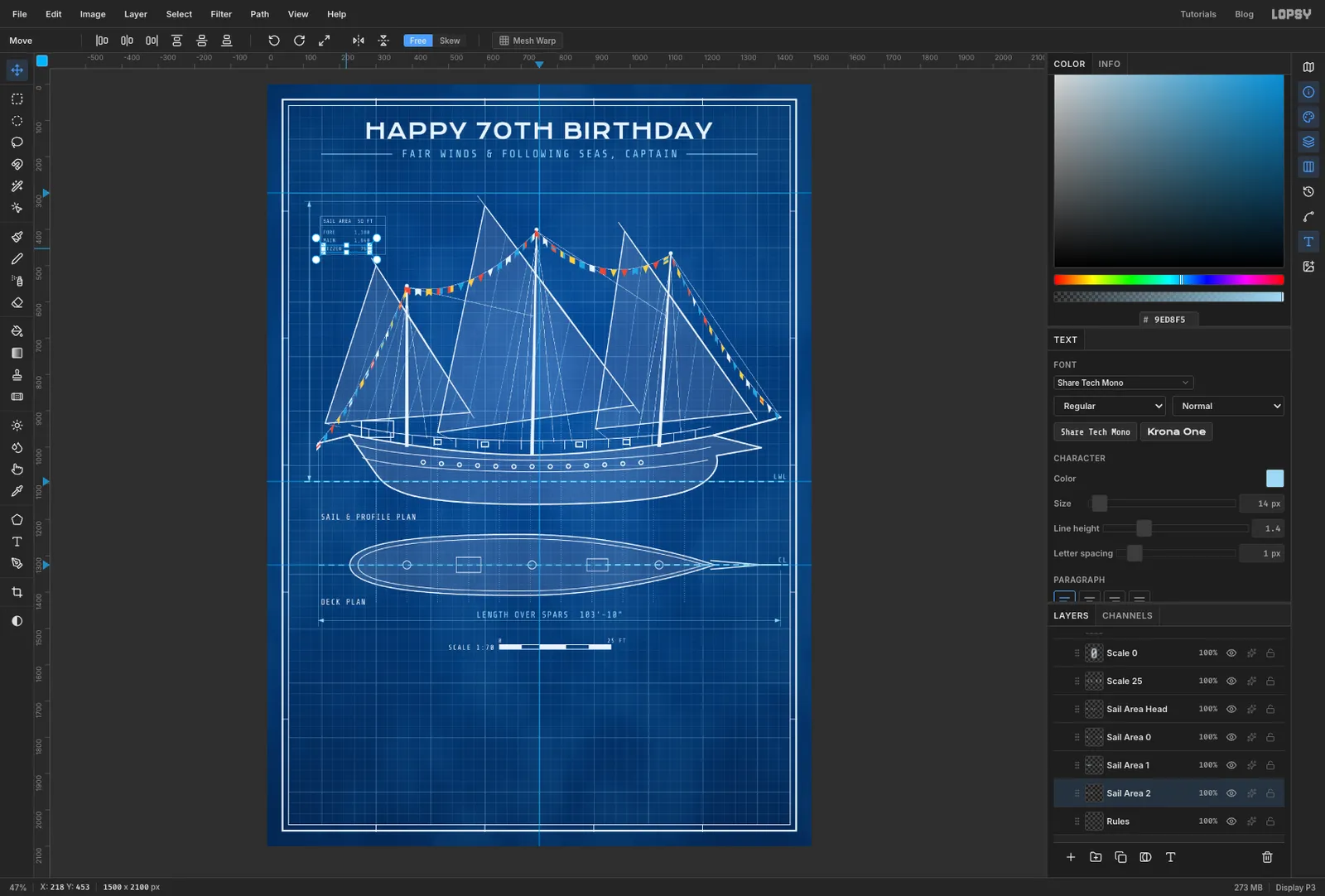
2. ClickRulesbefore each one.LENGTH OVER SPARS 103'-10"at size24in cyan, centred just above the length dimension line.SAIL & PROFILE PLANat size22in white, starting atx 150, just below the keel. PutDECK PLANat the same x, just below the plan.LWLandCLat size20in cyan. Right-align them with the ends of the dashed waterline and centreline, just above each line.SCALE 1:70at size20to the left of the scale bar. Put0and25 FTat size16above its two ends.- On
Rules, draw a small box with the 1 px cyan Pencil in the empty sky at the top left, about 180 × 105 px, just below the air-draft extension line. Draw a line across it near the top for a header row. Inside, type a headerSAIL AREA SQ FTin white at size14, then three rows in cyan at size14:FORE 1,180,MAIN 1,640andMIZZEN 760. A monospaced font keeps the spaced-out numbers lined up in a column.
-
Rotate the air-draft label
- Type
AIR DRAFT 62'-11"in cyan at size24, anywhere in open space. - With the Move tool, hover just outside the label's top-right corner until the cursor changes to the rotate cursor. Hold Cmd (it snaps the angle to 15° steps) and drag until the label reads bottom to top, at −90°.
- Move it just left of the vertical dimension line, centred between the waterline and the yard.
To nudge the whole ship later, click the
Shipgroup row and drag with the Move tool. Everything in the group moves together.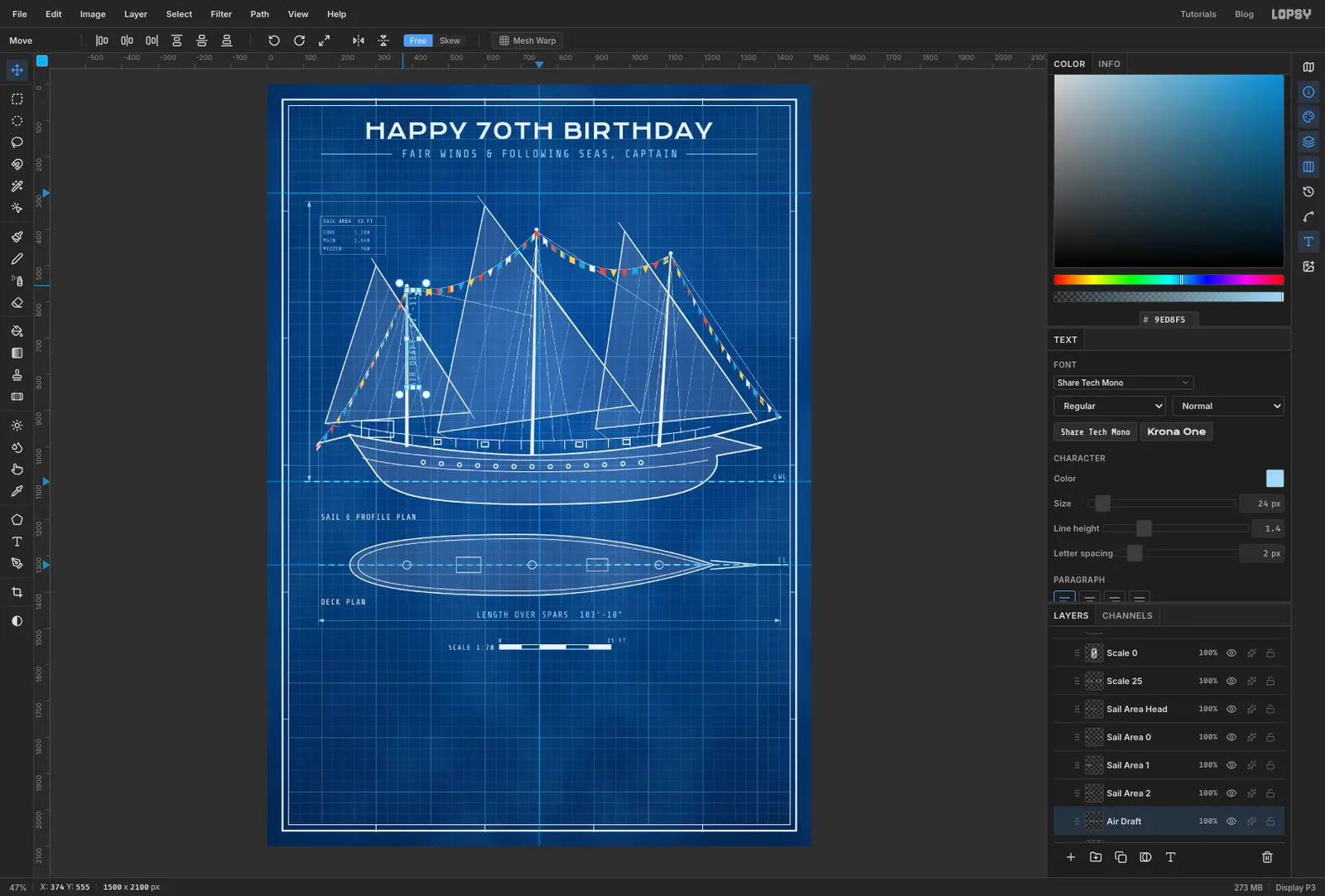
- Type
-
Draw the Detail A lens
A detail redraws a small part of a plan at a larger scale inside a circle.
- Collapse
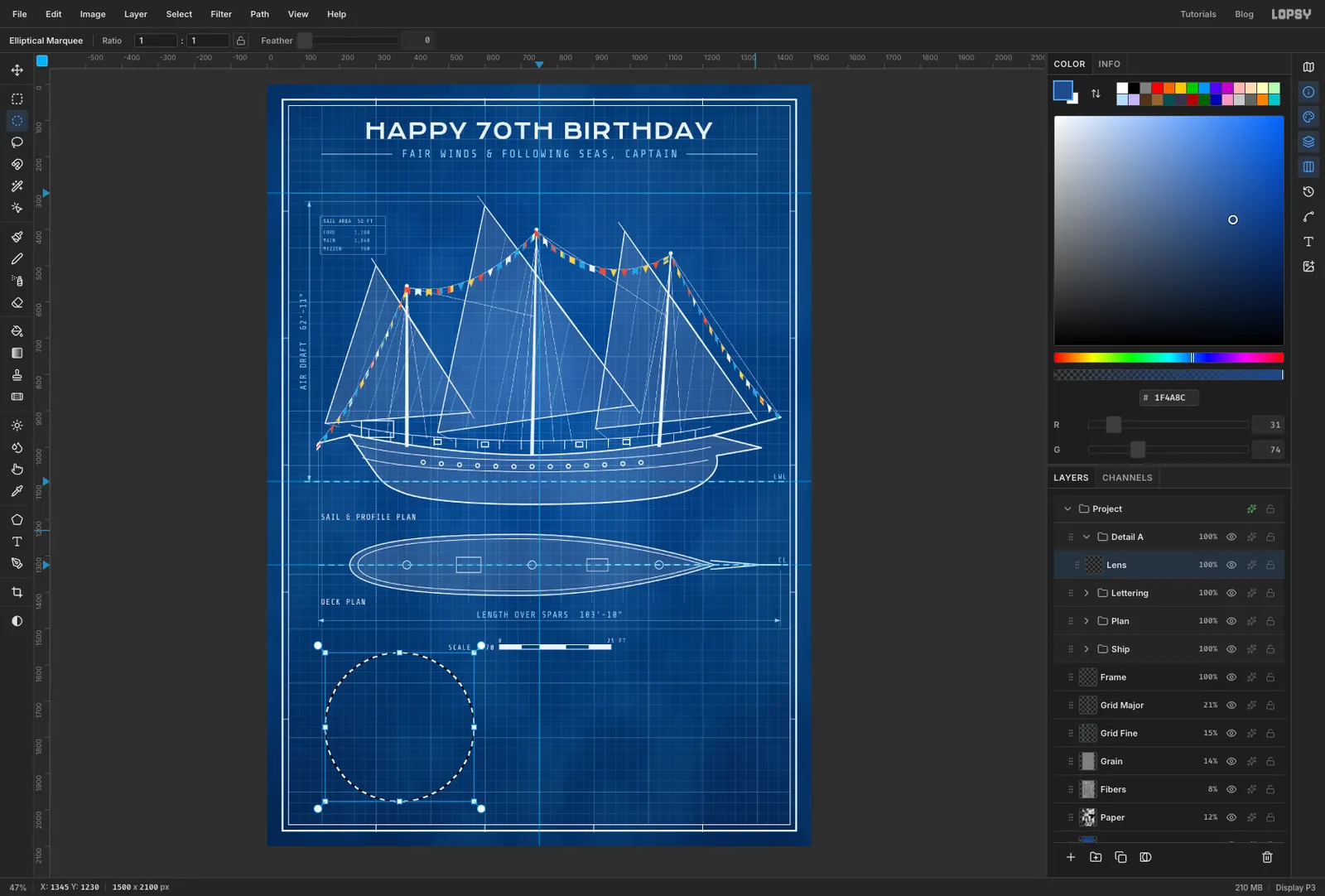
Lettering, click New Group and name itDetail A. Add a layer calledLens. - Pick the Elliptical Marquee and click once without dragging to open its exact dialog. Enter From
160,1567and To570,1977. - Fill with and deselect. Add an Inner Glow effect in with Size
40and Opacity35, so the lens looks slightly domed.
- Collapse
-
Ring the lens
- Add a layer called
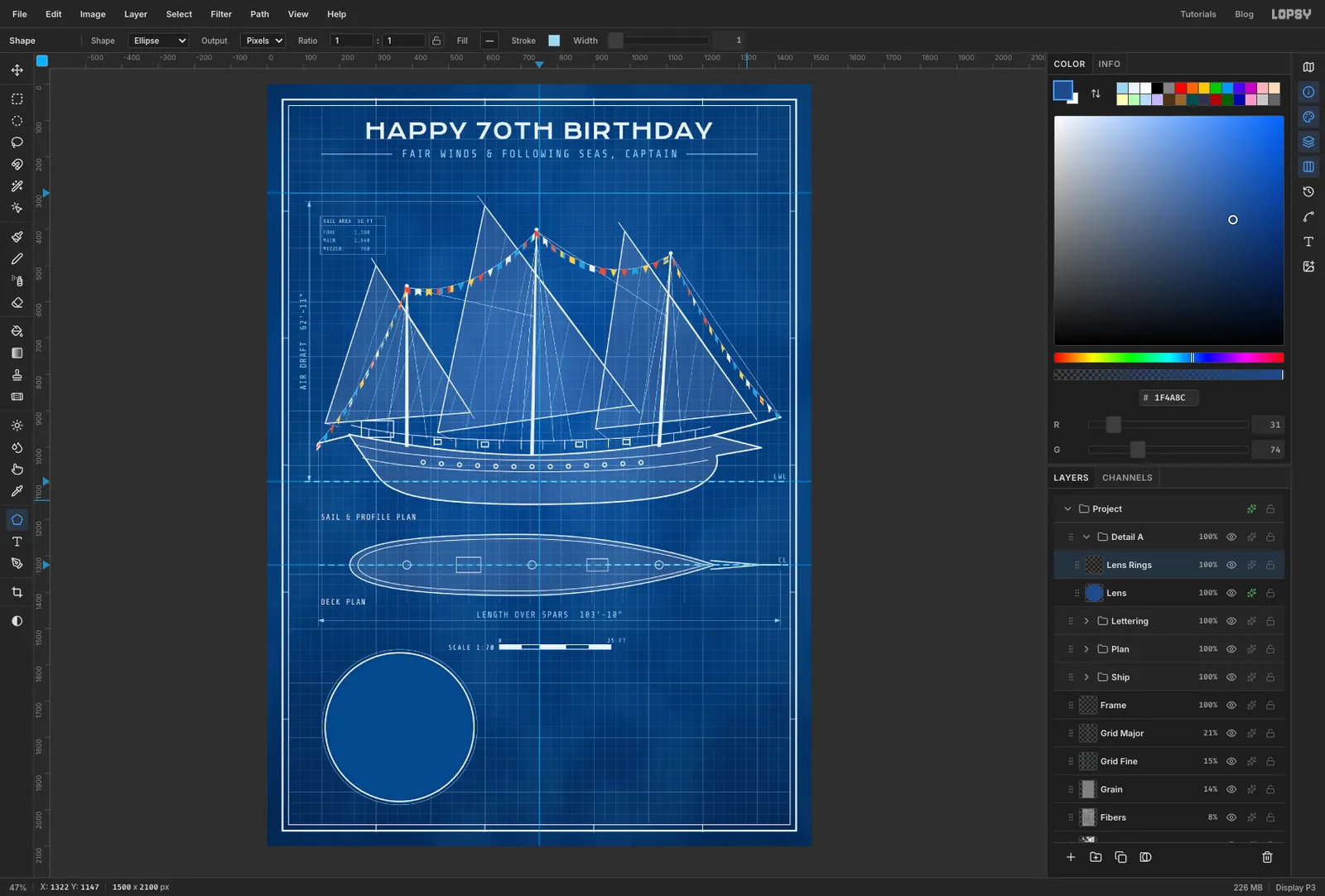
Lens Rings. - Set up the Shape tool as before: Ellipse, no fill, stroke
EAF3FFat Width4. Click the centre of the lens (365, 1772) without dragging and create a410×410circle. - Change the stroke to
9ED8F5at Width1and make a428×428circle on the same centre.
- Add a layer called
-
Draw the cake
- Add a layer called
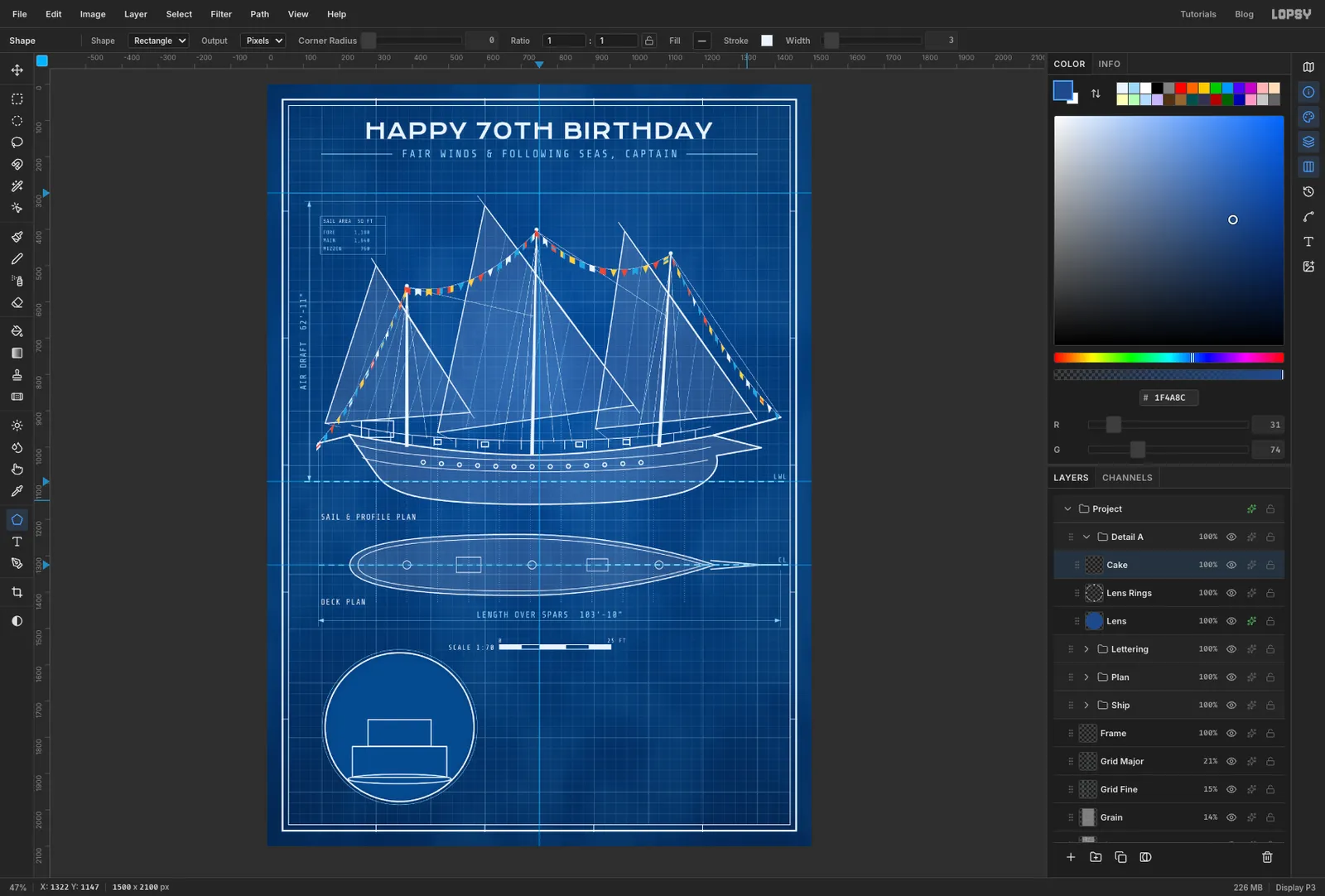
Cake. Keep the Shape tool on Ellipse with a white stroke at Width3. Click at365, 1915and make a284×26plate. - Switch Shape to Rectangle. Click at
365, 1868for a260×85bottom tier, then at365, 1789for a174×73top tier. The top tier sits right on the bottom one.
- Add a layer called
-
Pipe the frosting
- With the Pen at Stroke
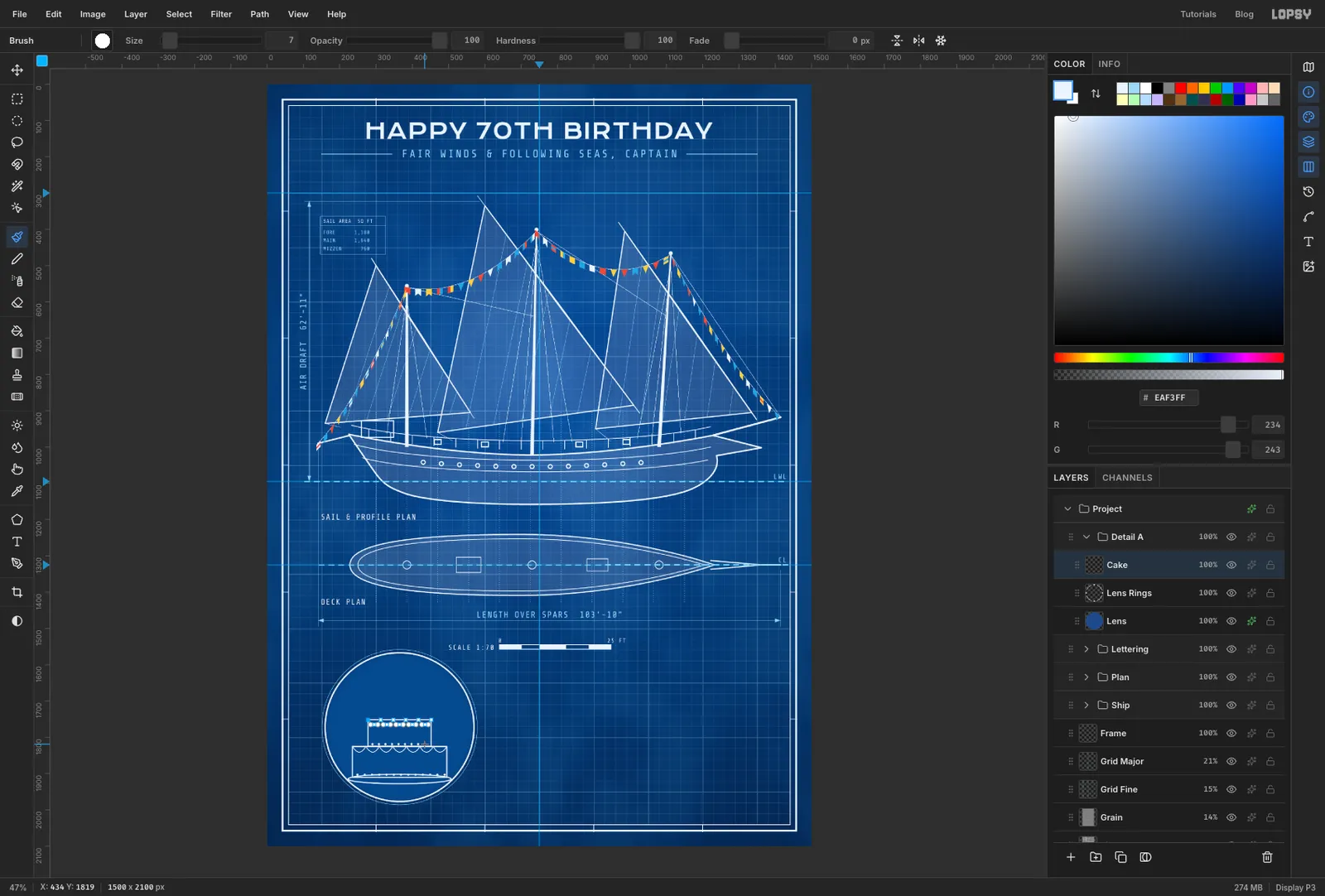
2, draw scallops along the top of the bottom tier. Click the left corner. Then, at the middle of the first scallop, 16 px below the edge, drag a little to the right. Click the edge again one scallop along. Repeat for seven scallops, then press Enter. - Do the same on the top tier with five scallops, 13 px deep.
- Pick the Brush, choose Hard Round on the Presets tab and set Size
7. Click a dot every 20 px along the base of the bottom tier and every 18 px along the base of the top tier.
- With the Pen at Stroke
-
Outline the 70 candles
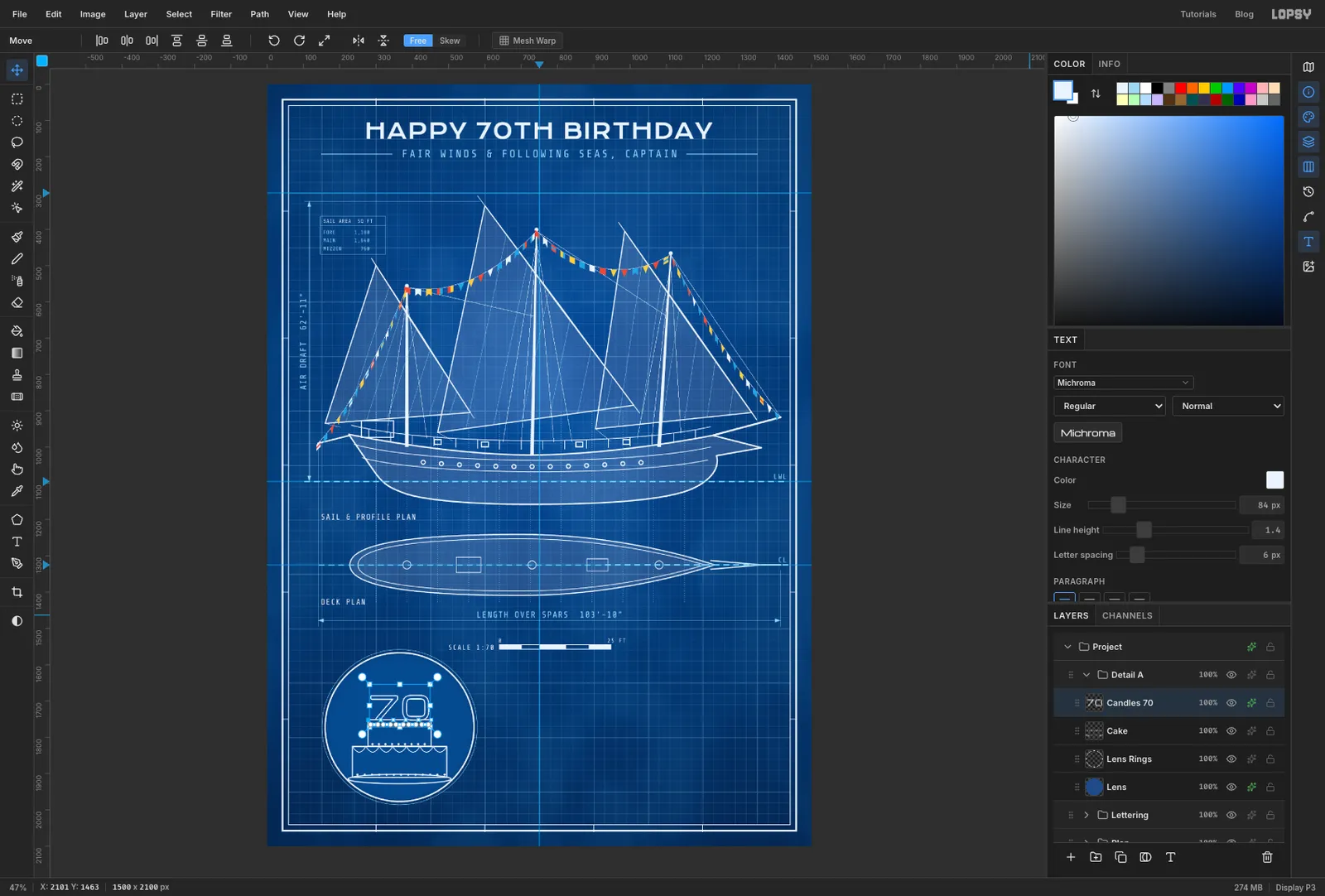
- Click
Cake. With the Text tool, set Michroma, size84, white, and type70. Set letter spacing to6. - Move it so its bottom sits on the top tier, centred on the cake.
- In the effects drawer, turn on Color Overlay in (the lens colour) and Stroke in at Width
3, leaving its other settings at their defaults. The numbers become outlines, the way a draughtsman would draw them, and they stay editable text.
- Click
-
Light the candles
- Click
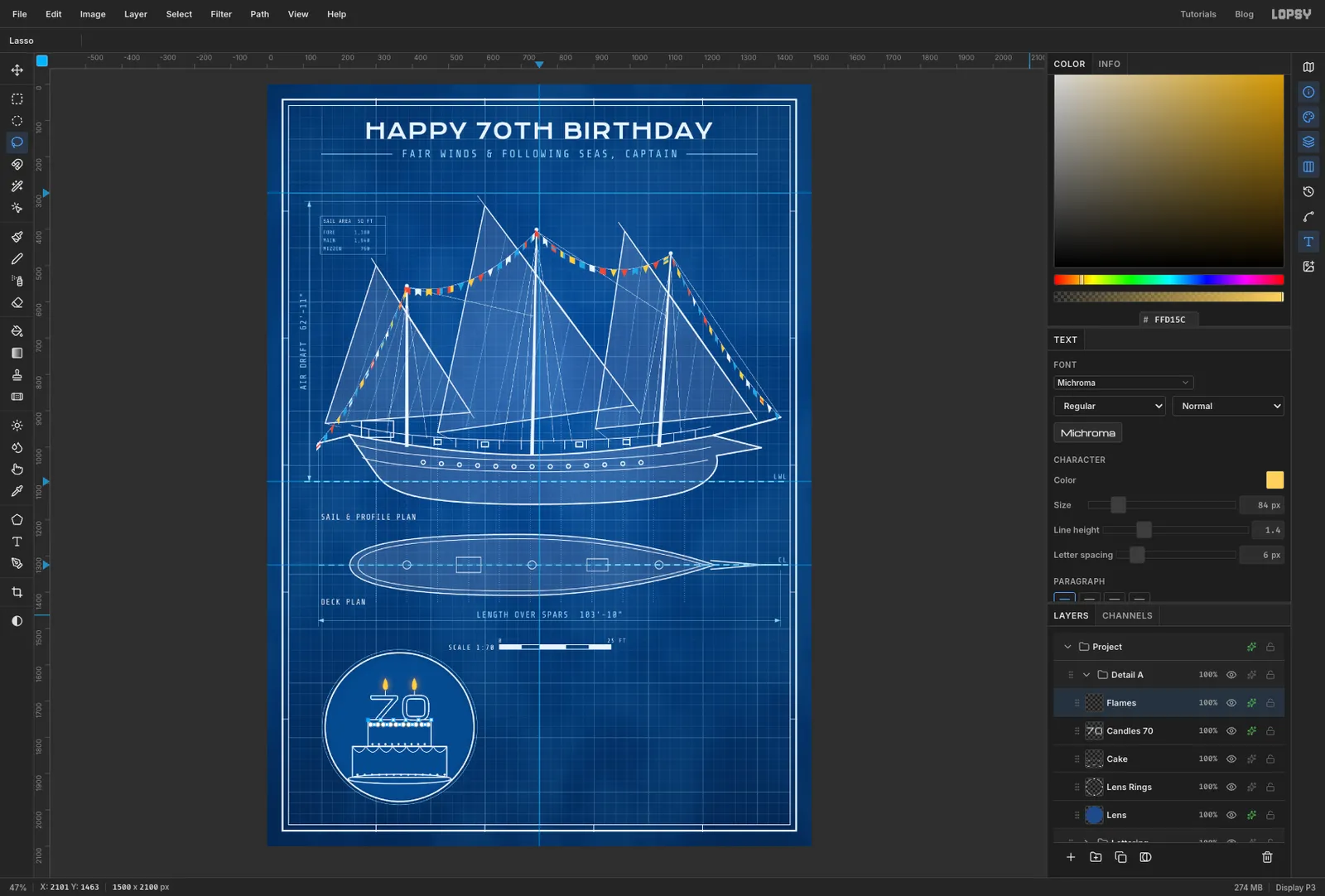
Cake. With a Size2white Pencil, draw a 13 px wick straight up from the top of each numeral, about a quarter of the way into the 7 and three-quarters into the 0. - Click the
70text layer and add a layer calledFlames. Set the colour to . - Lasso a teardrop flame about 34 px tall and 18 px wide above each wick, holding Shift for the second. Fill.
- Add an Outer Glow in with Size
26and Opacity70. These are the only warm colours inside the lens.
- Click
-
Label the detail
- Click
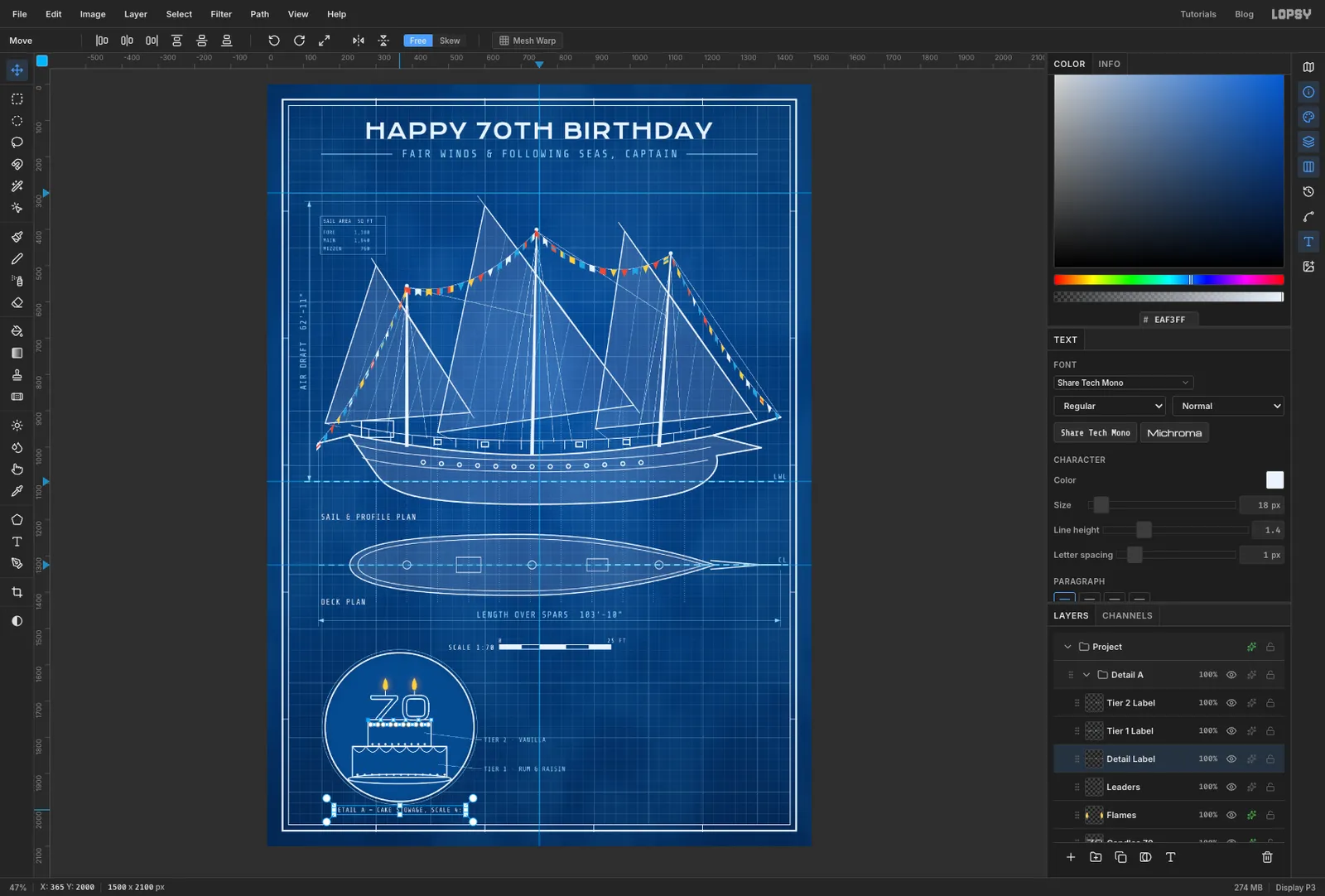
Flamesand add a layer calledLeaders. With a cyan 1 px Pencil, draw a line from the right side of each tier out past the lens rings, then a short level tick. - Click
Leadersbefore each label. TypeTIER 2 · VANILLAandTIER 1 · RUM & RAISINin Share Tech Mono, size18, cyan, letter spacing1. Set each one just after its tick, centred on the line. - Type
DETAIL A — CAKE STOWAGE, SCALE 4:1in white at the same size and centre it under the lens, about 16 px below the ring.
- Click
-
Snap the title block to the grid
- Collapse
Detail A, click New Group and name itTitle Block. Add a layer calledTB Panel. - Choose View → Show Grid. In the options bar, set the Grid slider to
8pxand make sure Snap is ticked. - With the Rectangular Marquee, drag from about
864, 1760to the bottom-right corner of the inner border. The corners snap onto grid lines, ending at1440, 2040right on the border. - Fill with .
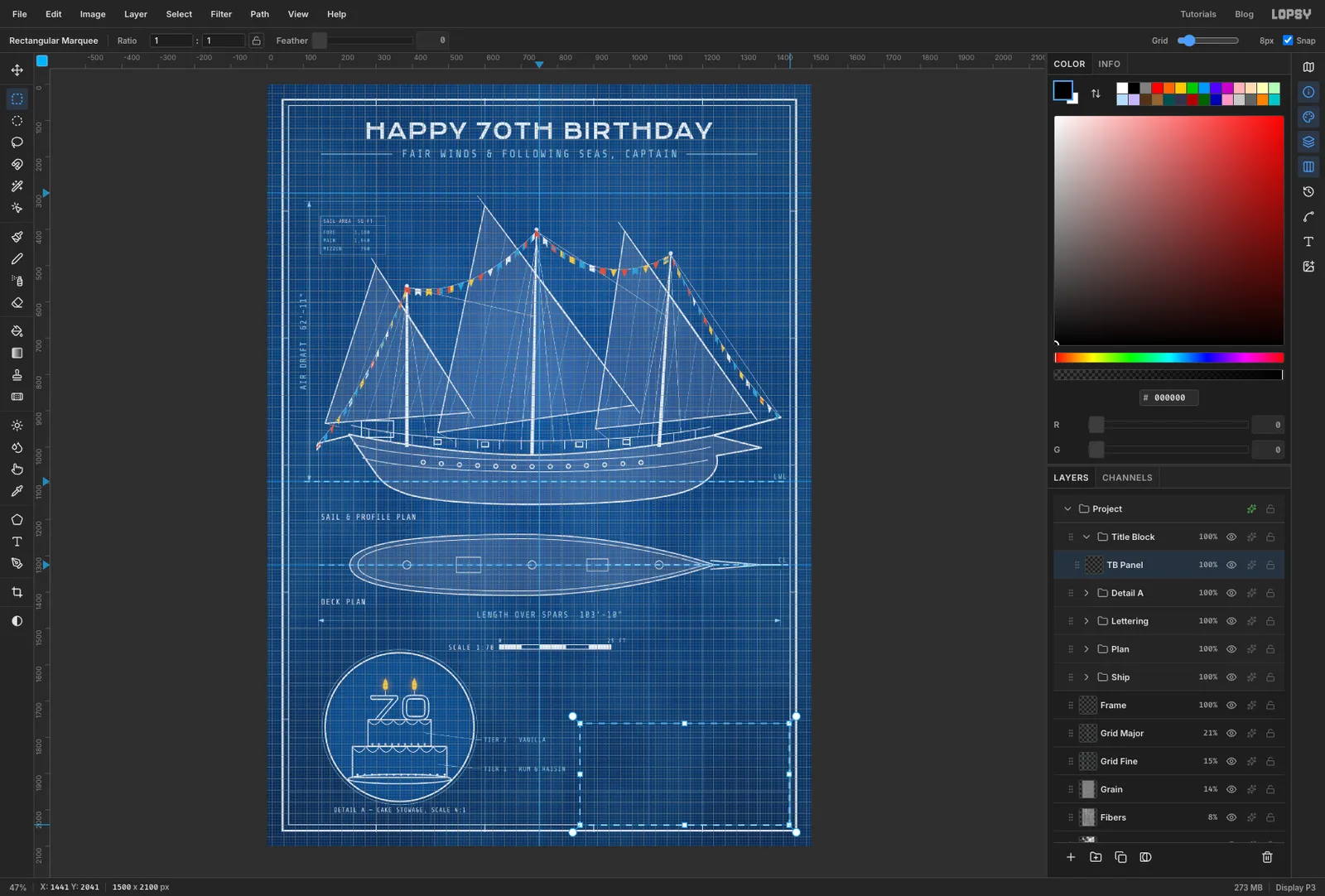
- Collapse
-
Rule and fill in the title block
- Add a layer called
TB Linesand deselect. Turn Show Grid off. - With a white Size
2Pencil, draw the block's left and top edges. The right and bottom edges are the sheet border itself, as on a real drawing. - Draw cell lines across the block at
y 1832,1904and1972. Split the third row atx 1152, and the last row atx 1056and1248. - Click
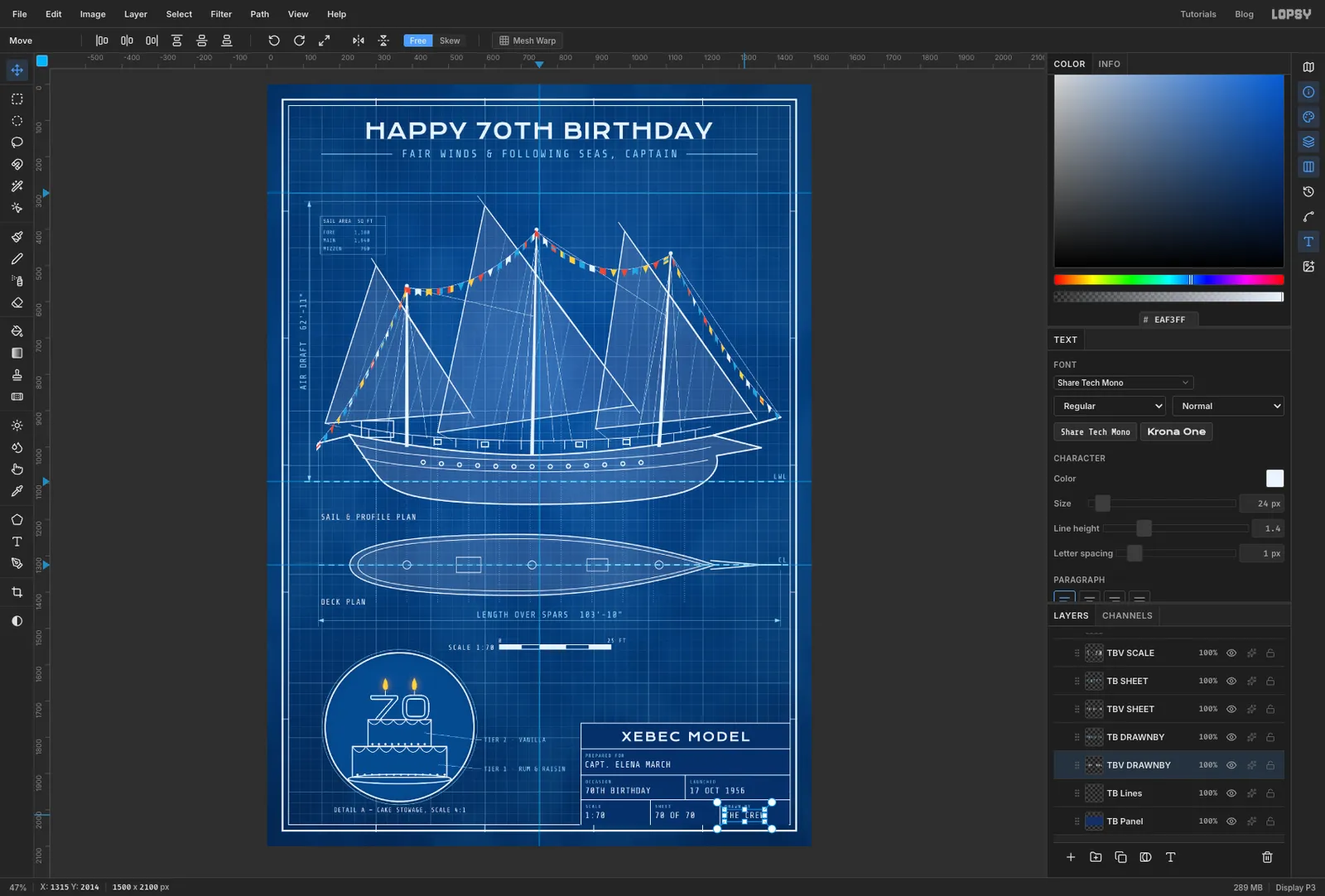
TB Lines(do this before each piece of text in the block). TypeXEBEC MODELin Krona One, size34, white, letter spacing4, centred in the top row. - Fill in each cell with a small cyan caption and a larger white entry, both in Share Tech Mono. Put the caption at size
13with letter spacing2, 14 px in from the cell's top-left corner. Put the entry at size24, 34 px down from the top.
PREPARED FOR:CAPT. ELENA MARCHOCCASION:70TH BIRTHDAYLAUNCHED:17 OCT 1956SCALE:1:70SHEET:70 OF 70DRAWN BY:THE CREW
- Add a layer called
-
Draw the stamp rings and arcs
- Click
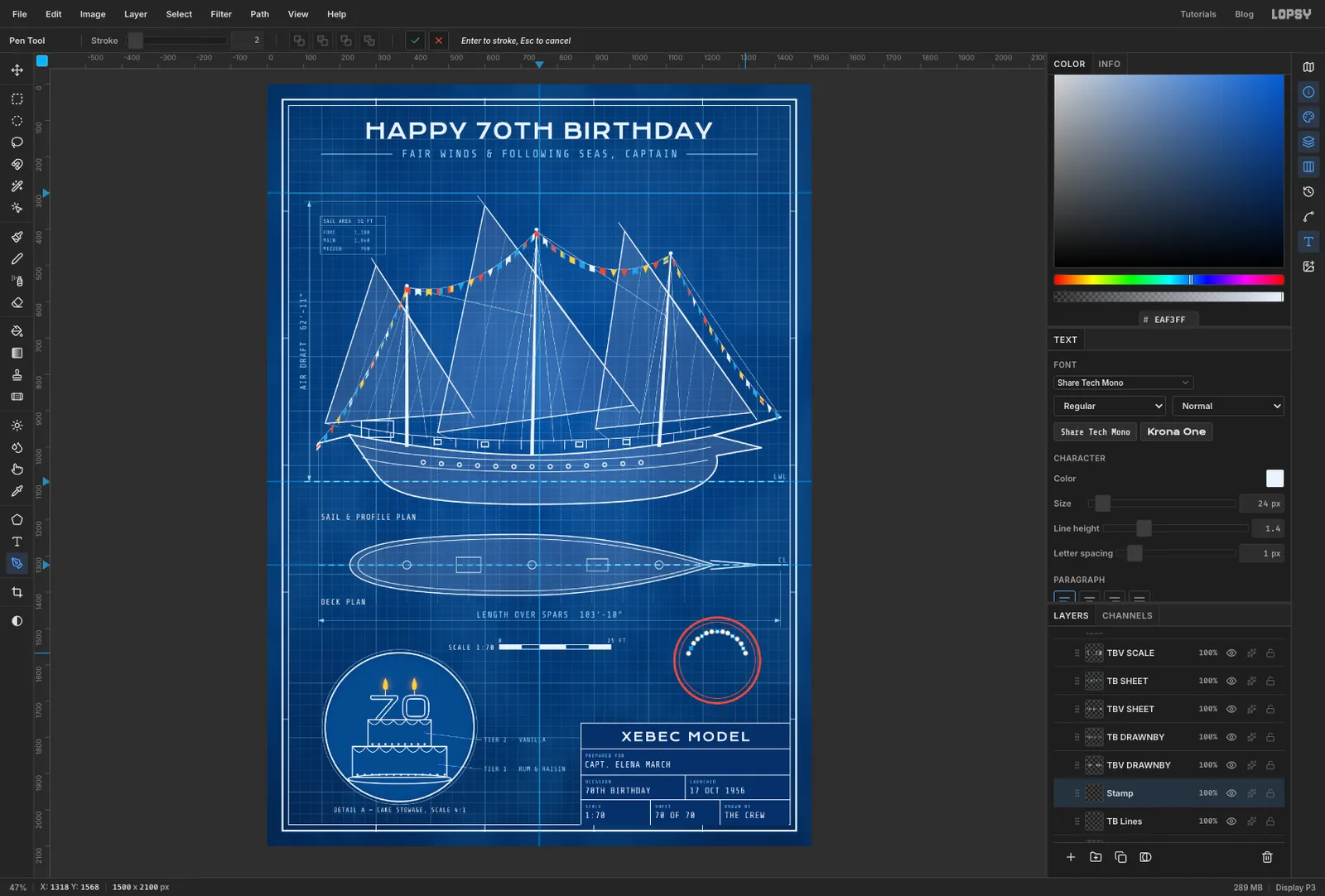
TB Linesand add a layer calledStamp. - Set the Shape tool's stroke to
E2553Fat Width6and click at1240, 1588for a236×236circle. At Width2, make a210×210circle on the same centre. - With the Pen, draw an arc over the top, about 25 px inside the inner ring, from the upper left round to the upper right. Drag at each of four or five points along it, in the direction you're travelling. Click the ✓ Commit path button instead of pressing Enter, so it stays a path and isn't stroked.
- Draw a second arc under the bottom, about 10 px inside the inner ring, also from left to right, and commit it with ✓. Click it in the Paths panel to deselect it.
- Click
-
Set the stamp lettering
- Click
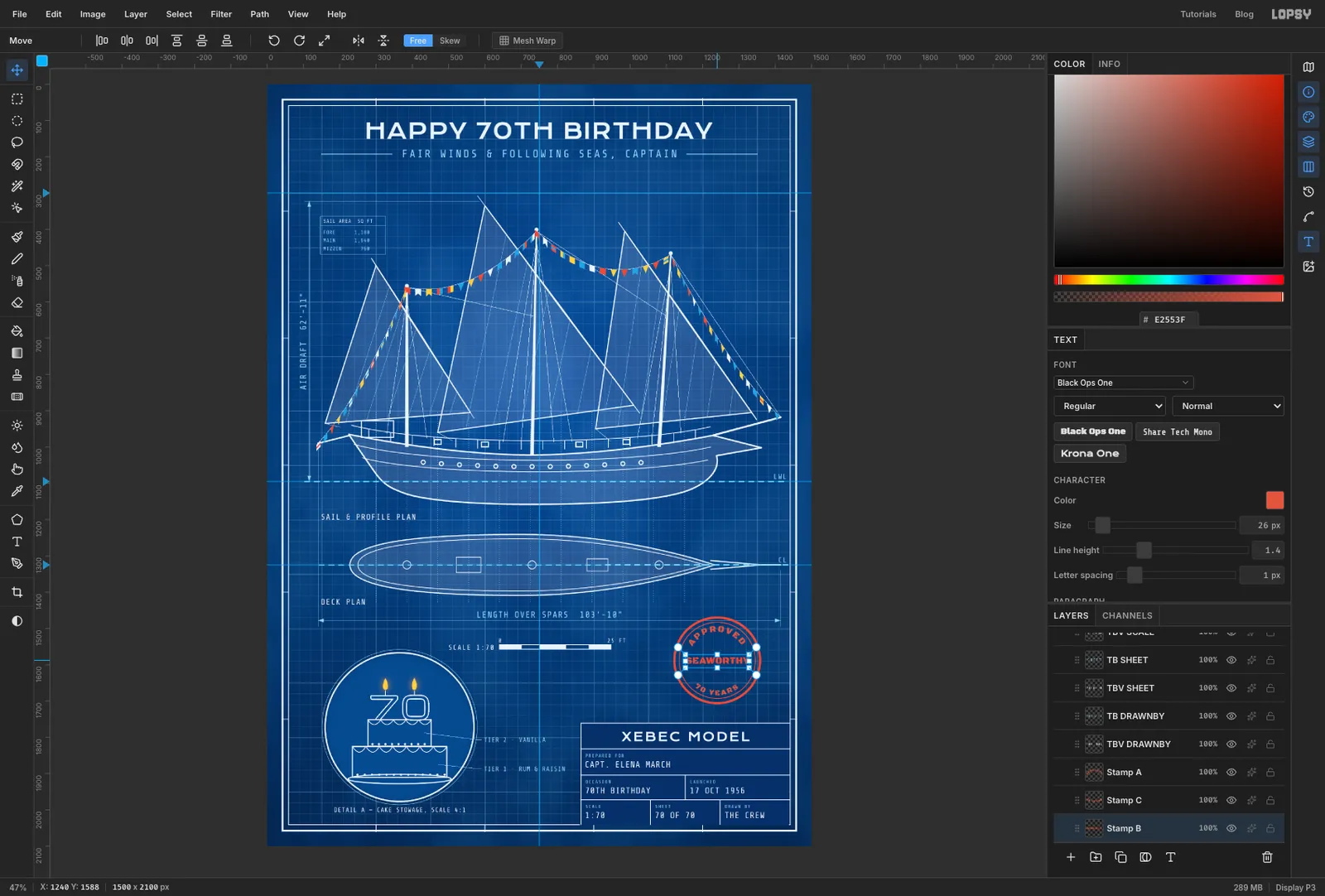
Stamp. TypeAPPROVEDin Black Ops One, size24, , letter spacing4. - With the Text tool still active, set Align to Center and choose the top arc in the options bar's Path menu. The word wraps over the arc, reading upright.
- Click
Stamp, type70 YEARSat size20with letter spacing4, and bind it to the bottom arc the same way. Because that arc runs left to right under the circle, the text stays upright instead of upside down. - Click
Stampagain and typeSEAWORTHYat size26, letter spacing1. Centre it straight across the middle, clear of the inner ring.
- Click
-
Merge and tilt the stamp
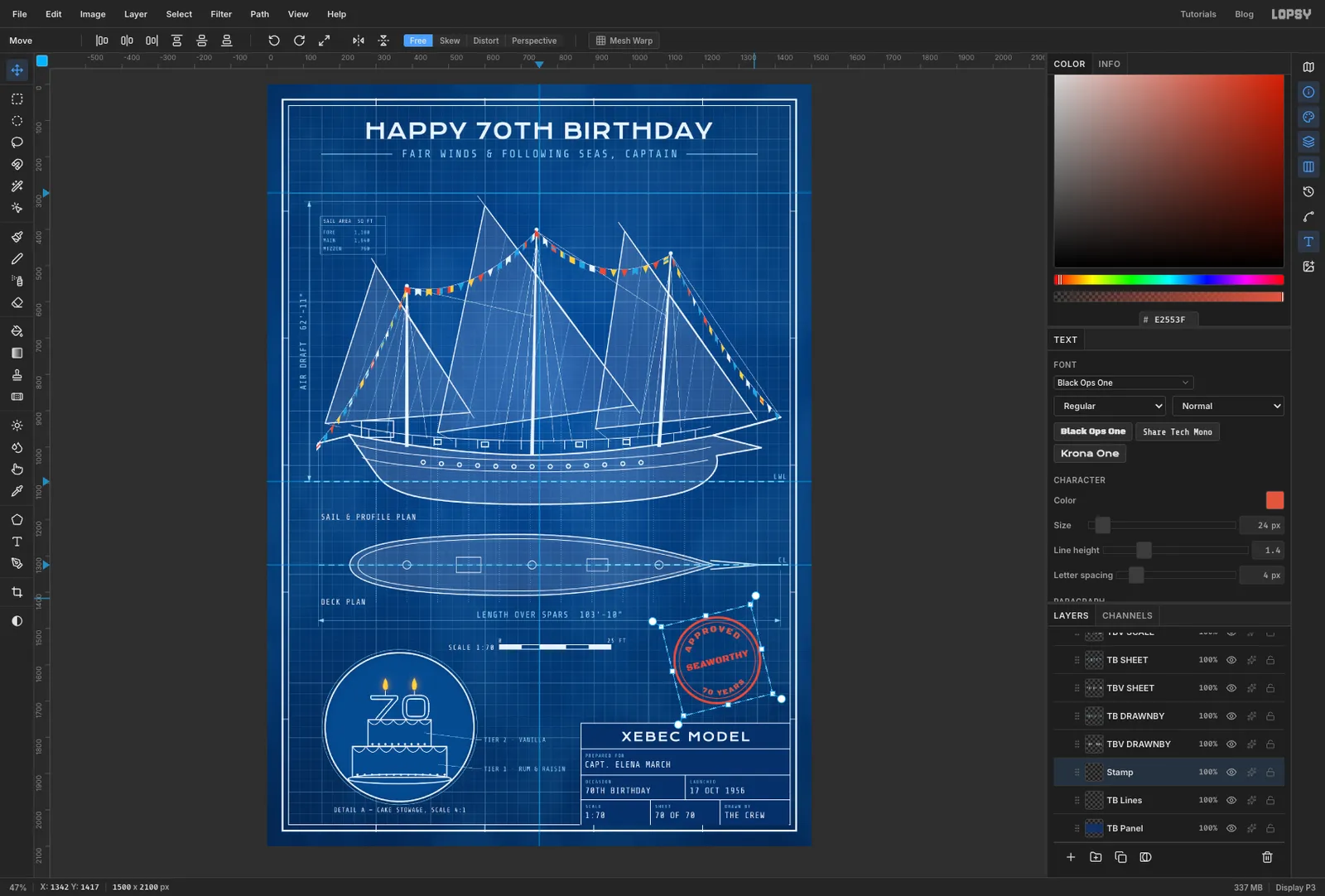
- Click the
SEAWORTHYtext layer and choose Layer → Merge Down, which merges it intoStamp. Do the same for70 YEARSandAPPROVED. The text becomes pixels, so the stamp is now one piece. - Draw a marquee around the stamp. Pick the Move tool and drag the rotation handle at the top-right corner about 14° anticlockwise. Nobody stamps a form straight. Press Cmd+D.
- Click the
-
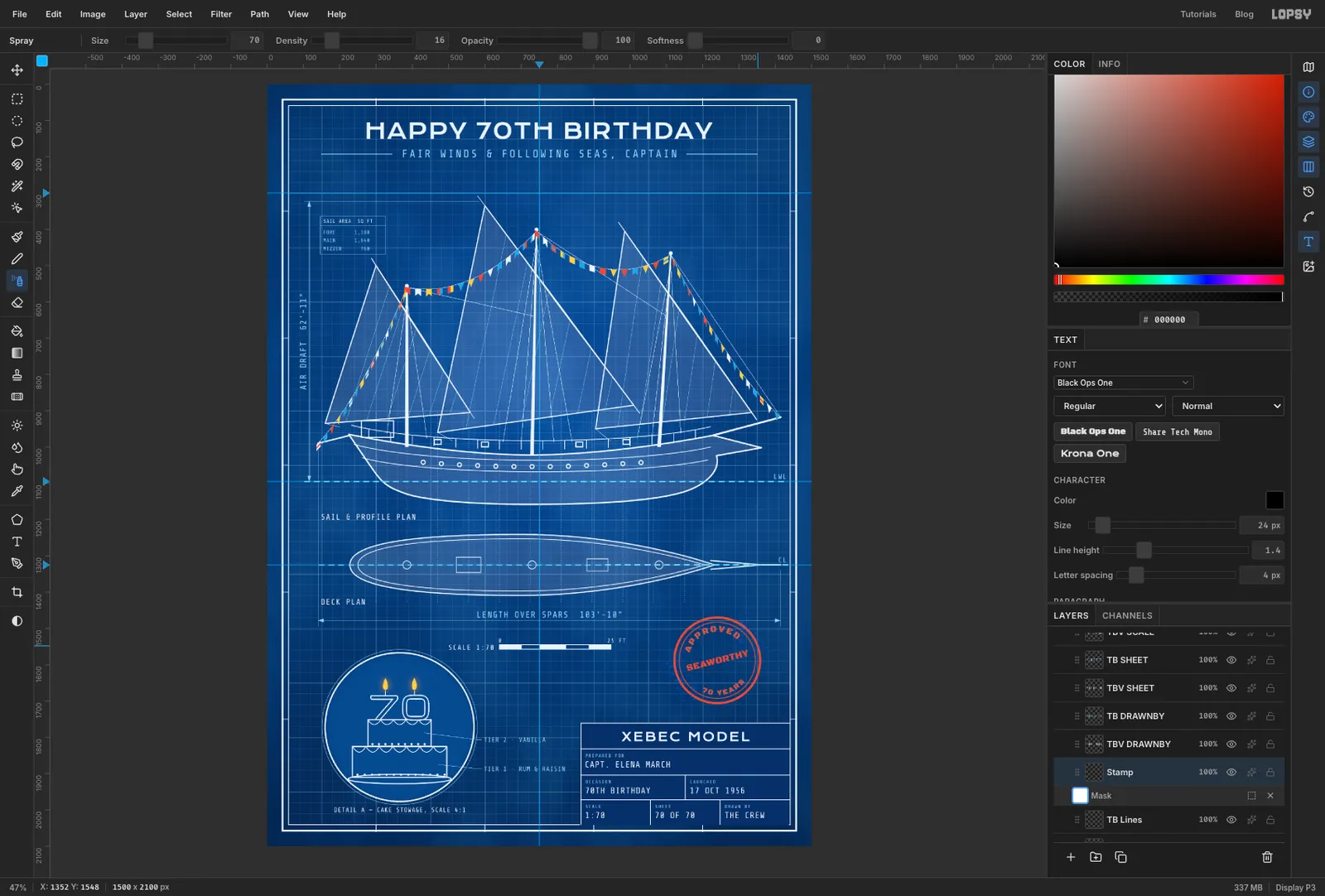
Wear the stamp with a masked spray
- With
Stampselected, click Add Mask at the bottom of the Layers panel. A mask row appears underStamp. Click it to edit the mask. - Set the colour to black and pick the Spray tool. Set Size
70, Density16, Opacity100and Softness0. - Make one short pass along the lower-left rim and one along the upper right. Rubber stamps print unevenly at the edges. While you edit the mask, the hidden speckle shows as blue. Keep the spray off the middle of the words so they still read.
- Click the layer name to stop editing the mask, and set the opacity to
88%.
- With
-
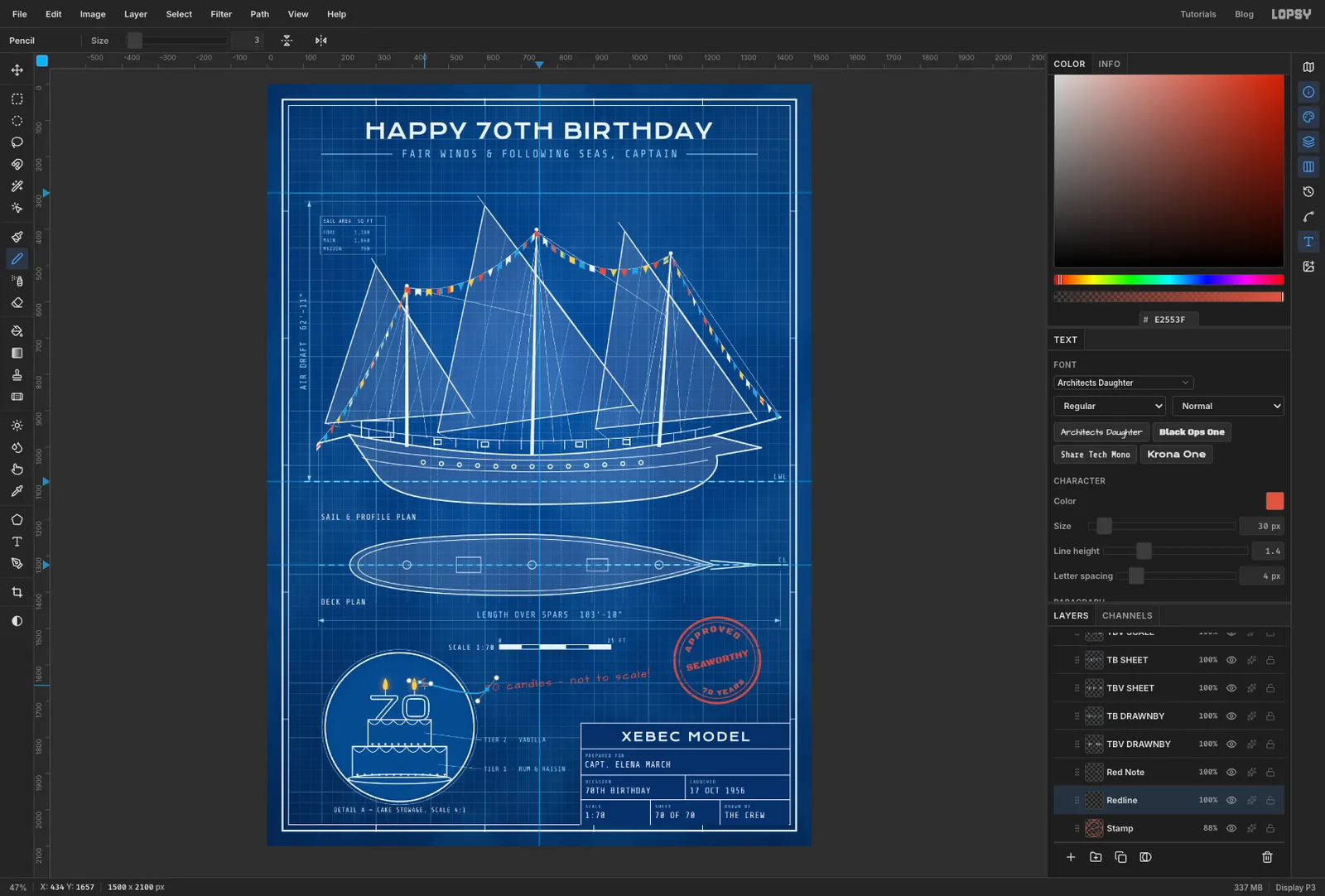
Add the red-pencil note
Checkers mark up blueprints in red pencil. Here the note gives the joke away.
- Add a layer called
Redline. Type70 candles — not to scale!in Architects Daughter, size30, . - Put it to the right of the lens, under the scale bar, and rotate it about 5° anticlockwise with the Move tool's rotation handle.
- Click
Redline. With the Pen at Stroke3in the same red, drag from the start of the note and finish just right of the right-hand flame. Press Enter. - With a Size
3Pencil, click and Shift-click two short strokes at the tip to make the arrowhead.
- Add a layer called
-
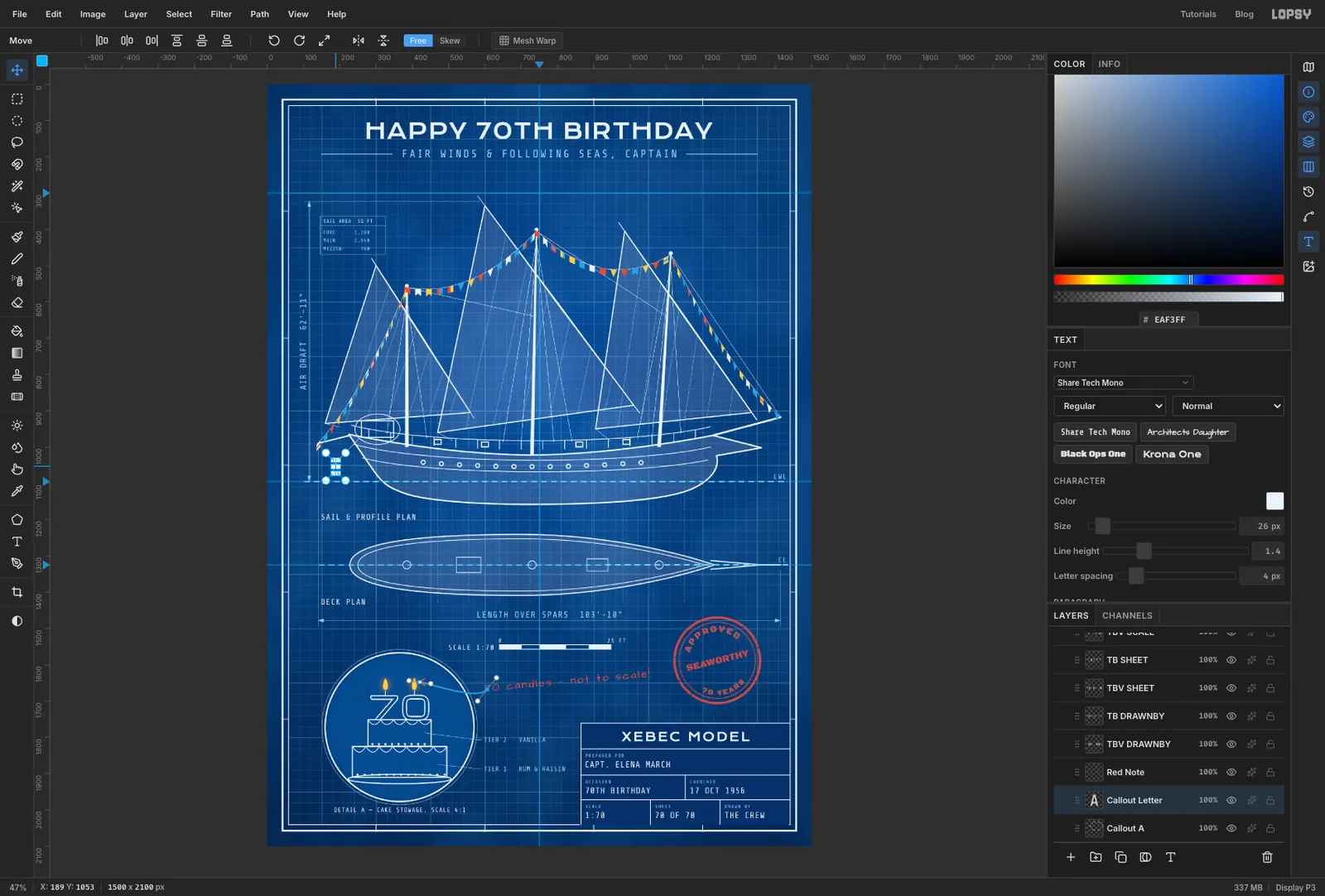
Mark where Detail A comes from
- Add a layer called
Callout A. With the Shape tool (Ellipse, white stroke, Width2), click the middle of the stern cabin and make a124×84ellipse. - With a 1 px white Pencil, draw a short leader from the ellipse down and left into the open space under the stern.
- Click
Callout Aand typeAin Share Tech Mono, size26, white, at the end of the leader.
- Add a layer called
-
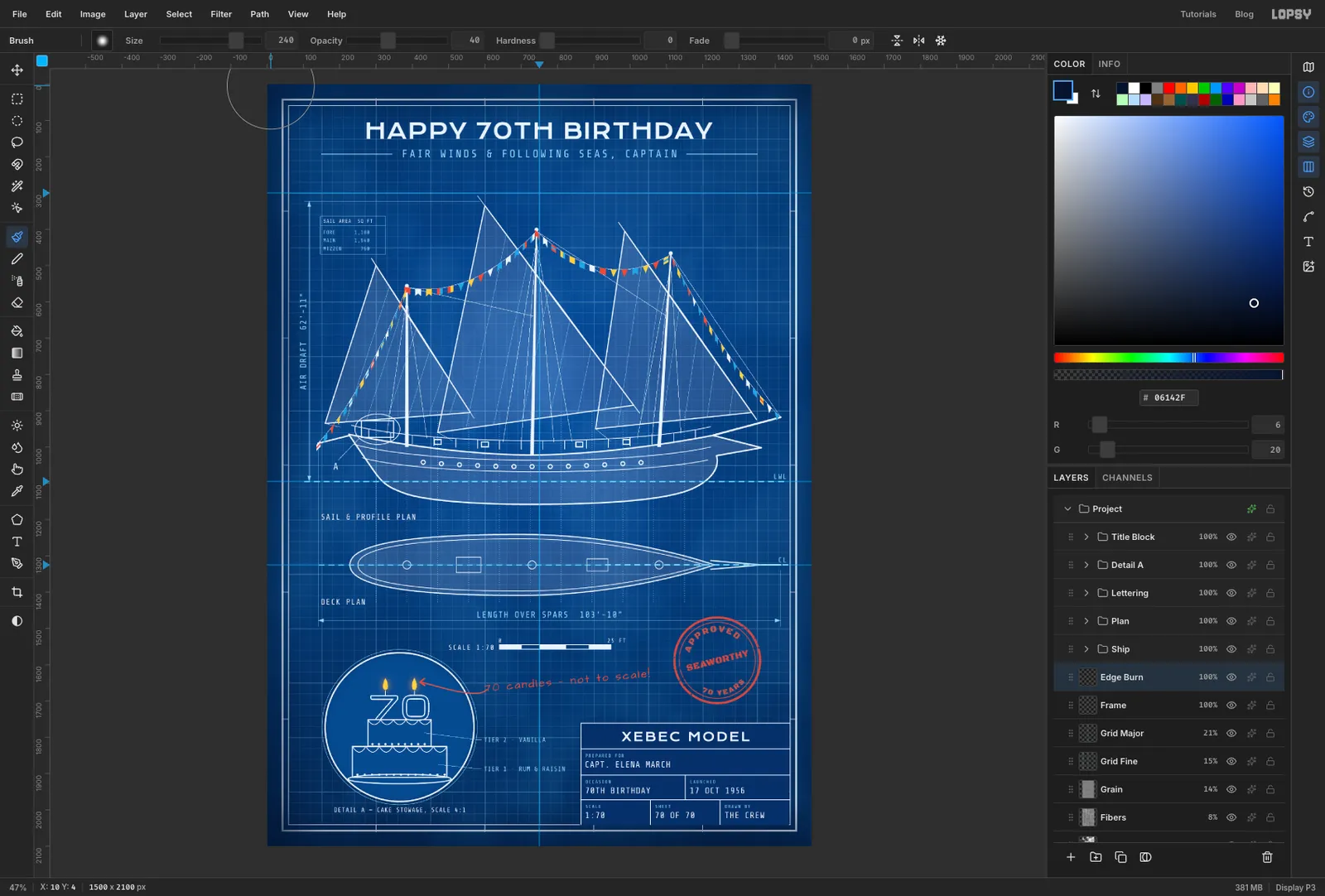
Burn the edges
- Collapse
Title Block, then clickFrameand add a layer calledEdge Burn. It sits under all the drawing. - Set the colour to . Pick the Brush and choose Soft Round on the Presets tab, with Size
360and Opacity60. - Drag down the left edge of the sheet with the brush half off the canvas, wandering in and out a little. Then drag along the bottom.
- Drop to Size
240and Opacity40and make lighter passes down the right edge and across the top. An uneven burn, heavier on two sides, looks like a real exposure. A perfect radial vignette doesn't. - Set the layer to Multiply at
70%.
- Collapse
-
Even out the exposure
- Add a layer called
Exposure, colour white. Use the Soft Round brush at Size520and Opacity25. - Make one short stroke beside the main sail and one over the stern end of the deck plan.
- Set it to Soft Light at
30%. - Choose File → Save Project to keep the layered file, and File → Quick Export PNG for the card.
- Add a layer called