Make a Tropical Technicolor Movie Poster in Lopsy
Turn a sunset photo into a 1950s South Seas movie poster in Lopsy, with a radio mast, signal rings, a drawn jungle frame and bold tilted title type.
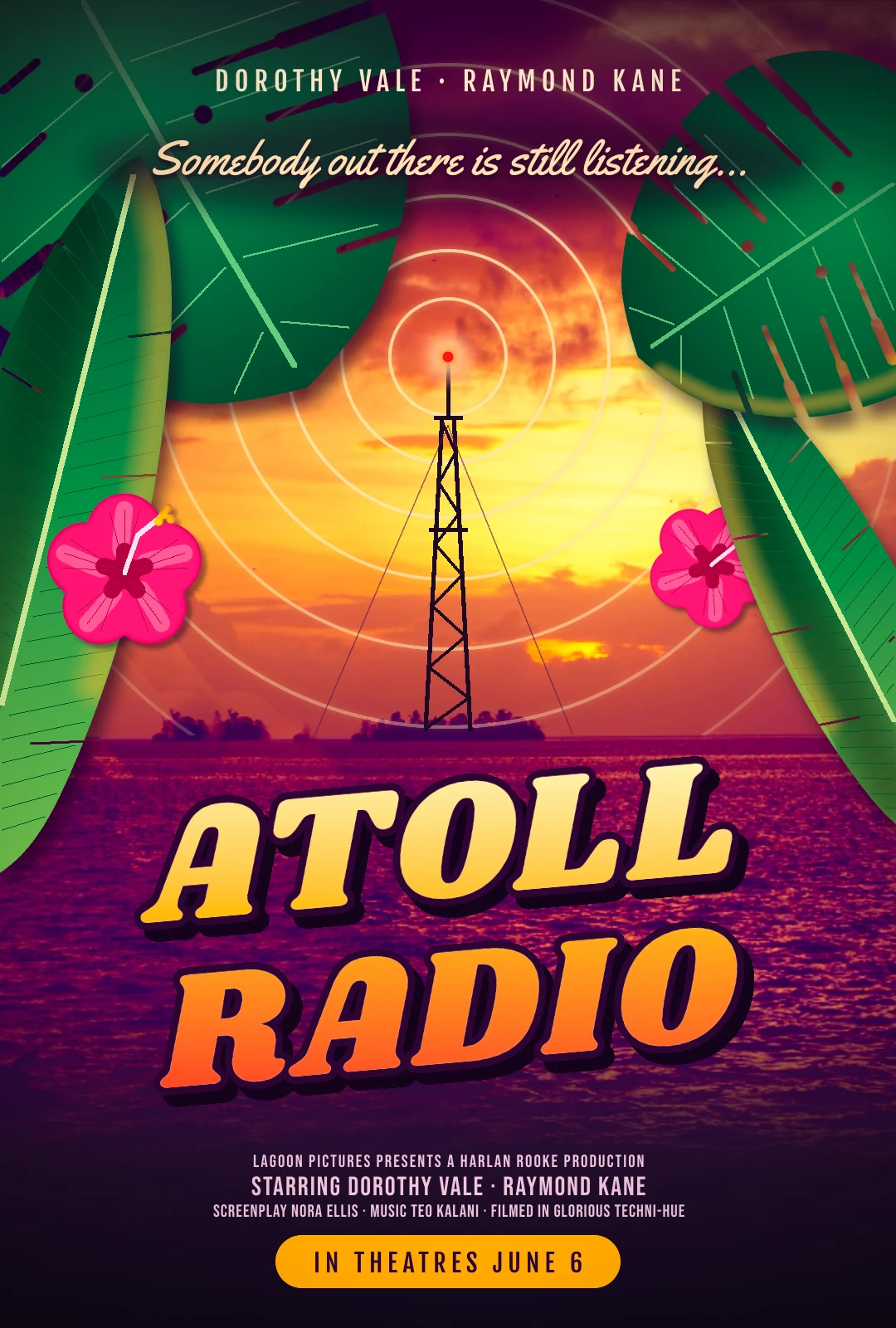
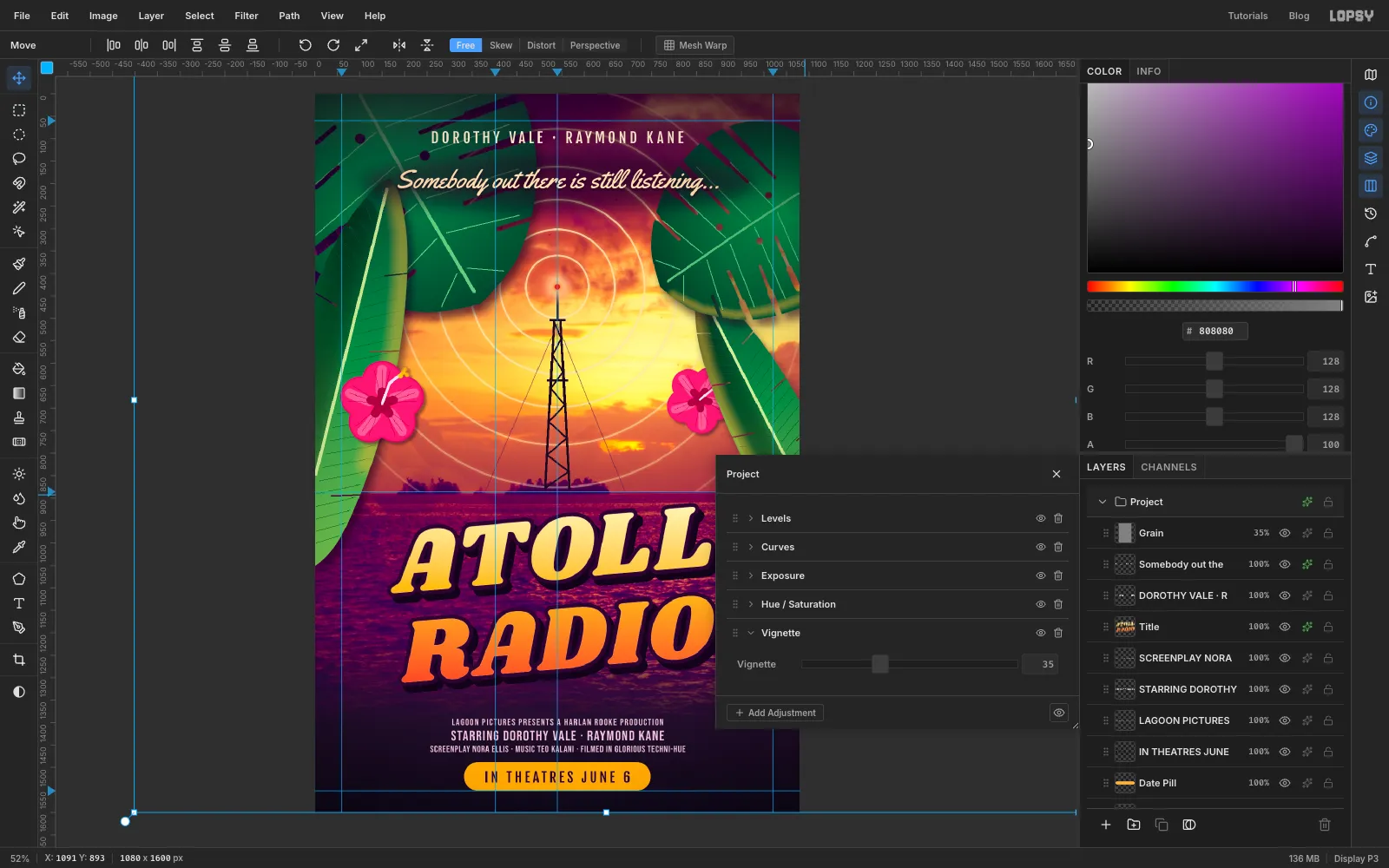
Studio posters for 1950s South Seas pictures sold an island in Technicolor: a sky too pink to be real, palm and jungle leaves framing the scene, and a title in chunky letters with a heavy shadow. This tutorial uses those tricks for a made-up film, Atoll Radio, about a lone radio operator on a Pacific atoll who hears a voice on the air.
It's a 1080 × 1600 px one-sheet (the 27 × 40 movie poster shape). It's a photomontage: a real sunset photo, retouched and graded, with a radio mast, signal rings and a jungle frame drawn on top, then the type.
The photo is Sunset on Palmyra Atoll by the USGS (CC BY 2.0) on Wikimedia Commons. Download the 2400 px version. Any sunset over open water with a small island on the horizon will work, but you'll have to adjust the positions.
Along the way you'll use:
- Clone Stamp, Healing Brush, Gaussian Blur and Hue/Saturation to retouch the photo
- a layer mask with a Gradient, and a group's Color Balance and Saturation & Vibrance adjustments for the grade
- the Pencil and Brush with Shift-click straight lines for the mast
- the Shape tool for the signal rings and the date pill, with Show Grid snapping
- the Pen tool and Path to Selection for the leaves, plus the Eraser and Burn tools
- the Brush's Radial Symmetry for the hibiscus flowers
- Copy, Paste, scaling and rotating with the Move tool, then undo and redo
- Text in Shrikhand, Yellowtail, Fjalla One and Bebas Neue, Merge Down and layer effects
The palette:
-
Night plum
-
bottom band
-
sky shade
-
Mast ink
-
guy wires
-
signal rings
-
Beacon red
-
bloom
-
halo
-
lamp rim
-
ring glow
-
Monstera
-
veins
-
Small monstera
-
veins
-
Banana
-
midrib
-
striations
-
stalk
-
Hibiscus
-
petal light
-
throat
-
petal veins
-
inner glow
-
Stamen
-
pollen
-
Rim light gold
-
leaf shadow
-
Title gradient
-
title outline
-
hard shadow
-
Credit cream
-
tagline peach
-
billing orchid
-
pill gold
Positions are given in document pixels. Watch X and Y in the status bar at the bottom of the window as you move the pointer. Freehand shapes like the leaves only need to be close.
-
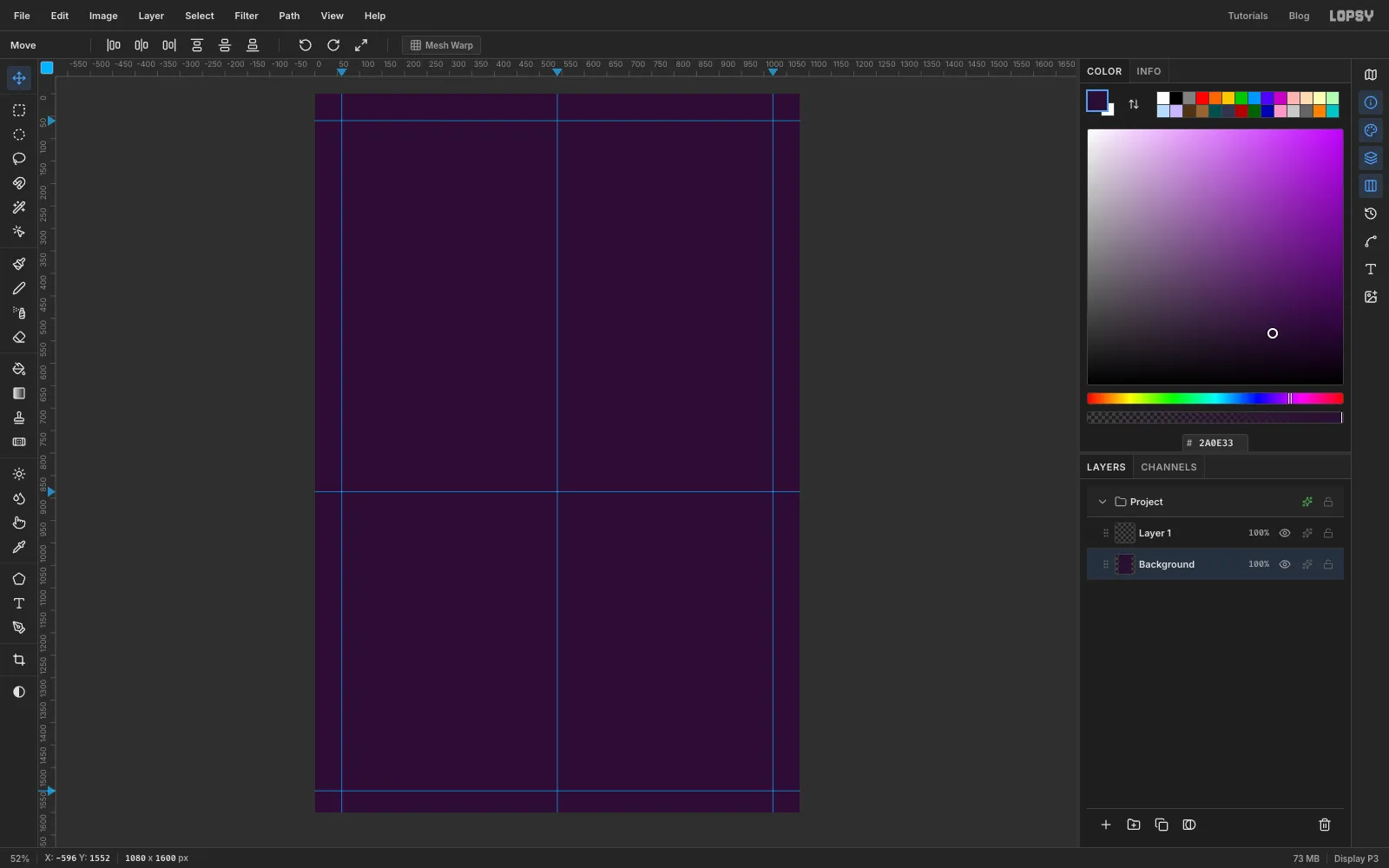
Set up the poster and guides
- Choose File → New, set Width
1080and Height1600, and click Create. - Click Background in the Layers panel, set the foreground colour to in the Color panel's hex field, and choose Edit → Fill.
- Click the top ruler at
x 540for a centre guide, and atx 60andx 1020for side margins. - Click the left ruler at
y 886for the horizon, and aty 60andy 1552for the top and bottom margins. The bottom one is a little lower so it lands on a line of the 16 px grid you'll snap the date pill to.
- Choose File → New, set Width
-
Drop in the sunset photo
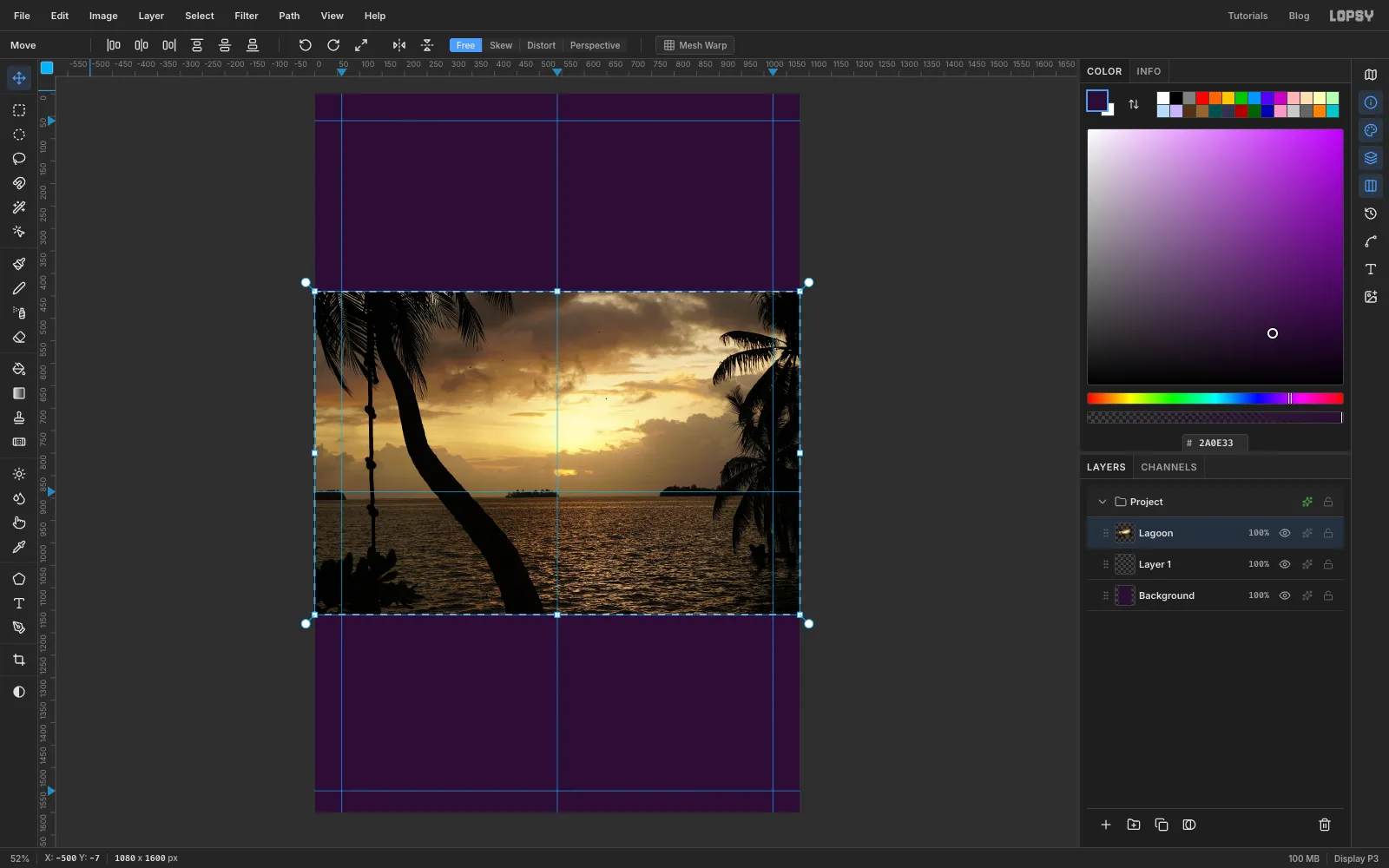
- Click Layer 1 so the photo lands above it. You'll delete the empty layer later.
- Drag the photo file from your desktop onto the canvas. Lopsy puts it on a new layer and fits it to the poster's width, about 1080 × 720 px.
- Double-click the new layer's name and rename it
Lagoon.
-
Scale the photo up
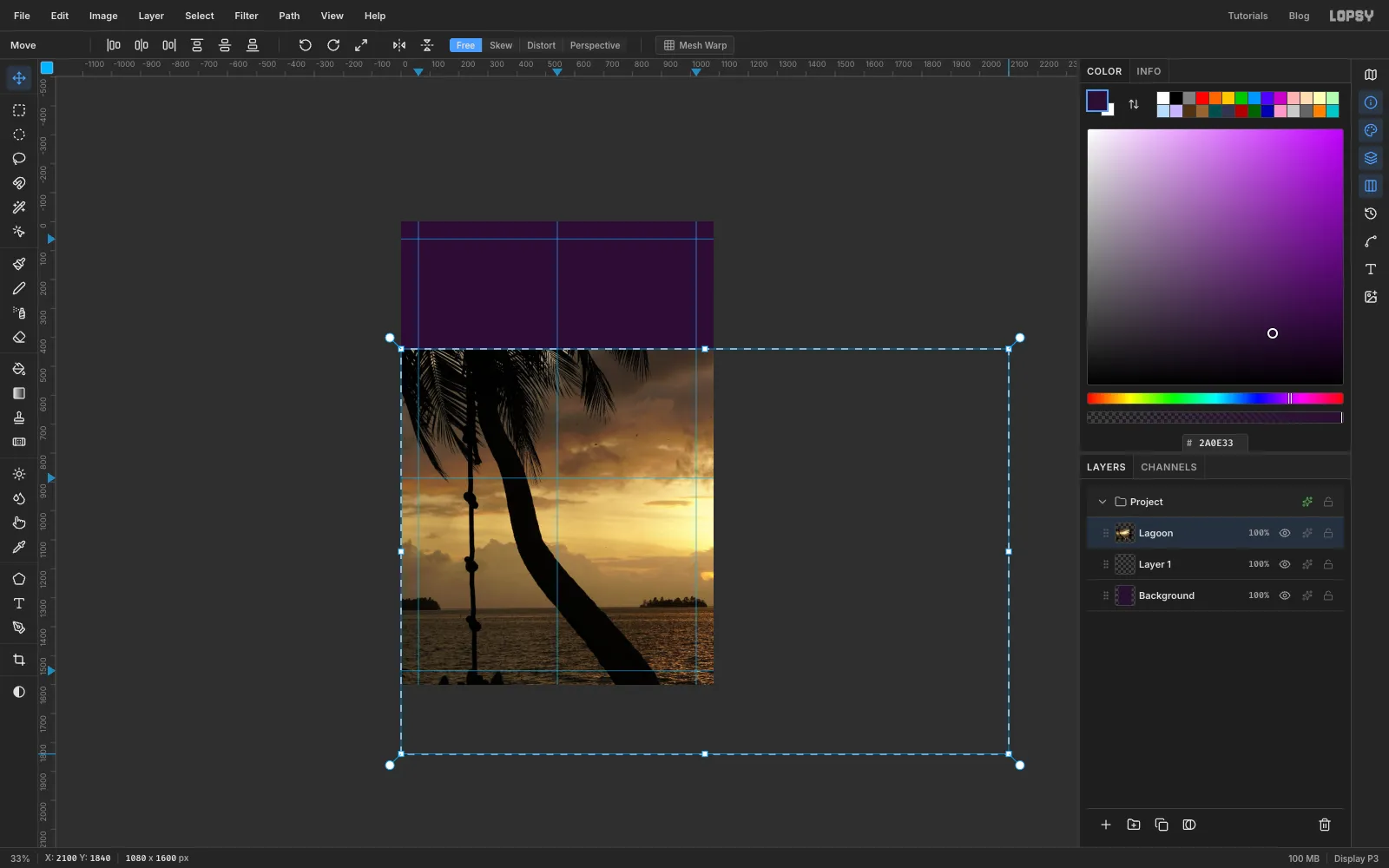
The photo needs to be about twice as big so the sea fills the poster and the middle islet sits in the centre.
- Choose View → Zoom Out twice so you can see past the canvas.
- With the Move tool, hold Cmd and drag the photo's bottom-right handle down and right until the photo is about
2100px wide (watch the top ruler). Cmd keeps the proportions. - Drag from inside the photo, up and to the left, until the small middle islet sits on the centre guide and the horizon lines up with the
y 886guide. The photo's top edge should be at the top of the canvas. - Press Cmd+D to commit the transform, then choose View → Fit to Screen.
-
Clone out the palm trunk
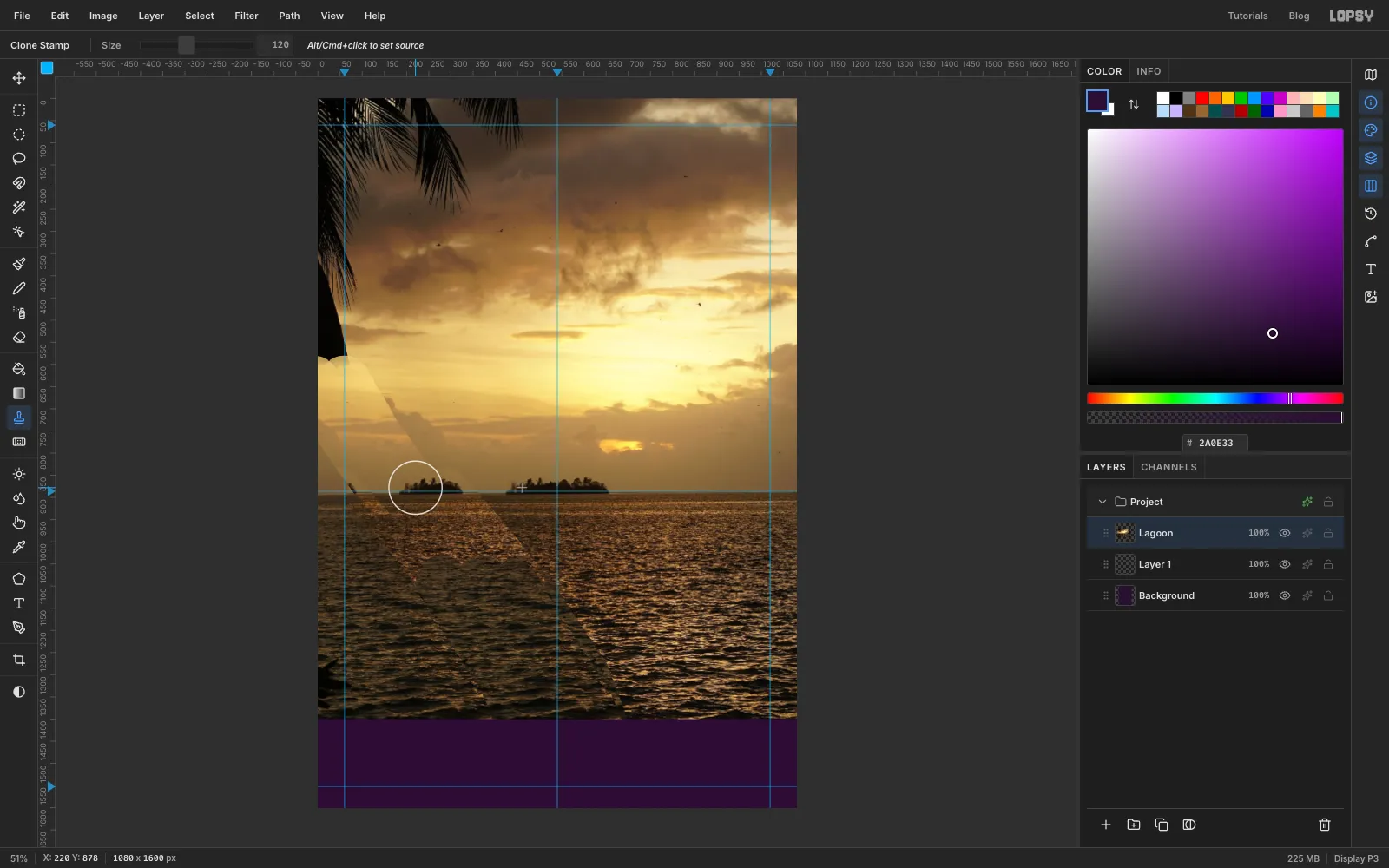
A palm trunk cuts across the left of the sea. You'll paint open water over it with the Clone Stamp (
S).The Clone Stamp keeps the distance between the point you Alt-click and the spot where your next stroke starts, so sample at the same height as the stroke, off to one side.
- Set Size to
120. - Start with the stretch of trunk just below the horizon. Alt-click the open water about 330 px to the right of the trunk. Paint three overlapping strokes down along the trunk, from the horizon to about
y 1130: one down the middle and one along each edge. - Further down, the right side runs into the other palm. Alt-click about 290 px to the left of the trunk instead, and paint three more strokes down to the bottom of the photo.
- Finally Alt-click the clouds about 240 px to the right of the trunk's last bit of sky, just above the horizon, and paint over it.
Cloning copies a second islet onto the horizon. That's fine. An atoll is a ring of islets.
- Set Size to
-
Heal the seams
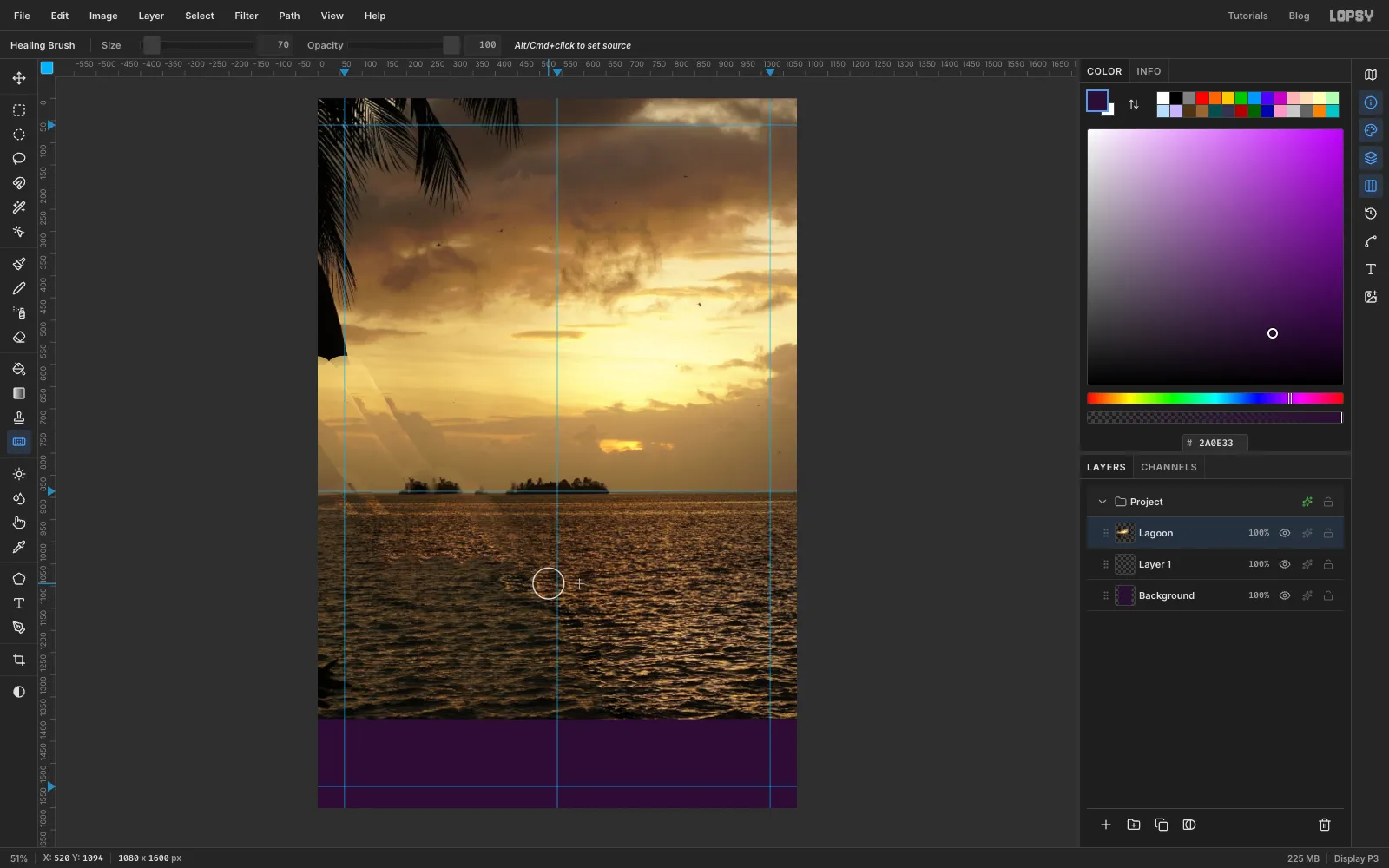
The cloned bands are slightly lighter than the water around them. The Healing Brush (
H) borrows texture from a source like the Clone Stamp, then matches the tone to where you paint.- Set Size to
70. - For each visible edge of a cloned band, Alt-click about 70 px beside it, then drag along the edge.
- Do the same along the top edge of the lower band, where it overlaps the first one at about
y 1094.
The leftover fronds and the sliver of trunk at the far left don't matter. The jungle frame covers them later.
- Set Size to
-
Calm the sea
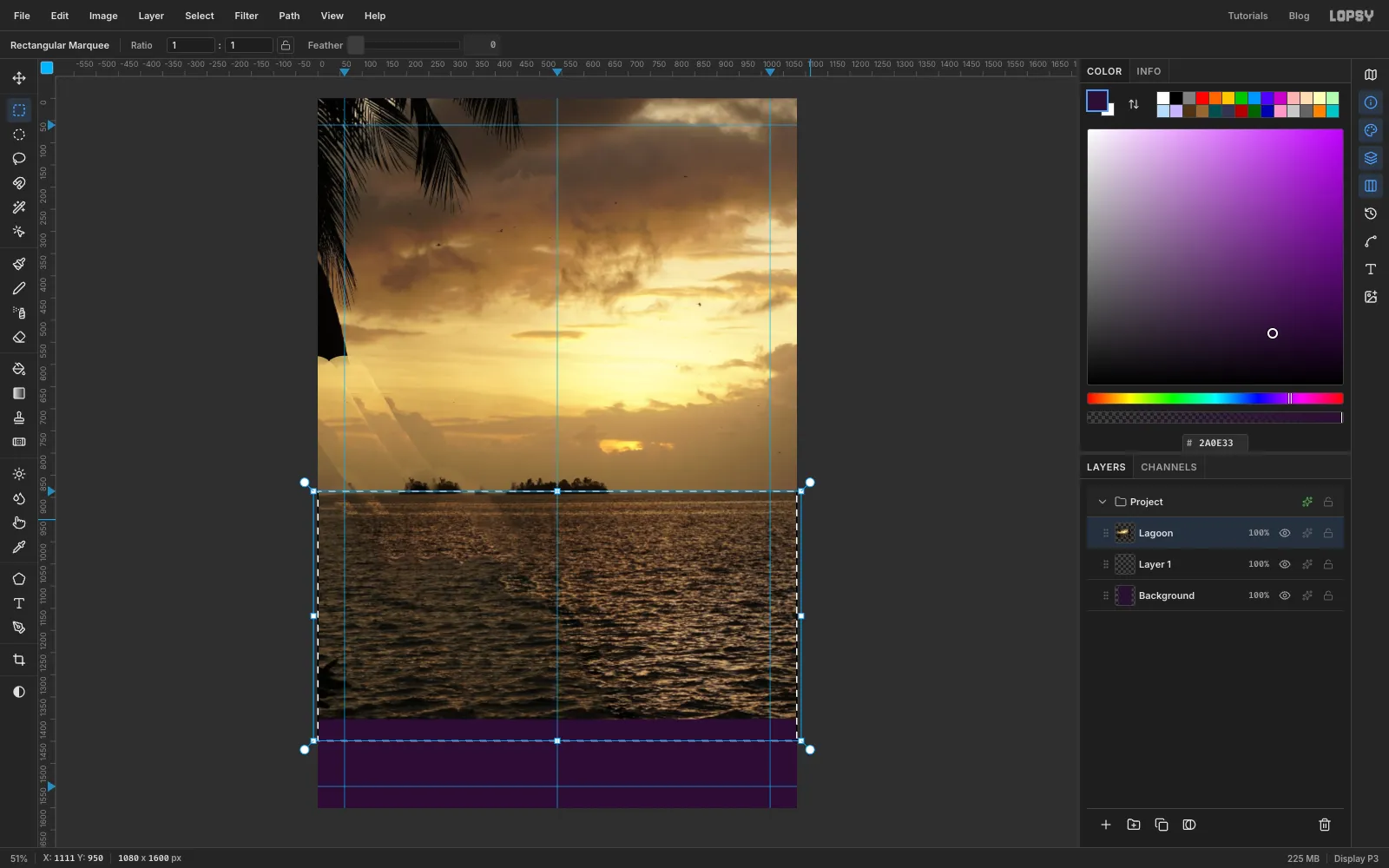
The water is busy. It will sit behind the title, so it should be softer than the sky.
- With
Lagoonstill selected, drag a Rectangular Marquee from just below the horizon to the bottom of the canvas, a little wider than the canvas on both sides. - Choose Filter → Gaussian Blur… with Radius
2and click Apply. - Choose Filter → Hue/Saturation…, set Saturation to
-15and click Apply. Press Cmd+D.
- With
-
Fade the photo into the bottom band
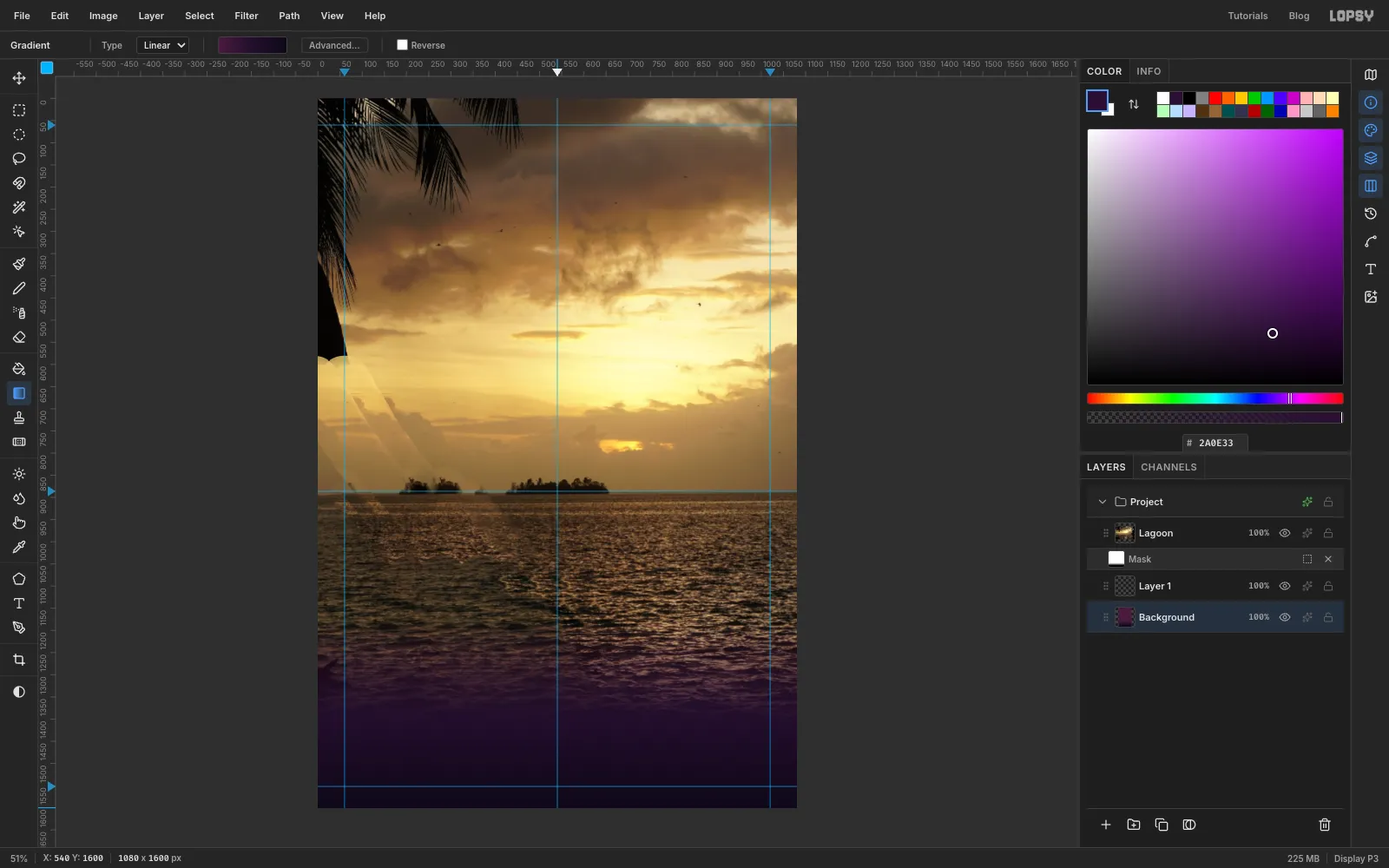
The bottom of the poster needs a dark, quiet band for the billing.
- With
Lagoonselected, click Add Mask at the bottom of the Layers panel, then click the mask thumbnail on the new Mask row to paint on the mask. - Pick the Gradient tool with Type Linear. Click Advanced…, set the left stop to and the right stop to with the Hex color field, and click Done.
- Drag straight down from
y 1180toy 1400. - Click Background. Open Advanced… again and set the stops to and . Click the middle of the bar to add a stop and make it . Drag from
y 1150down to the bottom edge.
- With
-
Group the photo and grade it
Adjustments live on groups in Lopsy, so the photo goes into its own group. The grade then stays editable.
- Click Layer 1 and click Delete Layer. You won't need it.
- Click
Lagoon, click Add Layer and rename the new layerRings. Click Add Layer again and rename that oneMast. These two sit above the photo, outside the group you're about to make. - Click
Lagoonand choose Layer → Group Layers. Rename the groupPhoto. - Click the ✦ button on the
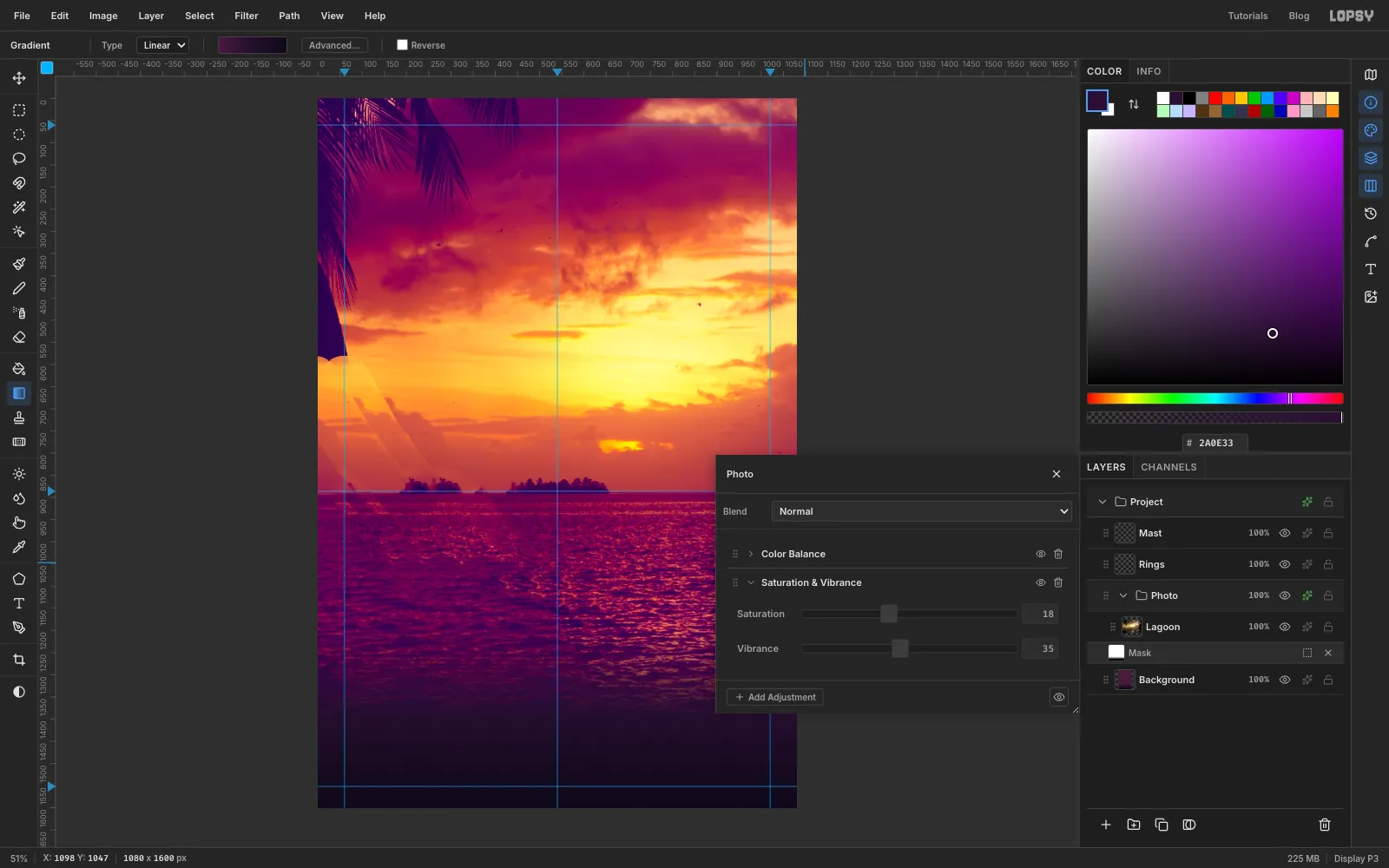
Photorow to open its adjustment drawer. Click Add Adjustment → Color Balance:
- Shadows: Cyan — Red
14, Magenta — Green-22, Yellow — Blue30 - Midtones: Cyan — Red
10, Magenta — Green-14, Yellow — Blue4 - Highlights: Cyan — Red
8, Yellow — Blue-10
- Click Add Adjustment → Saturation & Vibrance and set Vibrance
35and Saturation18. Close the drawer.
The shadows go violet, the clouds go magenta and the sun stays gold. That's the Technicolor look.
-
Draw the radio mast
- Click
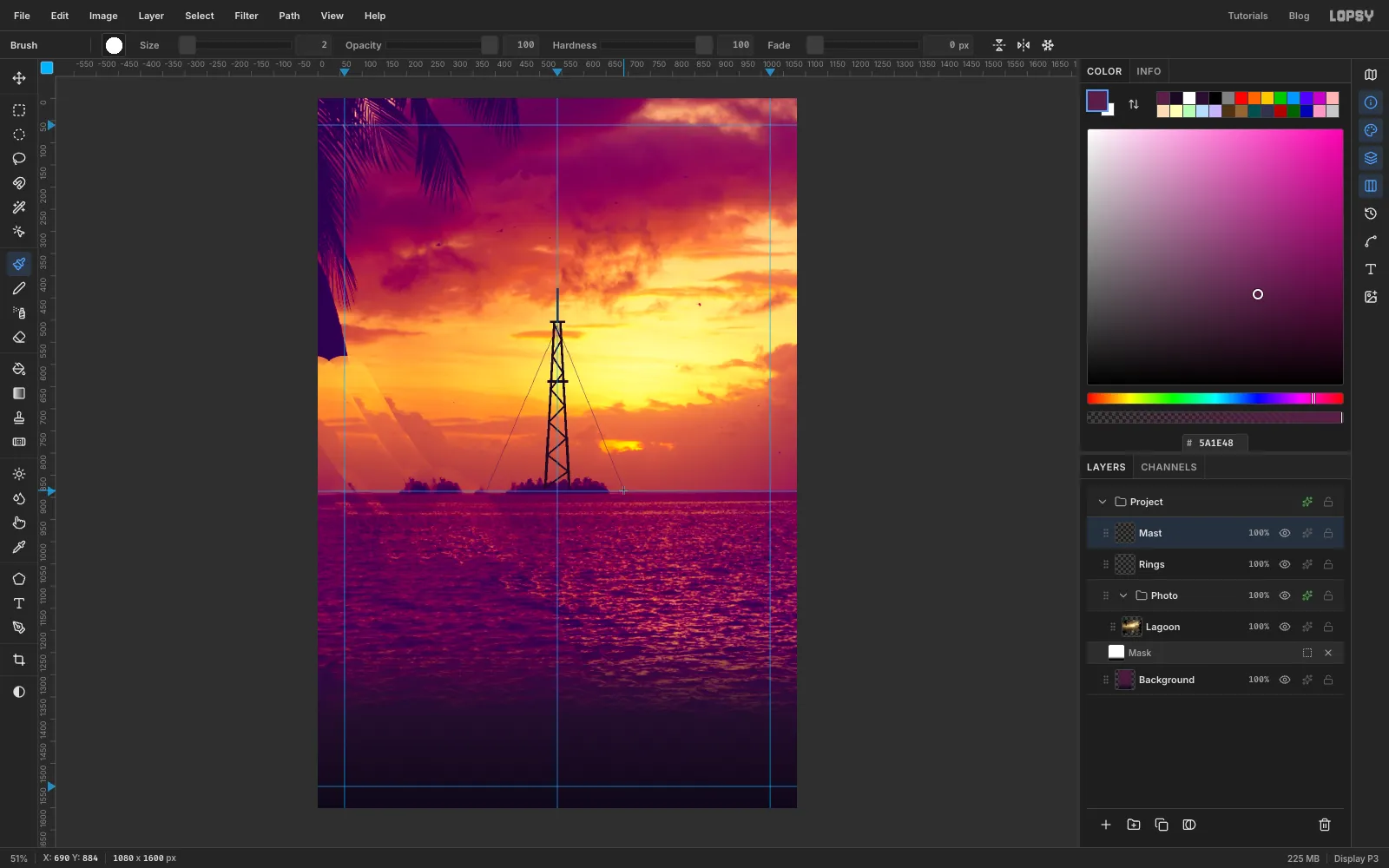
Mast. Pick the Pencil (N) at Size5with colour . - Draw the two legs. Click at
x 513,y 878and Shift-click atx 533,y 503. Then click atx 567,y 878and Shift-click atx 547,y 503. The legs lean in toward the top. - Set Size to
3. Click the bottom of the left leg, then Shift-click across to the right leg a little higher, then back to the left leg. Keep zig-zagging, about ten crossings up to the top. - Back at Size
5, add a short crossbar at the top (y 503) and another aty 638, each a few pixels wider than the legs. Then draw the antenna straight up fromy 503toy 430. - For the guy wires, switch to the Brush at Size
2, Hardness100, Opacity60, colour . Click just below the top crossbar and Shift-click on the horizon atx 380, then again from the same point tox 690. A softer, plum wire reads as further away than solid black. Set Opacity back to100.
- Click
-
Light the beacon
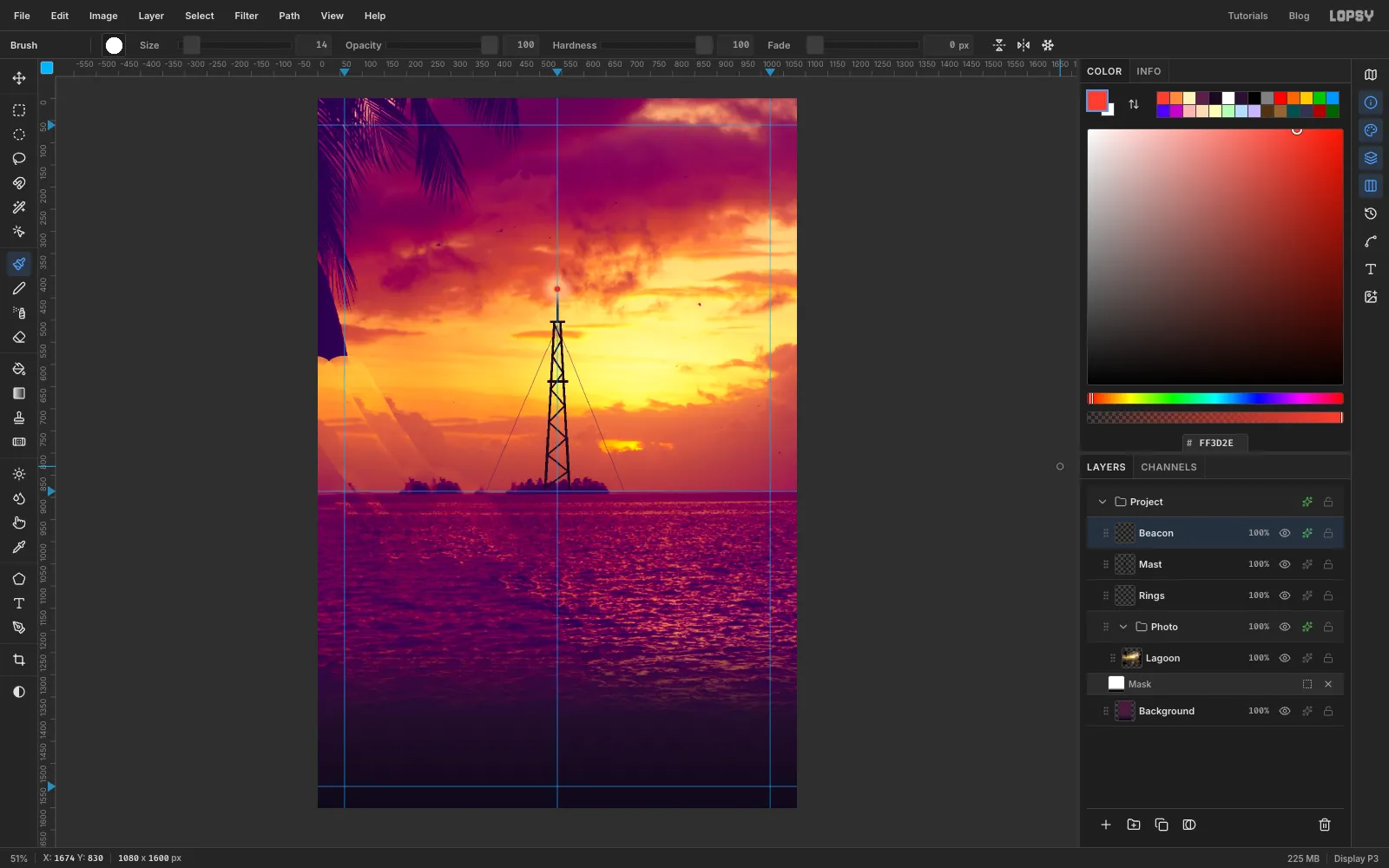
Glow effects blur the layer's shape, so a 14 px dot only gets a faint halo. Paint the wide glow by hand, and let Outer Glow add just a tight hot rim to the lamp.
- With
Mastselected, click Add Layer and name itBeacon. - With the Brush at Hardness
0, Size90and Opacity85, click once on the tip of the antenna in . - Click again at Size
40, Opacity90, in . - Set Hardness
100, Size14, Opacity100, and click once more in . - Open the layer's effects (✦), tick Outer Glow and set Size
10, Opacity80and the colour . Close the drawer.
- With
-
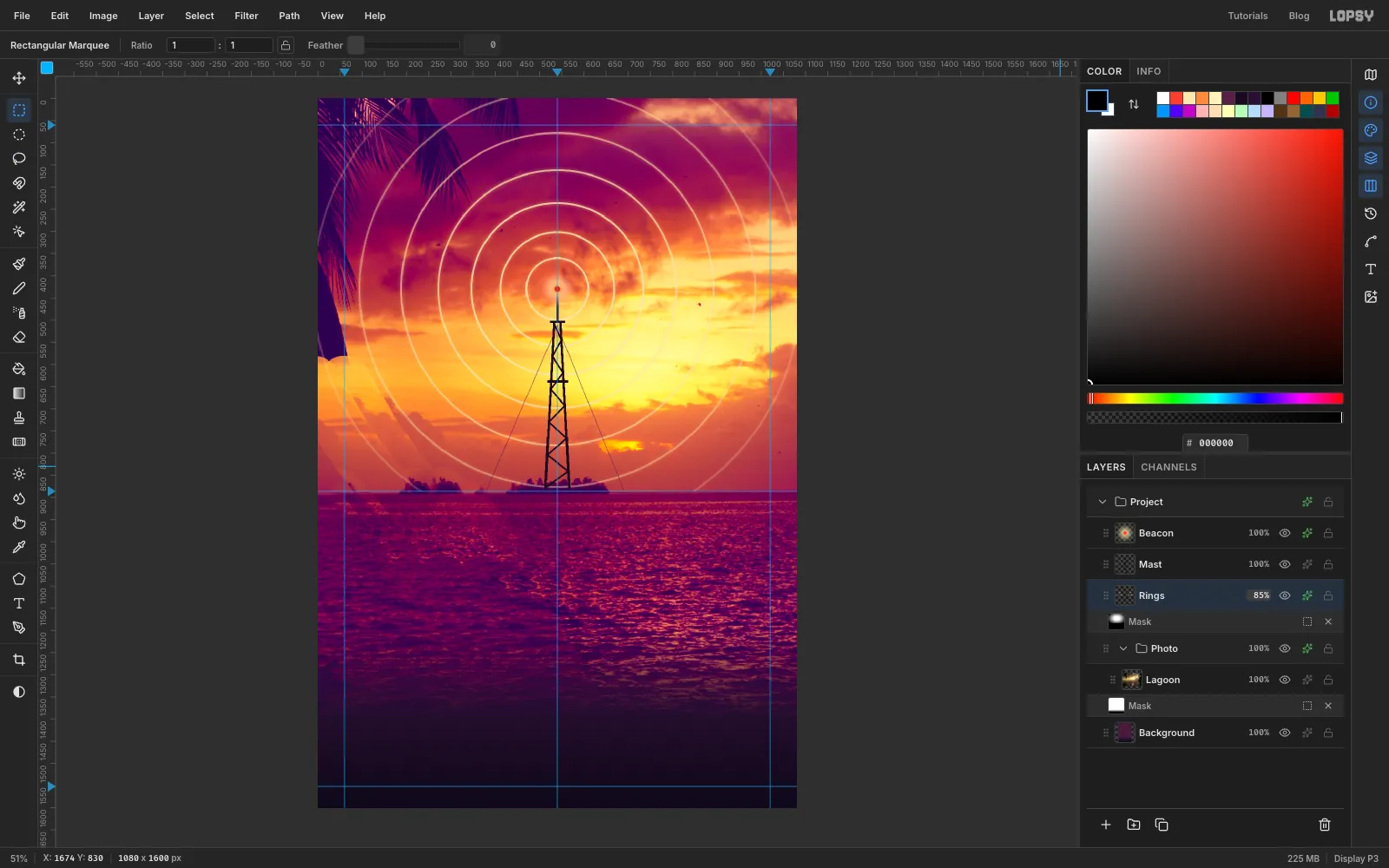
Draw the signal rings
- Click
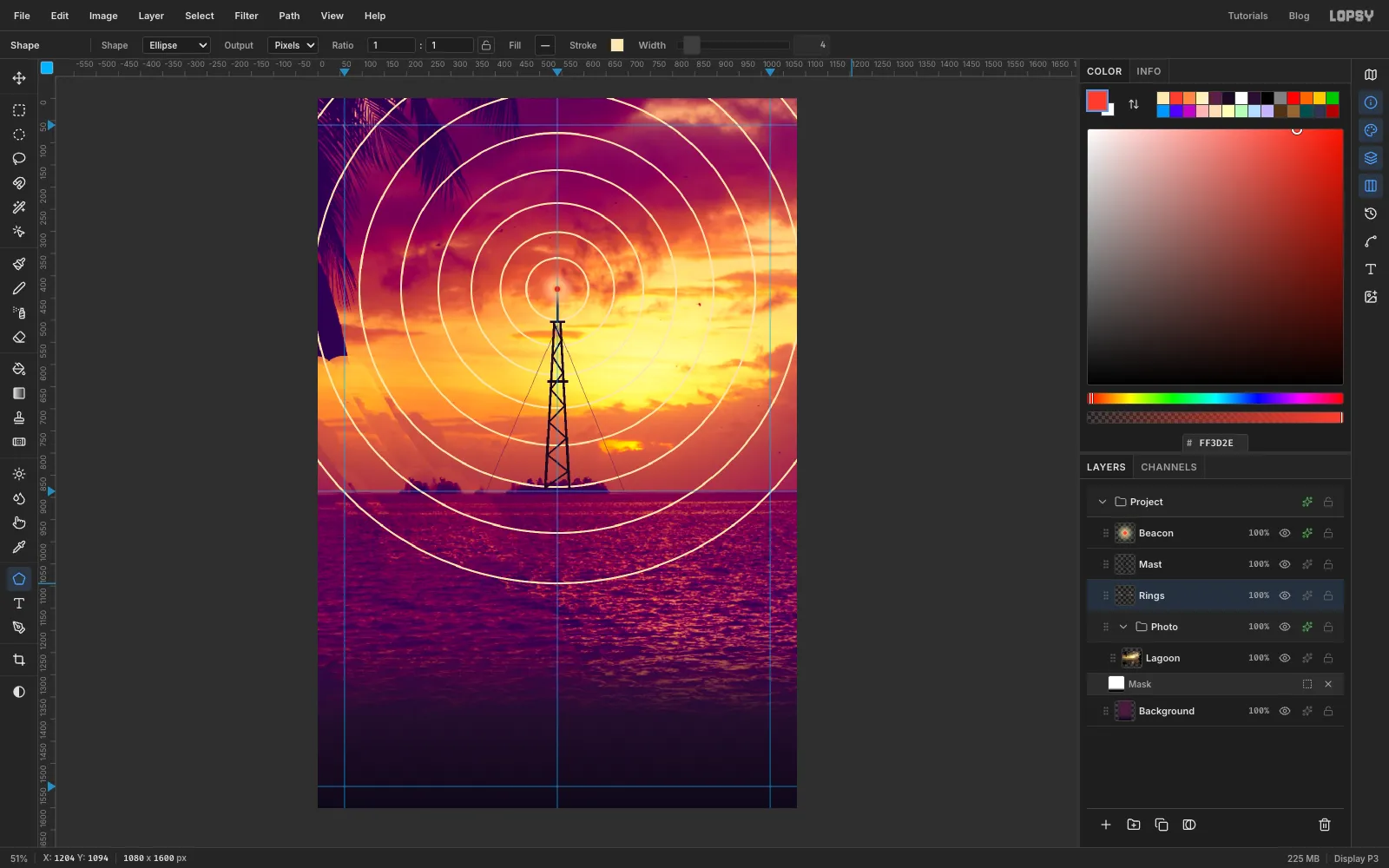
Rings. Pick the Shape tool (U) and set Shape to Ellipse and Output to Pixels. - Click the Fill swatch and click Remove fill. Click the Stroke swatch, type
FFE7B0in its hex field and set Width to4. - Shapes grow from where you press. Hold Cmd for perfect circles, press on the beacon and drag out. Draw eight rings, starting with a radius of about
70px and ending at about660px, which runs off the canvas. Make each gap a little wider than the one before, like ripples spreading out.
- Click
-
Fade the rings with a mask
- With
Ringsselected, click Add Mask and click the mask thumbnail. - Pick the Gradient tool and set Type to Radial. In Advanced… set the stops to and , then add a white stop about a third of the way along. Drag from the beacon straight down about 660 px. The inner rings stay solid and the outer ones fade.
- Drag a marquee over everything below the horizon, set the colour to black and choose Edit → Fill. The rings now stop at the sea. Press Cmd+D.
- Click the
Ringsname to go back to the layer. Add an Outer Glow with Size12, Opacity55and colour . Set the layer's opacity to85%.
- With
-
Outline the first monstera leaf
- Click
Beacon, click Add Layer and name itShade. You'll use it later to darken the sky behind the type. - Click
Beaconagain and click New Group. Name the groupJungle. Make sure it sits underShade. With the group selected, click Add Layer and name itMonstera TL. It goes inside the group. - Choose View → Zoom Out twice so there's room around the canvas.
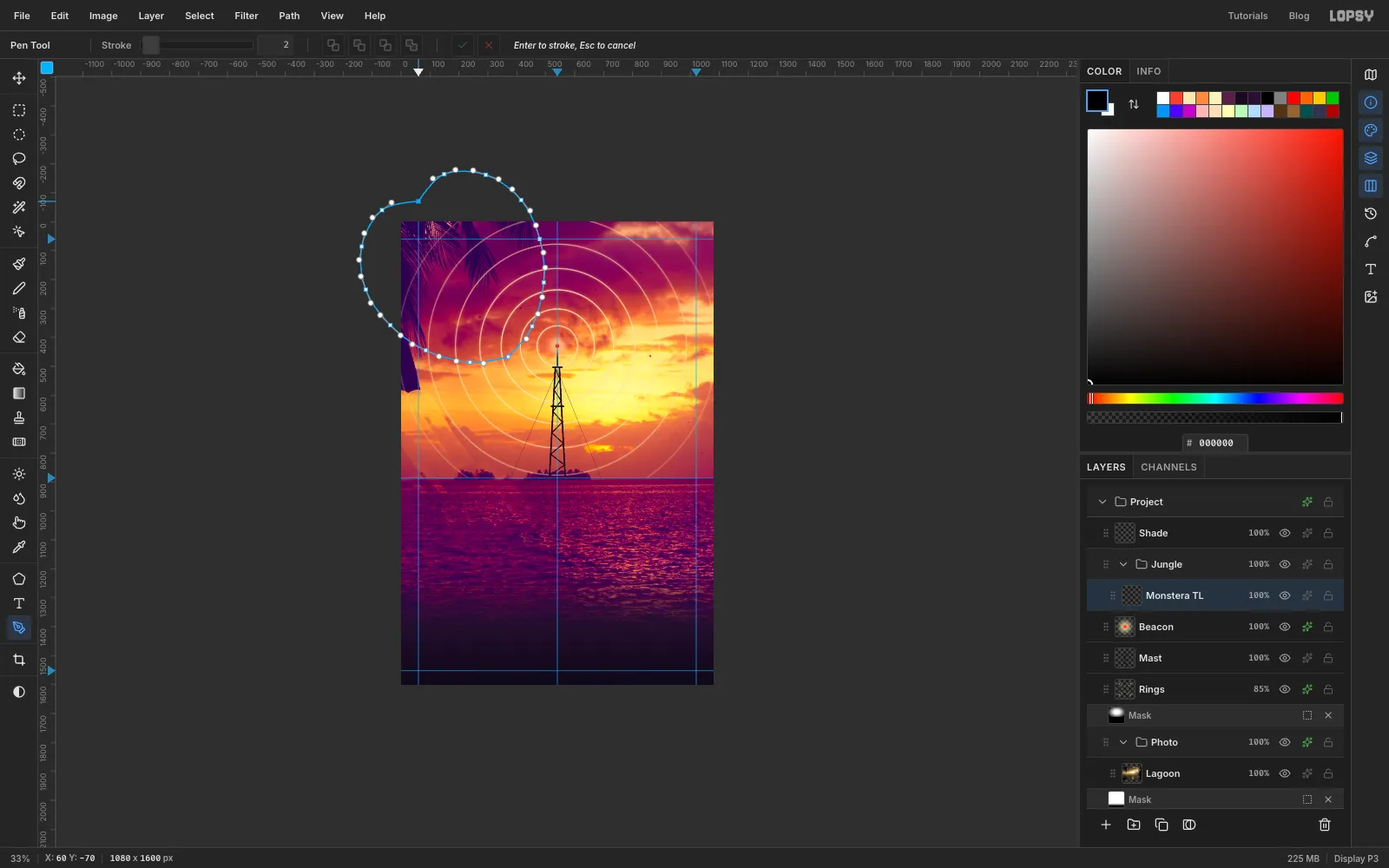
- Pick the Pen tool (
P). The leaf's stalk is just off the top-left corner and its tip points down and right to aboutx 370,y 470. Click once at the stalk for a sharp notch. Then drag around the outline, one anchor at a time: out over the broad lobe, round to the tip, and back up the other side. Dragging pulls out curve handles. Click the tip without dragging so it stays pointed. - Click the first anchor to close the path.
- Click
-
Vein, slit and hole the leaf
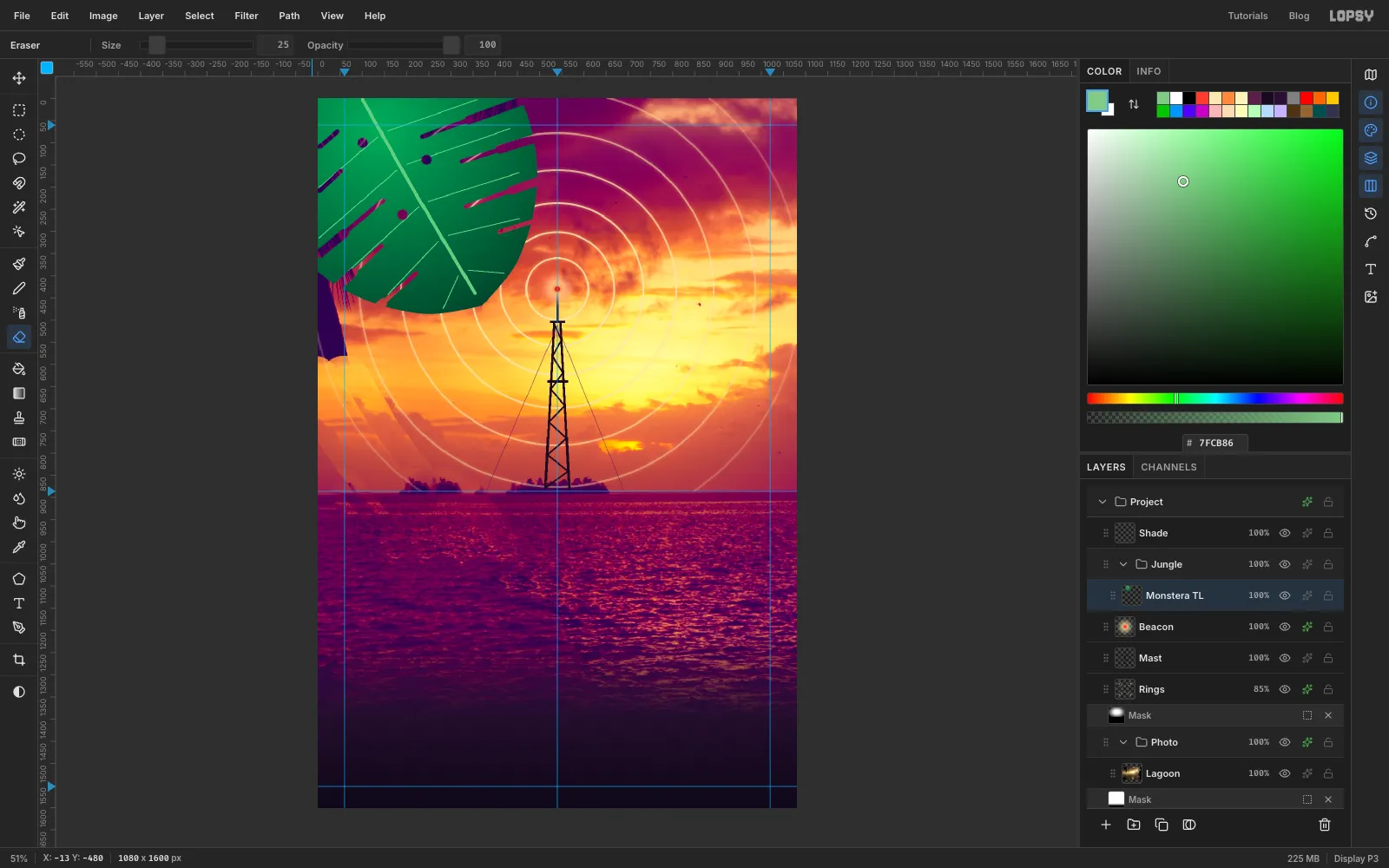
- Open the Paths panel and click Path to Selection, then Delete Path.
- Pick the Gradient tool, Radial, with stops and . Drag from about a quarter of the way down the leaf to just past its tip. Press Cmd+D.
- With the Pencil at Size
6in , draw the midrib from the stalk to the tip in two Shift-click lines. At Size2, draw five thin side veins on each side, angled toward the tip. - Pick the Eraser (
E). Cut five slits on each side, between the veins. Start each one partway out from the midrib. Vary where they start and stagger the two sides, so they don't look stamped. For each slit, erase a narrow cut at Size11halfway to the edge, then a wider cut at Size22from there out past the edge. That tapers the slit open toward the margin. - At Size
25, click three small holes near the midrib.
-
Draw a banana leaf
- Click Add Layer and name it
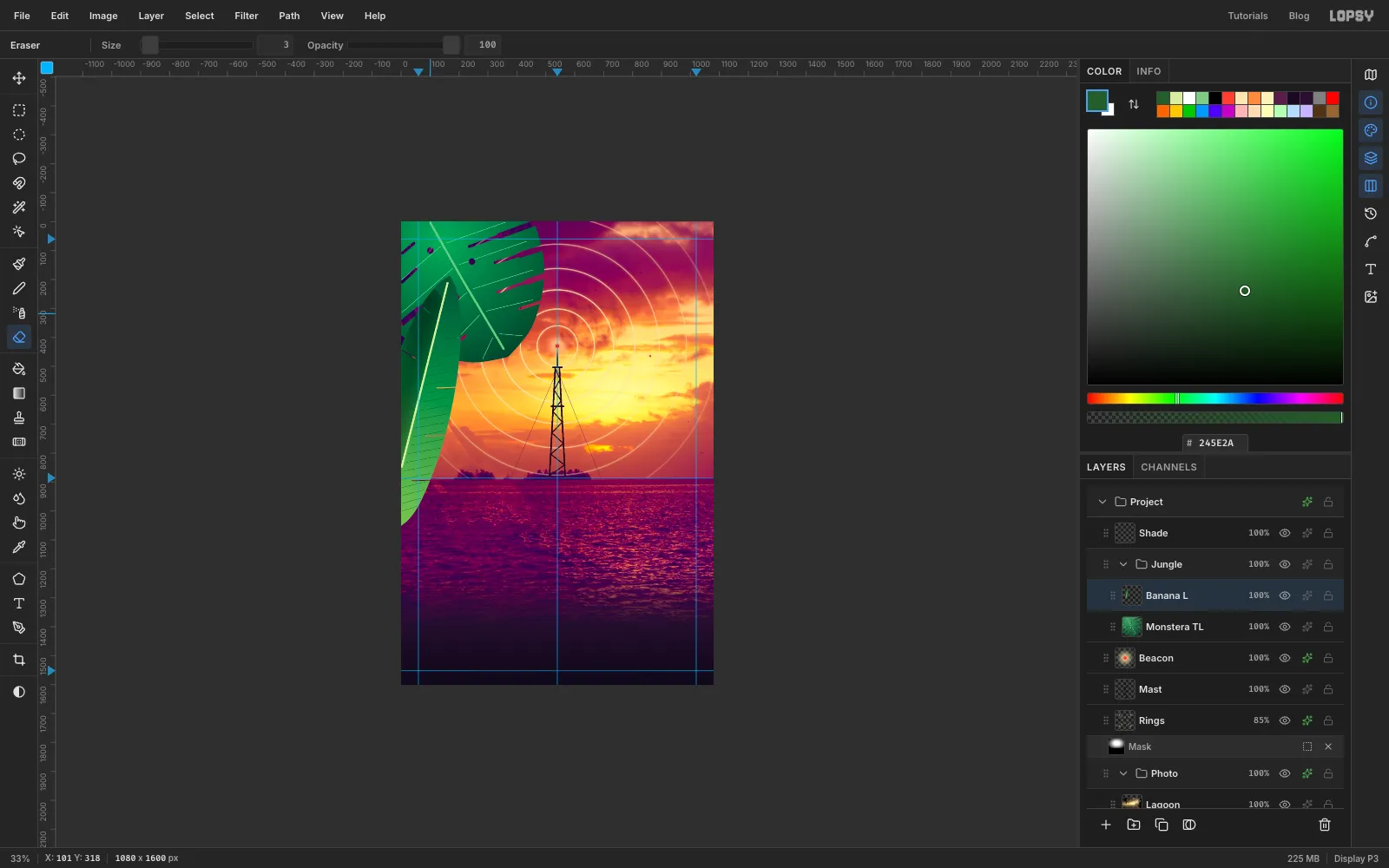
Banana L. - With the Pen, outline a long, narrow blade. It starts off the canvas at the bottom left, around
x -50,y 1060, and rises to a point nearx 170,y 190. It's widest about a third of the way up. Close it, then choose Path to Selection and Delete Path. - Pick the Gradient tool, Linear, with stops , at the middle and . Drag from the base to the tip. Press Cmd+D.
- With a Size
22Pencil in , draw the stalk coming in from off the canvas to the base of the blade. - Cmd-click the layer's thumbnail to select the leaf. Pick Dodge & Burn (
O), set Mode to Burn, and set Exposure45and Size108. Drag it up the left half of the blade, then press Cmd+D. The leaf now curls away from the light. - With the Pencil at Size
6in , draw the midrib. At Size1in , draw about fifteen fine striations on each side, slanting up toward the tip. - Pick the Eraser at Size
3. Make eight short cuts in from the edges, four on each side, running along the striations. Banana leaves split like this in the wind.
- Click Add Layer and name it
-
Finish the jungle frame
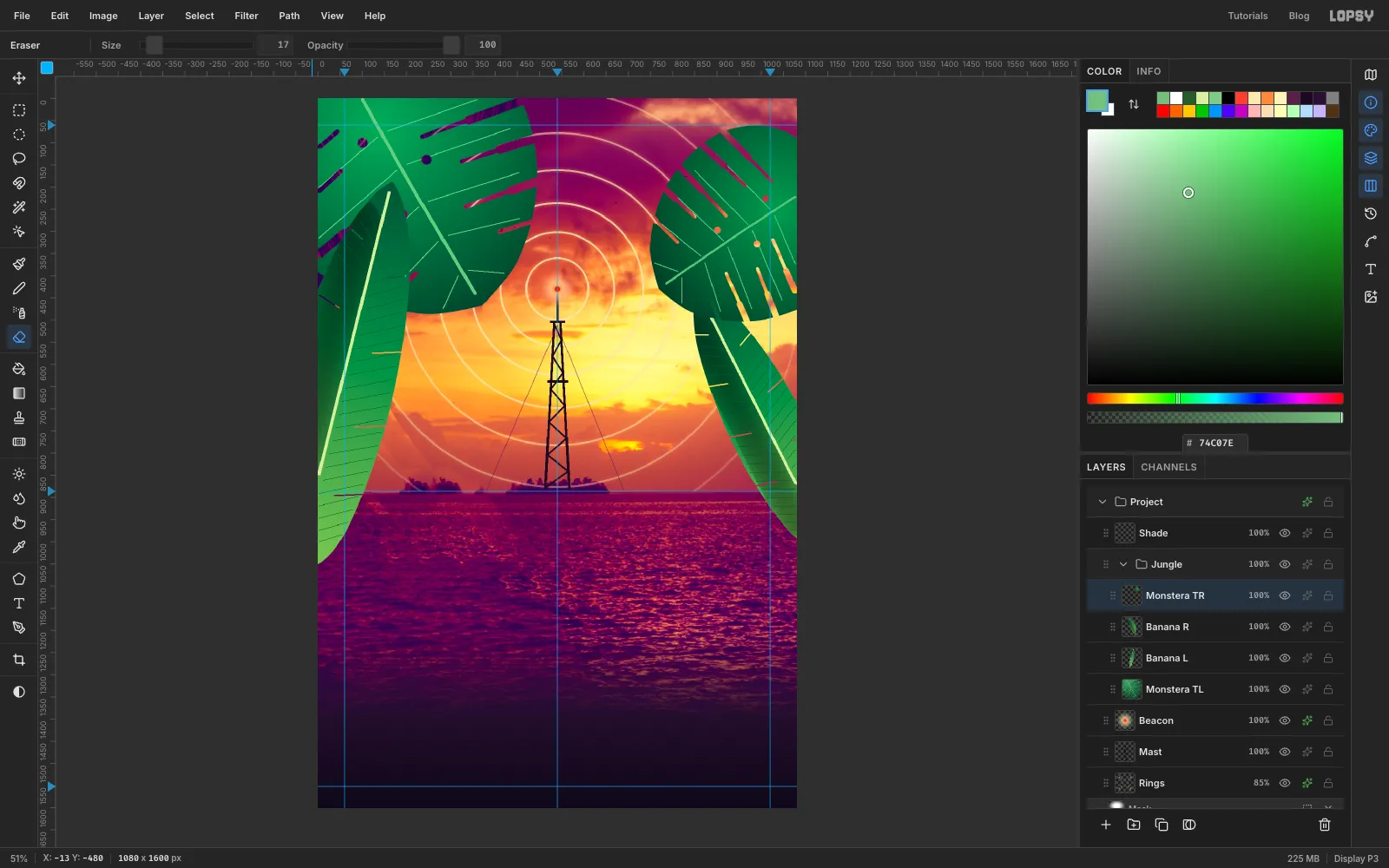
Build two more leaves the same way, each on its own layer inside
Jungle.Banana R: a shorter blade coming in from the bottom right, aroundx 1150,y 1010, with its tip nearx 855,y 430. Give it the same fill, stalk, veins and splits, but burn its right half, the side away from the sun.Monstera TR: a smaller monstera coming in from the right edge at abouty 190, its tip pointing down and left to aboutx 770,y 430. Use stops and and veins in .
Keep the two sides different. A smaller, lower leaf on the right reads as a real tangle of jungle. A mirror image of the left would look stiff.
-
Paint a hibiscus with radial symmetry
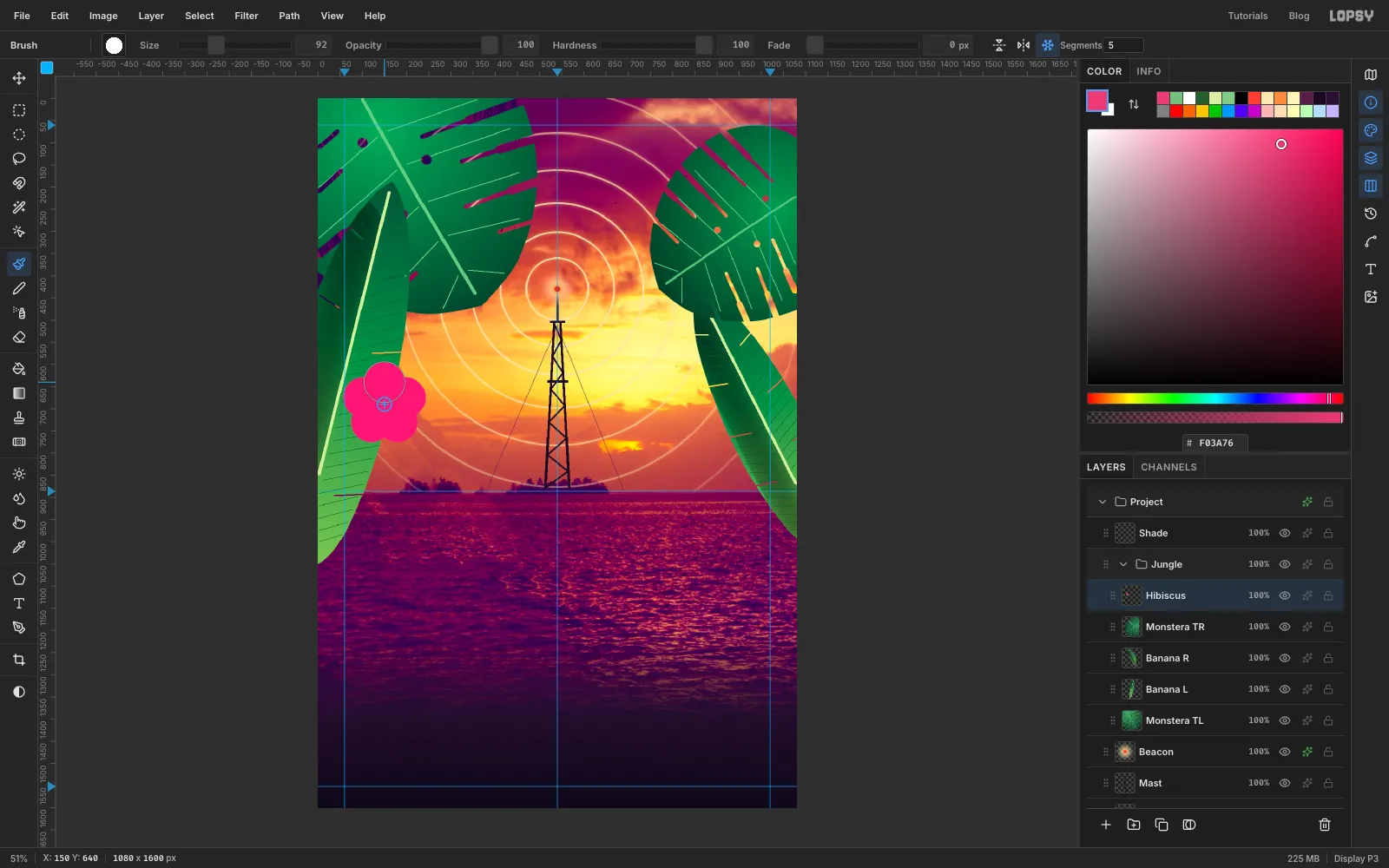
- Click Add Layer and name it
Hibiscus. - Pick the Brush and click Radial Symmetry in the options bar. Set Segments to
5. - Cmd-click at
x 150,y 690to move the symmetry centre there. It doesn't paint. - Set Hardness
100, Size64and colour . Drag from the centre about 48 px straight up. Then set Size92and click once about 50 px above the centre. Each mark repeats five times around the centre, so you get five rounded petals.
- Click Add Layer and name it
-
Finish the flower
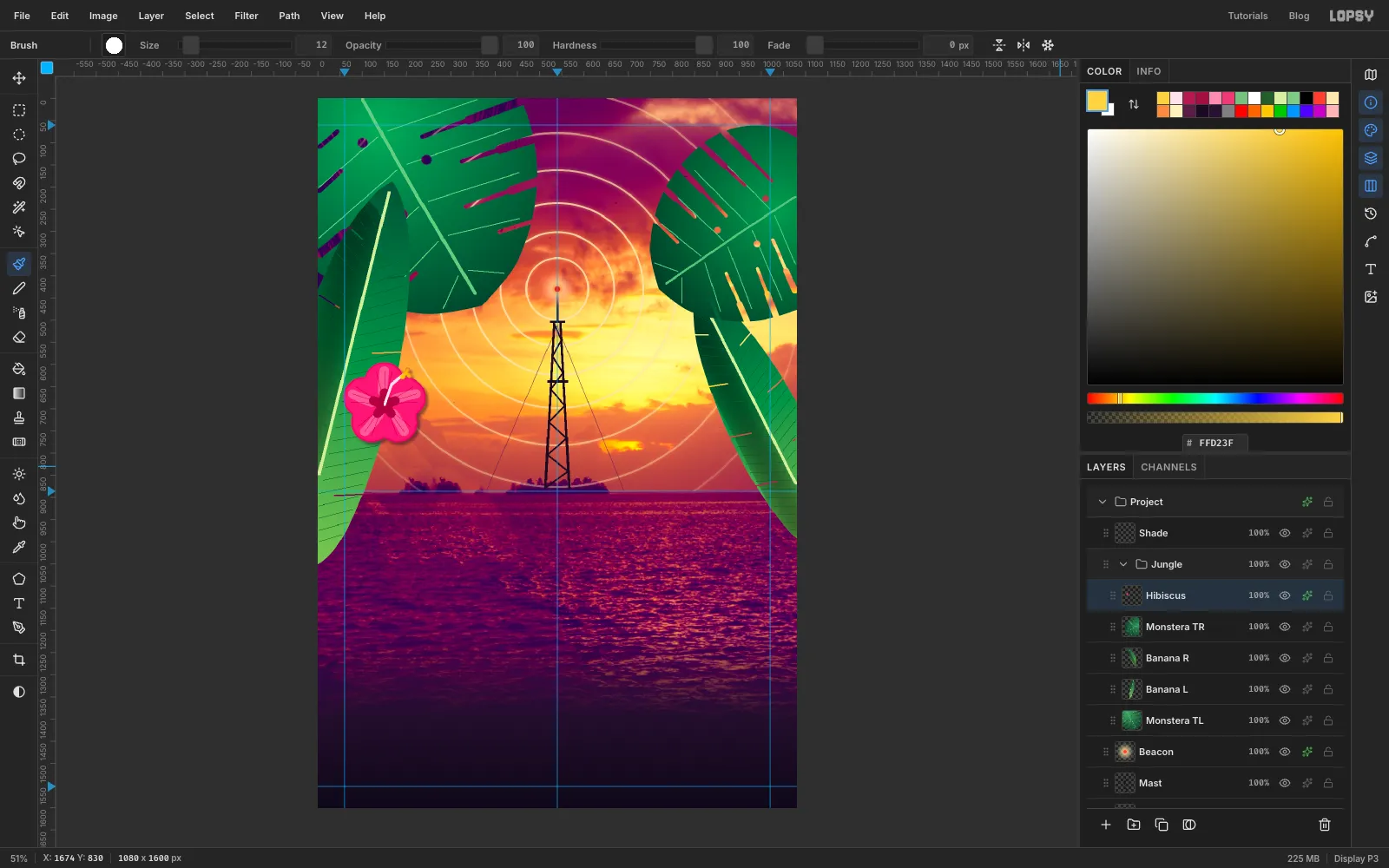
- Still with symmetry on: at Size
22, Opacity55, colour , drag from about 28 px out to the petal's edge. Set Opacity back to100. - In , drag from the centre about 26 px out at Size
21, then click the centre at Size40. That's the throat. - With a Size
1Pencil in , draw three fine veins out along one petal. Symmetry repeats them on all five. - Switch back to the Brush and click Radial Symmetry to turn it off.
- With a Size
5Pencil in , draw the stamen as two Shift-click lines that bend up and to the right from the centre. Then click four pollen dots in at its tip with a Size12Brush. - Add an Inner Glow (Size
10, Opacity85, ) and a Drop Shadow (Offset6,6, Blur8, Opacity45, ).
- Still with symmetry on: at Size
-
Copy a second flower
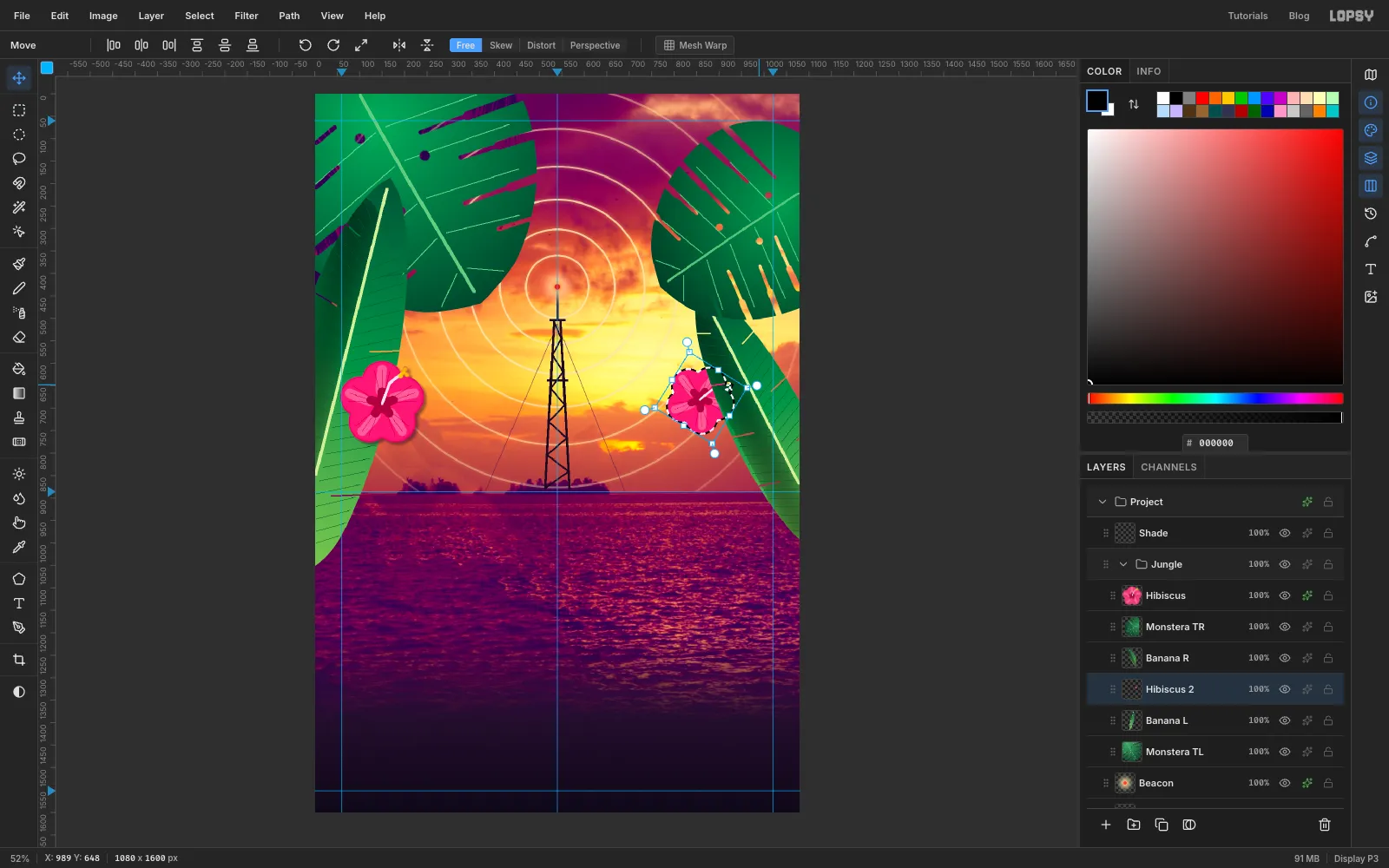
- Cmd-click the
Hibiscusthumbnail to select the flower and choose Edit → Copy. - Click
Banana L, then choose Edit → Paste. The copy lands in place, on a new layer aboveBanana Land so belowBanana R. Rename itHibiscus 2. - With the Move tool, drag the copy to about
x 880,y 700, against the left edge of the right-hand banana leaf. It tucks behind the leaf. - Hold Cmd and drag the bottom-right handle inward to shrink it by about a fifth. Then drag from just outside the top-right corner to rotate it about 32° clockwise.
- Press Cmd+D. Not sure about the angle? Step back with Cmd+Z to compare the flower before the rotation, the scale and the move, then step forward again with Cmd+Shift+Z.
- Cmd-click the
-
Shade the leaves and catch the sunset
- Give each of the four leaves a Drop Shadow: Offset
10,16, Blur28, Opacity60, colour . - Copy and paste only bring the pixels, not the effects. Give
Hibiscus 2its own Inner Glow (Size5, Opacity75, ) and Drop Shadow (Offset5,5, Blur8, Opacity45, ). They're a little smaller than the first flower's, to match its size. - Now the rim light. Pick the Brush at Hardness
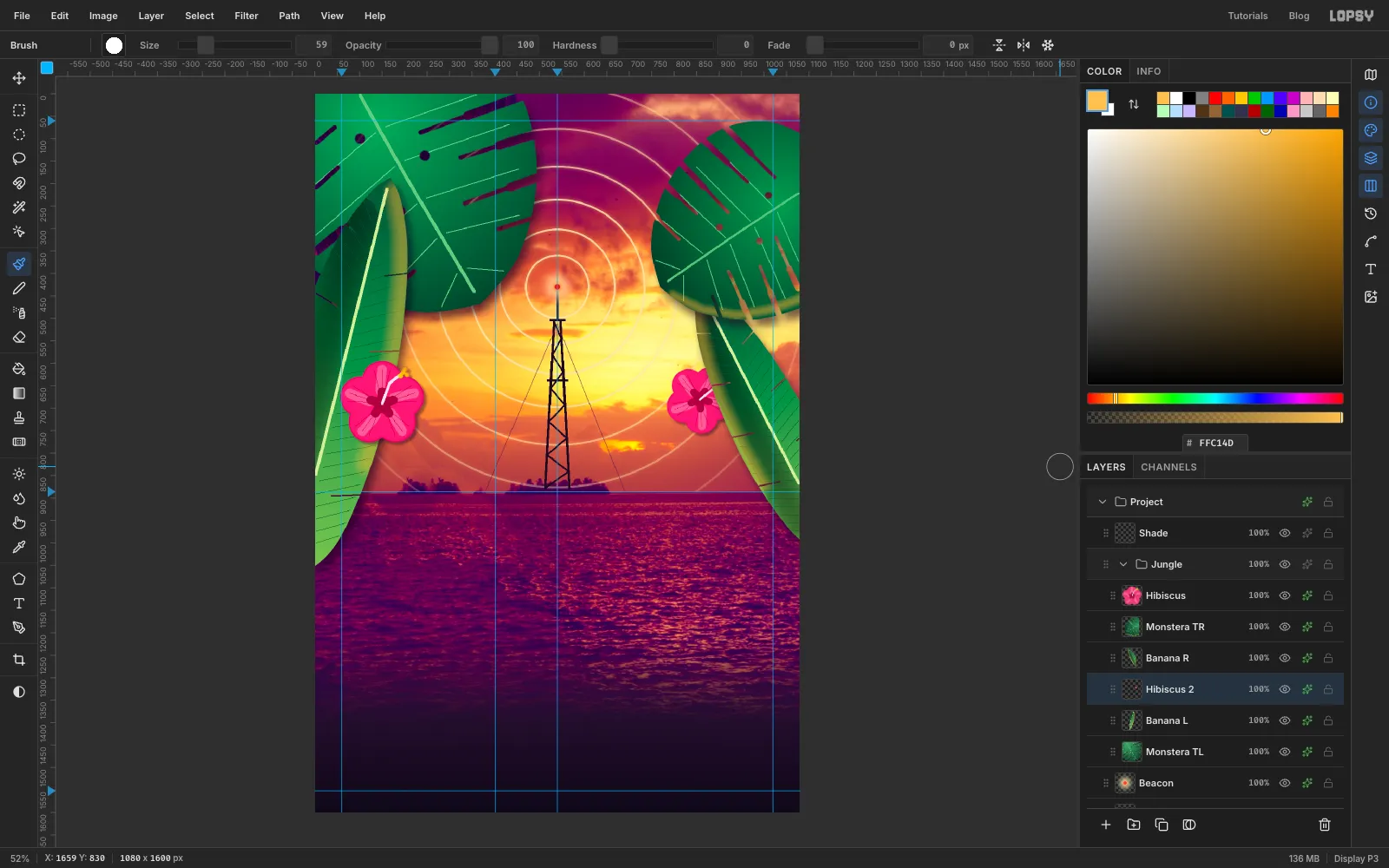
0, Opacity45, colour . For each leaf, Cmd-click its thumbnail to load it as a selection. Then brush once along the edge that faces the sun, from halfway along the leaf to its tip. Use a brush about a tenth of the leaf's length, so55for the big monstera and80for the long banana leaf. The selection keeps the gold inside the leaf. Press Cmd+D and set Opacity back to100.
- Give each of the four leaves a Drop Shadow: Offset
-
Darken the sky for the type
- Click
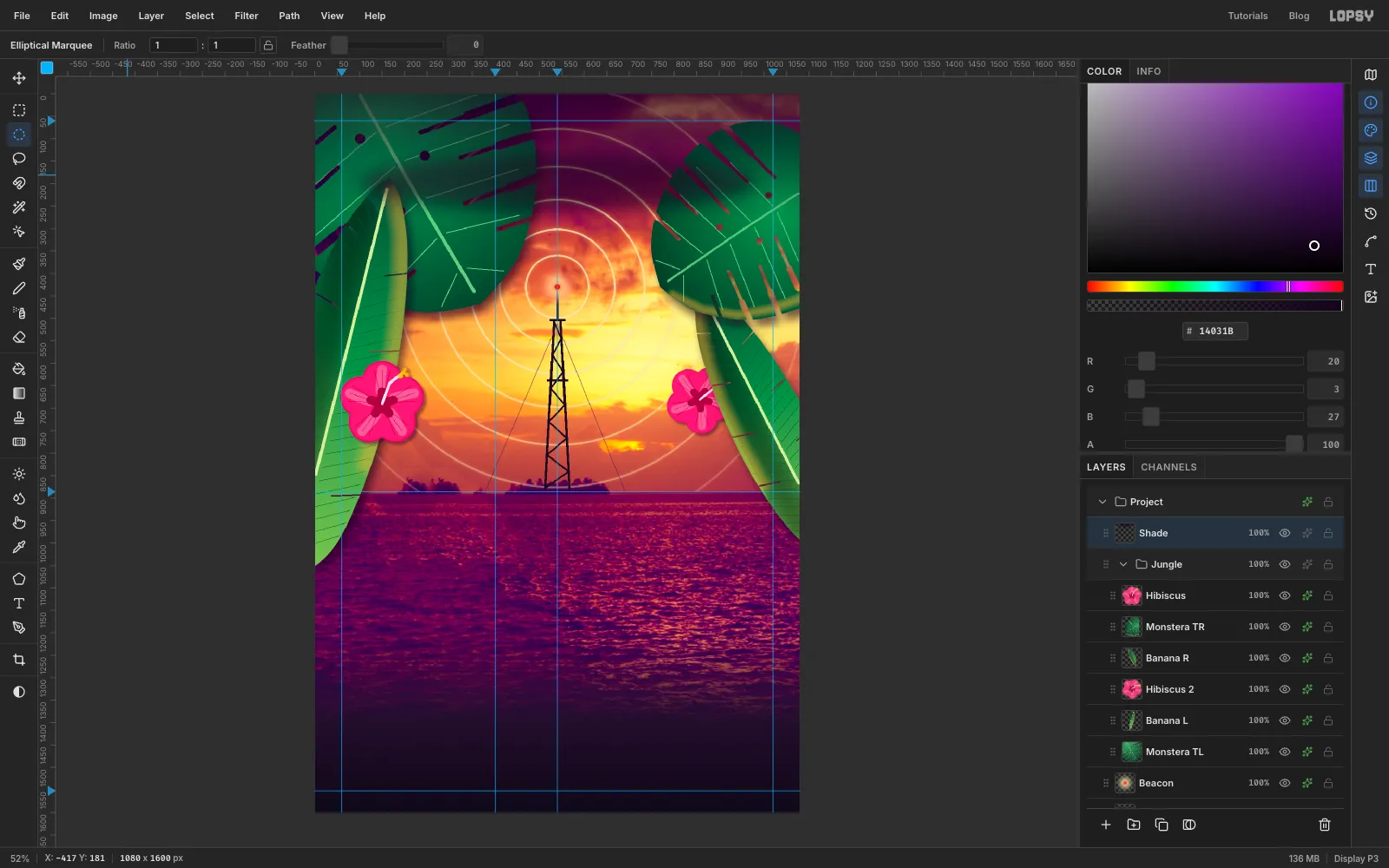
Shade. Drag a marquee over the top 280 px of the poster. - Pick the Gradient tool, Linear. In Advanced… set both stops to , and drag the right stop's Opacity strip to
0. Set the left stop's to65. Drag from the top edge down toy 280. - Pick the Elliptical Marquee and drag an oval about 880 × 124 px centred at
x 540,y 198. Choose Select → Feather… with36. - Set the colour to and the Color panel's A to
50. Choose Edit → Fill, press Cmd+D and set A back to100.
- Click
-
Set the credits and tagline
With a text layer selected, changing the font restyles that layer. So click
Shadebefore you set up each new line.- Click
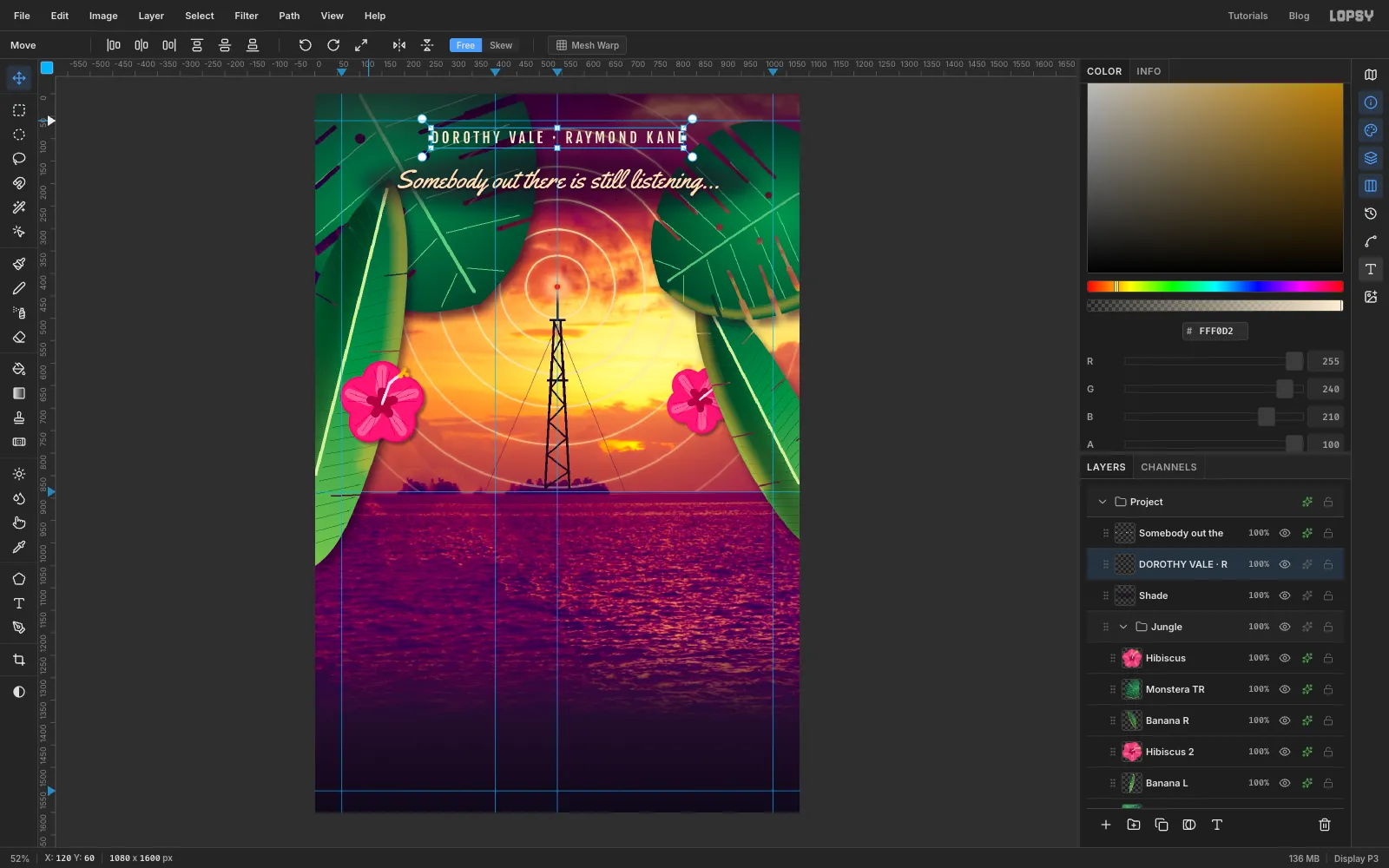
Shadeand pick the Text tool (T). Choose Yellowtail, size58, colour . Click in the empty sky and typeSomebody out there is still listening.... Press Tab to commit. - With the Move tool, use the arrow keys (Shift moves 10 px) to centre it on the centre guide, at about
y 196. Add a Drop Shadow: Offset0,4, Blur10, Opacity85, colour . - Click
Shadeagain. Choose Fjalla One, size32, colour . TypeDOROTHY VALE · RAYMOND KANEnear the top and press Tab. In the Text panel set Letter spacing to7, then centre it aty 96.
- Click
-
Set the title
- Click
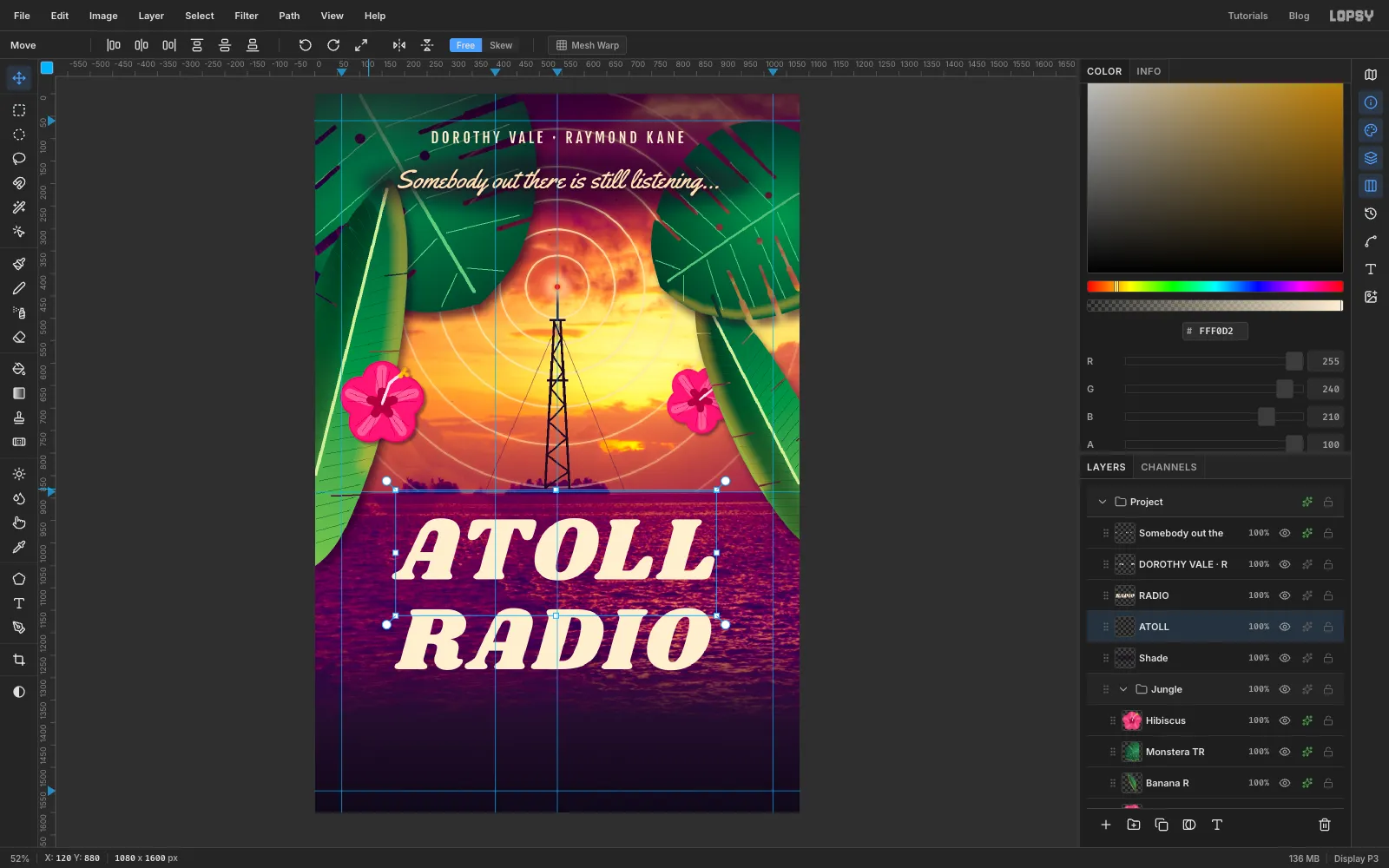
Shade, and in the Text tool choose Shrikhand at size200in . - Set the bottom line first. Click in empty sea around
y 1100, typeRADIOand press Tab. - Click
Shadeagain, so the second line goes under the first in the Layers panel. Then click higher up, aroundy 880, and typeATOLL. If you click inside the first line's text box, you'll add to that line instead of starting a new one. - Nudge
RADIOto centre onx 530,y 1214andATOLLonx 530,y 1014. That's 10 px left of centre, because the tilt and the shadow will push the title's weight to the right.
- Click
-
Tilt the title
- Click
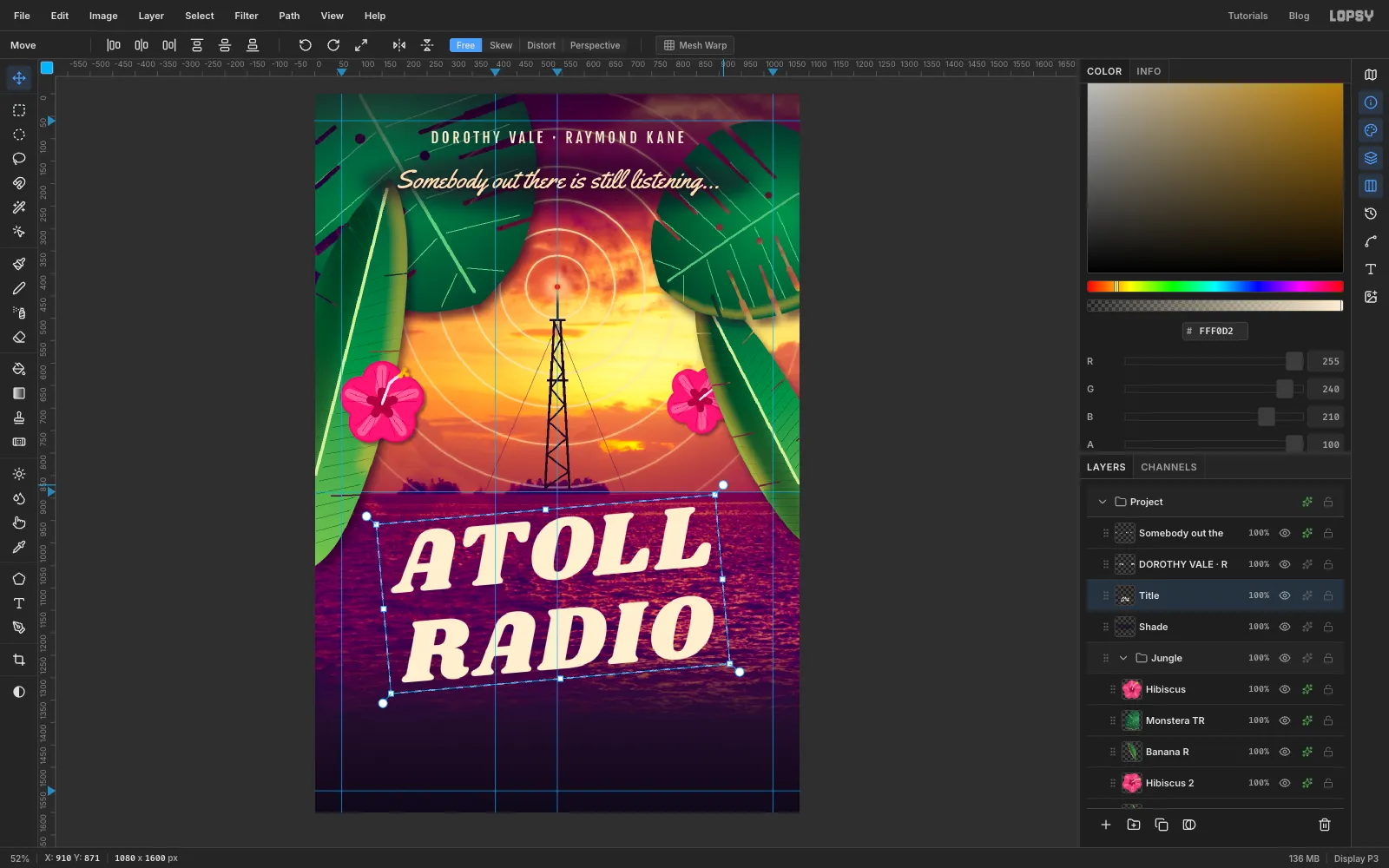
RADIOand choose Layer → Merge Down to merge it intoATOLL. Merging turns both lines into pixels, so you can tilt and recolour them. Rename the resultTitle. - Drag a marquee around both lines with a little room to spare. With the Move tool, drag from just outside the top-right corner upward to rotate the title about 5° anticlockwise. Press Cmd+D.
- Click
-
Run a sunset gradient through the letters
- Cmd-click the
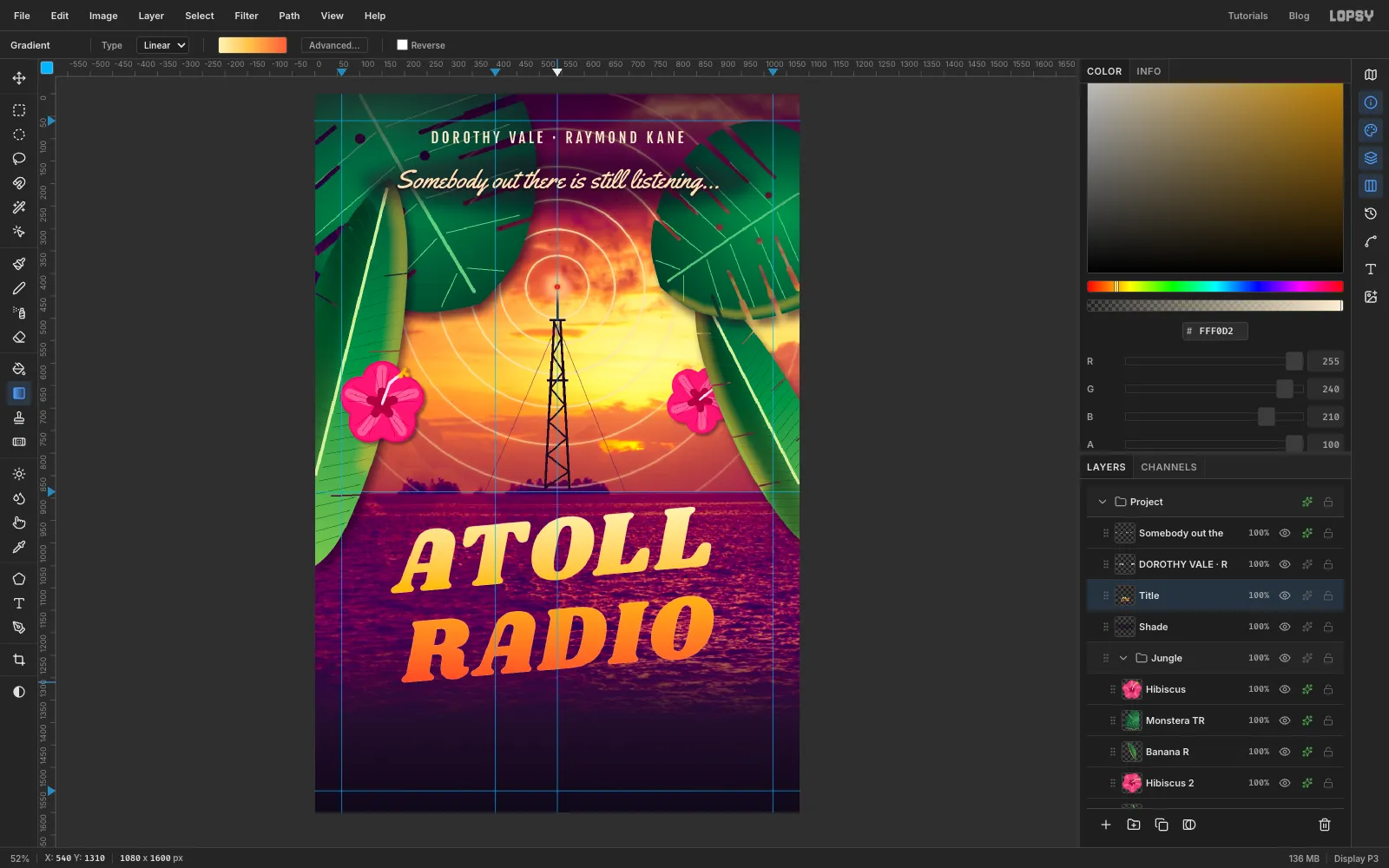
Titlethumbnail to select the letters. - Pick the Gradient tool, Linear, with stops , at 45% and .
- Drag from the top of
ATOLLstraight down to the bottom ofRADIO. Press Cmd+D.
- Cmd-click the
-
Outline the title and give it a hard shadow
- Open
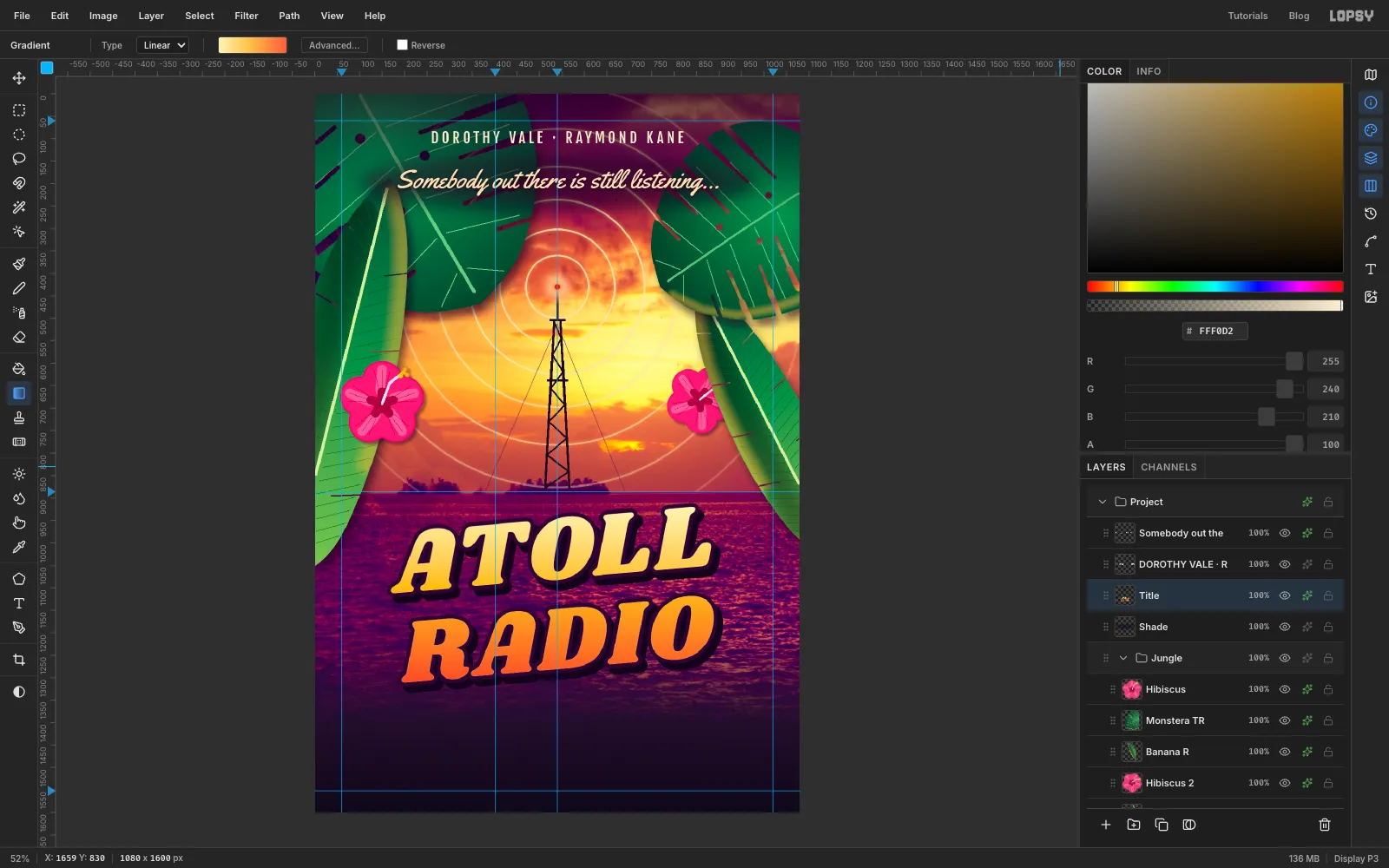
Title's effects and tick Stroke: Width9, colour . - Tick Drop Shadow: Offset
12,14, Blur0, Opacity100, colour . With no blur, the shadow is a solid offset copy, like the shadows on old printed posters.
- Open
-
Set the billing block
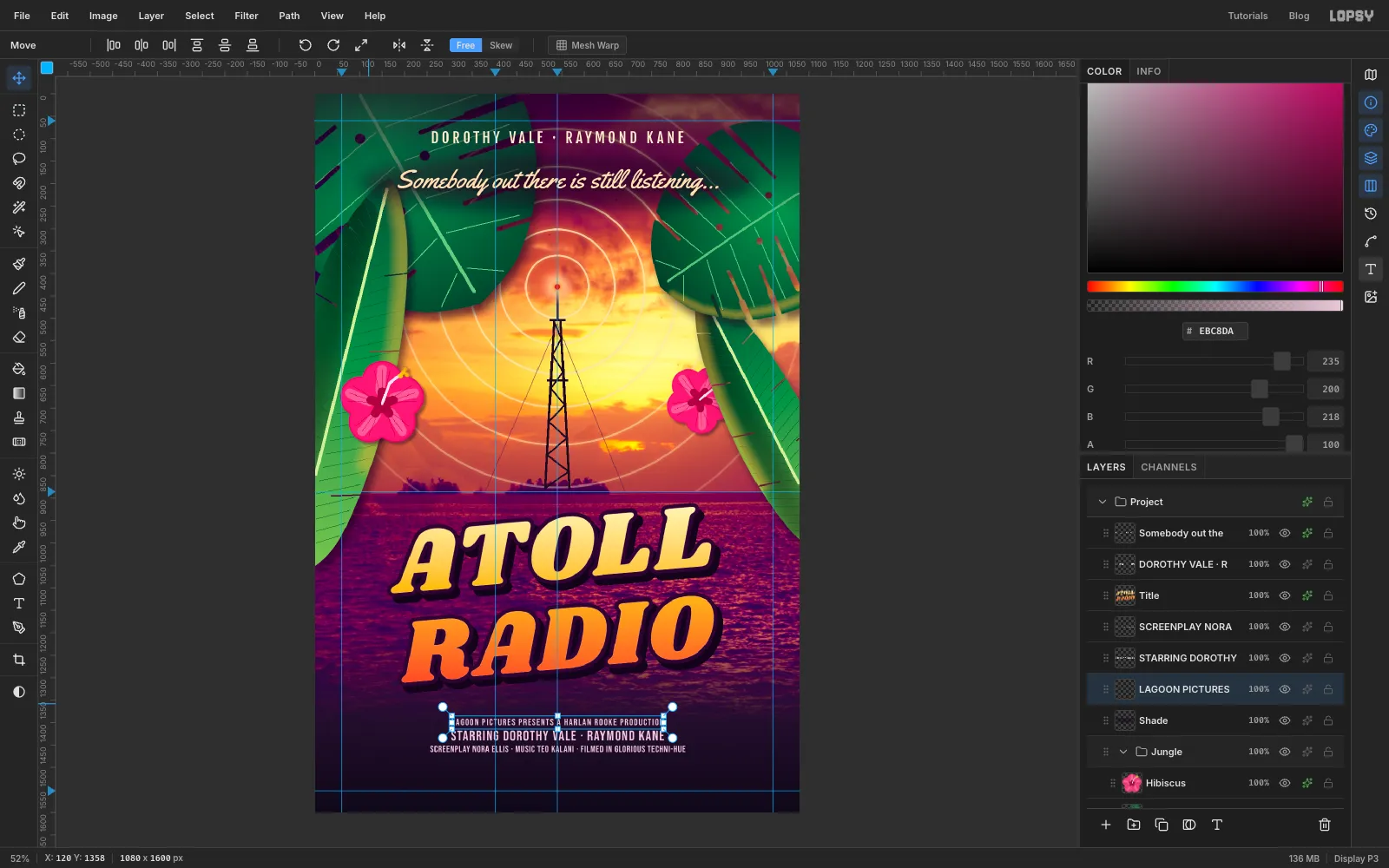
A billing block is tall, condensed capitals, with the stars' names larger than the rest. Set the three lines bottom-up in Bebas Neue, colour , and centre each on
x 540. ClickShadebefore each line.- Size
21, Letter spacing1:SCREENPLAY NORA ELLIS · MUSIC TEO KALANI · FILMED IN GLORIOUS TECHNI-HUE, centred aty 1458. - Size
32, Letter spacing2:STARRING DOROTHY VALE · RAYMOND KANE, centred aty 1428. - Size
21, Letter spacing2:LAGOON PICTURES PRESENTS A HARLAN ROOKE PRODUCTION, centred aty 1398.
- Size
-
Draw the date pill on the grid
- Click
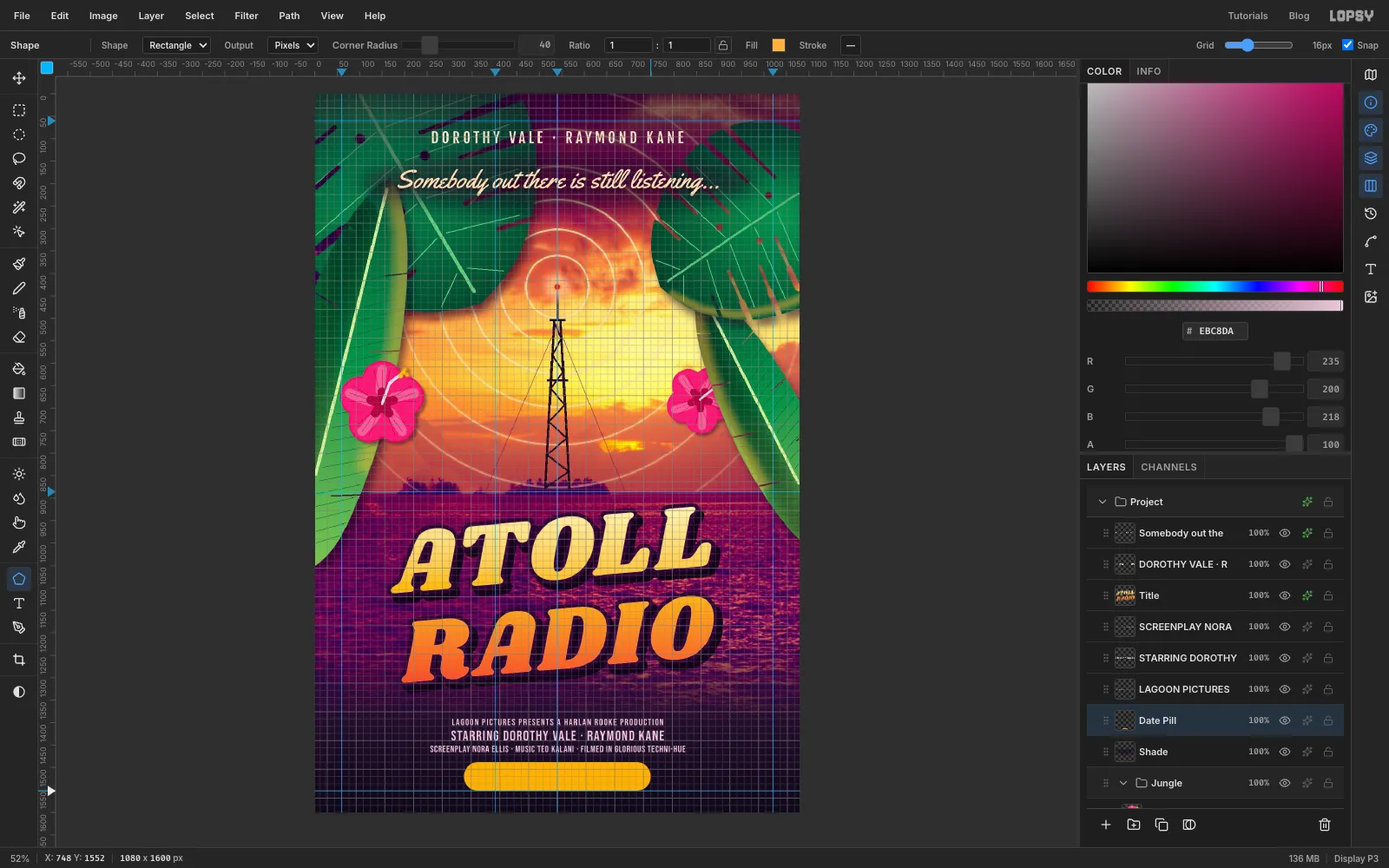
Shade, click Add Layer and name itDate Pill. - Choose View → Show Grid. The grid is 16 px and Snap turns on with it.
- Pick the Shape tool, set Shape to Rectangle, the Fill to , remove the stroke, and set Corner Radius to
40. That's more than half the height, so the ends come out fully round. - Press at
x 540,y 1520and drag out tox 748,y 1552. The centre and the corner snap to the grid and to the bottom margin guide, so the pill is exactly 416 × 64 px. - Choose View → Show Grid again to hide the grid.
- Click
-
Seat the date in the pill
- With
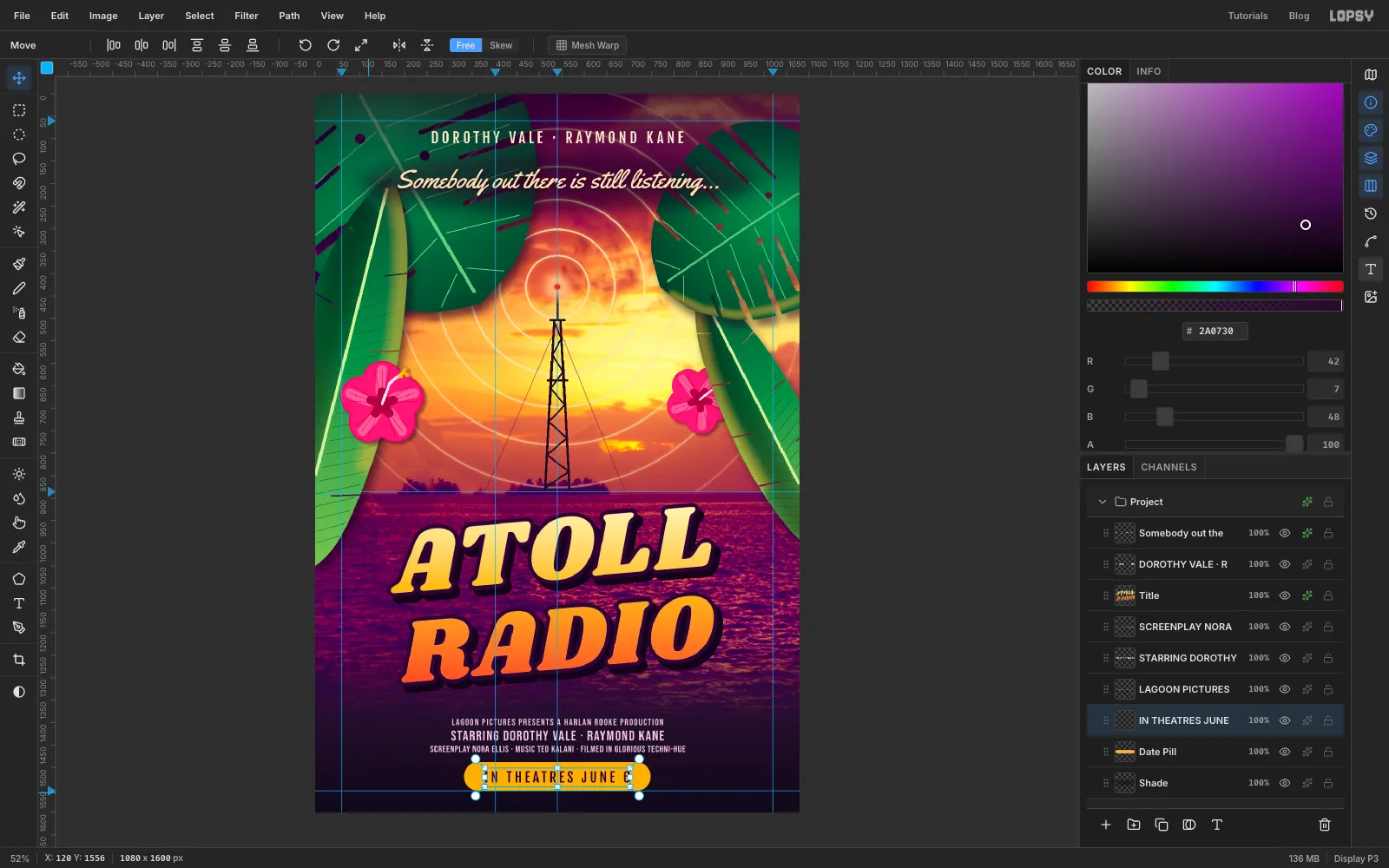
Date Pillselected, set up the Text tool with Fjalla One, size30, colour . Click in the empty space under the pill and typeIN THEATRES JUNE 6. Press Tab. - Set Letter spacing to
6. - Nudge it with the arrow keys until it's centred on the pill at
x 540,y 1520. The line is all capitals with no descenders, so the letters' own height is what you centre. That leaves 20 px above and below and about 48 px at each end.
- With
-
Add film grain
- Click the tagline's layer, click Add Layer and name it
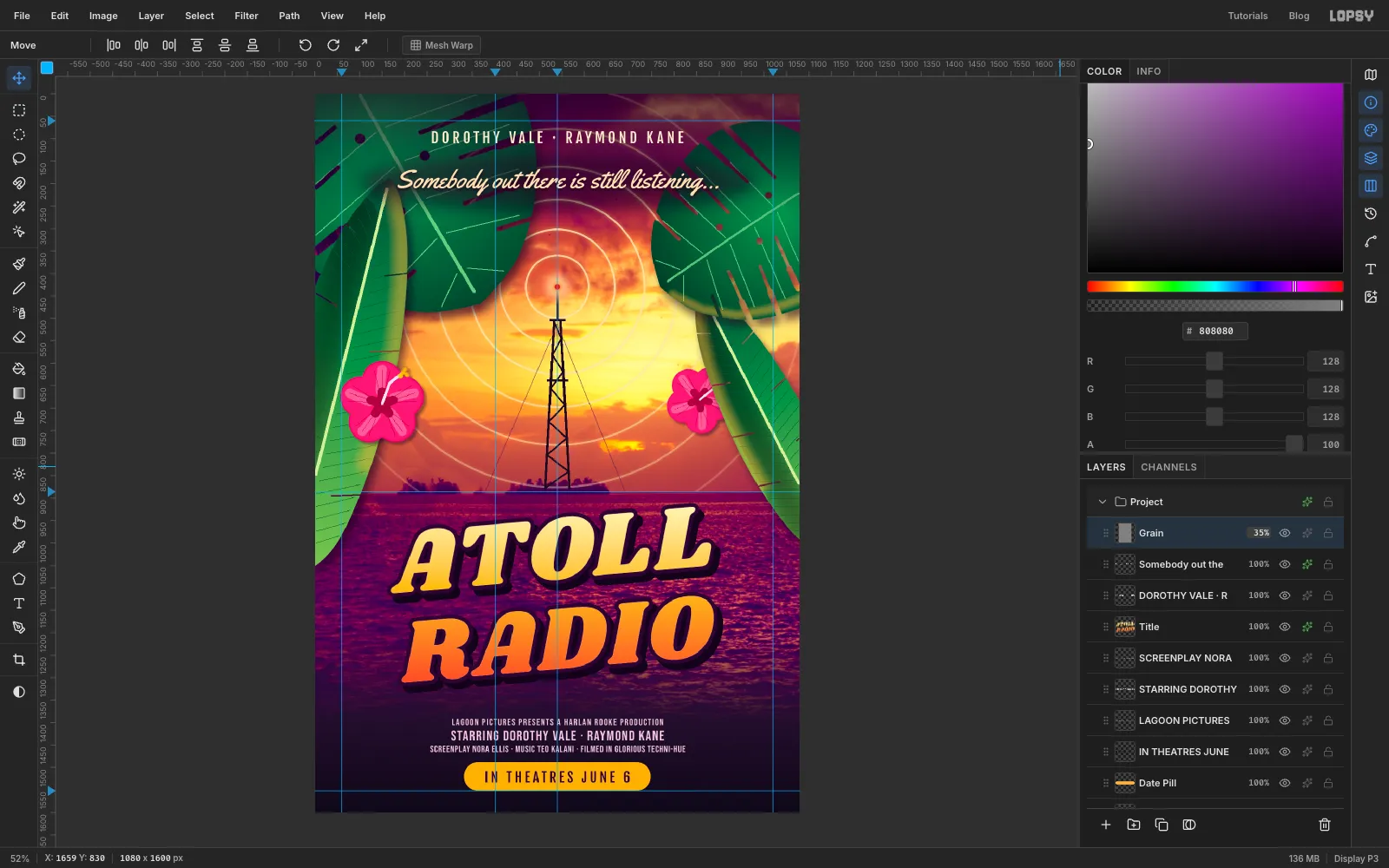
Grain. It goes on top of everything. - Set the colour to , choose Edit → Fill, and run Filter → Add Noise… with Amount
22, Mono and Gaussian. - Set its blend mode to Overlay and its opacity to
35%. The grey disappears and only the speckle remains.
- Click the tagline's layer, click Add Layer and name it
-
Finish with a vignette
- Choose Layer → Adjustment Layer… to open the document's own adjustment stack. Close the info box if one appears. The drawer already lists four neutral adjustments (Levels, Curves, Exposure and Hue / Saturation); leave them as they are.
- Click Add Adjustment → Vignette and set it to
35. Close the drawer. - Choose File → Save Project to keep the layers, and File → Quick Export PNG for the poster.