Design an Etching-Style Moon Phase App Mockup in Lopsy
Present a moon phase app as a copperplate etching in Lopsy, with an engraved moon from a NASA photo, hatching patterns, a phase dial and a signed plate.
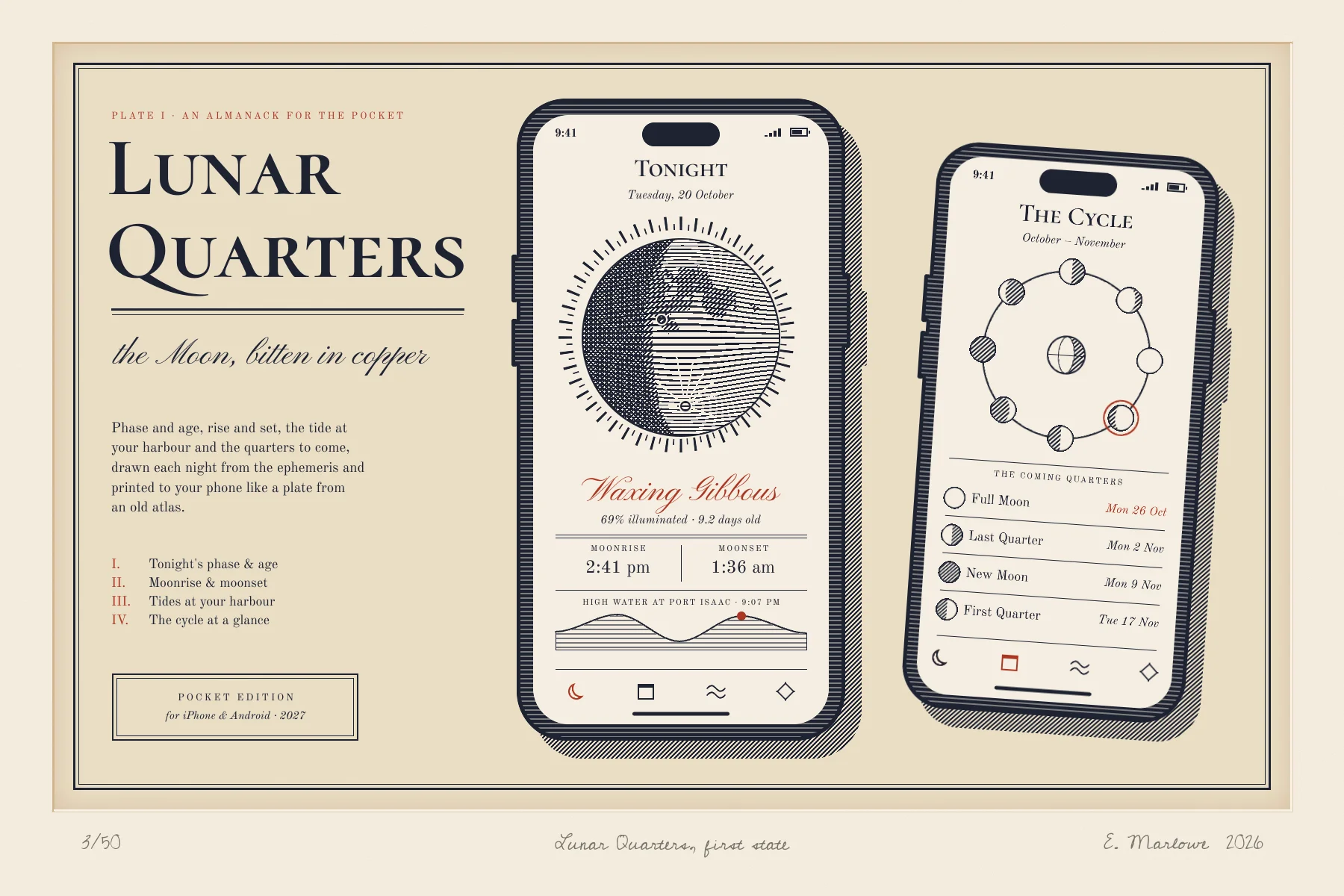
An etching is printed from a copper plate. The artist scratches lines through a waxy ground, and acid bites them into the metal. Ink caught in those lines makes the print. An etcher has no grey. Every tone is built from lines: open parallel lines for light, and lines crossed over lines (cross-hatching) for shadow. The plate also leaves its mark. Its edge presses a shallow step into the paper, and a film of ink left on its surface tints the printed area slightly darker than the margin around it.
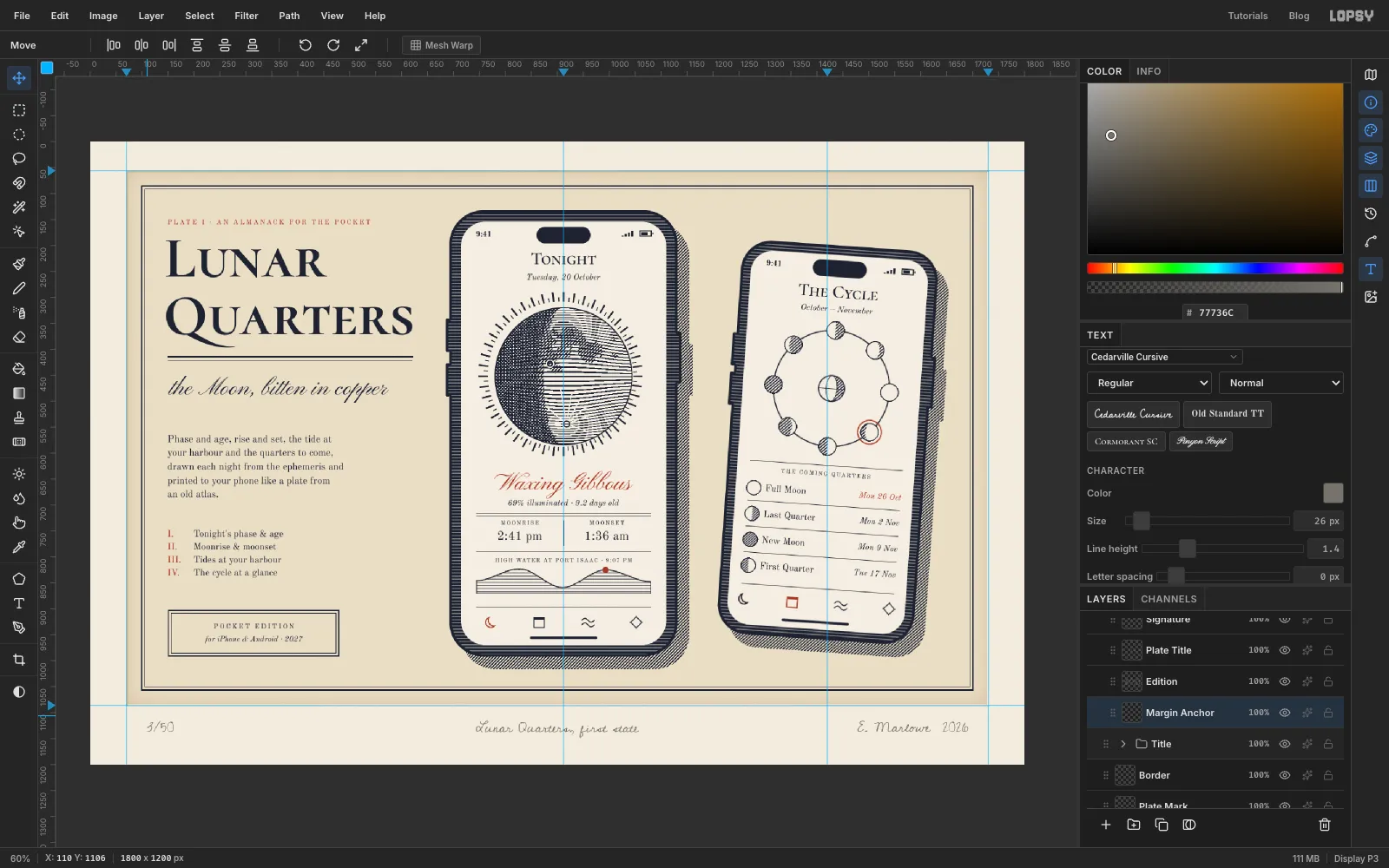
In this tutorial you'll present a moon phase app called Lunar Quarters as if it were a plate from an old astronomy book. The board is 1800 × 1200 px. It has two phones drawn as engraved objects with hatched shadows. The hero screen carries a moon engraved from a NASA photograph. The second screen shows the lunar cycle as a dial. A title column sits on the left, and pencil notes in the margin finish the piece, the way printmakers sign and number an edition.
Along the way you'll use:
- Define Pattern and Edit → Fill with Pattern to make three engraving patterns: rules, hatching and back-hatching
- the Shape tool's click-to-size dialog for the phones, and ⌘-click on layer thumbnails to load a layer as a selection
- marquee add, subtract and intersect drags (Shift, Alt and Shift+Alt), plus the exact-size marquee dialog
- Magic Wand, Select → Shrink, Select → Inverse and Delete
- Gaussian Blur, Posterize, Liquify (Bloat), Sunburst, Desaturate and Add Noise
- the Pencil with Shift-click straight lines, and the Pen tool, pressing Enter to stroke a path
- Copy, Paste, scaling with the Move tool, Merge Down and New Group
- the Stroke, Inner Glow and Color Overlay layer effects
- Text in Cormorant SC, Old Standard TT, Pinyon Script and Cedarville Cursive
- rotating a whole group, and undo and redo
The palette is one ink and one red on a family of warm paper tones, plus a pencil grey:
-
Paper
-
plate tone
-
wiped plate edge
-
Ink
-
sanguine
-
Screen
-
Plate mark shadow
-
plate mark light
-
crease
-
Pencil
The moon is a public-domain image from NASA's Scientific Visualization Studio, Moon Phase and Libration, 2024 (SVS5187 - phase waxing gibbous 2158) on Wikimedia Commons. Its preview PNG shows the moon on a white background. I cropped it close around the disc and saved it 800 px square. Any photo of a gibbous moon on a plain background works the same way.
Watch X and Y in the status bar at the bottom of the window as you move the pointer. Positions are given as document coordinates where two things have to line up. Many small circles are easier to get exact if you click once with the Elliptical Marquee without dragging: a dialog asks for the two corners of the box around the circle. Drags with Shift, Alt or Shift+Alt still have to be dragged by hand, so watch X and Y for those. Freehand shapes only need to be close. Lopsy names each text layer after its text, and I renamed a few as I went (double-click a name), so the screenshots show names like Clock A.
-
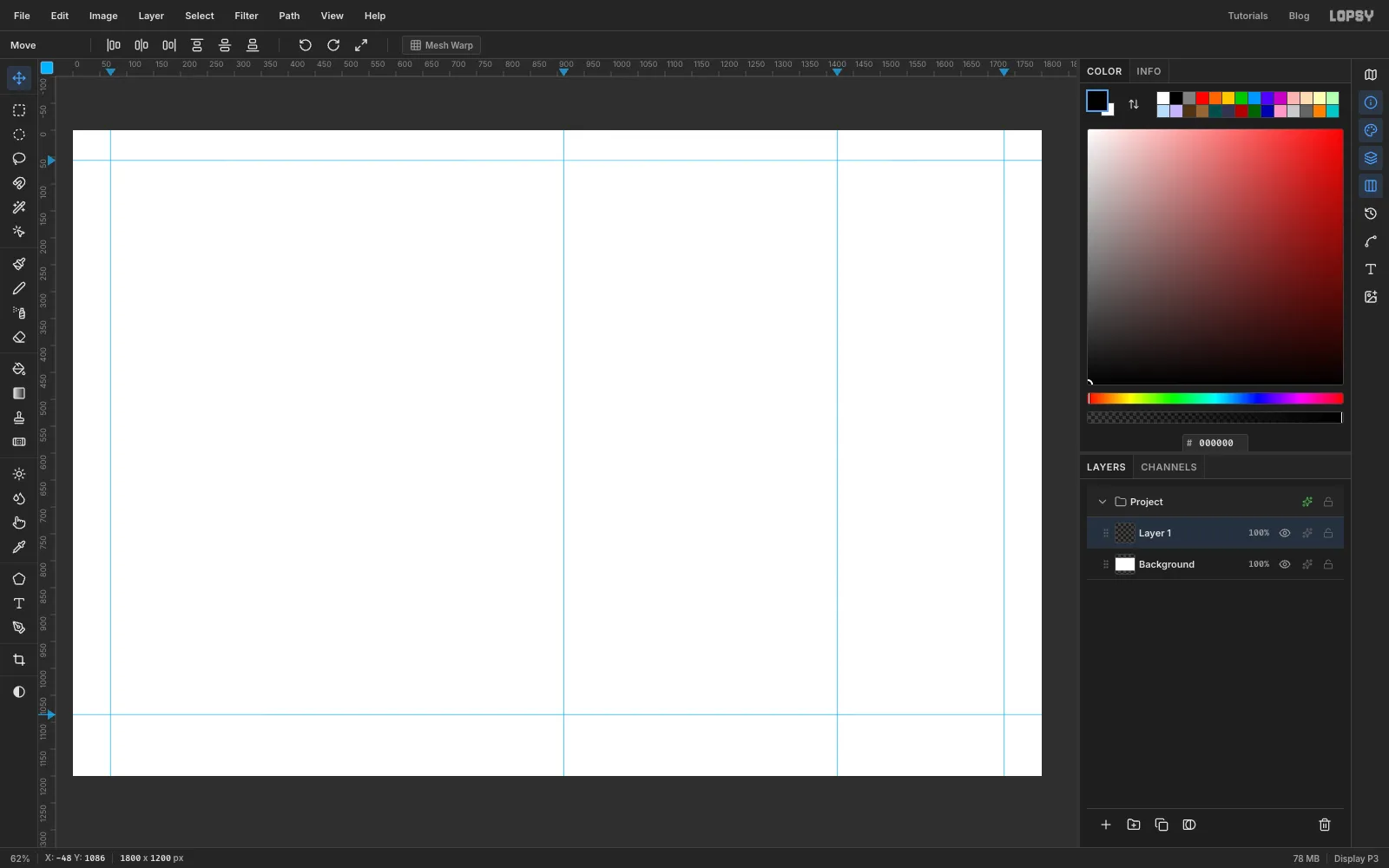
Set up the sheet and guides
- Choose File → New, set Width
1800, Height1200, Pixels, and click Create. - Click the top ruler at
x 70andx 1730to mark the left and right edges of the plate. Then click atx 912andx 1420, the centres of the two phones. - Click the left ruler at
y 56andy 1086for the top and bottom of the plate.
- Choose File → New, set Width
-
Lay down the paper
- Click Background, set the foreground colour to in the Hex field of the Color panel, and choose Edit → Fill.
- Choose Filter → Add Noise…, set Amount
8, pick Mono and Gaussian, and click Apply. The grain is barely there, which is right. Rag paper isn't flat, but you shouldn't notice why.
-
Ink the plate
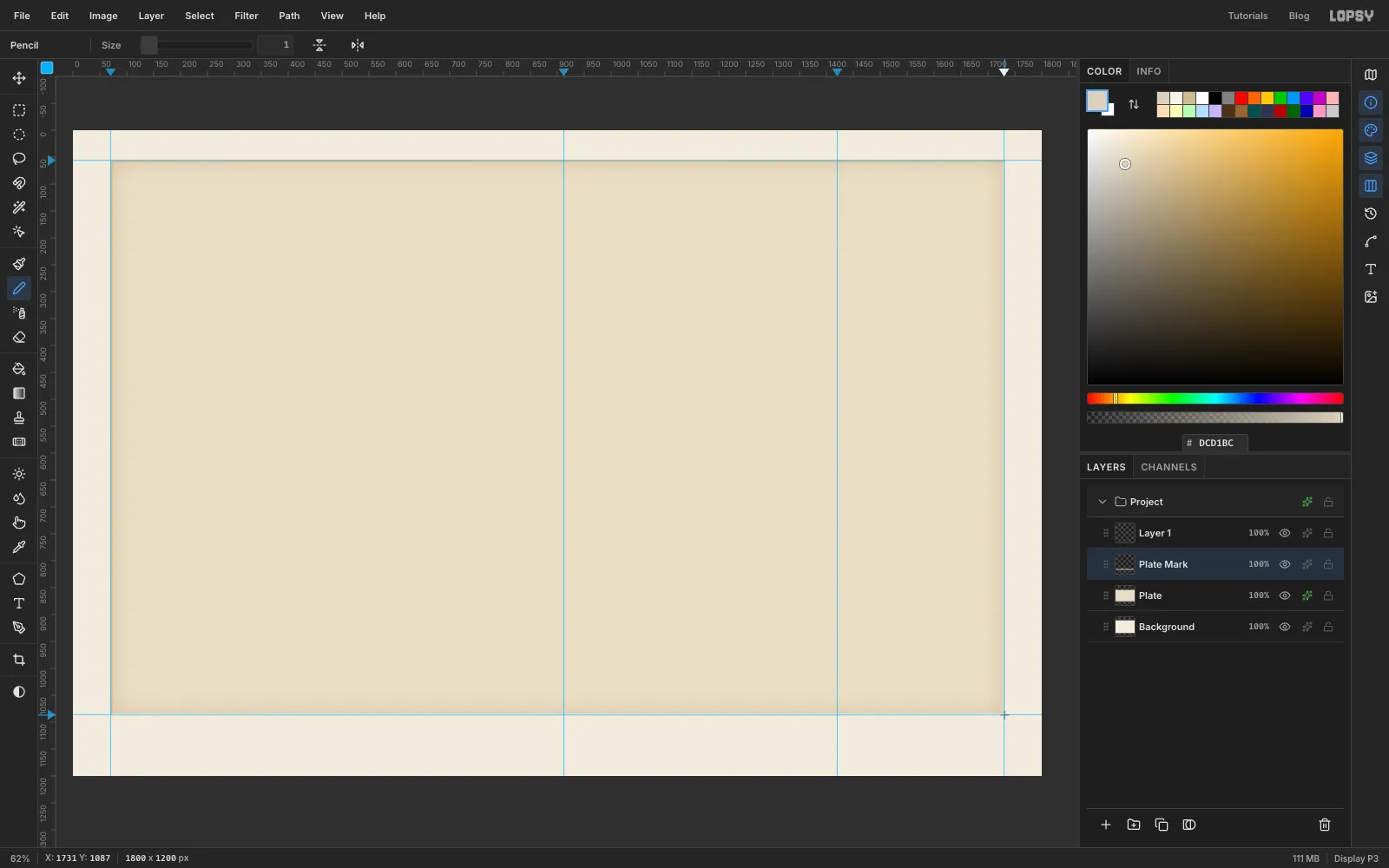
The plate is where the ink film sits, so it prints a little darker than the paper.
- Add a layer called
Plate. With the Rectangular Marquee, drag from the guide crossing at the top left (70, 56) to the one at the bottom right (1730, 1086). The guides catch the marquee edges. - Fill it with , then press ⌘+D. Run Add Noise again with Amount
6(still Mono, Gaussian). - Open the layer's effects (the ✦ button on its row) and enable Inner Glow. Set Size
80, Opacity45and the colour . A printer wipes the middle of a plate cleaner than its edges, and this glow fakes that. - Add a layer called
Plate Markfor the step the plate presses into the paper. The light comes from the top left, so the top and left edges sit in shadow. Pick the Pencil, Size3, colour . Click just inside the top-left corner of the plate, then Shift-click just inside the top-right corner. Click the top-left corner again and Shift-click the bottom-left corner. - Switch to Size
2and , and draw the same kind of lines just inside the bottom and right edges. They catch the light. - Finally, at Size
1in , draw a crease line just outside the bottom and right edges.
- Add a layer called
-
Rule the border
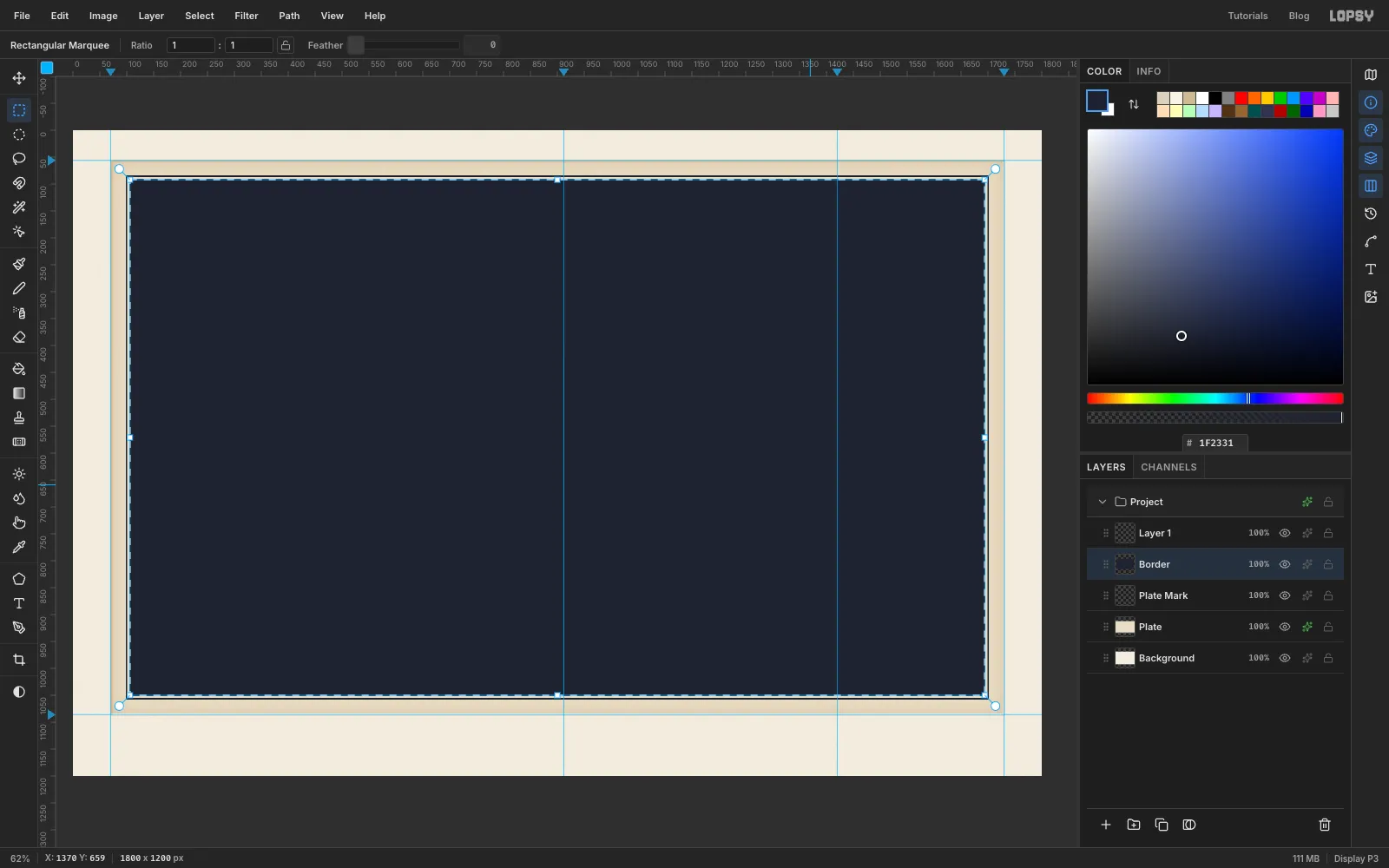
- Add a layer called
Border. Drag a marquee from98, 84to1702, 1058, set the colour to the ink , and Edit → Fill. - Choose Select → Shrink…, 3 px, and press Delete. That leaves a 3 px ink frame.
- Shrink the selection by 4 more and Fill again. Then Shrink by 1 and press Delete, which leaves a hairline 4 px inside the heavy rule. Press ⌘+D.
- Add a layer called
-
Make a rules pattern
Engravers built tone from a few kinds of line, and you'll make three of them into patterns. Patterns only last for the session, so make them before you need them and don't reload the page.
- Add a temporary layer called
Tilesand zoom in on an empty spot near the bottom right of the sheet. - Pick the Pencil, Size
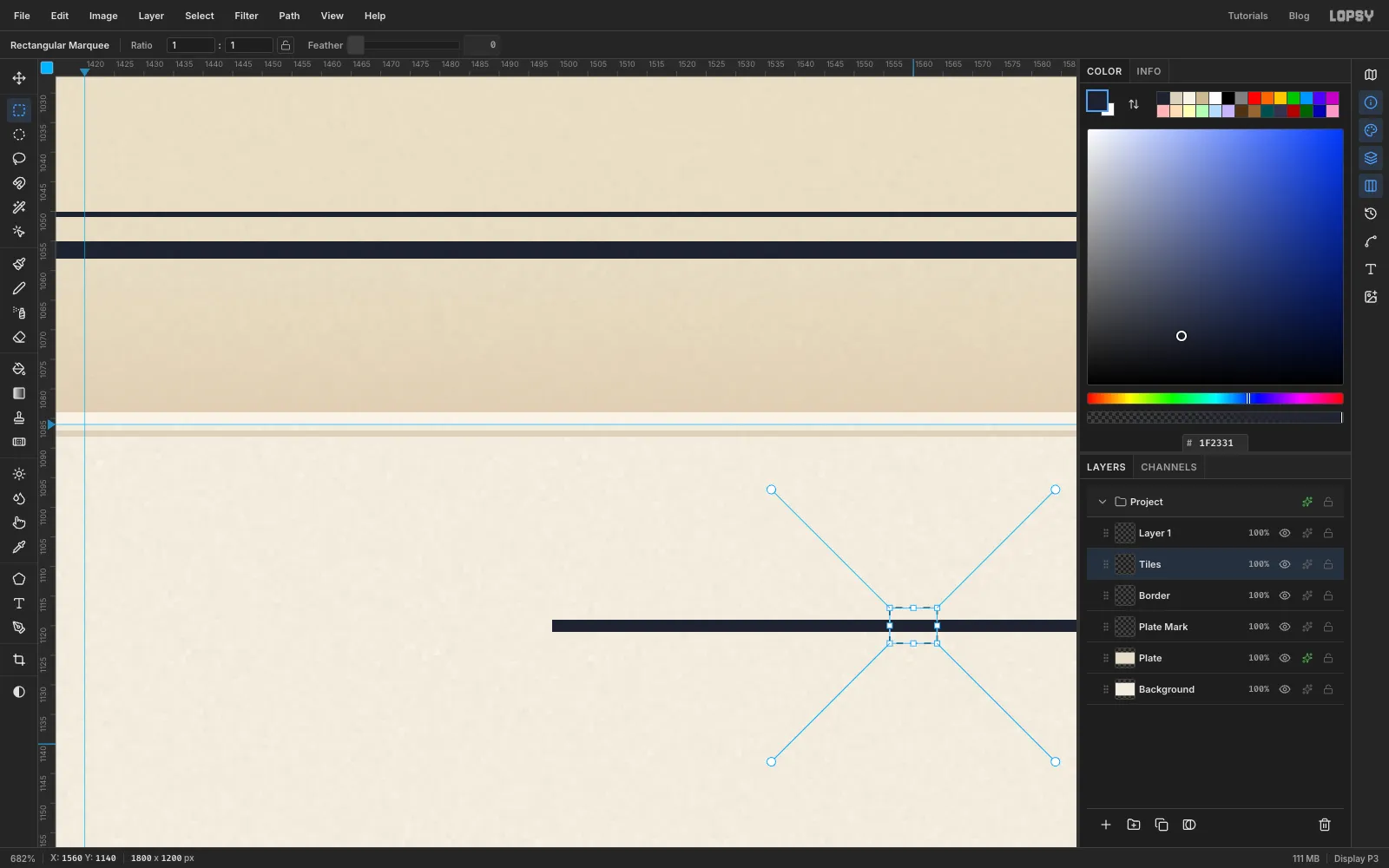
2, ink colour. Click and Shift-click a horizontal line about 120 px long. - Pick the Rectangular Marquee and click once on the canvas without dragging. In the dialog, enter corners 8 px apart across and 6 px apart down, with the line in the middle (I used
1556, 1117to1564, 1123). Click Select. - Choose Edit → Define Pattern. This is the rules pattern: a 2 px line every 6 px.
- Add a temporary layer called
-
Make a hatching pattern
- Still on
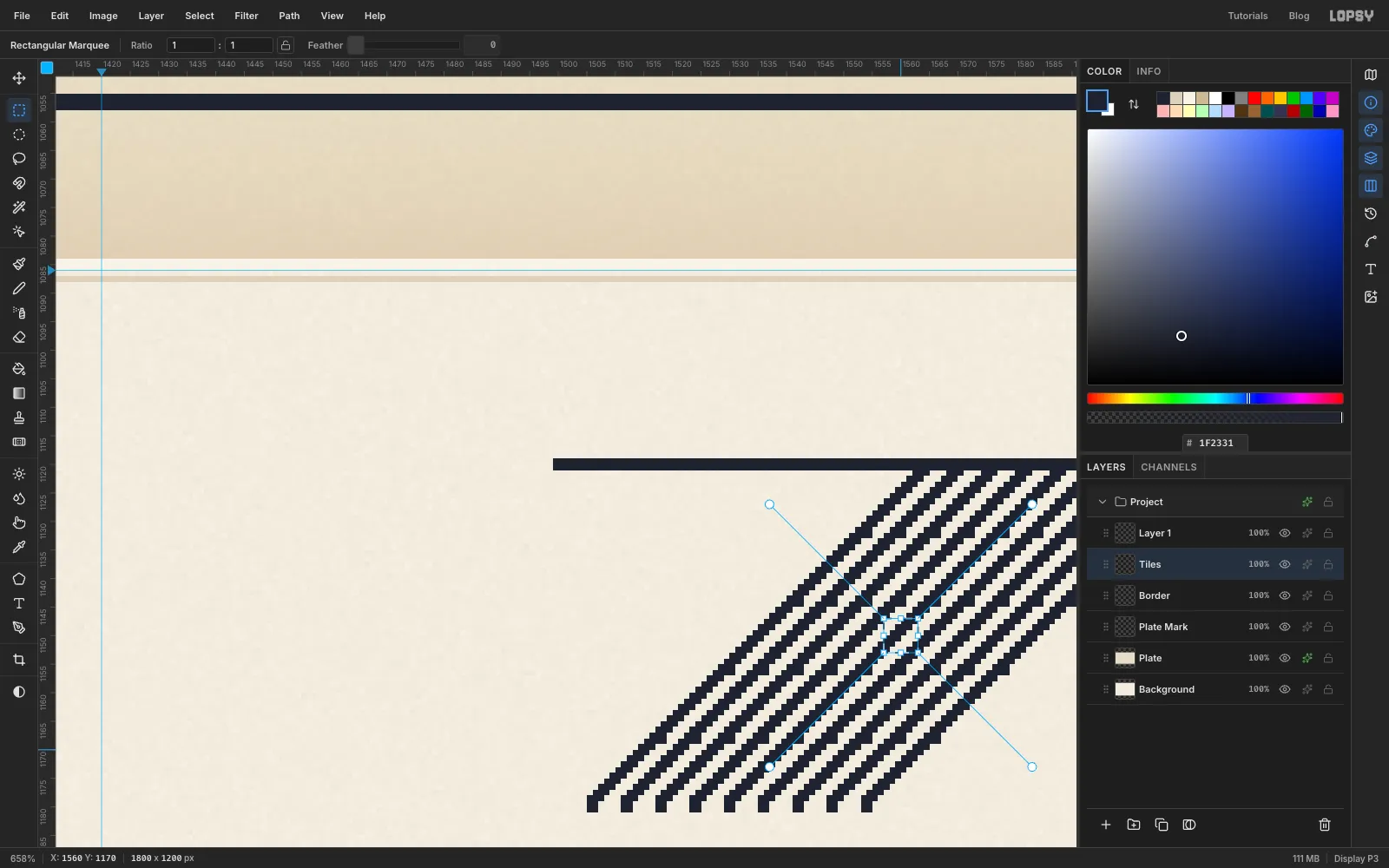
Tiles, draw nine parallel lines at 45°, running up to the right, each about 85 px long. Start each one 6 px to the right of the last. Hold ⌘ as well as Shift when you click the end of each line. That snaps the angle to 15° steps, so every line is exactly 45°. - Click once with the marquee and select a 6 × 6 square in the middle of the lines, away from their ends. Choose Edit → Define Pattern. Because the lines are exactly 45° and 6 px apart, the tile repeats without a seam.
- Still on
-
Make a back-hatching pattern
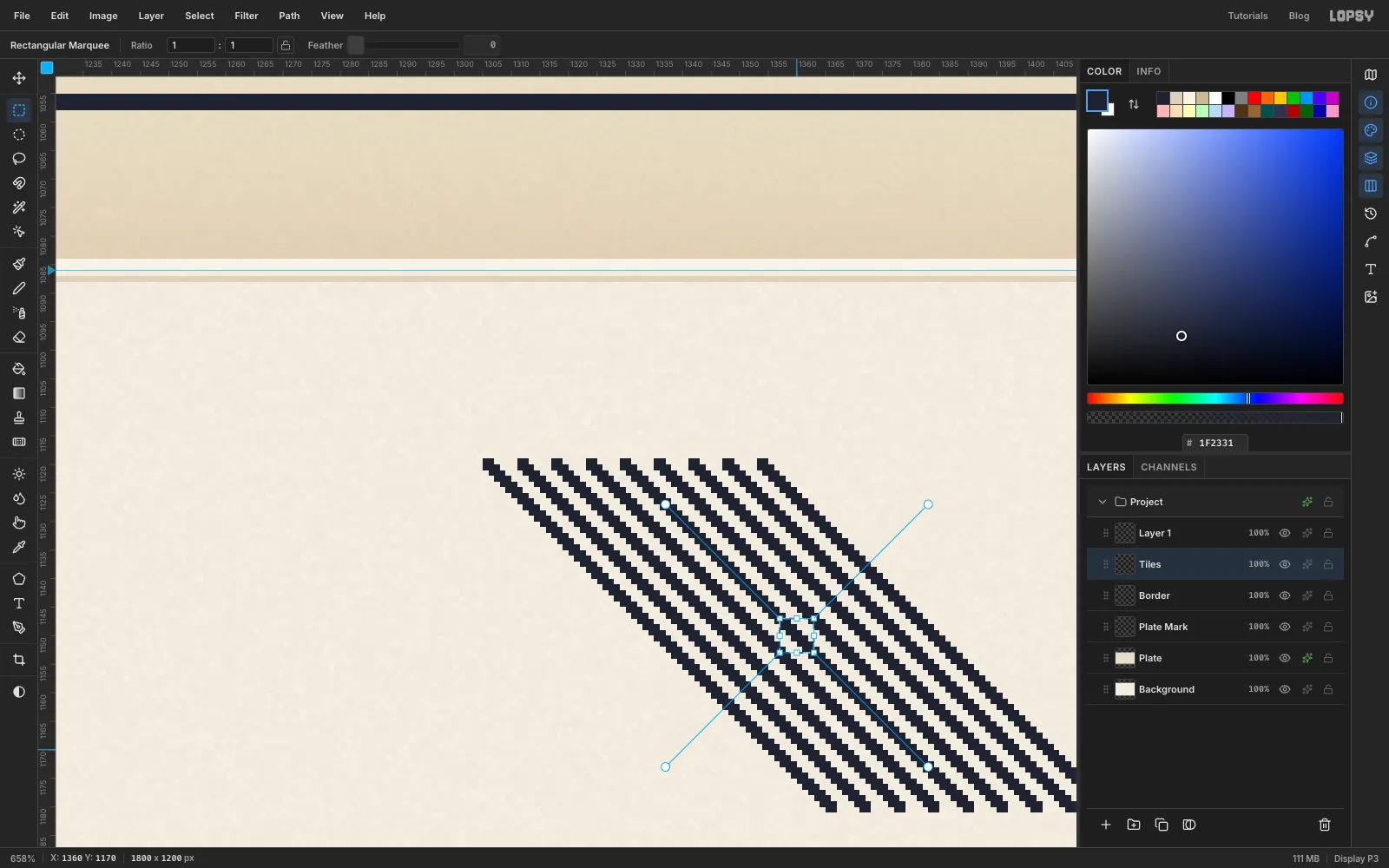
- Draw nine more 45° lines leaning the other way (down to the right), again 6 px apart.
- Define a 6 × 6 tile from the middle of them. Then delete the
Tileslayer, and the emptyLayer 1the new document started with.
Edit → Fill with Pattern… now shows three tiles, in this order: rules, hatching and back-hatching.
-
Draw the first phone
- Click
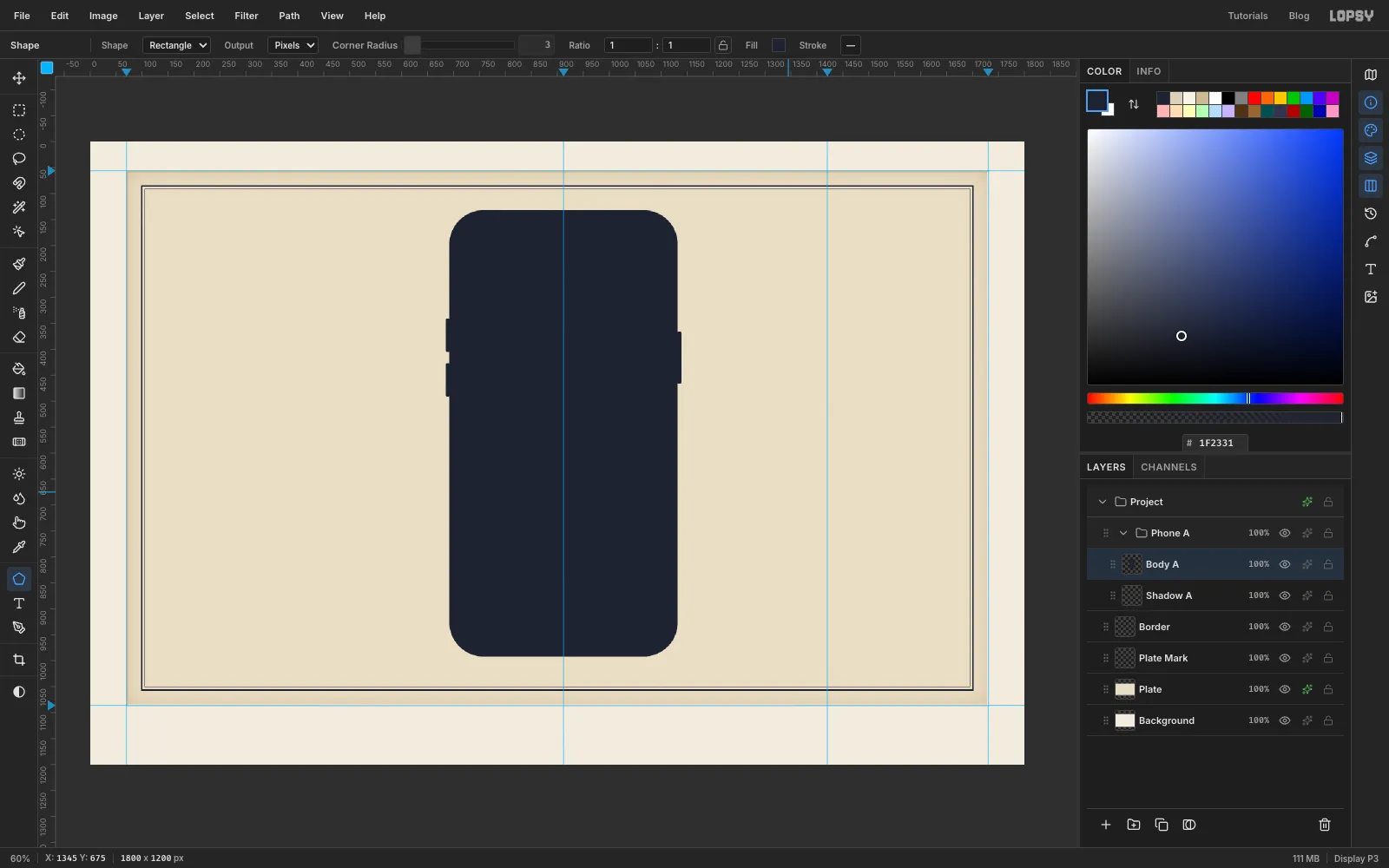
Borderand press New Group in the Layers panel. Name the groupPhone A. Add a layer calledShadow A, then another calledBody A. - Pick the Shape tool. Set Shape to Rectangle, Output to Pixels, Corner Radius
66, the fill to the ink colour and the stroke to none. - Click once at
912, 562, on the centre guide. In the Shape Size dialog enter440×860and click Create. - Set Corner Radius to
3and add the side buttons the same way. On the left edge, add two 8 × 64 buttons centred at689, 373and689, 459. On the right edge, add one 8 × 100 button at1135, 416.
- Click
-
Hatch a cast shadow
Etchers never draw a soft shadow. They hatch one.
- Click
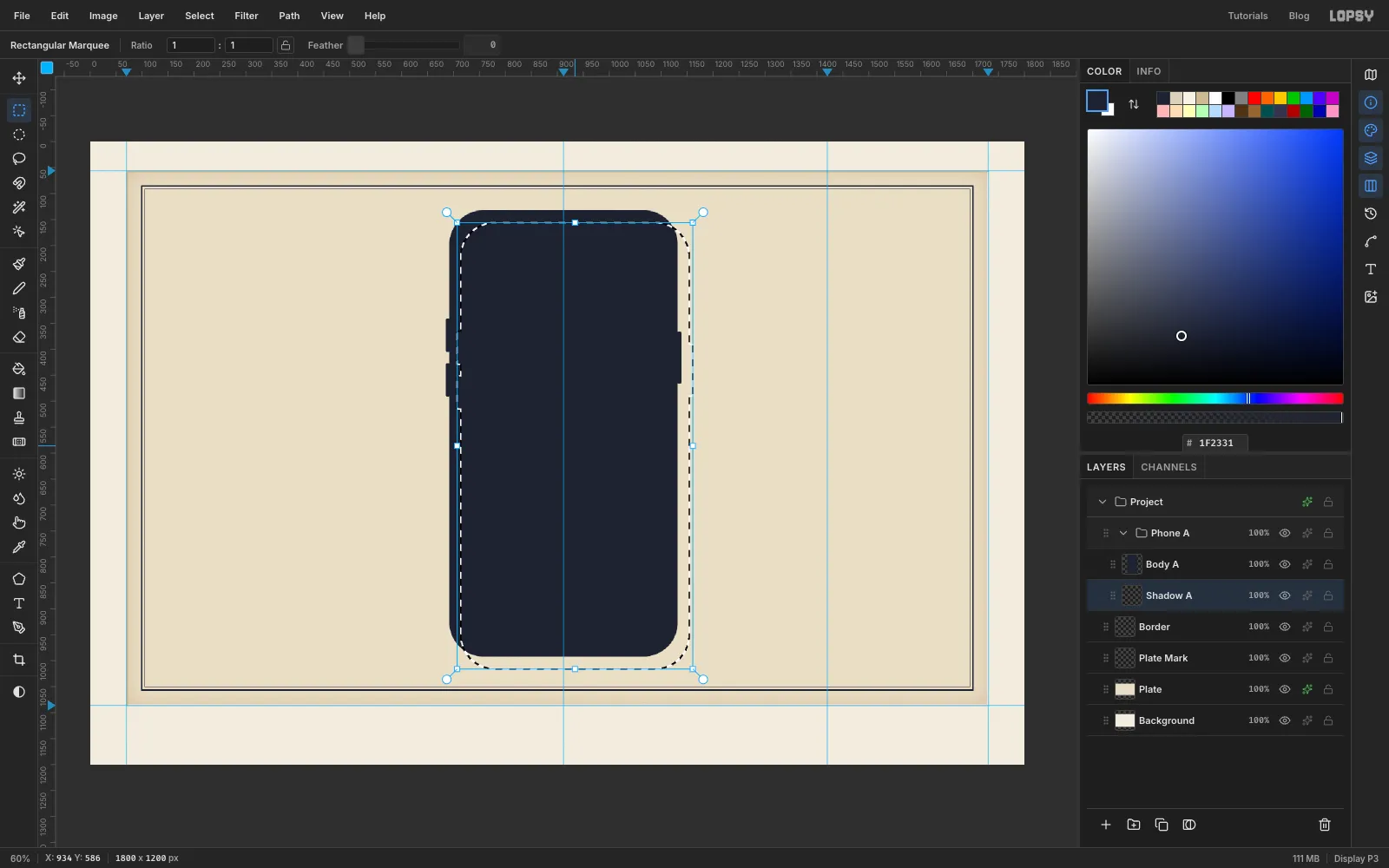
Shadow A. Hold ⌘ and click the thumbnail ofBody A. That loads the phone's shape as a selection, butShadow Astays the active layer. - With a marquee tool, drag from inside the selection about 20 px right and 25 px down. Starting inside a selection moves only its outline.
- Choose Edit → Fill with Pattern…, pick the hatching tile and click Apply. Press ⌘+D. The body covers most of it, so only a hatched sliver shows to the right and below.
- Click
-
Engrave the bezel and add the screen
- Click
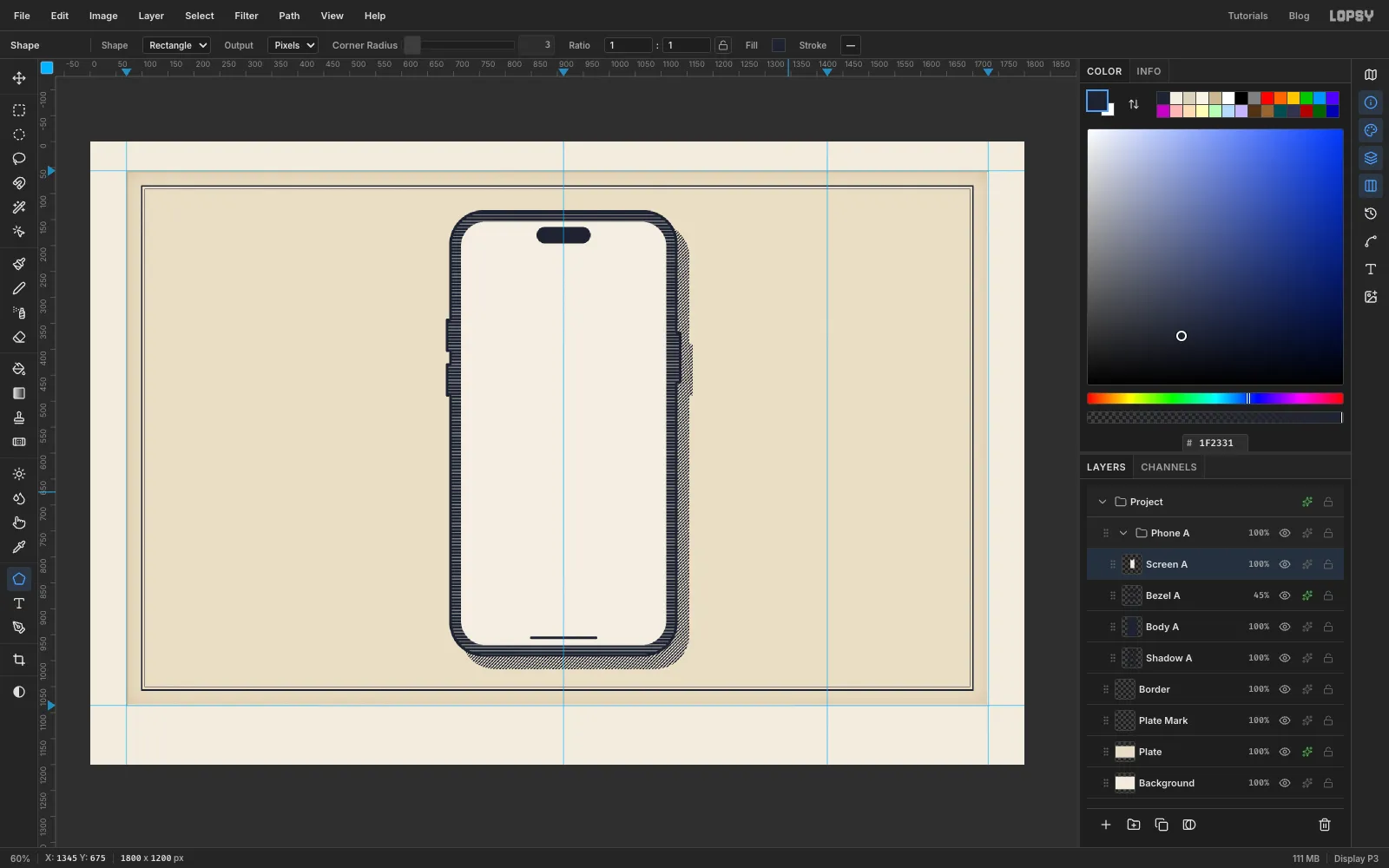
Body Aand add a layer calledBezel A. ⌘-click theBody Athumbnail and choose Select → Shrink…5. - Fill with Pattern using the rules tile, and press ⌘+D. Then add a Color Overlay effect in the paper colour and set the layer's opacity to
45%. Light lines over the black body read as polished metal. - Add a layer called
Screen A. With the Shape tool, set Corner Radius48and the fill to . Click the phone's centre and make it396×816. The screen is lighter than the plate, like a wiped highlight. - Set the fill back to ink and Corner Radius
16, and click at912, 180for a104×32camera island. Then set Corner Radius3and click at912, 956for a130×5home bar.
- Click
-
Draw the second phone
- Collapse
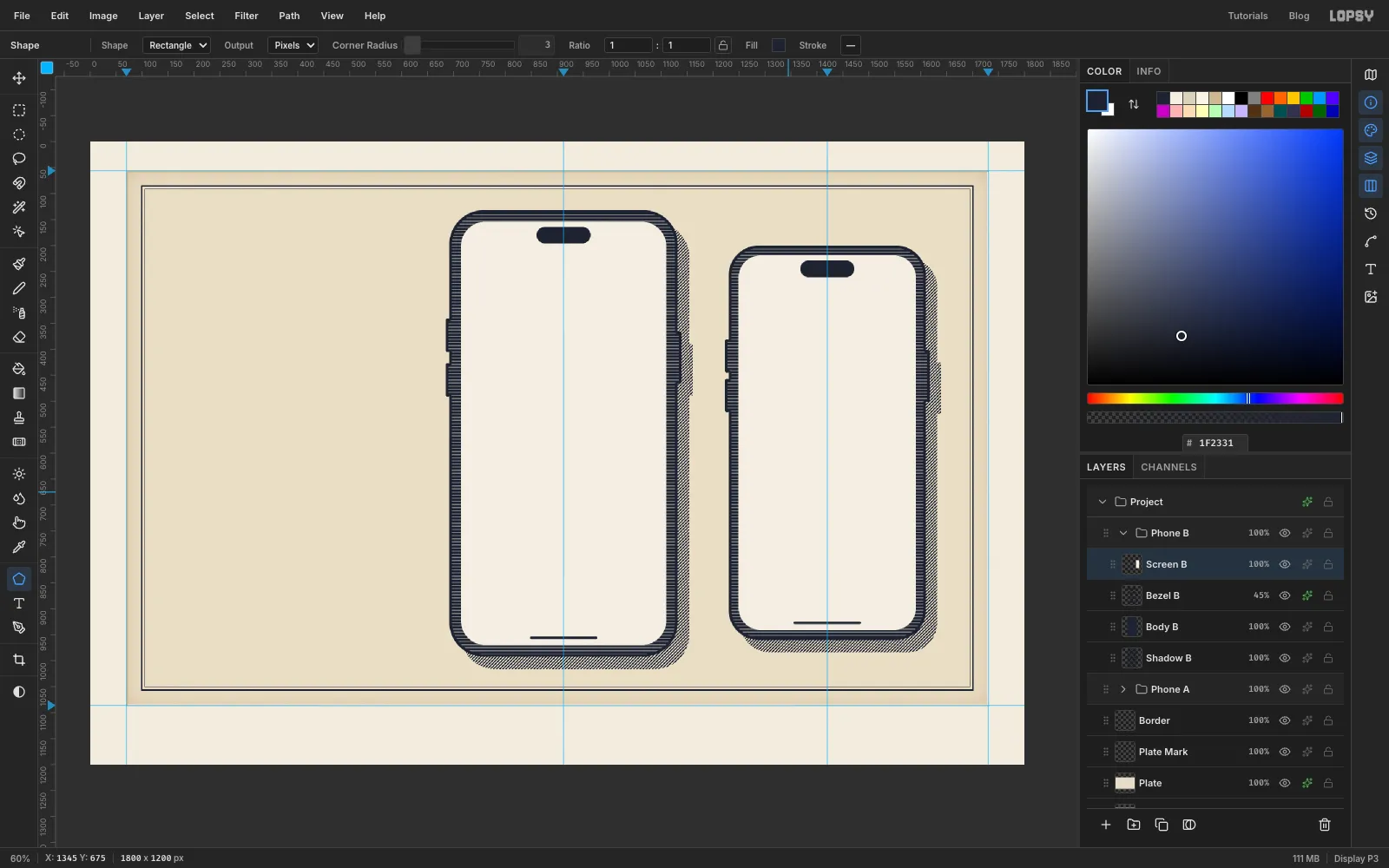
Phone A, click its row, and press New Group. Name the groupPhone B. It lands abovePhone A. - Repeat the last three sections inside the new group, naming the layers
Shadow B,Body B,Bezel BandScreen B. The phone is a little smaller and centred on the second guide:
- Body:
380×760at1420, 580, Corner Radius58 - Buttons: 8 × 64 at
1227, 413and1227, 489, and 8 × 100 at1613, 451 - Shadow: the same hatched shadow, about 20 px right and 25 px down
- Bezel: rules in paper colour at 45%
- Screen:
342×722, Corner Radius43 - Camera island at
1420, 245and home bar at1420, 927, the same sizes as on the first phone
- Collapse
-
Drop in the moon photo
- Collapse
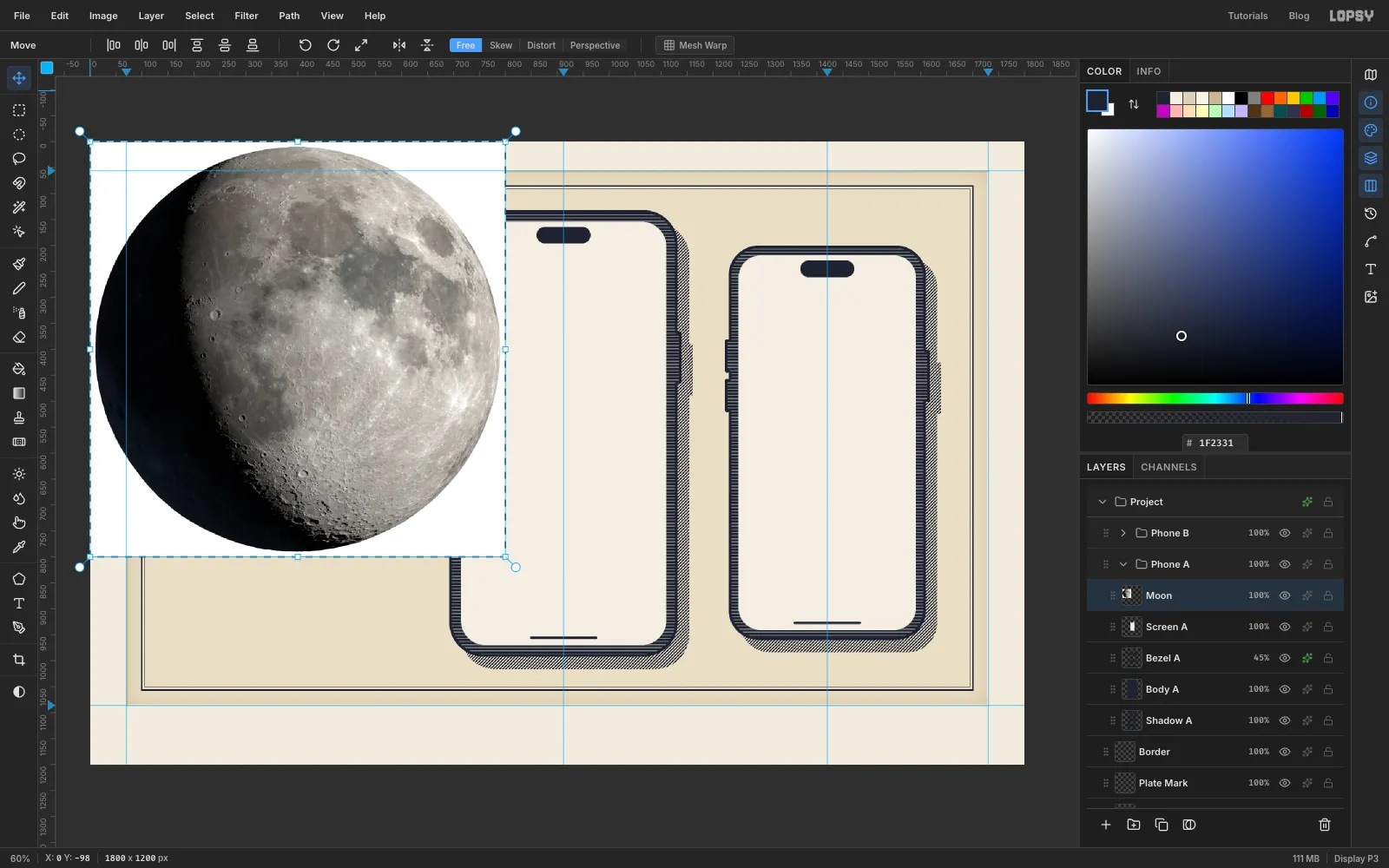
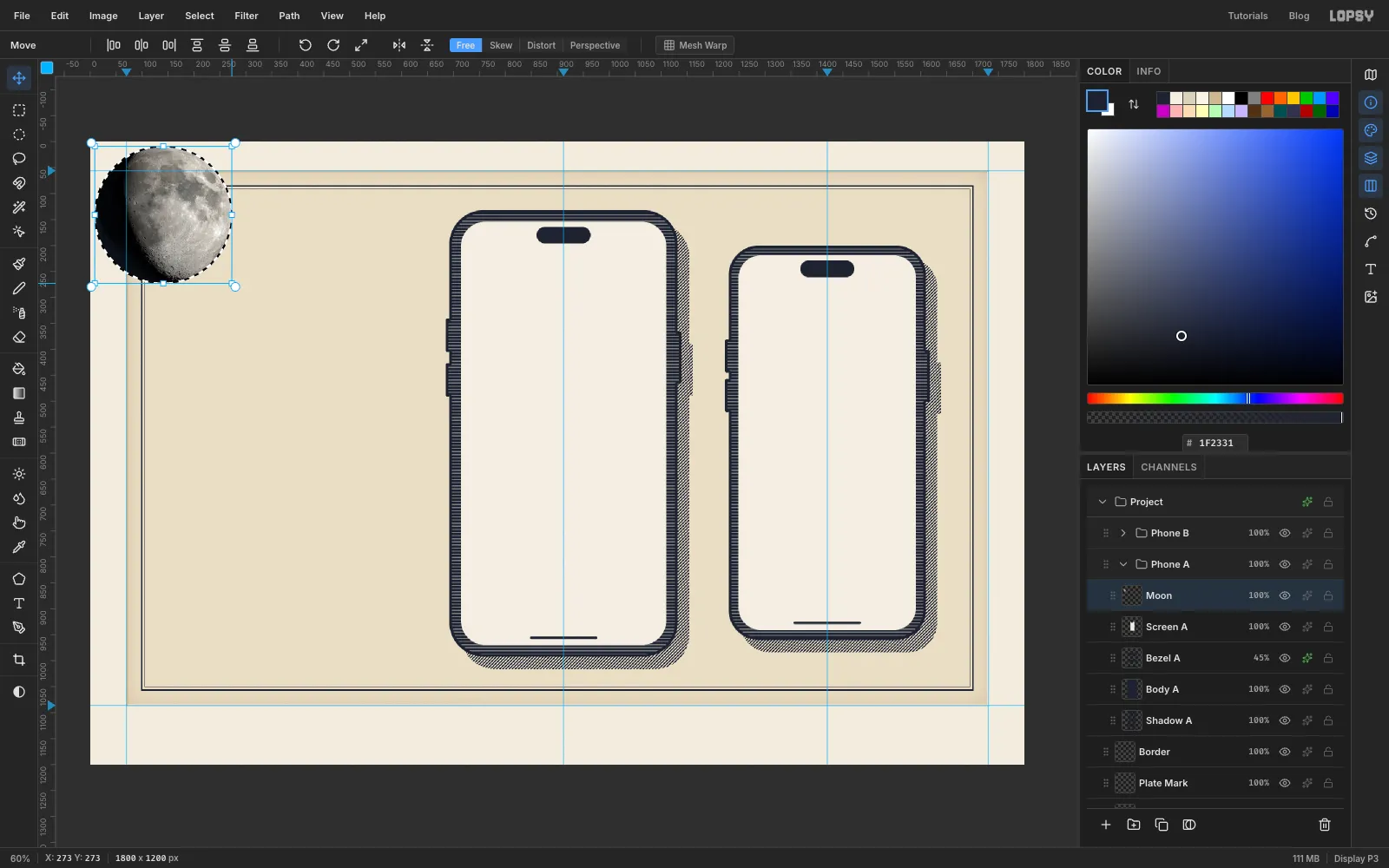
Phone B, expandPhone A, and clickScreen A. - Drag the moon photo from your desktop onto the canvas. It lands in the top-left corner on its own layer, already selected. Rename the layer
Moon.
- Collapse
-
Cut out and scale the moon
- Pick the Magic Wand, Tolerance
10, Contiguous on, and click the white sky in a corner of the photo. Press Delete, then ⌘+D. - ⌘-click the
Moonthumbnail so the transform box hugs the disc. With the Move tool, hold ⌘ (which keeps the proportions) and drag the bottom-right handle in until the disc is 264 px across. Press ⌘+D to commit. - Drag the moon onto the first phone and centre it on
912, 452. Arrow keys nudge 1 px, and Shift+arrow nudges 10 px. - Choose Filter → Desaturate.
- Pick the Magic Wand, Tolerance
-
Posterize the photo into a tracing guide
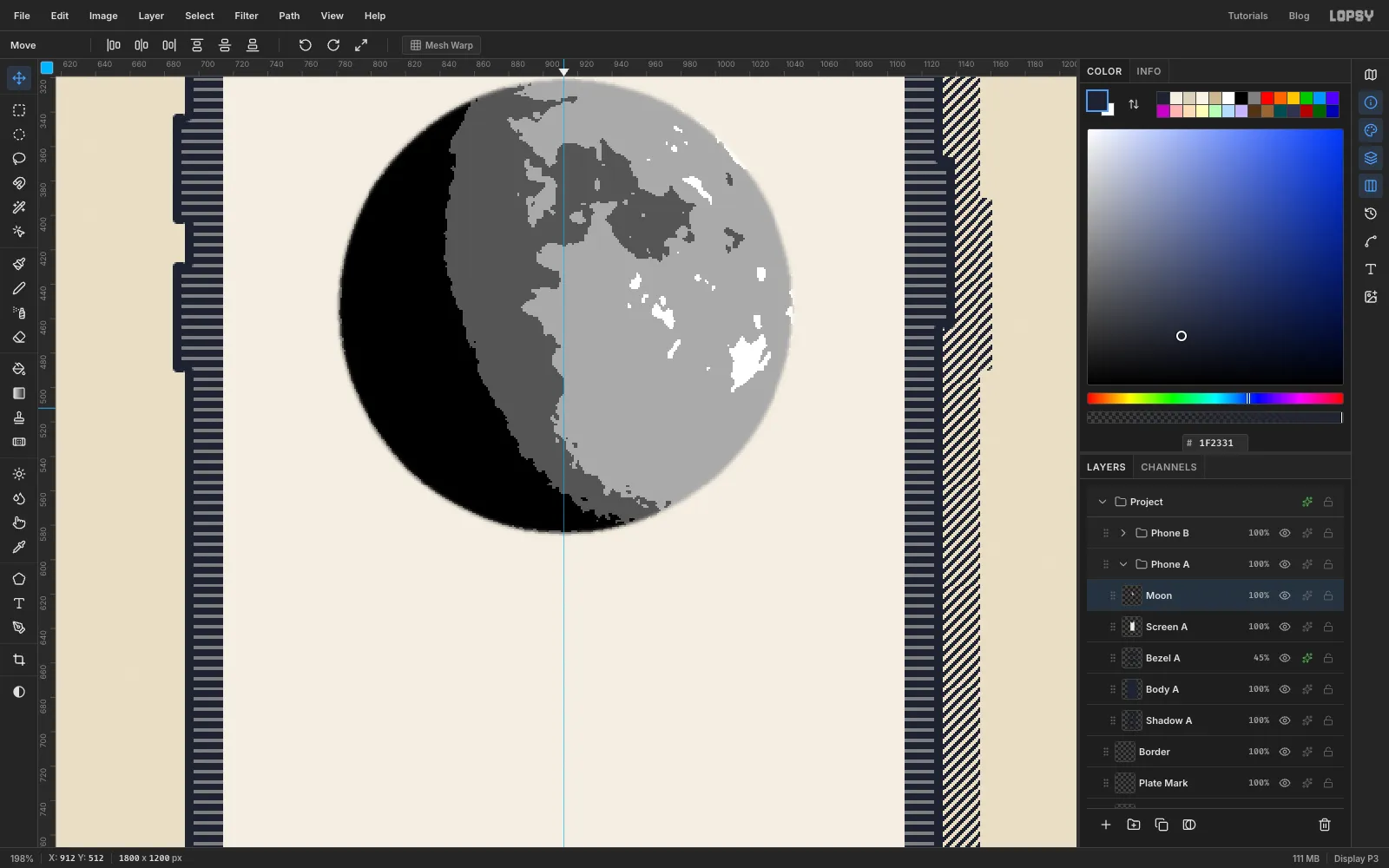
You won't keep the photo. You'll engrave over it the way an engraver works from a drawing, so it only needs to show where the tones change.
- With
Moonactive, run Filter → Gaussian Blur… at Radius3. - Run Filter → Posterize… with Levels
4. Now the shadow is black, the seas (the maria) are dark grey and the highlands are light grey.
- With
-
Rule the disc and bulge the lines
- Add a layer called
RulesaboveMoon. Click once with the Elliptical Marquee and enter760, 300to1064, 604. That's a circle 20 px bigger than the moon all round. - Fill with Pattern using the rules tile, and press ⌘+D.
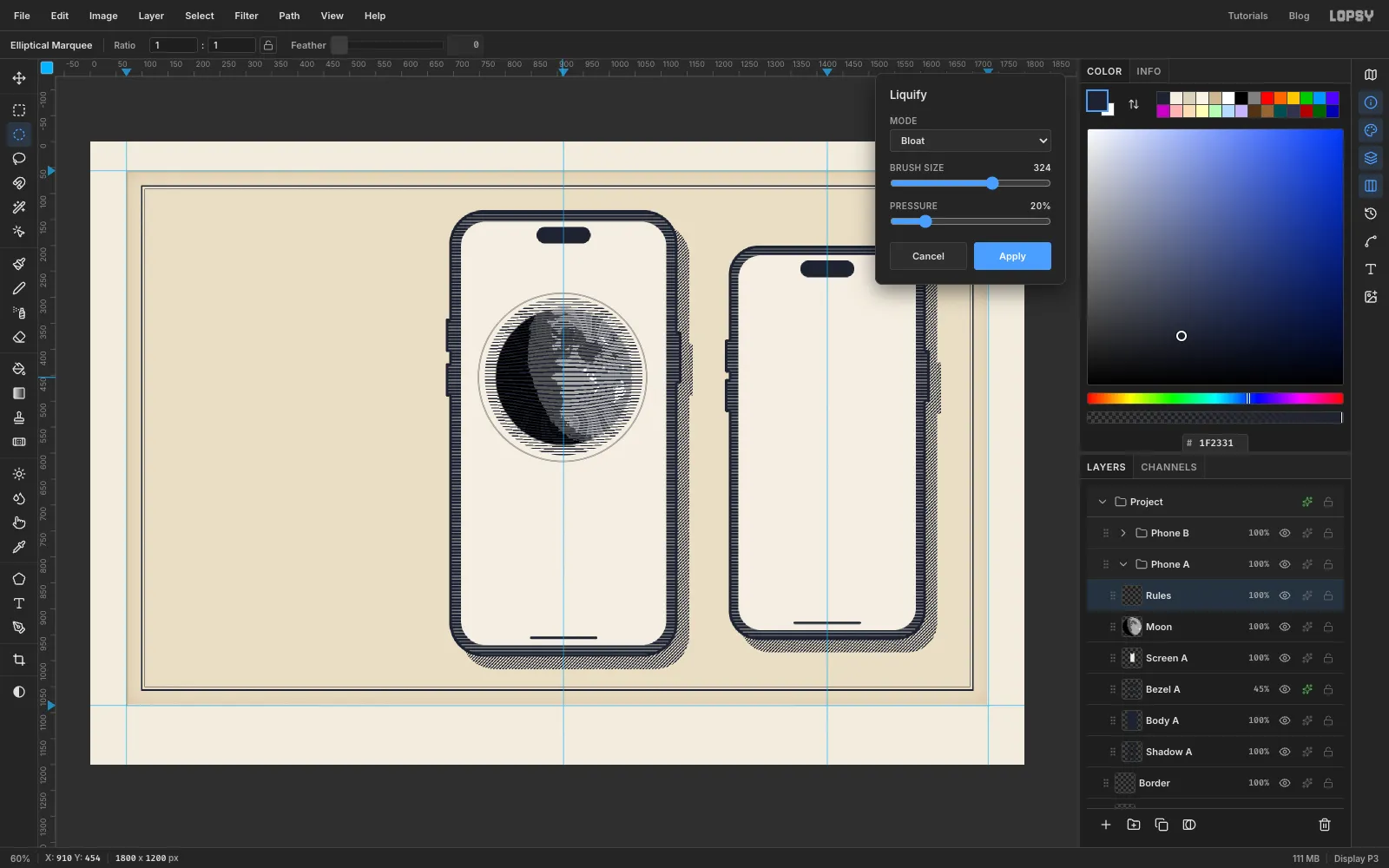
- Choose Filter → Liquify…. Set Mode to Bloat, Brush Size
324and Pressure20. Press the mouse on the centre of the moon, wiggle it in a tiny circle once, and let go. Click Apply.
The straight rules now bow outwards from the middle, as if they had been cut around a ball. Don't overdo it. Bloat keeps magnifying as long as you hold and move, so stop after a second. If the lines bulge off the disc, undo and try again.
- Add a layer called
-
Hatch the shadow side
The terminator is the line where lunar day meets night. On a gibbous moon it's half an ellipse, so you can build the shadow from three marquee drags.
- Add a layer called
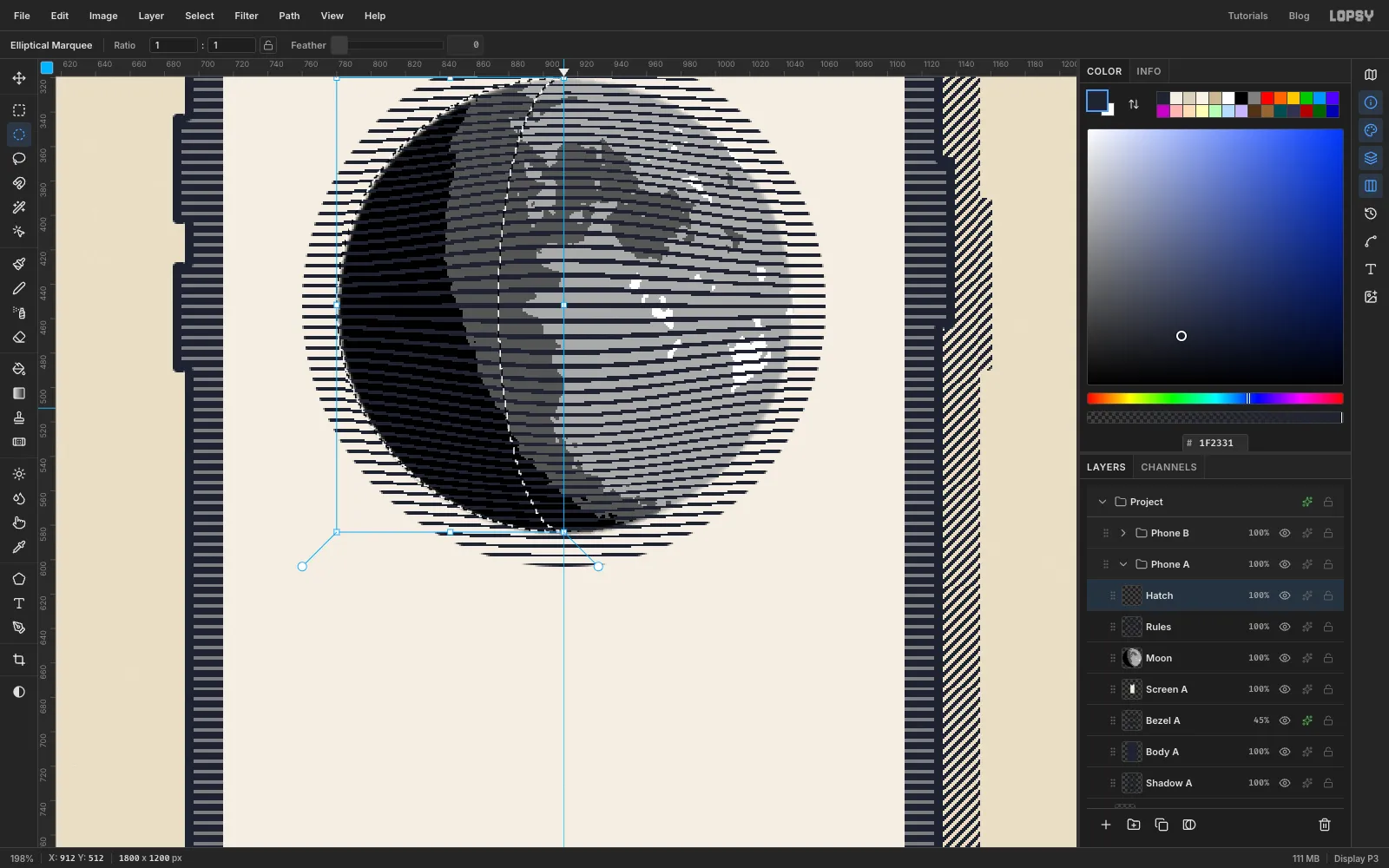
Hatch. With the Elliptical Marquee, select the moon's disc again: a circle from780, 320to1044, 584. - With the Rectangular Marquee, hold Shift+Alt and drag from above and left of the disc down to the bottom of the disc at the centre guide (
x 912). Holding both keys intersects, so only the left half stays selected. - With the Elliptical Marquee, hold Alt and drag a tall ellipse from
874, 320to950, 584. That subtracts its left half from the selection and leaves a curved shadow. - Fill with Pattern using hatching.
- Add a layer called
Back Hatchand build the same selection again, but make the subtracted ellipse wider, from862, 320to962, 584. Fill with Pattern using back-hatching.
The cross-hatching makes the true shadow the darkest part of the moon. The hatching alone runs 12 px further into the light, which softens the terminator.
- Add a layer called
-
Hatch the seas
- Click the
Moonlayer. With the Magic Wand, Tolerance8, Contiguous off, click one of the dark grey seas in the upper right of the disc. - That also picks up dark grey near the terminator, which would read as a coastline. To keep only the northern seas, pick the Elliptical Marquee, hold Shift+Alt and drag an ellipse from
872, 337to1037, 467. - Click
Hatch, Fill with Pattern using hatching, and press ⌘+D.
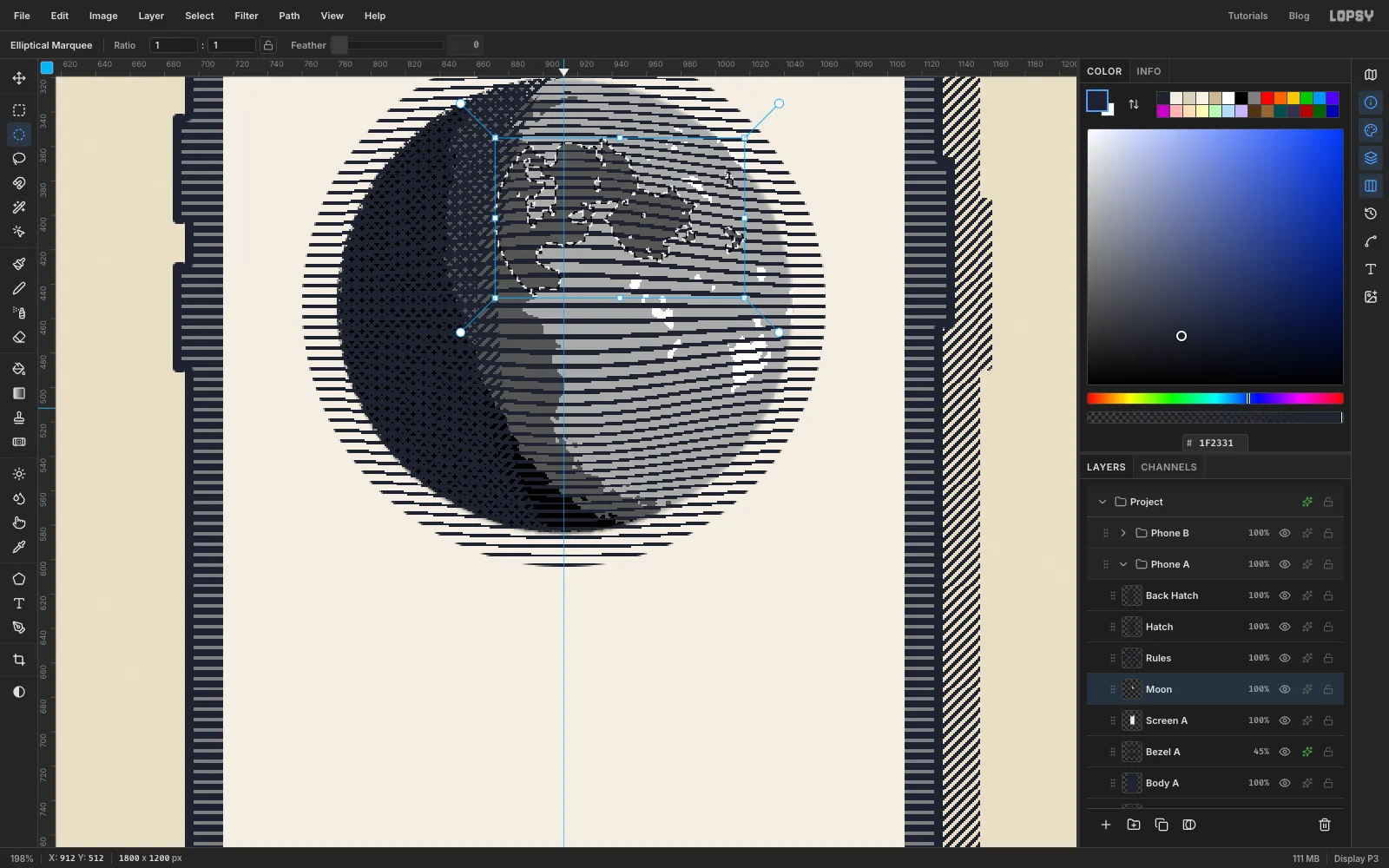
- Click the
-
Cut in the craters
- Click
Back Hatchand add a layer calledCraters. - Crater circles are small, so use exact sizes. Click once with the Elliptical Marquee and enter
909, 535to927, 553for a clearing around Tycho. Fill it with the screen colour . - Click again and enter
911, 537to925, 551. Fill it with ink, choose Select → Shrink…2, and press Delete for the crater's rim. - Do the same for Copernicus near the terminator: a clearing from
878, 420to894, 436, then a rim from880, 422to892, 434. - Tycho is famous for its bright rays. Pick the Pencil, Size
2, colour , and Shift-click eight straight rays out from Tycho, between 35 and 70 px long, mostly fanning upwards.
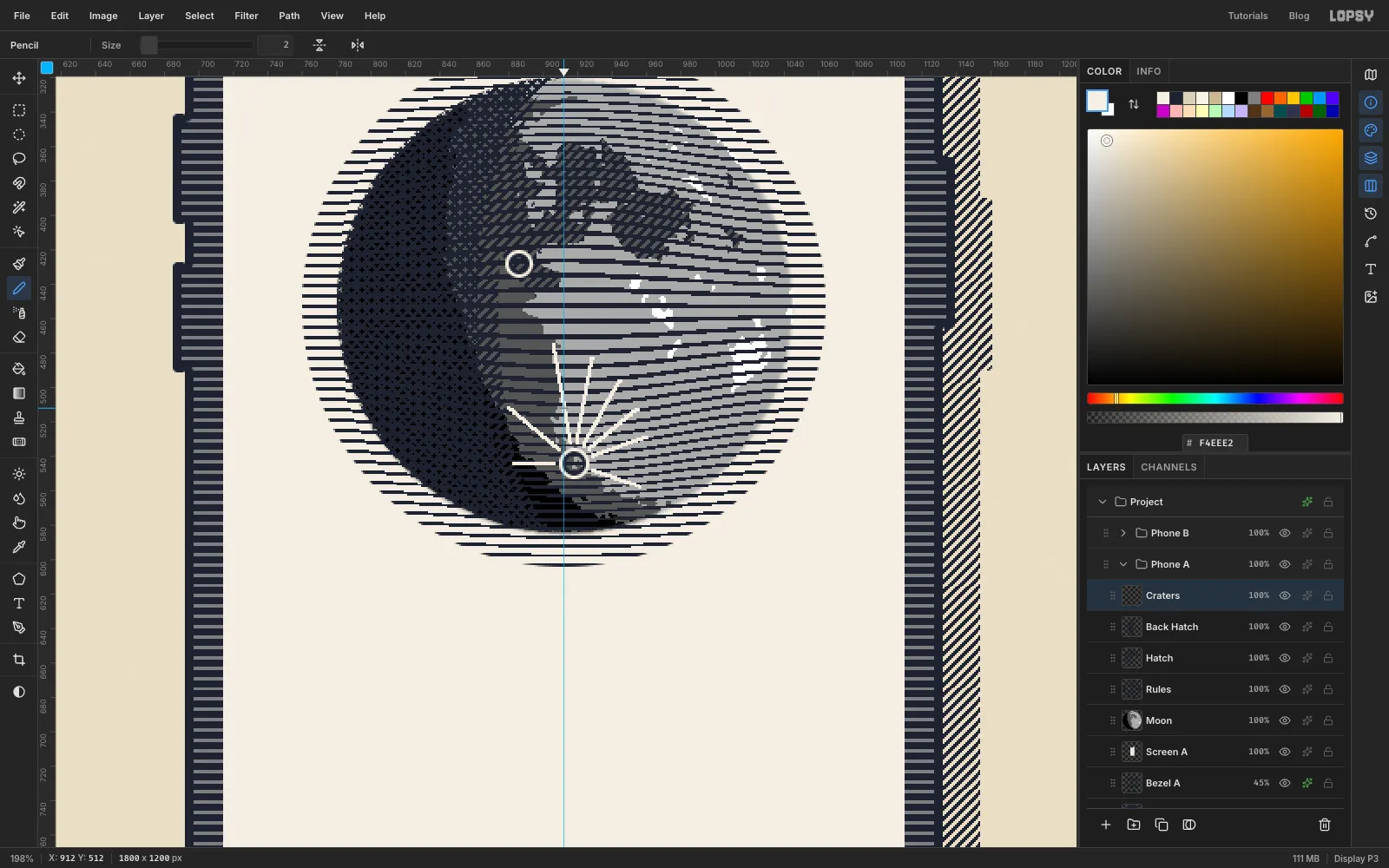
- Click
-
Flatten and trim the engraving
- With
Cratersactive, choose Layer → Merge Down three times. The craters, back-hatching and hatching fold intoRules. Rename itMoon Etch. - Select the moon disc with the Elliptical Marquee again, choose Select → Inverse, and press Delete to trim everything outside it. Press ⌘+D.
- Hide
Moonwith its eye icon. Once you're happy with the engraving, delete it.
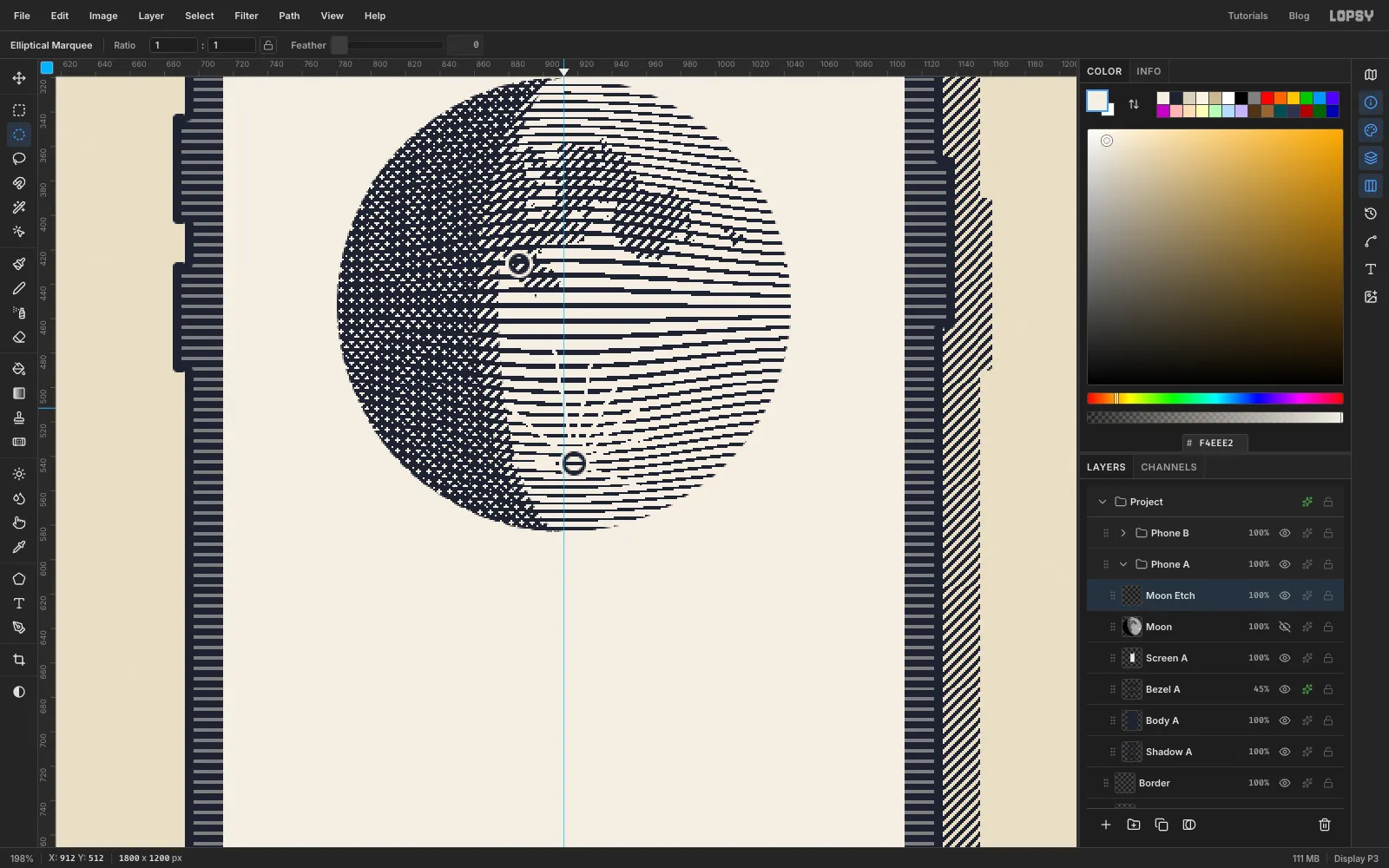
- With
-
Add a glory of rays
Old engravings ring the Moon and Sun with a glory of rays. Sunburst draws them, and a ring-shaped selection keeps them short.
- First give the disc a clean outline. Add a layer called
LimbaboveMoon Etch, select a circle 1 px bigger than the moon (779, 319to1045, 585), fill it with ink, Shrink2and press Delete. - Click
Screen Aand add a layer calledGlory. Click once with the Elliptical Marquee and enter754, 294to1070, 610, a circle of radius 158. Then hold Alt and drag from772, 312to1052, 592, watching X and Y. That subtracts a circle of radius 140 and leaves a ring. - With ink as the foreground colour, choose Filter → Sunburst…. Set Rays
48, Length100, Width16, Taper0, Center X51and Center Y38. Set Fade, Softness, Rotation and Jitter to0, and Opacity to100. Click Apply. The Center fields are percentages of the canvas: 51% of 1800 is 918 and 38% of 1200 is 456, close to the moon's centre at912, 452. - Make a thinner ring the same way, from
764, 304to1060, 600minus the same inner circle. Run Sunburst again with Width9and Rotation4. This sets a short ray between each pair of long ones. - Press ⌘+D. The percentages put the burst centre a few pixels off the moon's. With the Move tool, nudge the layer 6 px left and 4 px up so the rays point straight at the middle.
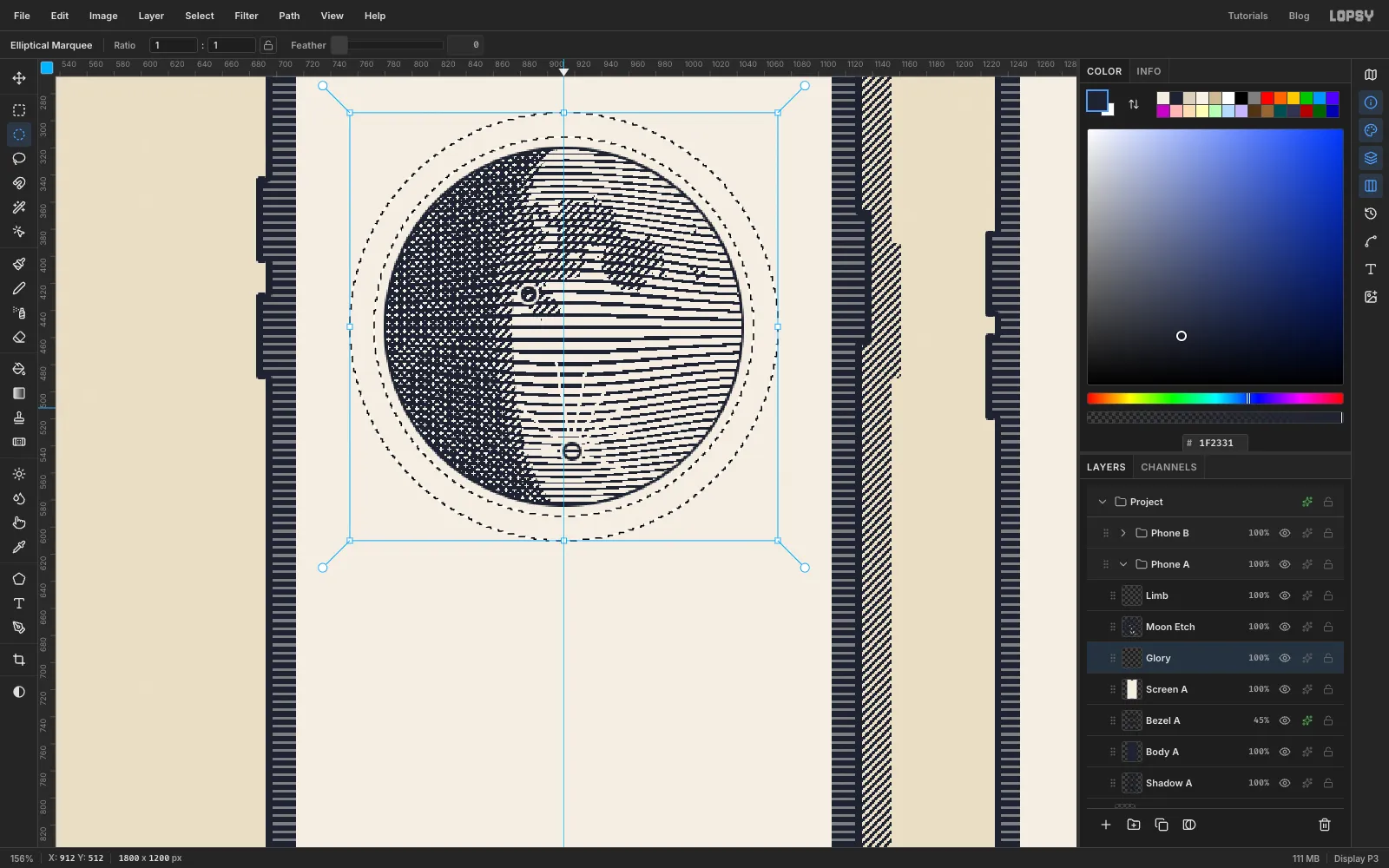
- First give the disc a clean outline. Add a layer called
-
Rule the screen
- Click
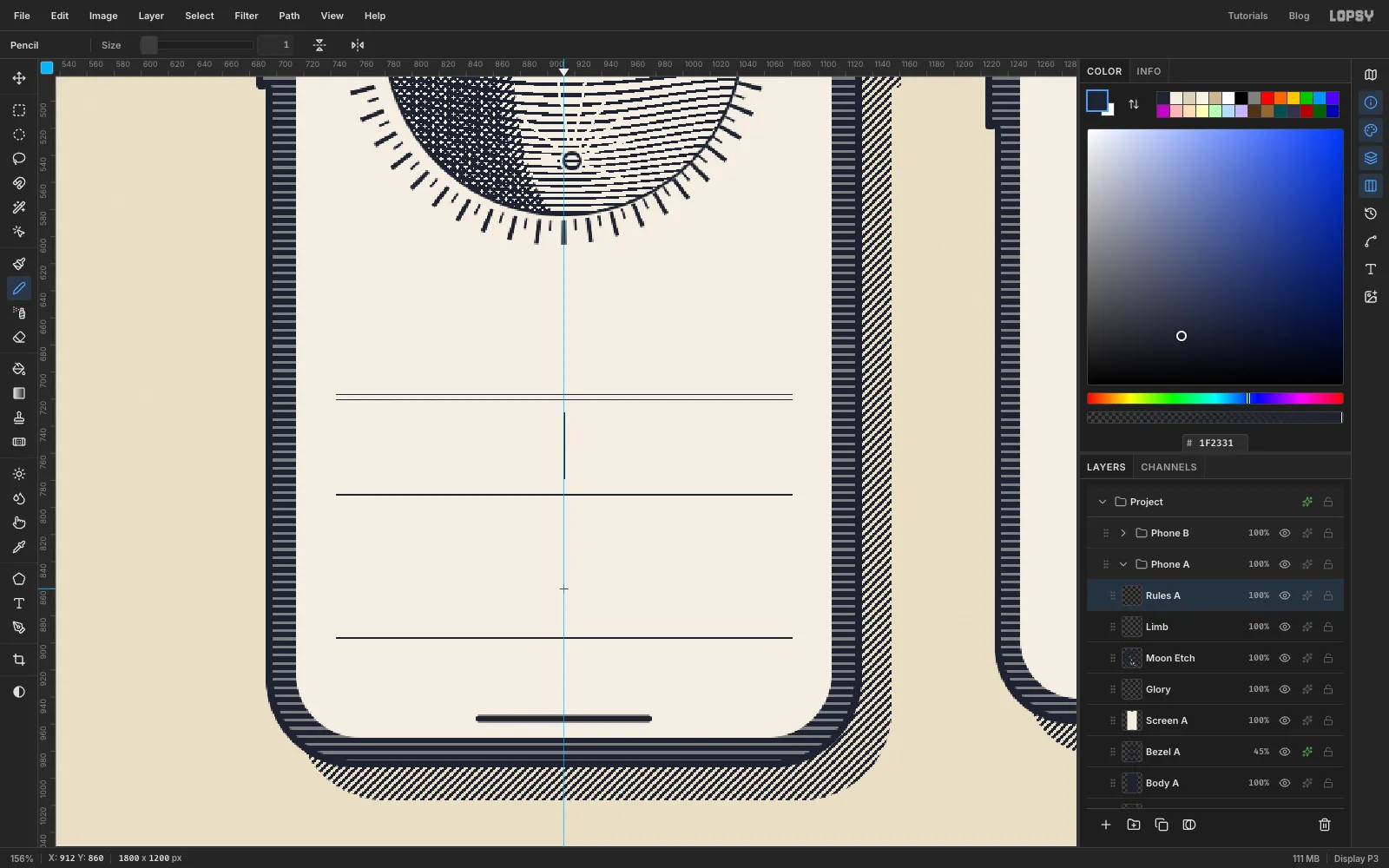
Limband add a layer calledRules A. Pick the Pencil, Size1, ink. - Shift-click these lines from
x 744tox 1080:
- A double rule at
y 716andy 720 - A single rule at
y 790 - The tab-bar rule at
y 896
- Draw a short vertical divider at
x 912fromy 730toy 778, between the moonrise and moonset columns.
- Click
-
Draw the tide chart
- Add a layer called
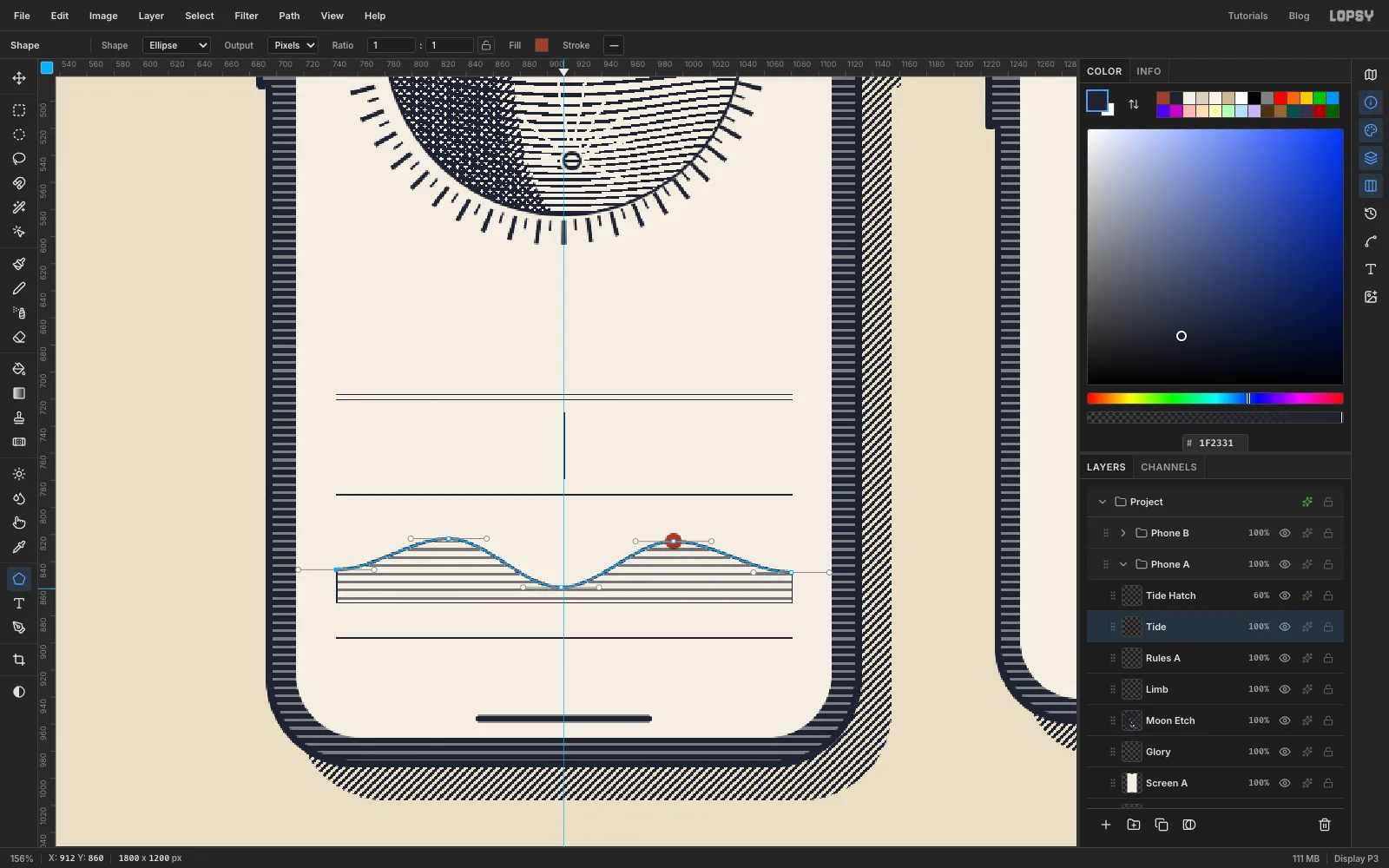
Tide. Pick the Pen, set Stroke2, ink. - Drag out five smooth anchors from left to right, pulling each handle about 28 px to the right. Start at
744, 846, then go up to a crest at827, 823, down to910, 859, up to993, 825, and end at1080, 848. Press Enter to stroke the path. - With the Pencil at Size
1, close off the area under the wave. Draw a line down from each end toy 870, and a baseline between them. - Click inside the closed area with the Magic Wand (Contiguous on). Add a layer called
Tide Hatch, Fill with Pattern using rules, press ⌘+D and set the layer to60%. - Click
Tide. With the Shape tool (Ellipse, fill , no stroke), click the second crest at993, 825for a12×12"now" marker.
- Add a layer called
-
Draw the status and tab icons
- Add a layer called
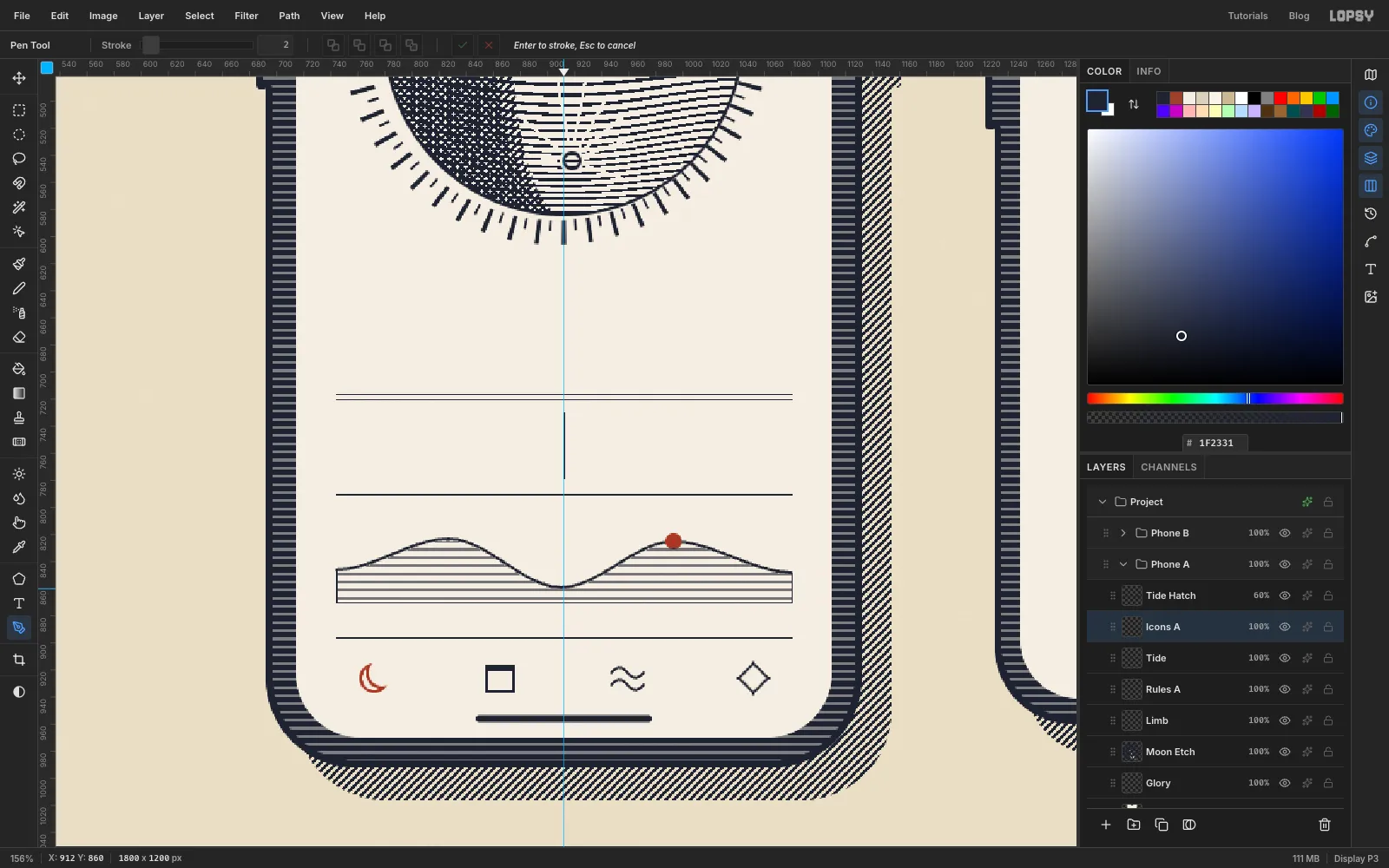
Icons A. For the status bar, use the exact-size marquee and ink fills:
- A battery outline: fill
1058, 171to1082, 183, Shrink2and Delete - The charge inside it:
1061, 174to1074, 180 - A cap on the right:
1083, 175to1085, 179 - Four signal bars to the left of it, each 4 px wide with 2 px gaps, from
x 1024tox 1046. They step up from 2 px to 11 px tall, all standing ony 183.
- All four tab icons sit on
y 926, atx 772,865,959and1052. Every icon is an outline 2 px thick:
- Moon (the active tab, in sanguine): click once with the Elliptical Marquee and enter
761, 915to783, 937. Then Alt-drag from768, 912to788, 932to bite a crescent out of it. Fill, Shrink2, Delete. - Calendar (ink): fill a 22 × 21 box, Shrink
2and Delete, then fill a 5 px bar across its top. - Tides (ink): two short waves with the Pen at Stroke
2. For the first, drag out three anchors 12 px apart at947, 922,959, 922and971, 922, pulling their handles 4 px right and alternately 5 px up, down and up. Press Enter to stroke it. Draw the second wave the same way 9 px lower. Deselect the first path in the Paths panel before you start the second, or the Pen edits the first one. - Sky (ink): with the Lasso, draw a small four-pointed star about 26 px across with its points up, down, left and right, then Fill, Shrink
2, Delete. At this size its pinched sides read almost as a diamond.
- Add a layer called
-
Set the type on the first phone
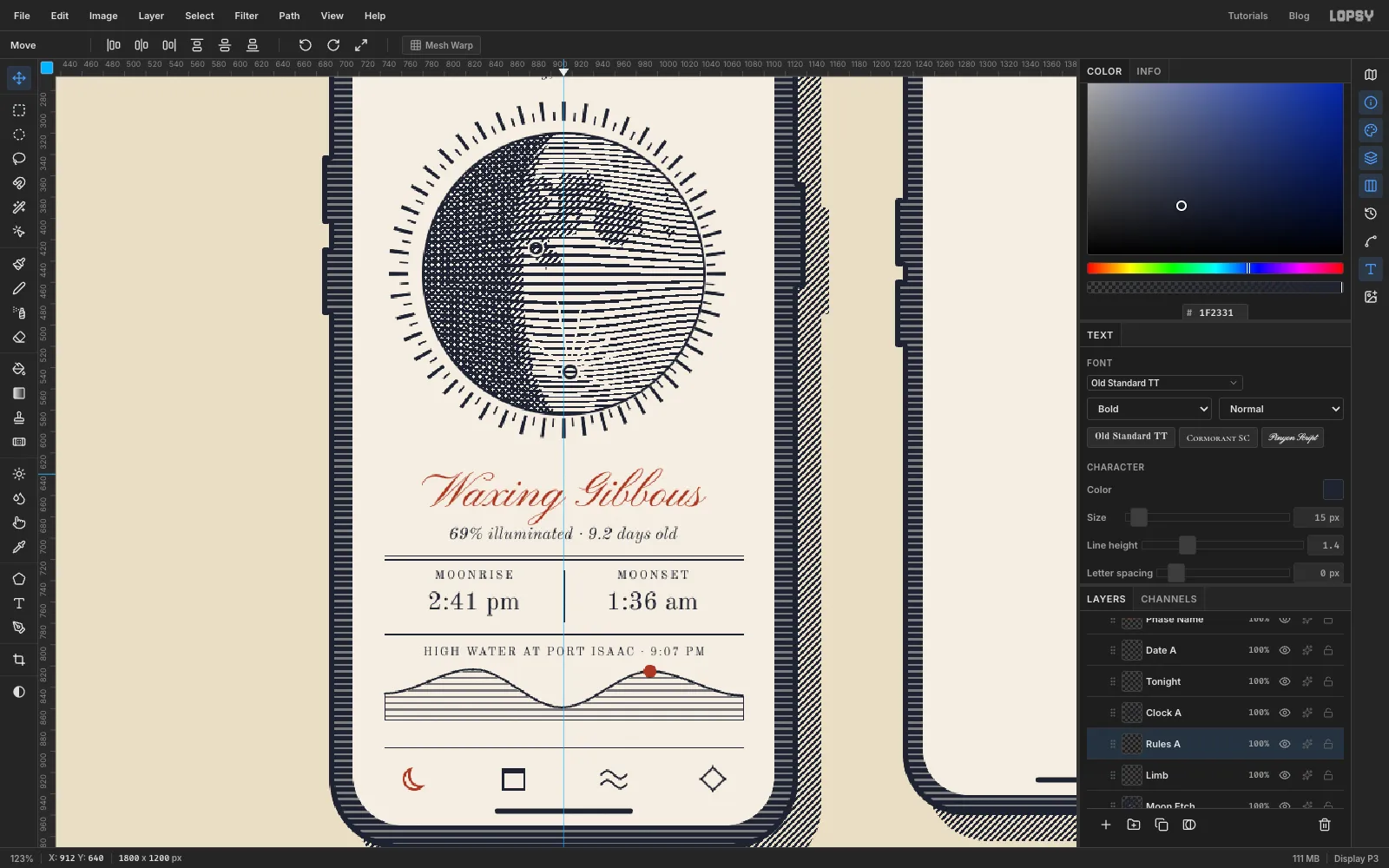
Text tool clicks near existing type re-edit it, so set the lines from the bottom up. Before each new line, click a raster layer such as
Rules A, because changing font settings while a text layer is active restyles that layer. Check the letter spacing in the Text panel each time, because it carries over to the next text.Every line except the clock is centred on the phone. Type the line anywhere nearby, press Tab to commit it, then nudge it into place with the arrow keys. The "y" values are the tops of the letters. For the middle dot press Alt+Shift+9 on a Mac, and for the en dash press Alt+-.
HIGH WATER AT PORT ISAAC · 9:07 PMin Old Standard TT, size11, letter spacing1.5, ink, with its top aty 802.- The times in Old Standard TT, size
24, with their tops aty 750:1:36 am(moonset) centred onx 996, then2:41 pm(moonrise) centred onx 828. Old Standard's figures all sit on the baseline, so the two times match. - The labels in Old Standard TT, size
11, spacing2, aty 730:MOONSETover the right time, thenMOONRISEover the left. 69% illuminated · 9.2 days oldin Old Standard TT Italic, size16, aty 690.Waxing Gibbousin Pinyon Script, size46, sanguine, aty 634. This is the screen's one splash of red type.Tuesday, 20 Octoberin Old Standard TT Italic, size16, aty 254.Tonightin Cormorant SC, SemiBold, size34, aty 214. The font sets lowercase as small capitals.9:41in Old Standard TT Bold, size15, left-aligned atx 744,y 172.
-
Draw the Earth
The second screen shows the whole cycle: the phases as seen from Earth, with sunlight coming from the left.
- Collapse
Phone A, expandPhone B, and clickScreen B. Choose View → Snap to Guides to turn it off until the icons are done. Otherwise the small marquees jump to the centre guide. - Add a layer called
Orbit. Select the circle1307, 363to1533, 589(radius 113, centred on1420, 476). Fill it with ink, Shrink2and Delete. - Add a layer called
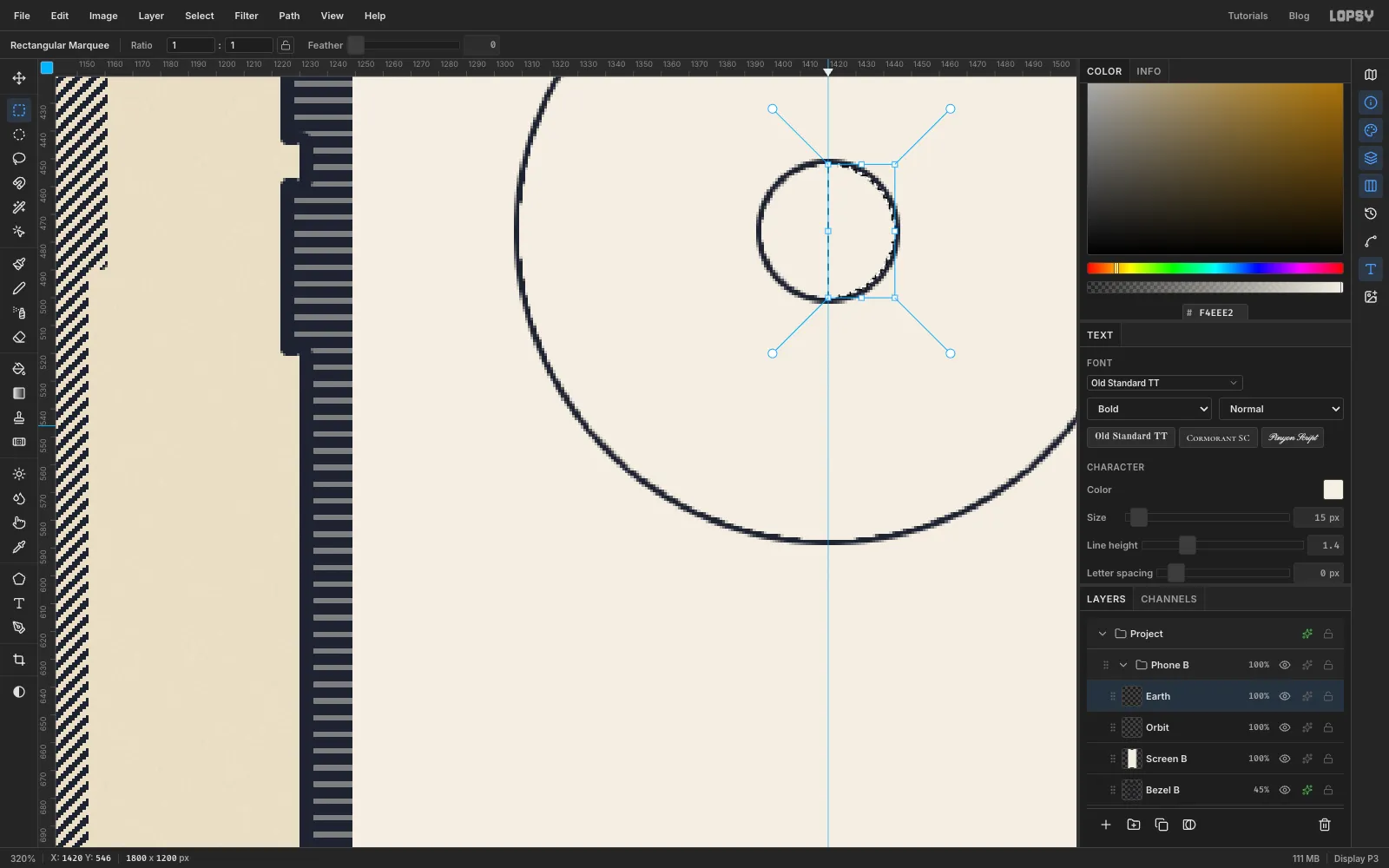
Earth. Select1394, 450to1446, 502(radius 26, same centre) and fill it with ink. Shrink2and fill with the screen colour. - Shift+Alt-drag a rectangle over the right half of the Earth to keep only that half, and Fill with Pattern using hatching. That's the night side, facing away from the sun.
- Select an ellipse 22 px wide and 50 px tall on the Earth's centre. Fill it with ink, Shrink
1and Delete for a meridian. Draw an equator with the Pencil at Size1.
- Collapse
-
Lay out the phase discs
- Add a layer called
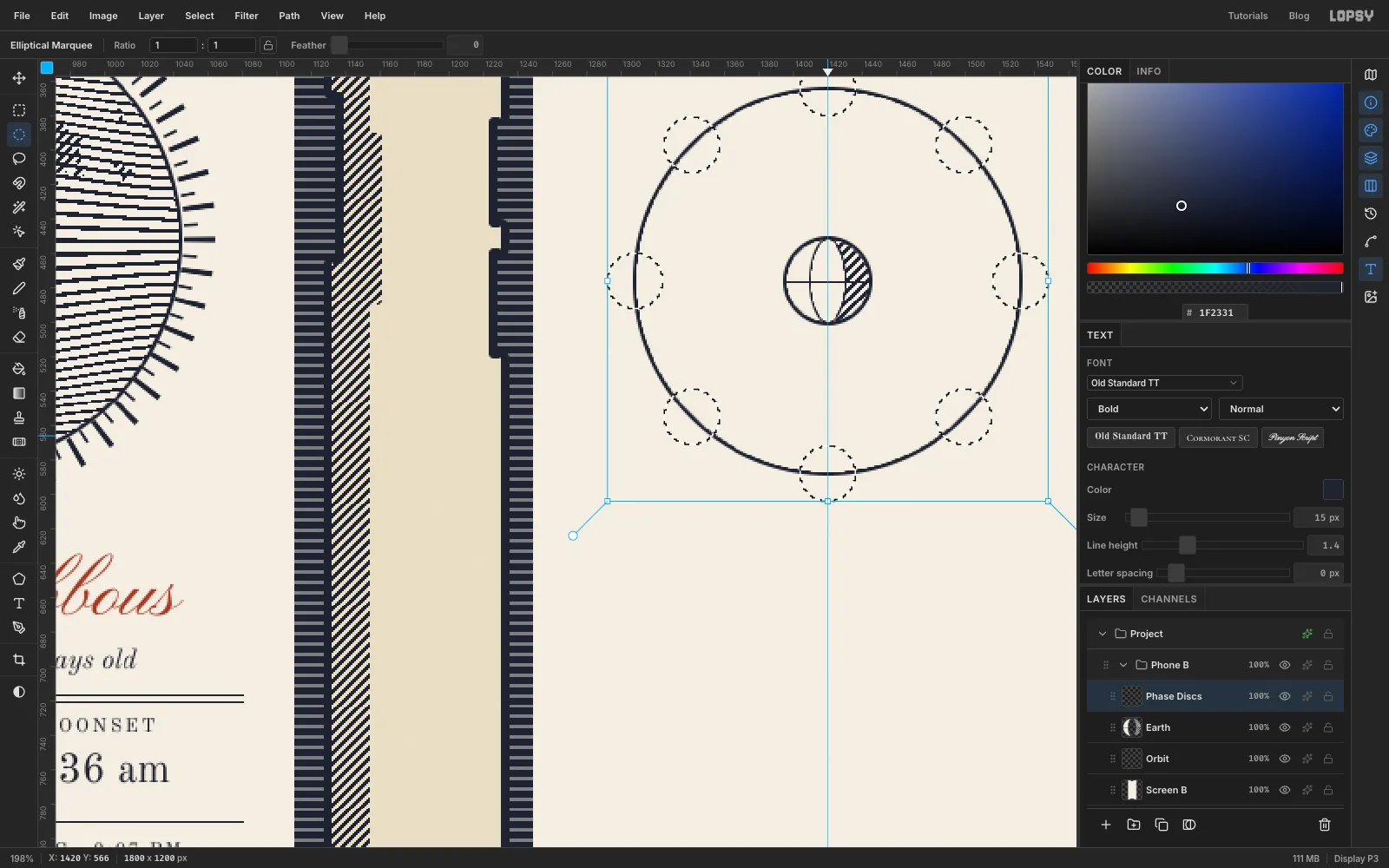
Phase Discs. Select a circle of radius16on the orbit at 9 o'clock:1292, 460to1324, 492. - Hold Shift and drag seven more, every 45° around the orbit, each 32 px square. Their centres are:
- Bottom left
1341, 555, bottom1420, 588, bottom right1499, 555 - Right
1532, 476 - Top right
1499, 397, top1420, 364, top left1341, 397
- Fill them with the screen colour in one go and press ⌘+D.
- Add a Stroke effect, Width
2, ink. It outlines all eight at once.
- Add a layer called
-
Shade each phase
Add a layer called
Phase Shade. Each phase's shadow is the same build you used on the big moon, scaled down to a 32 px disc. Here is the waxing gibbous in full:- Click once with the Elliptical Marquee and enter
1483, 539to1515, 571. - Shift+Alt-drag a rectangle from above and left of the disc to its bottom edge at
x 1499, which keeps the left half. - Alt-drag an ellipse from
1491, 539to1507, 571to take the middle back out. - Fill with Pattern using hatching.
The others follow the same pattern:
- New moon, at 9 o'clock: the whole disc.
- Waxing crescent, bottom left: the left half (intersect), then Shift-add a centred ellipse 16 px wide. Only a thin lit crescent is left on the right.
- First quarter, bottom: the left half.
- Waxing gibbous, bottom right: the left half, then Alt-subtract the 16 px ellipse.
- Full moon, 3 o'clock: no shadow.
- Waning gibbous, last quarter and waning crescent: the same shapes mirrored, using the right half.
After each selection, Fill with Pattern using hatching. Then Merge Down into
Phase Discsand rename itPhases. Its Stroke effect stays live.Tonight's phase is the waxing gibbous. Add a layer called
Tonight Ring, select1475, 531to1523, 579around that disc, fill it with sanguine, Shrink2and Delete.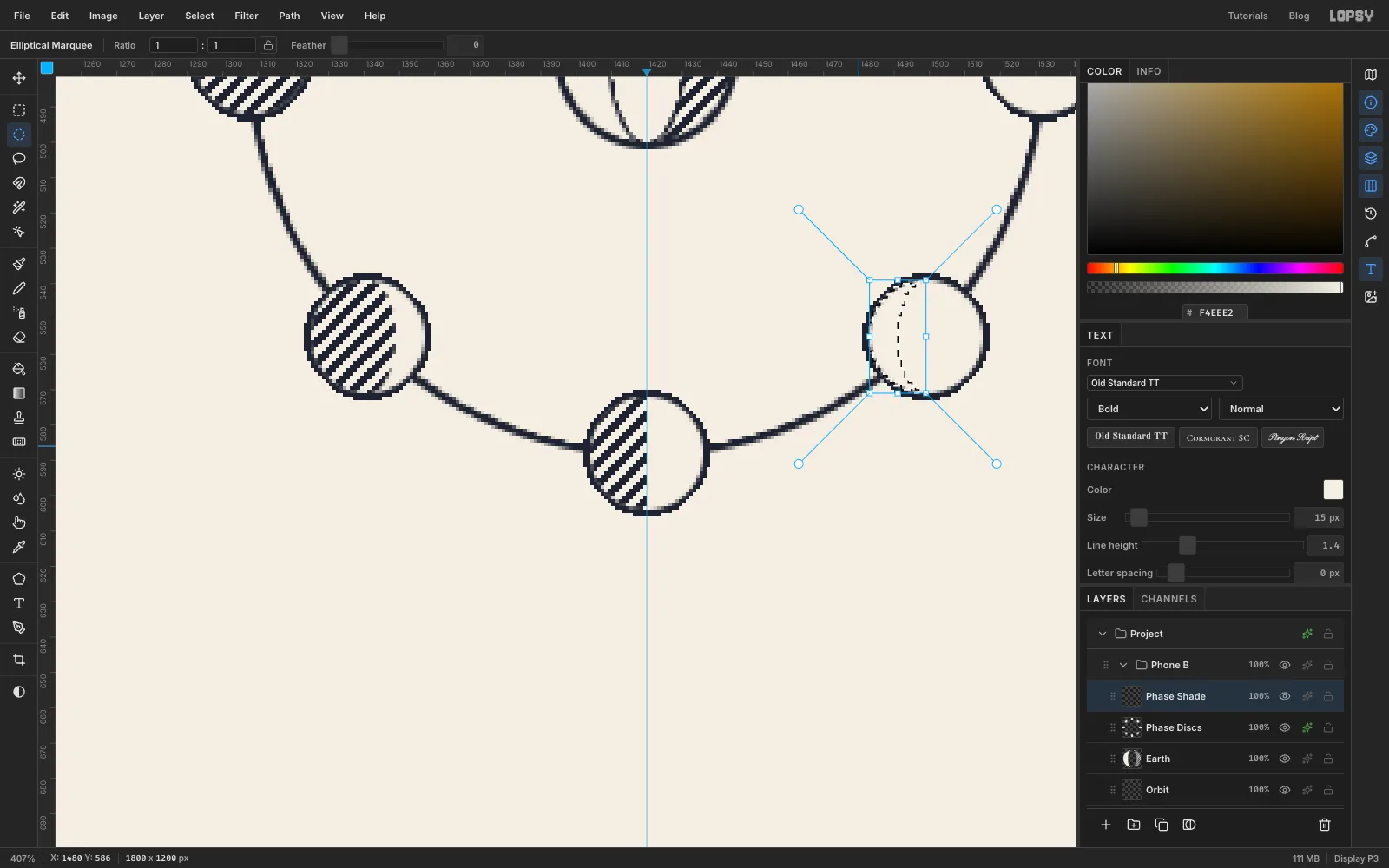
- Click once with the Elliptical Marquee and enter
-
Copy, paste and scale the list moons
The list under the dial reuses four of the dial's discs.
- Add a layer called
Rules B. With the Pencil at Size1, draw a rule aty 624and the row dividers aty 701,751and801, all fromx 1273tox 1567. Draw the tab-bar rule aty 862. - Click
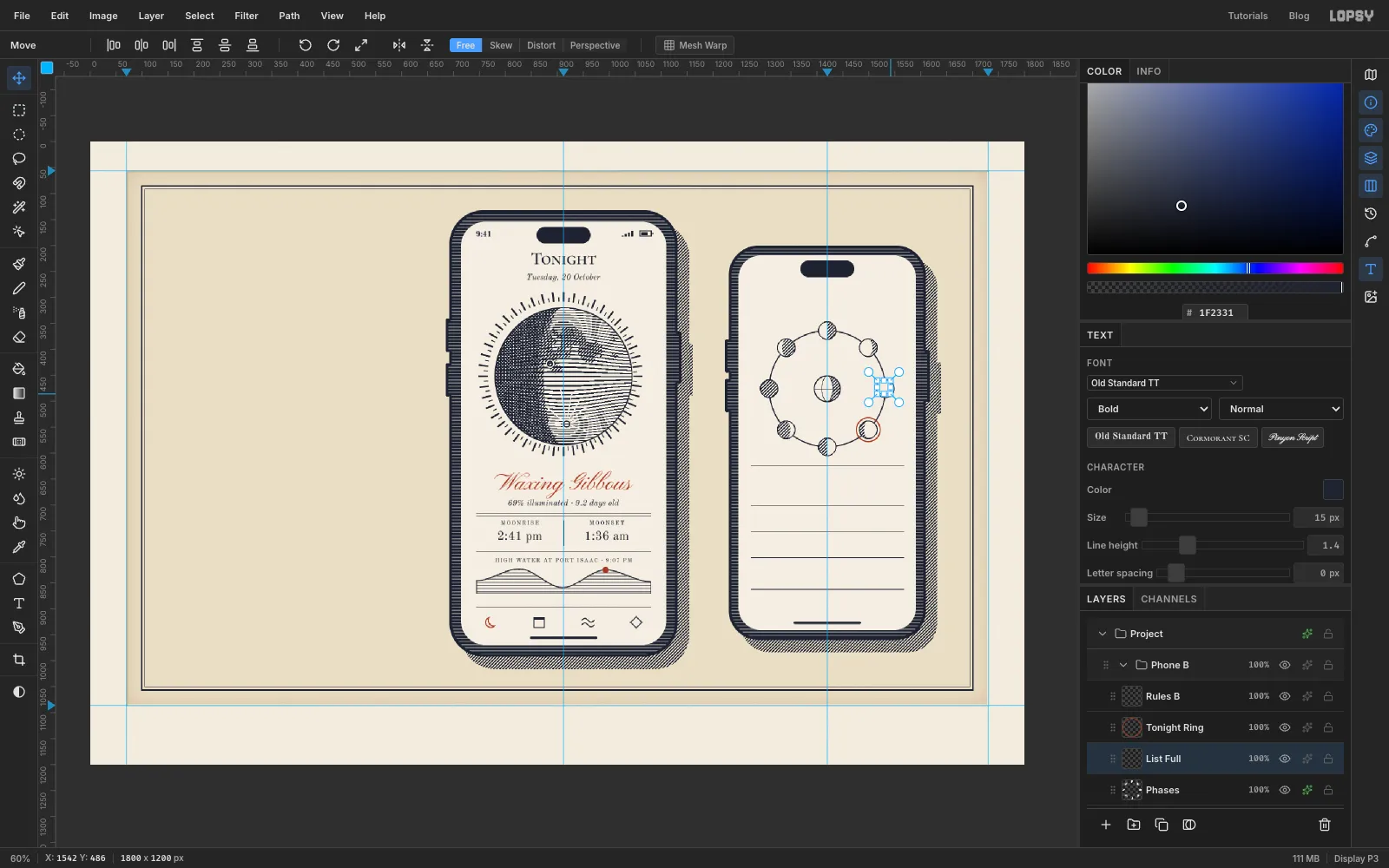
Phases, drag a marquee just around the full-moon disc, and press ⌘+C, then ⌘+V. The copy pastes in place on a new layer, selected and ready to move. - With the Move tool, ⌘-drag its bottom-right corner handle in to about three-quarters of its size, so the disc is 26 px across instead of 32. Press ⌘+D.
- Drag it down to the first row and centre it on
1283, 676. - Repeat for last quarter (centred on
1283, 726), new moon (1283, 776) and first quarter (1283, 826). ClickPhasesagain before each copy. - Each paste lands directly above
Phases, so the newest is lowest. Click the top one (the full moon) and Merge Down three times. Rename the resultList Moonsand give it a Stroke of2in ink.
- Add a layer called
-
Copy the icons across
- Expand
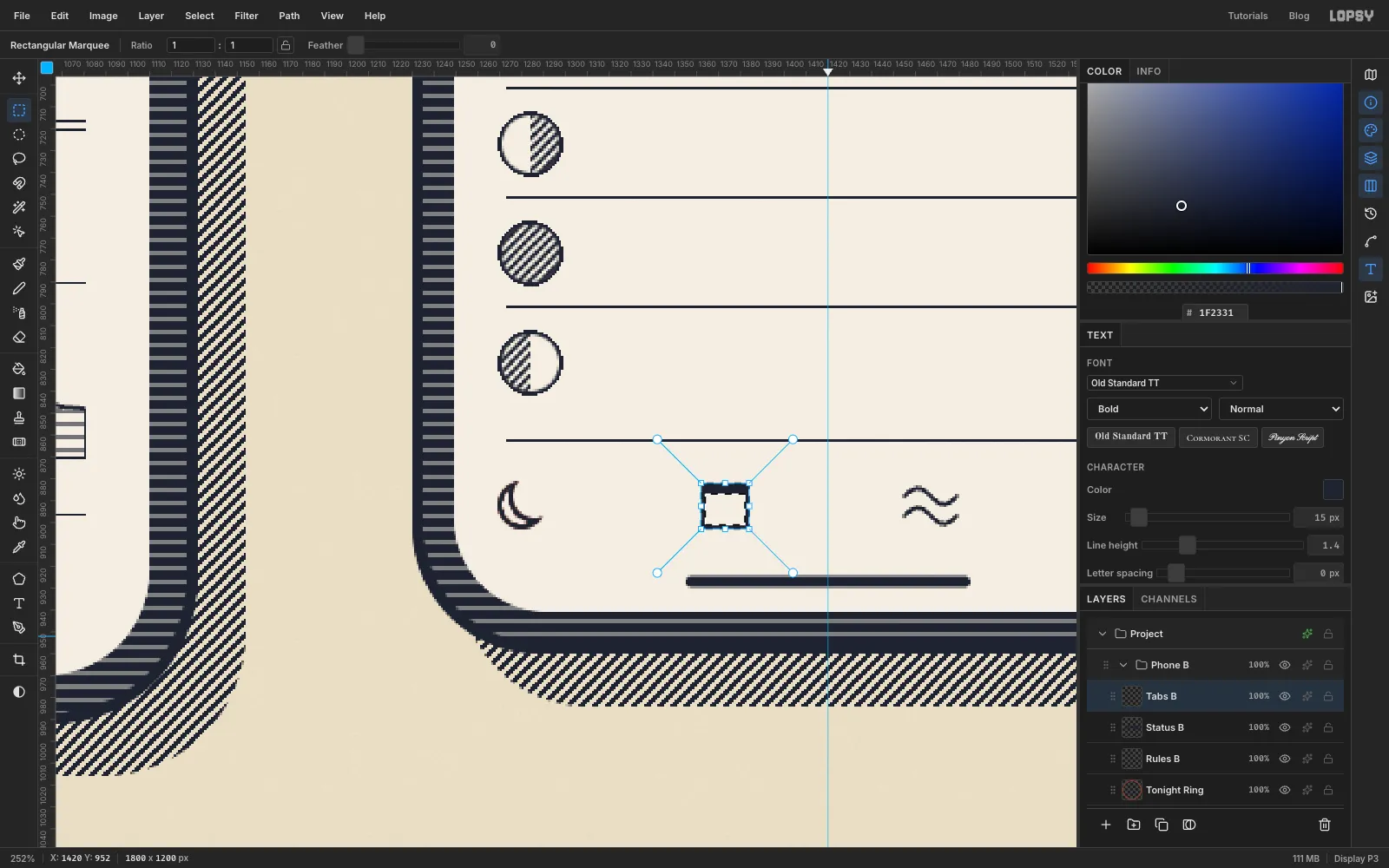
Phone A, clickIcons A, and marquee the status icons. Press ⌘+C, clickRules B, and press ⌘+V. Drag the copy into the second phone's status bar so the battery's right end sits at about1563, 243, the same distance from the screen edge as on the first phone. - Do the same with the four tab icons, pasting above the status copy. Drag them onto the second tab bar so the crescent is centred on
1280, 892. Name the layerTabs B. - This screen's active tab is the calendar. ⌘-click the
Tabs Bthumbnail. Then, with the Rectangular Marquee, Shift+Alt-drag a box around just the crescent. Fill it with ink. - ⌘-click the thumbnail again, Shift+Alt-drag around the calendar, and fill it with sanguine. Turn Snap to Guides back on.
- Expand
-
Set the type on the second phone
Bottom up again, with
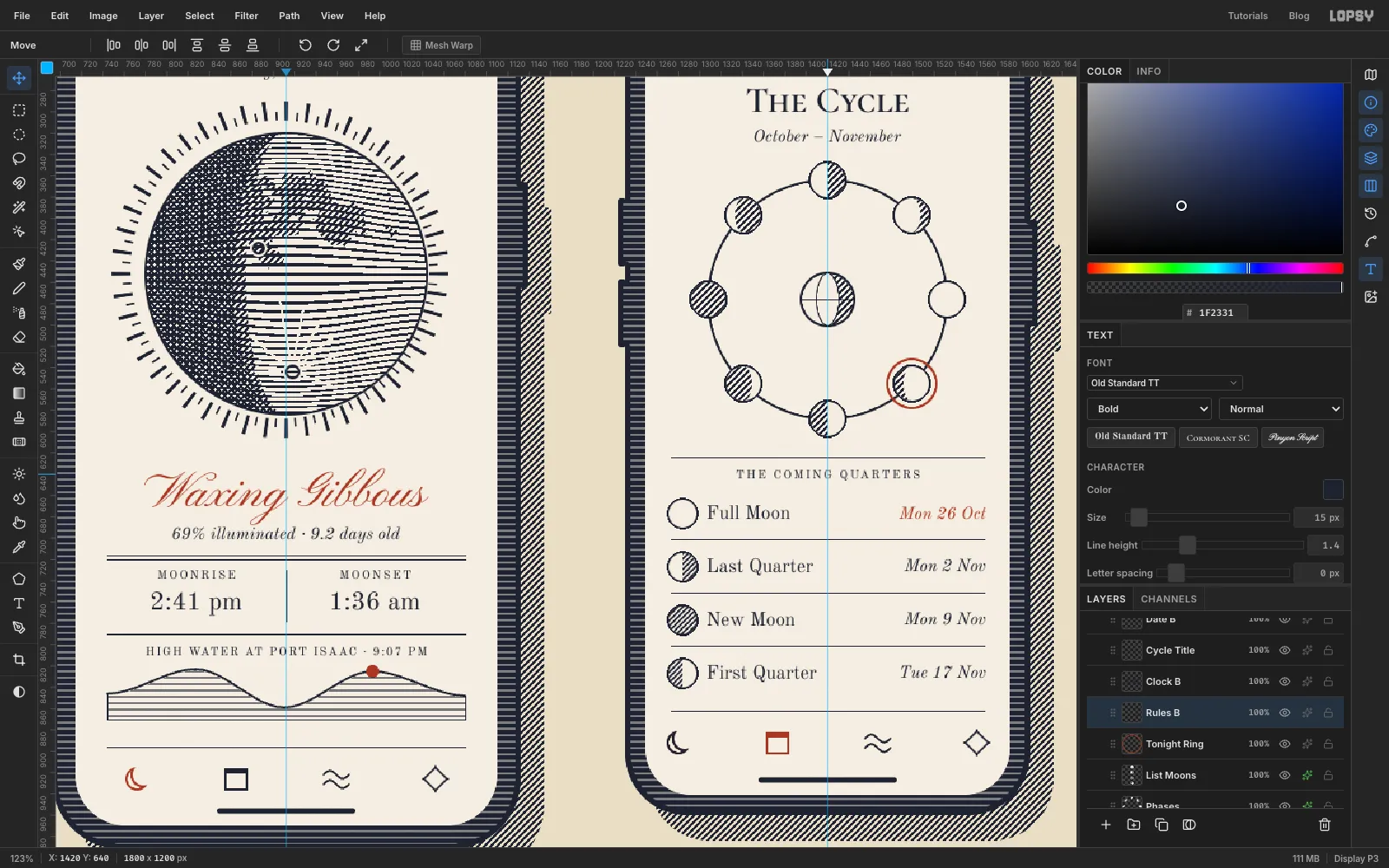
Rules Bclicked before each line:- For each list row from the bottom, set the date first, then the name. Centre each row's text vertically on its moon (rows at
y 676,726,776and826):
- Dates in Old Standard TT Italic, size
16. Point text doesn't align, so nudge each date until its right edge ends atx 1567 - Names in Old Standard TT, size
18, starting atx 1307 - The rows are
First Quarter/Tue 17 Nov,New Moon/Mon 9 Nov,Last Quarter/Mon 2 NovandFull Moon/Mon 26 Oct - The full moon's date is next, so make it sanguine
THE COMING QUARTERSin Old Standard TT, size11, spacing2, centred aty 636.October – Novemberin Old Standard TT Italic, size16, centred aty 316.The Cyclein Cormorant SC SemiBold, size34, centred aty 278.9:41in Old Standard TT Bold, size15, atx 1279,y 237.
- For each list row from the bottom, set the date first, then the name. Centre each row's text vertically on its moon (rows at
-
Set the title column
- Collapse
Phone B, clickBorder, and make a New Group calledTitlewith a layer calledTitle Rules. - Draw the double rule under the title with the Pencil. Use Size
3aty 414and Size1aty 421, both fromx 150tox 620, the width of the title. - For the box, marquee
150, 902to480, 992, Fill with ink, Shrink2, Delete, Shrink4, Fill, Shrink1, Delete. Its bottom lines up with the first phone's body. - Set the type bottom up, all left-aligned at
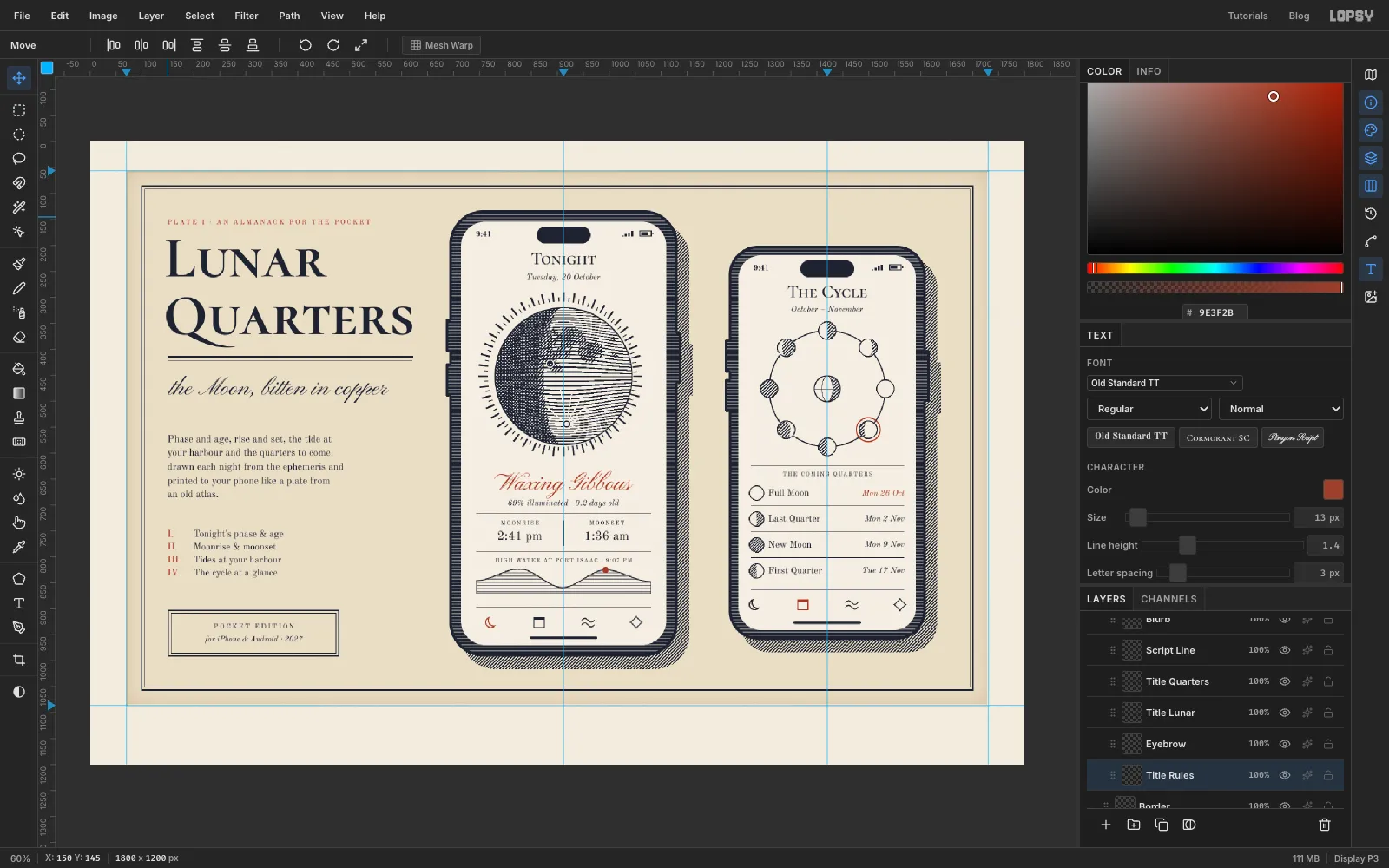
x 150unless noted:
- Inside the box, centred on
x 315:POCKET EDITIONin Old Standard TT, size13, spacing3, aty 928, andfor iPhone & Android · 2027in Old Standard TT Italic, size15, aty 952. I.toIV.on four lines in sanguine, withTonight's phase & age,Moonrise & moonset,Tides at your harbourandThe cycle at a glancebeside them atx 200. Both are Old Standard TT, size18, with their tops aty 748.- The paragraph in Old Standard TT, size
19, aty 565, broken with Enter into five lines: Phase and age, rise and set, the tide at / your harbour and the quarters to come, / drawn each night from the ephemeris and / printed to your phone like a plate from / an old atlas. the Moon, bitten in copperin Pinyon Script, size46, aty 451.QuartersandLunarin Cormorant SC Bold, size112, aty 300andy 190.PLATE I · AN ALMANACK FOR THE POCKETin Old Standard TT, size13, spacing3, sanguine, aty 150.
The blocks below the rule are spaced about 63 px apart, so the column has an even rhythm.
- Collapse
-
Tilt the second phone
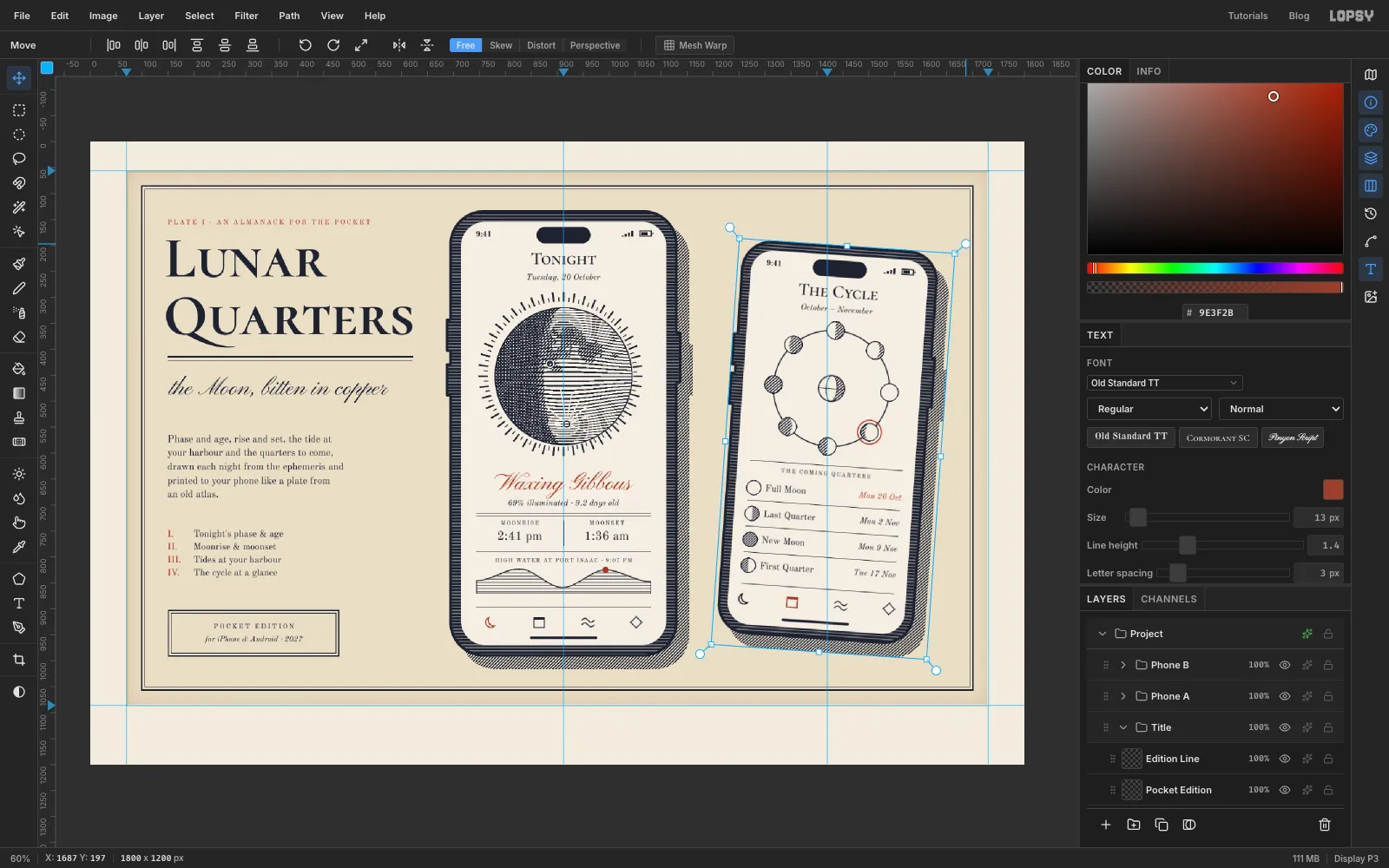
- Press ⌘+D so nothing is selected. Click the
Phone Bgroup row and pick the Move tool. The transform box wraps the whole phone, shadow included. - Hover just outside the top-right corner until the pointer turns into a curved arrow, then drag to rotate the group about 4° clockwise. Press ⌘+D to commit.
Every layer turns together: body, bezel, screen, dial, list and type.
- Press ⌘+D so nothing is selected. Click the
-
Sign the edition in pencil
Printmakers write in pencil under the plate mark: the edition number on the left, the title in the middle and the signature on the right.
- Collapse
Title, click it, and make a New Group calledMarginwith an empty layer calledMargin Anchorinside it. ClickMargin Anchorbefore each line, so new type doesn't restyle the last one. - In Cedarville Cursive, size
26, colour , set these with their tops aty 1116:
E. Marlowe 2026, ending atx 1690Lunar Quarters, first state, centred onx 9003/50, starting atx 110
- Hide the guides with View → Show Guides. Choose File → Save Project to keep the layers, and File → Quick Export PNG for the board.
- Collapse