Design a Gothic Halloween Poster with a Moonlit Belfry
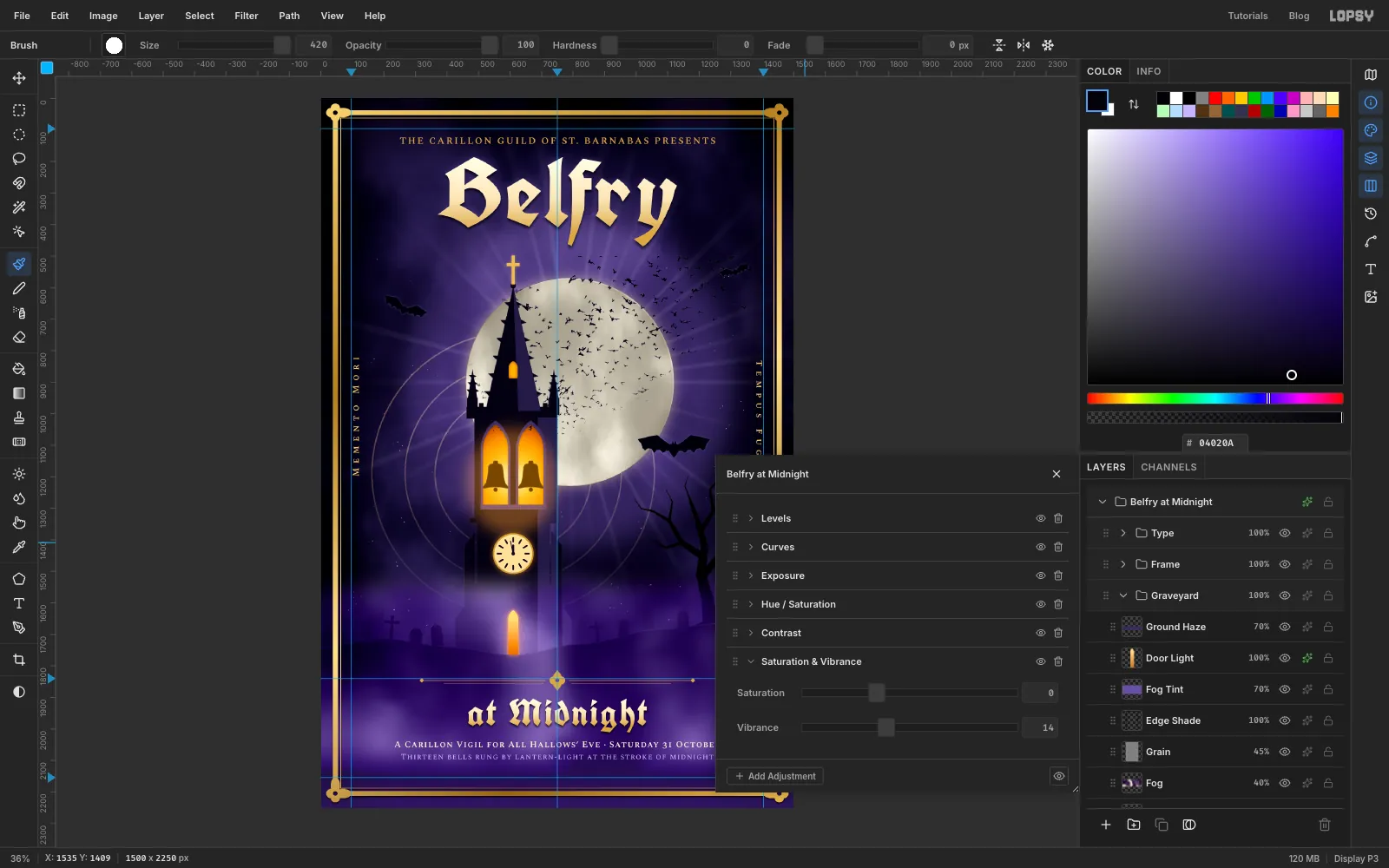
Make a gothic Halloween poster in Lopsy with a crocketed bell tower, a full moon, a bat flock from a photo, violet fog, a gilt frame and blackletter type.
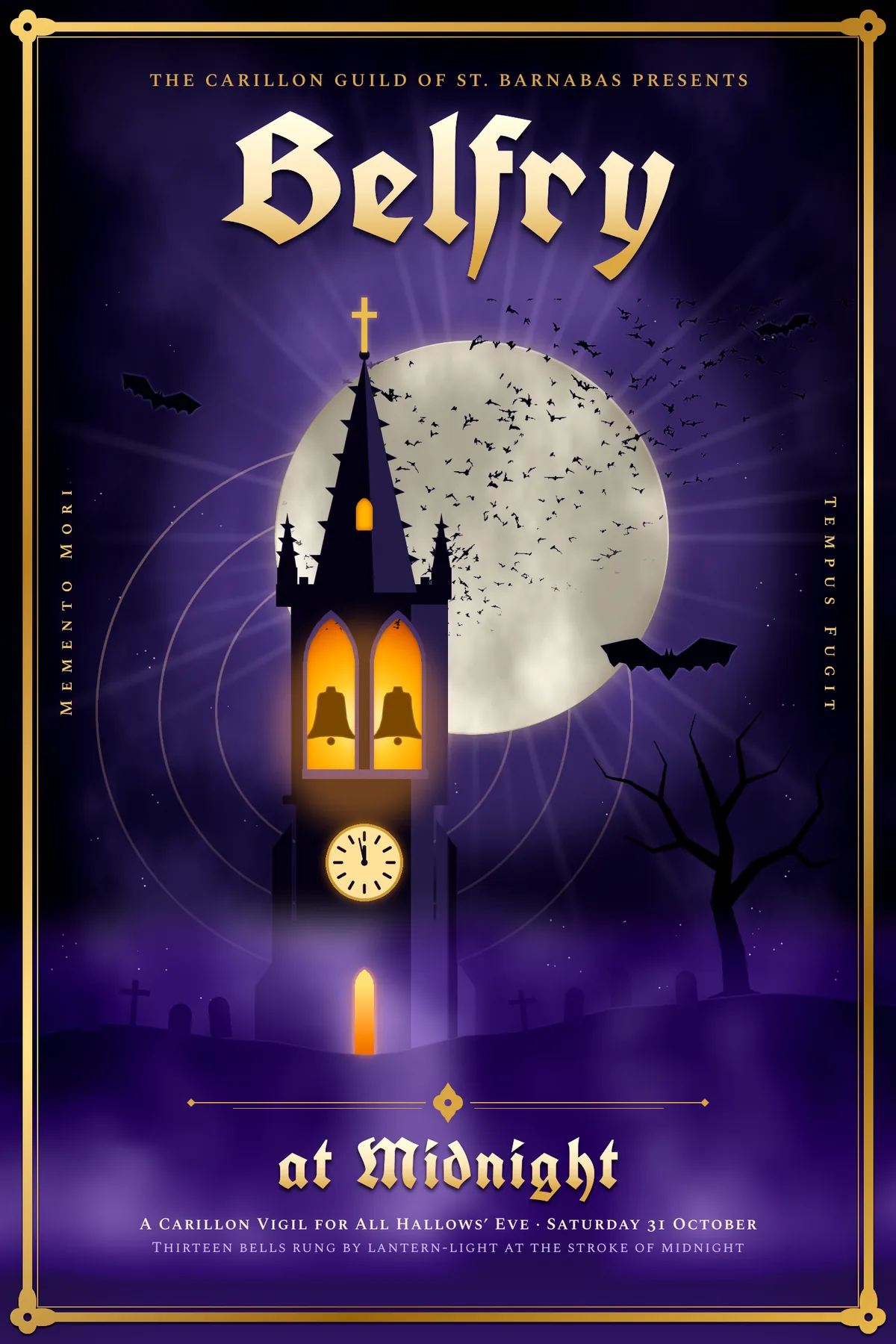
Gothic posters run on a simple contrast: a black silhouette against a bright moon, warm lantern light against cold violet night, and heavy blackletter against small, quiet capitals. In this tutorial you'll make Belfry at Midnight, a 1500 × 2250 px poster for an imaginary Halloween carillon vigil. A crocketed bell tower stands in front of a full moon, and bats pour out of its glowing belfry.
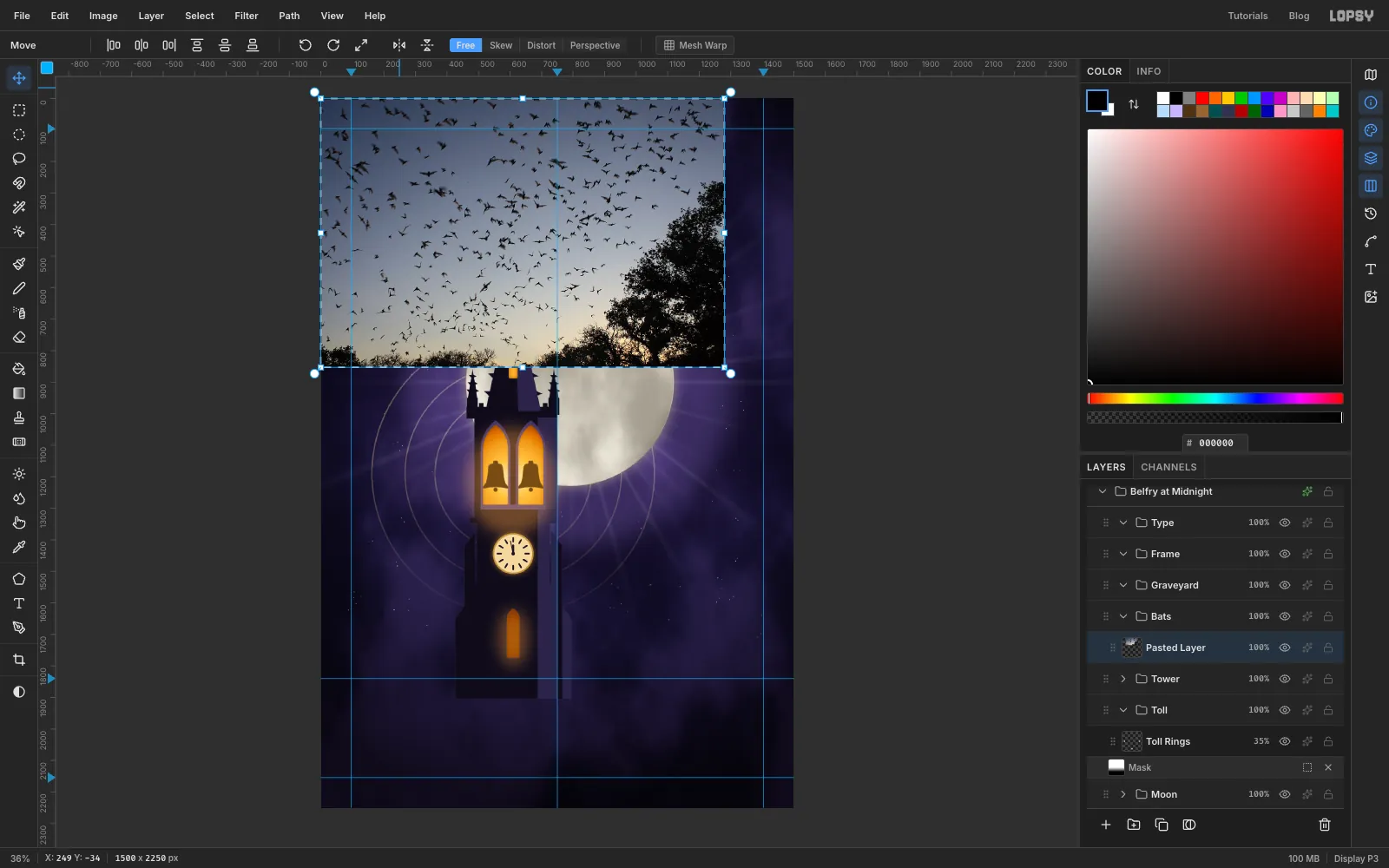
The bat flock comes from a real photo: Mexican free-tailed bats exiting Bracken Bat Cave.jpg) by Ann Froschauer of the U.S. Fish and Wildlife Service, on Wikimedia Commons. It's in the public domain. Download the 1280 px wide version. Any photo of bats against a clear evening sky works the same way.
Along the way you'll use:
- the Gradient tool (radial and linear), Clouds, Sunburst, Smoke, Emboss, Motion Blur, Gaussian Blur, Color LUT and Add Noise
- the Spray tool, Inner Glow to shade the moon's rim, and the Clone Stamp
- New Group, Add Layer, Duplicate Layer, Merge Down and moving a whole group
- the Elliptical Marquee (including its exact-size dialog), Rectangular Marquee and Lasso, with Shift to add and Alt to subtract, plus Grow, Shrink, Feather and Select → Inverse
- Cmd-clicking layer thumbnails to select a layer's shape
- a layer mask painted with a gradient
- the Brush with Radial Symmetry, and with Taper for branches
- dropping in a photo, Desaturate, Threshold and the Magic Wand
- copy and paste, Flip Horizontal, and scaling and rotating with the Move tool
- ruler guides, the grid with snapping, and Snap to Guides
- Text in UnifrakturCook and Spectral SC, the Text panel's letter spacing, Rasterize Layer, and rotating live text
- layer effects (Outer Glow, Inner Glow, Stroke, Drop Shadow, Color Overlay) and the Screen, Soft Light, Multiply, Overlay and Color blend modes
- Contrast and Saturation & Vibrance adjustments on the whole poster
- undo and redo
The palette:
-
Night sky
-
Moon
-
moon edge
-
halo
-
Tower
-
moonlit stone
-
hood moulds
-
Lantern light
-
Gilt
-
gold type
-
Bone type
-
lilac small print
-
fog tint
-
Set up the document and guides
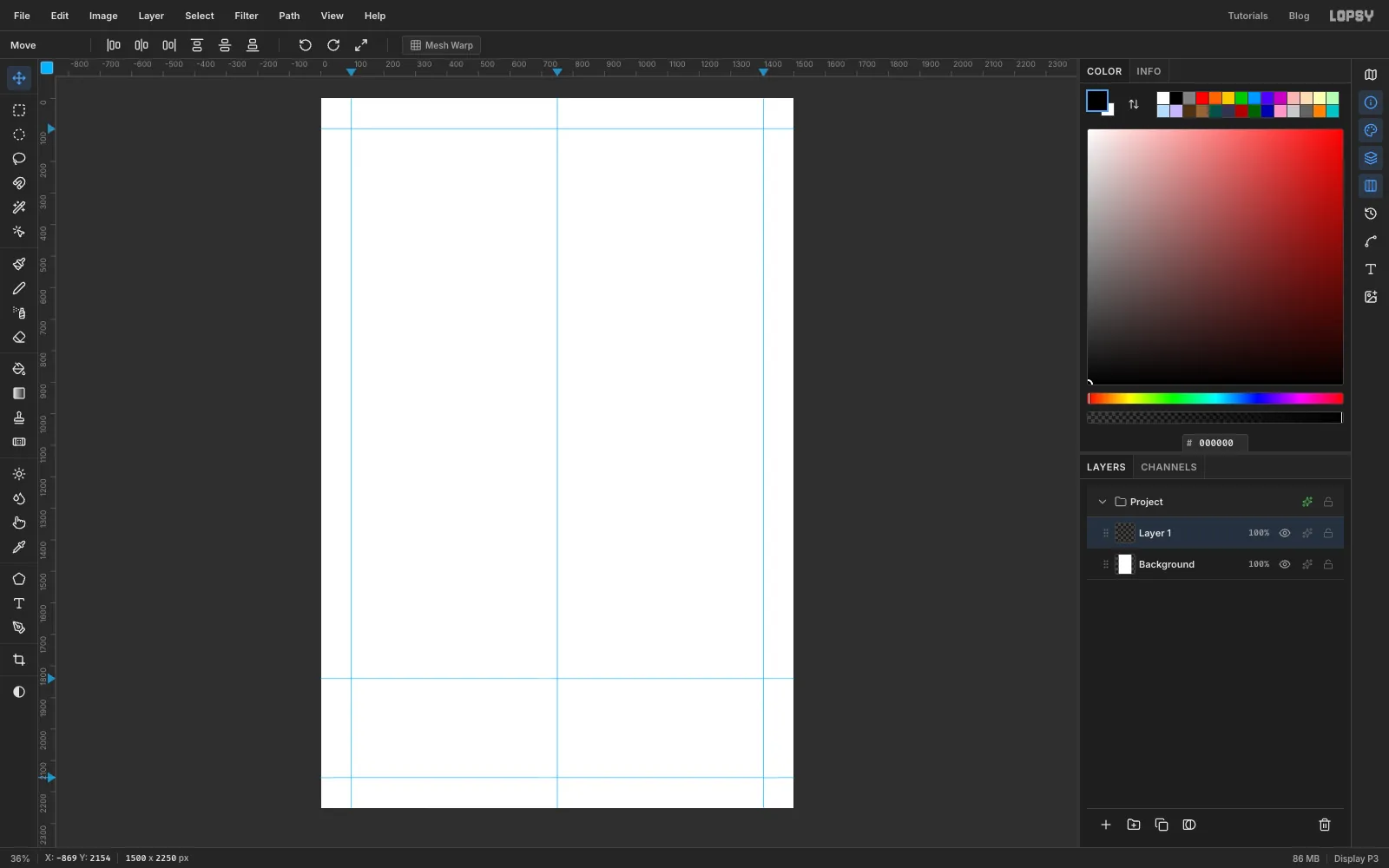
Create a new document 1500 × 2250 px with a White background.
Click the rulers to drop guides. Click the top ruler at 750 for the centre line, then at about 96 and 1404 for the side margins. Click the left ruler at about 96 for the top margin, 1840 for the ground line and 2154 for the bottom margin. A single click on a ruler makes a guide, so you don't need to drag.
Two points come up again and again, so note them now. The moon's centre is at 790, 900, just right of the centre line. The bells' centre is at 610, 1190, which is also the tower's axis. The status bar shows the cursor's X and Y, so you can always find them.
-
Paint the night sky
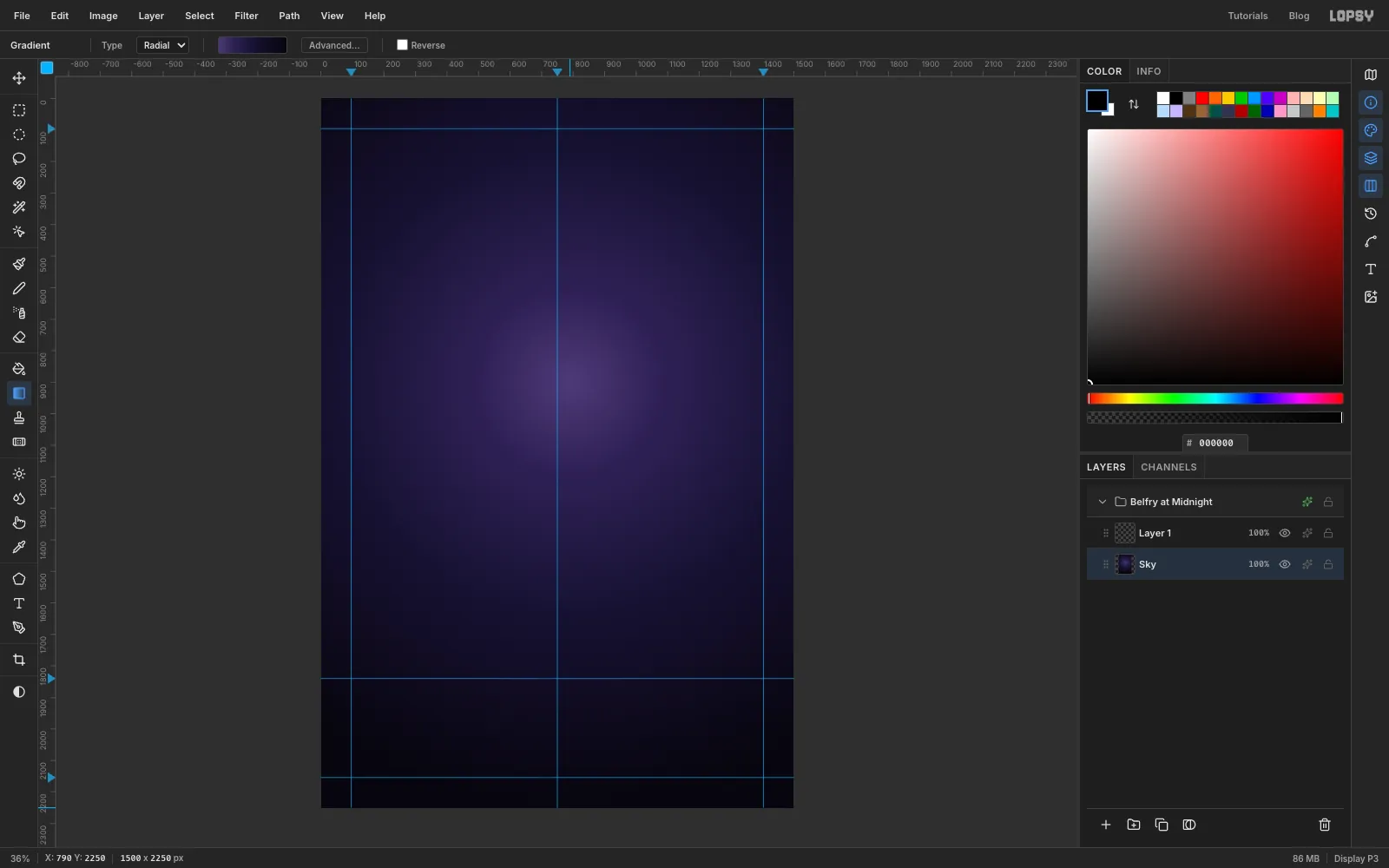
In the Layers panel, double-click the Project group's name and rename it Belfry at Midnight. Rename the Background layer Sky.
Choose the Gradient tool, set Type to Radial and click Advanced…. Make four stops: at the left end, a little less than a quarter of the way along, just past halfway and at the right end. Click Done, then drag from the moon's centre straight down to the bottom edge.
-
Add night clouds
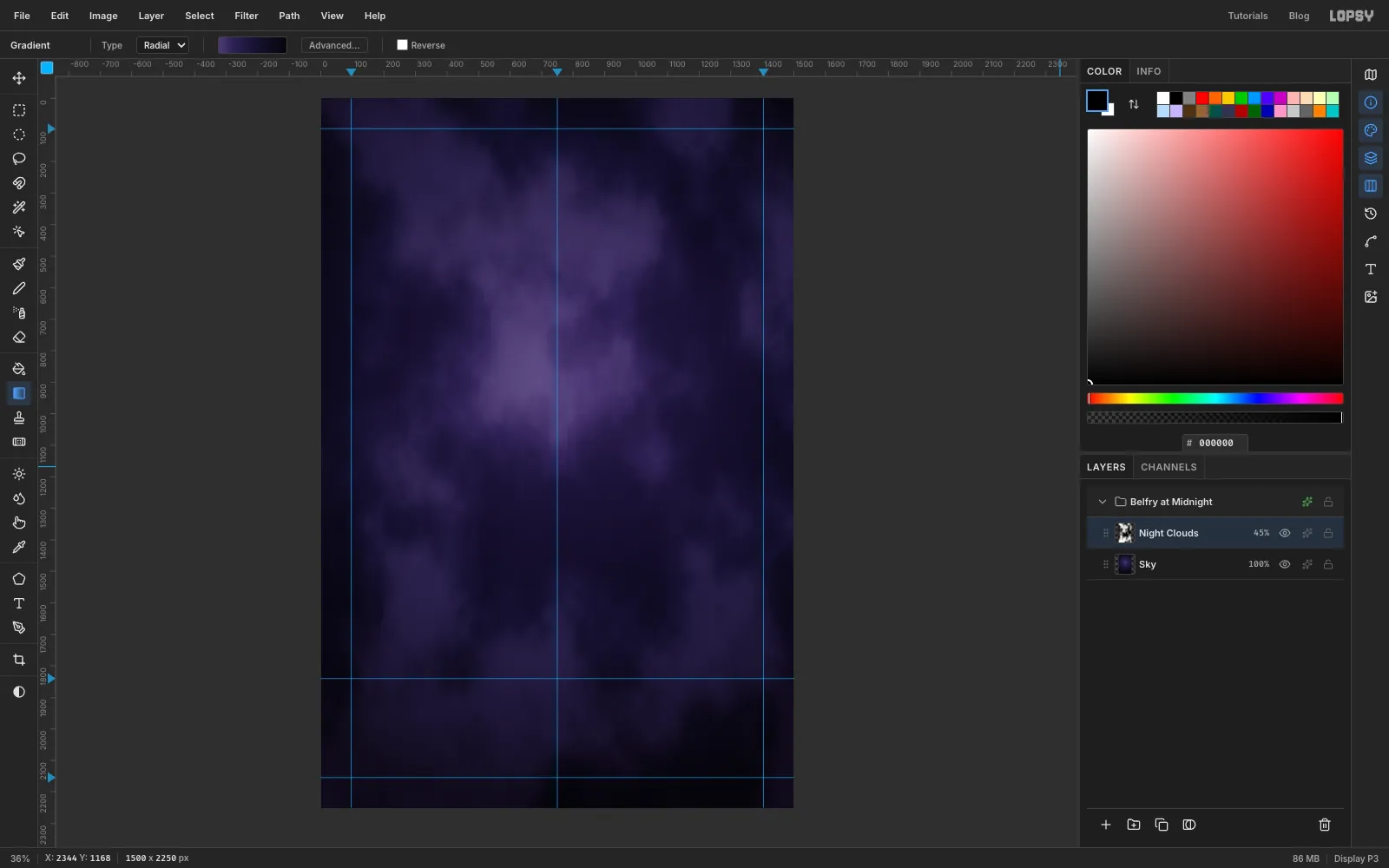
Rename Layer 1 to Night Clouds. Choose Filter → Clouds…, set Scale to 5 and click Apply.
Open the layer's effects (the sparkle button on its row), set the blend mode to Soft Light and close the drawer. Lower the layer's opacity to 45%.
-
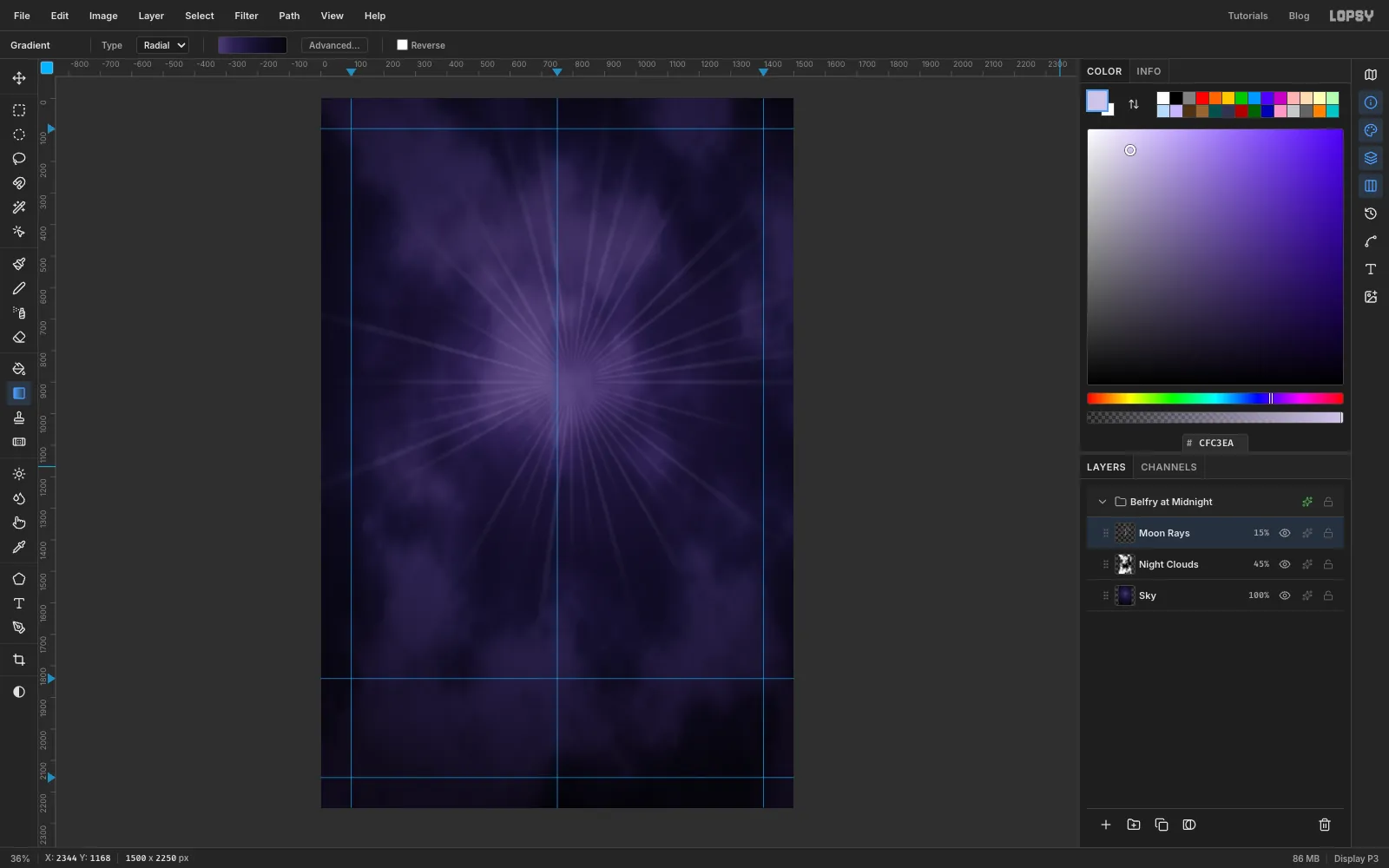
Fan out moon rays with Sunburst
Click Add Layer and name it Moon Rays. Set the foreground colour to and choose Filter → Sunburst…:
- Rays 48, Length 75, Width 22
- Fade 100, Softness 70, Jitter 85
- Center X 53, Center Y 40, which puts the burst on the moon's centre
Apply it, then run Filter → Gaussian Blur… with a Radius of 6. Set the layer to Screen at 15%. The jitter breaks up the rays so they don't look like a stock starburst.
-
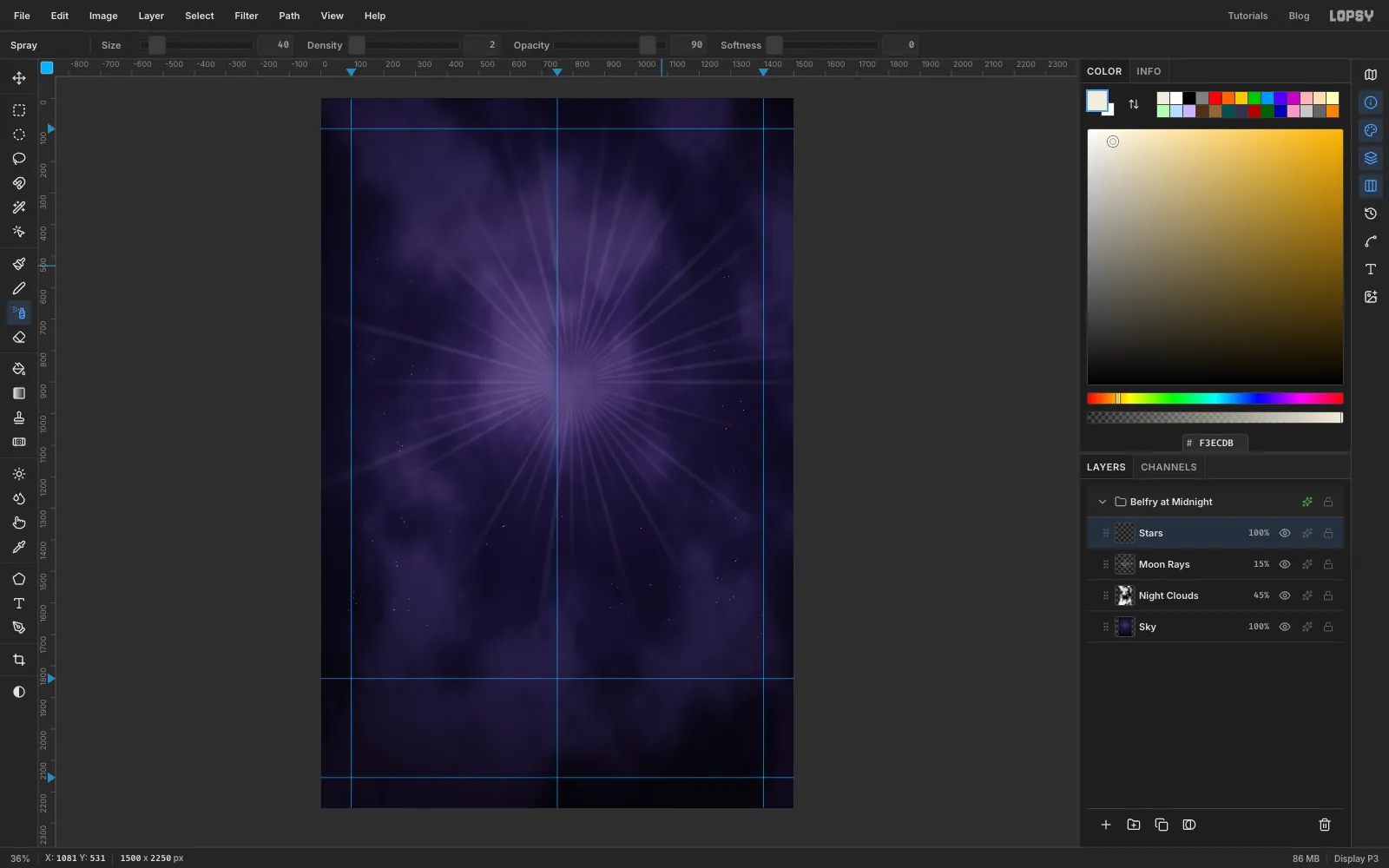
Scatter stars with the Spray tool
Add a layer called Stars and set the foreground to . Choose the Spray tool and set Size 40, Density 2, Softness 0 and Opacity 90.
Dab single clicks across the sky until it feels starry, keeping the area around the moon clear. Each click drops a couple of tiny dots. Clicking, rather than dragging, keeps the stars sharp and sparse.
-
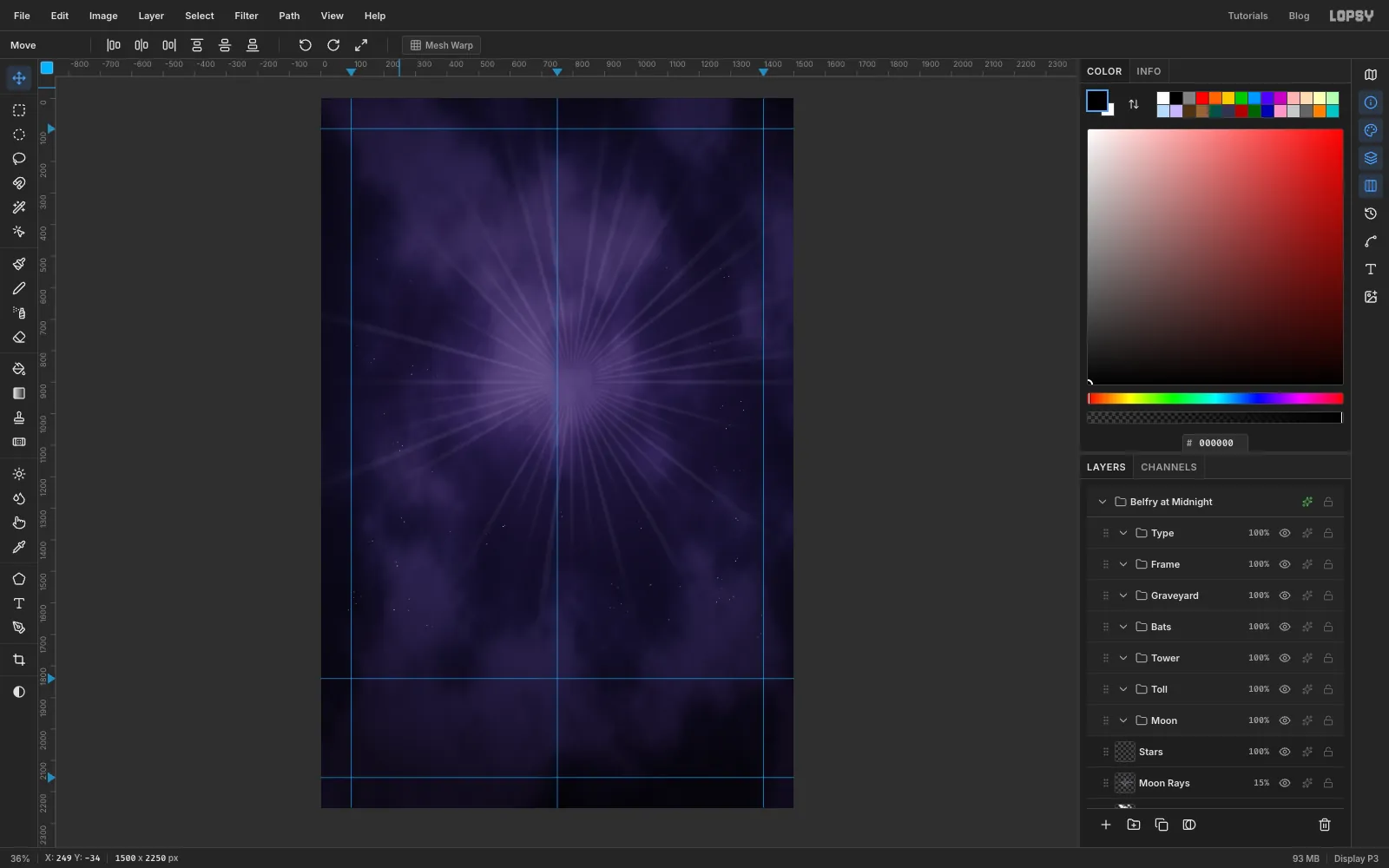
Set up the group stack
Set up the groups now, so every later layer has a home. Click the Stars layer and press New Group. Name the group Type.
Click Stars again before each new group, so each one lands directly above Stars and pushes the earlier ones up. Make Frame, Graveyard, Bats, Tower, Toll and Moon, in that order. You end up with Moon at the bottom of the stack and Type at the top.
-
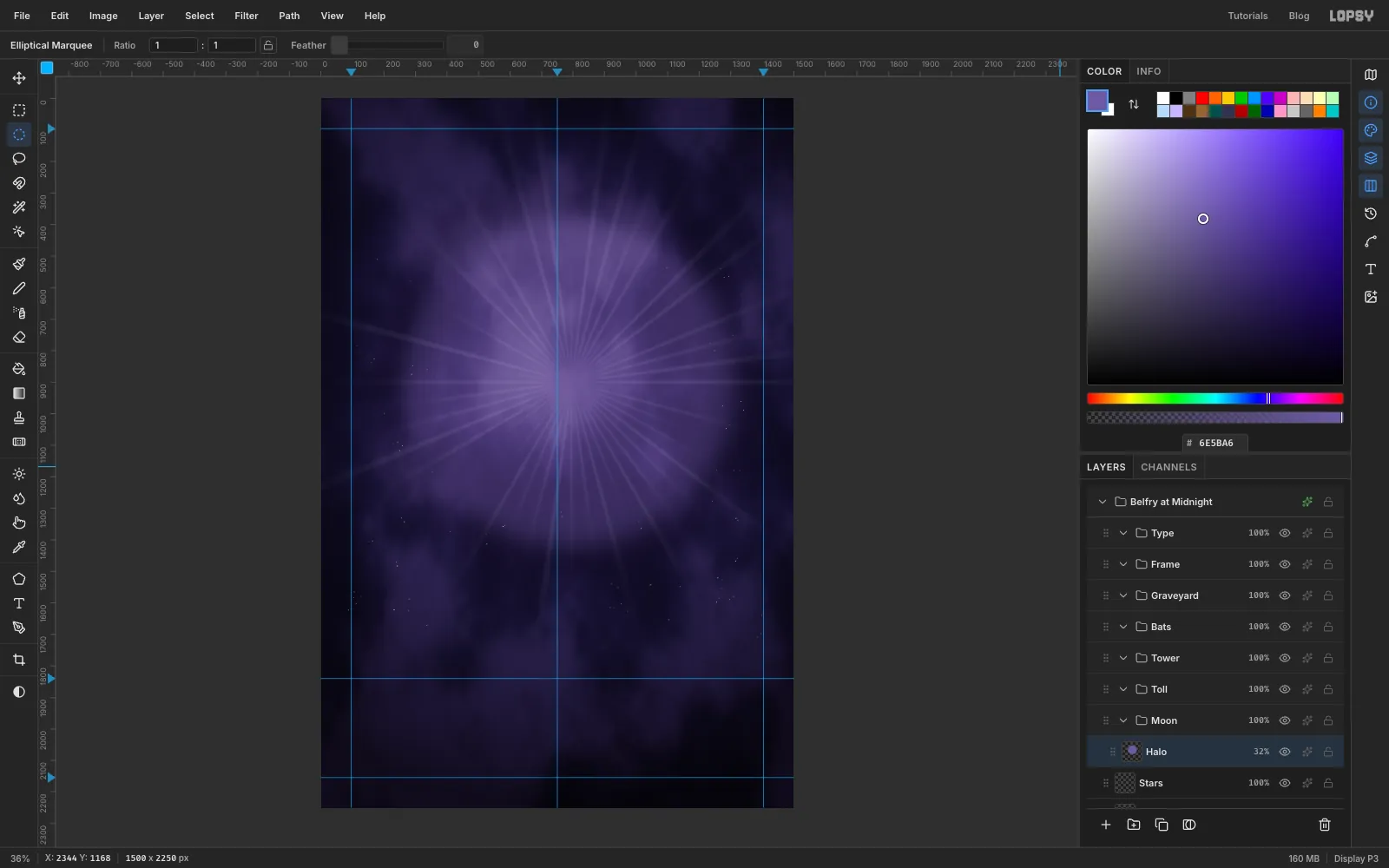
Give the moon a halo
Click the Moon group and Add Layer. Name the layer Halo; it goes inside the group.
For circles that sit exactly where you want them, use the Elliptical Marquee's dialog. With nothing selected, choose the Elliptical Marquee and click once on the canvas without dragging. The Elliptical Selection dialog opens. Enter From 270, 380 and To 1310, 1420, then click Select. That's a circle 1040 px across around the moon's centre.
Choose Select → Feather…, enter 63 and click Apply. Set the foreground to , choose Edit → Fill and deselect with Cmd+D. Blur the layer with Gaussian Blur at 60, then set it to Screen at 32%.
-
Select the moon
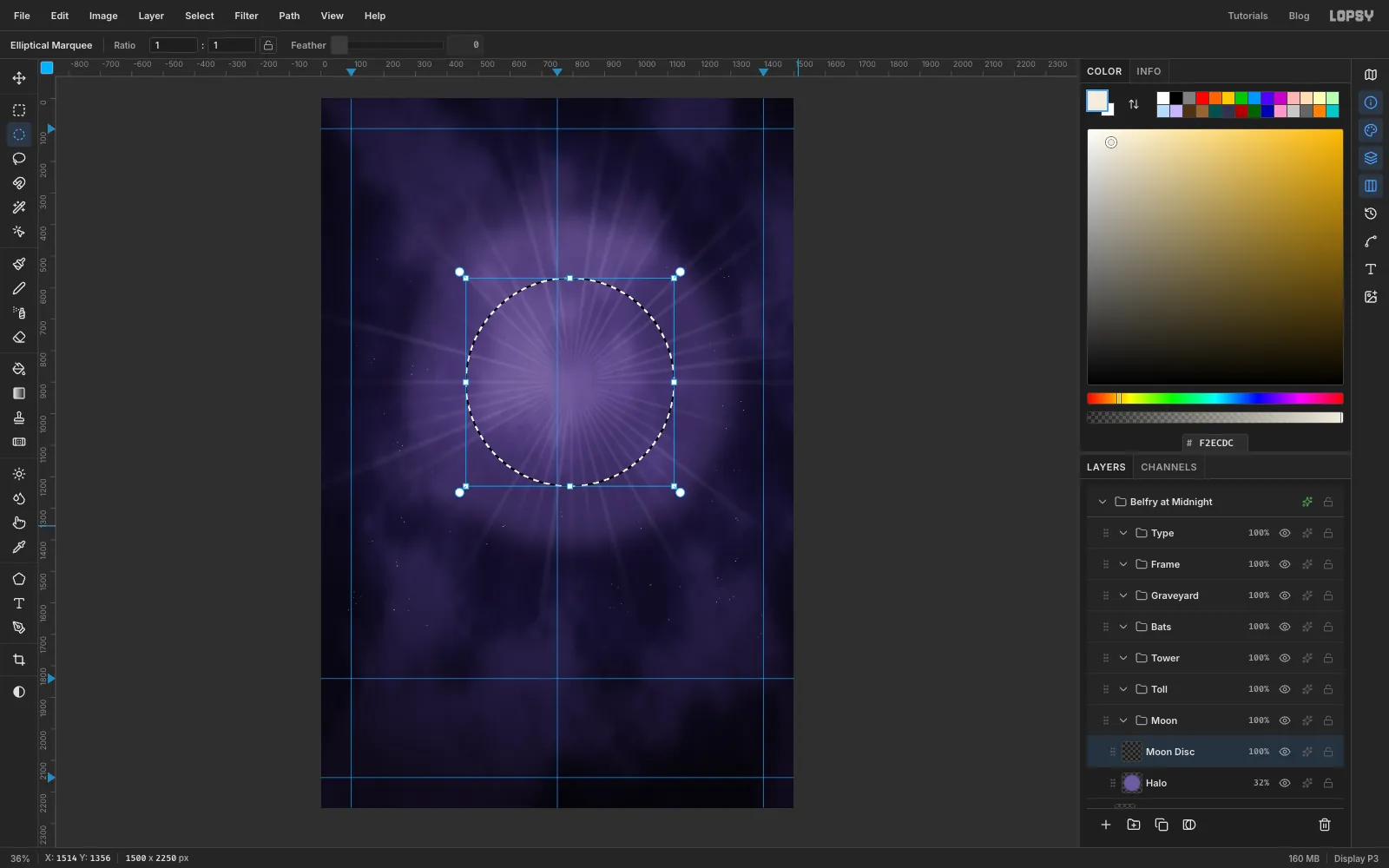
Add a layer named Moon Disc. Click once with the Elliptical Marquee again and enter From 460, 570, To 1120, 1230: a circle 660 px across.
-
Fill and glow
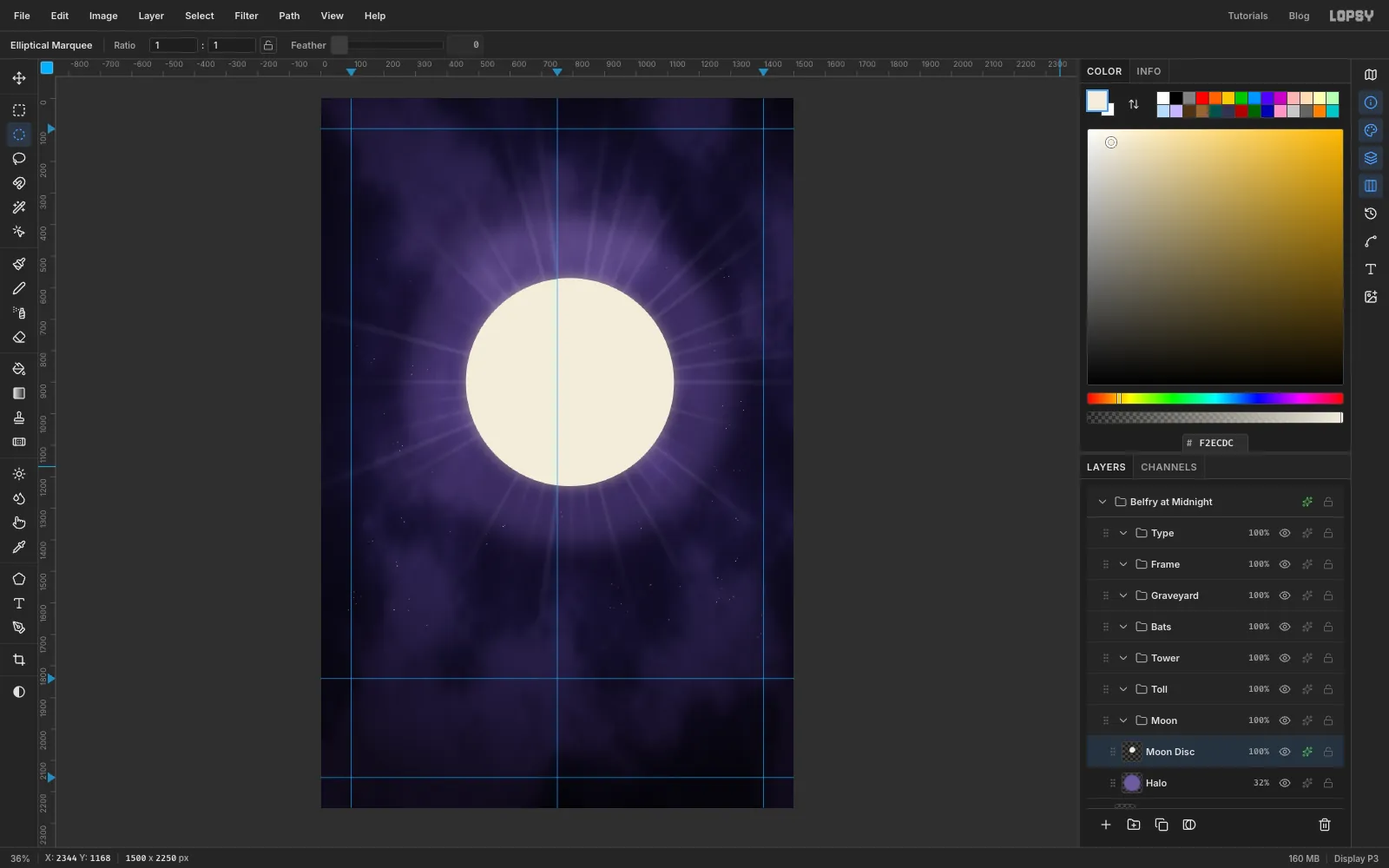
Set the foreground to , choose Edit → Fill and deselect. In the layer's effects, turn on Outer Glow with Size 110, Opacity 55 and the colour .
-
Paint the lunar seas with Clouds
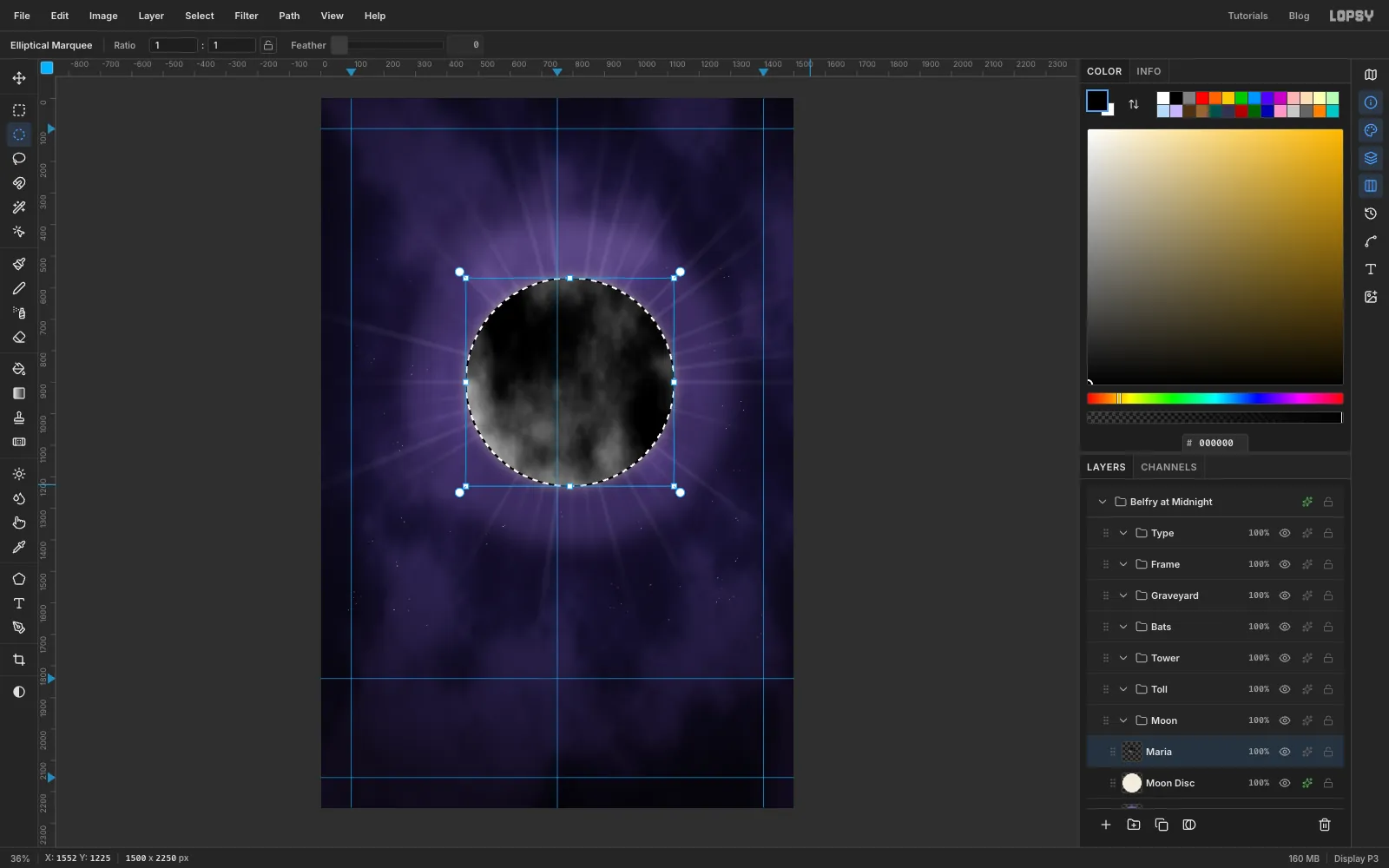
Cmd-click the Moon Disc thumbnail to select its circle. Add a layer named Maria, set the foreground to black and run Filter → Clouds… at Scale 4. The filter only fills the selection.
Lighten the clouds with Filter → Brightness/Contrast…: Brightness 42, Contrast 22. Deselect, then set the layer to Multiply at 40%. Clouds is random, so if the seas come out too dark, undo and run it again.
-
Add relief and darken the edge
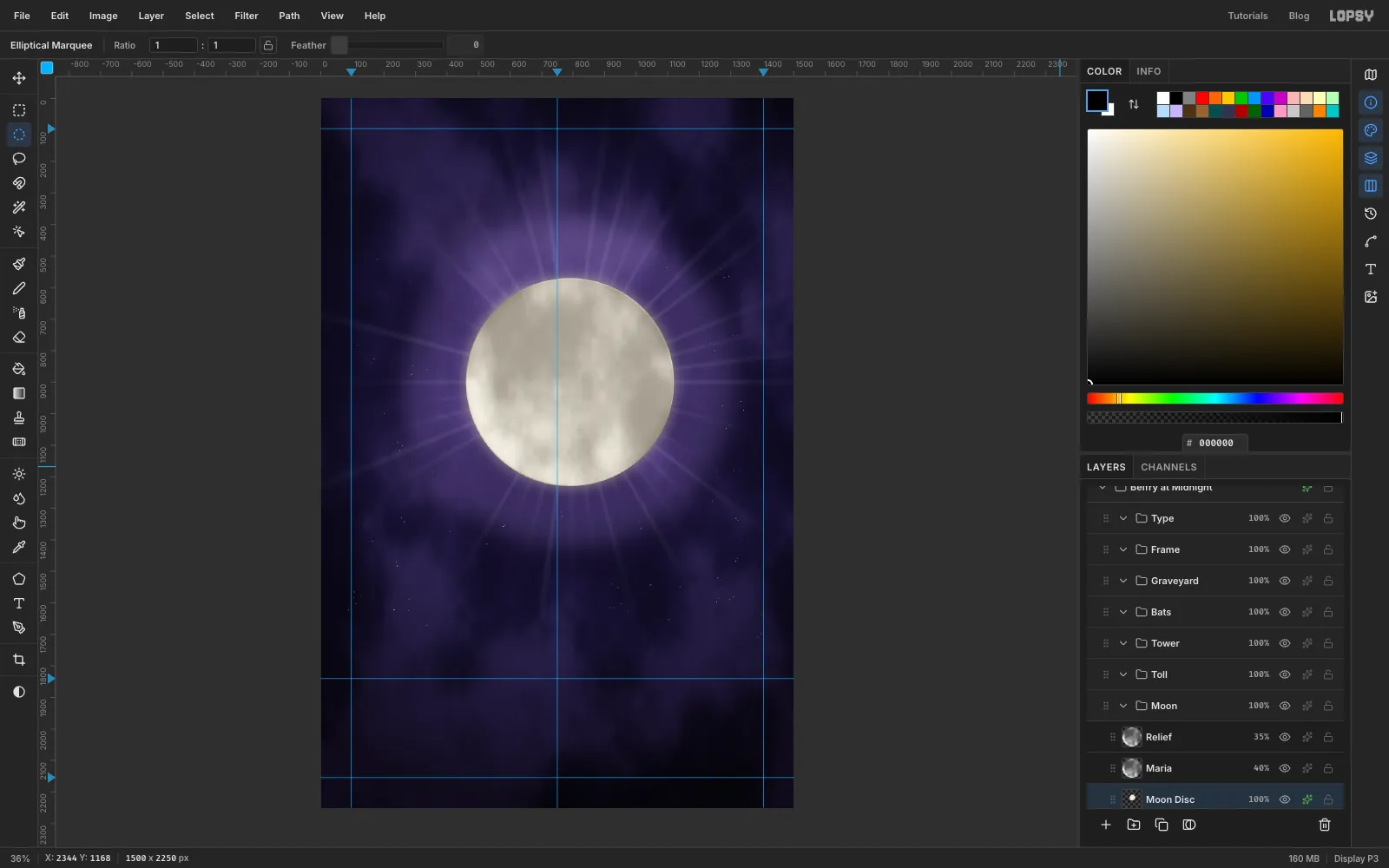
Choose Layer → Duplicate Layer and rename the copy Relief. Run Filter → Emboss… with Angle 135 and Strength 40, then set it to Overlay at 35%.
To round the moon, open the effects on Moon Disc and add an Inner Glow in , Size 70, Opacity 45. The glow darkens the rim the way a real moon's edge falls off.
-
Draw the ringing sound waves
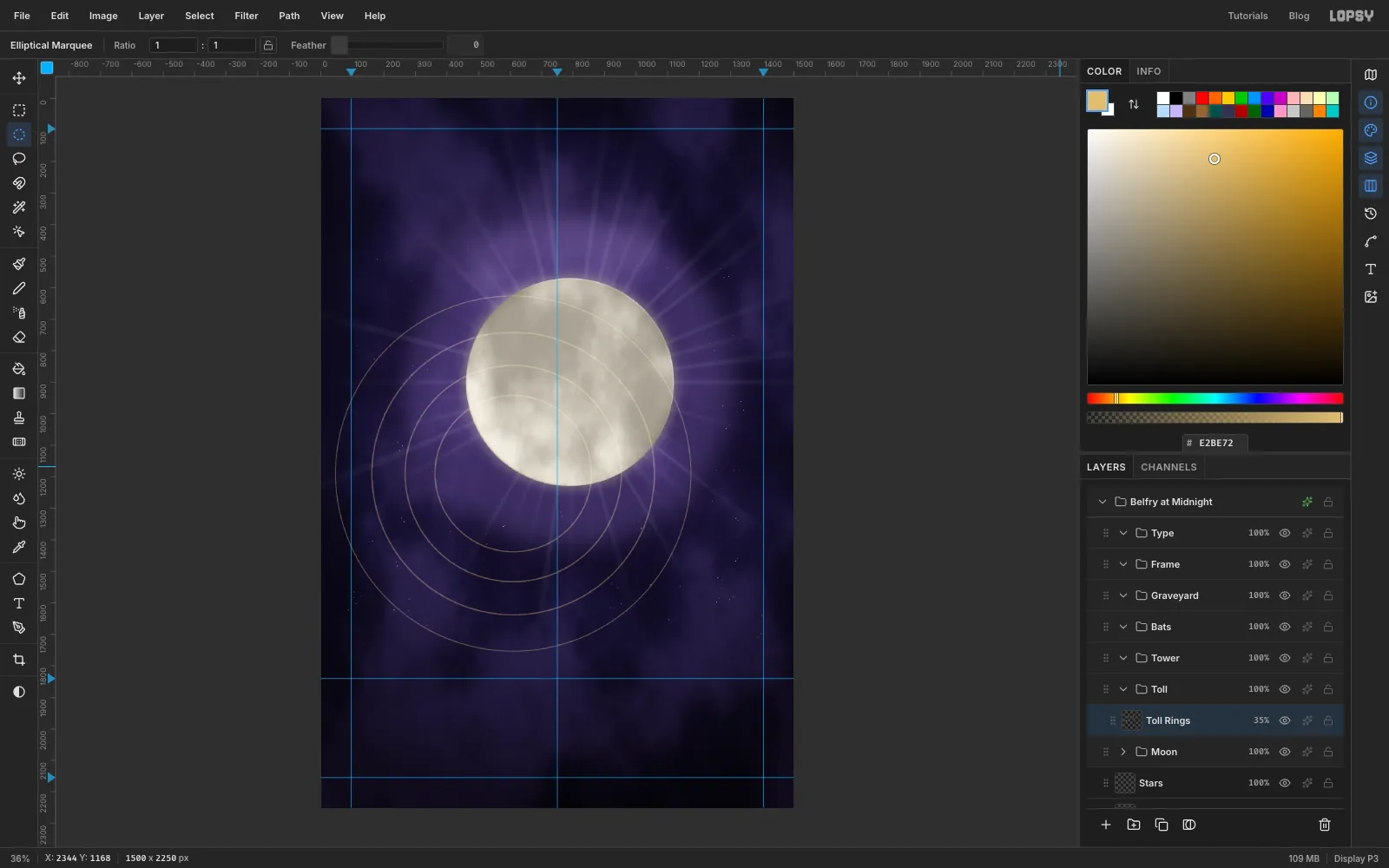
Click the Toll group, add a layer named Toll Rings and set the foreground to . The rings centre on the bells' point, 610, 1190.
Start with the biggest ring. With the Elliptical Selection dialog, enter From 45, 625 and To 1175, 1755. Choose Edit → Fill, then Select → Shrink… by 3, and press Delete to hollow it out.
Repeat for three smaller rings, shrinking each by 4:
- From 160, 740, To 1060, 1640
- From 265, 845, To 955, 1535
- From 360, 940, To 860, 1440
Go from largest to smallest. Each fill covers everything inside its circle, so a large ring drawn after a small one would wipe the small one out. Set the layer to Screen at 35%.
-
Fade the rings with a mask
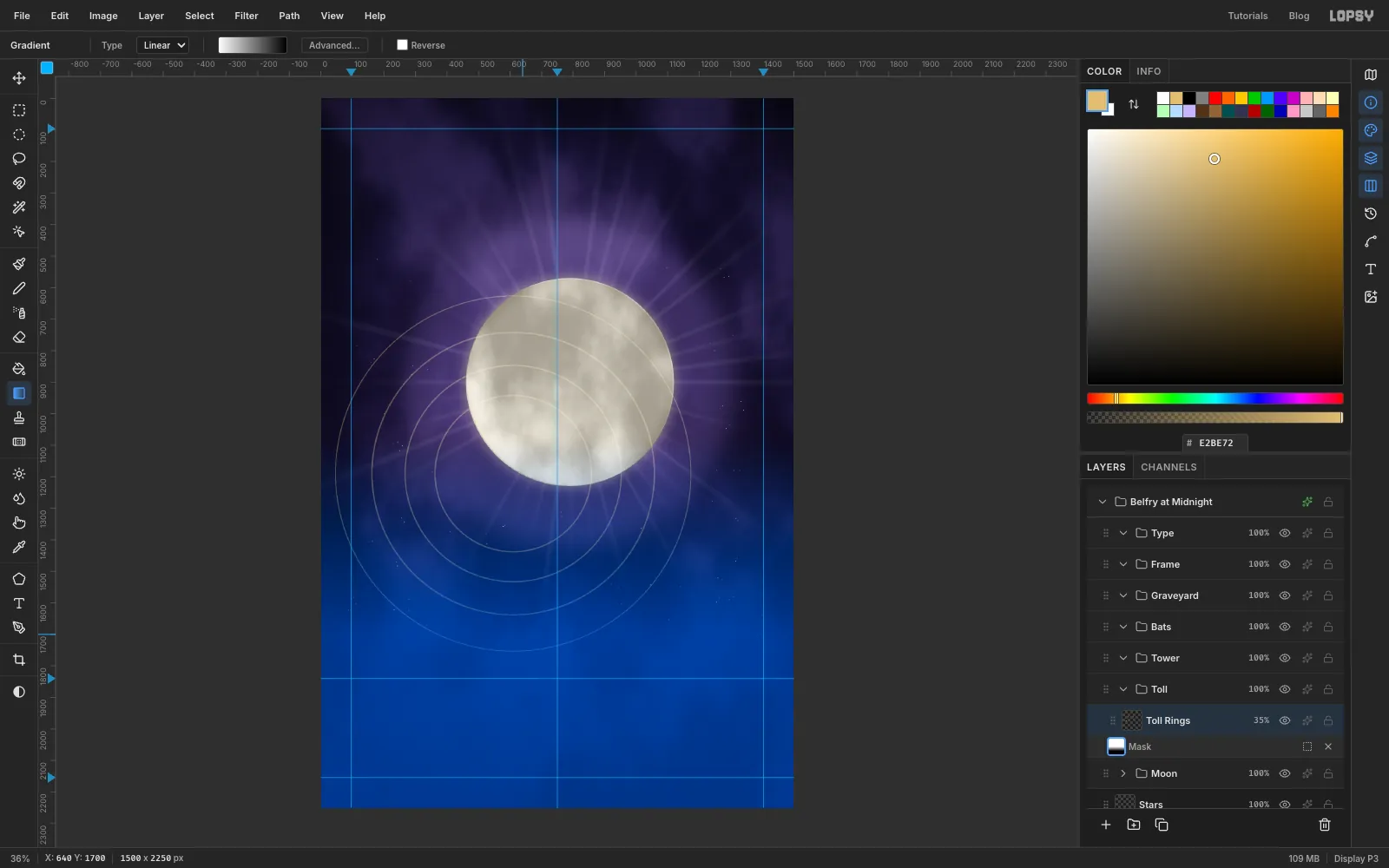
With Toll Rings selected, click Add Mask at the bottom of the Layers panel. Then click the new mask thumbnail to edit the mask; the canvas turns blue while you're in mask editing.
Choose the Gradient tool, set it to Linear and set the stops to white then black in Advanced…. Drag from just above the bells' point straight down about 600 px. The rings now fade out toward the ground.
-
Tuck the rings behind the moon
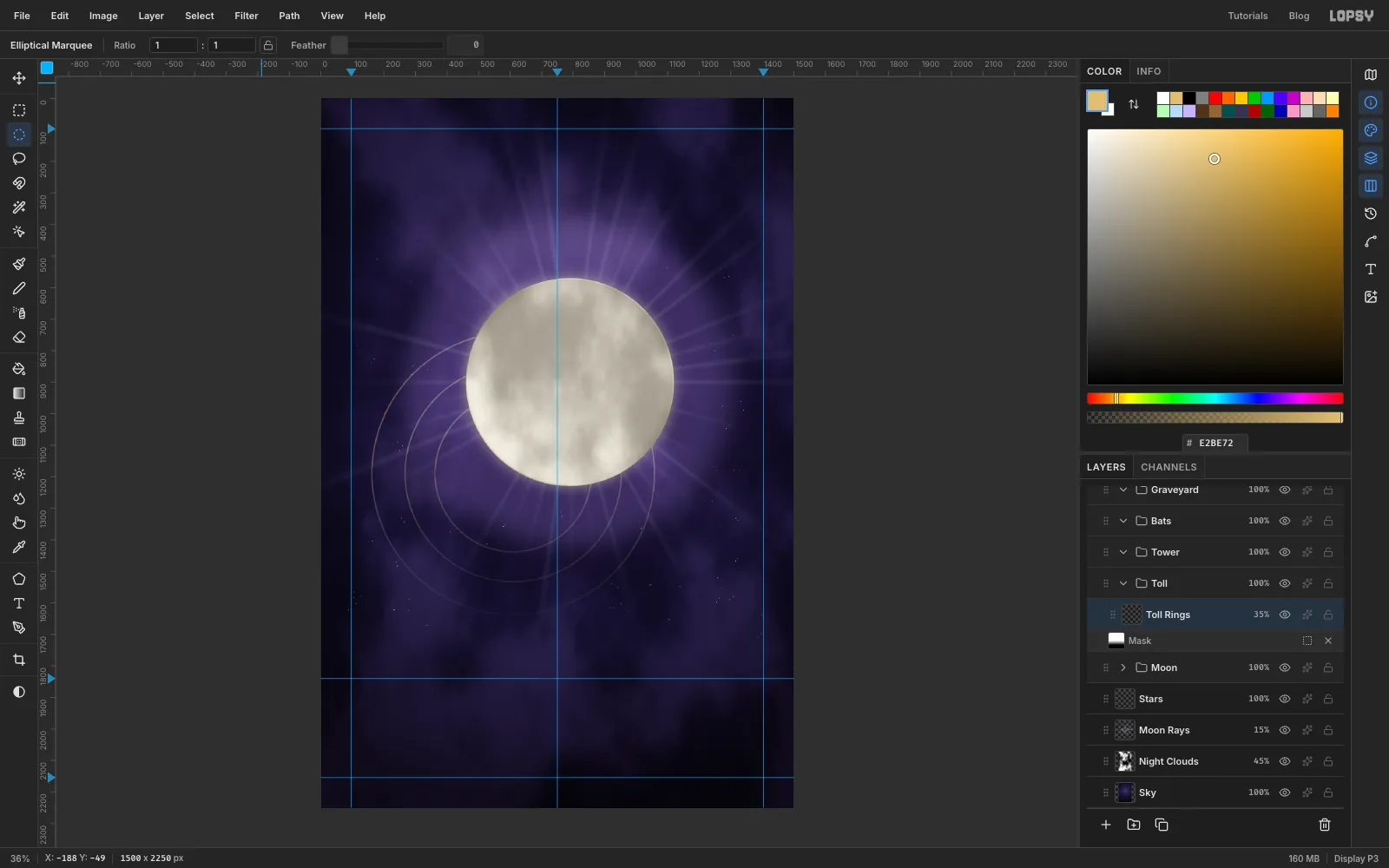
Click the Toll Rings name to leave mask editing; the blue tint disappears. Expand the Moon group, Cmd-click the Moon Disc thumbnail, click Toll Rings again and press Delete. The rings now pass behind the moon.
To keep the outer ring from running into the margins, make a circle with From 90, 670 and To 1130, 1710. Feather it by 63, choose Select → Inverse and press Delete. The rings fade softly instead of stopping on a hard edge.
-
Light the belfry windows
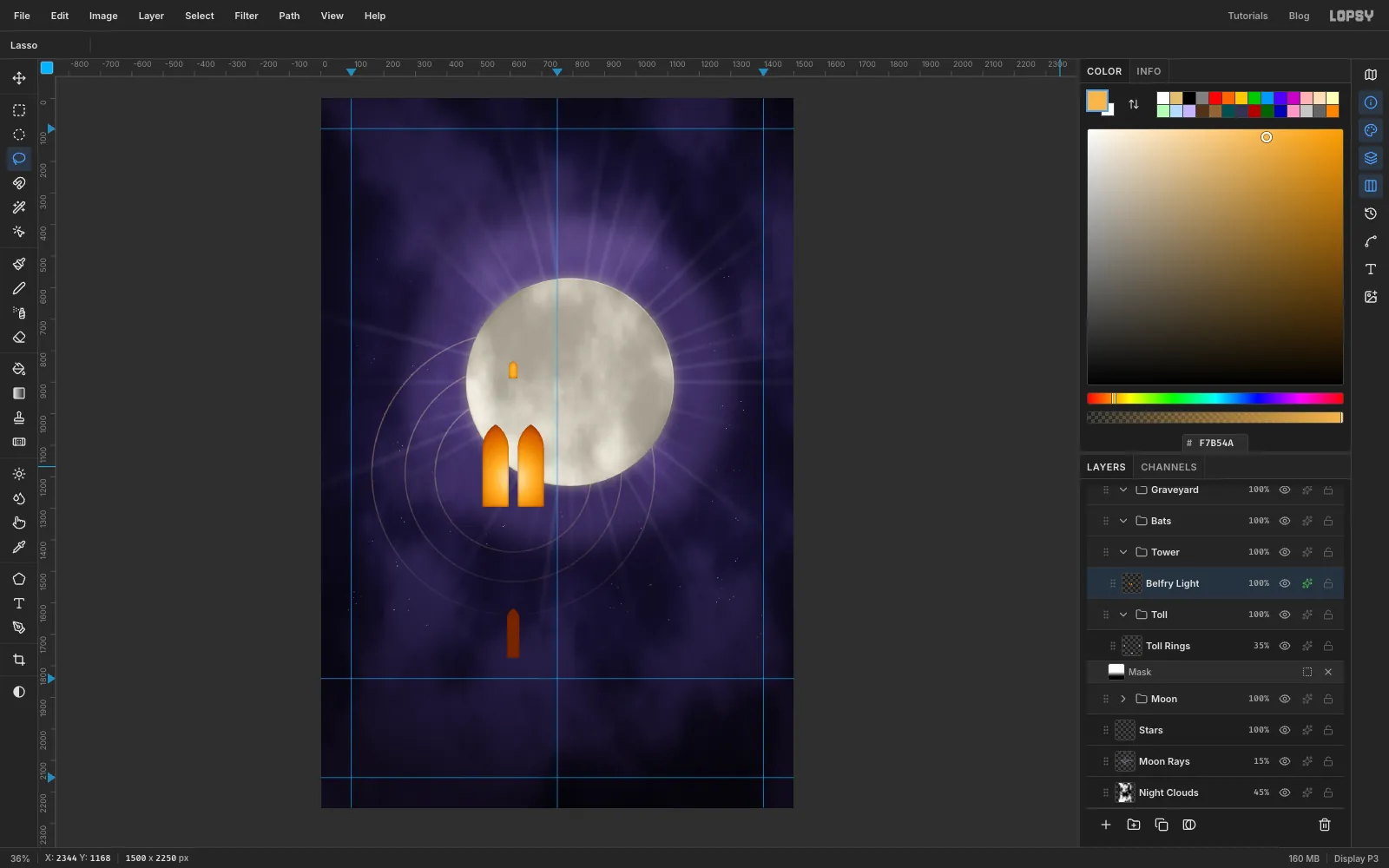
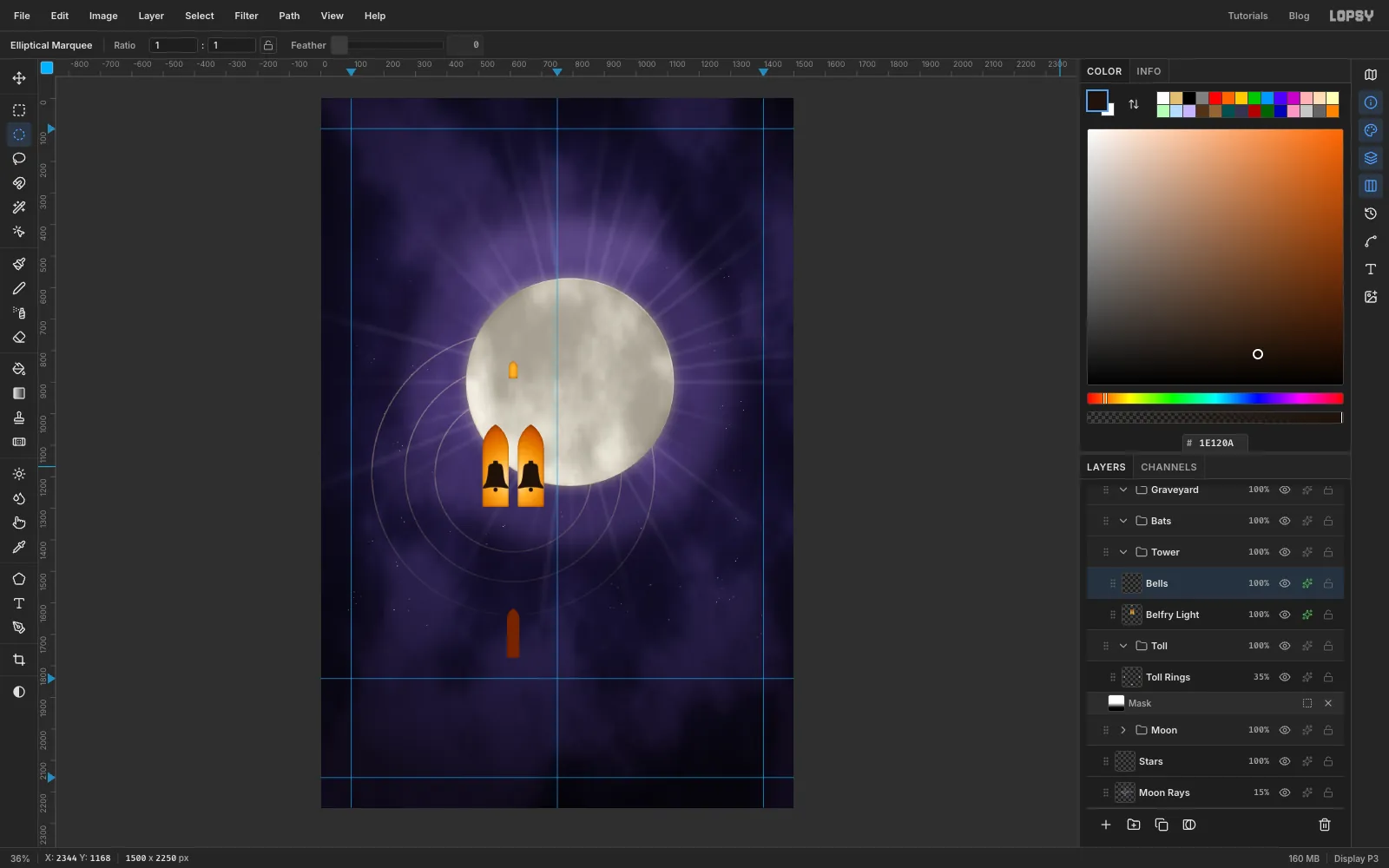
Click the Tower group and add a layer named Belfry Light. These are the openings in the tower, drawn before the tower itself. Use the Lasso:
- Draw two tall pointed lancet windows, each about 75 px wide, side by side on the tower's axis. Their arched tops reach up to about y 1060 and their bottoms sit at about y 1290.
- Hold Shift and add a narrow door slit lower down, about 30 px wide, from about y 1650 to 1770.
- Hold Shift and add a tiny window high above, around y 860. It will sit in the spire.
Choose Select → Grow… by 4. Set a Radial gradient with , , and , and drag from the bells' point downward about 215 px. Then lasso the tiny window again, grow it by 4 and fill it with so it glows too.
Add an Inner Glow in , Size 16, Opacity 70. It shades the window edges like stone reveals.
-
Hang the bells
Add a layer named Bells. With the Lasso, draw a bell in each window: a small crown, sides that swell out, and a flared lip with a slightly curved mouth. Make both bells the same height, about 86 px. Hold Shift and add a small circle under each mouth for the clapper.
Fill with , then add an Inner Glow in at Size 4, Opacity 85. The bells now catch a rim of lantern light.
Zoom in (for example to 200%) for this kind of small work. Return with View → Fit to Screen afterwards.
-
Draw the spire and pinnacles
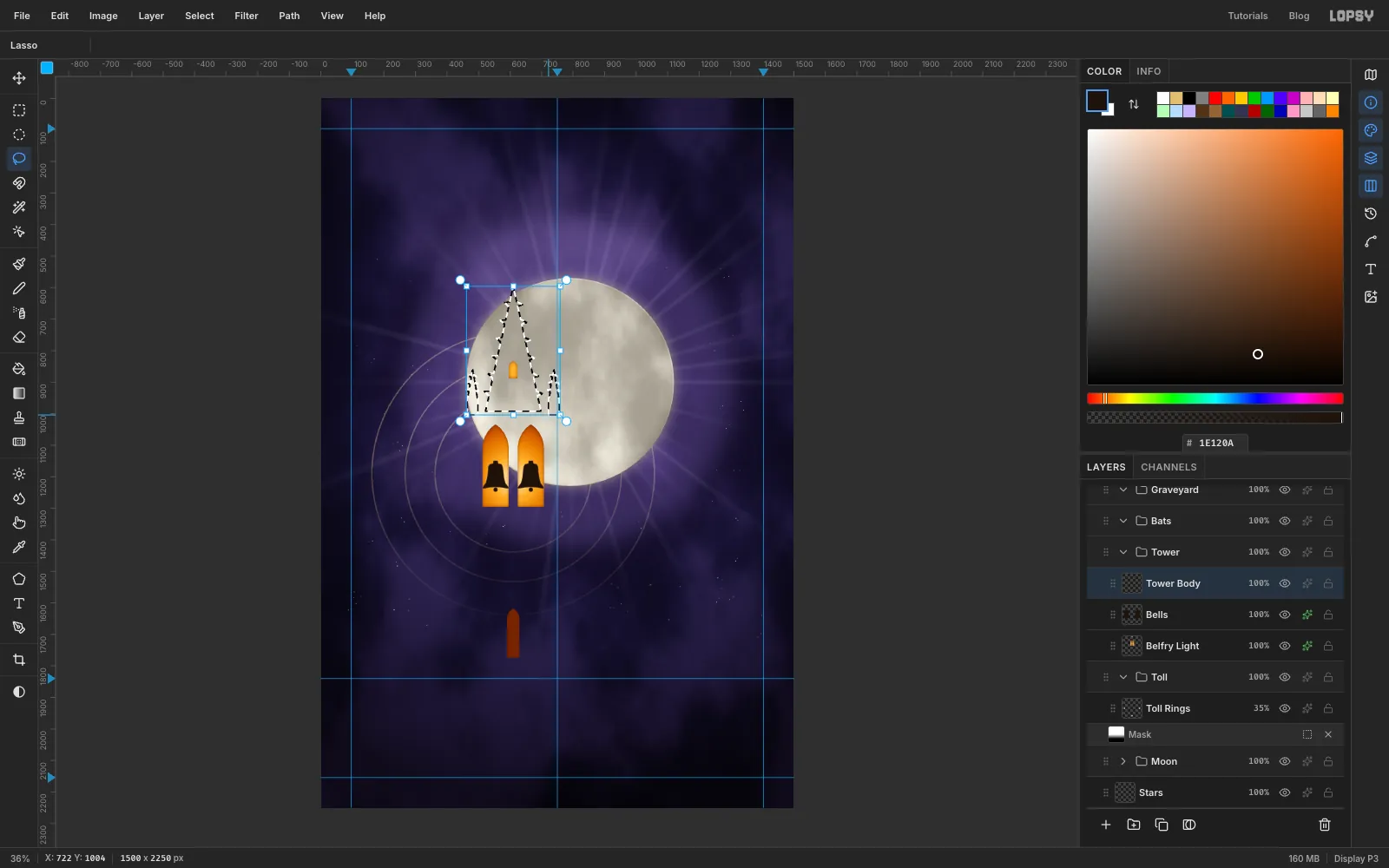
Add a layer named Tower Body. The tower is one big selection built from simple shapes. Start with the top:
- Lasso a tall spire on the tower's axis. Its tip is at about y 600, and it's about 180 px wide at its base at about y 990. Add little hooked bumps, called crockets, every 60 px or so up both edges.
- Hold Shift and lasso a thin pinnacle, about 35 px wide and 140 px tall, at each corner, standing on the same base line.
Zoom in while you draw the crockets.
-
Add the stages, shaft and buttresses
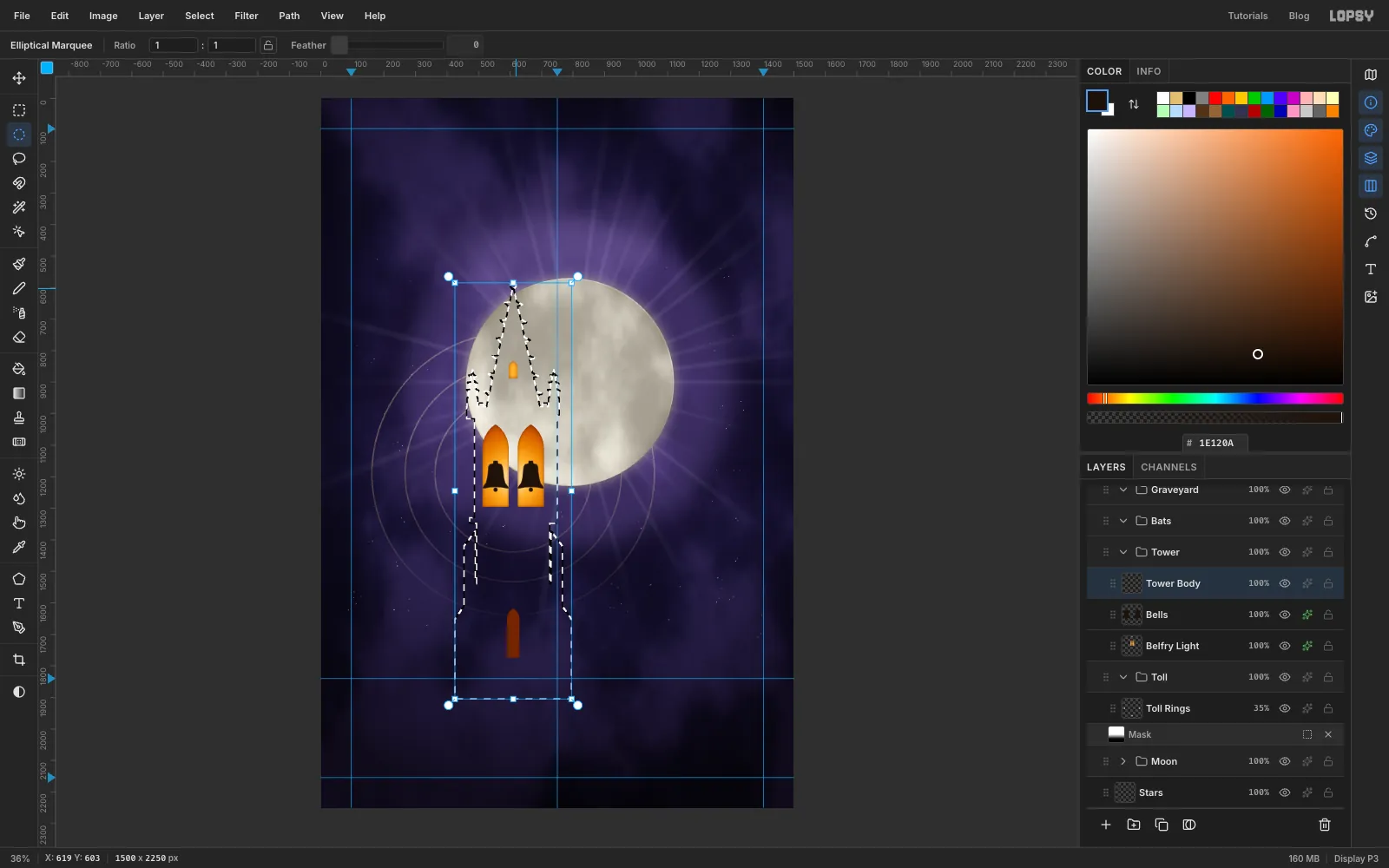
Keep holding Shift to add each piece with the Rectangular Marquee:
- a parapet about 290 px wide just under the spire base, with a row of small square merlons on top
- the belfry stage, about 250 px wide, from the parapet down to just below the windows
- a slightly wider band (a string course) under it
- the clock stage, about 230 px wide and 200 px tall
- another band, then the shaft, about 250 px wide, running down past the ground guide
Then Shift-lasso a stepped buttress on each side of the shaft. Add a small circle with the Elliptical Marquee at the spire tip. Be careful not to click without Shift here: a plain click would drop the whole selection.
-
Fill the tower and cut the windows
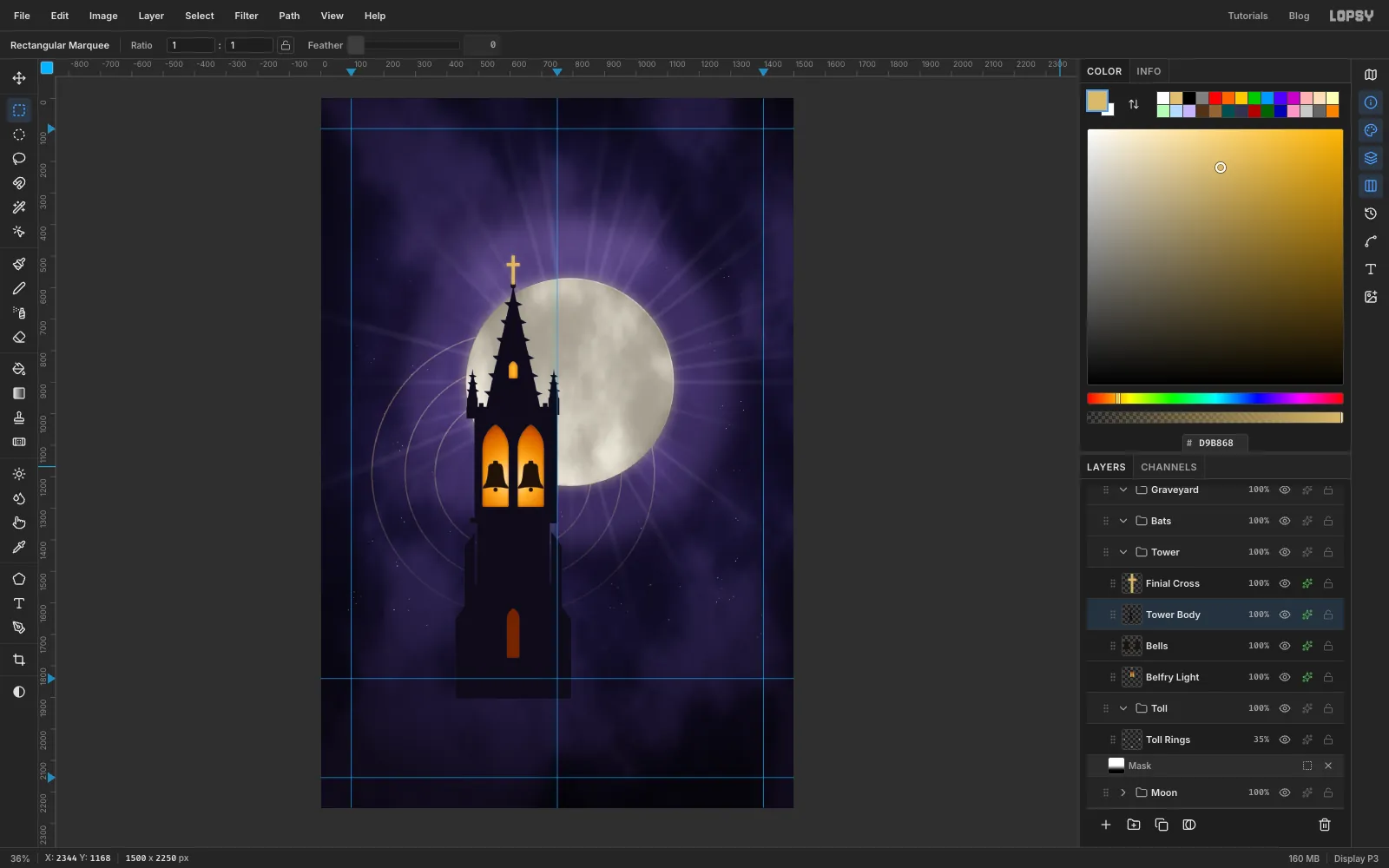
Set the foreground to and fill. To cut the windows, Cmd-click the Belfry Light thumbnail, click Tower Body and press Delete. The openings match the light exactly.
Add an Inner Glow in , Size 4, Opacity 50, for a hint of moonlight on the stone edges.
For the finial, add a layer named Finial Cross. Marquee a thin upright bar about 10 px wide on the spire tip, then Shift-add a crossbar about 40 px wide. Fill with and add an Outer Glow in , Size 14, Opacity 45.
-
Light the moon-facing side
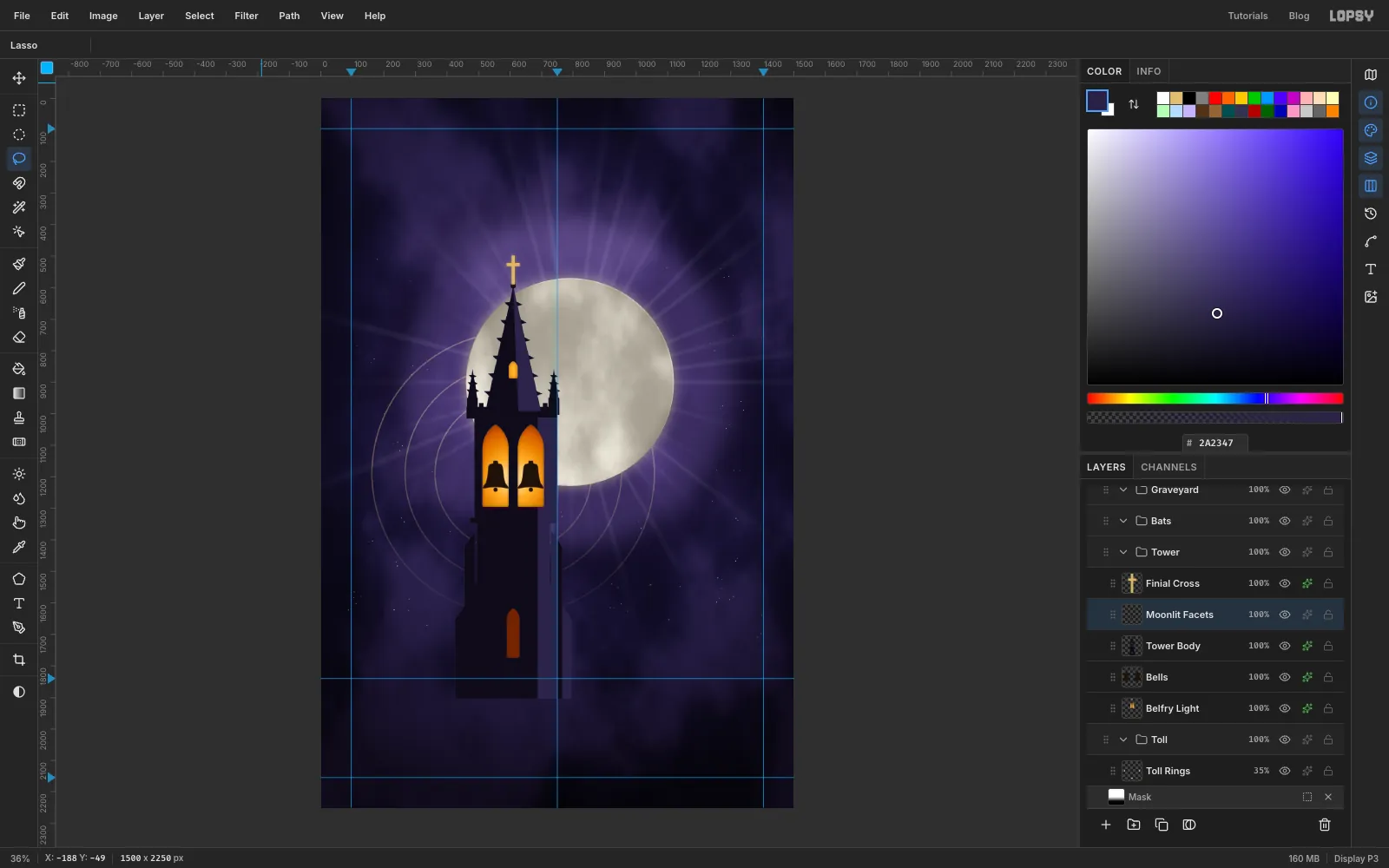
The moon is to the right of the tower, so its right faces catch the light. Click Tower Body, add a layer named Moonlit Facets and lasso the right half of the spire. Shift-add a narrow strip down the right edge of the tower and the right buttress, then fill with .
To trim anything that spills past the stone, Cmd-click the Tower Body thumbnail, choose Select → Inverse and press Delete.
-
Frame the windows with hood moulds
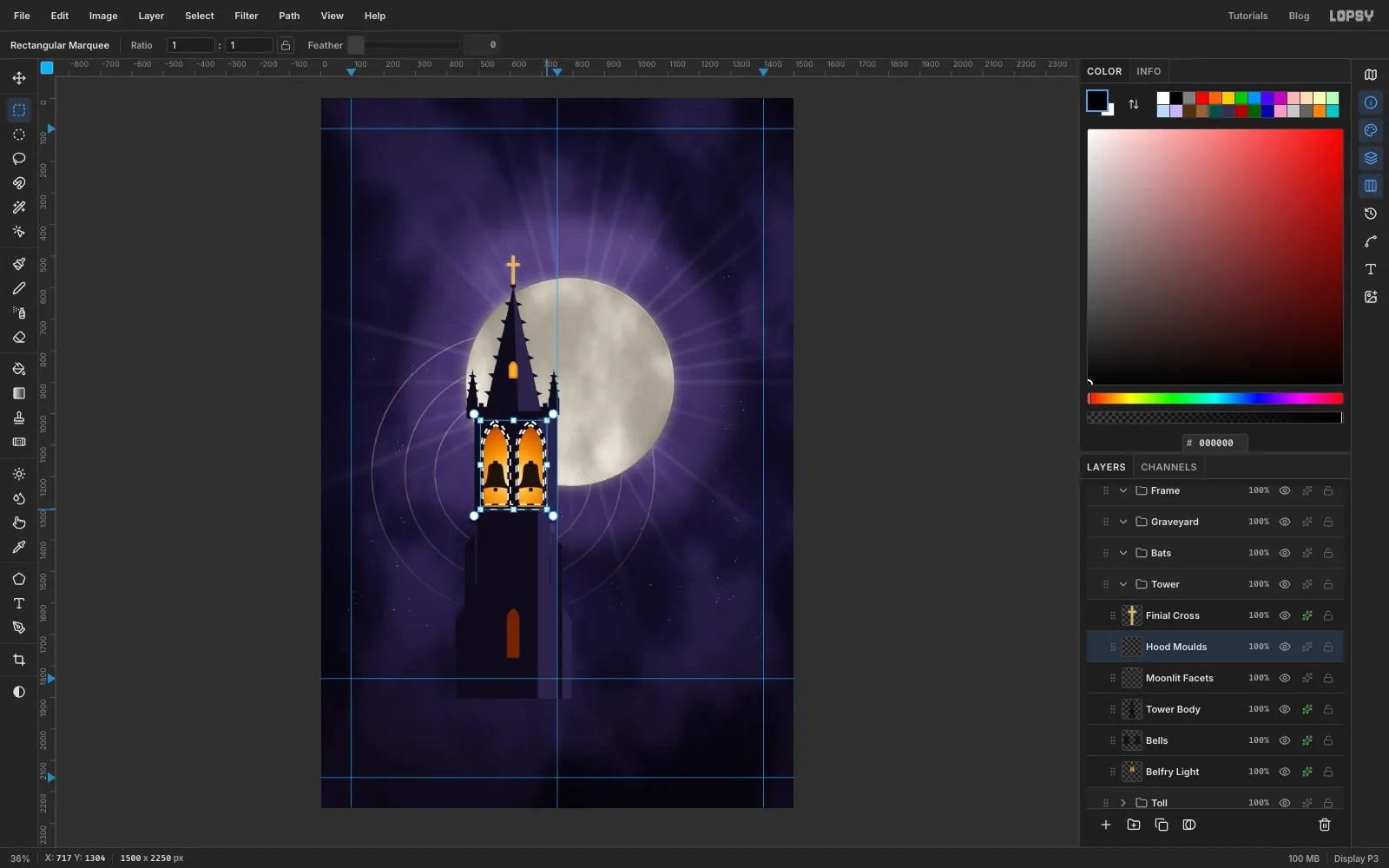
Add a layer named Hood Moulds. Trace a pointed arch about 10 px larger than each window all round (Shift for the second). Then hold Alt and trace an arch just 2 px larger than each window to subtract it, which leaves a ring of stone. Shift-add a thin sill under both windows with the marquee.
Fill with .
-
Make the clock face
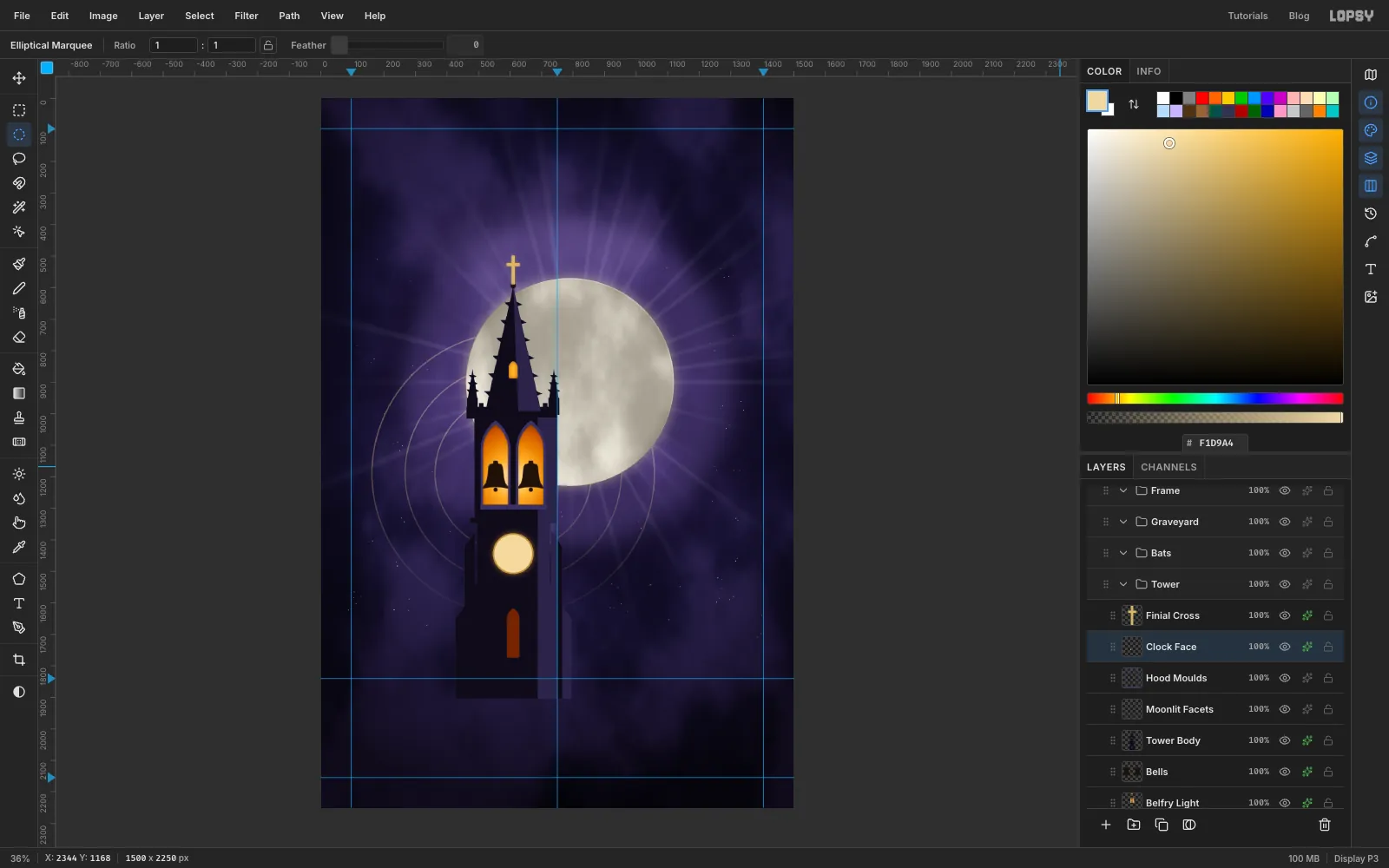
Add a layer named Clock Face. Use the Elliptical Selection dialog with From 550, 1384 and To 670, 1504: a 120 px circle in the middle of the clock stage. Fill it with and deselect. Add a Stroke of Width 5 in and an Outer Glow in , Size 26, Opacity 55.
-
Paint the hour marks with Radial Symmetry
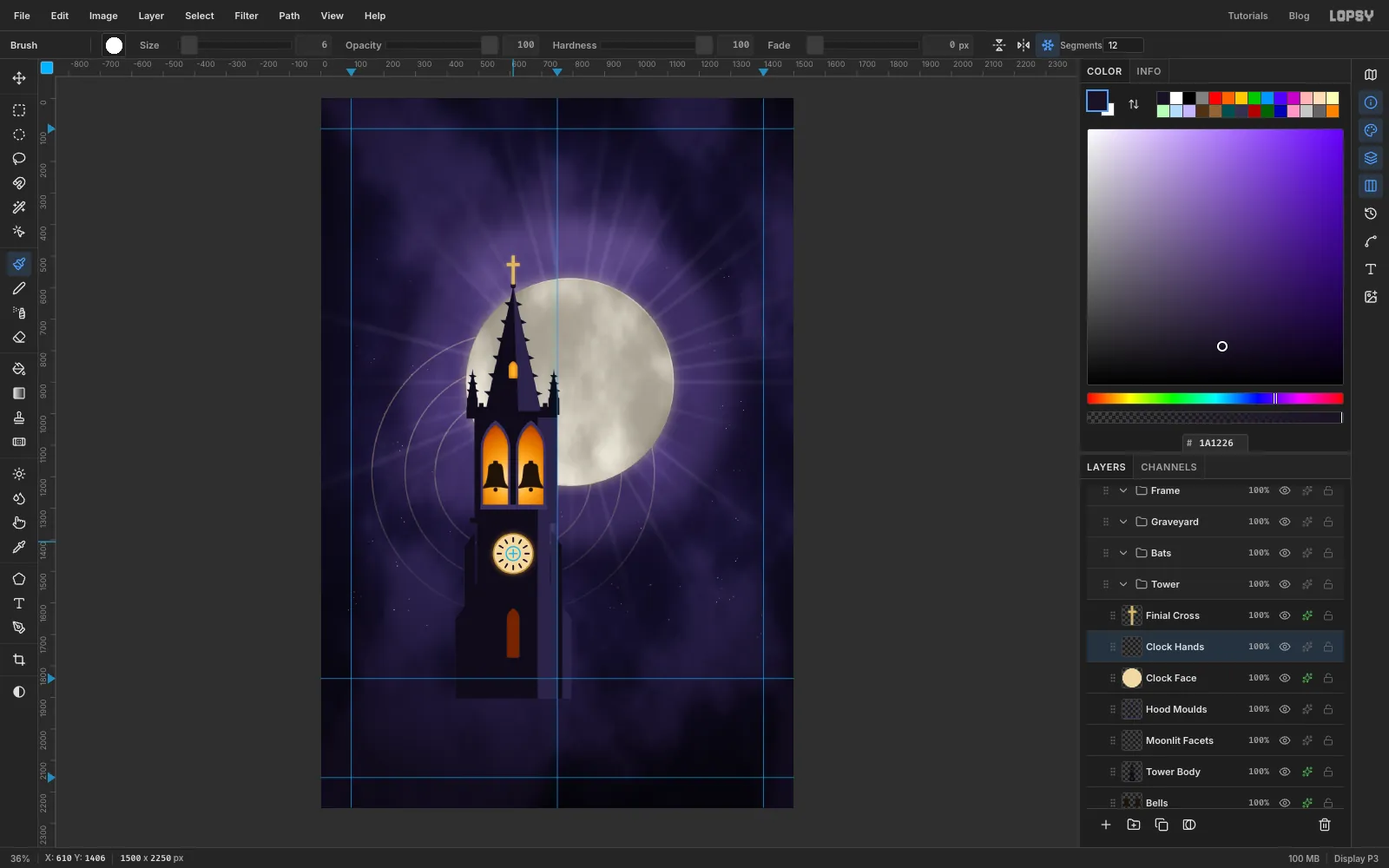
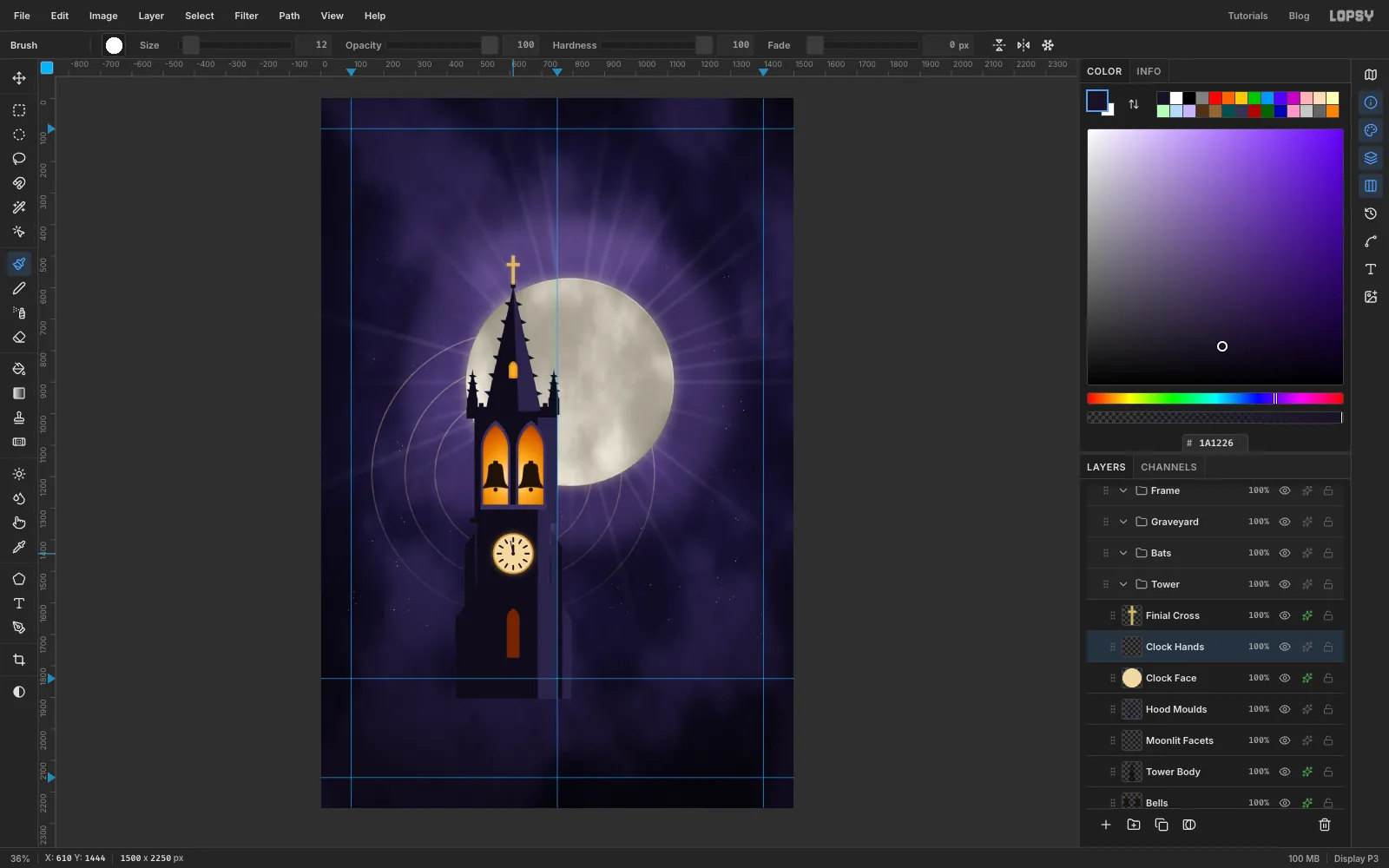
Zoom in to about 200% on the clock. Add a layer named Clock Hands, choose the Brush, pick Hard Round in the brush presets, set Size 6 and Hardness 100, and set the foreground to .
Click Radial Symmetry in the options bar and set Segments to 12. Hold Cmd and click the centre of the clock to move the symmetry centre there. Now paint one short stroke just inside the rim at 12 o'clock. Lopsy repeats it twelve times around the face. Turn Radial Symmetry off again.
-
Set the hands to two minutes to midnight
Set the brush Size to 7, click the clock centre, then Shift-click just short of the 12 to draw the hour hand. At Size 4, click the centre and Shift-click a little left of 12, near the rim, for the minute hand. Finish with one click at Size 12 in the centre, then fit the view to the screen again.
-
Let the light spill out
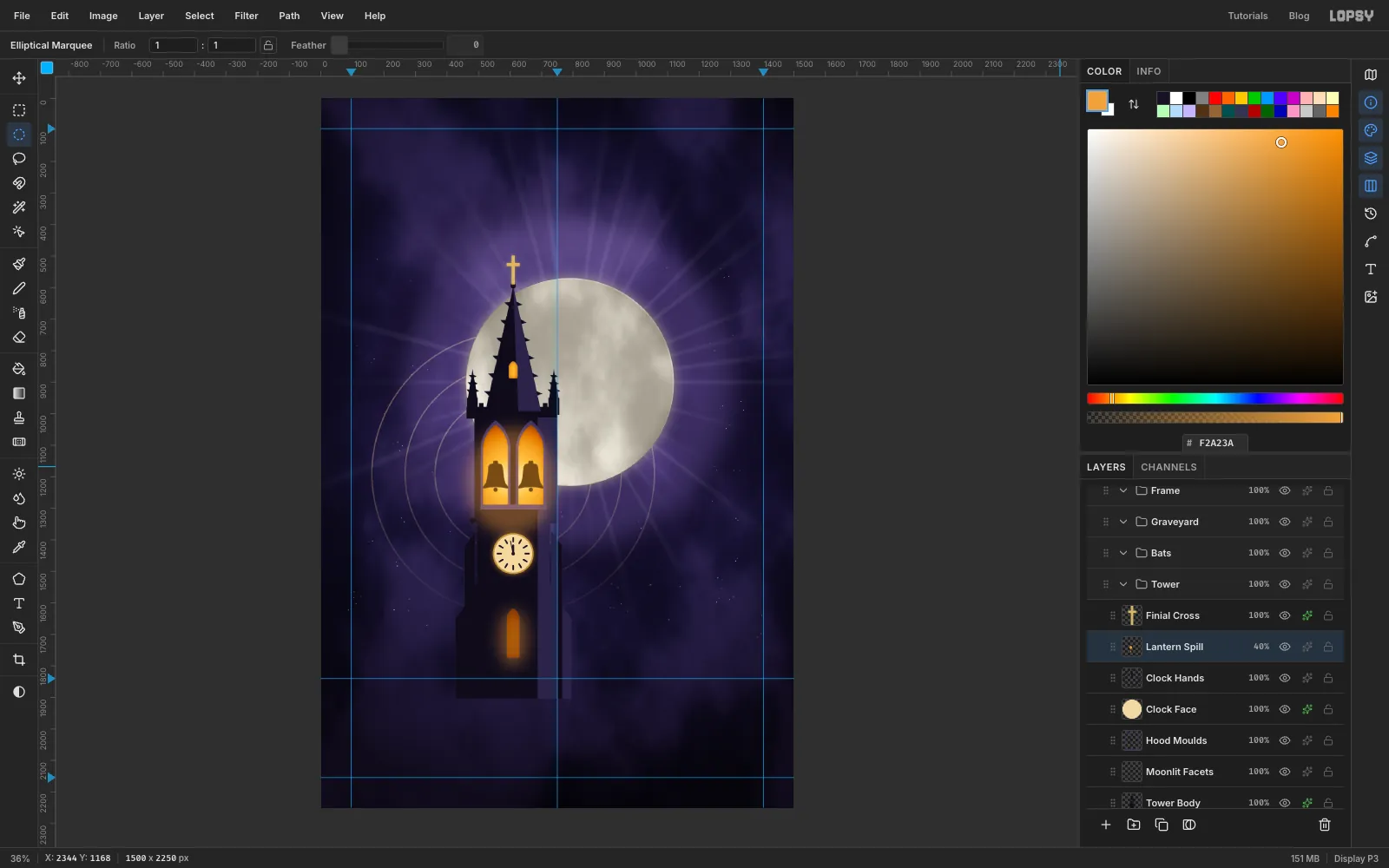
Add a layer named Lantern Spill. Drag an ellipse around the belfry, and Shift-add a tall narrow ellipse around the door slit. Feather it by 50, fill with and deselect. Set the layer to Screen at 40%.
-
Drop in the bat photo
Click the Bats group, then drag the bat photo from your desktop onto the canvas. It lands at the top-left as a new layer. Rename it Bat Photo.
-
Turn the bats into silhouettes
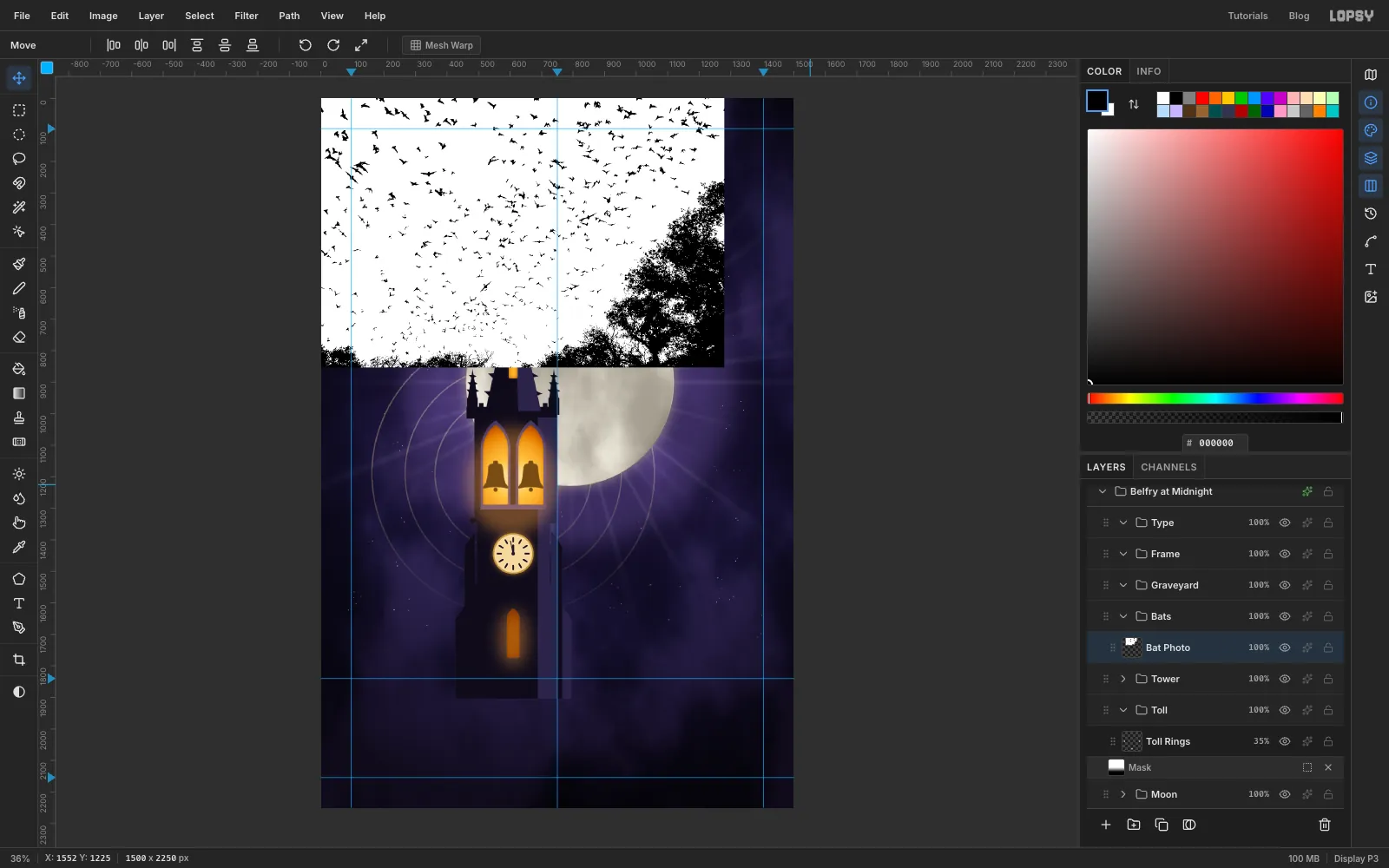
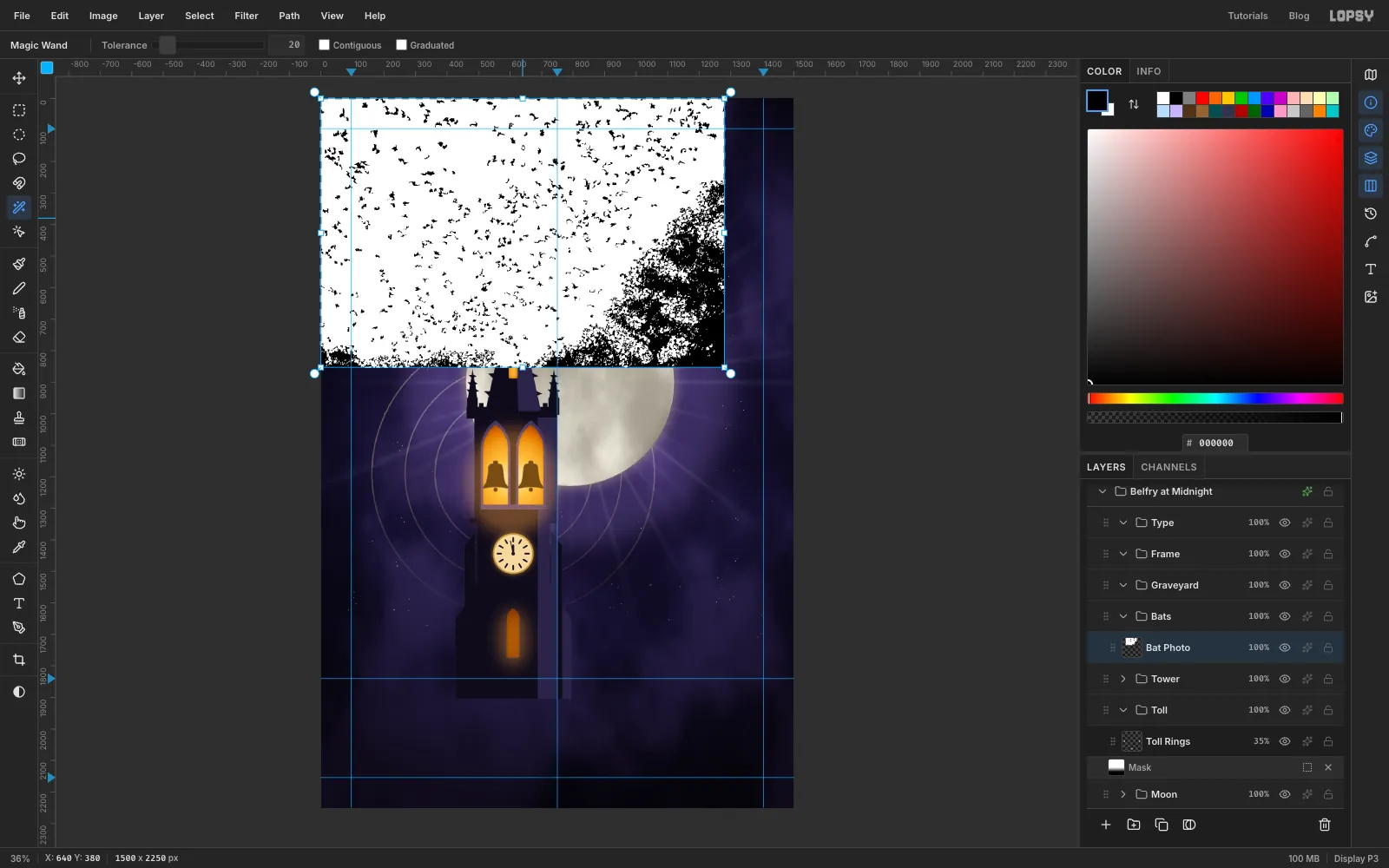
Choose Filter → Desaturate, then Filter → Threshold… with a Level of 44. The low level keeps the darker top corner of the sky white while the bats stay black.
-
Remove the sky with the Magic Wand
Choose the Magic Wand, set Tolerance to 20 and untick Contiguous. Click the white sky; every white pixel is selected, even between the bats. Press Delete and deselect.
Removing the sky first matters. Any edge you cut afterwards runs through empty pixels, so it can't leave a faint white fringe.
-
Cut away the trees
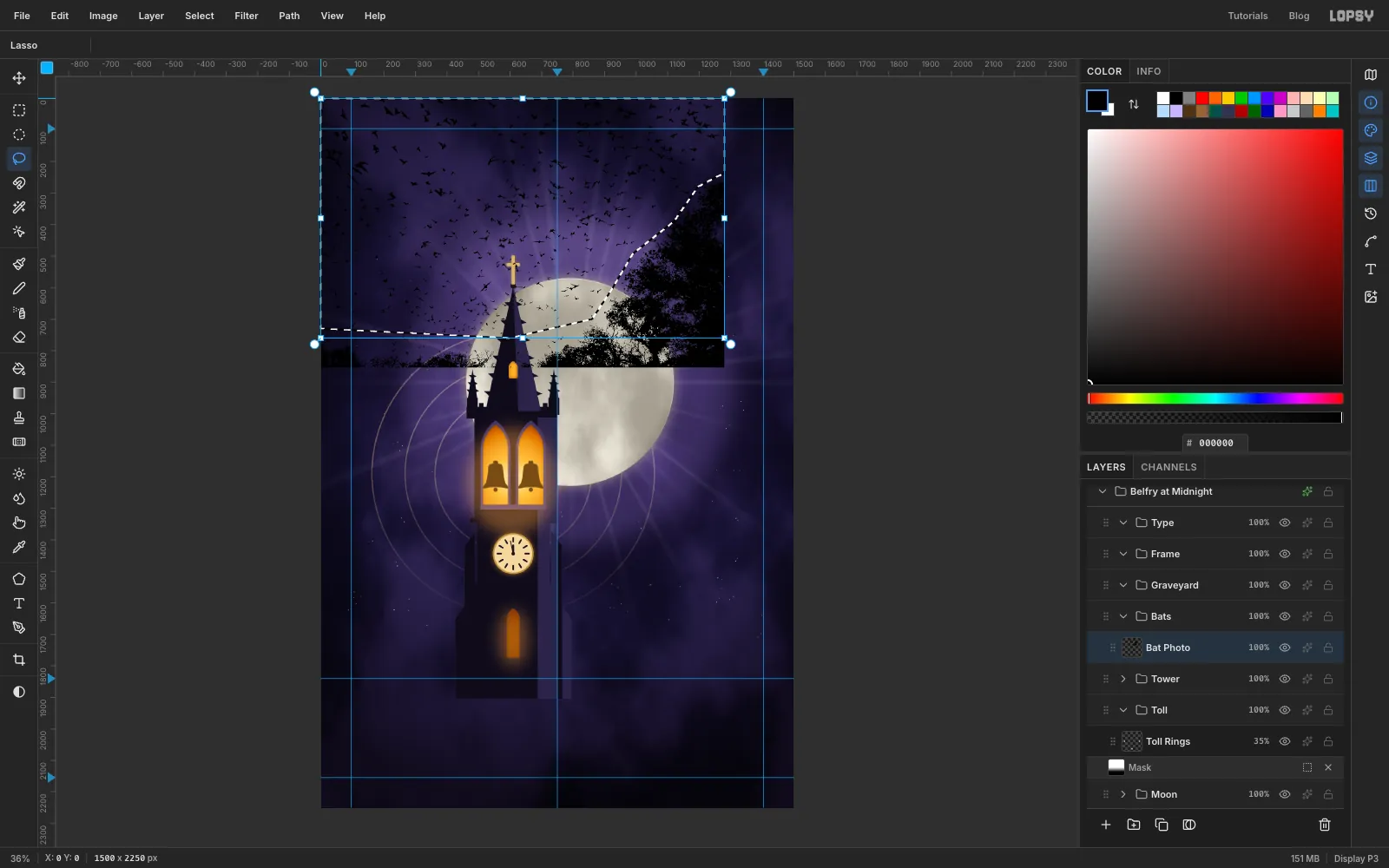
With the Lasso, draw around the bat-filled sky, keeping clear of the trees at the bottom and right. Choose Select → Inverse and press Delete to remove the trees.
-
Scale and place the swarm
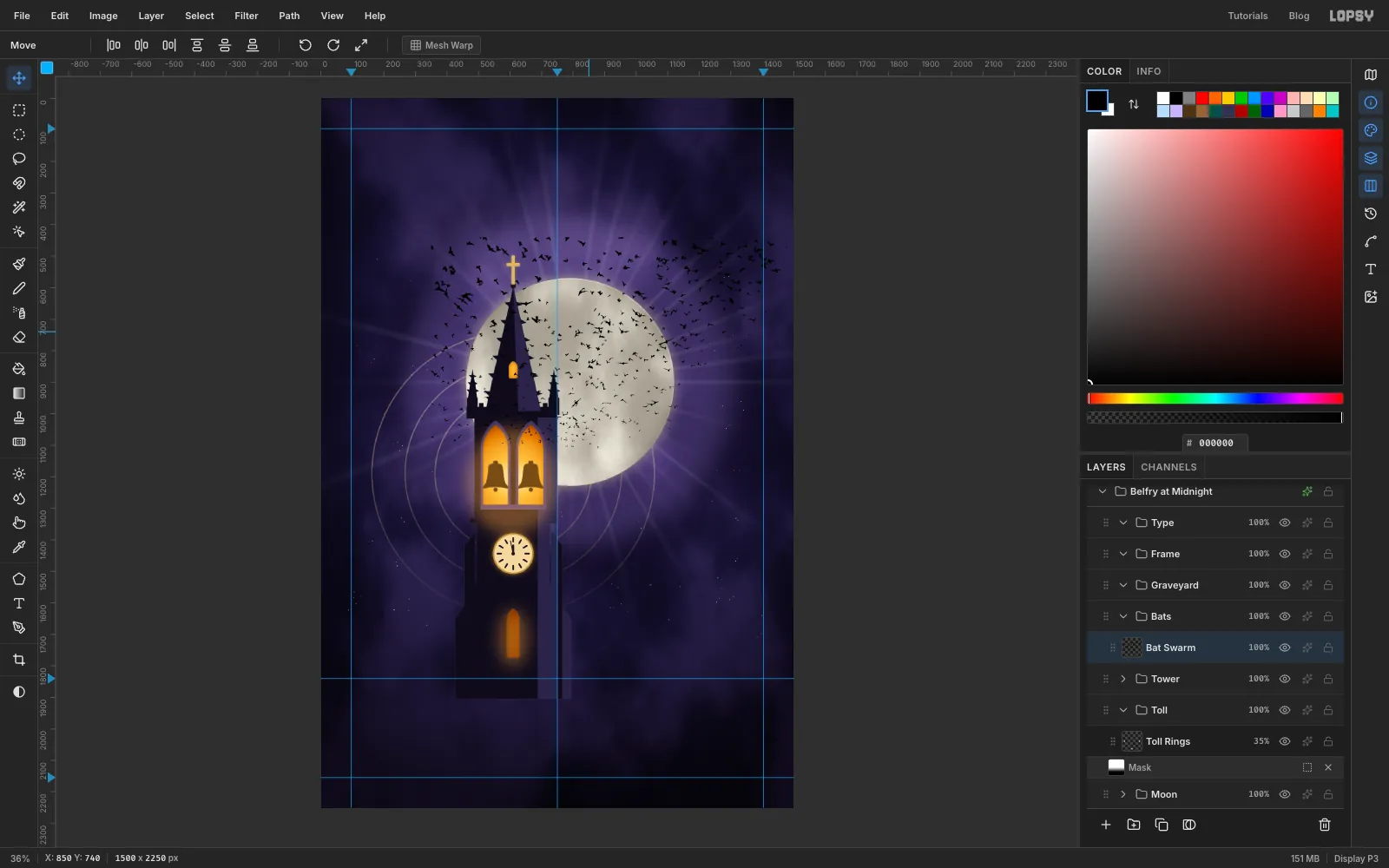
Marquee around the whole photo layer. With the Move tool, hold Cmd and drag the bottom-right corner handle inward until the photo is about 1,130 px wide on the ruler (it started at 1,280). Press Cmd+D to commit.
Then drag the layer down and right so the bats cover the moon and the sky beside it. Rename the layer Bat Swarm.
-
Shape the flock into a stream
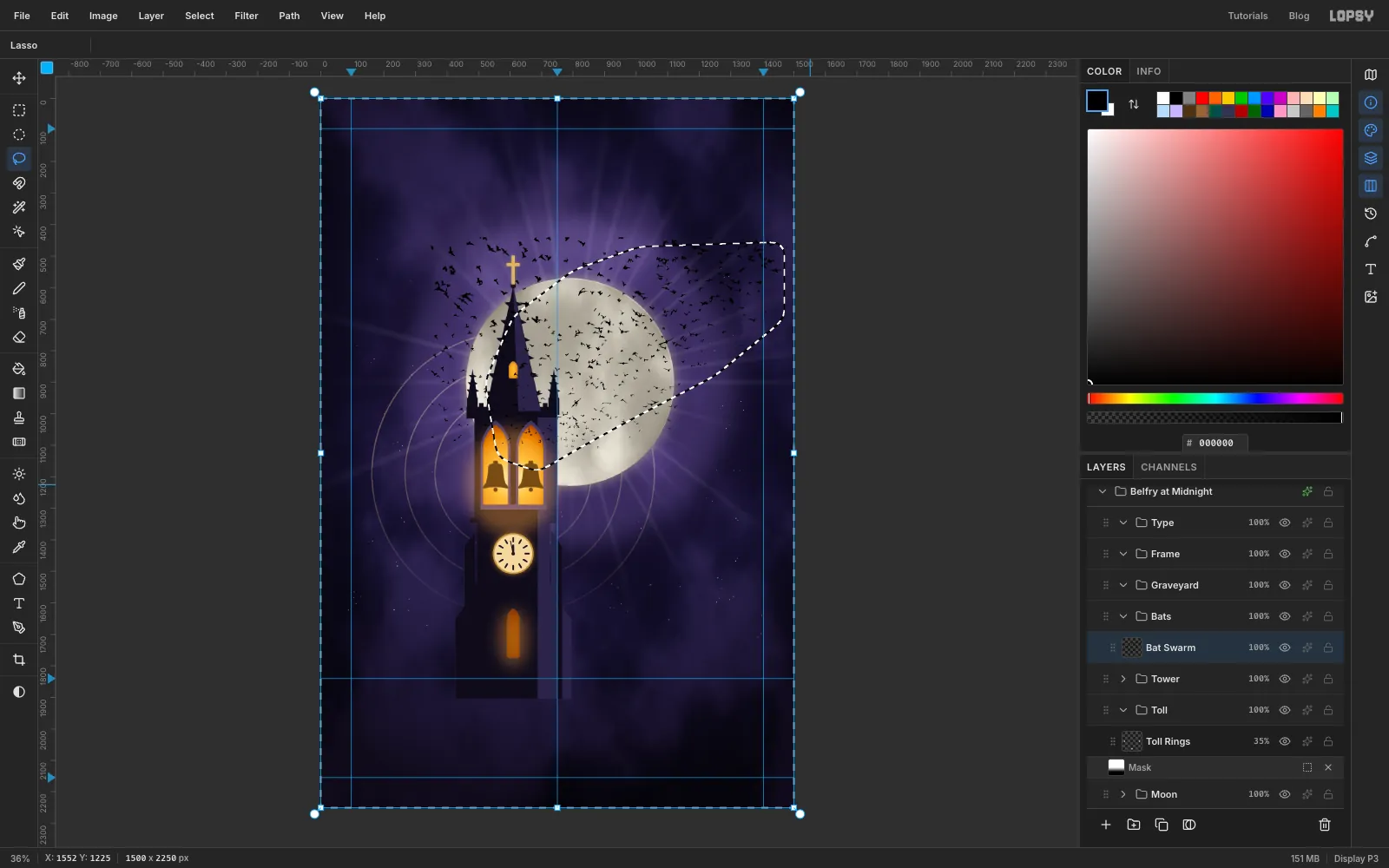
You want the bats to pour out of the belfry and rise to the upper right. Lasso a ribbon that starts at the belfry, sweeps up across the moon and widens toward the top-right corner. Choose Select → Inverse, Feather by 45 and press Delete.
Clean up with the Eraser (Size 160). Sweep across the bottom right and just left of the spire, so the stream thins out naturally.
-
Add a burst of bats at the belfry
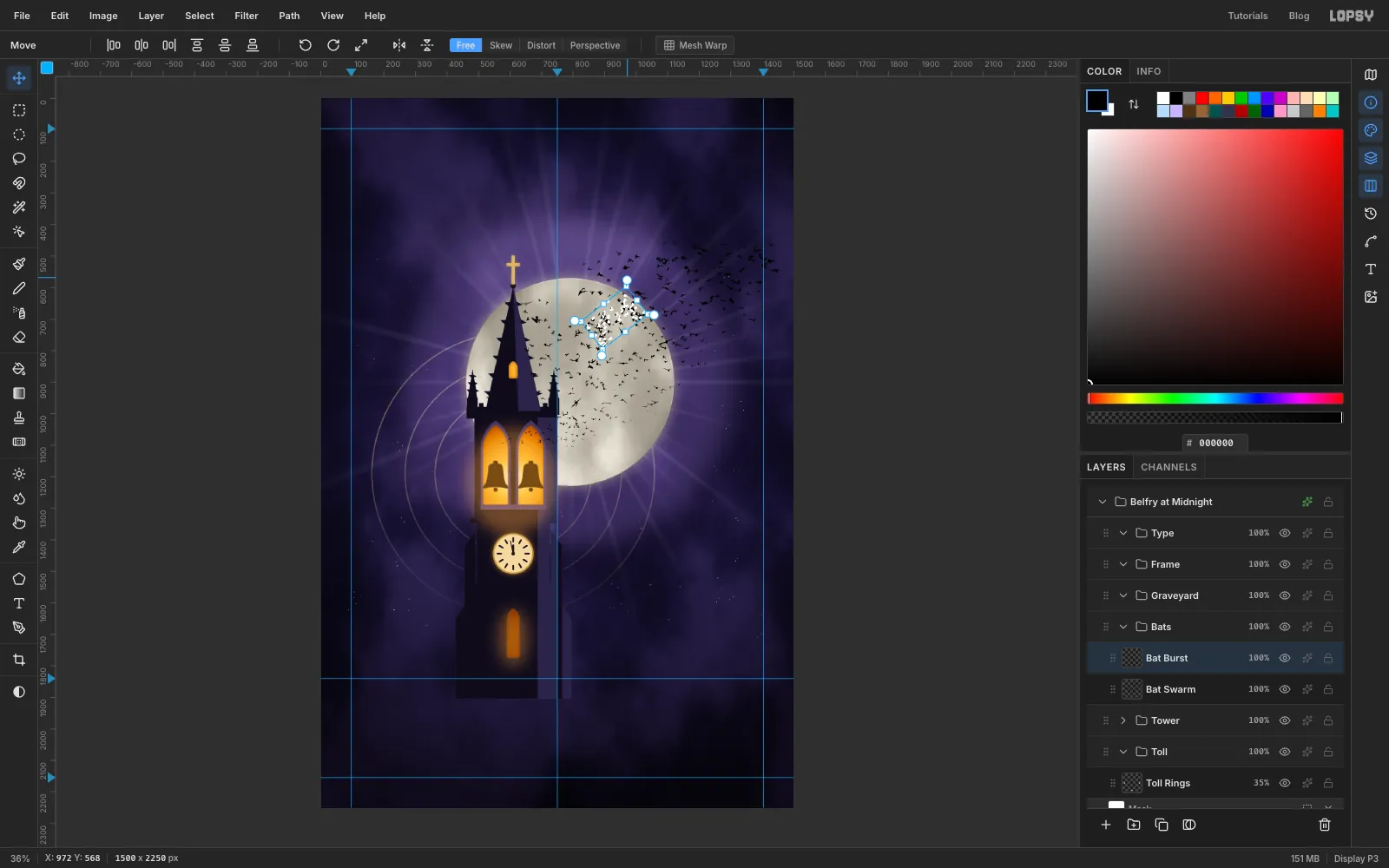
Marquee a dense patch of bats over the moon, about 260 × 160 px. Copy with Cmd+C and paste with Cmd+V; the copy lands in place on a new layer. Rename it Bat Burst and marquee the same patch again.
With the Move tool:
- Click Flip Horizontal in the options bar.
- Hold Cmd and drag a corner handle inward to about 70%.
- Drag the round rotate handle just outside a corner about 38° counter-clockwise.
- Press Cmd+D, then drag the patch to sit just above and right of the belfry windows.
Press Cmd+E (Merge Down) to merge it into Bat Swarm. Then give the swarm a Color Overlay in and an Outer Glow in , Size 4, Opacity 40. The glow keeps the bats readable over the dark sky.
-
Draw a big foreground bat
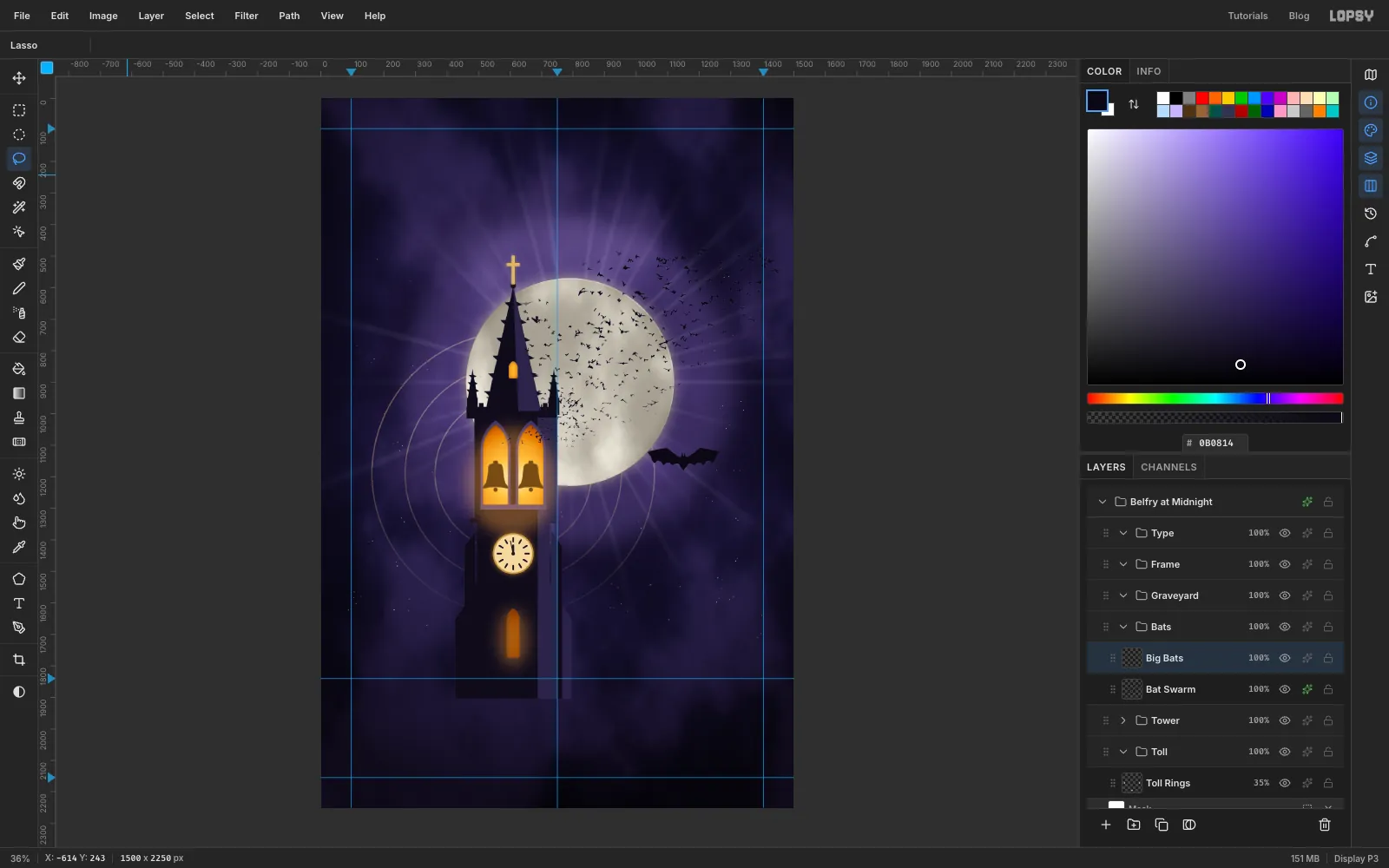
The photo bats are motion-blurred, so they turn into smudges if you scale them up. Draw a crisp one instead: zoom in on one of the photo bats as a reference for the wing shape.
Add a layer named Big Bats. With the Lasso, draw a bat about 230 px across, just right of the moon: two pointed ears, a small body, wings that rise to sharp tips, and a trailing edge scalloped between the finger bones. Fill with .
-
Copy, flip, scale and rotate two more bats
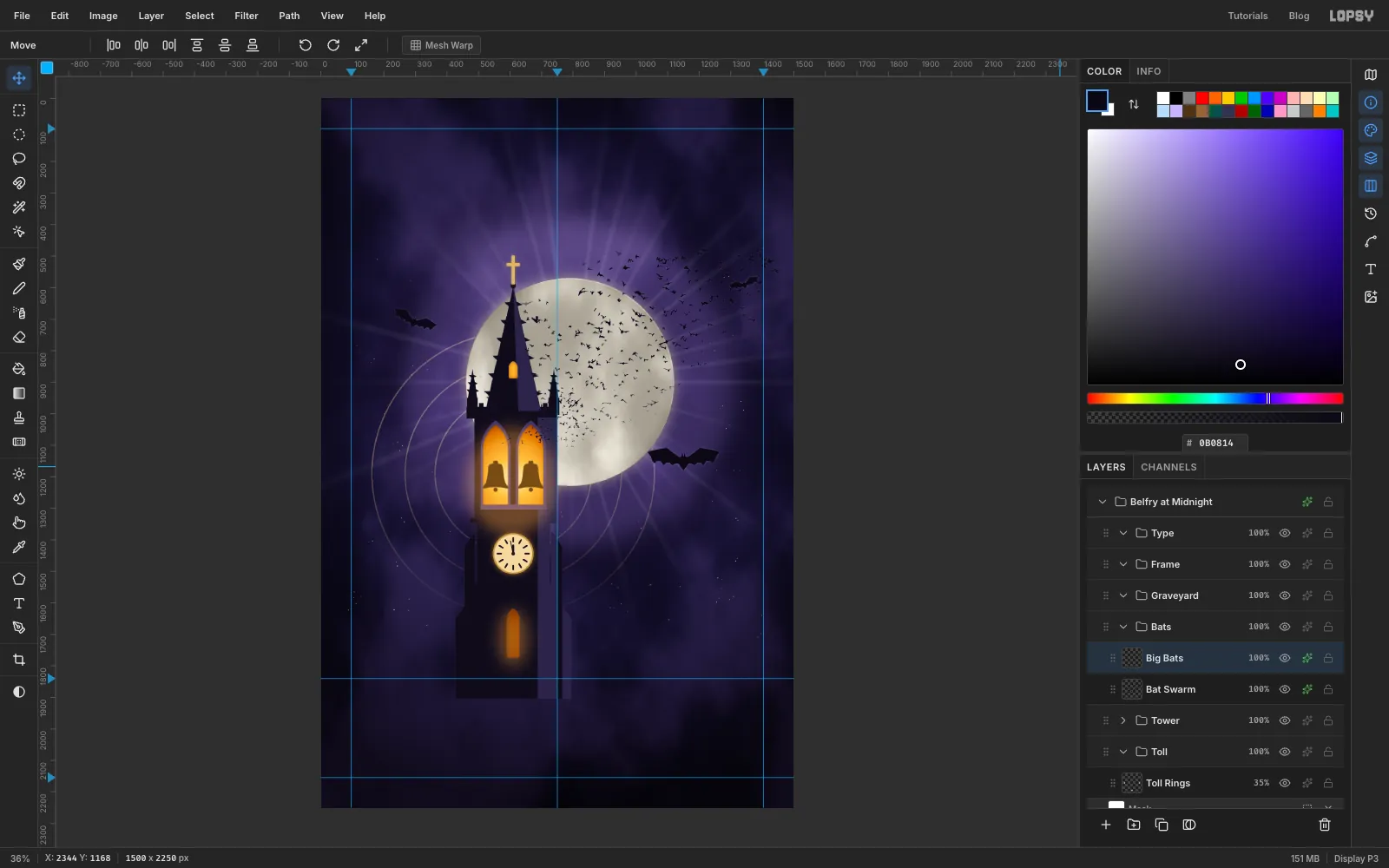
Marquee around the bat, copy, paste, and marquee the same spot again. With the Move tool, click Flip Horizontal. After a flip, Lopsy re-selects the flipped pixels, so the handles now hug the bat itself.
Cmd-drag a corner until the copy is about 140 px across. Rotate it about 22° clockwise with the round handle, press Cmd+D and drag it to the left of the tower. Press Cmd+E to merge it into Big Bats.
Make one more copy about 100 px across, tilted 16° the other way, for the top right of the sky, and merge it down too. Give Big Bats an Outer Glow in , Size 8, Opacity 55.
-
Raise the churchyard hill
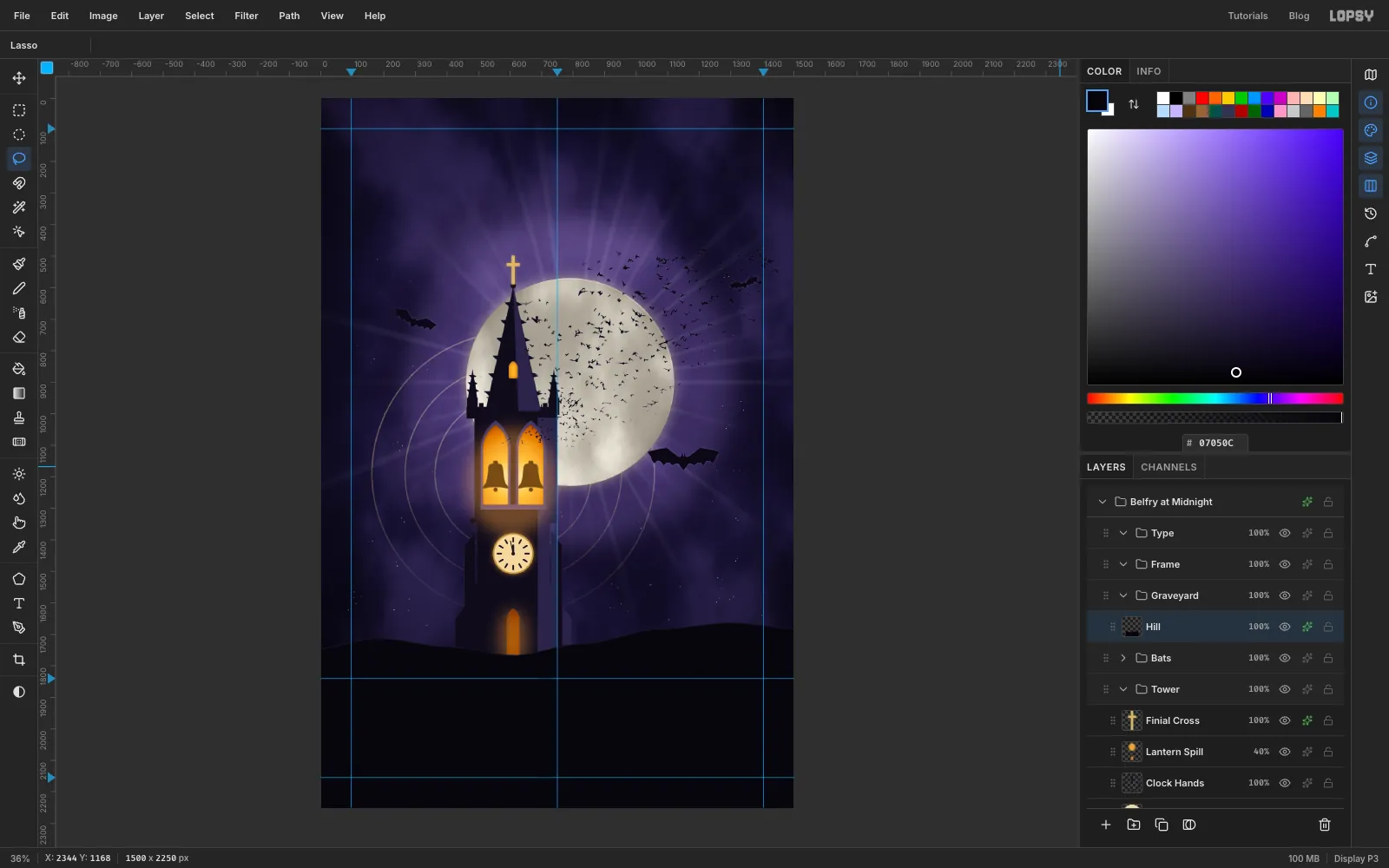
Click the Graveyard group and add a layer named Hill. Lasso from the left edge along a gently rolling crest, about 100–170 px above the ground guide. Dip slightly where it meets the foot of the tower and rise a little toward the right. Carry on down to the bottom corners and fill with .
Add an Inner Glow in , Size 6, Opacity 60, so the crest catches a little light.
-
Set out headstones and crosses
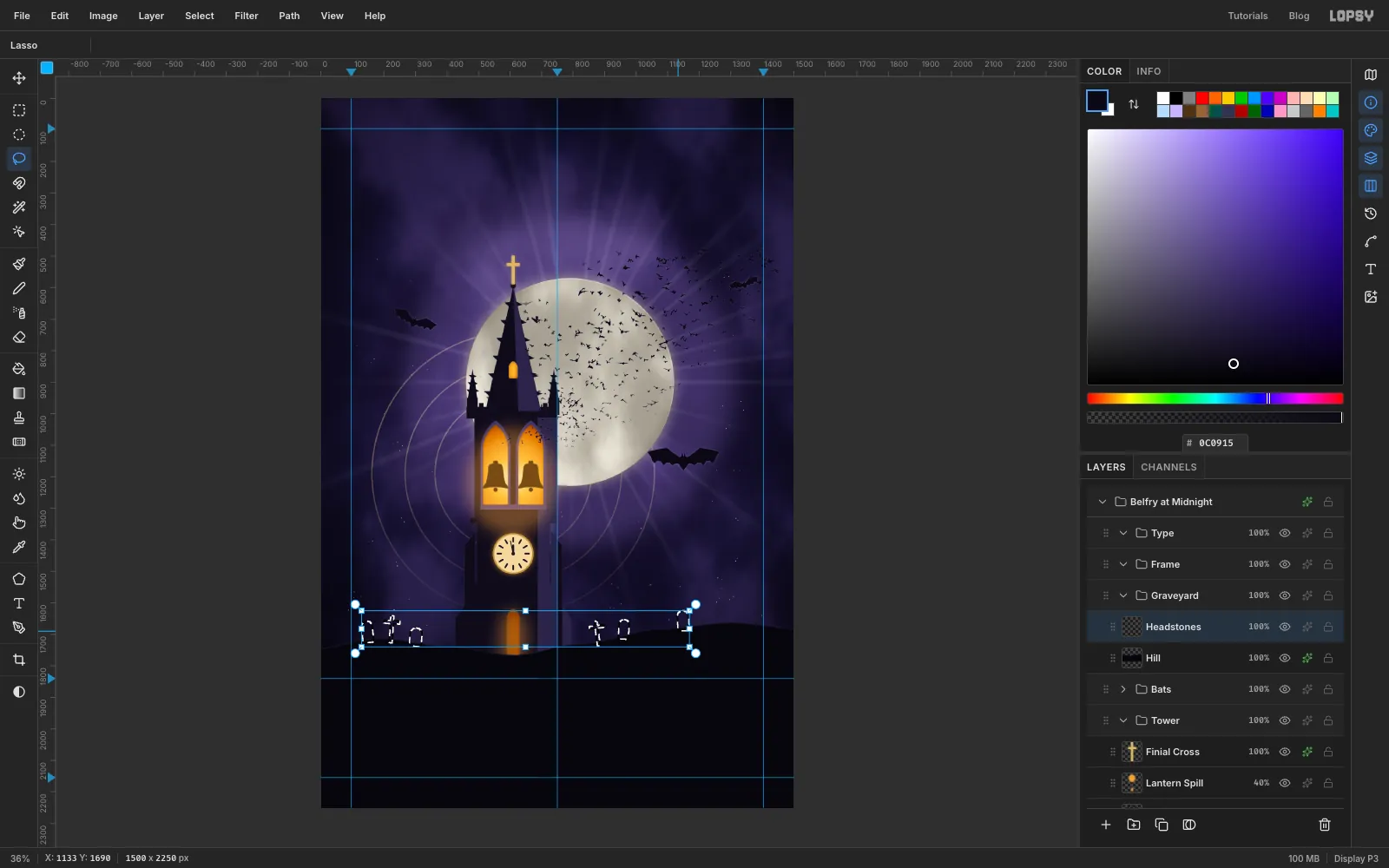
Add a layer named Headstones. Lasso a handful of small round-topped stones (about 35 px wide and 50 px tall) and two plain crosses along the crest, each leaning slightly. Hold Shift to add each one. Keep them well away from the tower, or they'll make it look small. Fill with .
-
Clone more stones
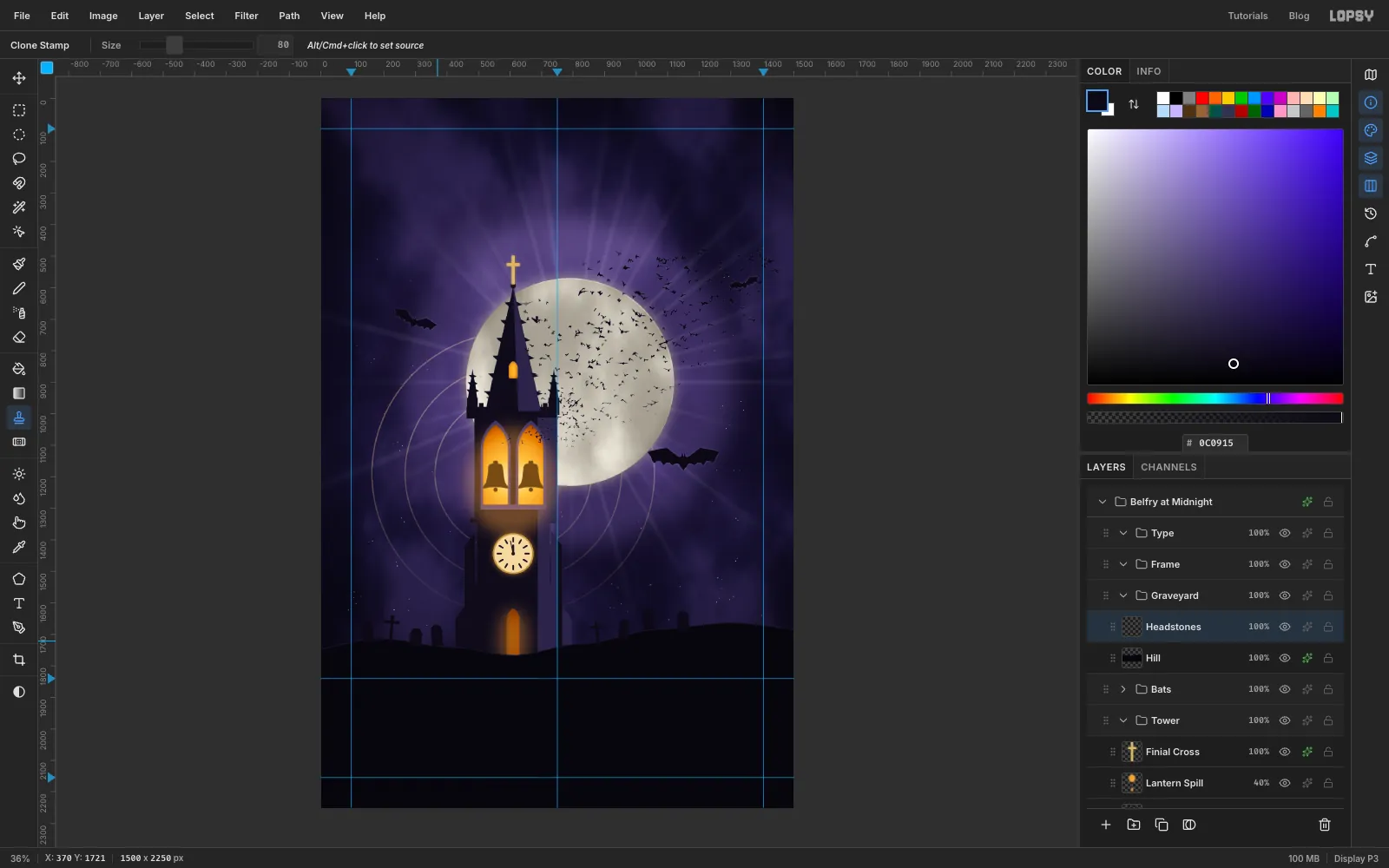
The Clone Stamp copies from the active layer only, so keep Headstones selected. Choose the Clone Stamp and set Size to 80.
Alt-click the middle of the left-most headstone to set the source, then paint a short vertical stroke on an empty spot of the crest. Alt-click the same stone again before the second copy. Otherwise the source keeps its offset and samples empty sky.
-
Grow a dead tree with a tapered brush
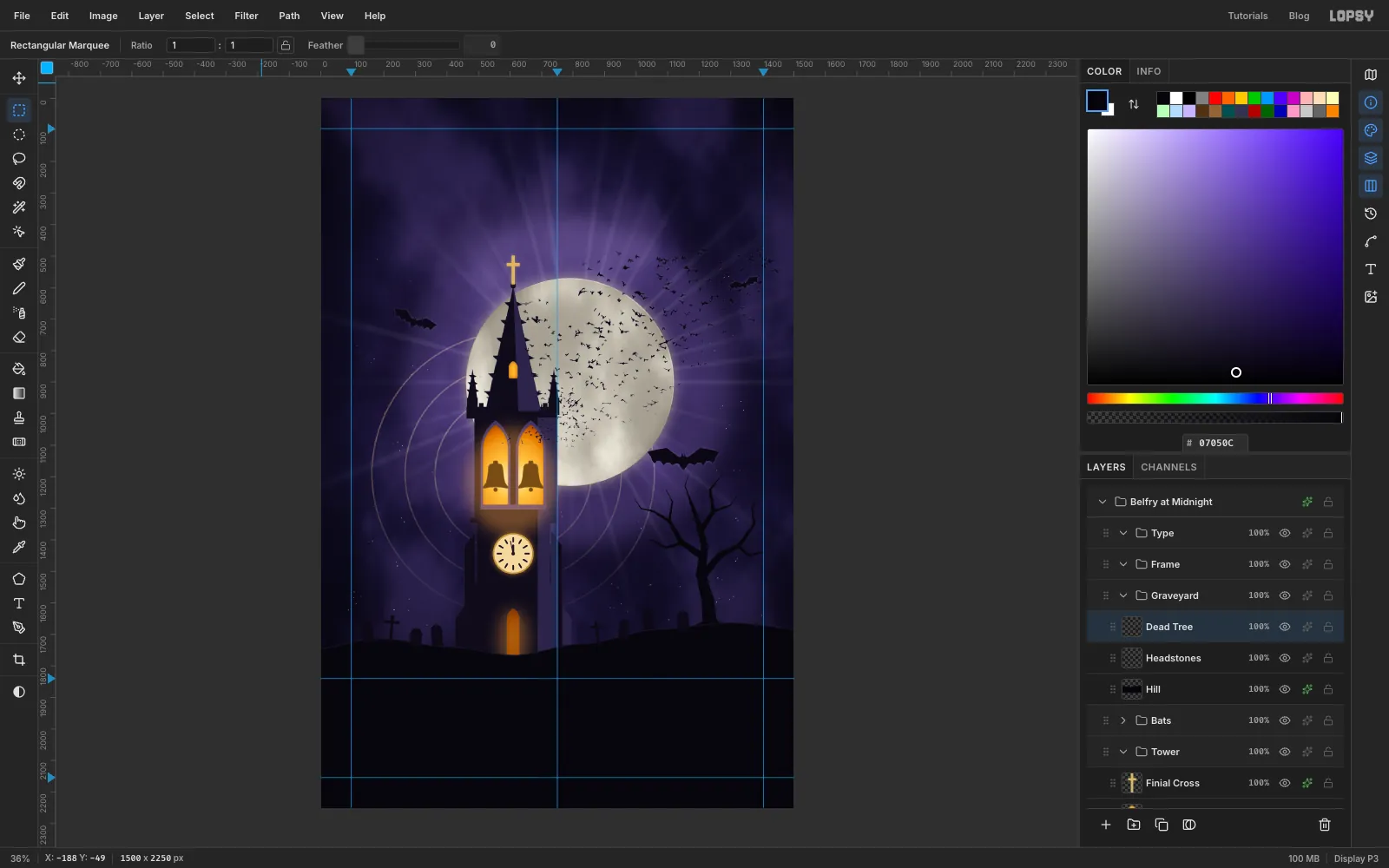
Add a layer named Dead Tree and set the foreground to . Choose the Brush with Hard Round and open the brush settings. Taper shrinks each stroke to a point over a set distance, which is exactly how branches thin out.
- Trunk: Size 46, Taper 520. Drag from inside the hill up and slightly to the left, about 450 px.
- Boughs: Size 24–26, Taper 300. Drag outward from the trunk.
- Twigs: Size 7–18, Taper 90–220. Drag from the ends of the boughs.
Keep the branches inside the side margin. Set Taper back to 0 when you're done. To sink the trunk into the ground, Cmd-click the Hill thumbnail, click Dead Tree and press Delete.
-
Render the fog
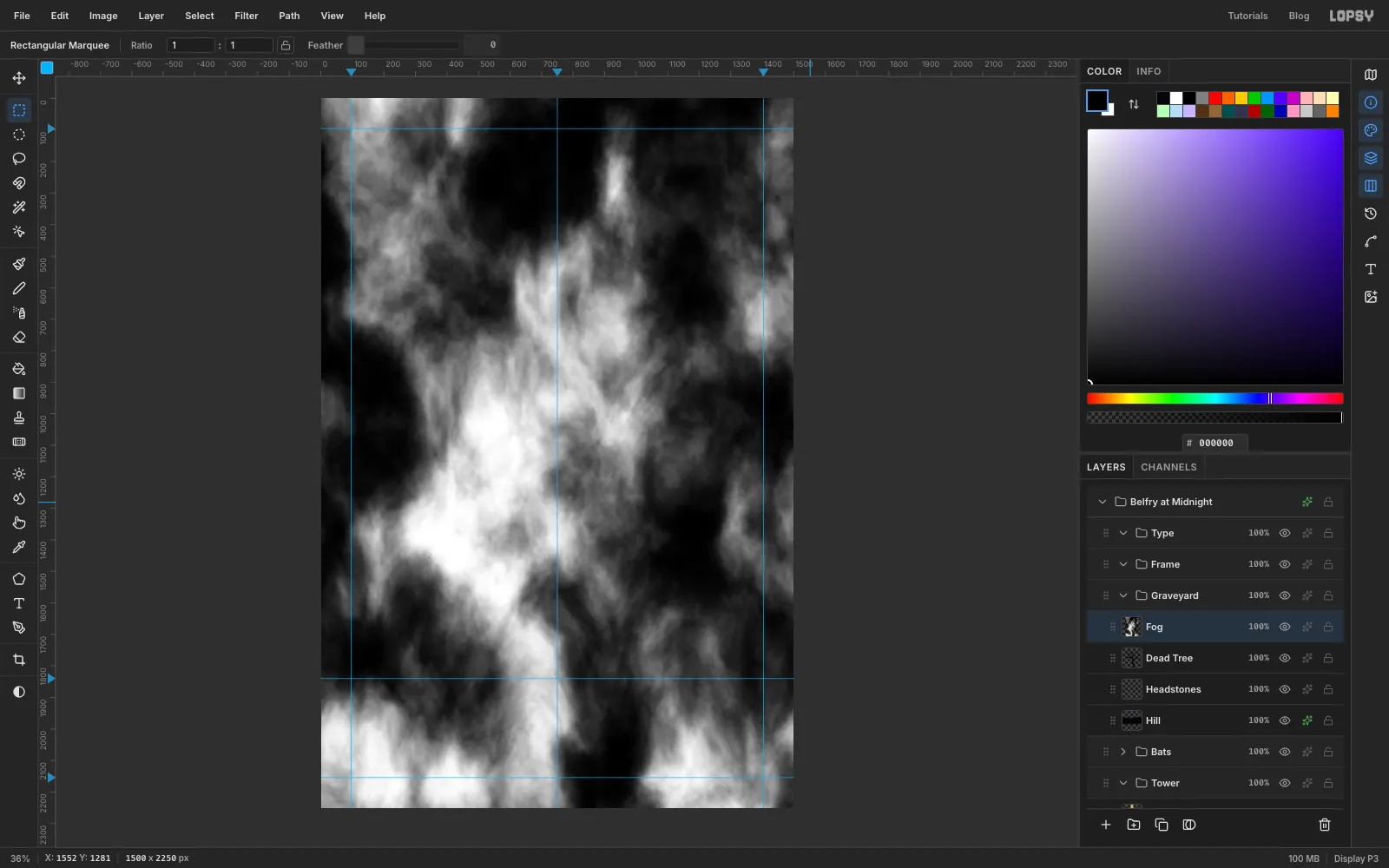
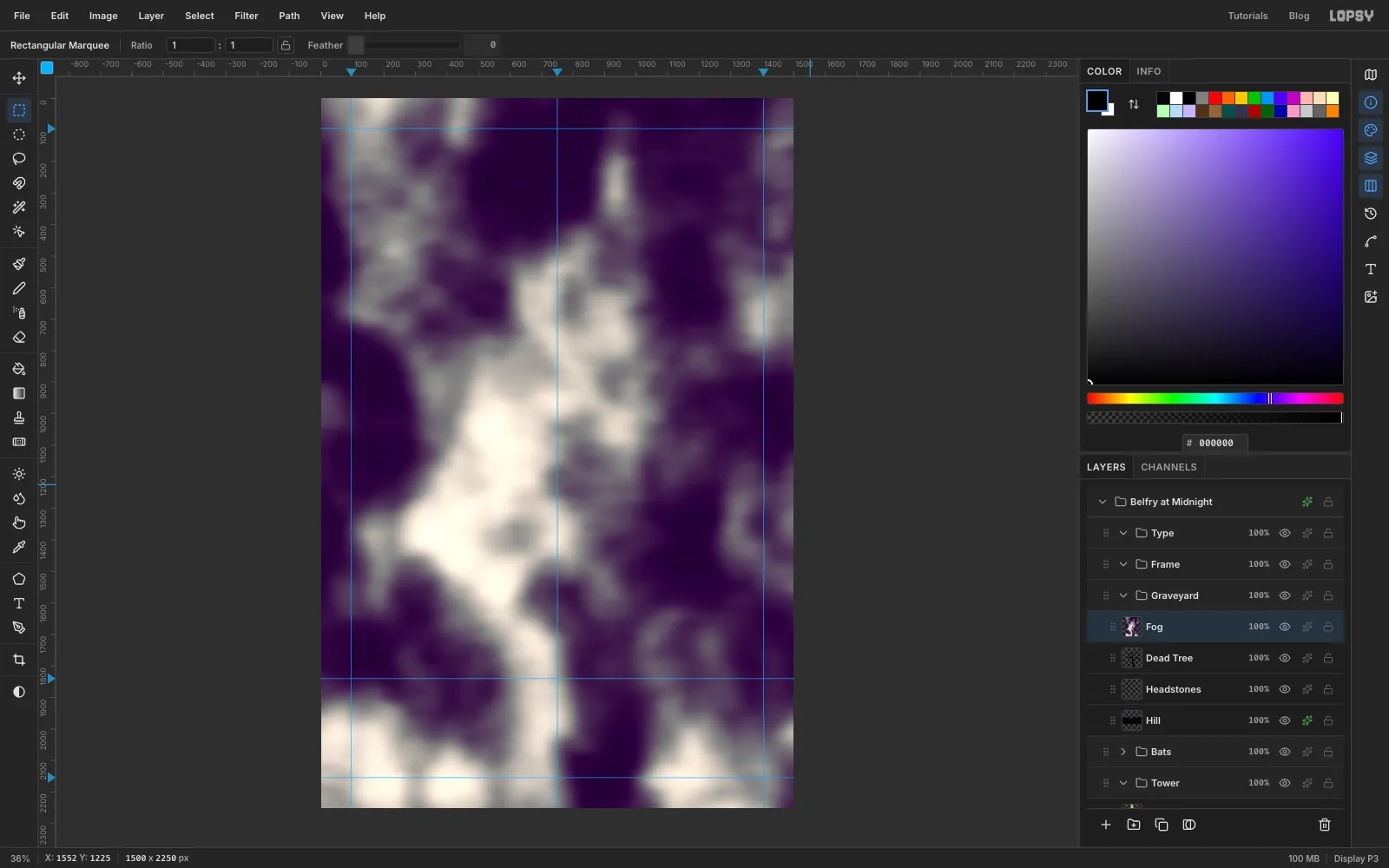
Add a layer named Fog. Choose Filter → Smoke… with Scale 6 and Turbulence 55. Then run Motion Blur with Angle 0 and Distance 70 to stretch the smoke into drifting bands.
-
Colour and trim the fog
Choose Filter → Color LUT…, pick Cyberpunk and set Intensity to 100. Smoke is grey, and this preset pushes its shadows toward purple. Soften it with Gaussian Blur at 22.
Marquee a wide band from just below the clock to a little above the bottom guide. Feather it by 63, invert the selection and press Delete. Set the layer to Screen at 40%.
-
Tint the mist violet
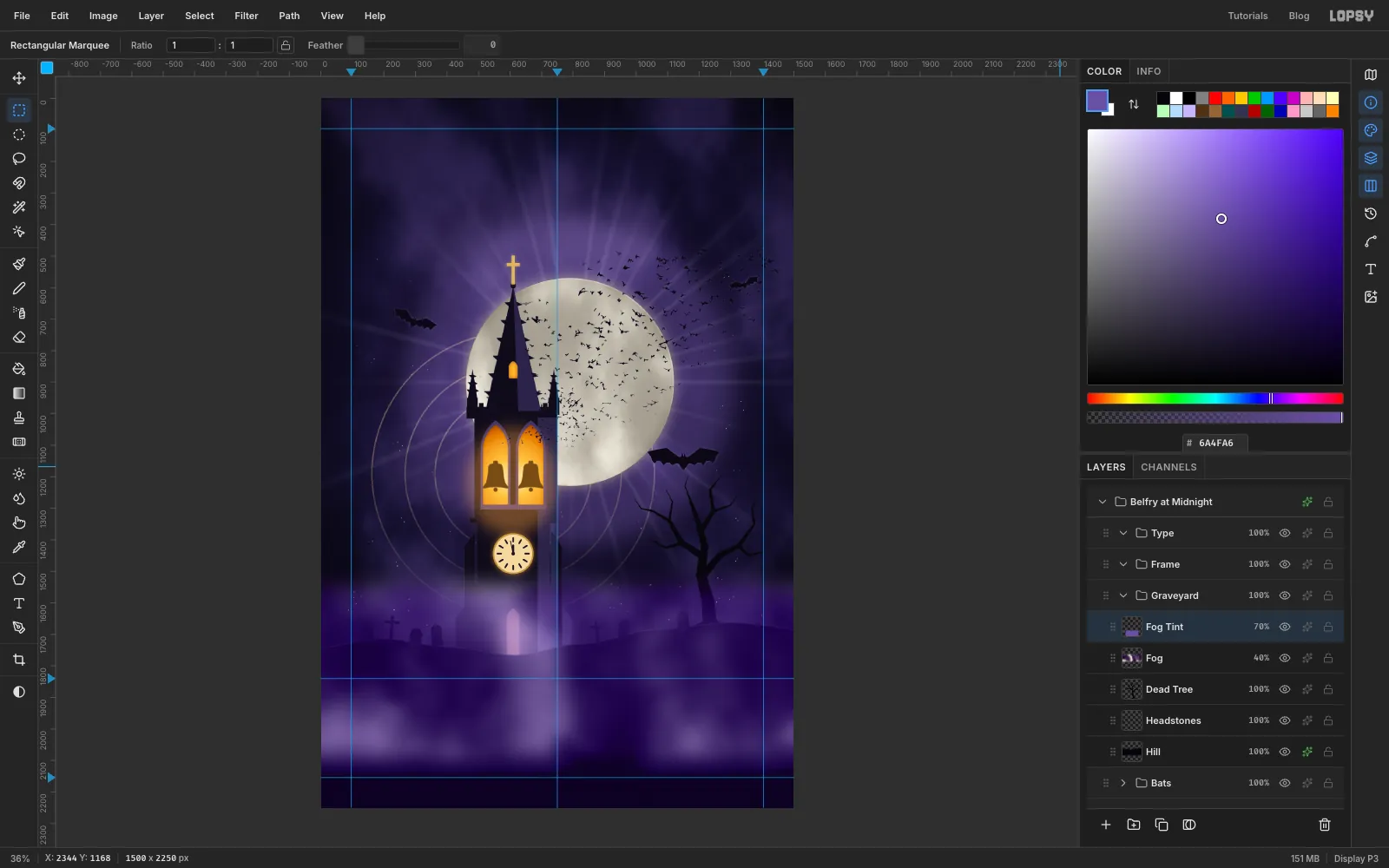
The fog still reads greyish. Add a layer named Fog Tint, marquee from just above the hill to the bottom edge, feather it by 63 and fill with . Set it to the Color blend mode at 70%. Color mode turns everything under it violet without making it brighter.
That includes the glowing door slit, which you'll fix next.
-
Relight the door and add haze
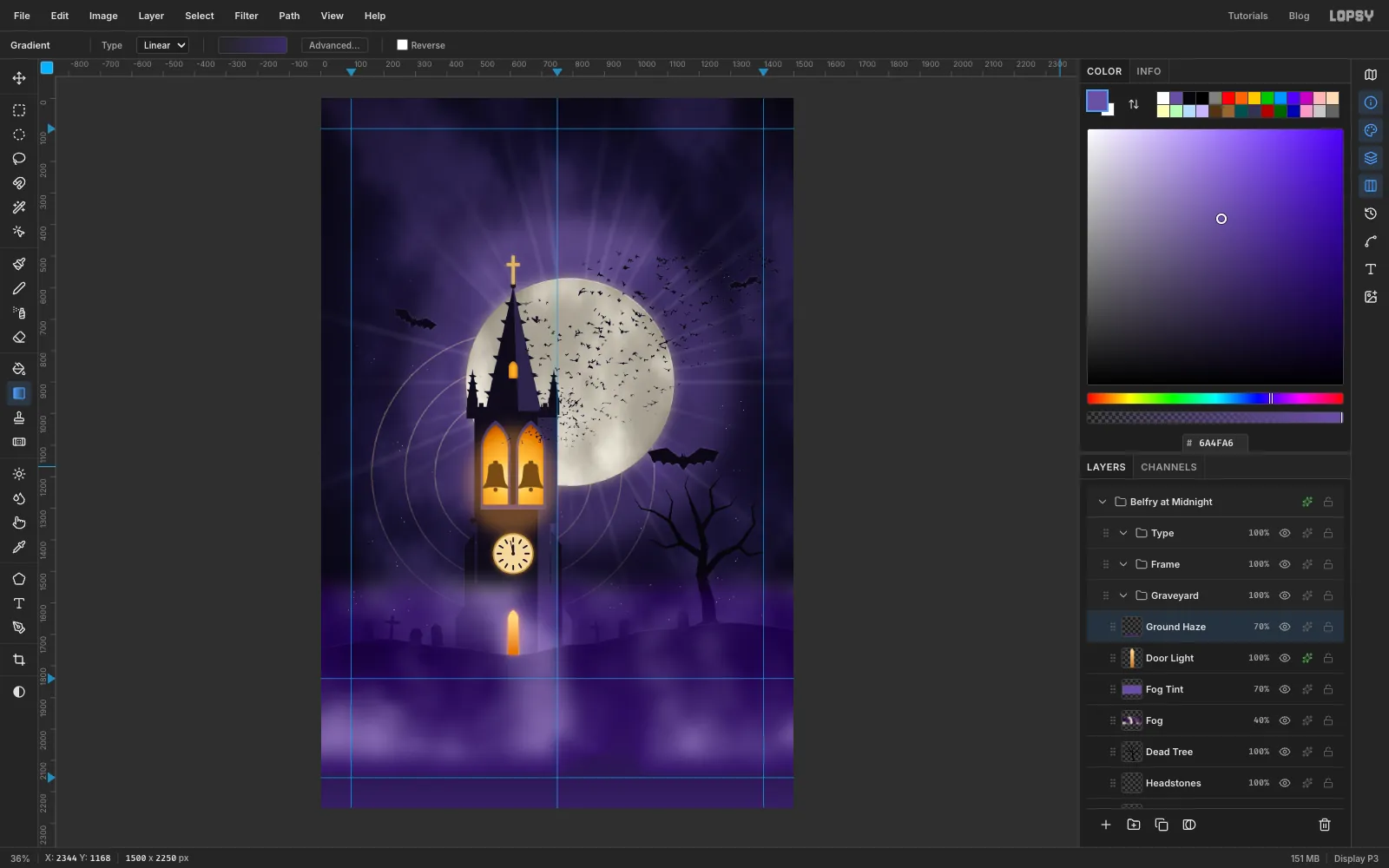
Add a layer named Door Light. Lasso the door slit, then Alt-lasso the hill to subtract it. Fill the selection with a Linear gradient from at the top to , and add an Outer Glow in , Size 30, Opacity 60.
Then add a layer named Ground Haze. Drag a Linear gradient from a transparent at the hill crest to a solid at the bottom edge. Set it to Screen at 70% so the lettering will sit in mist rather than pure black.
-
Snap the gilt frame to the grid
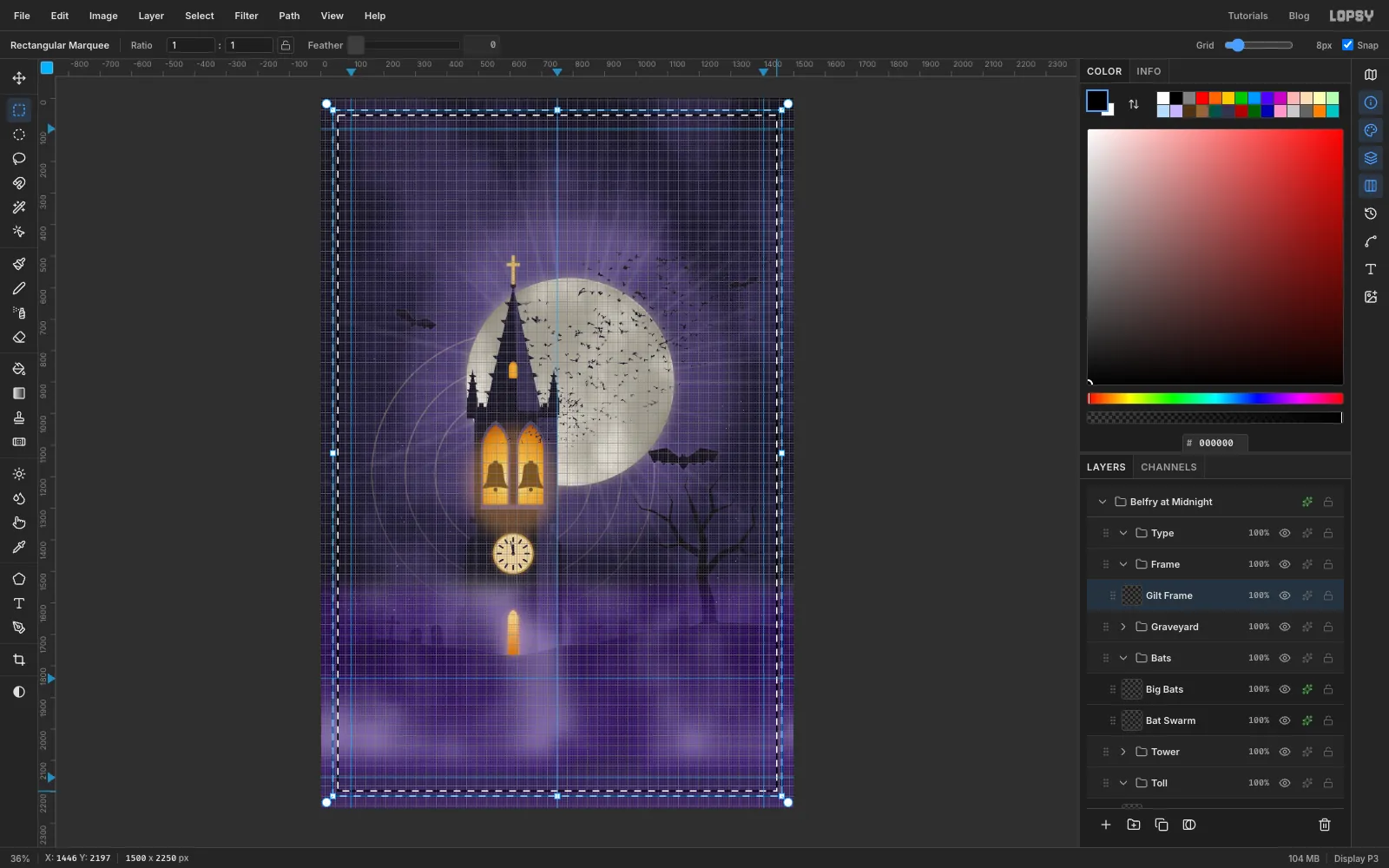
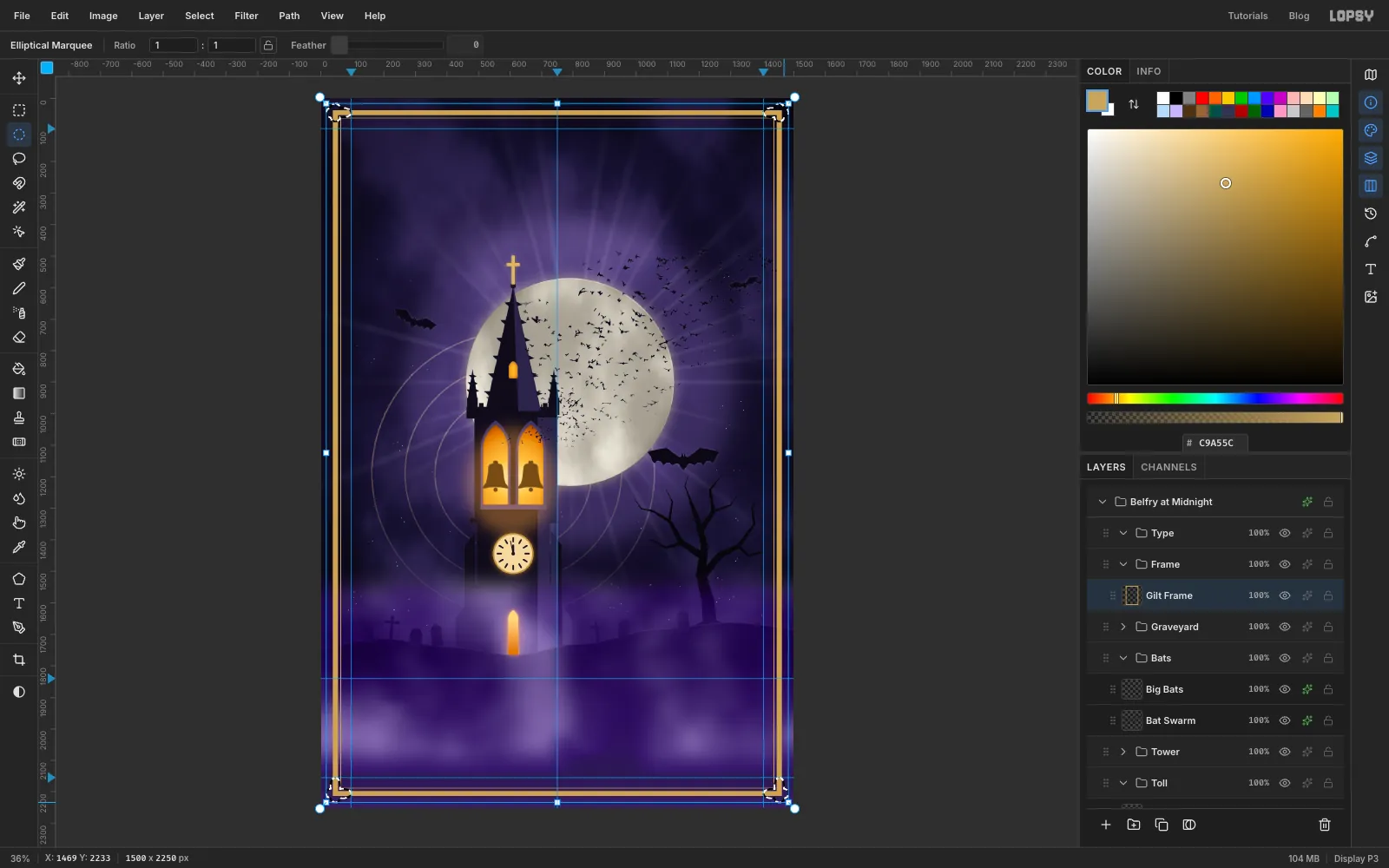
Click the Frame group and add a layer named Gilt Frame. Choose View → Show Grid and set the Grid slider in the options bar to 8 px; snapping turns on with the grid.
With the Rectangular Marquee, drag from the grid line about 40 px inside the top-left corner to the matching line inside the bottom-right. Then hold Alt and drag a second rectangle two grid squares (16 px) further in to subtract it, which leaves a band. Fill with and deselect.
Turn the grid off with View → Show Grid before the next part. The hairline needs finer steps than an 8 px grid allows. Drag a rectangle about 8 px inside the band, fill it, then Select → Shrink… by 2 and press Delete. That's the same trick you used for the rings.
-
Add quatrefoil corners
At each corner of the frame, make a quatrefoil from four overlapping circles, each about 30 px across, using the Elliptical Marquee with Shift to add. Do all four corners in one selection, then fill and deselect.
-
Gild the frame
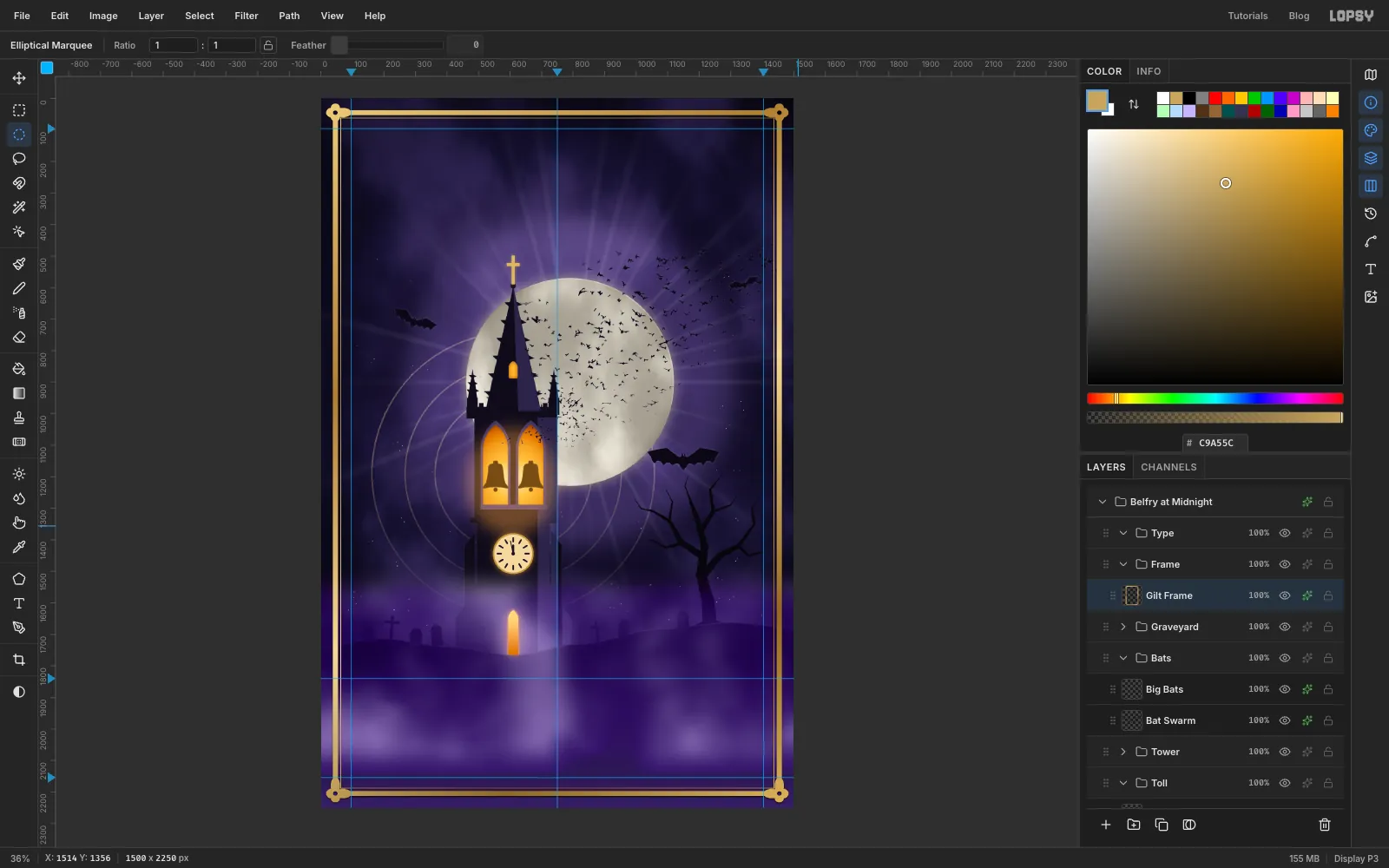
Cmd-click the Gilt Frame thumbnail. Set a Linear gradient with five stops: , , , and . Drag from the top-left corner of the canvas to the bottom-right. Because the selection is the frame, only the frame gets the metallic sheen.
Deselect and add a Drop Shadow in black: Offset X 0, Offset Y 3, Blur 6, Opacity 70.
Now pierce each corner. Use the Elliptical Selection dialog to make a 14 px circle in the middle of a quatrefoil, then press Delete. Repeat for the other three corners.
-
Draw the divider
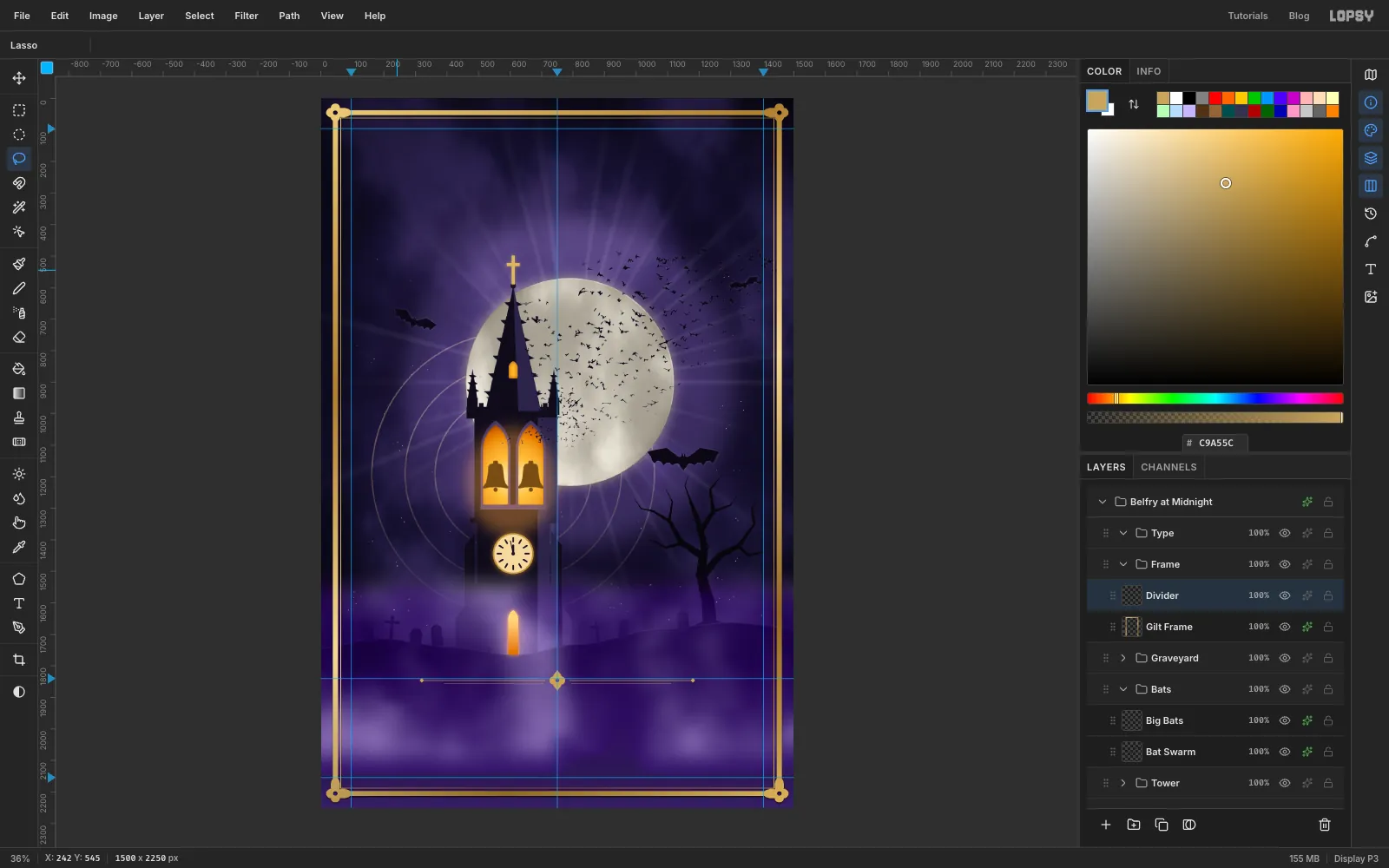
Add a layer named Divider. Its ornament sits on the ground guide, where the hill hides the tower's foot, right on the centre line. Marquees snap to guides, which would squash such small shapes flat, so turn off View → Snap to Guides first.
Build a small quatrefoil on the centre line as before, and Shift-lasso a tall diamond through it. Set the foreground to and fill. Then select a tiny circle in the middle and press Delete.
Choose the Pencil at Size 2. Draw a rule about 390 px long on each side, starting about 40 px from the centre, with a click and a Shift-click. Add a shorter Size 1 rule just below each one. Lasso a small diamond at each outer end and fill. Turn Snap to Guides back on.
-
Set the overline
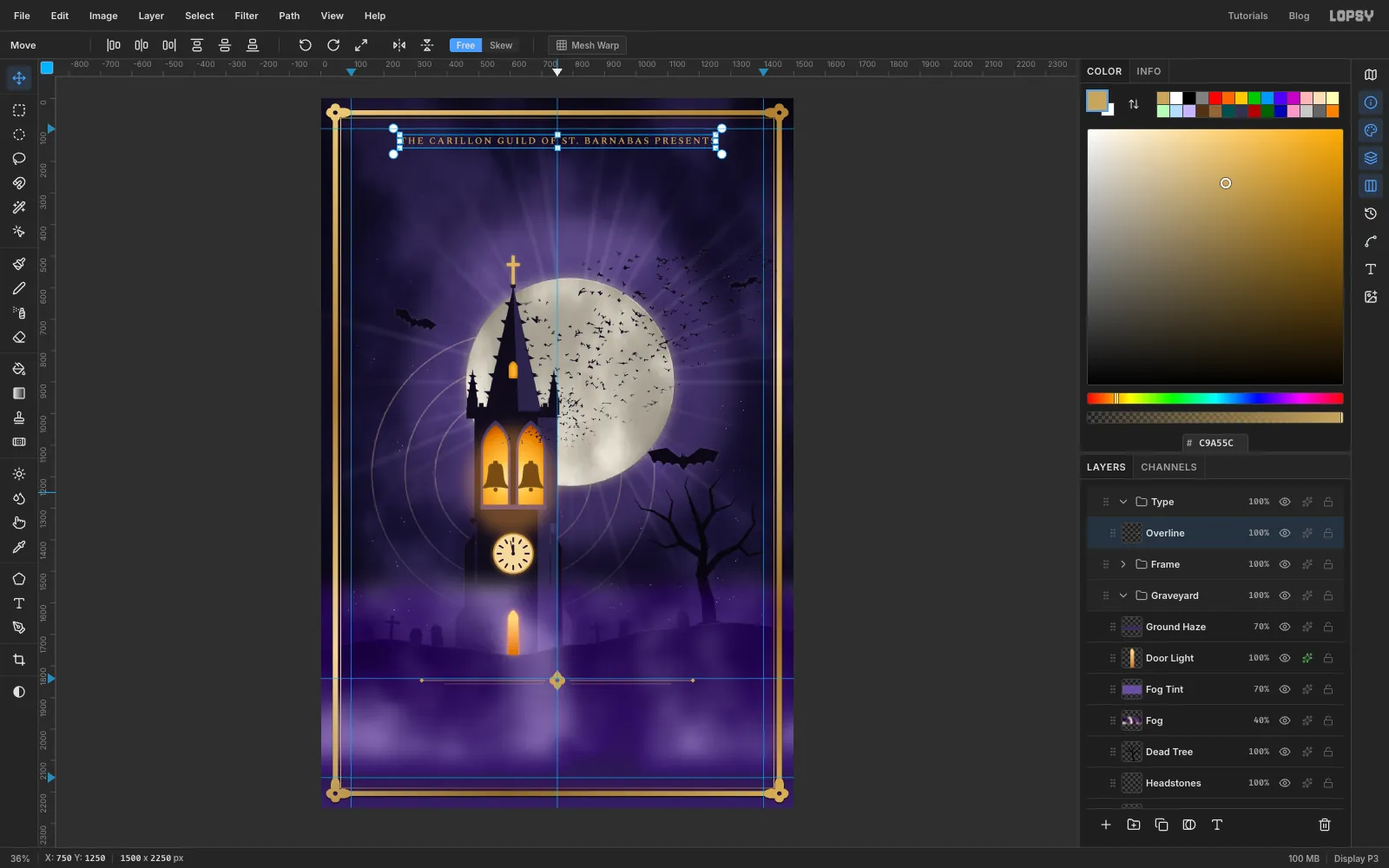
Click the Type group. Set the foreground to , choose the Text tool, pick Spectral SC, SemiBold, Size 30 and Align Center.
Click in an empty part of the canvas, such as the middle of the moon, type THE CARILLON GUILD OF ST. BARNABAS PRESENTS and press Tab to commit. Always start new text in empty canvas, because clicking inside an existing text box edits that text instead. Rename the layer Overline.
In the Text panel, set Letter spacing to 5. Then, with the Move tool, drag it up and nudge it with the arrow keys until it's centred on the centre guide, about 60 px under the frame.
-
Set the title
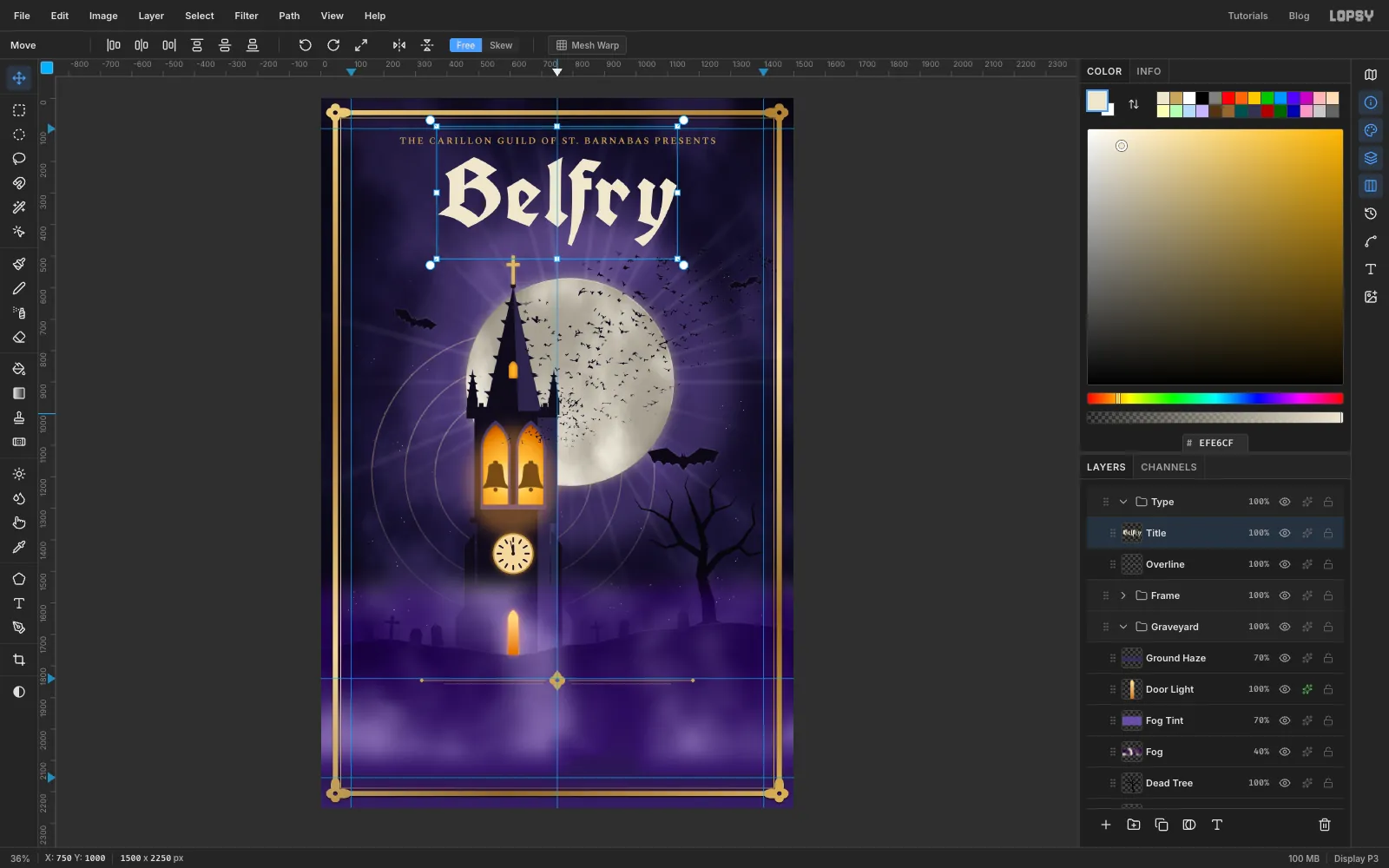
Click the Type group again so the next text doesn't restyle the overline. Set the foreground to . In the Text tool, pick UnifrakturCook at Size 300.
Click in empty canvas, type Belfry and press Tab. Rename the layer Title and move it up under the overline. Leave clear air between its baseline and the cross on the spire.
-
Select the letters
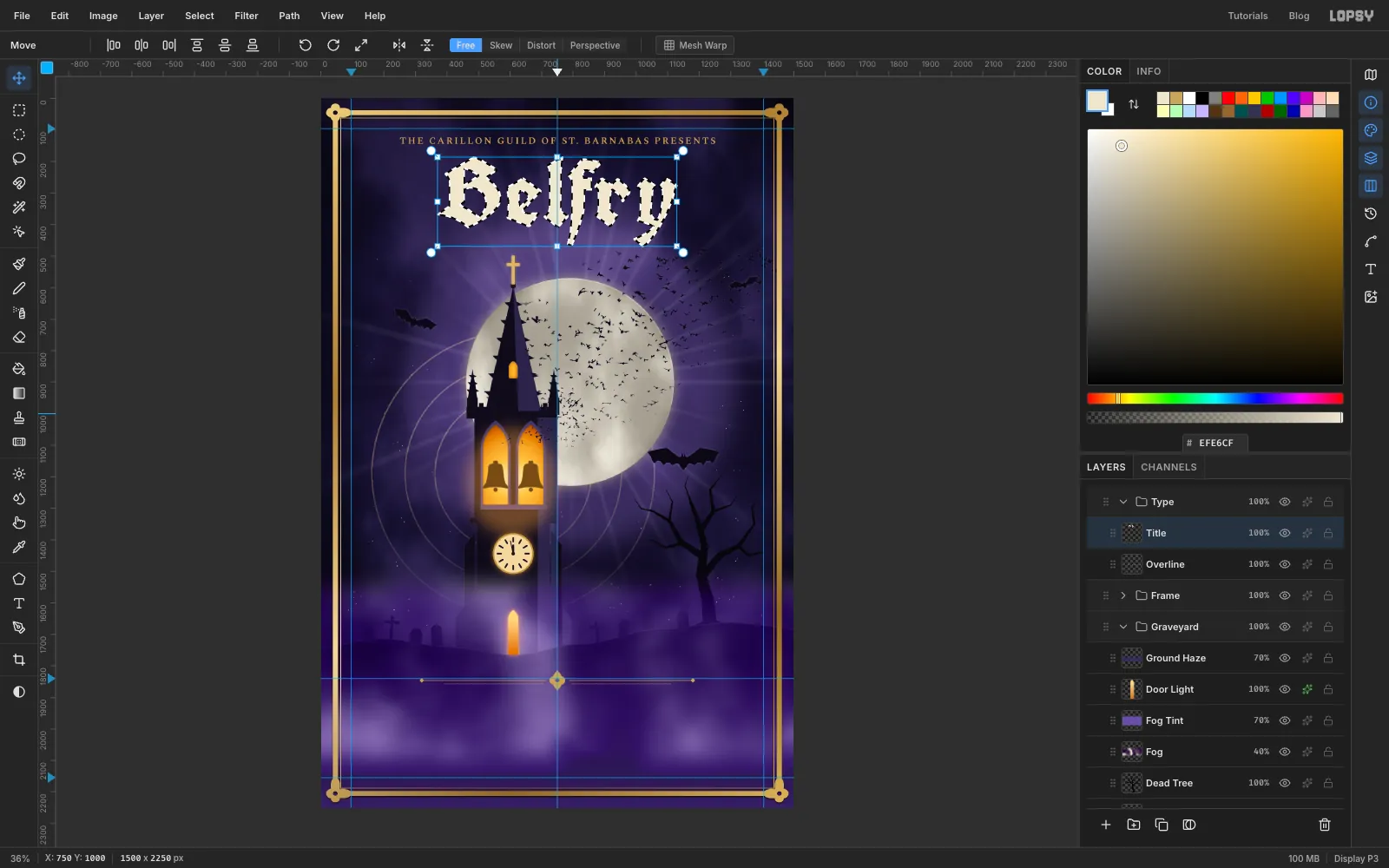
With Title selected, click Rasterize Layer at the bottom of the Layers panel. Then Cmd-click its thumbnail. The selection now traces every letter.
-
Gild the title
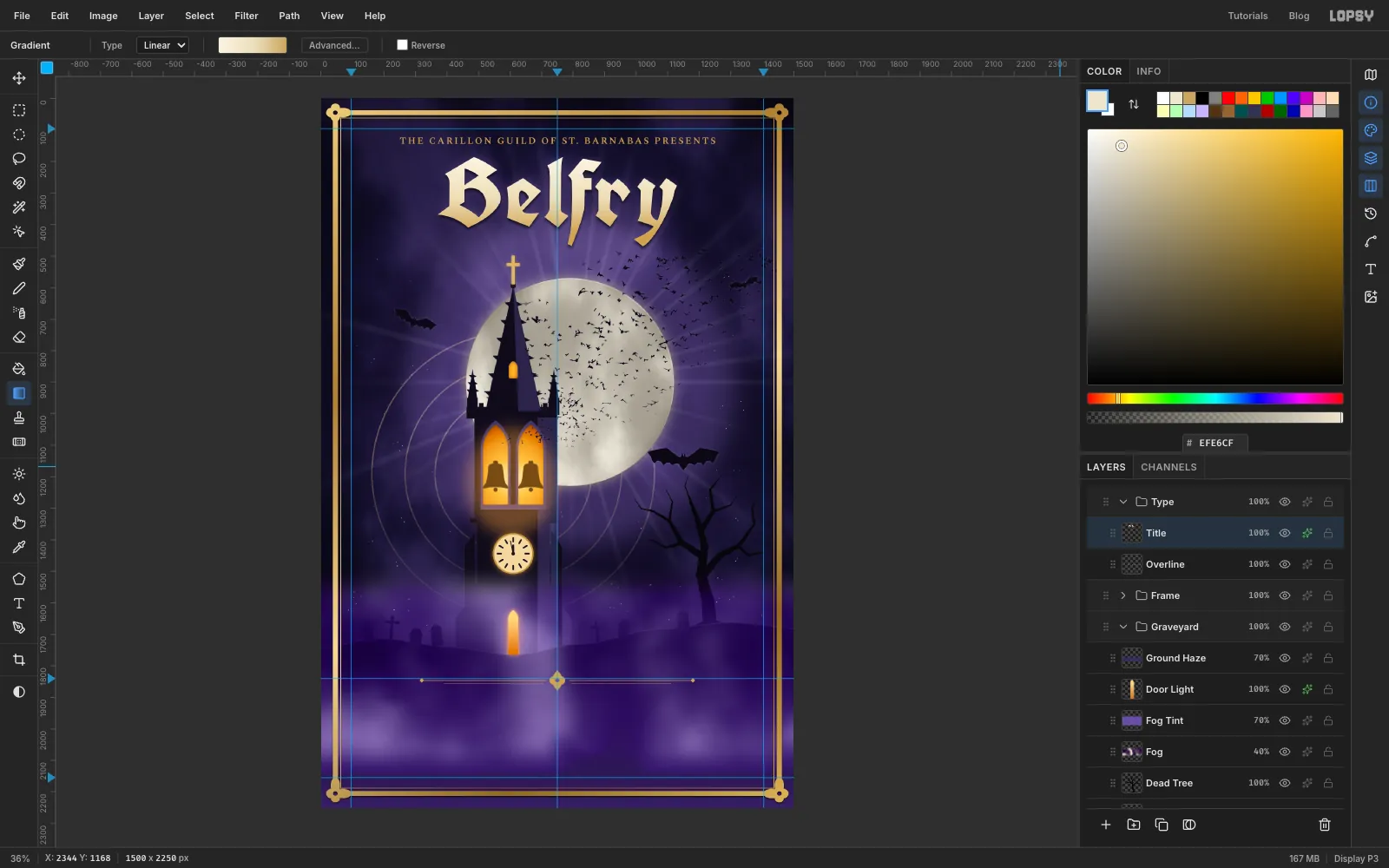
Set a Linear gradient: , just past halfway, and . Drag from the top of the letters down to just above the bottom of the y. The selection keeps the gradient inside the letters.
Deselect, then add a Drop Shadow in (Offset Y 8, Blur 14, Opacity 75). Add an Outer Glow in , Size 40, Opacity 30.
-
Close the scene with "at Midnight"
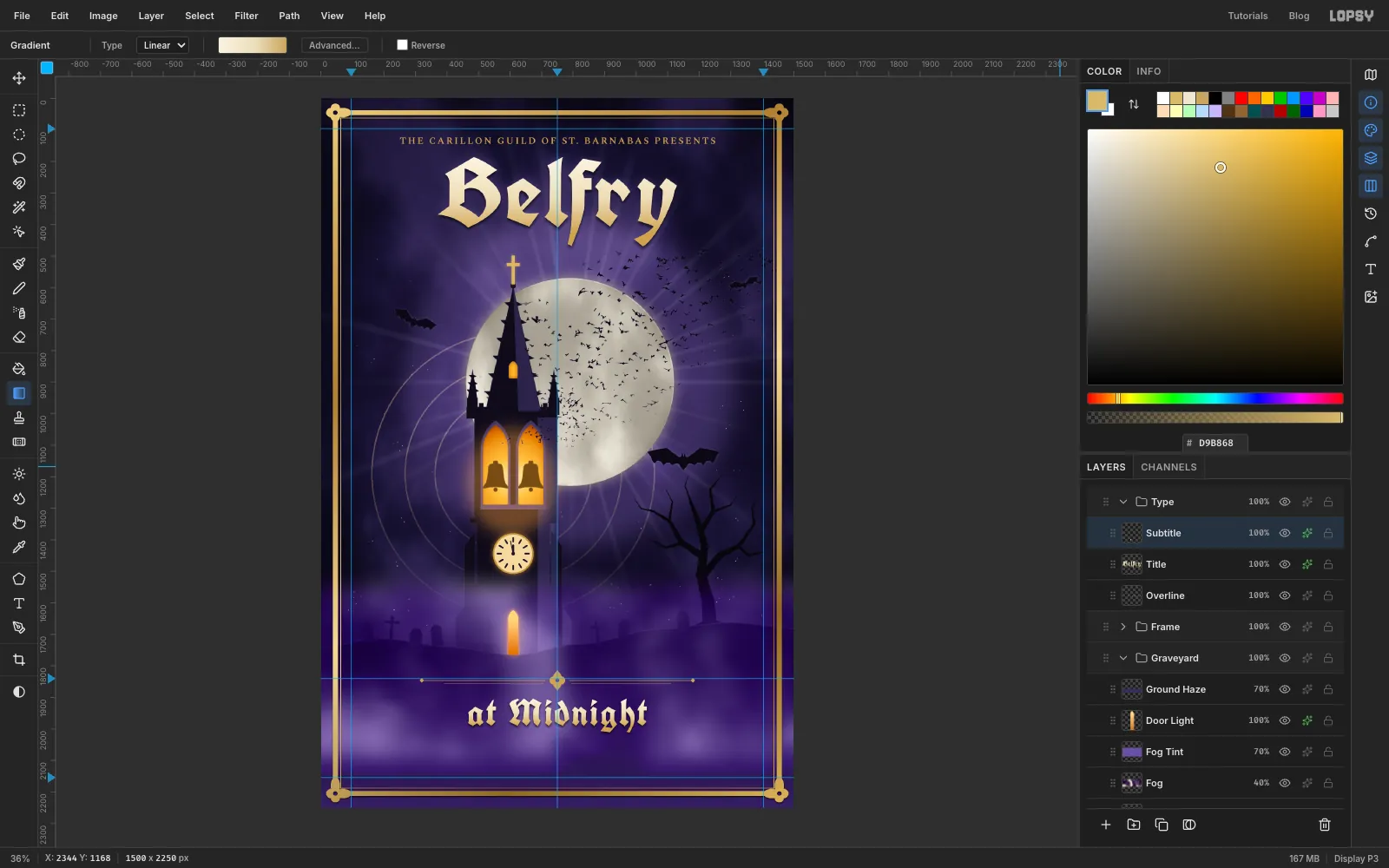
The title reads in two halves: Belfry above the scene and at Midnight below it.
Click the Type group, set the foreground to and make UnifrakturCook text at Size 118 reading at Midnight. Rename it Subtitle and move it so its top sits about 25 px below the divider ornament. Rasterize it and fill it with the same gradient as the title, but skip the outer glow. Give it a Drop Shadow with Offset Y 5, Blur 10, Opacity 75.
-
Add the event details
Make two more Spectral SC lines. Type each one in empty canvas and move it into place before you type the next:
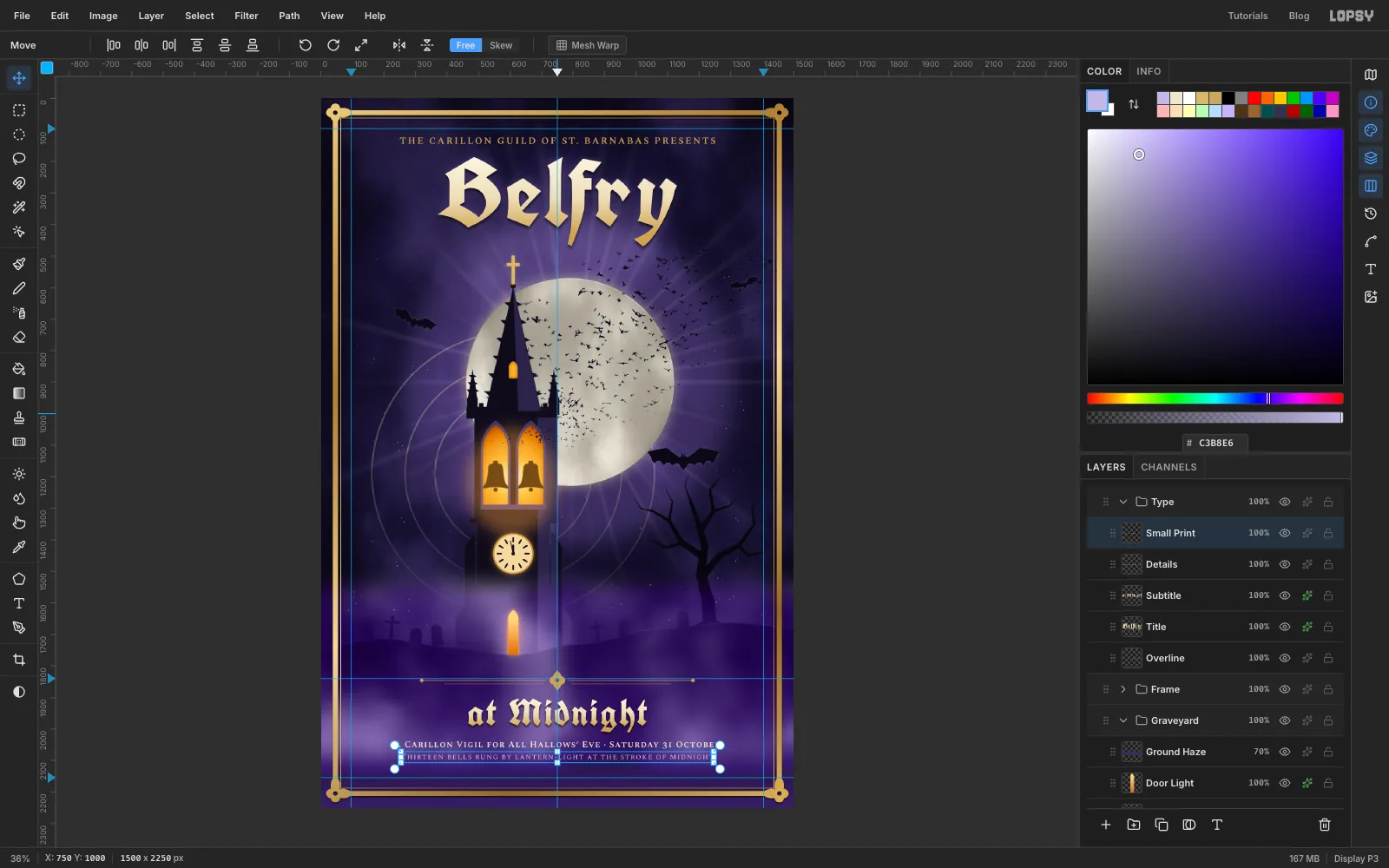
- SemiBold, Size 28, , letter spacing 2: A Carillon Vigil for All Hallows' Eve · Saturday 31 October. Rename it Details and place it about 30 px under at Midnight.
- Regular, Size 25, , letter spacing 2: Thirteen bells rung by lantern-light at the stroke of midnight. Rename it Small Print and place it about 18 px under the first line.
Check that the bottom line still has about 80 px of space above the frame.
-
Run mottos up the margins
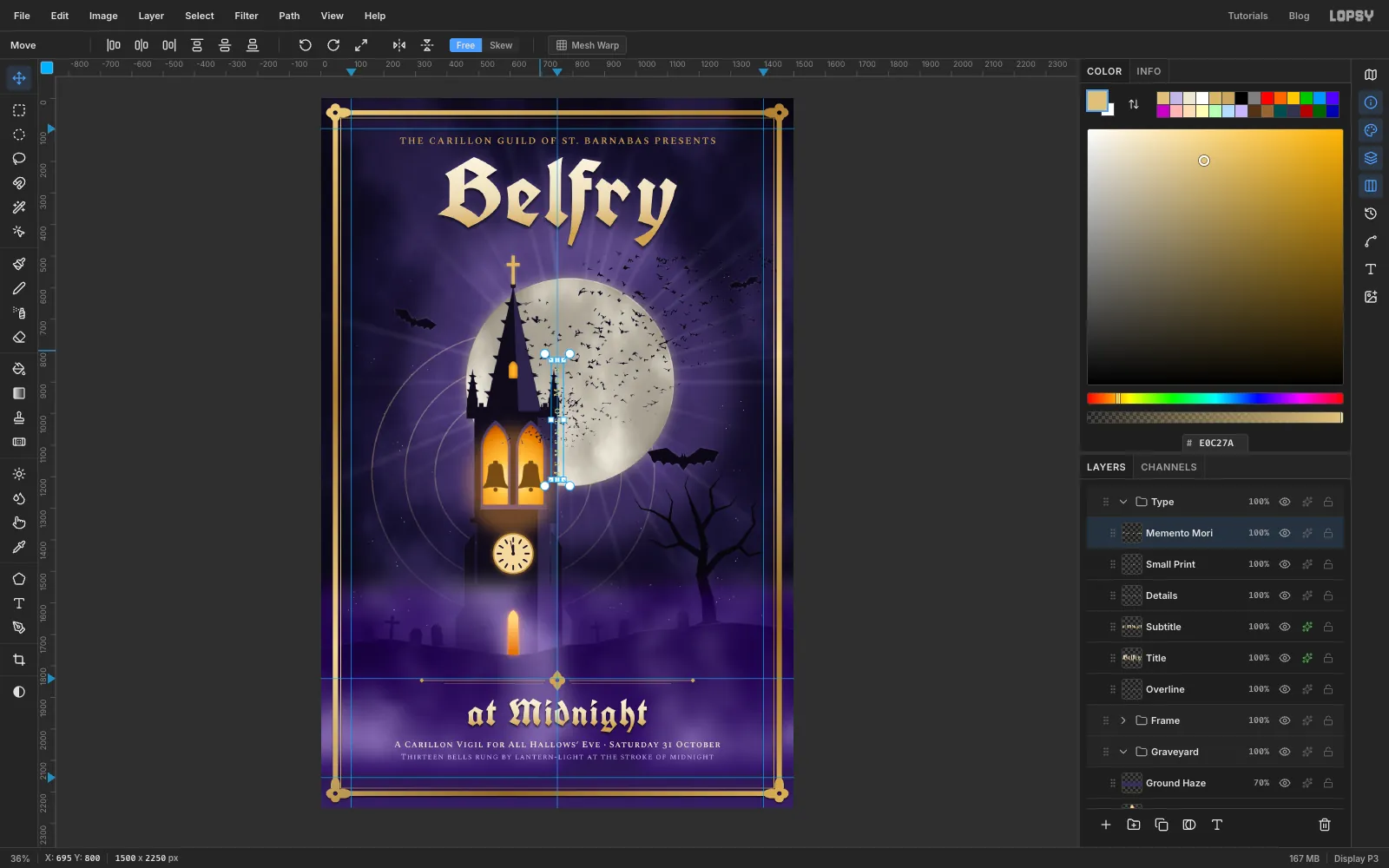
Make Memento Mori in Spectral SC SemiBold, Size 28, , with letter spacing 14.
Choose the Move tool. Live text gets its own handles without any selection. Hover just outside the top-right corner until the cursor turns into a crosshair. Then hold Cmd and drag counter-clockwise; Cmd snaps the angle to 15° steps, so stop at −90°. Nudge it into the left margin, centred a little above the middle of the poster.
Do the same with Tempus Fugit, turned +90°, in the right margin at the same height. Both stay editable text.
-
Lift the flock toward the title
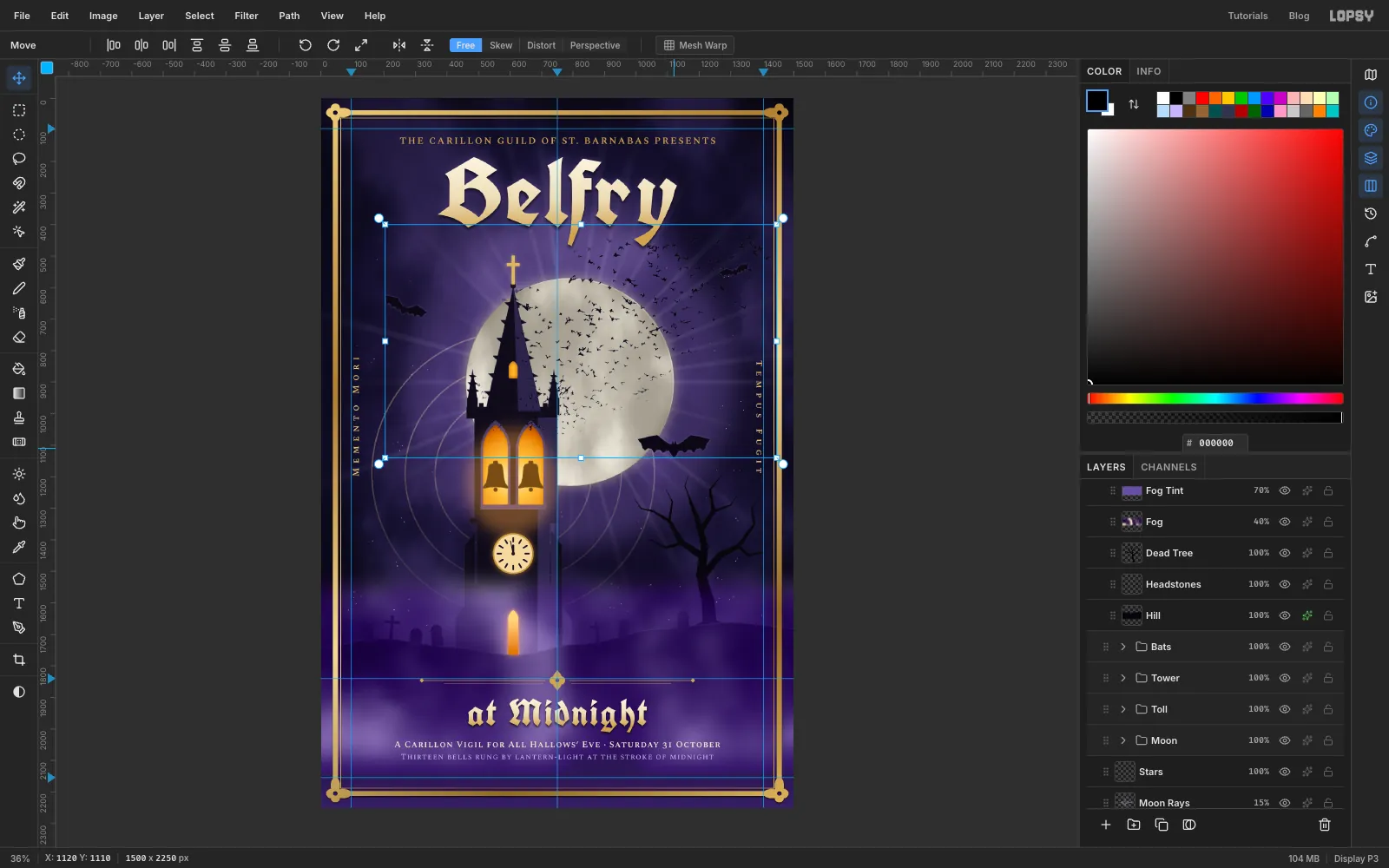
Now that the title is in, the stream reads better rising toward it. Click the Bats group row, choose the Move tool and drag the flock about 30 px left and 40 px up. Every layer in the group moves together.
If you're unsure, Cmd+Z and Cmd+Shift+Z flip between the two positions.
-
Keep the bats off the tower
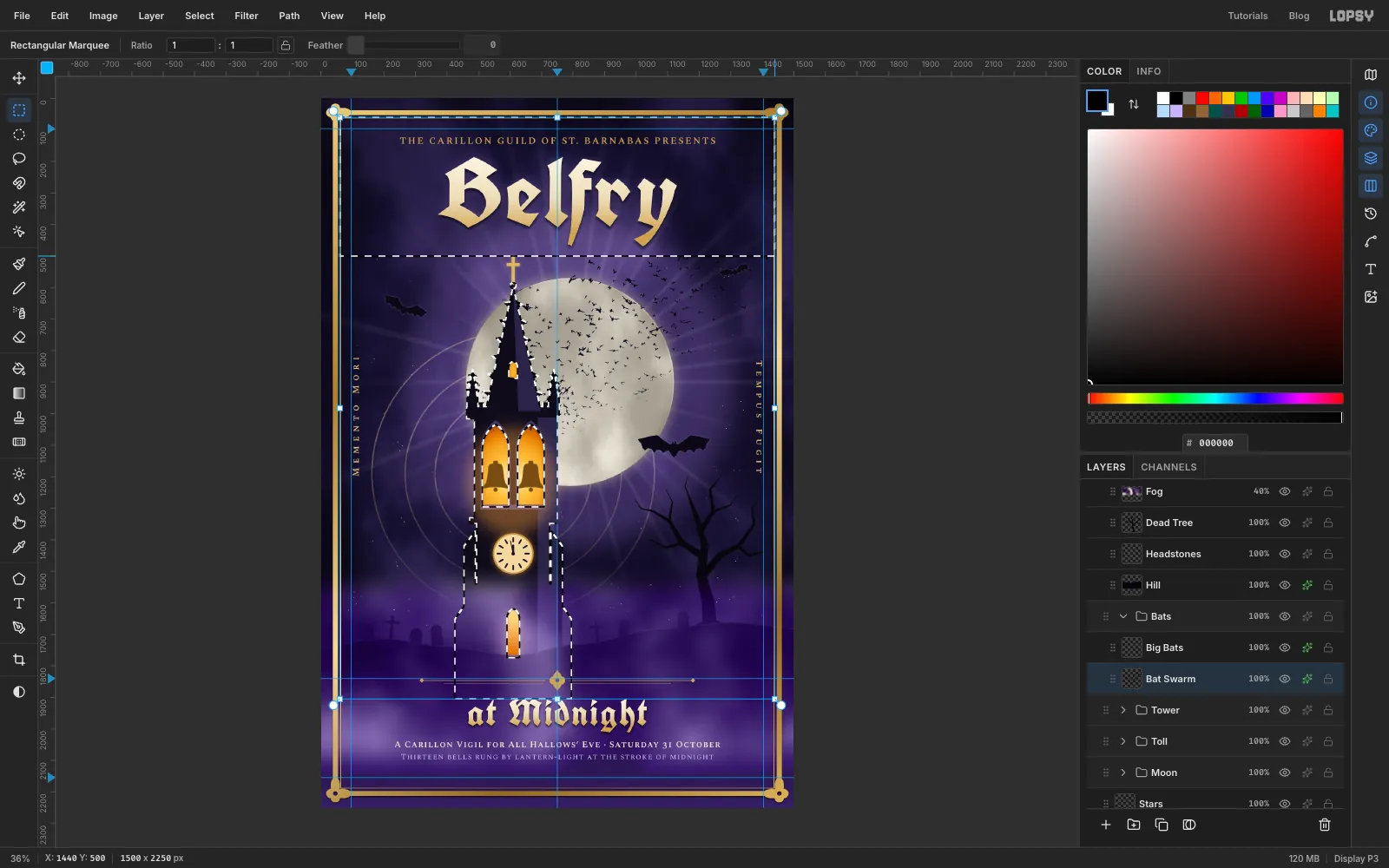
The move left a few bats on the tower and under the title. Expand the Tower group and Cmd-click Tower Body to select the tower. Then Shift-drag a marquee across the whole title band.
Click Bat Swarm and press Delete, then click Big Bats and press Delete. Deselect. The flock now flies only over sky and moon.
-
Add film grain
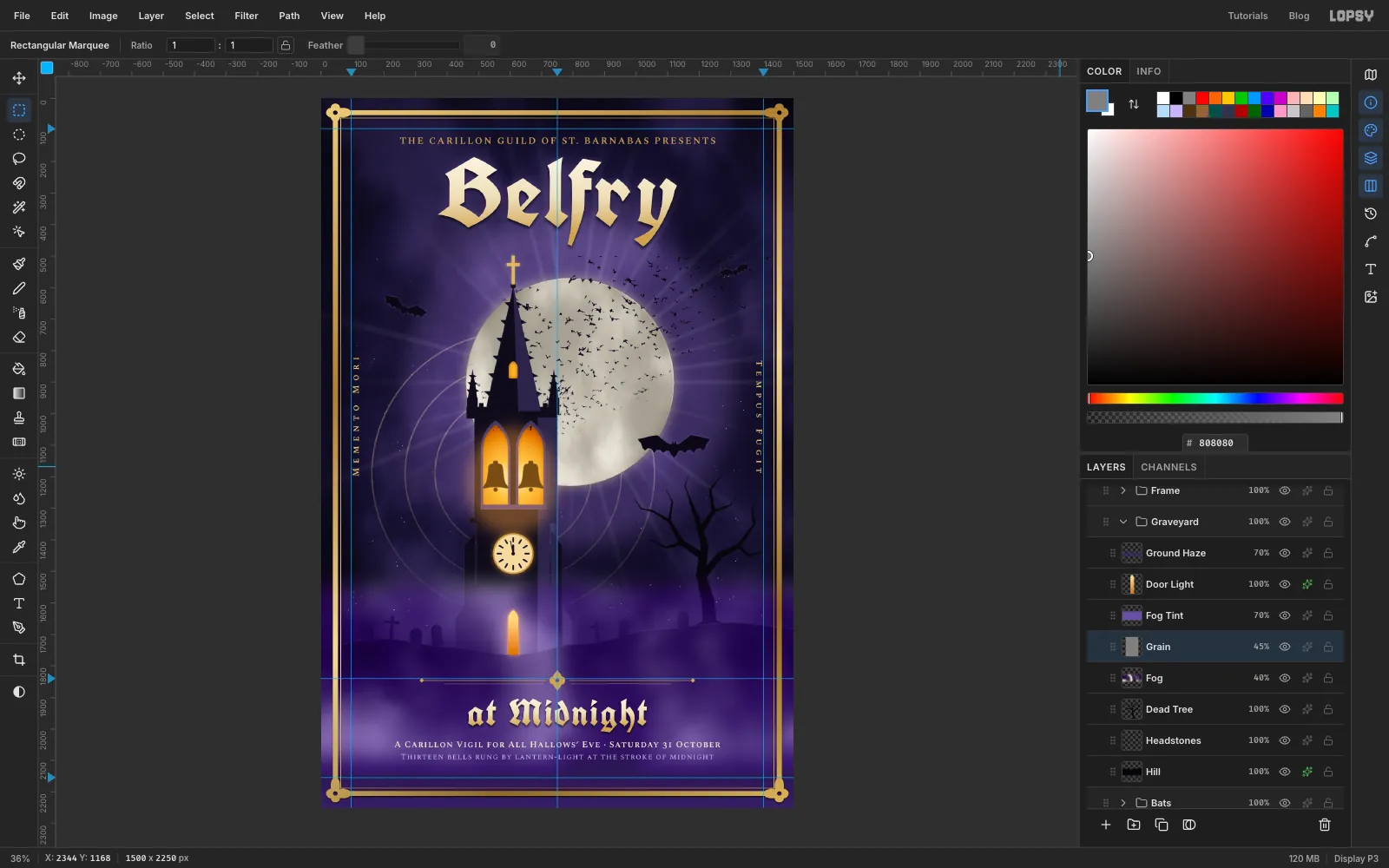
Click Fog in the Graveyard group and add a layer named Grain. Choose Select → All, fill with and deselect. Run Filter → Add Noise… with Amount 22, Mono and Gaussian. Set the layer to Overlay at 45%. The grain takes the digital smoothness off the gradients.
-
Shade the edges by hand
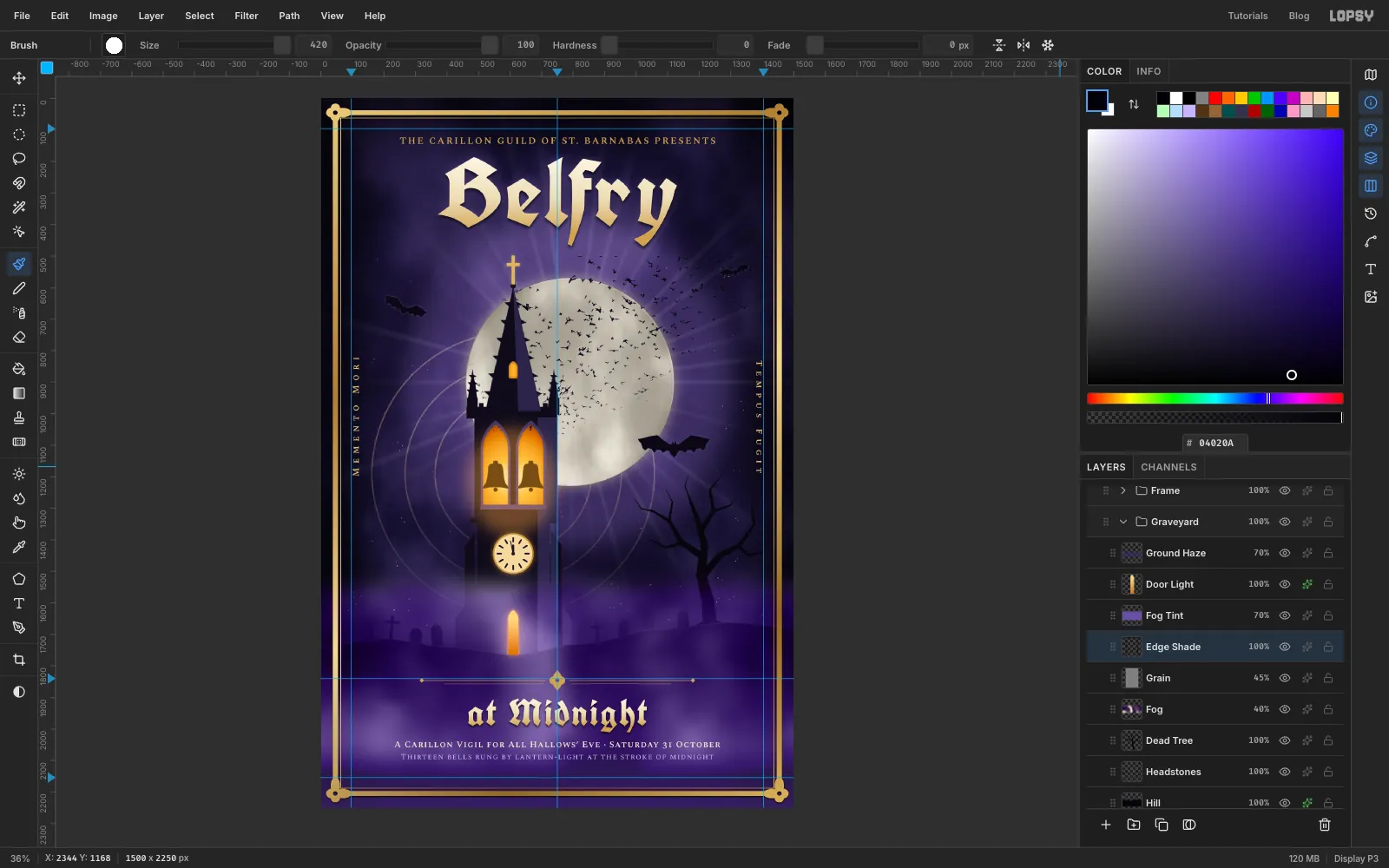
Still in the Graveyard group, add a layer named Edge Shade and set the foreground to . Use the Brush with Size 420, Hardness 0 and Opacity 45%. Paint one long, slightly wavering stroke down each side and one across the top. Hand-painted shading looks less mechanical than a perfect radial vignette. Set the layer to Multiply and the brush opacity back to 100%.
-
Finish with adjustments
Click the effects button on the Belfry at Midnight group at the top of the Layers panel. Its adjustment list opens. Click Add Adjustment, choose Contrast and set it to 10. Then add Saturation & Vibrance with Vibrance at 14. These grade the whole poster without changing any pixels.
Export with File → Quick Export PNG, and save the layered file with File → Save Project.