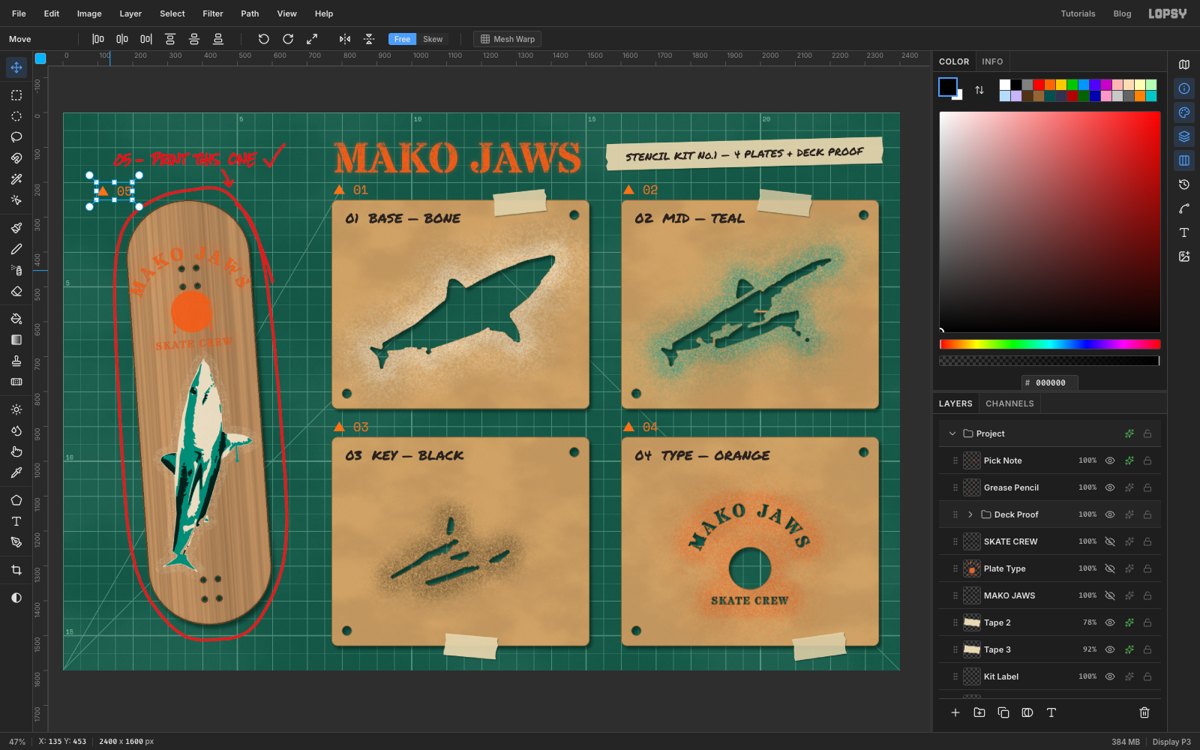
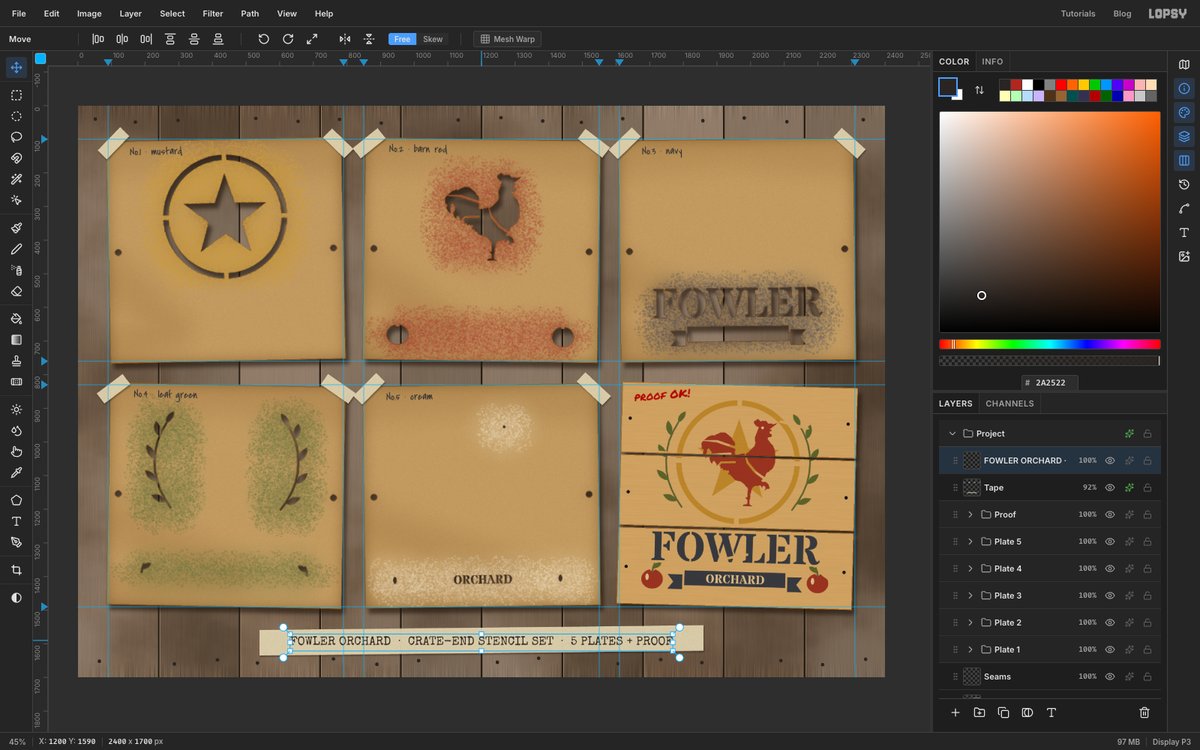
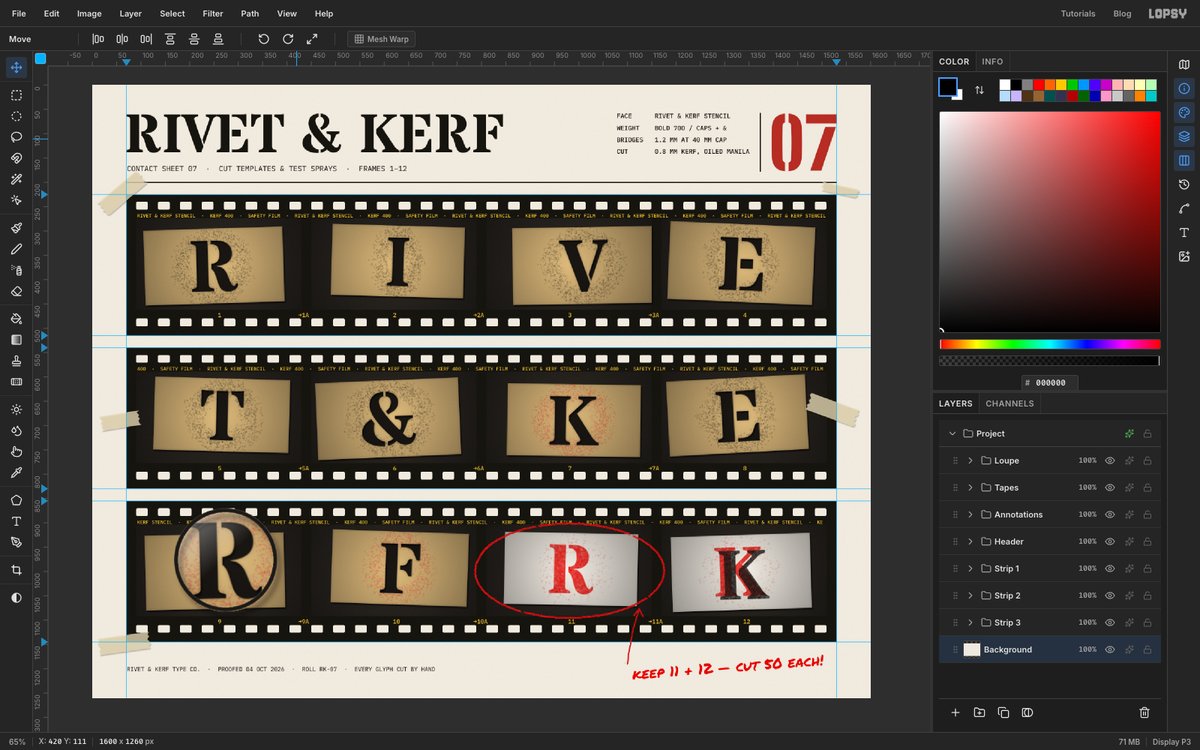
Cut a Grunge Hornet Spray Stencil Kit in Lopsy
Separate a hornet photo into three spray-stencil plates, cut them from chipboard, spray grungy test proofs and lay it all out as a contact sheet in Lopsy.
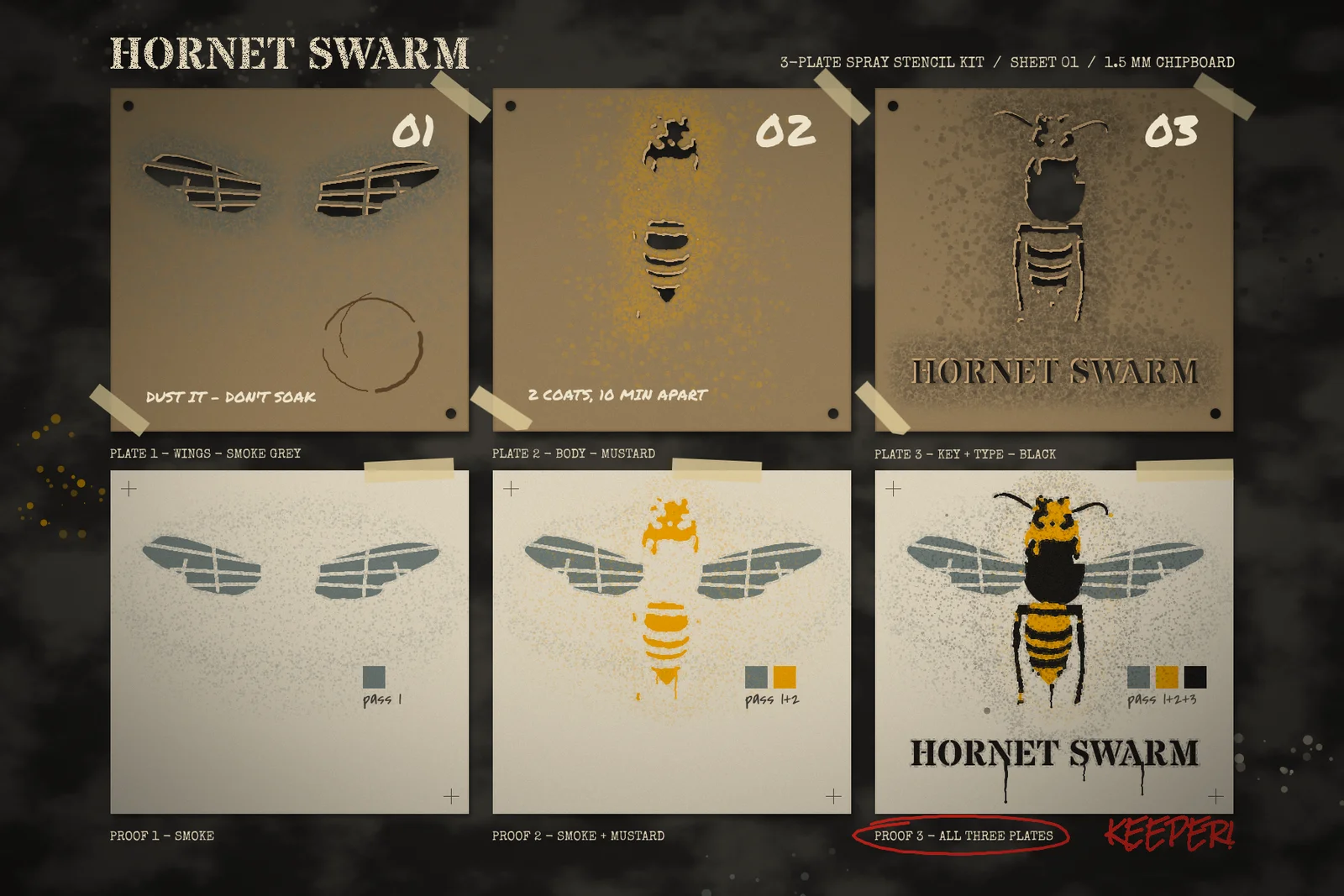
A spray stencil for more than one colour is cut as a set of plates, one per colour. You spray the lightest colour first, lay the next plate on top in the same place, and spray again. The test sheets you spray along the way are proofs. Pin the plates and proofs up side by side and you have a contact sheet, the page a stencil artist keeps to remember how a design was built.
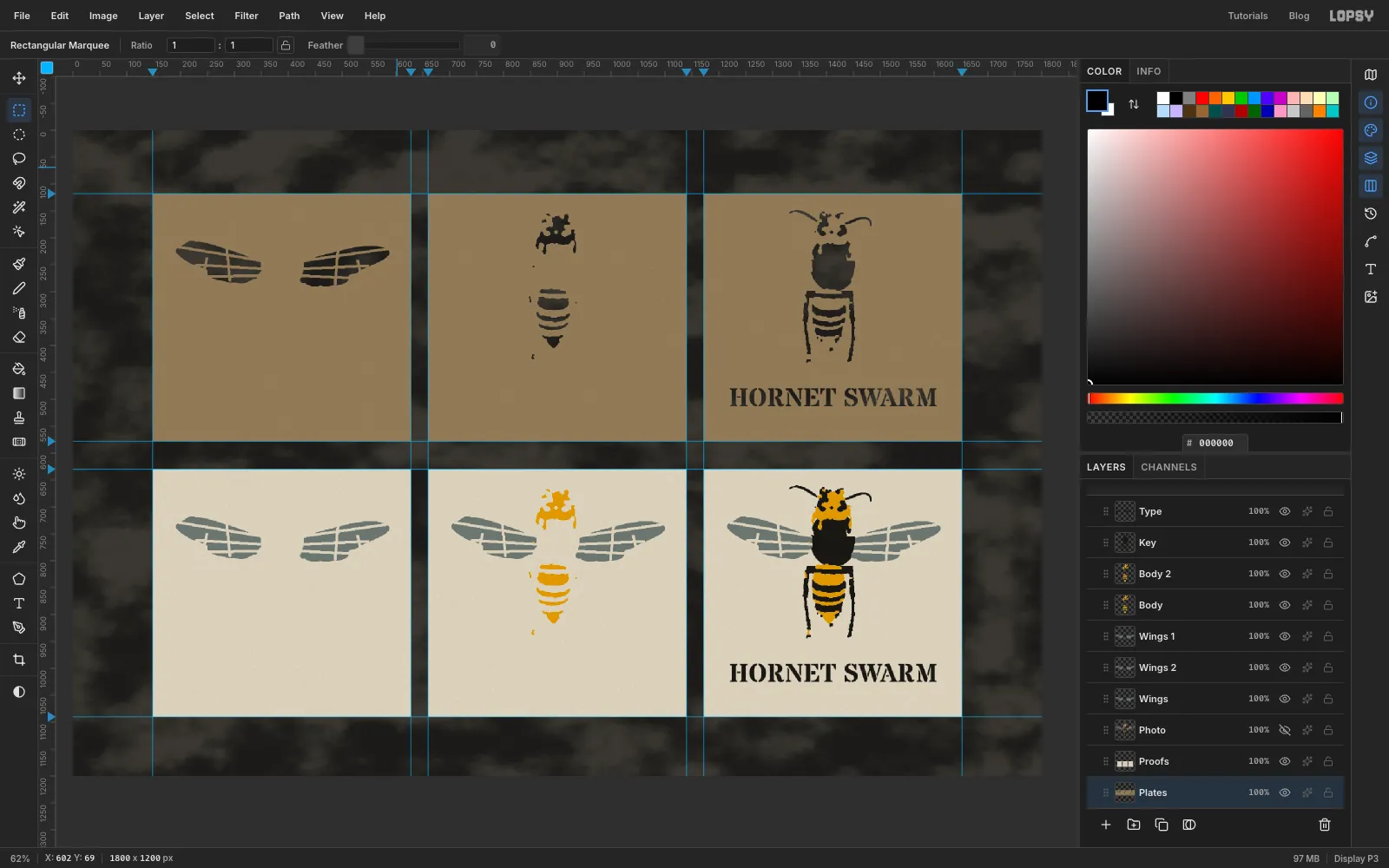
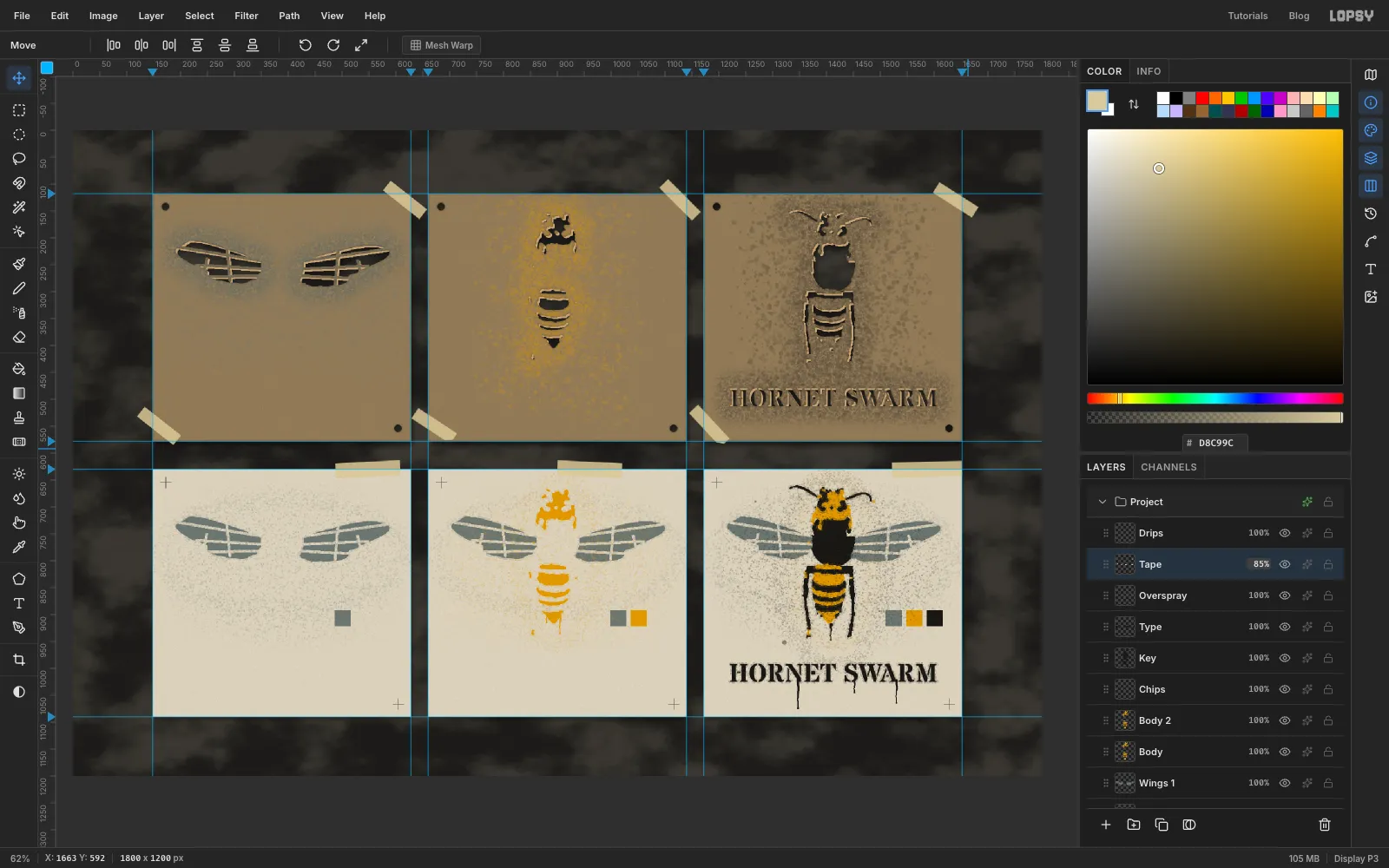
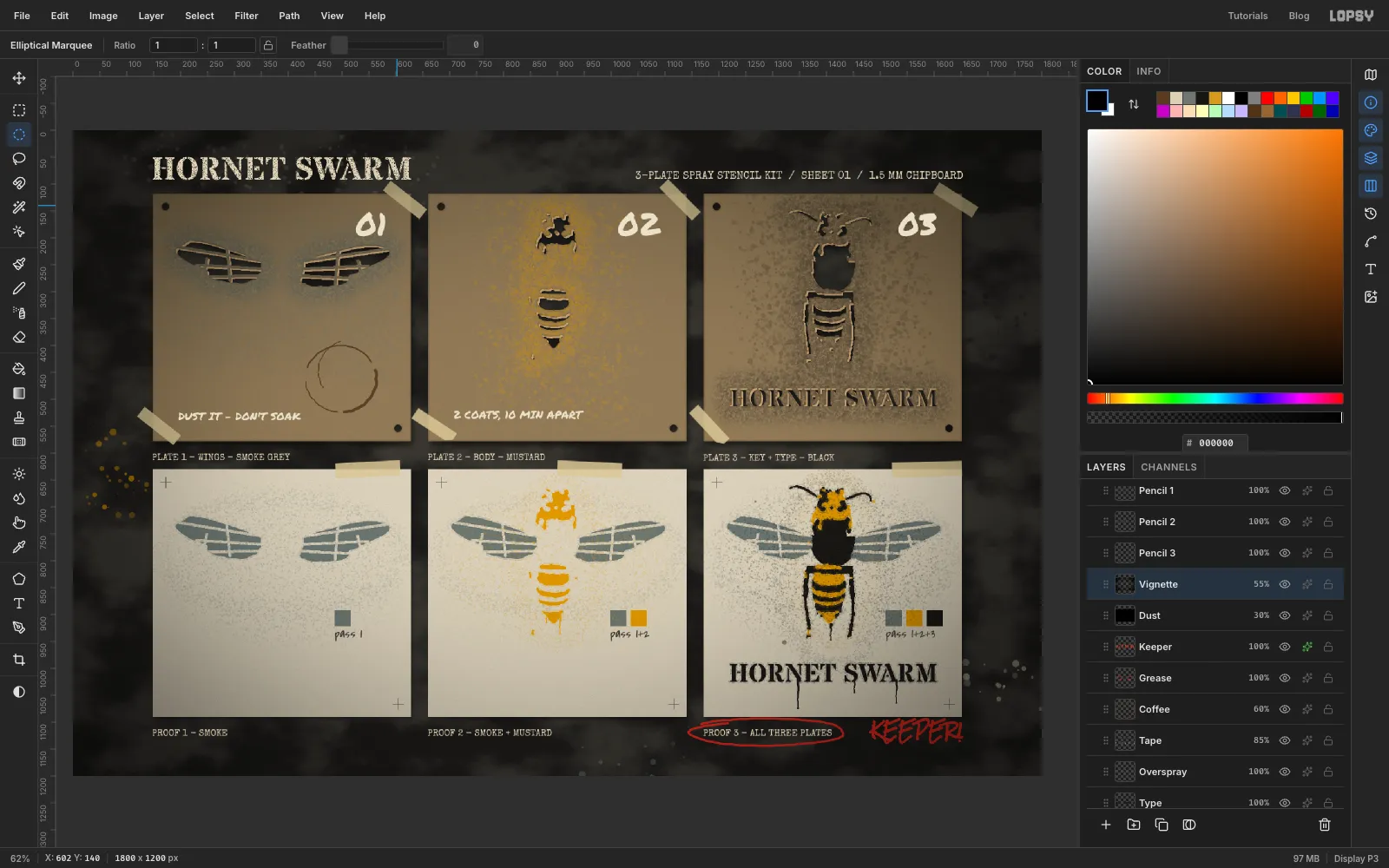
In this tutorial you'll make Hornet Swarm, an 1800 × 1200 px grunge contact sheet for an imaginary three-plate stencil kit. The top row holds three cut chipboard plates: the hornet's smoky wings, its mustard body and a black key plate with the lettering. The bottom row holds three newsprint proofs that build up one pass at a time. Everything sits on a grimy workbench, with masking tape, paint drips, overspray, a coffee ring and grease-pencil notes.
The hornet comes from a photo: Murder hornet back.jpg), a top-down shot of an Asian giant hornet by the USGS Bee Inventory and Monitoring Lab, on Wikimedia Commons. It is in the public domain. Download the 3288 × 3684 px original. A specimen shot on black works best, because the backdrop lifts off in one click.
Two ideas make the kit easy to build:
- All the art is designed once, in the third proof. Every plate and proof is a copy of it, moved by whole cells.
- Cells repeat every 512 px, across and down. With a 512 px grid snapped on, one arrow-key press moves a selection or a layer exactly one cell. That keeps every plate in register with its proof.
Along the way you'll use:
- ruler guides, Snap to Guides, and a 512 px grid with arrow-key nudges
- Clouds, Add Noise, Gaussian Blur and Threshold
- the Magic Wand with Contiguous off, the Lasso and Elliptical Marquee with Shift and Alt, Grow, Shrink, Feather and Select → Inverse
- Cmd-clicking layer thumbnails, with Shift to add and Alt to subtract
- the Move tool's Rotate 90° CCW button, plus corner scaling and rotation handles
- Duplicate Layer, copy and paste, Merge Down and Rasterize Layer
- the Eraser, Brush with Taper, Pencil and Spray tools
- layer effects (Inner Glow, Drop Shadow, Stroke), the Overlay, Screen and Multiply blend modes, and a layer mask
- Text in Stardos Stencil, Special Elite, Permanent Marker, Covered By Your Grace and Rock Salt
- undo and redo
The palette:
- Bench , chipboard , newsprint
- Smoke grey , mustard , key black
- Plate overspray: smoke , black , cut-edge glow
- Bone , paint marker , tape , cut wall
- Grease red , pencil notes , graphite crosses , coffee
-
Set up the sheet and the guides
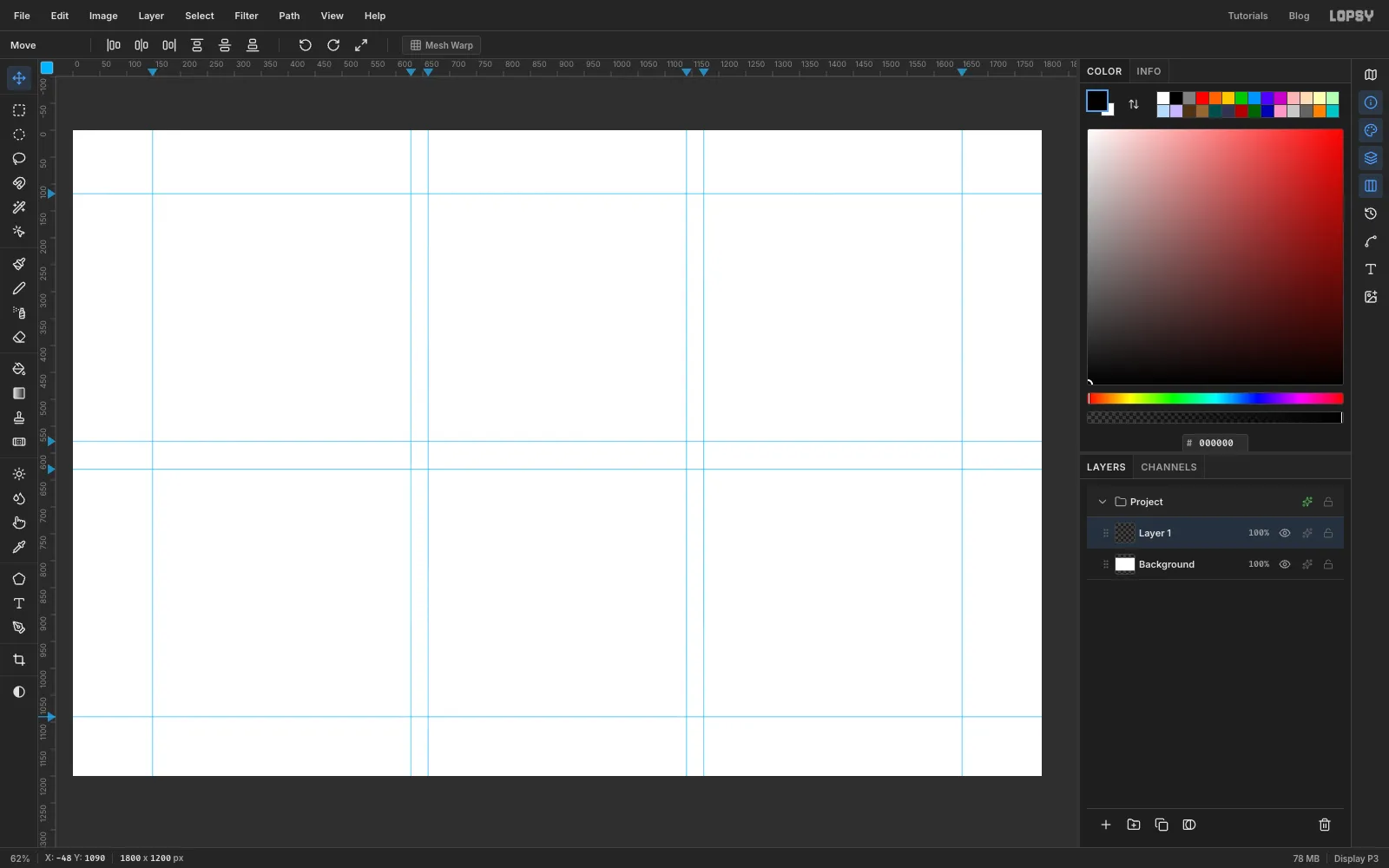
- Choose File → New, set Width
1800, Height1200, Pixels, White background, and click Create. - Click the top ruler at
148,628,660,1140,1172and1652to drop six vertical guides. - Click the left ruler at
118,578,630and1090to drop four horizontal guides. - Make sure View → Snap to Guides is ticked, so marquees lock onto the guides.
That gives three 480 px columns with 32 px gutters, and two 460 px rows: plates on top, proofs below. Each cell starts exactly 512 px after the one before it, across and down.
- Choose File → New, set Width
-
Make a grimy workbench
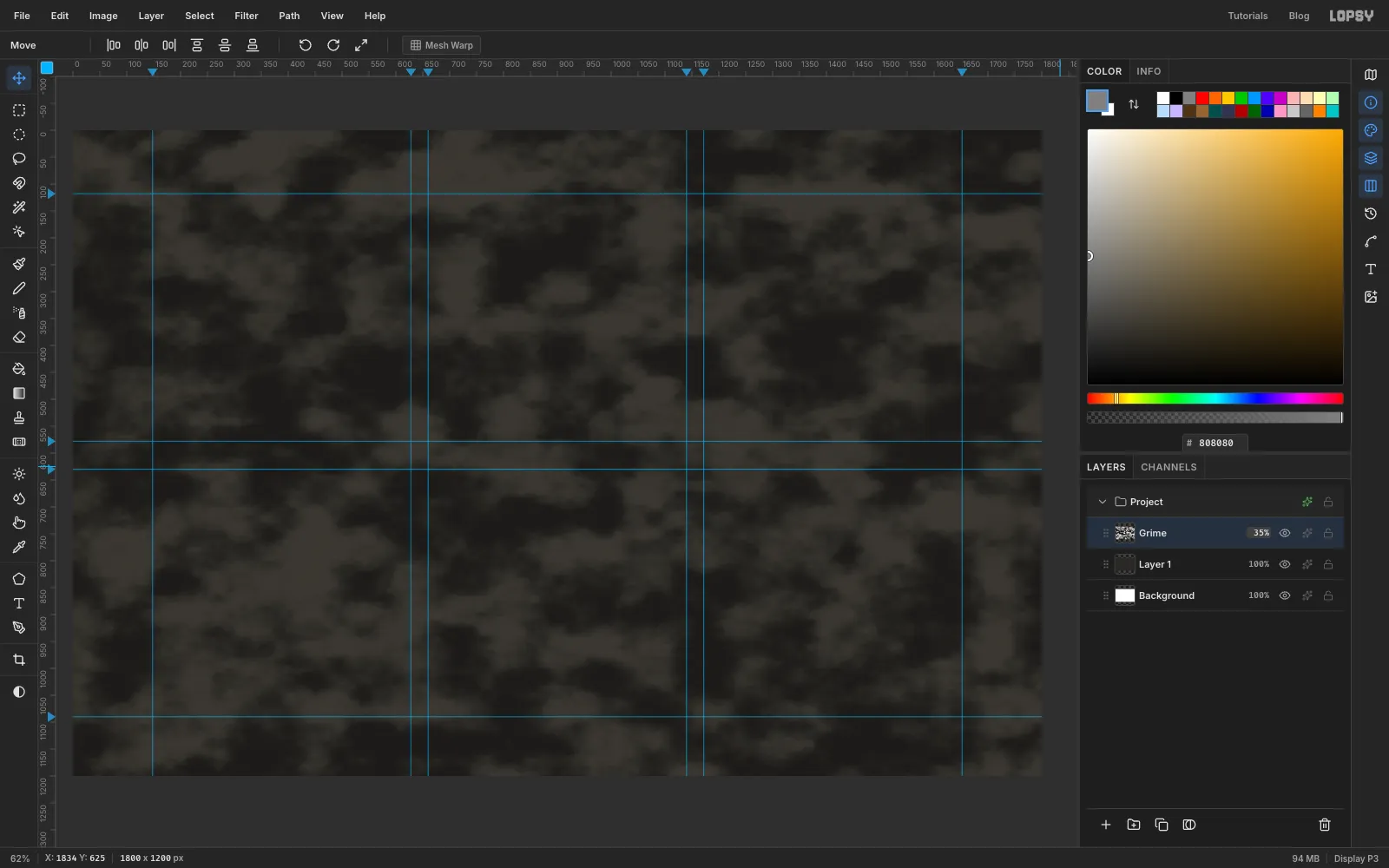
- Click Layer 1, set the foreground colour to , press Cmd+A and choose Edit → Fill. Press Cmd+D.
- Click Add Layer and rename the new layer
Grime. Fill it with the same way. - Choose Filter → Clouds…, set Scale to
20and click Apply. - Choose Filter → Add Noise…, pick Mono and Gaussian, set Amount to
30and apply. - Open the layer's effects (the sparkle button on its row) and set the blend mode to Overlay. Close the drawer, click the row's opacity and set it to
35%.
-
Rough out the three plates
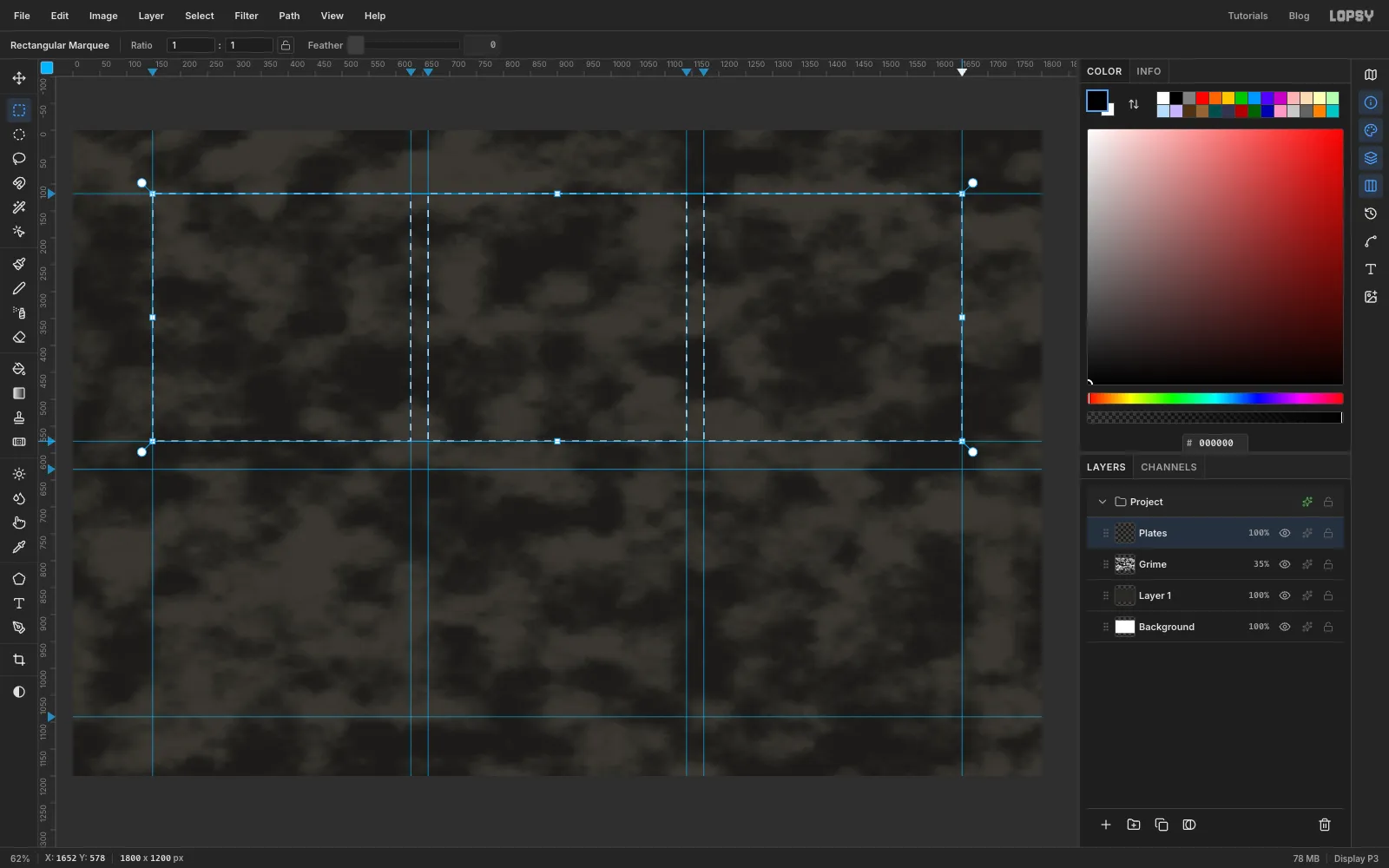
- Click Add Layer and name it
Plates. - Pick the Rectangular Marquee and drag the first plate from the top-left corner of the first cell to its bottom-right corner. The edges snap to the guides.
- Hold Shift and drag the second and third plates in the other two top cells. Shift adds each one to the selection.
- Click Add Layer and name it
-
Fill chipboard and newsprint
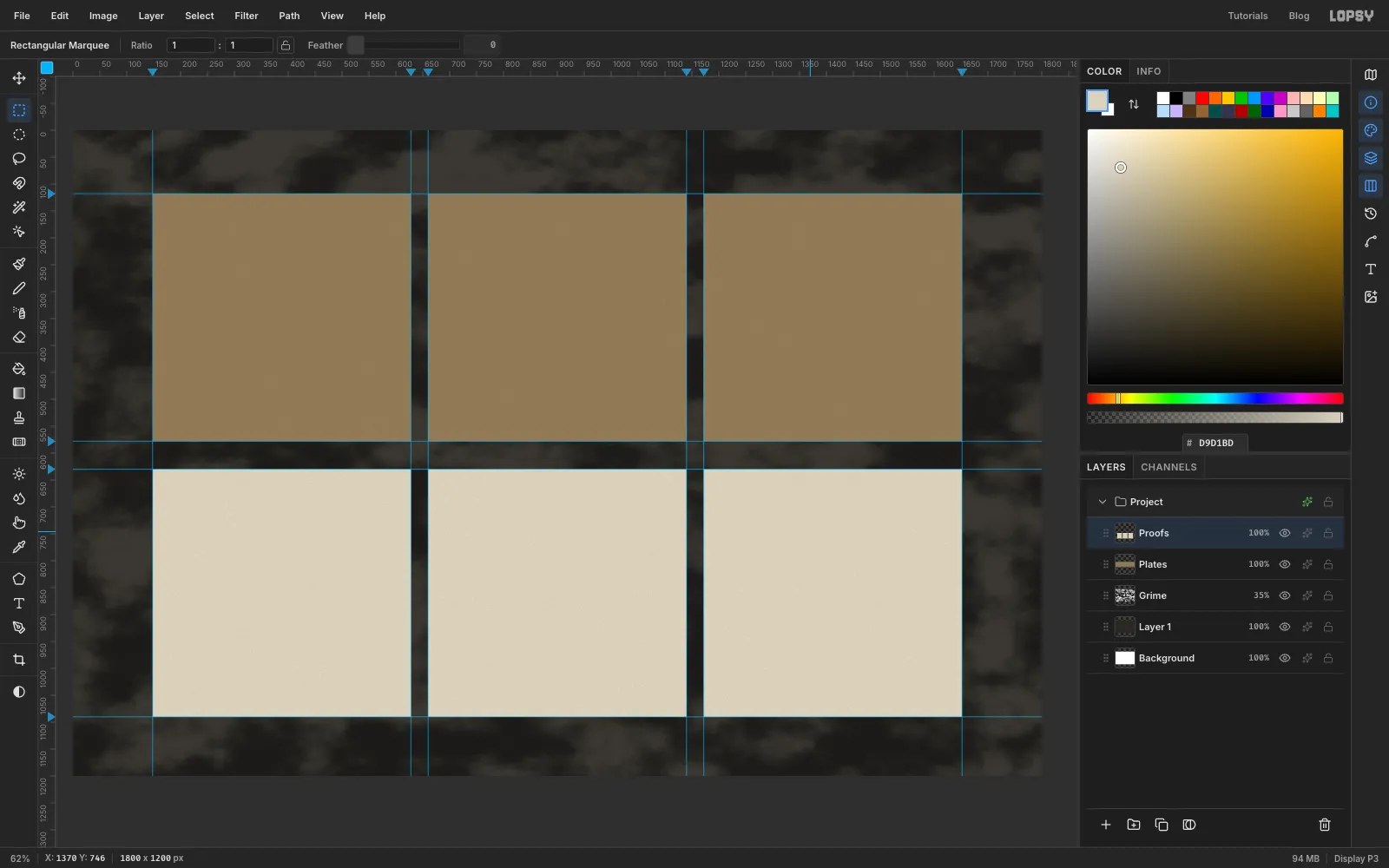
- Fill the selection with chipboard .
- Give it some fibre: Filter → Add Noise…, Mono, Gaussian, Amount
14. Press Cmd+D. - Add a layer called
Proofs. Marquee the three bottom cells the same way, using Shift for the second and third. - Fill them with newsprint , add Mono Gaussian noise at
16, and deselect.
-
Drop in the hornet
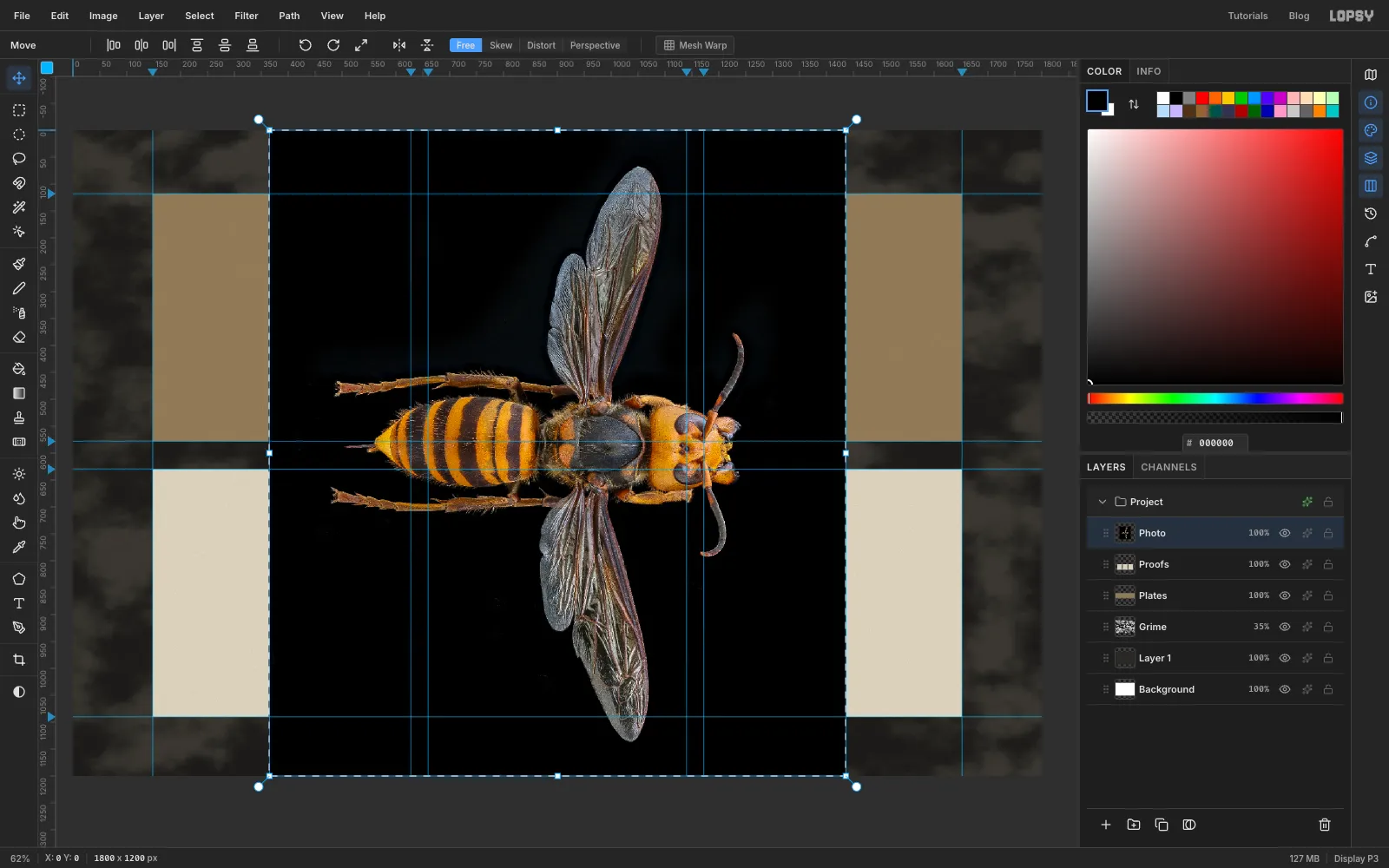
Drag the downloaded photo from your desktop onto the canvas. Lopsy puts it on a new layer and shrinks it to fit the canvas. Double-click the layer's name and rename it
Photo.The photo shows the hornet on its side, head to the right. You'll turn it in a moment.
-
Knock out the black backdrop
- Press Cmd+D to clear the selection the drop made.
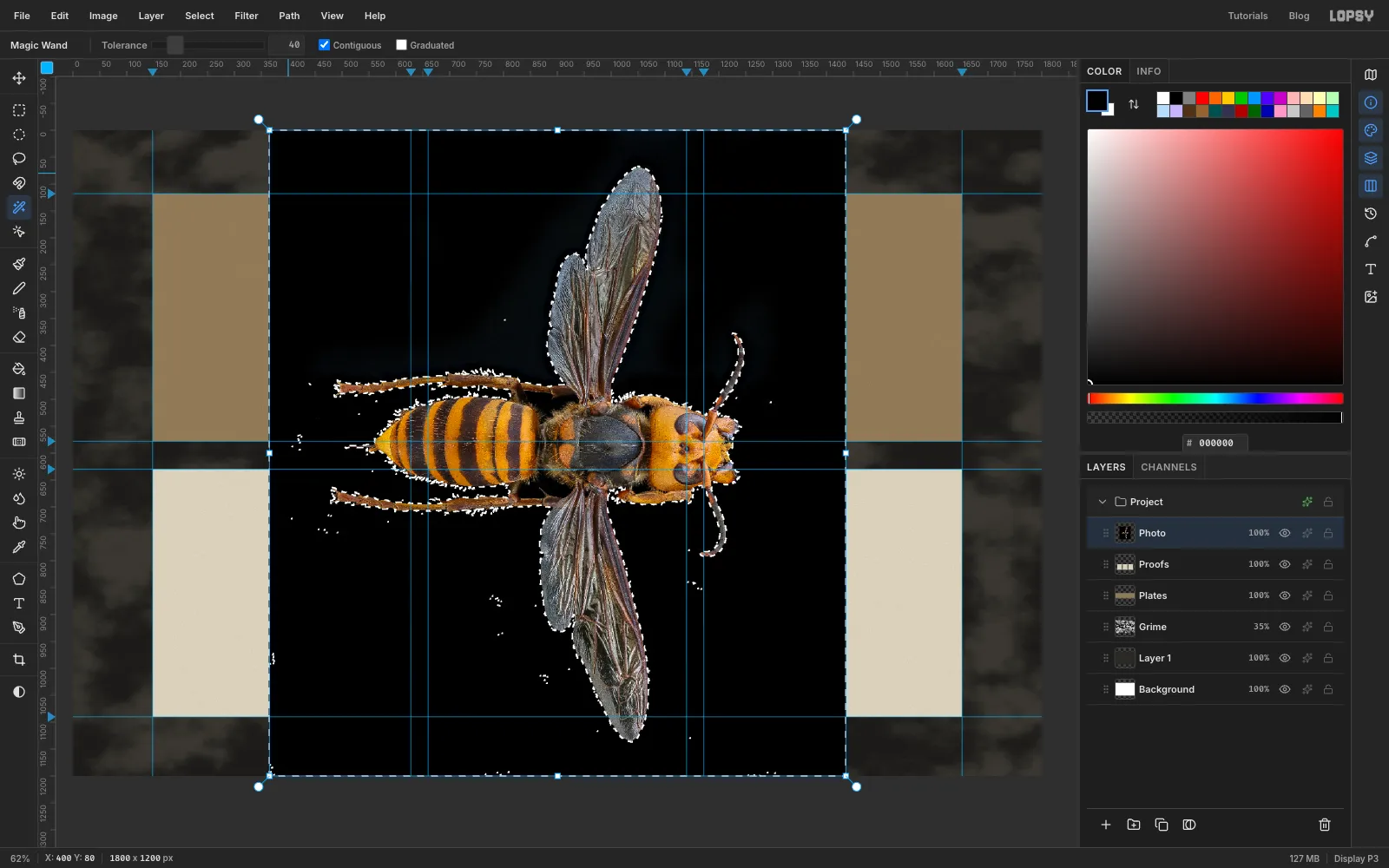
- Pick the Magic Wand. In the options bar set Tolerance to
40and tick Contiguous. - Click the black near the top-left corner of the photo. The ants run around the whole insect.
- Press Backspace to delete the backdrop, then Cmd+D.
-
Turn it head-up and sweep away the dust
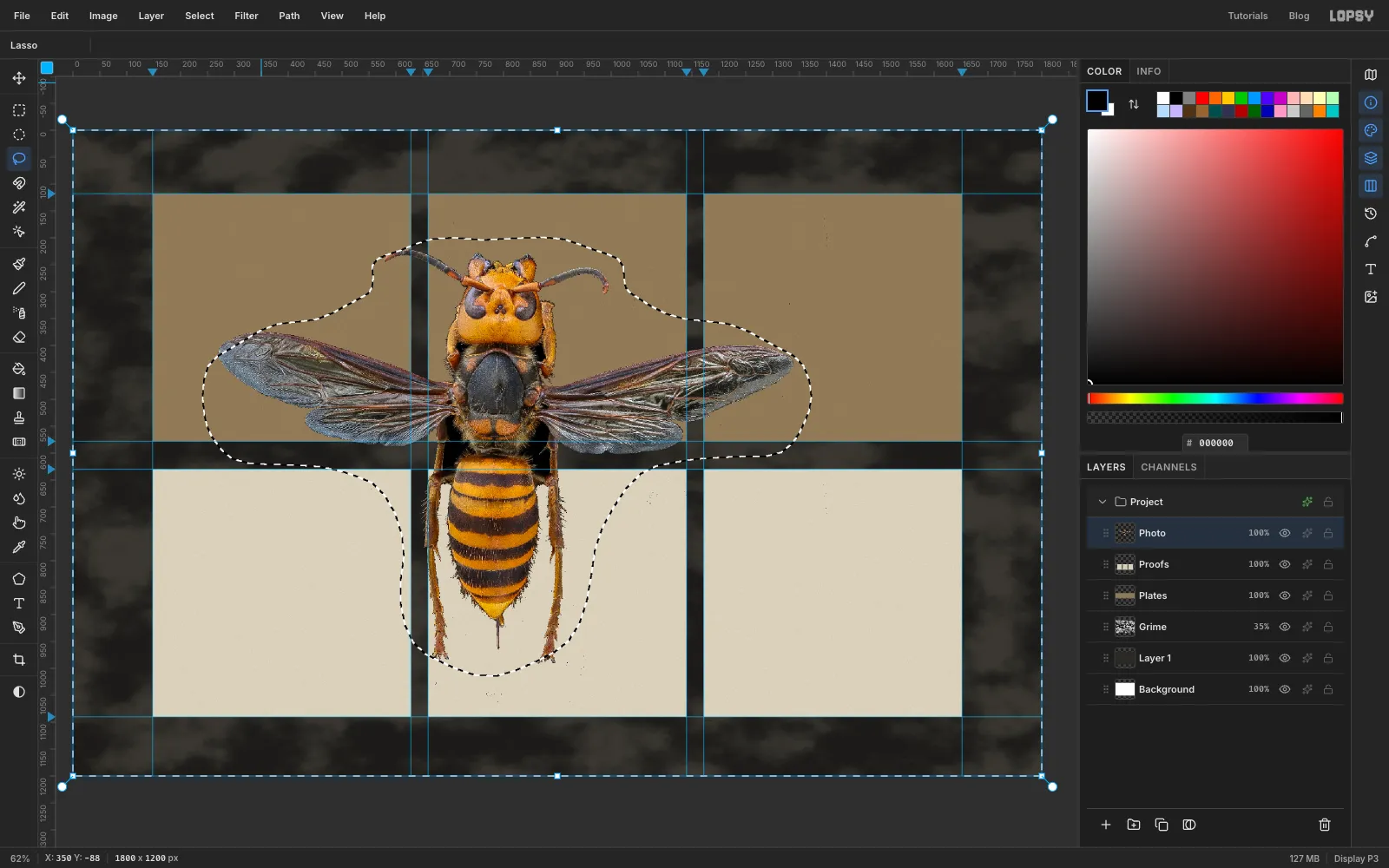
- Pick the Move tool and, with nothing selected, click Rotate 90° CCW in the options bar. The hornet now faces up, wings spread left and right.
- A few specks of backdrop dust are still floating around it. Pick the Lasso and drag a loose loop around the hornet, legs and antennae included, staying well clear of its edges.
- Choose Select → Inverse and press Backspace. Only the hornet is left. Press Cmd+D.
-
Scale the hornet into the third proof
- Cmd-click the Photo thumbnail in the Layers panel to select the hornet's pixels.
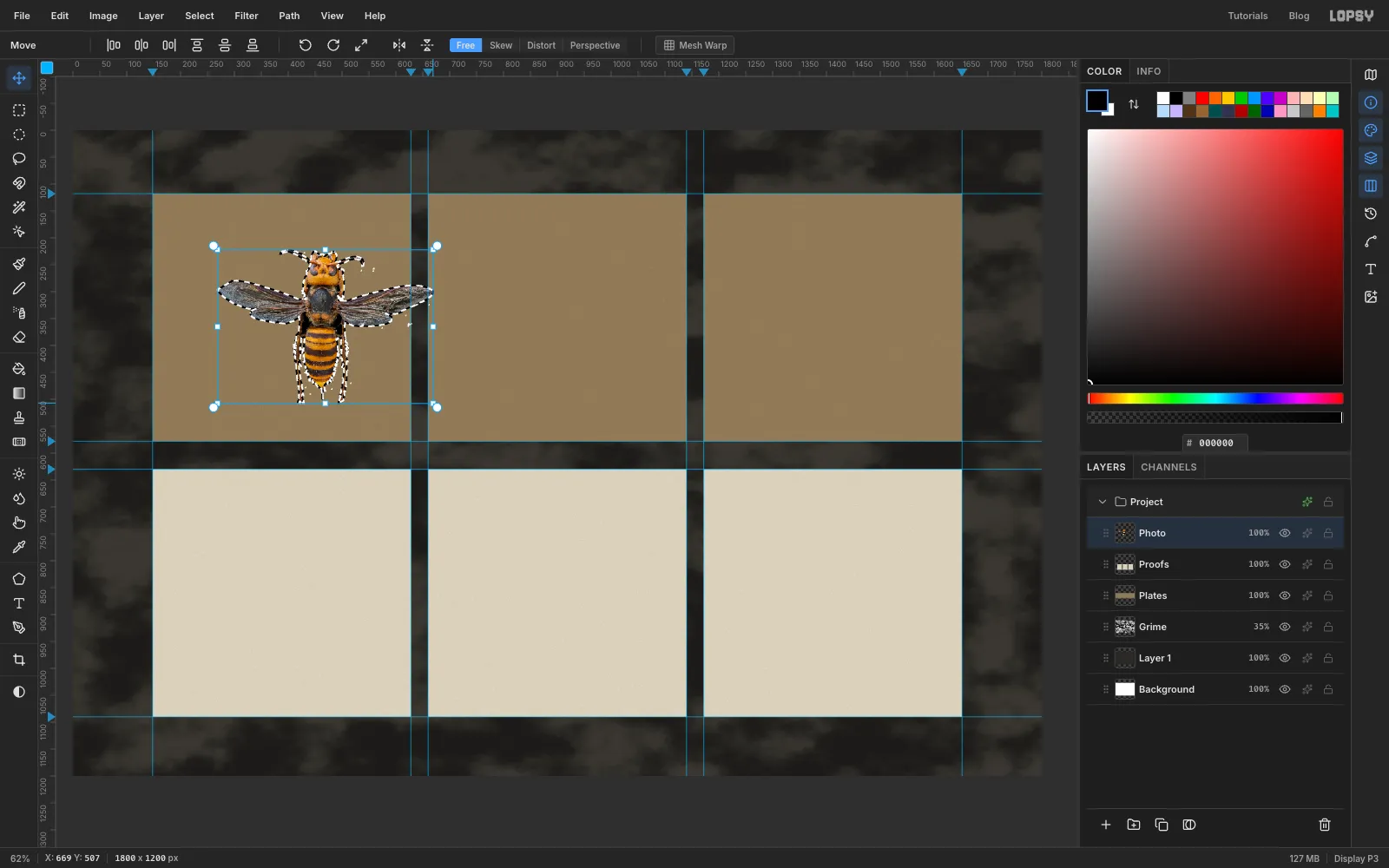
- With the Move tool, hold Cmd and drag the bottom-right corner handle up and to the left until the wings span about 400 px, a little less than a card is wide. Cmd keeps the proportions.
- Drag the hornet into the third proof (bottom right). Centre it across the proof, with the antennae about 30 px below the paper's top edge. Arrow keys nudge it 1 px at a time. Press Cmd+D.
-
Pick out the yellow body
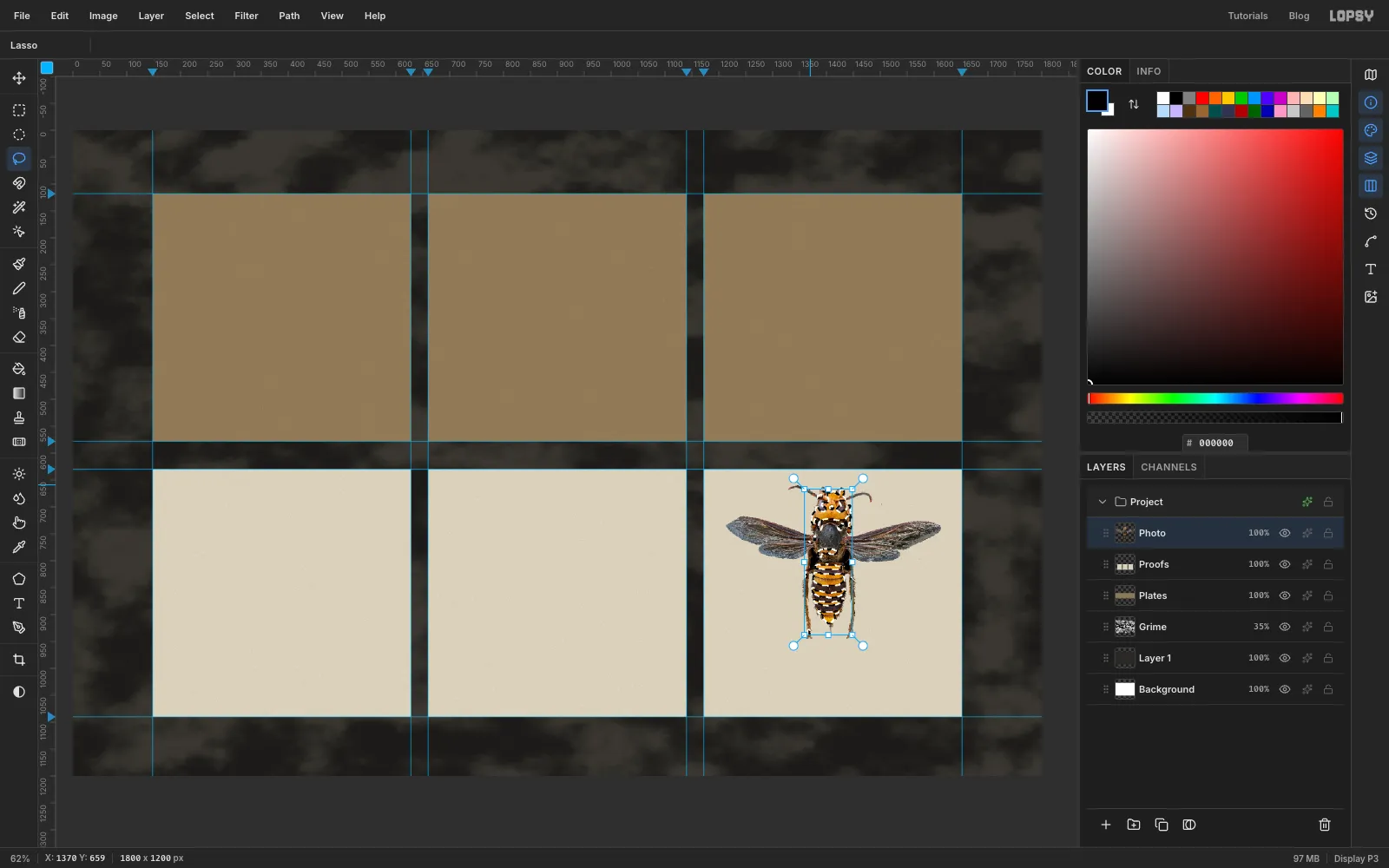
The Body plate sprays everything mustard.
- Click the Photo row. Pick the Magic Wand, set Tolerance to
90and untick Contiguous. - Click a flat patch of yellow on the forehead, between the eyes. Every warm yellow in the photo is selected at once, along with a few specks on the wings.
- With the Lasso, hold Alt and drag a loop around each wing to subtract the specks.
- Clean up the edges: Select → Shrink…
1, then Grow…1, which removes stray pixels. Then Grow…3and Shrink…3, which closes the pinholes. - Click Add Layer, name it
Body, fill with mustard and deselect.
- Click the Photo row. Pick the Magic Wand, set Tolerance to
-
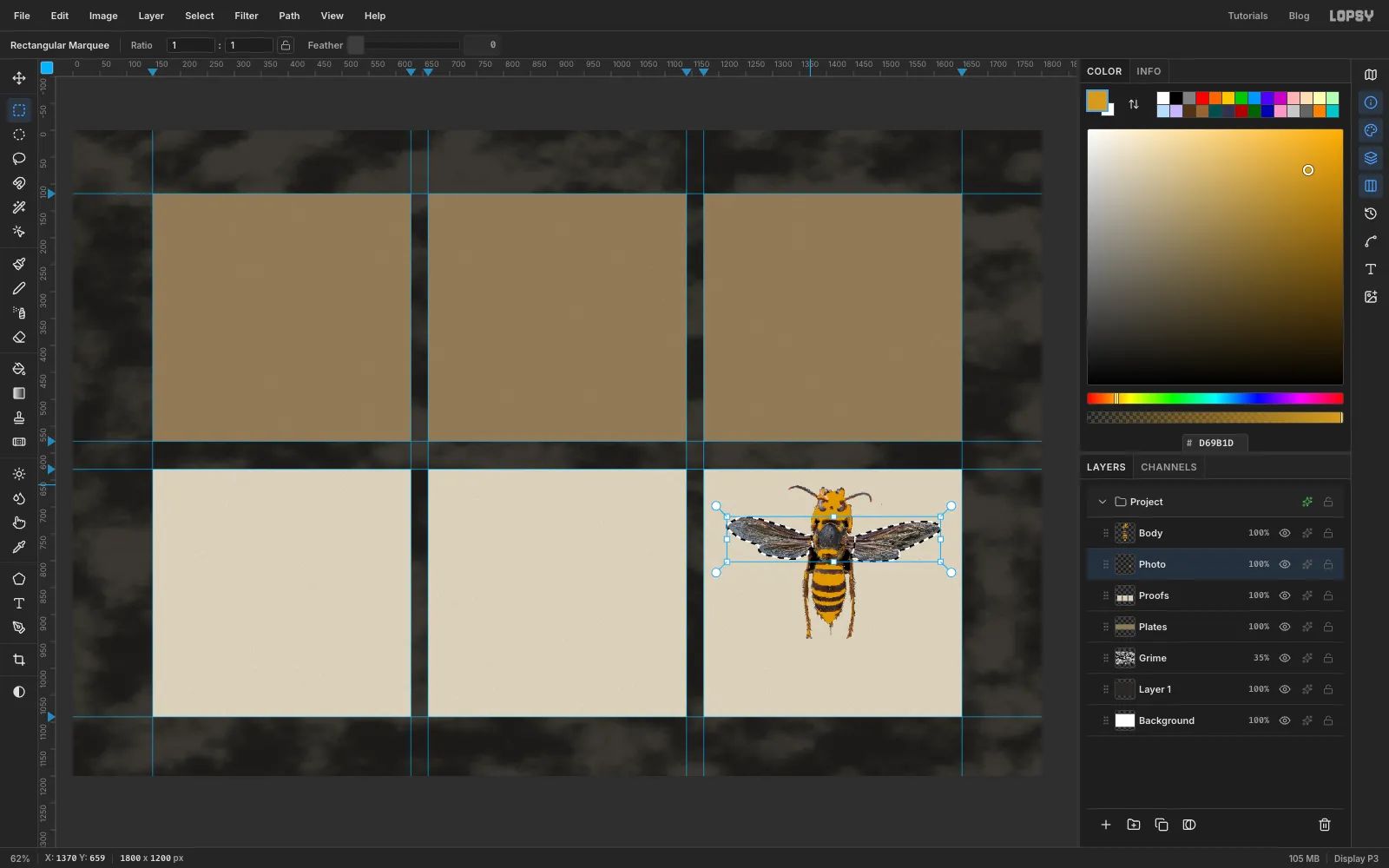
Pick out the smoky wings
- Click the Photo row again. Keep the Magic Wand at Contiguous off, set Tolerance to
70and click the grey middle of the left forewing. - With the Lasso, Alt-drag around the body: an oval around the thorax, then down around the abdomen and the legs. Then, with the Rectangular Marquee, Alt-drag across the top of the hornet to subtract the antennae.
- Smooth the wings: Grow
4, Shrink4, then Shrink5and Grow5. The last pair rounds off the wing roots. - Add a layer called
Wings, fill it with smoke grey and deselect. Because Photo was active, Wings lands below Body, which is also the order you'd spray them.
- Click the Photo row again. Keep the Magic Wand at Contiguous off, set Tolerance to
-
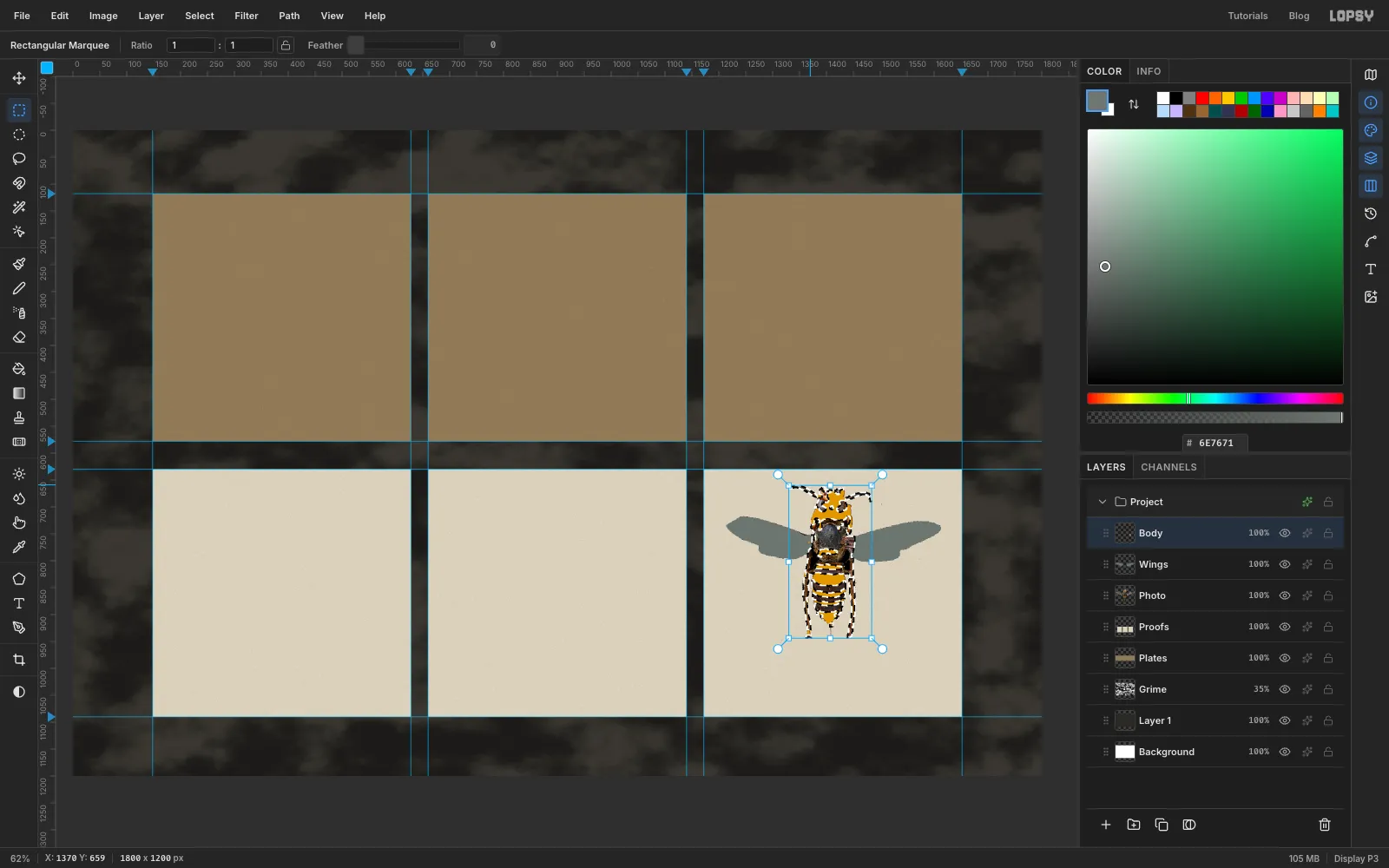
Make the key plate from what's left
The black key plate is everything that isn't yellow or wing.
- Click the Body row so the new layer will land on top.
- Cmd-click the Photo thumbnail to select the whole silhouette.
- Alt+Cmd-click the Body thumbnail, then the Wings thumbnail. Each one is subtracted.
- Shrink
1and Grow1to drop the slivers between colours. - Add a layer called
Key, fill it with key black and deselect.
-
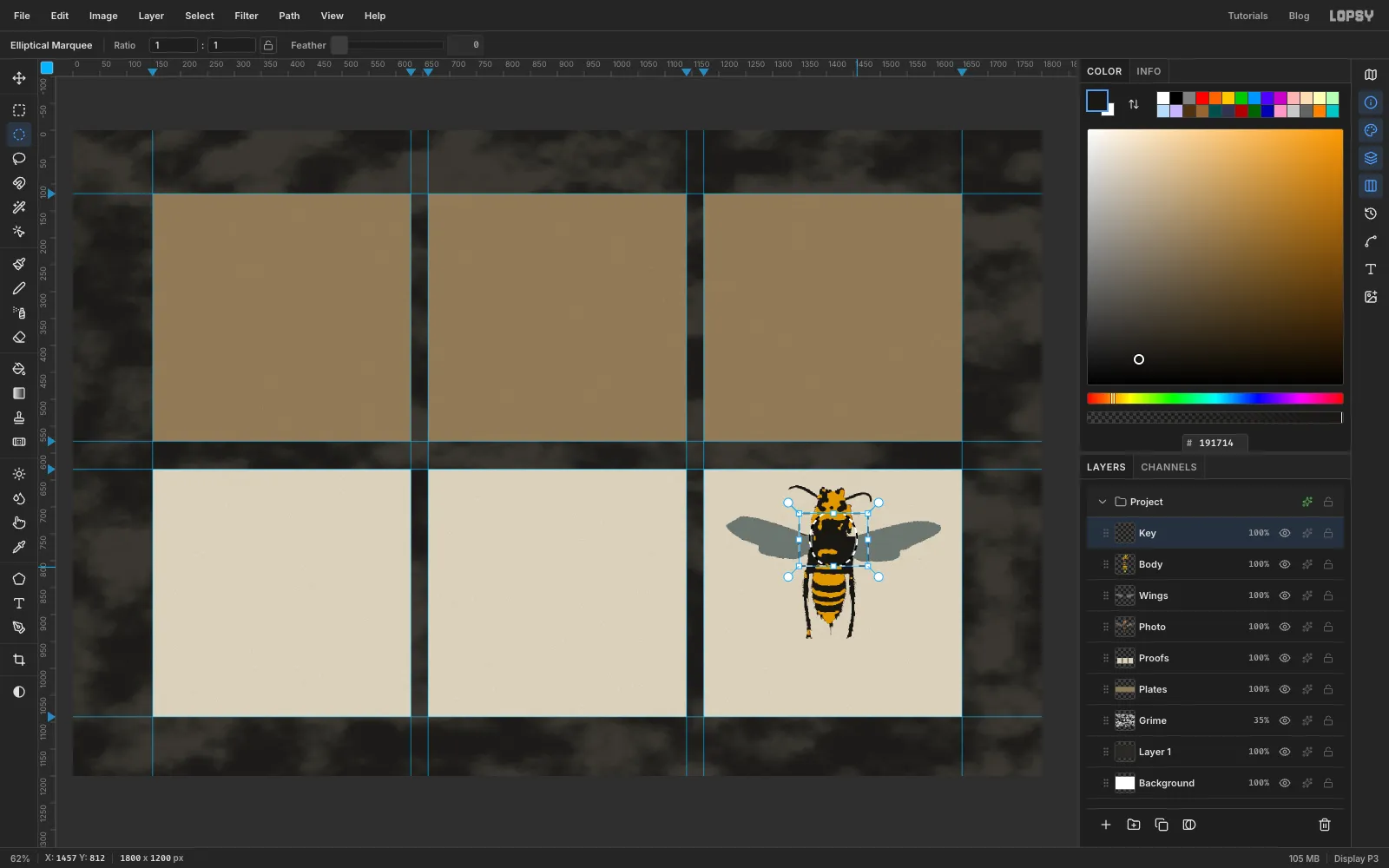
Round off the thorax
The key's thorax came out square at the shoulders. Trim it into an oval.
- With the Rectangular Marquee, draw a box across the thorax, from one wing root to the other.
- Switch to the Elliptical Marquee, hold Alt and drag an oval that just fits the thorax. Only the four corners stay selected.
- With Key active, press Backspace and deselect.
- Click the eye on the Photo row to hide it. You now have the three plates' artwork stacked as a finished hornet.
-
Fill in the islands
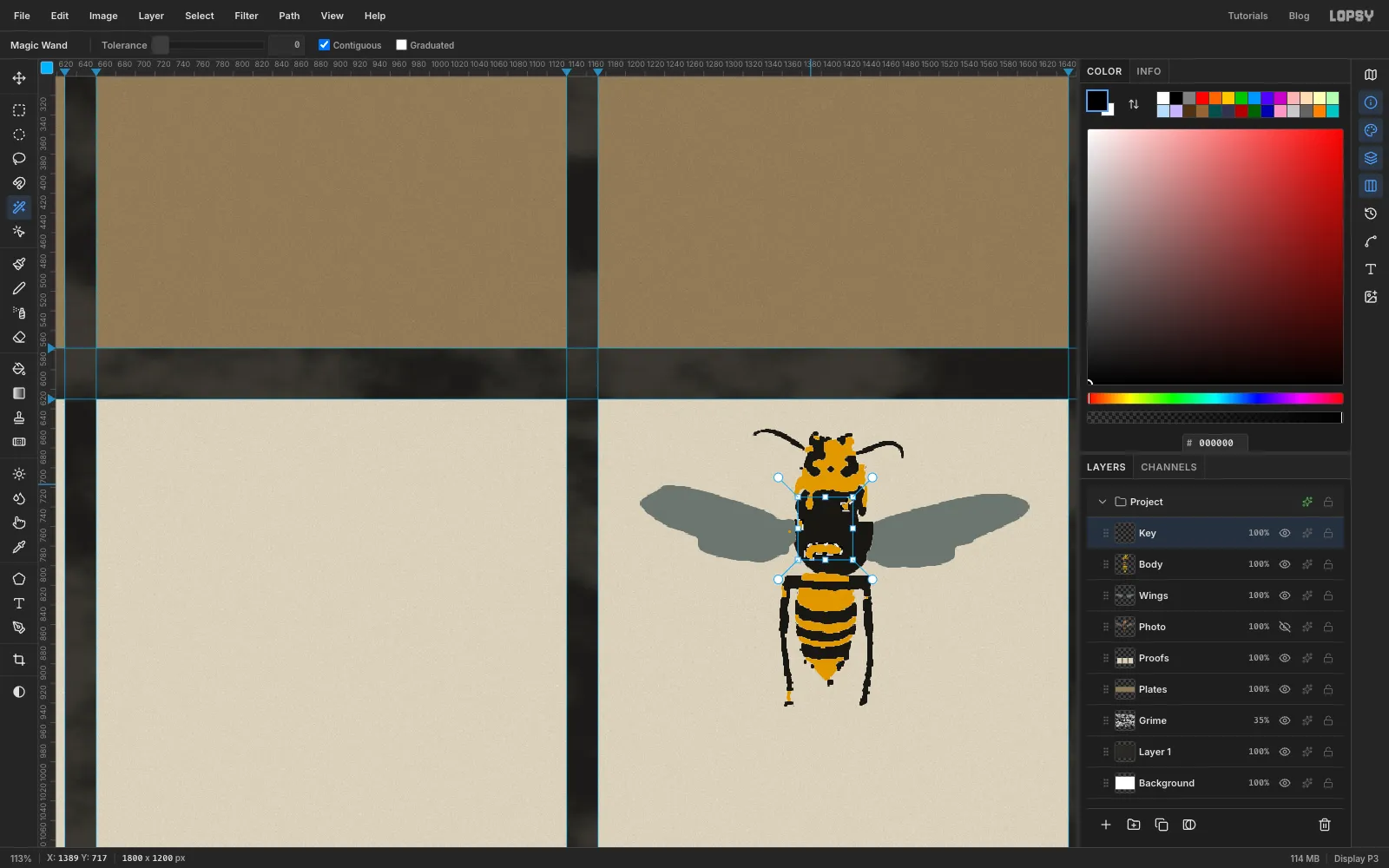
On a real plate the black areas are holes. Any yellow speck completely surrounded by black would be a loose scrap of card, an island, and it falls out as soon as you cut around it. You can bridge an island back to the plate, or fill it in. These are tiny, so fill them.
- Click the Key row and zoom in on the thorax.
- Pick the Magic Wand, set Tolerance
0, tick Contiguous and click inside the first yellow speck. Shift-click any others you find. I had six. - Grow
1, fill with and deselect. - So no mustard hides under the black, Cmd-click the Key thumbnail, click the Body row, press Backspace and deselect.
-
Cut the wing veins as bridges
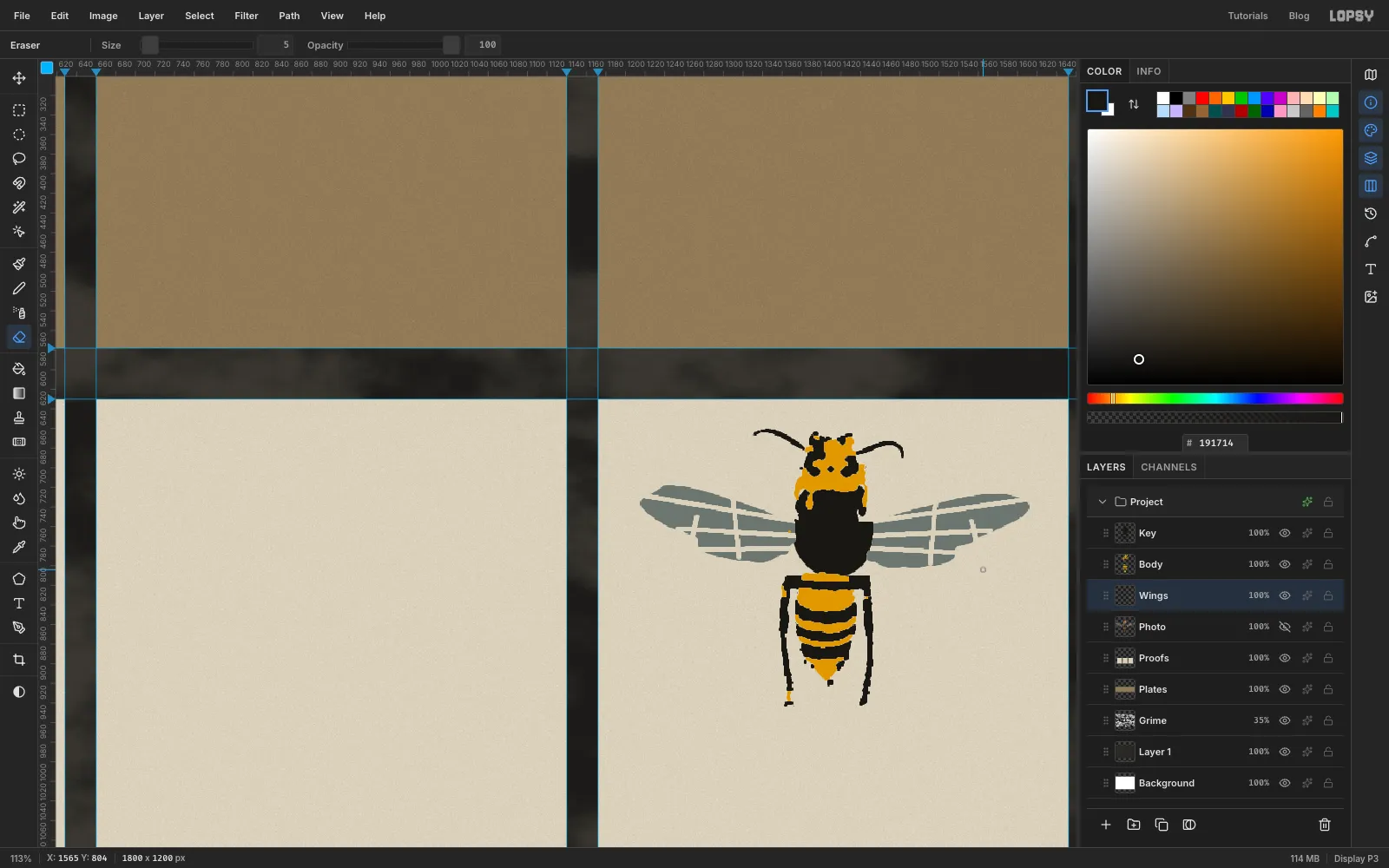
- Click the Wings row. A few loose crumbs of wing sit next to the thorax. Pick the Eraser, set Size to
18and click each one away. - Set the Eraser's Size to
5. For each vein, click at the wing root and Shift-click past the wing tip to erase a straight line. Draw three long veins per wing and a short cross vein or two.
Each erased line is a bridge, a strip of card that holds the plate together. Here they double as the veins.
- Click the Wings row. A few loose crumbs of wing sit next to the thorax. Pick the Eraser, set Size to
-
Set the stencil lettering
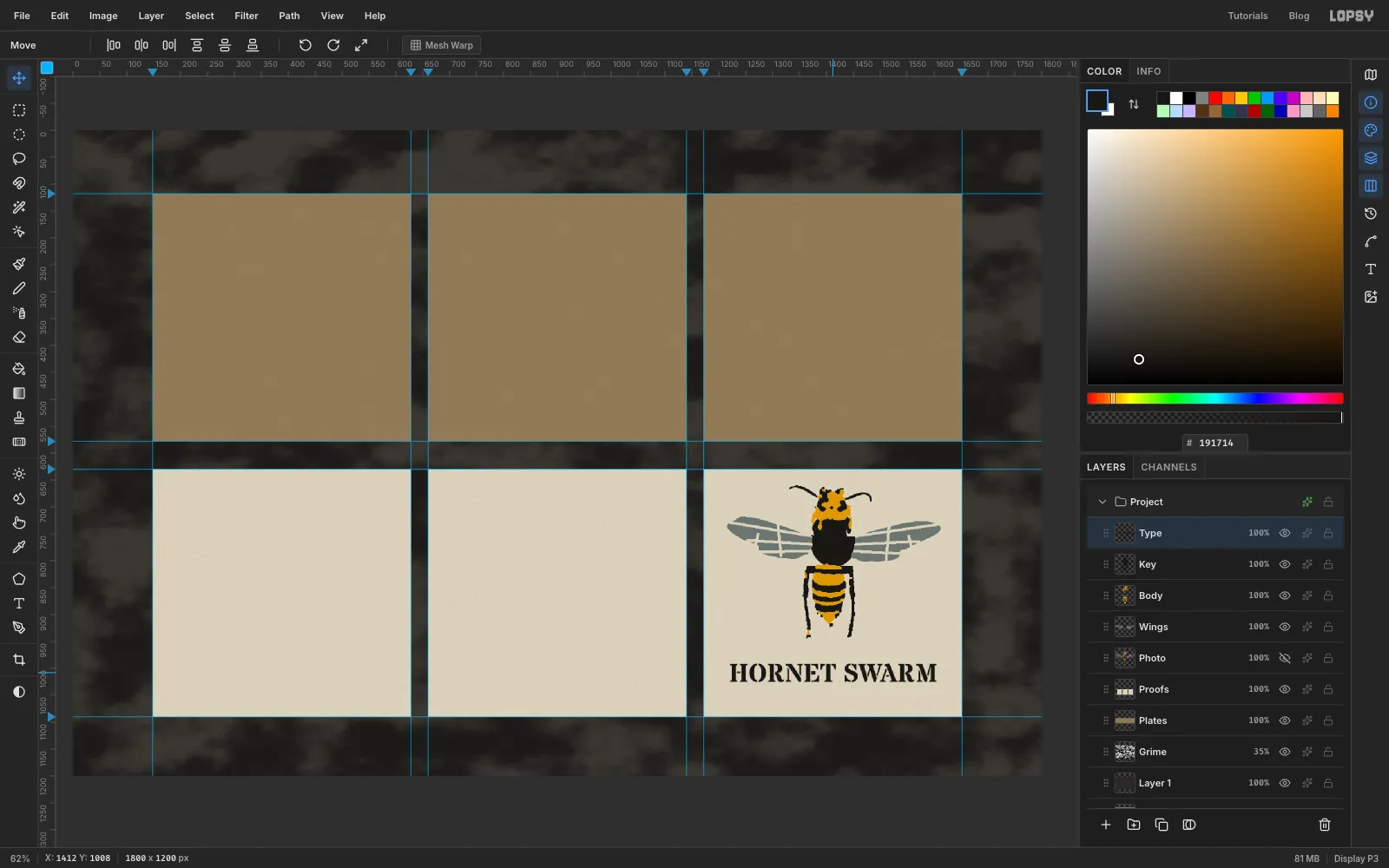
- Keep Key active and pick the Text tool. Choose Stardos Stencil, weight Bold, size
58, colour . - Click in the empty paper below the hornet, type
HORNET SWARMand press Tab to commit. - That's too wide for the plate. With the text layer still selected, change the size to
48in the options bar, and the text shrinks in place. - Rename the layer
Type. Drag it with the Move tool so it is centred under the hornet, about 40 px below the legs, and nudge it with the arrow keys to finish. - Click Rasterize Layer at the bottom of the Layers panel.
- Keep Key active and pick the Text tool. Choose Stardos Stencil, weight Bold, size
-
Copy the art along the proof row
- Choose View → Show Grid. In the options bar, drag Grid to
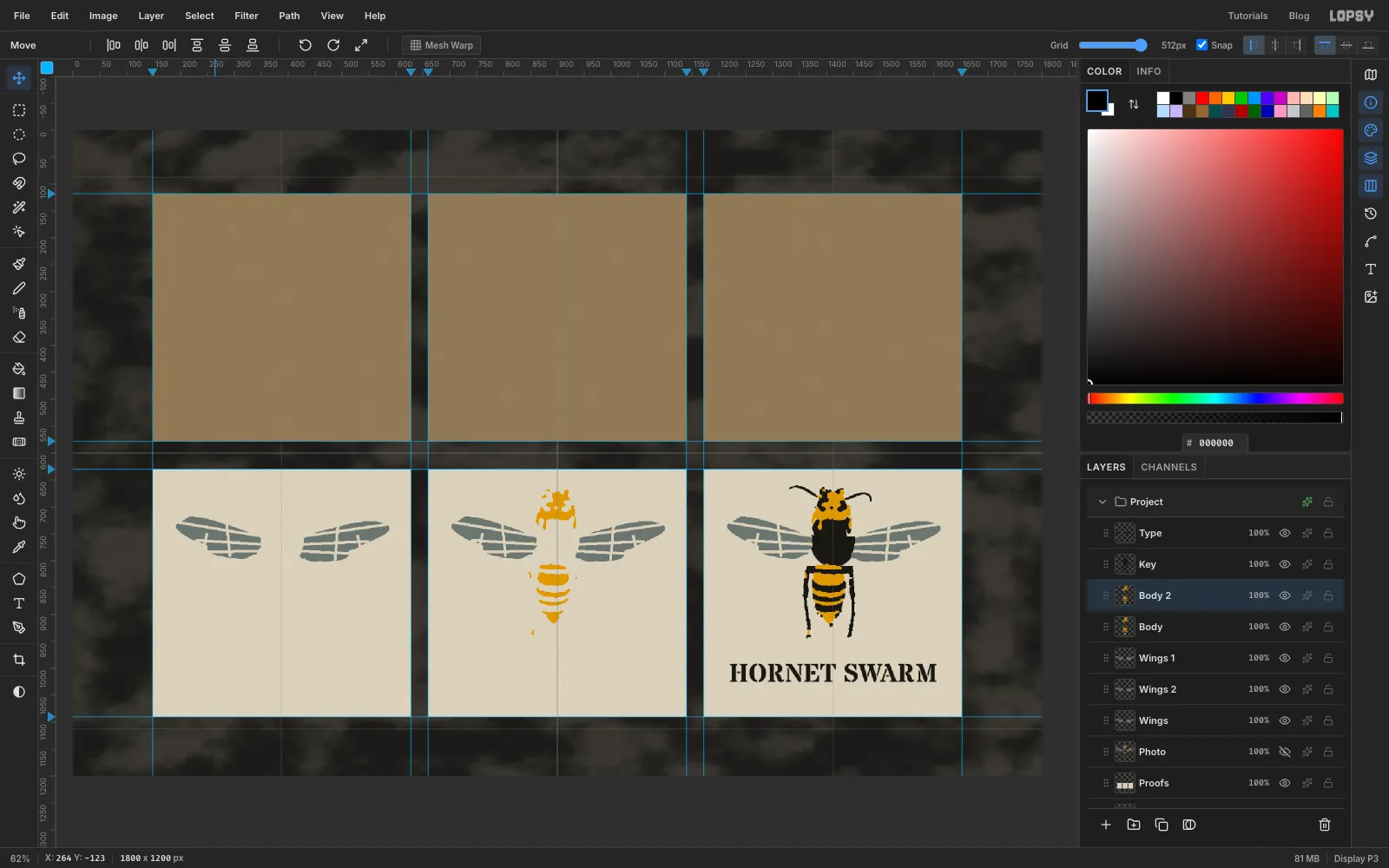
512pxand make sure Snap is ticked. - Click the Wings row and choose Layer → Duplicate Layer. Rename the copy
Wings 2. - With the Move tool, press Left once. Snapped to the grid, one press moves the layer exactly one cell, into the second proof.
- Duplicate again, rename it
Wings 1and press Left once more. - Duplicate Body, rename it
Body 2and press Left once.
The proofs now read 1, 1+2 and 1+2+3.
- Choose View → Show Grid. In the options bar, drag Grid to
-
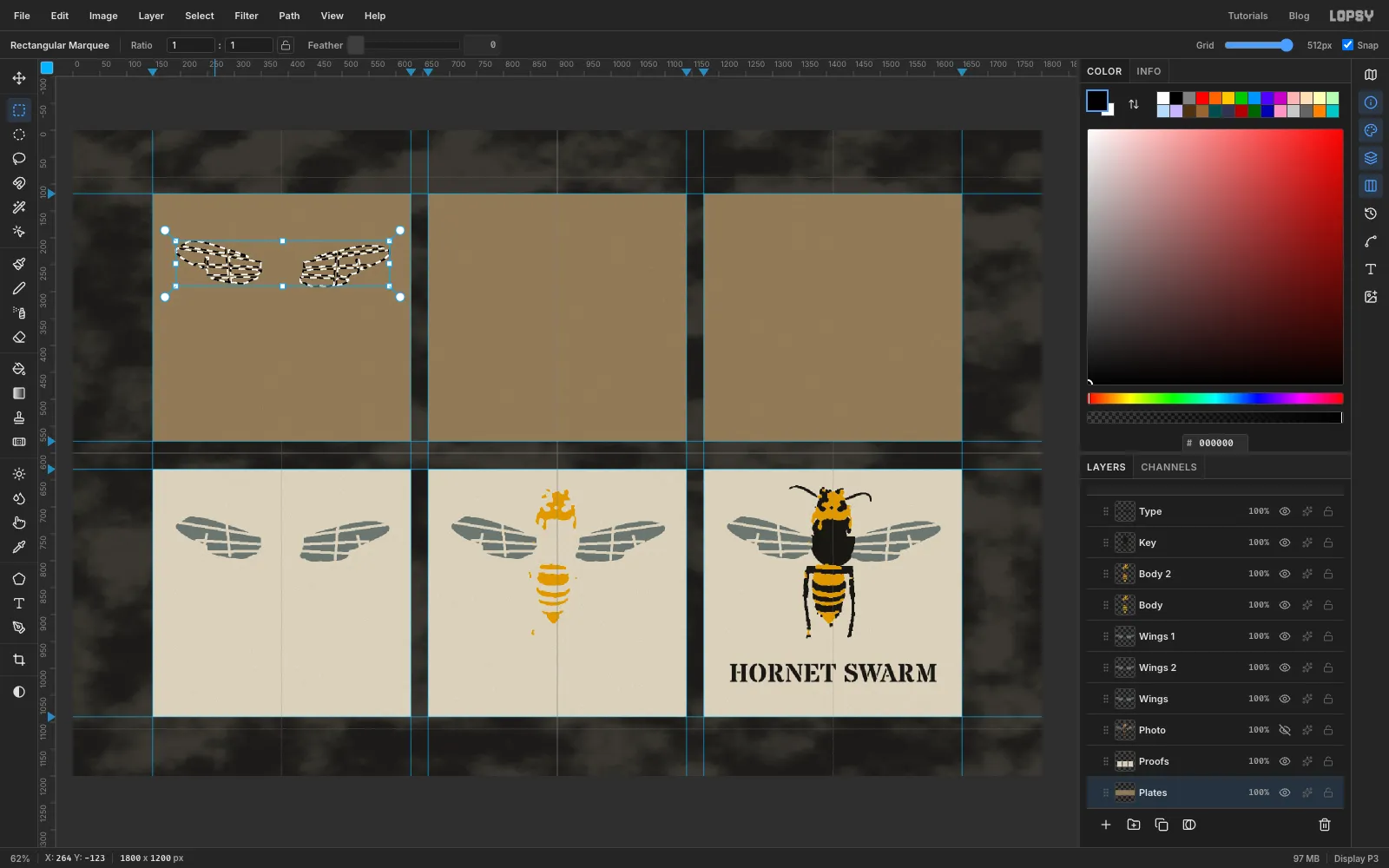
Cut plate 1
- Cmd-click the Wings 1 thumbnail to load the first proof's wings as a selection.
- Pick the Rectangular Marquee and press Up once. With the grid snapped, the ants jump exactly one cell up into plate 1.
- Click the Plates row and press Backspace. The wings are cut out of the chipboard, and the dark bench shows through the holes.
-
Cut plates 2 and 3
- Cmd-click Body 2, press Up with the marquee tool, click Plates and press Backspace.
- Cmd-click Key, then Shift+Cmd-click Type to add the lettering. Press Up, click Plates and press Backspace.
- Deselect and choose View → Show Grid again to hide it.
If you want to compare, undo back through the cuts to see the whole boards, then redo them.
-
Give the paint some grain
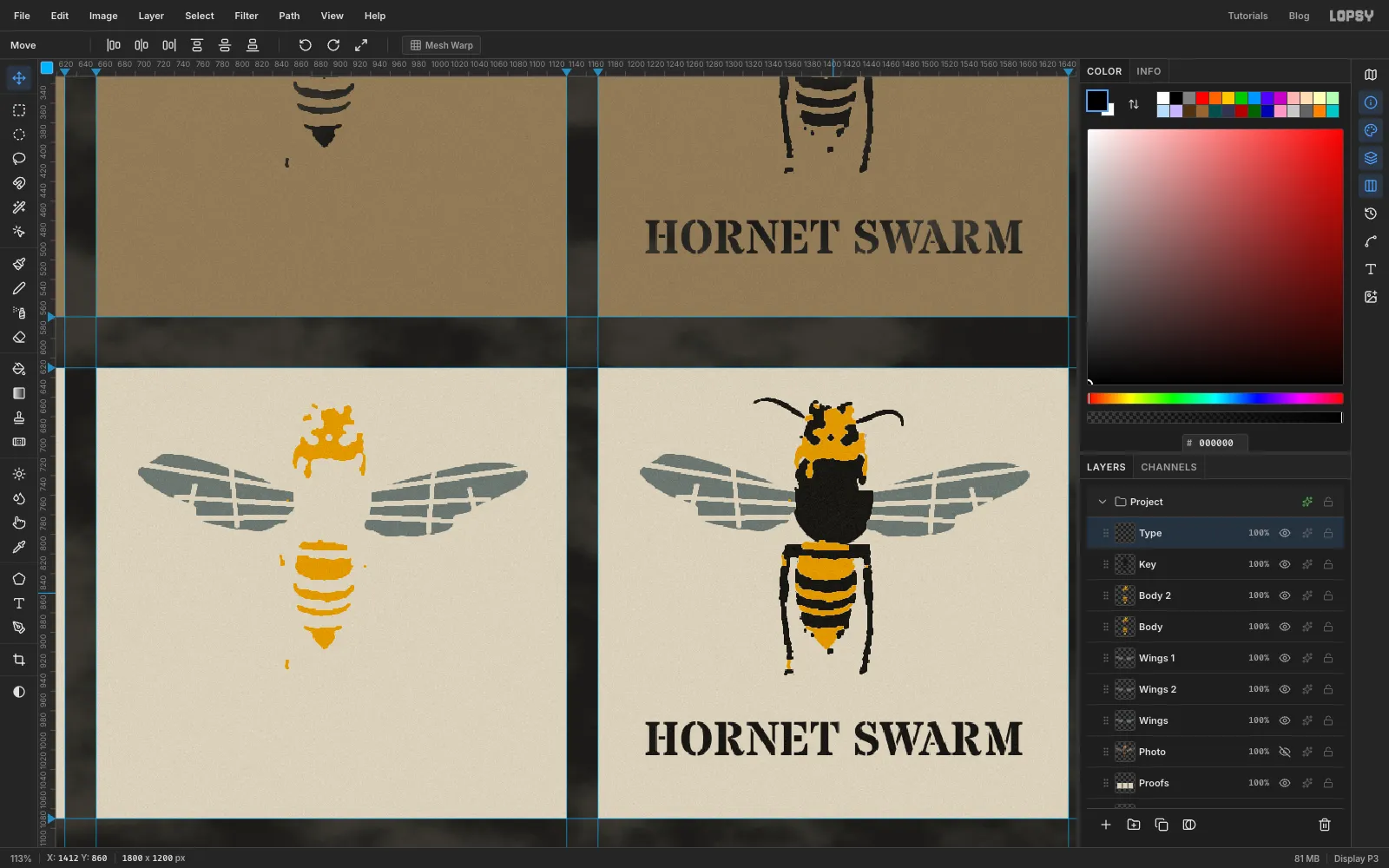
Sprayed paint is never flat. Click each art layer in turn (Wings 1, Wings 2, Wings, Body 2, Body, Key and Type) and apply Filter → Add Noise…, Mono, Gaussian, Amount
22.
-
Let the black run
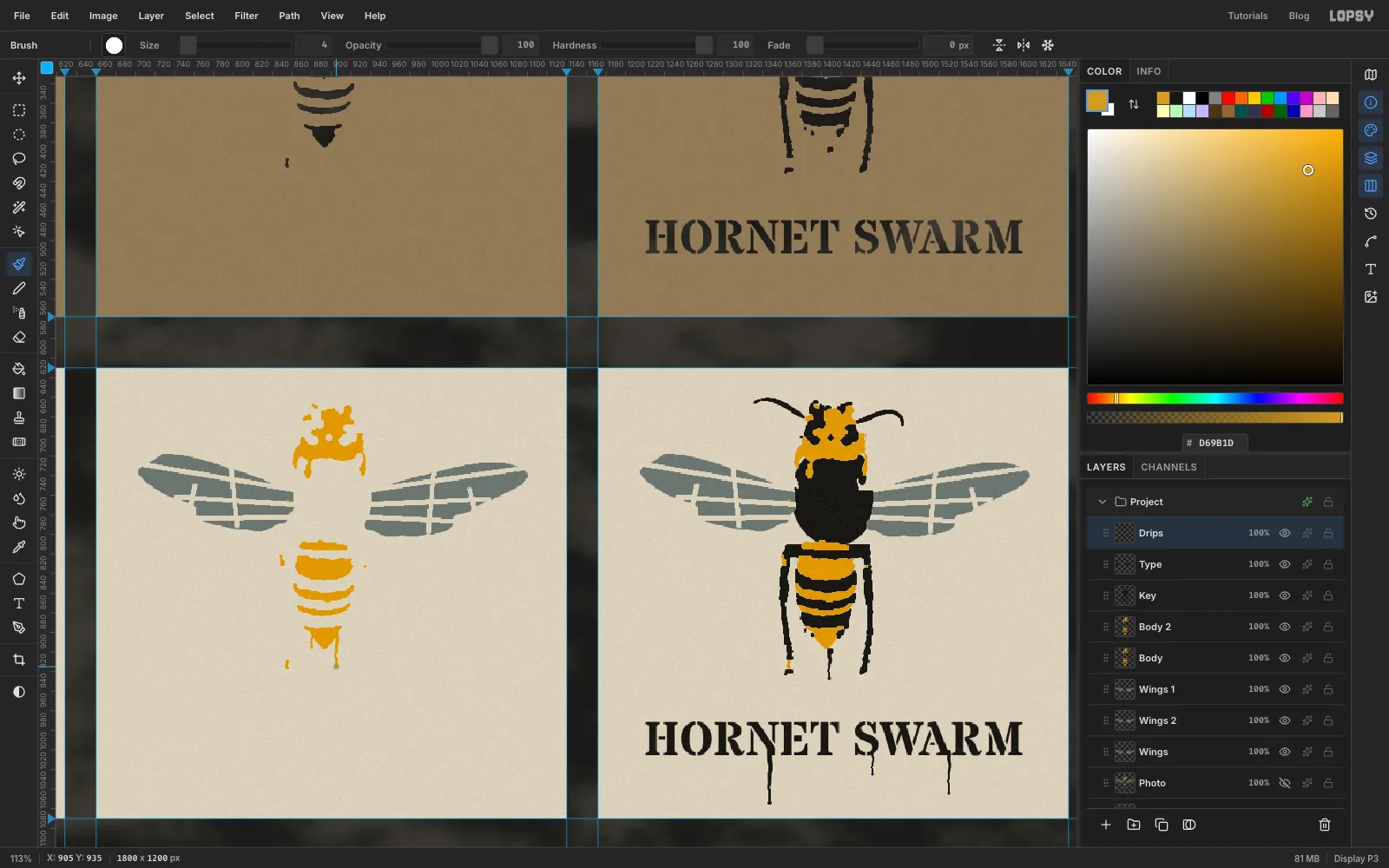
Drips go on their own layer, so they never get cut into a plate.
- Click the Type row and add a layer called
Drips. - Pick the Brush, set Hardness
100and colour . Open the brush presets (the tip button in the options bar). In the Shape tab set Size to about5and Taper to around60for a long run, or25for a short one, so the paint thins as it falls. - Drag straight down from the foot of a letter, wobbling a pixel or two as you go. Do five or six, all different lengths, plus one from the tip of the sting.
- Set Taper back to
0and click once at the bottom of each run to leave a bead. - Do two short mustard drips from the tip of the abdomen in the second proof.
- Click the Type row and add a layer called
-
Add test chips and fuzz the paint edges
- Click the Body 2 row and add a layer called
Chips. With the Rectangular Marquee, draw 30 px squares to the right of each hornet's legs: smoke on all three proofs, mustard on the second and third, and black on the third only. Fill each colour, then add Mono Gaussian noise at22. - Click the Type row and add a layer called
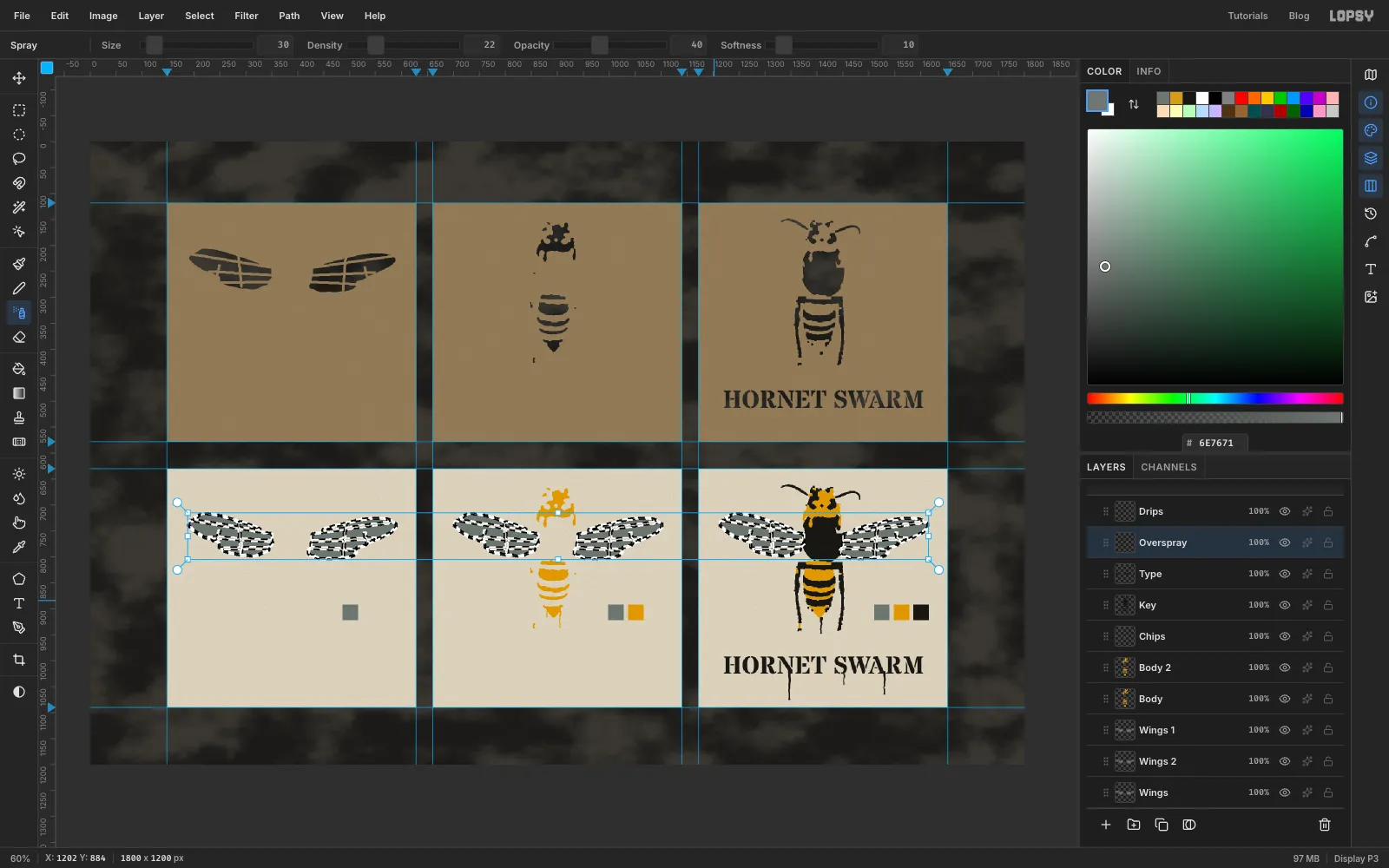
Overspray. - Cmd-click Wings 1, then Shift+Cmd-click Wings 2 and Wings. Choose Select → Grow…
3, then Alt+Cmd-click each of the three wing thumbnails. You're left with a thin ring just outside the paint. - Pick the Spray tool: Size
30, Density22, Opacity40, Softness10. Set the colour to smoke grey and spray back and forth over the wings. Only the ring takes paint. - Do the same for mustard (Body 2 and Body) and black (Key and Type).
- Click the Body 2 row and add a layer called
-
Mist and spit
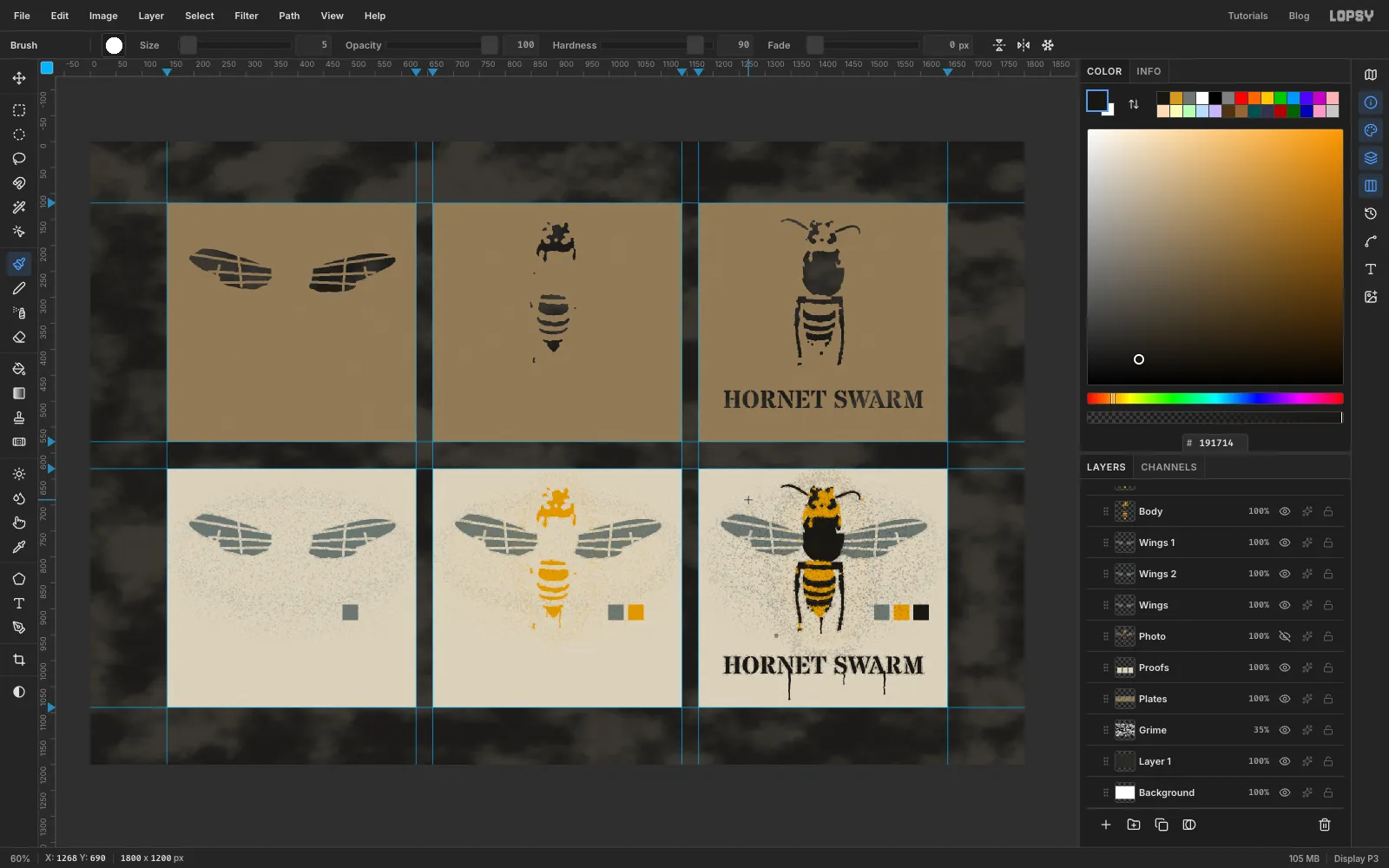
- Stay on the Overspray layer. Deselect, then Cmd-click the Proofs thumbnail so the mist stays on the paper.
- With the Spray at Size
40, Density30, Opacity24, trace loose loops: smoke around all three hornets, mustard around the second and third, and black around the third. - For the finest mist, draw an elliptical marquee around each hornet and Feather it by
60. Spray it at Size20, Density2, Opacity35, Softness0, in close back-and-forth passes. The feather fades the mist out at the edges. - Pick the Brush at Hardness
90and click a few single droplets between 5 and 10 px across, as if the can spat. Use smoke, mustard and black, matching what each proof has been sprayed with.
-
Spray overspray onto the plates
A used plate wears the paint that went through it.
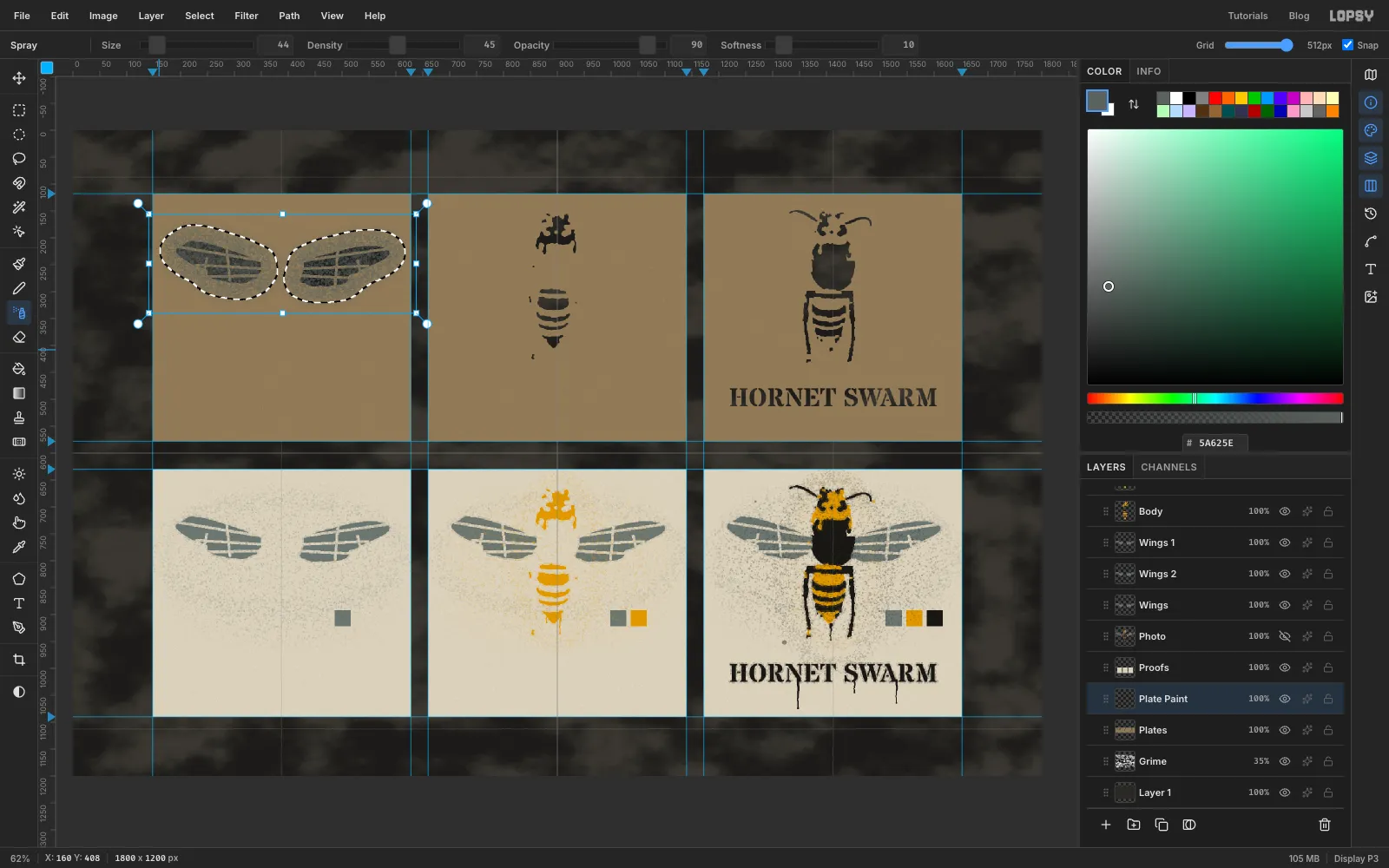
- Turn the 512 px grid back on. Click the Plates row and add a layer called
Plate Paint. - Cmd-click Wings 1. With the marquee tool, press Up once. Then Grow
30and Feather20. - Spray it with the Spray at Size
44, Density45, Opacity90in a darker smoke, , back and forth over the plate. - Repeat for plate 2 (Body 2, mustard, Opacity
60) and plate 3 (Key and Type, , Opacity60). Deselect and hide the grid.
- Turn the 512 px grid back on. Click the Plates row and add a layer called
-
Keep the paint on the board
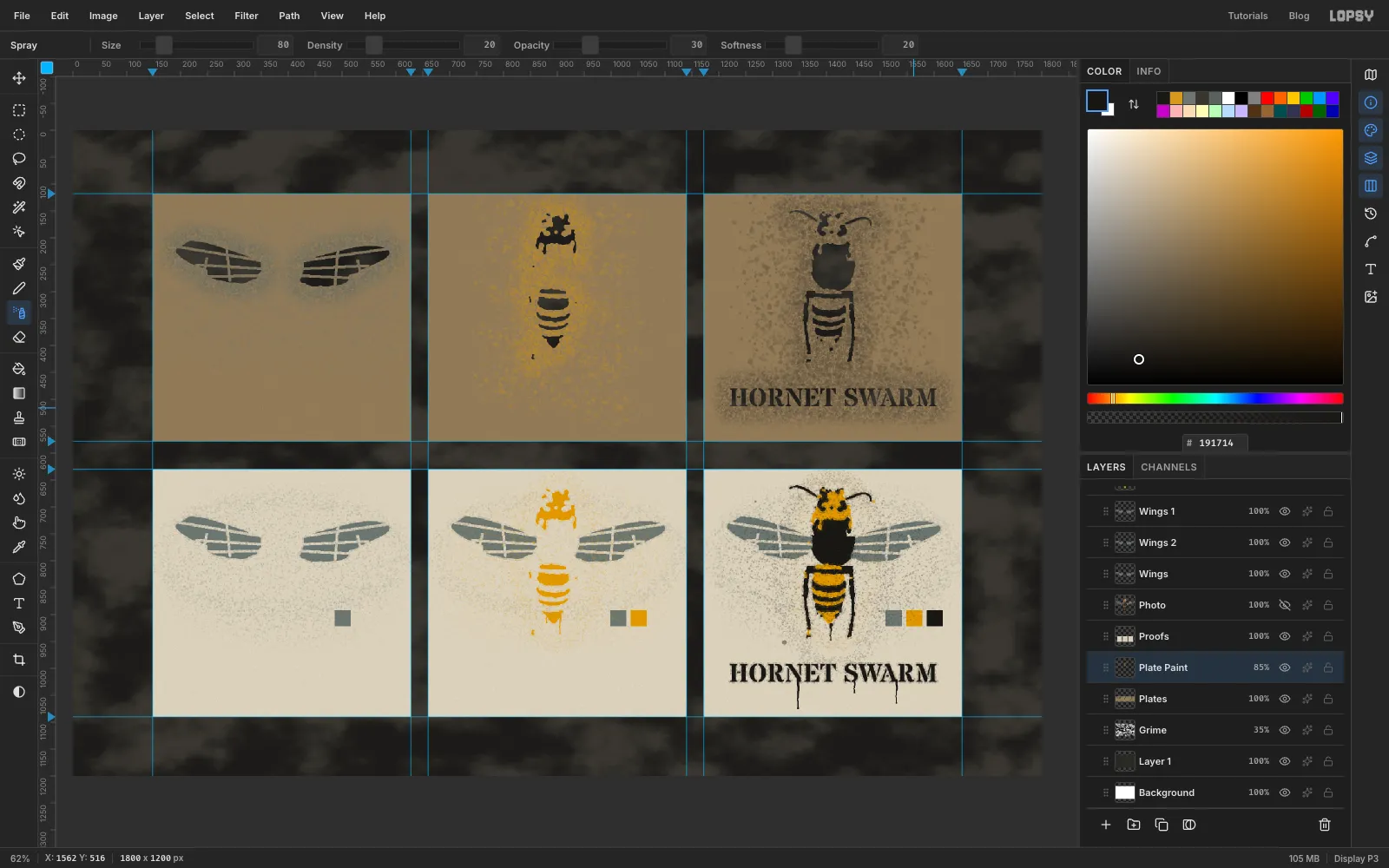
- Cmd-click the Plates thumbnail, choose Select → Inverse and press Backspace. That clears any paint that landed in the holes or on the bench. Set the layer's opacity to
85%. - Cmd-click Plates again. Spray a few loose, wider passes over each plate in its colour, at Size about
85, Density20, Opacity30. - Deselect and choose Layer → Merge Down so the paint becomes part of the chipboard.
- Cmd-click the Plates thumbnail, choose Select → Inverse and press Backspace. That clears any paint that landed in the holes or on the bench. Set the layer's opacity to
-
Punch the registration holes
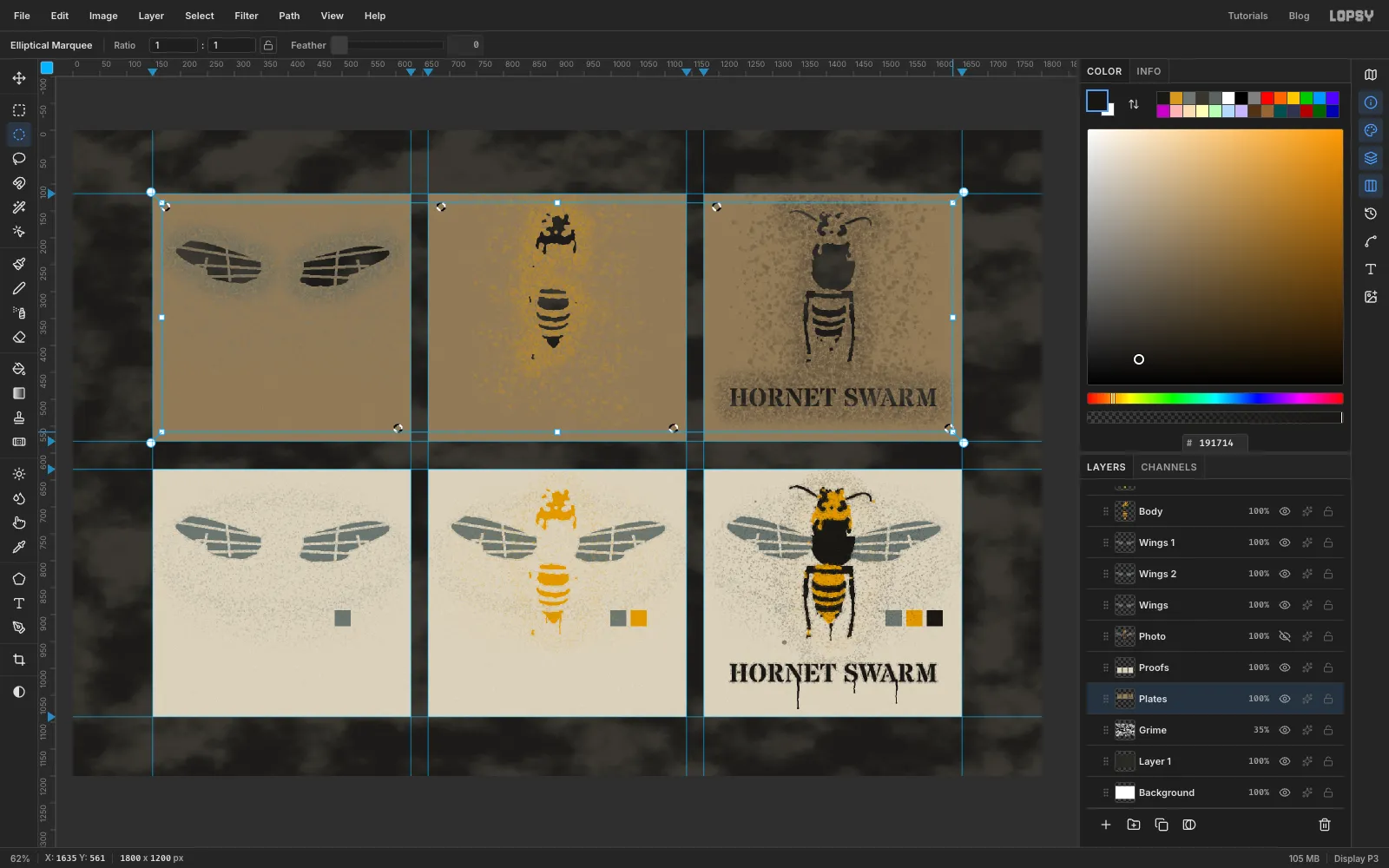
- Pick the Elliptical Marquee and drag a 14 px circle 24 px in from the top-left corner of plate 1. Shift-drag another 24 px in from its bottom-right corner.
- Add the same two circles on plates 2 and 3, holding Shift each time.
- Click the Plates row, press Backspace and deselect.
-
Add cut walls, shadows and pencil crosses
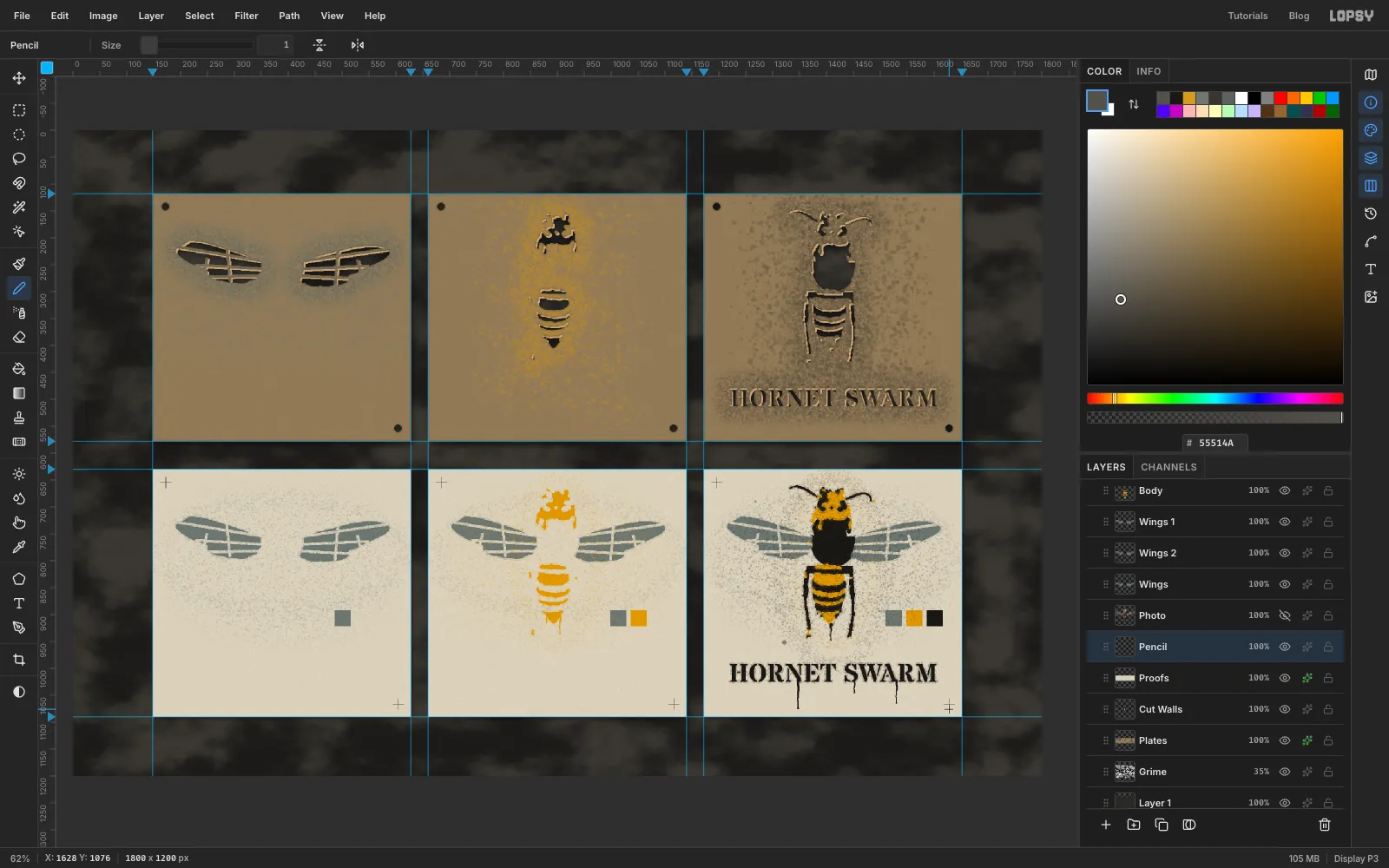
- On Plates, open the effects. Turn on Inner Glow with colour , Size
6, Opacity55. Turn on Drop Shadow with , Offset4/8, Blur14, Opacity60. - Add a layer called
Cut Walls. Show the 512 px grid, Cmd-click Wings 1 and Shift+Cmd-click Body 2, Key and Type. Press Up with the marquee tool, and fill with . - Hide the grid. Press Right three times and Down three times to slide the selection, then press Backspace. A 3 px sliver of raw board is left along the top and left edge of every hole.
- Deselect. On Proofs, add a Drop Shadow in : Offset
3/5, Blur10, Opacity45. - Add a layer called
Pencil. With the Pencil at Size1in graphite , draw a small cross on each proof where the plate's registration holes would land. For each line, click and then Shift-click.
- On Plates, open the effects. Turn on Inner Glow with colour , Size
-
Tape the first corner
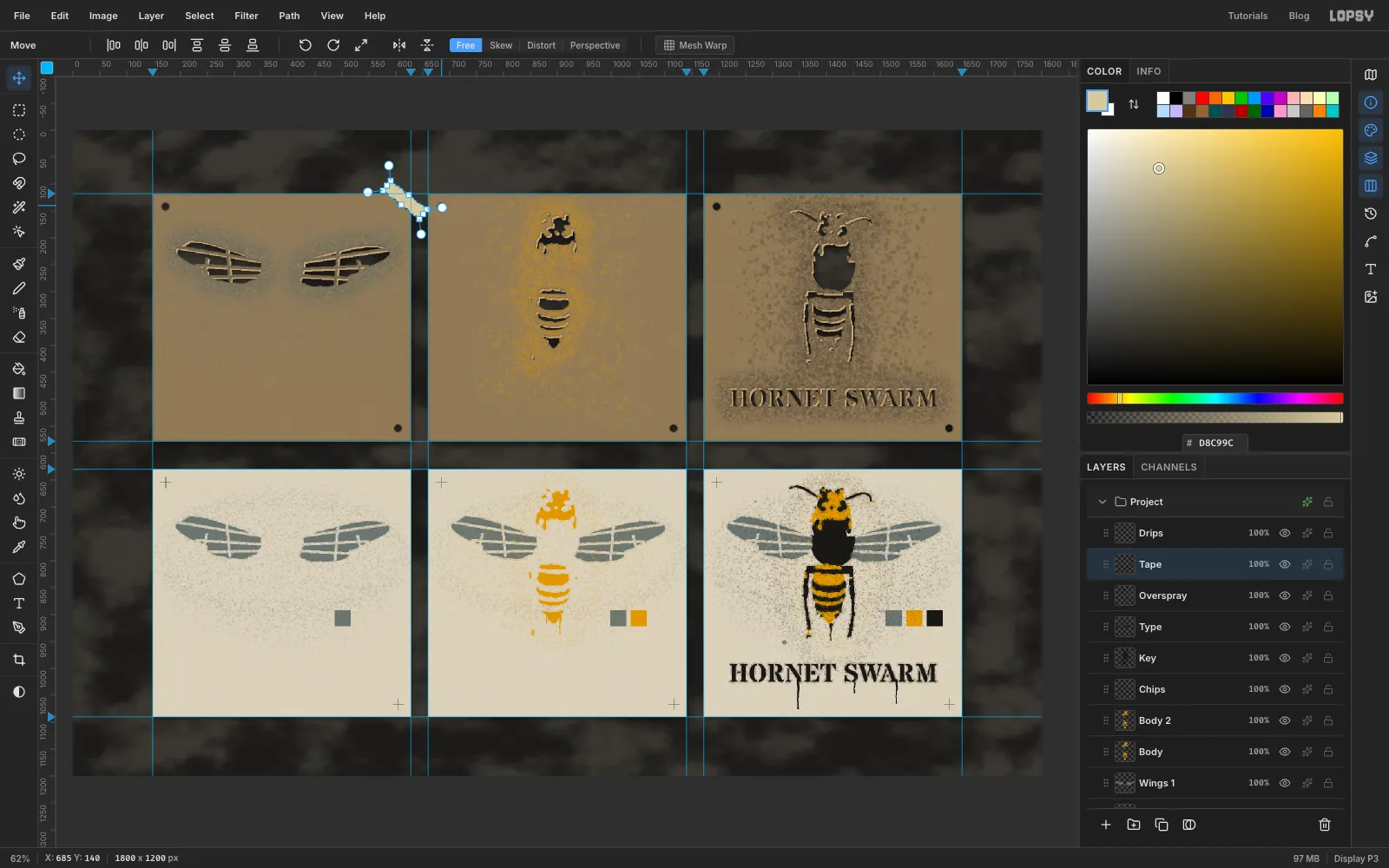
- Click the Overspray row, just below Drips, and add a layer called
Tape. - Marquee an 84 × 26 px strip across plate 1's top-right corner. Fill it with and add a little Mono noise (
10). - Pick the Move tool and drag the round rotation handle outside the box's corner until the strip tilts about 38°, running down to the right across the corner.
- Click the Overspray row, just below Drips, and add a layer called
-
Copy the tape
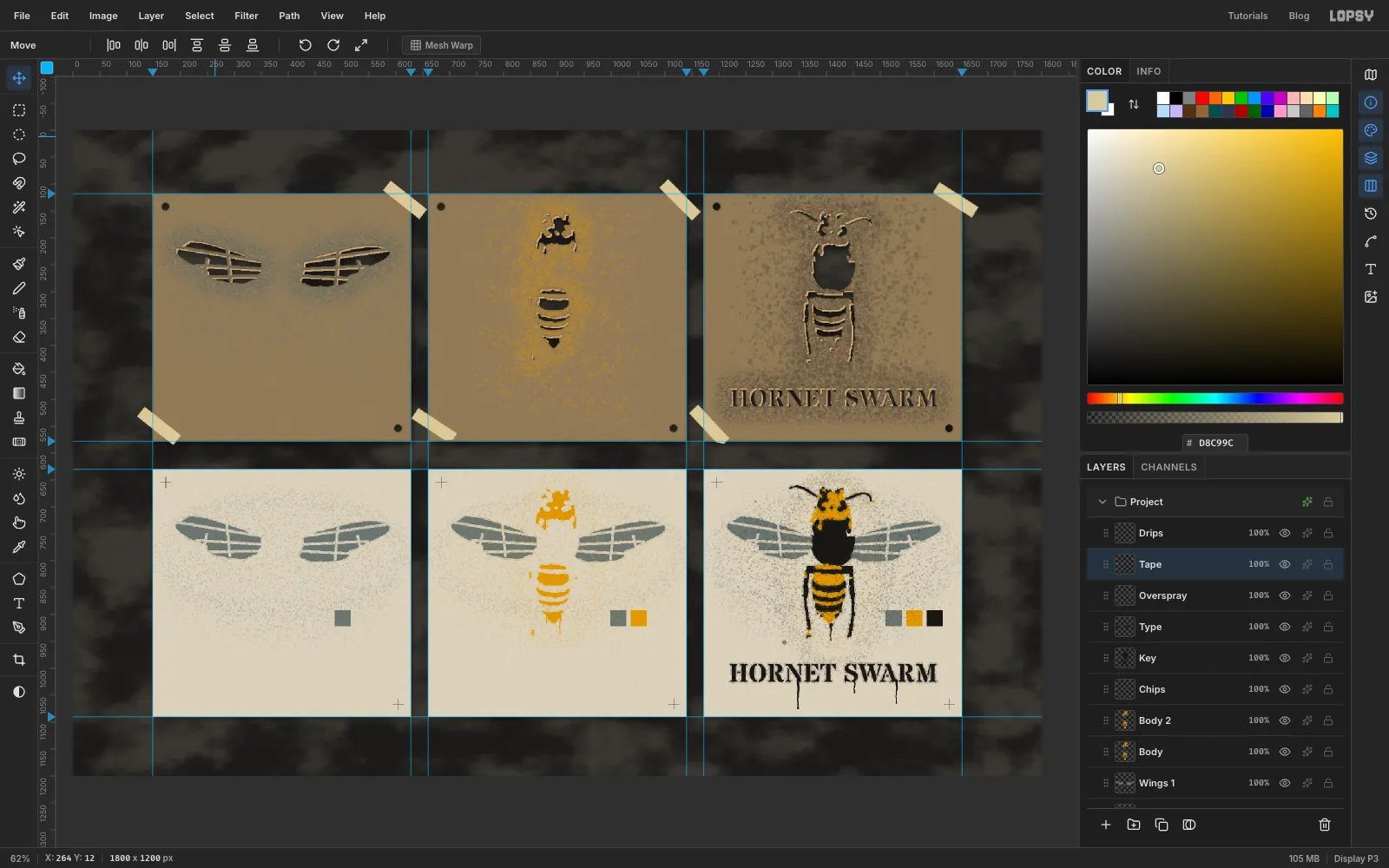
- Press Cmd+D, marquee around the strip, then press Cmd+C and Cmd+V. Drag the copy down to plate 1's bottom-left corner and choose Layer → Merge Down.
- Select both strips: marquee one, then Shift-marquee the other. Copy, paste and drag them one plate to the right.
- Give each copied strip its own small tilt with the rotation handle so they don't match, then merge down. Repeat for plate 3.
-
Tape the proofs
- Marquee three 120 × 28 px strips across the top edges of the proofs, off to the right of centre and at different spots on each. Hold Shift for the second and third.
- Fill, add Mono noise at
10, and deselect. Then marquee each strip on its own and rotate it a degree or two, a different way each time. - Set the Tape layer's opacity to
85%.
-
Set the title
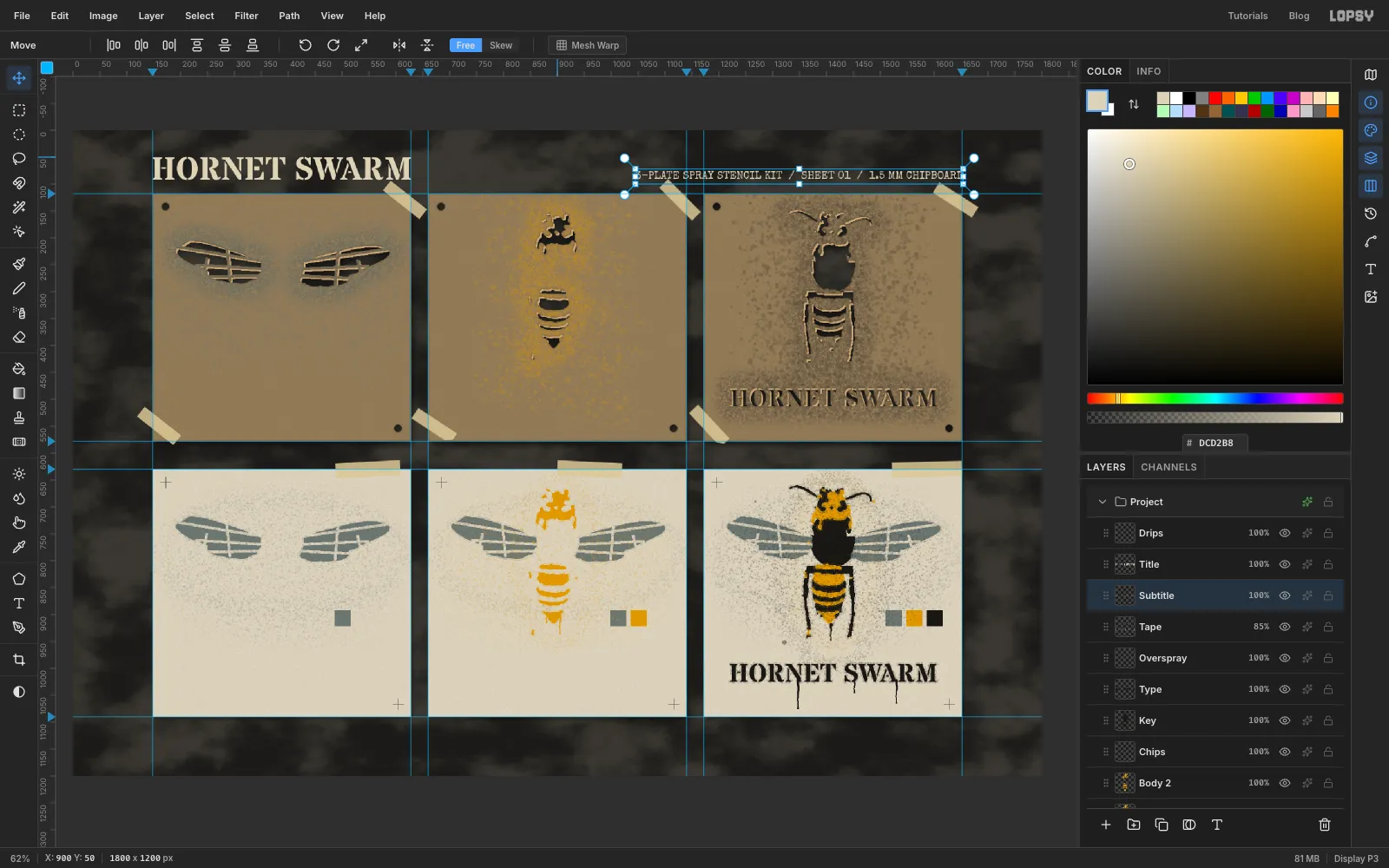
- Click the Tape row so new text doesn't restyle anything. Pick the Text tool: Stardos Stencil, Bold,
60, colour bone . Click above the plates, typeHORNET SWARM, press Tab and rename the layerTitle. - Move it so its left edge sits on the first guide and its baseline sits 26 px above the plates.
- Click Tape again. Switch to Special Elite at
20and type3-PLATE SPRAY STENCIL KIT / SHEET 01 / 1.5 MM CHIPBOARD. Line its right edge up with the last guide and its baseline with the title's.
- Click the Tape row so new text doesn't restyle anything. Pick the Text tool: Stardos Stencil, Bold,
-
Add captions and plate numbers
- In Special Elite at
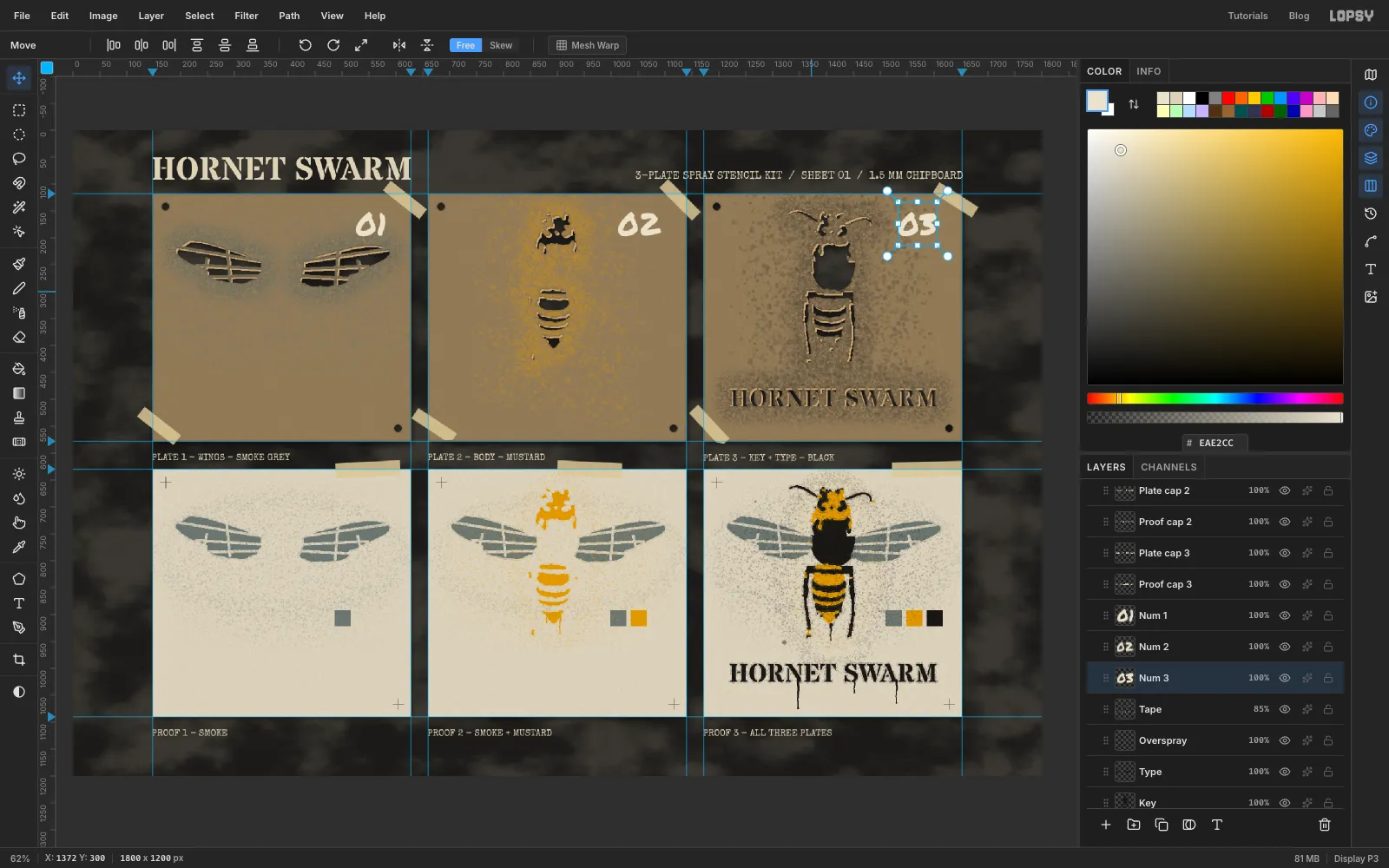
17, type a caption for each card:
- Under the plates, in the gutter between the rows:
PLATE 1 - WINGS - SMOKE GREY,PLATE 2 - BODY - MUSTARD,PLATE 3 - KEY + TYPE - BLACK - Under the proofs:
PROOF 1 - SMOKE,PROOF 2 - SMOKE + MUSTARD,PROOF 3 - ALL THREE PLATES - Line each caption's left edge up with its card. Click the Tape row before each new one.
- In Permanent Marker at
58, colour , type01,02and03. Place each in its plate's top-right corner, 48 px in from the edge.
- In Special Elite at
-
Write the notes and the grease-pencil verdict
- In Permanent Marker at
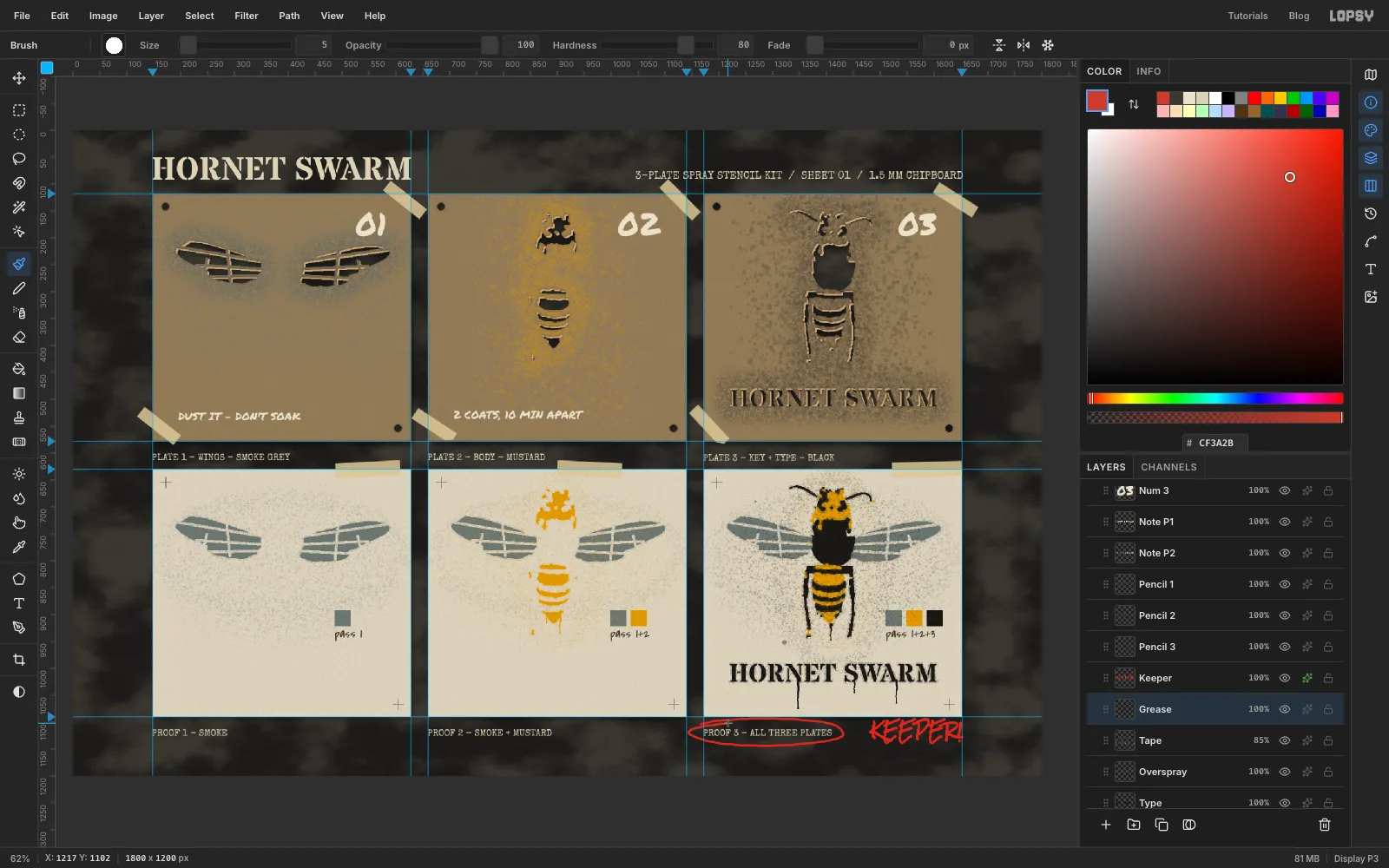
20, writeDUST IT - DON'T SOAKon plate 1 and2 COATS, 10 MIN APARTon plate 2, near their bottom-left corners. - In Covered By Your Grace at
24, colour , writepass 1,pass 1+2andpass 1+2+3under the chips on each proof. - In Rock Salt at
30, colour , typeKEEPER!and rename the layerKeeper. Give it a 1 px Stroke in the same red to thicken it. Set it on the proof 3 caption line, with its right edge on the last guide. - Add a layer called
Grease. With the Brush at Size5, Hardness80, in grease red , drag a quick, slightly lopsided loop around the proof 3 caption that overshoots where it closes.
- In Permanent Marker at
-
Wear the title
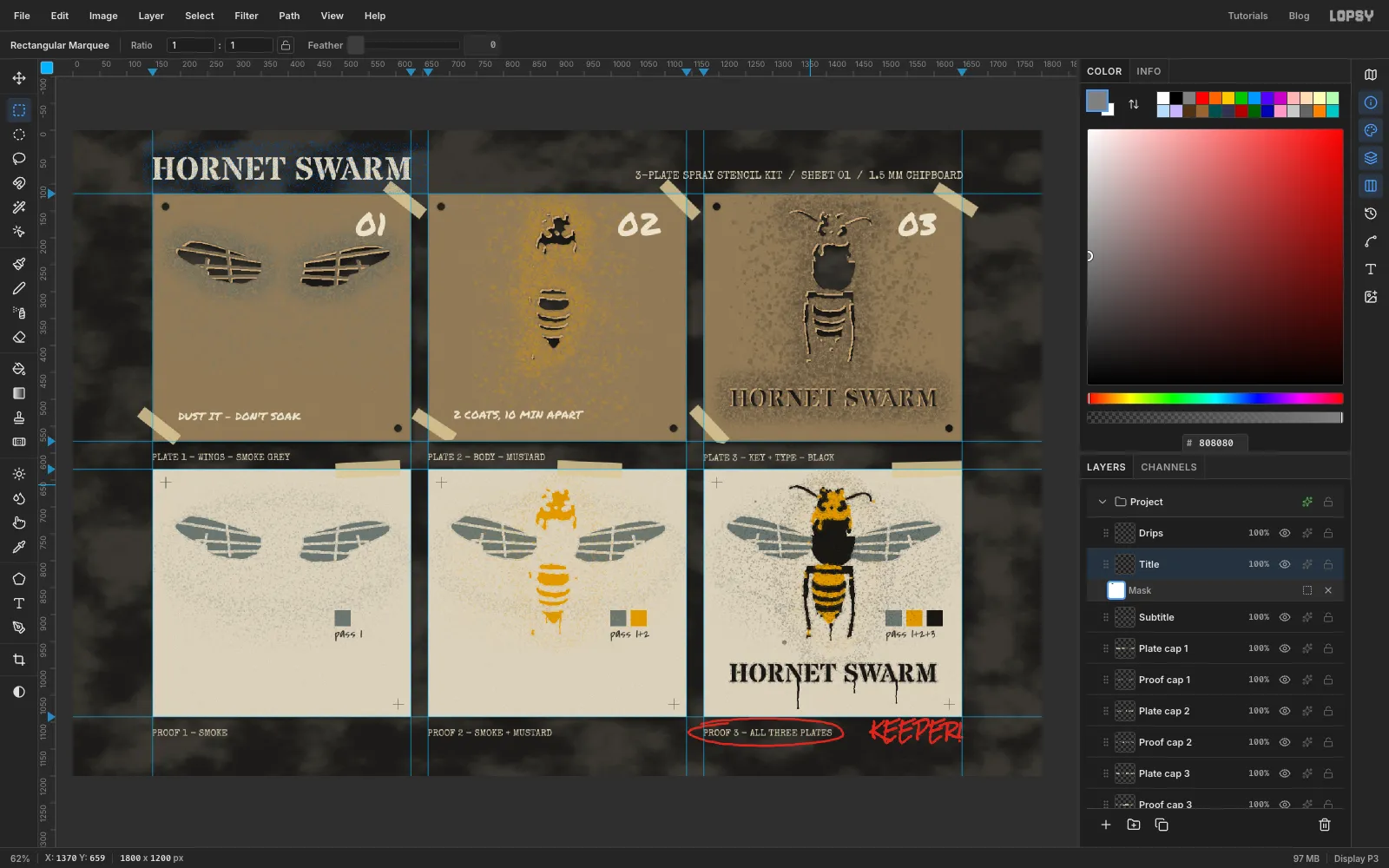
- Click the Title row and Rasterize Layer. Add Mono Gaussian noise at
26. - Click Add Mask at the bottom of the Layers panel, then click the new mask thumbnail to edit the mask.
- Marquee around the title and fill it with . Apply Add Noise… at
100(Mono, Uniform), Gaussian Blur… at1and Threshold… at92. The dark specks in the mask hide the paint, so the title looks sprayed and chipped. - Click the layer's name to leave mask editing.
- Click the Title row and Rasterize Layer. Add Mono Gaussian noise at
-
Splatter the bench and leave a coffee ring
- Click Grime and add a layer called
Bench Paint. With the Spray at Size110, Density12, Opacity22, Softness50, mist a little bone around the title. Then, at Size120, Density6, Opacity80, Softness0, flick a few short splatters of mustard, black, smoke and bone into the margins. - Click Tape and add a layer called
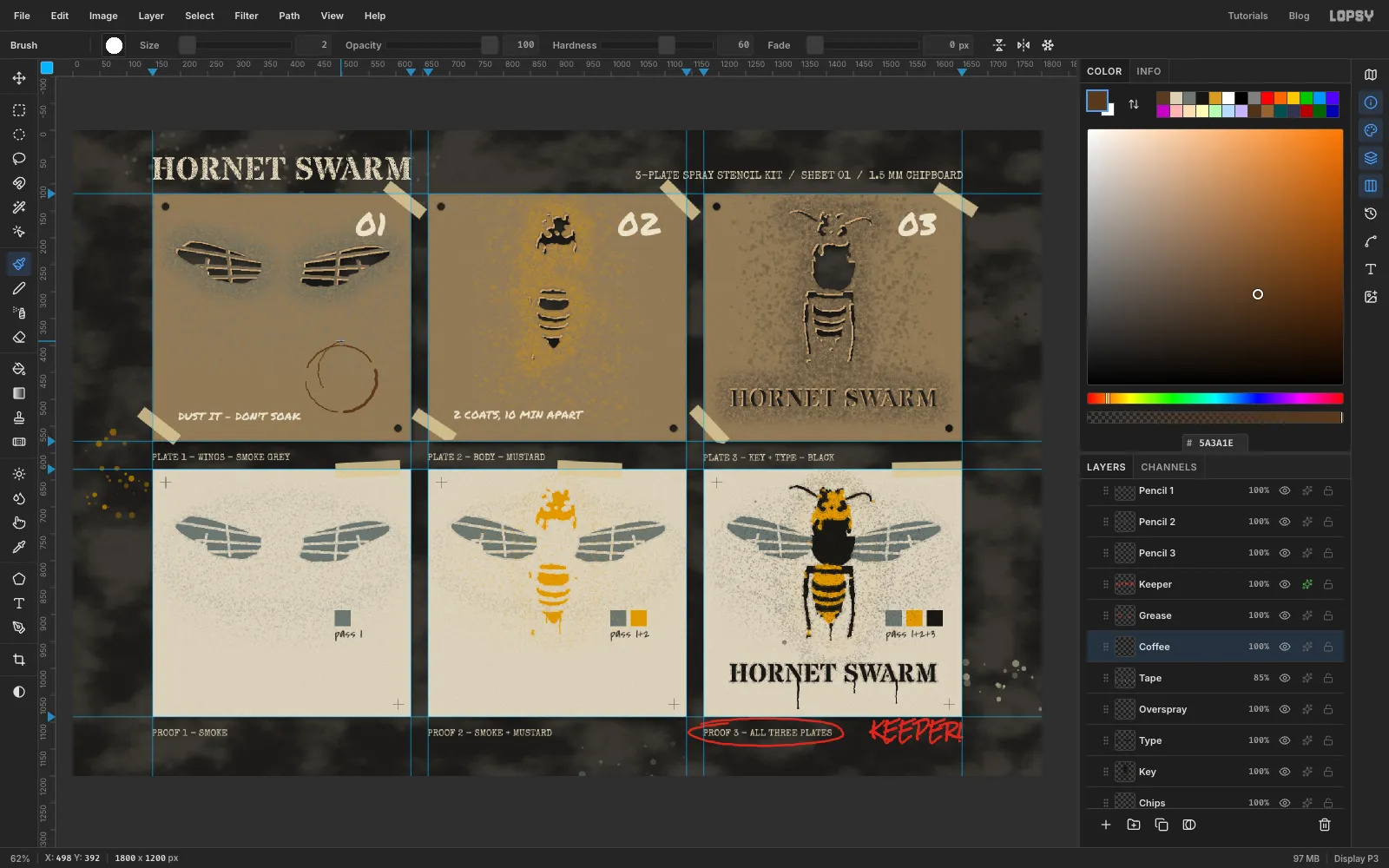
Coffee. - Pick the Brush with Hardness
60and colour . Draw a ring about 130 px across on the lower right of plate 1, in three separate arcs with gaps between them. Make the lower-right arc the heaviest (Size7) where the coffee pooled, and the others thinner (4and3). - At Size
2, drag a faint partial second ring offset up and to the right. - Apply Gaussian Blur… at
1, set the blend mode to Multiply and the opacity to60%.
- Click Grime and add a layer called
-
Finish with dust and a vignette
- Click Keeper and add a layer called
Dust. Fill it with , apply Add Noise… at100(Mono, Uniform), then Threshold… at236. Set the blend mode to Screen and the opacity to30%. Only the white specks show. - Add a layer called
Vignette. Draw an elliptical marquee from just inside the top-left corner to just inside the bottom-right. Choose Select → Inverse, fill with black and deselect. - Apply Gaussian Blur… at
180, set the blend mode to Multiply and the opacity to55%. - Choose View → Show Guides to hide the guides, then File → Quick Export PNG and File → Save Project.
- Click Keeper and add a layer called