Design an Op-Art Surf Club Iron-On Patch in Lopsy
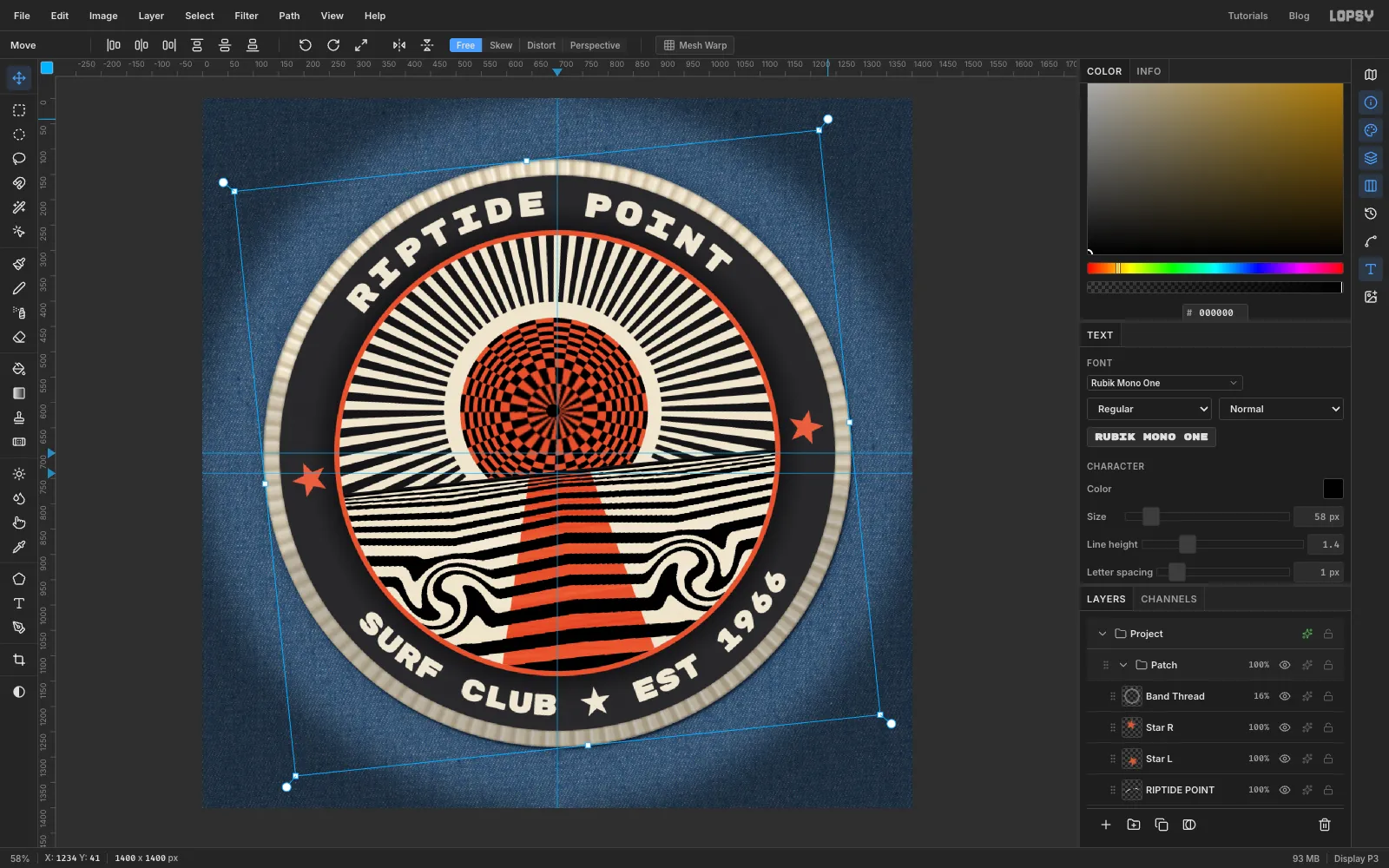
Make a 1960s op-art embroidered patch for a surf club, with a bulging checkerboard sun, Riley-style striped sea and riptide eddies, on denim, in Lopsy.
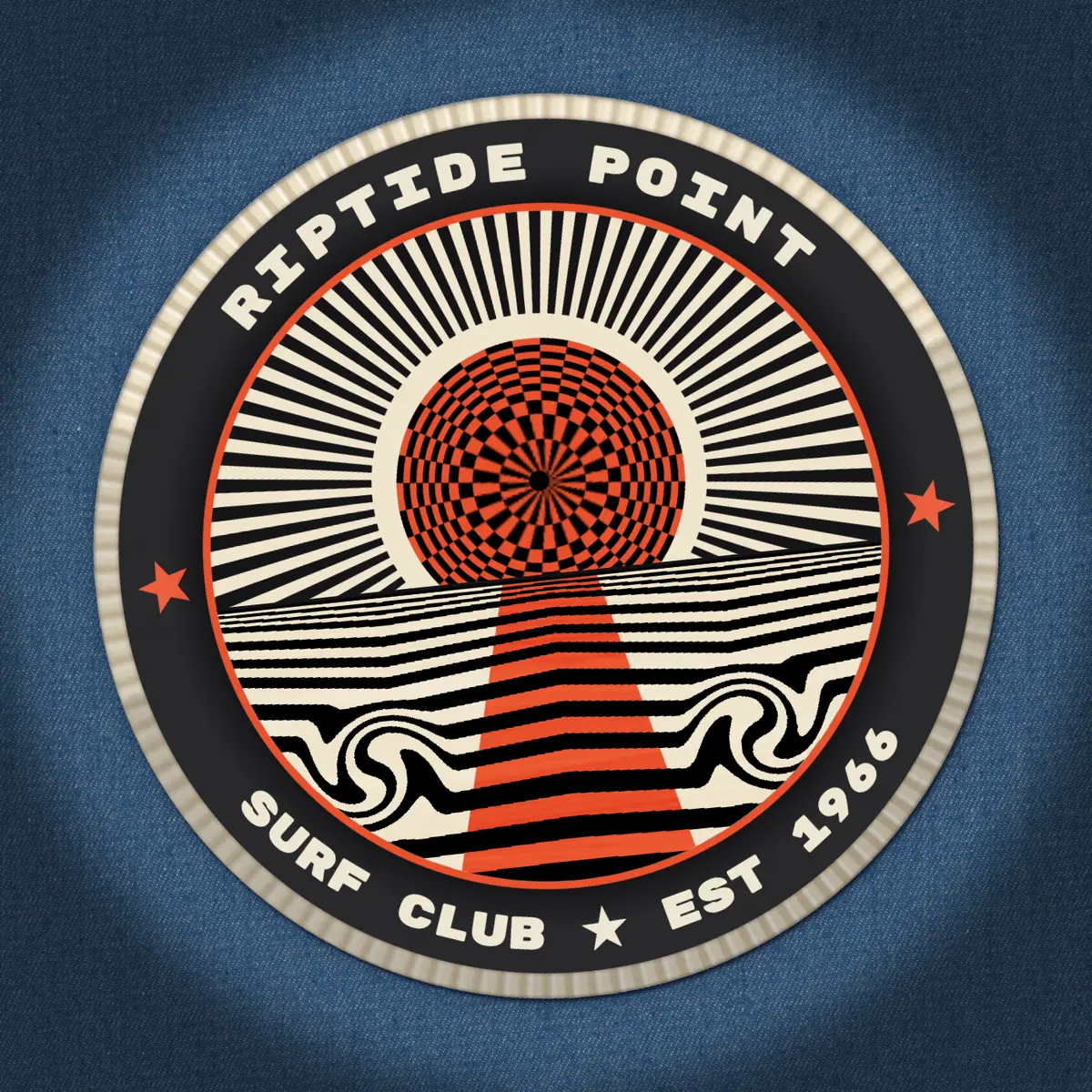
Op art, short for optical art, was the big new look of the mid-1960s. Bridget Riley painted rows of black and white waves that seem to shimmer. Victor Vasarely bent checkerboards until they swelled like spheres. In this tutorial you'll put both ideas on a souvenir patch for a made-up surf club, Riptide Point, founded in 1966, and show it ironed onto a denim jacket.
The art is built from a few optical tricks:
- a sky of thin rays
- a sun made of rings and wedges, swapped black-for-white with the Difference blend mode and then bulged with Lens Distortion
- a sea of stripes that squeeze toward the horizon and twist into two eddies (the "riptides")
After that, you'll make it look stitched. That means a wrapped merrow edge (the thick overlocked border real patches have), thread texture and a soft shadow on the cloth.
The canvas is 1400 × 1400 px. The background is a CC0 denim texture, "Denim fabric 03" by Rico Cilliers and colormass (via Poly Haven, on Wikimedia Commons). Any flat photo of denim works.
Along the way you'll use:
- ruler guides, the Grid with snapping, New Group and Merge Down
- the Elliptical Marquee and Rectangular Marquee with add and subtract, the Lasso, Select → Shrink, Feather and Inverse
- Sunburst, Lens Distortion, Liquify, Mesh Warp, Threshold, Gaussian Blur, Fibers, Add Noise, Motion Blur and Radial Blur
- Define Pattern and Fill with Pattern
- the Difference, Multiply, Overlay and Screen blend modes, and the Drop Shadow, Inner Glow and Outer Glow effects
- the Pen tool and text on a path in Rubik Mono One
- the Pencil, the Dodge/Burn tool, copy and paste, and rotating with the Move tool
The palette:
-
Bone
-
ink
-
coral
-
Merrow thread
-
stitch shade
-
stitch highlight
-
Shadow navy
-
merrow glow
-
band glow
-
Thread grey
texture layers only
Blend modes live in each layer's effects drawer: click the ✦ button on the layer's row and use the Blend dropdown at the top. Opacity is the percentage button on the row.
Positions are given as document coordinates where things have to line up. Watch X and Y in the status bar at the bottom of the window as you move the pointer. Everything is centred on the middle of the canvas (700, 700) unless I say otherwise.
-
Set up guides and drop in the denim
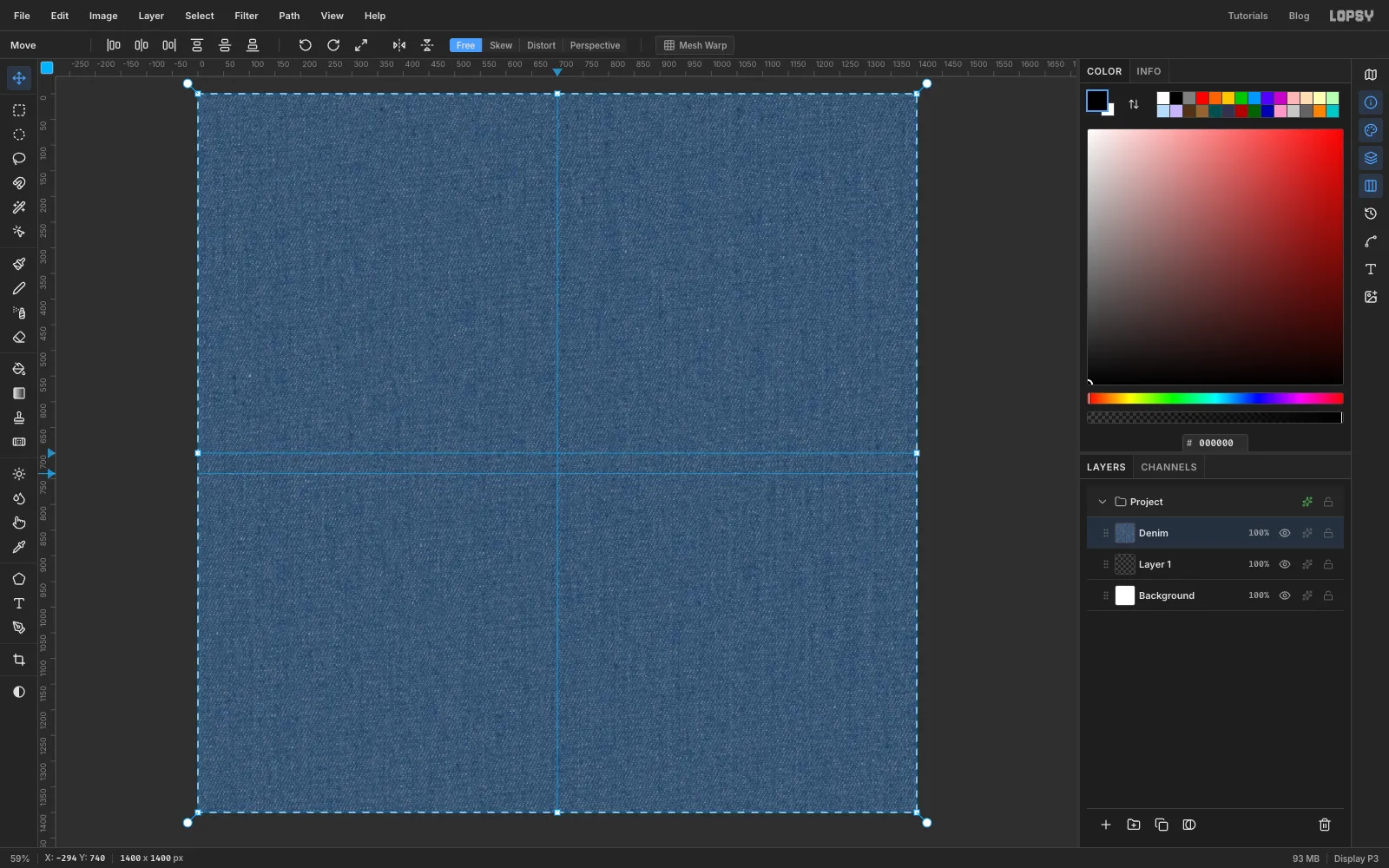
- Choose File → New, set Width and Height to
1400and click Create. - Click the top ruler at
x 700to drop a vertical centre guide. - Click the left ruler at
y 700(the centre) and again aty 740. The second guide is the horizon. - Drag your denim photo from your desktop onto the canvas. Lopsy fits a big photo to the canvas and puts it on its own layer.
- Double-click the new layer's name and call it
Denim. The new document'sBackgroundand emptyLayer 1stay underneath, hidden by the photo.
- Choose File → New, set Width and Height to
-
Build the patch blank from four circles
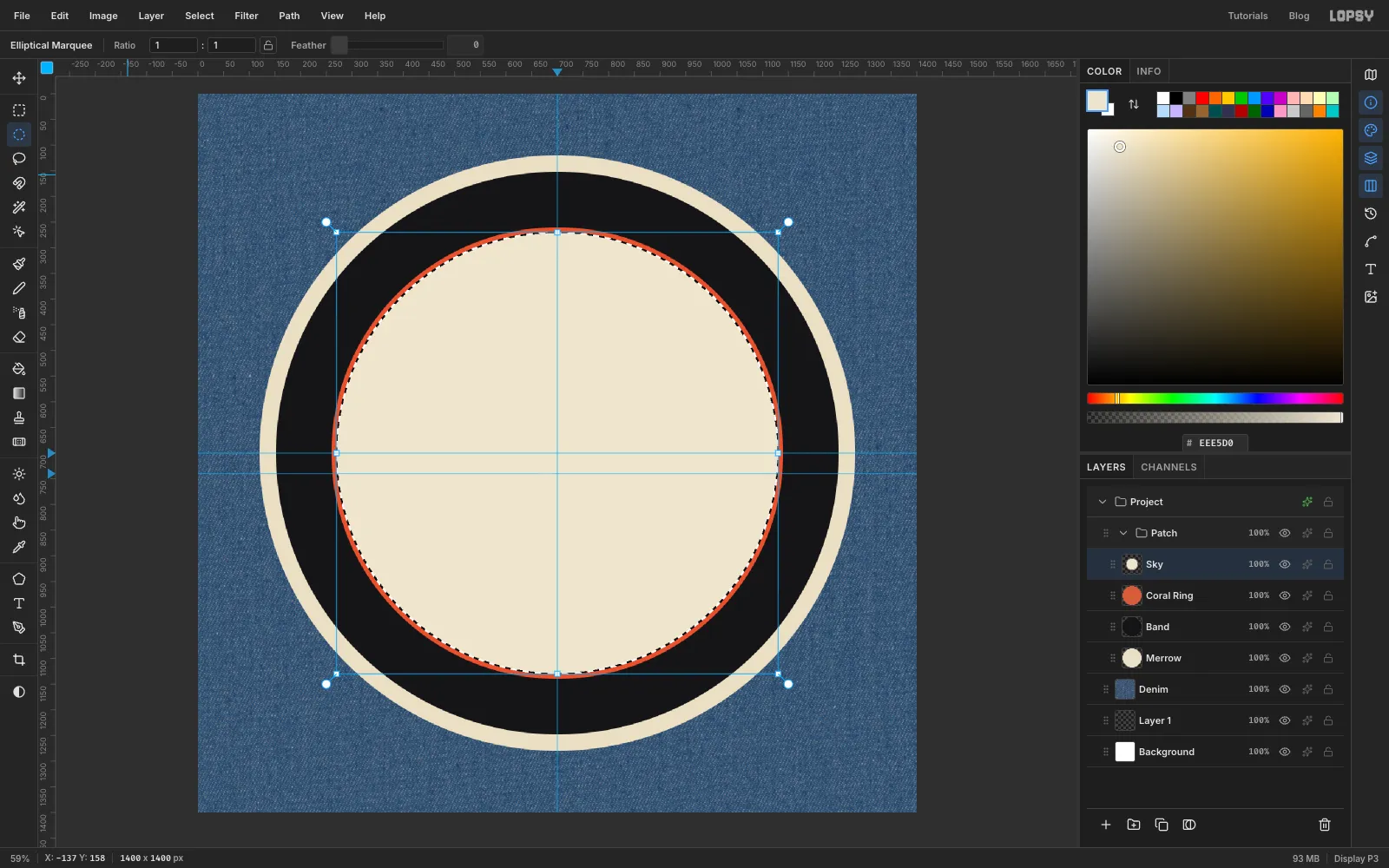
The patch is four stacked discs, each a little smaller than the one below. Seen from above, they make the edge, the lettering band, a coral keyline and the art area.
- With Denim selected, click New Group at the bottom of the Layers panel and name it
Patch. Everything from now on goes inside this group. - Click Add Layer and name it
Merrow. Pick the Elliptical Marquee in the toolbox. Drag from120, 120to1280, 1280to make a circle. Set the foreground colour to and choose Edit → Fill. - Add a layer called
Band. Draw a circle from152, 152to1248, 1248and fill it with . - Add a layer called
Coral Ring. Draw a circle from260, 260to1140, 1140and fill it with . - Add a layer called
Sky. Draw a circle from270, 270to1130, 1130and fill it with . That leaves a 10 px coral keyline. Keep the selection for the next step.
- With Denim selected, click New Group at the bottom of the Layers panel and name it
-
Fan out the sky rays with Sunburst
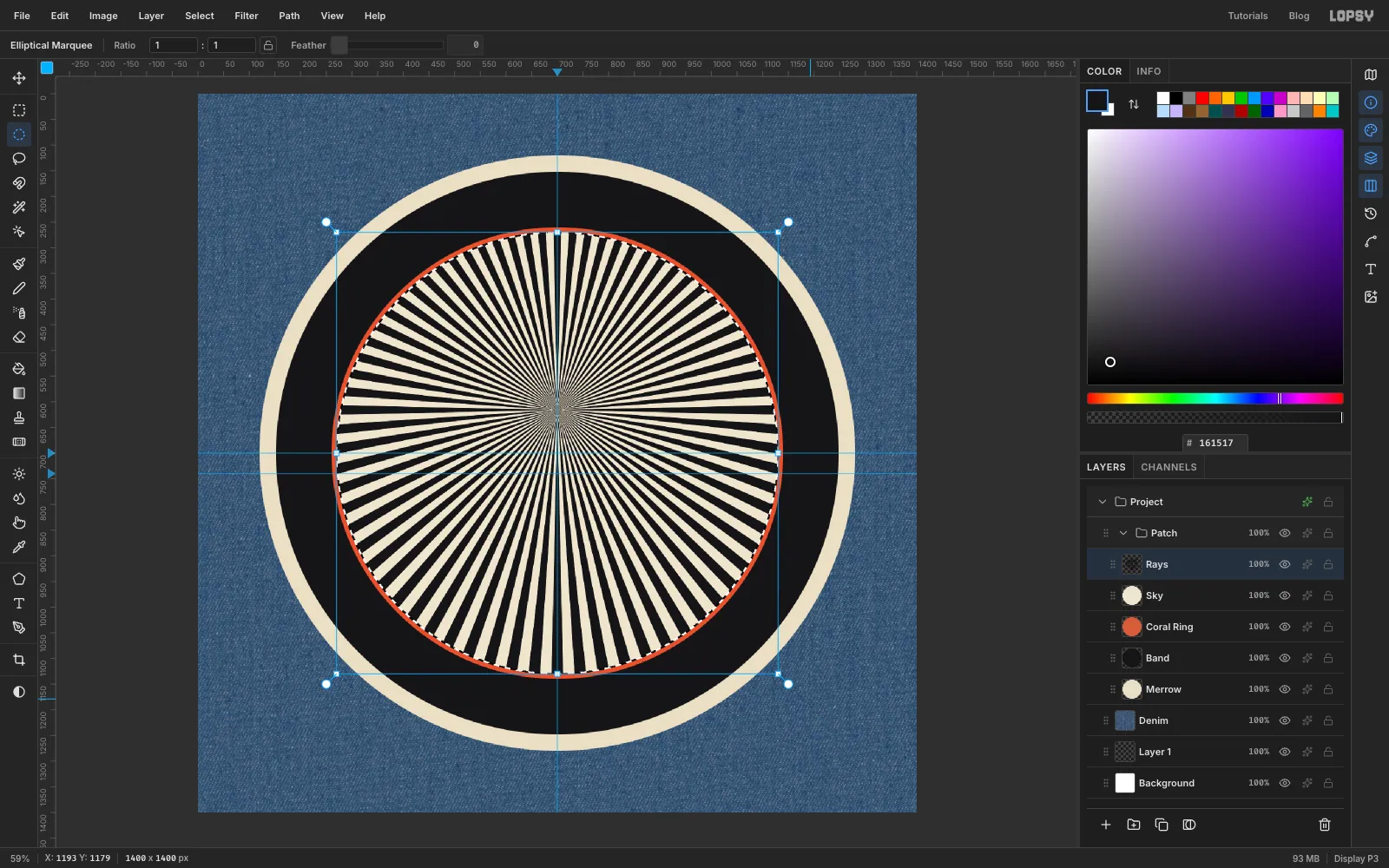
- Add a layer called
Rays. Your Sky circle should still be selected. - Set the foreground colour to ink .
- Choose Filter → Sunburst… and set Rays
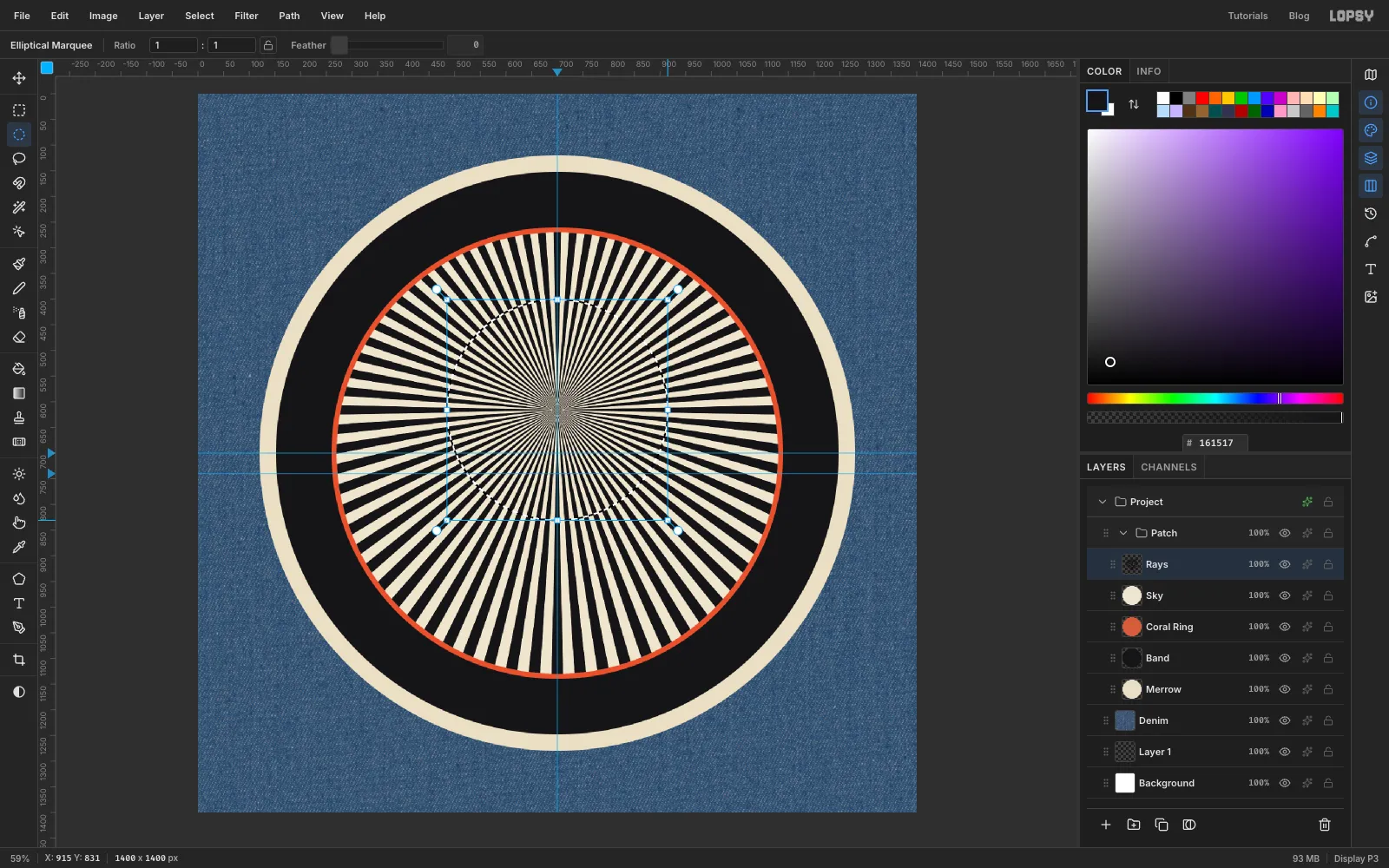
72, Length150, Width50and Taper0. Set Center X to50and Center Y to44. That's 44% of the way down, which puts the burst at700, 616, where the sun will go. - Click Apply. Sunburst only paints inside the selection, so the rays stop at the coral ring.
Width 50 makes each ray exactly as wide as the gap next to it. Equal black and cream is what makes rays like this flicker.
- Add a layer called
-
Clear a halo around the sun
All 72 rays meet in a muddy point. Cut a clean hole there:
- With the Elliptical Marquee, drag a circle from
485, 401to915, 831. That's a 215 px radius around the sun's centre. - Press Delete, then Cmd+D to deselect.
The cream gap that's left will frame the sun.
- With the Elliptical Marquee, drag a circle from
-
Draw concentric rings with Shrink
The sun starts out big, in the middle of the canvas. That way the Lens Distortion in a later step has room to work. You'll shrink it into place afterwards.
- Add a layer called
Sun. - Draw a circle from
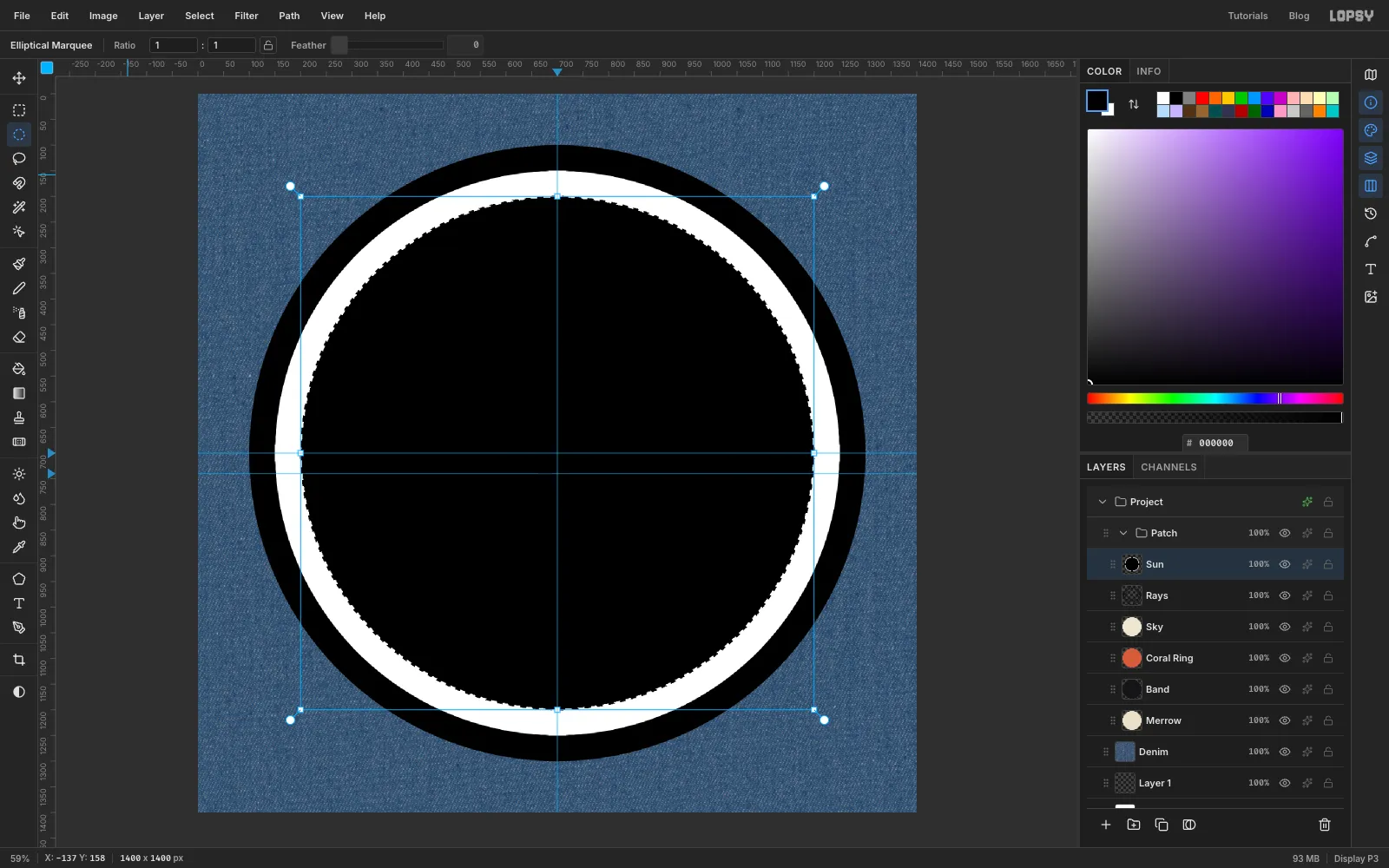
100, 100to1300, 1300(a 600 px radius) and fill it with pure black . - Choose Select → Shrink…, enter
50and click Apply. Fill the smaller selection with pure white . - Shrink by
50again and fill with black.
Use pure black and white here, not ink and bone. You'll recolour the sun later, and pure values keep the next step exact.
- Add a layer called
-
Finish the rings
Keep going: Shrink
50, fill white, Shrink50, fill black. Stop after the eleventh shrink. You'll have twelve rings, black on the outside and white at the centre. Deselect.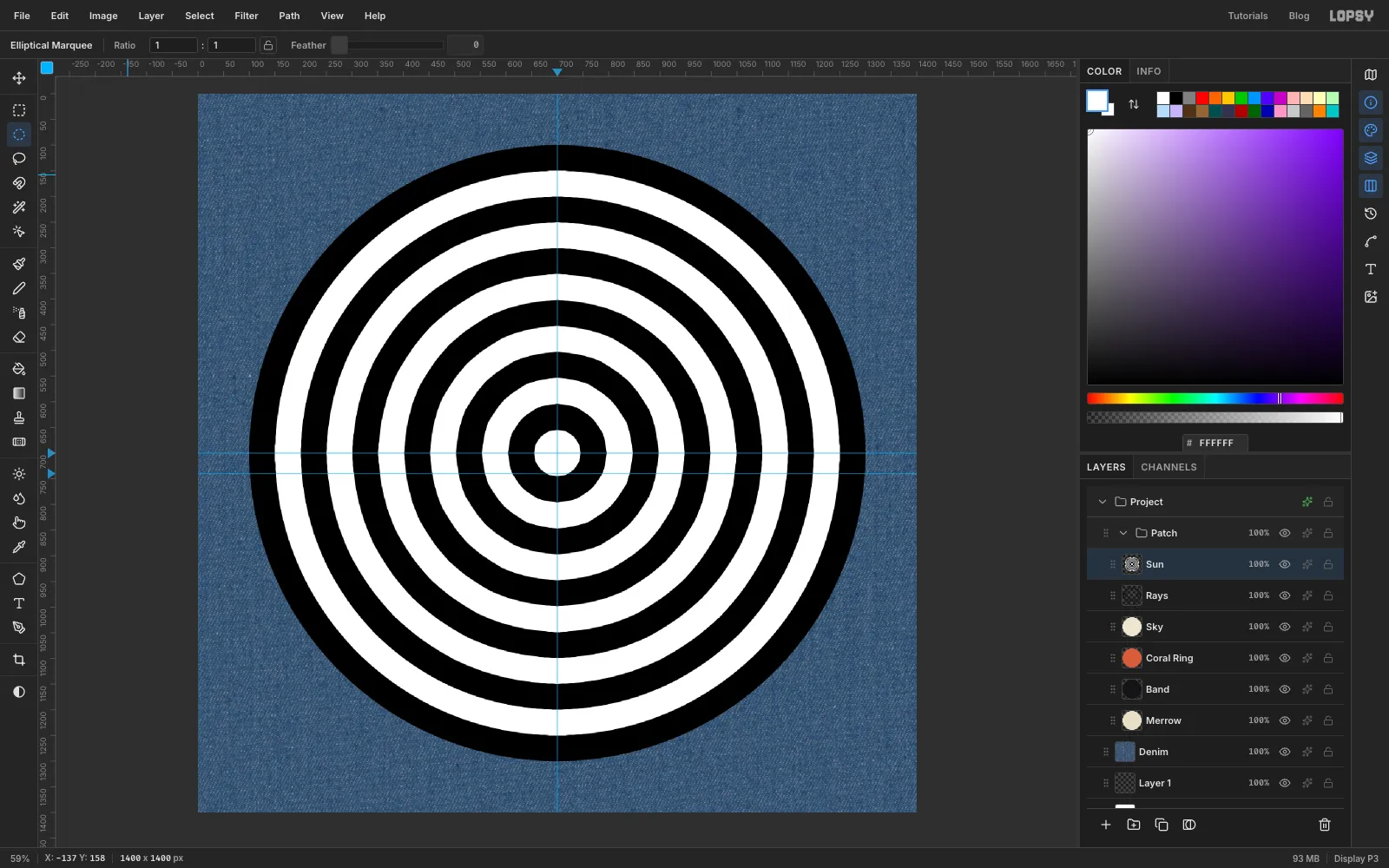
-
Turn the rings into a checkerboard with Difference
- Add a layer called
Wedgesand draw the same 600 px circle again. - Set the foreground colour to white and choose Filter → Sunburst…. Set Rays
16, Length150, Width50, Taper0and Center50/50. Click Apply, then deselect. - Open the layer's effects (the ✦ button on the row) and set Blend to Difference.
Difference flips the rings to their opposite colour wherever a white wedge covers them. The result is a polar checkerboard. Choose Layer → Merge Down to bake it into the
Sunlayer.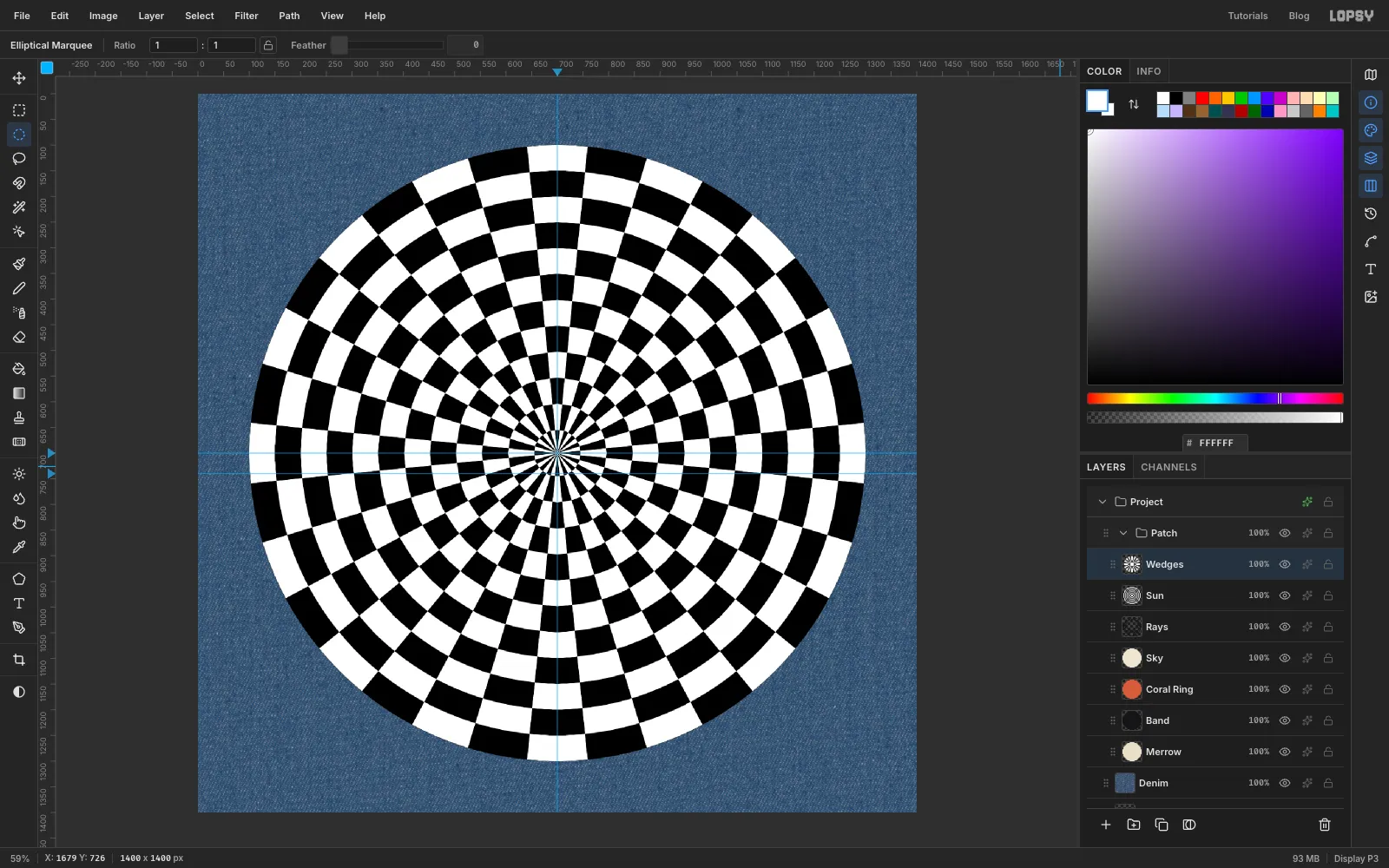
- Add a layer called
-
Bulge the checkerboard with Lens Distortion
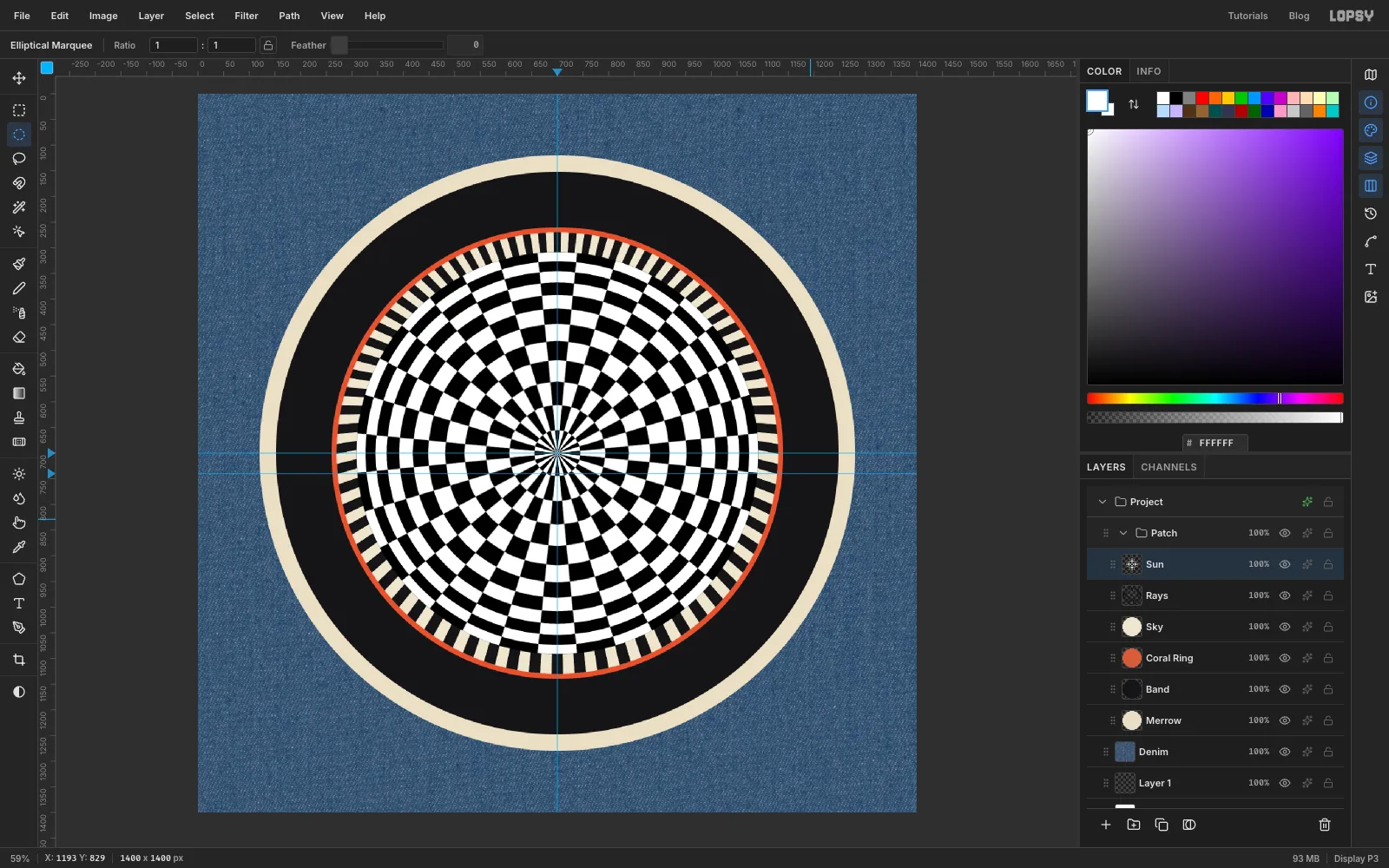
- Choose Filter → Lens Distortion…, set Strength
100and Zoom100, and click Apply. - Run it a second time at Strength
80.
Barrel distortion pushes the outer rings together and leaves the middle alone. That's how a sphere looks when it curves away from you, and it's Vasarely's Vega trick. The disc also shrinks noticeably, from a 600 px radius to about 390, because the outer rings get pushed off the edge.
- Choose Filter → Lens Distortion…, set Strength
-
Scale the sun down
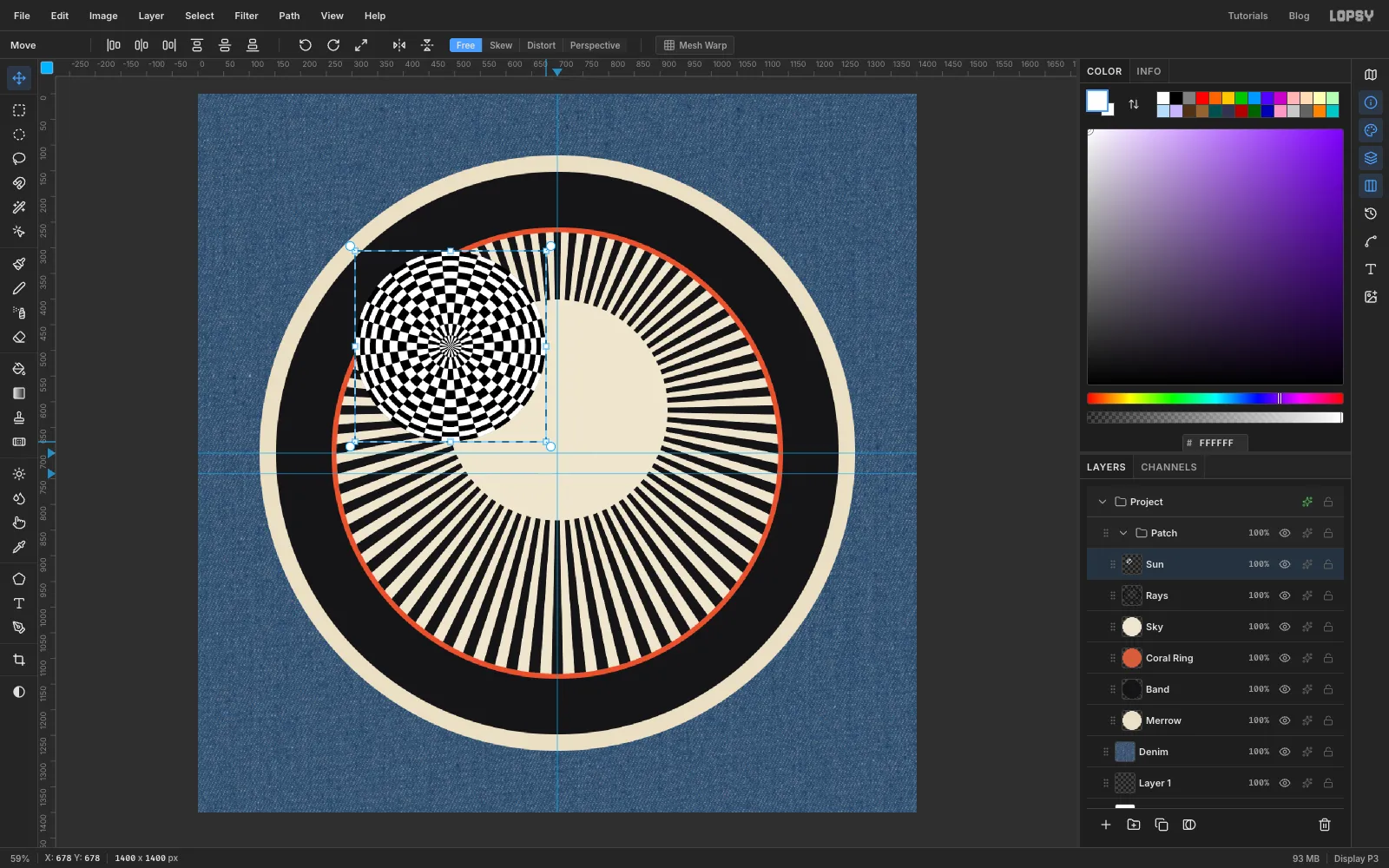
- Drag a rectangular marquee just around the sun (read its edges from the rulers).
- Switch to the Move tool (V).
- Hold Cmd and drag the bottom-right handle up and to the left until the box is about 370 px wide. Cmd keeps it in proportion. The top-left corner stays pinned.
- Press Cmd+D to commit.
-
Move the sun into place
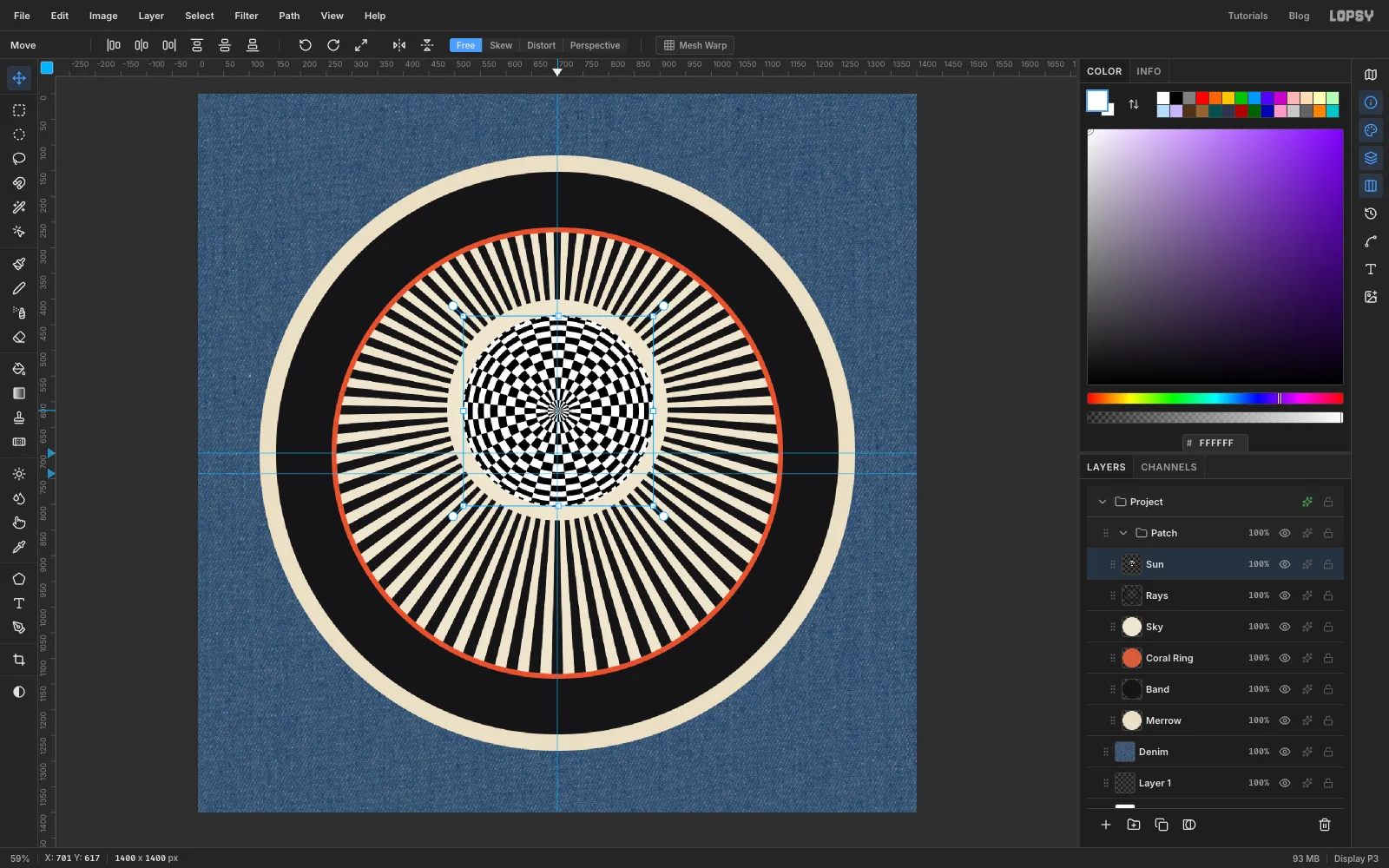
- Cmd-click the
Sunlayer's thumbnail to select its pixels. - With the Move tool, drag the sun into the middle of the halo. Its selection box's middle handles should line up with the vertical guide and with
y 616on the left ruler. - Deselect.
- Cmd-click the
-
Colour the sun and swell its middle
- Cmd-click the
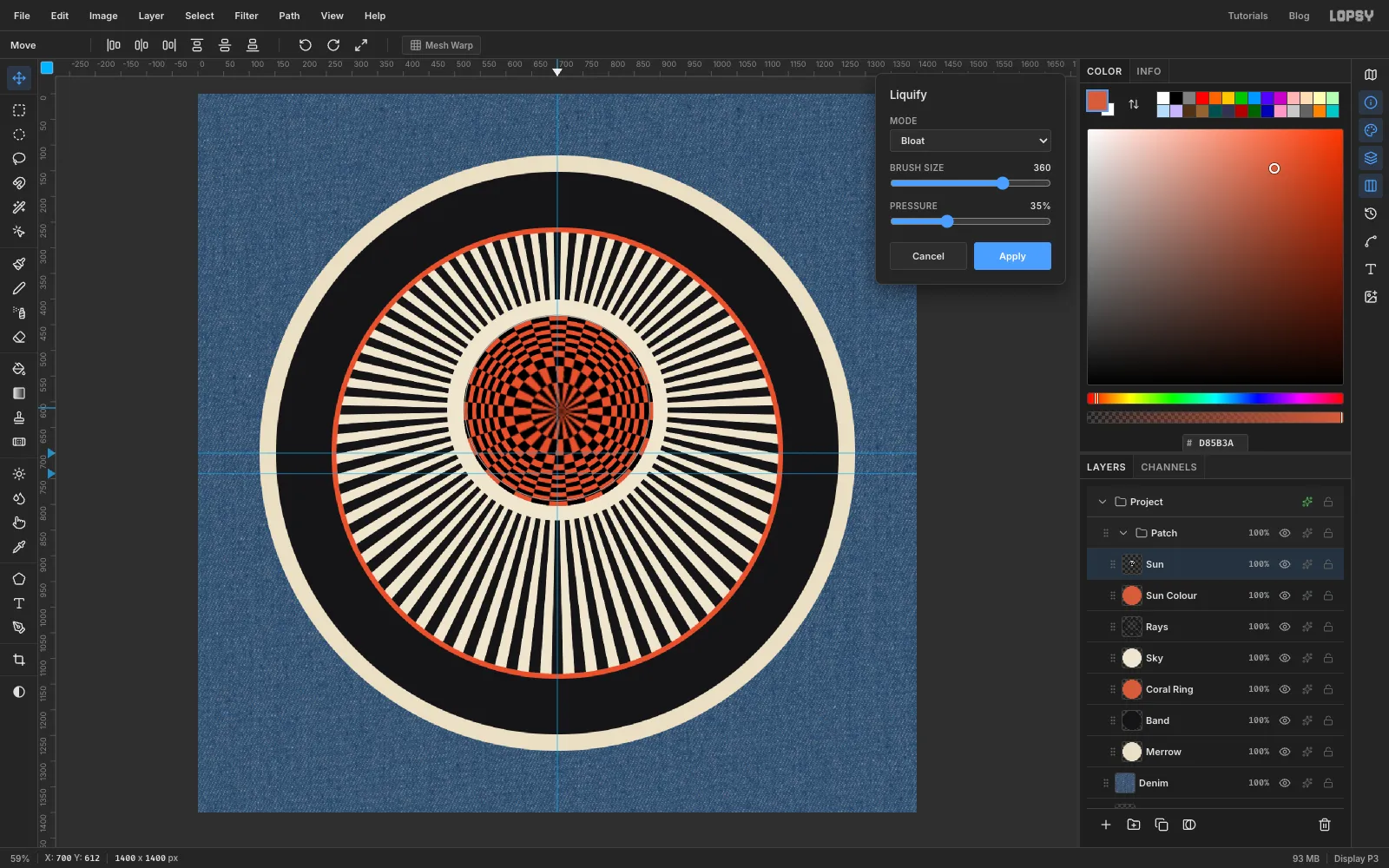
Sunthumbnail again. Then click theRayslayer and add a layer calledSun Colour. It goes between Rays and Sun. - Fill the selection with coral and deselect.
- Select the
Sunlayer and set its Blend to Multiply. White multiplied by coral is coral, and black stays black. - To exaggerate the bulge, choose Filter → Liquify…. Set the mode to Bloat, Brush Size
360and Pressure35. - Press on the sun's centre for a moment and give it a tiny wiggle, then click Apply.
Bloat only works inside its brush circle, so the sun's outline stays put.
- Cmd-click the
-
Plug the centre with a bullseye
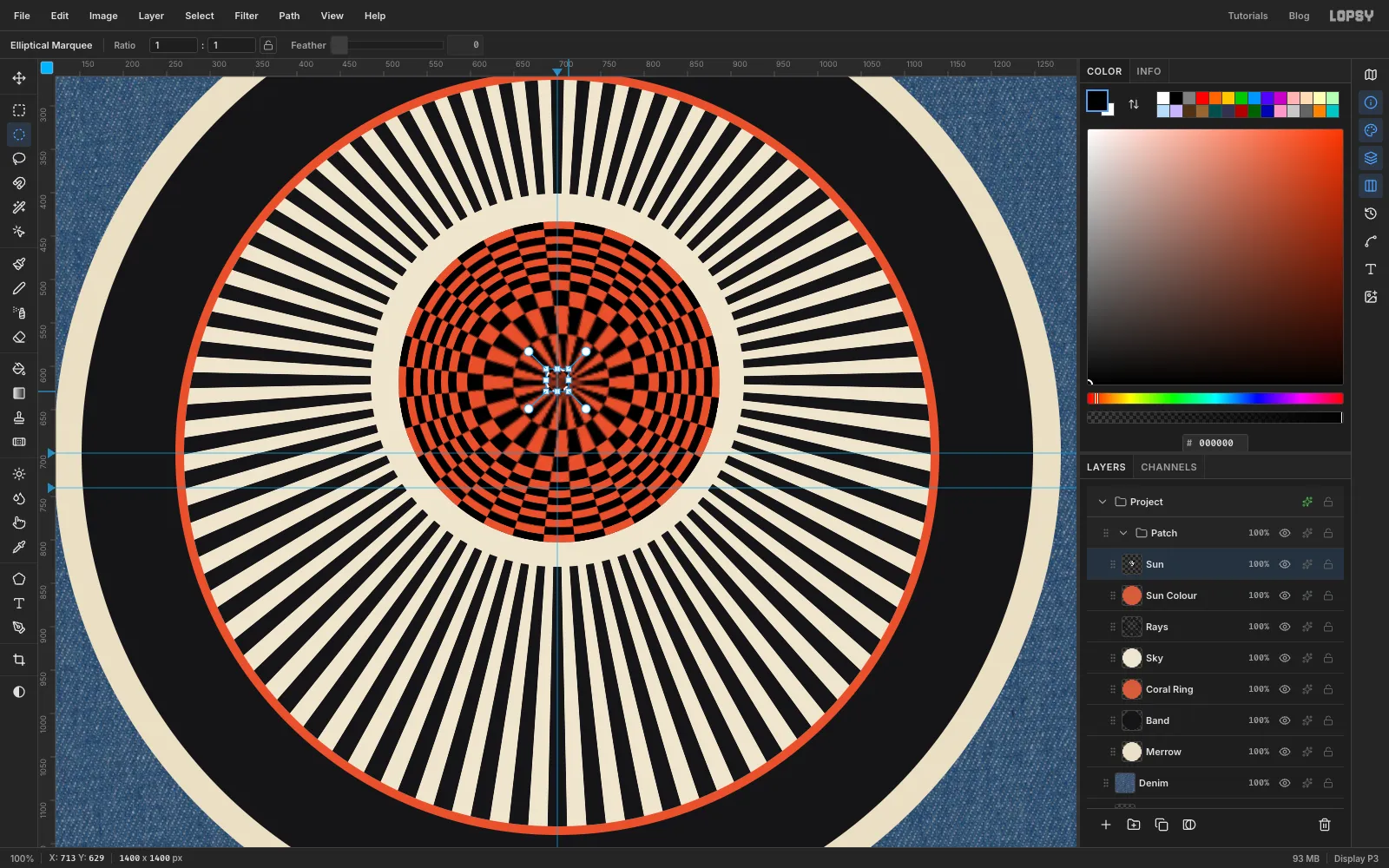
The sixteen wedges still pinch together into a grey pinwheel at the centre.
- Stay on the
Sunlayer and zoom in twice (Cmd+=). - Draw a small circle, about 26 px across, centred on
700, 616. Fill it with black.
- Stay on the
-
Lay in the sea and its reflection
- Select
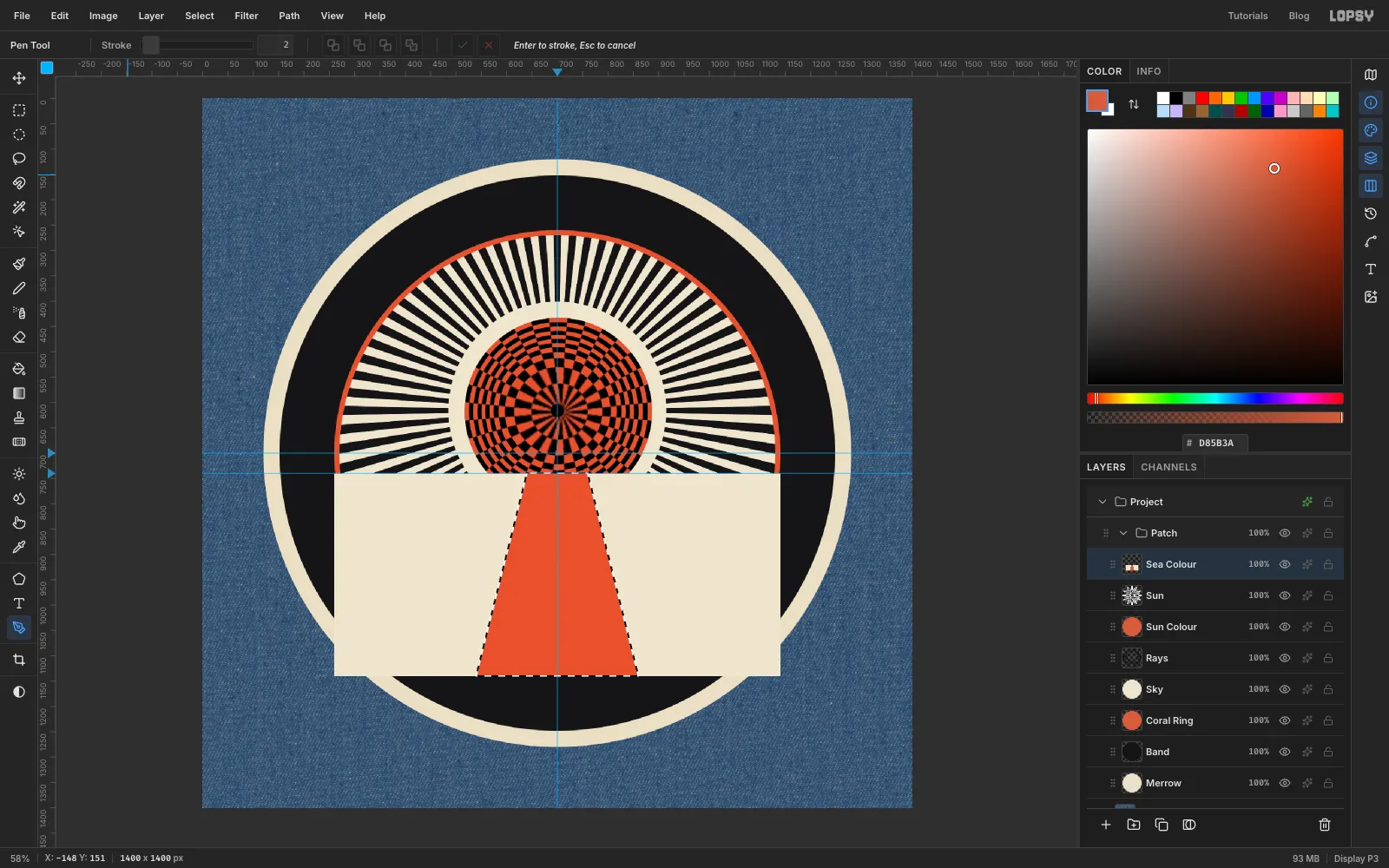
Sunand add a layer calledSea Colour, so the sea sits above the sun. - With the Rectangular Marquee, drag from
260, 740(on the horizon guide) to1140, 1140and fill with bone . This hides the bottom of the sun. - Draw the reflection as a trapezoid with the Pen (P). Click (don't drag) at
640, 740and760, 740on the horizon, then860, 1140and540, 1140at the bottom. Click the first anchor again to close the shape. - Open the Paths panel (its button is on the narrow strip at the far right of the window), click Path to Selection, then Delete Path (the selection stays). Fill it with coral.
The reflection is narrow at the horizon and widens toward you, the way a real one does.
- Select
-
Draw a stripe tile on the grid
- Choose View → Show Grid and set the grid size slider in the options bar to
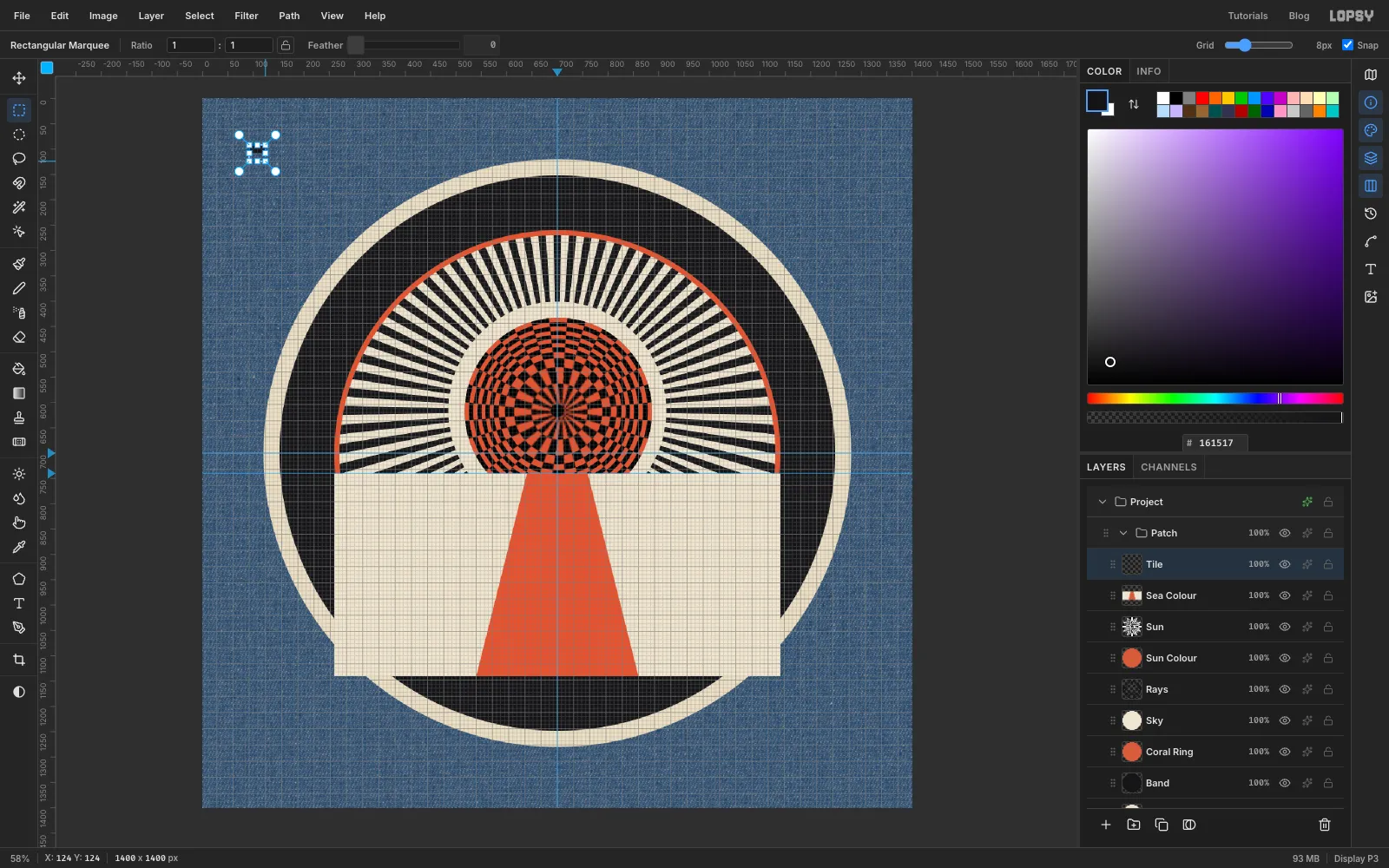
8px. Showing the grid also turns on Snap, so marquees land on grid lines. - Add a layer called
Tile. Drag a marquee from92, 92to124, 108and fill it with ink. That's a bar 32 px wide and 16 px tall. - Drag a marquee from
92, 92to124, 124(a 32 px square) and choose Edit → Define Pattern. - Deselect, then delete the
Tilelayer with the trash button. The pattern stays in the session. - Choose View → Show Grid again to hide it, and untick Snap.
- Choose View → Show Grid and set the grid size slider in the options bar to
-
Fill the sea with stripes
- Select
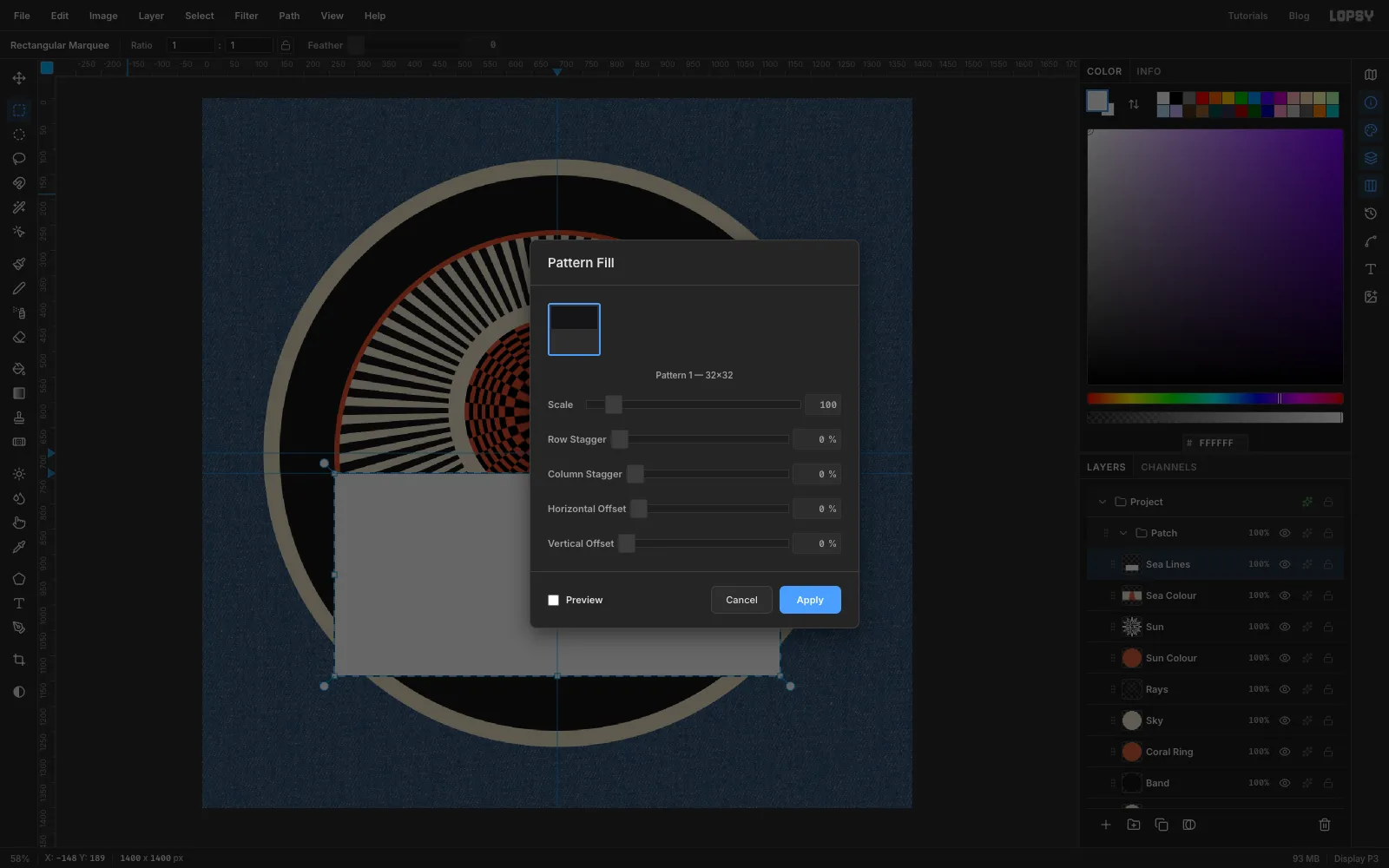
Sea Colourand add a layer calledSea Lines. - Draw the same rectangle as before (
260, 740to1140, 1140) and fill it with white. - Choose Edit → Fill with Pattern…, pick your tile, leave Scale at
100and click Apply.
The stripes go on a white layer, not a transparent one, so the next steps can treat them as a black-and-white image.
- Select
-
Multiply the stripes over the sea
Deselect and set the
Sea LinesBlend to Multiply. The white disappears, the black stays, and the coral reflection shows through between the stripes.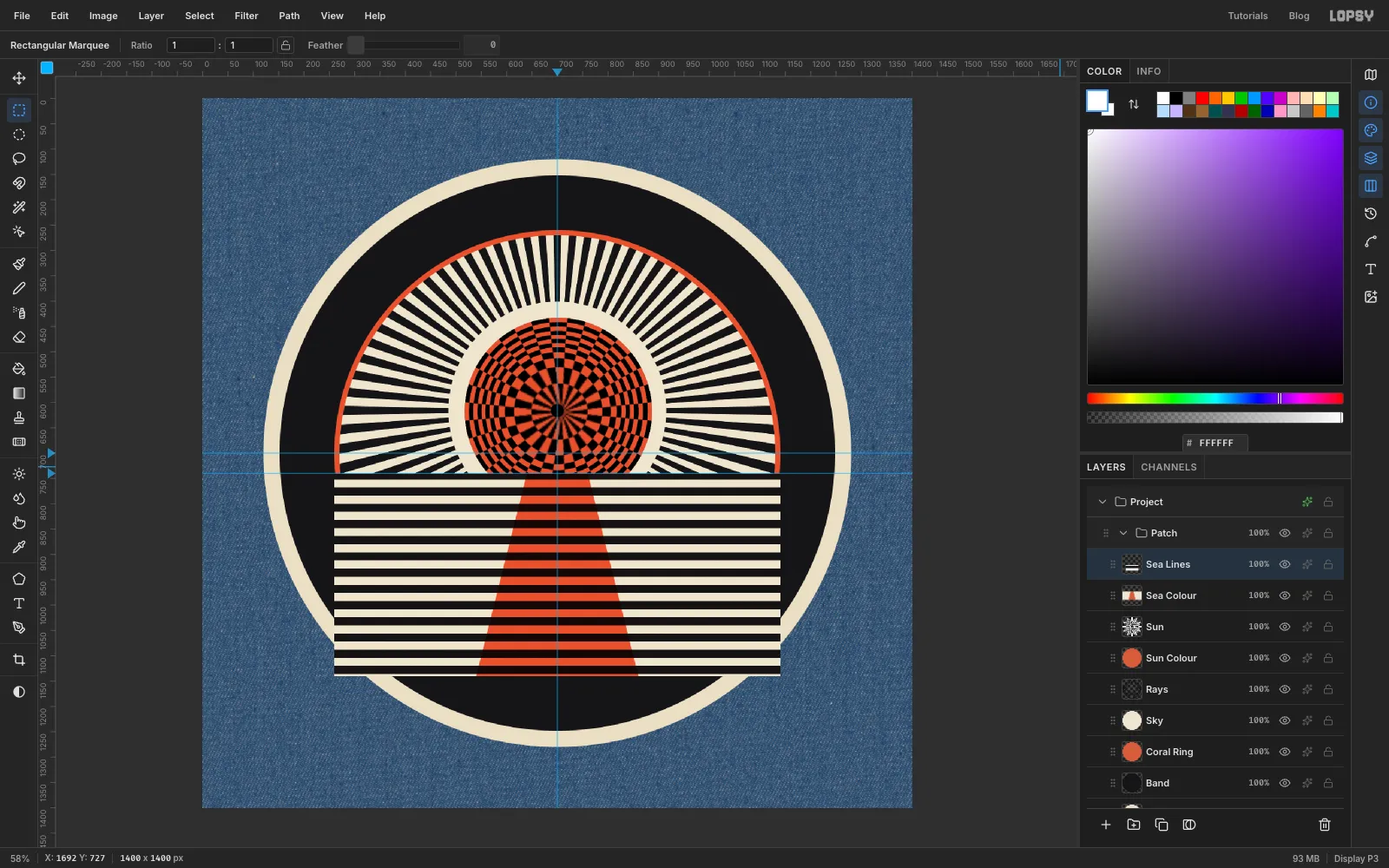
-
Squeeze the stripes toward the horizon with Mesh Warp
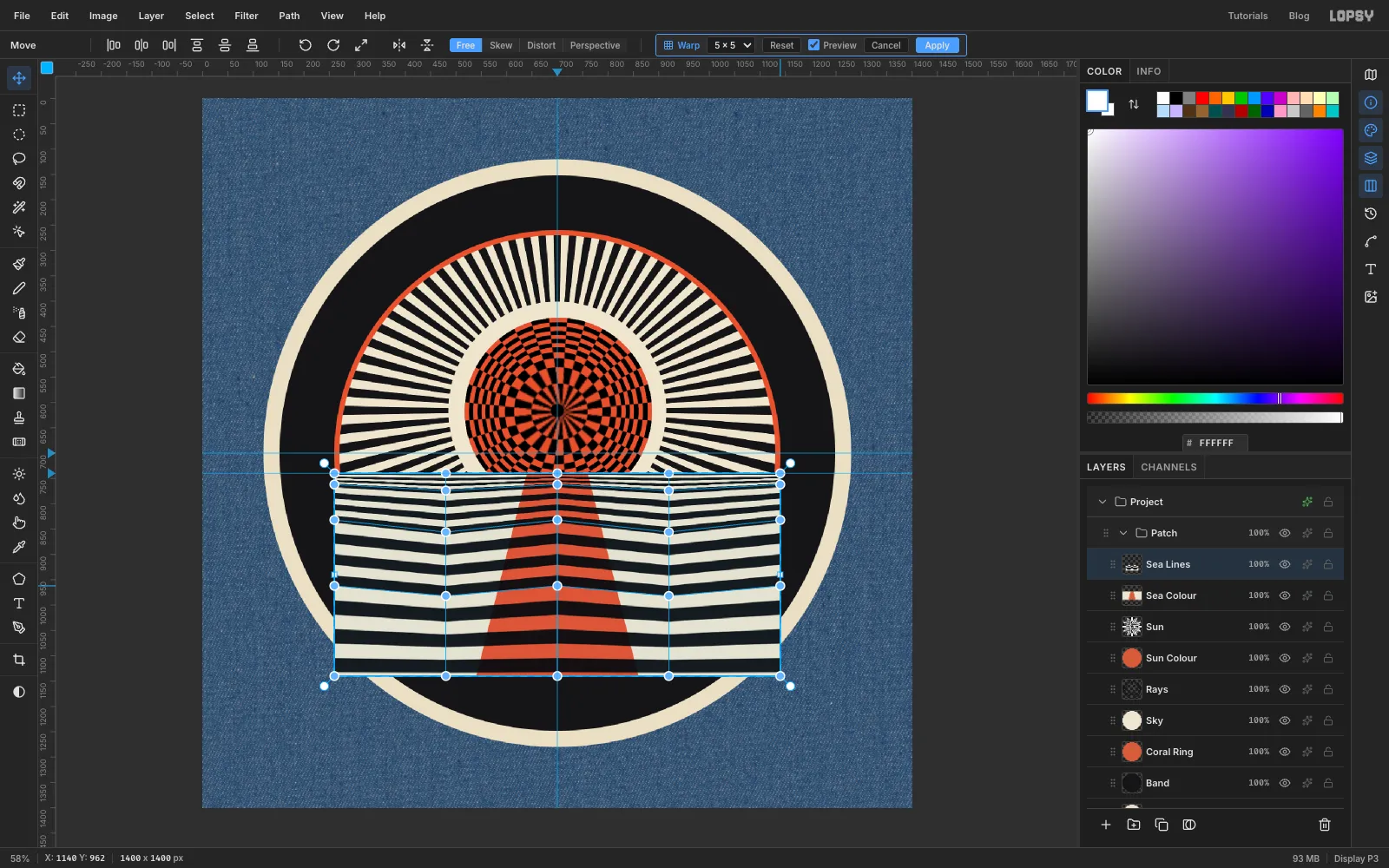
- With the Rectangular Marquee, draw the sea rectangle again (
260, 740to1140, 1140). - Switch to the Move tool, click Mesh Warp in the options bar, set the grid to 5 × 5 and tick Preview.
- Leave the top and bottom rows of handles alone. Drag every handle in the second row up about 70 px, the third row about 95 px and the fourth about 70 px.
- Nudge the handles in the second and fourth columns down a few pixels and the middle column up, so the stripes swell gently.
- Click Apply and deselect.
The stripes now crowd together near the horizon and open out toward you. That's Riley's rush of depth.
- With the Rectangular Marquee, draw the sea rectangle again (
-
Twist two riptide eddies with Liquify
- Keep
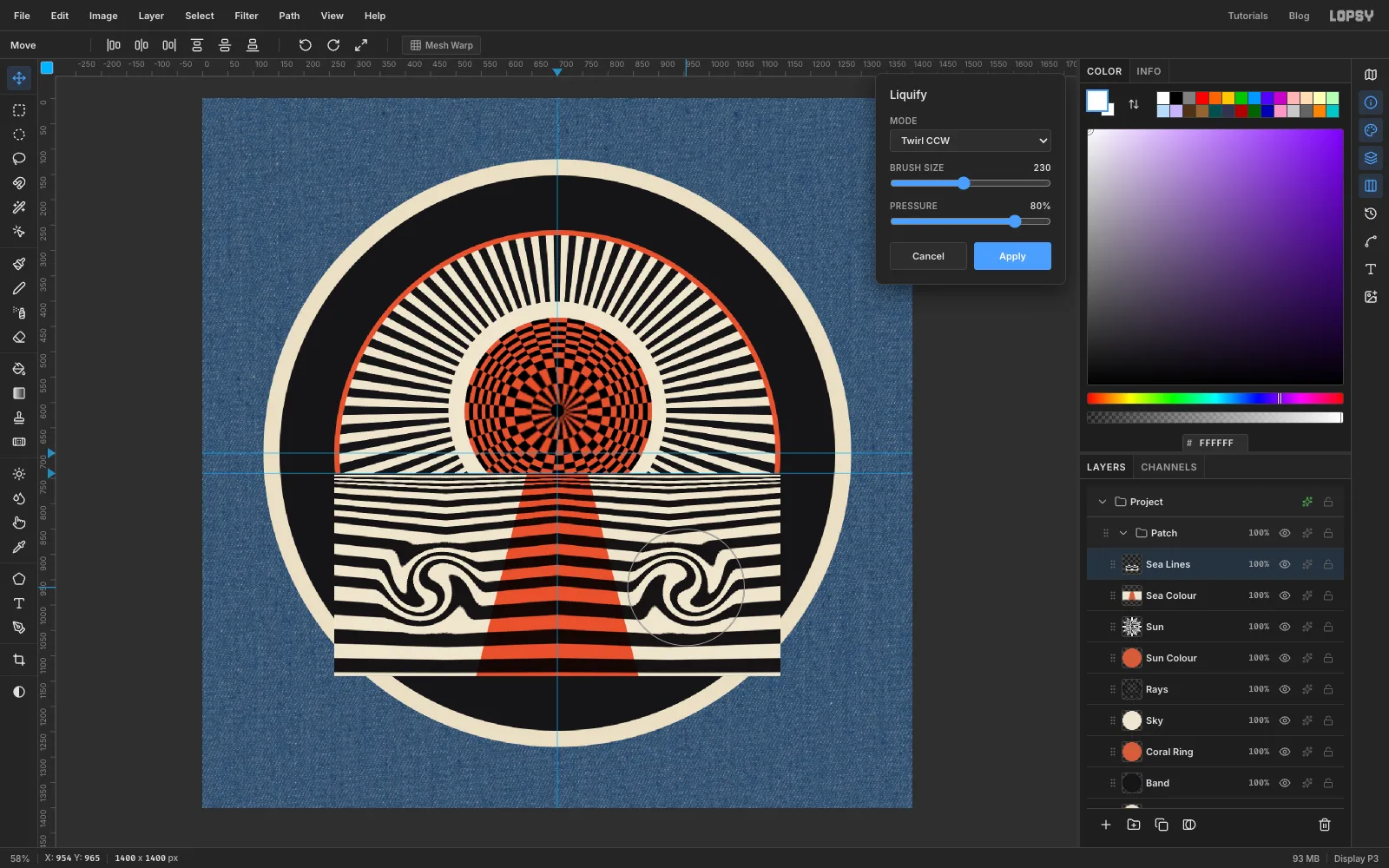
Sea Linesselected and choose Filter → Liquify…. - Set the mode to Twirl CW, Brush Size
230and Pressure80. - Press at
450, 965and keep wiggling the pointer in tiny circles until the stripes curl round into a wave. - Switch to Twirl CCW and do the same at
950, 965. This gives a mirror-image eddy. - Click Apply.
Keep both eddies clear of the reflection.
- Keep
-
Re-sharpen the edges with blur and Threshold
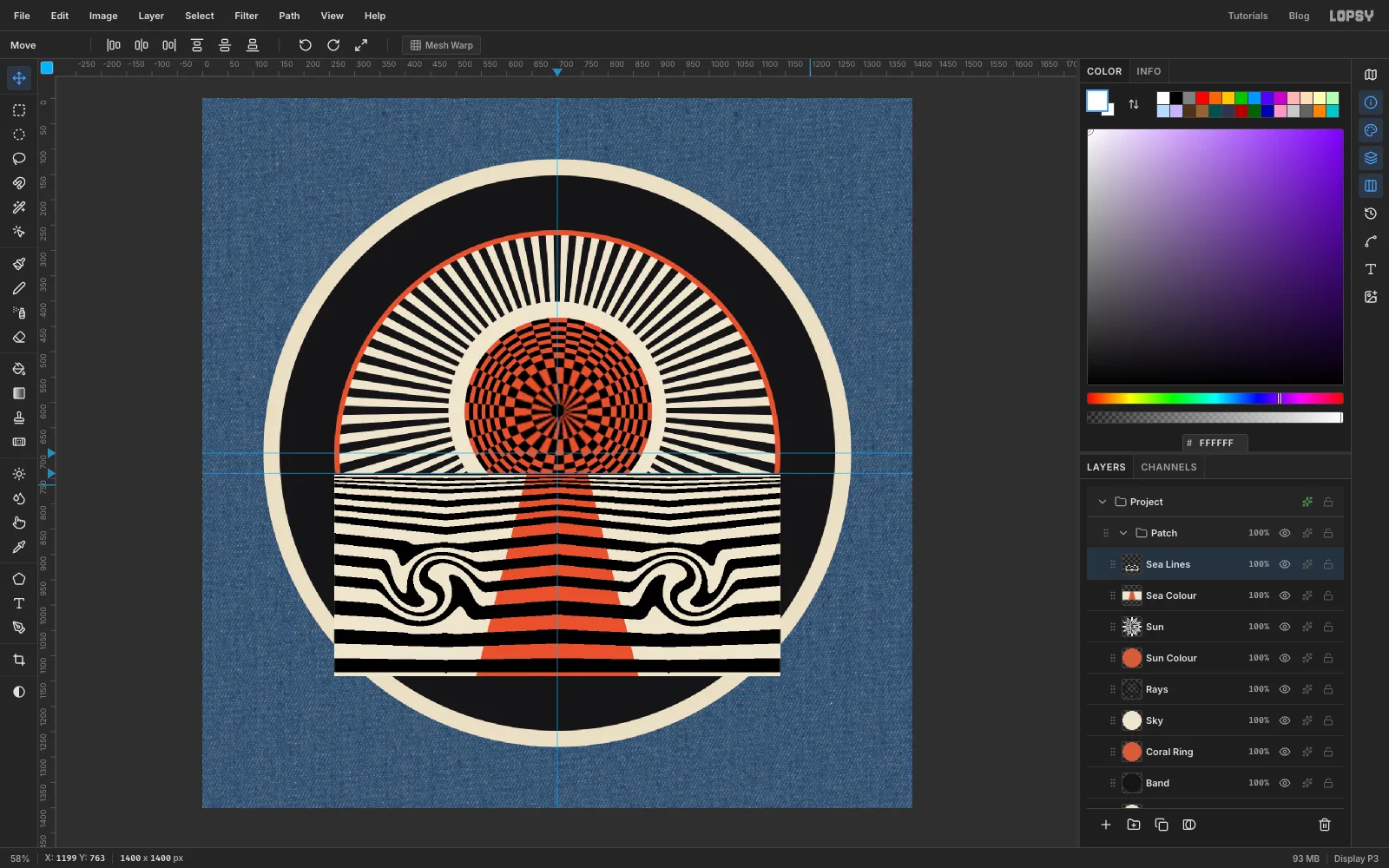
Liquify resamples the pixels, so the stripe edges come out soft and slightly ragged. Because the layer is pure black and white, you can rebuild them:
- Filter → Gaussian Blur…, Radius
3. This rounds off the raggedness. - Filter → Threshold…, Level
128. This snaps everything back to black or white. - Filter → Gaussian Blur…, Radius
1. This anti-aliases the new edges.
- Filter → Gaussian Blur…, Radius
-
Trim the sea and rule the horizon
- Cmd-click the
Skythumbnail and choose Select → Inverse. - Select
Sea Linesand press Delete. Then selectSea Colourand press Delete. Deselect. - With
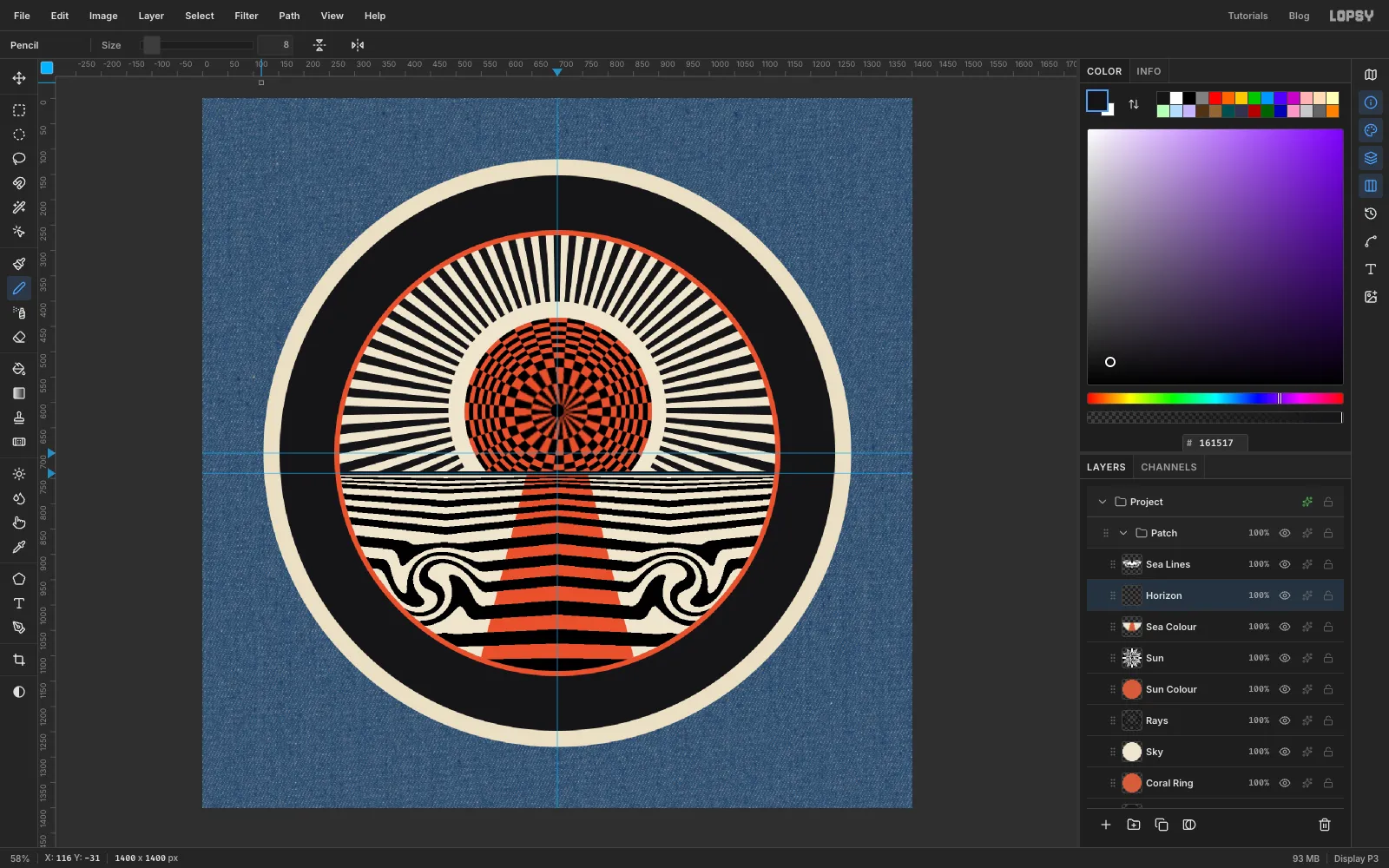
Sea Colourstill selected, add a layer calledHorizon. Pick the Pencil (N), set Size8and ink as the colour. - Click at
260, 740, then hold Shift and click at1140, 740to draw a straight line along the horizon guide. - Trim the line's ends the same way: Cmd-click Sky, Inverse, Delete, deselect.
- Cmd-click the
-
Set RIPTIDE POINT
- Select
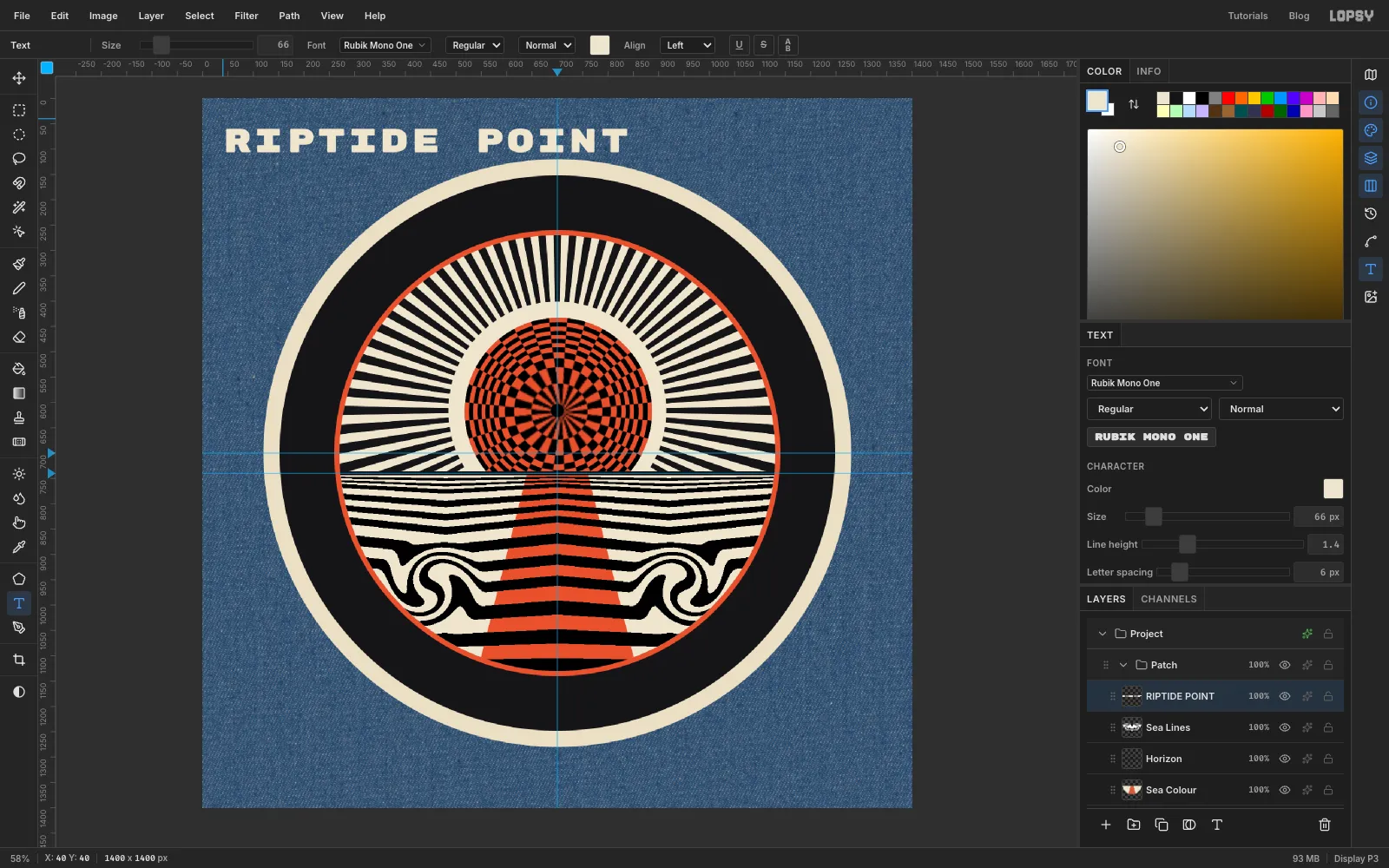
Sea Linesso the text lands above the art. - Pick the Text tool (T). Choose Rubik Mono One at size
66, with bone as the colour. - Click in the empty denim at the top-left, type
RIPTIDE POINTand press Tab to commit. - In the Text panel, set Letter spacing to
6.
- Select
-
Arch it over the top on a path
The lettering band runs from radius 440 to 548, so the middle of the letters should sit on a 494 px circle. With caps about 48 px tall, the baseline goes on a 470 px circle.
- Pick the Pen tool (P). Press at about ten o'clock on that circle (
345, 392) and drag a little along the curve to pull out a handle. - Add three more anchors the same way over the top (at about eleven, twelve and one o'clock), and a last one at about two o'clock (
1099, 451). Always drag each handle along the circle's direction. - Click ✓ in the options bar to keep it as a path.
- Select the text layer and choose that path from Path in the Text options bar.
If the word isn't centred over
x 700, draw the arc again, starting a little further round, and pick the new path.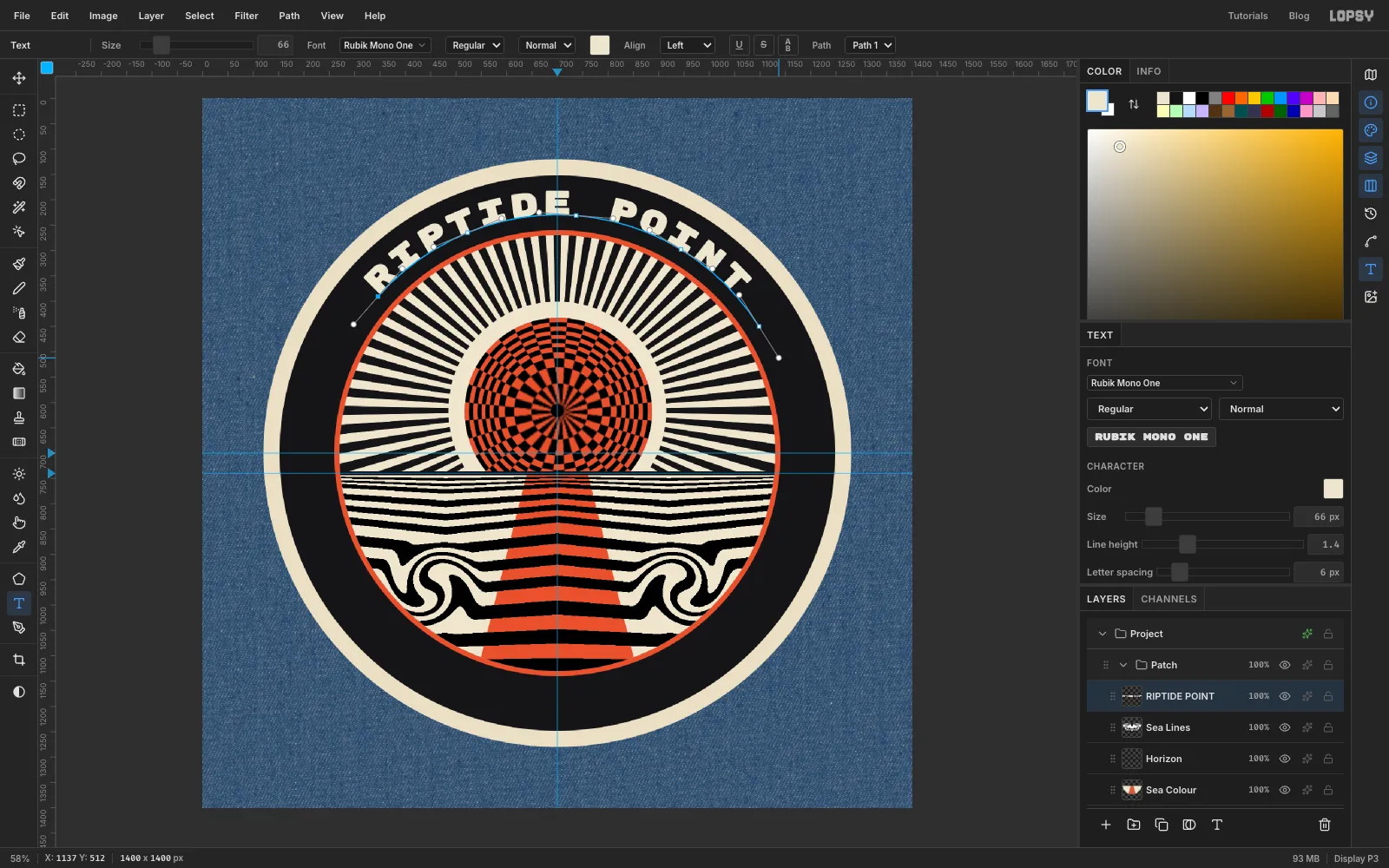
- Pick the Pen tool (P). Press at about ten o'clock on that circle (
-
Run SURF CLUB along the bottom
- Click the
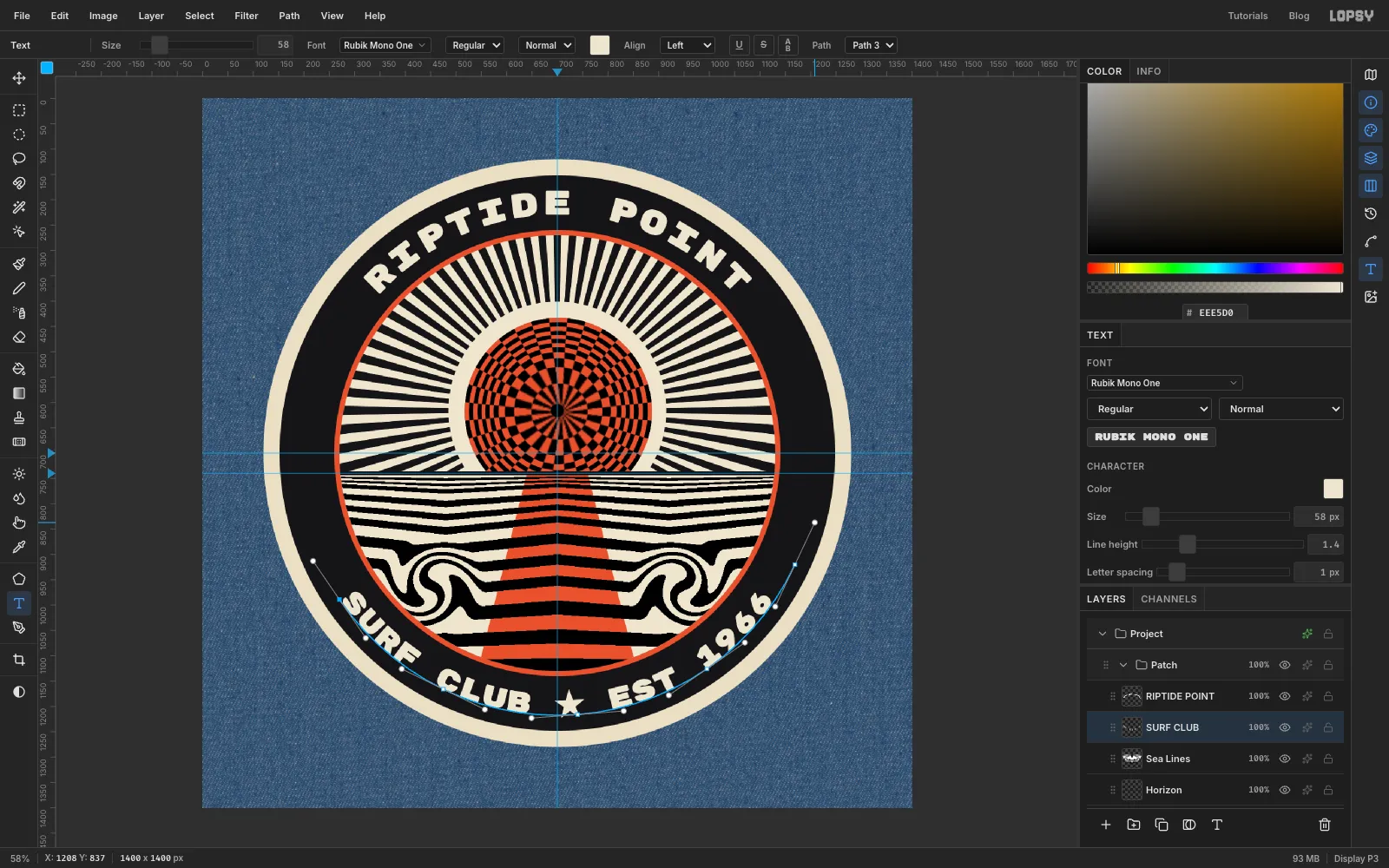
Sea Linesrow first, so the new settings can't restyle RIPTIDE POINT. With the Text tool in Rubik Mono One, set size58. - Click in empty denim and type
SURF CLUB ★ EST 1966(paste the ★ if it won't type), then press Tab. Set Letter spacing to1. - For upright text along the bottom, the path must run left to right under the circle, with the baseline on the outside. Use a 518 px circle (494 plus half the cap height). With the Pen, start at about eight o'clock (
271, 990), add anchors under the bottom and end at about four o'clock (1166, 927). Click ✓. - Bind the text to this path from the Path dropdown, as before.
Set the bottom line in the same face as the top one. Size it and space it so it spans roughly the same angle. Two different typefaces fight on a badge this small.
- Click the
-
Add a star and point it outward
- Select
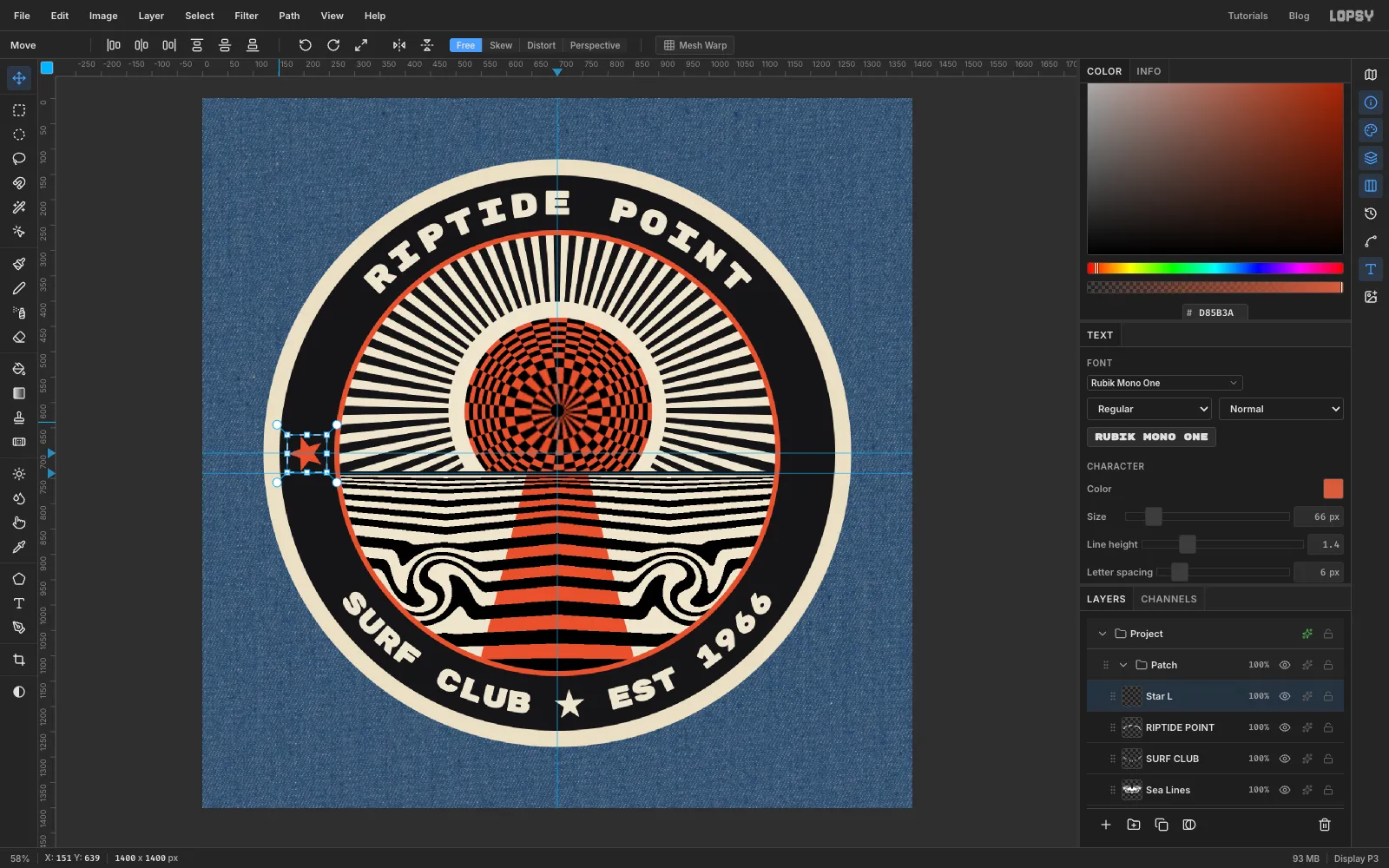
RIPTIDE POINTand add a layer calledStar L. - With the Pen, click the ten corners of a five-point star about 72 px across, centred at
206, 700(in the band at nine o'clock). Click the first corner again to close it. As with the reflection, use Path to Selection and Delete Path, then fill with coral. - Draw a marquee around the star. With the Move tool, hold Cmd and drag a round rotation handle just outside a corner. Turn it a quarter turn counter-clockwise, so a point faces out of the patch. Cmd snaps the angle to 15° steps.
- Cmd+D to commit. If the star has drifted off centre, nudge it back with the arrow keys.
- Select
-
Copy it to the other side
- Cmd-click the
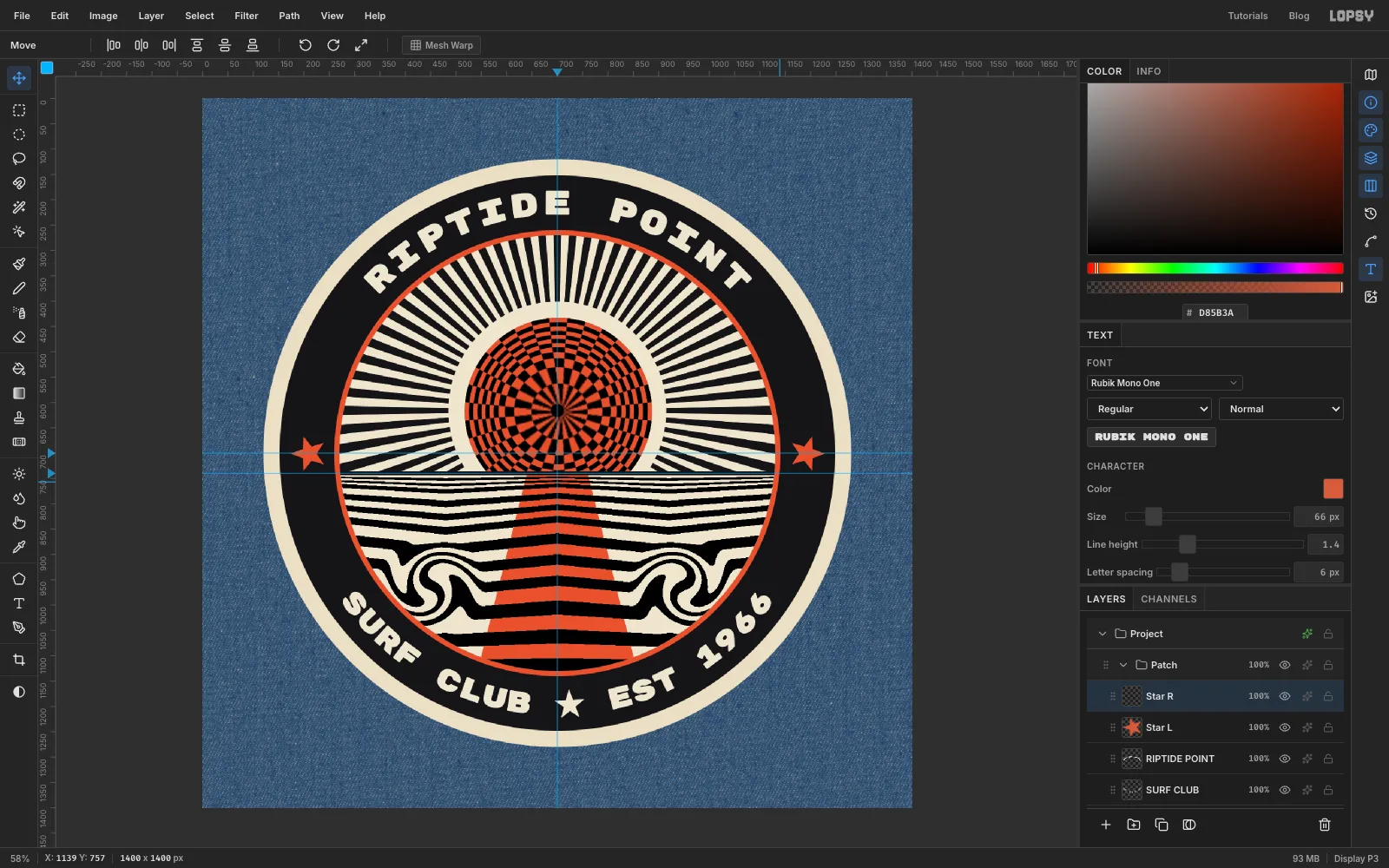
Star Lthumbnail, press Cmd+C, deselect and press Cmd+V. The copy pastes in place on a new layer. Name itStar R. - Drag it straight across with the Move tool to
1194, 700. - Marquee it and turn it 180° with the rotation handle, so it points right.
- Commit, and nudge it until it's centred in the band.
- Cmd-click the
-
Wrap stitches round the merrow edge
- Select
Merrowand Cmd-click its thumbnail. - Run Sunburst with : Rays
120, Length150, Width35, Taper0, Rotation0, Center50/50. - Run it again with , changing only Width to
14and Rotation to2. This puts a highlight beside each stitch. - Filter → Add Noise…, Amount
30, Mono. - Filter → Motion Blur…, Angle
60, Distance10. The streaks slant the stitches the way an overlocking machine wraps them. - Deselect.
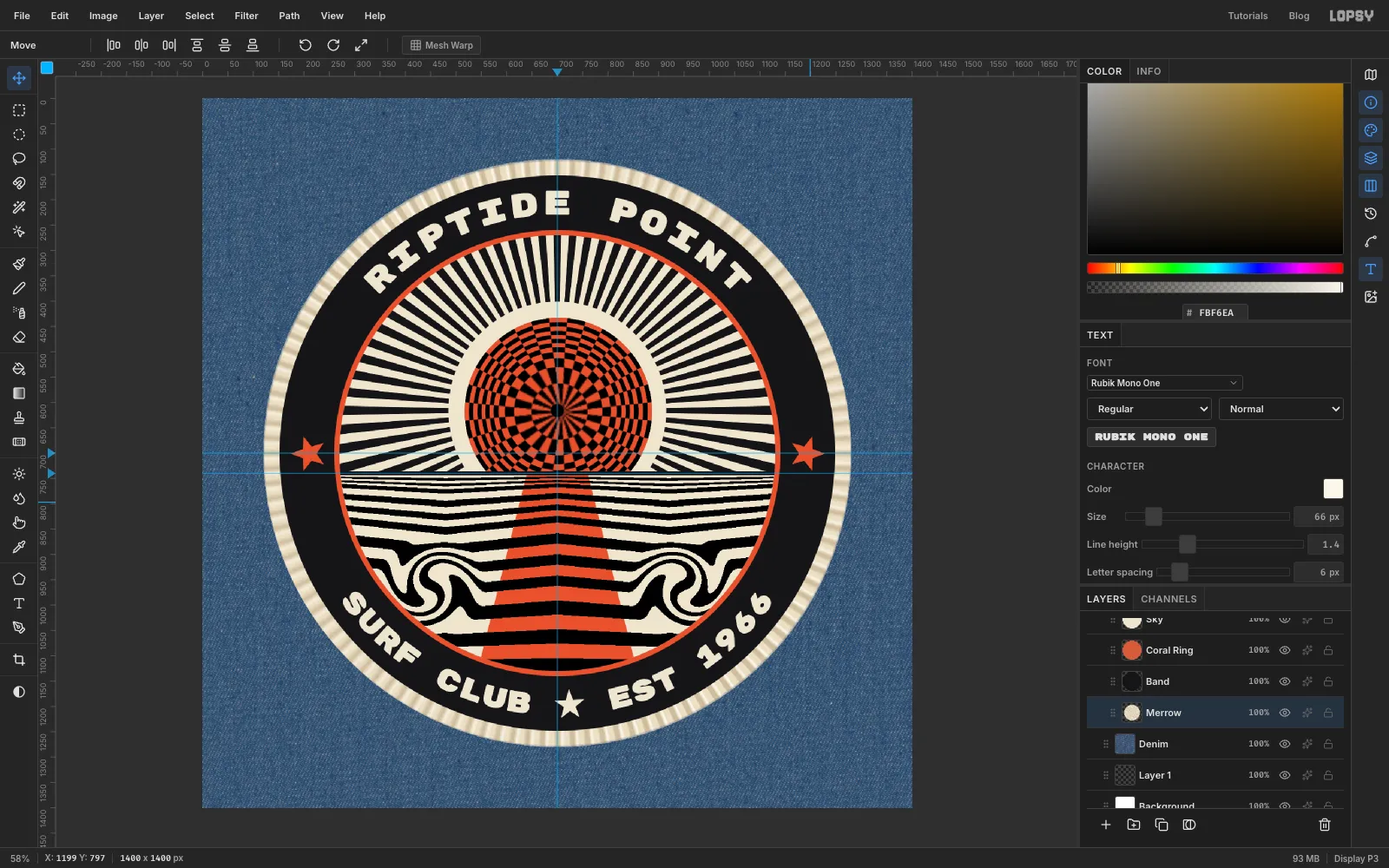
- Select
-
Round the edge and lift it off the denim
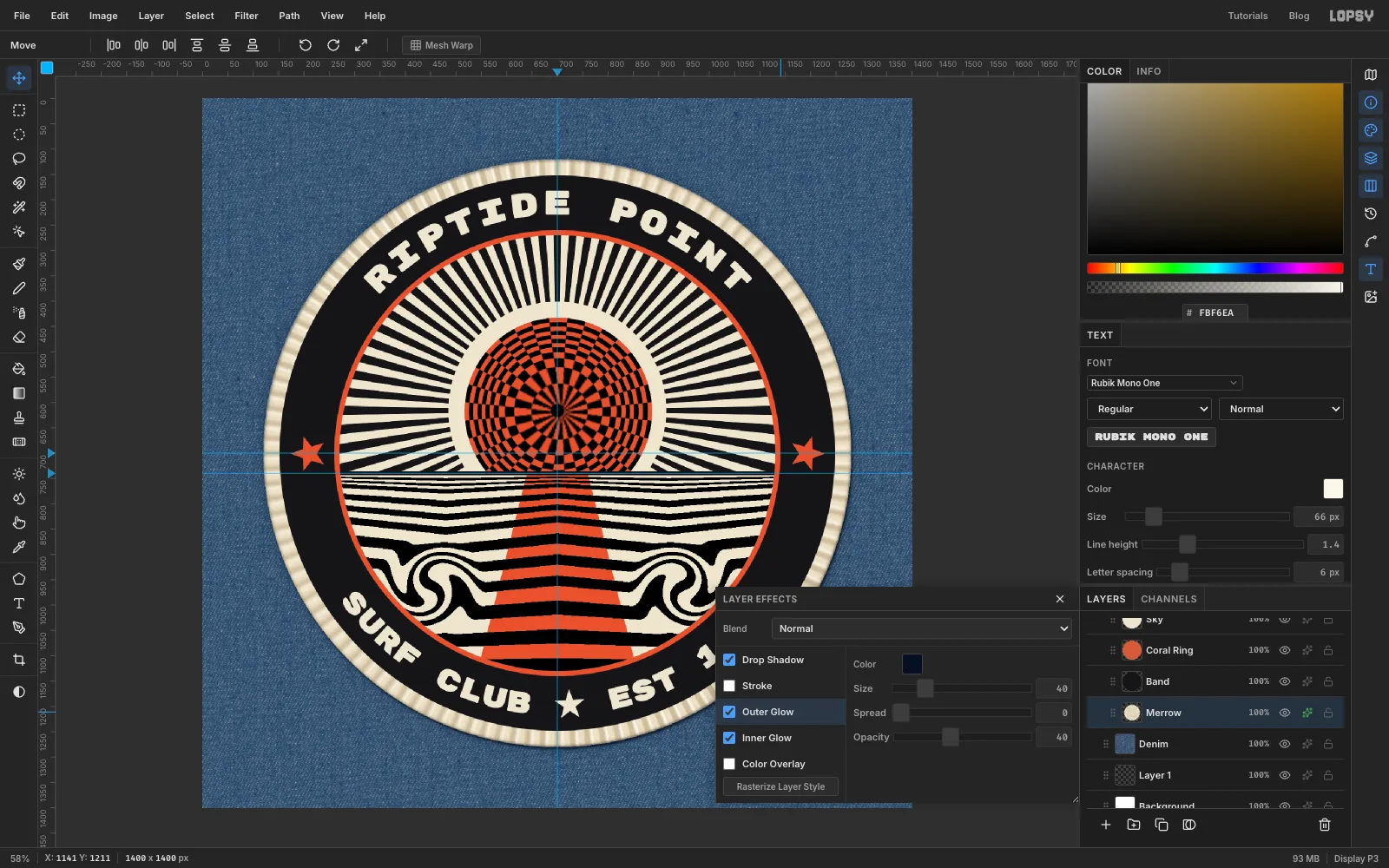
Open the
Merrowlayer's effects and turn on:- Inner Glow in , Size
12, Opacity65. This darkens the outer lip so the cord looks rounded. - Drop Shadow in , Offset X
3, Offset Y5, Blur6, Opacity75. This is a tight contact shadow. - Outer Glow in , Size
40, Opacity40. This is a wide, soft ambient shadow.
Close the drawer.
- Inner Glow in , Size
-
Shade the inside of the cord
Select
Bandand give it an Outer Glow in , Size9, Opacity70. The glow falls on the inside of the merrow, so the cord is now shaded on both sides.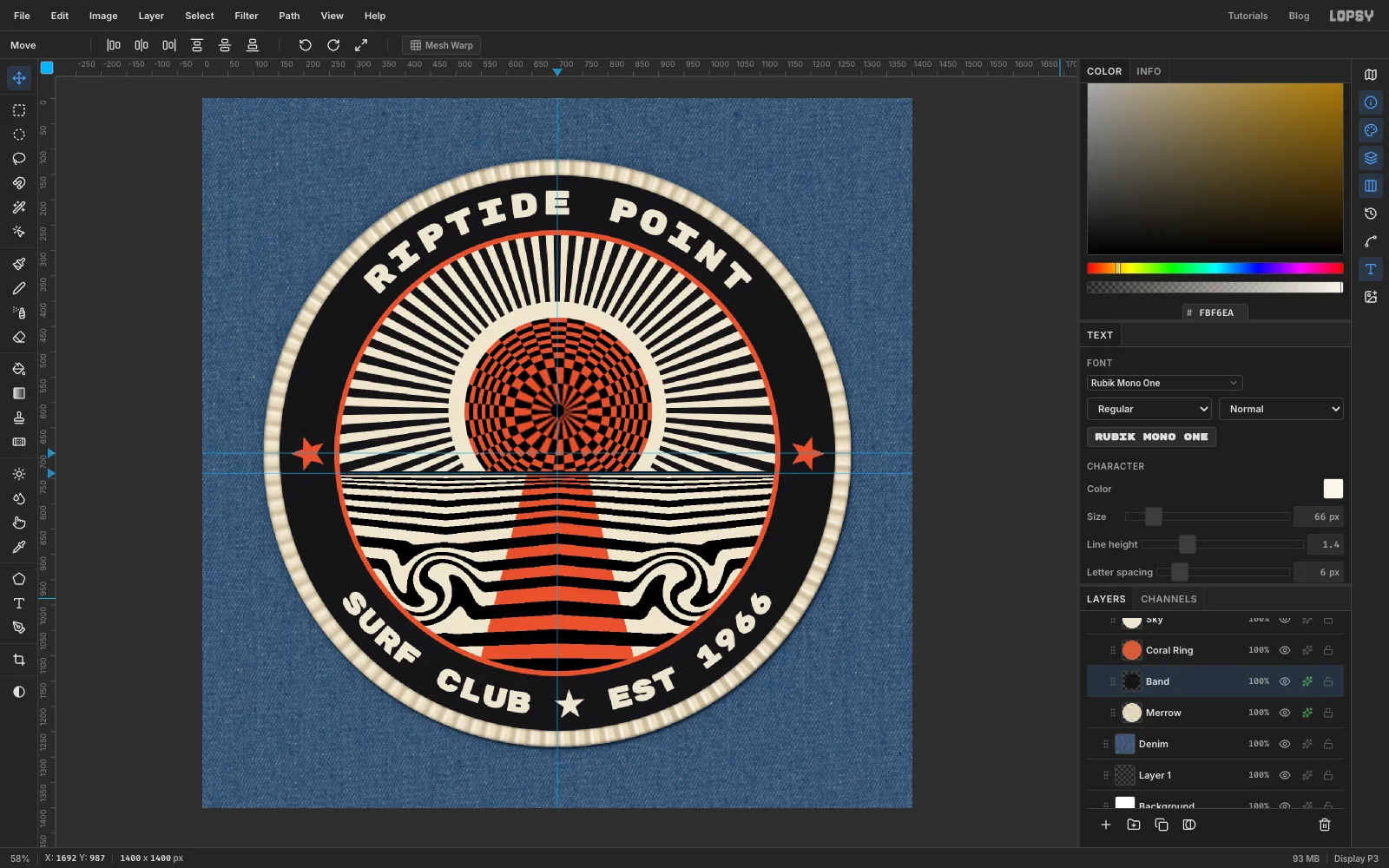
-
Give the sea a sideways satin grain
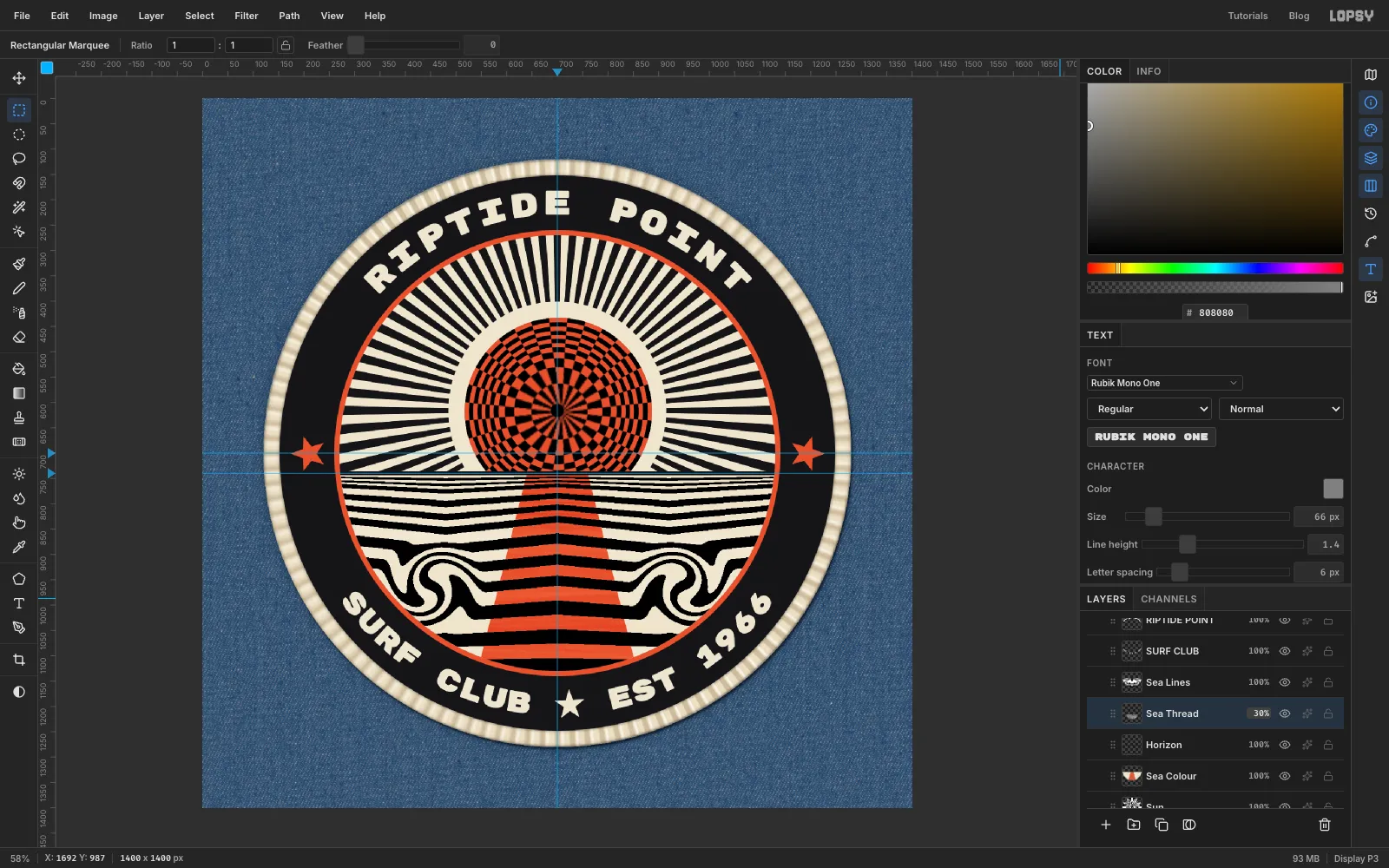
Real embroidery shines along the direction of its stitches, so each area gets its own grain. All three texture layers start as thread grey .
- Select
Horizonand add a layer calledSea Thread. - With the Rectangular Marquee, drag from
250, 250to1150, 1150and fill it with grey. - Filter → Fibers…, Variance
24, Strength40. Fibers always run up and down. - Switch to the Move tool, hold Cmd and turn the square a quarter turn with a rotation handle, so the fibres run sideways. Deselect.
- Trim it to the sea: Cmd-click the
Skythumbnail, then hold Option and drag a rectangle over everything above the horizon to subtract it. Choose Select → Inverse, press Delete and deselect. - Set Blend to Overlay and the opacity to
30%.
- Select
-
Radiate a grain through the sky
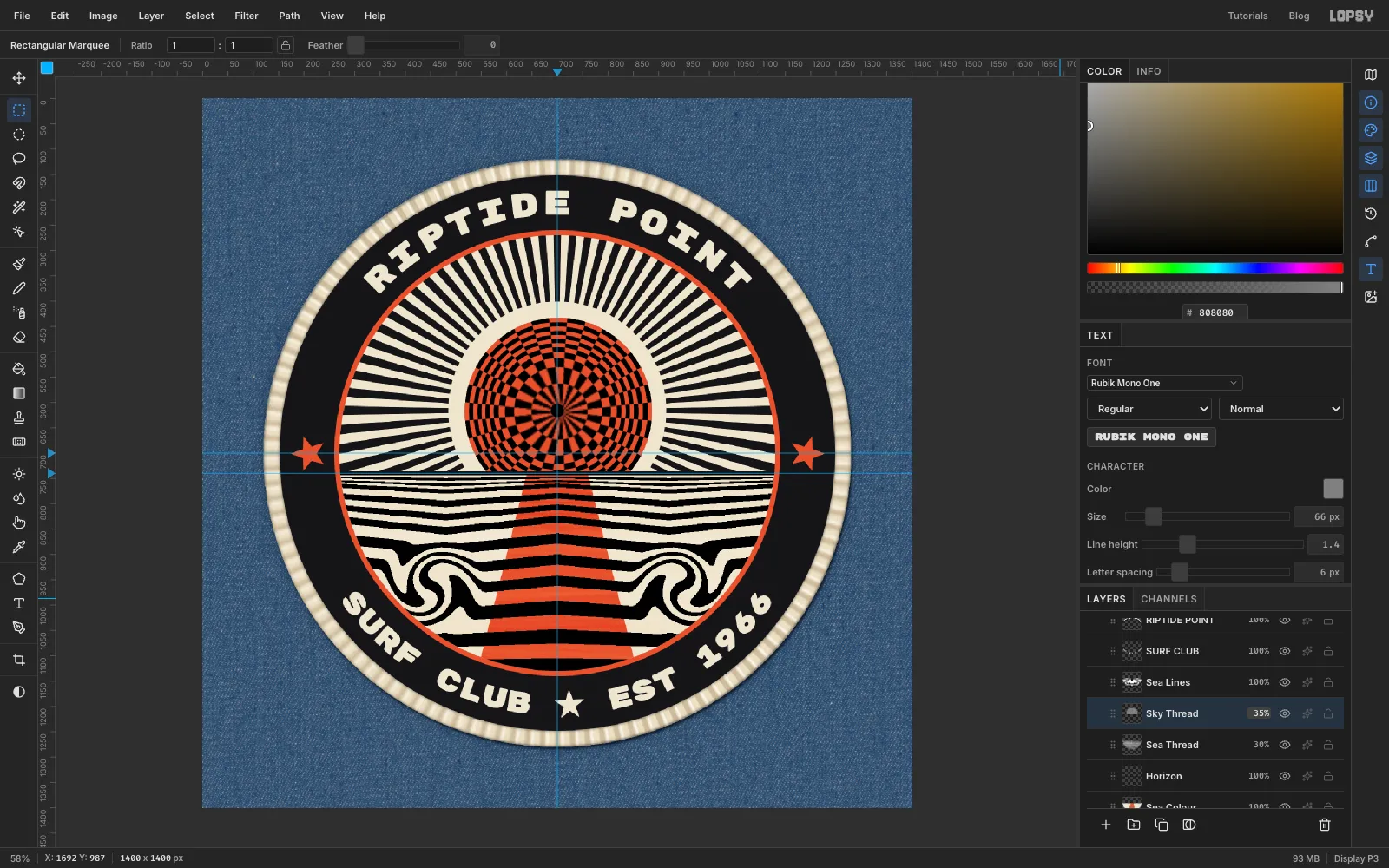
- Add a layer called
Sky ThreadaboveSea Thread. - Cmd-click the
Skythumbnail, then Option-drag a rectangle over everything below the horizon to subtract the sea. - Fill with grey and run Filter → Add Noise…, Amount
60, Mono. - Filter → Radial Blur…, Amount
40. Radial Blur always centres on the canvas, a little below the sun, but under the rays nobody can tell. - Deselect. Set Blend to Overlay and the opacity to
35%.
- Add a layer called
-
Add a grain to the band and edge
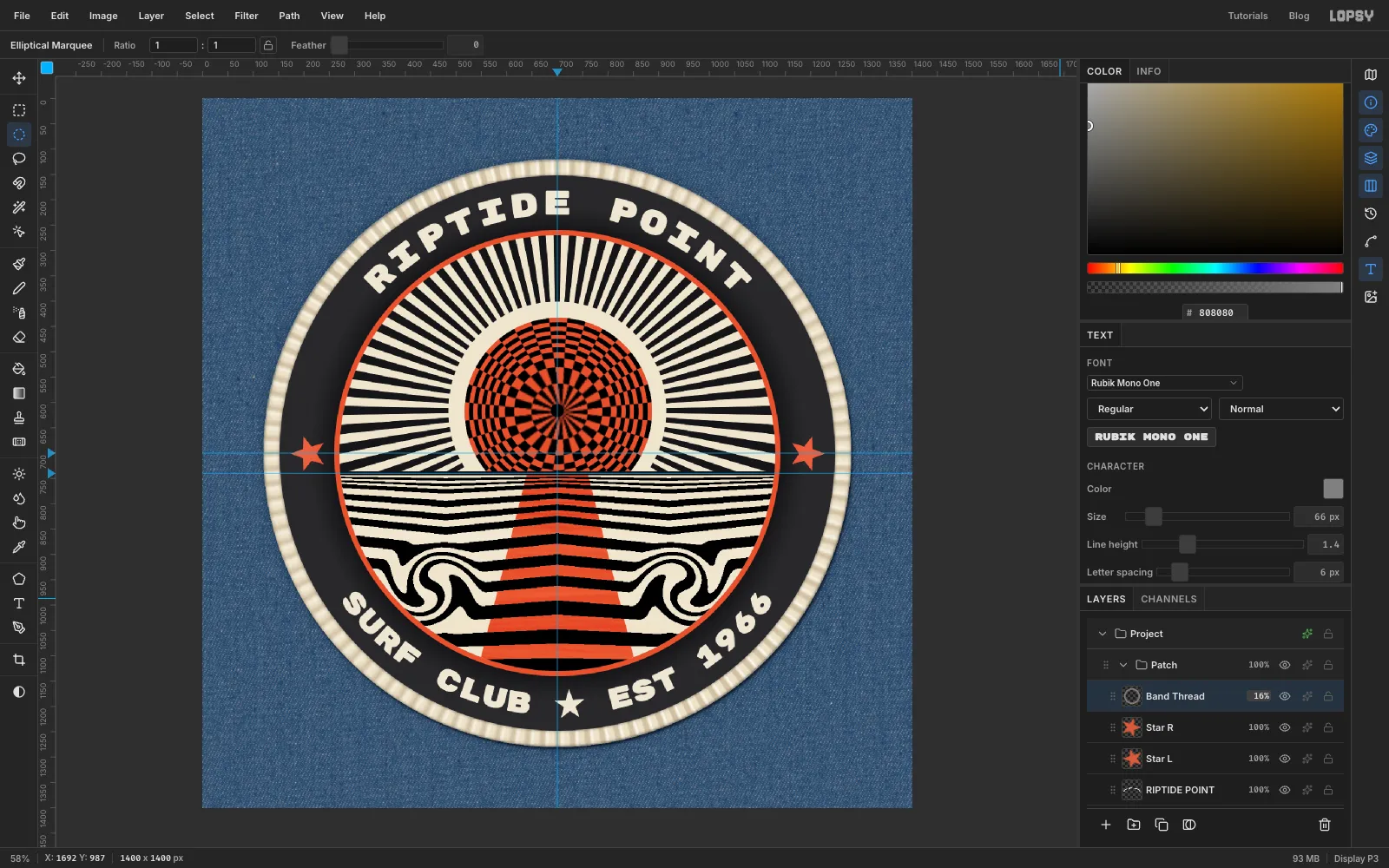
- Select
Star Rand add a layer calledBand Thread. - Cmd-click the
Merrowthumbnail to load the whole patch. With the Elliptical Marquee, Option-drag a circle from260, 260to1140, 1140to cut out the art. The band and the merrow edge are left. - Fill with grey, then repeat the Add Noise
60Mono and Radial Blur40. Deselect. - Set Blend to Screen and the opacity to
16%. Overlay does nothing on pure black, but Screen lifts faint highlights out of it.
- Select
-
Burn the shadow side of the edge
- Select
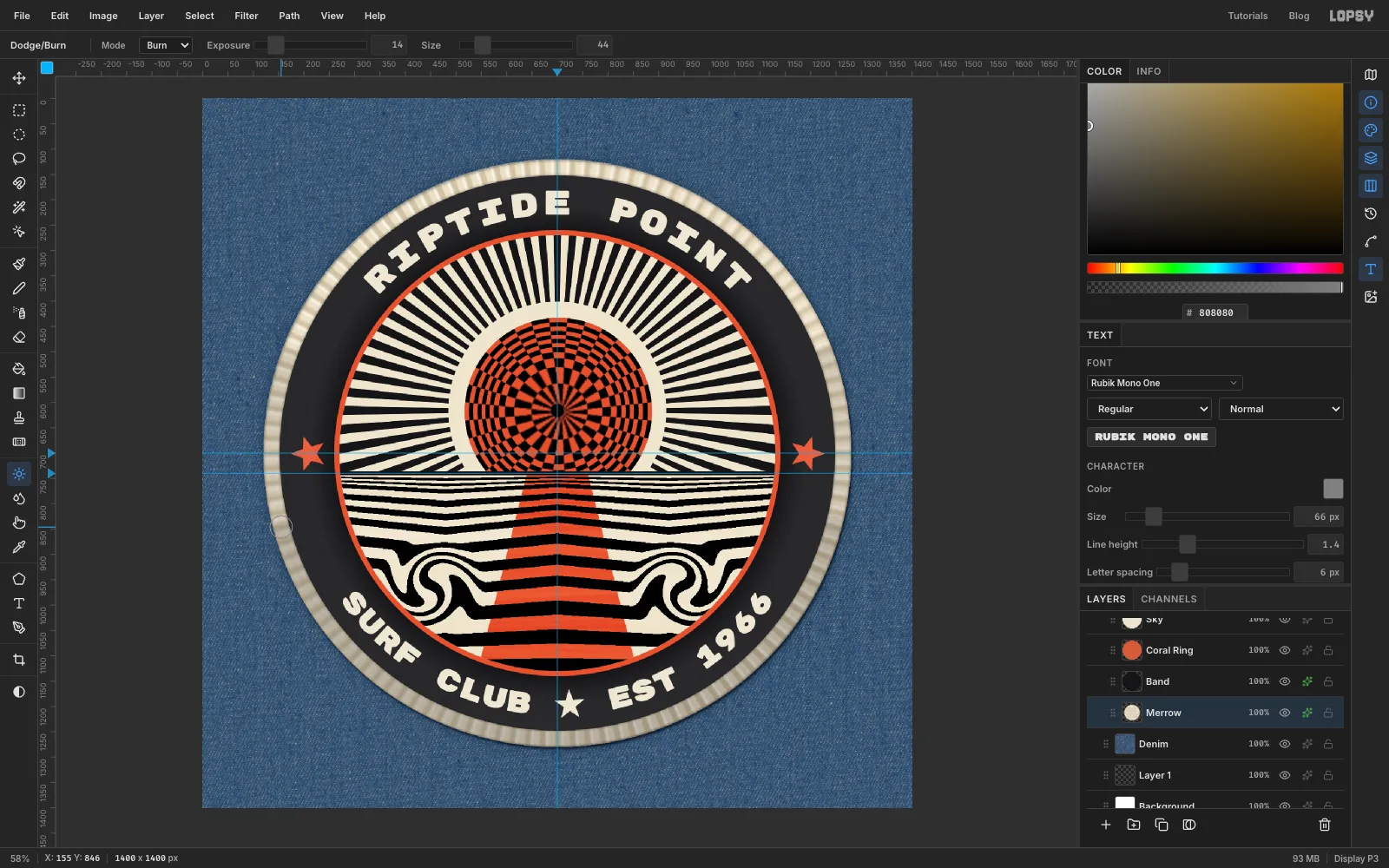
Merrowand pick the Dodge/Burn tool (O). Set Mode to Burn, Exposure14and Size44. - Drag along the middle of the cream edge from about three o'clock, round the bottom, to nine o'clock.
- Do a second, shorter pass over the bottom.
Within one stroke, Burn doesn't build up when you go over the same spot again. The second stroke does add to the first, so the darkening is strongest at the bottom and fades toward the sides.
- Select
-
Darken the denim around the patch
- Select
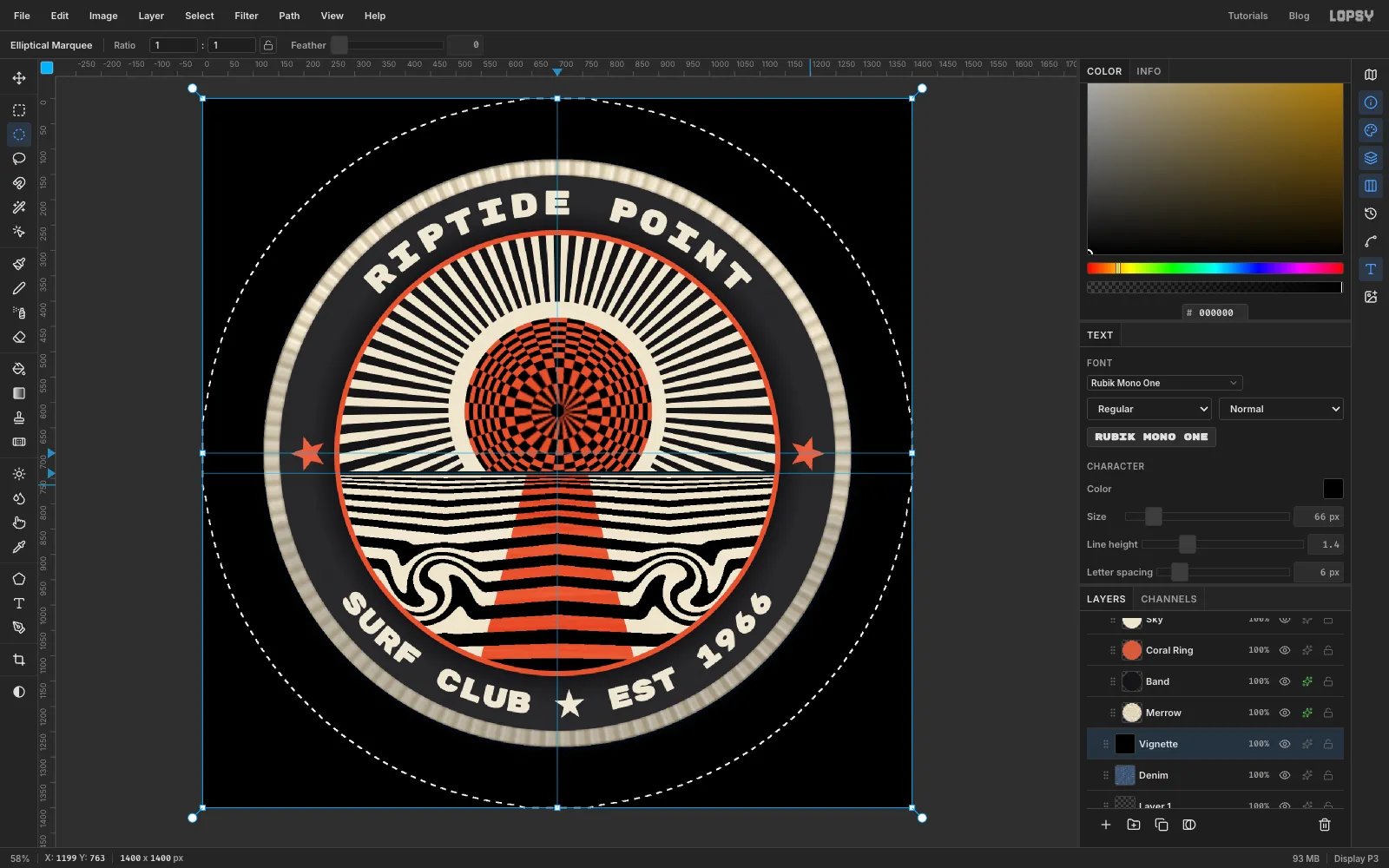
Denimand add a layer calledVignette. - Select the whole canvas and fill it with black.
- Draw a circle from
0, 0to1400, 1400and choose Select → Feather…160. - Press Delete, deselect and set the layer's opacity to
45%.
The edges of the denim fall into shadow, which pushes the patch forward.
- Select
-
Turn the whole patch
A patch ironed on by hand is never quite straight.
- Text on a path has to be flattened before it can turn with other layers. Select each text layer and click Rasterize Layer at the bottom of the Layers panel.
- Click the
Patchgroup's row with nothing selected on the canvas. The Move tool draws one box around everything inside the group. - Drag a round rotation handle outside a corner about 6° counter-clockwise, then press Cmd+D.
Hide the guides (Cmd+;), save the project with File → Save Project and choose File → Quick Export PNG.