Design a Screen-Print Fig Marmalade Billboard
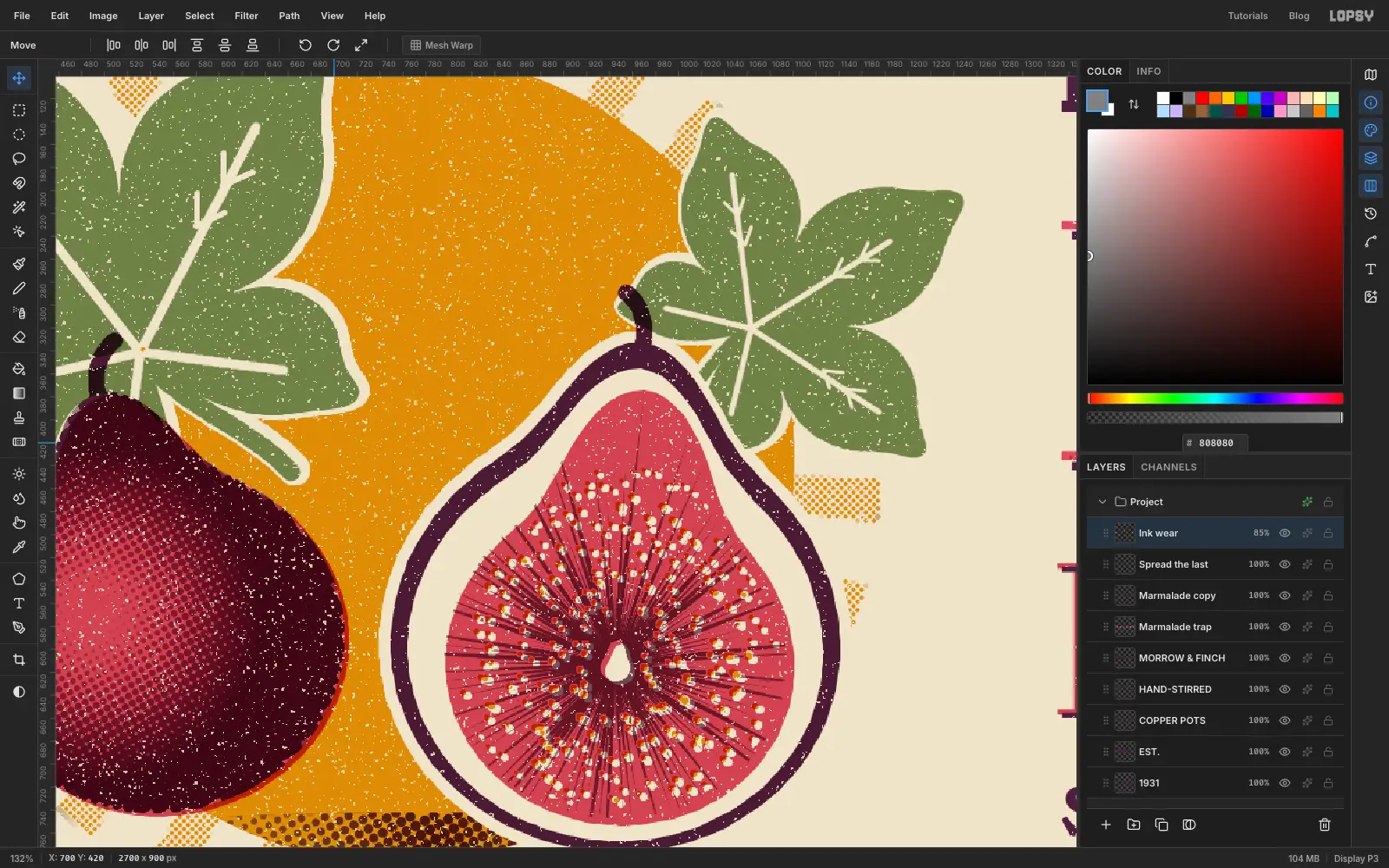
Build a four-ink screen-print billboard in Lopsy with overprinting Multiply plates, halftone tints, a Sunburst fig, knockouts, arc text and ink wear.
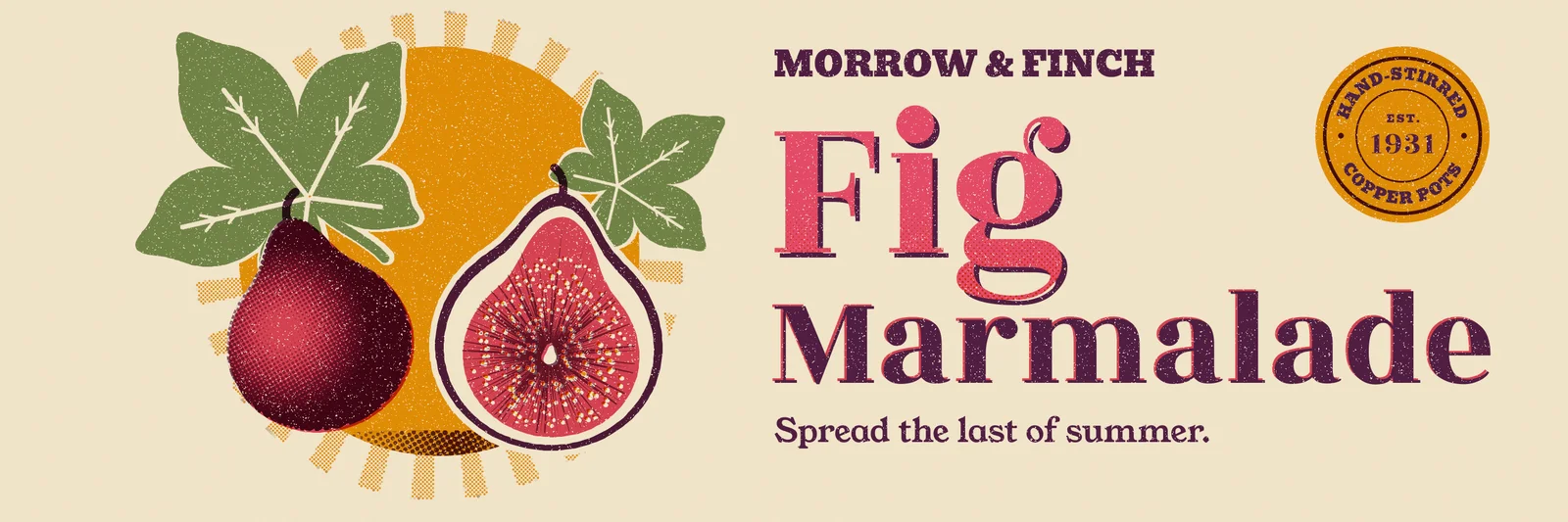
A real screen print is built one ink at a time. Each colour has its own stencil, or plate, and is pulled through the mesh onto the paper on its own. Where two transparent inks overlap they mix into a third colour, which is called overprinting. Where an ink is meant to stay clean, the colour underneath is left out of the stencil, which is called a knockout. Plates never line up perfectly, so you see thin slivers of paper or doubled edges along some shapes. And the ink skips a little on rough paper.
In this tutorial you'll fake all of that in Lopsy for a 3:1 roadside billboard: an ad for Morrow & Finch Fig Marmalade, an imaginary preserves maker. Each ink lives in its own group set to Multiply, so the inks really overprint. The billboard is 2700 × 900 px.
Along the way you'll use:
- New Group and the Multiply blend mode to make one group per ink
- Sunburst and Halftone for a dotted ray tint and a halftone shading
- the Lasso, Edit → Fill and Select → Grow / Shrink for the leaves and figs
- knockouts: Cmd-click a layer thumbnail and press Delete on the plates underneath
- the Eraser with Shift-click lines for leaf veins
- copy and paste plus the Move tool's rotate and scale handles
- the Brush with Scatter and Size Jitter for seeds
- Rozha One, Young Serif and Bevan type, a Color Overlay shadow and a misregistered trap
- the Pen tool and text bound to a path for a round badge
- guides with Snap to Guides, and moving whole groups with the arrow keys
- Add Noise, Gaussian Blur, Threshold and the Magic Wand for ink wear
The palette (four inks on paper):
-
Paper
-
Ochre
-
Sage
-
Rose
-
Plum
-
Fig shading
-
Ink wear grey
only used to make the specks
-
Set up the canvas and guides
Choose File → New, enter 2700 × 900 and click Create.
Drop guides for an 80 px margin all round. Click the top ruler at
80and at2620for vertical guides, and the left ruler at80and820for horizontal ones. Click the top ruler once more at1340. That's where the type column starts: the art goes on the left, the words on the right.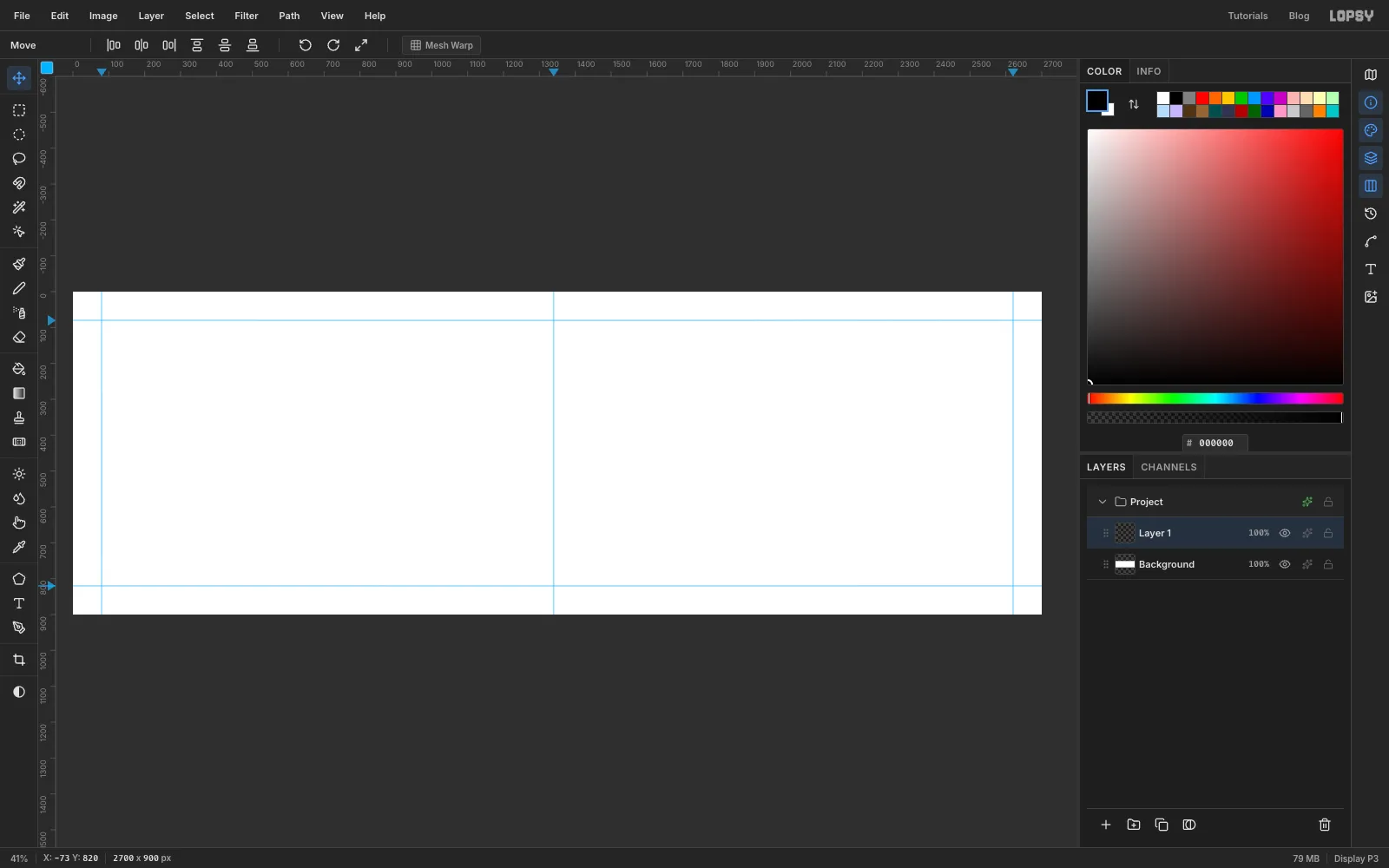
-
Make the paper
Click the Background row, set the foreground to paper , choose Select → All and then Edit → Fill. Deselect. Choose Filter → Add Noise… with Amount
5, Mono and Gaussian. That gives the flat fill a slight tooth.The new document also comes with an empty Layer 1; leave it for now. Click Add Layer, name the new layer Paper grain, set the foreground to white and choose Select → All and Edit → Fill. Deselect and run Add Noise… again with Amount
60, Mono and Gaussian. Then choose Filter → Motion Blur… with Angle80and Distance6, which stretches the noise into short fibres. Set the layer's Blend to Multiply and its opacity to 14%. Multiply drops the white out, so only the fibres show.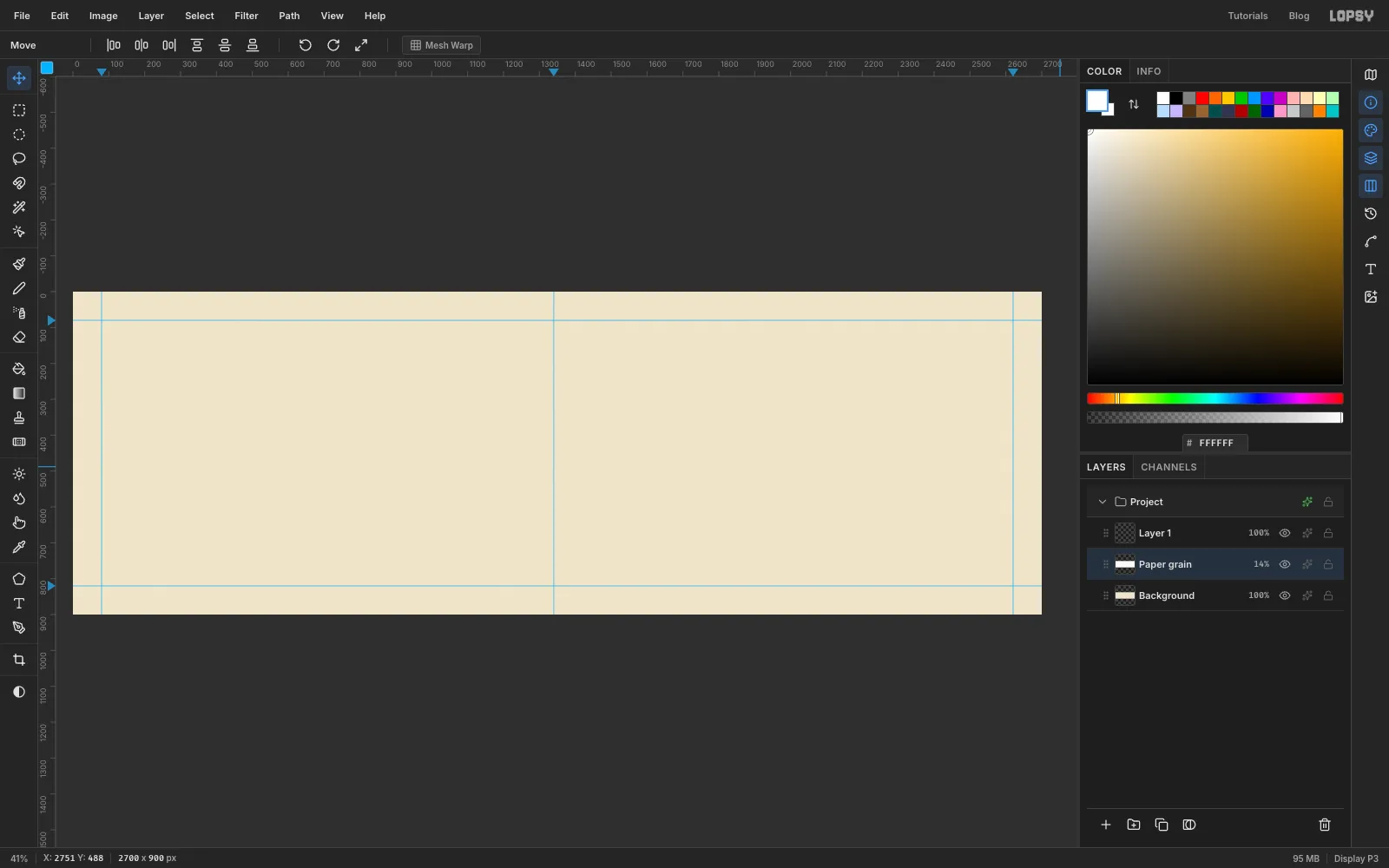
-
Make one group per ink
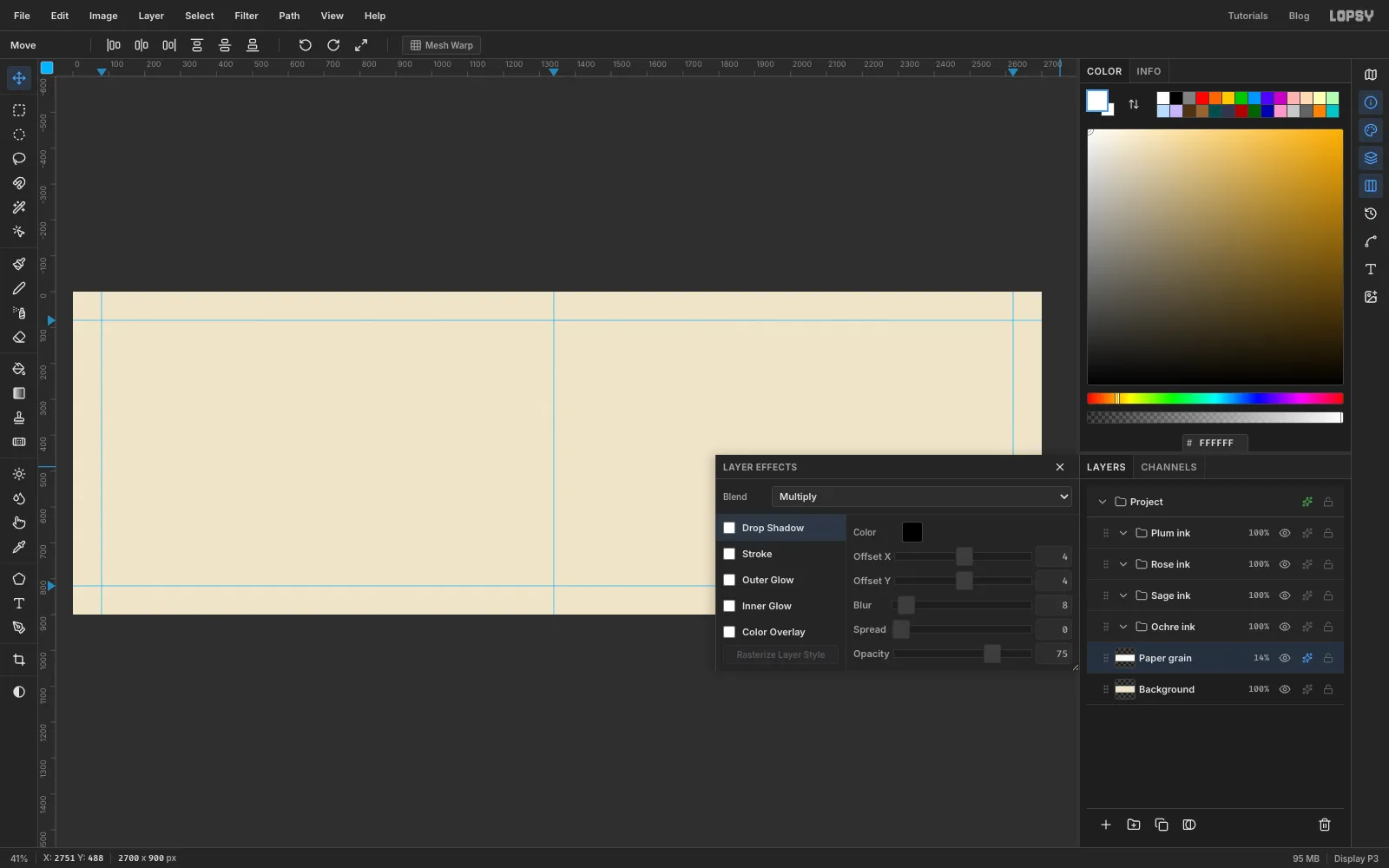
Click Paper grain and click the New Group button at the bottom of the Layers panel. Name it Plum ink. Open its drawer (the sparkle icon) and set Blend to Multiply.
Click Paper grain again before each new group, and make Rose ink, Sage ink and Ochre ink the same way, all set to Multiply. Each new group lands right above Paper grain, so the stack ends up in printing order: ochre at the bottom, then sage, rose and plum on top. Finally click the empty Layer 1 and delete it with the trash button.
All the artwork you draw from now on goes into the group for its ink. Because the groups multiply, a plum shape on top of ochre prints darker, just like two transparent inks on paper.
-
Burst the rays with Sunburst
Expand Ochre ink, click it and add a layer named Sun rays. Set the foreground to ochre .
The sun sits at
756, 441. Make a circle selection of radius420around it, from336, 21to1176, 861. Then choose Filter → Sunburst…:- Rays
28, Length24, Width42, Rotation4 - Center X
28and Center Y49 - Taper, Fade, Softness and Jitter at
0, Opacity100
Center X and Center Y are percentages of the document, so 28% of 2700 and 49% of 900 put the centre on the sun. Length is a percentage of the distance to the farthest corner, so
24is long enough to reach the edge of the selection. The selection trims every ray to the same circle.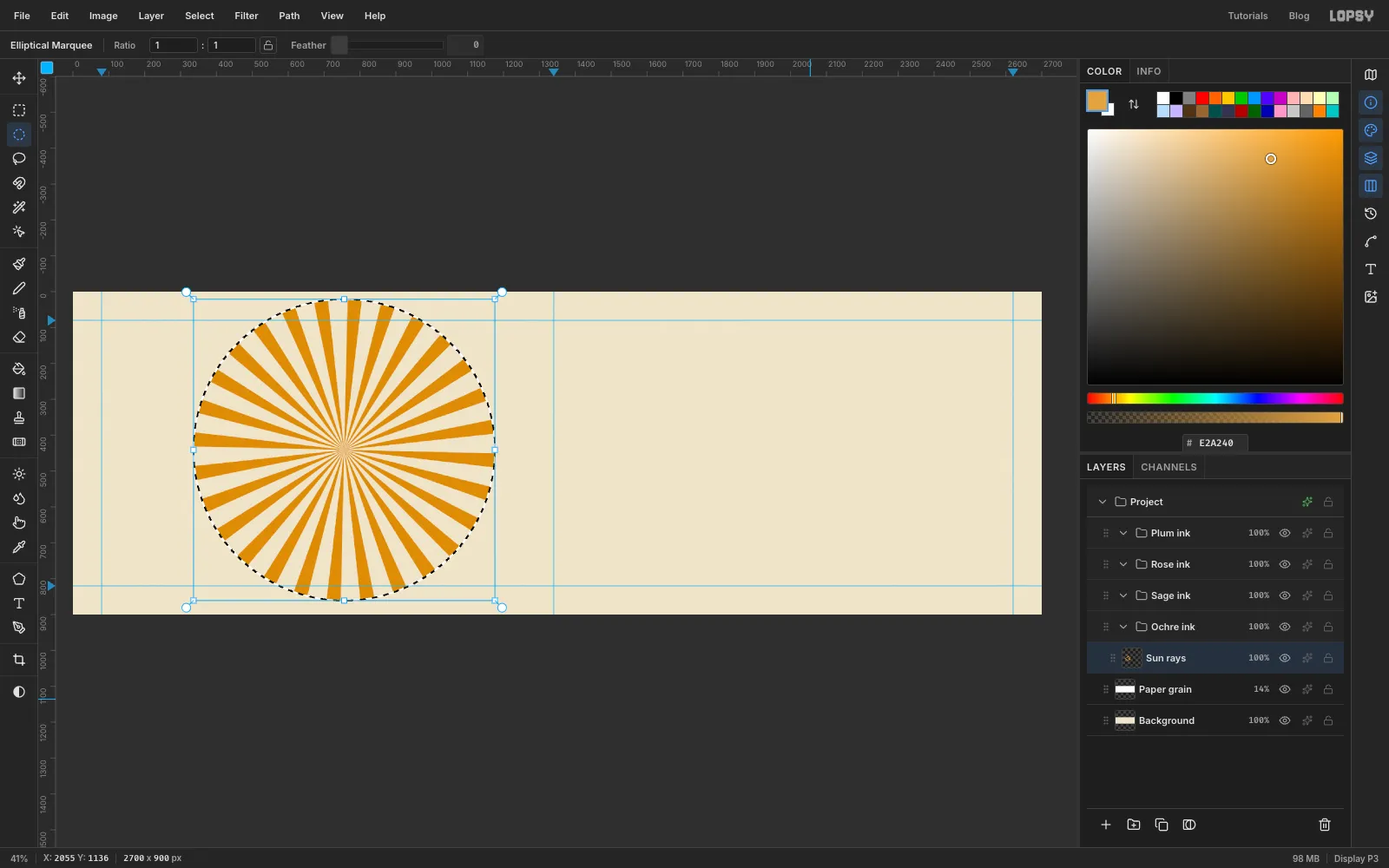
- Rays
-
Turn the rays into a halftone tint
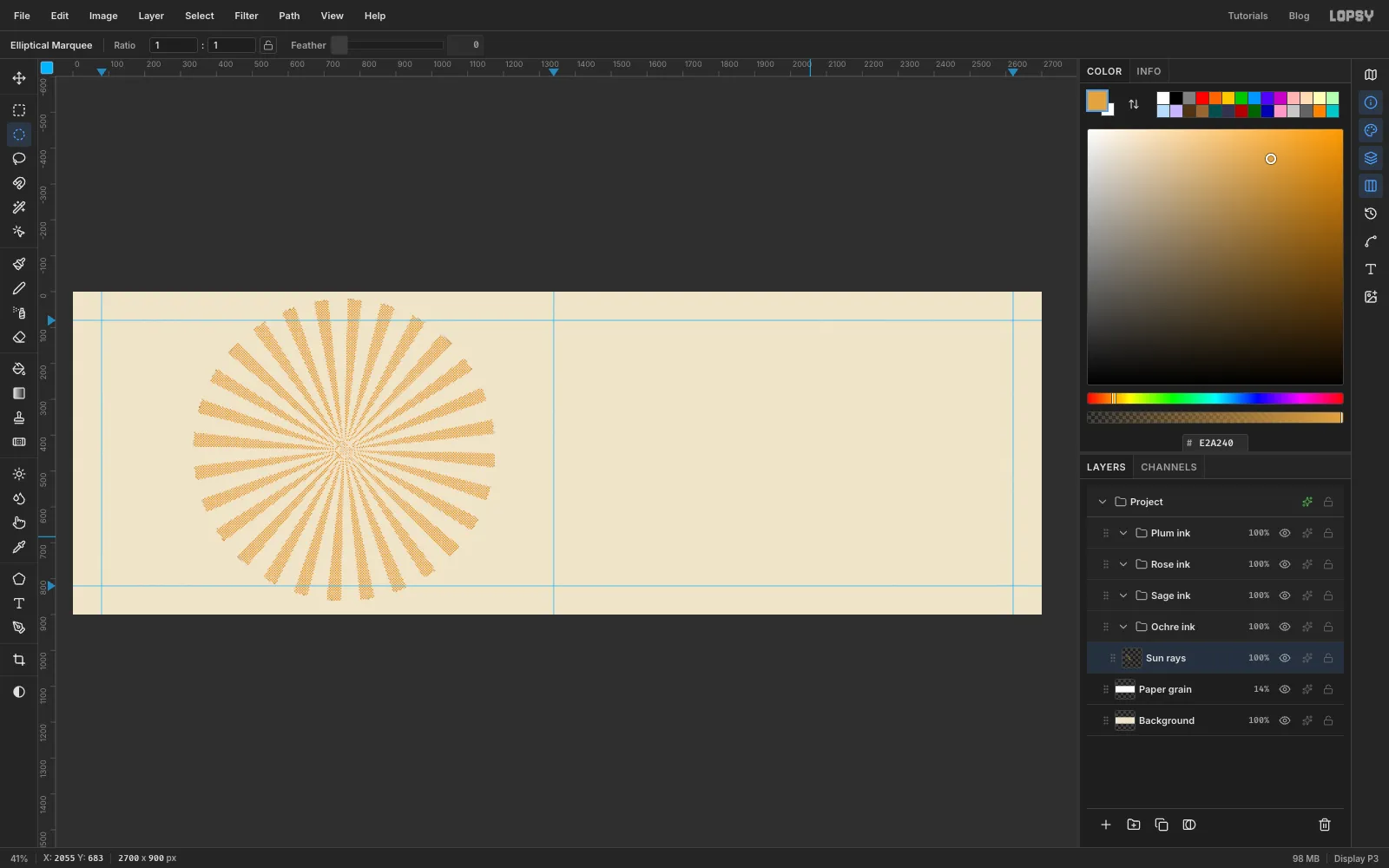
Deselect, then choose Filter → Halftone… with Dot Size
11, Density2.2, Angle45and Softness0.6.Screen printers can't print a pale ochre without mixing a new ink, so they fake a tint with dots. Halftone does the same thing here: from a distance the rays read lighter than the solid sun, but up close they're the same ochre ink.
-
Fill the sun
Add a layer named Sun above Sun rays. Select a circle of radius
345around the same centre, from411, 96to1101, 786, and fill it with ochre. Deselect, and collapse Ochre ink.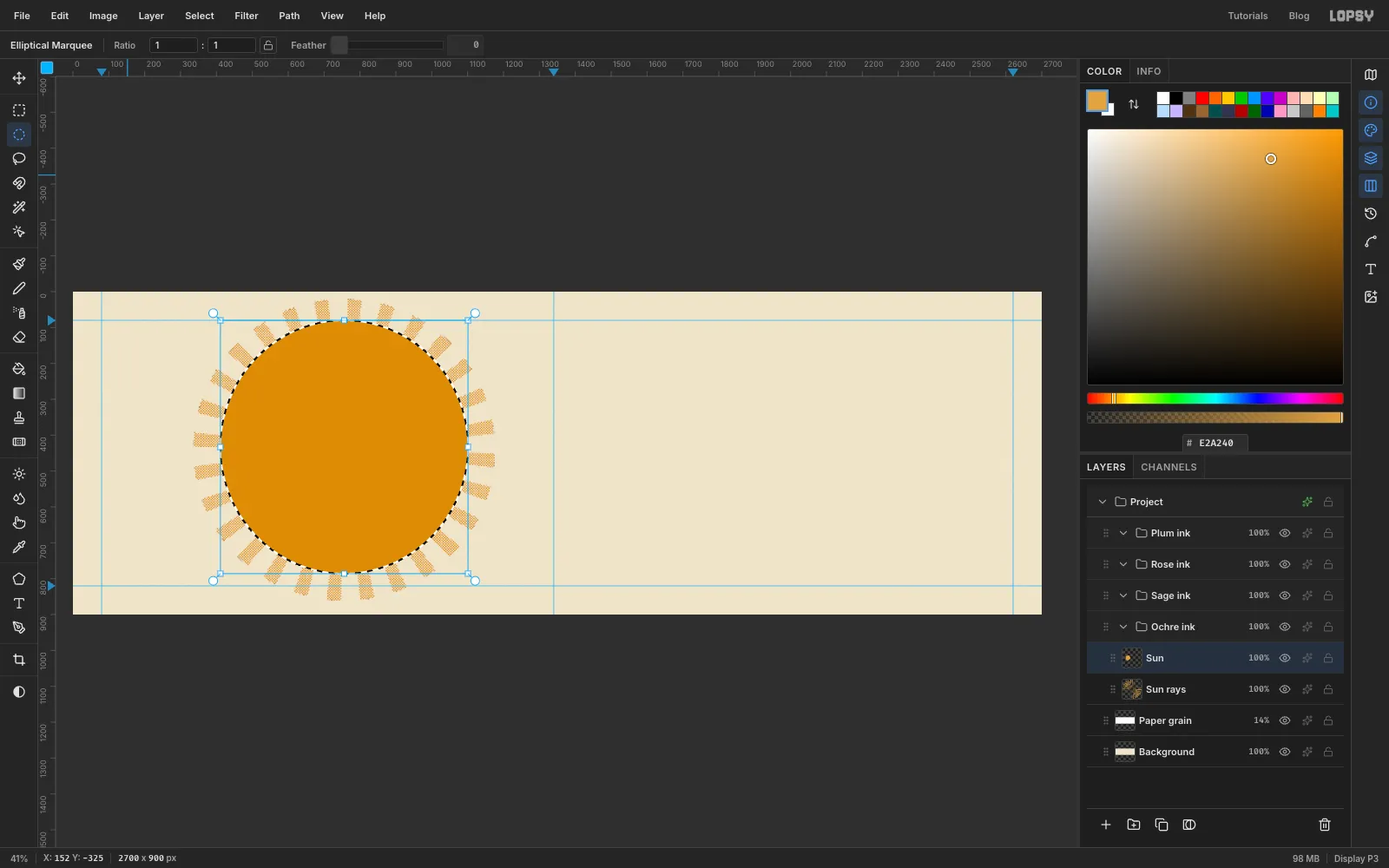
-
Lasso a fig leaf
Expand Sage ink, click it and add a layer named Fig leaf.
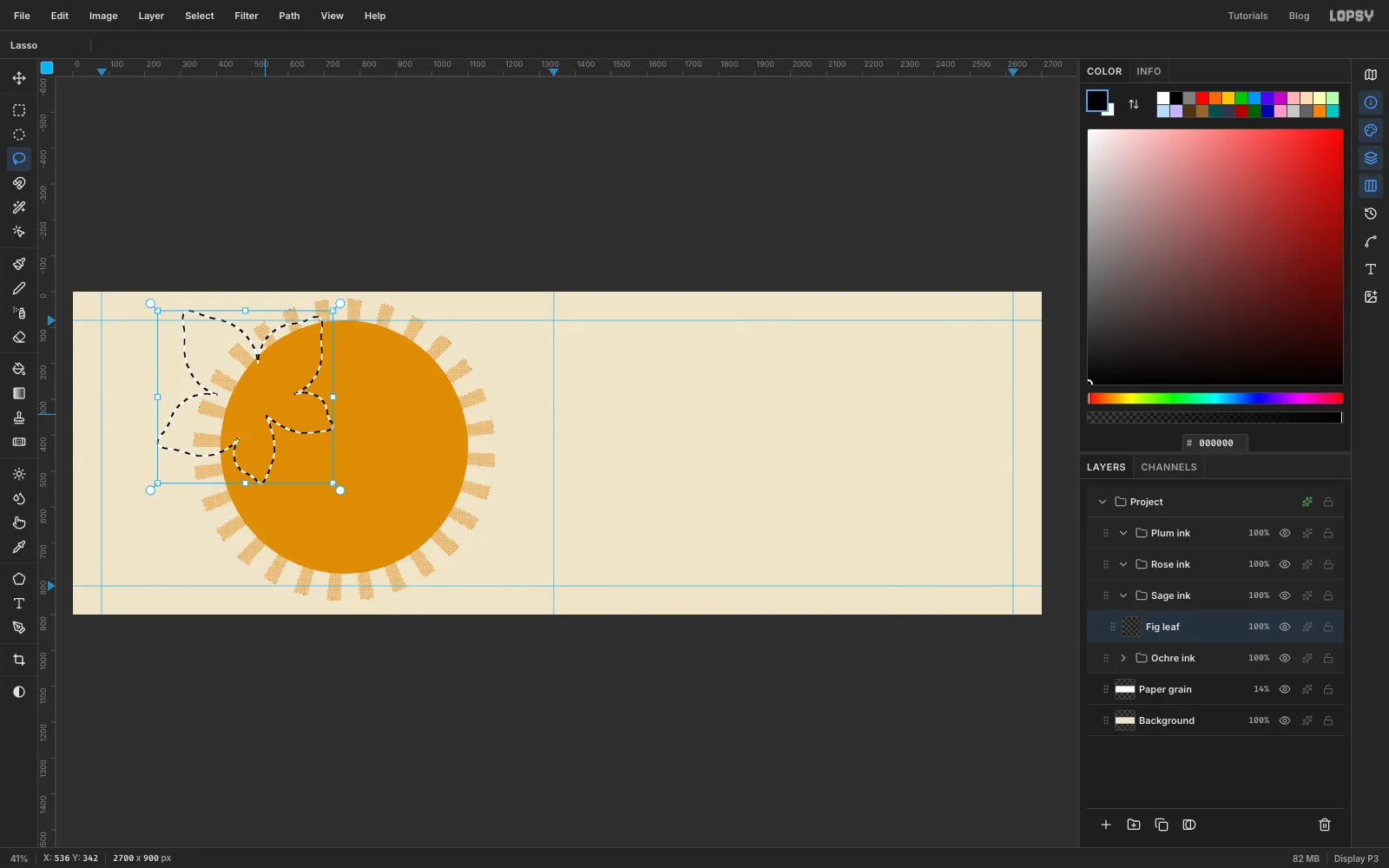
Pick the Lasso and draw a fig leaf about 470 px across, tilted so its middle lobe points up and to the left, centred near
520, 322. A fig leaf has five lobes: a long middle one, two side lobes and two smaller ones at the back. Each lobe ends in a soft point. The gaps between them are narrow and cut about halfway to the centre, and there's a small notch where the stalk joins. Go slowly; you can undo and redraw as often as you like.Fill the selection with sage and deselect.
-
Add the stalk and veins
Pick the Brush at Size
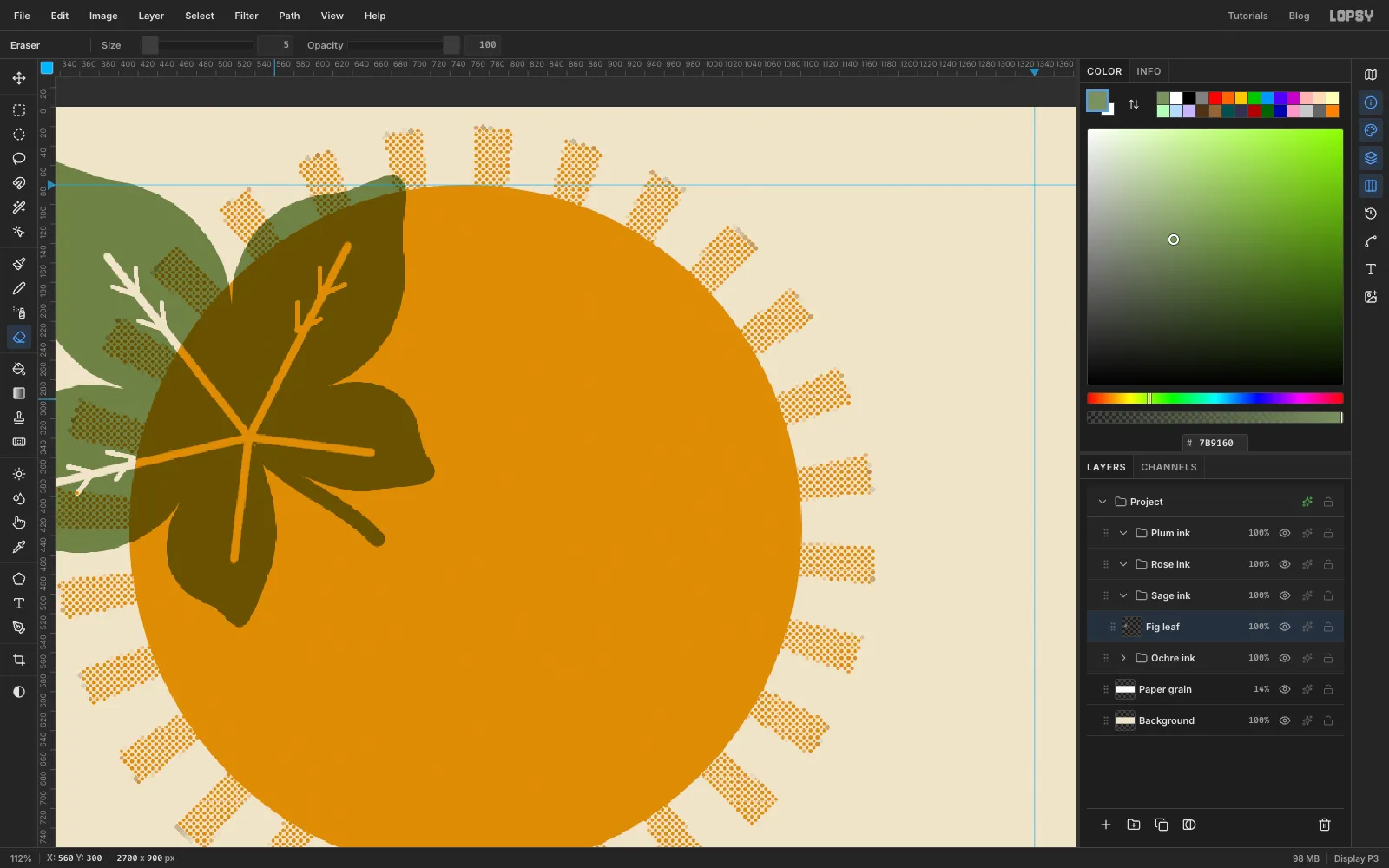
18, still in sage, and paint a short curved stalk out of the notch, down and to the right.Now cut the veins out with the Eraser at Size
9. Click the base of the leaf, just inside the notch, then hold Shift and click the tip of the middle lobe. That draws a straight erased line. Do the same from the base to each of the other four lobes, stopping the two back lobes a little short. Then set the Size to5and add two pairs of short side veins on the middle and side lobes, angled forward. Keep them inside their lobe.Off the sun, the veins show bare paper. Over the sun they show ochre for now; the knockout two steps on turns those to paper too.
-
Copy the leaf and rotate it
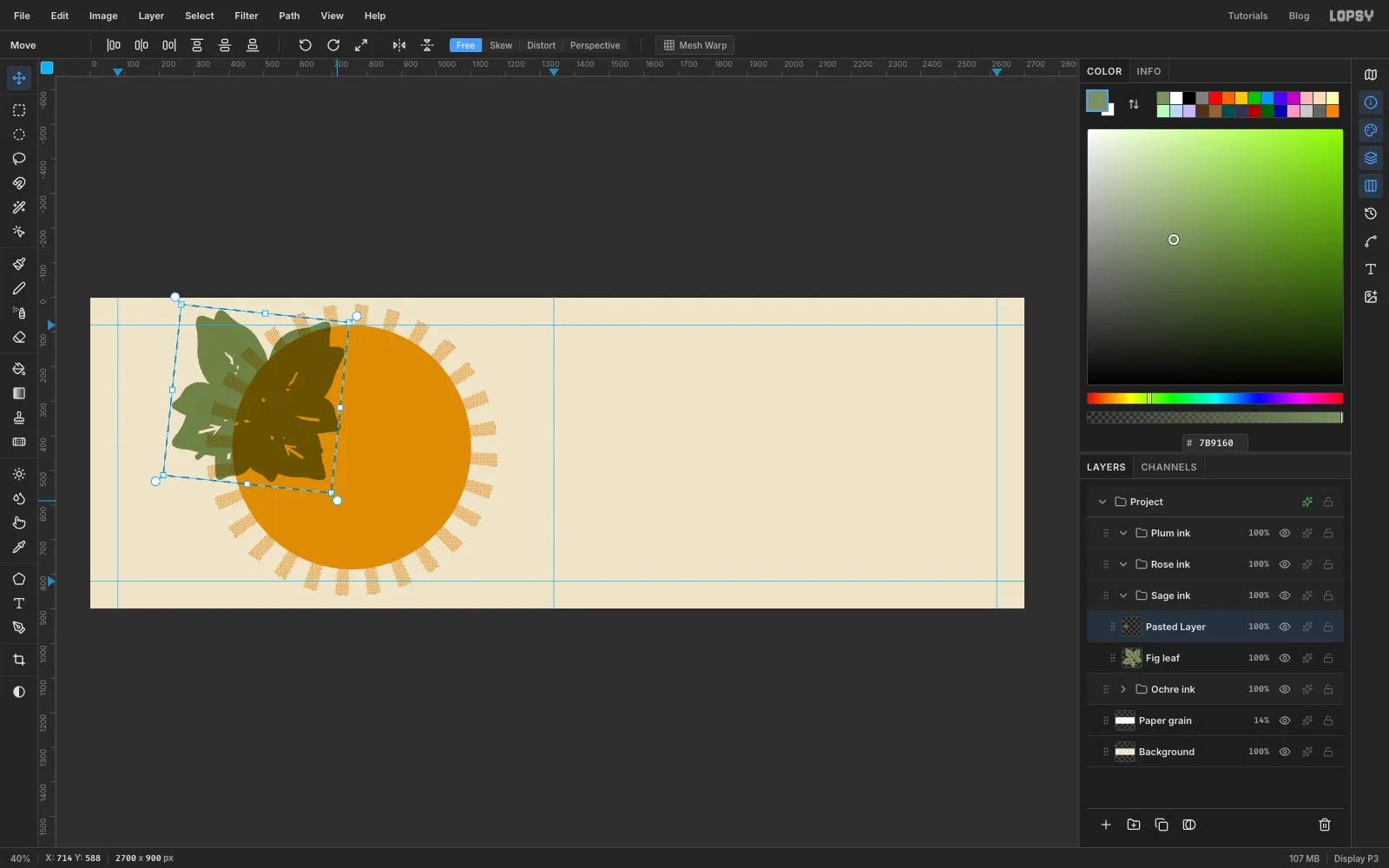
Cmd-click the Fig leaf thumbnail to select the leaf, press Cmd+C, deselect and press Cmd+V. The copy is pasted in place on a new layer.
Pasting in place doesn't leave a selection, so draw a rectangular marquee just around the copy. Pick the Move tool, put the pointer just outside the top-right corner until it turns into the rotate cursor, and drag clockwise until the leaf has turned about 96°. Press Enter to apply the rotation.
-
Scale the copy and move it
Draw a new marquee around the rotated copy. Hold Cmd and drag the bottom-right corner handle in until the leaf is about 60% of its size, then press Enter and deselect.
With the Move tool, drag the small leaf across to the right edge of the sun, centred around
1100, 280, and rename the layer Fig leaf 2. It will peek out from behind the halved fig.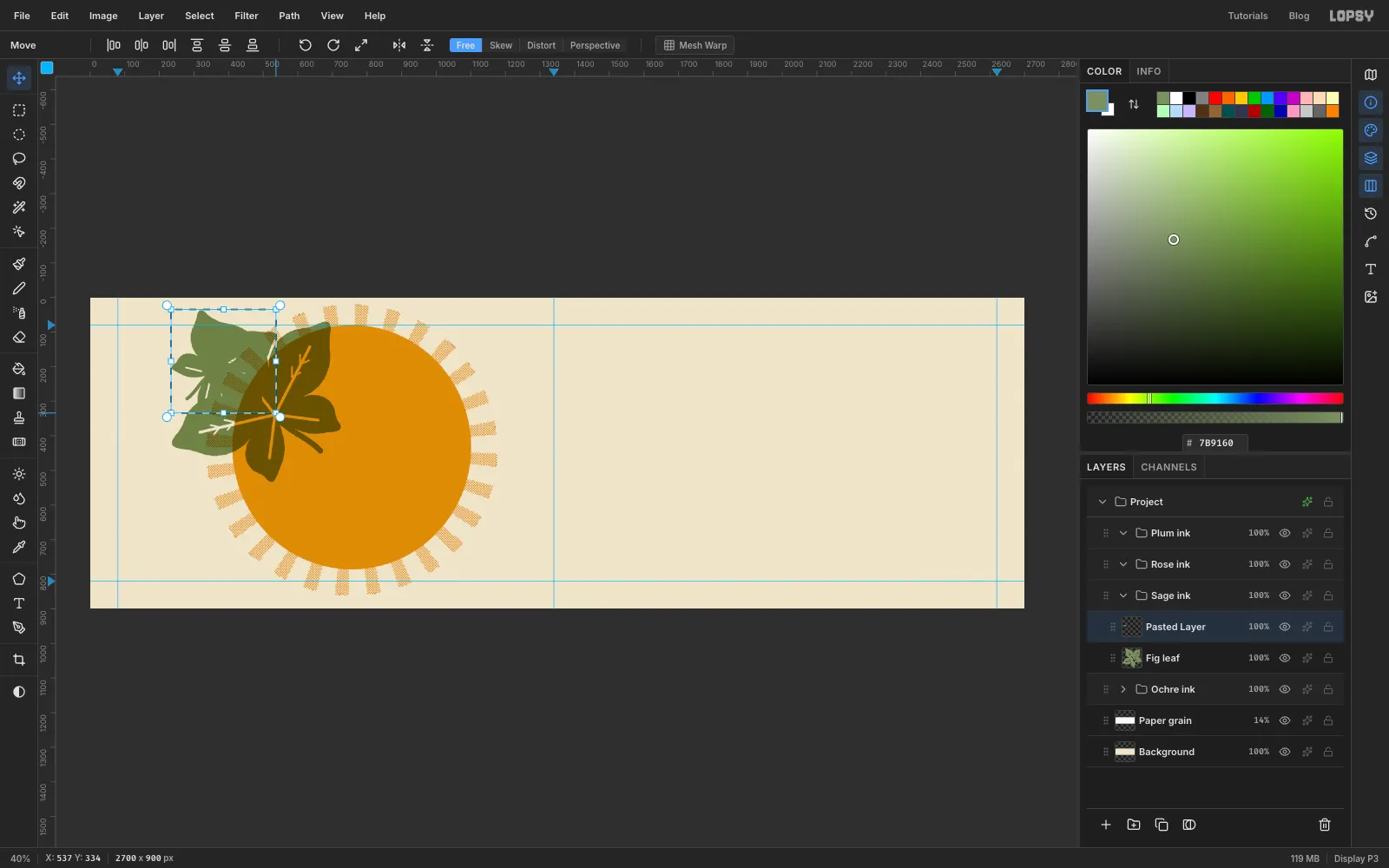
-
Knock the sun out under the leaves
Sage over ochre makes a muddy olive, so take the ochre out from under the leaves. Expand Ochre ink.
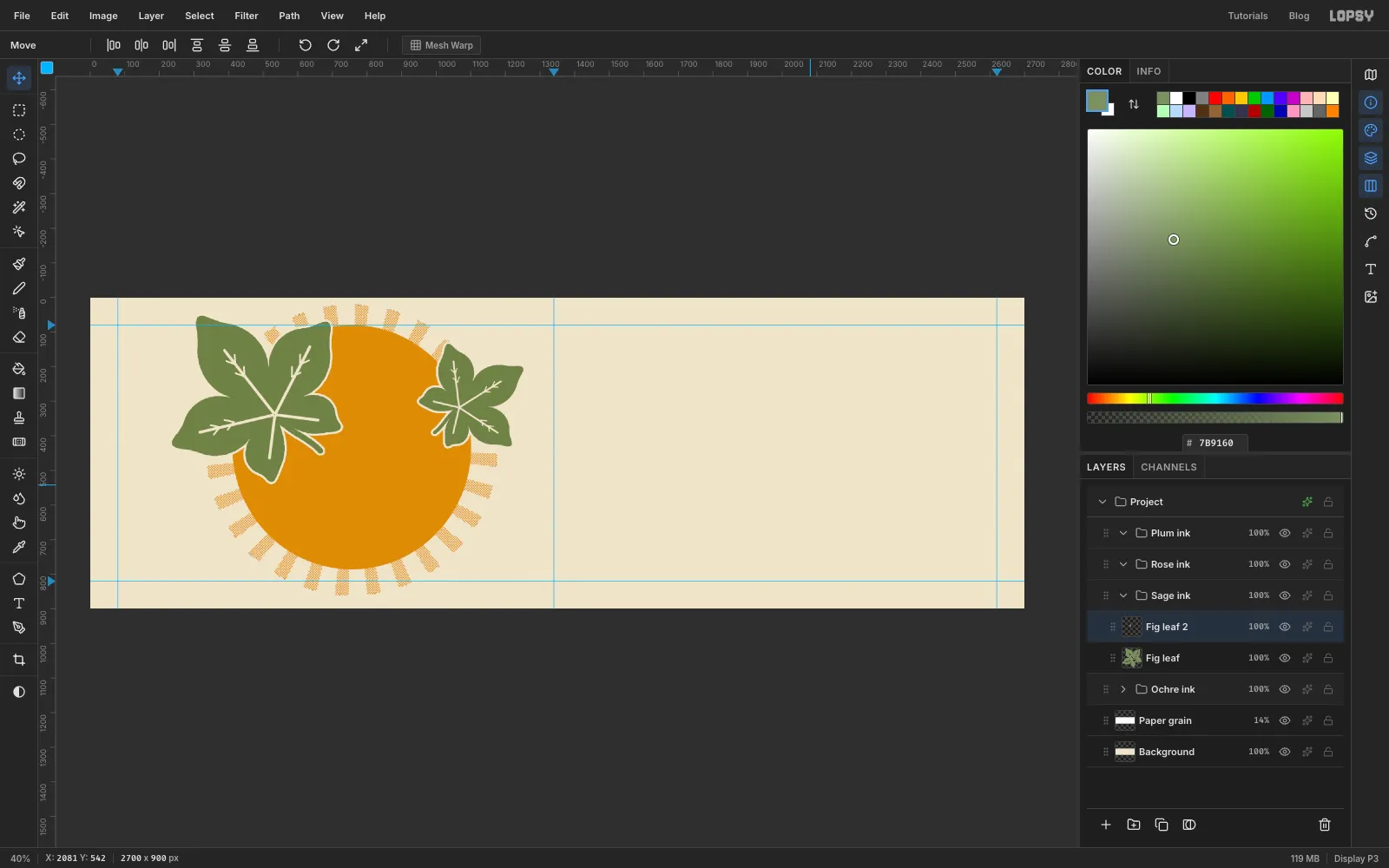
Cmd-click the Fig leaf thumbnail and choose Select → Grow…
6. Growing closes up the vein gaps and adds a hairline all round. Click Sun and press Delete, then click Sun rays and press Delete. Do the same for Fig leaf 2. Deselect.The leaves are now printed straight onto the paper, and the thin paper outline around them looks like a printer's trap.
-
Draw the whole fig in rose
Collapse Sage ink, expand Rose ink, click it and add a layer named Whole fig.
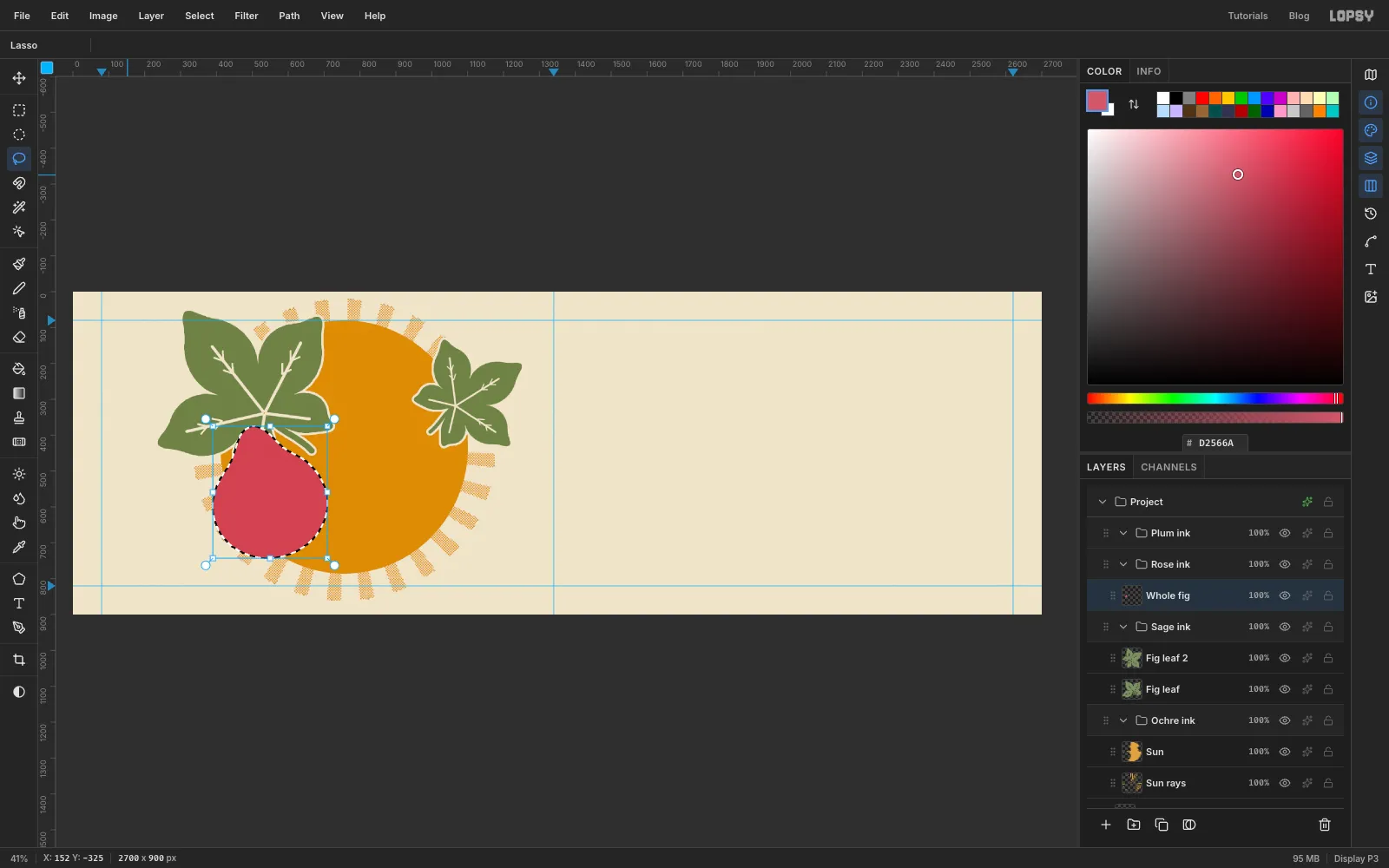
With the Lasso, draw a fig about 320 px wide and 400 px tall, centred near
550, 596and tilted about 14° to the left. Make the body round and the neck short, about a third of the body's width, rising to a rounded point. Fill it with rose .Keep the selection. Expand Ochre ink and Sage ink, then press Delete on Sun, Sun rays and Fig leaf. That knocks them out behind the fig, so the rose prints on clean paper.
-
Shade the fig with a gradient
Collapse Ochre ink and Sage ink, expand Plum ink, click it and add a layer named Fig shading. The fig's selection is still active, so the gradient will only fill the fig.
Pick the Gradient tool, set it to Radial, and open Advanced…. Give it four stops, typing each colour into the hex field:
- at 0% and at 22%
- plum at 62% and again at 100%
Drag from the light spot just left of the body's centre, about
488, 570, down and to the right to670, 726.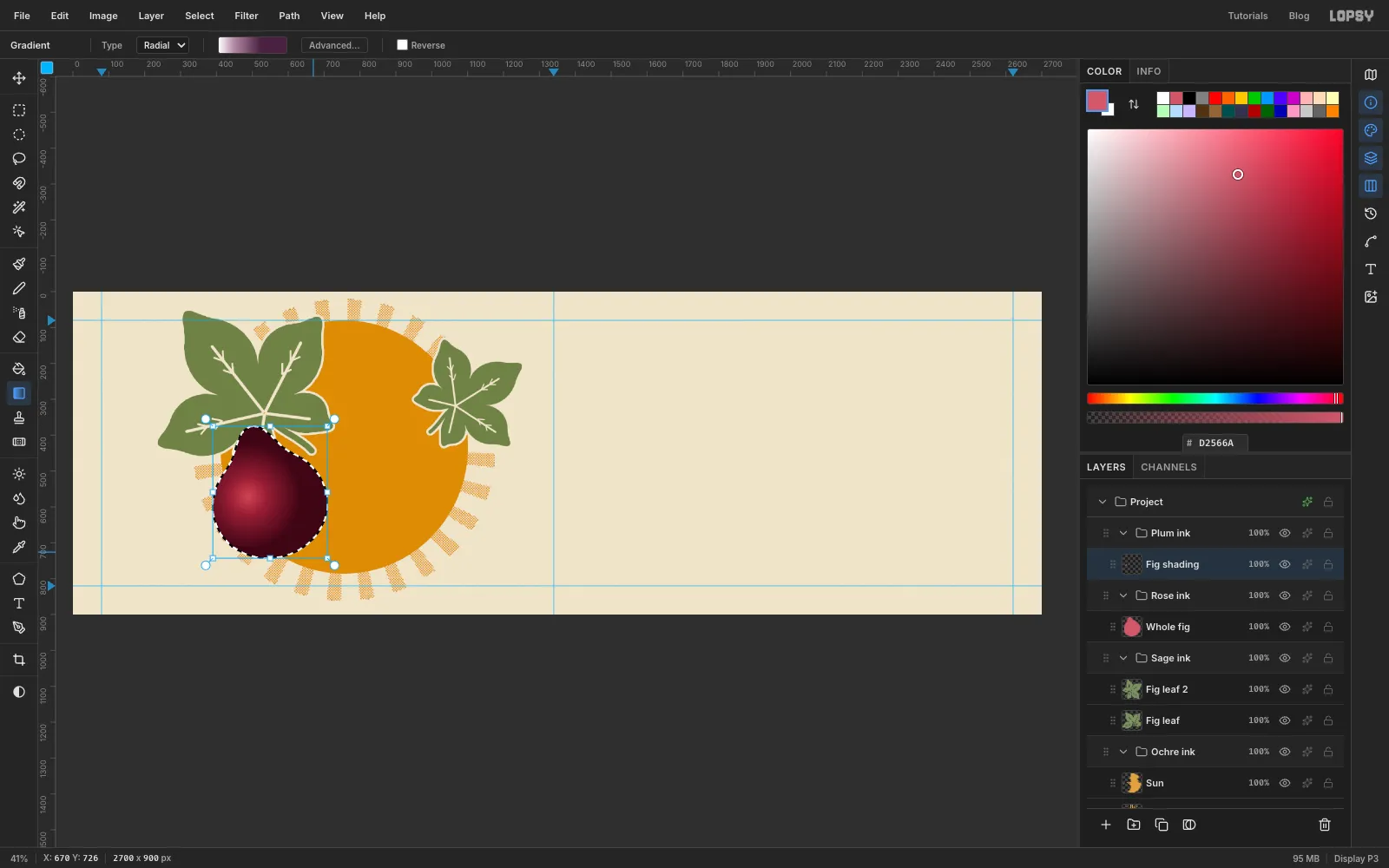
-
Turn the shading into halftone dots
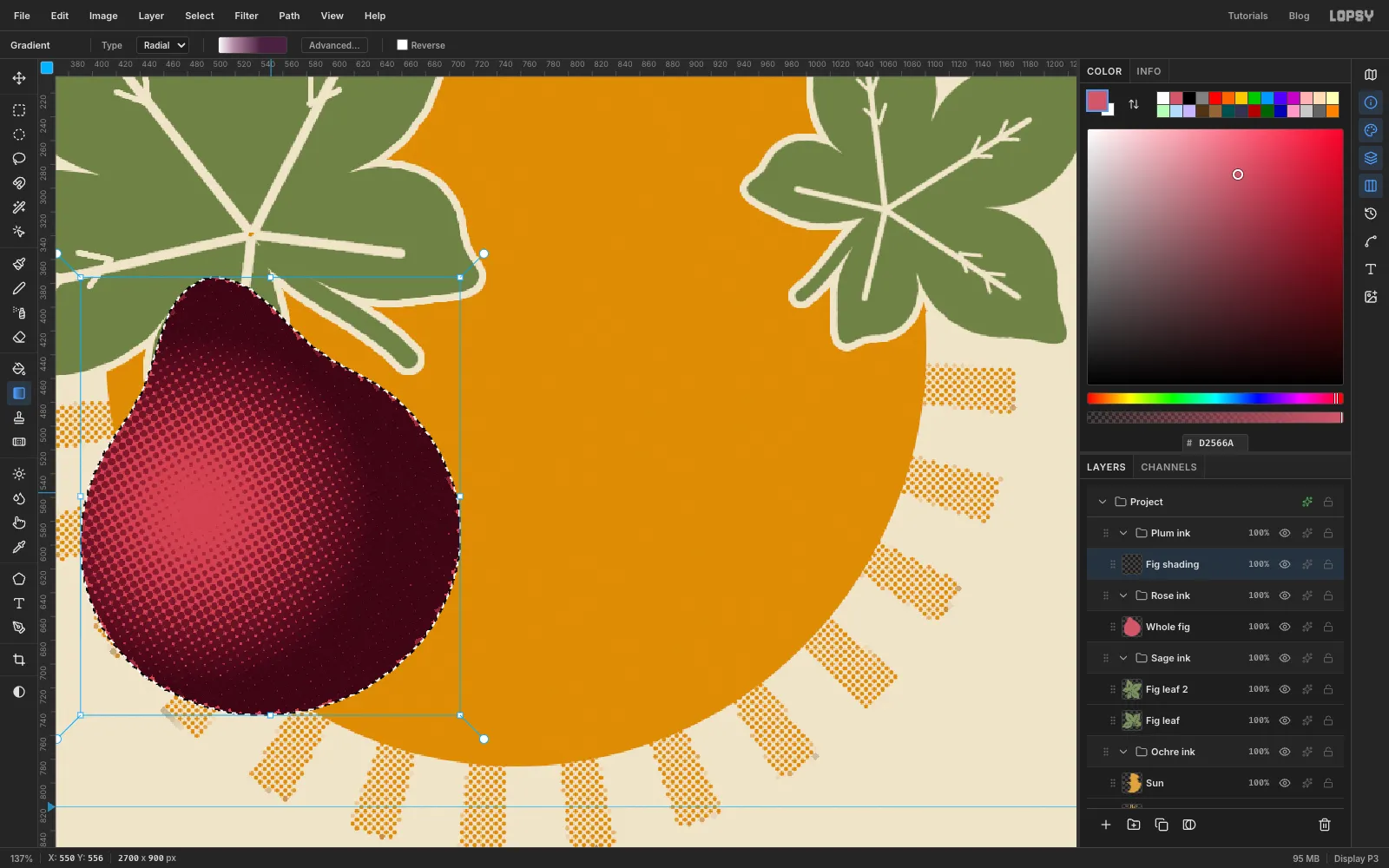
Keep the selection and choose Filter → Halftone… with Dot Size
12, Density1.7, Angle30and Softness0.5.White makes no dots, so the highlight stays rose, while the dark edges print solid plum. The dots sit on top of the rose plate and multiply into it, which is exactly how a two-colour screen print shades a round shape. Deselect.
-
Paint the stems
Add a layer named Stems inside Plum ink. Paint each stem with the Brush at Size
16in plum: a short, slightly hooked stroke rising straight out of the top of the neck, starting around495, 381. Paint the halved fig's stem now too, at the top of where its neck will be, starting around968, 340. It floats on its own for a moment; the halved fig grows up to meet it in the next steps, and because Stems isn't knocked out it stays on top.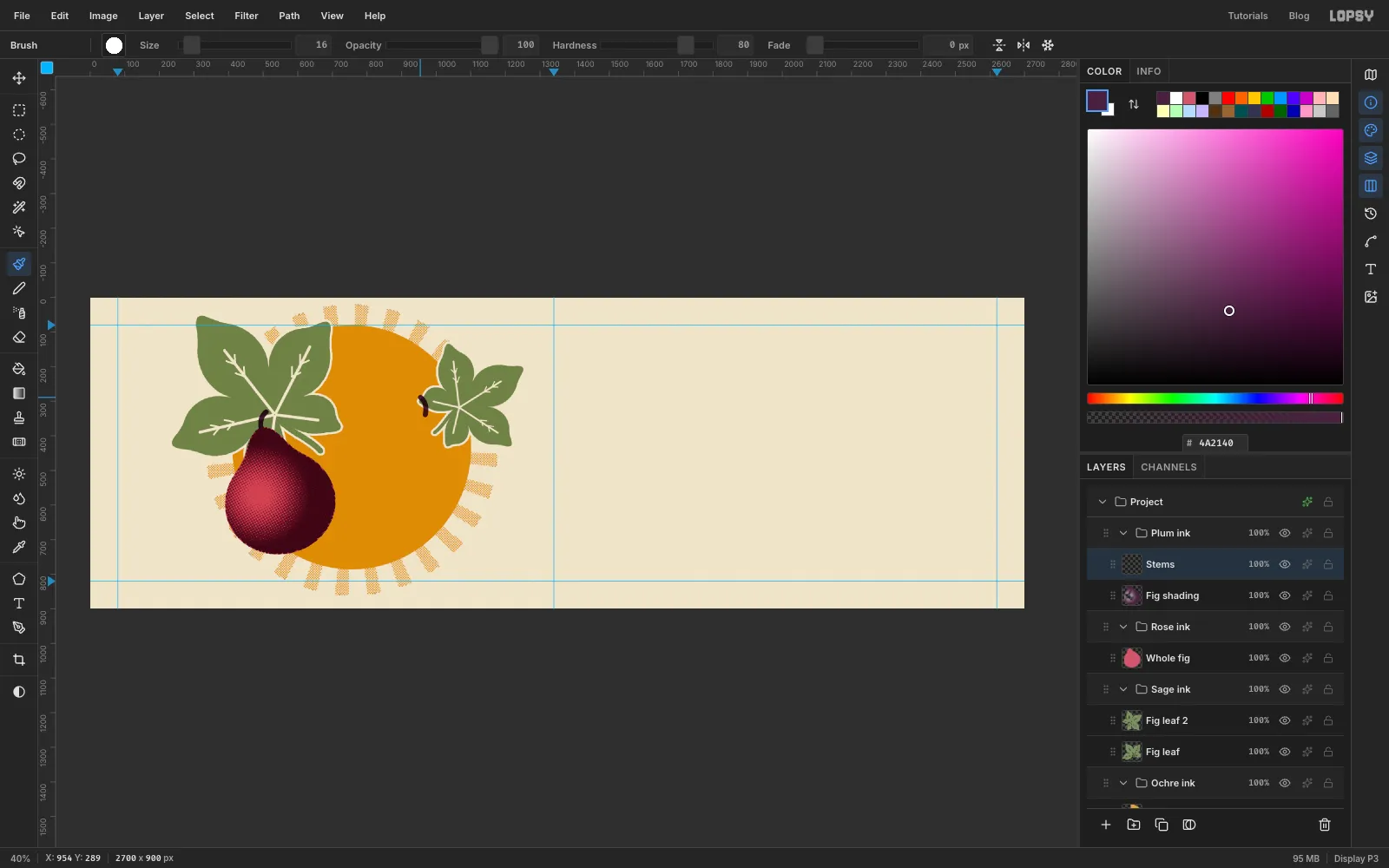
-
Cut a window for the halved fig
The halved fig needs its own clean patch of paper. With the Lasso, draw the outline of a fig about 390 px wide and 470 px tall, centred near
945, 598and leaning slightly right. Give it the same round body and short neck as the whole fig.Choose Select → Grow…
10. Expand all four groups and press Delete on Sun, Sun rays, Fig leaf, Fig leaf 2, Whole fig and Fig shading. The extra 10 px leaves a band of paper around the halved fig, so it doesn't merge into the whole fig.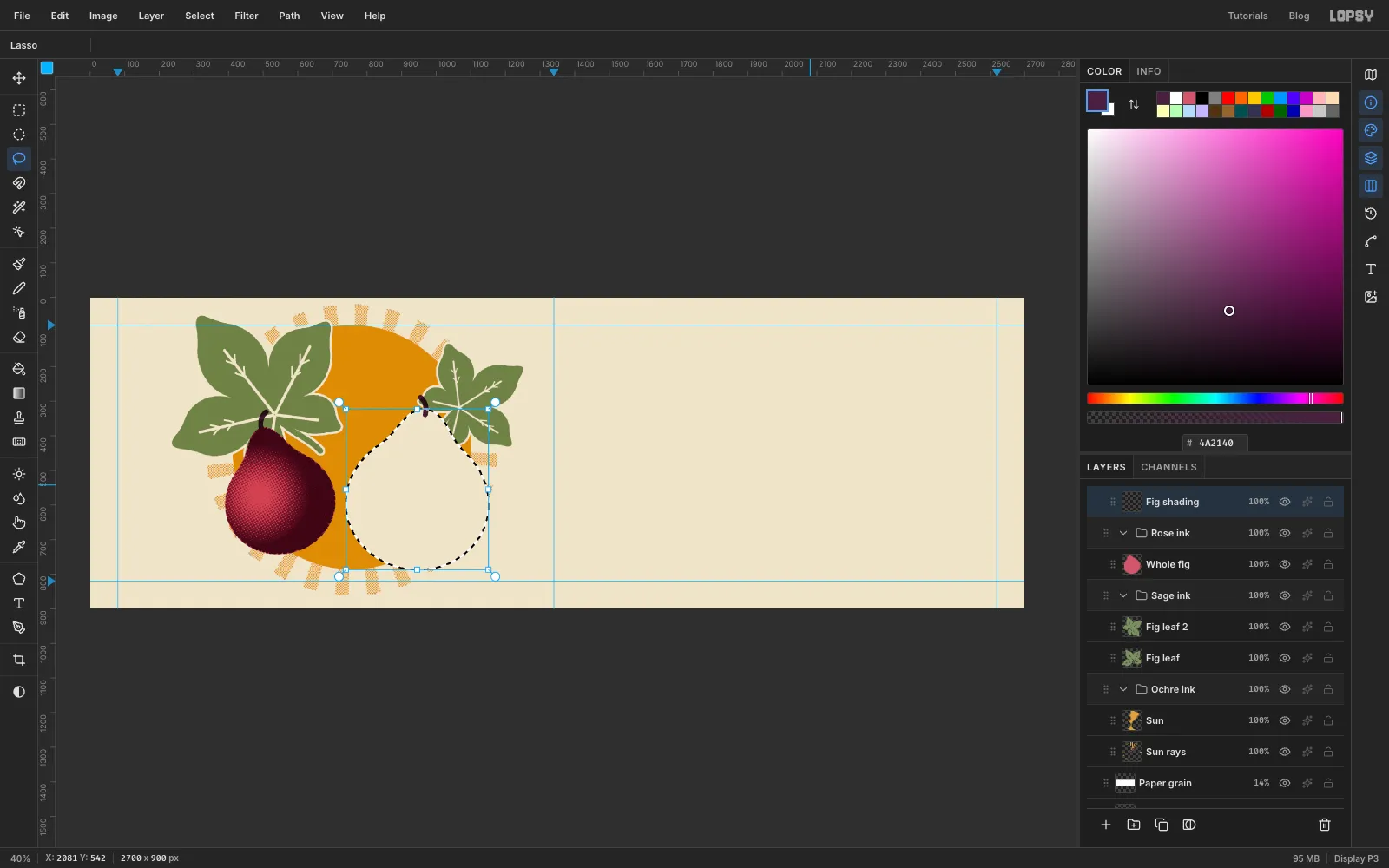
-
Draw the skin
The window's selection is still active. Choose Select → Shrink…
10to get back to the fig's own outline. Click Fig shading, add a layer named Fig skin in Plum ink, set the foreground to plum and fill.Choose Select → Shrink…
15and press Delete. That leaves a thin plum rim of even width, the skin.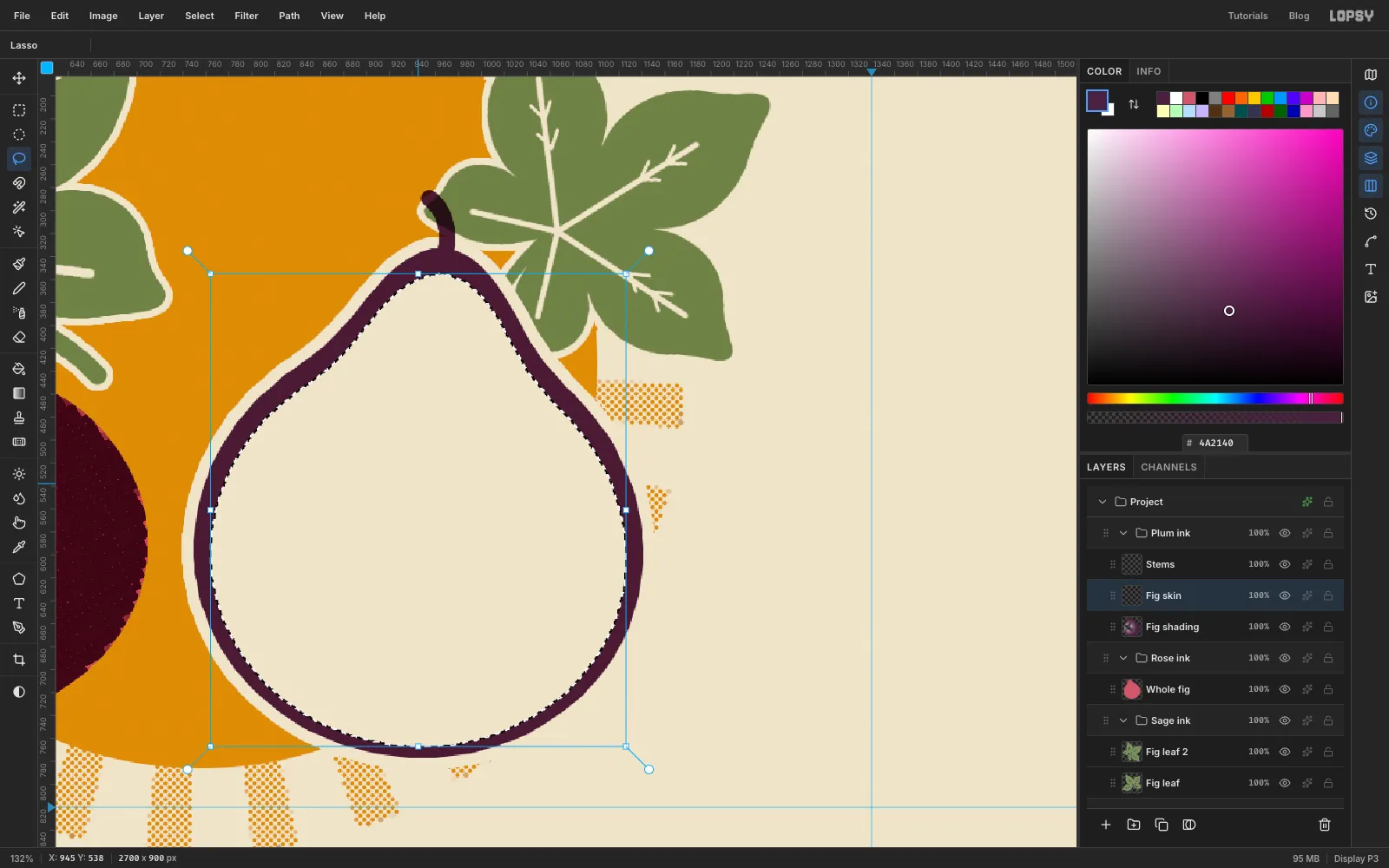
-
Fill the flesh
Keep the selection and choose Select → Shrink…
22. Click Whole fig in Rose ink, add a layer named Fig flesh and fill it with rose. The 22 px you shrank by is the cream pith ring between skin and flesh, and shrinking keeps it the same width all the way round, even up in the neck.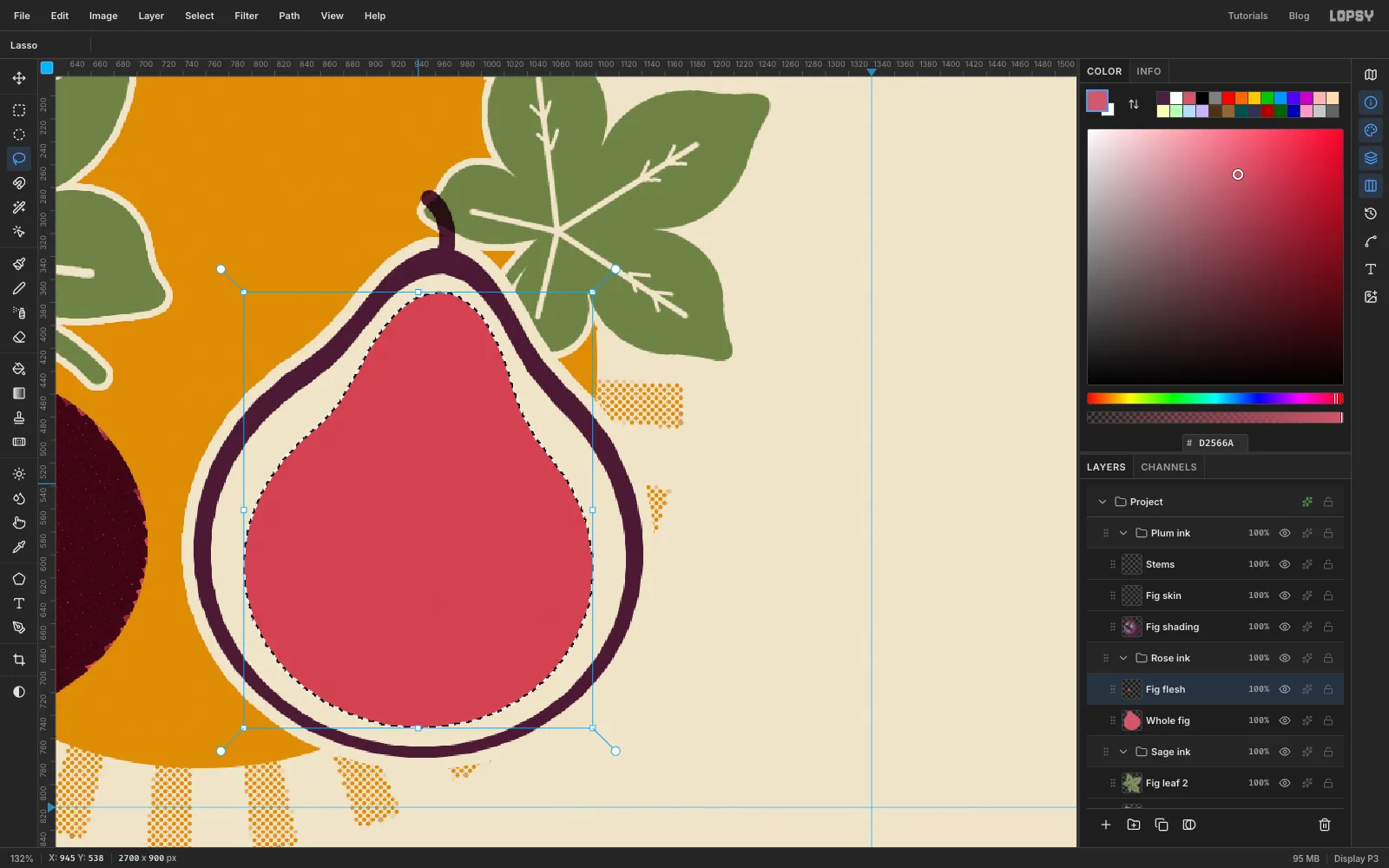
-
Burst the strands with Sunburst
Keep the flesh selected and choose Select → Shrink…
3. Click Fig skin and add a layer named Strands above it. With plum as the foreground, choose Filter → Sunburst… again:- Rays
120, Length13, Width55, Taper100 - Fade
35, Softness20, Jitter70, Seed17, Opacity80 - Center X
35and Center Y68
Center X
35and Center Y68put the burst at945, 612, just below the middle of the flesh. A Taper of100turns every ray into a spike that starts thick and thins to a point, and Jitter varies their length, so they look like the stringy inside of a fig. The selection keeps them inside the flesh. Deselect.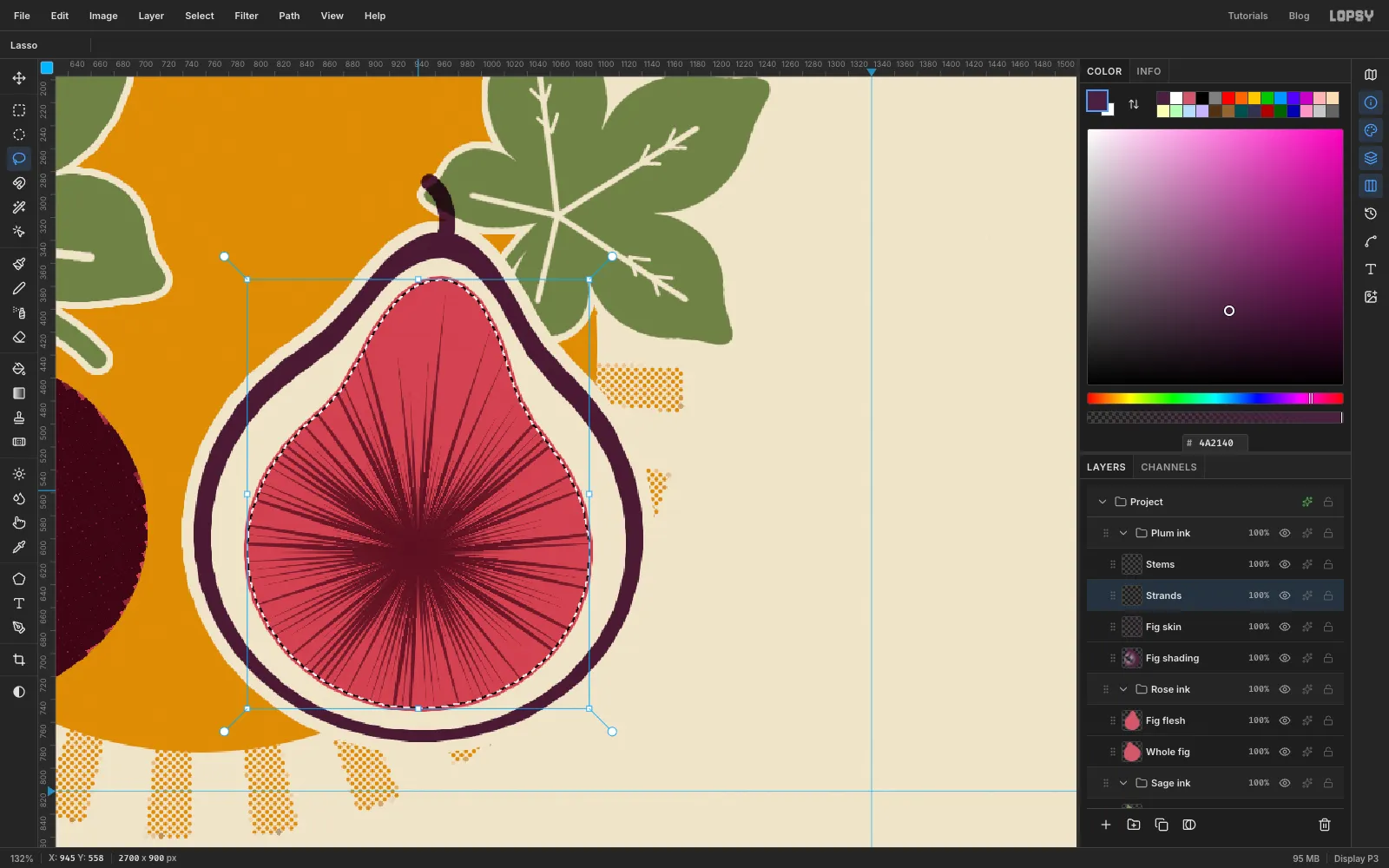
- Rays
-
Scatter the seeds
Cmd-click the Fig flesh thumbnail and choose Select → Shrink…
12. Expand Ochre ink, click Sun and add a layer named Seeds. Set the foreground to ochre.Pick the Brush at Size
8, click Open brush presets and set Spacing to260on the Shape tab, then Scatter100and Size Jitter45on the Dynamics tab. Paint five wobbly loops around the centre of the flesh, each one a bit bigger than the last. The scatter throws each seed off the line, so the loops don't look like rings. Deselect.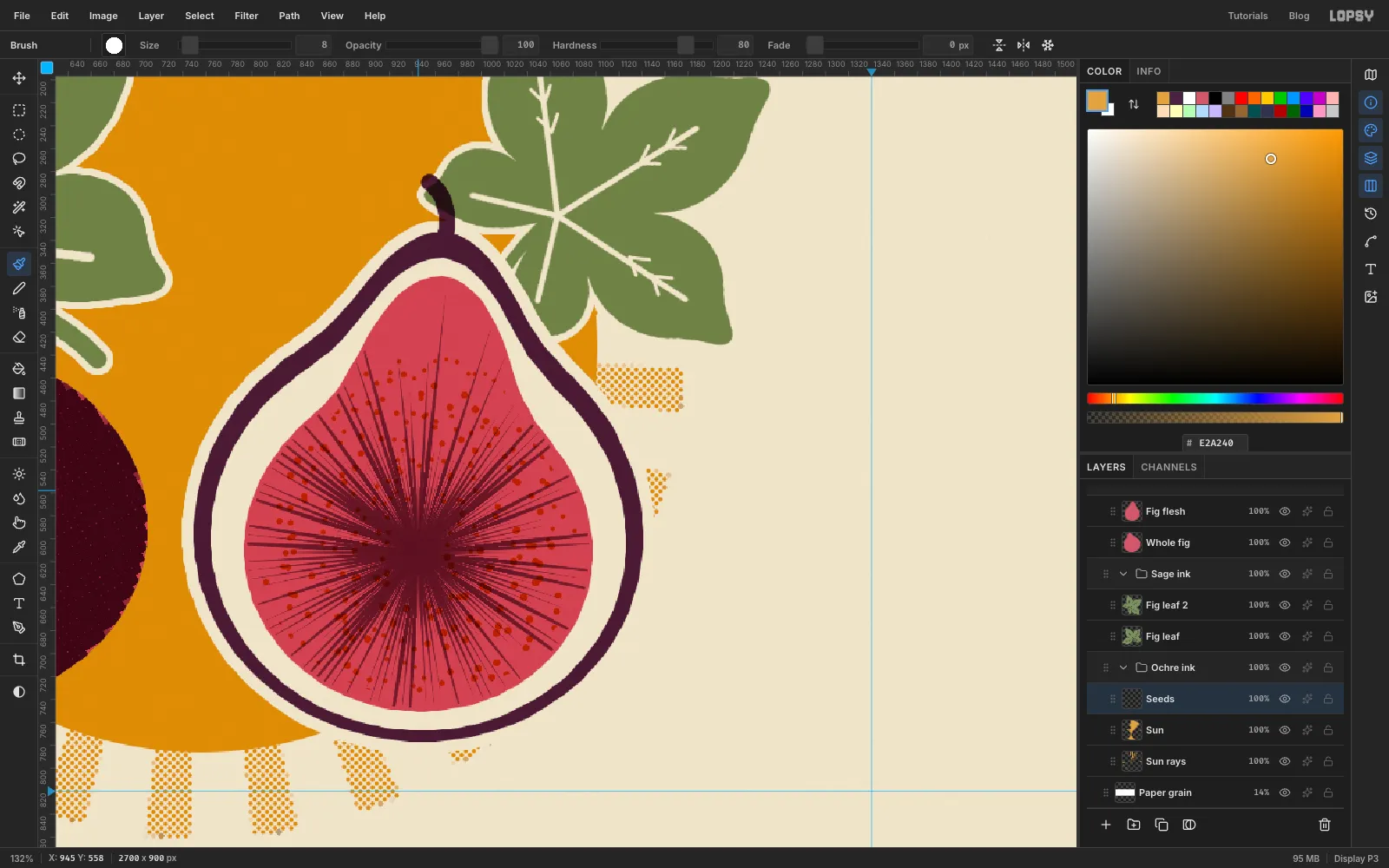
-
Punch the seeds through and hollow the centre
The seeds look too dark printed on top of the rose. Punch them through instead: Cmd-click the Seeds thumbnail, choose Select → Grow…
1, and press Delete on Fig flesh and then on Strands. Now each seed is ochre on bare paper, which reads as golden.Lasso a small teardrop about 26 px wide and 45 px tall at the burst's centre,
945, 616. Press Delete on Fig flesh, Strands and Seeds to leave the hollow in the middle of the fig. Deselect.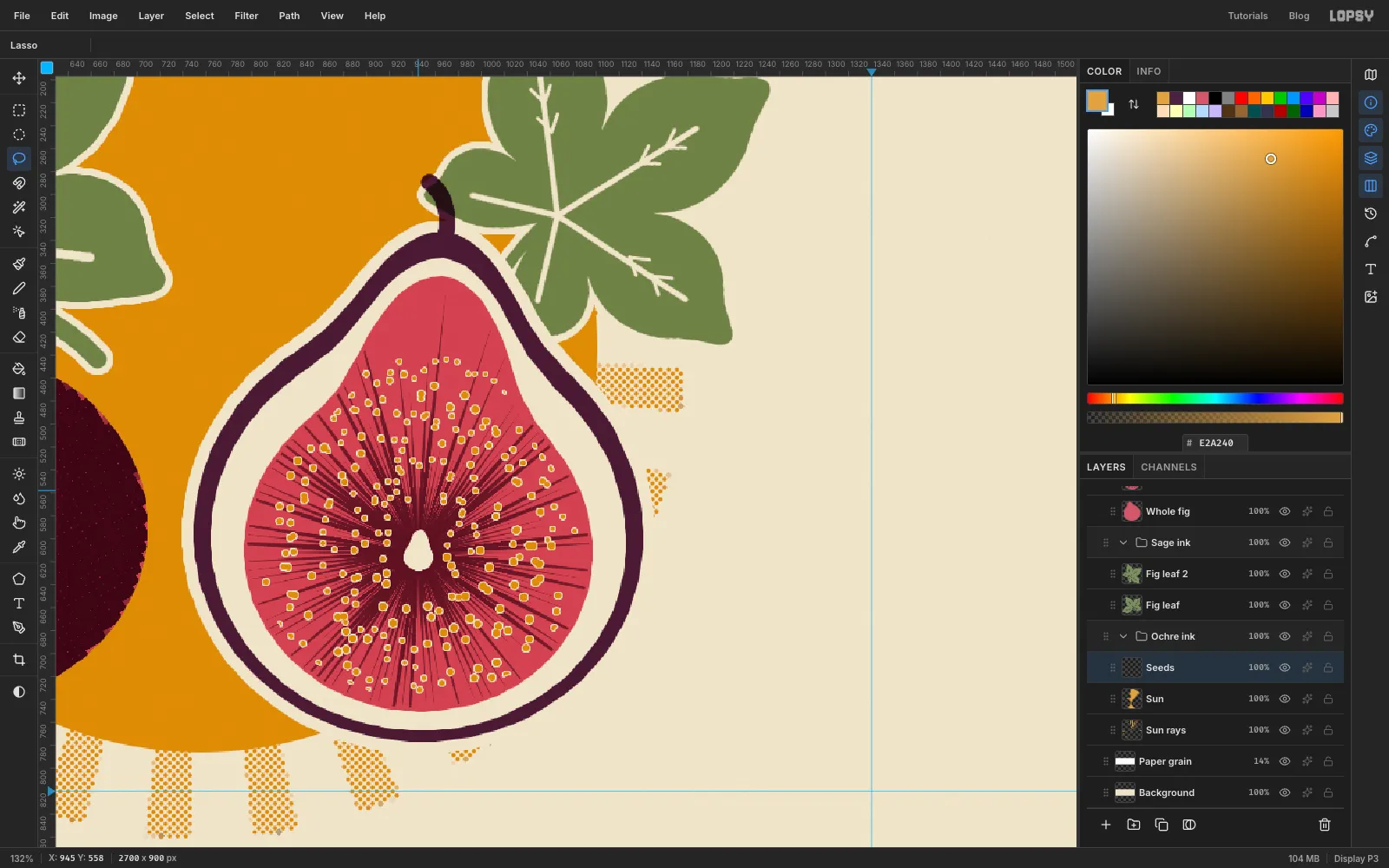
-
Cast a halftone shadow
Click Fig shading and add a layer named Shadow. With the exact-corners dialog, make an elliptical selection from
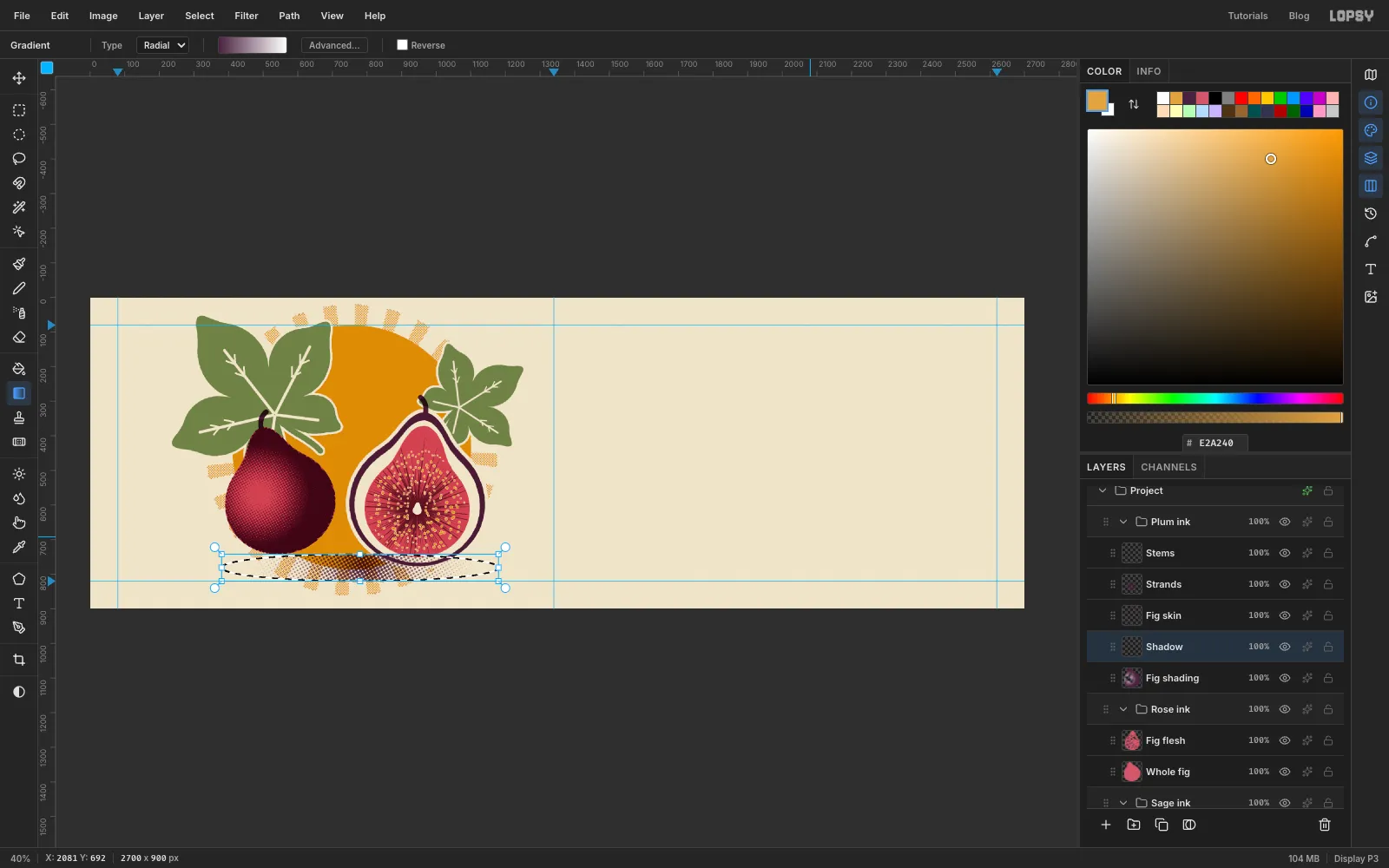
380, 742to1180, 802: a flat oval 800 px wide under the figs, centred on780, 772. Pick the Gradient tool, set it to Radial and open Advanced…. Click each middle stop and delete it until only the two ends are left, then make the left one plum and the right one white. Drag from the middle of the oval,780, 772, to its right end. Then run Halftone… with Dot Size12, Density1.3, Angle30and Softness0.5.Lasso the whole fig, then hold Shift and lasso the halved fig to add it to the selection, and press Delete so the shadow sits behind them. Finally Cmd-click the Sun thumbnail, choose Select → Inverse and press Delete on Shadow. That keeps the shadow on the sun, so it can't smudge onto the bare paper. Deselect and collapse all the groups.
-
Set the tagline and Marmalade
Type goes in from the bottom up. That way each new click lands in empty space and not on a line you've already set. The type layers sit above the ink groups rather than inside them; clicking a collapsed group row first just places each new line in the stack and stops the Text tool restyling the last one.
Click the collapsed Plum ink row so the Text tool's settings don't restyle anything. Pick the Text tool, choose Young Serif at size
56in plum, click in the type column near1340, 700and typeSpread the last of summer.Press Tab to commit it. With the Move tool, nudge it with the arrow keys until its left edge is atx = 1334and the bottom of the p sits aty = 772.Click Plum ink again. Set Rozha One at size
236in plum, click near1340, 440and typeMarmalade. Nudge it so it starts atx = 1334with its baseline aty = 662. It should end at aboutx = 2566, close to the right margin.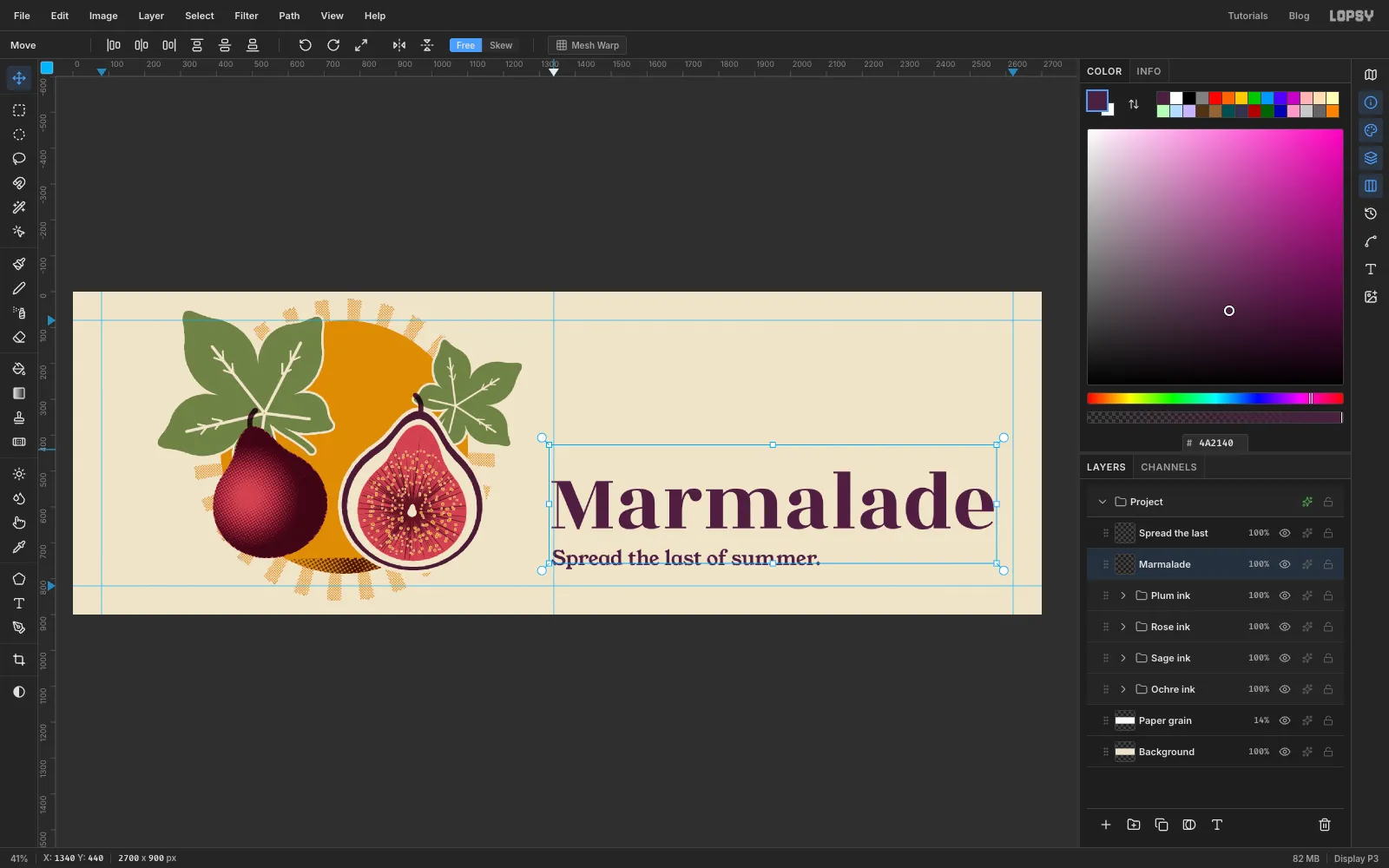
-
Set Fig in rose
Click Rose ink, then choose Rozha One at size
372in rose. Click near1340, 150and typeFig. Nudge it tox = 1334with the bottom of the g's loop aty = 516. That leaves about 25 px between the loop and the r and m of Marmalade, so the two words nest without touching.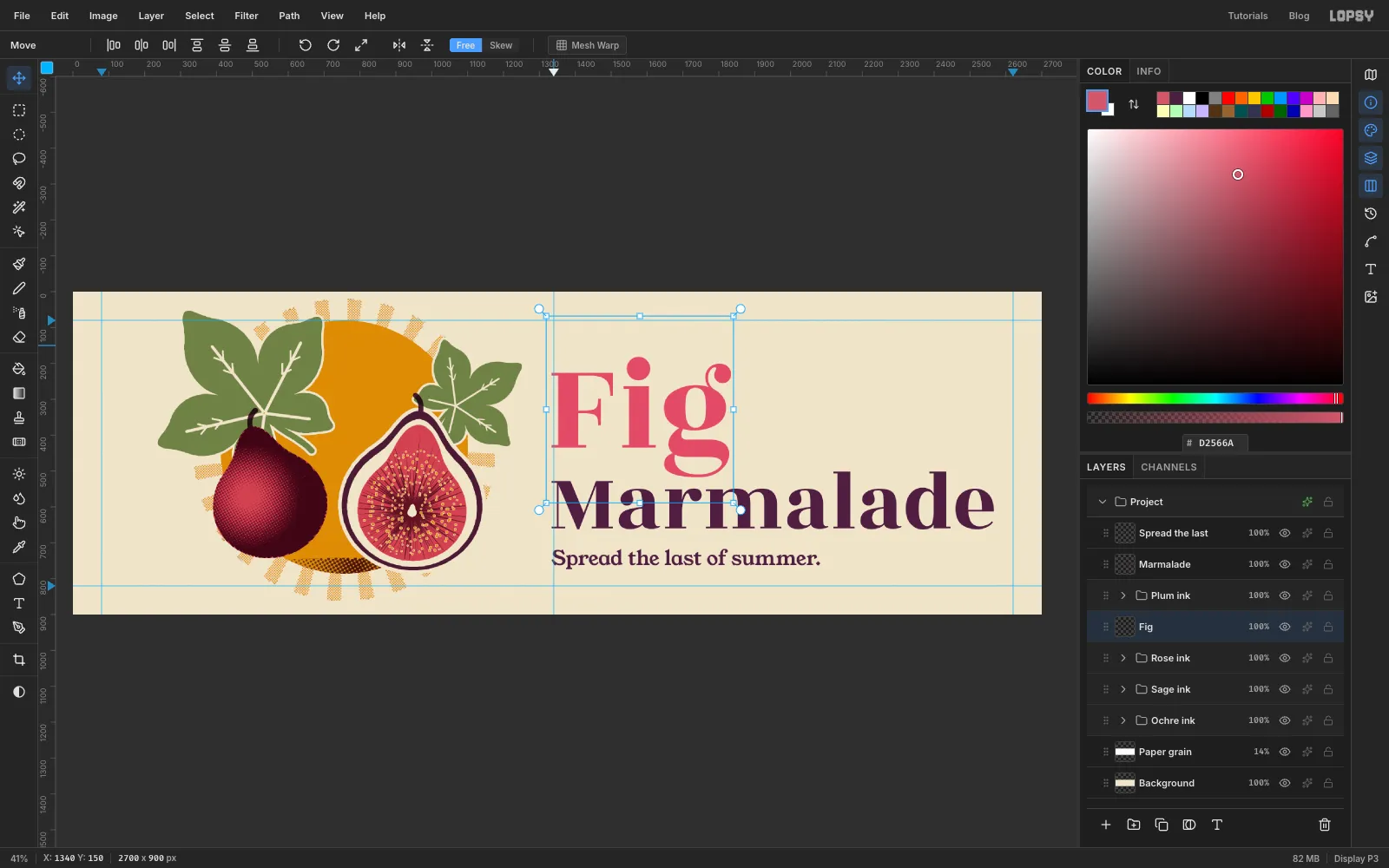
-
Add the brand line
Click Plum ink again. Choose Bevan at size
60in plum, click in the top margin near1340, 40and typeMORROW & FINCH. Nudge it so its left edge is at1334and the tops of its capitals are aty = 84. On a billboard, the advertiser's name has to be readable from the road, so keep it big.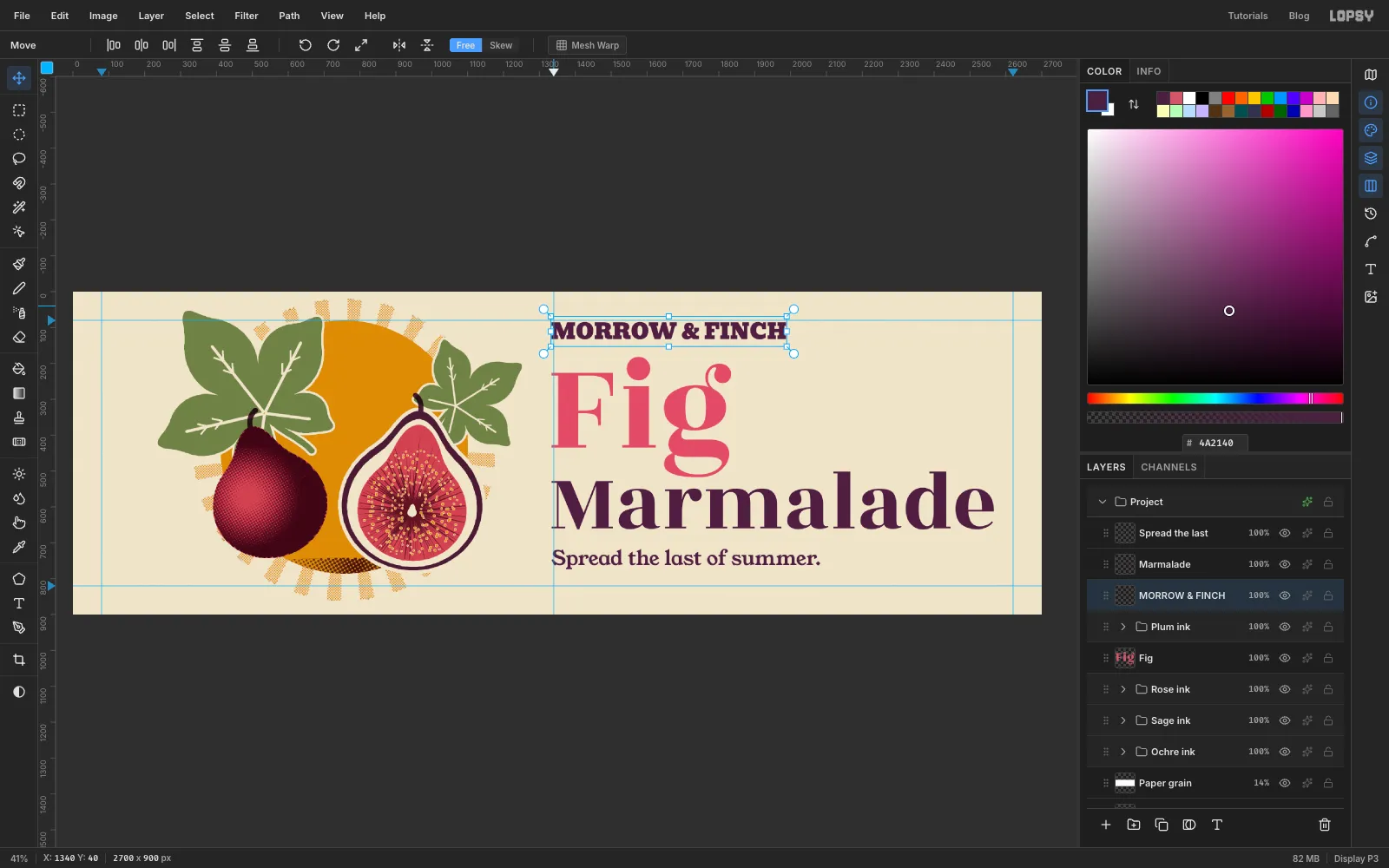
-
Misregister Marmalade
Real plates never line up perfectly. Fake one slip on the headline.
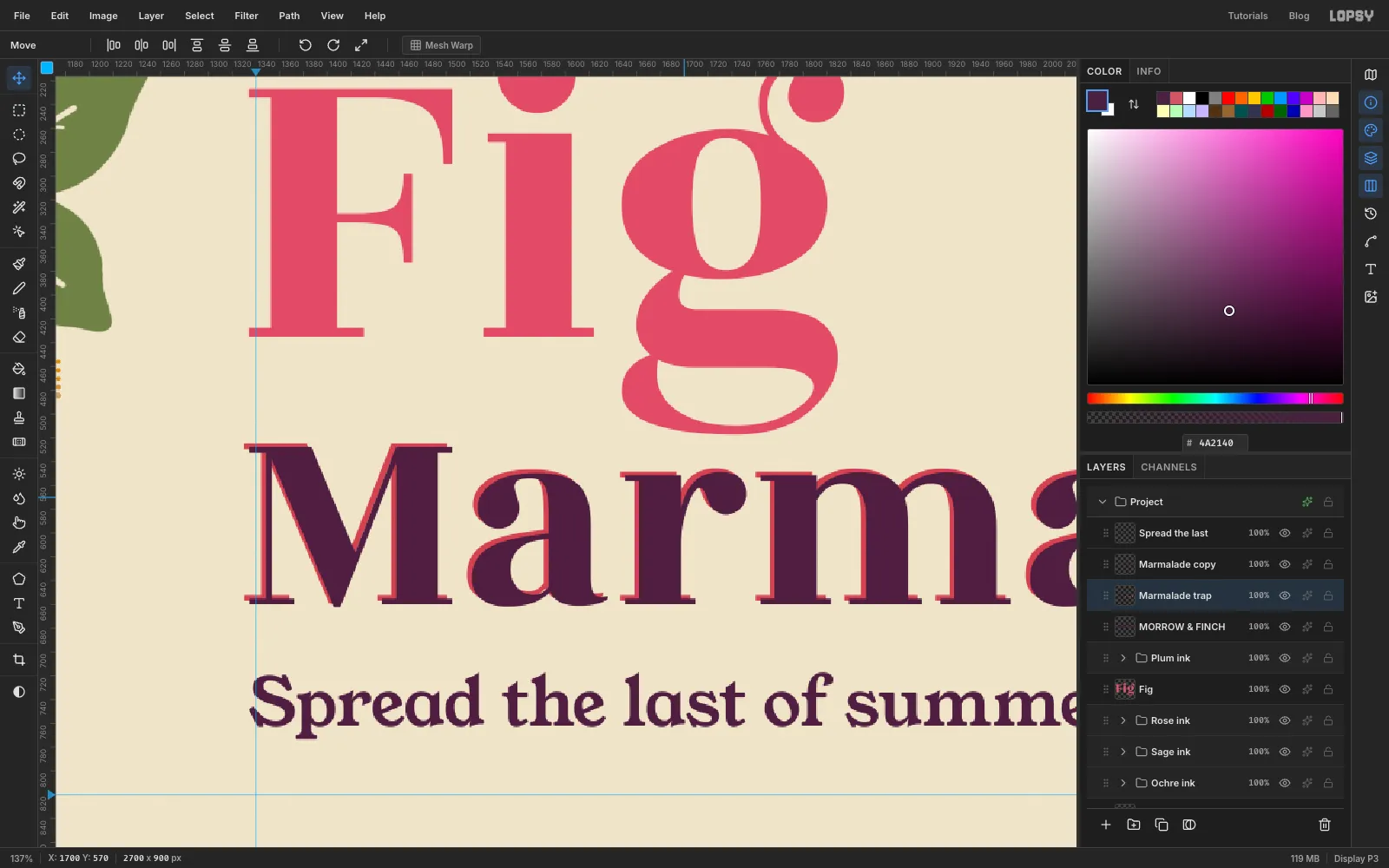
Click Marmalade and choose Layer → Duplicate Layer. The copy, Marmalade copy, stays live text on top. Click the original Marmalade row, which is now underneath, and click Rasterize Layer at the bottom of the Layers panel. In its drawer turn on Color Overlay in rose, then click Rasterize Layer Style to bake it. Rename it Marmalade trap and set its Blend to Multiply.
With the Move tool, press ArrowLeft four times and ArrowUp three times. A thin rose edge now shows along the top left of every plum letter.
-
Snap the badge disc to guides
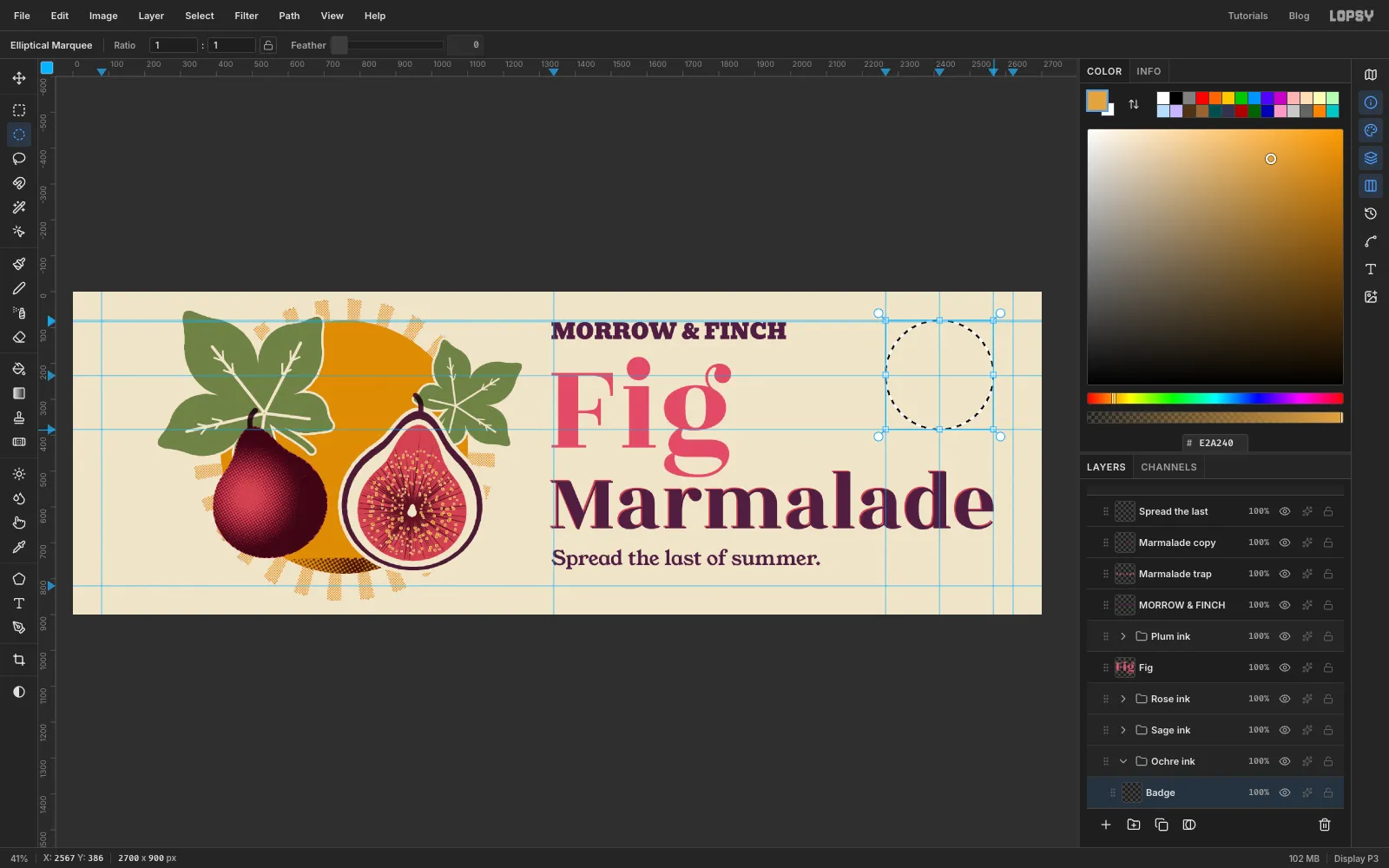
The badge goes in the top-right corner. It's centred on
2415, 234with a radius of150, so its right edge lines up with the end of Marmalade. Click the top ruler at2265,2415and2565, and the left ruler at84,234and384.Expand Ochre ink, click Seeds and add a layer named Badge. With the Elliptical Marquee, drag from the top-left corner of the guide box to the bottom-right one. Snap to Guides is on by default, so both corners land exactly on the guides. Set the foreground to ochre, fill and deselect.
-
Ring the badge
The rings are within a few pixels of those guides, so turn View → Snap to Guides off first, or every circle will jump to the guide box.
Collapse Ochre ink, expand Plum ink, click Strands and add a layer named Badge ring. Set the foreground to plum. With the exact-corners dialog, make two rings around
2415, 234:- fill
2278, 97to2552, 371(radius 137), then select2284, 103to2546, 365(radius 131) and press Delete - fill
2334, 153to2496, 315(radius 81), then select2337, 156to2493, 312(radius 78) and press Delete
Pick the Brush, open Open brush presets and set Scatter and Size Jitter back to
0(they're still set from the seeds). At Size11, click once at2309, 234and once at2521, 234. These dots split the top line of text from the bottom one.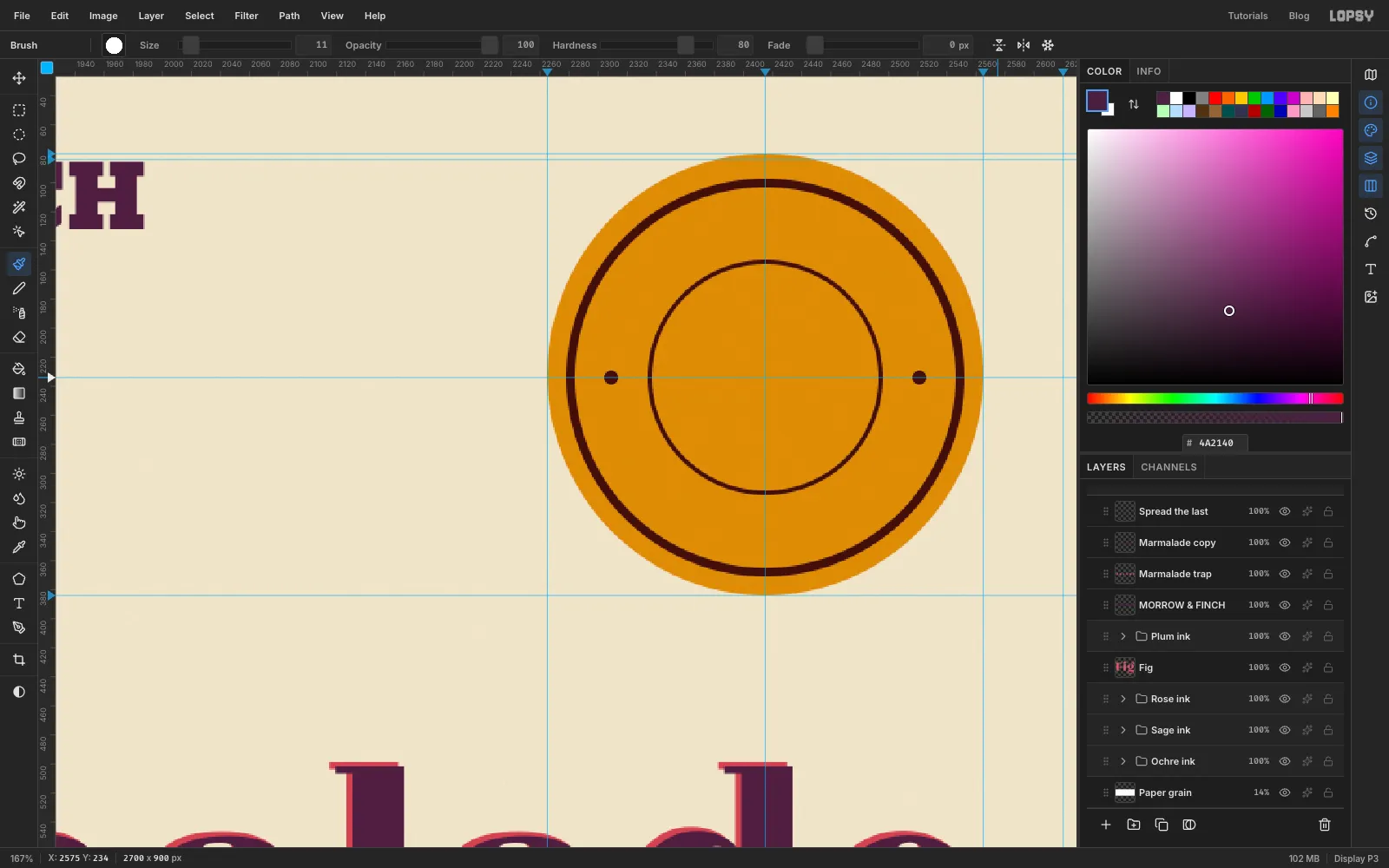
- fill
-
Draw two arcs with the Pen
Text on a closed circle runs all the way round, so the bottom half ends up upside down. Use two arcs instead, both drawn left to right.
Pick the Pen tool. For the top arc, press on the left at
2318, 234and drag straight up about 130 px to pull out a handle. Then press on the right at2512, 234and drag straight down by the same amount. Click the ✓ Commit path button in the options bar. That's a half circle over the top, 97 px from the centre.For the bottom arc, press at
2305, 274, a little below the left dot, and drag about 110 px down and slightly to the right. Then press at2525, 274and drag the same distance up and slightly to the right. Commit it. It sags under the inner ring, 117 px from the centre.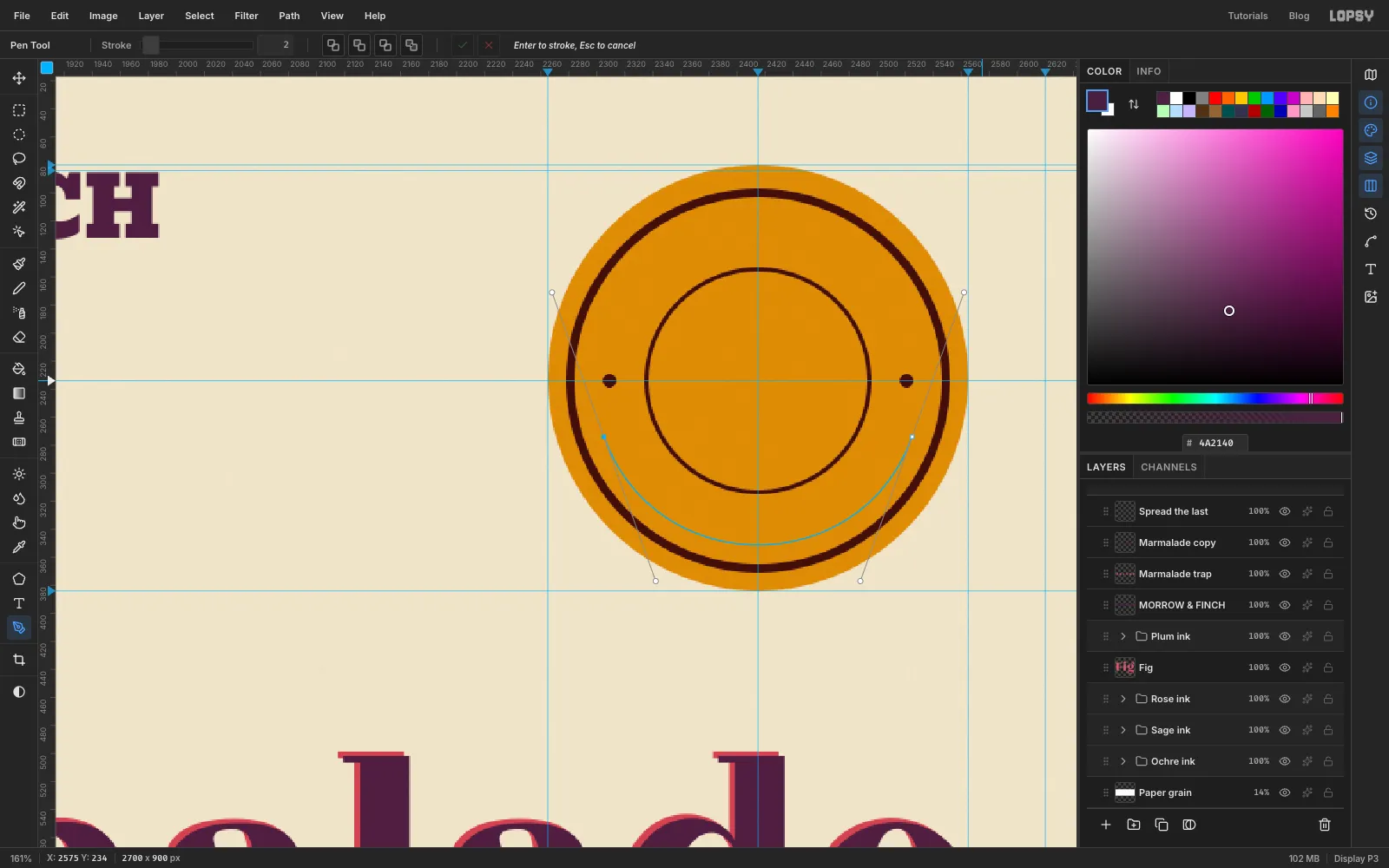
-
Bind the badge text to the arcs
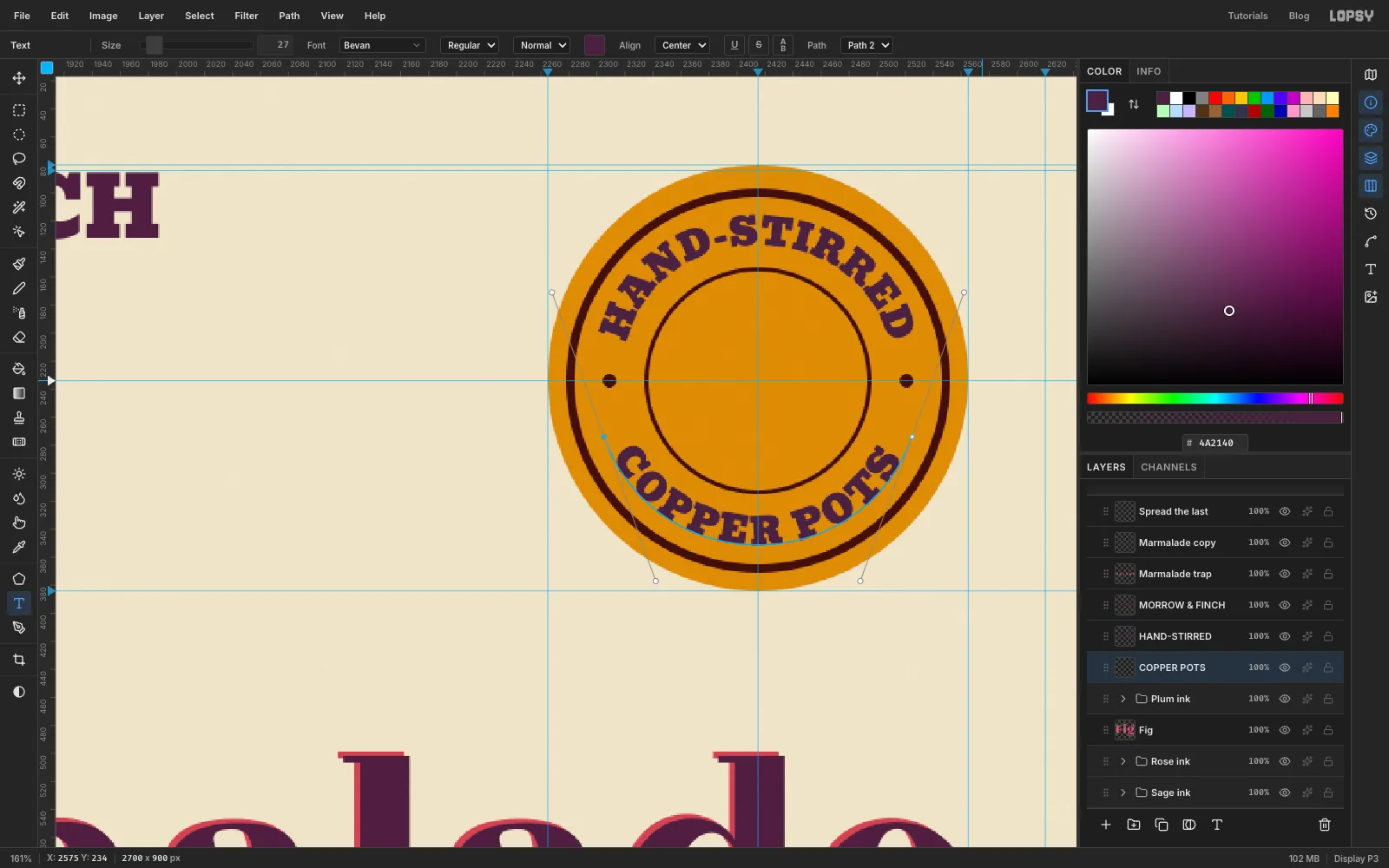
Click Plum ink. With the Text tool, choose Bevan at size
27in plum, click in the empty bottom margin and typeHAND-STIRRED. Commit it. In the options bar set Path to Path 1 and Align to Center. The letters jump onto the top arc and centre over the badge.Click Plum ink again, type
COPPER POTSthe same way, and bind it to Path 2 with Align set to Center. Because the bottom arc runs left to right, the letters sit upright with their tops towards the middle of the badge. With COPPER POTS still selected, open the Text panel and set Letter spacing to3to loosen it a little. The spacing carries over to the next text you type, which suits the two small lines in the middle.The top line sits on a smaller circle than the bottom one, because the top letters grow outward from their arc and the bottom letters hang inward. So both lines fill the same band between the rings.
-
Fill the badge centre
Click Plum ink, choose Bevan at size
18and click inside the inner ring, clear of the arc letters, and typeEST.Click Plum ink again, choose Rozha One at size56and type1931. Nudge both until they're centred onx = 2415, with EST. just above the middle line and 1931 just below it.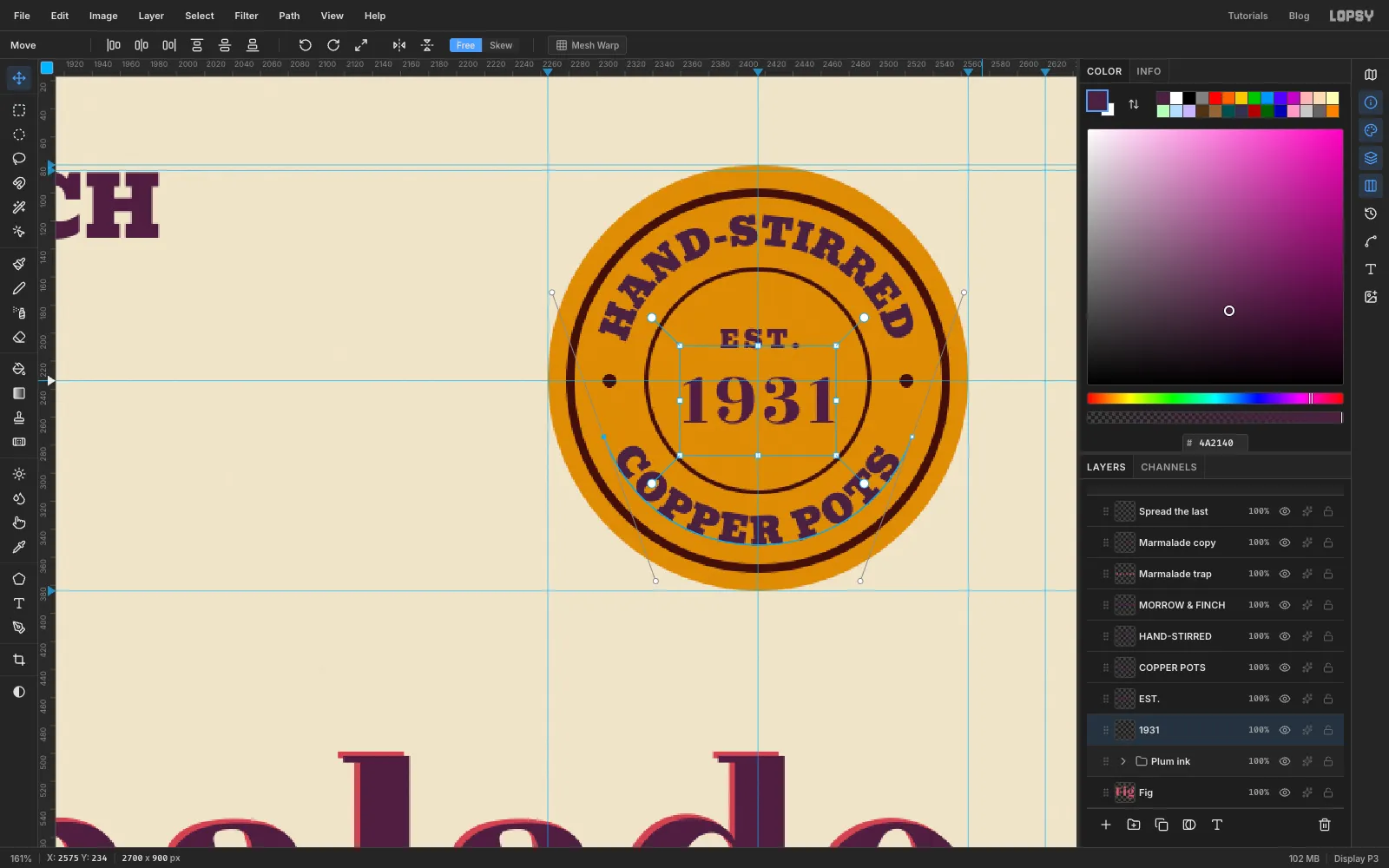
-
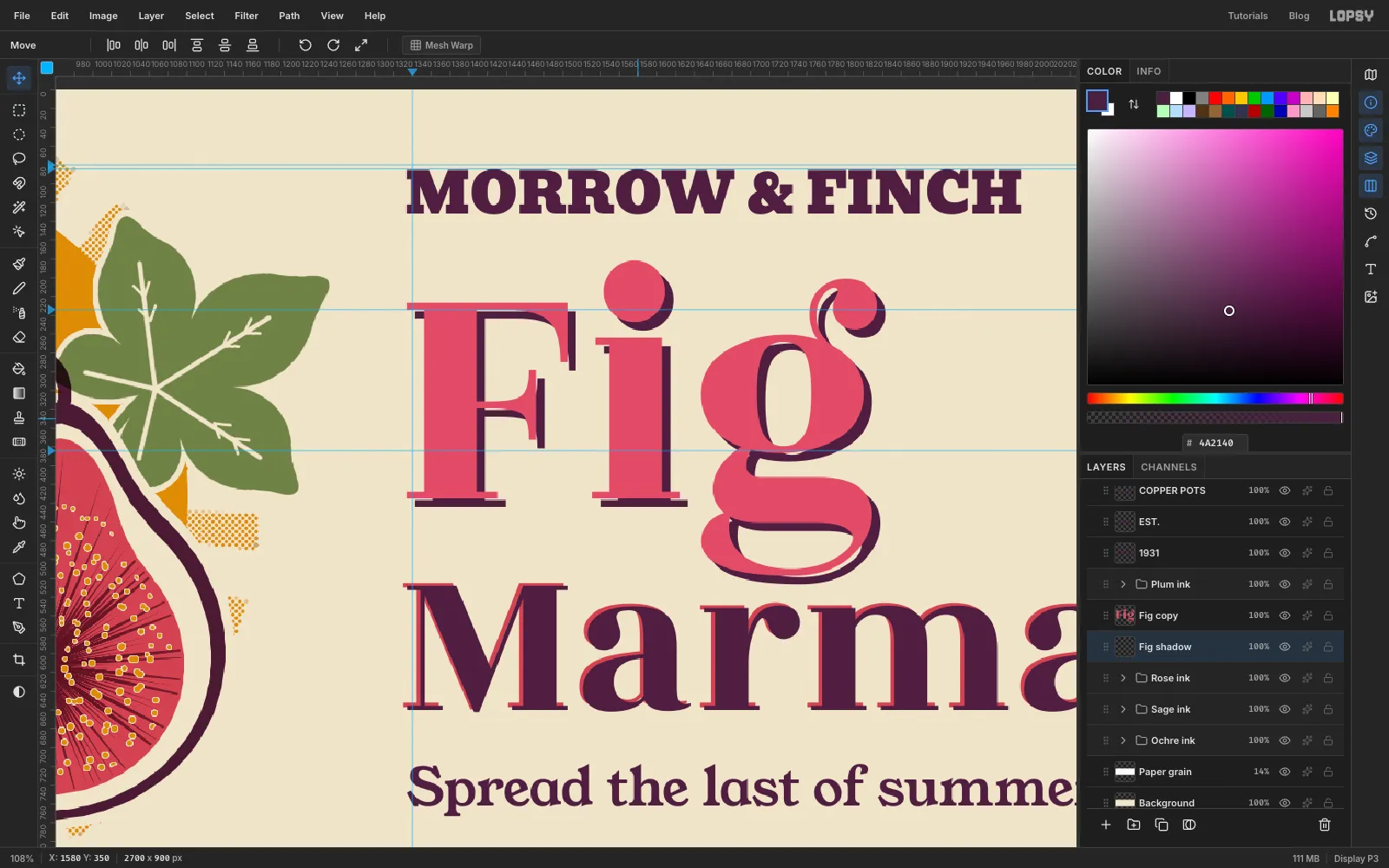
Give Fig a plum shadow
This works like the trap on Marmalade. Click Fig and choose Layer → Duplicate Layer. The copy, Fig copy, stays rose and on top. Click the original Fig underneath, click Rasterize Layer, turn on Color Overlay in plum and click Rasterize Layer Style. Rename it Fig shadow.
With the Move tool, nudge it 9 px right and 9 px down with the arrow keys (Shift+arrow moves 10 px at a time). That's the hard shadow of a second plate.
-
Fill the letters with halftone dots
Cmd-click the Fig copy thumbnail to select the letters, click the Fig copy row and add a layer named Fig dots.
Pick the Gradient tool, set it to Linear, and in Advanced… make the left stop white and the right stop ochre. Drag from just below the top of the letters straight down to the bottom of the g. Run Halftone… with Dot Size
11, Density1.6, Angle45and Softness0.4. Deselect and set the layer's Blend to Multiply. The dots overprint the rose, so they print as a deeper orange, heavier towards the foot of each letter.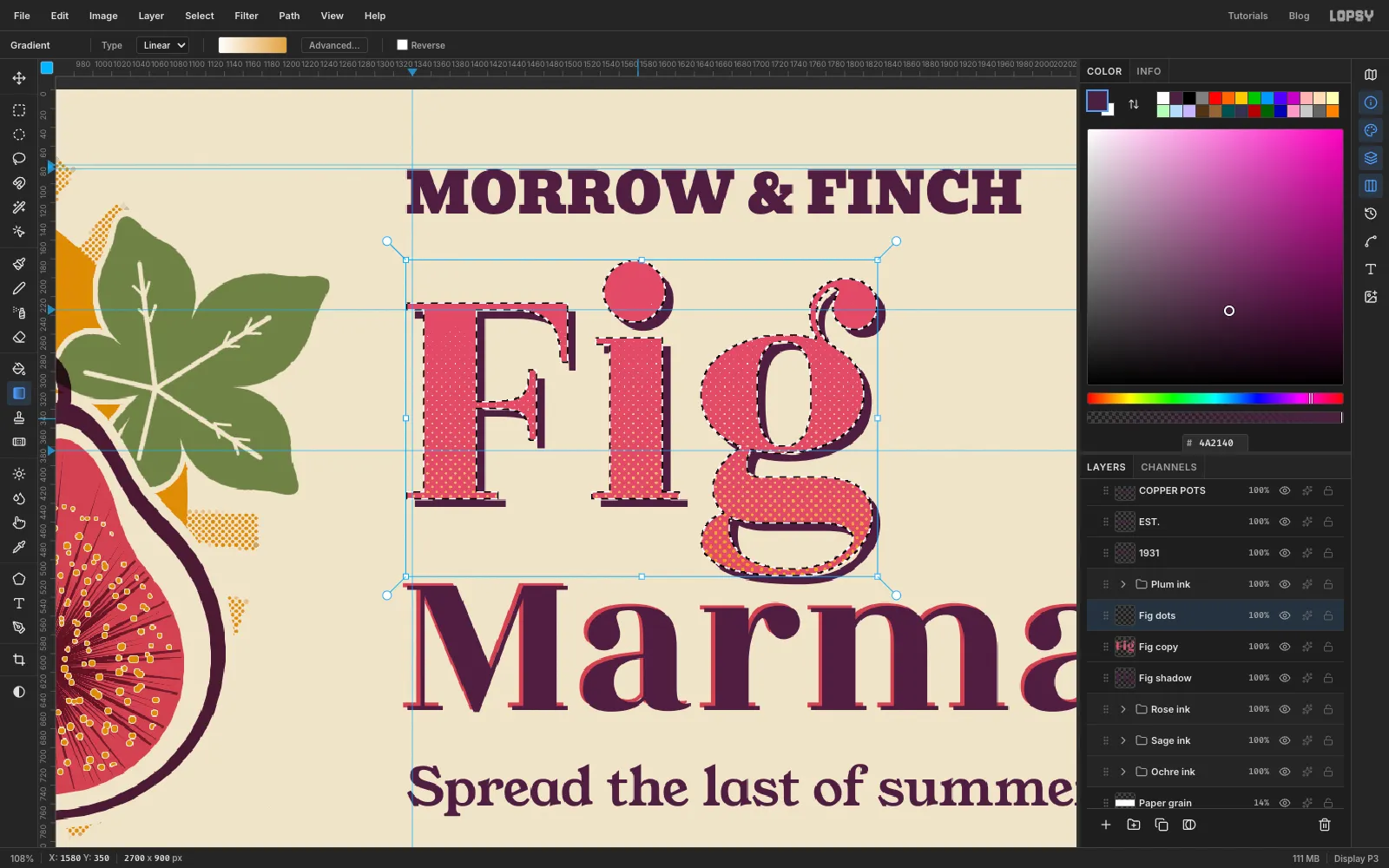
-
Misregister two plates
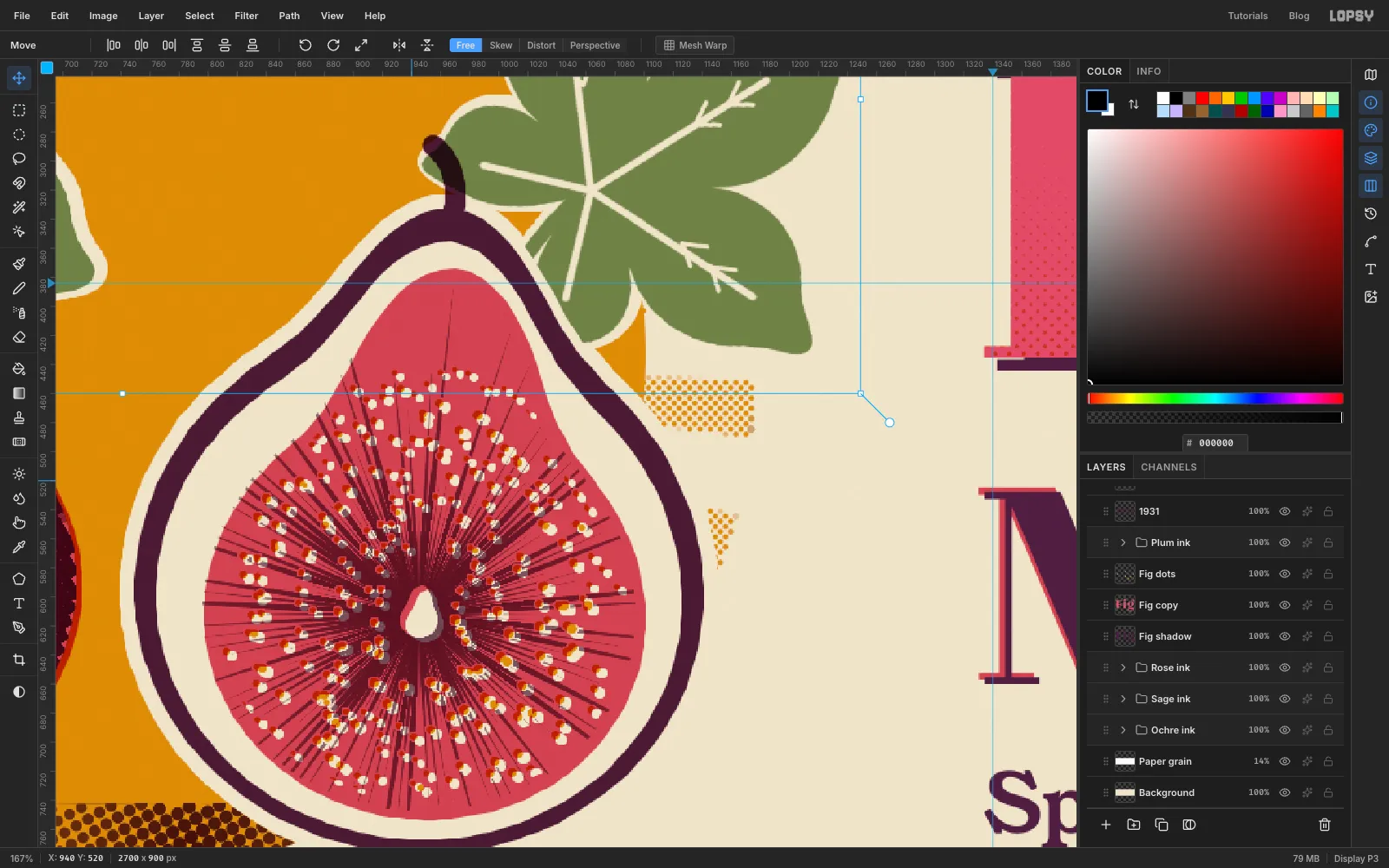
Moving a whole group moves its plate. Click the collapsed Rose ink group row, pick the Move tool and press ArrowRight four times and ArrowDown three times. Then click Sage ink and press ArrowLeft three times and ArrowDown twice.
The slip opens thin slivers of paper along some edges and doubles others. The seed holes move too, so the seeds pick up pale paper centres with rose edges, which sells the misprint.
Each arrow press is its own undo step, so Cmd+Z twelve times takes both plates back exactly where they were if you want to compare. Then redo all twelve with Cmd+Shift+Z.
-
Make the ink wear specks
Ink skips on the tooth of real paper. Click the topmost layer in the Layers panel (the first row under Project, here the tagline) and add a layer named Ink wear, so it sits above everything, type included. Set the foreground to grey and fill the whole layer and choose Add Noise… with Amount
100, Mono and Uniform. Then choose Gaussian Blur… with Radius2. The blur clumps the noise into small blobs.Choose Filter → Threshold… and drag the Level up until only a few percent of the blobs stay white, about
150here. The rest turns black.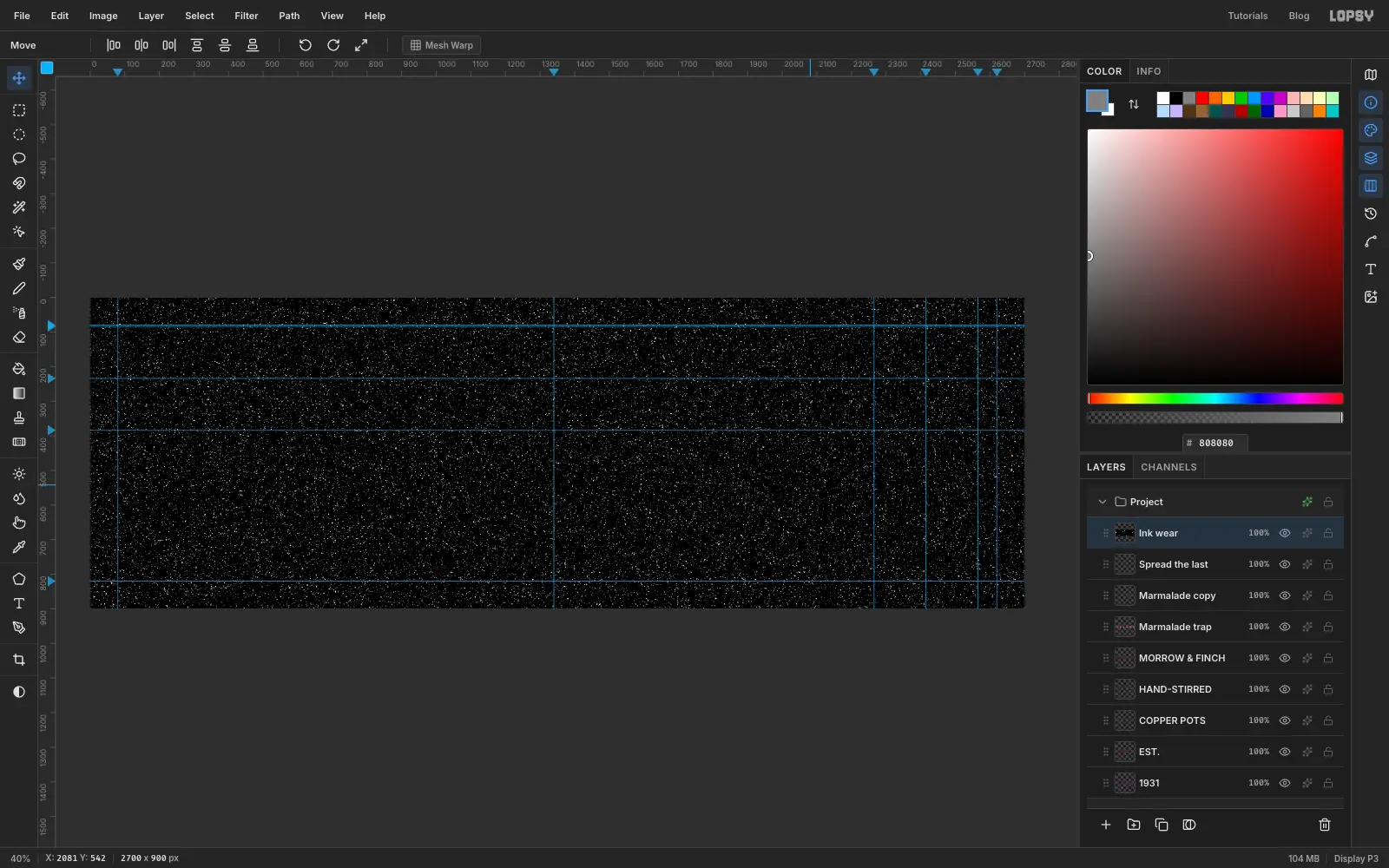
-
Turn the specks into paper
Pick the Magic Wand, untick Contiguous, and click any black area. That selects all the black at once. Press Delete and deselect, so only the white specks are left.
Open the layer's drawer and turn on Color Overlay in paper , then click Rasterize Layer Style. Set the layer's opacity to 85%. The specks are invisible on bare paper, but they break up every ink, type included, like a print where the ink didn't quite cover.
Turn the guides off with View → Show Guides. Export with File → Quick Export PNG and keep the layered file with File → Save Project.