Design a Typographic Zine Cover in Lopsy
Build a photocopied typography zine cover from giant overprinted letters, a misregistered title strip, proofreader's marks and a worn rubber stamp in Lopsy.
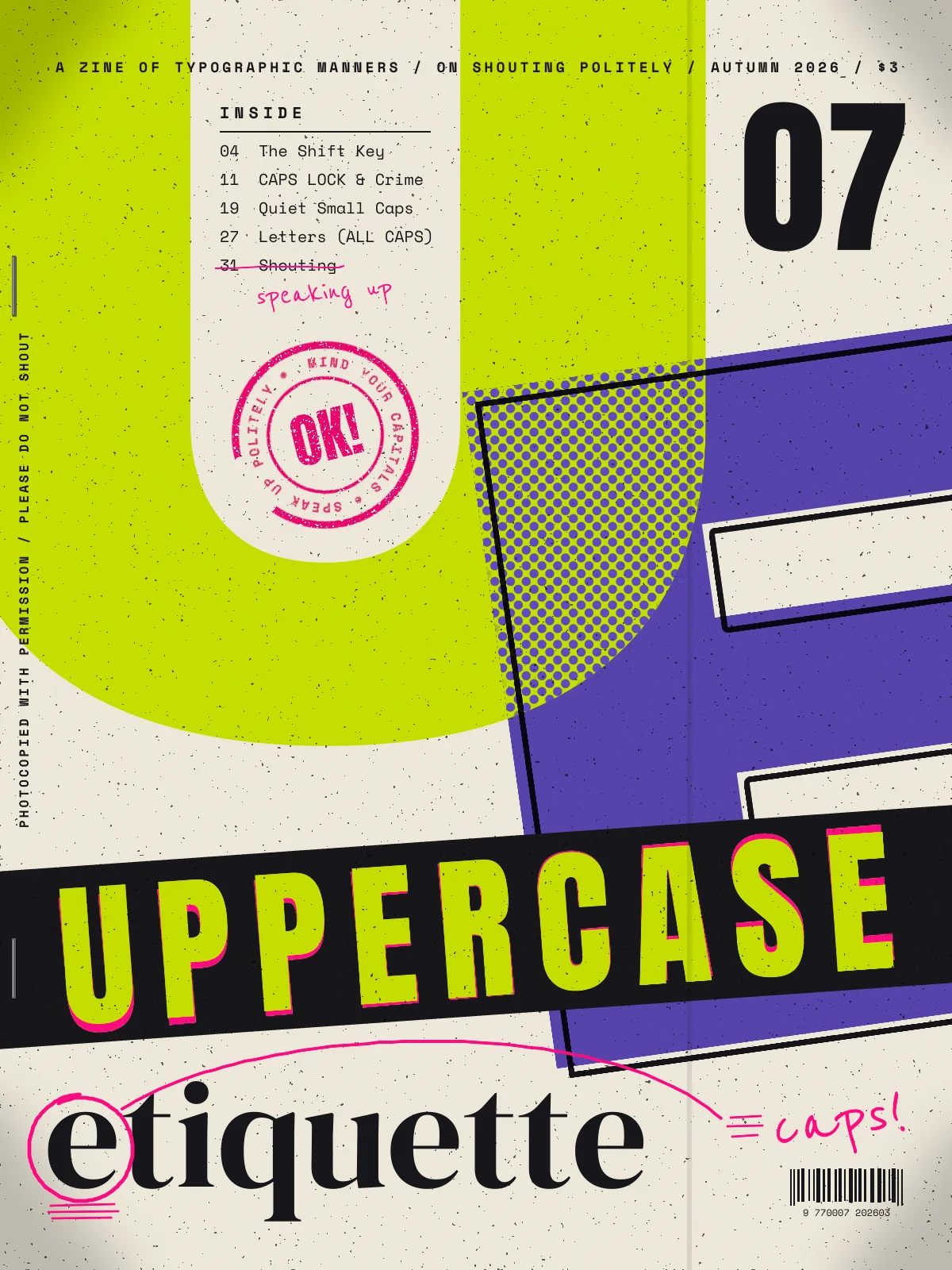
Uppercase Etiquette is an imaginary zine about capital letters and the manners they demand. This issue is called "On Shouting Politely". In this tutorial you'll design its cover. Type does almost all the work.
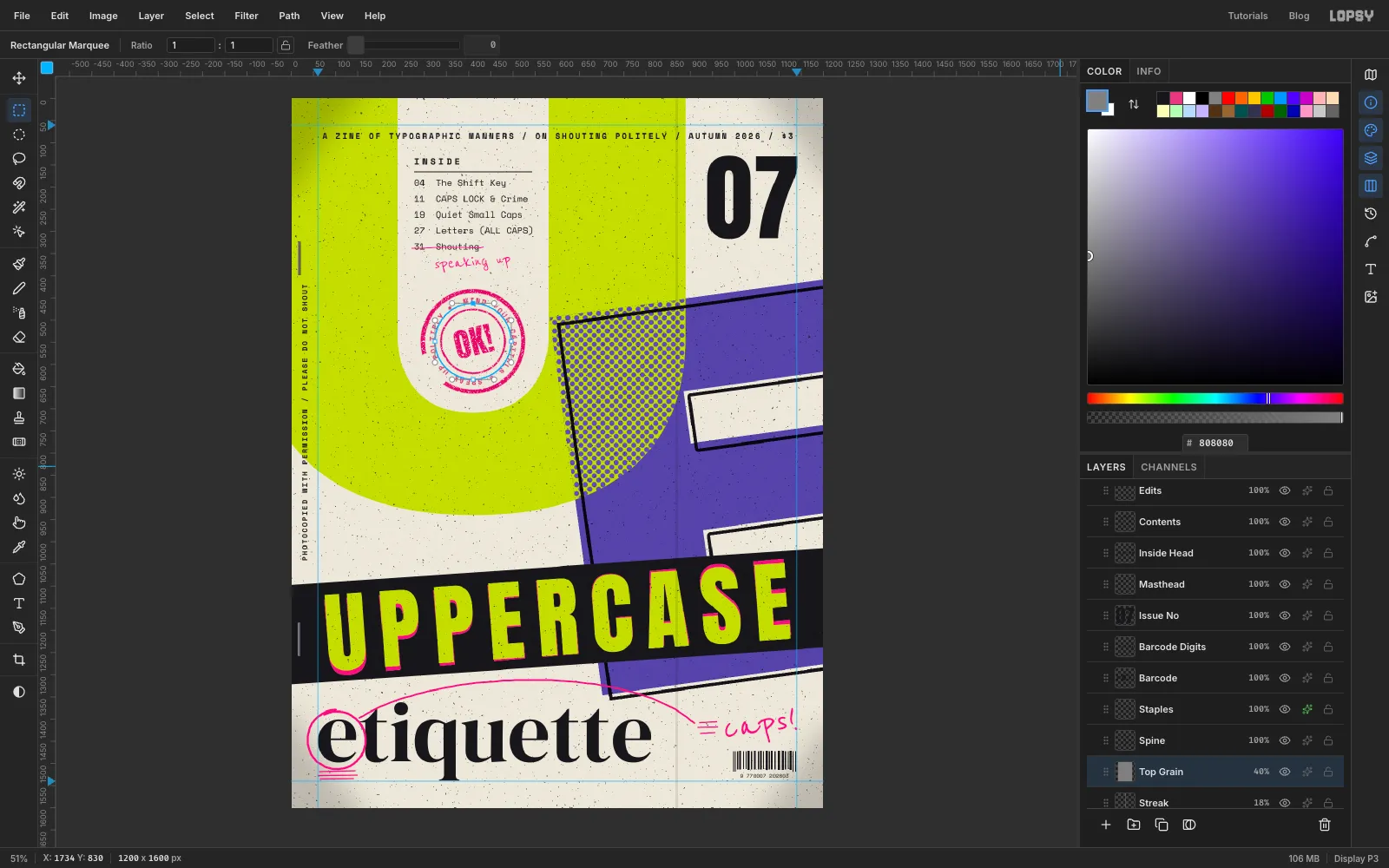
The cover is a 1200 × 1600 px page, a 3:4 zine format. Two giant letters, a lime U and a violet E, are printed in two inks that overlap. A black label strip carries the title UPPERCASE. Underneath, the word etiquette is deliberately set in lowercase and a proofreader has marked it up in pink. The U's empty middle (its counter) holds the contents list and a rubber stamp. Toner specks, darker edges and staples make it look photocopied.
Along the way you'll use:
- live Text in Archivo Black, Anton, DM Serif Display, Space Mono and Reenie Beanie, with letter spacing, line height and font weight from the Text panel
- the Move tool's rotation handles on live text, raster selections and a whole group
- Duplicate Layer, Rasterize Layer, Merge Down, New Group and the Multiply and Overlay blend modes
- ⌘-click on a layer thumbnail to load its shape as a selection, and ⌘⇧⌥-click to intersect two shapes
- Select → Shrink and Feather, the Elliptical Marquee, and the Pen tool with Path to Selection
- the Shape tool's path output and text on a path
- Halftone, Add Noise, Gaussian Blur, Threshold and Motion Blur, including filters run on a layer mask
- the Brush, the Pencil with Shift-click lines, the Drop Shadow effect, copy and paste, and undo and redo
The palette:
-
Newsprint
-
grain grey
-
Acid lime
-
overprint violet
-
Ink
-
fluoro pink
-
Halftone grey
-
stamp mask grey
-
Staple grey
-
staple shine
Positions are given as document coordinates. Watch X and Y in the status bar at the bottom of the window as you move the pointer. Most things only need to be close.
Two things about text in Lopsy will save you some confusion:
- New text needs a raster layer selected first. If a text layer is selected when you change the font, size or colour, you restyle that layer. Before each new piece of type, click a plain (non-text) layer in the Layers panel, then set up the Text tool.
- Settings carry over. The Text panel's letter spacing, line height and weight become the defaults for the next text you type. Set them back to
0,1.4and Regular before starting new text.
Lopsy names each text layer after its text. Later steps refer to some of them by short names like Big E or Spine, so rename those as you go (double-click the name in the Layers panel). Each step says when.
Shift plus an arrow key nudges the active layer 10 px; the arrow on its own nudges 1 px.
I typed each new piece of text in an empty patch of paper (around x 150, y 985, between the U and the strip) and then dragged it into place with the Move tool. A Text tool click on top of an existing text layer edits that layer instead of starting a new one.
-
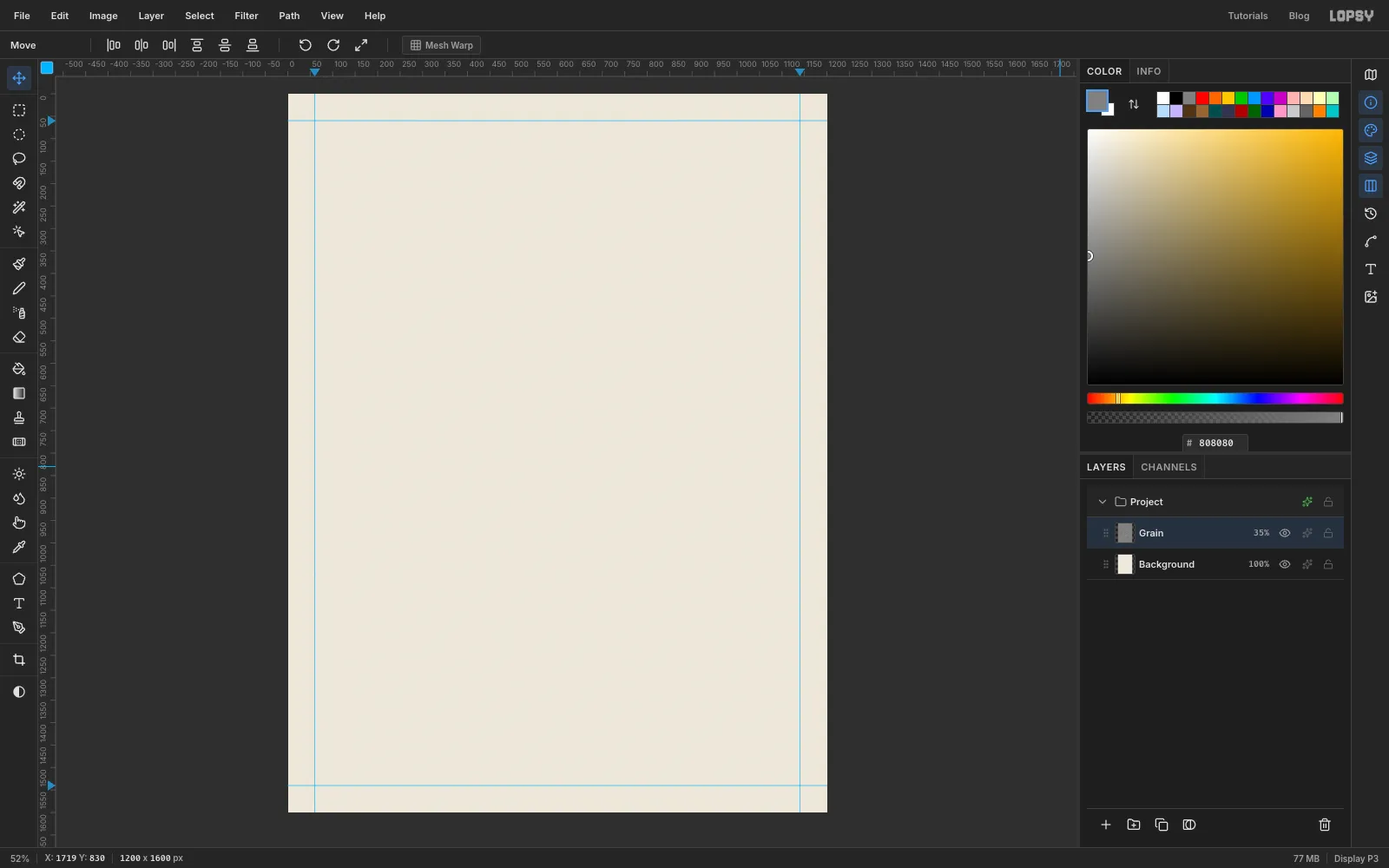
Set up the page, guides and paper grain
- Choose File → New, set Width
1200and Height1600, and click Create. - Click the top ruler at
x 60andx 1140, and the left ruler aty 60andy 1540. These are your margins. - Click Background, set the foreground colour to and choose Edit → Fill.
- Rename Layer 1 to
Grain(double-click its name). Fill it with , then run Filter → Add Noise… with Amount30and Mono. - Open the layer's effects drawer (the ✦ button on its row), set the blend mode to Overlay and close the drawer. Click the row's opacity and set it to
35%. Grey disappears in Overlay, so only the grain is left.
- Choose File → New, set Width
-
Type the giant E
- Click
Grain, pick the Text tool and set Size to1250(type it, the slider stops at 500). Choose Archivo Black in the font browser and set the colour to . - Click in the lower right of the page, type a capital
Eand press Tab to commit it. Rename the layerBig E. - With the Move tool, drag the E so its left edge sits at about
x 640and its top at abouty 440. The rest of it runs off the right edge of the page. - In the effects drawer, set the blend mode to Multiply. That makes it behave like transparent ink when other colours go under it.
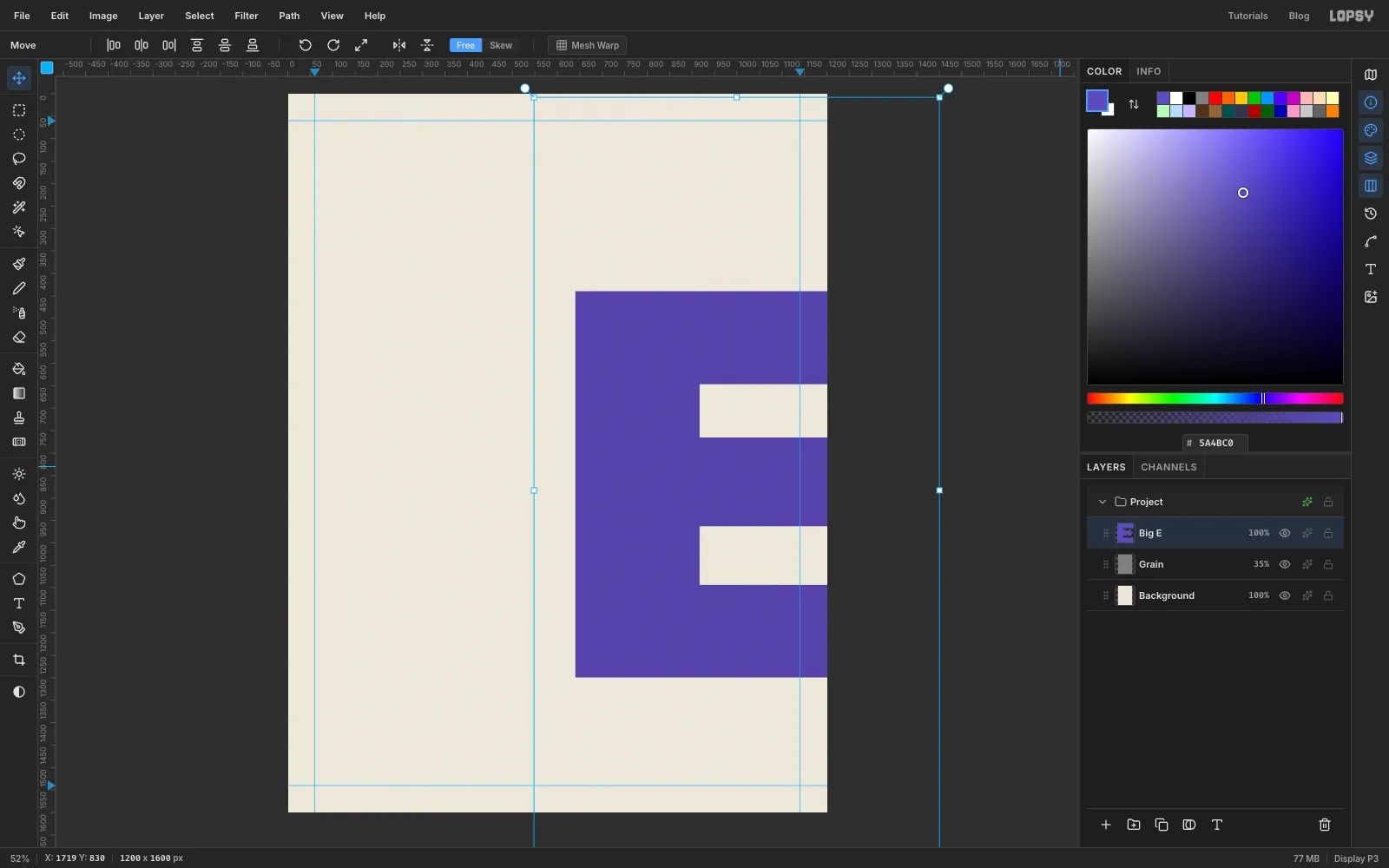
- Click
-
Tilt the E
The Move tool shows handles around live text. You can turn it without rasterizing it.
- With the Move tool and
Big Eselected, hover just outside the top-left corner of its box until the round rotation handle lights up. - Drag upward about 8° anticlockwise, so the E leans back. Its bottom edge now rises gently to the right.
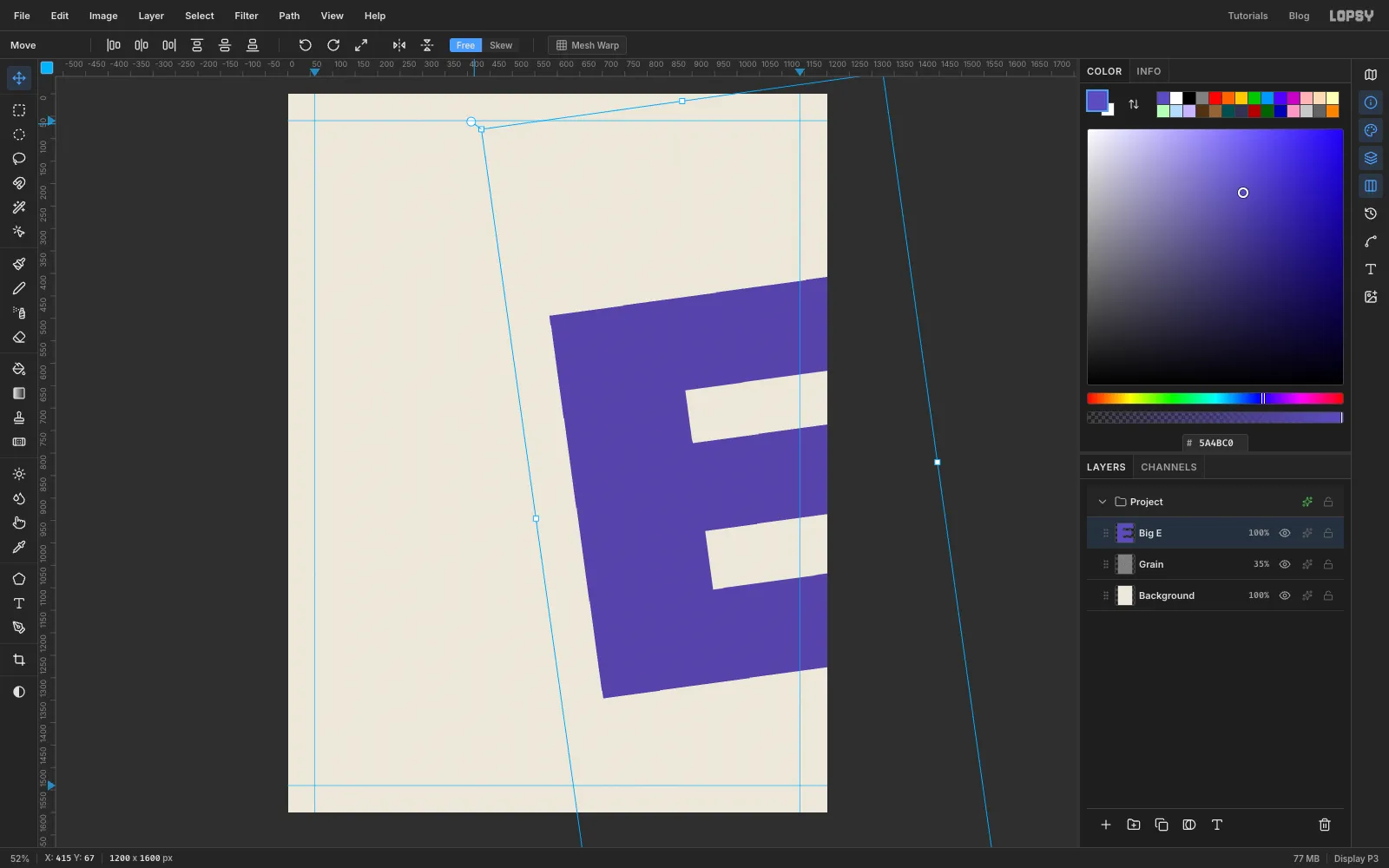
- With the Move tool and
-
Slide the U in underneath
Click
Grainagain before you set up the U. New layers land directly above the selected one, so the U ends up under the E and the E's Multiply darkens it where they cross.- Pick the Text tool. Set Size
1400, Archivo Black, colour . - Click near the top left of the page, type
Uand press Tab. Rename the layerBig U. - Move it so its left arm hangs about 70 px off the left edge and its top runs about 40 px past the top. Leave it on Normal so the lime stays pure.
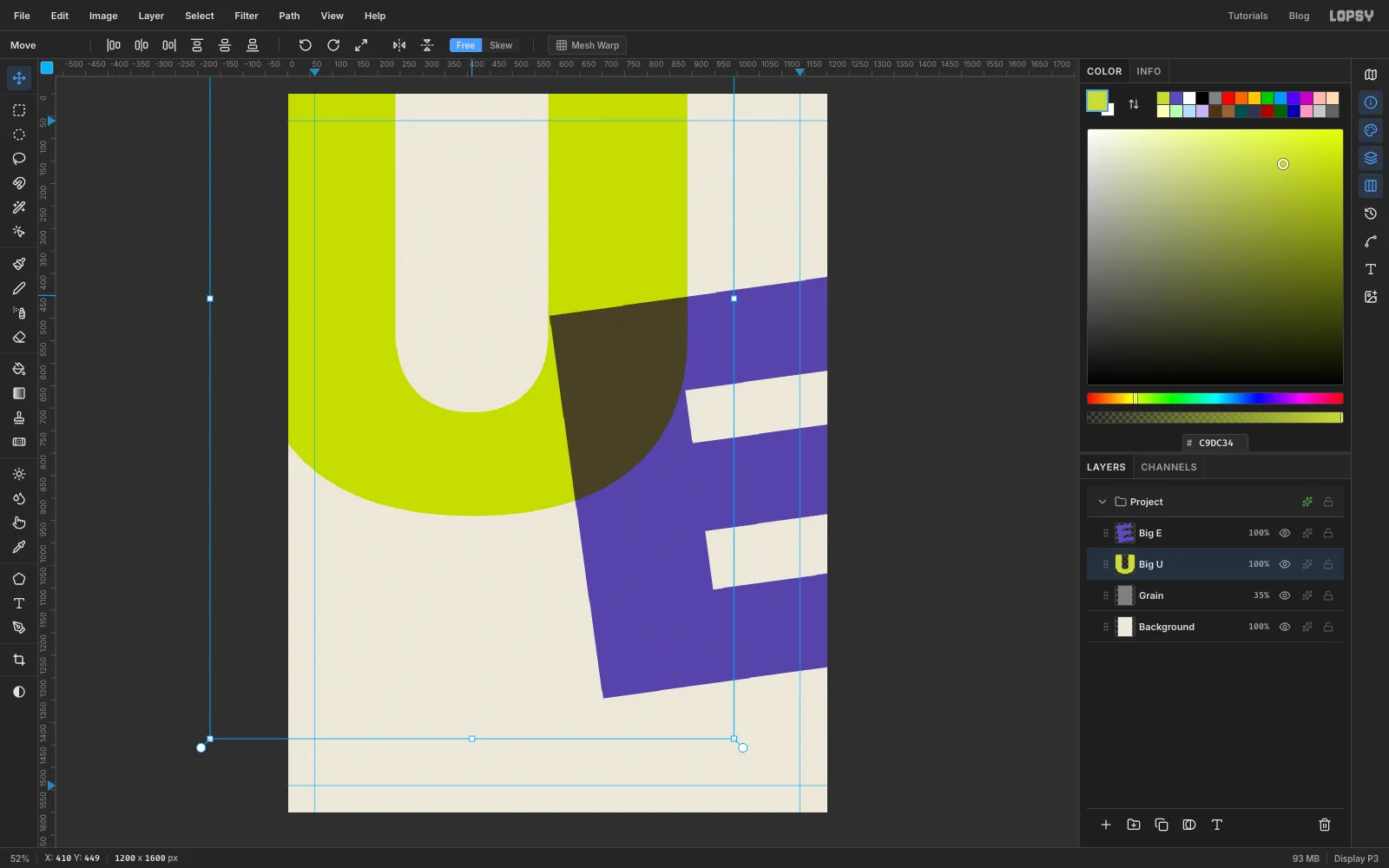
- Pick the Text tool. Set Size
-
Cut a keyline from a copy of the E
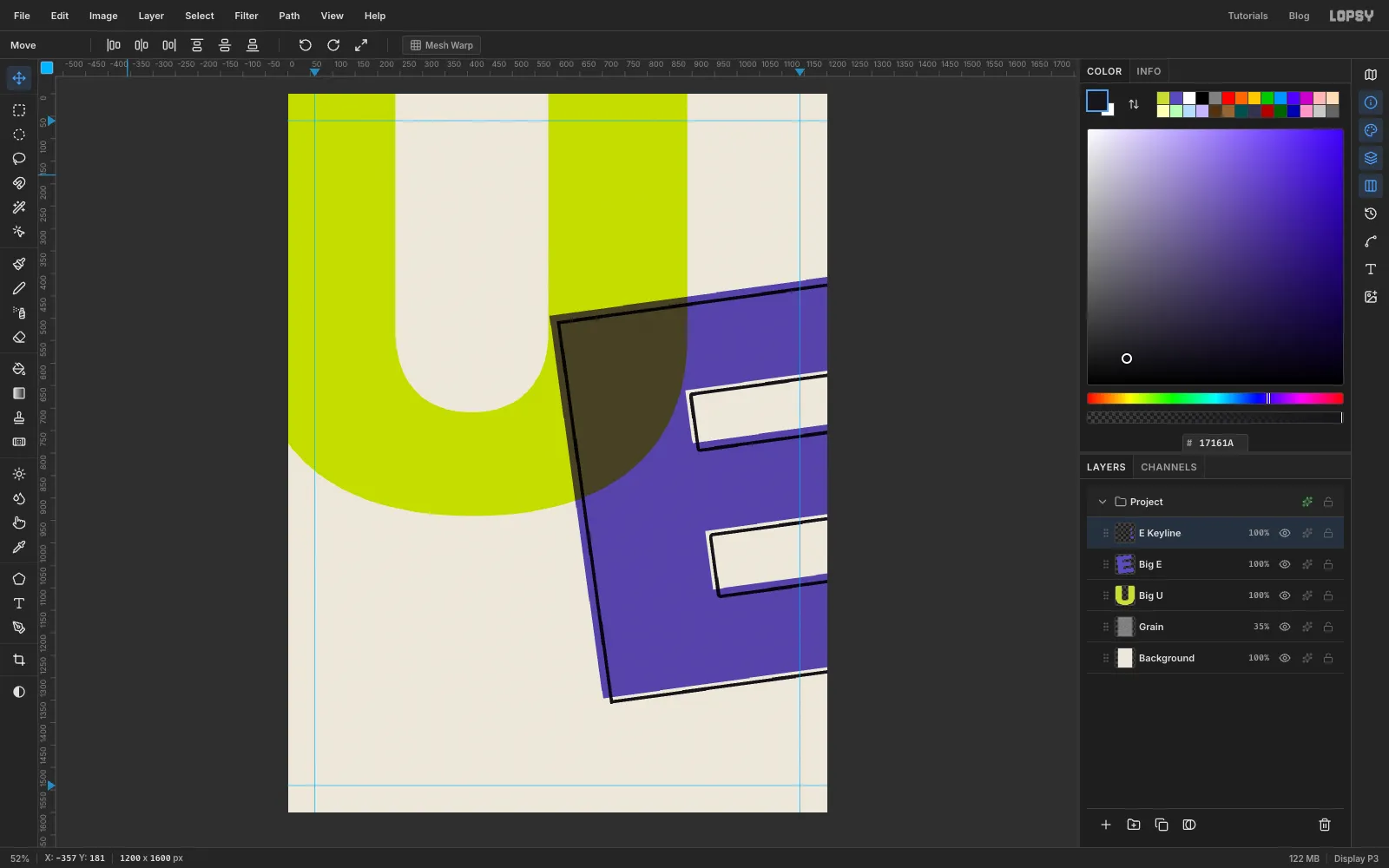
A thin black outline that doesn't quite line up with the violet looks like a third printing plate that slipped.
- Click
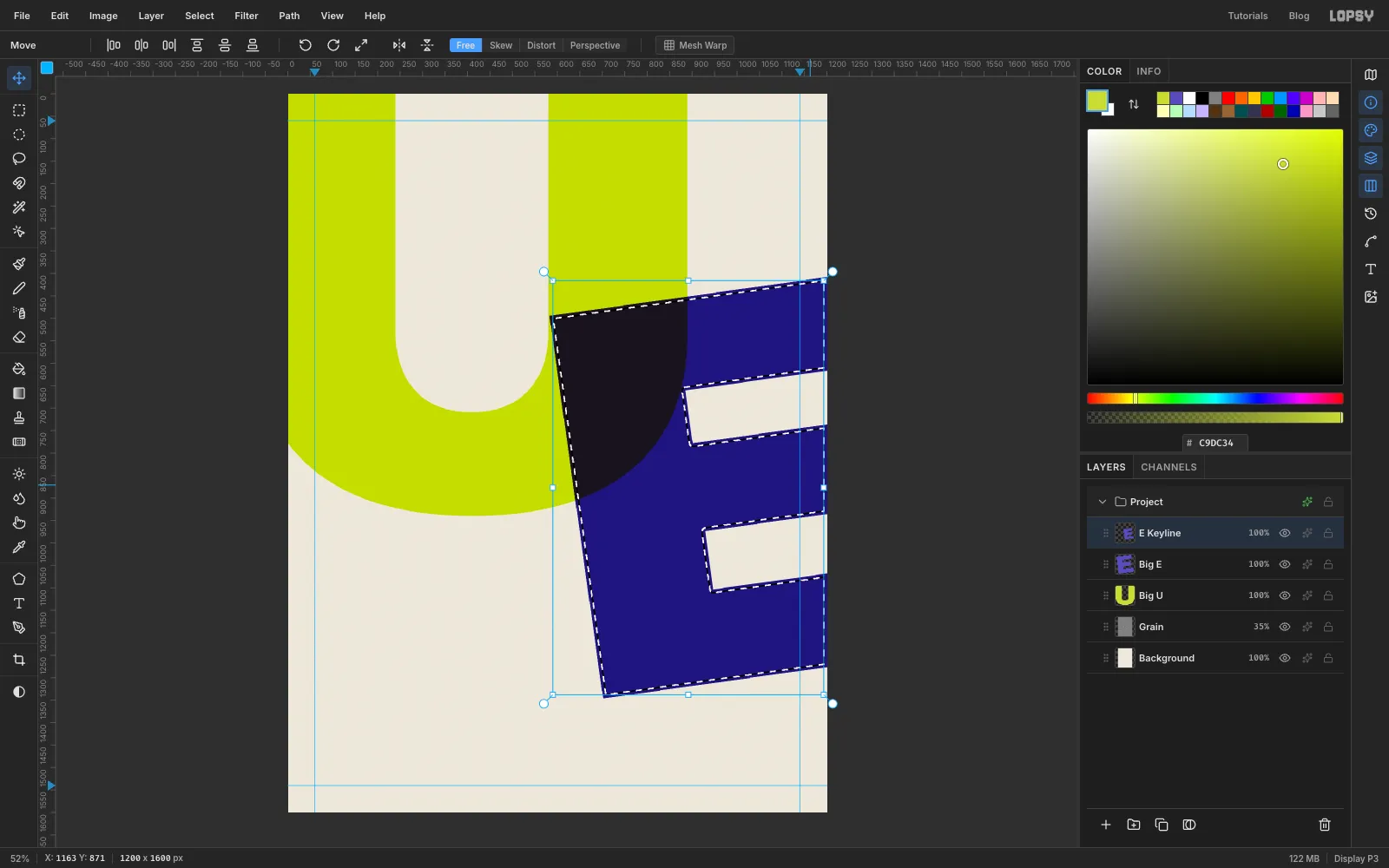
Big Eand choose Layer → Duplicate Layer. - Click Rasterize Layer (the T button at the bottom of the Layers panel) to turn the copy into pixels. Rename it
E Keyline. - Cmd-click the copy's thumbnail to select its shape, then choose Select → Shrink… with
7. - Press Delete. Only a 7 px rim is left.
- Click
-
Ink and offset the keyline
- Cmd-click the keyline's thumbnail again, set the colour to and choose Edit → Fill. Press Cmd+D.
- With the Move tool, nudge the outline about 16 px right and 12 px down with the arrow keys, so it peeks out along the bottom and right of the violet.
-
Select where the two letters overlap
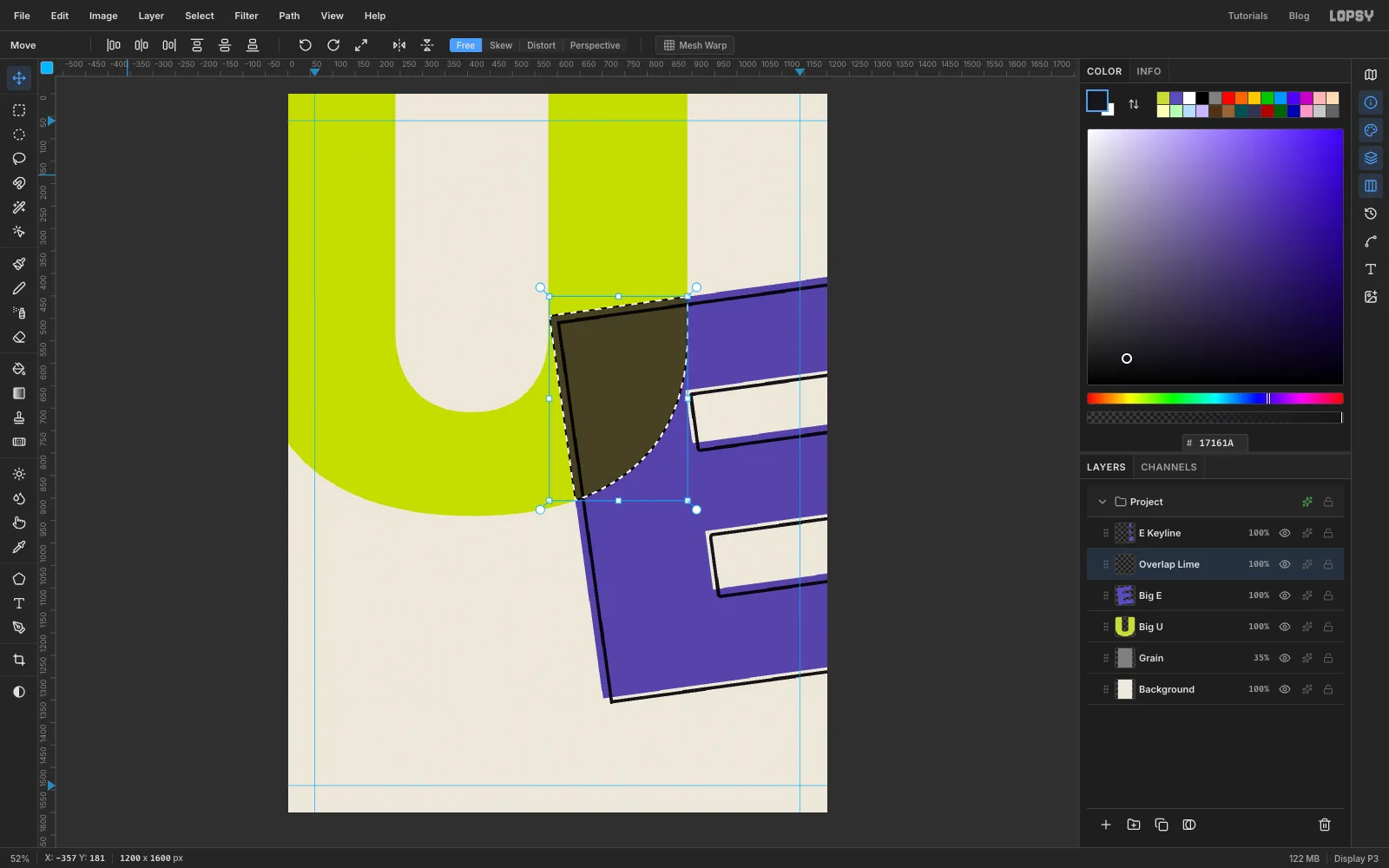
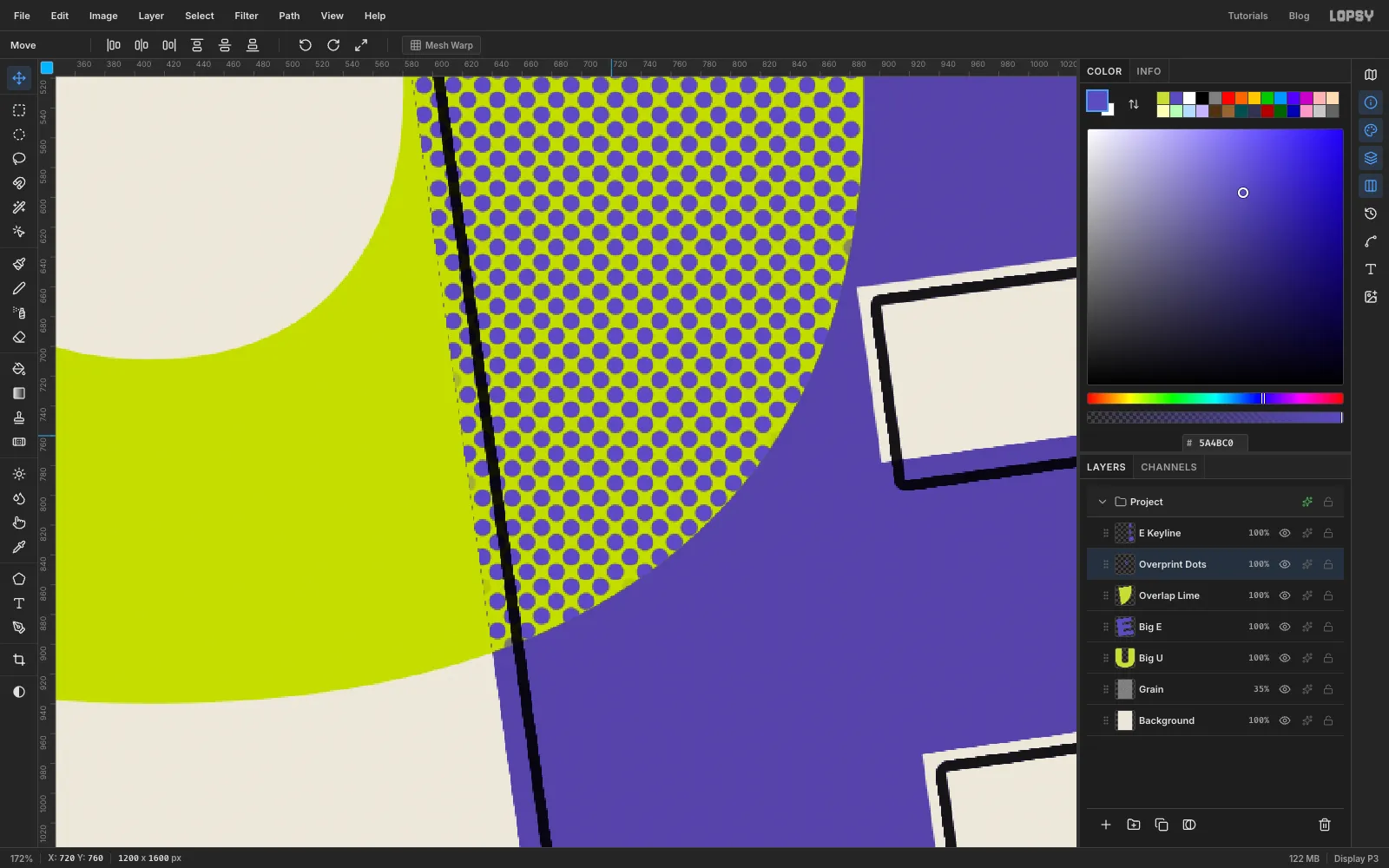
Where the inks cross, the violet over the lime would be a muddy olive. Instead you'll print that patch as lime with a violet halftone on top.
- Click
Big Eand click Add Layer. Name itOverlap Lime. - Cmd-click the U's thumbnail to select the U.
- Hold Cmd+Shift+Alt and click the E's thumbnail. That keeps only the part of the selection inside the E, which is the overlap.
- Set the colour to and choose Edit → Fill. Keep the selection.
- Click
-
Halftone the overlap
- Click Add Layer and name it
Overprint Dots. - Fill it (still inside the selection) with dark grey .
- Run Filter → Halftone… with Dot Size
14and Angle45. The filter stays inside the selection and turns the grey into dots on transparency. Halftone sizes each dot by how dark the area is, so a dark grey gives big dots that cover about two thirds of the patch. The colour goes on next. - Press Cmd+D, Cmd-click the dots layer's thumbnail and fill the dots with . Press Cmd+D.
- Click Add Layer and name it
-
Draw the label strip with the Pen
A strip that bleeds off both edges is easiest to draw as a tilted rectangle with the Pen.
- Click
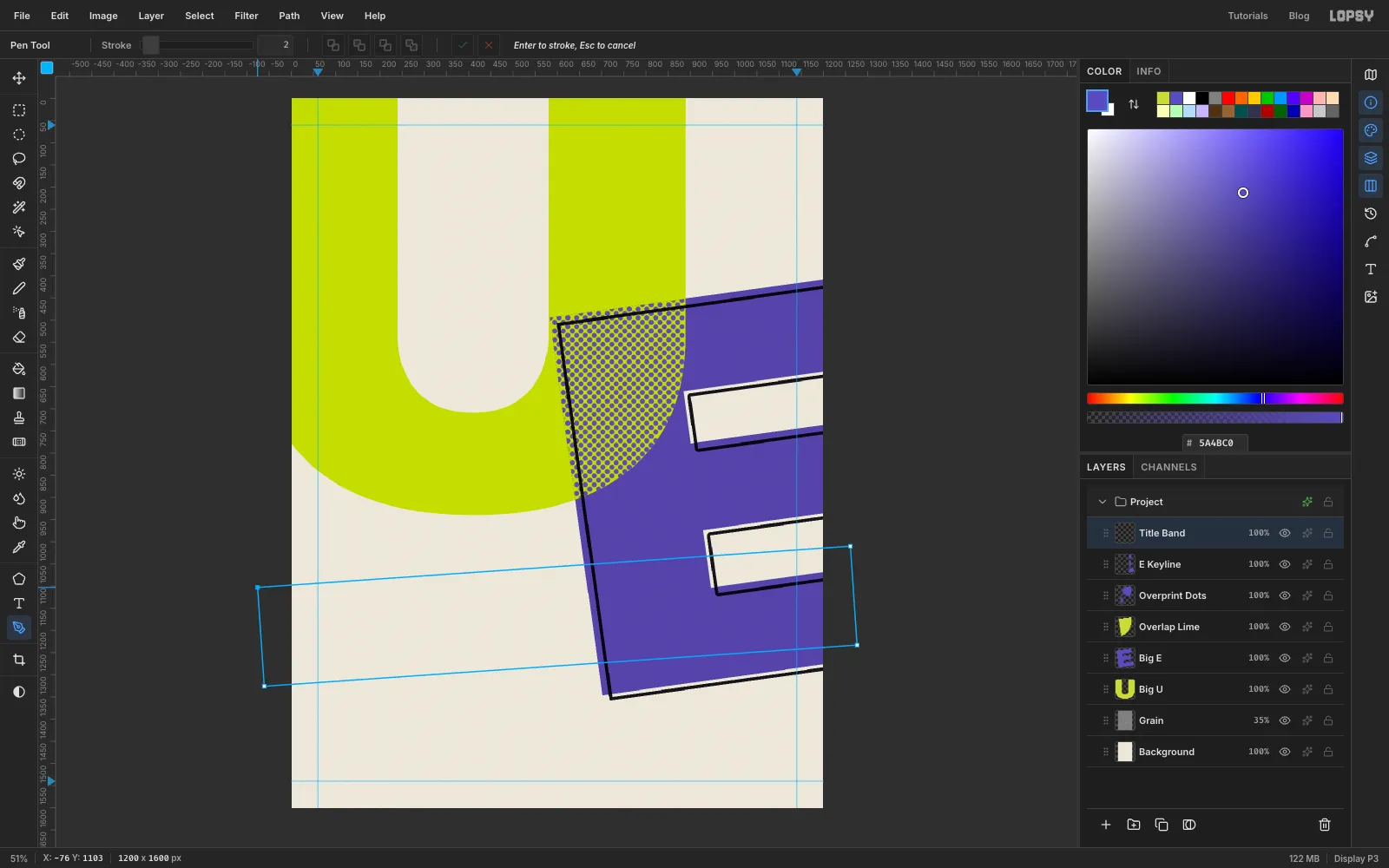
E Keylineand add a layer calledTitle Band. - Zoom out a little so there's grey around the page. Pick the Pen tool and click four corners of a tilted rectangle:
- the top-left corner in the grey, about 75 px past the left edge, at
y 1100or so - the top-right corner in the grey past the right edge, about 90 px higher than the first
- the bottom-right corner straight below that, about 220 px down
- the bottom-left corner about 220 px below the first point
- Click the first point again to close the path. You want a strip about 220 px deep, tilted about 4° anticlockwise, running off both sides of the page. The screenshot shows the shape.
- Click
-
Fill the strip
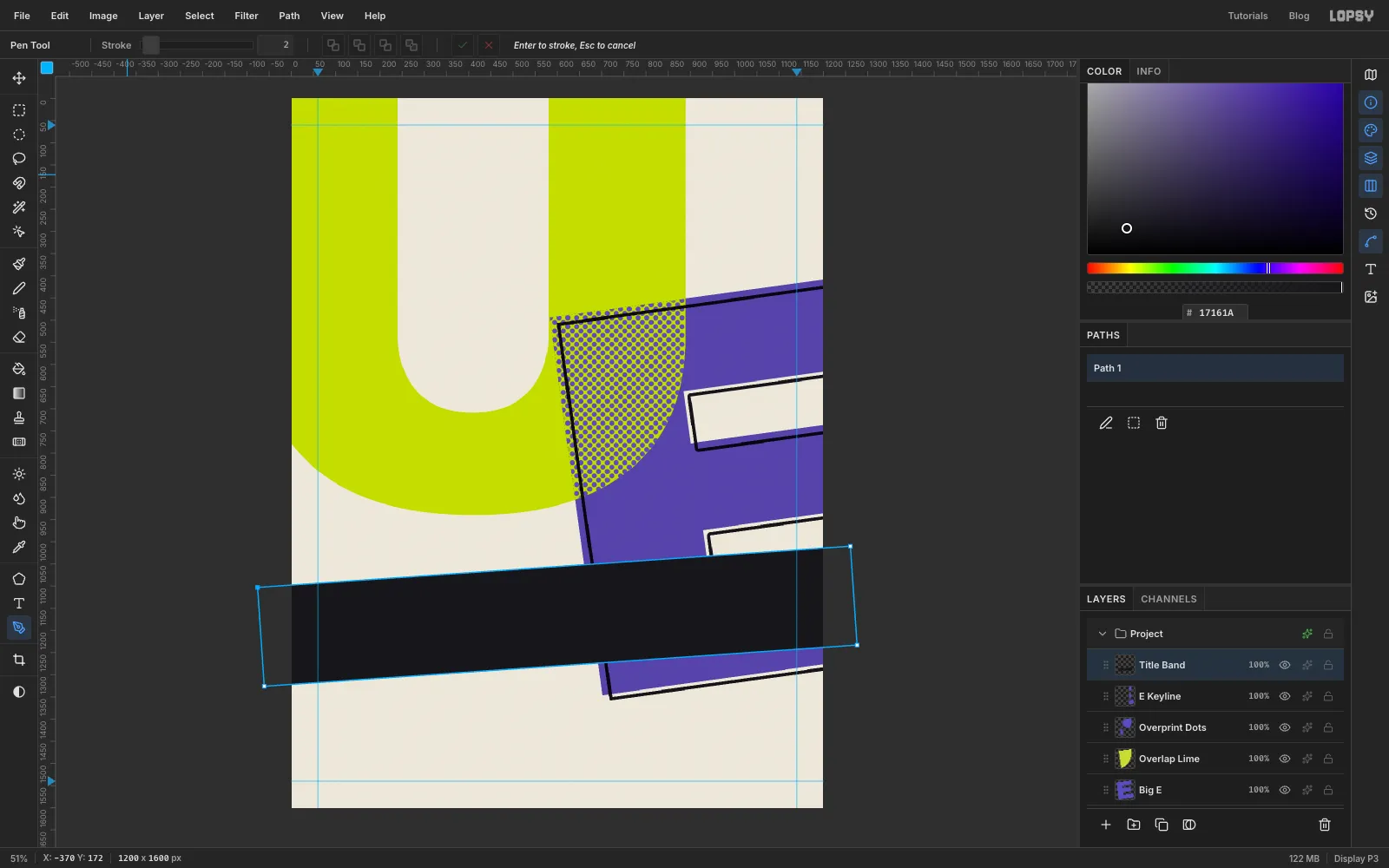
- Open the Paths panel from the right-hand rail. Click Path 1 so it's highlighted, then click the dashed-square icon under the list (Path to Selection).
- Go back to the Layers panel, set the colour to , choose Edit → Fill and press Cmd+D.
-
Set UPPERCASE and turn it to match
- Click
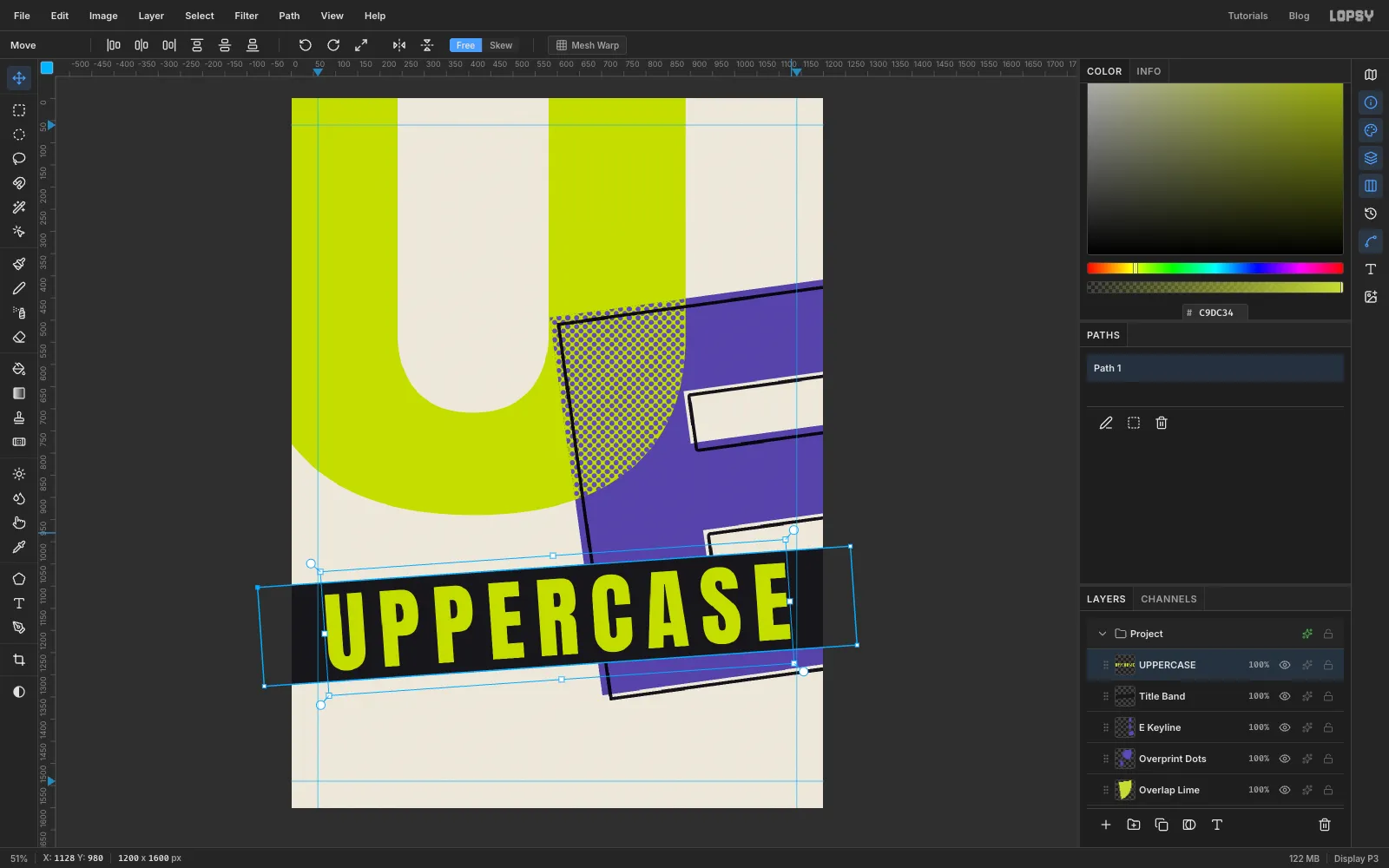
Title Band, pick the Text tool and set Size200, Anton, colour . TypeUPPERCASEin clear paper and press Tab. The layer is already calledUPPERCASE. - Open the Text panel from the right-hand rail and raise Letter spacing to about
27, until the word is roughly 1040 px wide. Go back to the Layers panel. - Switch to the Move tool and drag the word onto the middle of the strip.
- Drag the top-right rotation handle about 4° anticlockwise so the letters follow the strip. Nudge it back to the centre if it drifts.
- Click
-
Add a misregistered pink plate
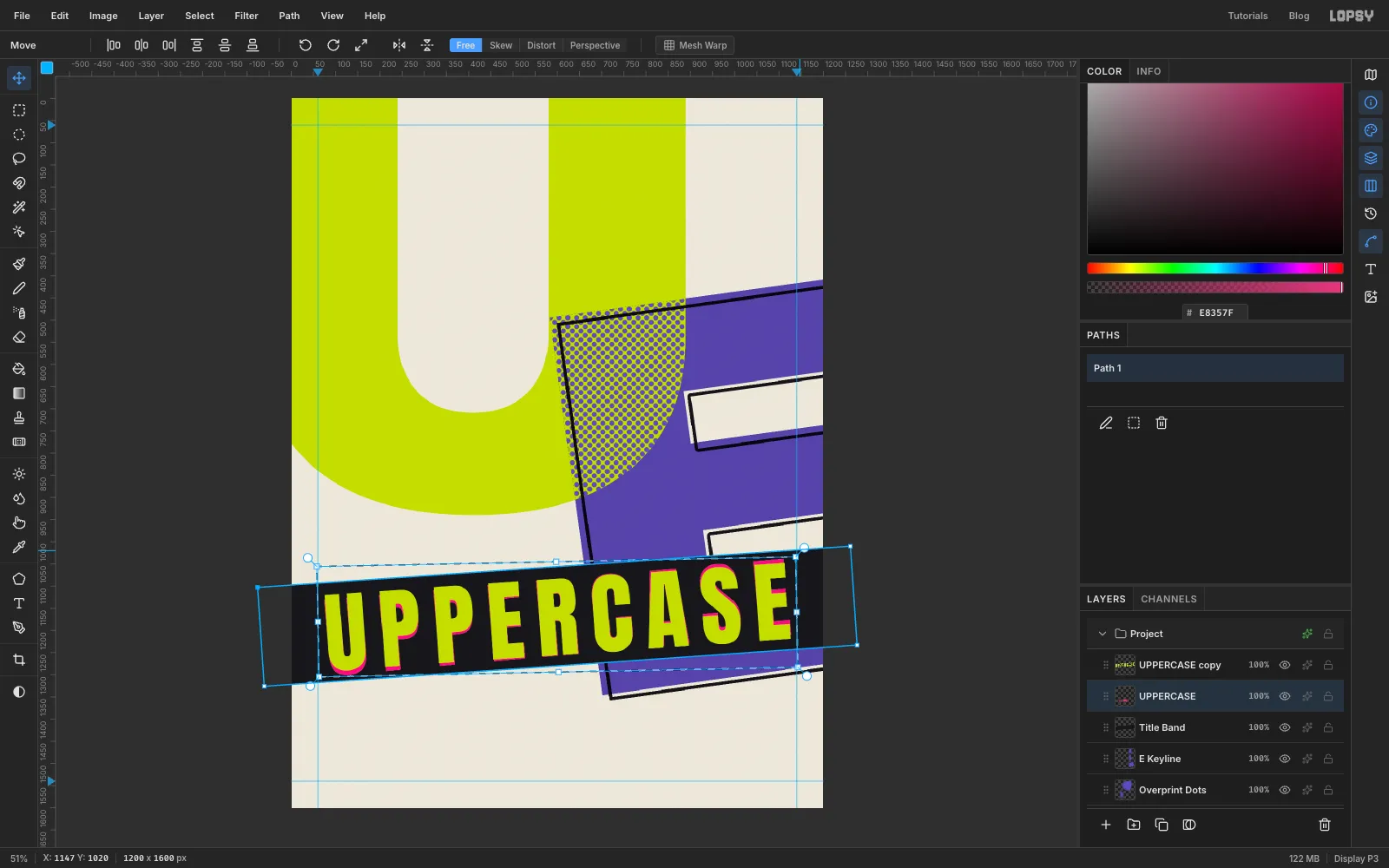
- Click Rasterize Layer, then Layer → Duplicate Layer.
- Click the lower
UPPERCASElayer, Cmd-click its thumbnail and fill it with . Press Cmd+D. - Nudge it down 1 px with Down.
- Draw a Rectangular Marquee just around the pink word. With the Move tool, drag its top-right rotation handle about 1° further anticlockwise.
- Press Cmd+D to drop it.
-
Check the slip
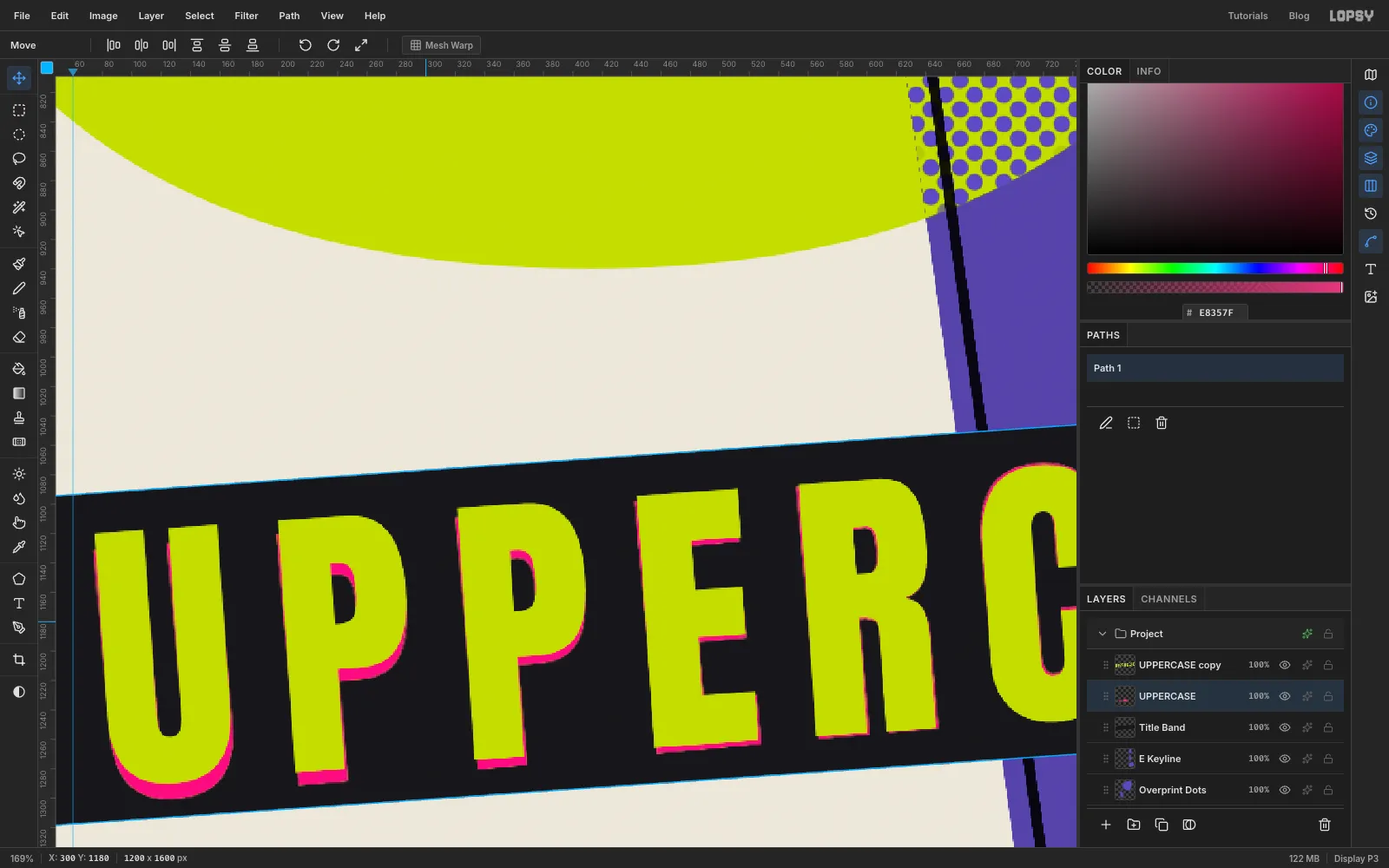
Zoom in on the title. Because the pink copy turned a little more than the lime, it sits low on the left and high on the right. A plain offset would look like a drop shadow. The changing gap looks like a plate that slipped on the press.
-
Merge the title into the strip
- Click
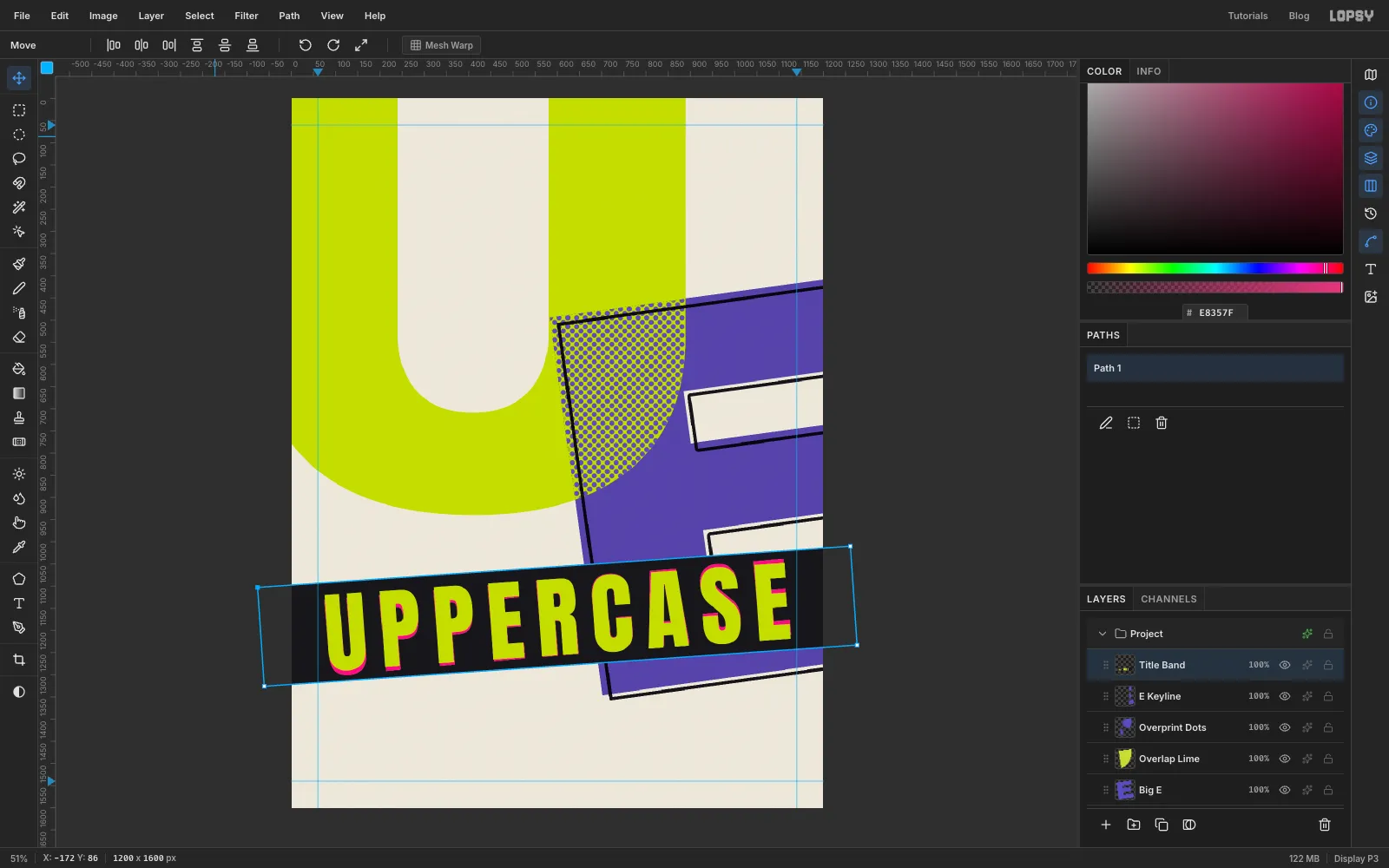
UPPERCASE copy(the lime one) and choose Layer → Merge Down. The lime merges onto the pink. - Choose Merge Down again to fold the title into
Title Band.
- Click
-
Set "etiquette" in lowercase
The joke is that the zine's own title breaks its rule.
- Click
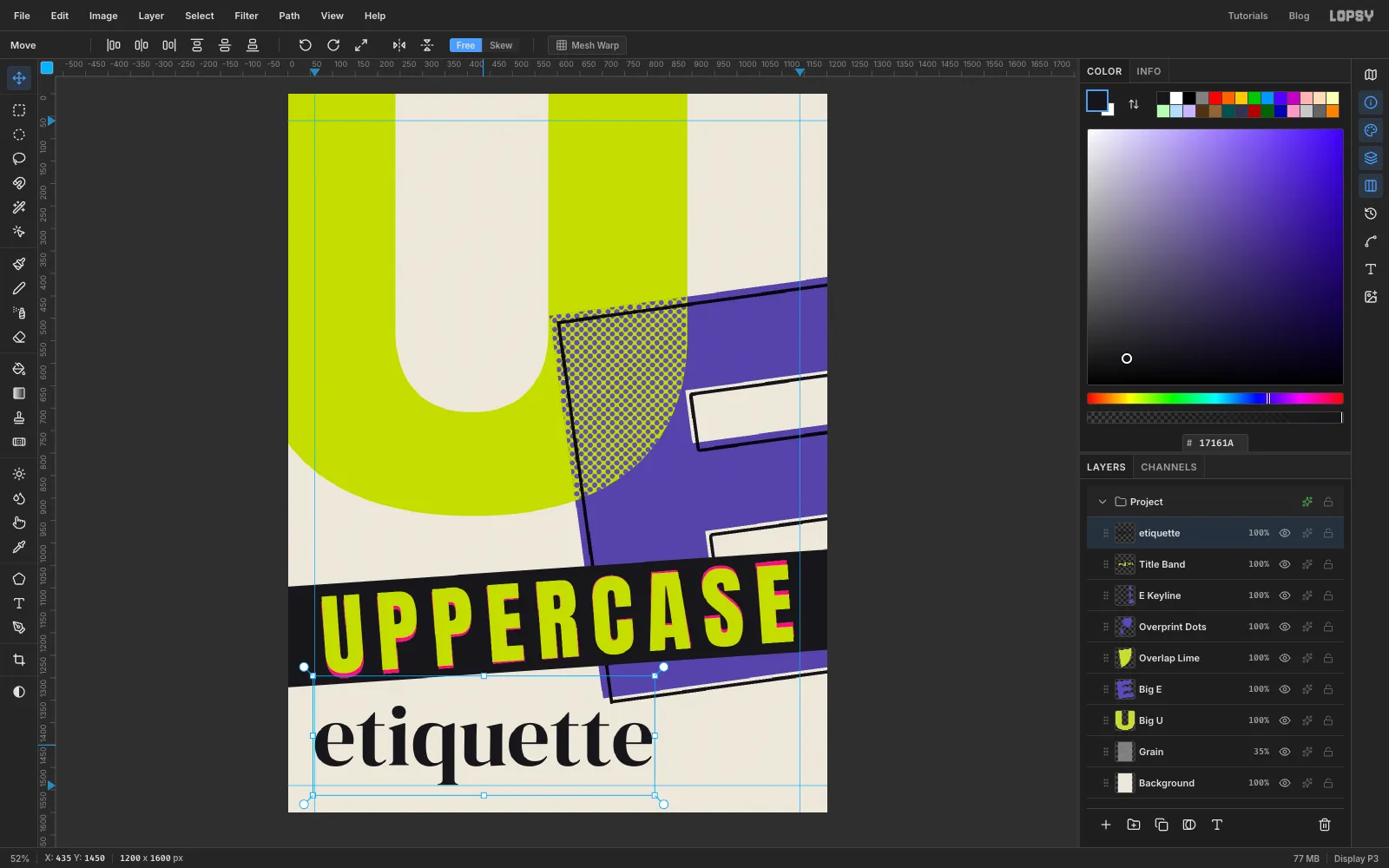
Title Bandand pick the Text tool. Set Size190, DM Serif Display, colour , and check the Text panel's letter spacing is back to0. - Type
etiquettein clear paper and press Tab. - Move it so it starts on the left margin guide, with a little clear paper between the strip and the dot on the i. The tail of the q should stay above the bottom guide.
- Click
-
Circle the e
- With
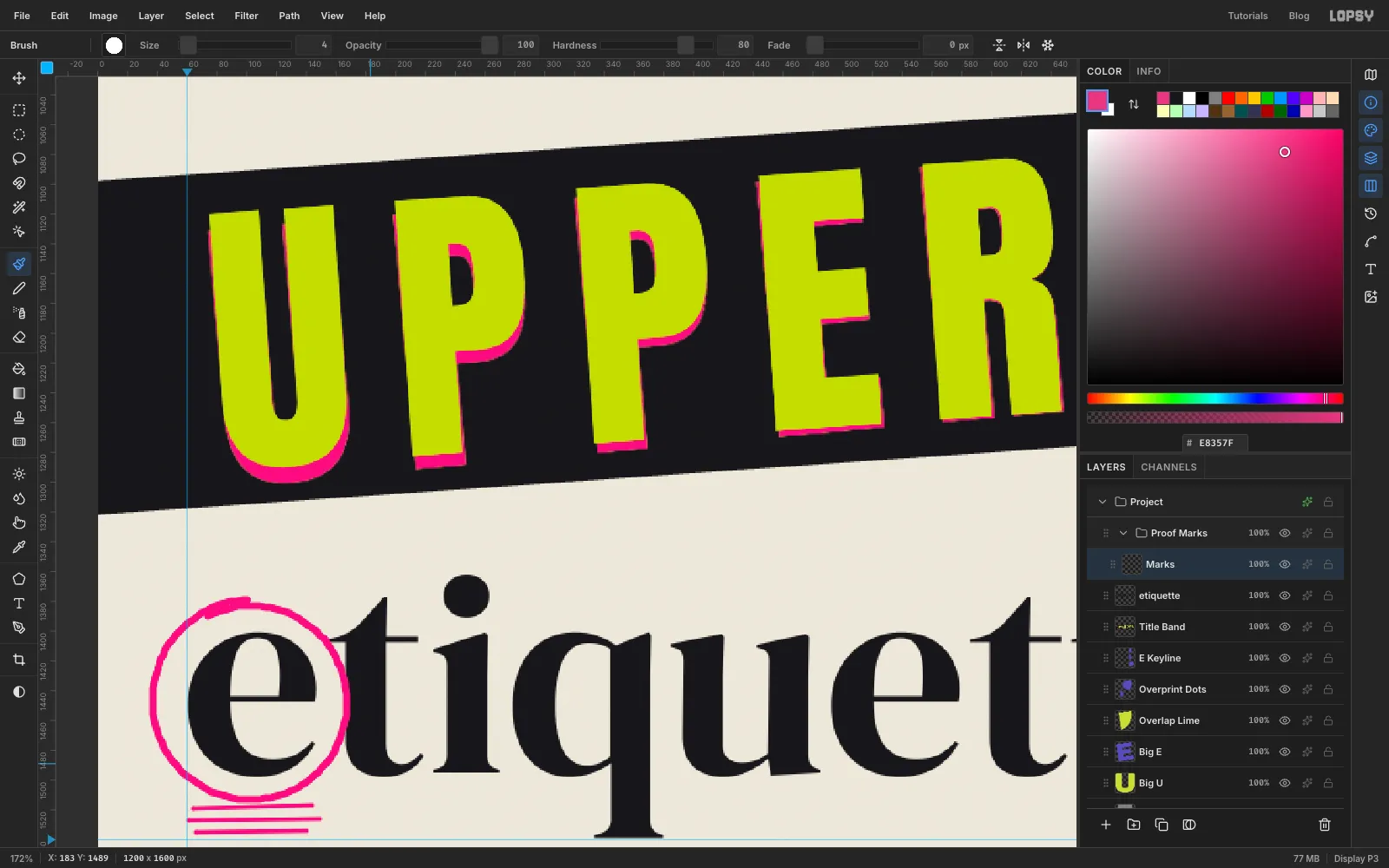
etiquetteselected, click New Group and rename itProof Marks. Click Add Layer (it goes inside the group) and name itMarks. - Pick the Brush, Size
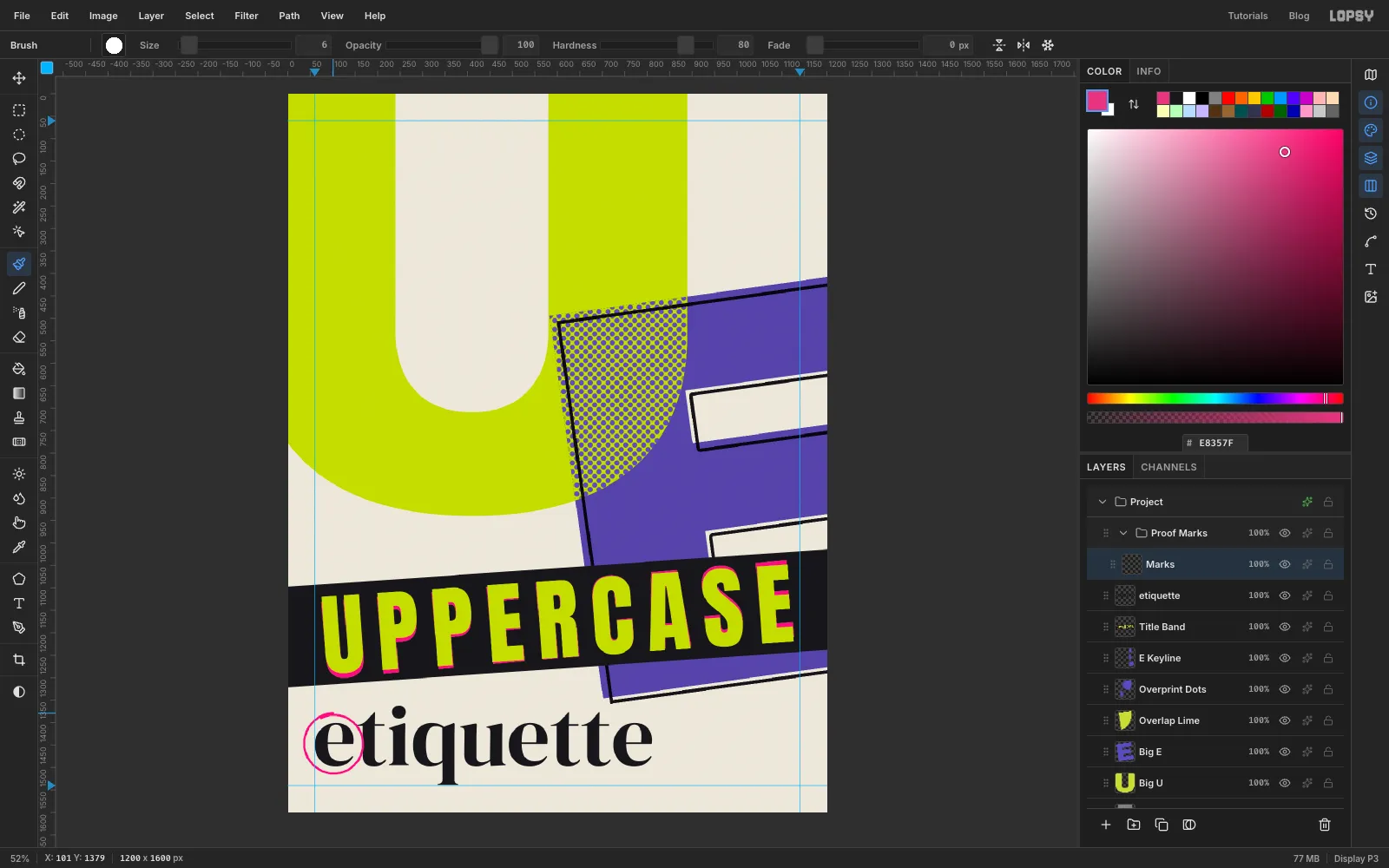
6, colour . - Draw one loose loop around the first e, starting at the top and overlapping where you began, the way you'd circle something with a pen.
- With
-
Add the triple underline
Three lines under a letter is the proofreader's mark for "make this a capital".
- Drop the brush Size to
4. - Under the e, click and Shift-click three short, slightly uneven lines about 8 px apart. They don't need to match.
- Drop the brush Size to
-
Write the margin note
- Click
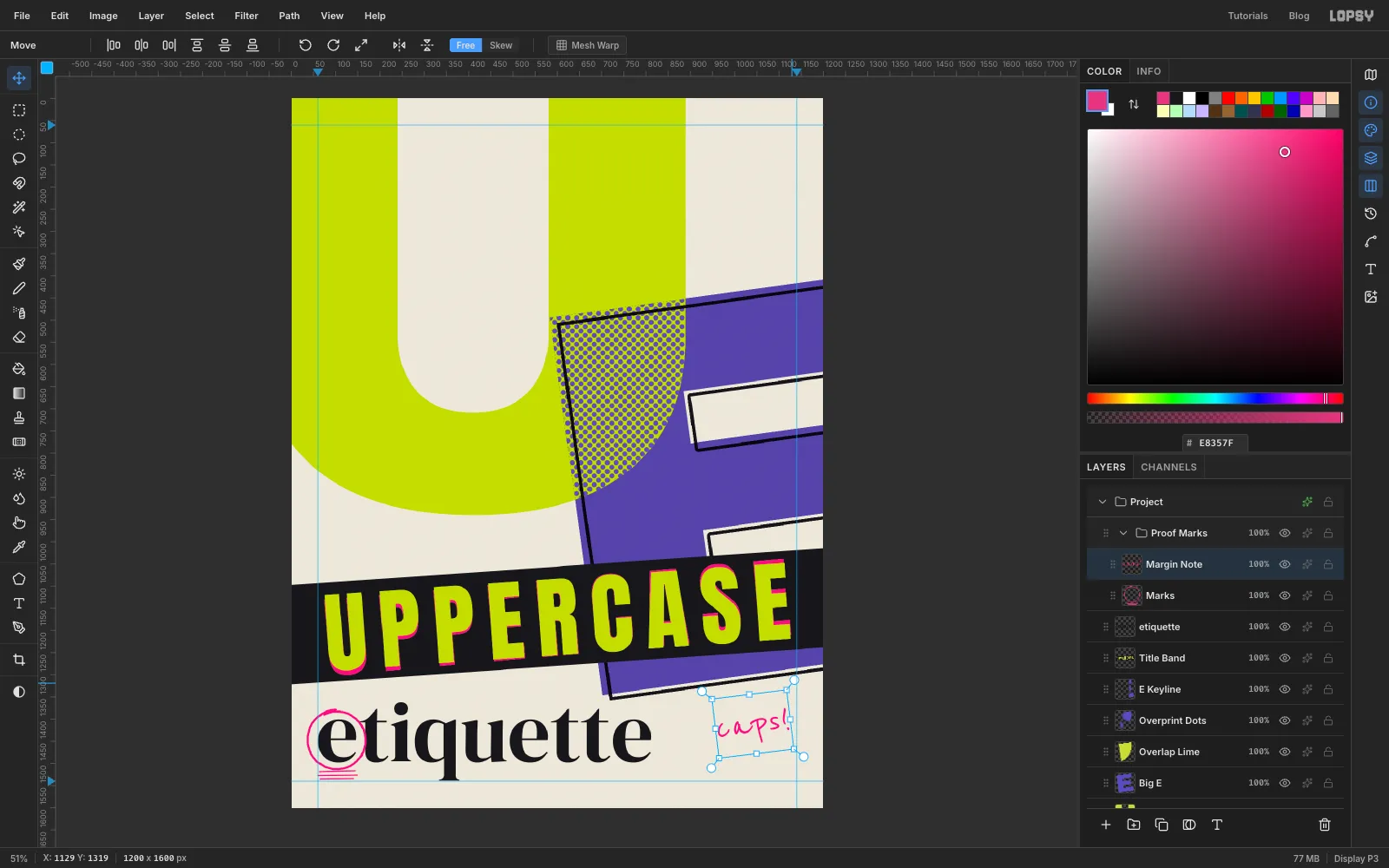
Marks, pick the Text tool and set Size96, Reenie Beanie, colour . Typecaps!in clear paper and press Tab. It lands inside theProof Marksgroup. - With the Move tool, move it to the right of etiquette, with its right edge on the
x 1140guide. - Drag its top-right rotation handle about 7° anticlockwise.
- Click
-
Join the mark to the note
- Click
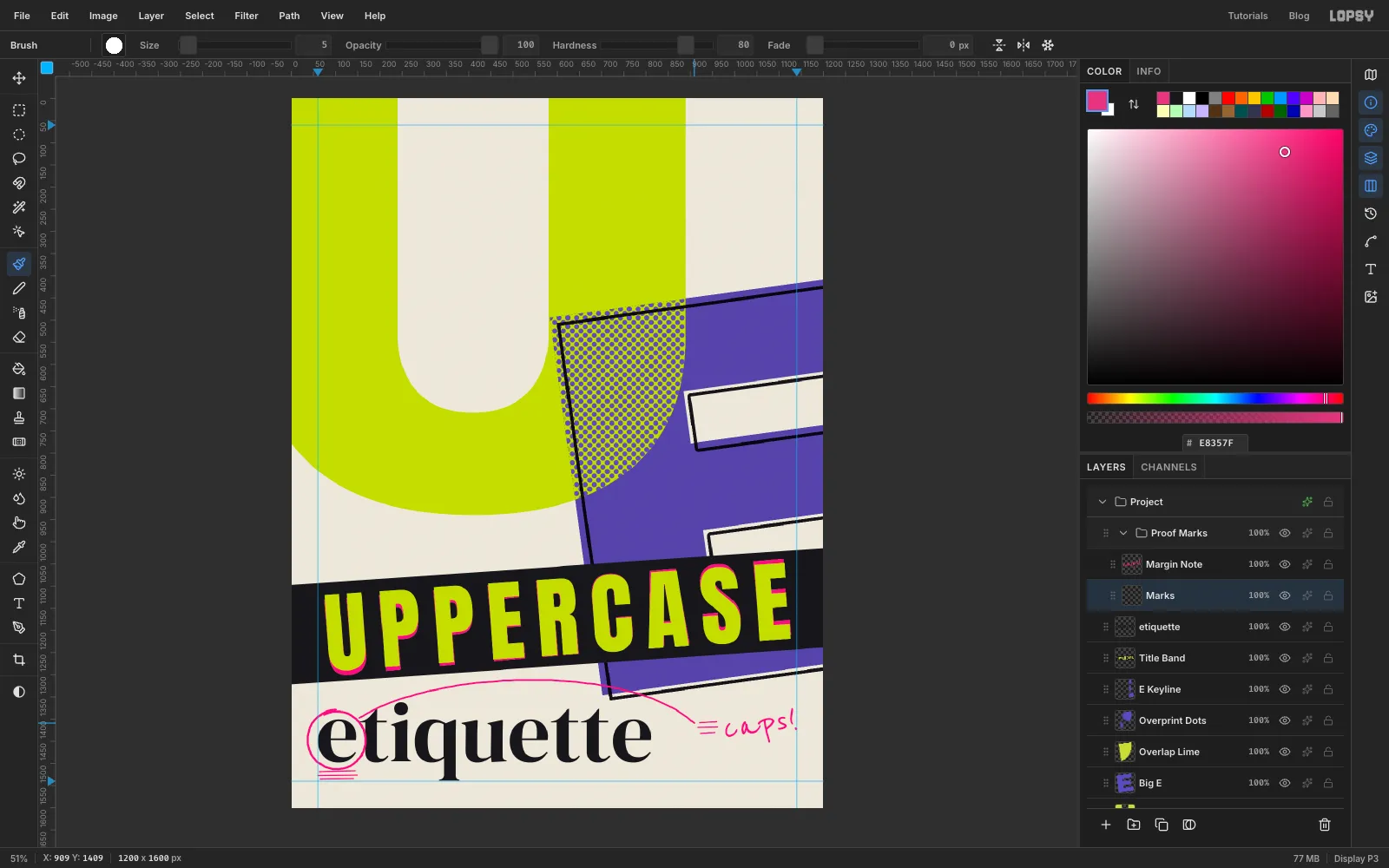
Marks. With the Brush at Size4, click and Shift-click three short strokes just left of caps!. That's the margin version of the triple underline. - Raise the brush to Size
5and draw one smooth arc from the top of the circle, up over etiquette (below the strip) and down to the three strokes.
- Click
-
Move the marks as one piece
Because the marks live in a group, you can reposition them all at once. Click the
Proof Marksgroup row and drag on the canvas with the Move tool: the circle, lines, leader and note travel together. Put them back over the e when you're done (or press Cmd+Z).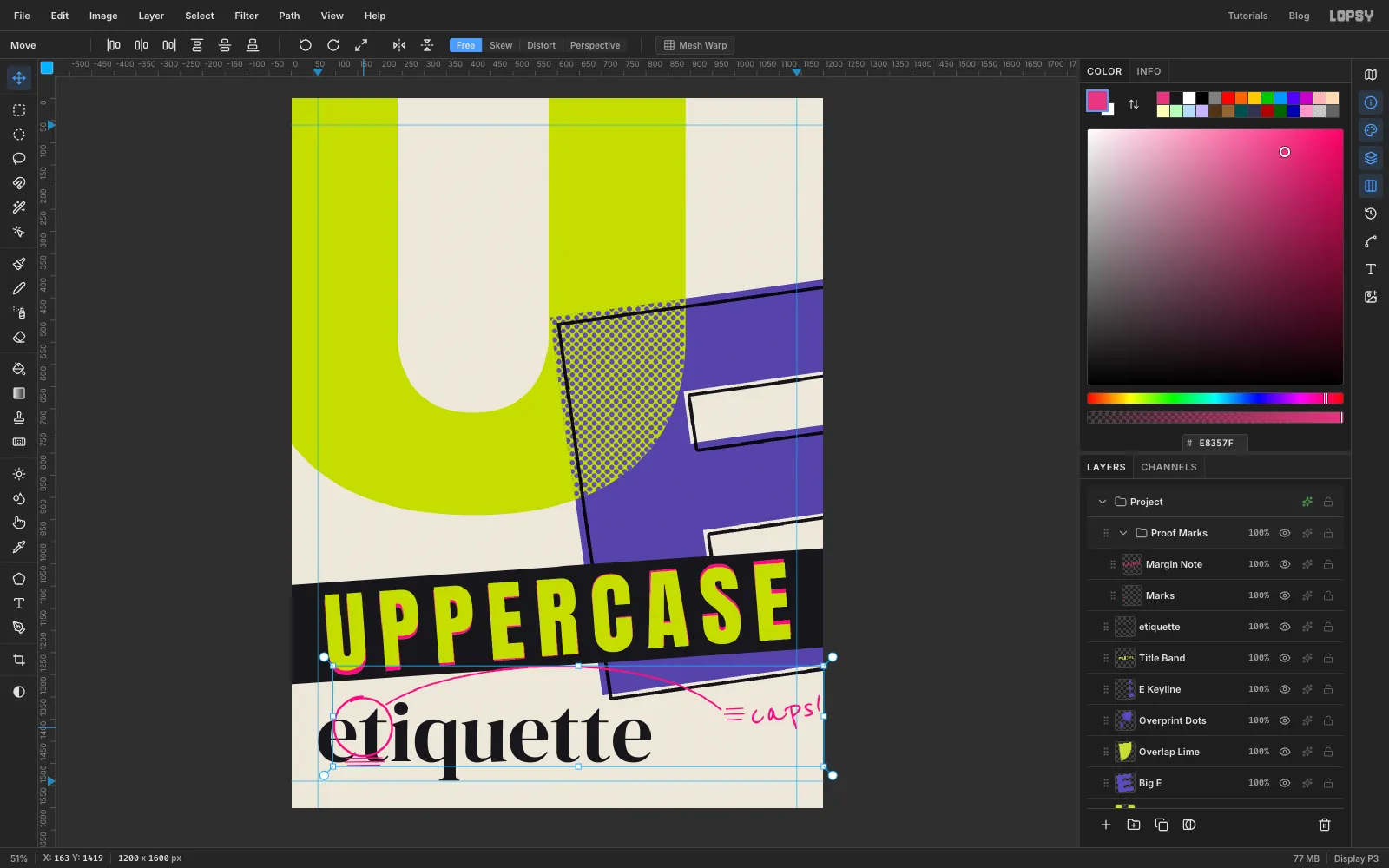
-
Set the contents list
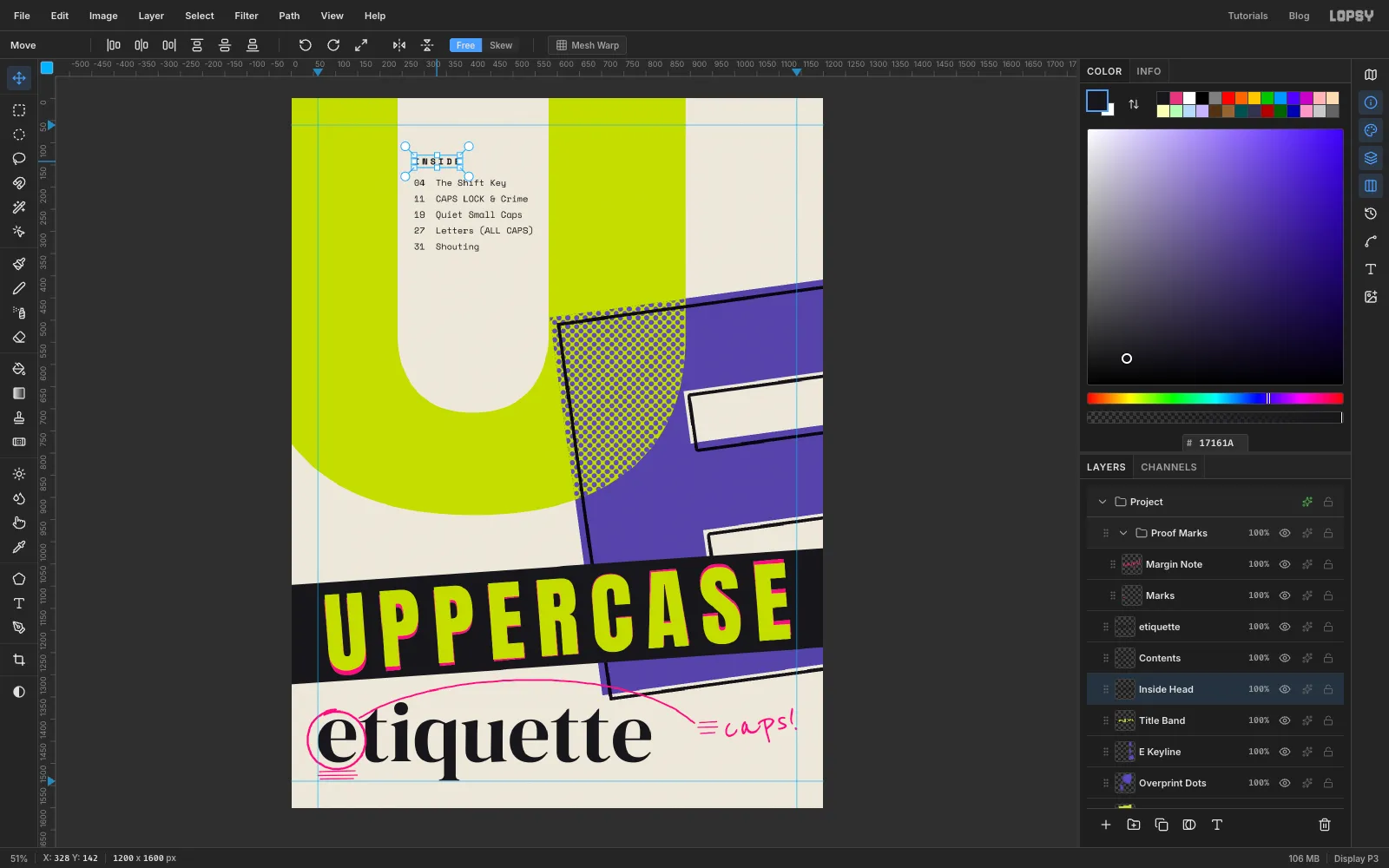
- Click
Title Bandand pick the Text tool: Size20, Space Mono, colour , Regular, letter spacing0. - Type the list, pressing Enter after each line:
04 The Shift Key11 CAPS LOCK & Crime19 Quiet Small Caps27 Letters (ALL CAPS)31 Shouting
- Press Tab, rename the layer
Contents, then set Line height to1.8in the Text panel. - Move it into the U's counter, centred between the two arms, with its top at about
y 182. - Click
Title Bandagain and typeINSIDEat the same size and colour, with line height back at1.4. Set the Font weight to Bold and Letter spacing to6. Line its left edge up with the list, a little above it.
- Click
-
Strike one item and correct it
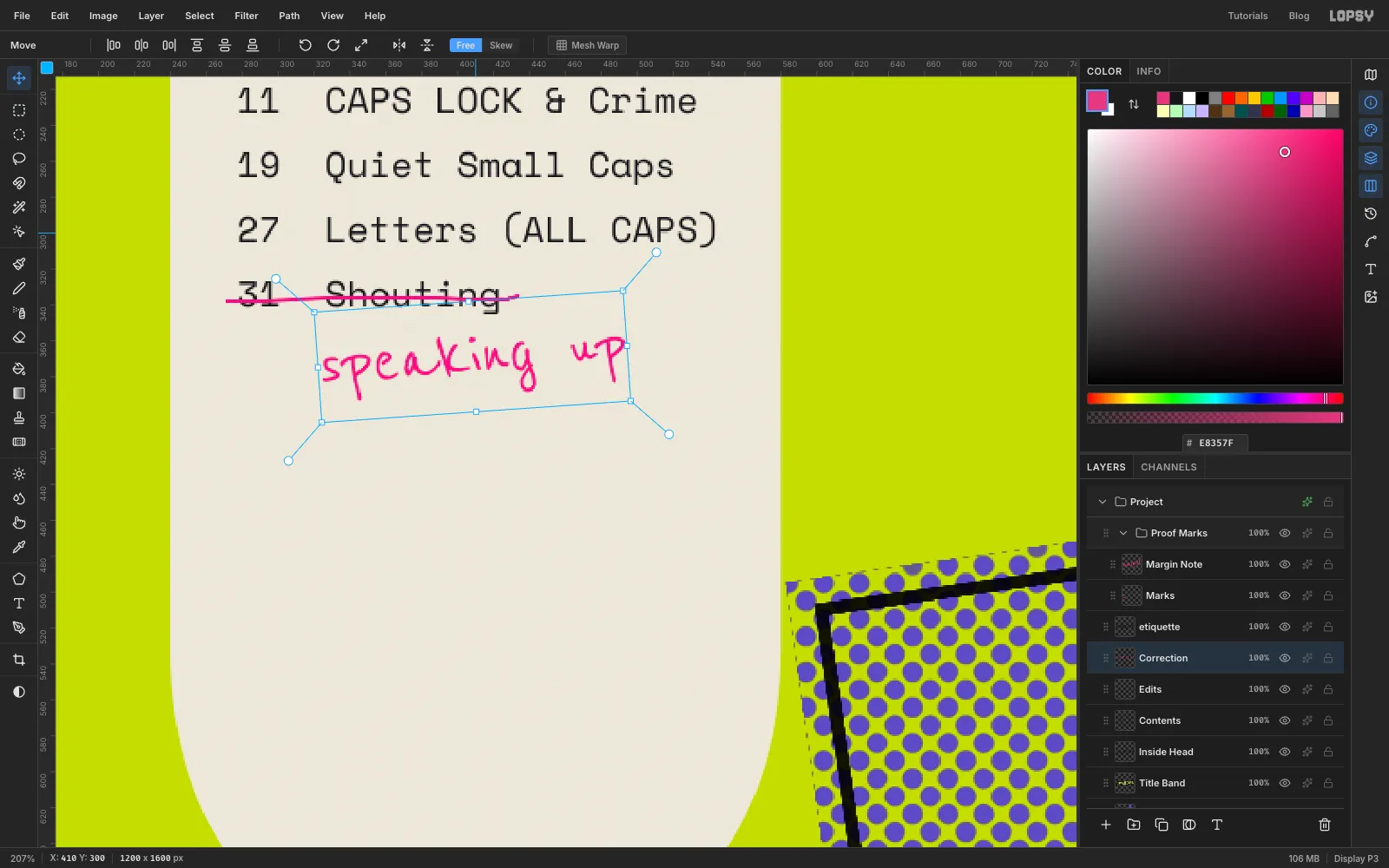
- Click
Contents, then click Add Layer and name itEdits. It sits above the list. - With the Pencil at Size
2in , click and Shift-click a rule under INSIDE, as wide as the list. - Switch to the Brush, Size
3, pink, and draw a slightly wobbly line through31 Shouting. - Click
Edits, then typespeaking upin Reenie Beanie at size44, pink, Regular, letter spacing0. Rename itCorrection. Put it just under the struck line and, with the Move tool, tilt it about 4° anticlockwise.
- Click
-
Add the masthead and the issue number
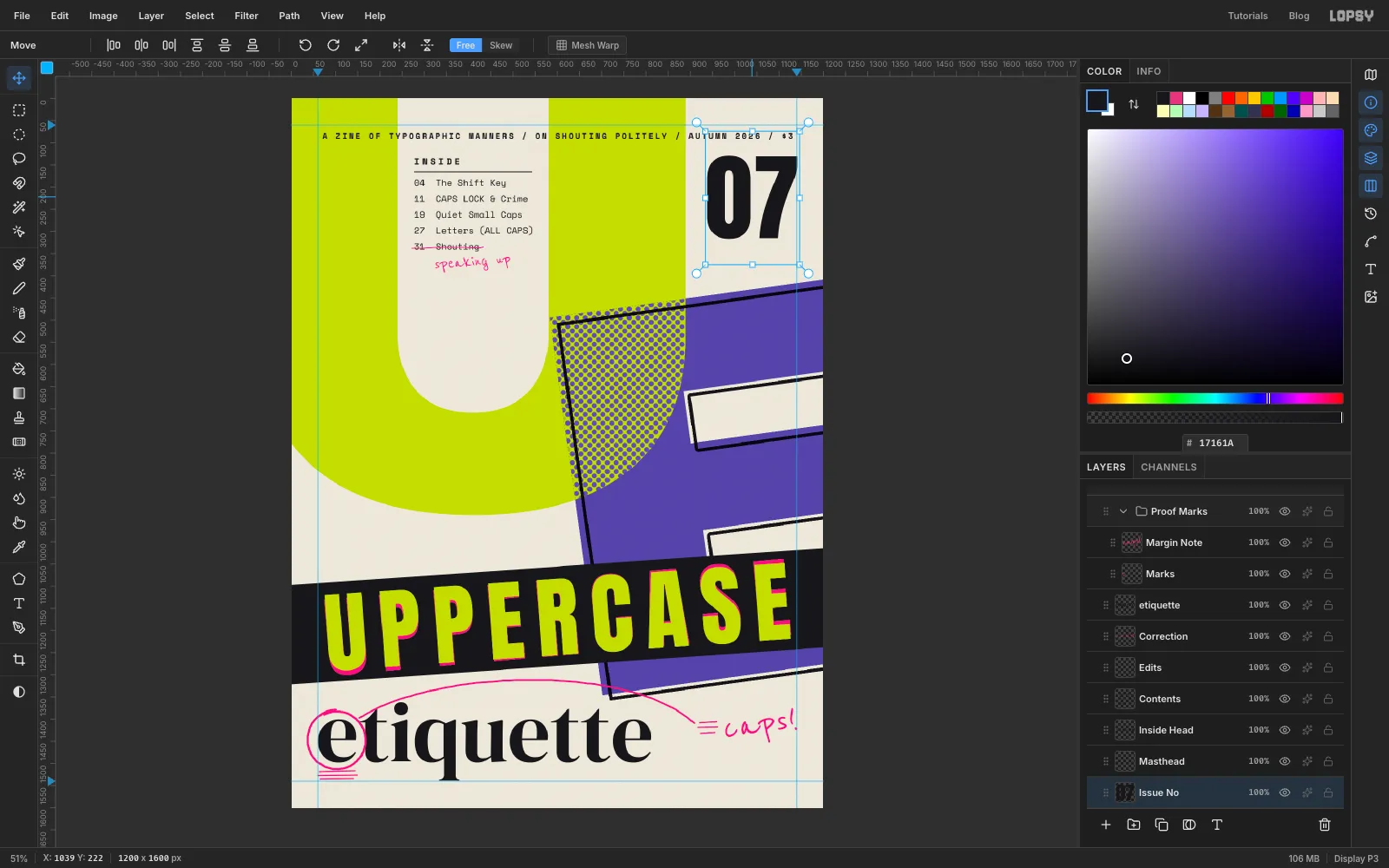
- Click
Title Bandand typeA ZINE OF TYPOGRAPHIC MANNERS / ON SHOUTING POLITELY / AUTUMN 2026 / $3in Space Mono, size18, colour . - Set it to Bold with Letter spacing
4. It should now run almost margin to margin. Centre it across the page with its top at abouty 76. - Click
Title Bandagain and type07in Anton at size215, colour , letter spacing0. Move its right edge onto thex 1140guide, top at abouty 128. Leave clear lime-free paper between it and the U's right arm.
- Click
-
Run a line up the spine
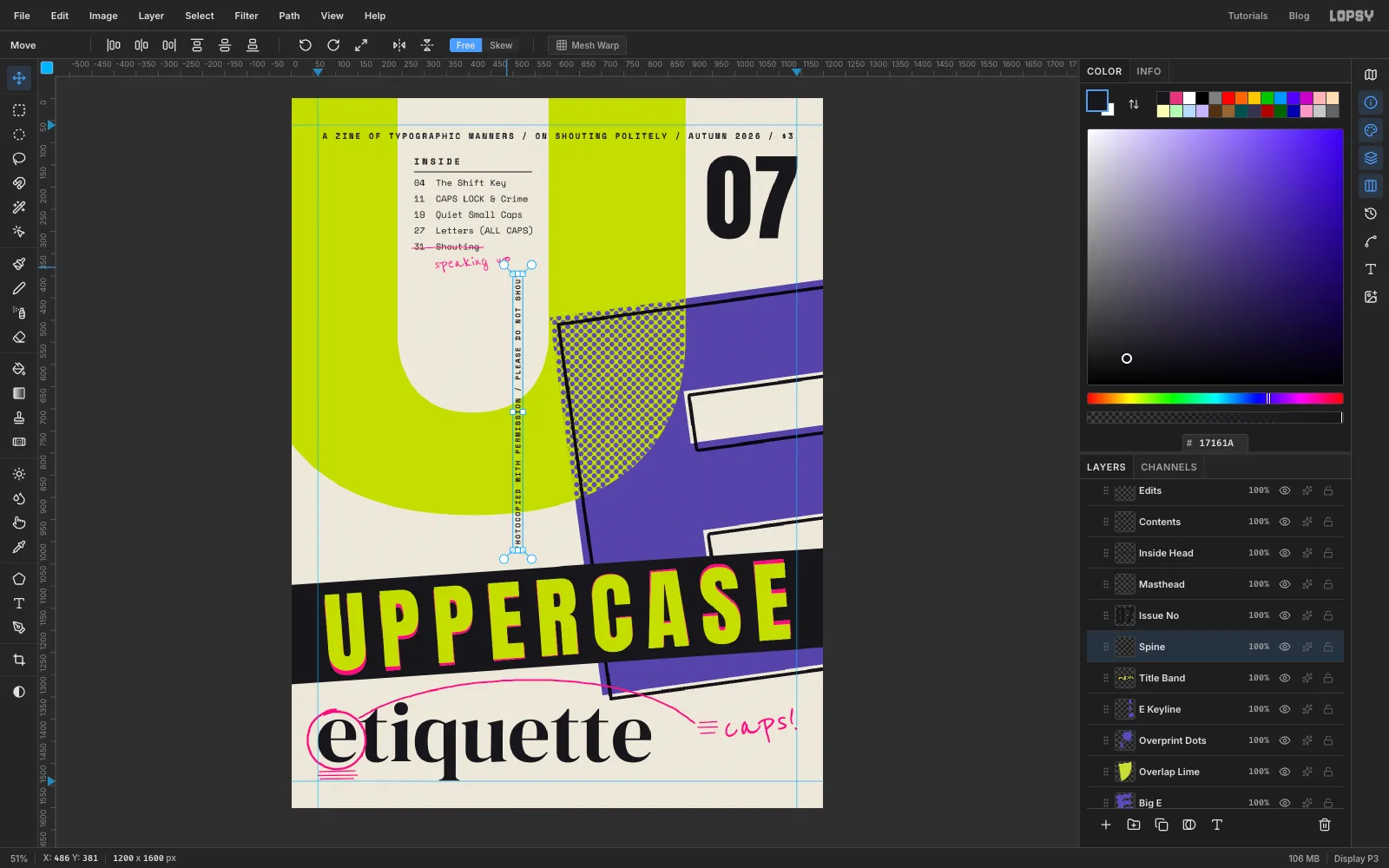
- Click
Title Bandand typePHOTOCOPIED WITH PERMISSION / PLEASE DO NOT SHOUTin Space Mono size16, colour , Bold, Letter spacing3. Rename itSpine. - Switch to the Move tool. Hold Cmd and drag a rotation handle anticlockwise. Cmd snaps the angle to 15° steps, so stop at exactly 90°. The text now reads from bottom to top.
- Move it into the left margin, about 20 px from the edge, starting a little below the top staple position (around
y 420) and ending well clear of the strip.
- Click
-
Draw the stamp rings
- Click
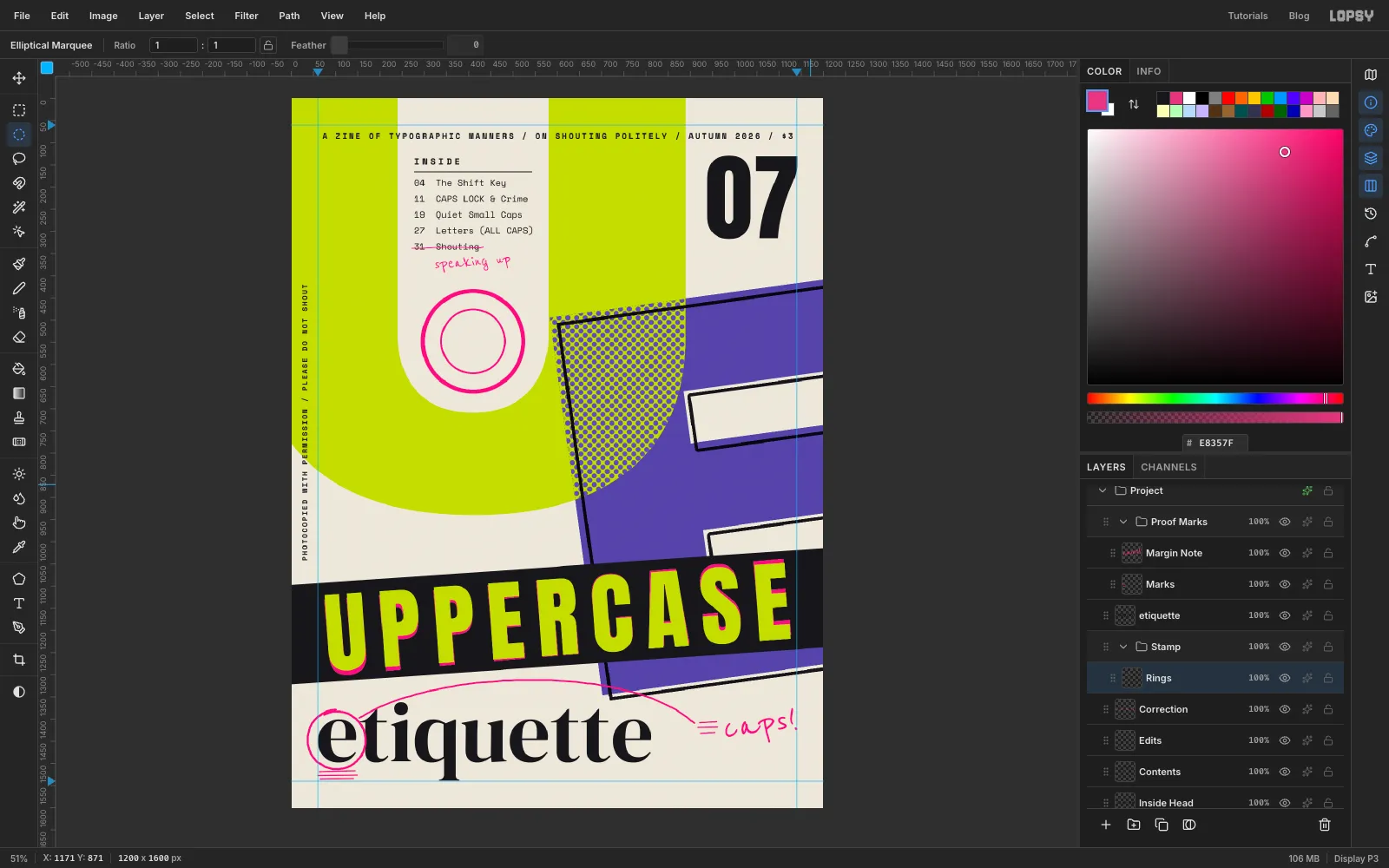
Correction(the speaking up text), click New Group and rename itStamp. Click Add Layer and name itRings. - Set the colour to . Pick the Elliptical Marquee and, with nothing selected, click once on the canvas without dragging. In the dialog that opens, enter From
292,430and To528,666and click Select. That's a 236 px circle centred onx 410,y 548. Fill it, choose Select → Shrink…9and press Delete. - Press Cmd+D and make a second circle the same way from
336,474to484,622. Fill it, Shrink4and press Delete. Press Cmd+D.
- Click
-
Make a circular path for the lettering
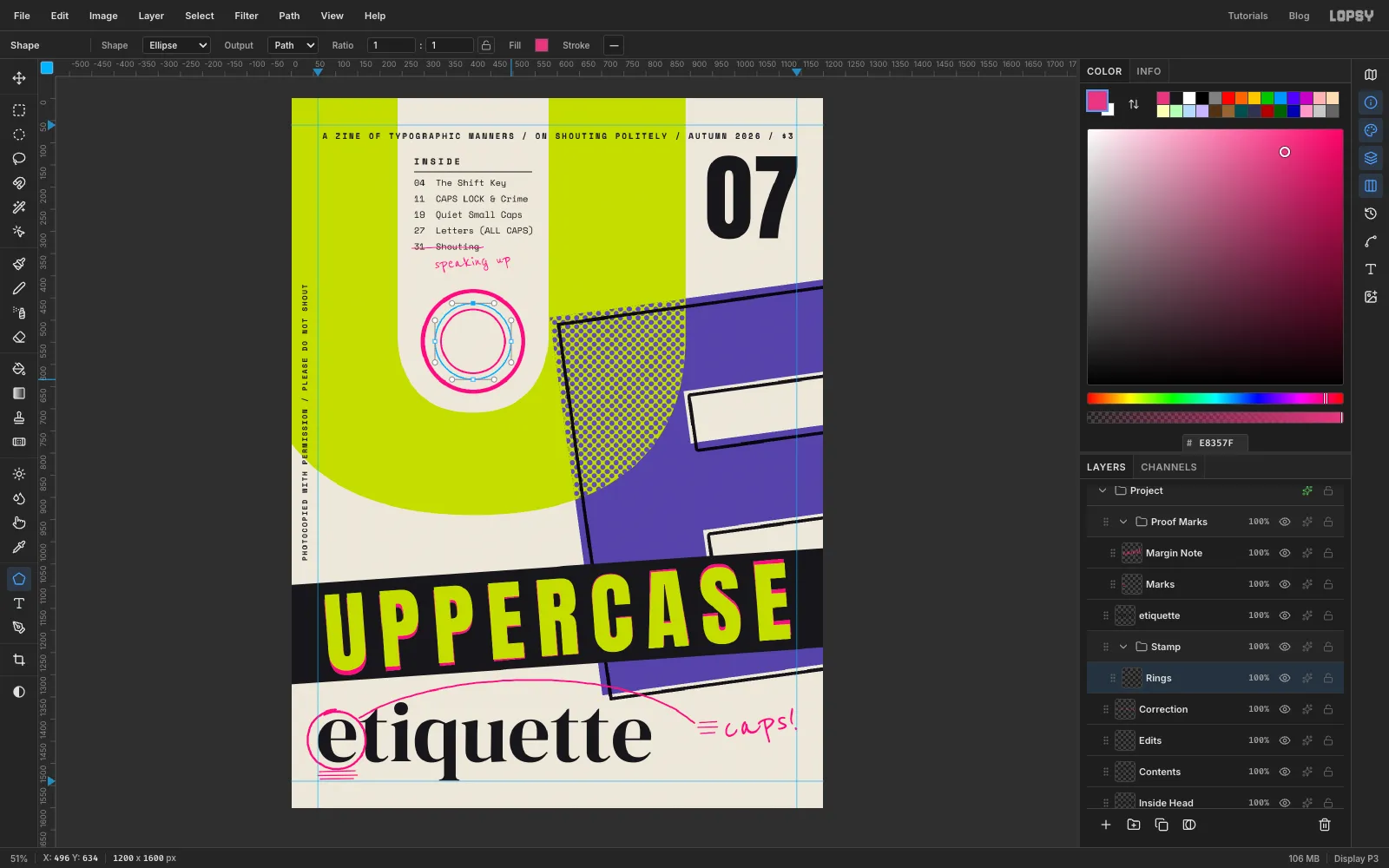
- Pick the Shape tool. In the options bar set Shape to Ellipse and Output to Path.
- Shapes grow from the centre. Press on the stamp's centre, hold Cmd to keep it a circle and drag out until the circle is 172 px across, sitting between the two rings.
-
Wrap the motto around the ring
- Click
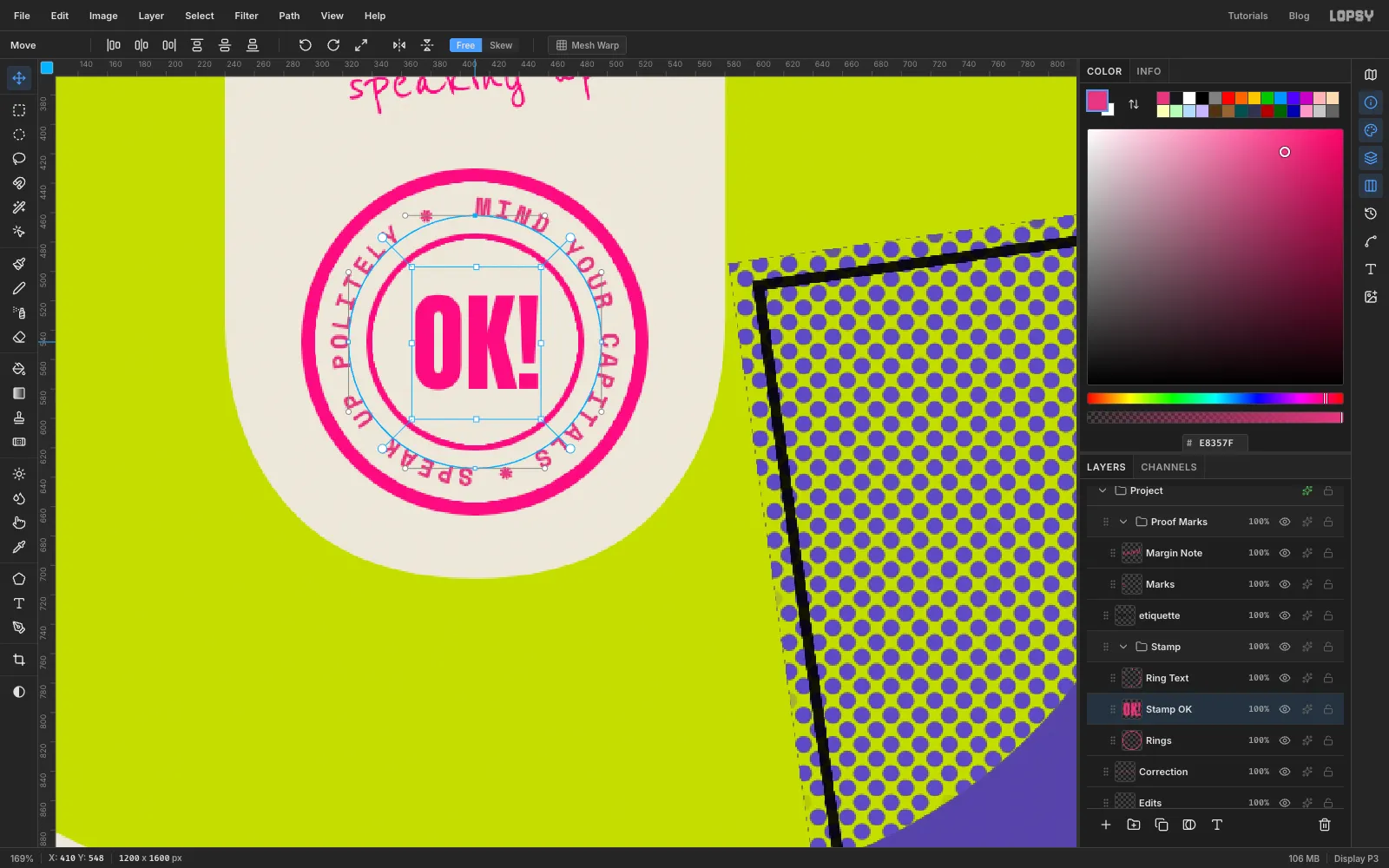
Ringsand typeMIND YOUR CAPITALS * SPEAK UP POLITELY *(with a trailing space) in Space Mono size17, Bold, pink. Rename itRing Text. - Set Letter spacing to about
2.5, so one pass of the phrase is as long as the circle. - With
Ring Textstill active and the Text tool selected, pick the circle (Path 2) from the Path dropdown in the Text options bar, not the Path menu at the top of the window. The letters wrap around the ring. If the end overlaps the start, take a little spacing off. - Click
Ringsand typeOK!in Anton size74, pink, letter spacing0. Centre it in the stamp.
- Click
-
Tilt the whole stamp
- Click
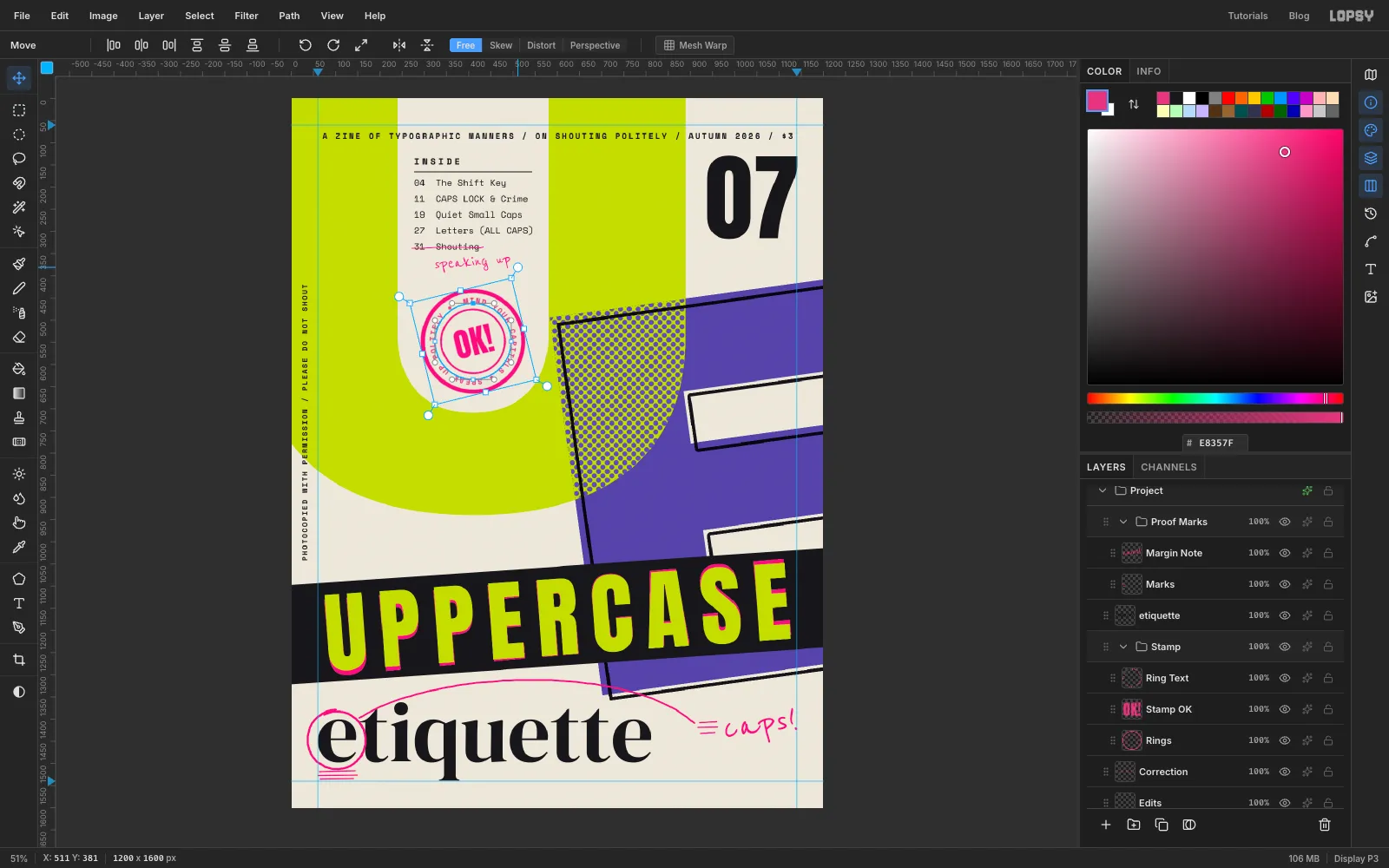
Ring Textand click Rasterize Layer. Lopsy won't turn path text together with other layers until it's rasterized. Click theOK!layer and rasterize it too. - Click the
Stampgroup row and press Cmd+D so nothing is selected. - With the Move tool, drag the group's top-right rotation handle about 14° anticlockwise. Press Cmd+D to commit.
- Click
-
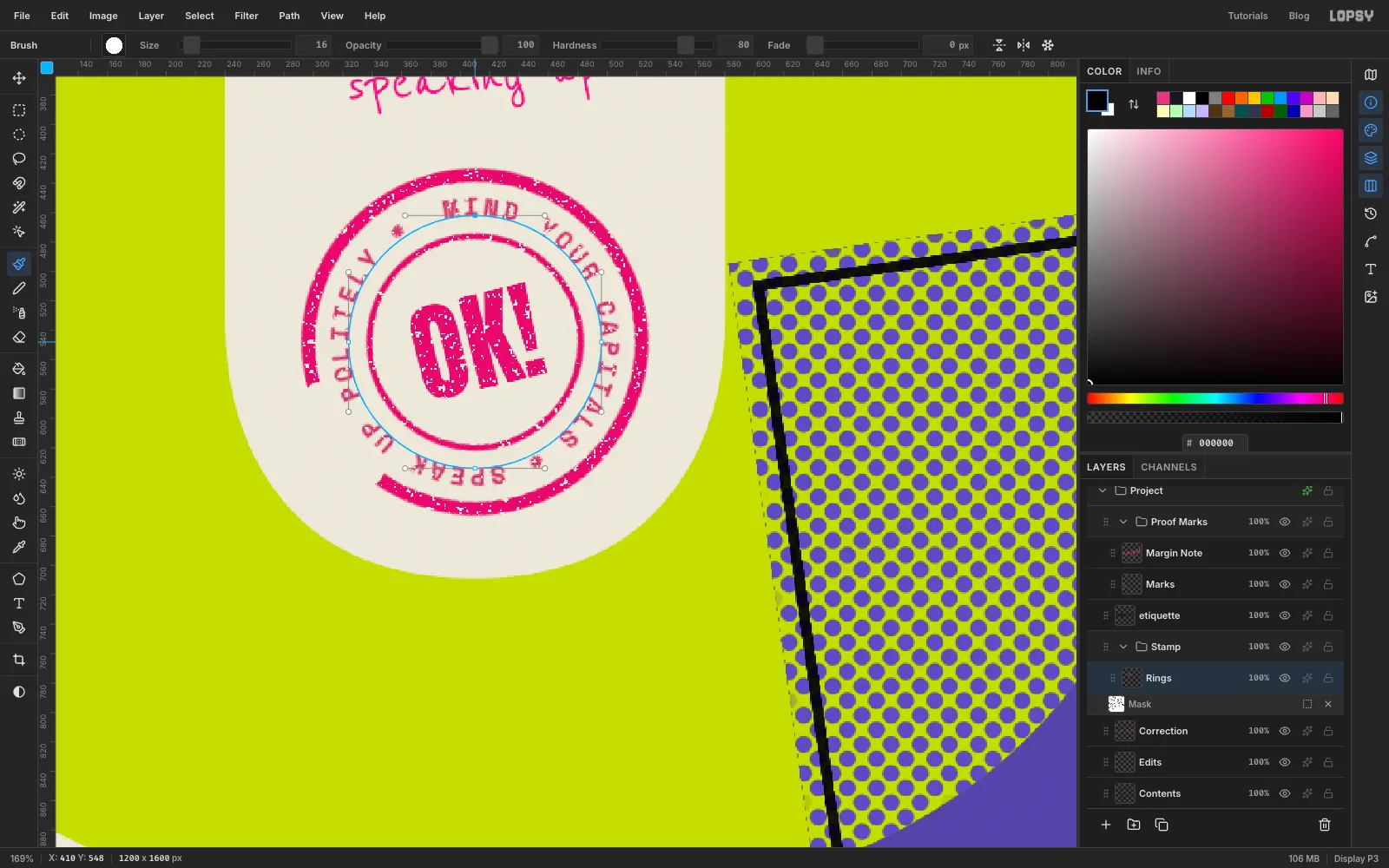
Wear the stamp down with a noise mask
Real rubber stamps print unevenly. A mask made from clumped noise reproduces that.
- Click
Ring Textand choose Merge Down twice, so the rings, the ring text and OK! are all oneRingslayer. - Click Add Mask, then click the mask thumbnail (Edit mask for Rings) so you're painting on the mask.
- Fill the mask with . Run Add Noise… with Amount
100, Mono and Gaussian, then Gaussian Blur… with Radius2. - Run Threshold… at Level
156. The darker clumps turn black and hide the ink. If too much disappears, lower the level. - With the Brush at Size
16in black, drag along a short stretch of the lower-left of the outer ring. That's a dry patch. - Click the layer name to leave the mask and set the layer to Multiply.
- Click
-
Staple the spine
- Click
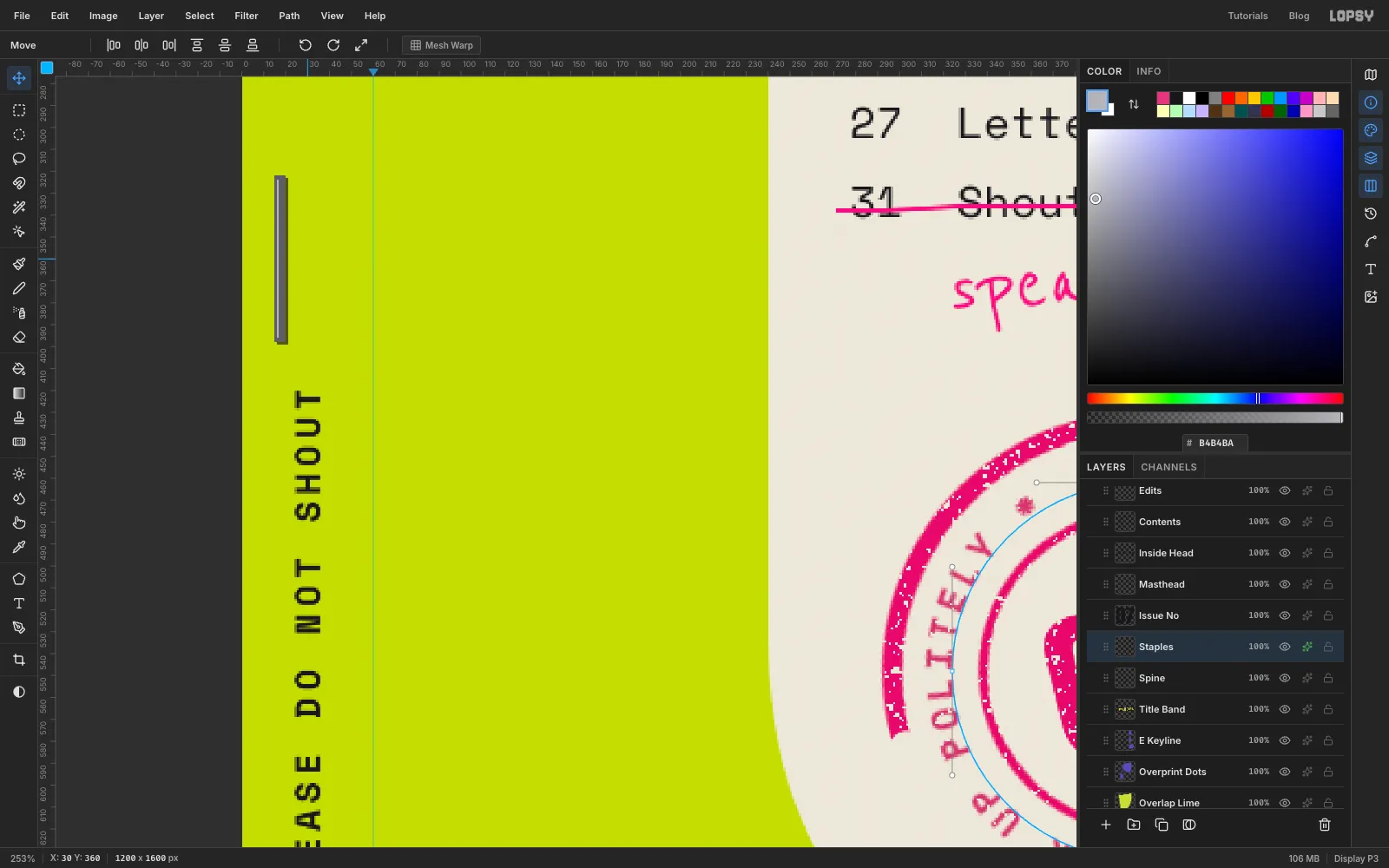
Spineand add a layer calledStaples. - These shapes are too thin to drag at this zoom, so use the exact-corners dialog: pick the Rectangular Marquee, make sure nothing is selected and click once on the canvas. Enter From
15,322and To20,398, click Select and fill it with . Press Cmd+D, open the dialog again for16,324to17,396and fill that with for the shine. Press Cmd+D. - Add a Drop Shadow with Offset X
1, Offset Y1, Blur1and Opacity60. - Drag a marquee loosely around the staple, press Cmd+C then Cmd+V. Press Cmd+D and drag the pasted copy straight down to about
y 1180. Choose Merge Down so both staples share the shadow.
- Click
-
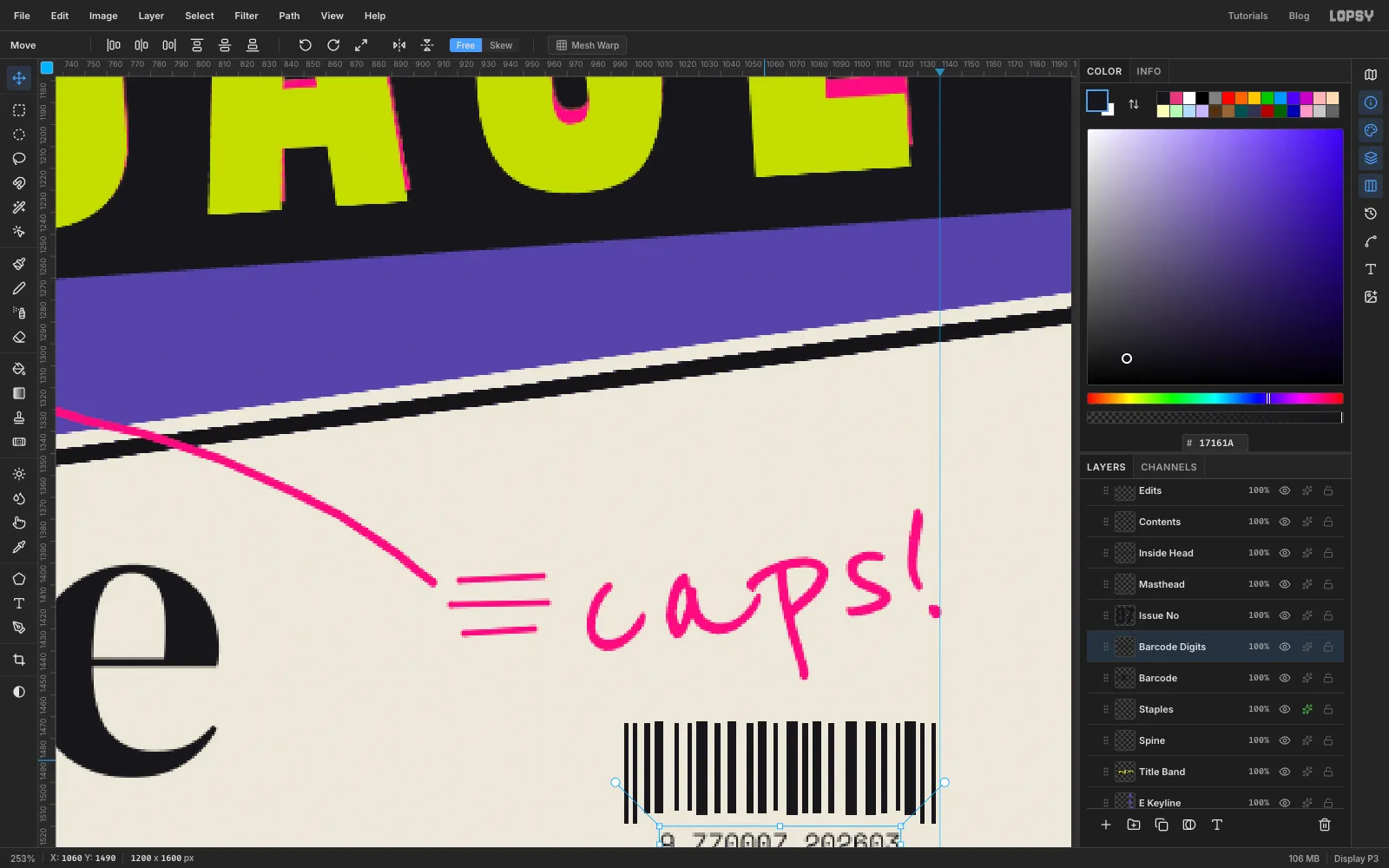
Draw a barcode
- With
Staplesselected, add a layer calledBarcodeand pick the Pencil with . - Starting at about
x 996, click aty 1474and Shift-click straight down toy 1512. Move a few pixels right and repeat until you reach thex 1140guide. Change the Size between2and5as you go, so the bars vary. - Make the first two bars and the last one longer, down to
y 1518. Those are the guard bars. - Click
Barcodeand type9 770007 202603in Space Mono size12, centred under the bars.
- With
-
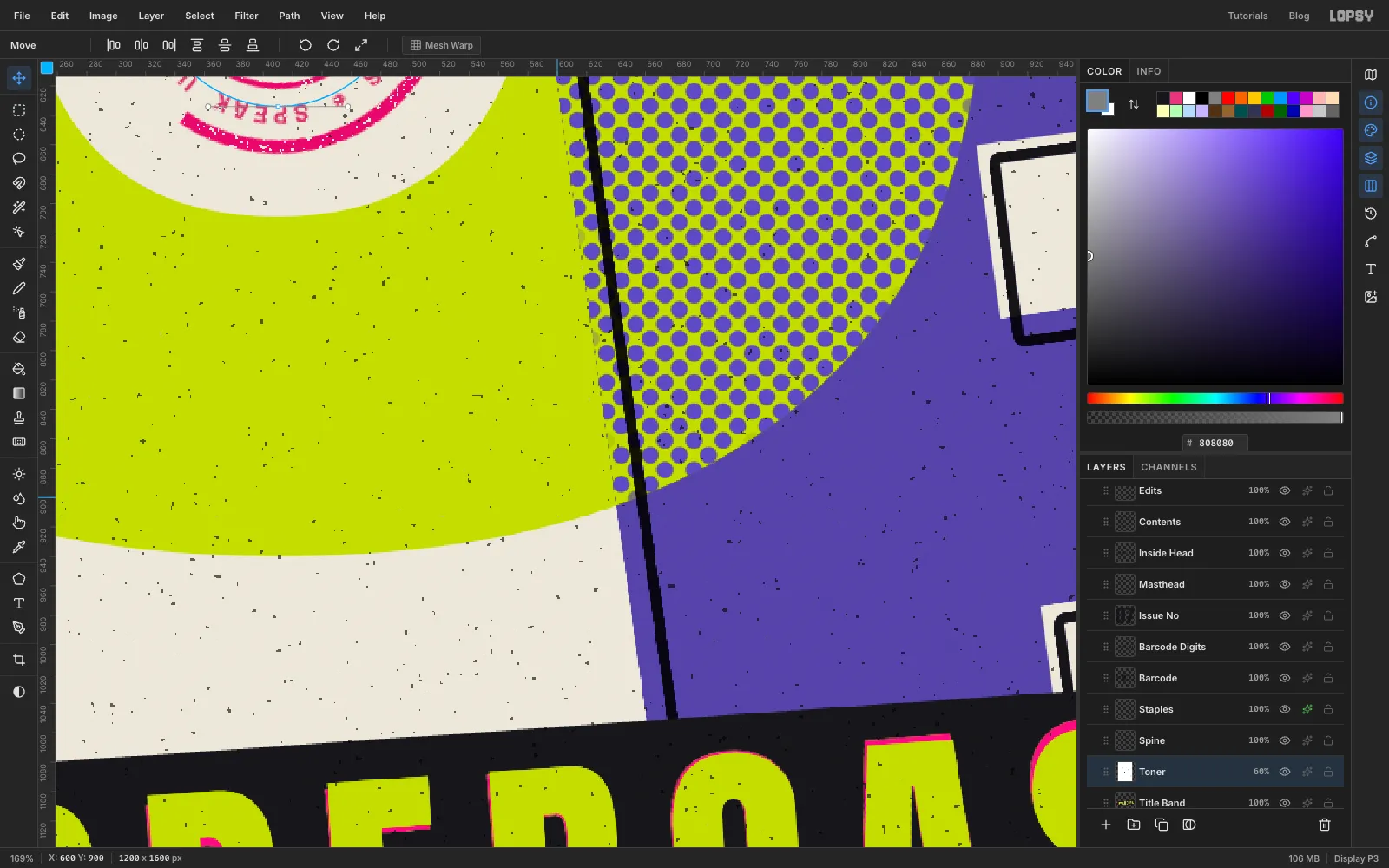
Sprinkle toner specks
- Click
Title Bandand add a layer calledToner. It sits under all the type, so the specks never land on the lettering. Fill it with . - Run Add Noise… with Amount
100, Mono and Gaussian, then Gaussian Blur… with Radius3. The blur clumps the noise into specks a few pixels wide. - Run Threshold… and drag the Level down until only a scattering of black specks is left. That was
116for me. Noise is random, so yours may differ by a few. - Set the layer to Multiply at
60%. The white disappears and only the specks print.
- Click
-
Darken the copier edges
- With
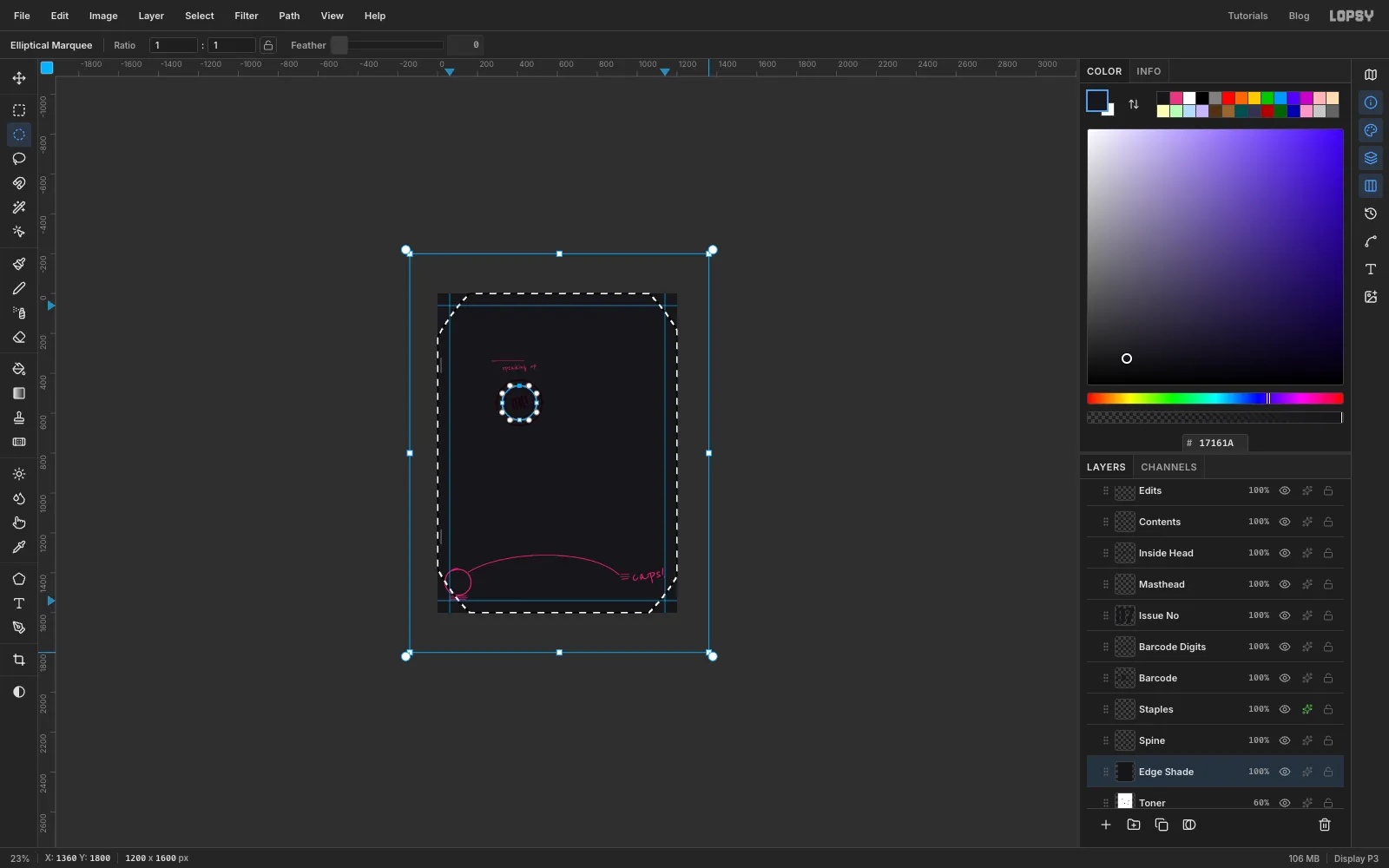
Tonerselected, add a layer calledEdge Shadeand fill it with . - Zoom out until there's plenty of grey around the page. With the Elliptical Marquee, drag from about
x -140,y -200tox 1360,y 1800, so the ellipse reaches past every edge. - Choose Select → Feather…
60and press Delete. (Lopsy's feather tops out around 63 px, so bigger values look the same.) Press Cmd+D and fit the page again with Cmd+0. - Set it to Multiply at
22%. The corners and edges go grey, the way a photocopier darkens them.
- With
-
Add a streak and a final grain, then save
- With
Edge Shadeselected, add a layer calledStreak. Use the Rectangular Selection dialog again (click once with nothing selected) for From866,0and To872,1600, a thin full-height strip, and fill it with . Press Cmd+D. - Run Add Noise… at
100, Mono, then Motion Blur… with Angle90and Distance60. Set it to Multiply at18%. It reads as a faint drum streak running down the page. - With
Streakselected, add a layer calledTop Grain, fill it with and run Add Noise… at24, Mono. Set it to Overlay at40%. Now even the flat lime and violet have a bit of tooth. - Choose File → Save Project to keep the layers, and File → Quick Export PNG for the cover.
- With